
Users often know a name or a word but not where it is stored: is "Contact 12" a customer, or the customer of an order? A single search box that looks in customers, products, and orders at once, and lists every match with a link to its record, saves them from opening one report after another.
Oracle APEX provides this declaratively. A Search Configuration, a shared component, describes how one table is searched and how its results look and link. A Search Page then searches several configurations together and shows the results grouped by source. This guide creates the tables, three search configurations with every wizard and edit step, and the search page, and tests searches and links.
Step 1: Create the Tables
The example searches three tables. ORDERS references CUSTOMERS through a foreign key, which the order search uses to show the customer's name:
Example:
create table customers (
    customer_id  number generated by default as identity
                 constraint customers_pk primary key,
    name         varchar2(100) not null,
    email        varchar2(120) not null,
    company_name varchar2(100)
);

create table products (
    product_id number generated by default as identity
               constraint products_pk primary key,
    name       varchar2(60)  not null,
    category   varchar2(30)  not null,
    price      number(10, 2) not null
);

create table orders (
    order_id    number generated by default as identity
                constraint orders_pk primary key,
    customer_id number not null
                constraint orders_customer_fk references customers,
    order_date  date default sysdate not null,
    status      varchar2(12) default 'NEW' not null
                constraint orders_status_ck
                check (status in ('NEW', 'APPROVED', 'SHIPPED', 'CANCELLED'))
);

create index orders_customer_ix on orders (customer_id);
Output:
Table CUSTOMERS created.

Table PRODUCTS created.

Table ORDERS created.

Index ORDERS_CUSTOMER_IX created.
- Each table has a primary key. A search configuration needs it to identify each result and to pass it to the page the result links to.
- ORDERS_CUSTOMER_FK makes sure every order has an existing customer, and the index ORDERS_CUSTOMER_IX supports the join from orders to customers.
Add sample rows:
Example:
insert into customers (name, email, company_name) values ('Contact 12', 'customer12@example.com', 'Company 12 Ltd');
insert into customers (name, email, company_name) values ('Contact 15', 'customer15@example.com', null);

insert into products (name, category, price) values ('Monitor 27', 'Displays', 320);
insert into products (name, category, price) values ('Monitor 32', 'Displays', 480);
insert into products (name, category, price) values ('Docking Station', 'Accessories', 180);

insert into orders (customer_id, order_date, status) values (1, date '2026-05-22', 'APPROVED');
insert into orders (customer_id, order_date, status) values (1, date '2026-08-30', 'APPROVED');
insert into orders (customer_id, order_date, status) values (2, date '2026-07-22', 'NEW');

commit;
The screenshots come from a lab with more data: 40 customers, 10 products, and 150 orders. The application also has a form page for each table, which the results will link to: page 40 for a customer, page 111 for a product, and page 95 for an order. If you do not have them yet, create a Form page on each table first.
Step 2: Create the Customers Search Configuration
In App Builder, open Shared Components, click Search Configurations, then Create. The wizard has three steps.
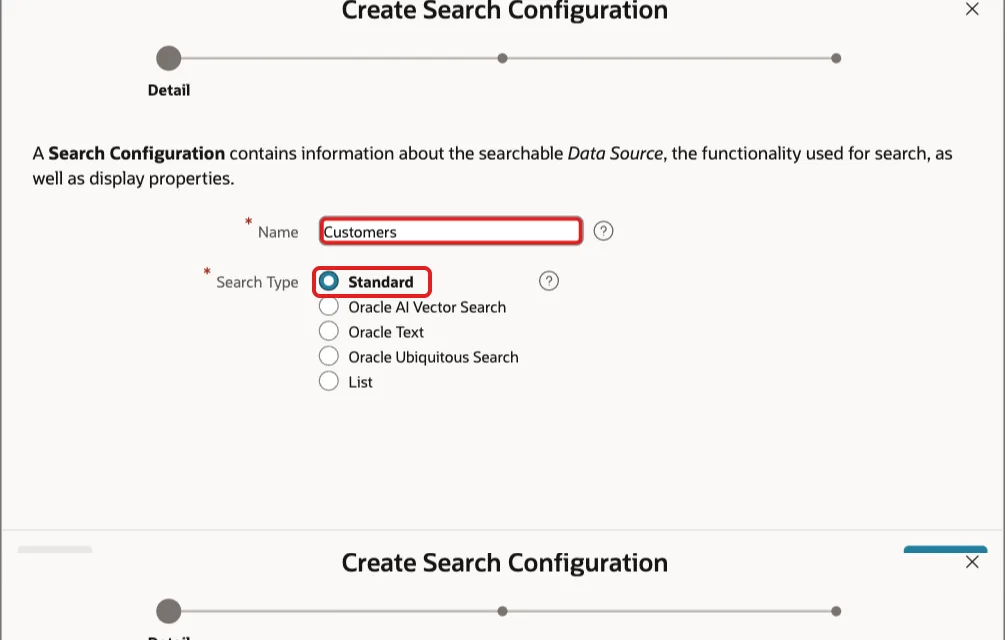
In the first step, enter the Name Customers and keep Search Type Standard. Standard searches the chosen columns with a simple text match and needs no index:
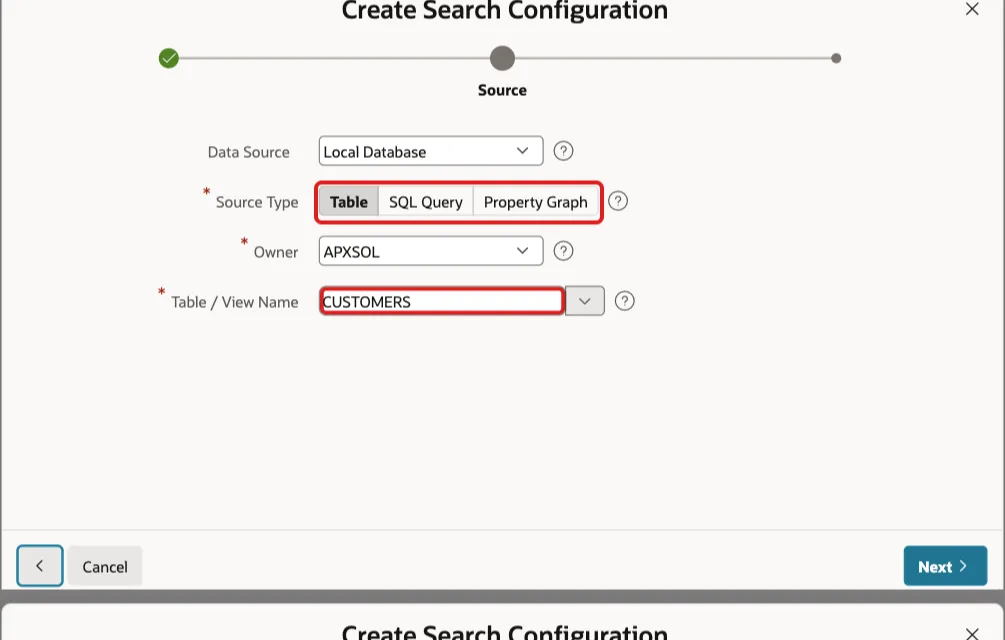
In the second step, keep Data Source Local Database, choose Source Type Table, and enter Table / View Name CUSTOMERS:
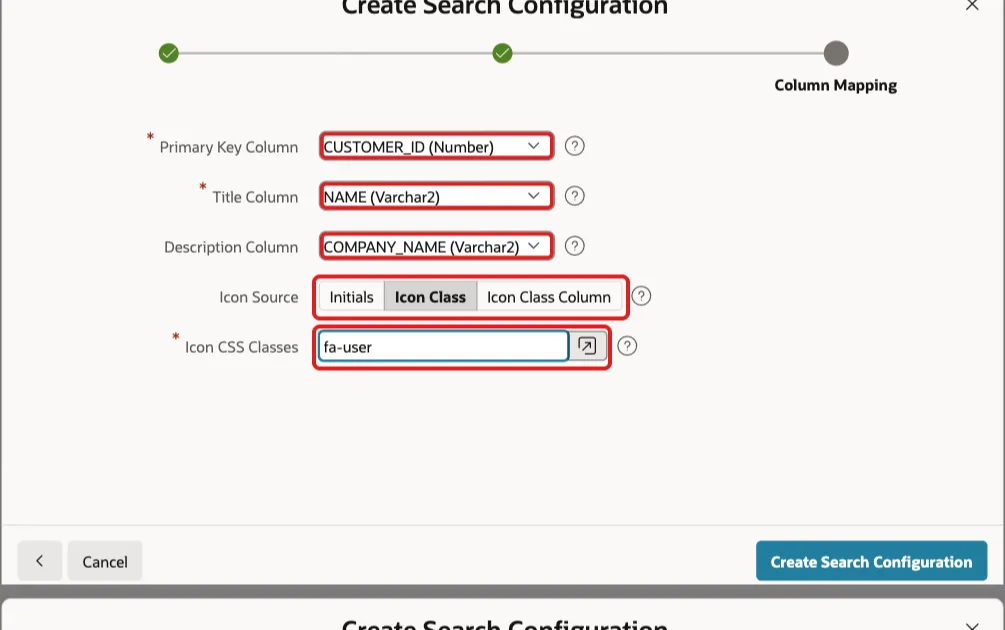
In the third step, map the columns: Primary Key Column CUSTOMER_ID, Title Column NAME, and Description Column COMPANY_NAME. For Icon Source choose Icon Class and enter fa-user, so customer results get a person icon:
Click Create Search Configuration. APEX opens the new configuration's edit page, where three more settings complete it.
Step 3: Complete the Configuration on Its Edit Page
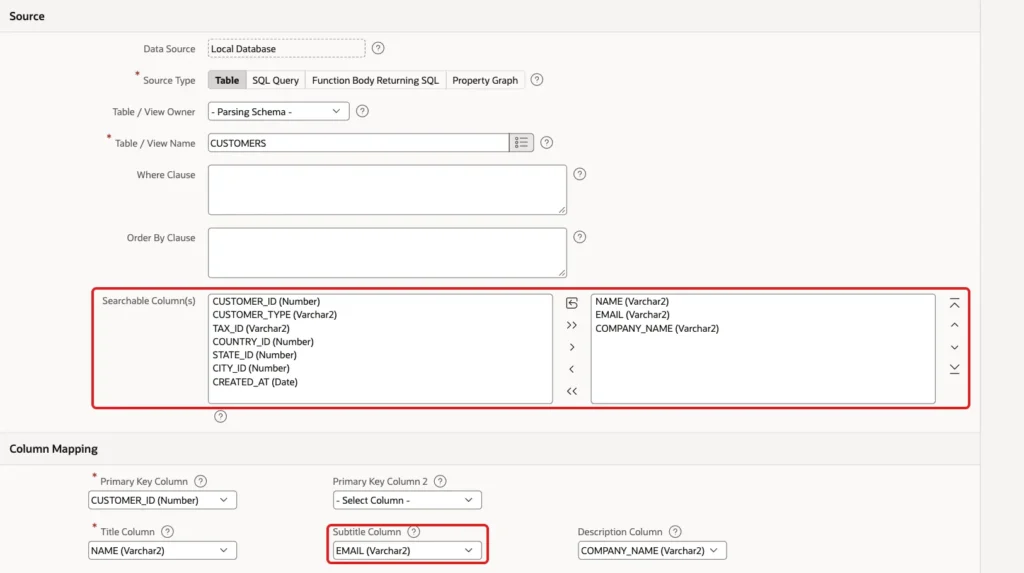
In the Source section, Searchable Column(s) decides which columns are searched. The wizard selects all text columns; keep NAME, EMAIL, and COMPANY_NAME in the right-hand list. In the Column Mapping section, set Subtitle Column to EMAIL, so each result shows the customer's email under the name:
In the Link section, make each result open the customer's form. &CUSTOMER_ID. is replaced with the primary key of each result:
- Link Type: Redirect to Page in this Application. Page: 40.
- Clear Cache: 40. Set these items: P40_CUSTOMER_ID. With these values: &CUSTOMER_ID.
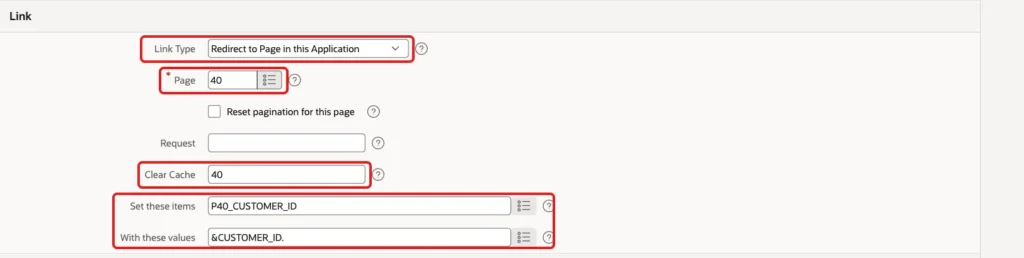
Click Apply Changes.
Step 4: Create the Products and Orders Configurations
Repeat the wizard and the edit page for the other two tables with these values.
Products: Name Products, Search Type Standard, Source Type Table, table PRODUCTS. Primary Key Column PRODUCT_ID, Title Column NAME, Subtitle Column CATEGORY, Icon Class fa-cube. Searchable columns NAME and CATEGORY. Link to page 111, Clear Cache 111, item P111_PRODUCT_ID with value &PRODUCT_ID.
Orders: an order should be found by its customer's name and by its status, which is in two tables, so its source is a SQL query instead of a table. In the wizard choose Source Type SQL Query and enter:
Example:
select o.order_id,
       'Order ' || o.order_id as title,
       c.name as customer,
       o.status,
       to_char(o.order_date, 'DD-MON-YYYY') as order_date
from   orders o
join   customers c on c.customer_id = o.customer_id
Map Primary Key Column ORDER_ID, Title Column TITLE, Subtitle Column CUSTOMER, Description Column ORDER_DATE, and Badge Column STATUS, with Icon Class fa-shopping-cart. Keep TITLE, CUSTOMER, and STATUS as searchable columns, and link to page 95, Clear Cache 95, item P95_ORDER_ID with value &ORDER_ID.:
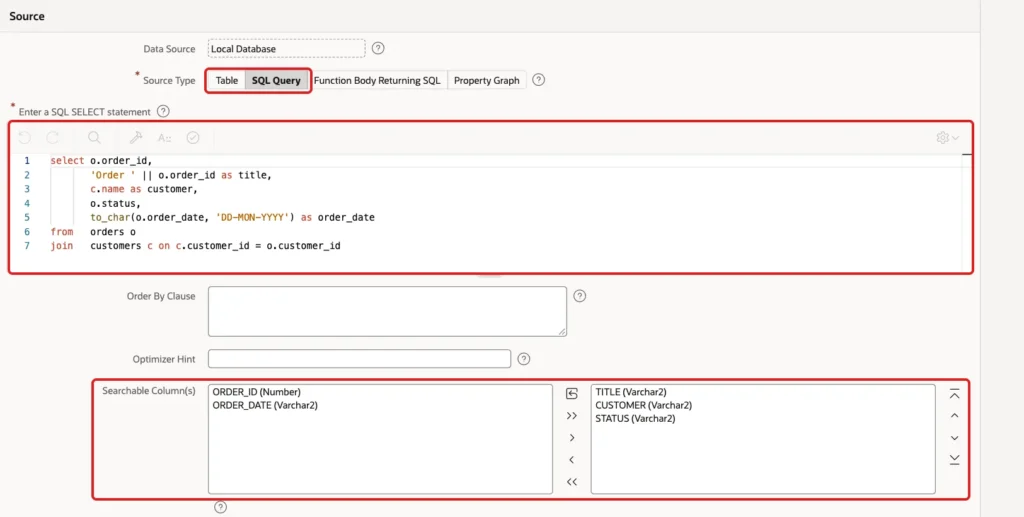
Step 5: Create the Search Page
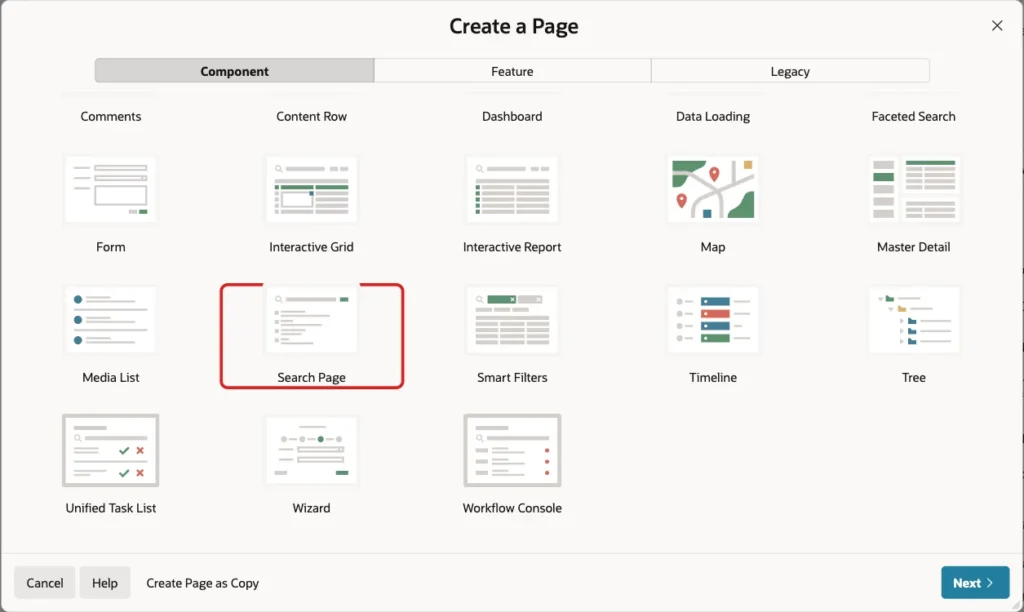
Click Create Page and select Search Page:
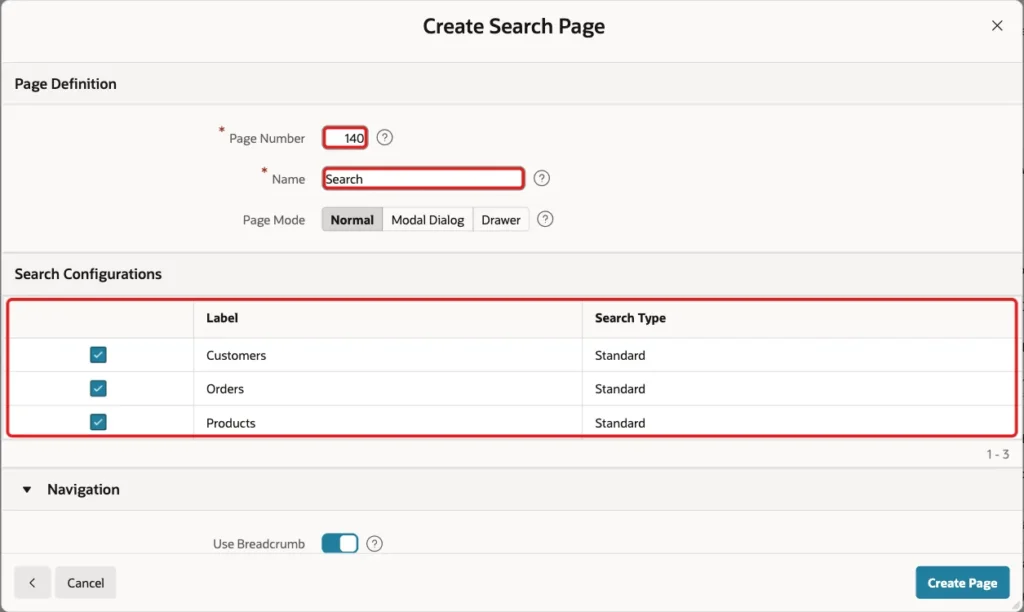
Enter Page Number 140 and Name Search, select all three search configurations, keep the Navigation defaults, and click Create Page:
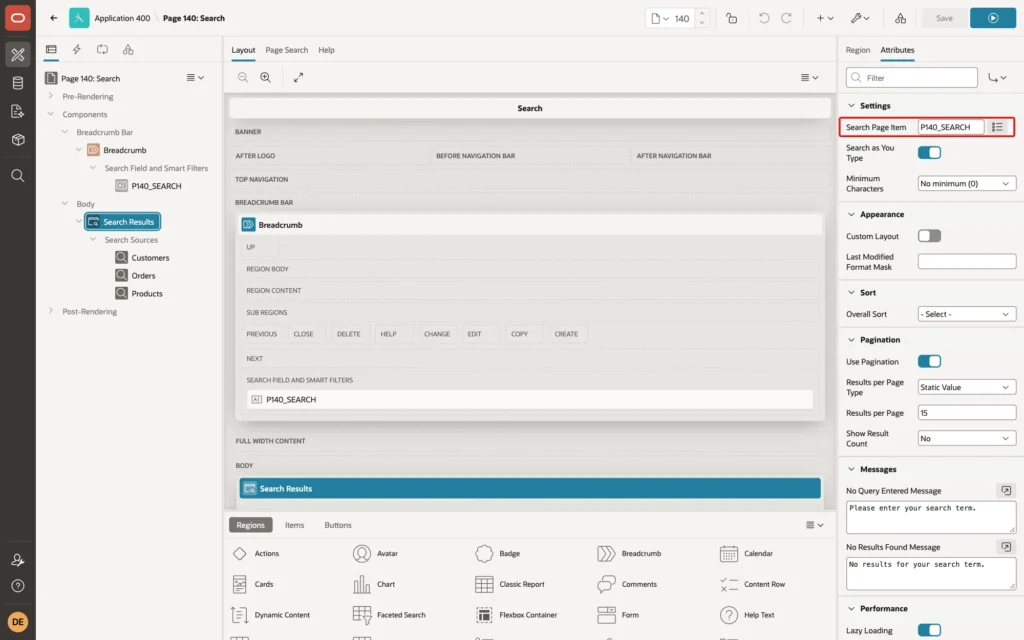
APEX creates a search field, P140_SEARCH, and a Search region with one Search Source per configuration. The region's Search Page Item is the search field, and Search as You Type is on, so results update while the user types:
Step 6: Test the Search
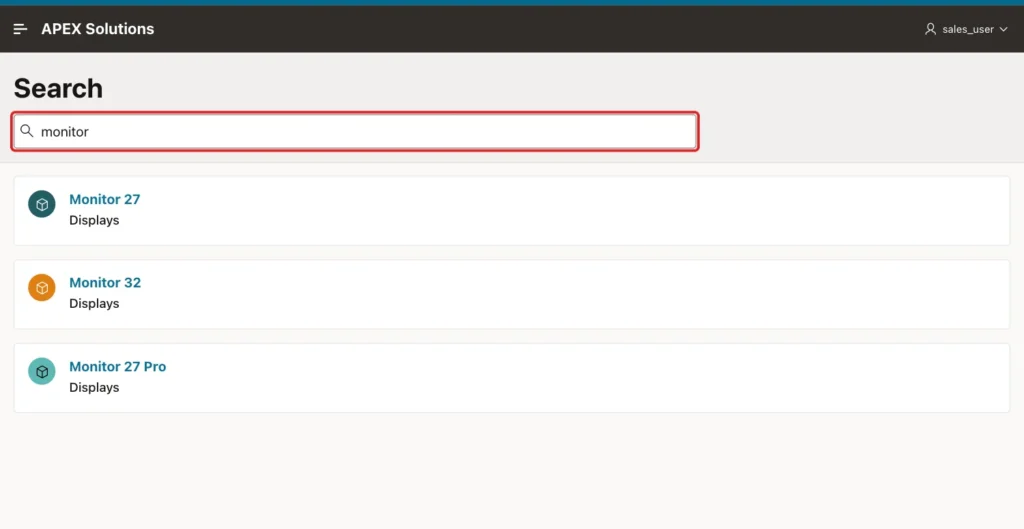
Typing monitor found the three monitor products:
Typing contact 12 found results from two tables at once: the customer Contact 12, with email and company, and the orders of that customer, with their status as a badge:
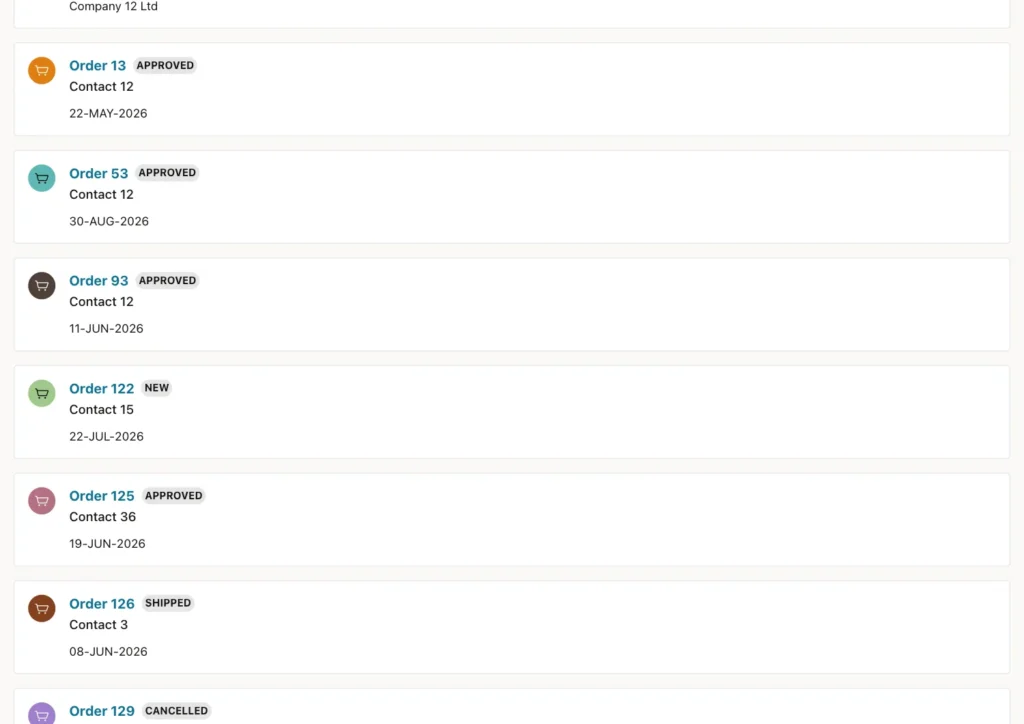
The list also contained orders of other customers, such as Order 122 of Contact 15 and Order 125 of Contact 36. Standard search looks for each word separately, as part of any searchable column: contact matched the customer name, and 12 matched the title Order 122 or Order 125. Enter more specific words, or remove TITLE from the searchable columns of orders, to narrow it.
Clicking the Contact 12 result opened page 40 with that customer, and clicking Order 13 opened page 95 with order 13, through the links of the configurations.
Things to Know
- A search configuration is a shared component, so the same configuration can be used on several search pages, for example a full search page and a small search region on the home page.
- Searchable columns decide what matches; title, subtitle, description, and badge decide only what is shown. Keep columns like IDs out of the searchable list unless users search by them.
- For large tables, use the Oracle Text search type with a text index, which is faster and supports better matching than Standard.
- Each configuration has its own Server-Side Condition and Authorization Scheme, so results from sensitive tables can be limited to some users.
Related Guides
- Faceted Search, Smart Filters, and Search in Oracle APEX
- How to Build a Semantic Search Page in Oracle APEX
Conclusion
To search several tables from one page in Oracle APEX, create a search configuration for each table, with its searchable columns, the columns shown in the results, and a link to the record's page. Use a SQL query as the source when a result needs columns from more than one table.
Then create a Search Page with all the configurations. Users type once and get grouped results from every table, each one linking to its record.
