
Deliveries, meetings, trainings, and bookings are easier to plan on a calendar than in a table. Users see the month at a glance, spot busy days, and want to move an event to another day by dragging it, not by editing a date field.
Oracle APEX has a Calendar region that shows rows of a table as calendar events, with month, week, and list views. With Drag and Drop turned on, a short PL/SQL block saves the new date when the user drops an event on another day. This guide builds a team schedule with colored event types and tests the drag-and-drop update.
Step 1: The Events Table
Each event needs a primary key, a title, and a start date; an end date is optional. The event type will decide the color:
Example:
create table schedule_events (
    event_id   number generated by default as identity primary key,
    title      varchar2(100) not null,
    event_type varchar2(20)  not null
               check (event_type in ('DELIVERY', 'MEETING', 'TRAINING')),
    start_date date not null,
    end_date   date
);

insert into schedule_events (title, event_type, start_date, end_date)
select title, event_type,
       to_date(s, 'YYYY-MM-DD HH24:MI'), to_date(e, 'YYYY-MM-DD HH24:MI')
from (
    select 'Delivery: Order 1'  title, 'DELIVERY' event_type, '2026-10-05 09:00' s, '2026-10-05 11:00' e from dual union all
    select 'Sales meeting',            'MEETING',  '2026-10-07 14:00', '2026-10-07 15:00' from dual union all
    select 'APEX training',            'TRAINING', '2026-10-12 09:00', '2026-10-14 17:00' from dual union all
    select 'Delivery: Order 11',       'DELIVERY', '2026-10-15 10:00', '2026-10-15 12:00' from dual union all
    select 'Supplier call',            'MEETING',  '2026-10-16 11:00', '2026-10-16 11:30' from dual union all
    select 'Delivery: Order 20',       'DELIVERY', '2026-10-20 08:00', '2026-10-20 10:00' from dual union all
    select 'Quarterly review',         'MEETING',  '2026-10-22 13:00', '2026-10-22 16:00' from dual union all
    select 'Delivery: Order 21',       'DELIVERY', '2026-10-27 09:00', '2026-10-27 11:00' from dual
);

commit;
Output:
Table SCHEDULE_EVENTS created.

8 rows inserted.

Commit complete.
Step 2: The Calendar Region
Create a page with a region of type Calendar, or use the Calendar page type in Create Page. Set its source to a SQL query. The CSS_CLASS column builds a class name from the event type:
Example:
select event_id,
       title,
       start_date,
       end_date,
       'ev-' || lower(event_type) as css_class
from   schedule_events
In the region's Attributes, map the columns: Display Column TITLE, Start Date Column START_DATE, End Date Column END_DATE, and Primary Key Column EVENT_ID. Under Calendar Views and Navigation, select Month, Week, List, and Navigation:
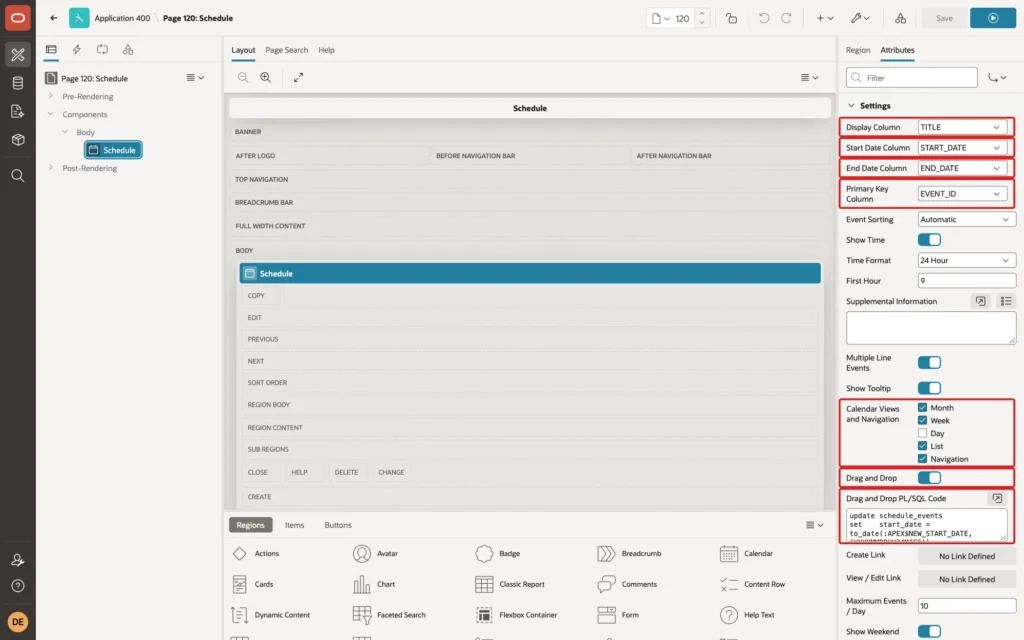
Set CSS Class, lower in the same group, to CSS_CLASS, and add the colors in the page's Inline CSS:
Example:
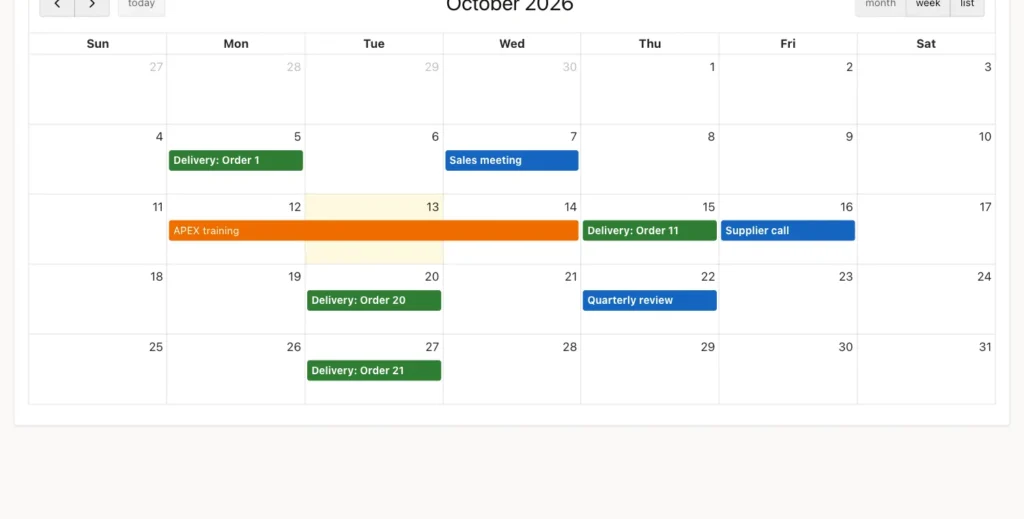
.fc .ev-delivery { background-color: #2e7d32; border-color: #2e7d32; }
.fc .ev-meeting  { background-color: #1565c0; border-color: #1565c0; }
.fc .ev-training { background-color: #ef6c00; border-color: #ef6c00; }
.fc .ev-delivery *, .fc .ev-meeting *, .fc .ev-training * { color: #fff; }
The last rule sets the text color on the elements inside each event. In a first test, the color set on the event itself was not used for the title, which stayed black on the dark backgrounds.
Step 3: Drag and Drop
Turn on Drag and Drop, and enter the PL/SQL code that saves the move. APEX passes the event's primary key and the new dates as bind variables:
Example:
update schedule_events
set    start_date = to_date(:APEX$NEW_START_DATE, 'YYYYMMDDHH24MISS'),
       end_date   = to_date(:APEX$NEW_END_DATE, 'YYYYMMDDHH24MISS')
where event_id = :APEX$PK_VALUE;- :APEX$PK_VALUE is the value of the Primary Key Column of the moved event.
- :APEX$NEW_START_DATE and :APEX$NEW_END_DATE are strings in the format YYYYMMDDHH24MISS, so the code converts them with TO_DATE.
Testing It
The Supplier call on Friday, October 16, was dragged to Friday, October 23. The calendar showed it on the new day at once:
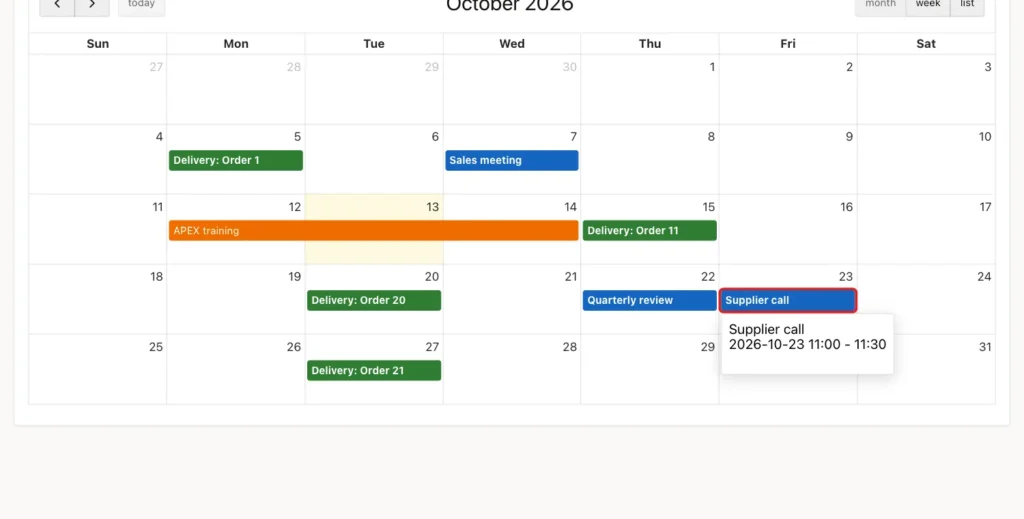
The table confirms the update. Moving the event by whole days kept its time of day, 11:00 to 11:30:
Example:
select title, to_char(start_date, 'YYYY-MM-DD HH24:MI') as start_date,
       to_char(end_date, 'YYYY-MM-DD HH24:MI') as end_date
from   schedule_events
where  title = 'Supplier call';
Output:
TITLE            START_DATE          END_DATE
________________ ___________________ ___________________
Supplier call    2026-10-23 11:00    2026-10-23 11:30
Things to Know
- Anyone who can open the page can move events. To restrict it, check the user in the PL/SQL code before the update, for example against an owner column of the event.
- Create Link and View / Edit Link open a form page for a new event, or for the clicked one, so users can also add and edit events on the calendar.
- For long tables, filter the query to the dates around the visible period, or use Lazy Loading, so the page does not load years of events.
Related Guides
- Maps, Calendars, and Trees in Oracle APEX
- How to Build a Dashboard Page with KPI Cards and Charts in Oracle APEX
Conclusion
To build a calendar page in Oracle APEX, create a Calendar region on a query with a primary key, a title, and start and end dates, and map those columns in the region's Attributes. Add a CSS class column for colors, and choose the views users need.
For drag and drop, turn the setting on and update the row with :APEX$PK_VALUE, :APEX$NEW_START_DATE, and :APEX$NEW_END_DATE, converting the dates with TO_DATE.
