
Product catalogs, employee directories, and asset lists are easier to use with a picture next to each record. The image is usually stored in the same table as the record, in a BLOB column, together with its file name and MIME type.
Oracle APEX handles both sides declaratively. An Image Upload item on the form saves the file into the BLOB column, and a report column of type Display Image shows it as a thumbnail. This guide adds a product image to a form and a report, and covers the one setting that broke the report images in testing.
Step 1: Add the Columns
Besides the BLOB, store the MIME type, the file name, and the time of the last change. APEX fills all of them on upload, and uses them to serve the image with the right content type and to refresh browser caches when the image changes:
Example:
alter table products add (
    image         blob,
    image_mime    varchar2(255),
    image_name    varchar2(400),
    image_updated date
);
Output:
Table PRODUCTS altered.
Step 2: The Image Upload Item
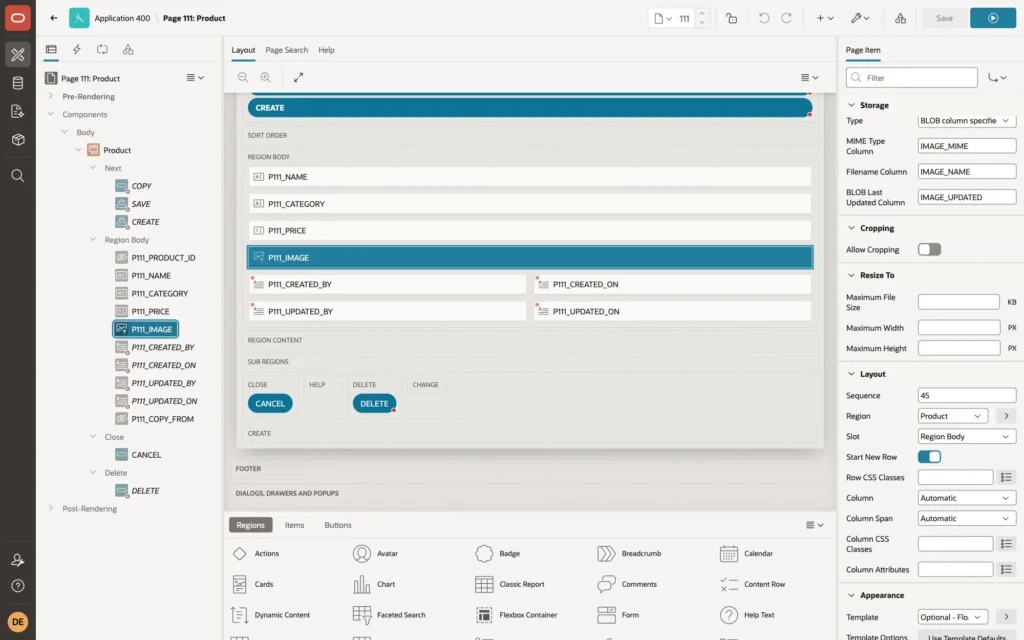
On the product form, add a page item P111_IMAGE of type Image Upload, with the form region as its source and IMAGE as the source column. In its Storage group, set:
- Type: BLOB column specified in Item Source attribute.
- MIME Type Column: IMAGE_MIME. Filename Column: IMAGE_NAME. BLOB Last Updated Column: IMAGE_UPDATED.
The user drops or chooses an image file, sees a preview, and saves the form as usual. The form's Automatic Row Processing writes the BLOB together with the other columns:
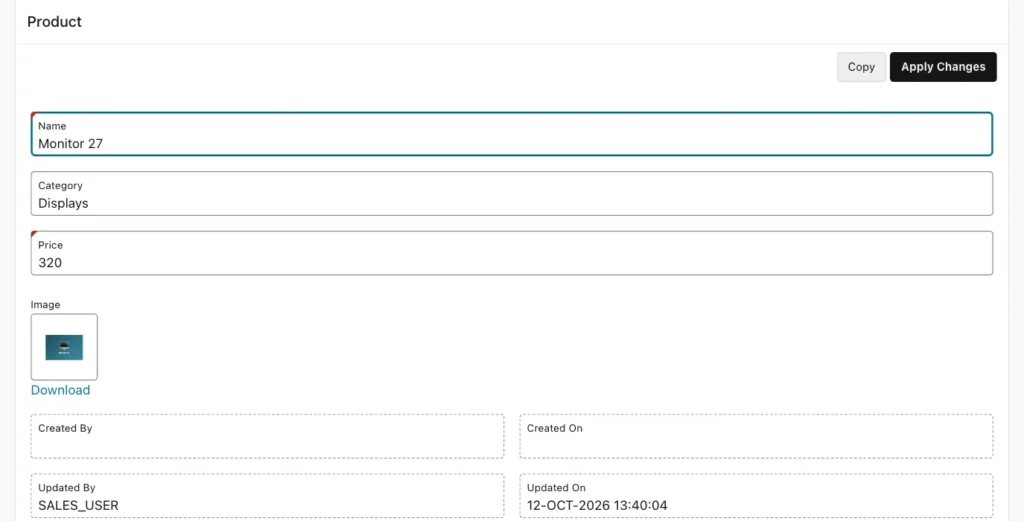
The stored rows after uploading two images:
Example:
select name, image_name, image_mime,
       dbms_lob.getlength(image) as bytes,
       to_char(image_updated, 'YYYY-MM-DD HH24:MI') as image_updated
from   products
where  image is not null
order  by product_id;
Output:
NAME             IMAGE_NAME           IMAGE_MIME       BYTES IMAGE_UPDATED
________________ ____________________ _____________ ________ ___________________
Laptop Pro 14    laptop-pro-14.png    image/png        82831 2026-10-12 13:40
Monitor 27       monitor-27.png       image/png        65359 2026-10-12 13:40
Step 3: Show the Image in the Report
A report cannot select the BLOB itself. Select its length instead, which also tells APEX whether there is an image at all:
Example:
select product_id, dbms_lob.getlength(image) as image, name, category, price
from   products
order  by product_id
Set the IMAGE column's Type to Display Image, and fill its BLOB Attributes: Table Name PRODUCTS, BLOB Column IMAGE, Primary Key Column 1 PRODUCT_ID, and the MIME type, filename, and last updated columns. Leave Table Owner at Parsing Schema:
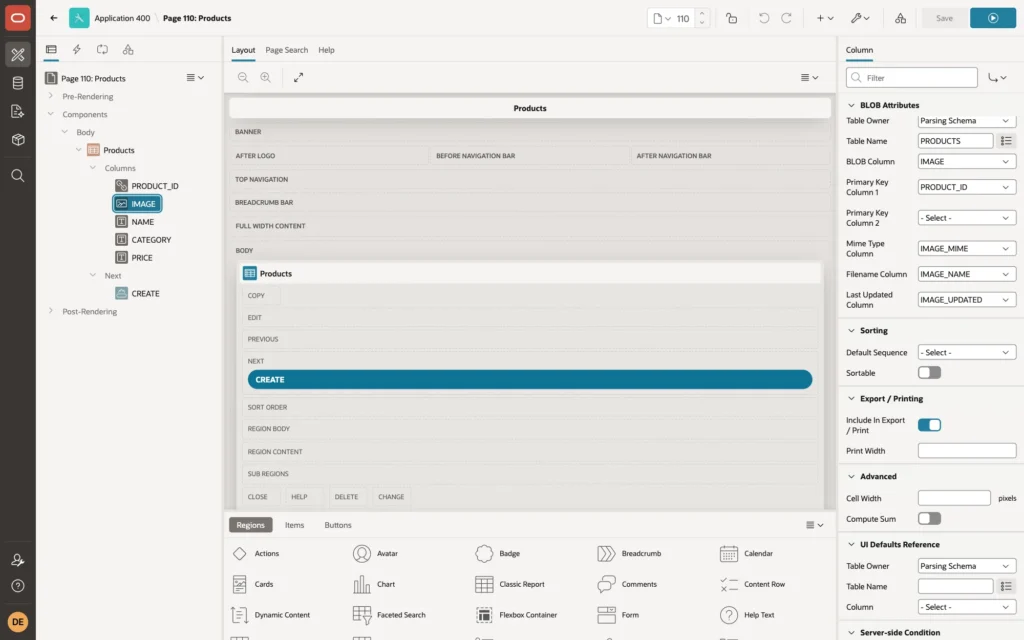
For each row with an image, APEX renders an img tag whose source is a checksummed call to APEX_UTIL.GET_BLOB for that row. Rows with a NULL length show no image. A little CSS on the page keeps the thumbnails the same size:
Example:
td[headers="IMAGE"] img { width: 72px; height: 48px; object-fit: cover; border-radius: 4px; }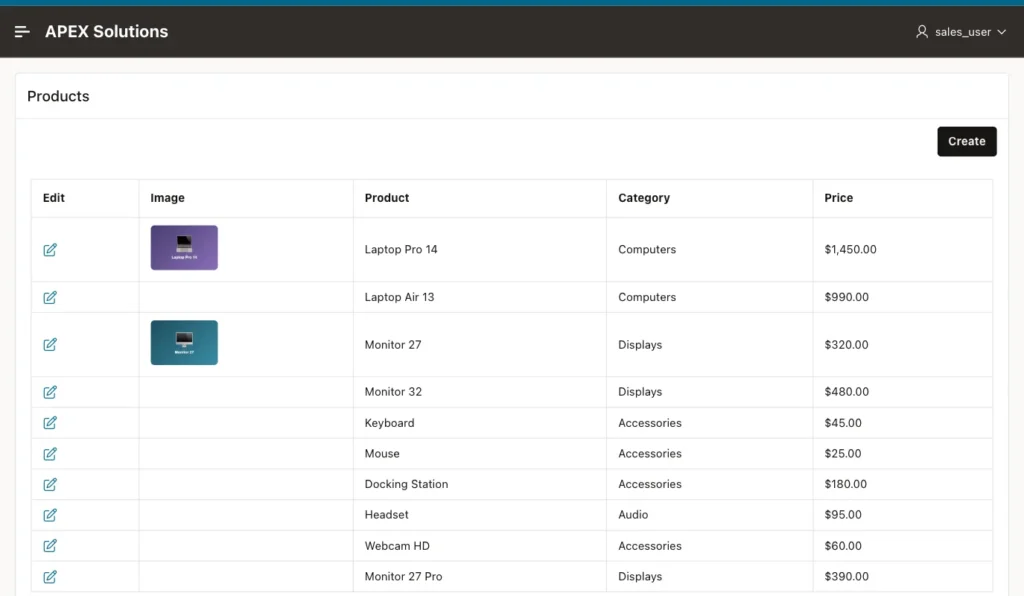
The Table Owner Setting
In a first test, every thumbnail was a broken image, and the image requests failed with Error processing request. Page Designer showed the cause: Table Owner held the literal value PARSINGSCHEMA, which is not a schema, so all the column references under it were marked Invalid.
The Parsing Schema choice in that list stores an empty value, meaning the application's parsing schema. After clearing the owner and choosing the table and columns again, the images loaded. If report images appear broken, check this group first.
Things to Know
- The Image Upload item also has settings for a maximum file size, a maximum width and height, and cropping, which help keep the stored images small.
- Thumbnails in a report download the full image. For large photos, store a small thumbnail in a second BLOB column and show that one in reports.
- For cards instead of a table, use a Cards region with Media Source BLOB Column and the same BLOB attributes.
Related Guides
- How to Upload Files in Oracle APEX: From Table Setup to Viewing Files
- How to Build Forms in Oracle APEX
Conclusion
To upload and show images in Oracle APEX, store them in a BLOB column with MIME type, filename, and last updated columns, add an Image Upload item to the form with those columns in its Storage settings, and show them in a report with a Display Image column.
Select the BLOB's length in the report query, fill the BLOB Attributes with the table and primary key, and leave Table Owner at Parsing Schema.
