
Bulk actions are a common need in business applications: approve several orders at once, close a batch of tickets, assign many tasks to one person. The user ticks the rows, clicks one button, and the server processes exactly those rows. Oracle APEX supports this declaratively in template component reports, such as Content Row: Row Selection adds a checkbox to each row and keeps the primary keys of the checked rows in a page item, which a PL/SQL process then reads. This guide builds an Approve Selected page for new orders.
Step 1: Create the Report
Create a page with a Content Row region, here named New Orders, and set its source to a SQL query of the rows to work on:
Example:
select o.order_id,
       c.name as customer,
       o.order_date,
       (select sum(l.quantity * l.unit_price)
        from   order_lines l
        where  l.order_id = o.order_id) as amount
from   orders o
join   customers c on c.customer_id = o.customer_id
where  o.status = 'NEW'
order  by o.order_id
In the Attributes tab, set Display to Report, and the template settings: Overline Order &ORDER_ID., Title &CUSTOMER., Description &ORDER_DATE., and Miscellaneous &AMOUNT. Under Columns, set Primary Key on for ORDER_ID: row selection returns the primary key values of the selected rows.
Step 2: Turn On Row Selection
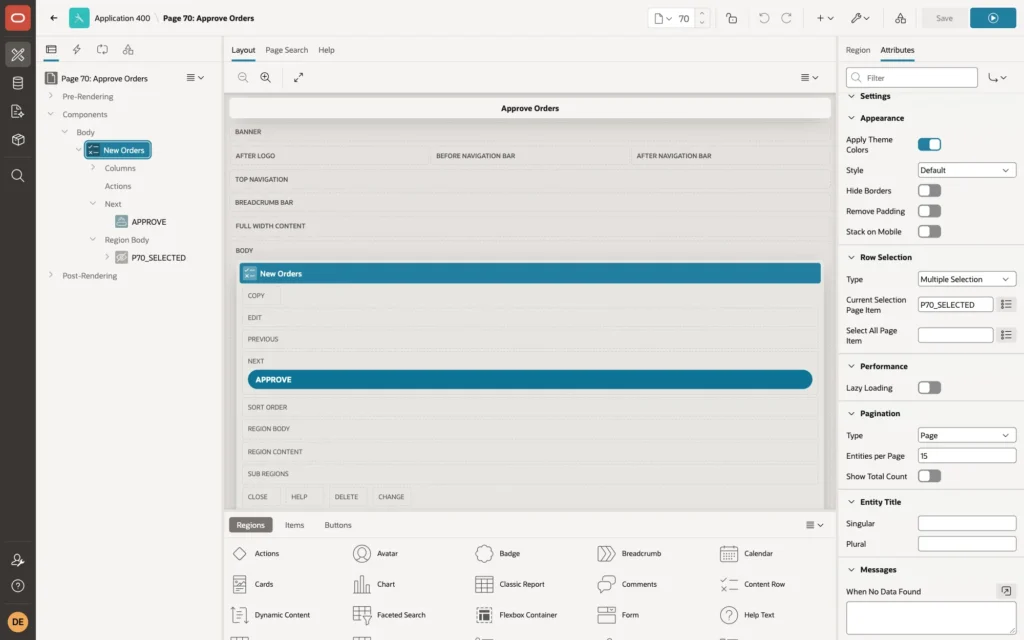
Create a hidden page item, P70_SELECTED, in the region. Then, in the region's Attributes, set Row Selection:
- Type: Multiple Selection.
- Current Selection Page Item: P70_SELECTED.
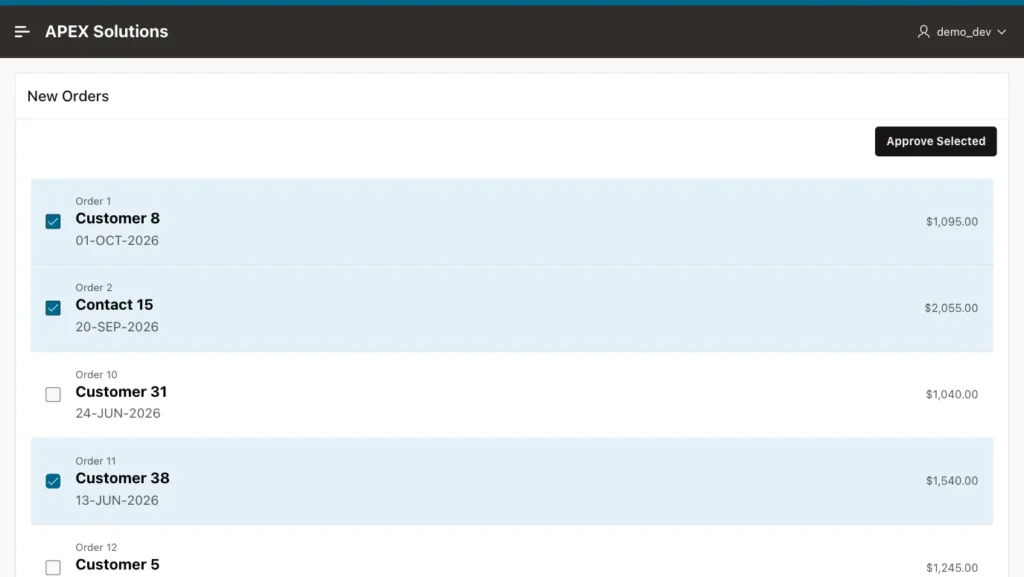
Each row now has a checkbox. Whenever the selection changes, APEX writes the primary keys of the checked rows into P70_SELECTED, separated by colons:
Step 3: Turn Off Value Protected on the Hidden Item
A hidden item is Value Protected by default: APEX rejects a submit if the item's value was changed in the browser. The selection is set in the browser, so the first test of this page ended with a Session state protection violation error for P70_SELECTED. In the item's Settings, turn Value Protected off.
The item can then hold any value a user sends, so the process below treats it as a list of requests, not as trusted data.
Step 4: The Button, Validation, and Process
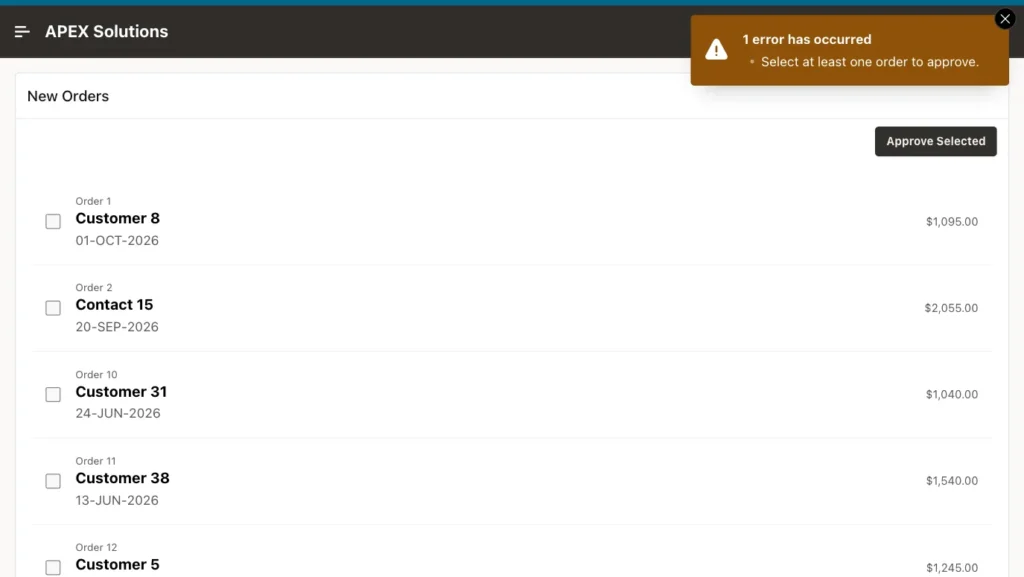
Add a button APPROVE, labeled Approve Selected, with Action Submit Page. Add a validation of type Item is NOT NULL on P70_SELECTED, with the message Select at least one order to approve, and a server-side condition When Button Pressed APPROVE:
Then a PL/SQL process, also on the APPROVE button, splits the list with APEX_STRING.SPLIT and updates the orders:
Example:
update orders
set    status      = 'APPROVED',
       approved_by = :APP_USER,
       approved_on = sysdate
where  order_id in (select to_number(column_value)
                    from   apex_string.split(:P70_SELECTED, ':'))
and    status = 'NEW';

apex_application.g_print_success_message :=
    sql%rowcount || ' order(s) approved.';
The status = 'NEW' condition repeats the report's filter on the server. A test with P70_SELECTED set by script to 1:2:10, after orders 1 and 2 were already approved, approved only order 10 and reported 1 order(s) approved. In a real application, add the same rule for anything else that limits what a user may approve, such as a department or a region.
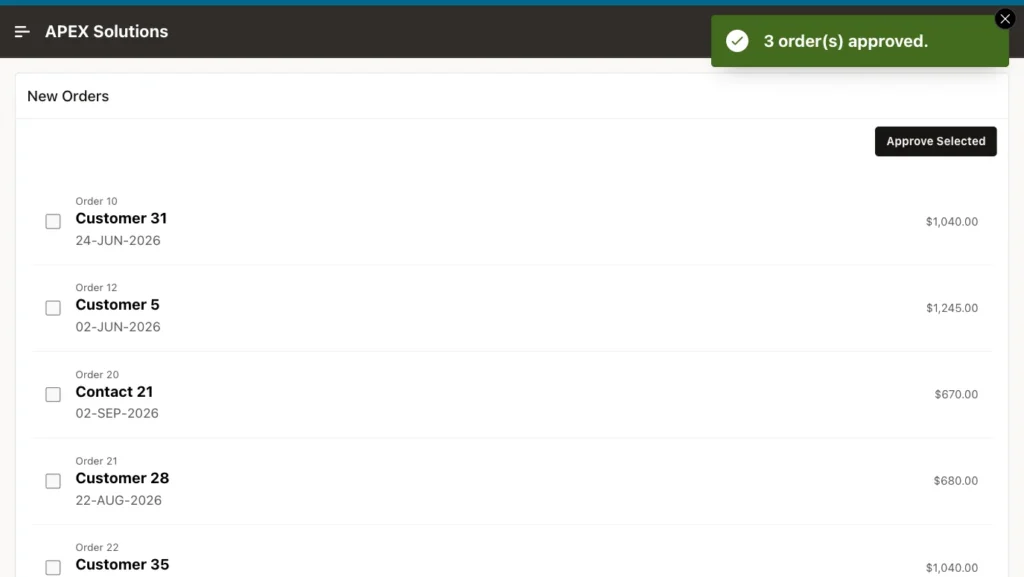
A branch back to the same page shows the result: the approved orders have left the list, and the message reports the count:
Example:
select order_id, status, approved_by, to_char(approved_on, 'YYYY-MM-DD') as approved_on
from   orders
where  order_id in (1, 2, 11)
order  by order_id;
Output:
   ORDER_ID STATUS      APPROVED_BY    APPROVED_ON
___________ ___________ ______________ ______________
          1 APPROVED    DEMO_DEV       2026-10-12
          2 APPROVED    DEMO_DEV       2026-10-12
         11 APPROVED    DEMO_DEV       2026-10-12
Things to Know
- Row selection is available for template component regions in Report mode, such as Content Row and the template components of a theme or plug-in. Interactive Grids have their own row selector, read with JavaScript or processed through the grid's save.
- Single Selection lets the user pick one row, which suits a details panel or a one-row action.
- The same pattern works for any bulk action: replace the UPDATE with a DELETE, an insert into a task table, or a call to a package procedure.
- Keep the whole action in one process: APEX commits at the end of the page processing, so a failure rolls back the whole batch, not half of it.
Related Guides
- Oracle APEX Cards, Content Rows, and Template Components
- How to Split, Join, and Format Strings Using APEX_STRING in Oracle APEX
Conclusion
To process selected rows in Oracle APEX, use a template component report with Row Selection set to Multiple Selection and a hidden page item for the current selection. Turn off Value Protected on that item, check that something is selected, and split the colon-separated keys in a PL/SQL process that applies its own conditions to every row it updates.
