
Not every Windows computer can run Docker Desktop or WSL 2, and some people simply want to learn how an Oracle database is installed and managed on Windows. This guide builds a complete Oracle APEX 26.1 environment natively: Oracle AI Database 26ai Free as Windows services, with ORDS and Java on the same computer.
It covers the installer's prerequisite checks, the installation itself (interactive and silent), installing ORDS and APEX, enabling the gateway, starting ORDS, network access, running ORDS automatically at startup, and day-to-day management and troubleshooting.
These steps come from Oracle APEX 26.1 Book: The Complete Guide.
Before You Start
You need JDK 21 with JAVA_HOME set as a system variable, the C:\apex-lab folder with apex, ords, and ords-config inside it, and C:\apex-lab\ords\bin on your PATH, as set up in how to prepare your computer for Oracle APEX 26.1. If your computer can run containers, installing APEX 26.1 with Docker is the faster route.
Check these first, because the installer stops if any fails:
| Requirement | Detail |
|---|---|
| Supported Windows edition | Windows 10 x64 Pro, Pro for Workstations, Enterprise, or Education; Windows 11 x64 Pro, Enterprise, or Education; Windows Server 2016, 2019, 2022, or 2025. Home editions are not supported. |
| Disk and memory | At least 8.5 GB of disk, 2 GB more of temporary space during installation, and 2 GB of memory for the database |
| Direct member of Administrators | Membership through another group fails the check; with a domain account, stay connected to the network |
| No ORACLE_HOME or TNS_ADMIN | Delete these system (and user) environment variables, often left by an old Oracle client |
| No earlier XE or Free | Uninstall Oracle Database XE or Free, and any database with the SID XE or FREE |
Oracle AI Database Free allows one installation per computer, virtual machine, or container; a second one refuses to start with ORA-00442. Confirm Java and ORDS in a new PowerShell window.
Example:
java -version
ords --version
All commands below are for Windows PowerShell, where the backtick continues a long command.
Step 1: Install Oracle AI Database 26ai Free
Download the Windows zip from Oracle's Oracle Database Free get-started page and extract it to a temporary folder such as C:\free-install with Extract All. You can delete that folder afterward.
- Double-click setup.exe and allow it to make changes. Any missing Windows prerequisites are installed automatically.
- On the welcome window of the InstallShield wizard, click Next.
- Accept the license agreement and click Next.
- The installer runs its prerequisite checks. If one fails, cancel, fix it as described above, and run setup.exe again.
- On the Destination Folder window, accept C:\app\<username>\product\26ai and click Next.
- Type and confirm the password for SYS, SYSTEM, and PDBADMIN, and click Next.
- Check the Summary and click Install. Copying the software and creating the database takes a while.
- The final window shows the connect strings for the container and pluggable databases. Note them and click Finish.
If you click Change on the Destination Folder window, type a path whose folders do not exist yet, without spaces, and let the installer create them. Folders you create yourself are usually modifiable by Authenticated Users, which the installer warns about; folders it creates get the right permissions.
The installer creates a container database called FREE with one pluggable database, FREEPDB1, which opens automatically whenever the database starts. APEX goes into FREEPDB1.
Where the Files Are
| What | Location (under C:\app\<username>\product\26ai) |
|---|---|
| Oracle Home, with sqlplus.exe and lsnrctl.exe in bin | dbhomeFree |
| Database files | oradata\Free |
| Alert log, the first place to look when the database will not start | diag\rdbms\free\free\trace\alert_free.log |
The Windows Services
Open services.msc. Two services matter: OracleServiceFREE, the database itself, and the TNS listener service, whose name begins with OracleOraDB26Home and ends with TNSListener, accepting connections on port 1521. Leave any other Oracle services as they are, and always check the exact names on your computer.
Install Silently
To script the installation, set at least PASSWORD in the response file FREEInstall.rsp, in the response subfolder of the extracted files, then run the installer from a Command Prompt opened as administrator. The caret continues the command.
Example (Command Prompt as administrator):
cd C:\free-install
setup.exe /s ^
  /v"RSP_FILE=C:\free-install\response\FREEInstall.rsp" ^
  /v"/L*v C:\free-install\setup.log" ^
  /v"/qn"
The command returns at once; a successful installation logs "Installation success or error status: 0" in setup.log. The response file holds the password in plain text, so clear it as soon as the installation finishes.
Step 2: Connect with SQLcl
Open a new PowerShell window, so it sees the installer's PATH changes, and connect to the PDB. If the final installer window showed a port other than 1521, use it here and below.
Example:
sql sys@localhost:1521/FREEPDB1 as sysdba
Confirm the container, then type exit.
Example:
show con_name
Output:
CON_NAME
------------------------------
FREEPDB1
Step 3: Install ORDS
Install ORDS before APEX, as Oracle recommends for APEX 26.1. The installer creates the ORDS_METADATA schema and the ORDS_PUBLIC_USER pool account, and reads the SYS password from standard input. Replace Welcome_2026# with your own.
Example:
cd C:\apex-lab
'Welcome_2026#' | ords --config C:\apex-lab\ords-config install `
  --admin-user SYS `
  --db-hostname localhost `
  --db-port 1521 `
  --db-servicename FREEPDB1 `
  --feature-db-api true `
  --feature-rest-enabled-sql true `
  --feature-sdw true `
  --gateway-mode proxied `
  --gateway-user APEX_PUBLIC_USER `
  --password-stdin
The options set the database location, switch on the Database API, REST-Enabled SQL, and SQL Developer Web, and ask for the PL/SQL gateway in proxied mode on behalf of APEX_PUBLIC_USER. The ords launcher finds Java through JAVA_HOME. Look for these lines near the top (each is one line on screen).
Output (excerpt):
Cannot configure PL/SQL gateway user APEX_PUBLIC_USER with ORDS
because APEX is not installed in the FREEPDB1 database.
...
The setting named: plsql.gateway.mode was set to: disabled in
configuration: default
That is expected: APEX is not installed yet, so the gateway stays disabled until Step 6. The output ends with "Completed installation for Oracle REST Data Services".
Step 4: Install Oracle APEX
On Windows, the APEX files are already on the database computer, so SQL*Plus runs apexins.sql straight from C:\apex-lab\apex. Check that PowerShell can find SQL*Plus; if not, use its full path, such as C:\app\<username>\product\26ai\dbhomeFree\bin\sqlplus.exe.
Example:
where.exe sqlplus
Change to the apex folder, since apexins.sql calls hundreds of scripts by relative path, and start SQL*Plus.
Example:
cd C:\apex-lab\apex
sqlplus / as sysdba
/ as sysdba uses operating-system authentication: the installer added your Windows account to the ORA_DBA group, whose members connect as SYS on the database computer without a password. It connects to the container database, so switch to the PDB first.
Example:
alter session set container = FREEPDB1;
@apexins.sql SYSAUX SYSAUX TEMP /i/
The arguments are the tablespace for the APEX engine, the tablespace for uploaded files, the temporary tablespace, and the image prefix /i/, the URL path where ORDS serves the APEX static files. The installer takes a few minutes and ends with a checklist.
Output (the end):
    ok 16 - Installing APEX REST Config                 |   0.02
    ok 17 - Set Loaded/Upgraded in Registry             |   0.00
    ok 18 - Setting Patch Status: APPLIED               |   0.00
    ok 19 - Removing Unused SYS Objects and Public Privs|   0.00
    ok 20 - Validating Installation                     |   0.02
ok 3 - 20 actions passed, 0 actions failed              |   0.10

Thank you for installing Oracle APEX 26.1.0

Oracle APEX is installed in the APEX_260100 schema.

The structure of the link to the Oracle APEX Administration Services is as follows:
http://host:port/ords/apex_admin

The structure of the link to the Oracle APEX development environment is as follows:
http://host:port/ords/apex
Example:
select comp_id, version, status
  from dba_registry
 where comp_id = 'APEX';
Output:
COMP_ID    VERSION     STATUS
---------- ----------- -----------
APEX       26.1.0      VALID
If it fails, look for the first ORA- error and in the log the installer writes in the apex folder. The usual causes are running in the container database or from the wrong folder; fix the cause and run @apexins.sql again.
Step 5: Create the Instance Administrator
Still in SQL*Plus in the PDB, run apxchpwd.sql, accept ADMIN, and type an email address and a password with an uppercase letter, a lowercase letter, a digit, and a punctuation character.
Example:
@apxchpwd.sql
Output:
Enter the administrator's username [ADMIN]
User "ADMIN" does not yet exist and will be created.
Enter ADMIN's email [ADMIN] admin@example.com
Enter ADMIN's password []
Created instance administrator ADMIN.
A weak password stops the script with ORA-20001: Invalid password.; run it again. Type exit to leave SQL*Plus.
Step 6: Enable the ORDS Gateway
Run the ords install command from Step 3 a second time. ORDS detects APEX and switches the gateway on.
Output (excerpt):
The setting named: plsql.gateway.mode was set to: proxied in
configuration: default
To double-check, run select proxy, client from dba_proxies; in SQLcl: ORDS_PUBLIC_USER should be a proxy for APEX_PUBLIC_USER.
Step 7: Start ORDS and Open APEX
Example:
ords --config C:\apex-lab\ords-config serve `
  --port 8080 `
  --apex-images C:\apex-lab\apex\images
ORDS prints its configuration and ends with "Oracle REST Data Services initialized". If Windows Defender Firewall asks whether to allow Java on networks, you can decline: browsers on the same computer reach localhost regardless. Leave the window open and browse to http://localhost:8080/ords/.
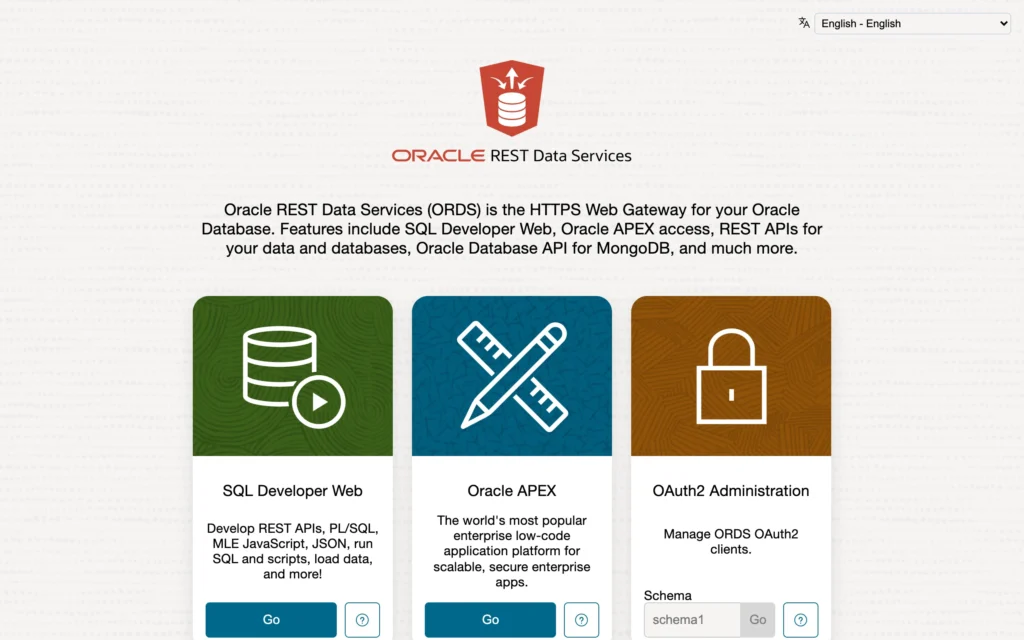
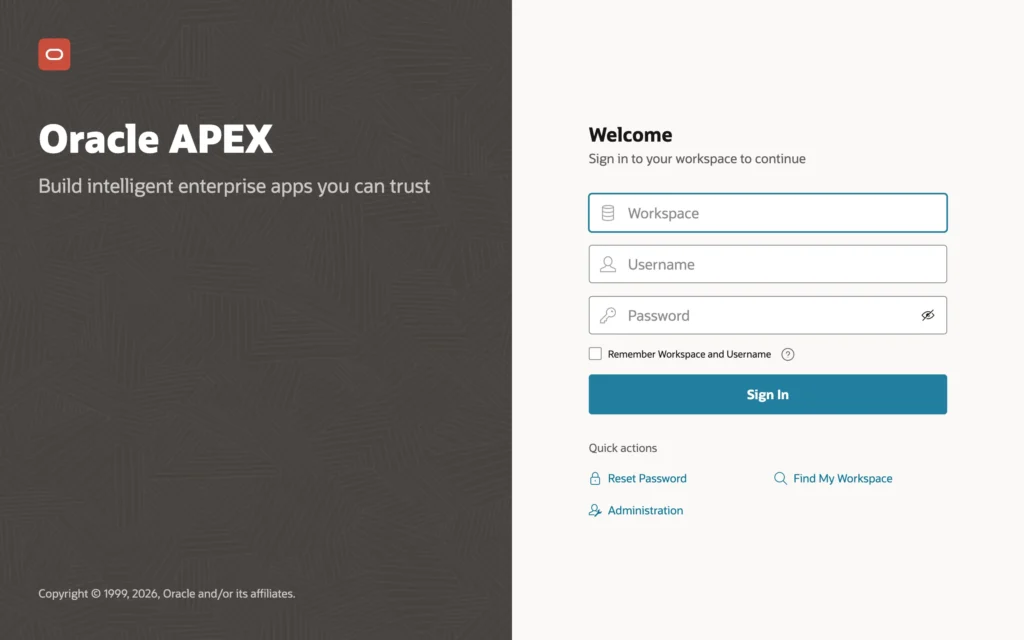
Click Go under Oracle APEX to reach the workspace sign-in page.
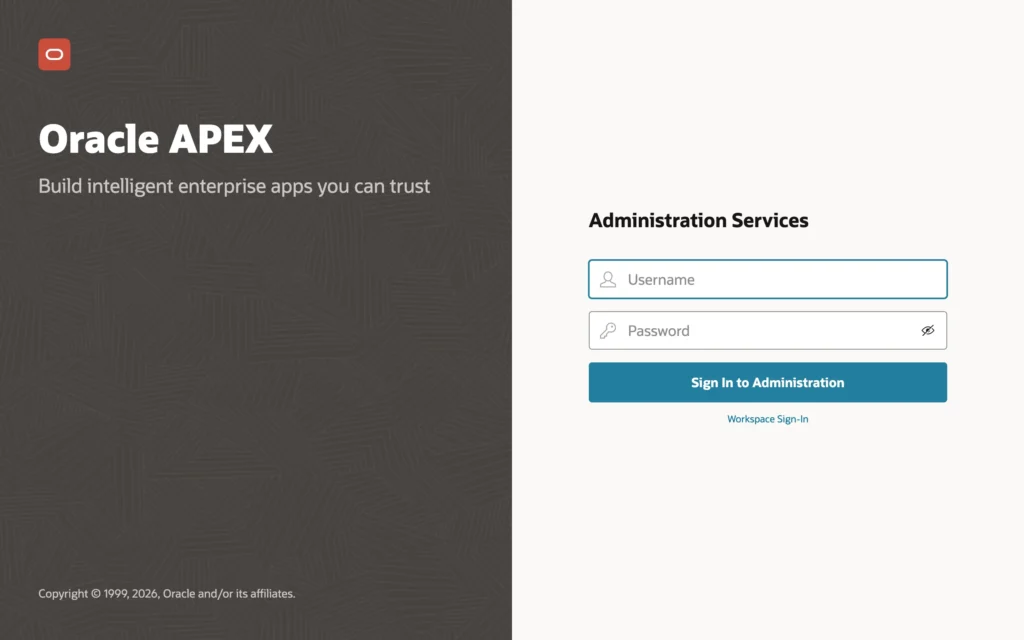
Then open http://localhost:8080/ords/apex_admin and sign in as ADMIN to reach Administration Services.
Press Ctrl+C in the ORDS window to stop it.
Step 8: Allow Outbound Network Calls
APEX needs a network ACL entry before it can send email or call REST and AI services. Connect to the PDB as SYS with SQLcl and grant the APEX engine schema access to any host, which suits a development computer.
Example:
begin
    dbms_network_acl_admin.append_host_ace(
        host => '*',
        ace  => xs$ace_type(
                    privilege_list => xs$name_list('connect'),
                    principal_name => 'APEX_260100',
                    principal_type => xs_acl.ptype_db));
end;
/
On a production server, restrict the grant to specific hosts and ports. Your environment is complete.
Run ORDS Automatically
The database starts with Windows, but ORDS runs only while its window is open, and it does not install itself as a service. Start from a script, C:\apex-lab\start-ords.cmd, that uses full paths and writes ORDS's output to a log.
Contents of start-ords.cmd:
@echo off
rem Start ORDS for the APEX lab and append its output to a log
cd /d C:\apex-lab
C:\apex-lab\ords\bin\ords.exe --config C:\apex-lab\ords-config ^
  serve --port 8080 --apex-images C:\apex-lab\apex\images ^
  >> C:\apex-lab\ords.log 2>&1
Double-click it to test, check the browser, and close its window to stop ORDS.
Option 1: Task Scheduler
- Open Task Scheduler and click Create Task.
- On the General tab, name it ORDS and select Run whether user is logged on or not.
- On the Triggers tab, add a trigger At startup, delayed by one minute so the database has time to open.
- On the Actions tab, add Start a program with C:\apex-lab\start-ords.cmd.
- On the Settings tab, clear the option that stops the task after three days.
- Click OK and enter your Windows password so the task runs while you are signed out.
Restart and check the browser. Right-click the task and choose End to stop ORDS, or Disable to stop it starting.
Option 2: A Service Wrapper
A service wrapper such as NSSM or WinSW turns ORDS into a real Windows service in services.msc that can restart automatically. They are third-party open-source tools, not supported by Oracle: download them only from their official project pages. With NSSM, in PowerShell as administrator:
Example:
nssm install ORDS "C:\apex-lab\ords\bin\ords.exe" `
  --config C:\apex-lab\ords-config serve --port 8080 `
  --apex-images C:\apex-lab\apex\images
nssm set ORDS AppDirectory C:\apex-lab
nssm start ORDS
A service sees only system environment variables, which is why JAVA_HOME must be a system variable. Whichever option you use, stop the background copy before starting ORDS by hand, or the second copy cannot use port 8080.
Open the Firewall
Only if other computers must reach ORDS, add a rule in PowerShell as administrator, and only on a network you trust, since this setup uses plain HTTP.
Example:
New-NetFirewallRule -DisplayName "ORDS 8080" -Direction Inbound `
  -Protocol TCP -LocalPort 8080 -Action Allow
Day-to-Day Management
The database and listener services start with Windows. Stop or start the database in services.msc, or with net in a window opened as administrator. Stop ORDS before the database, and start the database before ORDS.
Example:
net stop OracleServiceFREE
net start OracleServiceFREE
The database reserves its memory as soon as it starts, so on an 8 GB computer you may set OracleServiceFREE's Startup type to Manual. lsnrctl status shows the listener's port and services, including FREE and FREEPDB1 when the database is open.
Example:
lsnrctl status
To uninstall, select Oracle AI Database 26ai Free in Add or Remove Programs and click Uninstall. That removes the software, the database, and all data, APEX and your applications included, so export what you want to keep first. C:\apex-lab and any ORDS task or service remain for you to remove.
Troubleshooting
| Problem | Fix |
|---|---|
| A prerequisite check fails | Fix the cause: Home edition (use Docker), ORACLE_HOME or TNS_ADMIN set, indirect Administrators membership, or a leftover XE or Free service. |
| Destination folder modifiable by Authenticated Users | Click Change and type a new path without spaces, or accept the default. |
| ORA-12541: No listener at host localhost port 1521. | Start the listener service in services.msc, and check its port with lsnrctl status. |
| ORA-12514: Service FREEPDB1 is not registered with the listener. | The database is not open yet. Check OracleServiceFREE is running and wait a minute. |
| ORA-01017: invalid credential or not authorized | Connect with sqlplus / as sysdba and run alter user sys identified by "New_Password_1";, and the same for system. |
| ORA-01031: insufficient privileges with / as sysdba | Only ORA_DBA members can use it. Sign in as the installing user, or connect with sqlplus sys@localhost:1521/FREEPDB1 as sysdba. |
| Port 8080 in use | Find the process with netstat -ano | findstr :8080 and Task Manager's Details tab, often an earlier ORDS copy; stop it, or use --port 8081. |
| ORDS cannot find Java, or finds the wrong one | JAVA_HOME must be a system variable pointing at the JDK folder, not its bin; open a new PowerShell window and recheck. |
| Paths with spaces break scripts | Keep every folder free of spaces, for example C:\apex-lab\apex. |
| 404 Not Found at /ords/apex | The gateway is disabled: run ords install again (Step 6) and restart ORDS. |
Conclusion
To install Oracle APEX 26.1 natively on Windows, check the edition, Administrators membership, and stray Oracle variables, install Oracle AI Database 26ai Free with setup.exe, install ORDS, run apexins.sql with SQL*Plus from the apex folder using operating-system authentication, create ADMIN, run ords install again to enable the proxied gateway, start ORDS on port 8080, and grant network access. Keep ORDS running with Task Scheduler or a service wrapper, and manage the database through OracleServiceFREE.
