
An appointment is booked with a doctor of a department. The user picks the department first, and the list of doctors should then offer only that department's doctors. This is a dependent list, also called a cascading list.
This guide shows how to build dependent lists in Oracle Forms 14.1.2: a poplist for the first choice, an LOV whose query follows it for the second, and why a second poplist does not work in a multi-record block.
Sample Form for This Guide
The examples and screenshots use the sample form CH39_BOOKING from the Oracle Forms code repository on GitHub. Download it, open it in Forms Builder, and connect as CAREWELL to follow along.
| Form | File | What it shows |
|---|---|---|
| CH39_BOOKING | forms/ch39/ch39_booking.fmb | The department list and the doctors' LOV |
The forms run against the CareWell Clinic sample schema, which you install first.
The Two Items
| Item | Type | Filled from |
|---|---|---|
| APPOINTMENTS.DEPT_ID | Poplist | The DEPARTMENTS table, once, when the form starts |
| APPOINTMENTS.DOCTOR_NAME | Text item with an LOV | A query that refers to the department item |
The department list is the same for every record, so filling it once is enough. How to fill a poplist from a query is shown in how to create list items in Oracle Forms.
Write the LOV Query Against the First Item
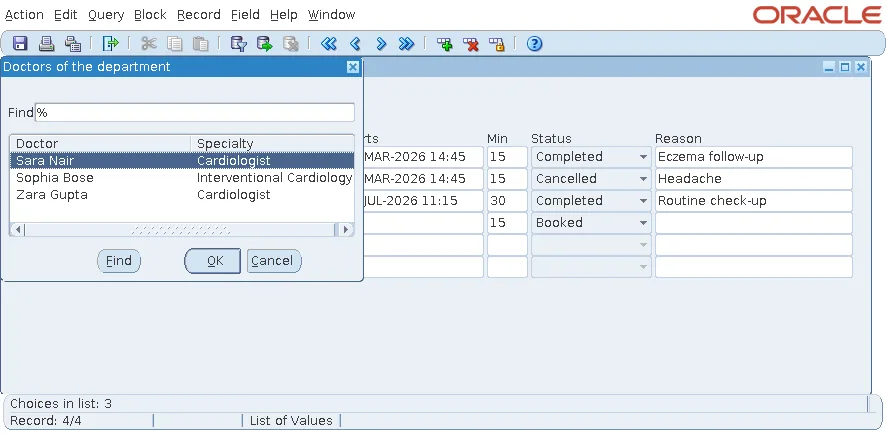
The record group query of the doctors' LOV refers to the department item with a bind reference.
The LOV's record group query:
select first_name || ' ' || last_name as name, specialty, doctor_id
  from doctors
 where dept_id = :appointments.dept_id and active = 'Y'
 order by 1
Forms reads :appointments.dept_id each time the LOV opens. With the LOV's Automatic Refresh property set to Yes, the default, the query runs again every time, so the list always follows the department of the current record.
Three more LOV settings complete the item:
- The LOV returns the doctor's name to the displayed item, DOCTOR_NAME.
- It returns DOCTOR_ID to a hidden database item, the one that is saved.
- Validate from List refuses a name typed by hand that is not in the department's list.
Creating the LOV itself is covered in how to create an LOV in Oracle Forms using the LOV Wizard.
Clear the Second Choice When the First Changes
When the user changes the department, a doctor already chosen may belong to another one. WHEN-LIST-CHANGED on the poplist clears the doctor in that case.
Example (WHEN-LIST-CHANGED trigger on APPOINTMENTS.DEPT_ID):
-- a doctor of another department no longer fits: clear the doctor
if :appointments.doctor_id is not null then
  declare
    v_dept doctors.dept_id%type;
  begin
    select dept_id into v_dept from doctors where doctor_id = :appointments.doctor_id;
    if v_dept <> :appointments.dept_id then
      :appointments.doctor_id   := null;
      :appointments.doctor_name := null;
    end if;
  end;
end if;
Fill the Items of Queried Records
DEPT_ID and DOCTOR_NAME are not columns of APPOINTMENTS, so queried records arrive without them. POST-QUERY fills both for each fetched record.
Example (POST-QUERY trigger on block APPOINTMENTS):
select d.dept_id, d.first_name || ' ' || d.last_name
  into :appointments.dept_id, :appointments.doctor_name
  from doctors d
 where d.doctor_id = :appointments.doctor_id;
set_reason_required;
The last line calls a procedure of the same form that makes the Reason item required for cancelled appointments. It belongs to another technique and can be left out here.
Why Not a Second Poplist?
A list item has one list for all the records of a block. If the doctors' poplist were filled with the doctors of the current record's department, the doctors of the other rows would fall outside the list. A list item accepts only the values in its list, or the element named by Mapping of Other Values.
So choose by the kind of block:
| Block | Dependent item |
|---|---|
| Single-record block or control block | A second poplist, refilled when the first changes, works. |
| Multi-record block | Use an LOV whose query refers to the first item. |
An older article on this site, creating cascading LOVs in Oracle Forms, shows another take on the same idea.
Conclusion
For dependent lists in Oracle Forms, fill the first item as a poplist once, and give the second an LOV whose query refers to the first item, with Automatic Refresh on. Clear the second choice in WHEN-LIST-CHANGED when it no longer fits, fill non-database items in POST-QUERY, and use Validate from List to refuse typed values. Keep dependent poplists for single-record and control blocks.
