
A year-over-year chart puts each month of the selected year next to the same month of the year before. Seasonal ups and downs cancel out, so the real trend is easy to see: is March better than last March, and by how much?
Oracle APEX draws this with a line chart and two series that read the same query. This guide builds one with a year and an outlet filter, the legend named after the real years, the percentage change in the tooltip, a fair comparison for the current month, and months without data shown as 0.
The guide How to Show Actual vs Target in a Combination Chart in Oracle APEX compares actuals with a target table. Here, both lines come from the same sales table, shifted by twelve months. The guide also covers leap years and forged filter values.
The example uses daily sales of two shop outlets. The same steps work for any measure with a date, such as orders, bookings, tickets or website visits.
Step 1: Create the Tables
The example needs two tables. SALES_OUTLETS holds the outlets, and OUTLET_DAILY_SALES holds one sales total per outlet and day. The insert generates daily sales from January 2024 to 23 October 2026:
Example:
create table sales_outlets (
  outlet_id    number generated by default on null as identity
               constraint sales_outlets_pk primary key,
  outlet_name  varchar2(50) not null
               constraint sales_outlets_name_uk unique
);

create table outlet_daily_sales (
  sale_id      number generated by default on null as identity
               constraint outlet_daily_sales_pk primary key,
  outlet_id    number not null
               constraint outlet_daily_sales_outlet_fk references sales_outlets,
  sale_date    date not null
               constraint outlet_daily_sales_date_ck check (sale_date = trunc(sale_date)),
  amount       number(12,2) not null
               constraint outlet_daily_sales_amount_ck check (amount >= 0),
  constraint outlet_daily_sales_uk unique (outlet_id, sale_date)
);

create index outlet_daily_sales_date_ix on outlet_daily_sales (sale_date);

insert into sales_outlets (outlet_name)
values ('City Centre'), ('Harbour');

insert into outlet_daily_sales (outlet_id, sale_date, amount)
select o.outlet_id,
       d.sale_date,
       round(
         case o.outlet_name when 'City Centre' then 1200 else 800 end
         * (1 + 0.25 * sin(2 * acos(-1) * (extract(month from d.sale_date) - 3) / 12))
         * case extract(year from d.sale_date) when 2024 then 1 when 2025 then 1.08 else 1.15 end
         + mod(ora_hash(o.outlet_name || to_char(d.sale_date, 'YYYYMMDD')), 200)
       ) as amount
from sales_outlets o
cross join (
  select date '2024-01-01' + level - 1 as sale_date
  from dual
  connect by level <= date '2026-10-23' - date '2024-01-01' + 1
) d
where not (o.outlet_name = 'Harbour'
           and d.sale_date >= date '2025-08-01'
           and d.sale_date <  date '2025-09-01');

commit;

select o.outlet_name,
       extract(year from s.sale_date) as sales_year,
       count(*) as sale_days,
       to_char(min(s.sale_date), 'YYYY-MM-DD') as first_day,
       to_char(max(s.sale_date), 'YYYY-MM-DD') as last_day,
       sum(s.amount) as total_amount
from outlet_daily_sales s
join sales_outlets o on o.outlet_id = s.outlet_id
group by o.outlet_name, extract(year from s.sale_date)
order by o.outlet_name, sales_year;
Output:
Table SALES_OUTLETS created.

Table OUTLET_DAILY_SALES created.

Index OUTLET_DAILY_SALES_DATE_IX created.

2 rows inserted.

2,023 rows inserted.

Commit complete.

OUTLET_NAME       SALES_YEAR    SALE_DAYS FIRST_DAY     LAST_DAY         TOTAL_AMOUNT
______________ _____________ ____________ _____________ _____________ _______________
City Centre             2024          366 2024-01-01    2024-12-31             473533
City Centre             2025          365 2025-01-01    2025-12-31             510197
City Centre             2026          296 2026-01-01    2026-10-23             460193
Harbour                 2024          366 2024-01-01    2024-12-31             326762
Harbour                 2025          334 2025-01-01    2025-12-31             319548
Harbour                 2026          296 2026-01-01    2026-10-23             316448

6 rows selected.
A few details matter for the chart:
- The check constraint OUTLET_DAILY_SALES_DATE_CK only accepts dates without a time, and the unique constraint OUTLET_DAILY_SALES_UK allows one row per outlet and day.
- 2024 is a leap year, so it has 366 sale days, including 29 February.
- The Harbour outlet has no sales in August 2025, so 2025 has only 334 days for it. This tests a month without data.
- The index on SALE_DATE supports the date range filter of the chart query.
Step 2: Create a Blank Page
In App Builder, open the application and click Create Page. On the Component tab, select Blank Page:

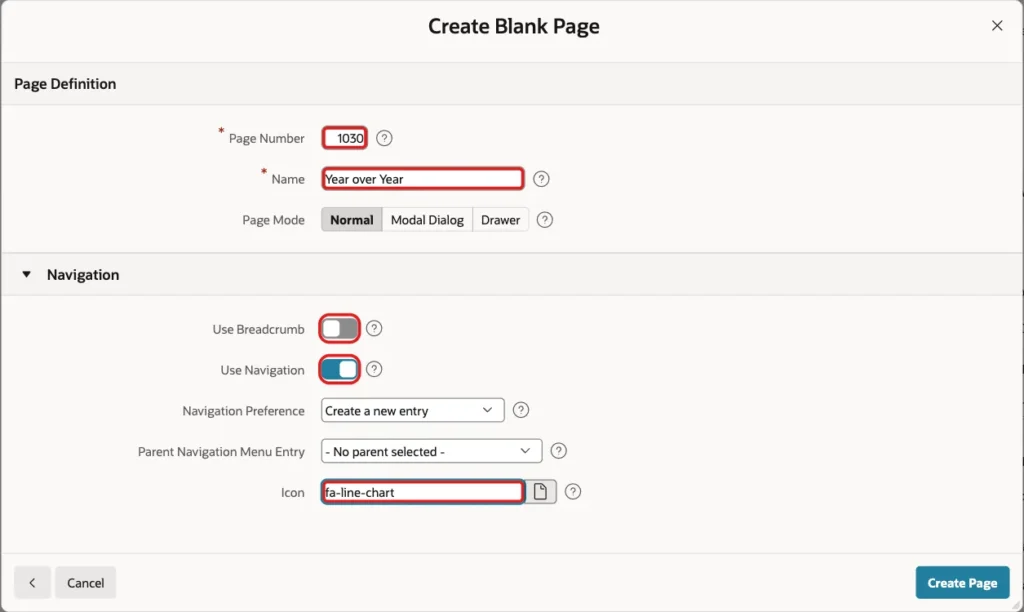
Set Page Number to 1030 and Name to Year over Year. Turn Use Breadcrumb off, keep Use Navigation on, set Icon to fa-line-chart and click Create Page:
APEX opens the new page in Page Designer.
Step 3: Add the Year and Outlet Filters
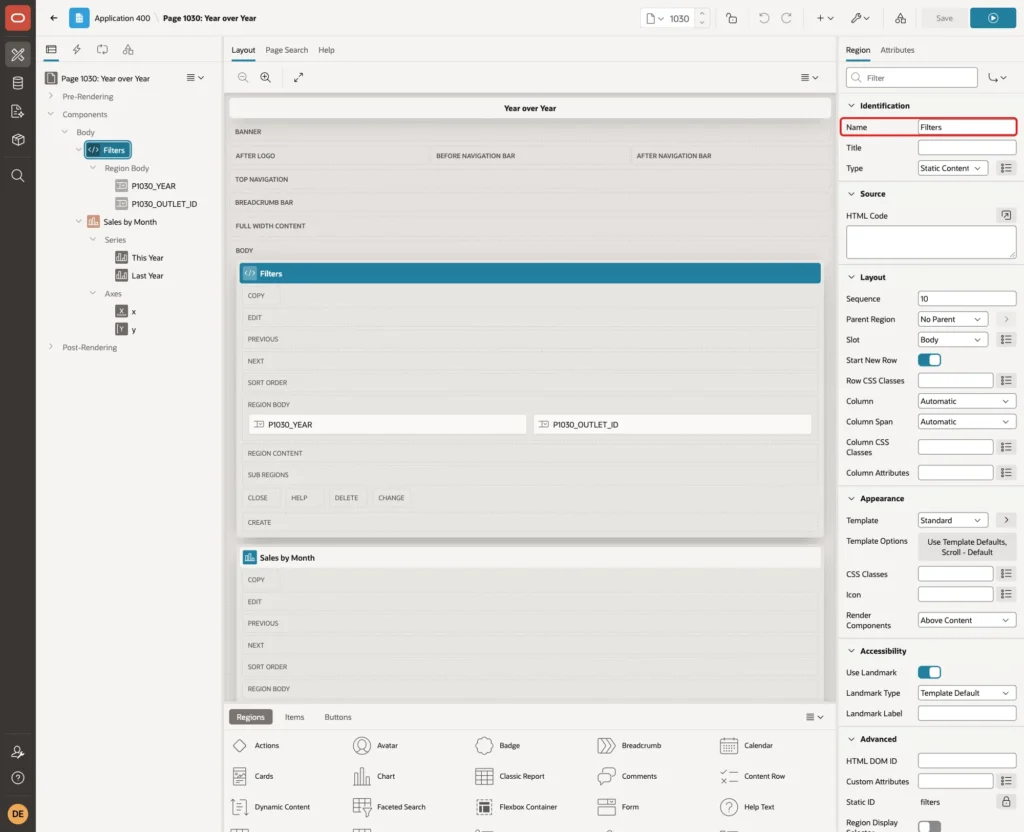
In the Rendering tree, right-click Body and choose Create Region. Set Name to Filters and keep the Type Static Content:
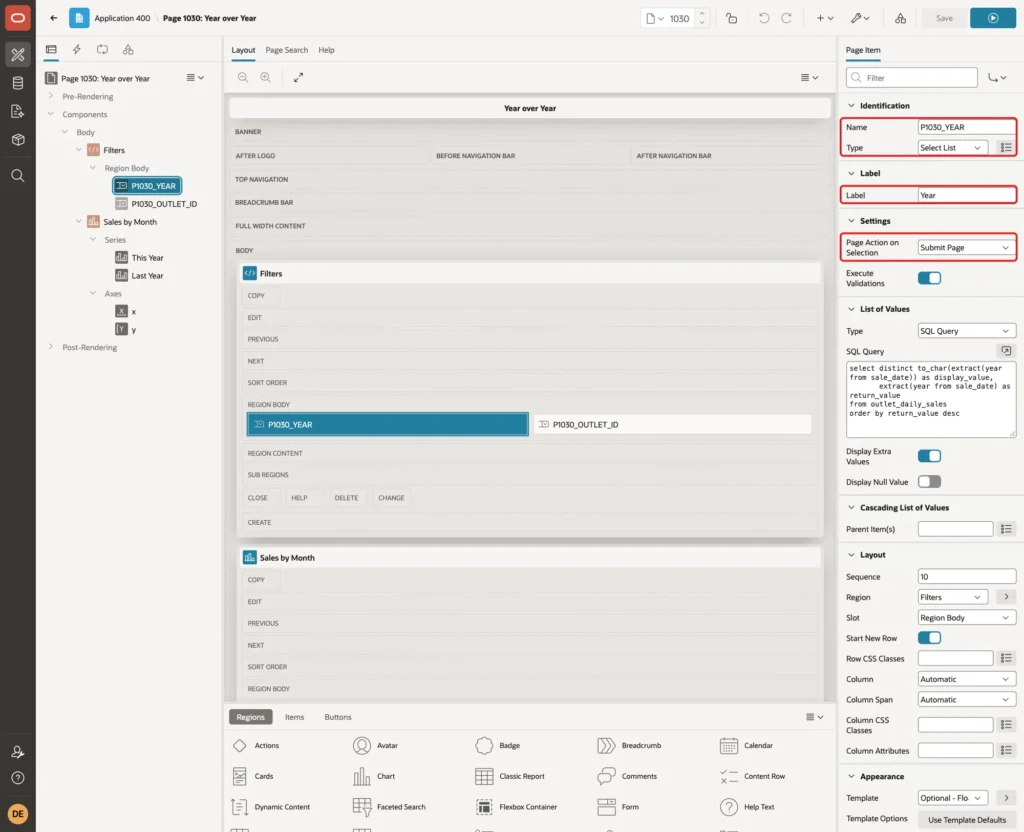
Right-click the Filters region and choose Create Page Item. Set Name to P1030_YEAR, Type to Select List and Label to Year. Under Settings, set Page Action on Selection to Submit Page:
Under List of Values, set Type to SQL Query and enter this query. It lists every year that has sales, newest first. Turn Display Null Value off, because the chart always needs a year:
Example:
select distinct to_char(extract(year from sale_date)) as display_value,
       extract(year from sale_date) as return_value
from outlet_daily_sales
order by return_value desc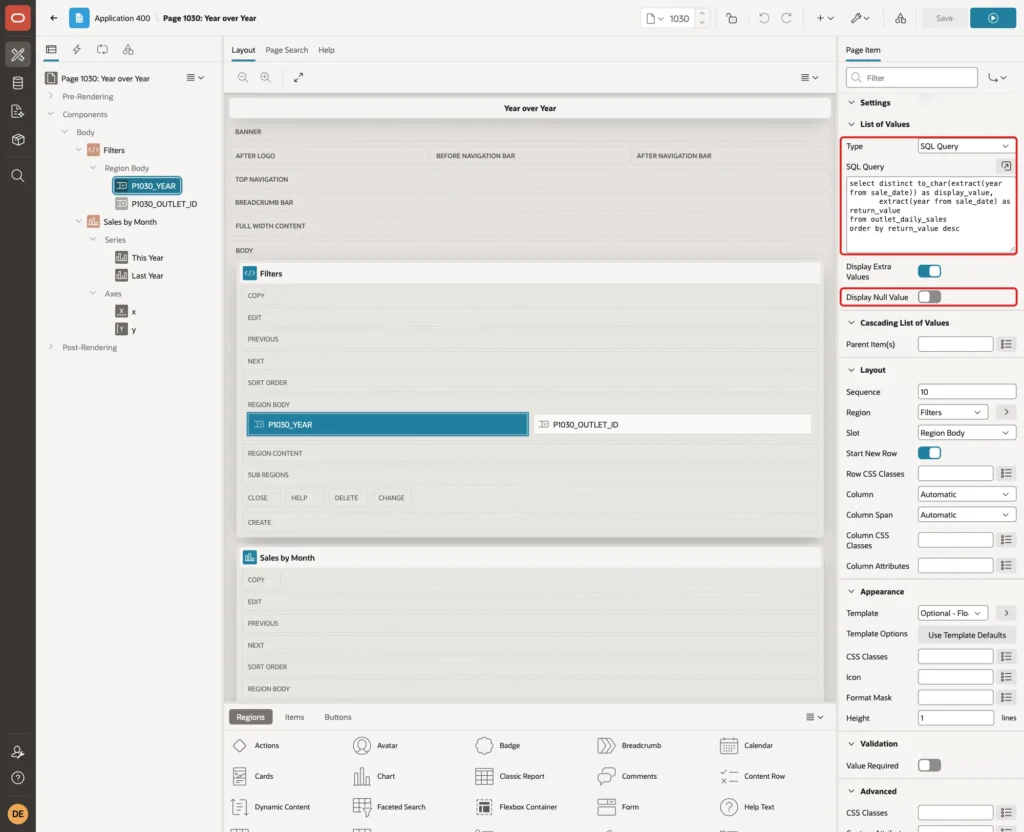
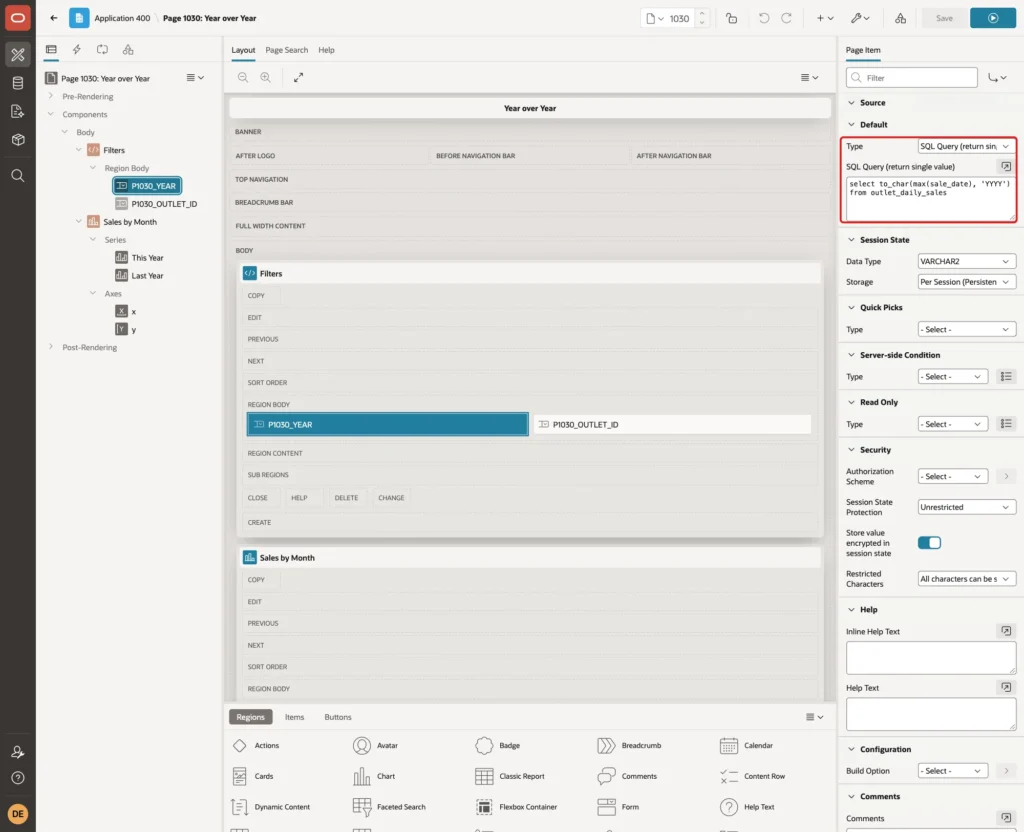
Under Default, set Type to SQL Query (return single value) and enter this query. The page then opens on the year of the latest sale:
Example:
select to_char(max(sale_date), 'YYYY')
from outlet_daily_sales
Create a second item in the Filters region. Set Name to P1030_OUTLET_ID, Type to Select List, Label to Outlet and Page Action on Selection to Submit Page:

Under List of Values, set Type to SQL Query and enter the query below. Keep Display Null Value on and set Null Display Value to - All Outlets -. An empty value means all outlets together:
Example:
select outlet_name as display_value,
       outlet_id as return_value
from sales_outlets
order by outlet_name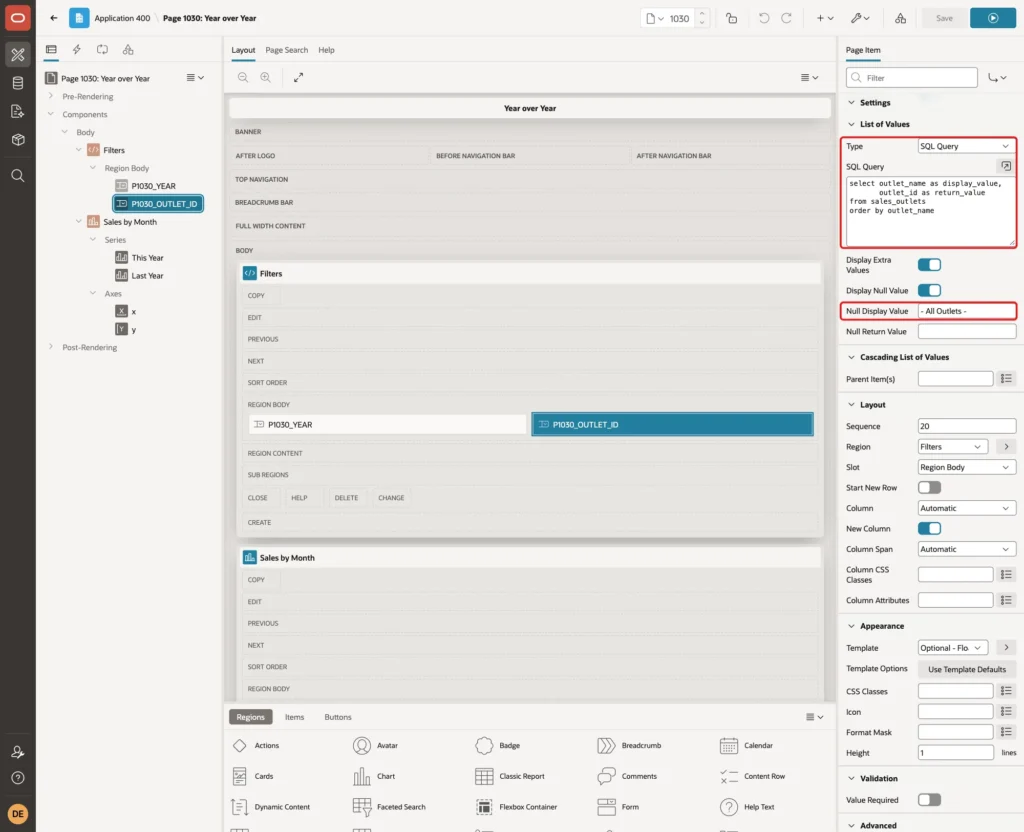
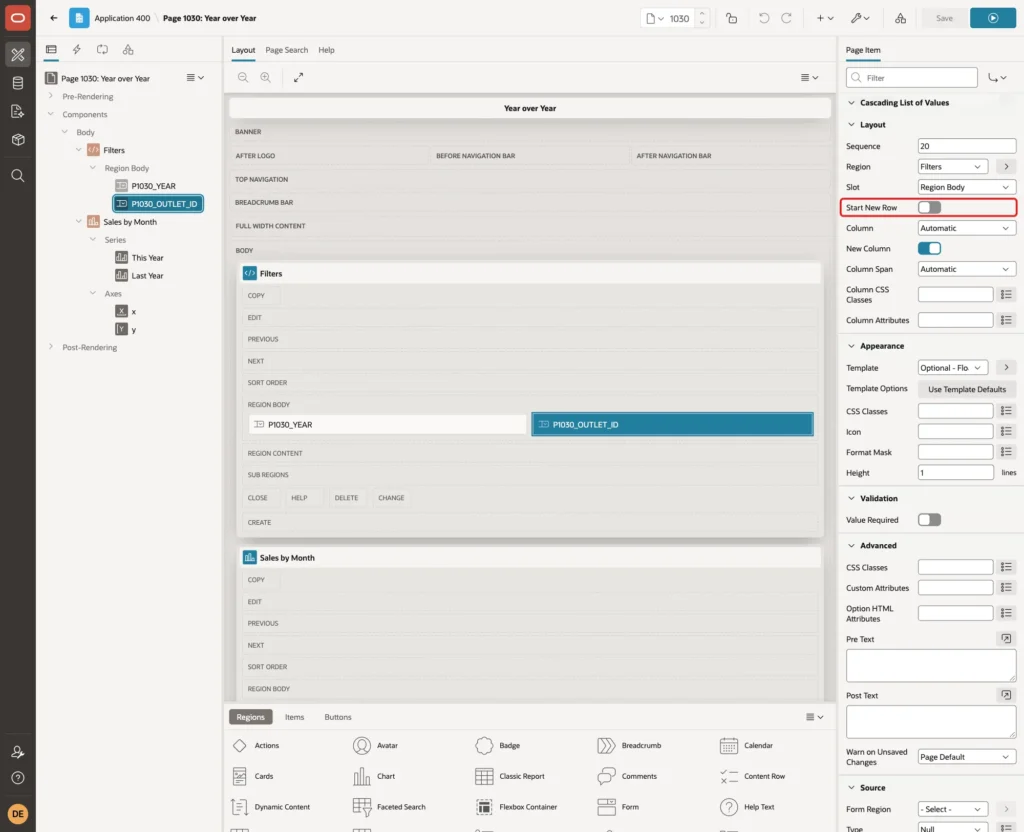
Under Layout, turn Start New Row off, so both filters sit side by side:
Step 4: Write the Year-over-Year Query
Both chart series use one query. It returns 12 rows, one per month of the selected year, with this year's total, last year's total, the percentage change and the tooltip texts:
Example:
with input as (
  select to_number(:P1030_YEAR default null on conversion error) as yr,
         to_number(:P1030_OUTLET_ID default null on conversion error) as outlet_id,
         :P1030_OUTLET_ID as outlet_value
  from dual
),
params as (
  select case when yr between 2000 and 2999 and yr = trunc(yr)
              then to_date(yr || '-01-01', 'YYYY-MM-DD') end as year_start,
         outlet_id,
         outlet_value,
         (select max(sale_date) from outlet_daily_sales) as last_sale_date
  from input
),
months as (
  select add_months(p.year_start, level - 1) as month_start
  from params p
  where p.year_start is not null
    and (p.outlet_value is null or p.outlet_id in (select outlet_id from sales_outlets))
  connect by level <= 12
),
sales as (
  select trunc(s.sale_date, 'MM') as month_start,
         sum(s.amount) as amount,
         sum(case when s.sale_date <= add_months(p.last_sale_date, -12) then s.amount end) as amount_same_days
  from outlet_daily_sales s
  cross join params p
  where (p.outlet_value is null or s.outlet_id = p.outlet_id)
    and s.sale_date >= add_months(p.year_start, -12)
    and s.sale_date <  add_months(p.year_start, 12)
  group by trunc(s.sale_date, 'MM')
),
compared as (
  select m.month_start,
         p.year_start,
         trunc(p.last_sale_date, 'MM') as current_month,
         case when m.month_start <= trunc(p.last_sale_date, 'MM') then nvl(ty.amount, 0) end as this_year,
         case when count(ly.month_start) over () > 0 then nvl(ly.amount, 0) end as last_year,
         case when count(ly.month_start) over () > 0 then
           case when m.month_start = trunc(p.last_sale_date, 'MM') then nvl(ly.amount_same_days, 0)
                else nvl(ly.amount, 0) end
         end as last_year_compare
  from months m
  cross join params p
  left join sales ty on ty.month_start = m.month_start
  left join sales ly on ly.month_start = add_months(m.month_start, -12)
)
select month_start,
       to_char(year_start, 'YYYY') as this_year_name,
       to_char(add_months(year_start, -12), 'YYYY') as last_year_name,
       this_year,
       last_year,
       last_year_compare,
       round(100 * (this_year - last_year_compare) / nullif(last_year_compare, 0), 1) as pct_change,
       case when this_year is not null then
         to_char(month_start, 'Mon YYYY') ||
         case when month_start = current_month then ' to date' end ||
         ': ' || to_char(this_year, 'FM999G999G990') || ' | ' ||
         case when nullif(last_year_compare, 0) is null then
           'no sales in ' || to_char(add_months(month_start, -12), 'Mon YYYY')
         else
           to_char(add_months(month_start, -12), 'Mon YYYY') ||
           case when month_start = current_month then ' same days' end ||
           ': ' || to_char(last_year_compare, 'FM999G999G990') || ' | ' ||
           to_char(round(100 * (this_year - last_year_compare) / last_year_compare, 1), 'FMS9990.0') || '%'
         end
       end as this_year_tooltip,
       case when last_year is not null then
         to_char(add_months(month_start, -12), 'Mon YYYY') || ': ' || to_char(last_year, 'FM999G999G990')
       end as last_year_tooltip
from compared
order by month_start
The query works in five steps:
- INPUT converts the two item values to numbers. DEFAULT NULL ON CONVERSION ERROR turns a value that is not a number into NULL instead of an error.
- PARAMS builds the first day of the selected year, only for a whole year between 2000 and 2999. It also reads the date of the latest sale.
- MONTHS creates the 12 months of the year. Every month gets a row even when it has no sales.
- SALES adds up the sales per month for the selected year and the year before, in one pass over the table.
- COMPARED joins each month to its own total and to the total of the same month twelve months earlier, using ADD_MONTHS.
Some rules in the query decide what the chart shows:
- A month without sales gets 0 through NVL, so the line drops to 0 instead of skipping the month.
- Months after the latest sale return NULL for this year, so the line stops there instead of falling to 0.
- The current month is not complete. Its percentage compares it with the same days of last year (AMOUNT_SAME_DAYS), not with the whole month.
- If the previous year has no sales at all, LAST_YEAR stays NULL and the tooltip says so.
- THIS_YEAR_NAME and LAST_YEAR_NAME hold the year numbers for the legend.
The query uses the date of the latest sale, not SYSDATE, to find the current month. In this example, the database runs in UTC. Early on 24 October India time, SYSDATE still returned 23 October, and a first version compared 23 days of this October with 22 days of last October.
Run the query in SQL with the bind variable P1030_YEAR set to 2026 and an empty P1030_OUTLET_ID:
Output:
PL/SQL procedure successfully completed.

PL/SQL procedure successfully completed.

MONTH_START       THIS_YEAR    LAST_YEAR    LY_COMPARE    PCT_CHANGE THIS_YEAR_TOOLTIP                                                LAST_YEAR_TOOLTIP
______________ ____________ ____________ _____________ _____________ ________________________________________________________________ ____________________
2026-01-01            61877        59420         59420           4.1 Jan 2026: 61,877 | Jan 2025: 59,420 | +4.1%                      Jan 2025: 59,420
2026-02-01            62146        58935         58935           5.4 Feb 2026: 62,146 | Feb 2025: 58,935 | +5.4%                      Feb 2025: 58,935
2026-03-01            77595        72660         72660           6.8 Mar 2026: 77,595 | Mar 2025: 72,660 | +6.8%                      Mar 2025: 72,660
2026-04-01            83528        78425         78425           6.5 Apr 2026: 83,528 | Apr 2025: 78,425 | +6.5%                      Apr 2025: 78,425
2026-05-01            93237        87847         87847           6.1 May 2026: 93,237 | May 2025: 87,847 | +6.1%                      May 2025: 87,847
2026-06-01            93093        87521         87521           6.4 Jun 2026: 93,093 | Jun 2025: 87,521 | +6.4%                      Jun 2025: 87,521
2026-07-01            92428        86714         86714           6.6 Jul 2026: 92,428 | Jul 2025: 86,714 | +6.6%                      Jul 2025: 86,714
2026-08-01            86654        48563         48563          78.4 Aug 2026: 86,654 | Aug 2025: 48,563 | +78.4%                     Aug 2025: 48,563
2026-09-01            75501        71549         71549           5.5 Sep 2026: 75,501 | Sep 2025: 71,549 | +5.5%                      Sep 2025: 71,549
2026-10-01            50582        65284         48320           4.7 Oct 2026 to date: 50,582 | Oct 2025 same days: 48,320 | +4.7%    Oct 2025: 65,284
2026-11-01                         56852         56852                                                                                Nov 2025: 56,852
2026-12-01                         55975         55975                                                                                Dec 2025: 55,975

12 rows selected.
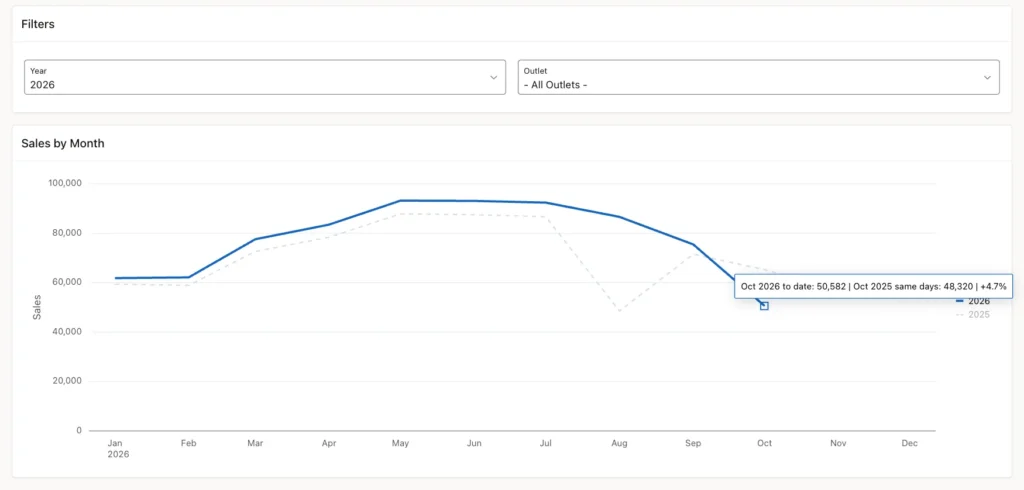
October 2026 holds sales up to 23 October. The tooltip compares them with 1 to 23 October 2025 (48,320), not with the full month (65,284). November and December have only last year's values.
Step 5: Add the Line Chart Region
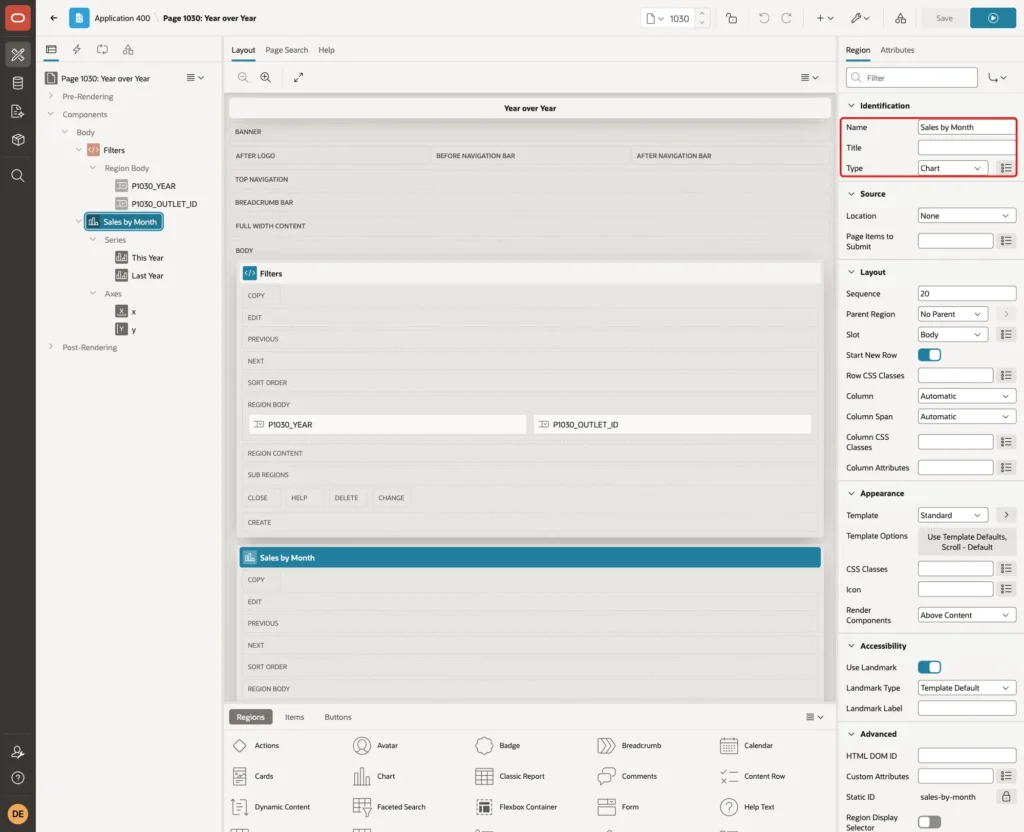
Right-click the Filters region and choose Create Region Below. Set Name to Sales by Month and Type to Chart:
Click the Attributes tab. Set Type under Chart to Line, and under Settings set Time Axis Type to Enabled:
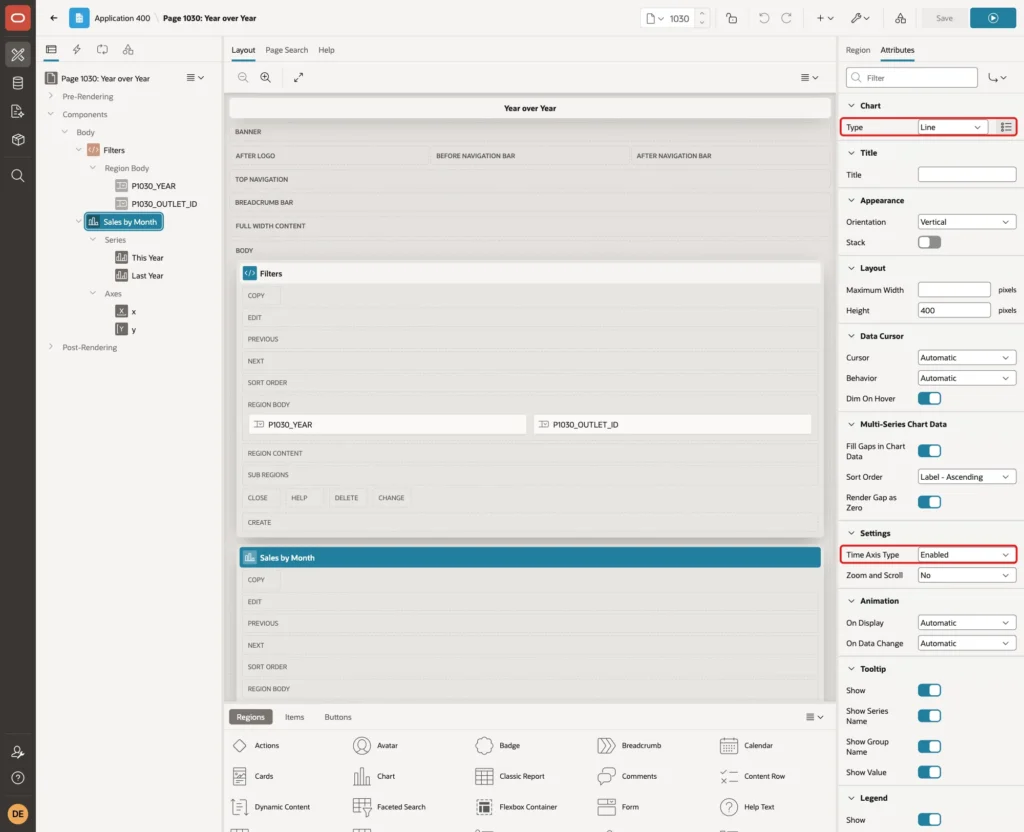
The time axis keeps the months in calendar order. Both series use MONTH_START, a DATE in the selected year, as the label. Last year's values are placed on this year's months, so March 2025 sits above March 2026.
Fill Gaps in Chart Data and Render Gap as Zero are on by default. They did not turn the NULL values of November and December into 0 in this example, because those months still have a row with a label.
Step 6: Create the This Year Series
Expand Series under the chart region and select New. Set Name to This Year. Under Source, set Type to SQL Query and enter the query from Step 4:
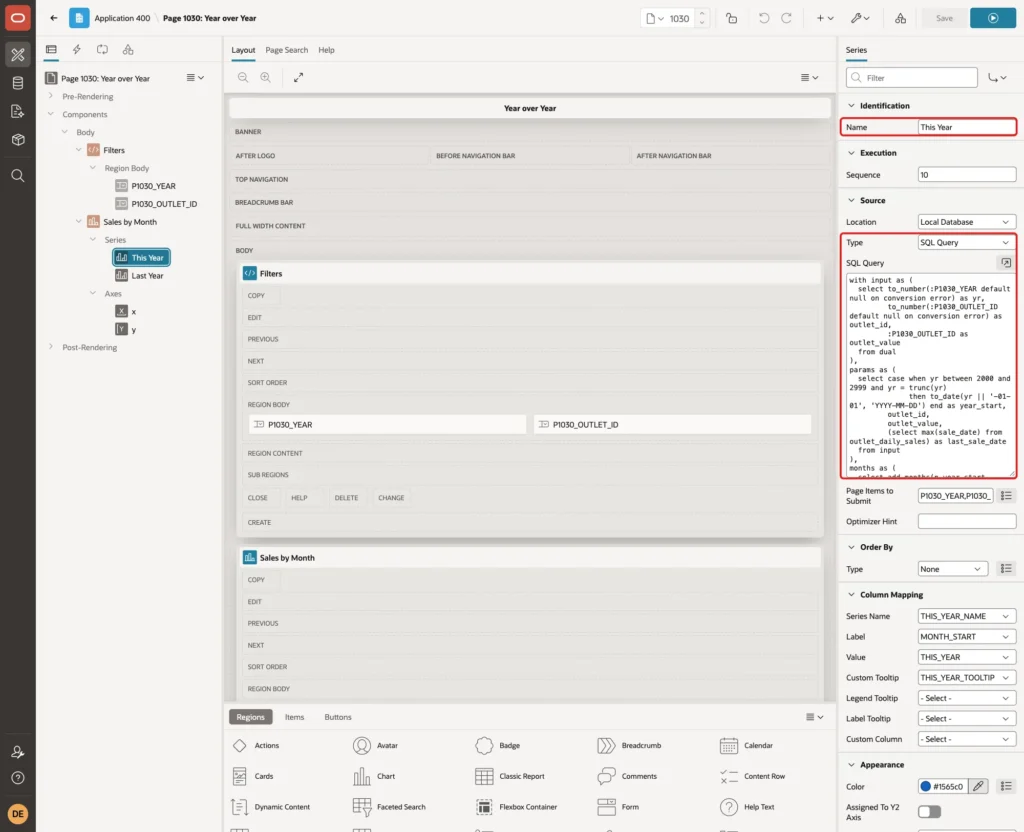
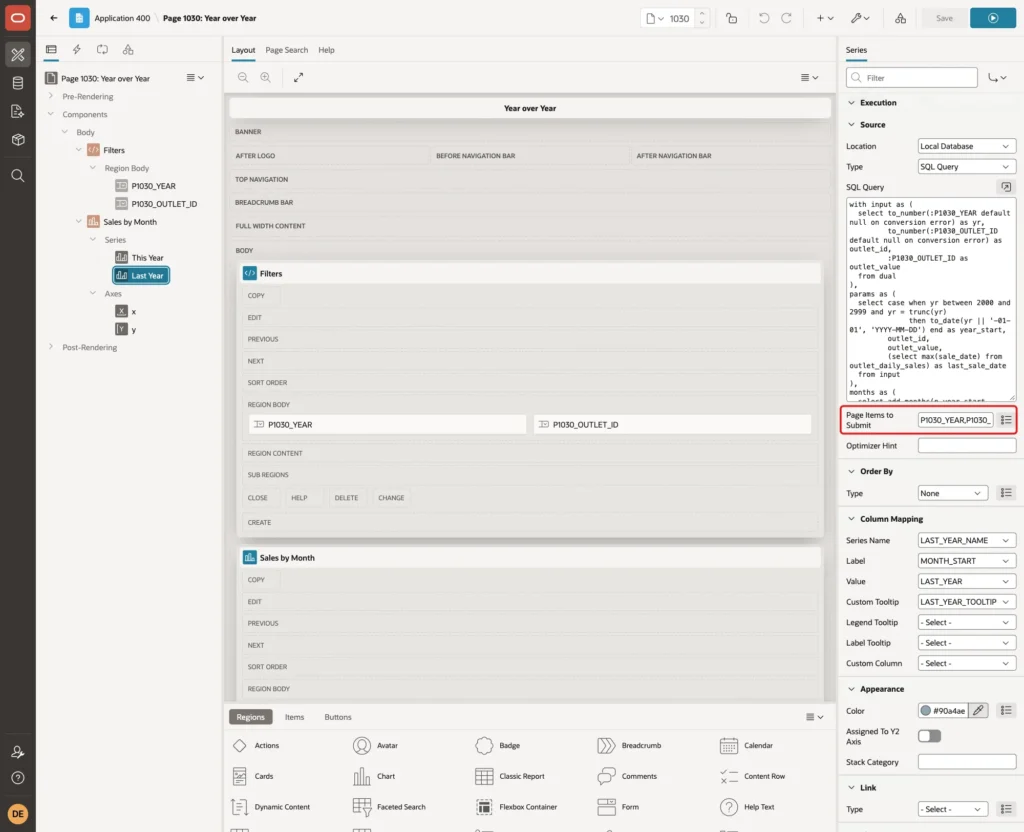
Set Page Items to Submit to P1030_YEAR,P1030_OUTLET_ID. The chart loads its data with a separate request, and this setting sends the current filter values with it:
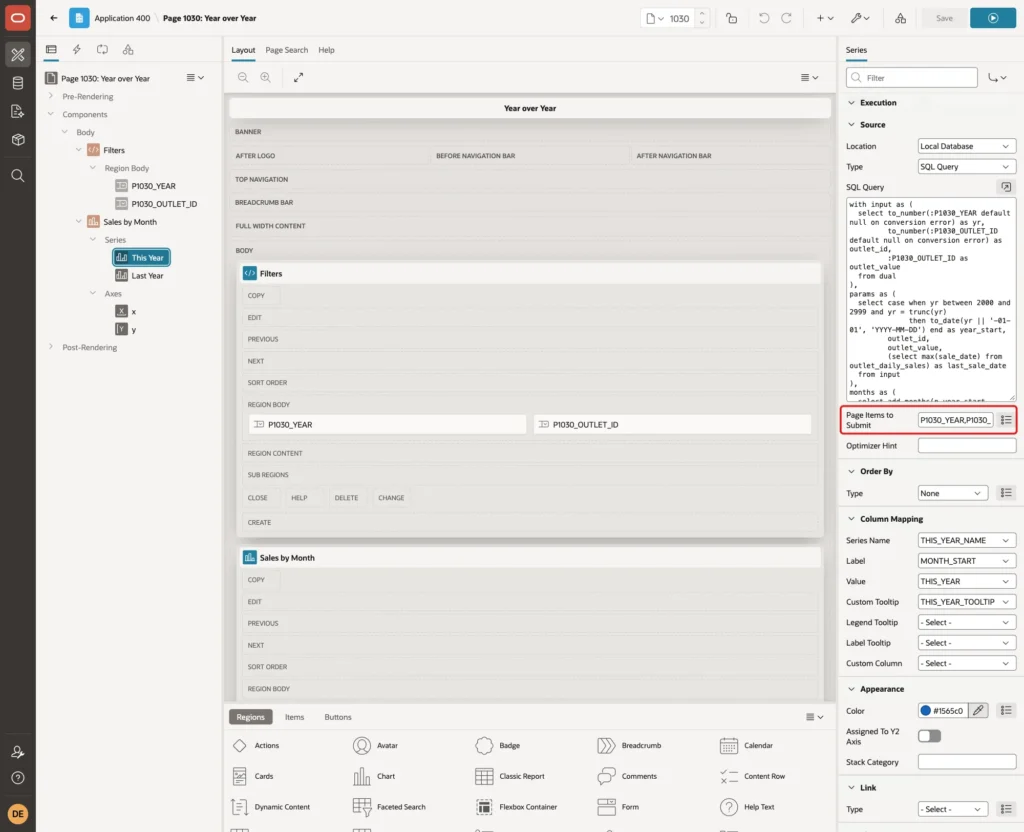
Under Column Mapping, set Series Name to THIS_YEAR_NAME, Label to MONTH_START, Value to THIS_YEAR and Custom Tooltip to THIS_YEAR_TOOLTIP. Under Appearance, set Color to #1565c0. Under Line, keep Style Solid and set Width to 3:
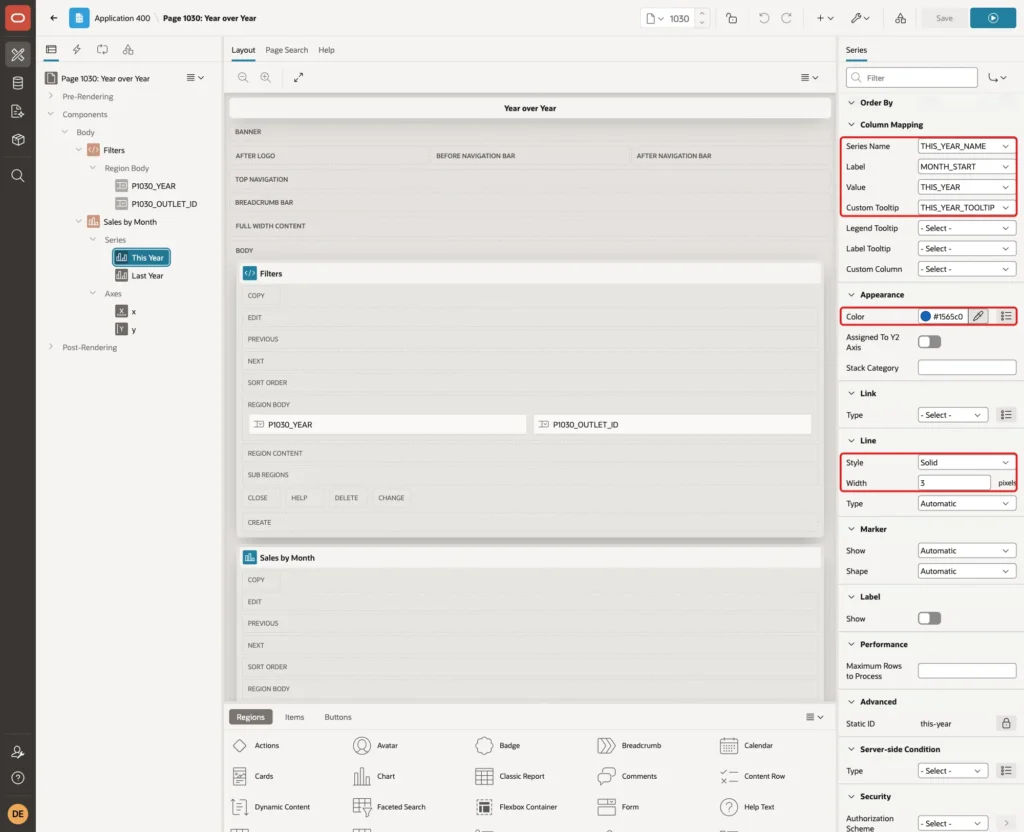
Series Name makes the legend show 2026 instead of This Year. In a first test, the series Name &P1030_YEAR. also showed the right year. That works for the current year, but a substitution cannot calculate the year before. The Series Name column handles both lines in the same way.
Step 7: Create the Last Year Series
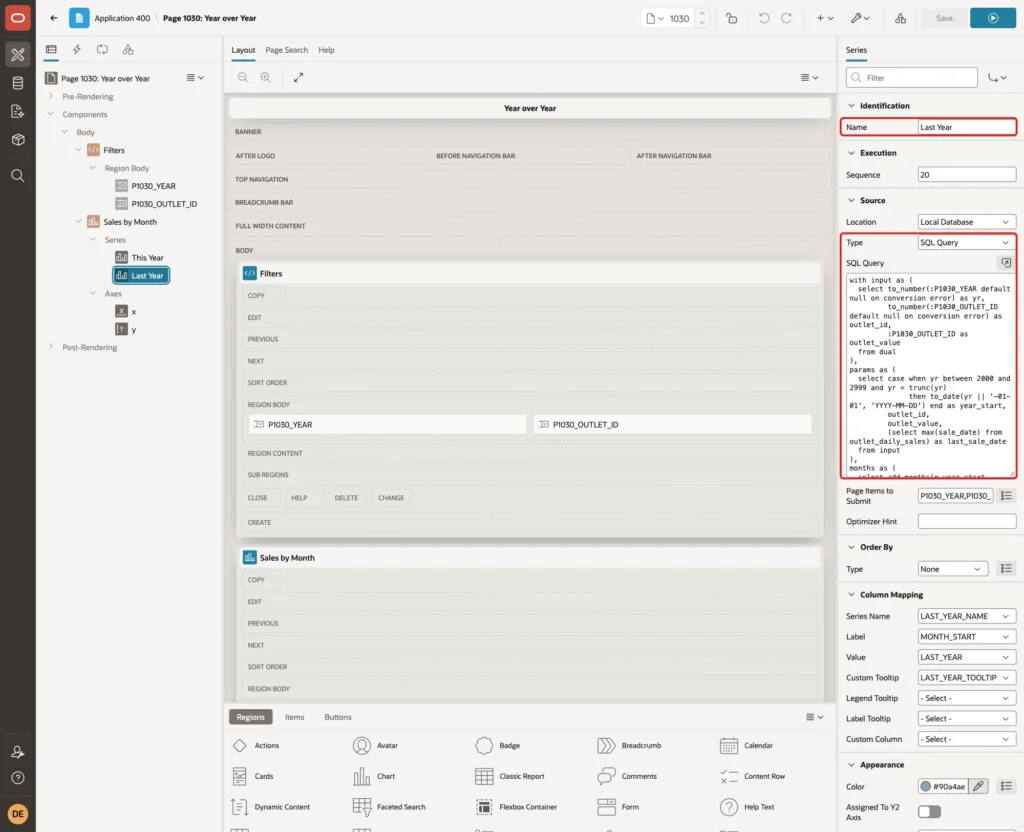
Right-click Series and choose Create Series. Set Name to Last Year. Under Source, set Type to SQL Query and enter the same query. Set Page Items to Submit to P1030_YEAR,P1030_OUTLET_ID as well:
Under Column Mapping, set Series Name to LAST_YEAR_NAME, Label to MONTH_START, Value to LAST_YEAR and Custom Tooltip to LAST_YEAR_TOOLTIP. Set Color to #90a4ae, Line Style to Dashed and Width to 2:
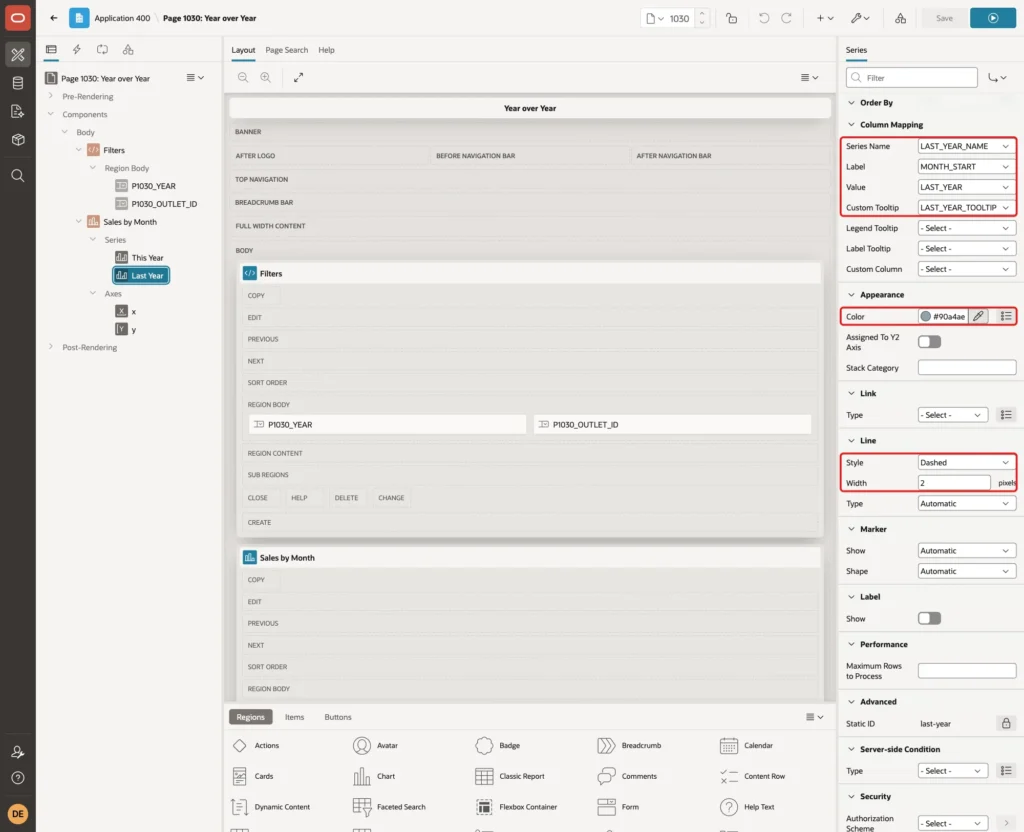
The colors and line styles set in Page Designer stayed in place with the Series Name column. The legend showed a solid blue 2026 and a dashed grey 2025.
Step 8: Title the Value Axis
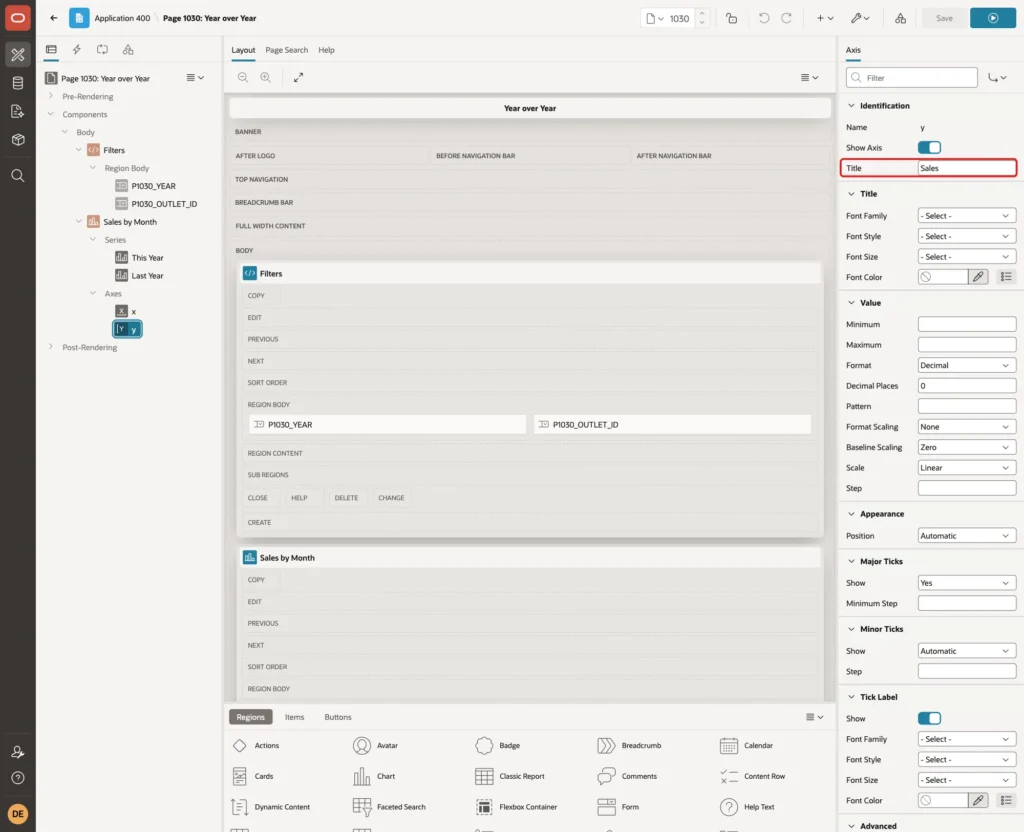
Expand Axes and select y. Set Title to Sales and click Save:
Step 9: Test the Chart
Run the page as a user with read-only access. It opens with 2026 and all outlets, even on the first visit. The solid line is 2026, and the dashed line is 2025:
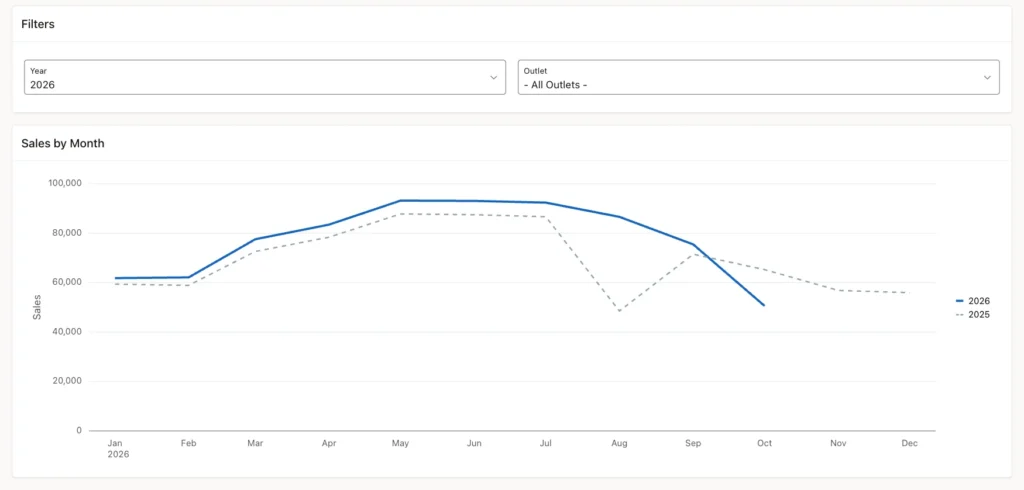
The 2026 line stops in October, the month of the latest sale. October sits low because it covers only 23 days. Move the mouse over the October point to see the fair comparison:
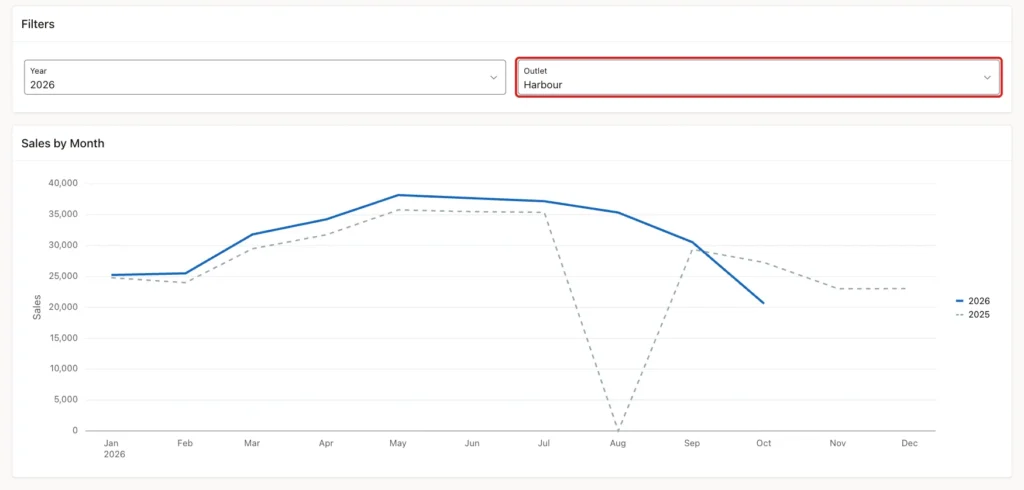
Select Harbour in the Outlet list. The dashed 2025 line drops to 0 in August, the month without sales:
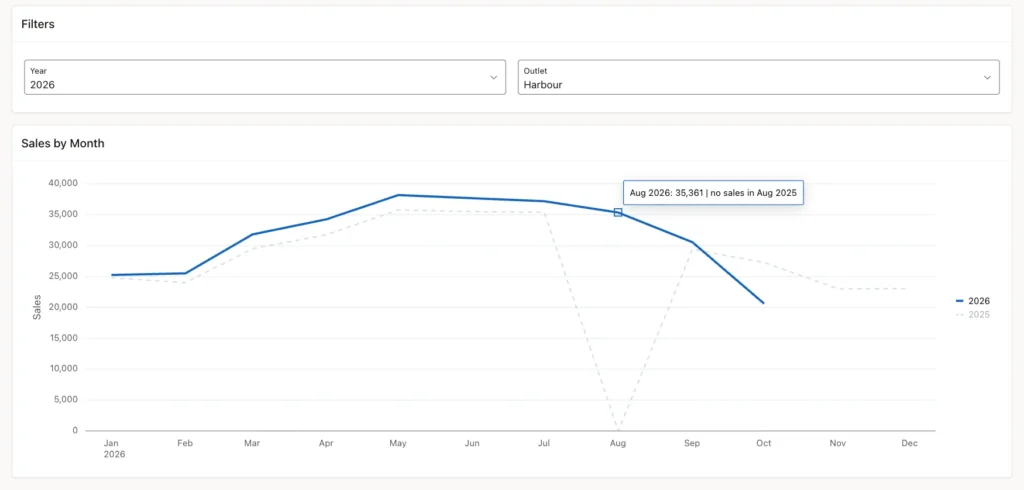
The tooltip of August 2026 shows no percentage, because there is nothing to compare with:
Now select 2025 in the Year list. The legend changes to 2025 and 2024, and the August gap moves to the solid line:


All values in the chart were read from the chart widget in the browser. They matched the SQL output for 2026 with all outlets, 2025 with Harbour, and 2024 with all outlets. For 2024, the legend shows 2023 without a line, and every tooltip says there were no sales in 2023.
Next, compare the Harbour numbers with a query on the table itself:
Example:
select to_char(trunc(sale_date, 'MM'), 'YYYY-MM') as sales_month,
       count(*) as sale_days,
       sum(amount) as total_amount,
       round(avg(amount)) as avg_per_day
from outlet_daily_sales
where outlet_id = (select outlet_id from sales_outlets where outlet_name = 'Harbour')
  and extract(month from sale_date) in (2, 8, 10)
group by trunc(sale_date, 'MM')
order by sales_month;

select sum(amount) as oct_2025_days_1_to_23
from outlet_daily_sales
where outlet_id = (select outlet_id from sales_outlets where outlet_name = 'Harbour')
  and sale_date between date '2025-10-01' and date '2025-10-23';
Output:
SALES_MONTH       SALE_DAYS    TOTAL_AMOUNT    AVG_PER_DAY
______________ ____________ _______________ ______________
2024-02                  29           22814            787
2024-08                  31           30812            994
2024-10                  31           24424            788
2025-02                  28           24016            858
2025-10                  31           27280            880
2026-02                  28           25511            911
2026-08                  31           35361           1141
2026-10                  23           20611            896

8 rows selected.

   OCT_2025_DAYS_1_TO_23
________________________
                   20081
August 2025 is missing from the table, which the chart shows as 0. October 2025 days 1 to 23 add up to 20,081, the value of the October tooltip for Harbour.
Step 10: Check Leap Years
The chart groups days by month with TRUNC(sale_date, 'MM'), so 29 February 2024 simply belongs to February 2024. Shifting dates by a year is where leap years cause trouble:
Example:
select to_char(add_months(date '2024-02-29', 12), 'YYYY-MM-DD') as add_months_result
from dual;

select to_char(date '2024-02-29' + interval '1' year, 'YYYY-MM-DD') as interval_result
from dual;
Output:
ADD_MONTHS_RESULT
____________________
2025-02-28

Error starting at line : 4 File @ b106/30-leap.sql
In command -
select to_char(date '2024-02-29' + interval '1' year, 'YYYY-MM-DD') as interval_result
from dual
Error at Command Line : 4 Column : 34 File @ b106/30-leap.sql
Error report -
SQL Error: ORA-01839: date not valid for month specified
Help: https://docs.oracle.com/error-help/db/ora-01839/
ADD_MONTHS moves 29 February to 28 February. Adding INTERVAL '1' YEAR fails with ORA-01839, because 29 February 2025 does not exist. That is why the query joins the months with ADD_MONTHS.
The check query in Step 9 also shows the other leap year effect. February 2024 had 29 sale days and February 2025 had 28. The chart shows +5.3% for Harbour, but per day the increase was 787 to 858, about 9%.
Step 11: Test Forged Filter Values
Signed in as a read-only user, a value was added to a select list from the browser console and the page was submitted. The years abc, 1900 and 2025.5 and the outlets abc, 999 and 1 or 1=1 were tried. APEX accepted each value, and the chart showed No data to display:
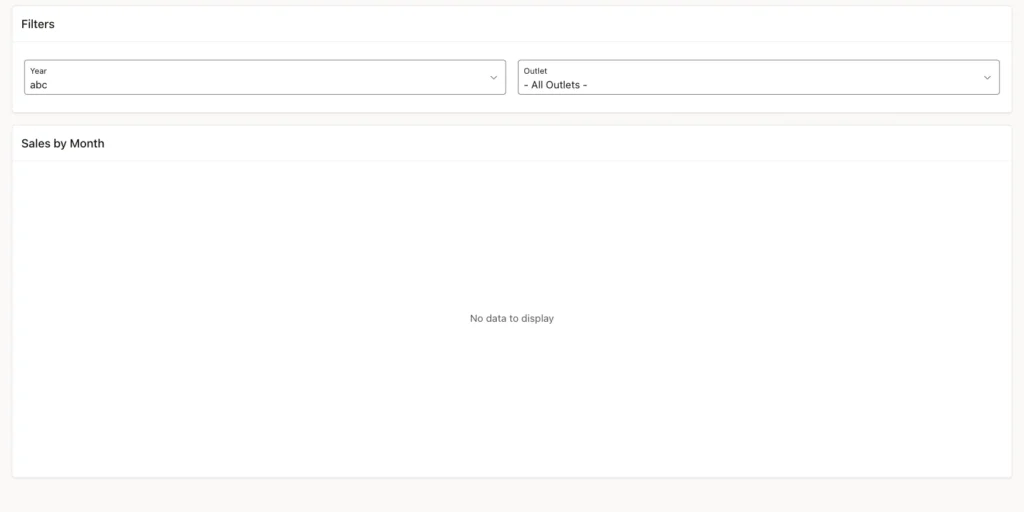
The values are bind variables, so 1 or 1=1 is never run as SQL. The checks in INPUT, PARAMS and MONTHS turn the other values into no rows. A first version of the query built the year range from the number directly, and the year abc failed in SQL:
Example:
select to_date(to_number('abc' default null on conversion error) - 1 || '-01-01', 'YYYY-MM-DD') as year_start
from dual;
Output:
Error starting at line : 1 File @ b106/50-forged.sql
In command -
select to_date(to_number('abc' default null on conversion error) - 1 || '-01-01', 'YYYY-MM-DD') as year_start
from dual
Error at Command Line : 1 Column : 71 File @ b106/50-forged.sql
Error report -
SQL Error: ORA-01841: (full) year must be between -4713 and +9999, and not be 0
Help: https://docs.oracle.com/error-help/db/ora-01841/
DEFAULT NULL ON CONVERSION ERROR made the number NULL, but NULL minus 1 joined to '-01-01' is still an invalid date. Building the date only inside the CASE for a valid year fixed it.
Things to Know
- Use the selected year's month as the label for both series and enable the time axis. Last year's values then line up with the same months.
- Generate the 12 months and left join the sales, so a month without sales shows as 0 instead of disappearing.
- Return NULL for months that have not started, so the current year's line ends at the latest month.
- Compare the current month with the same days of last year. A whole month against part of a month always looks like a drop.
- Find the current month from the latest data, or mind the database time zone when you use SYSDATE.
- Shift dates with ADD_MONTHS. Adding INTERVAL '1' YEAR to 29 February raises ORA-01839.
- Monthly totals include the extra day of a leap February. Compare averages per day when that difference matters.
- The Series Name column names each line after its year and keeps the styles set in Page Designer.
- Set Page Items to Submit on every series that reads page items.
Related Guides
- Oracle APEX Charts: A Complete Guide
- How to Show Actual vs Target in a Combination Chart in Oracle APEX
Conclusion
A year-over-year chart in Oracle APEX is a line chart with two series on one query. The query creates the 12 months of the selected year, joins each month to the same month a year earlier, and returns both totals with the percentage change.
The details make the comparison honest: 0 for empty months, NULL for future months, the same days for the current month, ADD_MONTHS for leap years, and safe handling of forged filter values. The legend names the years, and the tooltip tells users exactly how much each month changed.
See my articles more often when you search Google.
