
An application used in several countries has one problem with every time it shows: 15:00 means something different in Mumbai, London and New York. If the page shows the time as stored, most users must convert it in their head, and daylight saving time makes that even harder.
Oracle APEX can do the conversion for you. Store the time as TIMESTAMP WITH LOCAL TIME ZONE, turn on the application setting Automatic Time Zone, and every user sees the time in the time zone of their own browser. This guide also adds a picker, so users can view the times in any other time zone.
This guide uses webinars as the example; the same steps work for any table with a date and time. The SQL guide How to Handle Daylight Saving Time Gaps in Oracle covers time zone arithmetic in SQL; here the focus is on APEX pages showing and saving local times.
Step 1: Create the Tables
The example needs two tables. WEBINAR_PRESENTERS stores each presenter with the time zone they live in. WEBINARS stores the start time of each webinar in a TIMESTAMP(0) WITH LOCAL TIME ZONE column.
Create the tables, the index and the sample data:
Example:
set lines 200 pages 100 feedback on
create table webinar_presenters (
  presenter_id   number generated by default on null as identity constraint webinar_presenters_pk primary key,
  full_name      varchar2(100) not null,
  home_time_zone varchar2(64)  not null,
  constraint webinar_presenters_name_uk unique (full_name)
);

create table webinars (
  webinar_id   number generated by default on null as identity constraint webinars_pk primary key,
  title        varchar2(200) not null,
  presenter_id number        not null,
  starts_at    timestamp(0) with local time zone not null,
  duration_min number(3)     default on null 60 not null,
  constraint webinars_presenter_fk foreign key (presenter_id)
    references webinar_presenters (presenter_id),
  constraint webinars_duration_ck check (duration_min between 15 and 480)
);

create index webinars_presenter_ix on webinars (presenter_id, starts_at);

insert into webinar_presenters (full_name, home_time_zone) values ('Anita Rao', 'Asia/Kolkata');
insert into webinar_presenters (full_name, home_time_zone) values ('Mark Davis', 'America/New_York');
insert into webinar_presenters (full_name, home_time_zone) values ('Sophie Martin', 'Europe/London');

insert into webinars (title, presenter_id, starts_at)
values ('Getting Started with Oracle APEX', 1, timestamp '2026-10-27 15:00:00 Asia/Kolkata');
insert into webinars (title, presenter_id, starts_at, duration_min)
values ('REST Data Sources Deep Dive', 2, timestamp '2026-10-29 11:00:00 America/New_York', 90);
insert into webinars (title, presenter_id, starts_at)
values ('Faceted Search Tips', 3, timestamp '2026-11-05 14:00:00 Europe/London');
insert into webinars (title, presenter_id, starts_at, duration_min)
values ('Year-End Reporting Clinic', 2, timestamp '2026-12-08 10:00:00 America/New_York', 45);
commit;

select w.webinar_id, w.title, p.full_name, p.home_time_zone
from webinars w join webinar_presenters p on p.presenter_id = w.presenter_id
order by w.starts_at;
Output:
Table WEBINAR_PRESENTERS created.

Table WEBINARS created.

Index WEBINARS_PRESENTER_IX created.

1 row inserted.

1 row inserted.

1 row inserted.

1 row inserted.

1 row inserted.

1 row inserted.

1 row inserted.

Commit complete.

   WEBINAR_ID TITLE                               FULL_NAME        HOME_TIME_ZONE
_____________ ___________________________________ ________________ ___________________
            1 Getting Started with Oracle APEX    Anita Rao        Asia/Kolkata
            2 REST Data Sources Deep Dive         Mark Davis       America/New_York
            3 Faceted Search Tips                 Sophie Martin    Europe/London
            4 Year-End Reporting Clinic           Mark Davis       America/New_York

4 rows selected.- STARTS_AT is TIMESTAMP(0) WITH LOCAL TIME ZONE. The database converts each value to the database time zone when it is saved, and back to the session time zone when it is read. The (0) drops fractions of a second.
- The sample start times are written as literals with a region name, for example TIMESTAMP '2026-10-29 11:00:00 America/New_York'. So each row stores an exact moment, whatever the time zone of the session that inserts it.
- WEBINARS_PRESENTER_FK allows only known presenters, WEBINARS_DURATION_CK keeps the length between 15 and 480 minutes, and WEBINAR_PRESENTERS_NAME_UK prevents duplicate names.
- DURATION_MIN uses DEFAULT ON NULL 60, so no trigger is needed for the default length.
Step 2: See How the Session Time Zone Changes the Display
Before building any page, check the behavior in SQL. The same query runs three times, each time after ALTER SESSION SET TIME_ZONE:
Example:
set lines 200 pages 100 feedback off
alter session set nls_timestamp_format = 'DD-MON-YYYY HH24:MI';

alter session set time_zone = 'UTC';
select sessiontimezone, webinar_id, title, starts_at from webinars order by starts_at;

alter session set time_zone = 'Asia/Kolkata';
select sessiontimezone, webinar_id, title, starts_at from webinars order by starts_at;

alter session set time_zone = 'America/New_York';
select sessiontimezone, webinar_id, title, starts_at from webinars order by starts_at;
Output:
SESSIONTIMEZONE       WEBINAR_ID TITLE                               STARTS_AT
__________________ _____________ ___________________________________ ____________________
UTC                            1 Getting Started with Oracle APEX    27-OCT-2026 09:30
UTC                            2 REST Data Sources Deep Dive         29-OCT-2026 15:00
UTC                            3 Faceted Search Tips                 05-NOV-2026 14:00
UTC                            4 Year-End Reporting Clinic           08-DEC-2026 15:00

SESSIONTIMEZONE       WEBINAR_ID TITLE                               STARTS_AT
__________________ _____________ ___________________________________ ____________________
Asia/Kolkata                   1 Getting Started with Oracle APEX    27-OCT-2026 15:00
Asia/Kolkata                   2 REST Data Sources Deep Dive         29-OCT-2026 20:30
Asia/Kolkata                   3 Faceted Search Tips                 05-NOV-2026 19:30
Asia/Kolkata                   4 Year-End Reporting Clinic           08-DEC-2026 20:30

SESSIONTIMEZONE        WEBINAR_ID TITLE                               STARTS_AT
___________________ _____________ ___________________________________ ____________________
America/New_York                1 Getting Started with Oracle APEX    27-OCT-2026 05:30
America/New_York                2 REST Data Sources Deep Dive         29-OCT-2026 11:00
America/New_York                3 Faceted Search Tips                 05-NOV-2026 09:00
America/New_York                4 Year-End Reporting Clinic           08-DEC-2026 10:00
The rows are the same, but STARTS_AT follows the session. The REST webinar starts at 15:00 UTC, 20:30 in Kolkata and 11:00 in New York.
Look at the New York times of the REST webinar and the Year-End webinar. Both start at 15:00 UTC, but New York shows 11:00 in October and 10:00 in December. A region name such as America/New_York knows when daylight saving time ends, so each date gets the right offset.
Oracle APEX uses the same mechanism. It keeps a time zone for each APEX session and applies it to the database session, so TIMESTAMP WITH LOCAL TIME ZONE columns are shown in that time zone.
Step 3: Write the Report Query
The report will show three versions of each start time: the user's local time, the presenter's local time and UTC. Test the query in SQL first, with the session set to New York:
Example:
set lines 200 pages 100 feedback off
alter session set time_zone = 'America/New_York';
alter session set nls_timestamp_format = 'DD-MON-YYYY HH24:MI';
alter session set nls_timestamp_tz_format = 'DD-MON-YYYY HH24:MI TZR';
column title format a32
column presenter format a14
select w.title,
       p.full_name as presenter,
       w.starts_at,
       w.starts_at at time zone p.home_time_zone as presenter_time,
       sys_extract_utc(w.starts_at) as starts_utc
from webinars w
join webinar_presenters p on p.presenter_id = w.presenter_id
order by w.starts_at;
Output:
TITLE                               PRESENTER        STARTS_AT            PRESENTER_TIME                        STARTS_UTC
___________________________________ ________________ ____________________ _____________________________________ ____________________
Getting Started with Oracle APEX    Anita Rao        27-OCT-2026 05:30    27-OCT-2026 15:00 ASIA/KOLKATA        27-OCT-2026 09:30
REST Data Sources Deep Dive         Mark Davis       29-OCT-2026 11:00    29-OCT-2026 11:00 AMERICA/NEW_YORK    29-OCT-2026 15:00
Faceted Search Tips                 Sophie Martin    05-NOV-2026 09:00    05-NOV-2026 14:00 EUROPE/LONDON       05-NOV-2026 14:00
Year-End Reporting Clinic           Mark Davis       08-DEC-2026 10:00    08-DEC-2026 10:00 AMERICA/NEW_YORK    08-DEC-2026 15:00
- w.starts_at follows the session time zone, so it becomes "Your Local Time" in the report.
- w.starts_at AT TIME ZONE p.home_time_zone returns a TIMESTAMP WITH TIME ZONE in the presenter's zone. It does not depend on the viewer, so Mark Davis always sees his own 11:00.
- SYS_EXTRACT_UTC returns the moment in UTC, which is useful when users in different countries compare times.
Step 4: Create the Report and Form Pages
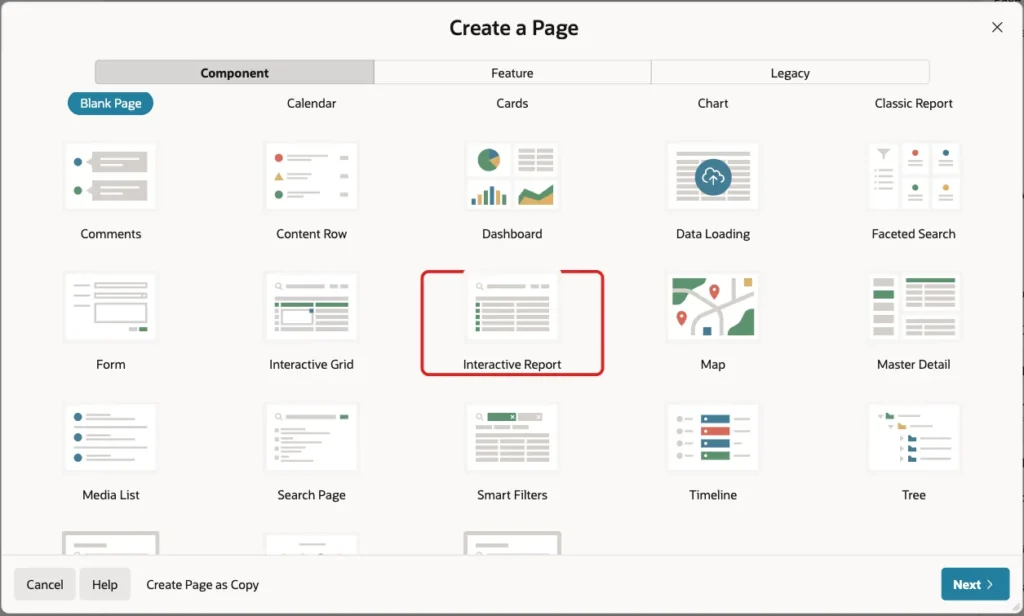
In App Builder, open the application and click Create Page. On the Component tab, click Interactive Report:
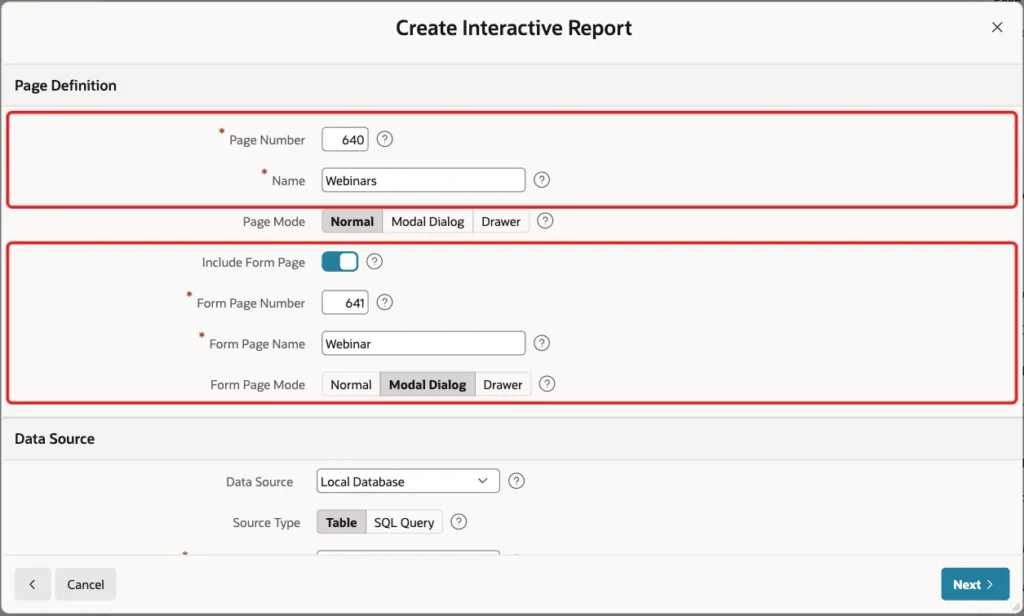
Enter Page Number 640 and Name Webinars. Turn on Include Form Page, enter Form Page Number 641 and Form Page Name Webinar, and keep Form Page Mode Modal Dialog:
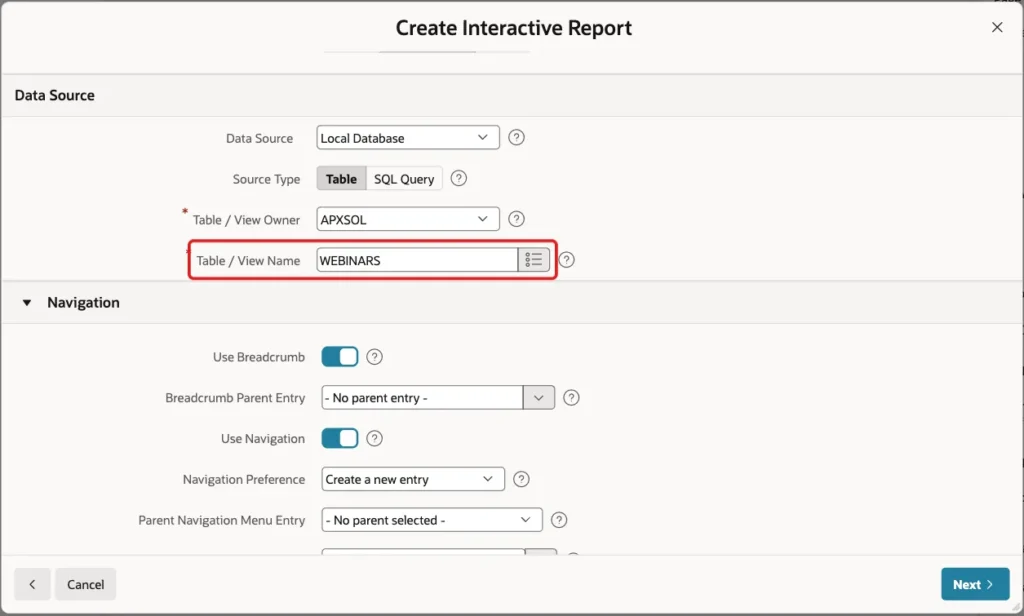
Under Data Source, keep Source Type Table and select the table WEBINARS:
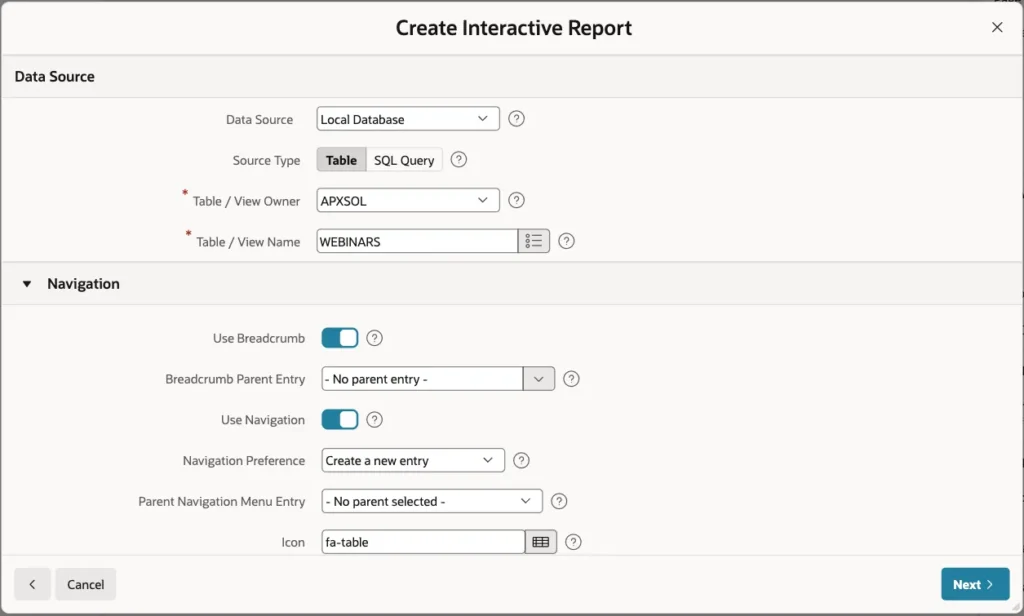
Keep the Navigation settings as they are, so the wizard adds a breadcrumb and a navigation menu entry. Click Next:
On the Primary Key screen, keep WEBINAR_ID (Number) for Primary Key Column 1 and click Create Page:
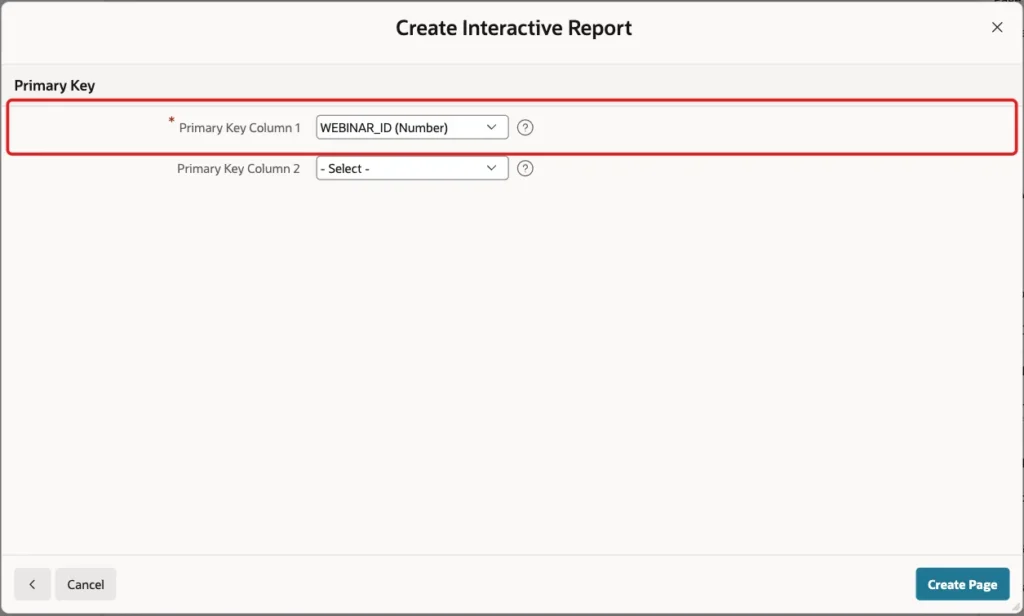
The wizard creates page 640 with the report and page 641 with the form. It turns PRESENTER_ID into a select list with a new shared list of values, and STARTS_AT into a Date Picker with Data Type Timestamp with Local Time Zone.
Step 5: Turn On Automatic Time Zone
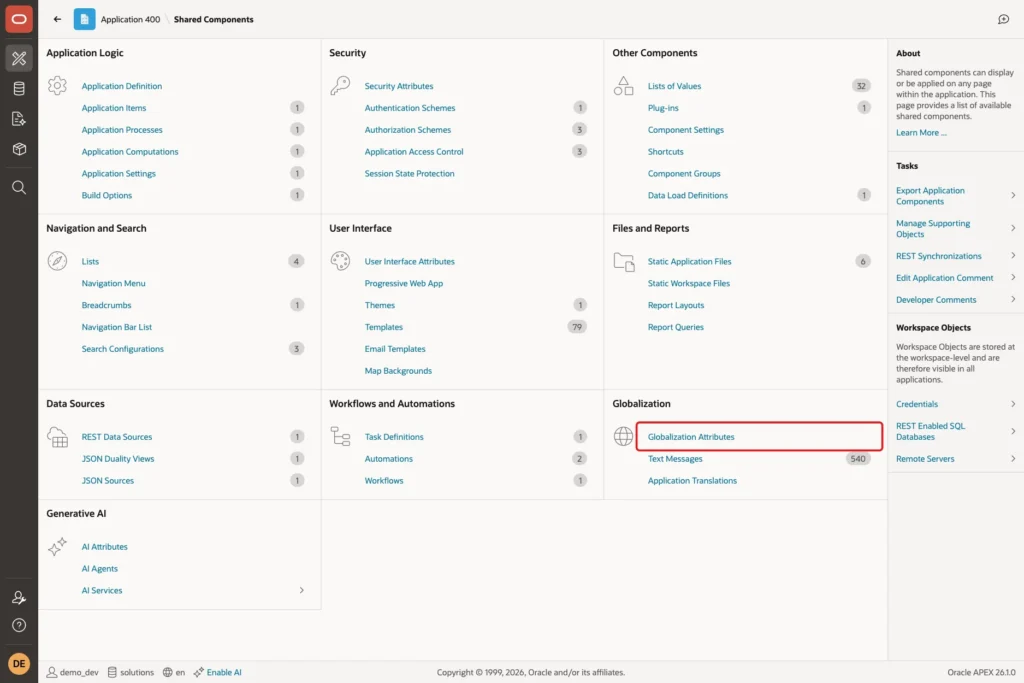
Go to Shared Components. Under Globalization, click Globalization Attributes:
Turn on Automatic Time Zone and click Apply Changes:
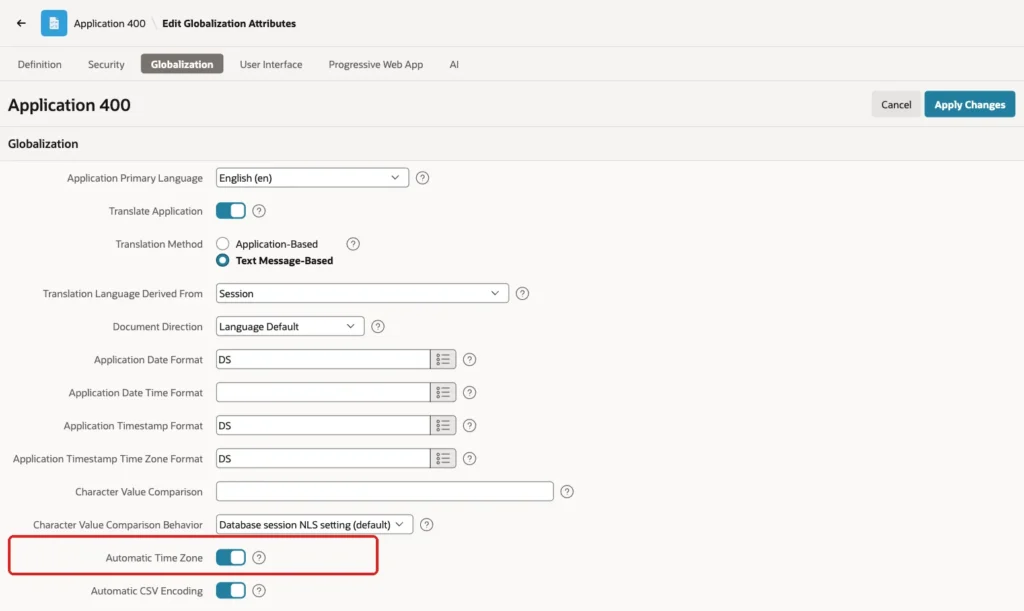
With this setting, the browser sends its time zone when the session starts. In this example, the login request from a New York browser carried tz=America/New_York;-4:00, and APEX stored America/New_York as the session time zone.
Because APEX stores the region name and not only the offset -4:00, the December webinar still gets the winter offset -5:00. The setting applies to the whole application, not only to the new pages.
Step 6: Show Local, Presenter and UTC Times in the Report
Open page 640 in Page Designer and select the Webinars region. Under Source, set Type to SQL Query and enter the query from Step 3, without the ORDER BY:
Example:
select w.webinar_id,
       w.title,
       p.full_name as presenter,
       w.starts_at,
       w.starts_at at time zone p.home_time_zone as presenter_time,
       sys_extract_utc(w.starts_at) as starts_utc,
       w.duration_min
from webinars w
join webinar_presenters p on p.presenter_id = w.presenter_id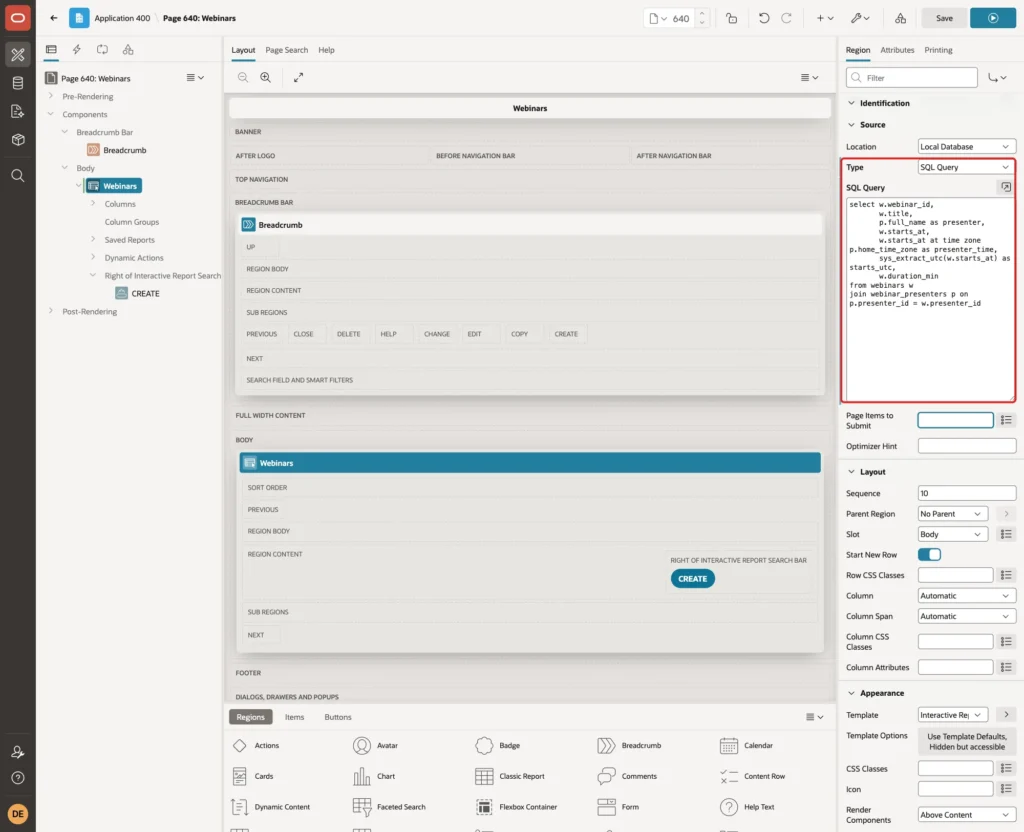
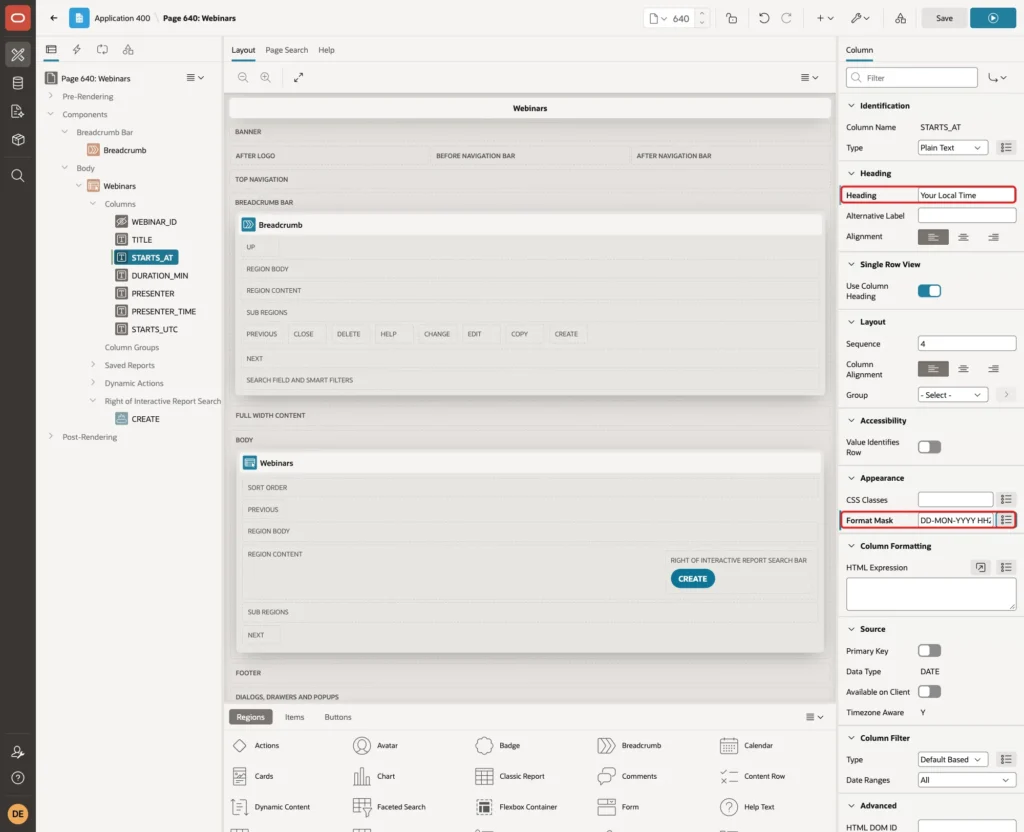
Expand Columns and select STARTS_AT. Set Heading to Your Local Time and Format Mask to DD-MON-YYYY HH24:MI. Under Source, APEX shows Timezone Aware Y for this column:
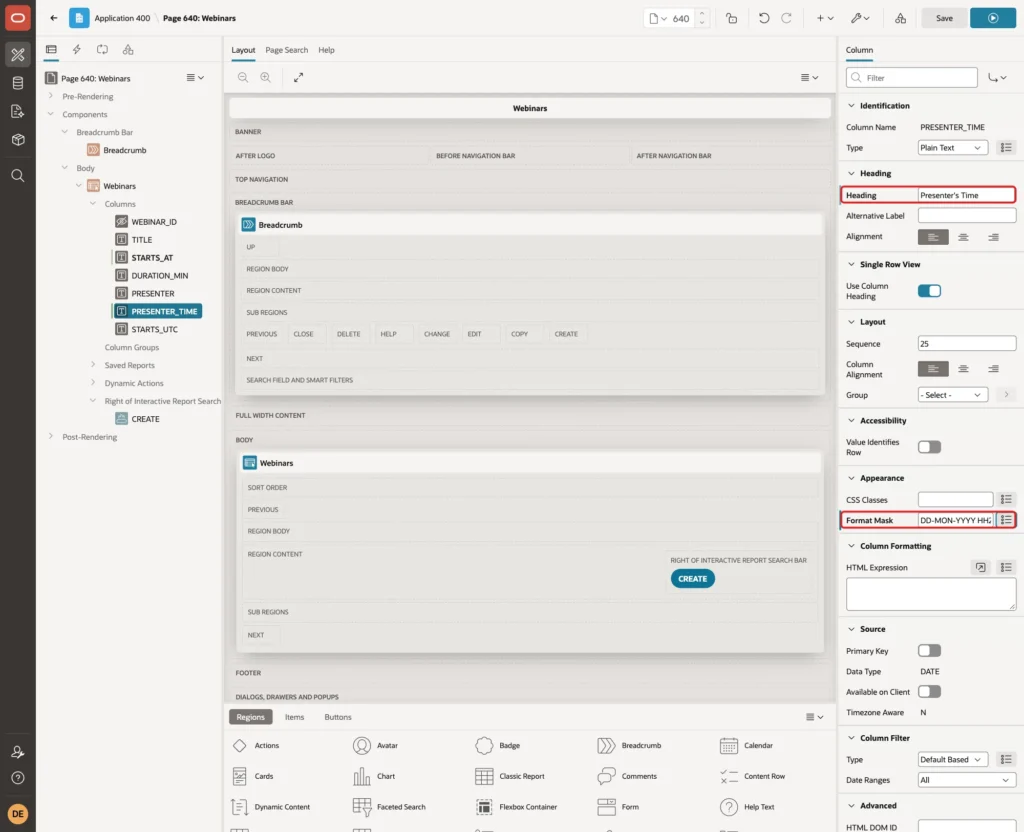
Select PRESENTER_TIME. Set Heading to Presenter's Time and Format Mask to DD-MON-YYYY HH24:MI TZD. TZD adds the zone abbreviation, such as IST, EDT, EST or GMT:
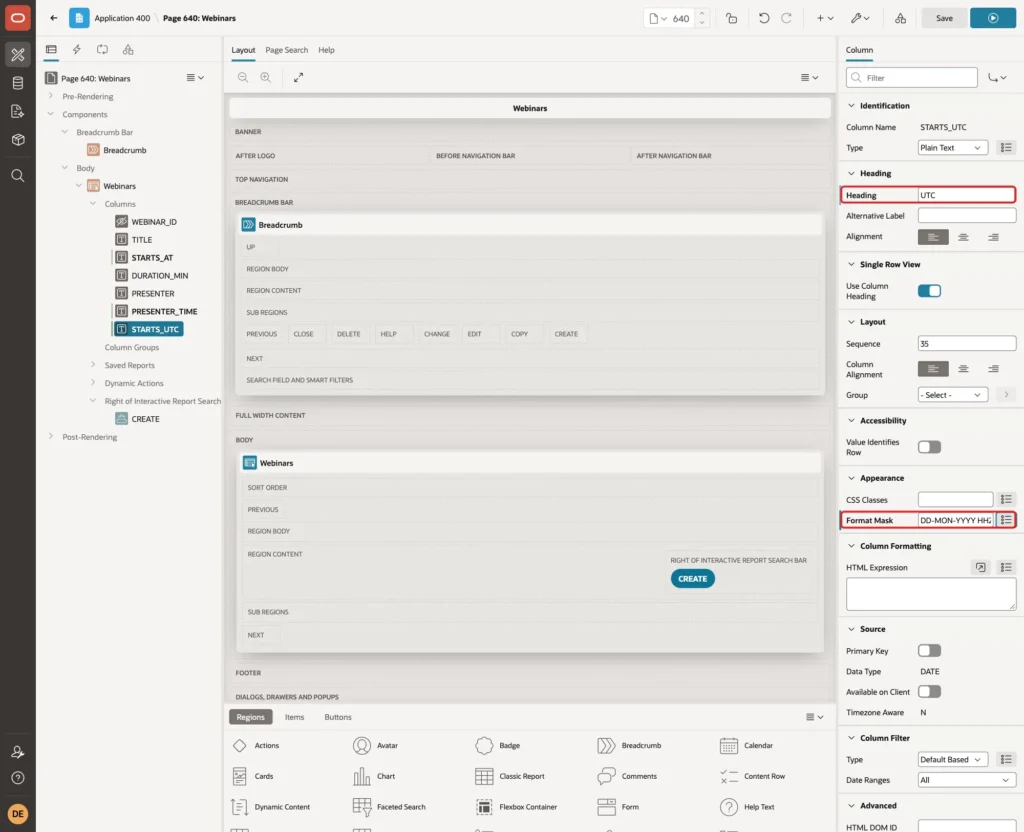
Select STARTS_UTC, set Heading to UTC and Format Mask to DD-MON-YYYY HH24:MI. Set the Heading of DURATION_MIN to Duration (Min) and click Save:
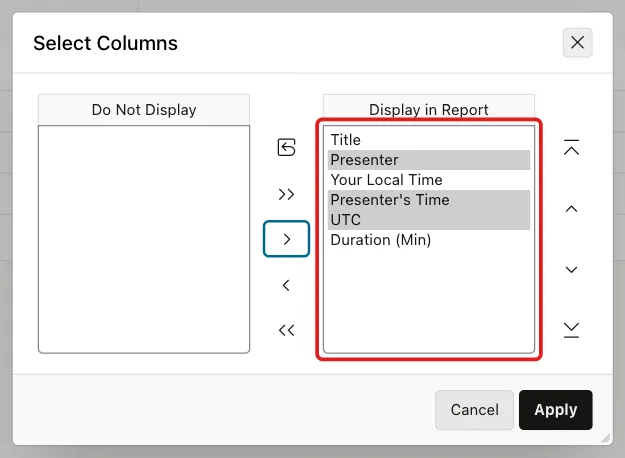
The new columns PRESENTER, PRESENTER_TIME and STARTS_UTC are not part of the default report yet. Run page 640, click Actions, Columns, and move Presenter, Presenter's Time and UTC to Display in Report, in this order:
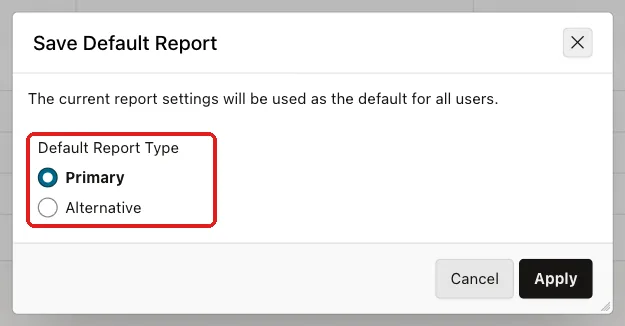
Click Apply, click the Your Local Time heading and sort ascending. Then click Actions, Report, Save Report, select As Default Report Settings, keep Primary and click Apply:
Step 7: Set Up the Form Items
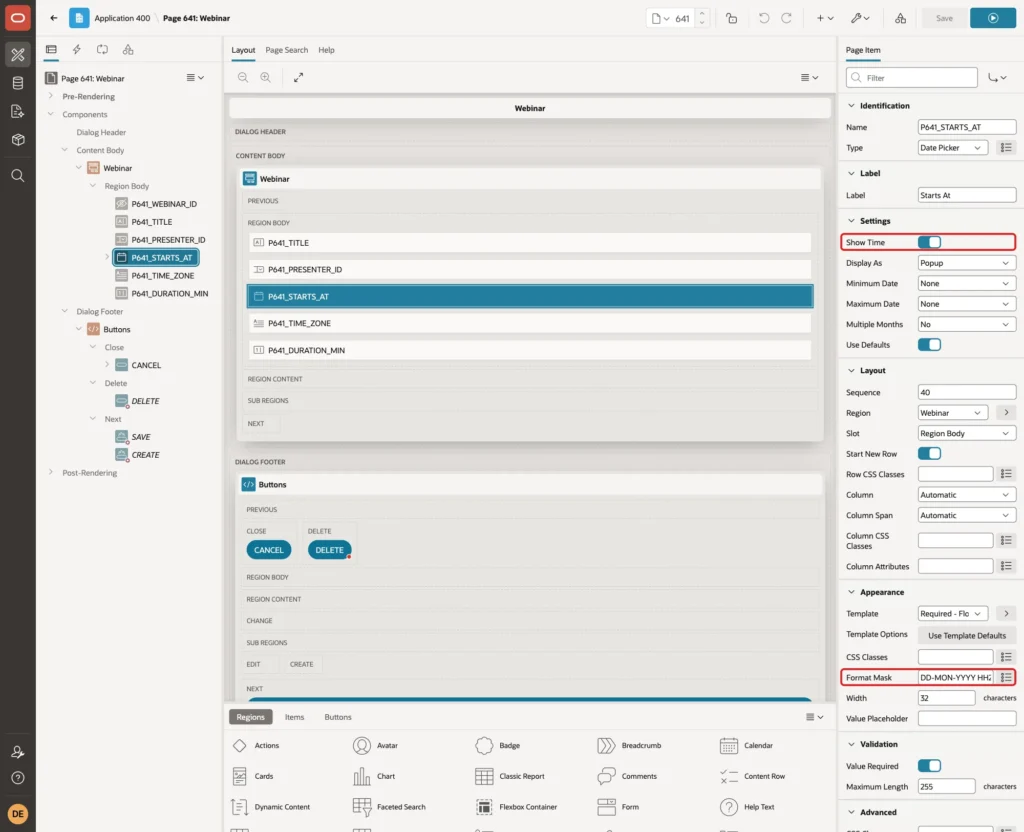
Open page 641 in Page Designer. Select P641_STARTS_AT, turn on Show Time and set Format Mask to DD-MON-YYYY HH24:MI, so users can enter the hour and minute:
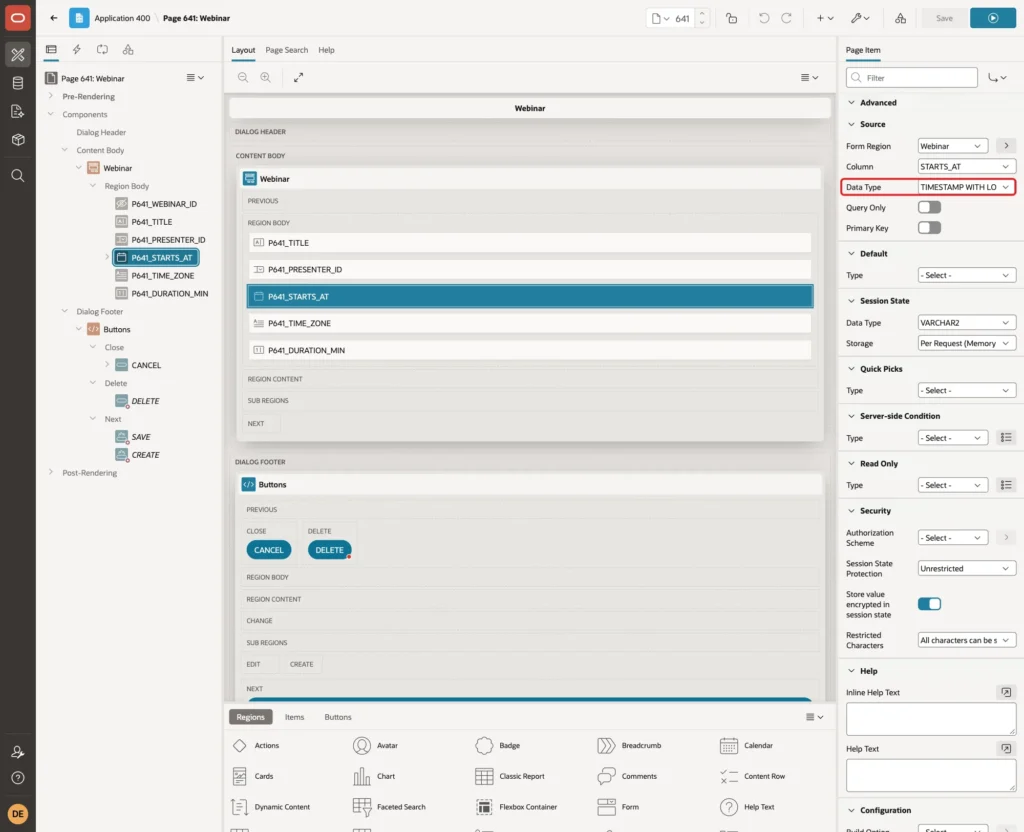
Under Source, keep Data Type Timestamp with Local Time Zone as the wizard set it. APEX then reads and writes the value in the session time zone:
Set the Label of P641_PRESENTER_ID to Presenter and of P641_DURATION_MIN to Duration (Minutes).
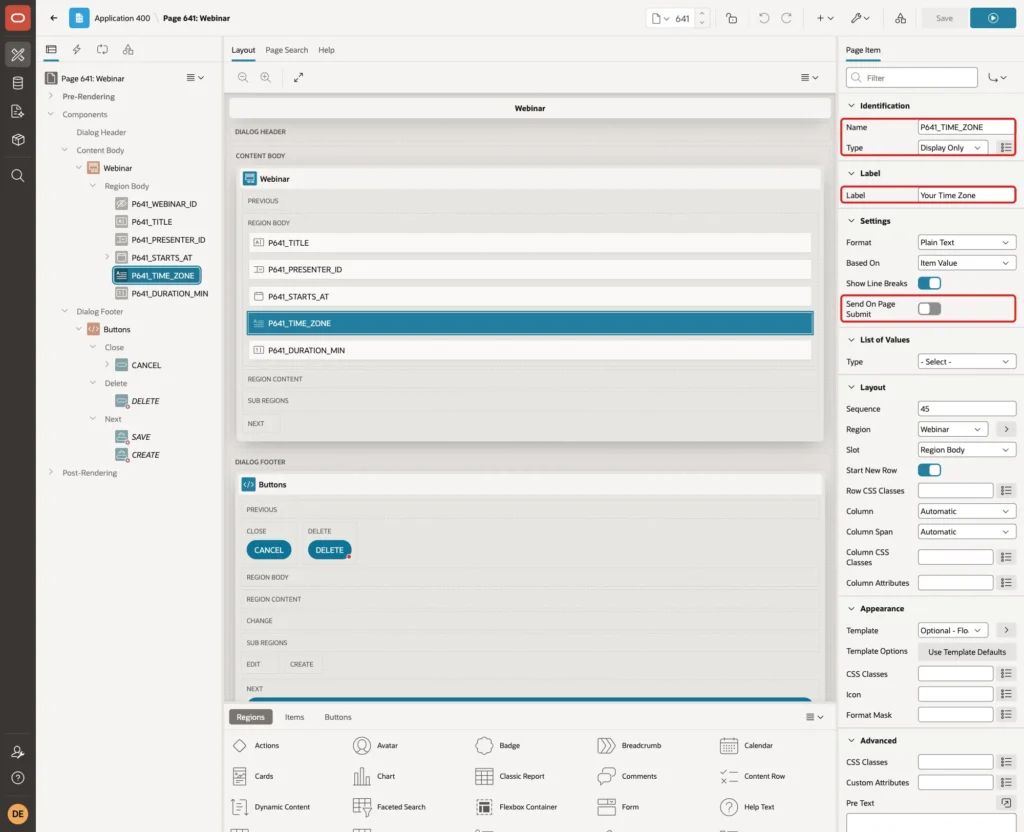
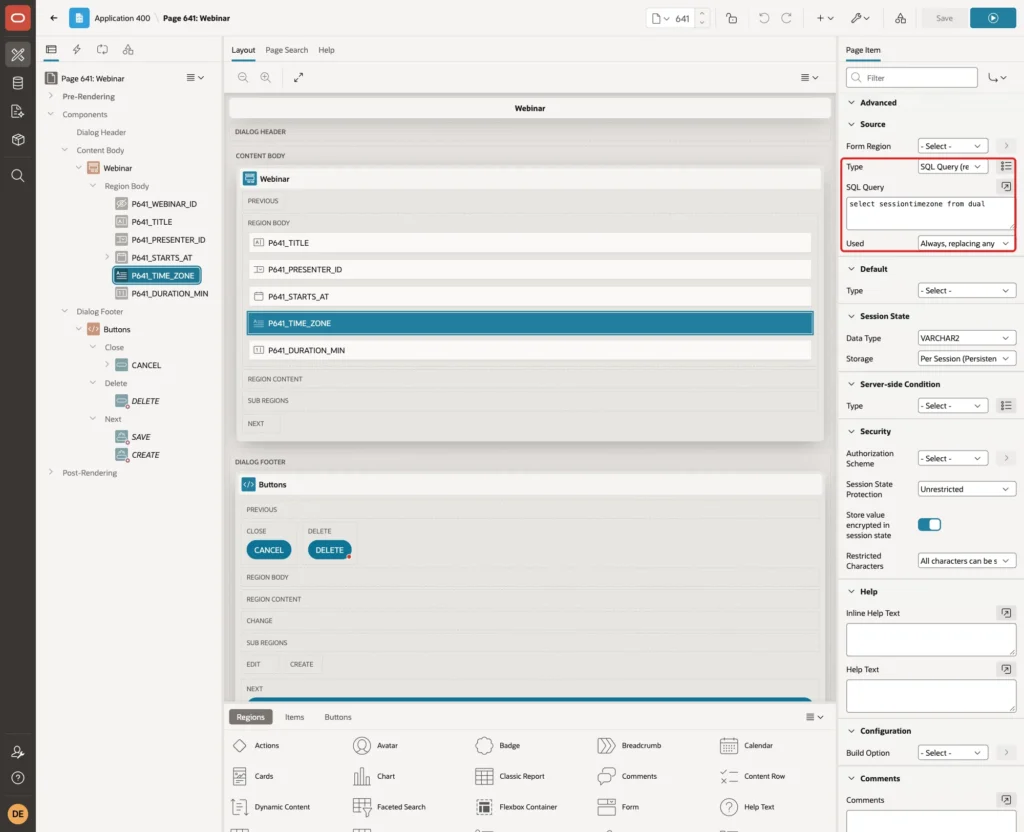
Users should know which time zone they type in. Add a page item P641_TIME_ZONE to the Webinar region. Set Type to Display Only, Label to Your Time Zone, Sequence to 45, and turn off Send On Page Submit:
Under Source, set Type to SQL Query (return single value), enter select sessiontimezone from dual, and set Used to Always, replacing any existing value in session state:
Click Save.
Step 8: Let Users Pick a Different Time Zone
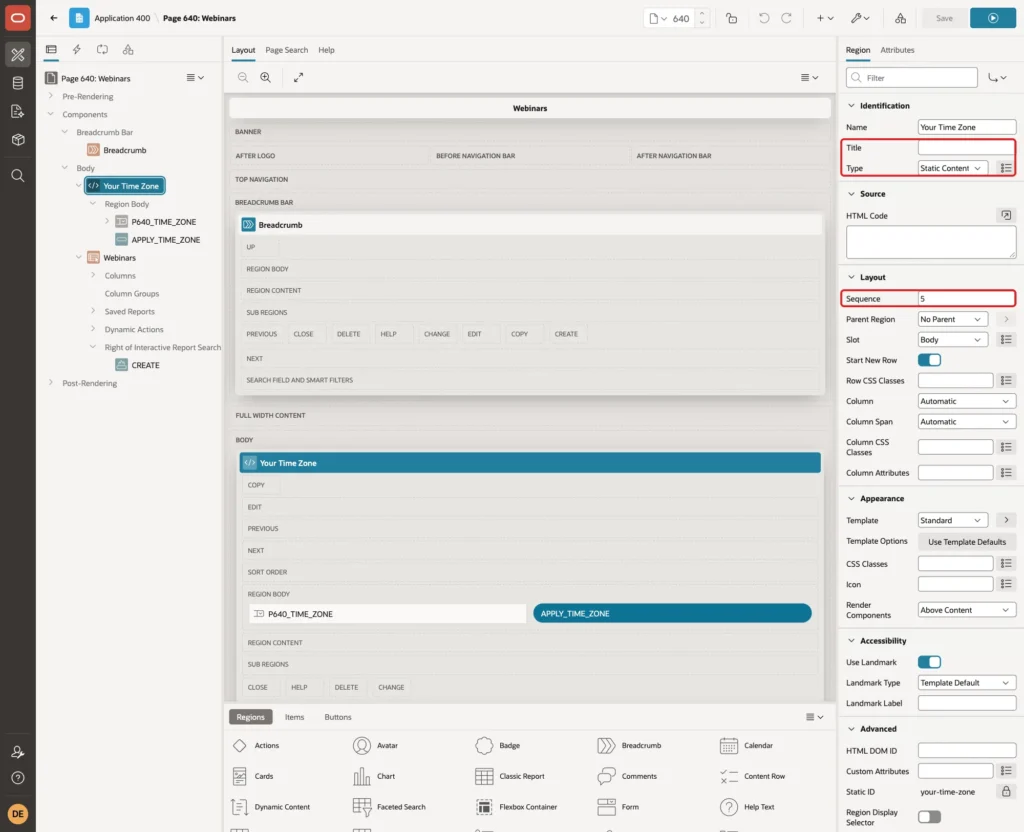
The browser time zone is the right default, but a user may want to see the times of another office. Open page 640, add a Static Content region above the report, set Title to Your Time Zone and Sequence to 5:
Add a page item P640_TIME_ZONE in this region. Set Type to Select List and Label to Show Times In.
Under List of Values, set Type to SQL Query and enter the query below. Turn on Display Extra Values and turn off Display Null Value:
Example:
select distinct tzname as d, tzname as r from v$timezone_names order by 1
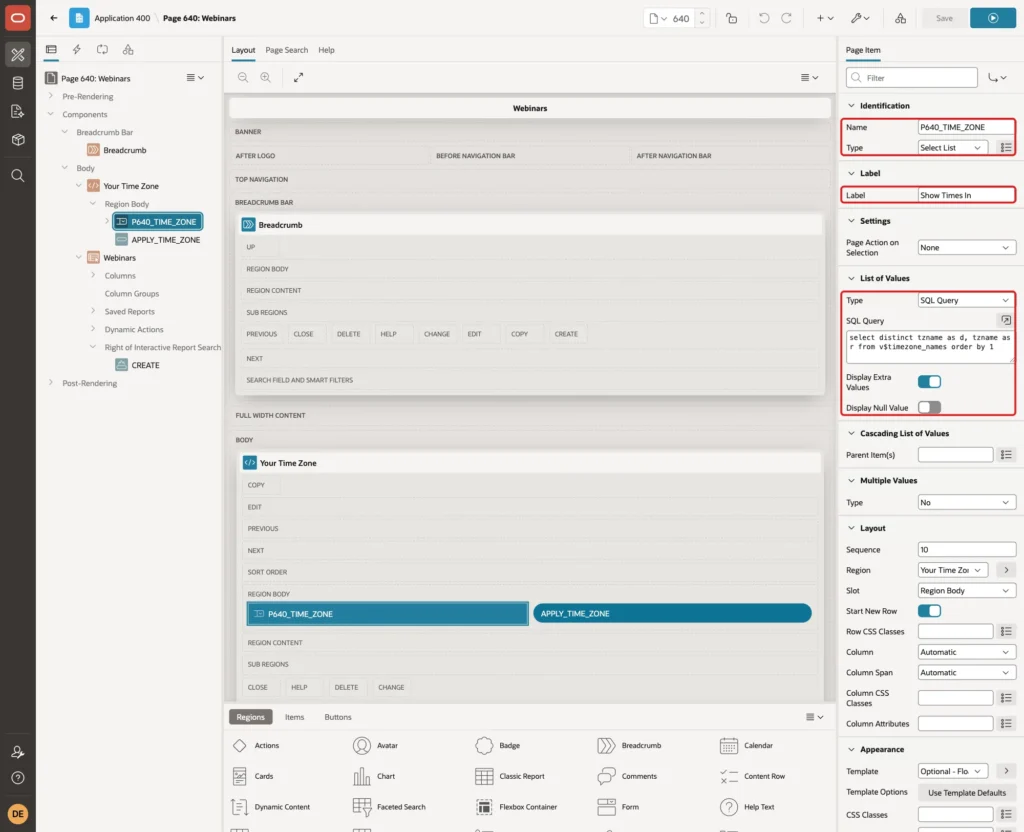
Display Extra Values is on so the select list can still show a session time zone that is not a region name. In one test below, the session fell back to the offset +00:00, and the select list showed it.
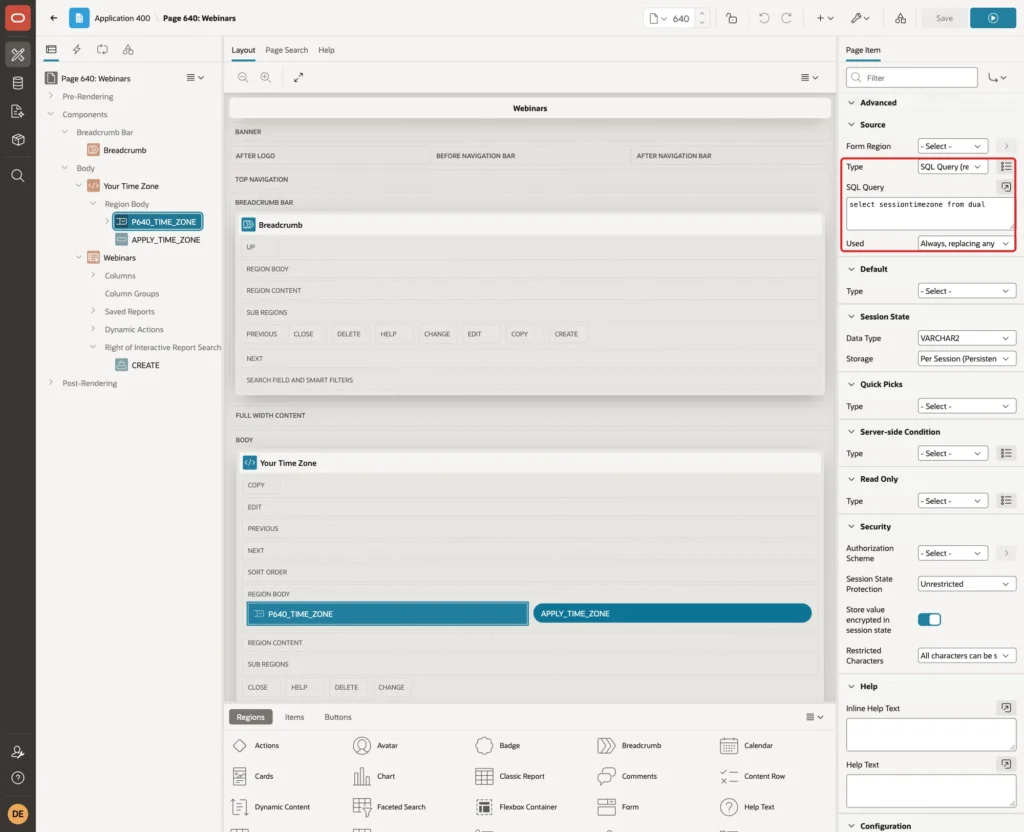
Under Source, set Type to SQL Query (return single value), enter select sessiontimezone from dual and set Used to Always:
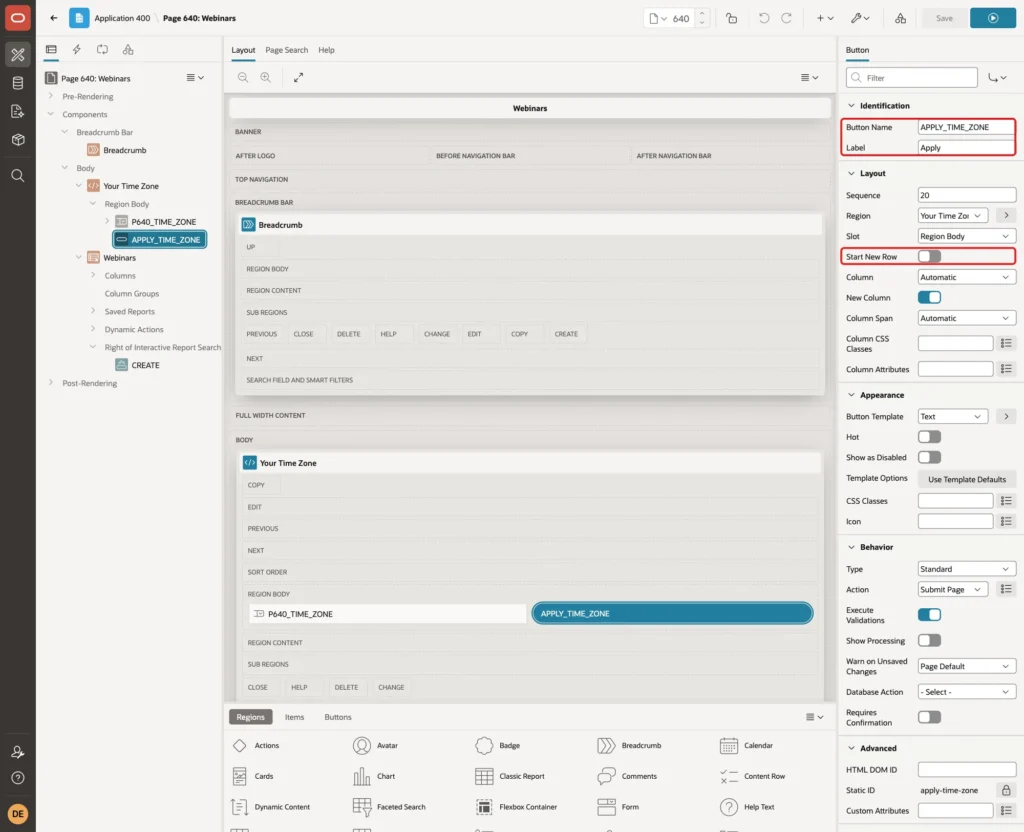
Add a button to the region. Set Button Name to APPLY_TIME_ZONE, Label to Apply, and turn off Start New Row, so it sits next to the select list. Keep the action Submit Page:
In a first test without any check, a value forced into the select list with the browser tools, Mars/Olympus, was accepted. APEX stored it as the session time zone and silently showed all times in UTC. No error appeared.
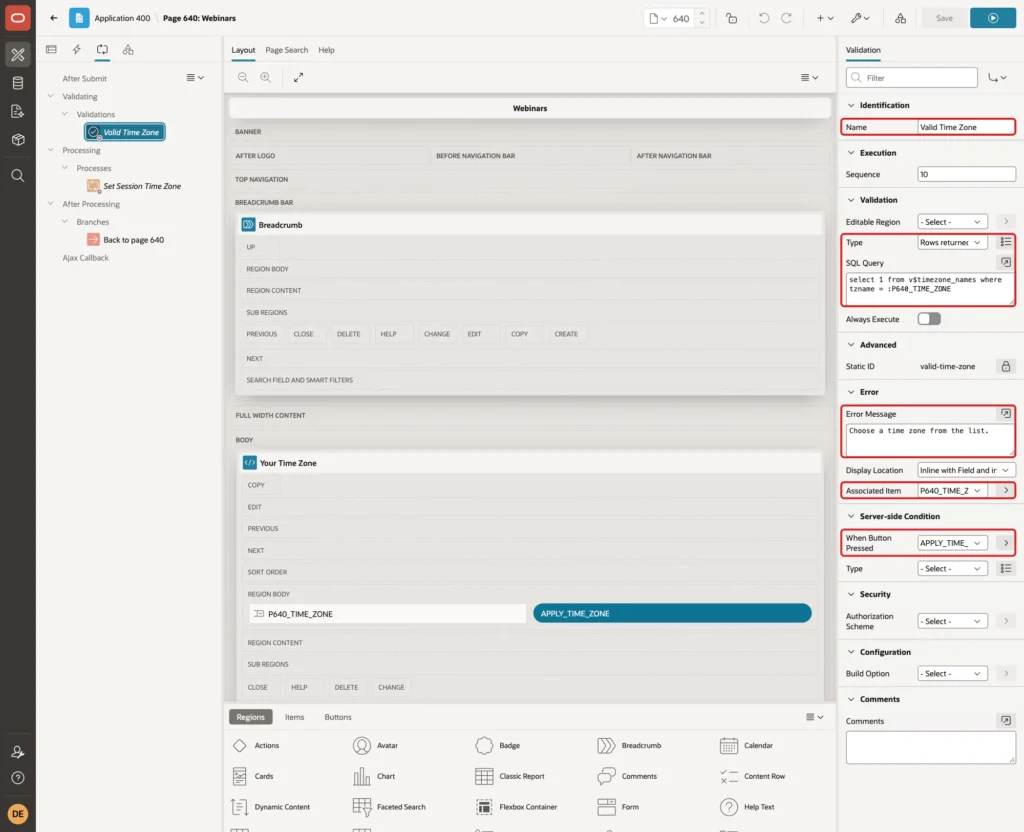
So add a validation on the Processing tab. Name it Valid Time Zone, set Type to Rows returned and enter this query:
Example:
select 1 from v$timezone_names where tzname = :P640_TIME_ZONE
Set Error Message to "Choose a time zone from the list.", Associated Item to P640_TIME_ZONE, and When Button Pressed to APPLY_TIME_ZONE:
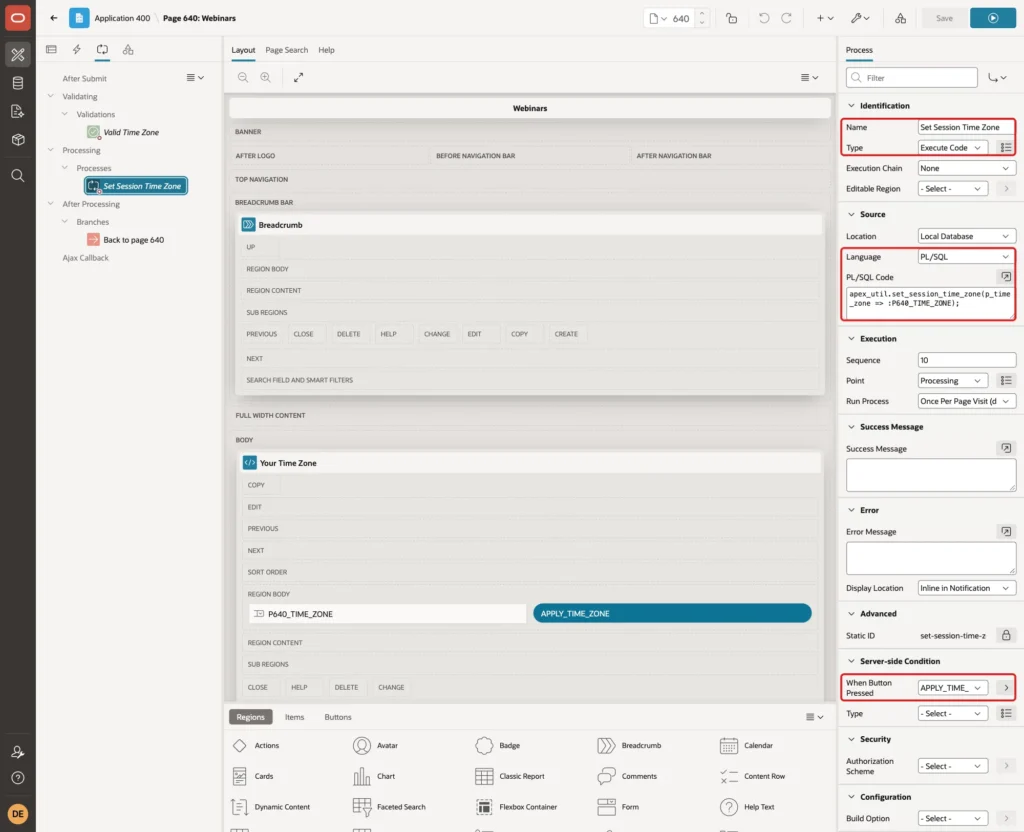
Add a process Set Session Time Zone of Type Execute Code with this PL/SQL code, and set When Button Pressed to APPLY_TIME_ZONE:
Example:
apex_util.set_session_time_zone(p_time_zone => :P640_TIME_ZONE);
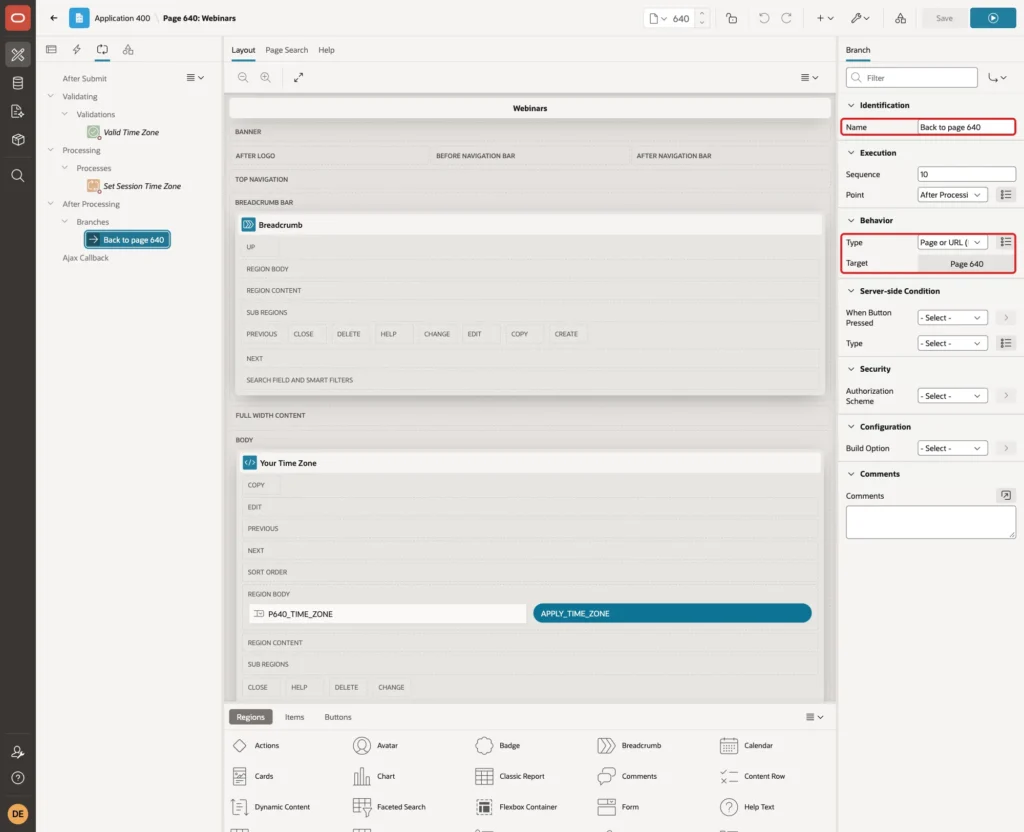
Finally, add a branch Back to page 640 under After Processing, with Type Page or URL (Redirect) and Target page 640. Click Save:
Step 9: Test the Pages in Two Time Zones
For the test, two browsers were set to different time zones, Asia/Kolkata and America/New_York, and both signed in as the same user. First, the Kolkata browser. The select list shows Asia/Calcutta and the times are Indian times:
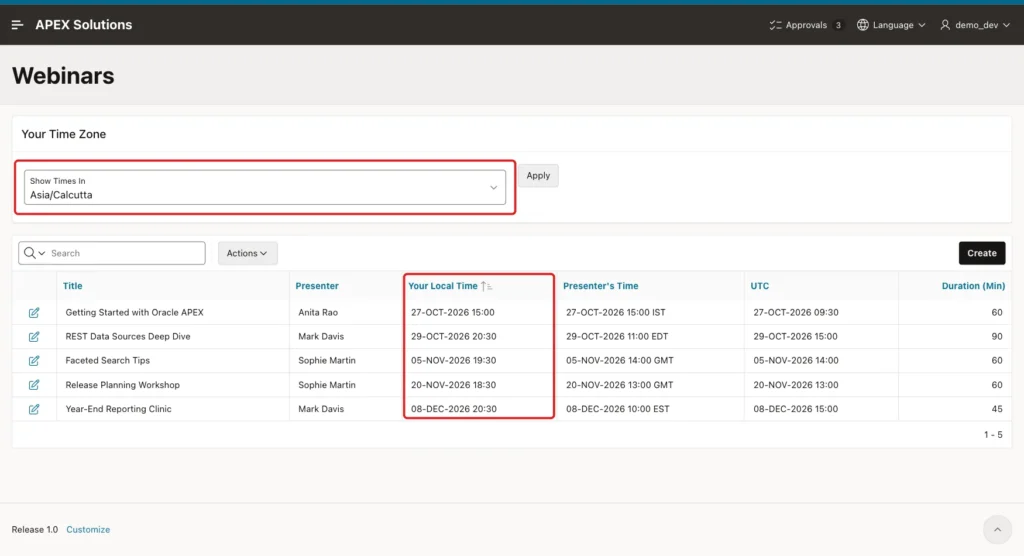
The browser sent the older name Asia/Calcutta, not Asia/Kolkata. Both names are valid in the database and give the same times.
Click Create and enter a webinar Release Planning Workshop by Sophie Martin, starting 20-NOV-2026 18:30, for 60 minutes. The form shows that the time is entered in Asia/Calcutta:
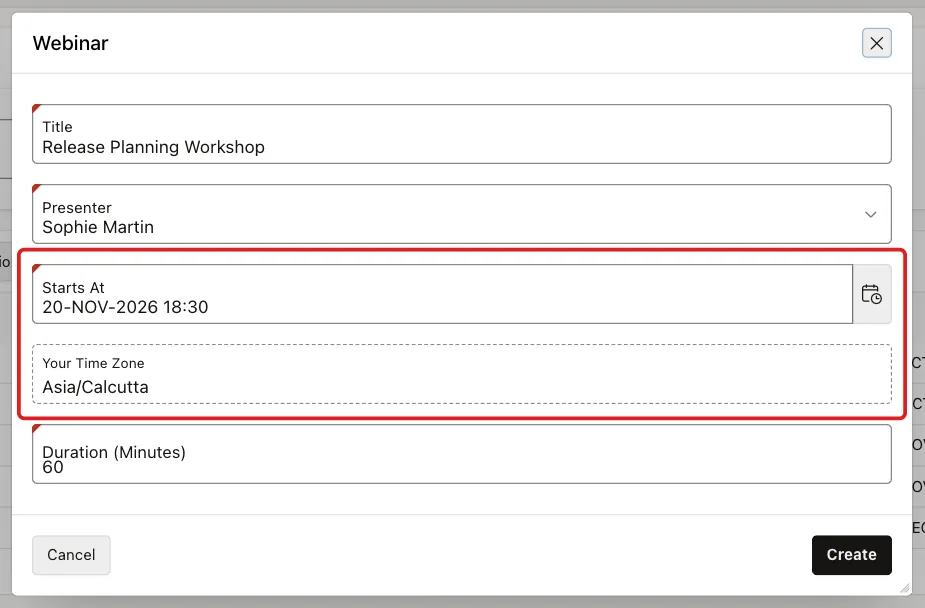
Click Create. The database stored the moment in UTC, 18:30 minus 5 hours 30 minutes:
Example:
set lines 200 pages 100 feedback off
alter session set nls_timestamp_format = 'DD-MON-YYYY HH24:MI';
column title format a28
select webinar_id,
       title,
       sys_extract_utc(starts_at) as stored_utc
from webinars
where title in ('Release Planning Workshop', 'Faceted Search Tips')
order by webinar_id;
Output:
   WEBINAR_ID TITLE                        STORED_UTC
_____________ ____________________________ ____________________
            3 Faceted Search Tips          05-NOV-2026 14:00
           21 Release Planning Workshop    20-NOV-2026 13:00
Now the New York browser. The same rows show New York times, with 11:00 for the October webinar and 10:00 for the December webinar, and the new workshop at 08:00:
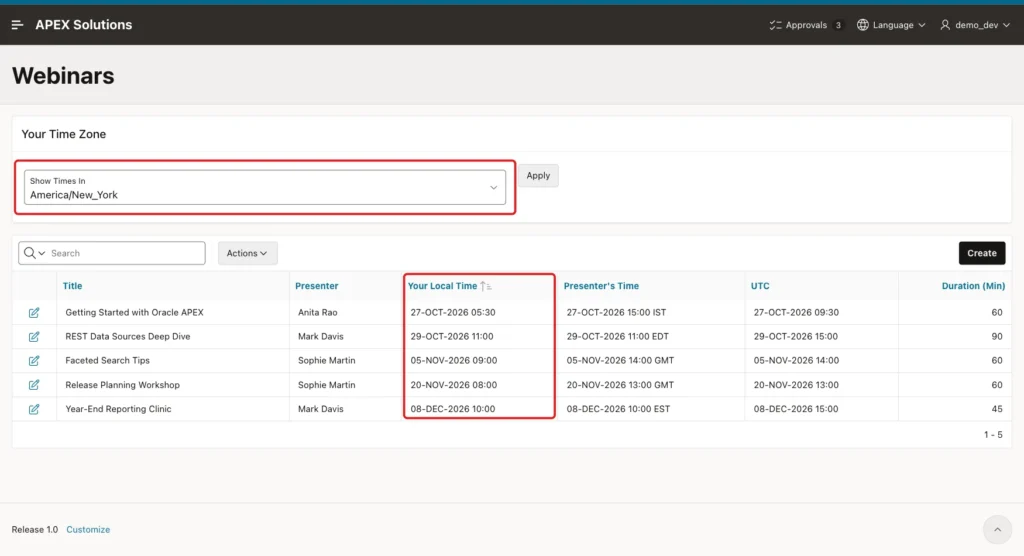
Presenter's Time and UTC are the same in both browsers, because they do not depend on the session.
Open Faceted Search Tips in the New York browser. The form shows 05-NOV-2026 09:00 and America/New_York. Change only Duration (Minutes) to 75 and click Apply Changes:
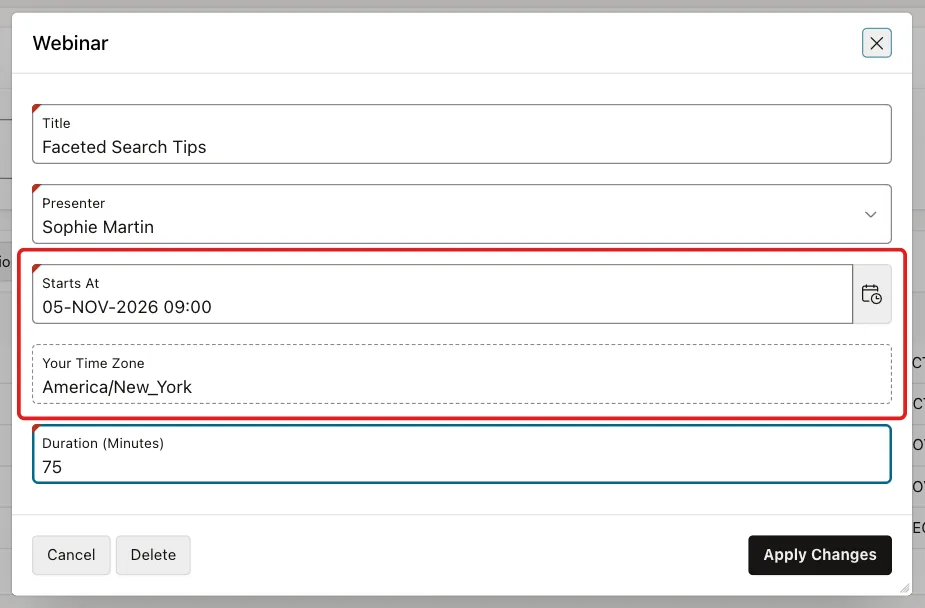
Saving the form in another time zone did not move the start time. It is still 14:00 UTC:
Example:
set lines 200 pages 100 feedback off
alter session set nls_timestamp_format = 'DD-MON-YYYY HH24:MI';
column title format a28
select webinar_id,
       title,
       sys_extract_utc(starts_at) as stored_utc,
       duration_min
from webinars
where title = 'Faceted Search Tips';
Output:
   WEBINAR_ID TITLE                  STORED_UTC              DURATION_MIN
_____________ ______________________ ____________________ _______________
            3 Faceted Search Tips    05-NOV-2026 14:00                 75
Next, select Asia/Tokyo in Show Times In and click Apply. The report switches to Tokyo times. The REST webinar now starts at midnight on 30 October:
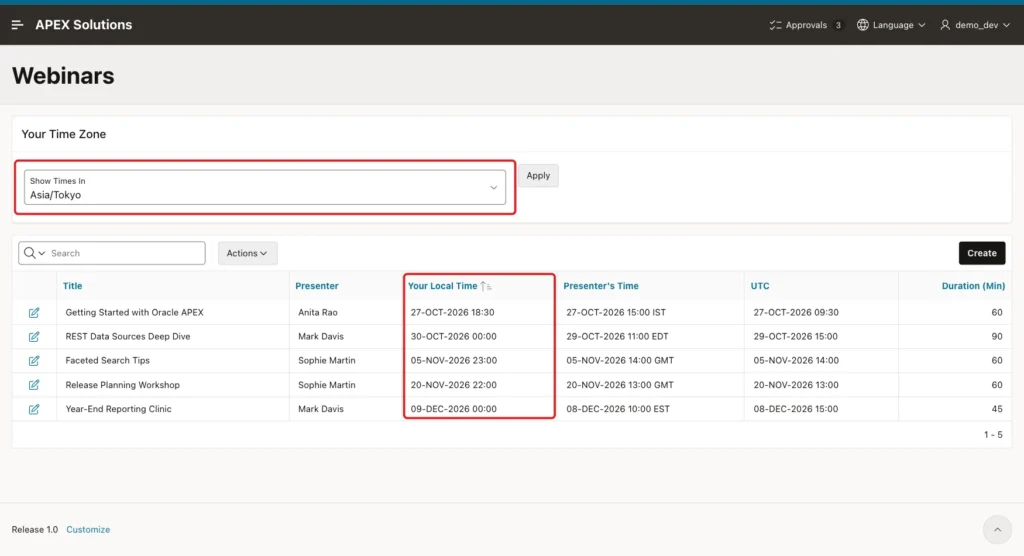
The choice stayed when the user went to the home page and back. After signing in again, the session started with the browser time zone America/New_York.
Now the negative test. Force the value Mars/Olympus into the select list with the browser developer tools and click Apply. The validation stops it, and the times stay in New York time:
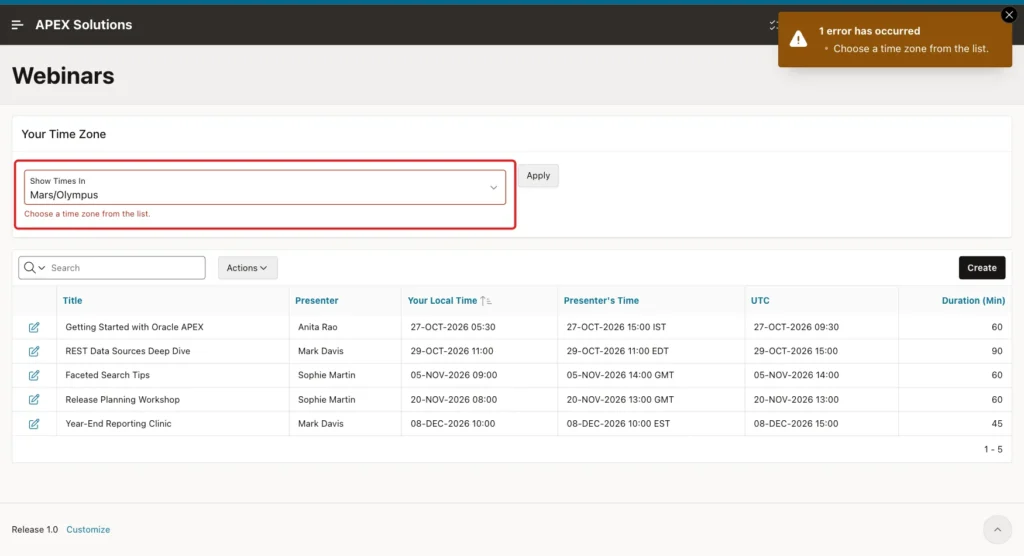
Things to Know
- Only TIMESTAMP WITH LOCAL TIME ZONE values are converted. A DATE value is shown exactly as stored, in every time zone, as the query below shows.
- SYSDATE returns the time of the database server, not of the user. CURRENT_DATE follows the session time zone.
- Automatic Time Zone uses the time zone the browser reports. If a user wants another one, the picker in Step 8 lets them change it.
- APEX_UTIL.SET_SESSION_TIME_ZONE lasts for the APEX session only. A new sign-in starts again with the browser time zone.
- Store region names such as Europe/London, not fixed offsets such as +01:00. Only a region name follows daylight saving time.
- Automatic Time Zone is an application setting, so it changes how every page of the application shows TIMESTAMP WITH LOCAL TIME ZONE columns.
Example:
set lines 200 pages 100 feedback off
alter session set nls_date_format = 'DD-MON-YYYY HH24:MI';
alter session set nls_timestamp_format = 'DD-MON-YYYY HH24:MI';

alter session set time_zone = 'America/New_York';
select sessiontimezone,
       sysdate,
       current_date,
       to_date('05-NOV-2026 14:00', 'DD-MON-YYYY HH24:MI') as date_value,
       w.starts_at
from webinars w
where w.title = 'Faceted Search Tips';

alter session set time_zone = 'Asia/Kolkata';
select sessiontimezone,
       sysdate,
       current_date,
       to_date('05-NOV-2026 14:00', 'DD-MON-YYYY HH24:MI') as date_value,
       w.starts_at
from webinars w
where w.title = 'Faceted Search Tips';
Output:
SESSIONTIMEZONE     SYSDATE              CURRENT_DATE         DATE_VALUE           STARTS_AT
___________________ ____________________ ____________________ ____________________ ____________________
America/New_York    18-OCT-2026 01:22    17-OCT-2026 21:22    05-NOV-2026 14:00    05-NOV-2026 09:00

SESSIONTIMEZONE    SYSDATE              CURRENT_DATE         DATE_VALUE           STARTS_AT
__________________ ____________________ ____________________ ____________________ ____________________
Asia/Kolkata       18-OCT-2026 01:22    18-OCT-2026 06:52    05-NOV-2026 14:00    05-NOV-2026 19:30
The database server runs in UTC, so SYSDATE shows 01:22 in both sessions. CURRENT_DATE and STARTS_AT change with the session time zone, while the DATE value stays 14:00.
Related Guides
- How to Handle Daylight Saving Time Gaps in Oracle
- How to Generate Recurring Events (Weekly, Monthly) in Oracle APEX
Conclusion
Showing times in each user's time zone in Oracle APEX takes two settings: a TIMESTAMP WITH LOCAL TIME ZONE column and Automatic Time Zone in the Globalization Attributes. APEX then converts every value for display and converts typed values back when it saves them.
Add a display item so users know which zone they type in, a picker with APEX_UTIL.SET_SESSION_TIME_ZONE for viewing other zones, and a validation for the picker. Test with browsers in different time zones and check the stored UTC value in SQL, including dates on both sides of a daylight saving change.
