
A shopping cart holds what a user picked before anything is saved as an order. The rows belong to one user and one visit, they change all the time, and most carts are never checked out. Writing them into the order tables on every click leaves half-finished orders behind.
APEX collections fit this job. A collection is a set of rows stored per APEX session, so every user gets a private cart without an extra table. This guide builds a product page with Add to Cart buttons, a cart page where users change quantities and remove items, and a checkout that turns the cart into an order.
The posts How to Store Temporary Data in an APEX Session Using APEX_COLLECTION and Oracle APEX Collection Example explain the APEX_COLLECTION API call by call. This guide uses a few of those calls to build the complete cart: pages, buttons, an editable grid on the collection, validations and the checkout.
The guide uses products and orders as the example. The same steps work for any "pick now, save later" list, such as items for a quote, books to borrow or tasks to assign.
Step 1: Create the Tables
The cart itself needs no table, but the products and the orders do:
- CART_PRODUCTS holds the products with their price and an IS_ACTIVE flag.
- CART_ORDERS holds one row per checkout, with the user and the date.
- CART_ORDER_LINES holds the products of each order, with the quantity and the price at checkout.
Create the tables and six products. The wall calendar is no longer sold:
Example:
create table cart_products (
  product_id   number generated by default on null as identity,
  sku          varchar2(20)   not null,
  name         varchar2(100)  not null,
  description  varchar2(400),
  unit_price   number(10,2)   not null,
  is_active    varchar2(1)    default on null 'Y' not null,
  constraint cart_products_pk primary key (product_id),
  constraint cart_products_sku_uk unique (sku),
  constraint cart_products_price_ck check (unit_price > 0),
  constraint cart_products_active_ck check (is_active in ('Y', 'N'))
);

create table cart_orders (
  order_id    number generated by default on null as identity,
  ordered_by  varchar2(128)  default on null
                coalesce(sys_context('APEX$SESSION', 'APP_USER'), user) not null,
  ordered_on  date           default on null sysdate not null,
  status      varchar2(10)   default on null 'NEW' not null,
  constraint cart_orders_pk primary key (order_id),
  constraint cart_orders_status_ck check (status in ('NEW', 'PAID', 'SHIPPED', 'CANCELLED'))
);

create table cart_order_lines (
  line_id     number generated by default on null as identity,
  order_id    number         not null,
  product_id  number         not null,
  quantity    number(3)      not null,
  unit_price  number(10,2)   not null,
  line_total  number(12,2)   generated always as (quantity * unit_price) virtual,
  constraint cart_order_lines_pk primary key (line_id),
  constraint cart_order_lines_order_fk foreign key (order_id)
    references cart_orders (order_id) on delete cascade,
  constraint cart_order_lines_product_fk foreign key (product_id)
    references cart_products (product_id),
  constraint cart_order_lines_uk unique (order_id, product_id),
  constraint cart_order_lines_qty_ck check (quantity between 1 and 99)
);

create index cart_order_lines_product_ix on cart_order_lines (product_id);

insert into cart_products (sku, name, description, unit_price)
values ('NB-A5', 'A5 Notebook', 'Dotted pages, 160 sheets, hard cover.', 6.50);

insert into cart_products (sku, name, description, unit_price)
values ('PEN-GEL', 'Gel Pen Set', 'Ten colours, 0.5 mm tips.', 8.90);

insert into cart_products (sku, name, description, unit_price)
values ('MUG-CER', 'Ceramic Mug', 'Holds 350 ml, dishwasher safe.', 12.00);

insert into cart_products (sku, name, description, unit_price)
values ('BAG-TOT', 'Canvas Tote Bag', 'Cotton canvas with a front pocket.', 15.75);

insert into cart_products (sku, name, description, unit_price)
values ('LAMP-LED', 'LED Desk Lamp', 'Three brightness levels and a USB port.', 34.00);

insert into cart_products (sku, name, description, unit_price, is_active)
values ('CAL-2025', 'Wall Calendar 2025', 'Last year''s calendar, no longer sold.', 9.00, 'N');

commit;

select product_id, sku, name, unit_price, is_active
  from cart_products
 order by product_id;
Output:
Table CART_PRODUCTS created.

Table CART_ORDERS created.

Table CART_ORDER_LINES created.

Index CART_ORDER_LINES_PRODUCT_IX created.

1 row inserted.

1 row inserted.

1 row inserted.

1 row inserted.

1 row inserted.

1 row inserted.

Commit complete.

   PRODUCT_ID SKU         NAME                     UNIT_PRICE IS_ACTIVE
_____________ ___________ _____________________ _____________ ____________
            1 NB-A5       A5 Notebook                     6.5 Y
            2 PEN-GEL     Gel Pen Set                     8.9 Y
            3 MUG-CER     Ceramic Mug                      12 Y
            4 BAG-TOT     Canvas Tote Bag               15.75 Y
            5 LAMP-LED    LED Desk Lamp                    34 Y
            6 CAL-2025    Wall Calendar 2025                9 N

6 rows selected.
The rules that can be declared are in the tables, not in code:
- ORDERED_BY uses DEFAULT ON NULL with the APEX user from sys_context('APEX$SESSION', 'APP_USER'). Outside APEX it falls back to the database user.
- ORDERED_ON and STATUS also use DEFAULT ON NULL, so the checkout only inserts the status.
- LINE_TOTAL is a virtual column, so it is always the quantity times the price.
- CART_ORDER_LINES_UK allows each product once per order, and CART_ORDER_LINES_QTY_CK keeps the quantity between 1 and 99.
- CART_ORDER_LINES_PRODUCT_IX indexes the product foreign key. The order foreign key is the first column of the unique key.
Step 2: Create the Cart Package
The cart lives in a collection named SHOPPING_CART. Each member is one product: N001 holds the product ID and N002 the quantity. The name and price are not copied into the collection. The pages join CART_PRODUCTS, so they always show the current price.
A small package keeps all cart logic in one place, so the page processes stay one line long:
Example:
create or replace package cart_pkg as
  c_cart constant varchar2(30) := 'SHOPPING_CART';
  procedure add_item (p_product_id in number, p_quantity in number default 1);
  procedure set_quantity (p_seq_id in number, p_quantity in number);
  procedure remove_item (p_seq_id in number);
  function item_count return number;
  function checkout return number;
end cart_pkg;
/

create or replace package body cart_pkg as

  procedure add_item (p_product_id in number, p_quantity in number default 1) is
    l_active  cart_products.is_active%type;
    l_seq_id  number;
    l_qty     number;
  begin
    select max(is_active) into l_active
      from cart_products
     where product_id = p_product_id;
    if l_active is null or l_active <> 'Y' then
      raise_application_error(-20001, 'This product is not available.');
    end if;

    if not apex_collection.collection_exists(c_cart) then
      apex_collection.create_collection(c_cart);
    end if;

    select max(seq_id), max(n002) into l_seq_id, l_qty
      from apex_collections
     where collection_name = c_cart
       and n001 = p_product_id;

    if l_seq_id is null then
      apex_collection.add_member(
        p_collection_name => c_cart,
        p_n001            => p_product_id,
        p_n002            => p_quantity);
    else
      set_quantity(l_seq_id, l_qty + p_quantity);
    end if;
  end add_item;

  procedure set_quantity (p_seq_id in number, p_quantity in number) is
  begin
    if p_quantity is null or p_quantity not between 1 and 99 then
      raise_application_error(-20002, 'Quantity must be between 1 and 99.');
    end if;
    apex_collection.update_member_attribute(
      p_collection_name => c_cart,
      p_seq             => p_seq_id,
      p_attr_number     => 2,
      p_number_value    => p_quantity);
  end set_quantity;

  procedure remove_item (p_seq_id in number) is
  begin
    apex_collection.delete_member(
      p_collection_name => c_cart,
      p_seq             => p_seq_id);
  end remove_item;

  function item_count return number is
    l_count number;
  begin
    select nvl(sum(n002), 0) into l_count
      from apex_collections
     where collection_name = c_cart;
    return l_count;
  end item_count;

  function checkout return number is
    l_order_id     cart_orders.order_id%type;
    l_unavailable  number;
  begin
    if item_count = 0 then
      raise_application_error(-20003, 'Your cart is empty.');
    end if;

    select count(*) into l_unavailable
      from apex_collections c
      left join cart_products p
        on p.product_id = c.n001
       and p.is_active = 'Y'
     where c.collection_name = c_cart
       and p.product_id is null;
    if l_unavailable > 0 then
      raise_application_error(-20004,
        'Some products in your cart are no longer available. Remove them and try again.');
    end if;

    insert into cart_orders (status) values ('NEW')
    returning order_id into l_order_id;

    insert into cart_order_lines (order_id, product_id, quantity, unit_price)
    select l_order_id, p.product_id, c.n002, p.unit_price
      from apex_collections c
      join cart_products p on p.product_id = c.n001
     where c.collection_name = c_cart;

    apex_collection.truncate_collection(c_cart);
    return l_order_id;
  end checkout;

end cart_pkg;
/

select object_name, object_type, status
  from user_objects
 where object_name = 'CART_PKG'
 order by object_type;
Output:
Package CART_PKG compiled

Package Body CART_PKG compiled

OBJECT_NAME    OBJECT_TYPE     STATUS
______________ _______________ _________
CART_PKG       PACKAGE         VALID
CART_PKG       PACKAGE BODY    VALID
What each part does:
- ADD_ITEM refuses unknown and inactive products. It creates the collection on first use. If the product is already in the cart, it raises the quantity instead of adding a second member.
- SET_QUANTITY changes N002 with APEX_COLLECTION.UPDATE_MEMBER_ATTRIBUTE. Attribute number 2 with P_NUMBER_VALUE means column N002.
- REMOVE_ITEM deletes one member by its sequence ID.
- ITEM_COUNT returns the number of items, which is the sum of the quantities.
- CHECKOUT refuses an empty cart and products that are no longer sold. It inserts the order and its lines with the current prices, empties the cart and returns the new order ID.
Step 3: Test the Package in SQL
APEX_COLLECTION needs an APEX session. APEX_SESSION.CREATE_SESSION creates one for application 400 and the user DEMO_DEV, so the package can be tested in SQL. The test adds the notebook twice, changes and removes members, tries an inactive product and a quantity of 0, then checks out twice:
Example:
set serveroutput on
begin
  apex_session.create_session(p_app_id => 400, p_page_id => 1, p_username => 'DEMO_DEV');
  cart_pkg.add_item(1);
  cart_pkg.add_item(3);
  cart_pkg.add_item(1);
  cart_pkg.add_item(5, 2);
  dbms_output.put_line('Items in cart: ' || cart_pkg.item_count);
end;
/

select c.seq_id, p.name, c.n002 as quantity, p.unit_price,
       c.n002 * p.unit_price as line_total
  from apex_collections c
  join cart_products p on p.product_id = c.n001
 where c.collection_name = 'SHOPPING_CART'
 order by c.seq_id;

begin
  cart_pkg.set_quantity(2, 4);
  cart_pkg.remove_item(3);
  dbms_output.put_line('Items in cart: ' || cart_pkg.item_count);
end;
/

select c.seq_id, p.name, c.n002 as quantity, p.unit_price,
       c.n002 * p.unit_price as line_total
  from apex_collections c
  join cart_products p on p.product_id = c.n001
 where c.collection_name = 'SHOPPING_CART'
 order by c.seq_id;

begin
  cart_pkg.add_item(6);
end;
/

begin
  cart_pkg.set_quantity(1, 0);
end;
/

declare
  l_order_id number;
begin
  l_order_id := cart_pkg.checkout;
  dbms_output.put_line('Order ' || l_order_id || ' created. Items left in cart: ' || cart_pkg.item_count);
end;
/

select o.order_id, o.ordered_by, o.status, p.name, l.quantity, l.unit_price, l.line_total
  from cart_orders o
  join cart_order_lines l on l.order_id = o.order_id
  join cart_products p on p.product_id = l.product_id
 order by o.order_id, l.line_id;

declare
  l_order_id number;
begin
  l_order_id := cart_pkg.checkout;
end;
/

begin
  apex_session.delete_session;
end;
/
Output:
Items in cart: 5

PL/SQL procedure successfully completed.

   SEQ_ID NAME                QUANTITY    UNIT_PRICE    LINE_TOTAL
_________ ________________ ___________ _____________ _____________
        1 A5 Notebook                2           6.5            13
        2 Ceramic Mug                1            12            12
        3 LED Desk Lamp              2            34            68

Items in cart: 6

PL/SQL procedure successfully completed.

   SEQ_ID NAME              QUANTITY    UNIT_PRICE    LINE_TOTAL
_________ ______________ ___________ _____________ _____________
        1 A5 Notebook              2           6.5            13
        2 Ceramic Mug              4            12            48

begin
*
ERROR at line 1:
ORA-20001: This product is not available.
ORA-06512: at "APXSOL.CART_PKG", line 12
ORA-06512: at line 2
Help: https://docs.oracle.com/error-help/db/ora-20001/

begin
*
ERROR at line 1:
ORA-20002: Quantity must be between 1 and 99.
ORA-06512: at "APXSOL.CART_PKG", line 37
ORA-06512: at line 2
Help: https://docs.oracle.com/error-help/db/ora-20002/

Order 1 created. Items left in cart: 0

PL/SQL procedure successfully completed.

   ORDER_ID ORDERED_BY    STATUS    NAME              QUANTITY    UNIT_PRICE    LINE_TOTAL
___________ _____________ _________ ______________ ___________ _____________ _____________
          1 DEMO_DEV      NEW       A5 Notebook              2           6.5            13
          1 DEMO_DEV      NEW       Ceramic Mug              4            12            48

declare
*
ERROR at line 1:
ORA-20003: Your cart is empty.
ORA-06512: at "APXSOL.CART_PKG", line 67
ORA-06512: at line 4
Help: https://docs.oracle.com/error-help/db/ora-20003/

PL/SQL procedure successfully completed.
The second notebook raised the quantity of member 1 to 2 instead of adding a new member. The checkout created order 1 with the APEX user DEMO_DEV, and the empty cart refused a second checkout.
Step 4: Create the Shop Page
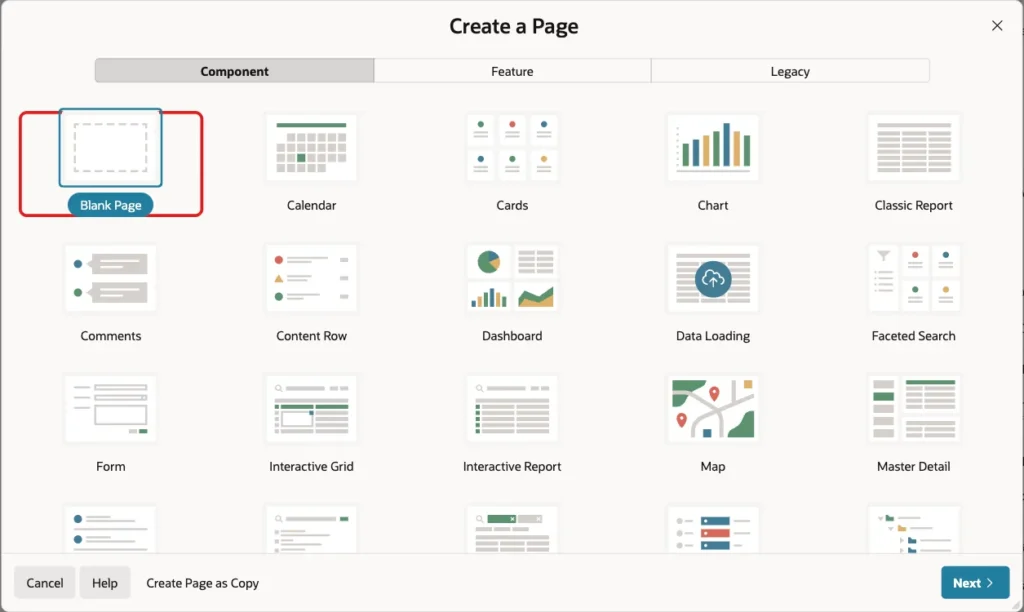
In App Builder, open the application and click Create Page. Select the Blank Page tile:
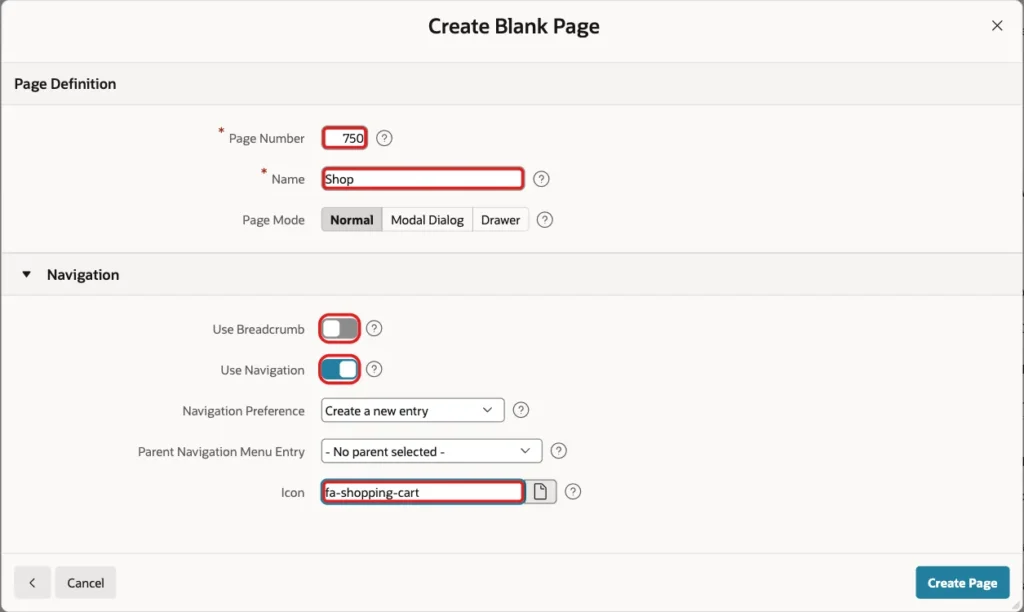
Enter 750 as the Page Number and Shop as the Name. Turn off Use Breadcrumb, keep Use Navigation on, enter fa-shopping-cart as the Icon and click Create Page:
Step 5: Show the Cart Count
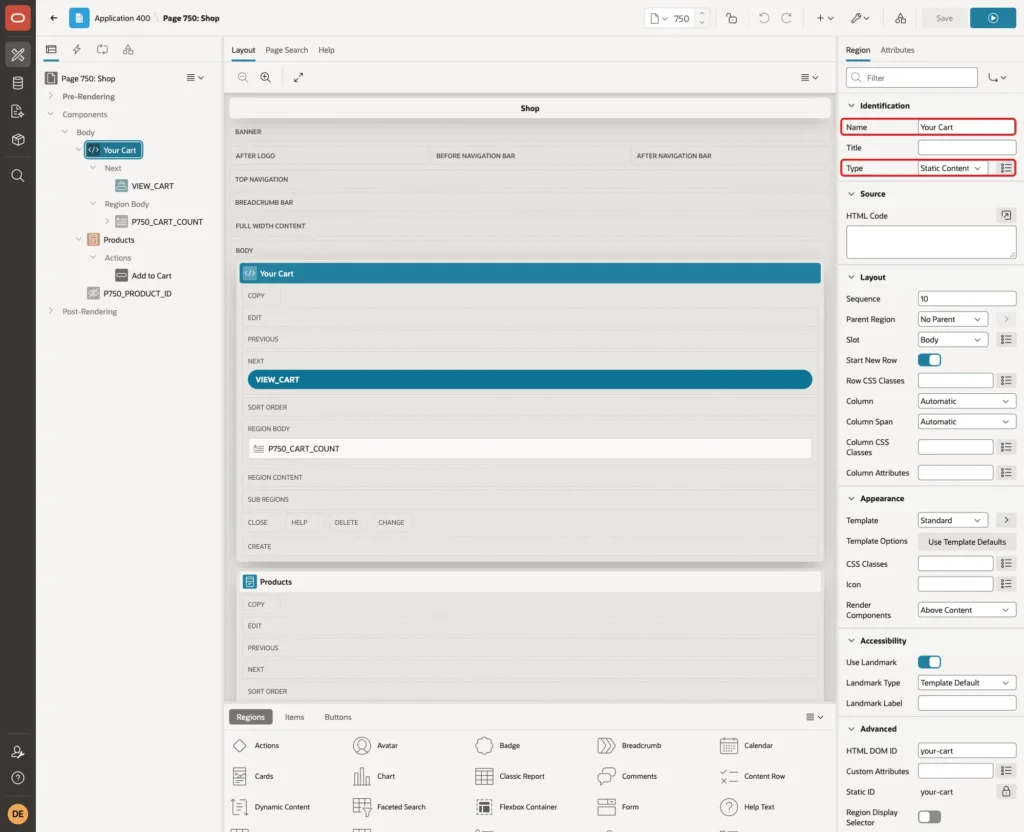
In Page Designer, create a region named Your Cart with the Type Static Content:
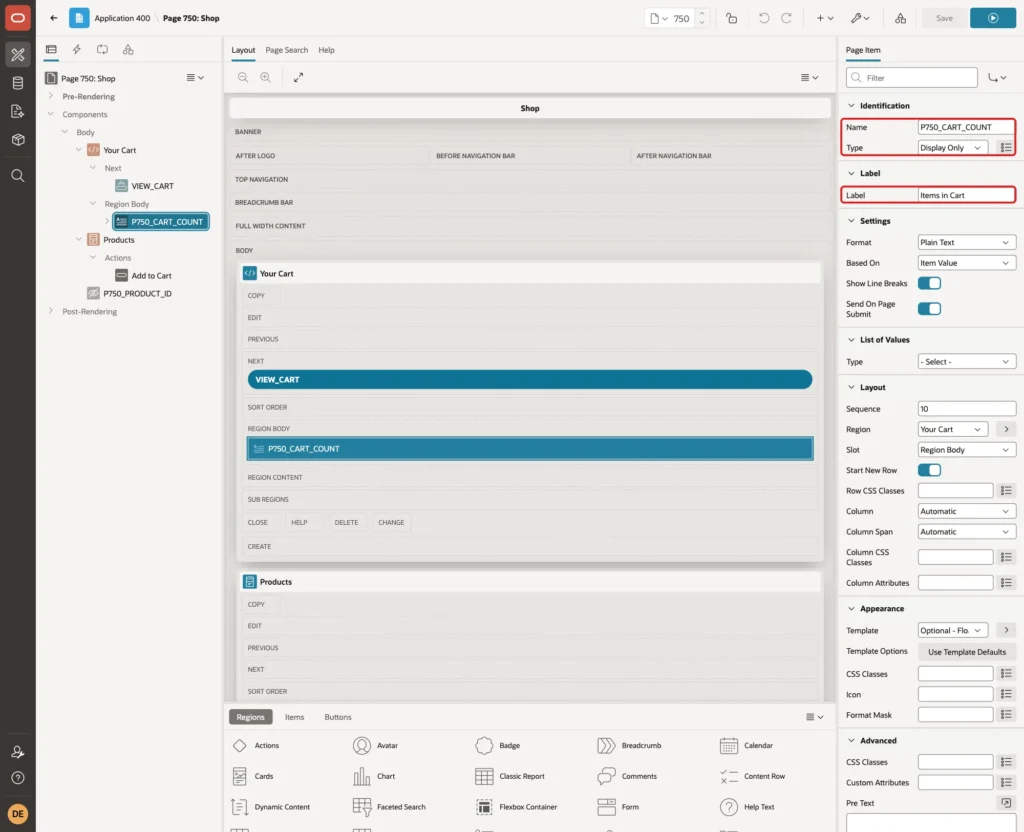
Add a page item P750_CART_COUNT to the Your Cart region. Set the Type to Display Only and the Label to Items in Cart:
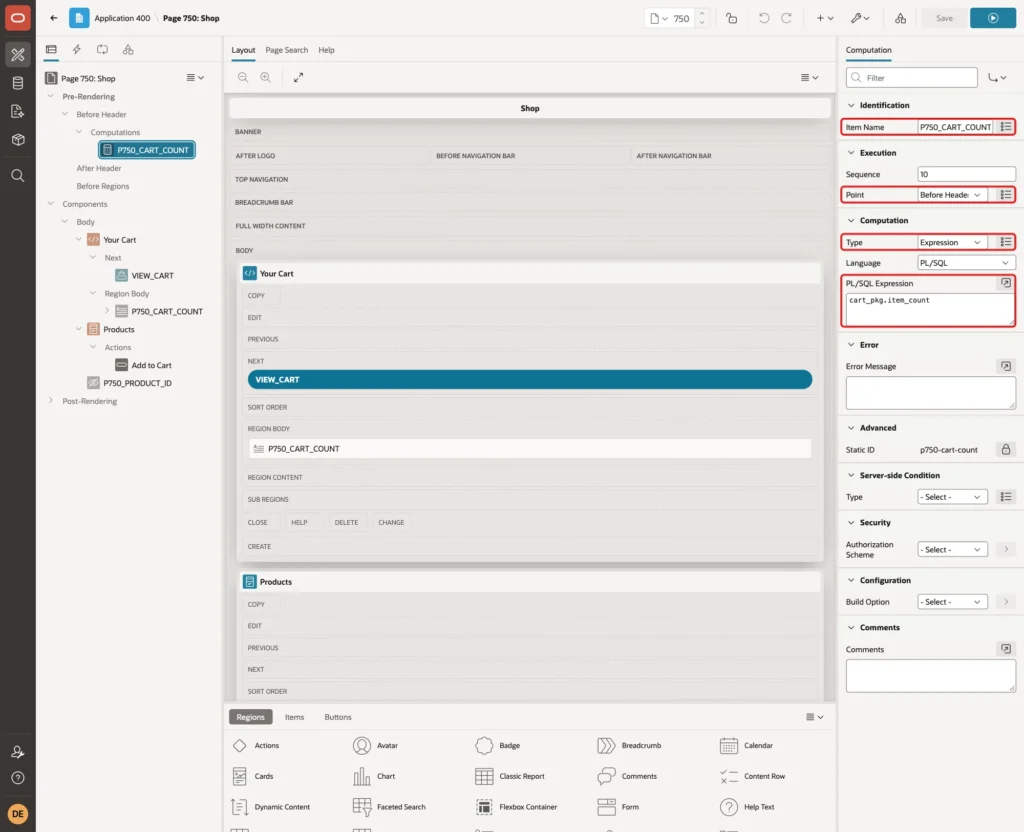
Fill the item with a computation. In the Rendering tree, right-click Pre-Rendering > Before Header and create a computation for P750_CART_COUNT. Set the Type to Expression, the Language to PL/SQL and the PL/SQL Expression to:
Example:
cart_pkg.item_count
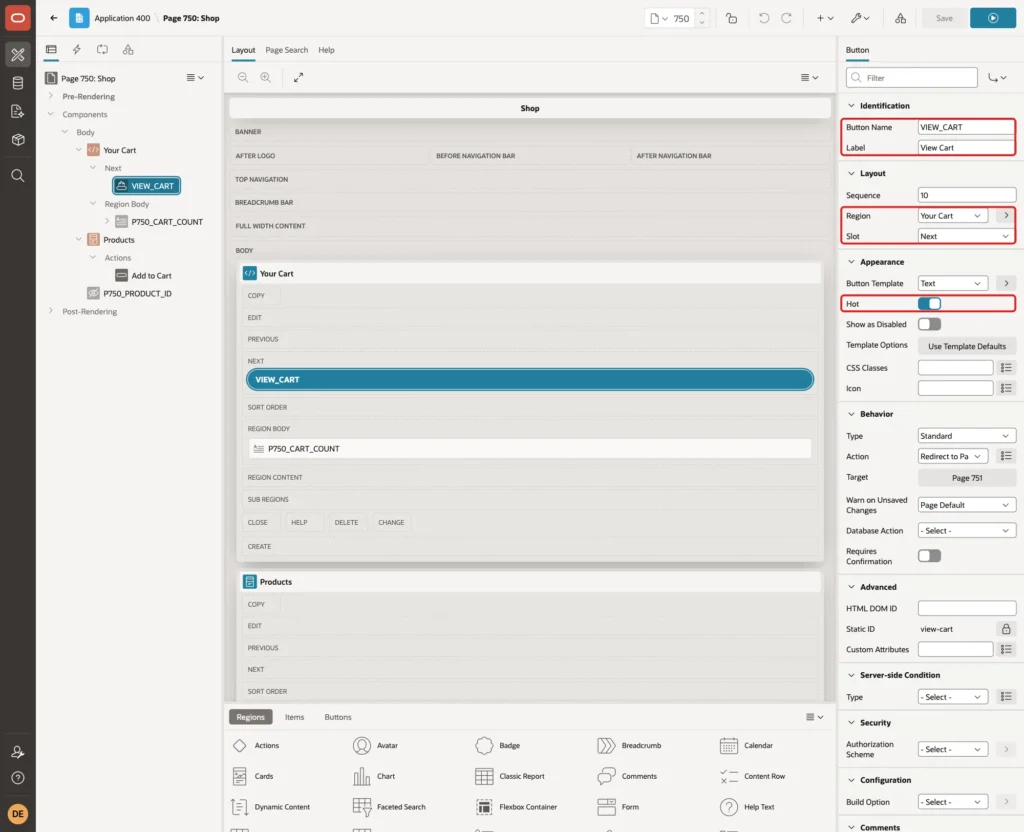
Add a button VIEW_CART with the Label View Cart. Put it in the Your Cart region, slot Next, and turn on Hot:
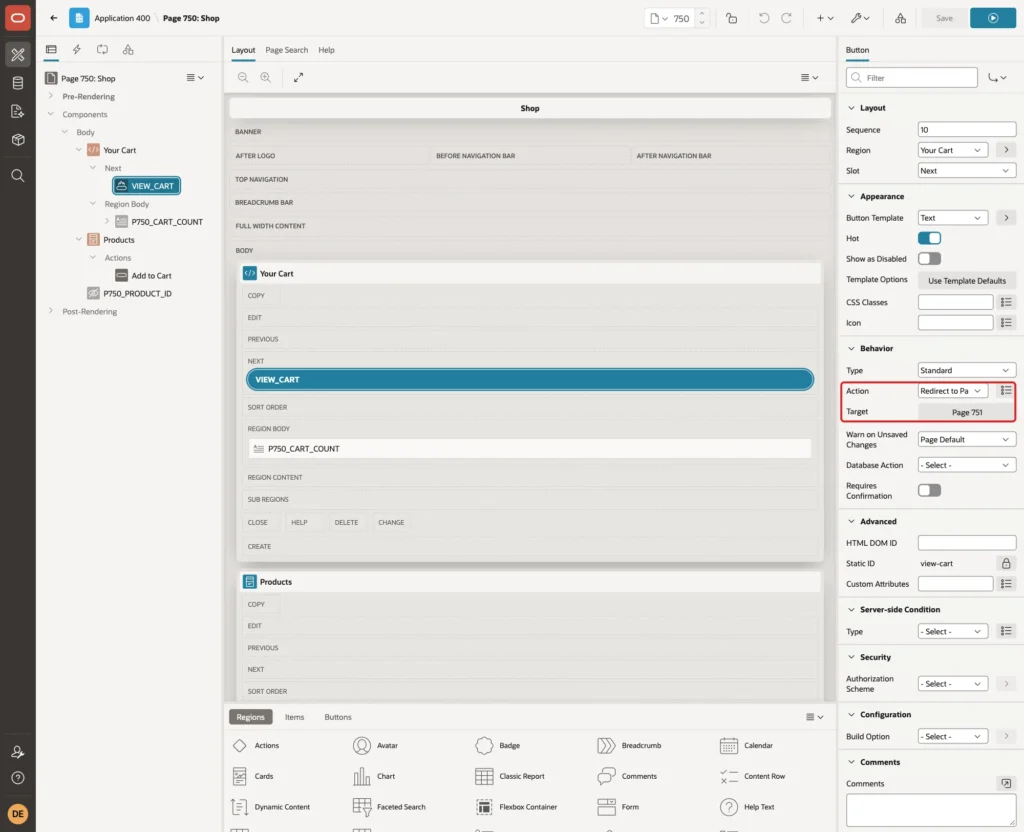
In the Behavior group, set the Action to Redirect to Page in this Application and the Target to page 751. Page 751 is the cart page created in Step 8:
Step 6: Show the Products as Cards
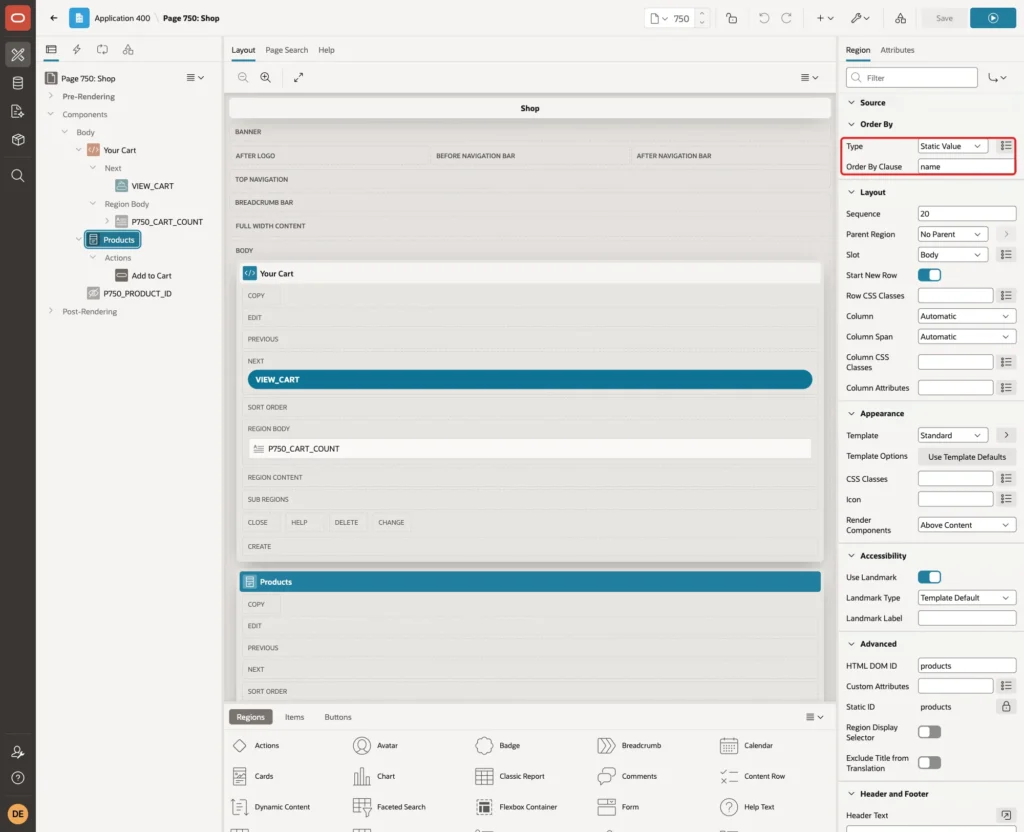
Create a region named Products with the Type Cards. Set the Source Type to SQL Query and enter this query. It shows only active products and formats the price with the currency symbol:
Example:
select product_id,
       name,
       sku,
       description,
       to_char(unit_price, 'FML999G990D00') as price
  from cart_products
 where is_active = 'Y'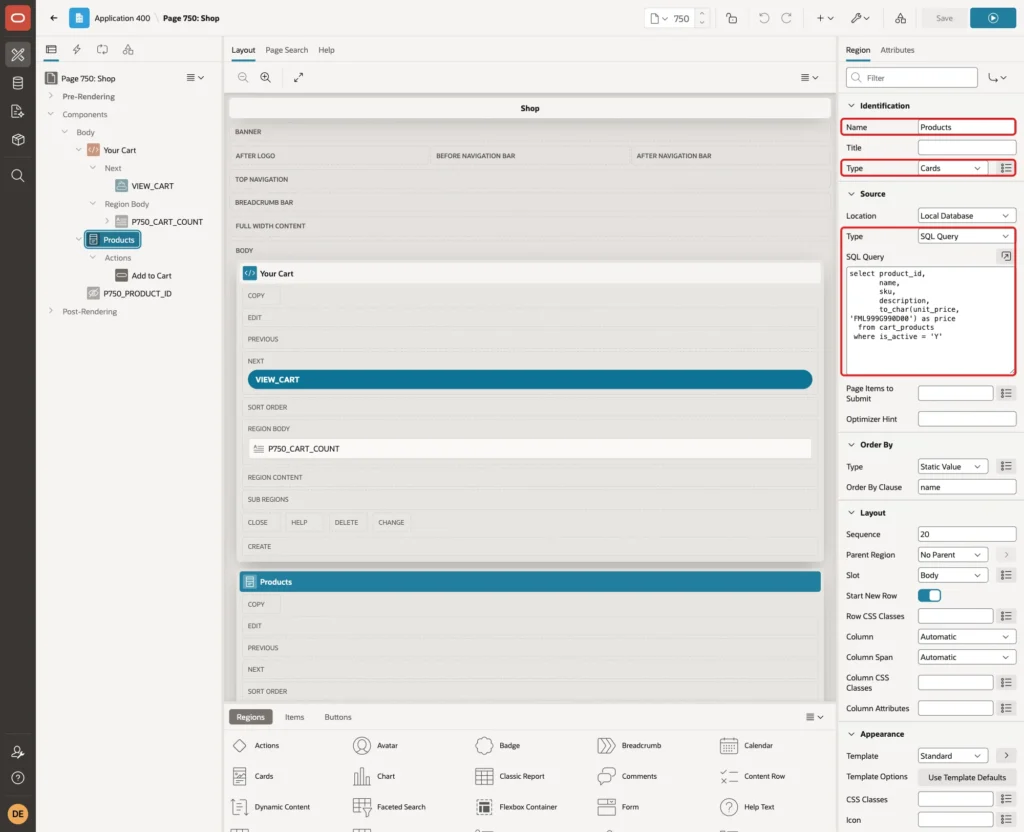
In the Order By group, set the Type to Static Value and the Order By Clause to name:
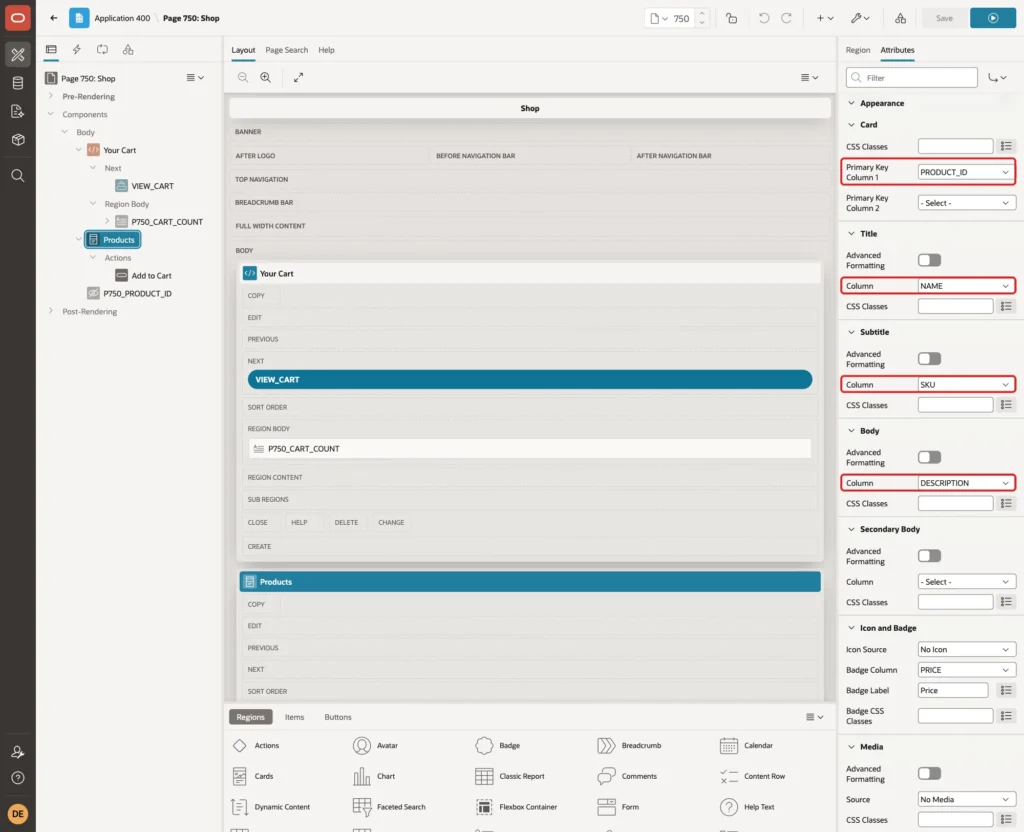
On the Attributes tab, set Primary Key Column 1 to PRODUCT_ID, the Title Column to NAME, the Subtitle Column to SKU and the Body Column to DESCRIPTION:
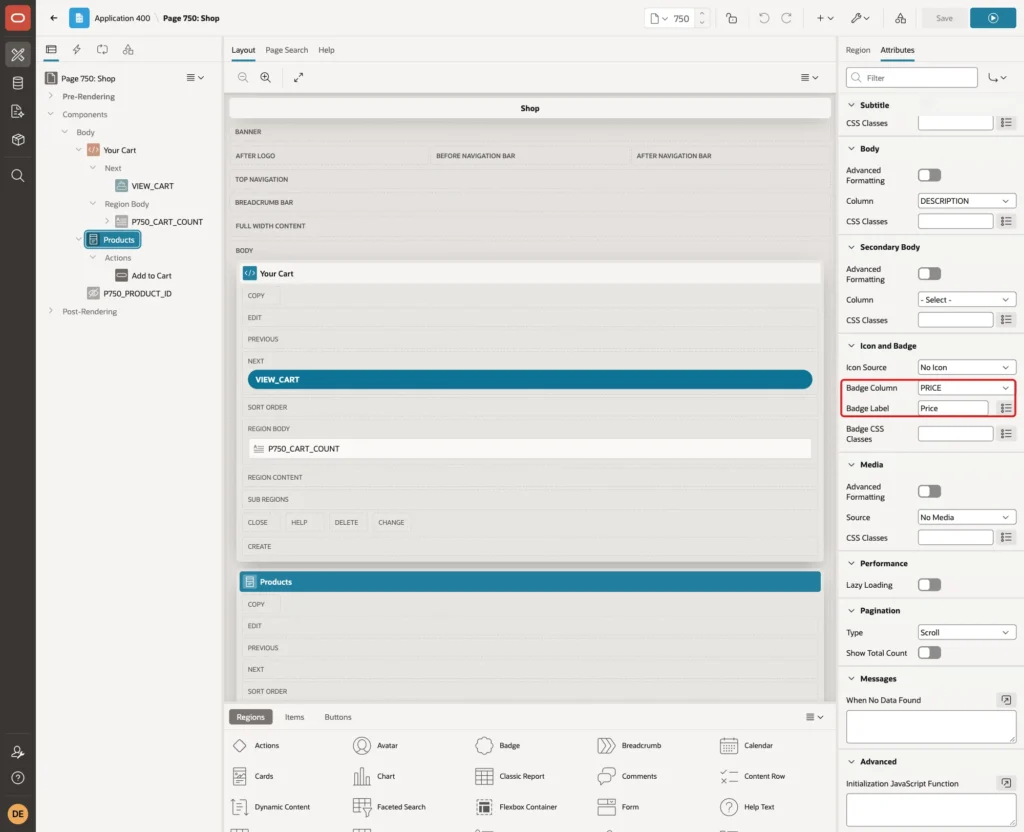
In the Icon and Badge group, set the Badge Column to PRICE and the Badge Label to Price:
Step 7: Add the Add to Cart Button
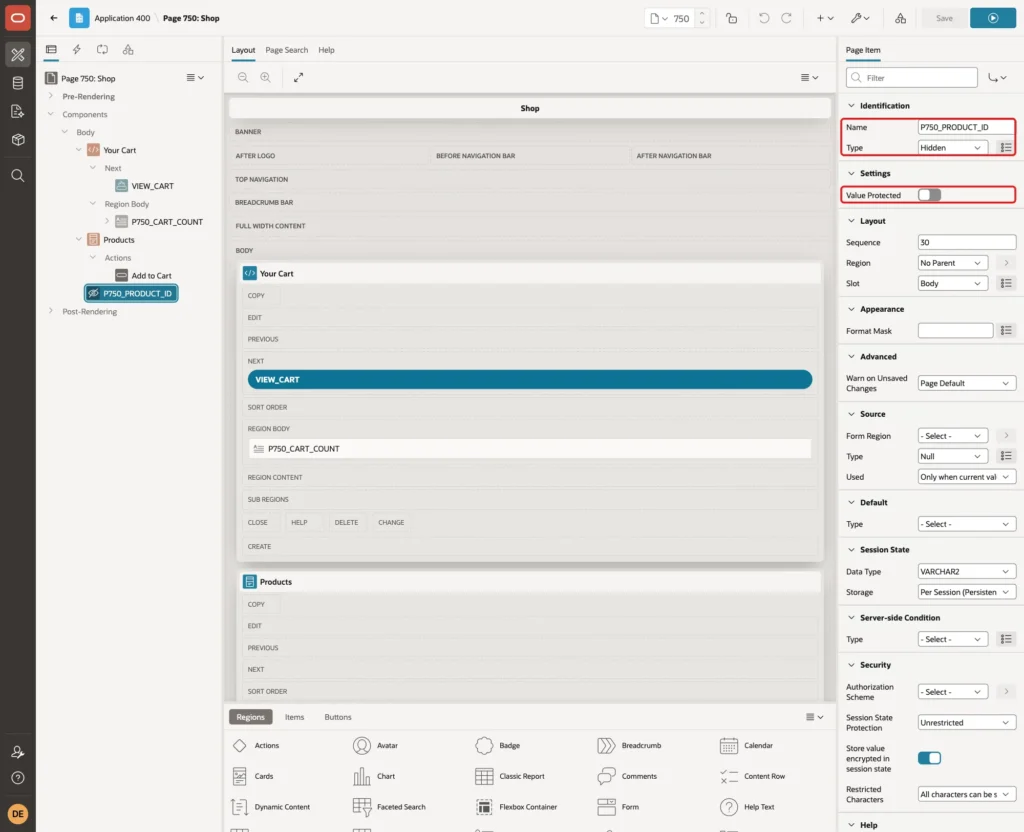
Add a hidden page item P750_PRODUCT_ID to the page and turn off Value Protected. The button sets this item in the browser, and a protected hidden item would be refused with a checksum error:
In the Rendering tree, right-click the Actions node under Products and click Create Action. Set the Type to Button and the Label to Add to Cart. In the Behavior group, set the Type to Redirect to URL and enter this Target URL:
Example:
javascript:apex.page.submit({request: 'ADD', set: {'P750_PRODUCT_ID': '&PRODUCT_ID.'}});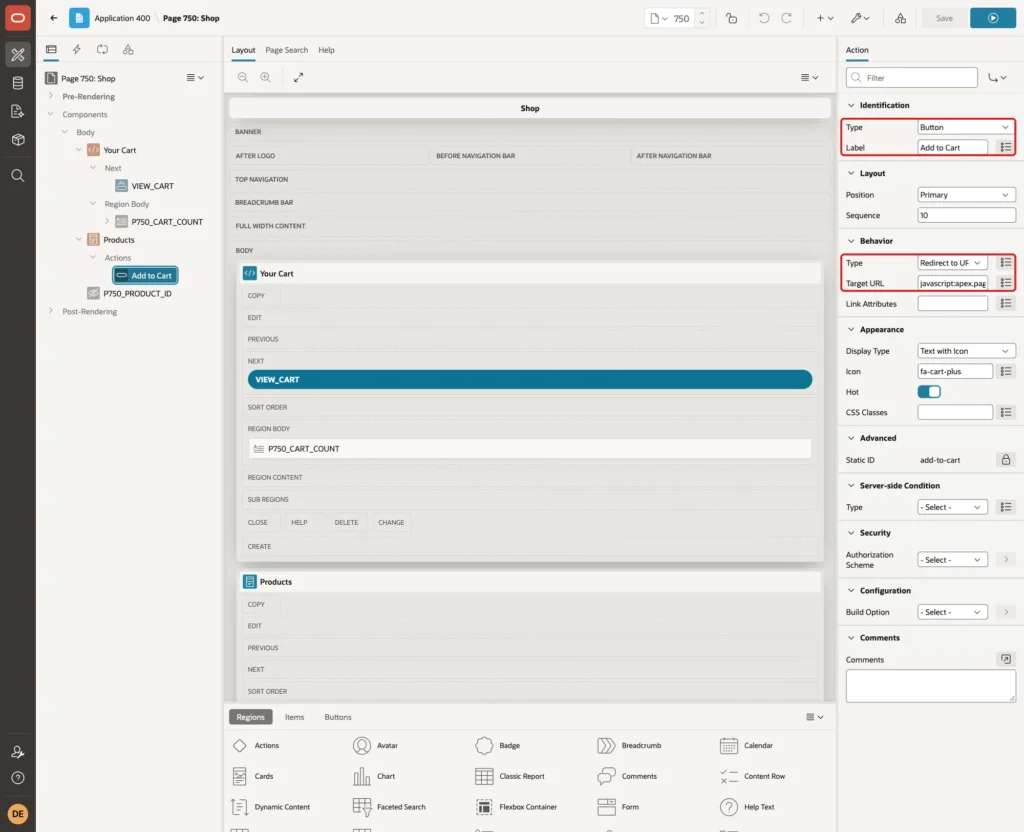
&PRODUCT_ID. is replaced with the product of each card. apex.page.submit sets P750_PRODUCT_ID and posts the page with the request ADD. The add runs in a POST, so a reload or a bookmark never adds the product again.
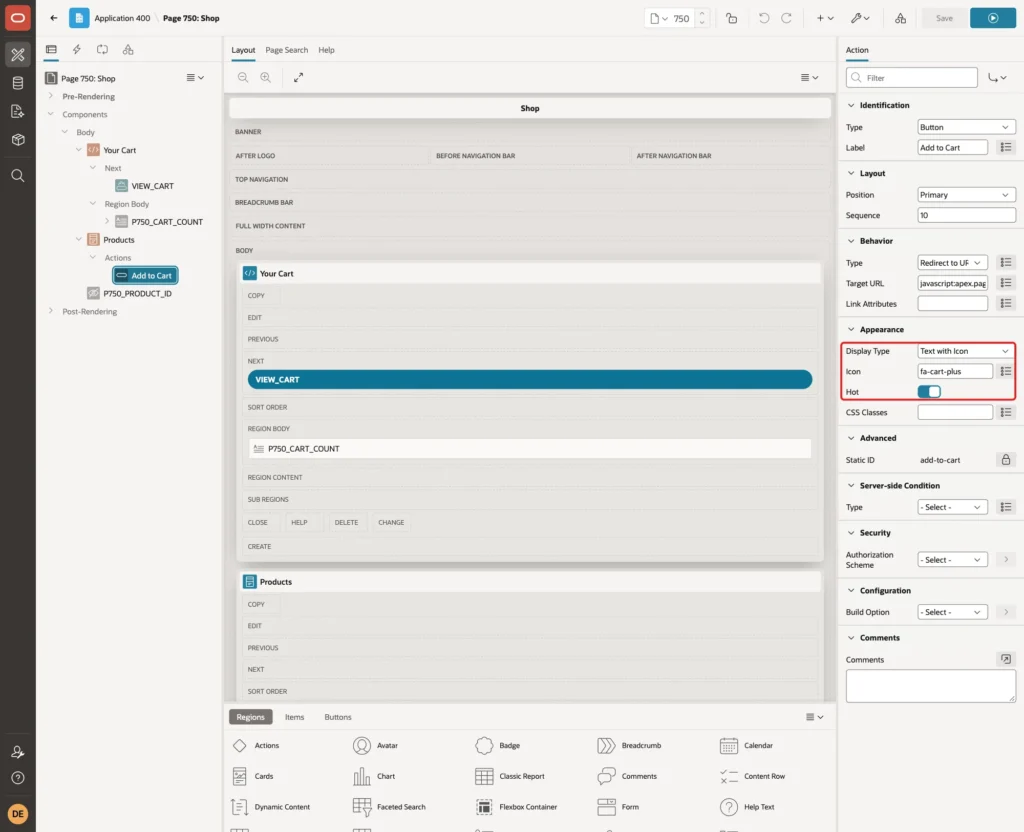
In the Appearance group, set the Display Type to Text with Icon, the Icon to fa-cart-plus and turn on Hot:
Switch to the Processing tab and create a process named Add to Cart with the Type Execute Code. Enter the PL/SQL Code:
Example:
begin
    cart_pkg.add_item(p_product_id => :P750_PRODUCT_ID);
end;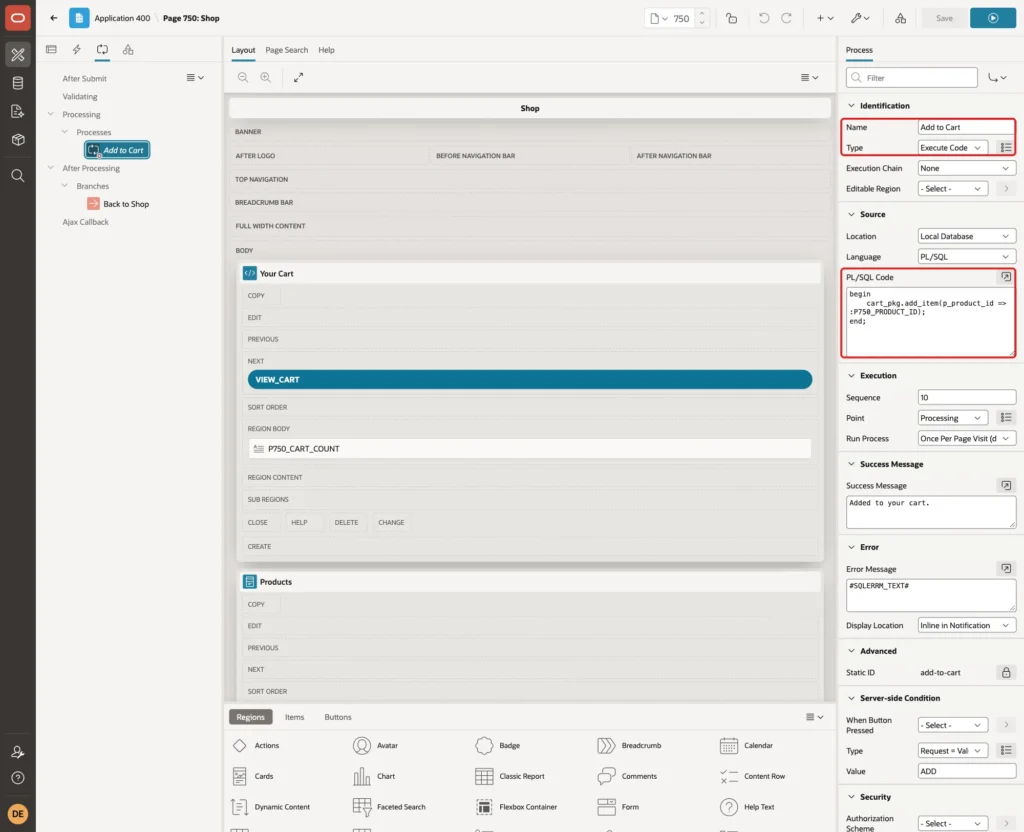
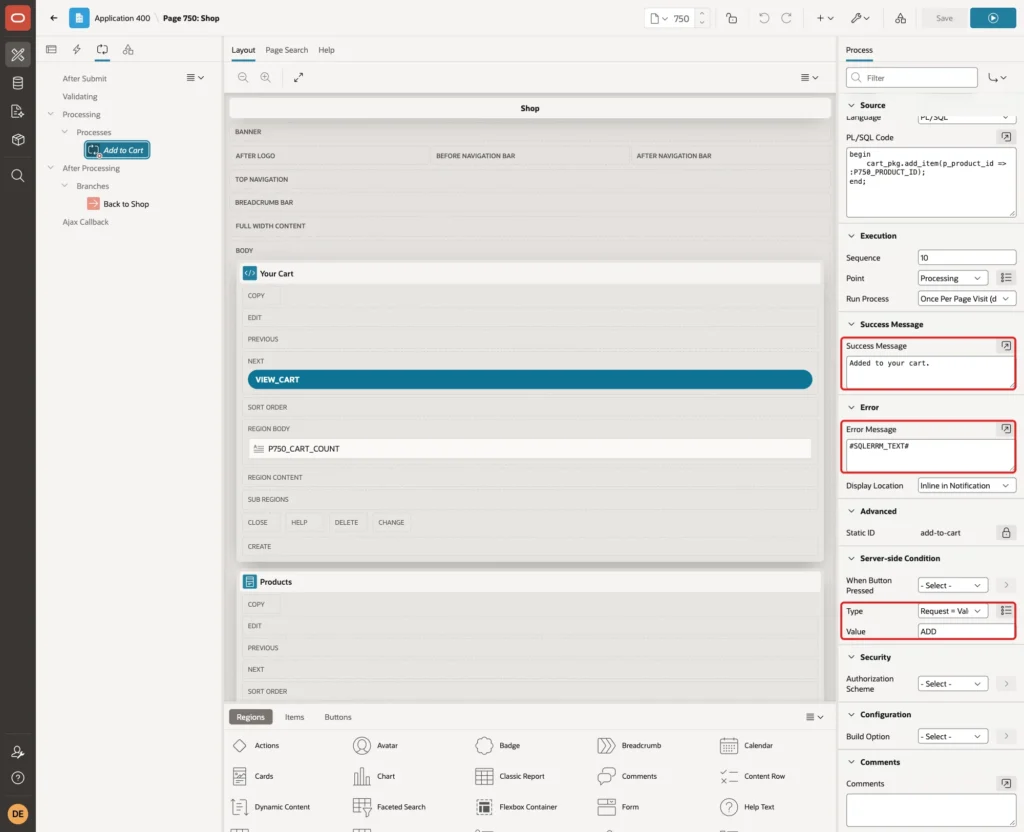
Set the Success Message to Added to your cart. and the Error Message to #SQLERRM_TEXT#. The substitution shows only the text of the package error, without the ORA- number. Under Server-side Condition, set the Type to Request = Value and the Value to ADD:
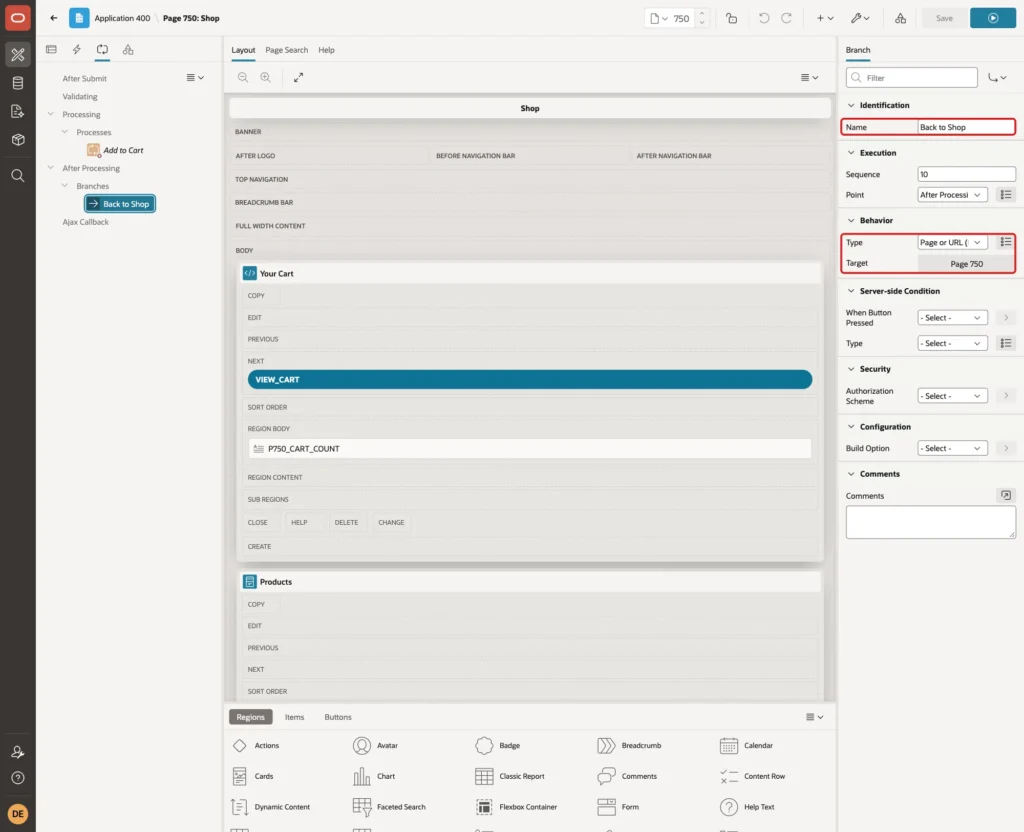
Create a branch named Back to Shop under After Processing. Keep the Type Page or URL (Redirect) and set the Target to page 750:
Step 8: Create the Cart Page
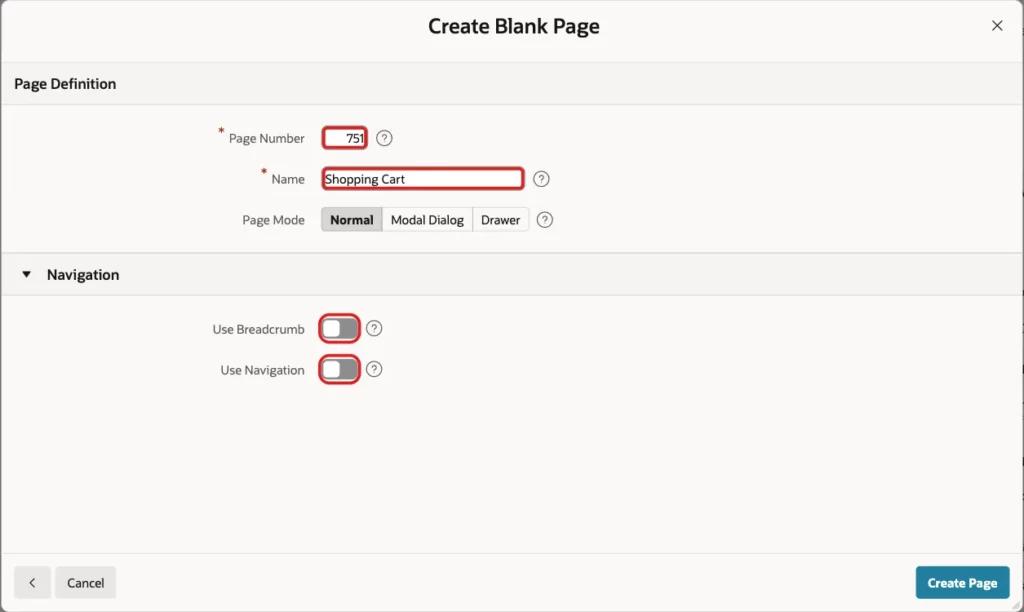
Click Create Page again and select the Blank Page tile, as in Step 4. Enter 751 as the Page Number and Shopping Cart as the Name. Turn off Use Breadcrumb and Use Navigation, because the View Cart button opens this page:
Step 9: Show the Cart in an Editable Grid
Create a region named Cart Items with the Type Interactive Grid. Set the Source Type to SQL Query and enter this query on APEX_COLLECTIONS:
Example:
select c.seq_id,
       p.name,
       case p.is_active when 'Y' then 'In stock' else 'No longer sold' end as availability,
       p.unit_price,
       c.n002 as quantity,
       c.n002 * p.unit_price as line_total
  from apex_collections c
  join cart_products p on p.product_id = c.n001
 where c.collection_name = 'SHOPPING_CART'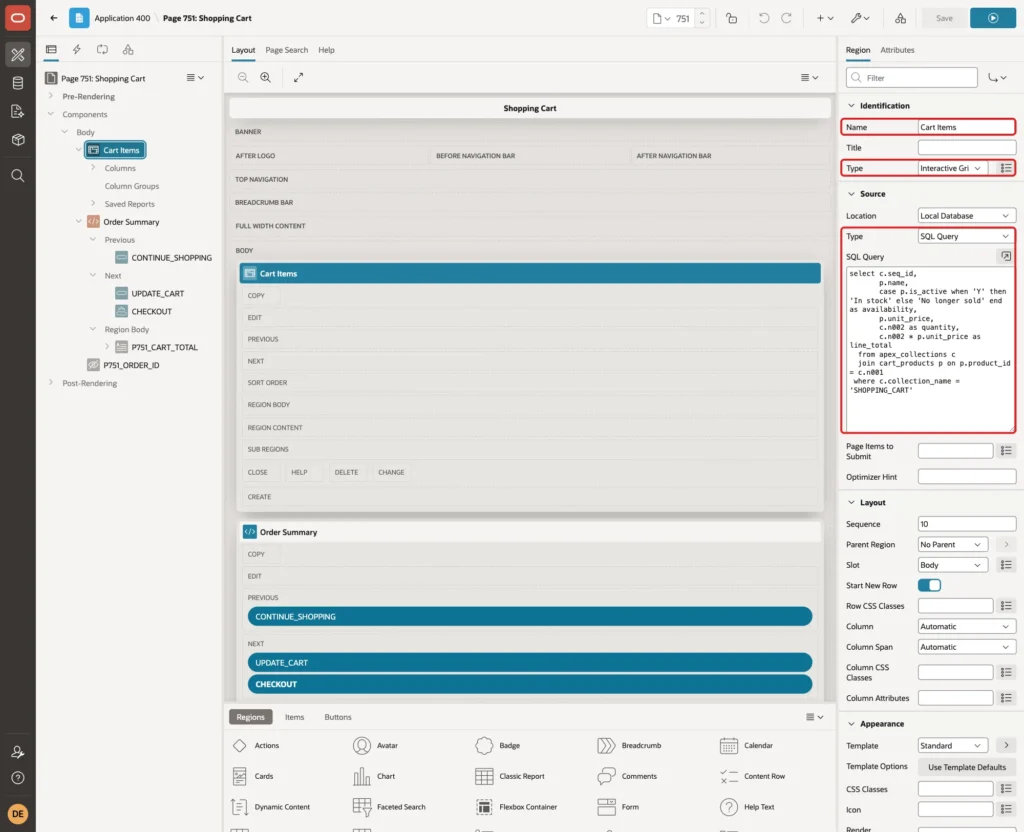
APEX_COLLECTIONS shows only the members of the current session, so the query needs no user filter. AVAILABILITY tells the user which product stopped being sold after it was added.
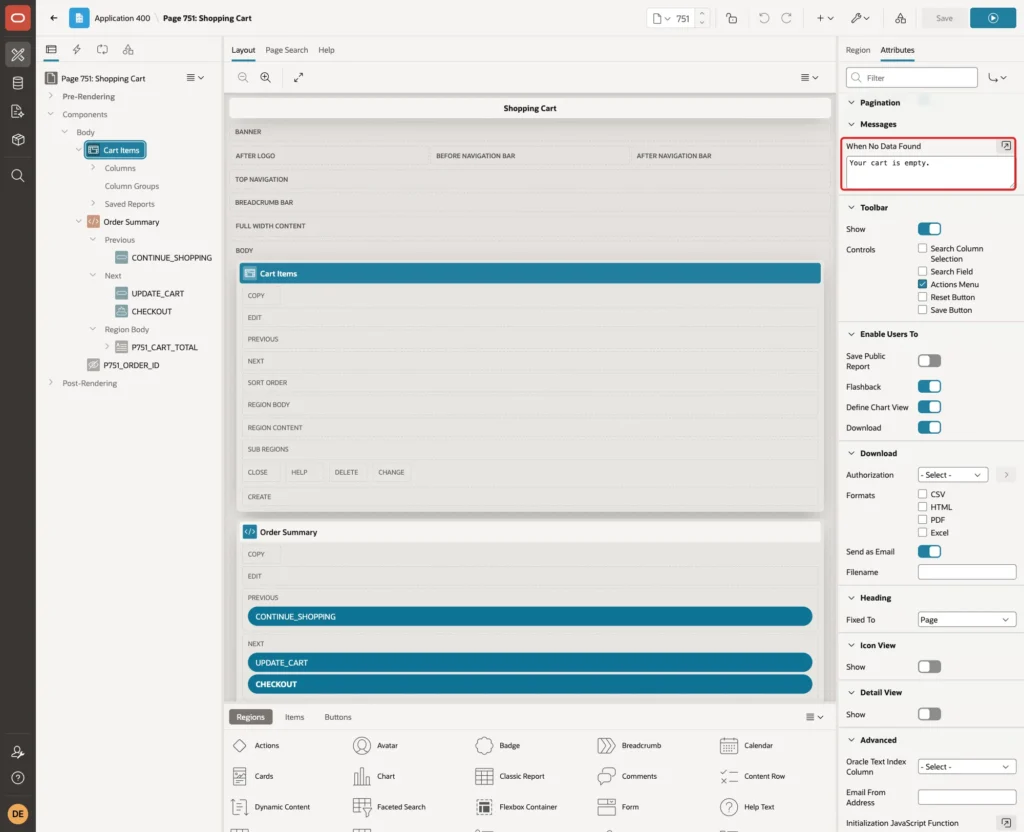
On the Attributes tab, turn on Edit Enabled. Under Allowed Operations, uncheck Add Row and keep Update Row and Delete Row. Under Toolbar Controls, keep only Actions Menu, because page buttons save the cart:
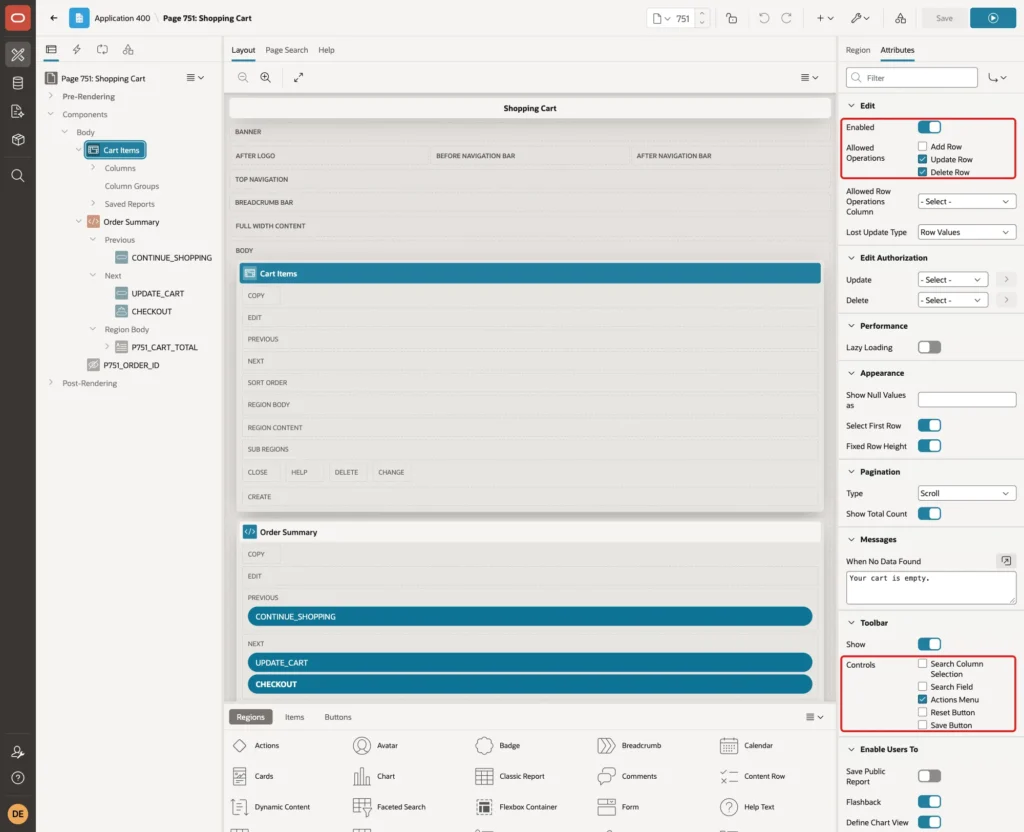
Set Messages > When No Data Found to Your cart is empty.:
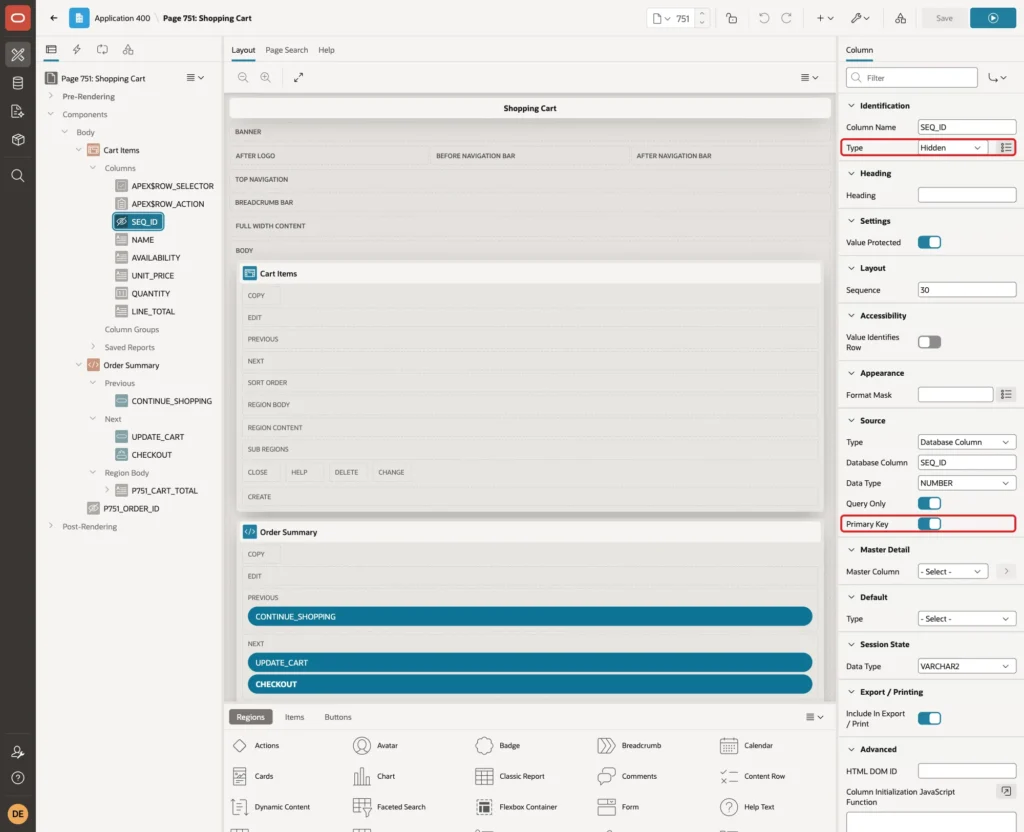
Now set the columns. Expand Cart Items > Columns and click SEQ_ID. Set the Type to Hidden and turn on Primary Key. SEQ_ID is the key the package needs to update or remove a member:
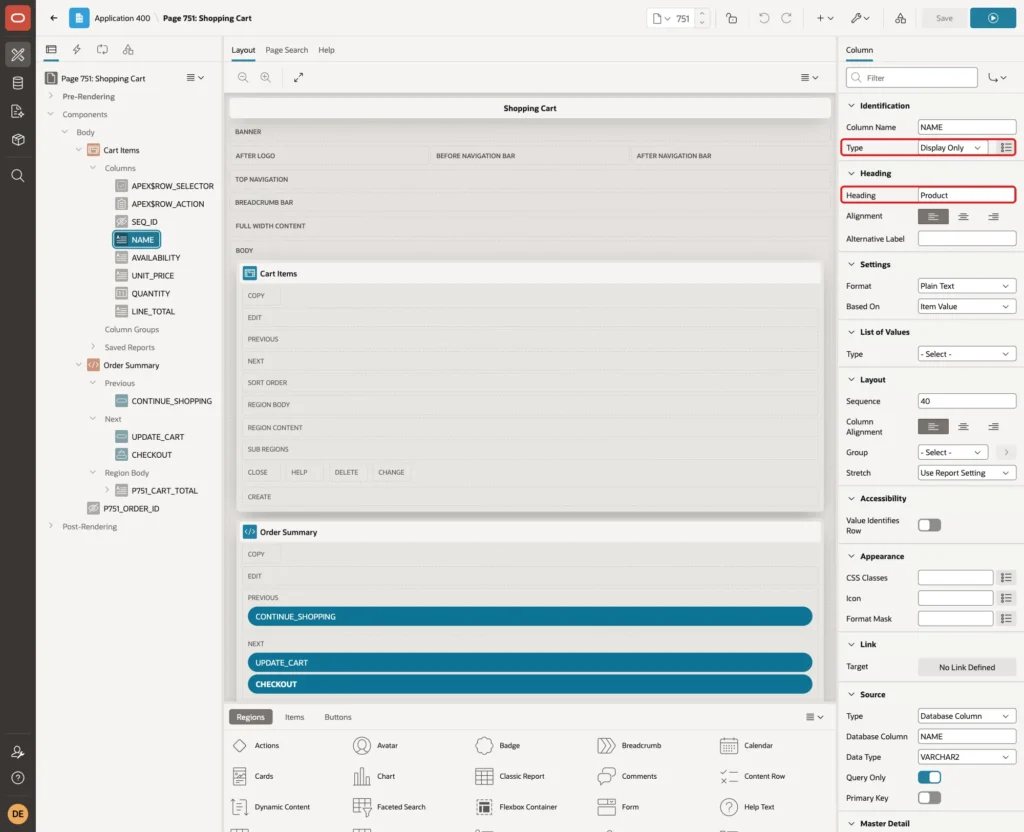
Click NAME, set the Type to Display Only and the Heading to Product:
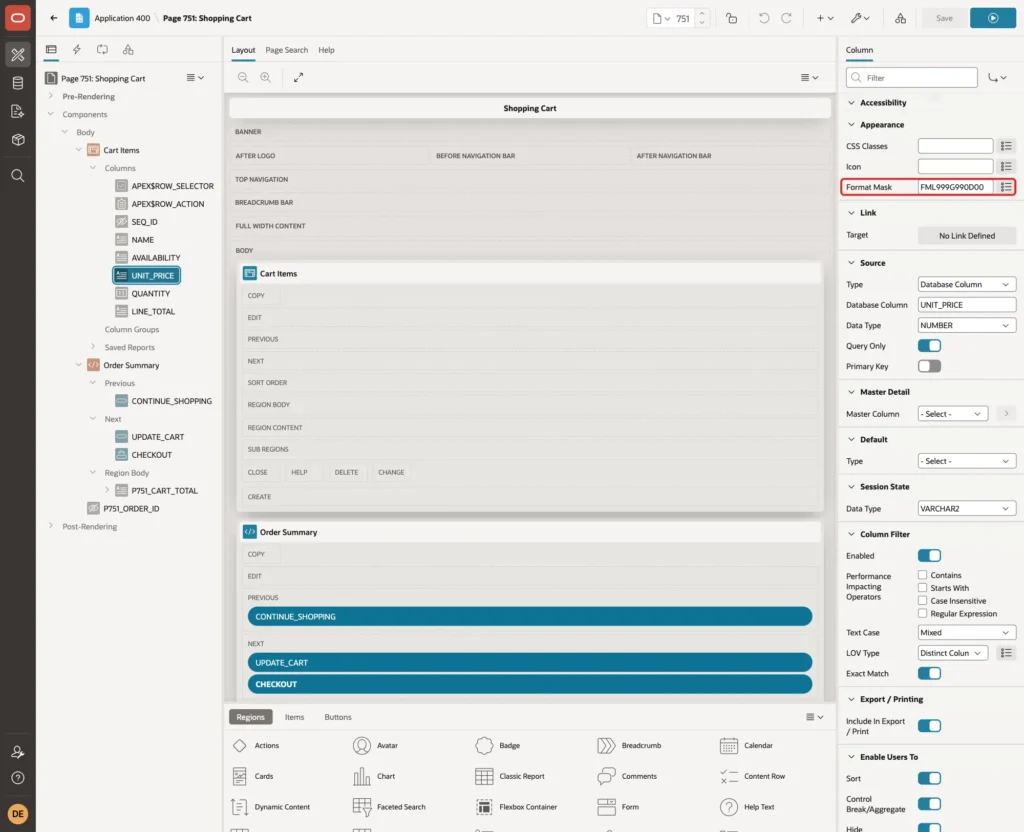
Set AVAILABILITY to Display Only too. Click UNIT_PRICE, set the Type to Display Only and the Heading to Unit Price:
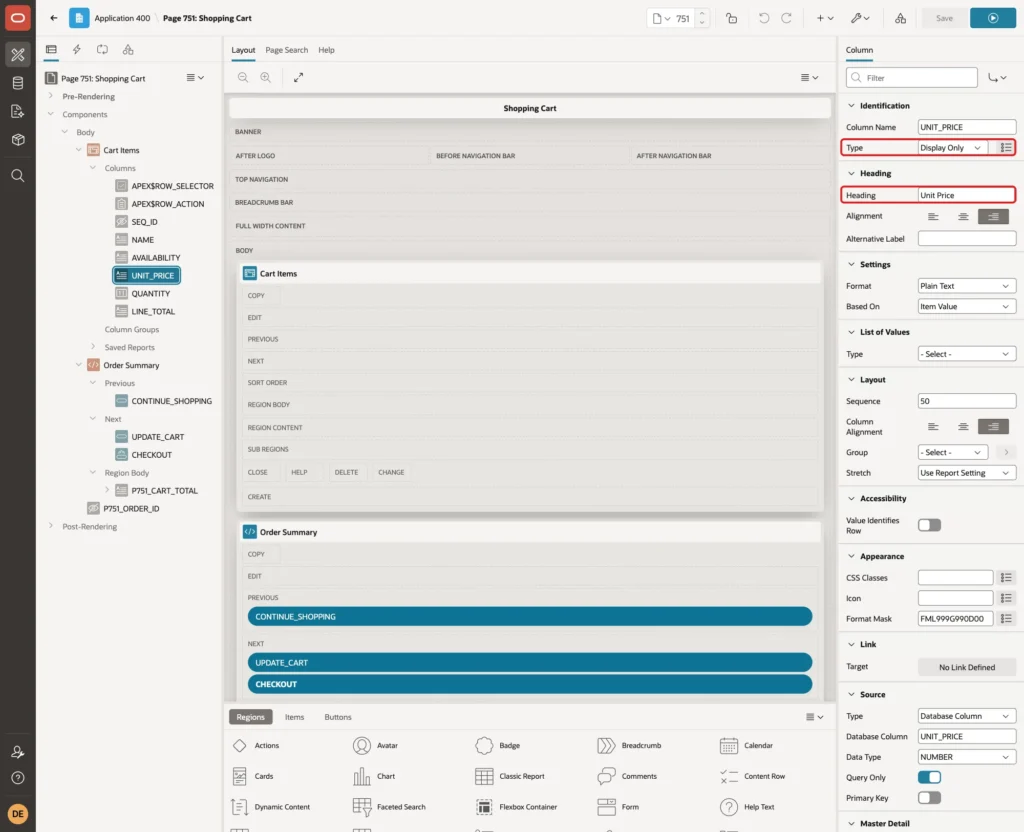
In the Appearance group, set the Format Mask to FML999G990D00, which shows the currency symbol and two decimals:
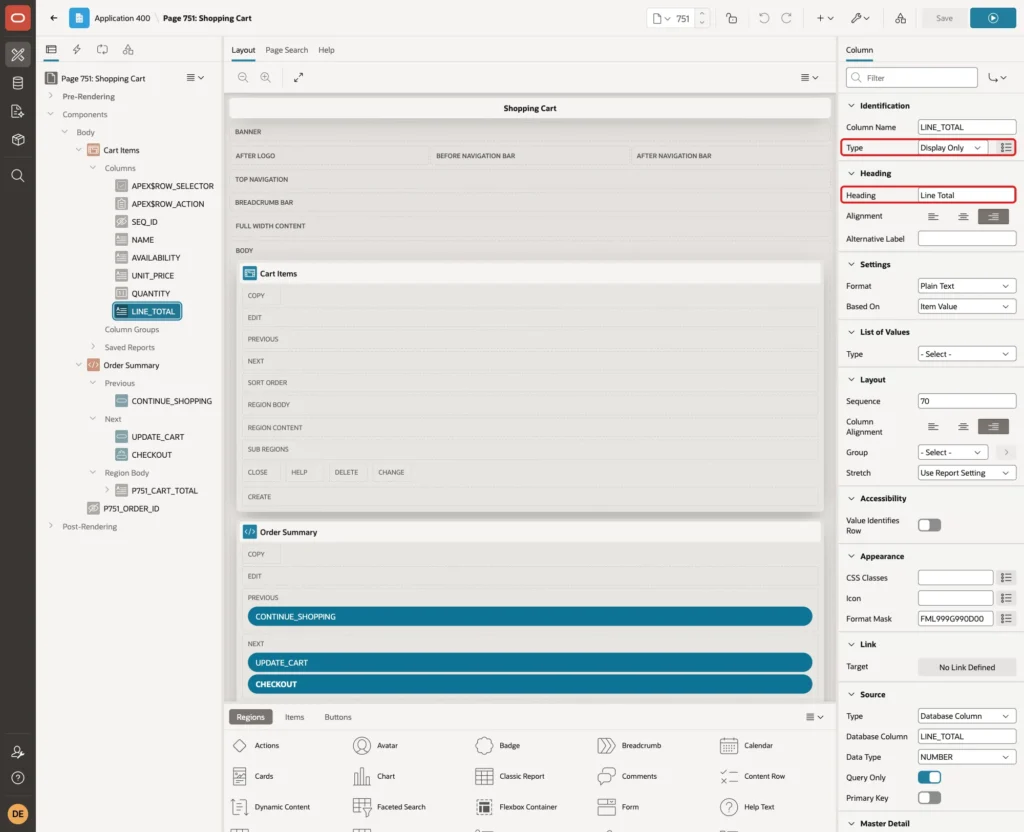
Click LINE_TOTAL, set the Type to Display Only, the Heading to Line Total and the same Format Mask:
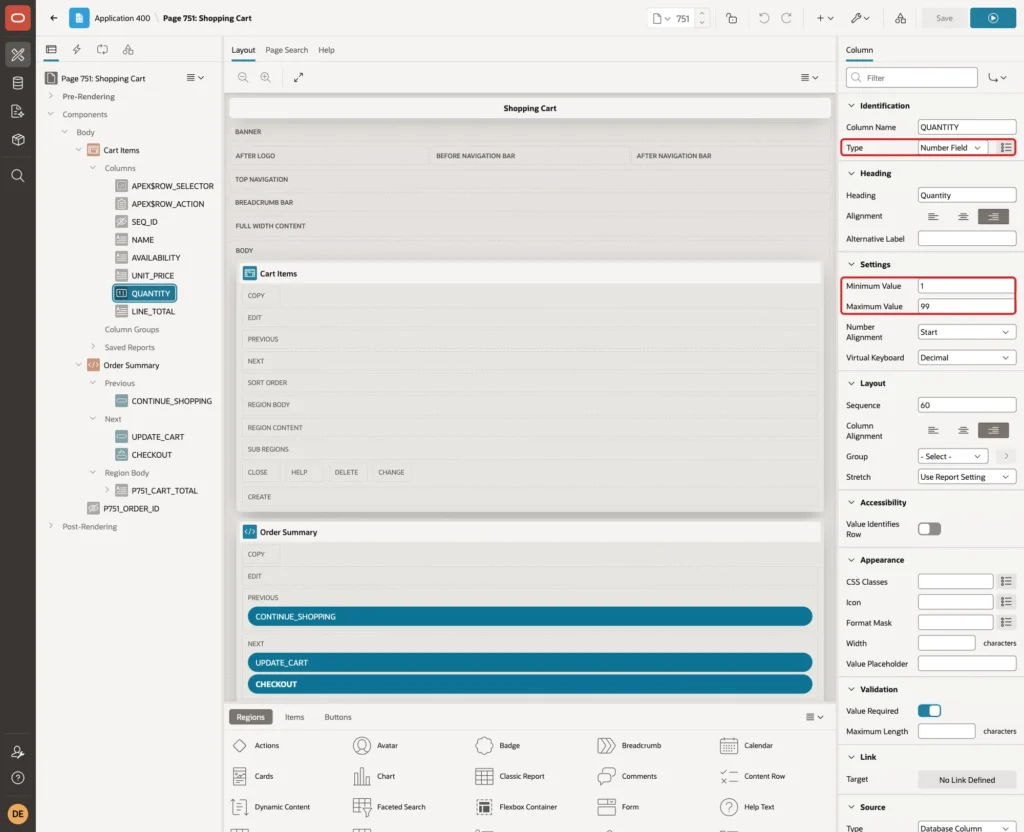
Click QUANTITY, the only editable column. Set the Type to Number Field, the Minimum Value to 1 and the Maximum Value to 99, the same range as the package and the check constraint:
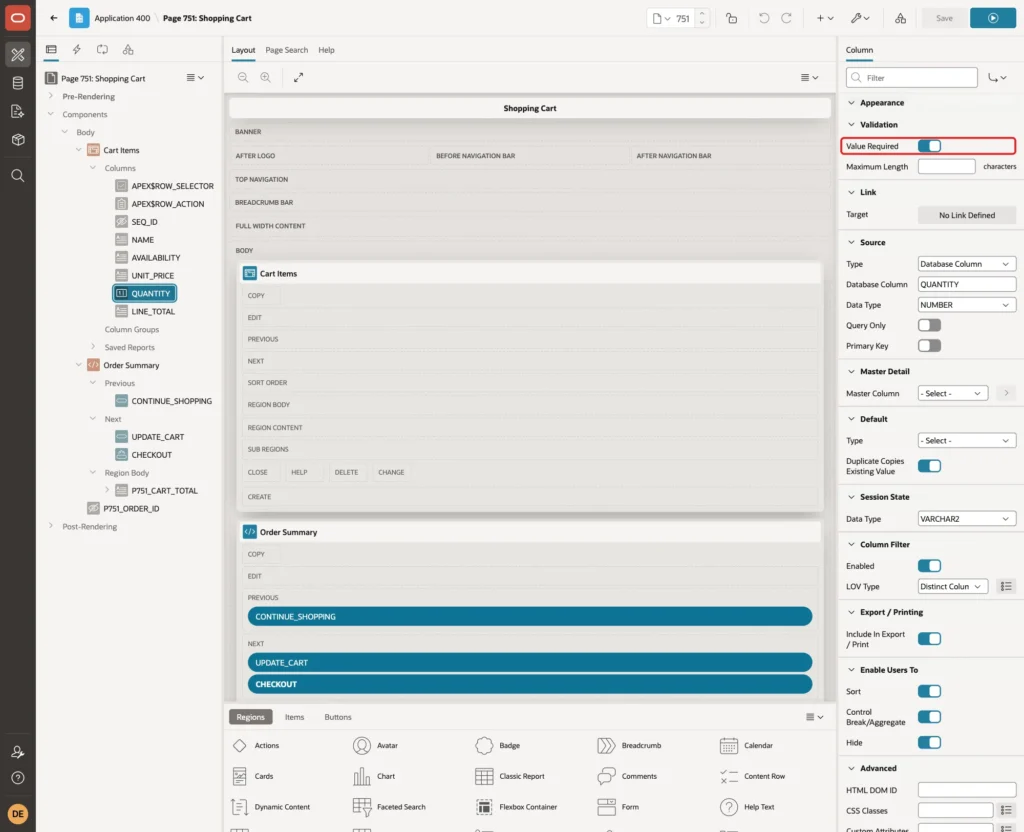
Turn on Value Required:
Step 10: Add the Order Summary
Create a second region named Order Summary with the Type Static Content:
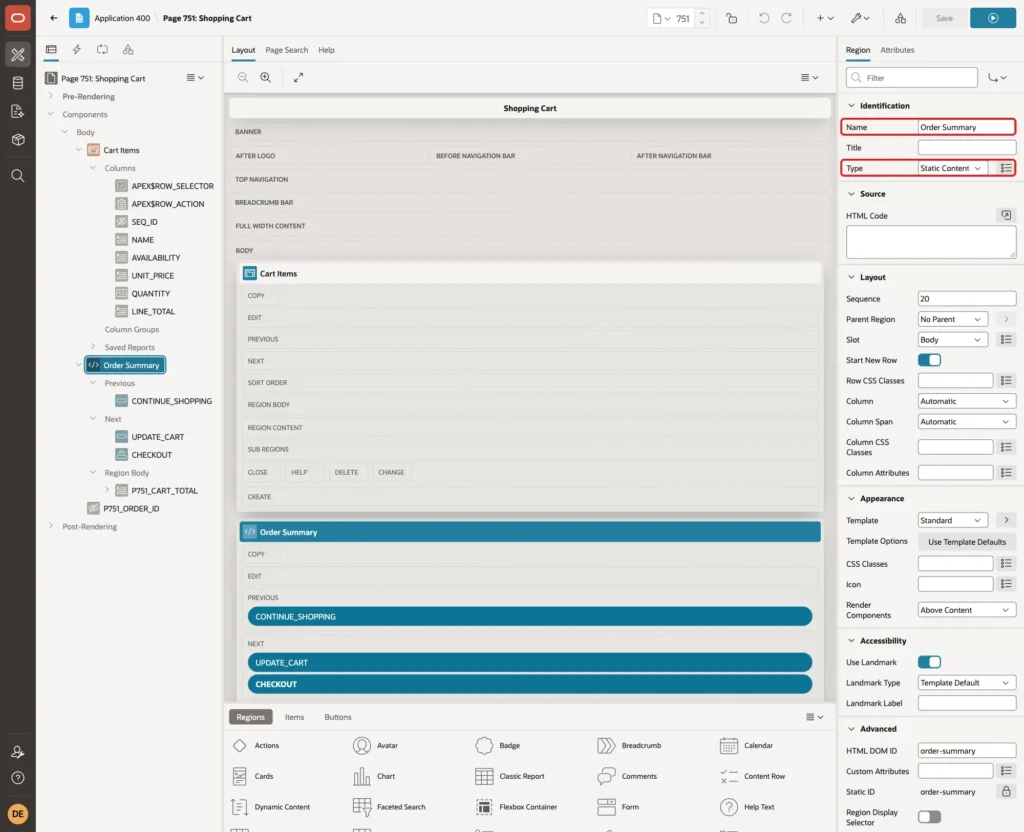
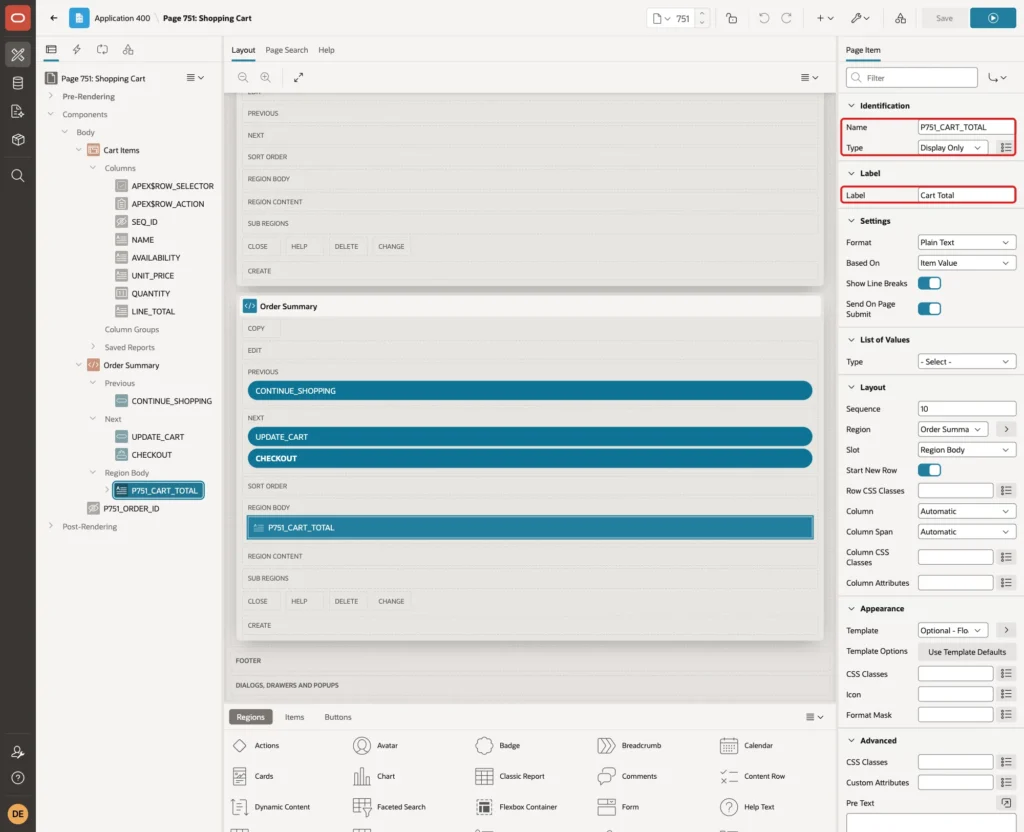
Add a page item P751_CART_TOTAL to Order Summary with the Type Display Only and the Label Cart Total:
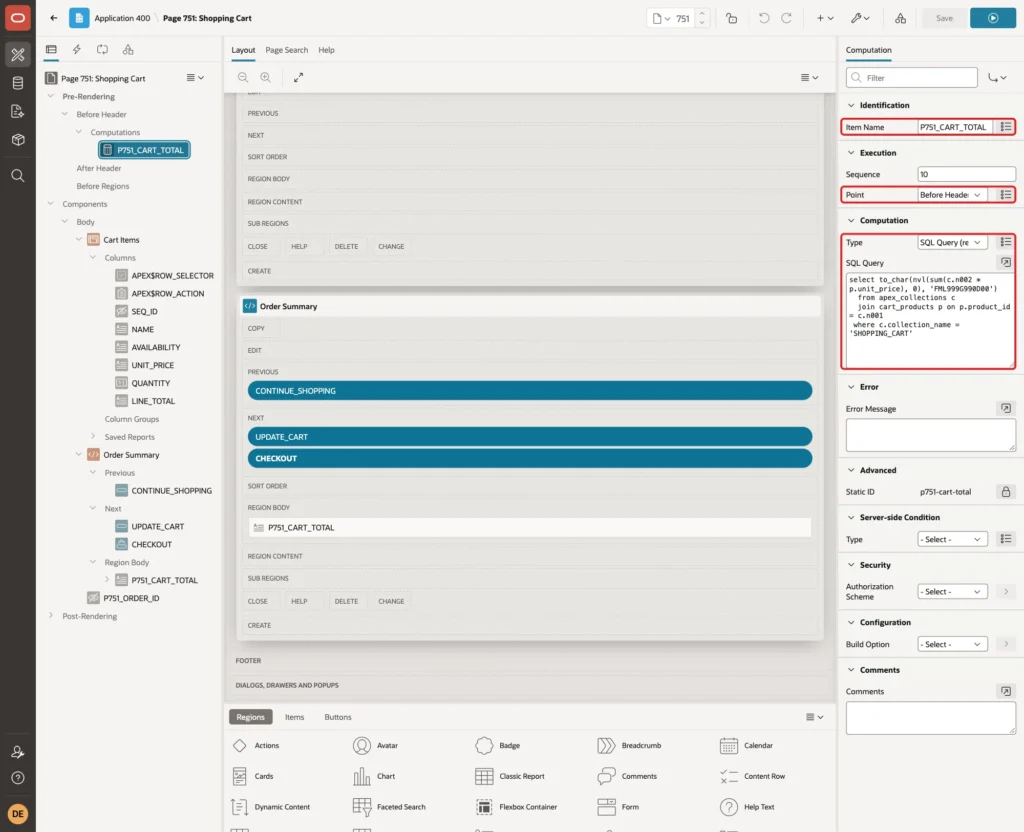
Create a Before Header computation for P751_CART_TOTAL with the Type SQL Query (return single value):
Example:
select to_char(nvl(sum(c.n002 * p.unit_price), 0), 'FML999G990D00')
  from apex_collections c
  join cart_products p on p.product_id = c.n001
 where c.collection_name = 'SHOPPING_CART'
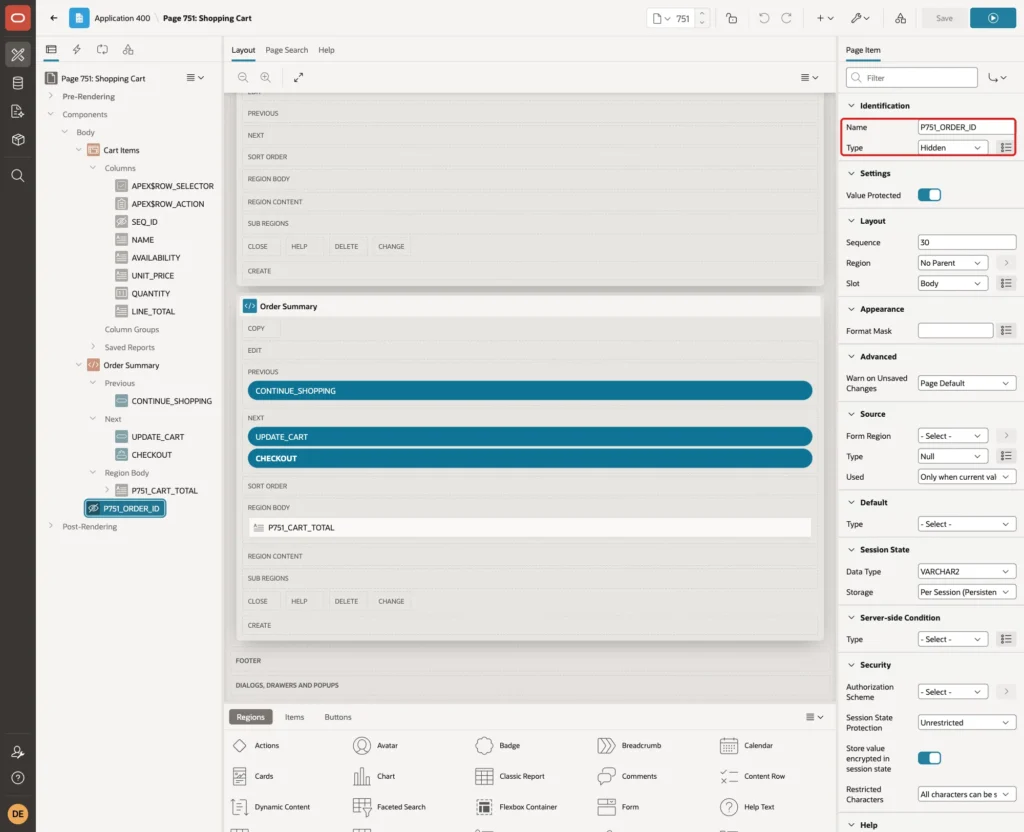
Add a hidden page item P751_ORDER_ID. Keep Value Protected on, because only the checkout process sets it:
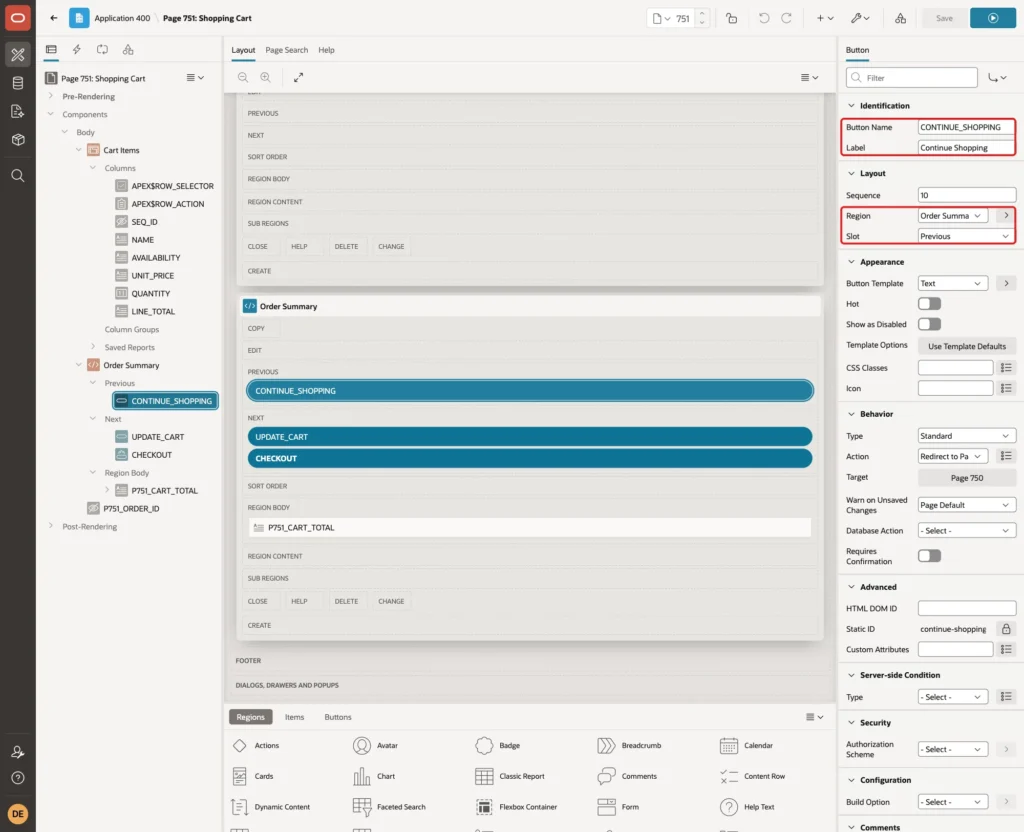
Add a button CONTINUE_SHOPPING with the Label Continue Shopping to Order Summary, slot Previous:
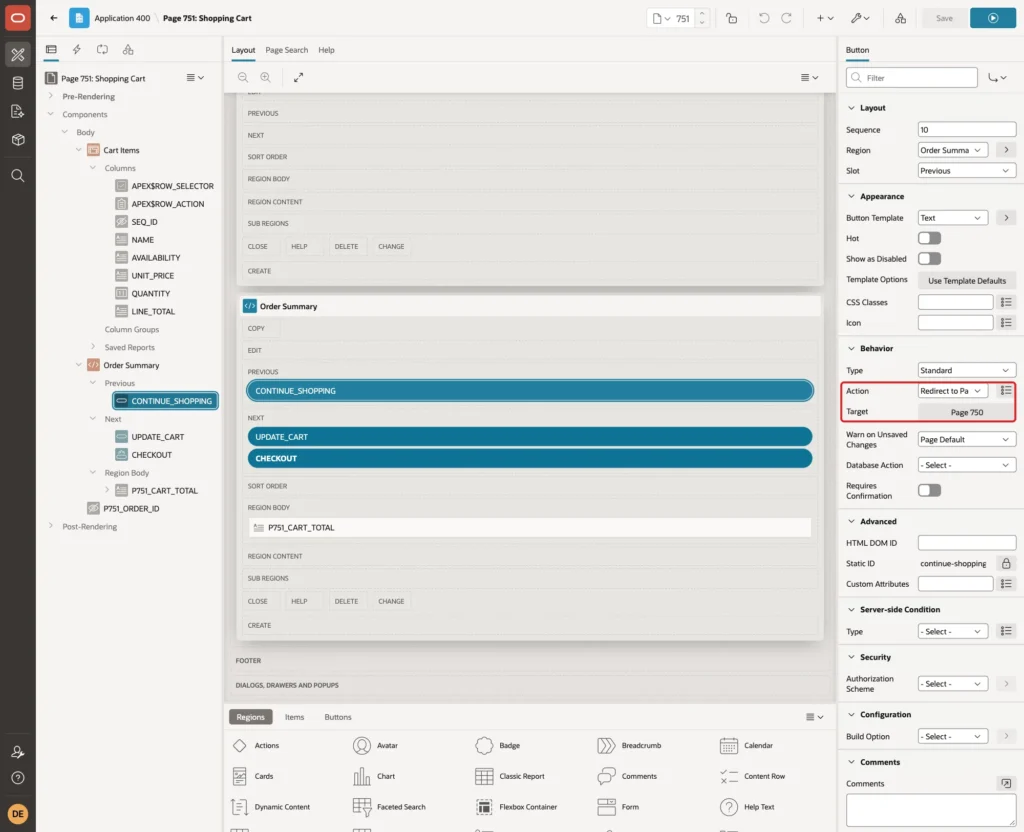
Set its Action to Redirect to Page in this Application with the Target page 750:
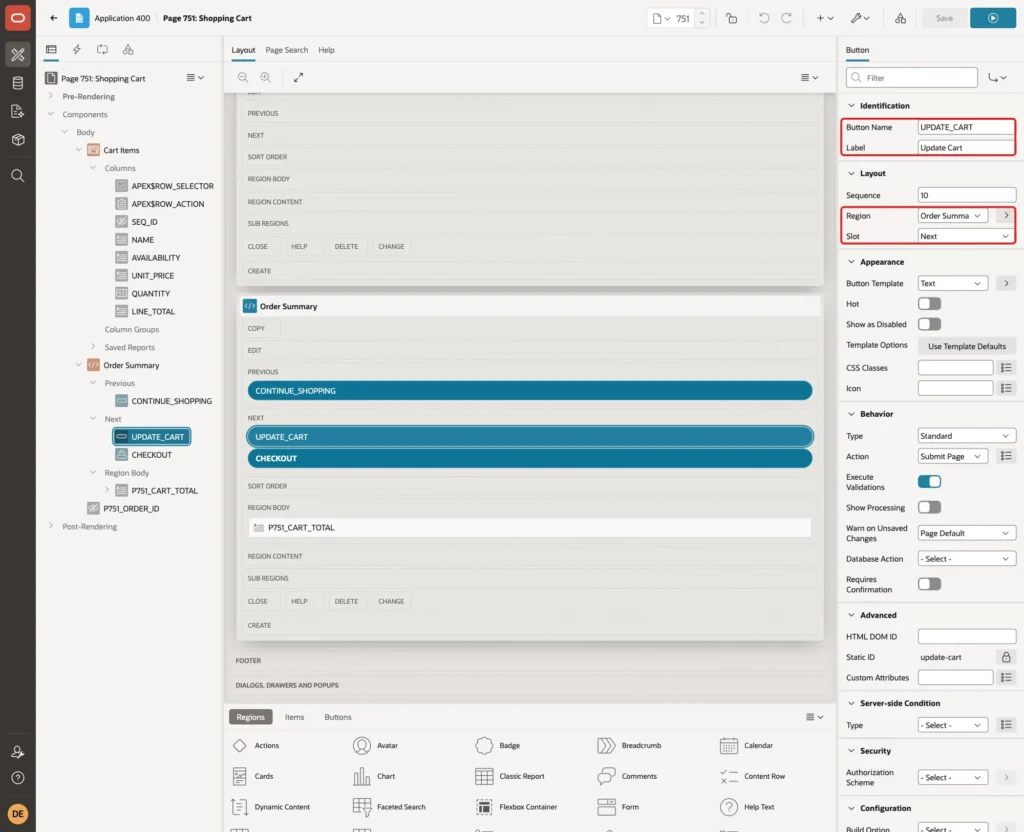
Add a button UPDATE_CART with the Label Update Cart, slot Next. Keep the Action Submit Page:
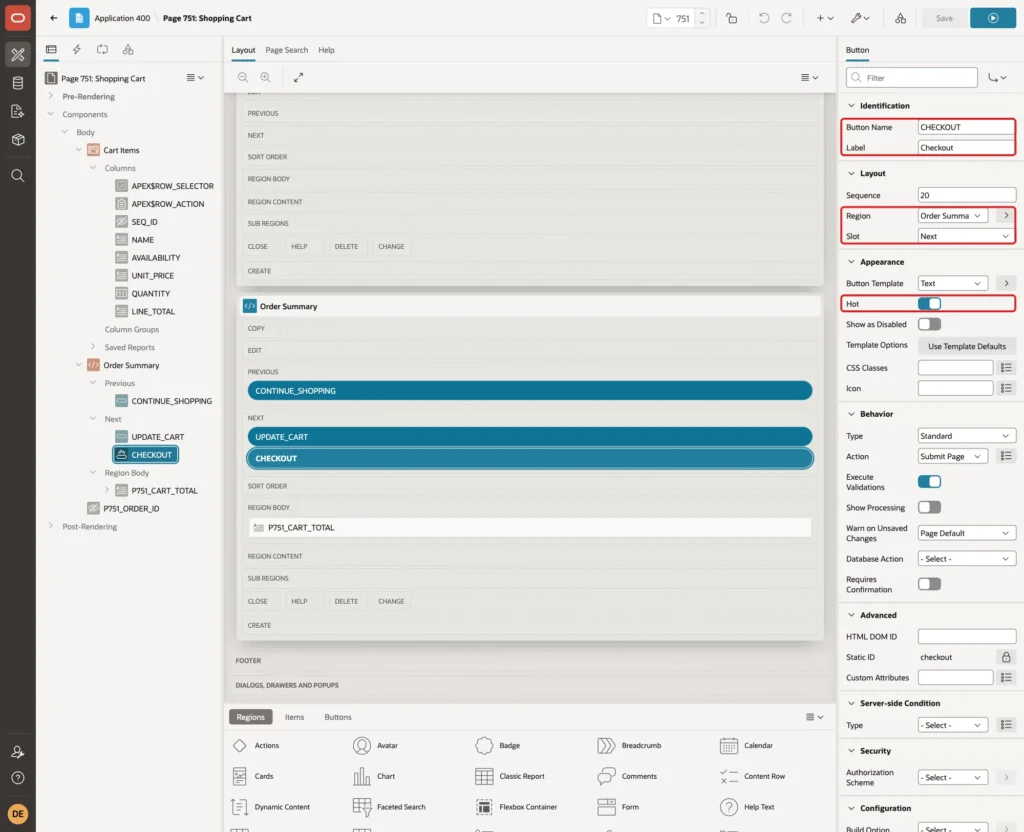
Add a button CHECKOUT with the Label Checkout, slot Next, and turn on Hot. Keep the Action Submit Page:
Step 11: Save Grid Changes to the Collection
The page buttons submit the page, and the grid sends its changed rows with the submit. A grid process writes them to the collection.
On the Processing tab, create a process named Save Cart Changes. Set the Type to Interactive Grid - Automatic Row Processing (DML) and the Editable Region to Cart Items. In the Target group, set the Target Type to PL/SQL Code and enter:
Example:
begin
    case :APEX$ROW_STATUS
        when 'U' then
            cart_pkg.set_quantity(p_seq_id => :SEQ_ID, p_quantity => :QUANTITY);
        when 'D' then
            cart_pkg.remove_item(p_seq_id => :SEQ_ID);
    end case;
end;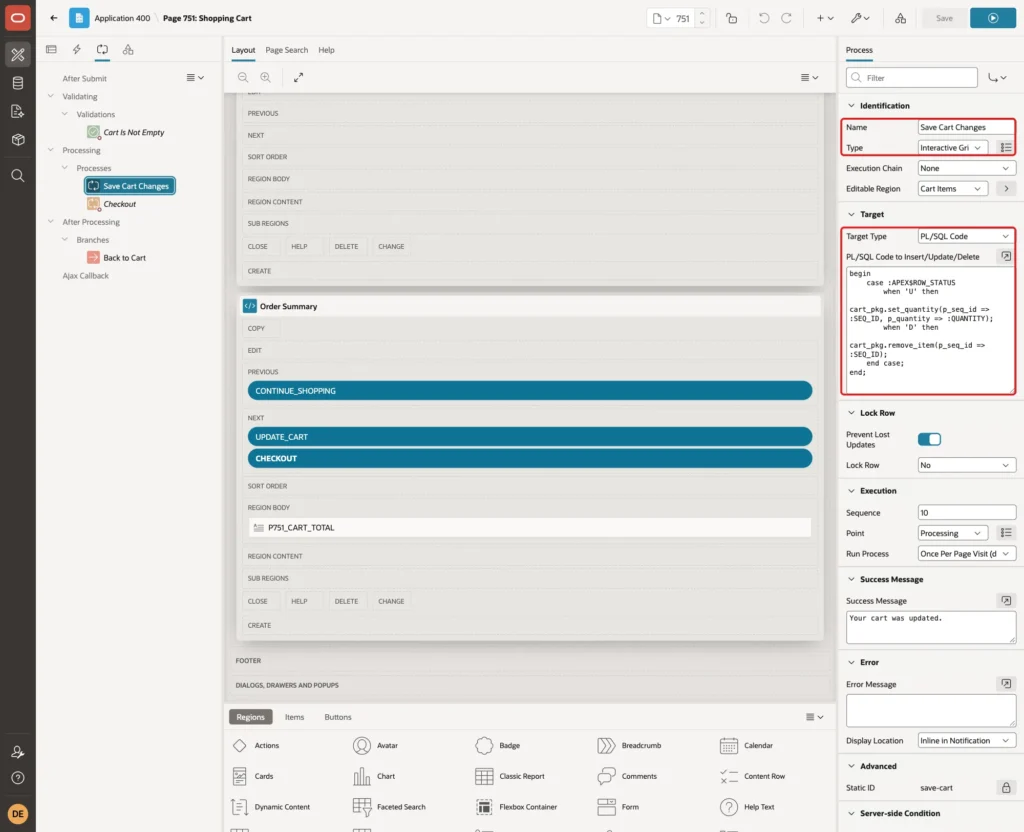
:APEX$ROW_STATUS is U for a changed row and D for a deleted row. The grid has no Add Row, so C never arrives. :SEQ_ID and :QUANTITY are the column values of the row.
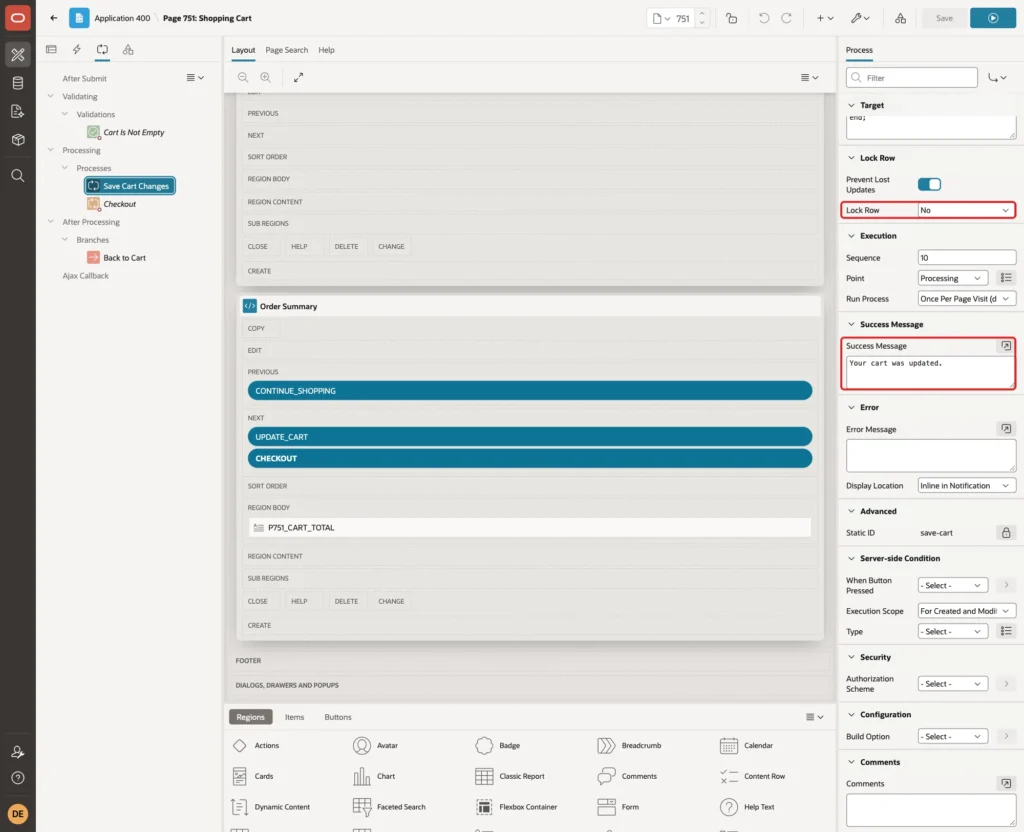
Set Lock Row to No, because a collection member is not a table row to lock. Set the Success Message to Your cart was updated.:
Step 12: Add the Checkout
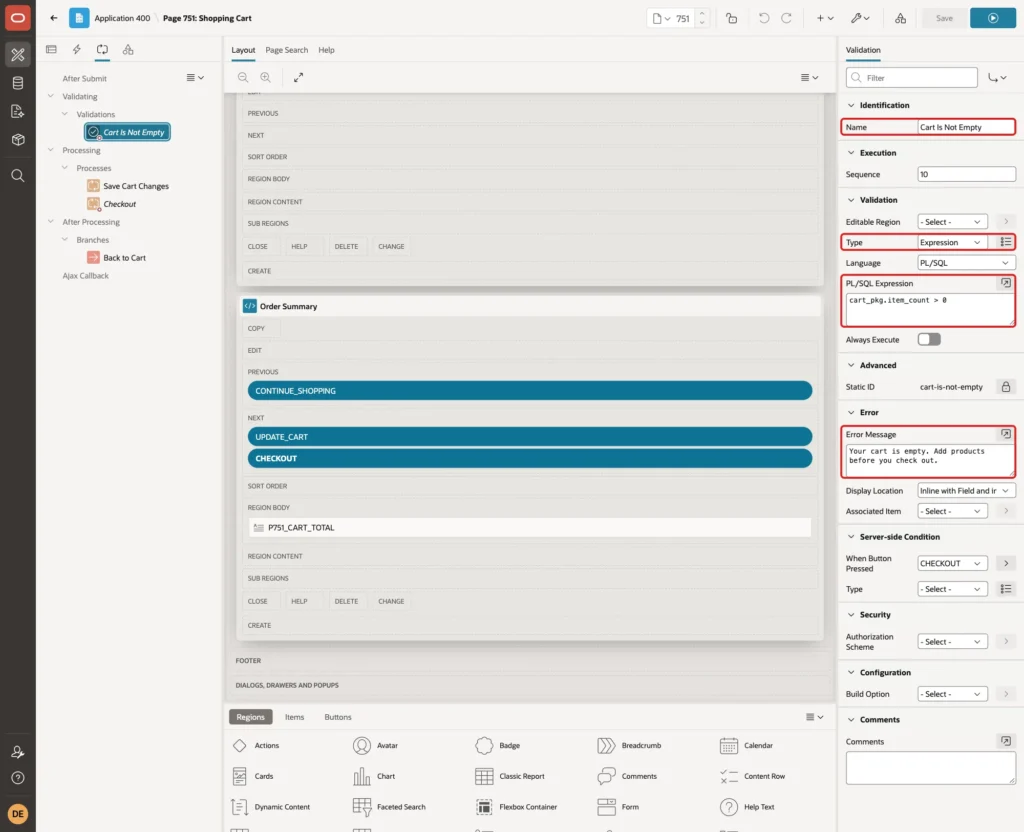
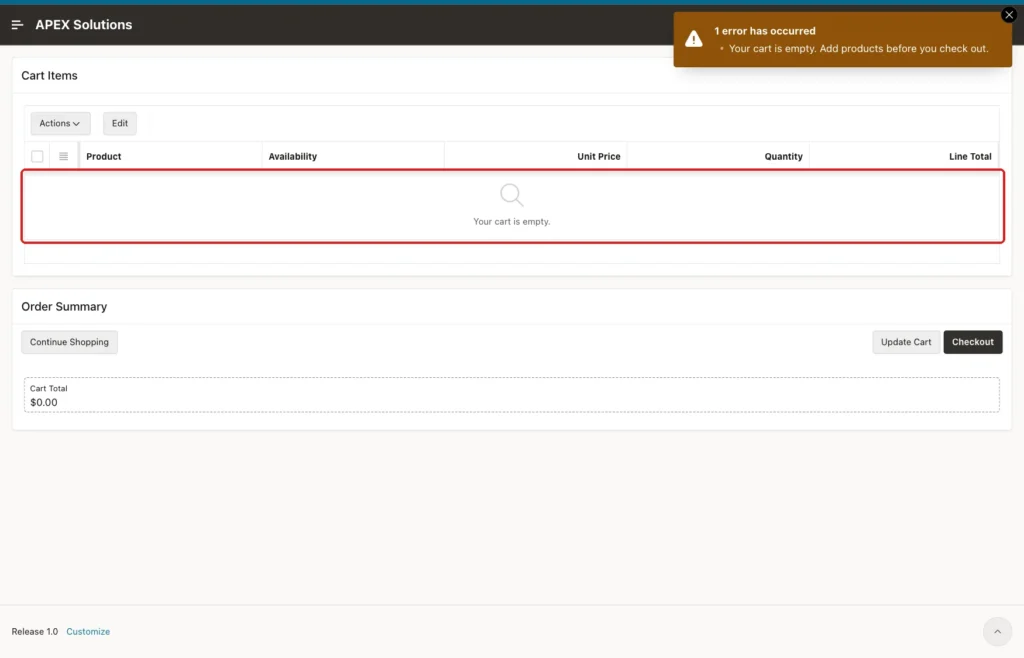
Create a validation named Cart Is Not Empty with the Type Expression and this PL/SQL Expression. Set the Error Message to Your cart is empty. Add products before you check out.:
Example:
cart_pkg.item_count > 0
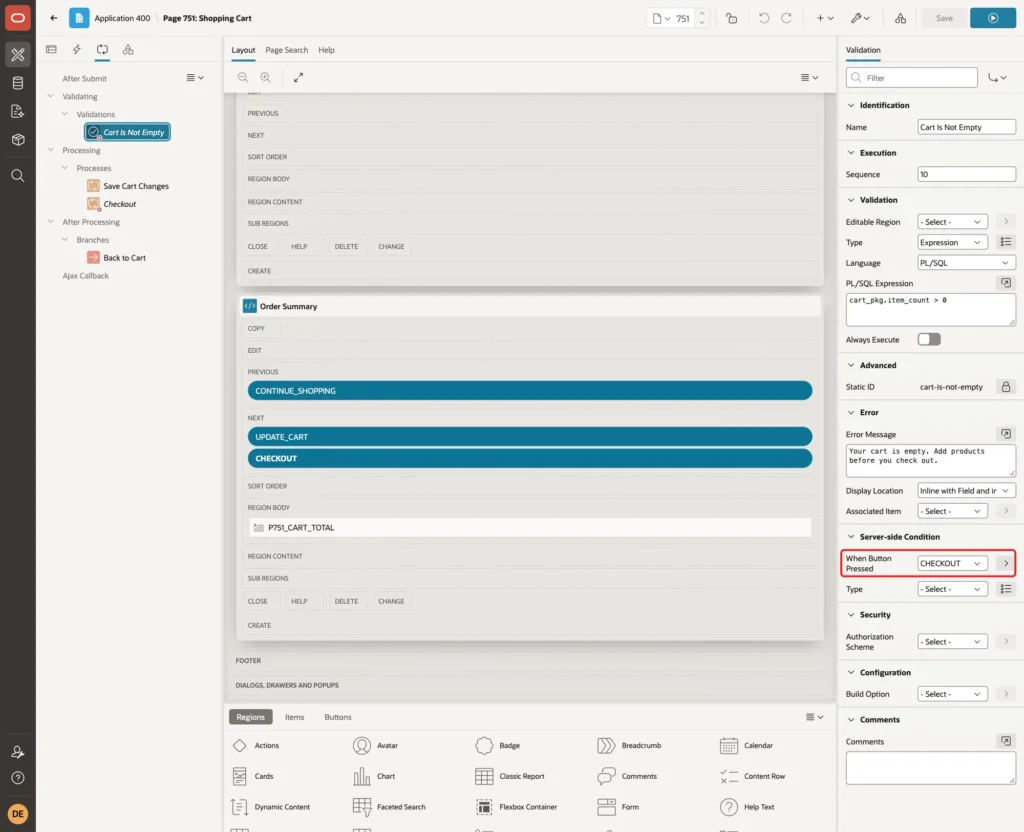
Under Server-side Condition, set When Button Pressed to CHECKOUT:
Create a process named Checkout with the Type Execute Code and the Sequence 20, so it runs after Save Cart Changes. Enter the PL/SQL Code:
Example:
begin
    :P751_ORDER_ID := cart_pkg.checkout;
end;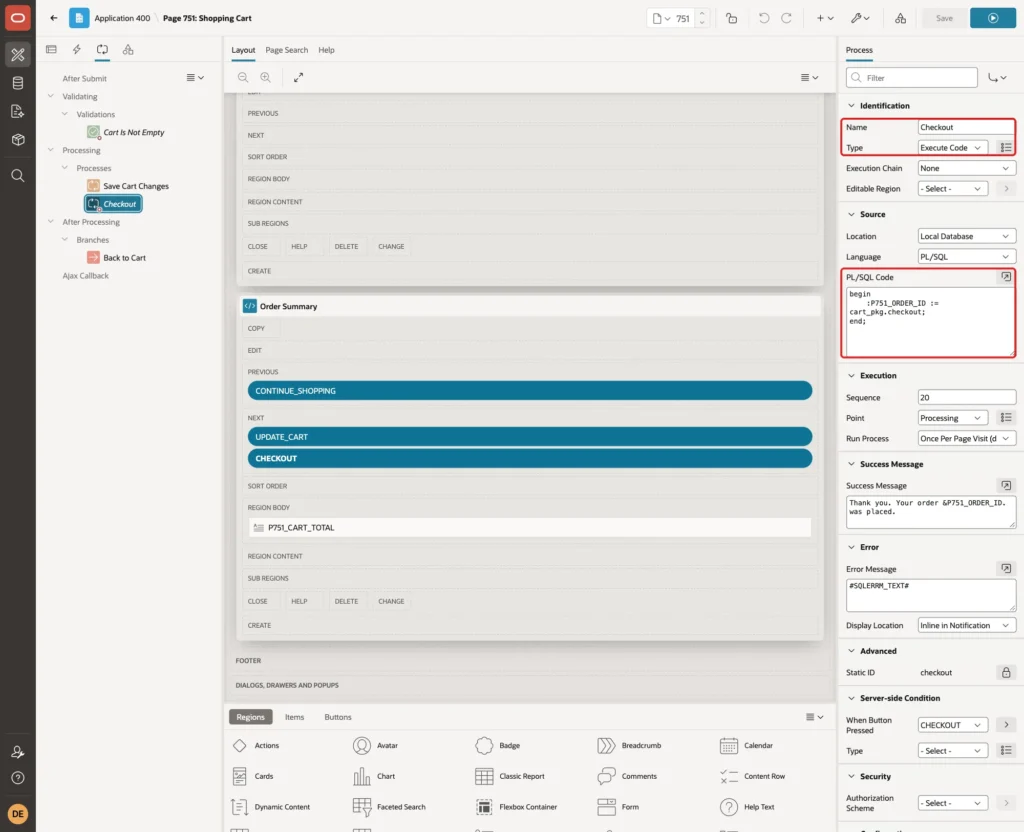
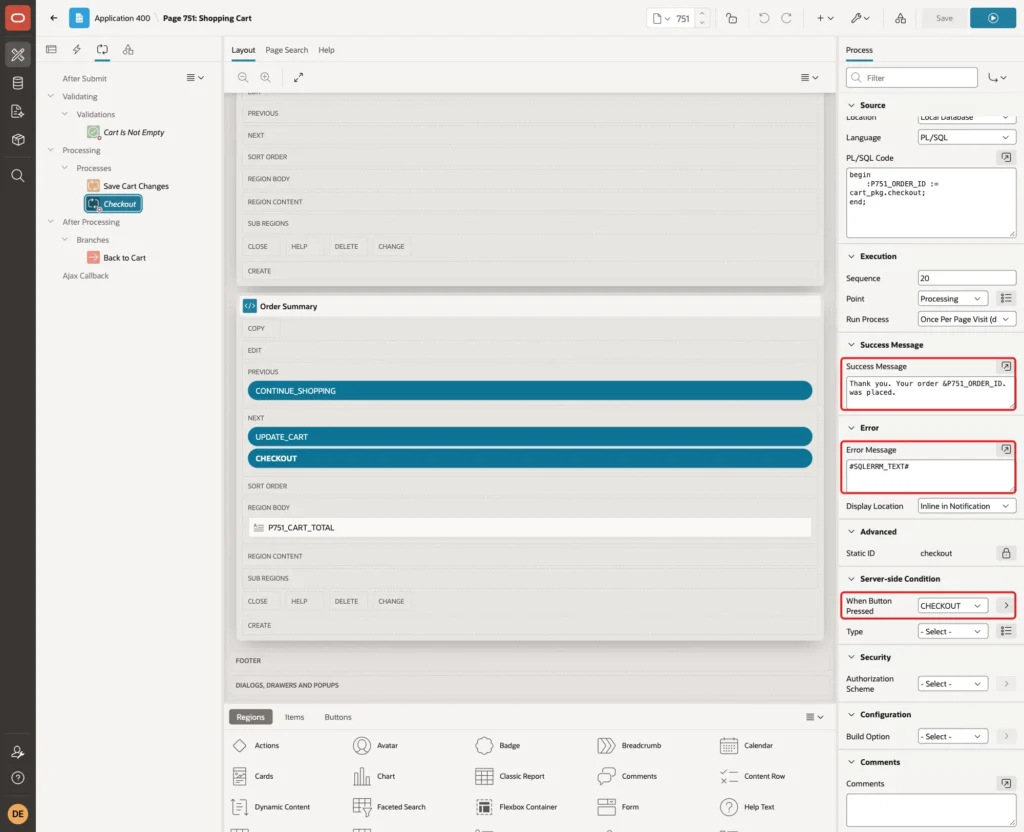
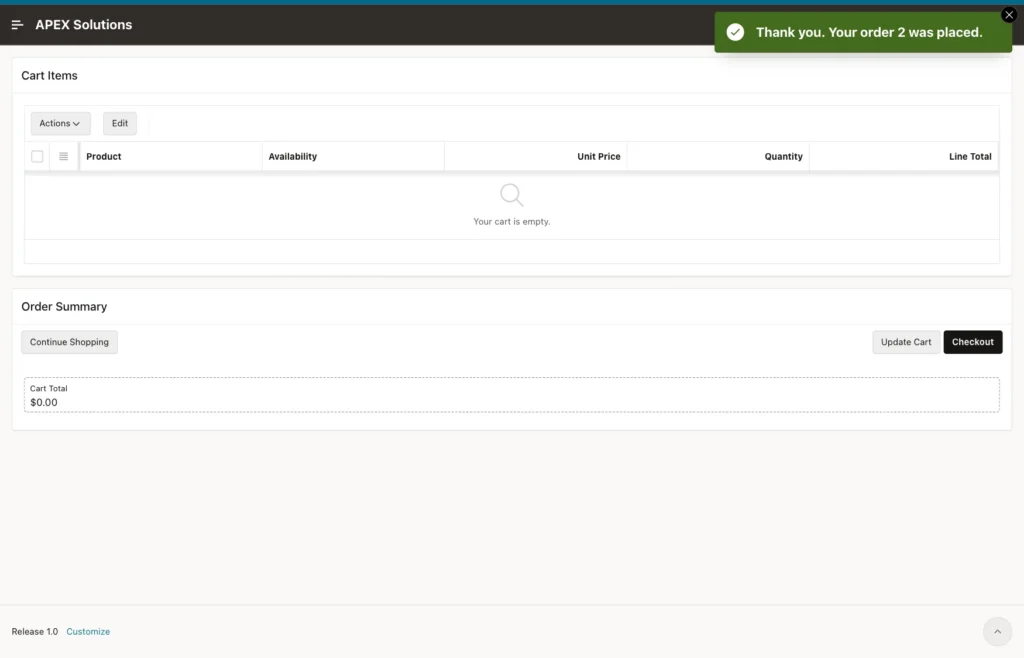
Set the Success Message to Thank you. Your order &P751_ORDER_ID. was placed., the Error Message to #SQLERRM_TEXT# and When Button Pressed to CHECKOUT:
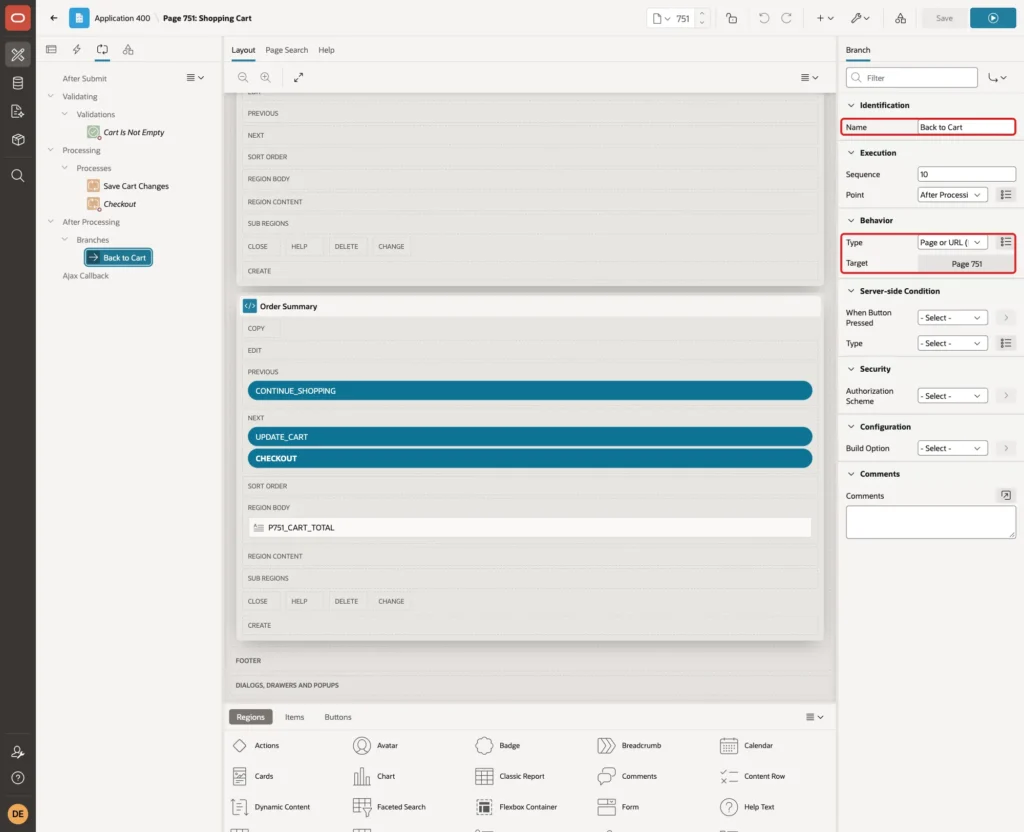
Create a branch named Back to Cart under After Processing with the Target page 751:
Step 13: Test the Cart
Run page 750 as DEMO_DEV. The shop shows the five active products, and the cart is empty. Click Add to Cart on the Ceramic Mug:
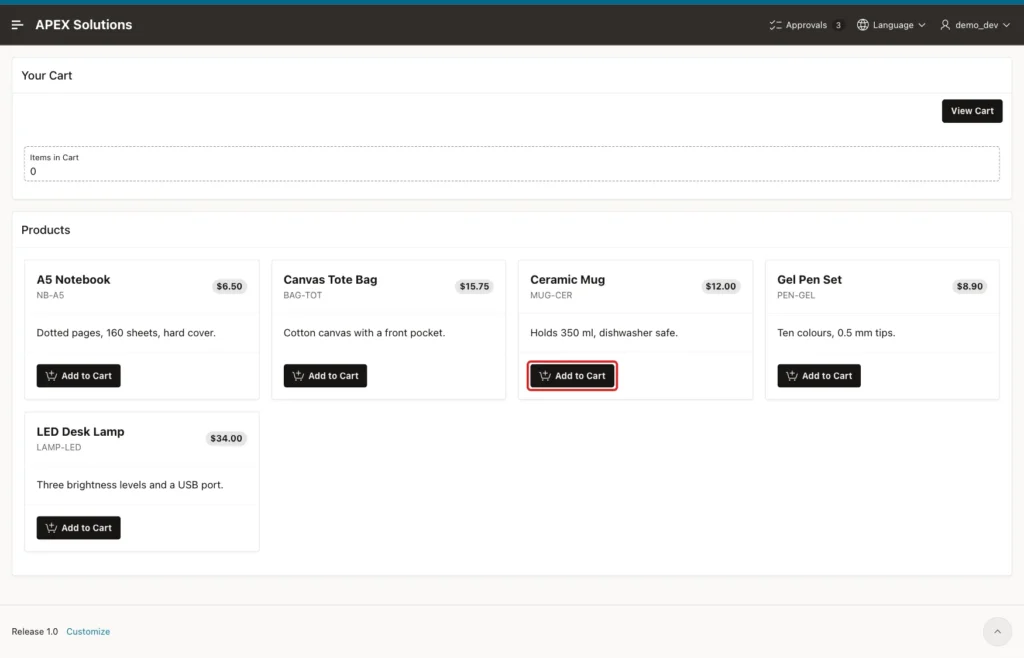
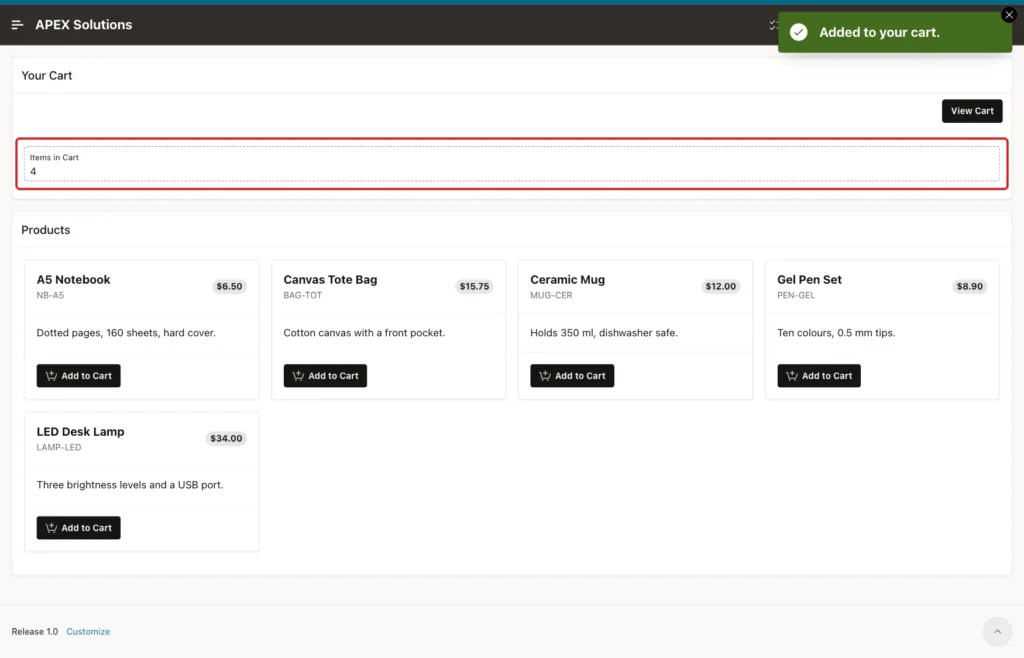
Add the A5 Notebook twice and the LED Desk Lamp once. Each click shows Added to your cart., and the counter goes up to 4:
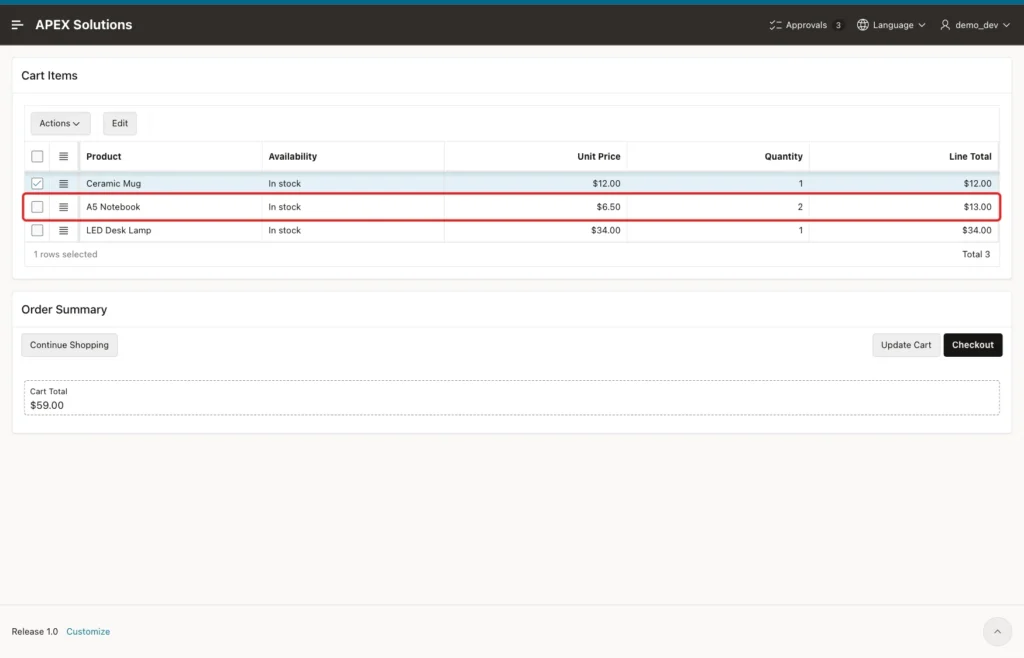
Click View Cart. The notebook is one row with the quantity 2, not two rows, and the total is $59.00:
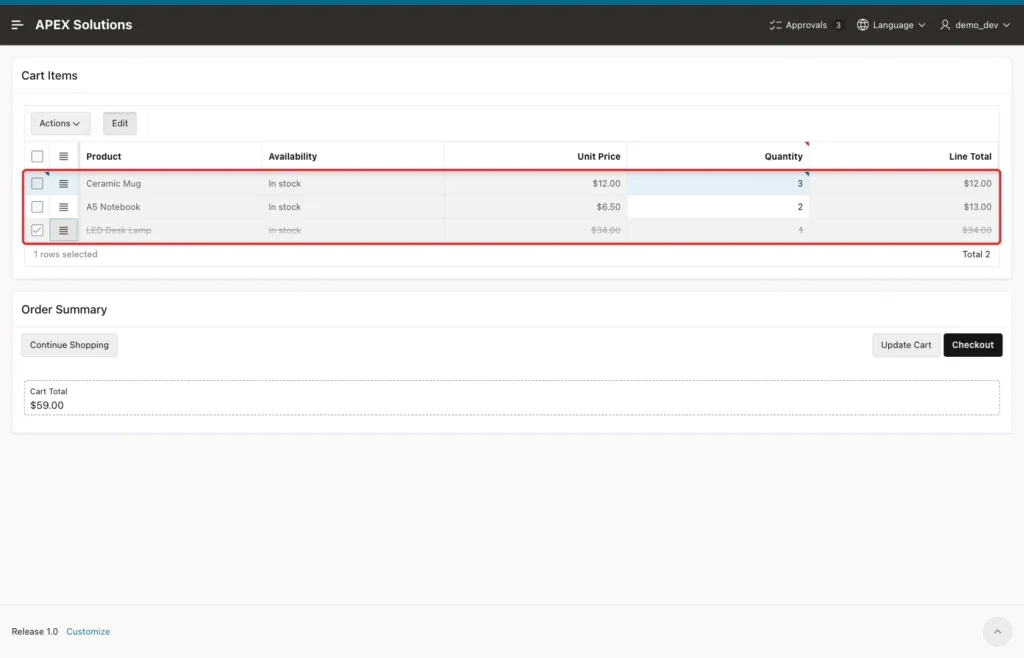
Double-click the Quantity of the Ceramic Mug and enter 3. Open the row menu of the LED Desk Lamp and click Delete Row. The grid marks both changes, but nothing is saved yet:
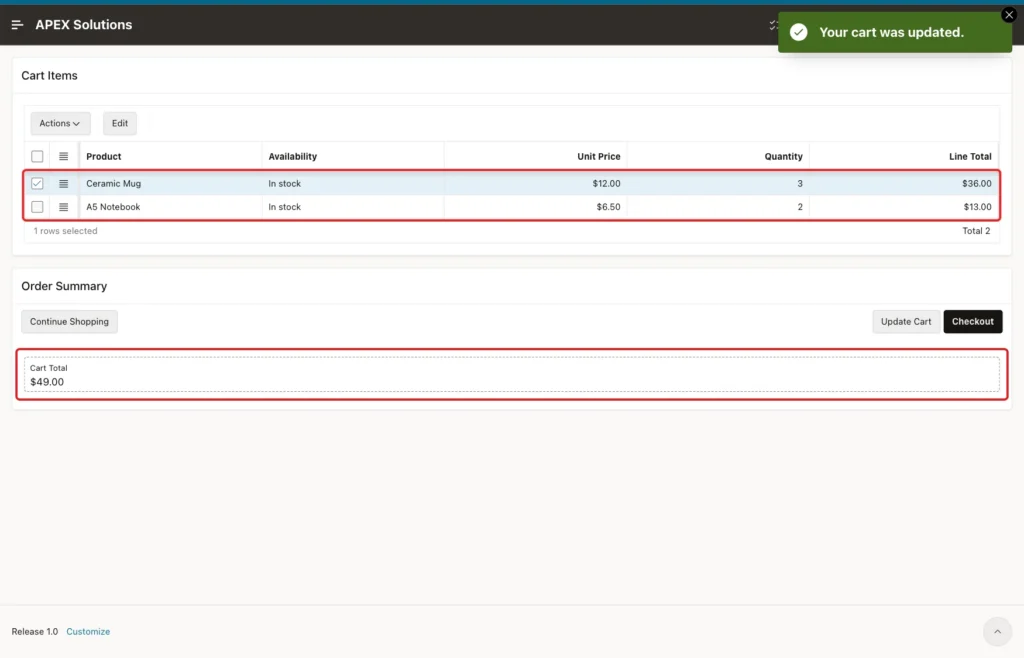
Click Update Cart. The page shows Your cart was updated., the lamp is gone and the total is $49.00 (3 × 12.00 + 2 × 6.50):
Click Checkout. The page shows the order number, and the cart is empty:
The order rows match the cart. Order 1 came from the SQL test in Step 3:
Example:
select o.order_id, o.ordered_by, o.status, p.name, l.quantity, l.unit_price, l.line_total
  from cart_orders o
  join cart_order_lines l on l.order_id = o.order_id
  join cart_products p on p.product_id = l.product_id
 order by o.order_id, l.line_id;

select o.order_id, count(*) as lines, sum(l.quantity) as items, sum(l.line_total) as order_total
  from cart_orders o
  join cart_order_lines l on l.order_id = o.order_id
 group by o.order_id
 order by o.order_id;
Output:
   ORDER_ID ORDERED_BY    STATUS    NAME              QUANTITY    UNIT_PRICE    LINE_TOTAL
___________ _____________ _________ ______________ ___________ _____________ _____________
          1 DEMO_DEV      NEW       A5 Notebook              2           6.5            13
          1 DEMO_DEV      NEW       Ceramic Mug              4            12            48
          2 DEMO_DEV      NEW       Ceramic Mug              3            12            36
          2 DEMO_DEV      NEW       A5 Notebook              2           6.5            13

   ORDER_ID    LINES    ITEMS    ORDER_TOTAL
___________ ________ ________ ______________
          1        2        6             61
          2        2        5             49
Step 14: Test the Error Cases
These tests ran as SALES_USER, while DEMO_DEV still had one item in the cart. The SALES_USER shop showed Items in Cart 0. Each session has its own collection, so carts never mix.
Checkout with an Empty Cart
Click View Cart and then Checkout. The validation stops the request before the checkout process runs:
A Forced Request for an Inactive Product
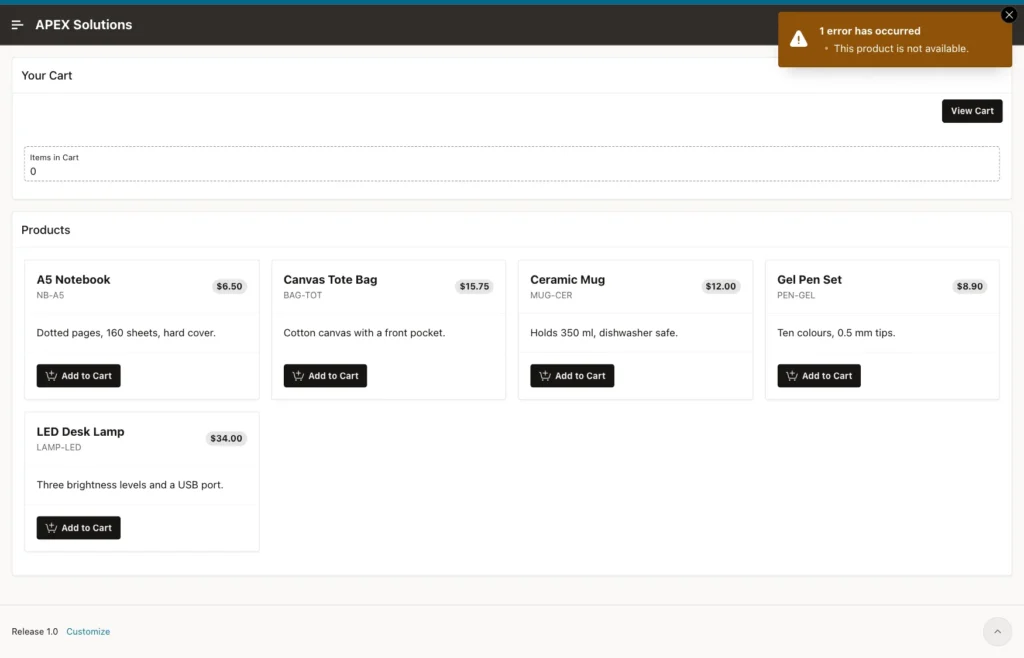
The wall calendar has no card, but a user can still send the request from the browser console:
Example:
apex.page.submit({request: 'ADD', set: {'P750_PRODUCT_ID': '6'}});The package checks IS_ACTIVE, so the product is refused, and the counter stays at 0:
A Product Withdrawn after It Was Added
Add the Canvas Tote Bag and the Gel Pen Set. Then set the bag to inactive in another session:
Example:
update cart_products set is_active = 'N' where sku = 'BAG-TOT';
commit;
Open the cart and click Checkout. The bag shows No longer sold, and the checkout is refused:
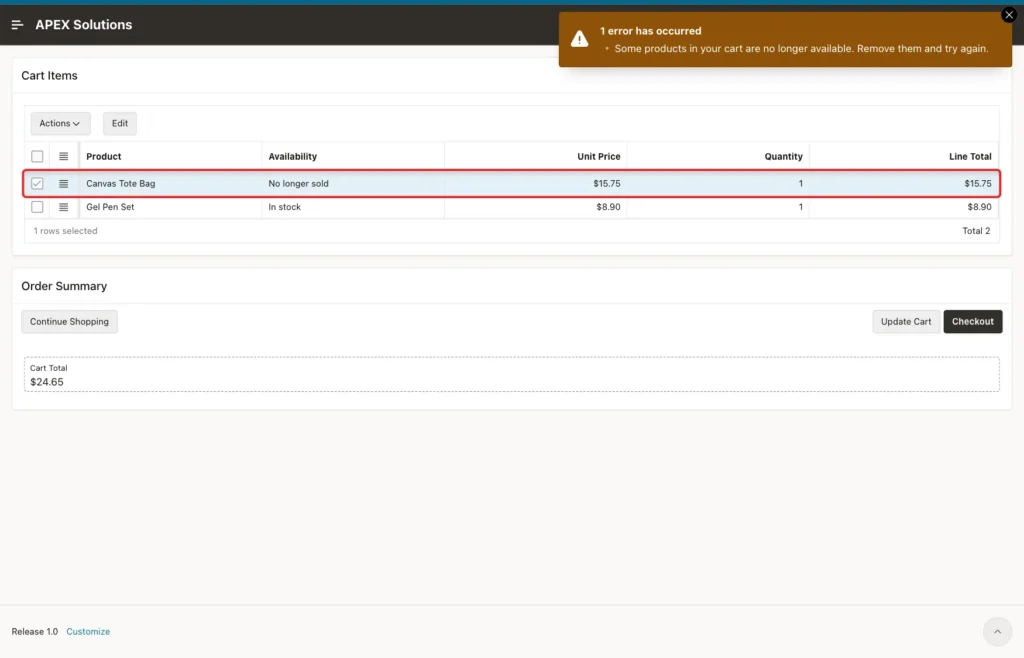
No order was created. The bag was set back to active after this test.
A Quantity Out of Range
Change the quantity of the Gel Pen Set to 0 and click Update Cart. The number field stops the submit in the browser:
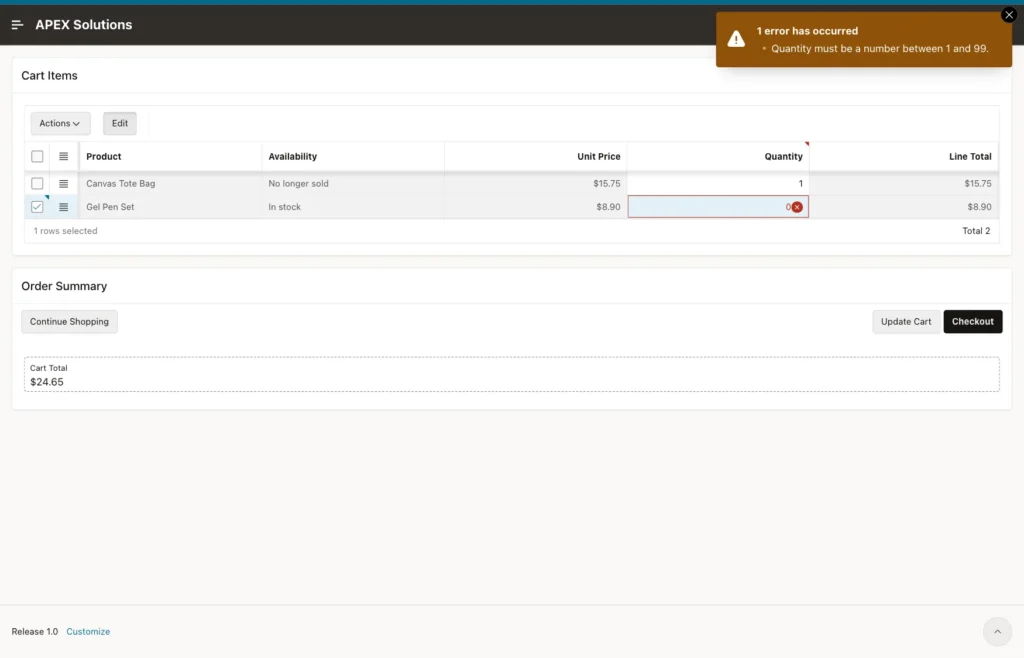
If the browser check is bypassed, SET_QUANTITY still refuses the value with ORA-20002, as the SQL test in Step 3 showed.
Things to Know
- A collection belongs to one APEX session. When the user signs out or the session expires, the cart is gone. To keep carts across visits, save them in a table instead.
- The cart stores only product IDs and quantities. Prices come from CART_PRODUCTS at checkout, so a price change before checkout is charged at the new price. To keep the price from the time of adding, store it in another attribute such as N003.
- Keep the rules in the package, not only in the page. The forced ADD request and the withdrawn product were stopped by the package.
- #SQLERRM_TEXT# as the process error message shows the RAISE_APPLICATION_ERROR text without the ORA- number.
- Order IDs can skip numbers because identity values are cached. Do not use them as an unbroken sequence.
- The page has no authorization scheme in this example. In a real shop, add one to the pages and limit who can check out.
Related Guides
Conclusion
A shopping cart in Oracle APEX needs no cart table. An APEX collection keeps the cart for each session, a small package adds, changes and removes members, and the checkout turns the collection into an order and its lines in one call.
Cards with an Add to Cart button post the product to the server, an editable grid on APEX_COLLECTIONS changes quantities, and a validation and the package refuse empty carts, inactive products and wrong quantities. The same pattern works for any list users collect before they save it.
