
A running balance shows the amount left after each row of a list: the bank balance after every transaction, the stock after every movement or the hours left after every booking. Users read it from top to bottom, so every number depends on the rows above it.
This guide builds an account statement page in Oracle APEX. One analytic SUM in the SQL query calculates the balance, an Interactive Report shows it with negative balances highlighted, and the report settings keep the rows in the one order where the balance makes sense.
The example uses bank accounts and their transactions. The same steps work for any table with a date and a signed amount. The SQL side of running totals is covered in Oracle SQL Query to Calculate Running Totals; this article is about the APEX page and the problems that appear when users sort, search and filter the report.
Step 1: Create the Tables
Two tables hold the data:
- BANK_ACCOUNTS has one row per account with a unique account number and the opening balance.
- ACCOUNT_TRANSACTIONS has one row per transaction: the account, the date, a description, the type CREDIT or DEBIT and a positive amount.
SIGNED_AMOUNT is a virtual column. It returns the amount for a credit and the negative amount for a debit, so no trigger or process has to keep a sign in sync. Create the tables with 2 accounts and 15 transactions:
Example:
set pages 100 lines 200 feedback on
alter session set nls_date_format = 'YYYY-MM-DD';
create table bank_accounts (
  account_id       number generated by default on null as identity,
  account_no       varchar2(20) not null,
  account_name     varchar2(100) not null,
  opening_date     date not null,
  opening_balance  number(12,2) default on null 0 not null,
  constraint bank_accounts_pk primary key (account_id),
  constraint bank_accounts_no_uk unique (account_no)
);

create table account_transactions (
  txn_id         number generated by default on null as identity,
  account_id     number not null,
  txn_date       date not null,
  description    varchar2(200) not null,
  txn_type       varchar2(6) not null,
  amount         number(12,2) not null,
  signed_amount  number(12,2) as (case txn_type when 'CREDIT' then amount else -amount end) virtual,
  constraint account_transactions_pk primary key (txn_id),
  constraint account_txn_account_fk foreign key (account_id) references bank_accounts (account_id),
  constraint account_txn_type_ck check (txn_type in ('CREDIT', 'DEBIT')),
  constraint account_txn_amount_ck check (amount > 0)
);

create index account_txn_account_ix on account_transactions (account_id, txn_date, txn_id);

insert into bank_accounts (account_no, account_name, opening_date, opening_balance)
select account_no, account_name, to_date(opening_date, 'YYYY-MM-DD'), opening_balance
  from (values ('ACC-100', 'Operating Account', '2026-09-01', 2000),
               ('ACC-200', 'Savings Account',   '2026-09-01', 10000)) v (account_no, account_name, opening_date, opening_balance);

insert into account_transactions (account_id, txn_date, description, txn_type, amount)
select a.account_id, to_date(v.txn_date, 'YYYY-MM-DD'), v.description, v.txn_type, v.amount
  from (values ('ACC-100', '2026-09-02', 'Customer payment INV-501',  'CREDIT', 1500),
               ('ACC-100', '2026-09-05', 'Office rent September',     'DEBIT',  2800),
               ('ACC-100', '2026-09-05', 'Internet and phone',        'DEBIT',   250),
               ('ACC-100', '2026-09-12', 'Customer payment INV-502',  'CREDIT',  900),
               ('ACC-100', '2026-09-20', 'Supplier invoice 7741',     'DEBIT',  1900),
               ('ACC-100', '2026-09-28', 'Customer payment INV-503',  'CREDIT', 3200),
               ('ACC-100', '2026-09-30', 'Salaries September',        'DEBIT',  2400),
               ('ACC-100', '2026-10-01', 'Transfer from savings',     'CREDIT', 2000),
               ('ACC-100', '2026-10-05', 'Office rent October',       'DEBIT',  2800),
               ('ACC-100', '2026-10-09', 'Customer payment INV-504',  'CREDIT', 1750),
               ('ACC-100', '2026-10-09', 'Bank charges',              'DEBIT',    35),
               ('ACC-100', '2026-10-15', 'Supplier invoice 7802',     'DEBIT',  1200),
               ('ACC-200', '2026-09-30', 'Interest September',        'CREDIT',   42),
               ('ACC-200', '2026-10-01', 'Transfer to operating',     'DEBIT',  2000),
               ('ACC-200', '2026-10-15', 'Deposit',                   'CREDIT', 1500)
       ) v (account_no, txn_date, description, txn_type, amount)
  join bank_accounts a on a.account_no = v.account_no
 order by v.account_no, v.txn_date;

commit;

select a.account_no, a.account_name, a.opening_balance,
       count(t.txn_id) txns,
       a.opening_balance + nvl(sum(t.signed_amount), 0) closing_balance
  from bank_accounts a
  left join account_transactions t on t.account_id = a.account_id
 group by a.account_no, a.account_name, a.opening_balance
 order by a.account_no;
Output:
Session altered.

Table BANK_ACCOUNTS created.

Table ACCOUNT_TRANSACTIONS created.

Index ACCOUNT_TXN_ACCOUNT_IX created.

2 rows inserted.

15 rows inserted.

Commit complete.

ACCOUNT_NO    ACCOUNT_NAME            OPENING_BALANCE    TXNS    CLOSING_BALANCE
_____________ ____________________ __________________ _______ __________________
ACC-100       Operating Account                  2000      12                -35
ACC-200       Savings Account                   10000       3               9542

2 rows selected.
- ACCOUNT_TXN_ACCOUNT_FK links each transaction to its account. ACCOUNT_TXN_TYPE_CK allows only CREDIT and DEBIT, and ACCOUNT_TXN_AMOUNT_CK allows only positive amounts.
- OPENING_BALANCE has DEFAULT ON NULL 0, so a new account without a value starts at zero.
- The index ACCOUNT_TXN_ACCOUNT_IX is on account, date and ID: the same columns the balance is calculated by.
The balance itself is not stored. A stored balance would be wrong after every back-dated or corrected transaction. The query calculates it each time.
Step 2: Write the Running Balance Query
The running balance is the opening balance plus the sum of all signed amounts up to and including the current row. The analytic SUM function does this in one pass:
Example:
set pages 100 lines 200 feedback on
alter session set nls_date_format = 'YYYY-MM-DD';
select t.txn_id,
       t.txn_date,
       t.description,
       t.signed_amount,
       a.opening_balance
         + sum(t.signed_amount) over (
             partition by t.account_id
             order by t.txn_date, t.txn_id
             rows between unbounded preceding and current row
           ) running_balance
  from account_transactions t
  join bank_accounts a on a.account_id = t.account_id
 where a.account_no = 'ACC-100'
 order by t.txn_date, t.txn_id;
Output:
Session altered.

   TXN_ID TXN_DATE      DESCRIPTION                    SIGNED_AMOUNT    RUNNING_BALANCE
_________ _____________ ___________________________ ________________ __________________
        1 2026-09-02    Customer payment INV-501                1500               3500
        2 2026-09-05    Office rent September                  -2800                700
        3 2026-09-05    Internet and phone                      -250                450
        4 2026-09-12    Customer payment INV-502                 900               1350
        5 2026-09-20    Supplier invoice 7741                  -1900               -550
        6 2026-09-28    Customer payment INV-503                3200               2650
        7 2026-09-30    Salaries September                     -2400                250
        8 2026-10-01    Transfer from savings                   2000               2250
        9 2026-10-05    Office rent October                    -2800               -550
       10 2026-10-09    Customer payment INV-504                1750               1200
       11 2026-10-09    Bank charges                             -35               1165
       12 2026-10-15    Supplier invoice 7802                  -1200                -35

12 rows selected.
How the window works:
- PARTITION BY account_id starts a new sum for every account.
- ORDER BY txn_date, txn_id sets the order in which rows are added up.
- ROWS BETWEEN UNBOUNDED PRECEDING AND CURRENT ROW adds every row from the first one up to the current row.
The operating account goes below zero twice: after the supplier invoice on 2026-09-20 and after the October rent. The last balance, -35, is the closing balance from Step 1.
Why TXN_ID Is in the ORDER BY
Two transactions on 2026-09-05 and two on 2026-10-09 share a date. Here is the same query ordered by date only:
Example:
set pages 100 lines 200 feedback on
alter session set nls_date_format = 'YYYY-MM-DD';
select t.txn_id,
       t.txn_date,
       t.description,
       t.signed_amount,
       a.opening_balance
         + sum(t.signed_amount) over (
             partition by t.account_id
             order by t.txn_date
           ) balance_by_date_only
  from account_transactions t
  join bank_accounts a on a.account_id = t.account_id
 where a.account_no = 'ACC-100'
 order by t.txn_date, t.txn_id;
Output:
Session altered.

   TXN_ID TXN_DATE      DESCRIPTION                    SIGNED_AMOUNT    BALANCE_BY_DATE_ONLY
_________ _____________ ___________________________ ________________ _______________________
        1 2026-09-02    Customer payment INV-501                1500                    3500
        2 2026-09-05    Office rent September                  -2800                     450
        3 2026-09-05    Internet and phone                      -250                     450
        4 2026-09-12    Customer payment INV-502                 900                    1350
        5 2026-09-20    Supplier invoice 7741                  -1900                    -550
        6 2026-09-28    Customer payment INV-503                3200                    2650
        7 2026-09-30    Salaries September                     -2400                     250
        8 2026-10-01    Transfer from savings                   2000                    2250
        9 2026-10-05    Office rent October                    -2800                    -550
       10 2026-10-09    Customer payment INV-504                1750                    1165
       11 2026-10-09    Bank charges                             -35                    1165
       12 2026-10-15    Supplier invoice 7802                  -1200                     -35

12 rows selected.
Both rows of 2026-09-05 show 450, and both rows of 2026-10-09 show 1,165. An ORDER BY without a frame clause uses RANGE, which adds all rows with the same date at once. The balance after the rent payment, 700, never appears.
Adding TXN_ID gives every row a unique position. ROWS then adds one row at a time, and each row shows its own balance.
Filter After the Balance Is Calculated
A statement for October only must still start from the balance at the end of September. If the date filter is in the WHERE clause of the same query, the earlier rows are removed before the SUM sees them:
Example:
set pages 100 lines 200 feedback on
alter session set nls_date_format = 'YYYY-MM-DD';
select t.txn_id,
       t.txn_date,
       t.description,
       t.signed_amount,
       a.opening_balance
         + sum(t.signed_amount) over (
             partition by t.account_id
             order by t.txn_date, t.txn_id
             rows between unbounded preceding and current row
           ) running_balance
  from account_transactions t
  join bank_accounts a on a.account_id = t.account_id
 where a.account_no = 'ACC-100'
   and t.txn_date >= date '2026-10-01'
 order by t.txn_date, t.txn_id;
Output:
Session altered.

   TXN_ID TXN_DATE      DESCRIPTION                    SIGNED_AMOUNT    RUNNING_BALANCE
_________ _____________ ___________________________ ________________ __________________
        8 2026-10-01    Transfer from savings                   2000               4000
        9 2026-10-05    Office rent October                    -2800               1200
       10 2026-10-09    Customer payment INV-504                1750               2950
       11 2026-10-09    Bank charges                             -35               2915
       12 2026-10-15    Supplier invoice 7802                  -1200               1715

5 rows selected.
The October rows now start from the opening balance of 2,000, and every balance is wrong. Calculate the balance in an inline view first and filter outside of it:
Example:
set pages 100 lines 200 feedback on
alter session set nls_date_format = 'YYYY-MM-DD';
select *
  from (select t.txn_id,
               t.txn_date,
               t.description,
               t.signed_amount,
               a.opening_balance
                 + sum(t.signed_amount) over (
                     partition by t.account_id
                     order by t.txn_date, t.txn_id
                     rows between unbounded preceding and current row
                   ) running_balance
          from account_transactions t
          join bank_accounts a on a.account_id = t.account_id
         where a.account_no = 'ACC-100')
 where txn_date >= date '2026-10-01'
 order by txn_date, txn_id;
Output:
Session altered.

   TXN_ID TXN_DATE      DESCRIPTION                    SIGNED_AMOUNT    RUNNING_BALANCE
_________ _____________ ___________________________ ________________ __________________
        8 2026-10-01    Transfer from savings                   2000               2250
        9 2026-10-05    Office rent October                    -2800               -550
       10 2026-10-09    Customer payment INV-504                1750               1200
       11 2026-10-09    Bank charges                             -35               1165
       12 2026-10-15    Supplier invoice 7802                  -1200                -35

5 rows selected.
The balances match the full statement from Step 2. An Interactive Report works the same way: it applies its search outside of the region query, as the test in Step 9 shows.
Step 3: Create the Interactive Report Page
The report query reads the account from a page item, P850_ACCOUNT_ID, which is created in Step 4. It returns separate Debit and Credit columns, as bank statements usually do:
Example:
select t.txn_id,
       t.txn_date,
       t.description,
       case t.txn_type when 'DEBIT' then t.amount end debit,
       case t.txn_type when 'CREDIT' then t.amount end credit,
       a.opening_balance
         + sum(t.signed_amount) over (
             partition by t.account_id
             order by t.txn_date, t.txn_id
             rows between unbounded preceding and current row
           ) running_balance
  from account_transactions t
  join bank_accounts a on a.account_id = t.account_id
 where t.account_id = :P850_ACCOUNT_ID
In Page Designer, click Create (the plus icon) and choose Page. Select the Interactive Report tile:

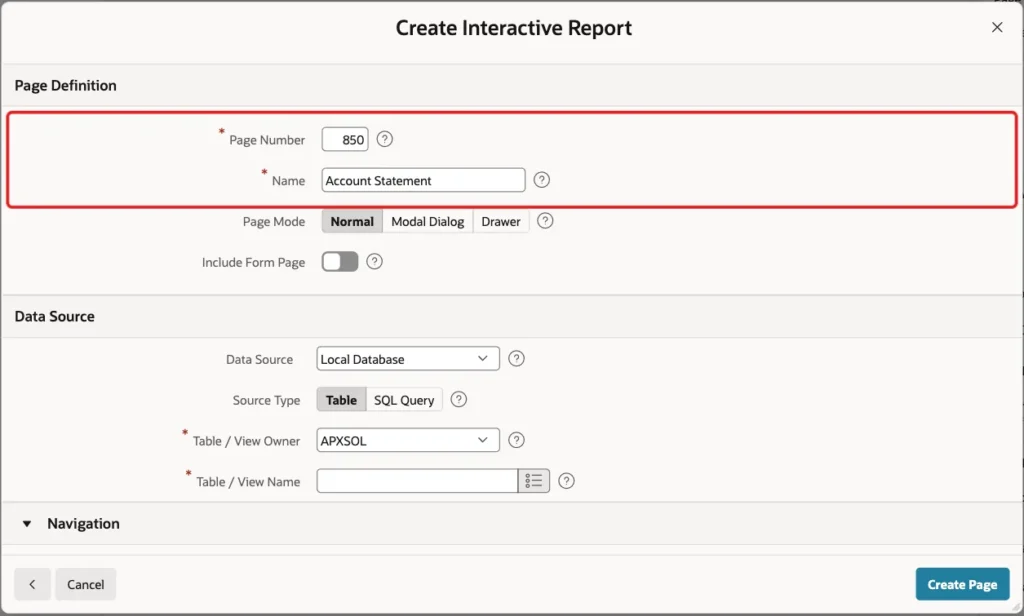
Enter Page Number 850 and Name Account Statement. Leave Page Mode Normal and Include Form Page off:
Under Data Source, keep Local Database, set Source Type to SQL Query and paste the query above:

Under Navigation, keep the defaults: a breadcrumb and a new navigation menu entry with the icon fa-table. Click Create Page:

The wizard creates page 850 with the Interactive Report region Account Statement and one column per query column.
Step 4: Add the Account Select List
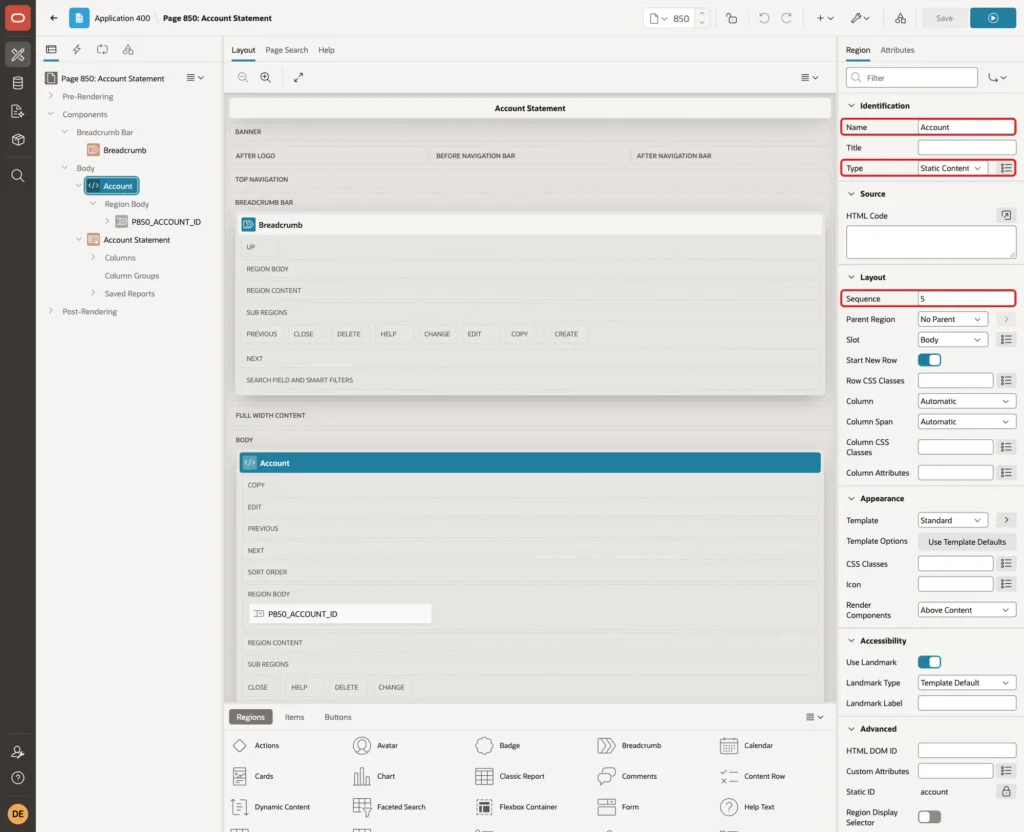
Right-click Body in the Rendering tree and choose Create Region. Set Name to Account and keep Type Static Content. Set Sequence to 5, so the region appears above the report:
Right-click the Account region, choose Create Page Item and set:
- Name: P850_ACCOUNT_ID, Type: Select List, Label: Account
- List of Values Type: SQL Query, with the query below
- Display Null Value: off, because a statement always belongs to one account
Example:
select account_no || ' - ' || account_name as display_value,
       account_id as return_value
  from bank_accounts
 order by account_no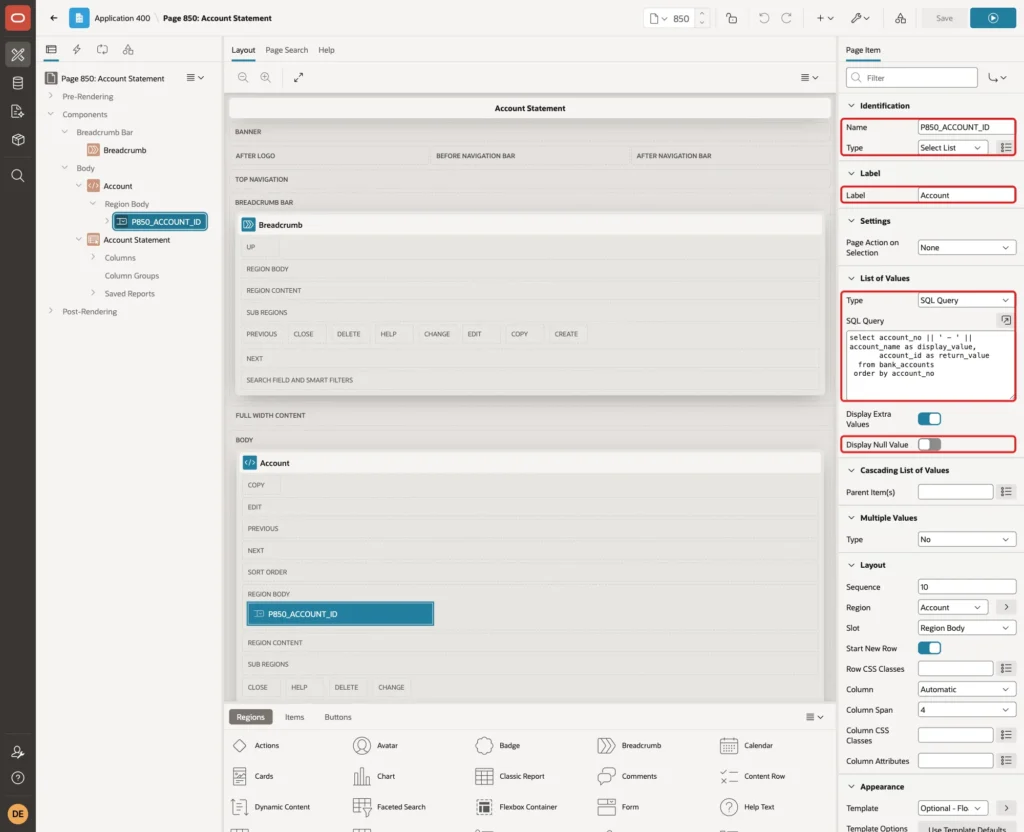
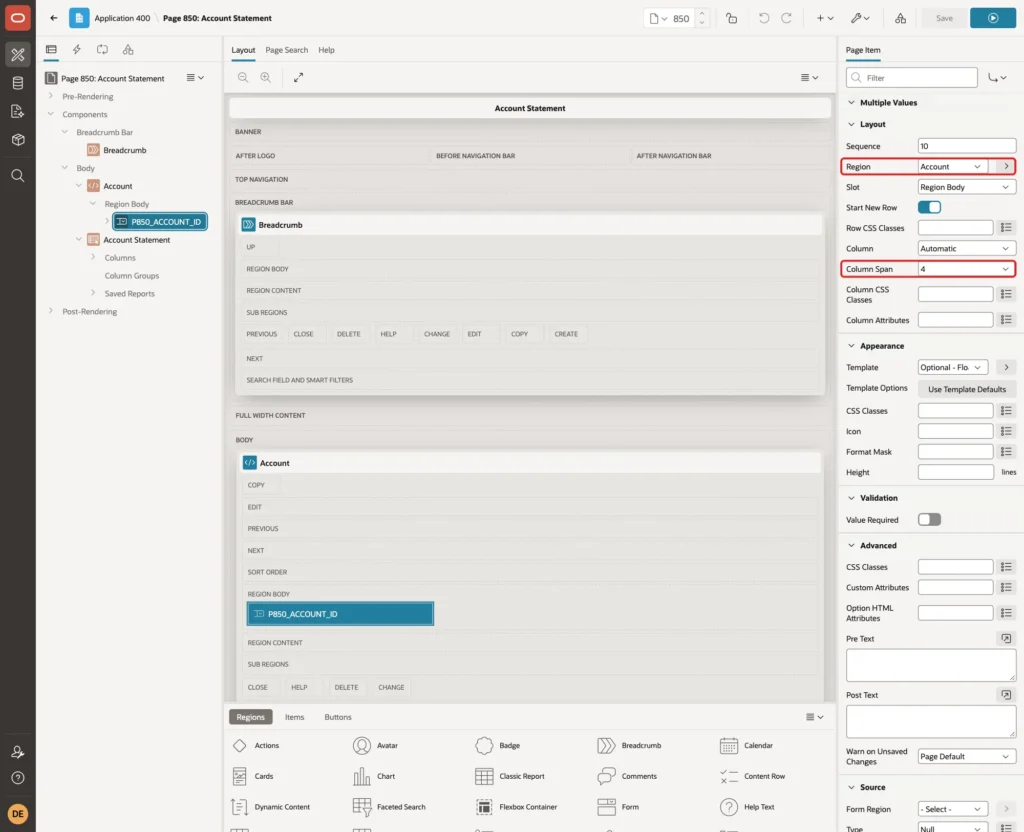
Under Layout, check that Region is Account and set Column Span to 4:
A select list without a null value shows its first entry, but the item stays empty in session state until the user changes it. The report would then show no rows on the first visit. Give the item a default value: under Default, set Type to SQL Query (return single value) with this query:
Example:
select min(account_id) keep (dense_rank first order by account_no)
  from bank_accounts
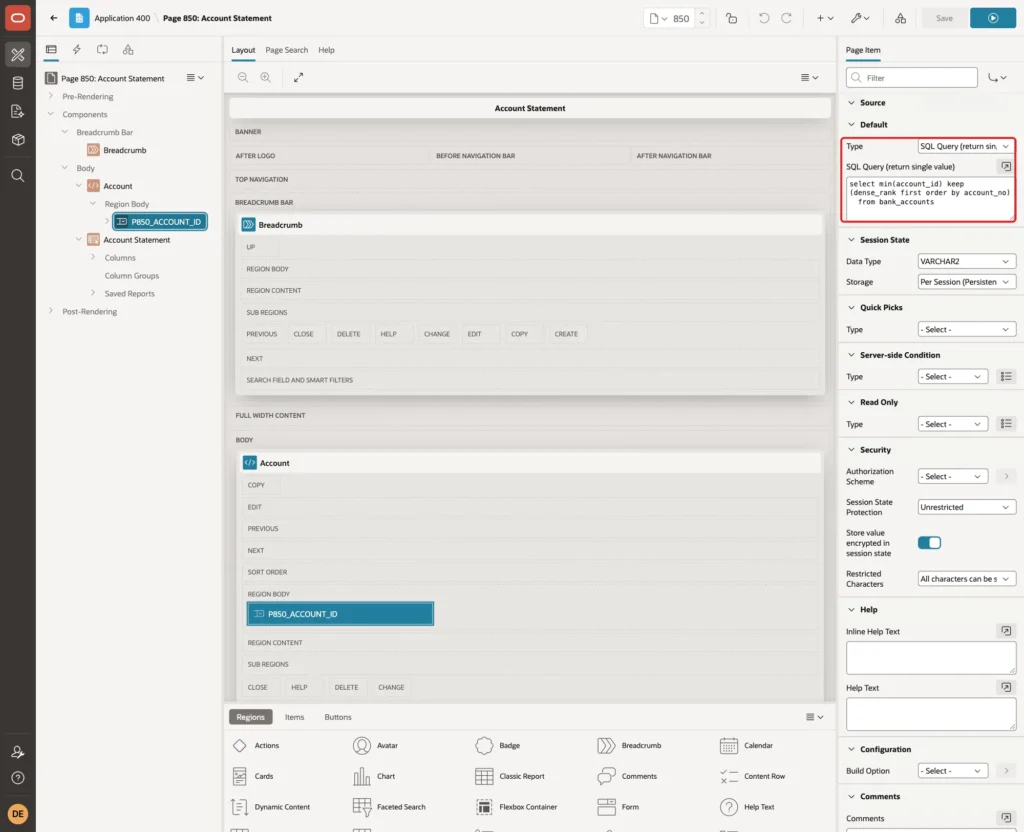
The query returns the ID of the account that is first by account number, the same account the select list shows first.
Step 5: Refresh the Report When the Account Changes
Select the Account Statement region. Under Source, set Page Items to Submit to P850_ACCOUNT_ID, so each refresh sends the selected account to the server.
In the same SQL Query, change the WHERE line to:
Example:
where t.account_id = to_number(:P850_ACCOUNT_ID default null on conversion error)
In a first test with the plain bind variable, a value forced into the item from the browser console (abc) made the report show ORA-01722: unable to convert string value containing 'a' to a number.
With DEFAULT NULL ON CONVERSION ERROR, any value that is not a number becomes NULL and the report shows no rows instead of an error.
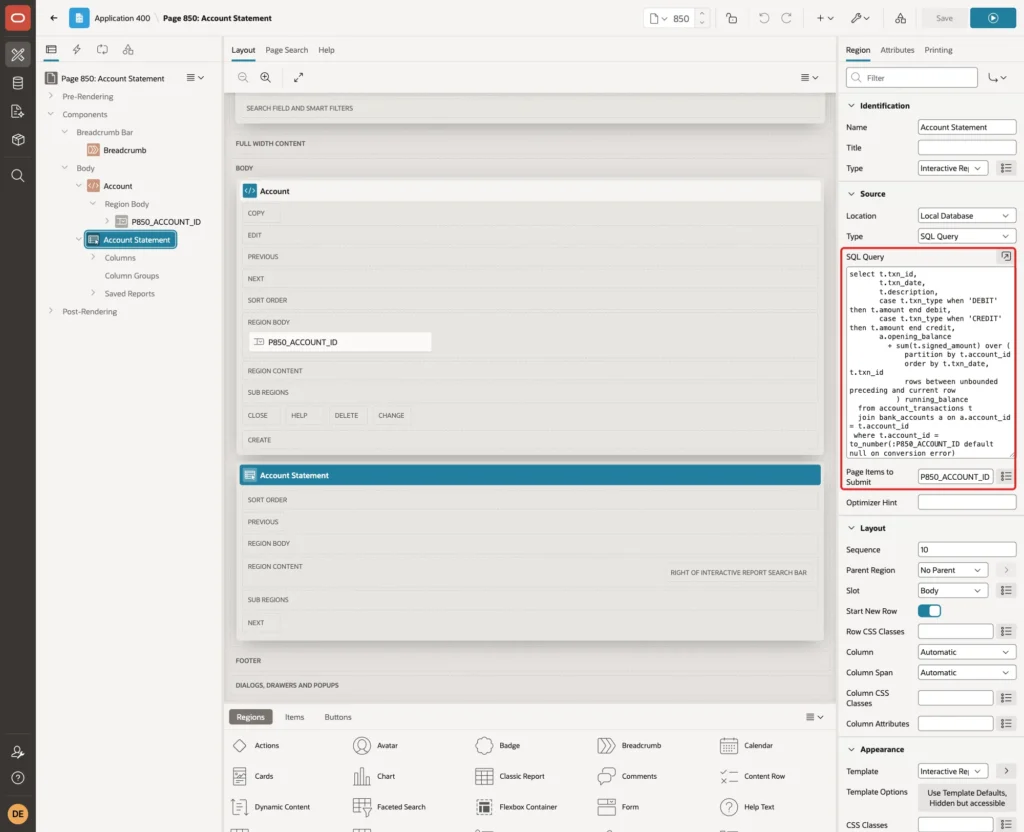
The full query of the region is now:
Example:
select t.txn_id,
       t.txn_date,
       t.description,
       case t.txn_type when 'DEBIT' then t.amount end debit,
       case t.txn_type when 'CREDIT' then t.amount end credit,
       a.opening_balance
         + sum(t.signed_amount) over (
             partition by t.account_id
             order by t.txn_date, t.txn_id
             rows between unbounded preceding and current row
           ) running_balance
  from account_transactions t
  join bank_accounts a on a.account_id = t.account_id
 where t.account_id = to_number(:P850_ACCOUNT_ID default null on conversion error)
On the Attributes tab of the region, under Messages, set When No Data Found to No transactions for this account.:

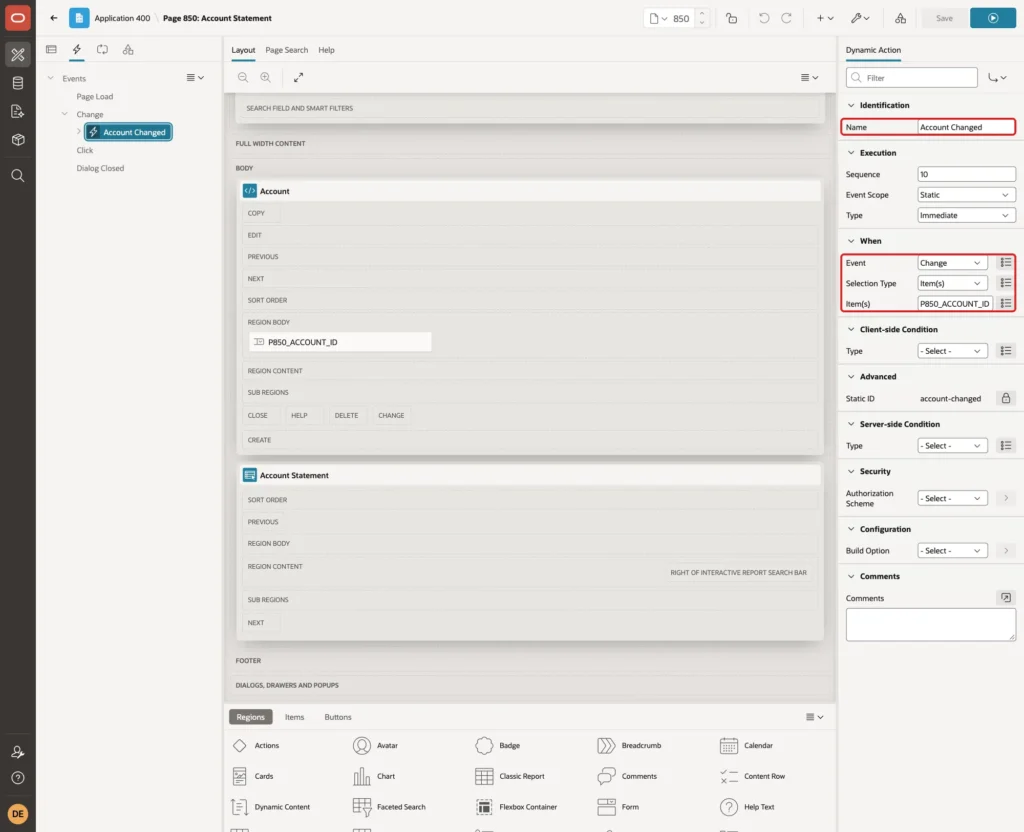
Now create the dynamic action. Right-click P850_ACCOUNT_ID, choose Create Dynamic Action and set Name to Account Changed. Keep Event Change, Selection Type Item(s) and Item(s) P850_ACCOUNT_ID:
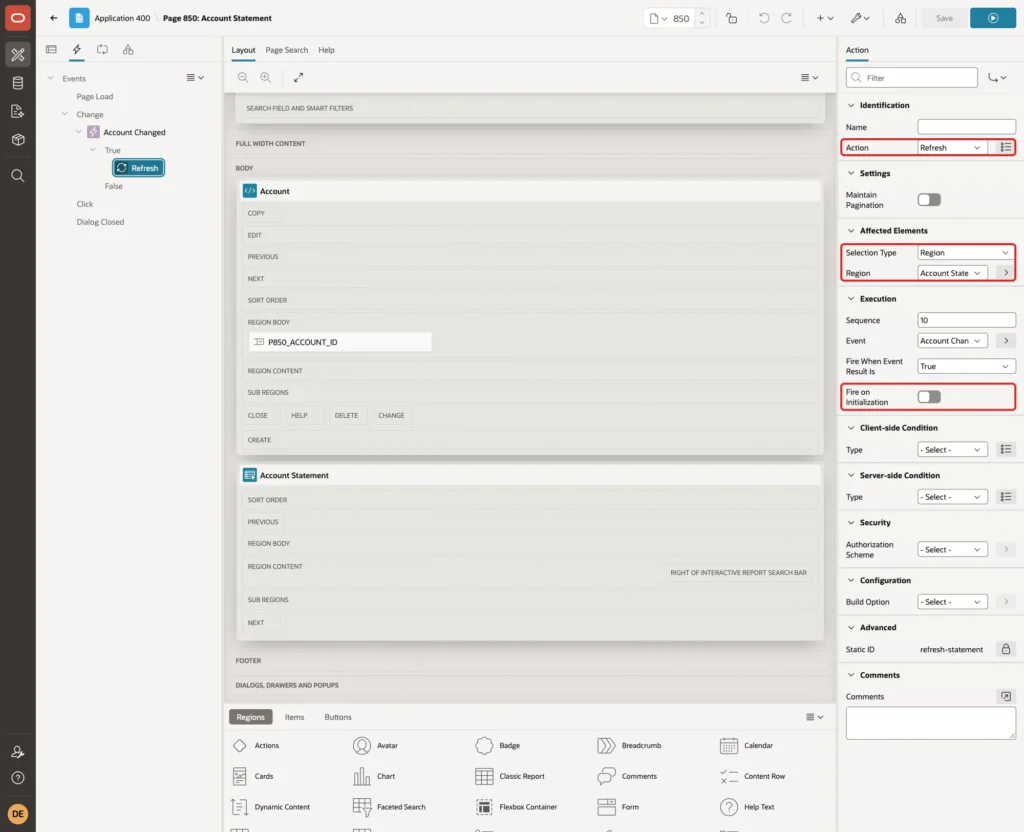
Select its True action and set Action to Refresh, Selection Type to Region and Region to Account Statement. Turn Fire on Initialization off; the report already loads with the page:
Step 6: Format the Columns
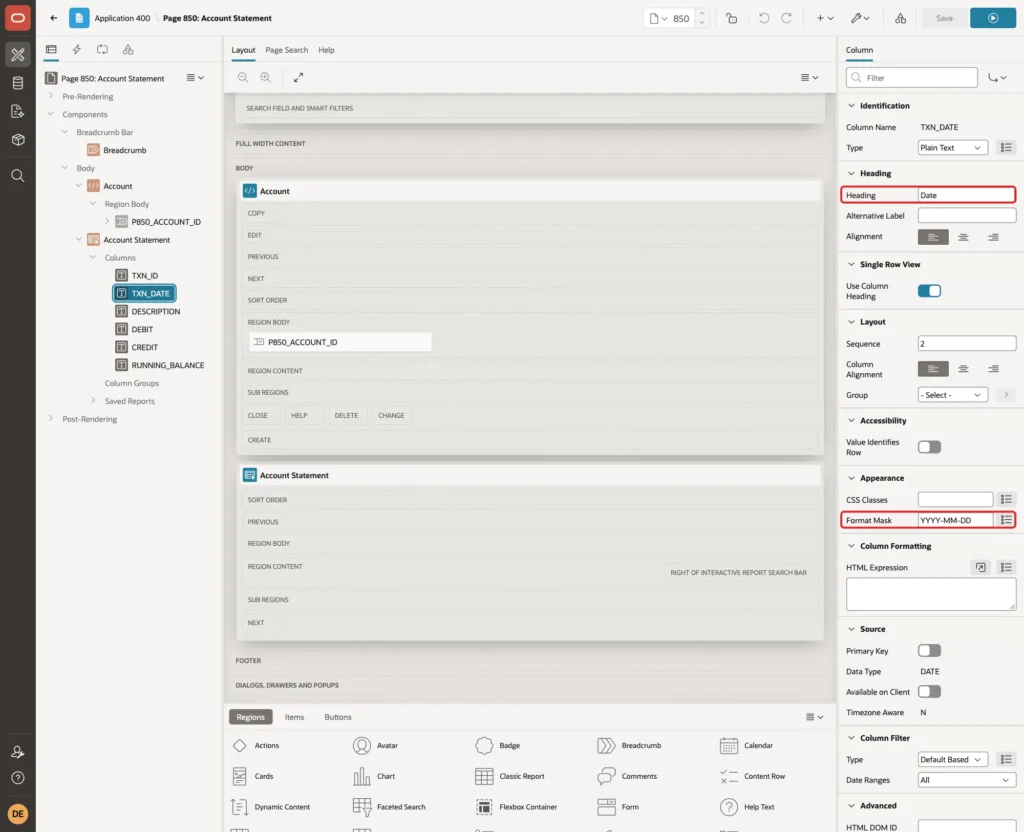
Expand Account Statement and Columns in the Rendering tree. Select TXN_DATE and set Heading to Date and Format Mask to YYYY-MM-DD:
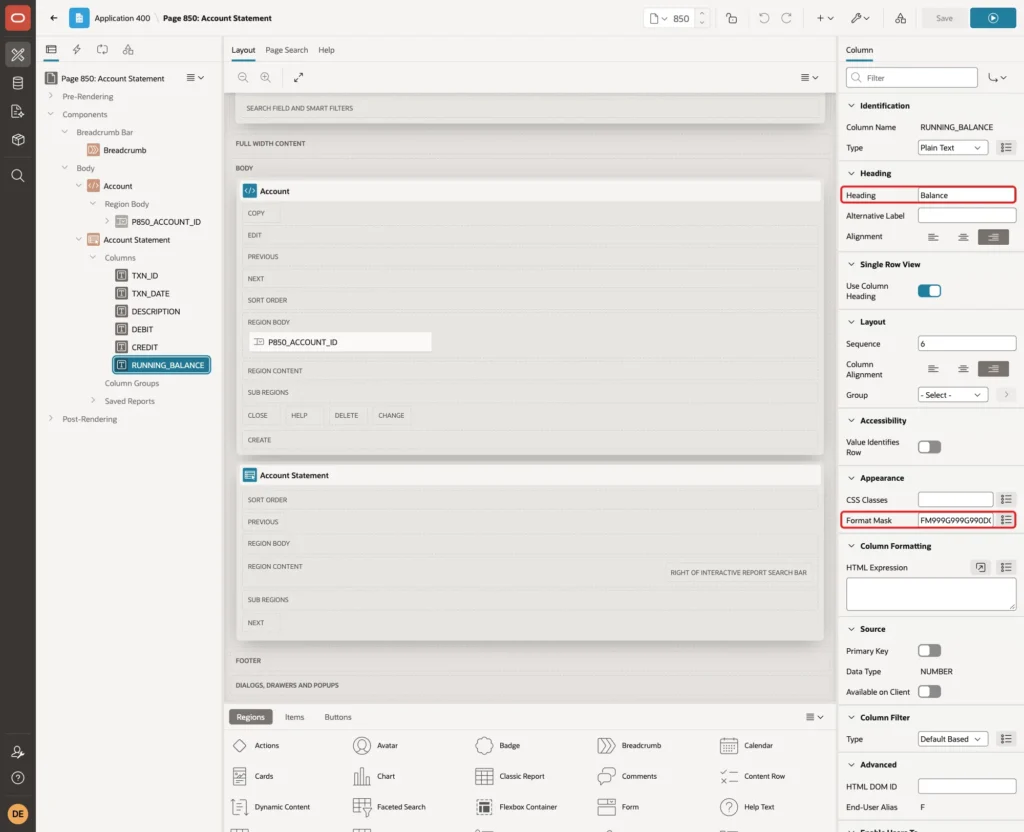
Select RUNNING_BALANCE and set Heading to Balance and Format Mask to FM999G999G990D00:
Set the same Format Mask on DEBIT and CREDIT, and change the heading of TXN_ID to Txn ID. Save the page.
Step 7: Set the Default Sort and Highlight Negative Balances
The query has no ORDER BY. In a first run, the rows came in date order even without a sort, but only by chance: nothing in the query guarantees it. The report needs a fixed sort, saved as the default for all users.
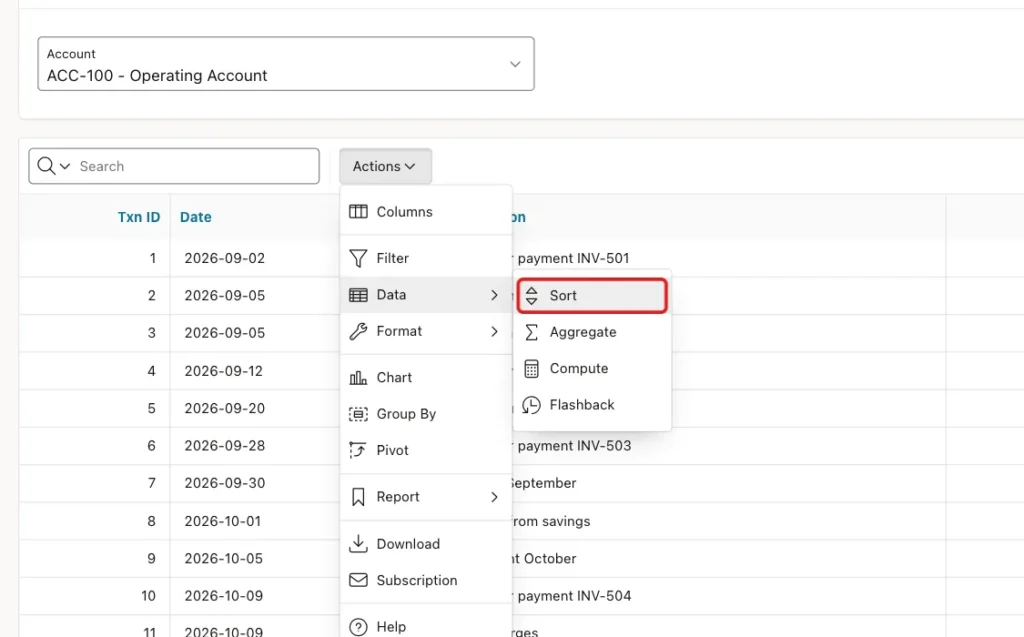
Run the page while you are signed in to App Builder. Open Actions, Data, and click Sort:
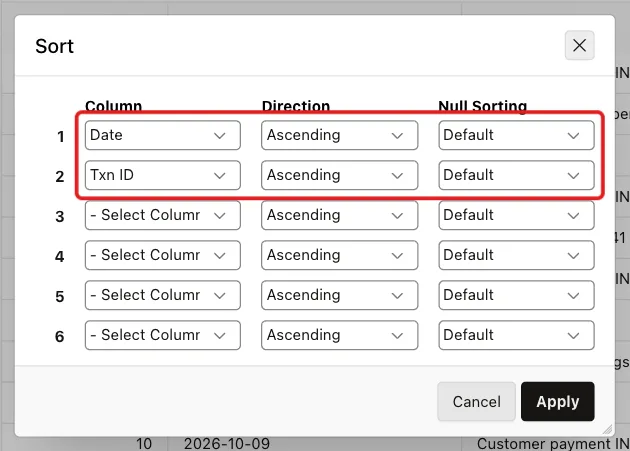
Set Column 1 to Date and Column 2 to Txn ID, both Ascending, and click Apply. These are the same two columns as the ORDER BY of the window in the query:
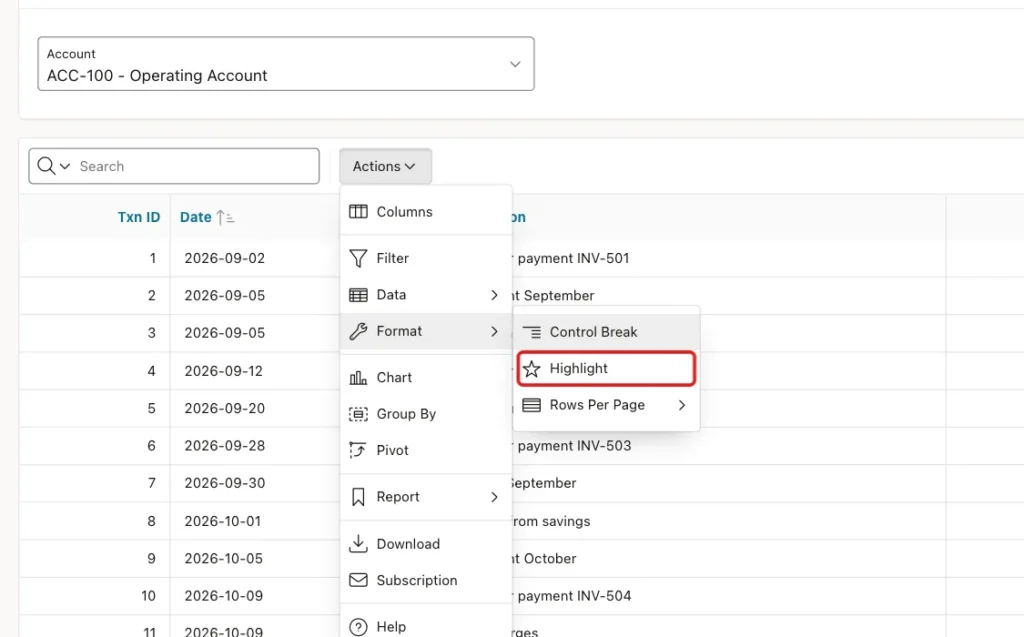
Next, open Actions, Format, and click Highlight:
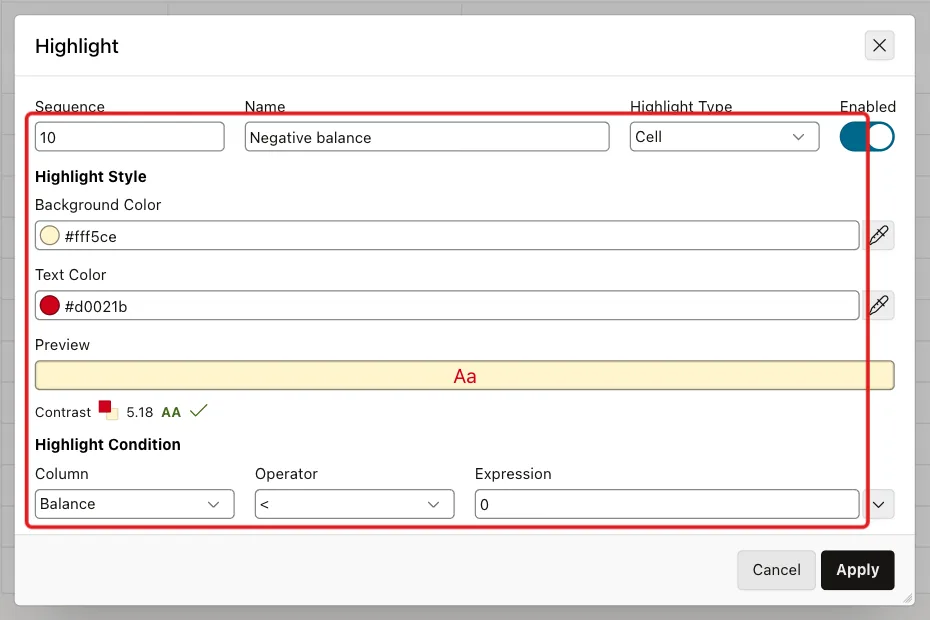
Enter Name Negative balance, set Highlight Type to Cell and Text Color to #d0021b, and keep the default Background Color. Under Highlight Condition, set Column to Balance, Operator to < and Expression to 0. Click Apply:
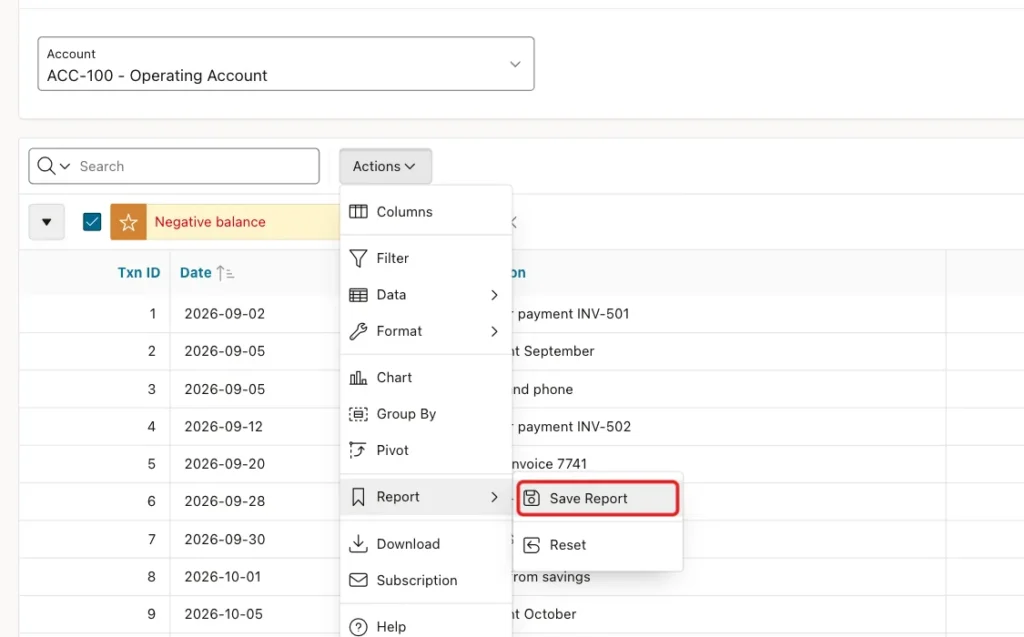
Now save both settings for everyone. Open Actions, Report, and click Save Report:
In the Save list, choose As Default Report Settings. This list appears only for developers who run the page from App Builder:
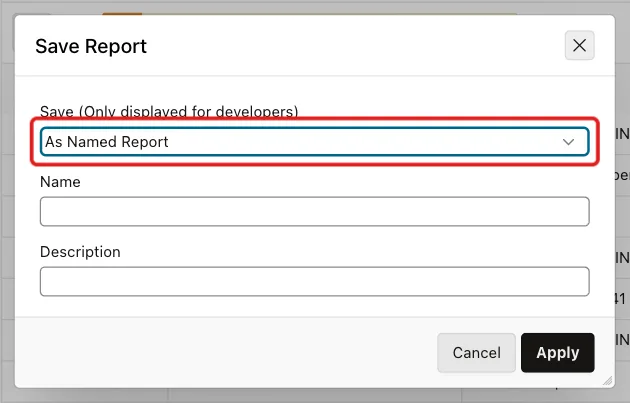
Keep Default Report Type Primary and click Apply:
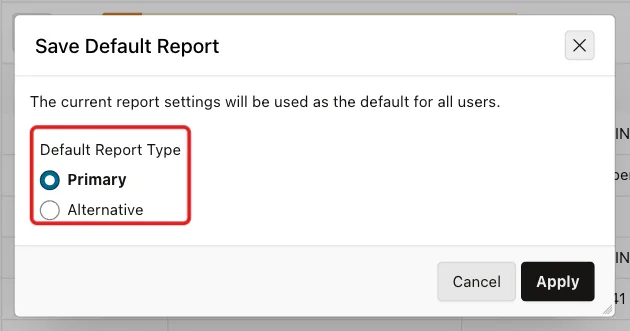
Every user now opens the report sorted by date and ID, with negative balances in red.
Step 8: Test the Report and Sort by Another Column
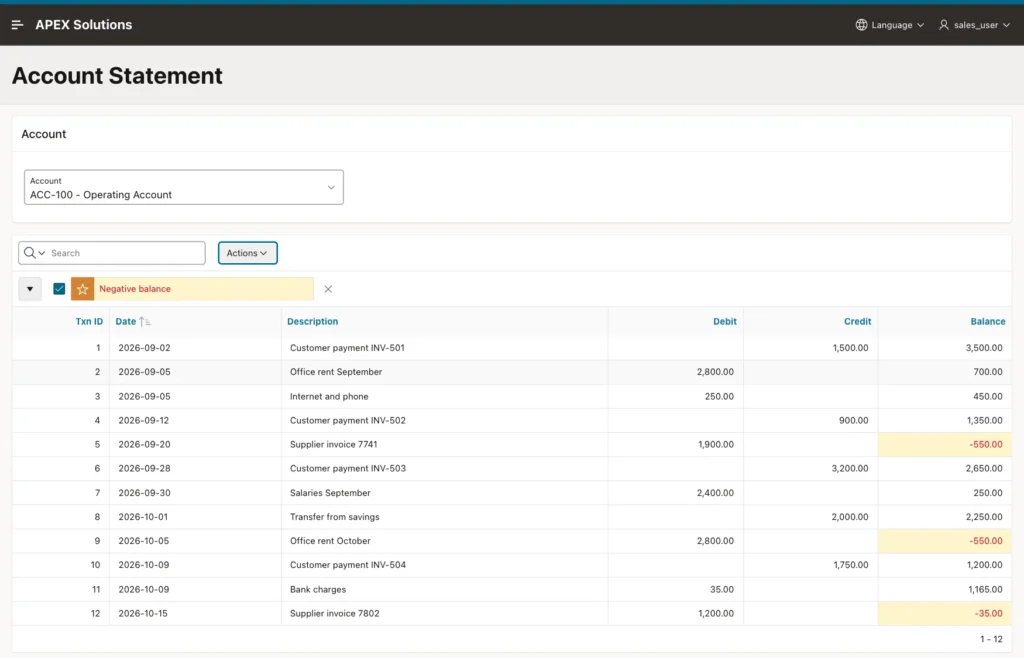
Sign in as an ordinary user (SALES_USER in this example) and open Account Statement. The balances match the SQL output of Step 2, and the three negative balances are red:
Now click the Debit heading and choose Sort Descending. The rows change their order, but the balances stay the balances of the date order:
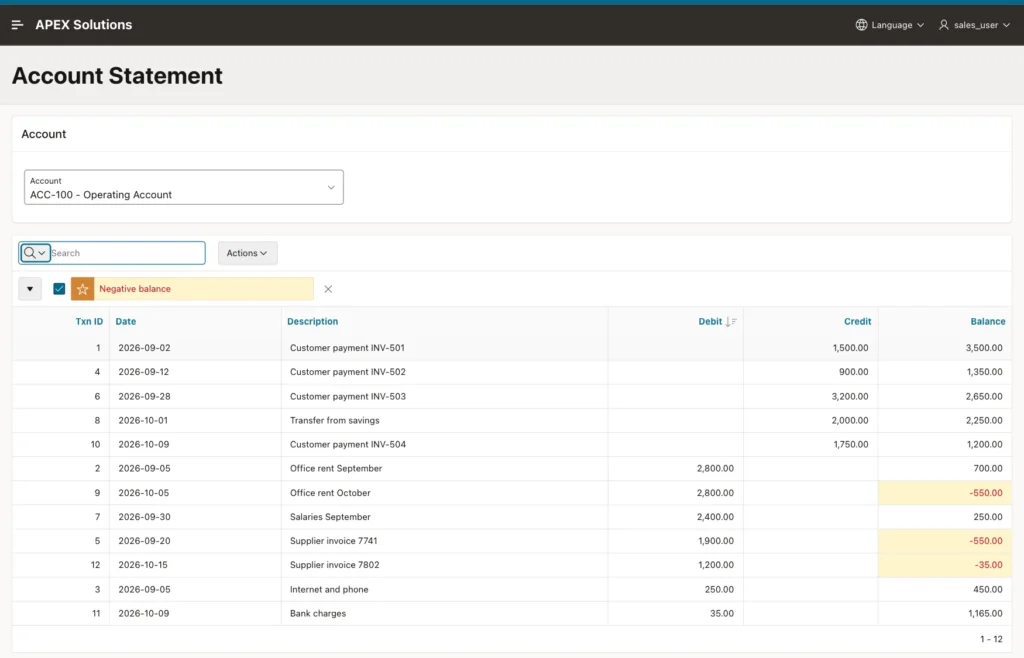
Nothing is calculated wrong here. Each balance still belongs to its transaction. But read from top to bottom, the column does not add up: the second row adds a 900.00 credit to 3,500.00 and shows 1,350.00. Users will report this as a bug.
Step 9: Keep the Rows in Balance Order
Back in Page Designer, select each column of the report (TXN_ID, TXN_DATE, DESCRIPTION, DEBIT, CREDIT and RUNNING_BALANCE). Under Enable Users To, turn Sort and Control Break off:
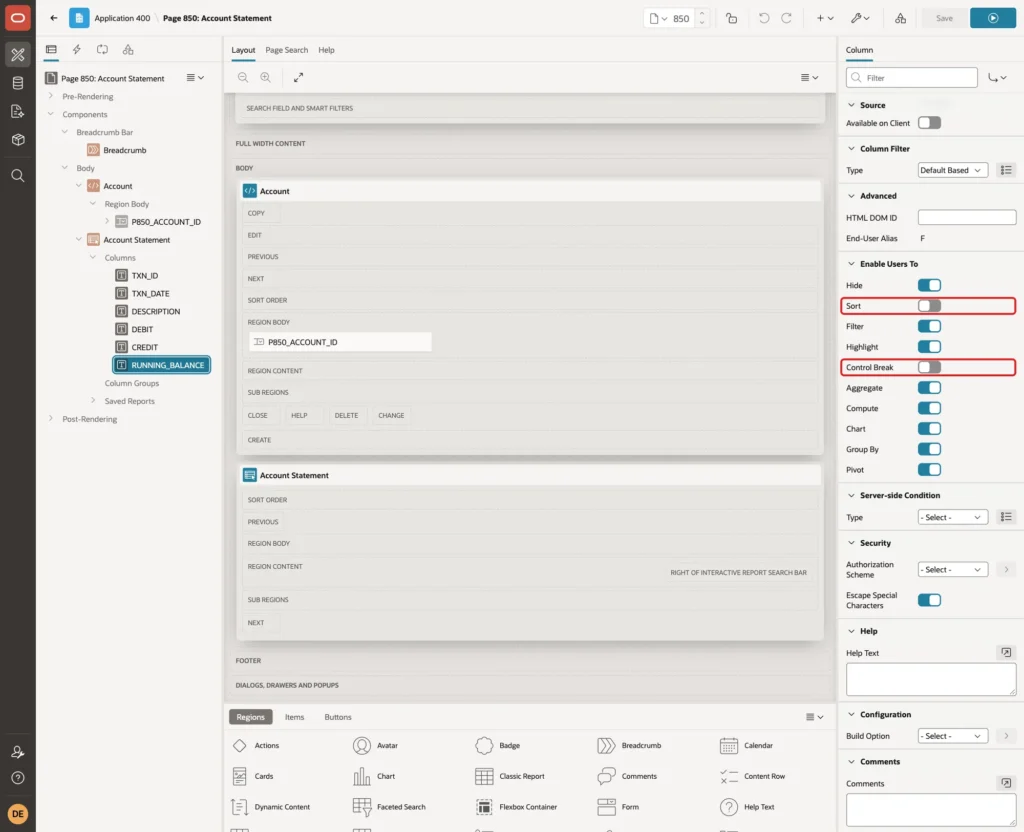
Control Break is turned off as well because a break sorts the rows by the break column first. Filter, Highlight and Aggregate stay on.
Run the page as SALES_USER and click Actions, Report, Reset. The rows are back in date order. Click the Debit heading: the menu now has only the Hide Column button and the filter list. The sort and control break buttons are gone:

In this test, the Sort and Control Break dialogs under the Actions menu listed no columns at all, while the saved default sort by Date and Txn ID still worked. The back-dated test below confirms it.
Search and Filters Keep the Correct Balance
Type Office rent in the search field and press Enter. Only the two rent rows remain, and they show 700.00 and -550.00, the same balances as in the full statement:
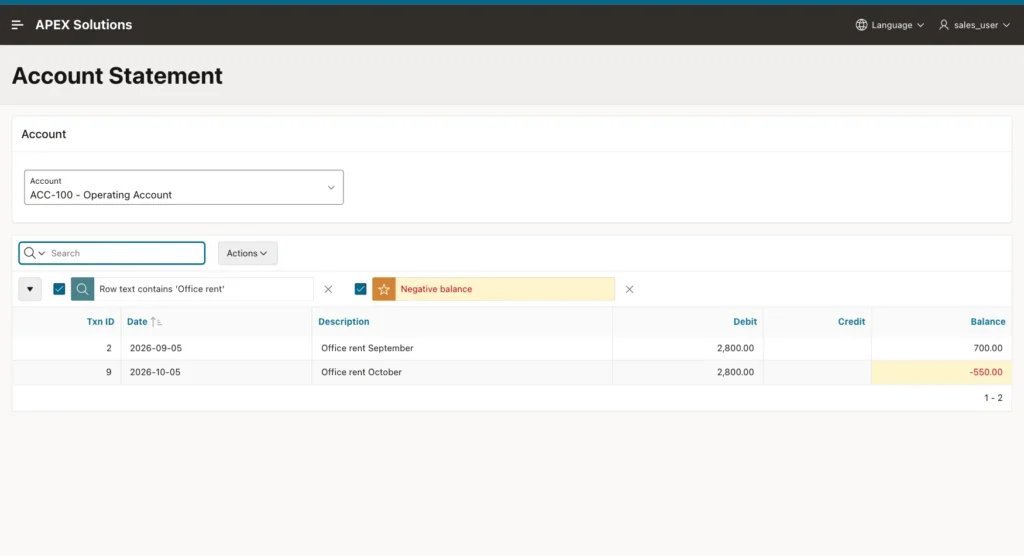
This is the same rule as the inline view in Step 2. The report applies the search outside the region query, so the balance of each remaining row still includes all earlier transactions.
Switch the Account
Reset the report and choose ACC-200 - Savings Account. The dynamic action refreshes the report, and the balance starts from the opening balance of 10,000:
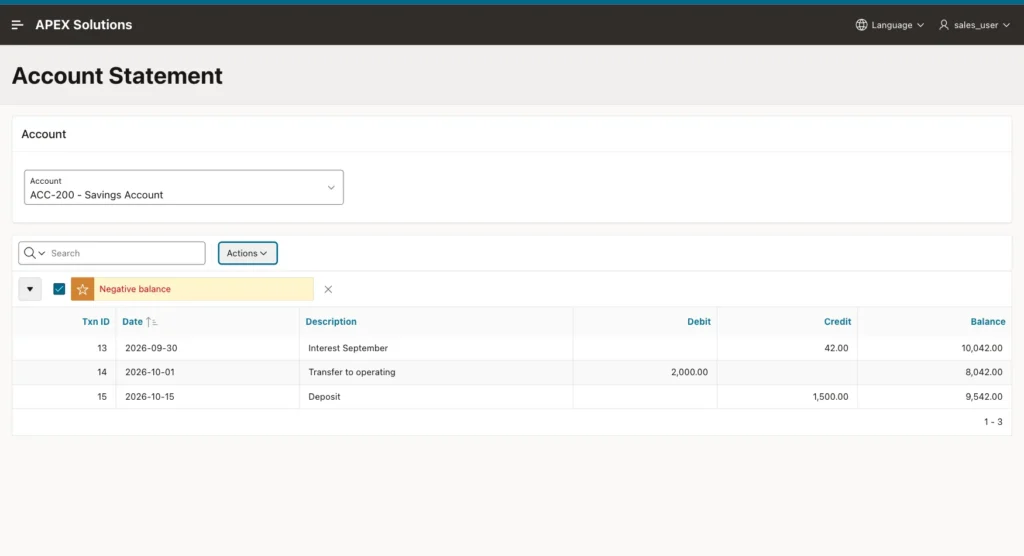
Add a Back-Dated Transaction
A transaction entered today with an earlier date must appear at its date and change every balance after it. Insert one for 2026-09-15:
Example:
set pages 100 lines 200 feedback on
insert into account_transactions (account_id, txn_date, description, txn_type, amount)
select account_id, date '2026-09-15', 'Supplier refund 7741', 'CREDIT', 100
  from bank_accounts
 where account_no = 'ACC-100';

commit;

select txn_id, to_char(txn_date, 'YYYY-MM-DD') txn_date, description, signed_amount
  from account_transactions
 where description = 'Supplier refund 7741';
Output:
1 row inserted.

Commit complete.

   TXN_ID TXN_DATE      DESCRIPTION                SIGNED_AMOUNT
_________ _____________ _______________________ ________________
       21 2026-09-15    Supplier refund 7741                 100

1 row selected.
The new row has ID 21, higher than all the others. Refresh the page:
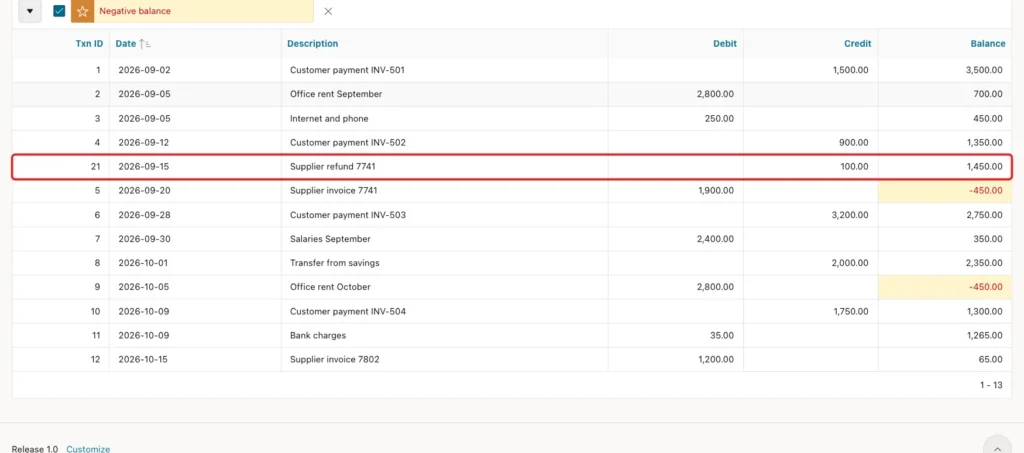
The row is placed by its date, not by its ID. Every later balance is 100 higher, the supplier invoice of 2026-09-20 now leaves -450, and the closing balance turns positive at 65. A stored balance column would have needed an update of nine rows for this.
Check the last running balance against a plain SUM per account:
Example:
set pages 100 lines 200 feedback on
select a.account_no,
       a.opening_balance + sum(t.signed_amount) closing_balance,
       max(r.running_balance) keep (dense_rank last order by r.txn_date, r.txn_id) last_running_balance
  from bank_accounts a
  join account_transactions t on t.account_id = a.account_id
  join (select t2.txn_id, t2.txn_date,
               a2.opening_balance
                 + sum(t2.signed_amount) over (
                     partition by t2.account_id
                     order by t2.txn_date, t2.txn_id
                     rows between unbounded preceding and current row
                   ) running_balance
          from account_transactions t2
          join bank_accounts a2 on a2.account_id = t2.account_id) r on r.txn_id = t.txn_id
 group by a.account_no, a.opening_balance
 order by a.account_no;
Output:
ACCOUNT_NO       CLOSING_BALANCE    LAST_RUNNING_BALANCE
_____________ __________________ _______________________
ACC-100                       65                      65
ACC-200                     9542                    9542

2 rows selected.
Both ways give the same closing balance for both accounts. Remove the test row again:
Example:
set pages 100 lines 200 feedback on
delete from account_transactions
 where description = 'Supplier refund 7741';

commit;
Output:
1 row deleted.

Commit complete.
Force an Invalid Account
Finally, put values into P850_ACCOUNT_ID from the browser console that the select list does not offer, and refresh the report. In this test, 999, abc and 1 or 1=1 all showed the message No transactions for this account. and no rows:
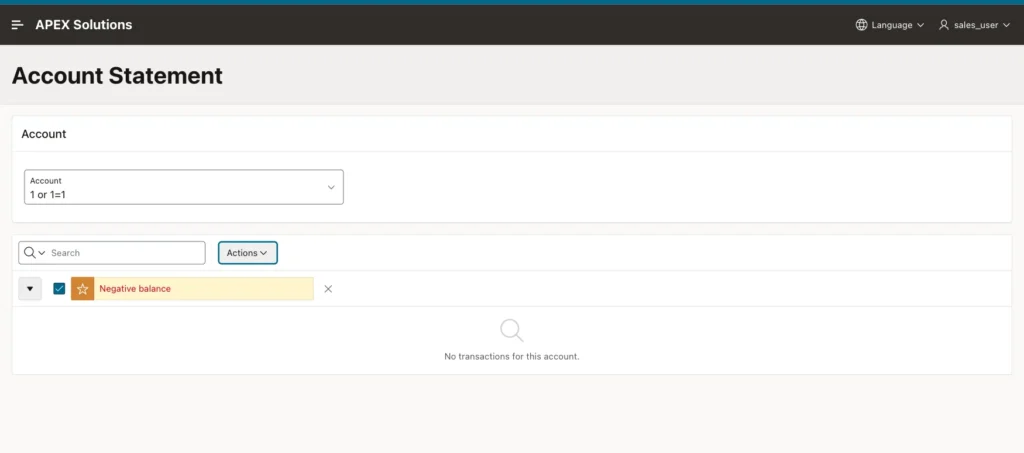
The value is a bind variable, so it can never change the SQL. TO_NUMBER with DEFAULT NULL ON CONVERSION ERROR from Step 5 turns text into NULL, and NULL matches no account.
Things to Know
- Always end the ORDER BY of the window with a unique column such as the ID, and use ROWS. Ordering by date only gives rows with the same date the same balance.
- Filter in an outer query, never in the WHERE clause of the query that calculates the balance. The Interactive Report search already works this way.
- The report sort must match the window order. Save it as the primary default report and turn off Sort and Control Break for the columns, or users get a balance column that does not add up.
- Users can still hide columns, search, filter and add their own highlights. These do not change the order of the rows.
- Saving As Default Report Settings needs a developer session: run the page from App Builder. The Save list does not appear for ordinary users.
- For very long histories, show a date range in an outer query and keep the window over all rows, or store month-end balances and start the window from the last one.
Related Guides
- Oracle SQL Query to Calculate Running Totals
- How to Add Control Breaks and Subtotals to an Interactive Report in Oracle APEX
Conclusion
A running balance in Oracle APEX needs one analytic SUM with a unique ORDER BY and a ROWS frame, an Interactive Report with the same order saved as the default, and column settings that stop users from sorting the rows into a different order.
In this example, the balances matched SQL for both accounts, a back-dated transaction moved every later balance correctly, searches kept the right numbers, and forced account values showed no rows instead of an error. The same steps work for stock movements, budgets or any other table with a date and a signed amount.
See my articles more often when you search Google.
