
When users print an Oracle APEX page with Ctrl+P, the browser prints everything on the screen: the header bar, the navigation menu, the buttons, the region shadows and the footer. The result looks like a screenshot, not a document. Universal Theme 26.1 has no print rules of its own, so the page prints exactly as it looks.
Print CSS fixes this. A few rules inside @media print hide the parts of the page that only make sense on screen, remove the decoration and control where pages break. This guide builds an invoice page with a Print button, adds the print rules and tests the printed result on short and long invoices.
The example is an invoice, but the same steps work for any page that users print: an order, a delivery note or a statement. If you need a PDF file created on the server instead, see How to Create PDF Reports in Oracle APEX: A Step-by-Step Tutorial. This article uses only the browser and needs no print server.
Step 1: Create the Tables
Three tables hold the invoices:
- BILL_CLIENTS has one row per client with the name, address and email.
- BILL_INVOICES has the invoice header: number, client, dates, tax rate and notes.
- BILL_INVOICE_LINES has the invoice lines. LINE_AMOUNT is a virtual column, so the amount is always quantity times unit price.
Create the tables with three clients and three invoices. INV-1003 gets 42 lines, so it needs more than one printed page:
Example:
create table bill_clients (
  client_id     number generated by default on null as identity,
  client_name   varchar2(100) not null,
  address_line  varchar2(200),
  city          varchar2(60),
  email         varchar2(120),
  constraint bill_clients_pk primary key (client_id),
  constraint bill_clients_name_uk unique (client_name)
);

create table bill_invoices (
  invoice_id    number generated by default on null as identity,
  invoice_no    varchar2(20) not null,
  client_id     number not null,
  invoice_date  date default on null trunc(sysdate) not null,
  due_date      date not null,
  tax_rate      number(5,2) default on null 18 not null,
  notes         varchar2(400),
  constraint bill_invoices_pk primary key (invoice_id),
  constraint bill_invoices_no_uk unique (invoice_no),
  constraint bill_invoices_client_fk foreign key (client_id)
    references bill_clients (client_id),
  constraint bill_invoices_due_ck check (due_date >= invoice_date),
  constraint bill_invoices_tax_ck check (tax_rate between 0 and 100)
);

create index bill_invoices_client_ix on bill_invoices (client_id);

create table bill_invoice_lines (
  line_id       number generated by default on null as identity,
  invoice_id    number not null,
  line_no       number(4) not null,
  description   varchar2(200) not null,
  quantity      number(10,2) not null,
  unit_price    number(12,2) not null,
  line_amount   number generated always as (round(quantity * unit_price, 2)) virtual,
  constraint bill_invoice_lines_pk primary key (line_id),
  constraint bill_invoice_lines_inv_fk foreign key (invoice_id)
    references bill_invoices (invoice_id) on delete cascade,
  constraint bill_invoice_lines_no_uk unique (invoice_id, line_no),
  constraint bill_invoice_lines_qty_ck check (quantity > 0),
  constraint bill_invoice_lines_price_ck check (unit_price >= 0)
);

insert into bill_clients (client_name, address_line, city, email)
values ('Northwind Traders', '12 Harbour Road', 'Mumbai', 'accounts@northwind.example');
insert into bill_clients (client_name, address_line, city, email)
values ('Blue Lake Hotels', '7 Lake View Street', 'Pune', 'billing@bluelake.example');
insert into bill_clients (client_name, address_line, city, email)
values ('Greenfield School', '45 Park Avenue', 'Delhi', 'office@greenfield.example');

insert into bill_invoices (invoice_no, client_id, invoice_date, due_date, notes)
select 'INV-1001', client_id, date '2026-10-01', date '2026-10-31', 'Payment by bank transfer within 30 days.'
  from bill_clients where client_name = 'Northwind Traders';
insert into bill_invoices (invoice_no, client_id, invoice_date, due_date, tax_rate, notes)
select 'INV-1002', client_id, date '2026-10-05', date '2026-10-20', 5, null
  from bill_clients where client_name = 'Blue Lake Hotels';
insert into bill_invoices (invoice_no, client_id, invoice_date, due_date, notes)
select 'INV-1003', client_id, date '2026-10-10', date '2026-11-09', 'Annual supplies order, delivered in one shipment.'
  from bill_clients where client_name = 'Greenfield School';

insert into bill_invoice_lines (invoice_id, line_no, description, quantity, unit_price)
select i.invoice_id, v.line_no, v.description, v.quantity, v.unit_price
  from bill_invoices i
 cross join (select 1 line_no, 'Laptop stand' description, 4 quantity, 1250 unit_price from dual
             union all select 2, 'Wireless keyboard', 4, 1899 from dual
             union all select 3, 'USB-C docking station', 2, 7450 from dual
             union all select 4, 'Setup and installation (hours)', 3, 900 from dual) v
 where i.invoice_no = 'INV-1001';

insert into bill_invoice_lines (invoice_id, line_no, description, quantity, unit_price)
select i.invoice_id, v.line_no, v.description, v.quantity, v.unit_price
  from bill_invoices i
 cross join (select 1 line_no, 'Room linen set' description, 60 quantity, 820 unit_price from dual
             union all select 2, 'Bath towels', 120, 310 from dual
             union all select 3, 'Laundry service (month)', 1, 15000 from dual) v
 where i.invoice_no = 'INV-1002';

insert into bill_invoice_lines (invoice_id, line_no, description, quantity, unit_price)
select i.invoice_id, n.line_no, 'Notebook pack, grade ' || to_char(mod(n.line_no - 1, 10) + 1) || ', set ' || to_char(n.line_no),
       10 + mod(n.line_no * 7, 25), 45 + mod(n.line_no * 13, 60)
  from bill_invoices i
 cross join (select level as line_no from dual connect by level <= 42) n
 where i.invoice_no = 'INV-1003';

commit;

alter session set nls_date_format = 'YYYY-MM-DD';

select i.invoice_no, c.client_name, i.invoice_date, i.due_date, i.tax_rate,
       count(l.line_id) as lines, sum(l.line_amount) as subtotal
  from bill_invoices i
  join bill_clients c on c.client_id = i.client_id
  left join bill_invoice_lines l on l.invoice_id = i.invoice_id
 group by i.invoice_no, c.client_name, i.invoice_date, i.due_date, i.tax_rate
 order by i.invoice_no;
Output:
Table BILL_CLIENTS created.

Table BILL_INVOICES created.

Index BILL_INVOICES_CLIENT_IX created.

Table BILL_INVOICE_LINES created.

1 row inserted.

1 row inserted.

1 row inserted.

1 row inserted.

1 row inserted.

1 row inserted.

4 rows inserted.

3 rows inserted.

42 rows inserted.

Commit complete.

Session altered.

INVOICE_NO    CLIENT_NAME          INVOICE_DATE    DUE_DATE         TAX_RATE    LINES    SUBTOTAL
_____________ ____________________ _______________ _____________ ___________ ________ ___________
INV-1001      Northwind Traders    2026-10-01      2026-10-31             18        4       30196
INV-1002      Blue Lake Hotels     2026-10-05      2026-10-20              5        3      101400
INV-1003      Greenfield School    2026-10-10      2026-11-09             18       42       69475
- BILL_INVOICES_CLIENT_FK and BILL_INVOICE_LINES_INV_FK link the tables. Lines are deleted with their invoice (ON DELETE CASCADE).
- BILL_INVOICES_DUE_CK stops a due date before the invoice date, and BILL_INVOICES_TAX_CK keeps the tax rate between 0 and 100.
- INVOICE_DATE and TAX_RATE use DEFAULT ON NULL, so a new invoice gets today's date and 18% tax without a trigger.
- BILL_INVOICE_LINES_NO_UK stops two lines with the same line number on one invoice.
Step 2: Create a Blank Page
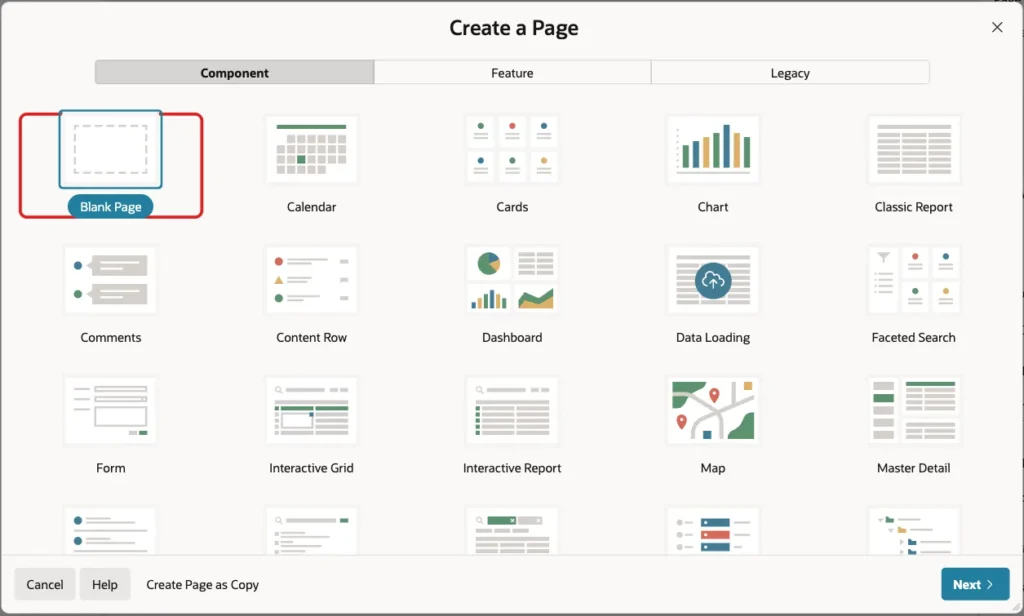
In Page Designer, click Create (the plus icon) and choose Page. Select the Blank Page tile:
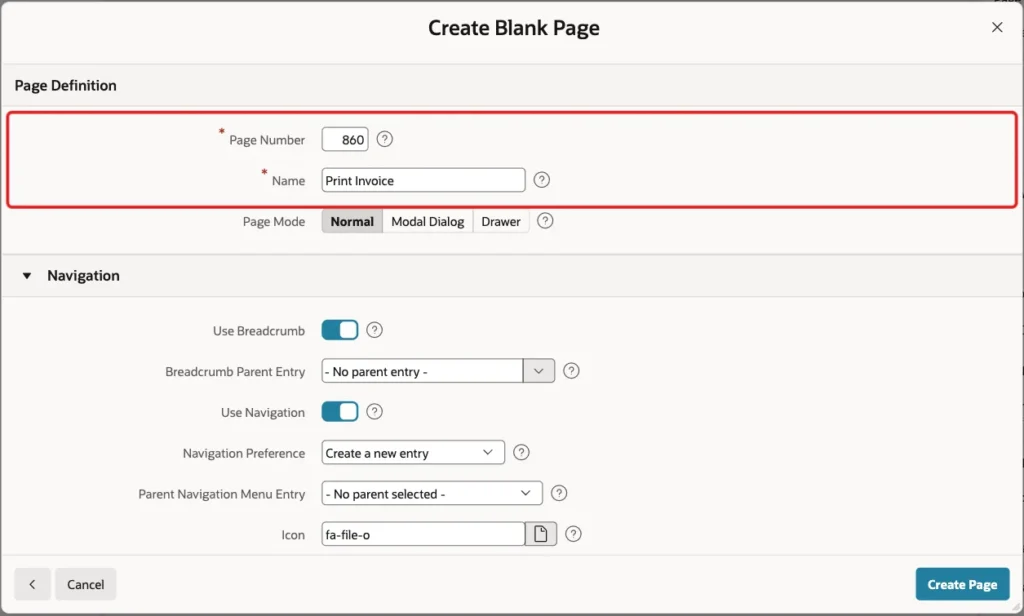
Enter Page Number 860 and Name Print Invoice. Keep Page Mode Normal:
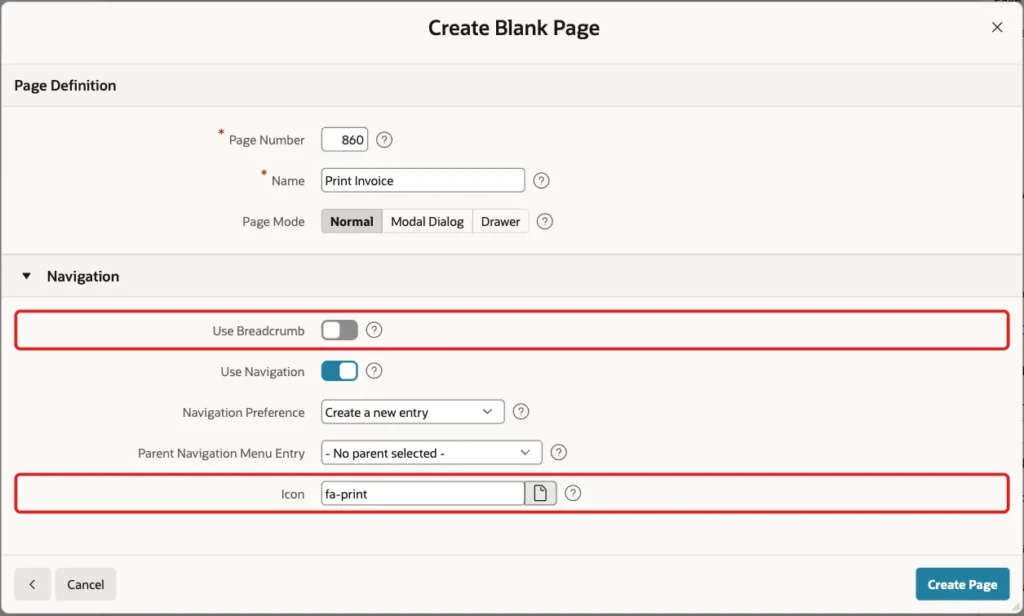
Under Navigation, turn off Use Breadcrumb and set the Icon of the new navigation menu entry to fa-print. Click Create Page:
Step 3: Add the Invoice Select List
Right-click Body in the Rendering tree and choose Create Region. Set Name to Choose Invoice, keep Type Static Content and enter no-print in Appearance > CSS Classes:
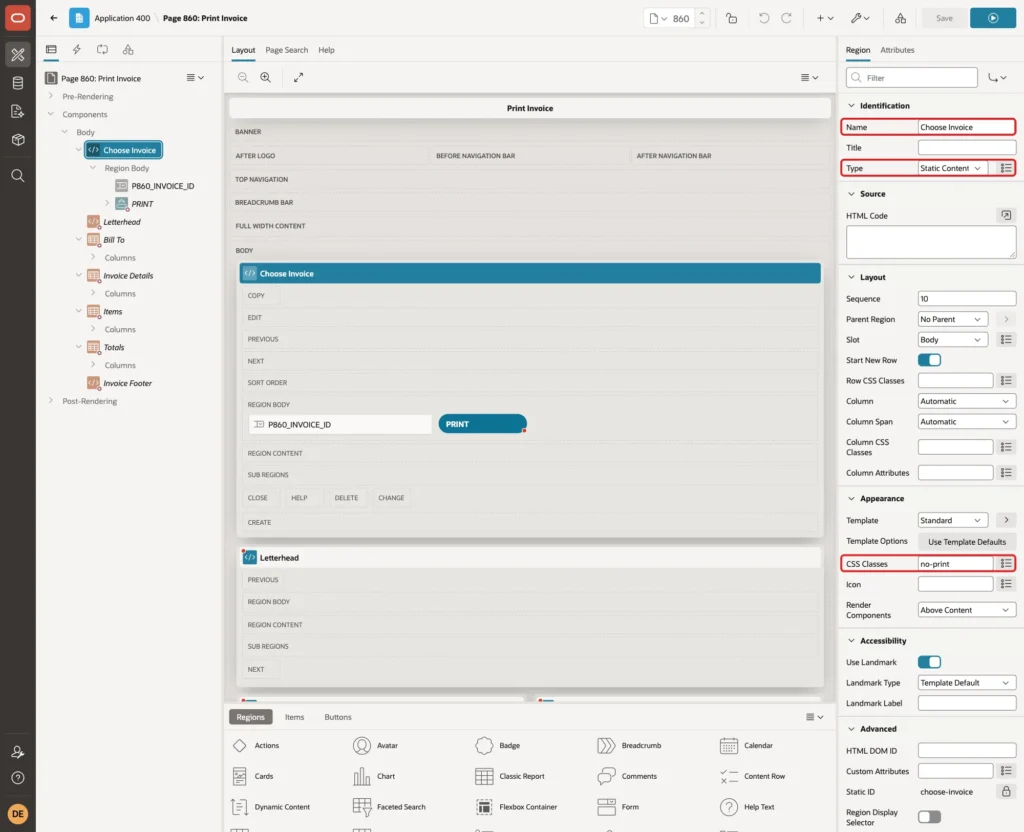
The class does nothing yet. The print CSS in Step 10 hides every element with the class no-print, so the select list and the button never reach the paper.
Right-click the Choose Invoice region, choose Create Page Item and set Name to P860_INVOICE_ID, Type to Select List and Label to Invoice. Under Settings, set Page Action on Selection to Submit Page:

Under List of Values, set Type to SQL Query and Null Display Value to - Select an Invoice -, with this query:
Example:
select i.invoice_no || ' - ' || c.client_name as d,
       i.invoice_id as r
  from bill_invoices i
  join bill_clients c on c.client_id = i.client_id
 order by i.invoice_no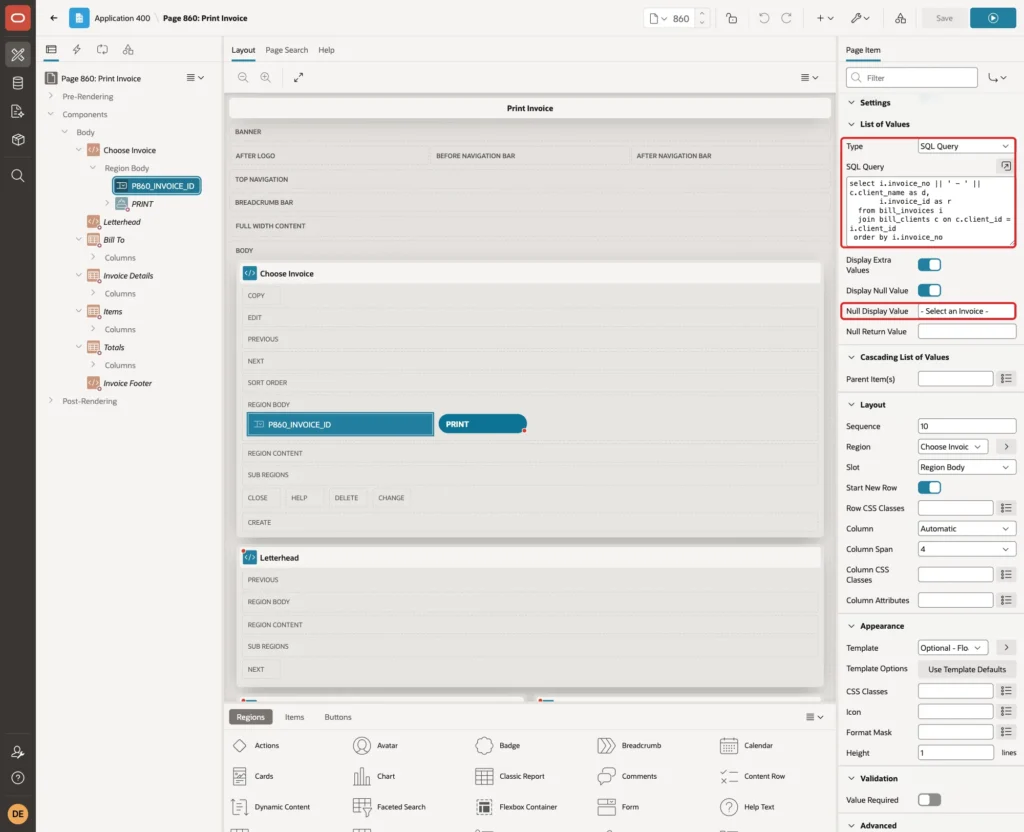
Under Layout, set Column Span to 4, so the button fits next to the field.
Step 4: Add the Print Button and Its Dynamic Action
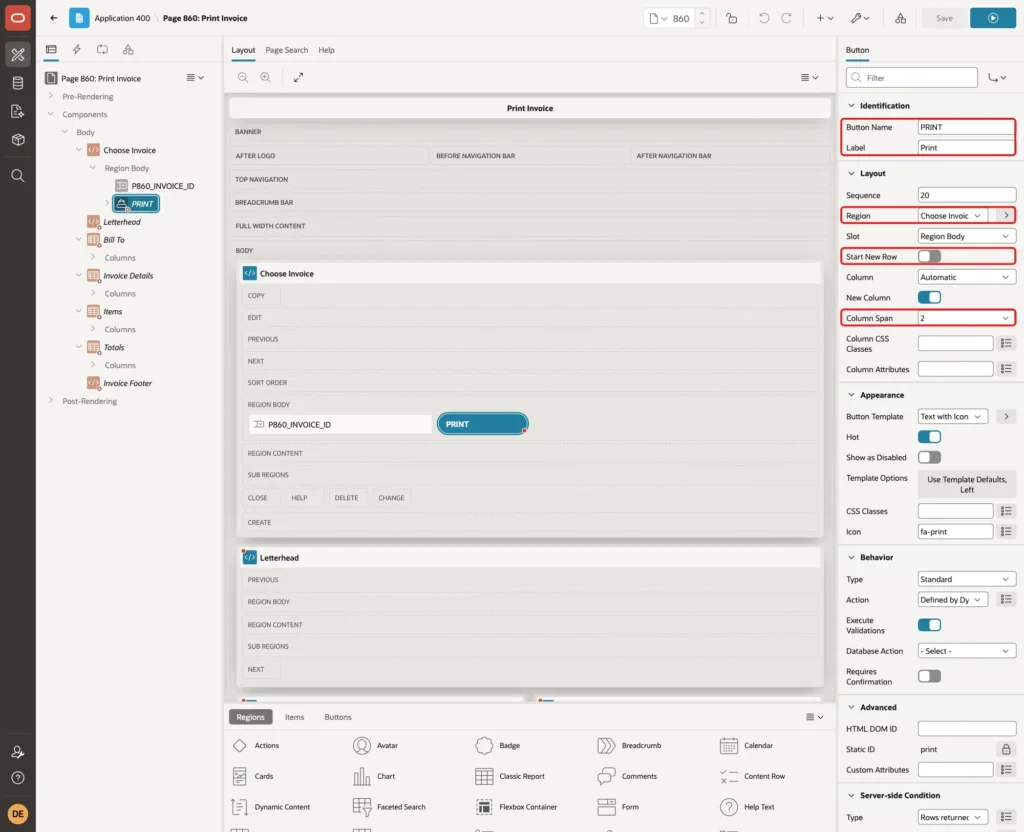
Right-click the Choose Invoice region and choose Create Button. Set Button Name to PRINT and Label to Print. Under Layout, turn off Start New Row and set Column Span to 2:
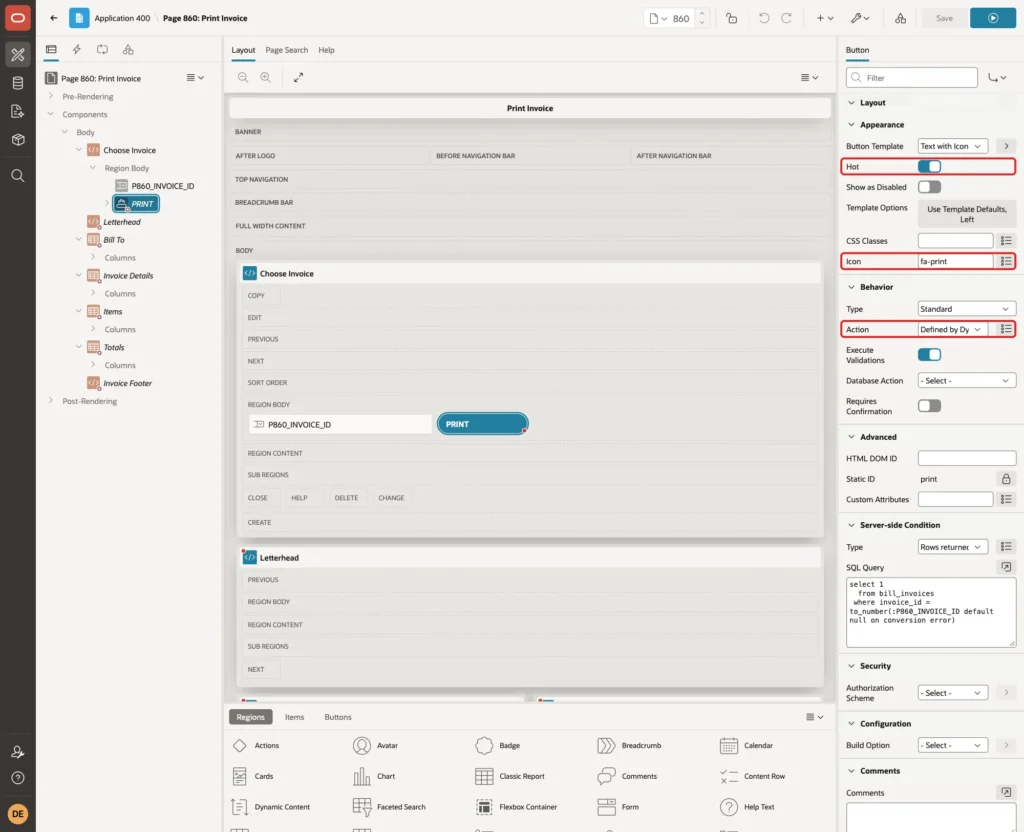
Under Appearance, turn on Hot and set Icon to fa-print. Under Behavior, set Action to Defined by Dynamic Action:
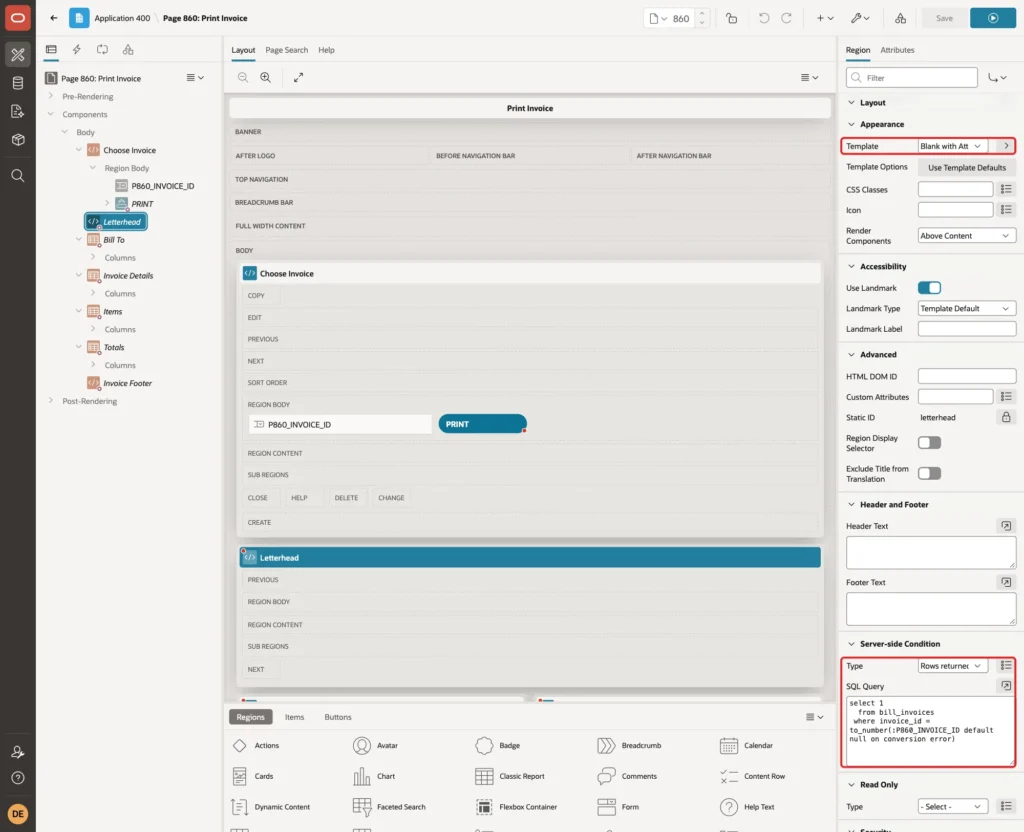
The button must only show when a real invoice is selected. Under Server-side Condition, set Type to Rows returned with this query:
Example:
select 1
  from bill_invoices
 where invoice_id = to_number(:P860_INVOICE_ID default null on conversion error)
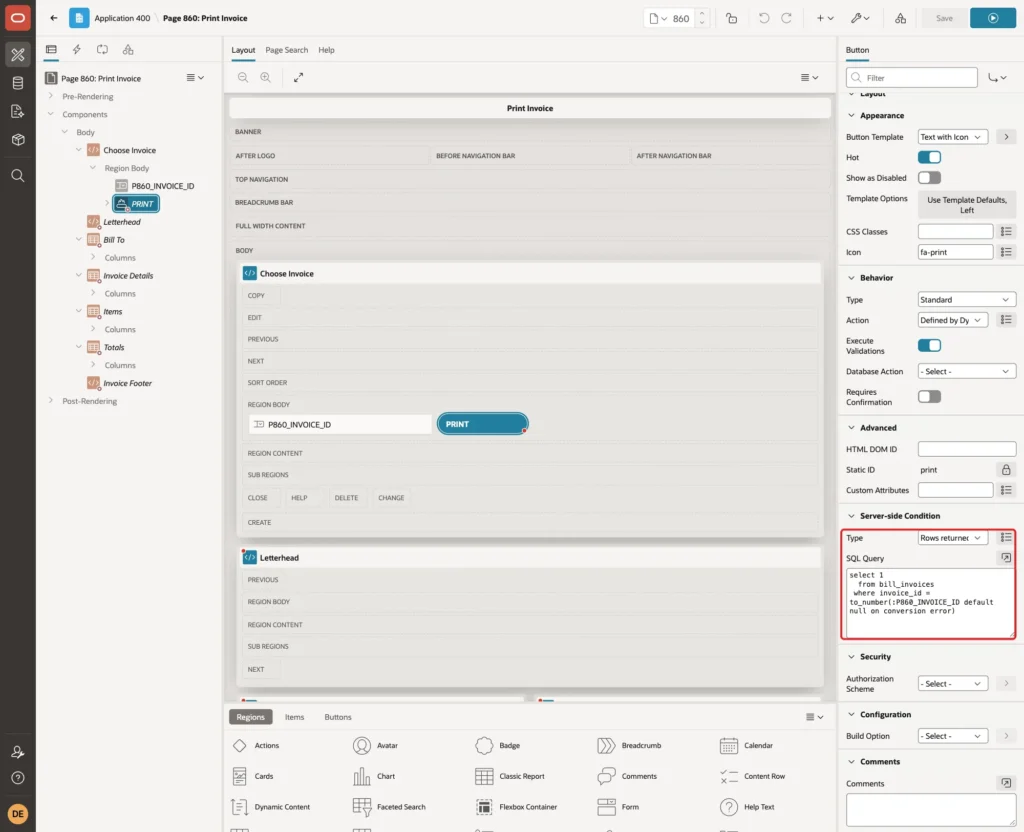
TO_NUMBER with DEFAULT NULL ON CONVERSION ERROR turns any text value into NULL, so the query returns no row instead of raising an error. Step 11 shows why this matters. Every invoice region uses the same condition.
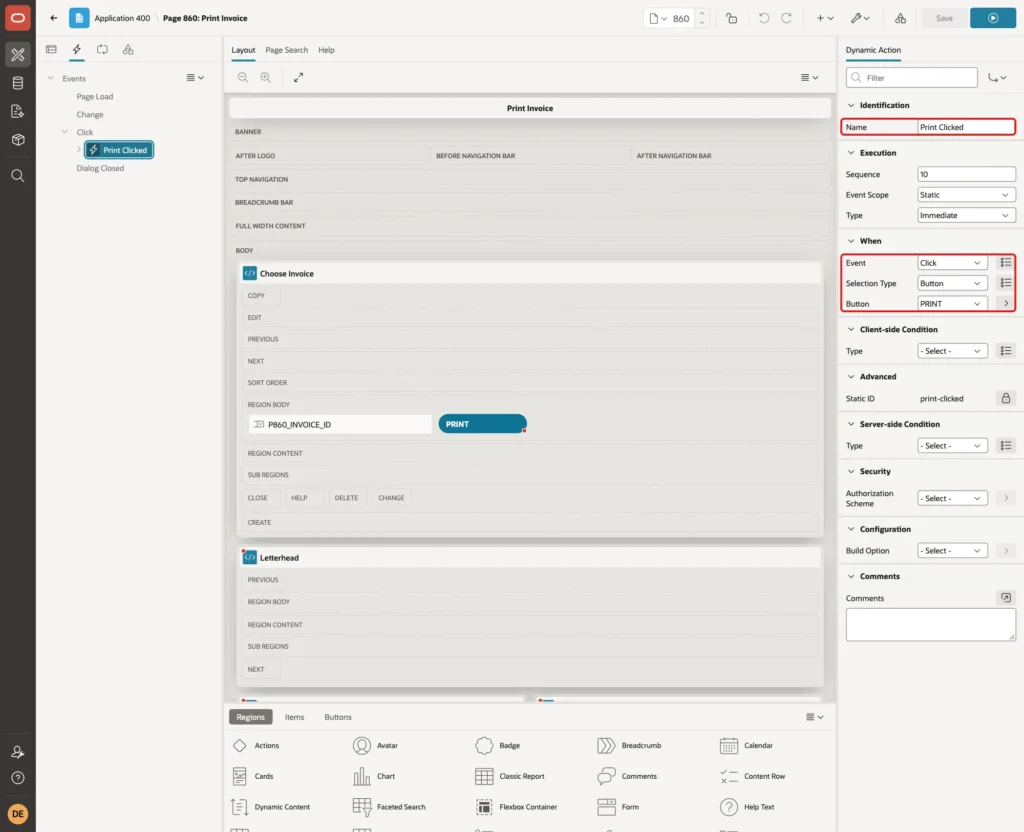
Right-click the PRINT button and choose Create Dynamic Action. Set Name to Print Clicked, Event to Click, Selection Type to Button and Button to PRINT:
Select the True action, set Action to Execute JavaScript Code and enter this code. Keep Fire on Initialization off:
Example:
window.print();
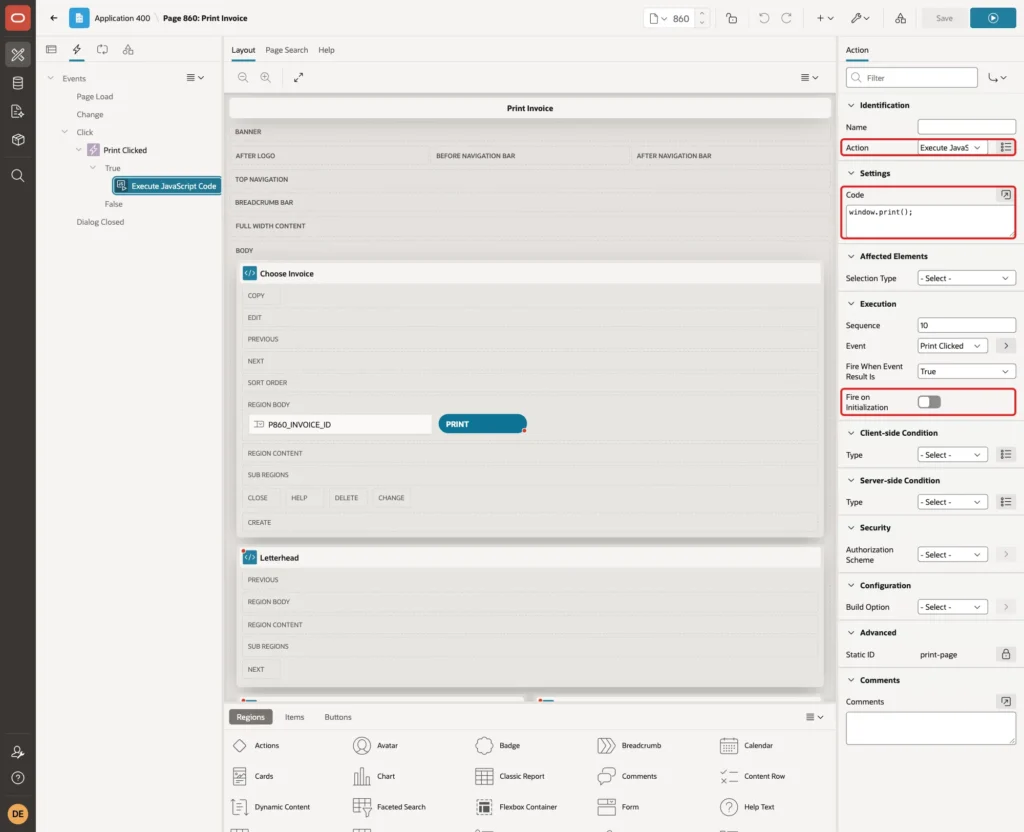
window.print() opens the browser's Print dialog. The button only makes printing easier to find. The print CSS in Step 10 is not tied to the button: it applies whenever the page is printed.
Step 5: Add the Letterhead
Create another region under Body. Set Name to Letterhead, keep Type Static Content and enter this HTML in Source > HTML Code:
Example:
<div class="invoice-letterhead">
  <div>
    <div class="invoice-company">Acme Office Supplies</div>
    <div>21 Market Street, Mumbai 400001</div>
    <div>accounts@acme.example</div>
  </div>
  <div class="invoice-title">INVOICE</div>
</div>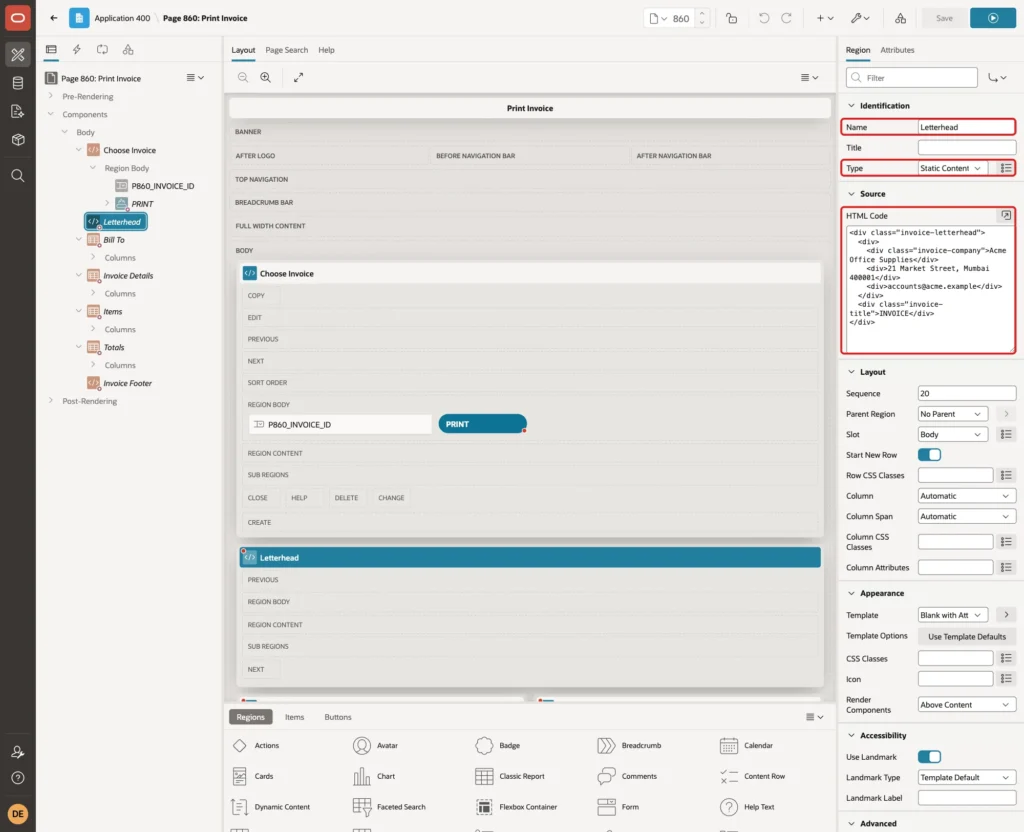
Under Appearance, set Template to Blank with Attributes, so the letterhead has no region frame. Set the Server-side Condition to Rows returned with the query from Step 4:
Step 6: Add the Bill To and Invoice Details Regions
Create a region named Bill To and set Type to Classic Report. Set Source > Type to SQL Query, enter the query below and set Page Items to Submit to P860_INVOICE_ID:
Example:
select c.client_name,
       c.address_line,
       c.city,
       c.email
  from bill_invoices i
  join bill_clients c on c.client_id = i.client_id
 where i.invoice_id = :P860_INVOICE_ID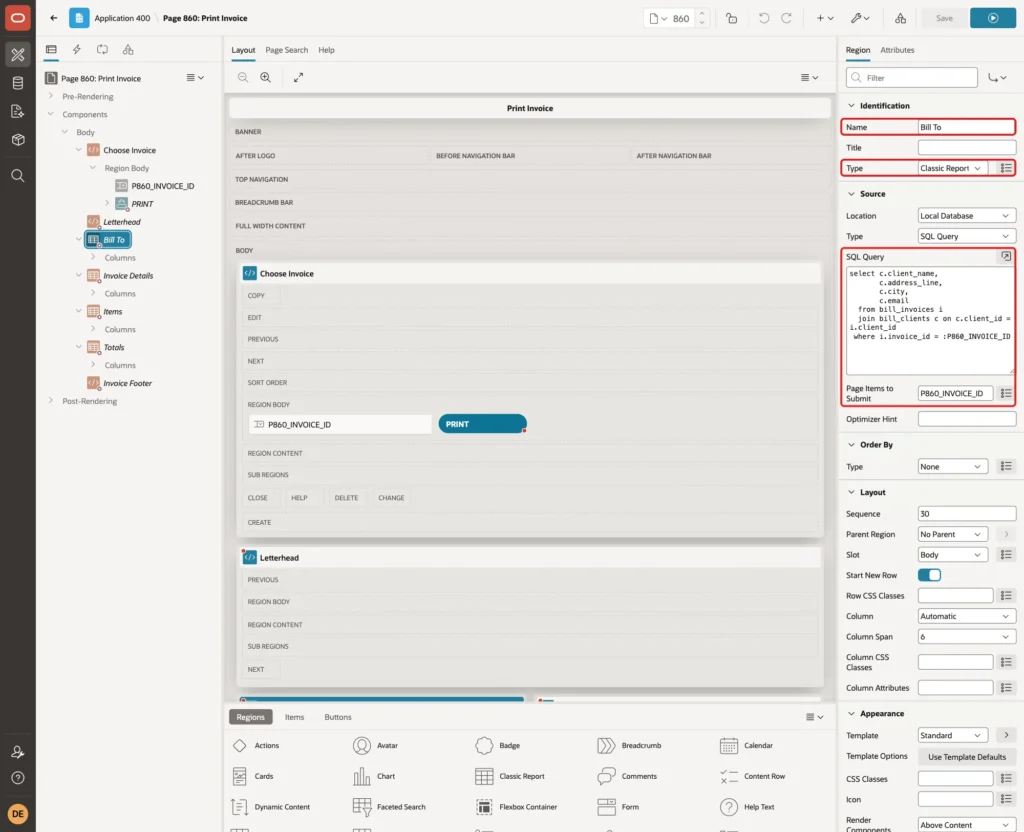
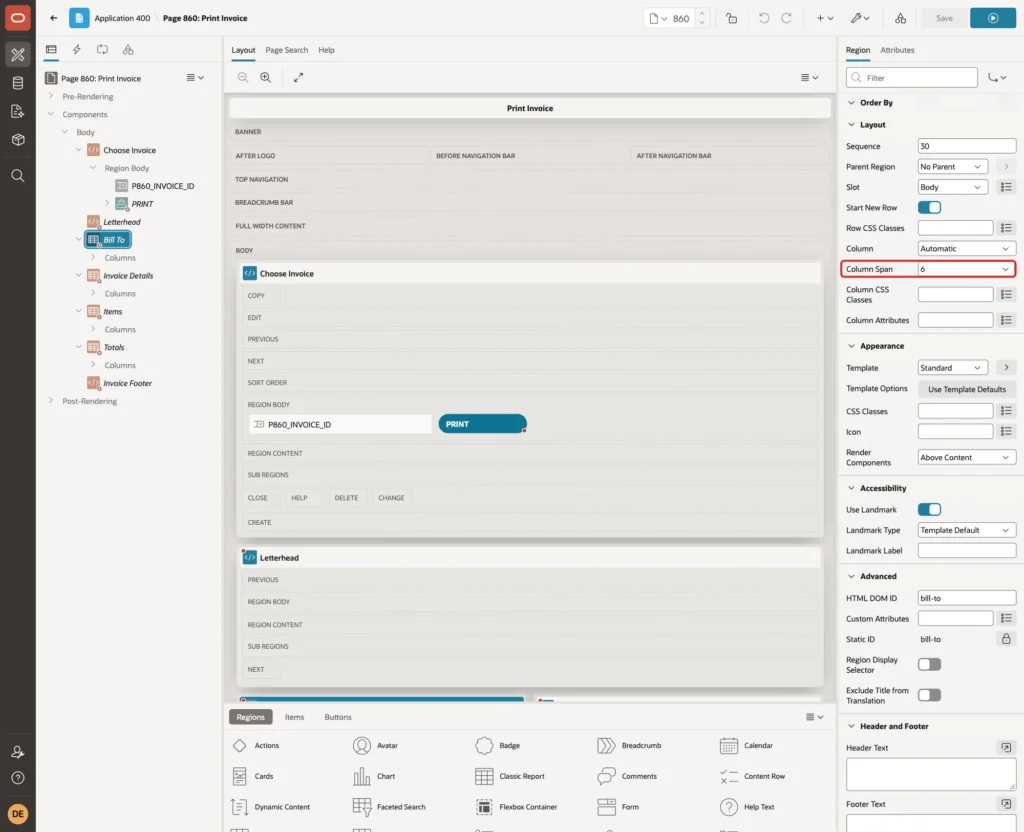
Under Layout, set Column Span to 6, so Bill To uses the left half of the page:
Open the Attributes tab. Set Appearance > Template to Value Attribute Pairs - Column, and in Template Options choose Label Width Variable - Medium and Layout Left Aligned Details:
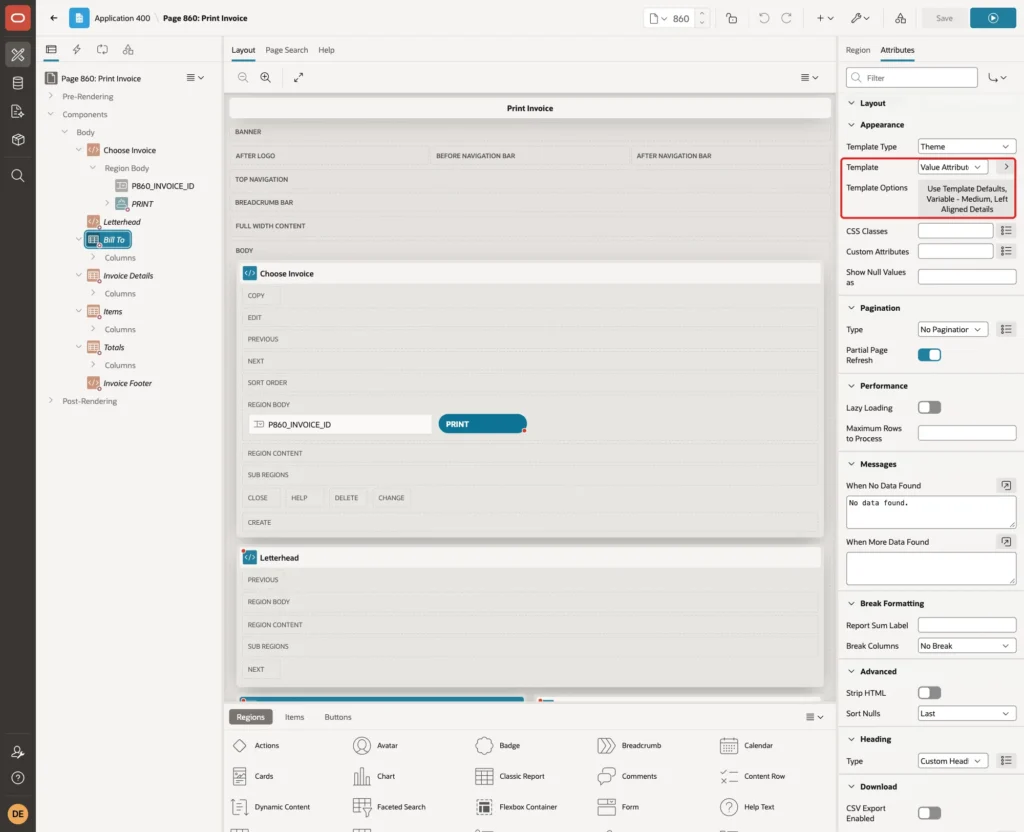
Without the Left Aligned Details option, the pairs flowed next to each other across the region in this test. The option puts one label and value on each line.
Create a second classic report region named Invoice Details with this query, Page Items to Submit P860_INVOICE_ID and the same template and template options:
Example:
select invoice_no,
       invoice_date,
       due_date,
       notes
  from bill_invoices
 where invoice_id = :P860_INVOICE_ID
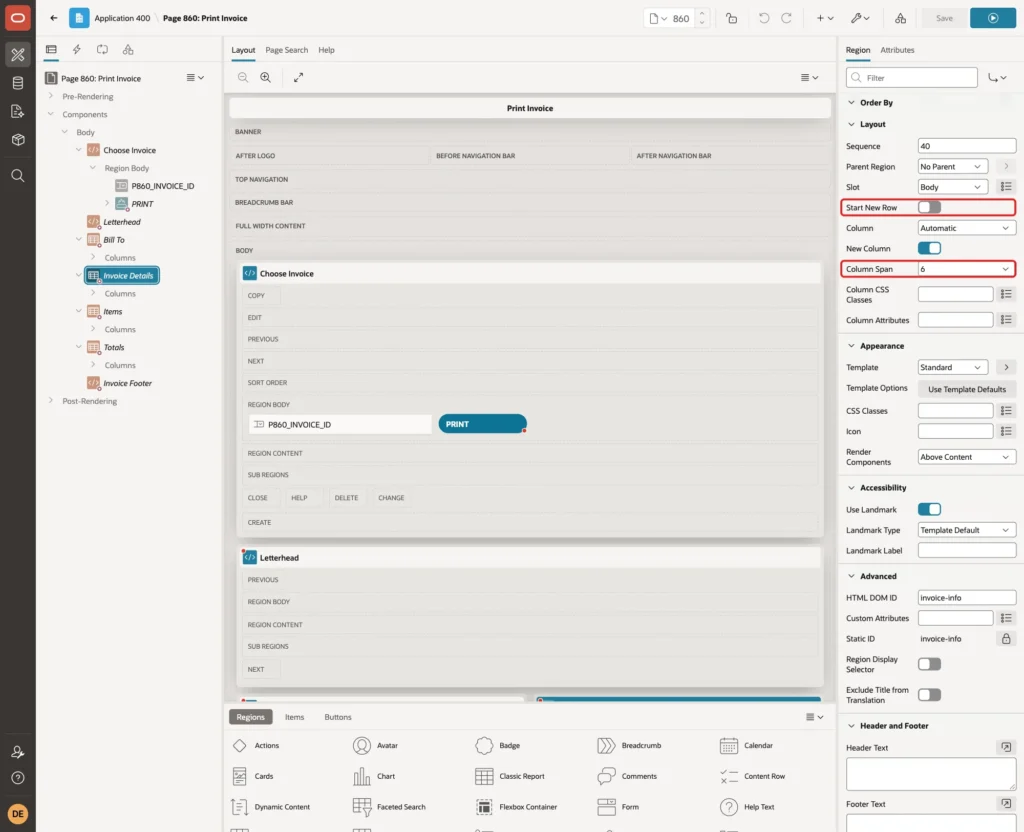
Under Layout, turn off Start New Row and set Column Span to 6, so it sits to the right of Bill To:
In the Columns node of both regions, set clear headings such as Client, Invoice No and Due Date, and the format mask YYYY-MM-DD on the two date columns. Both regions also get the Rows returned condition from Step 4.
Step 7: Add the Items Report
Create a classic report region named Items with this query and Page Items to Submit P860_INVOICE_ID:
Example:
select line_no,
       description,
       quantity,
       unit_price,
       line_amount
  from bill_invoice_lines
 where invoice_id = :P860_INVOICE_ID
 order by line_no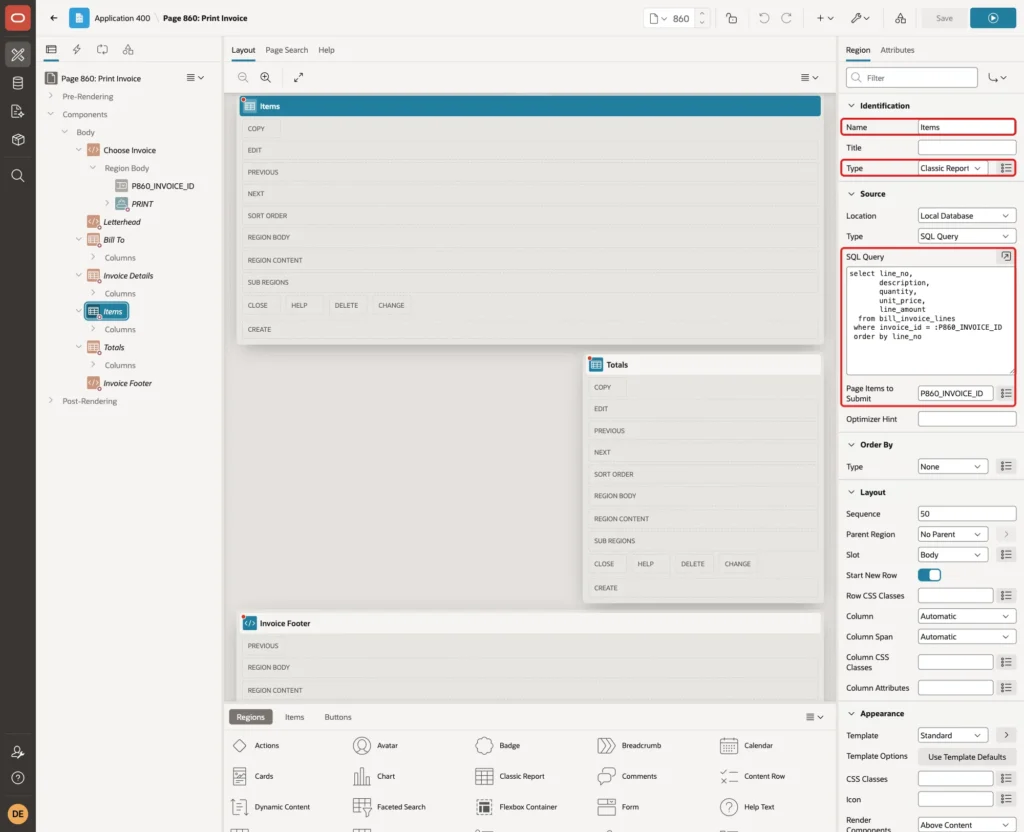
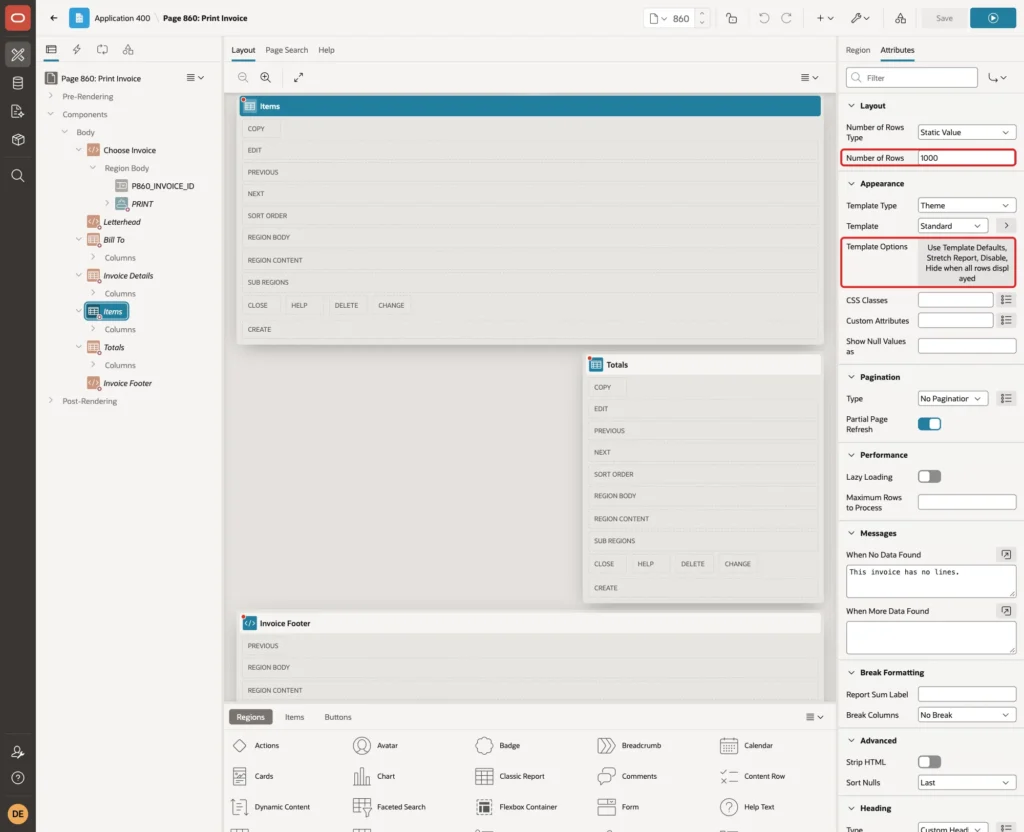
Open the Attributes tab. Set Layout > Number of Rows to 1000, and in Template Options turn on Stretch Report, set Alternating Rows to Disable and Pagination Display to Hide when all rows displayed:
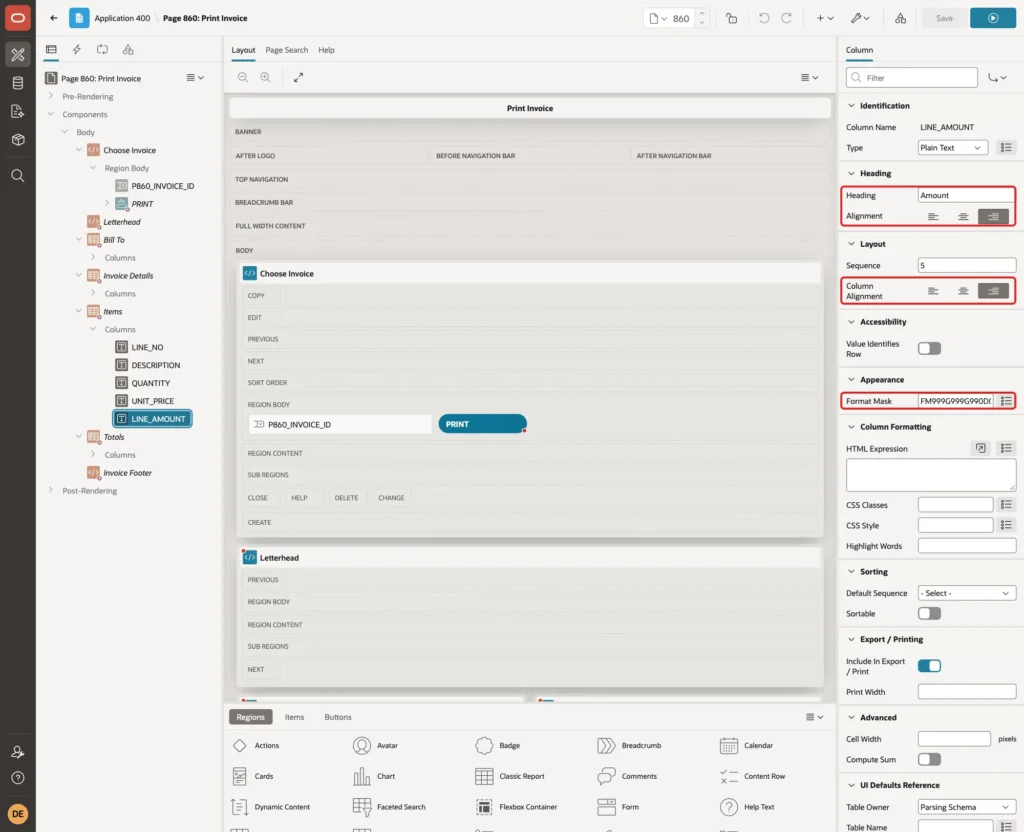
For the number columns, set the alignment to the right and a format mask. Here is LINE_AMOUNT with Heading Amount and Format Mask FM999G999G990D00. QUANTITY uses FM999G990D00:
Why Number of Rows Matters for Printing
On this page, the Pagination Type of the reports shows No Pagination (Show All Rows). In a first test, I left Number of Rows at its default of 15 and printed INV-1003:
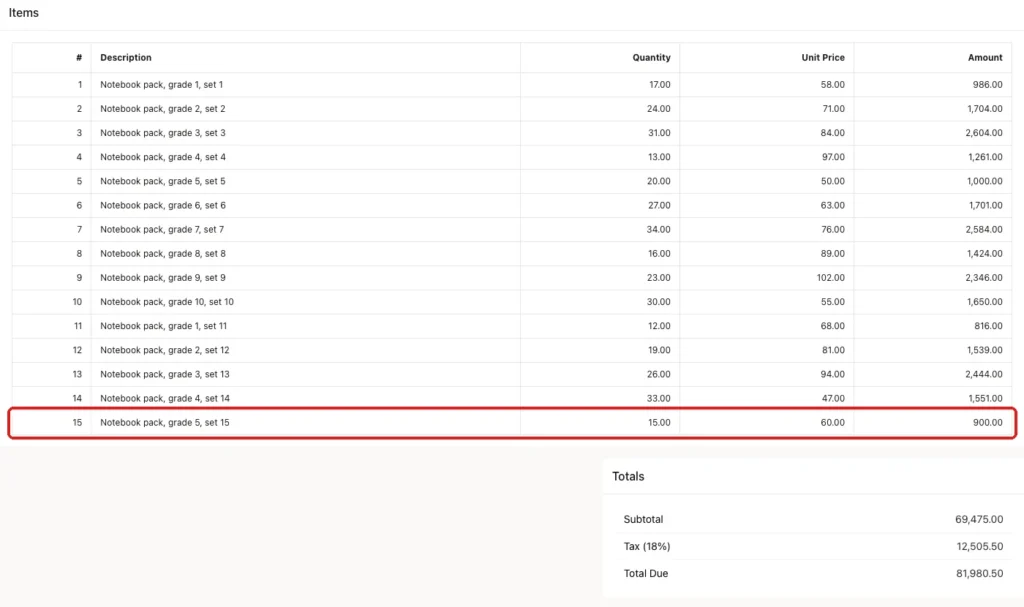
The report stopped after line 15 and showed no pagination link. The totals, which come from their own query, still added up all 42 lines. A customer would get an invoice whose lines do not add up to the total. Set Number of Rows higher than the longest invoice you expect.
Step 8: Add the Totals
Create a classic report region named Totals. Its query returns one row per total, with a label and a formatted amount:
Example:
with t as (
  select i.tax_rate,
         nvl(sum(l.line_amount), 0) as subtotal
    from bill_invoices i
    left join bill_invoice_lines l on l.invoice_id = i.invoice_id
   where i.invoice_id = :P860_INVOICE_ID
   group by i.tax_rate
),
r as (
  select 1 as seq, 'Subtotal' as label, subtotal as amount from t
  union all
  select 2, 'Tax (' || tax_rate || '%)', round(subtotal * tax_rate / 100, 2) from t
  union all
  select 3, 'Total Due', subtotal + round(subtotal * tax_rate / 100, 2) from t
)
select label,
       to_char(amount, 'FM999G999G990D00') as amount
  from r
 order by seq
Run for invoice 1 (INV-1001) in SQL, the query returns:
Output:
PL/SQL procedure successfully completed.

LABEL        AMOUNT
____________ ____________
Subtotal     30,196.00
Tax (18%)    5,435.28
Total Due    35,631.28
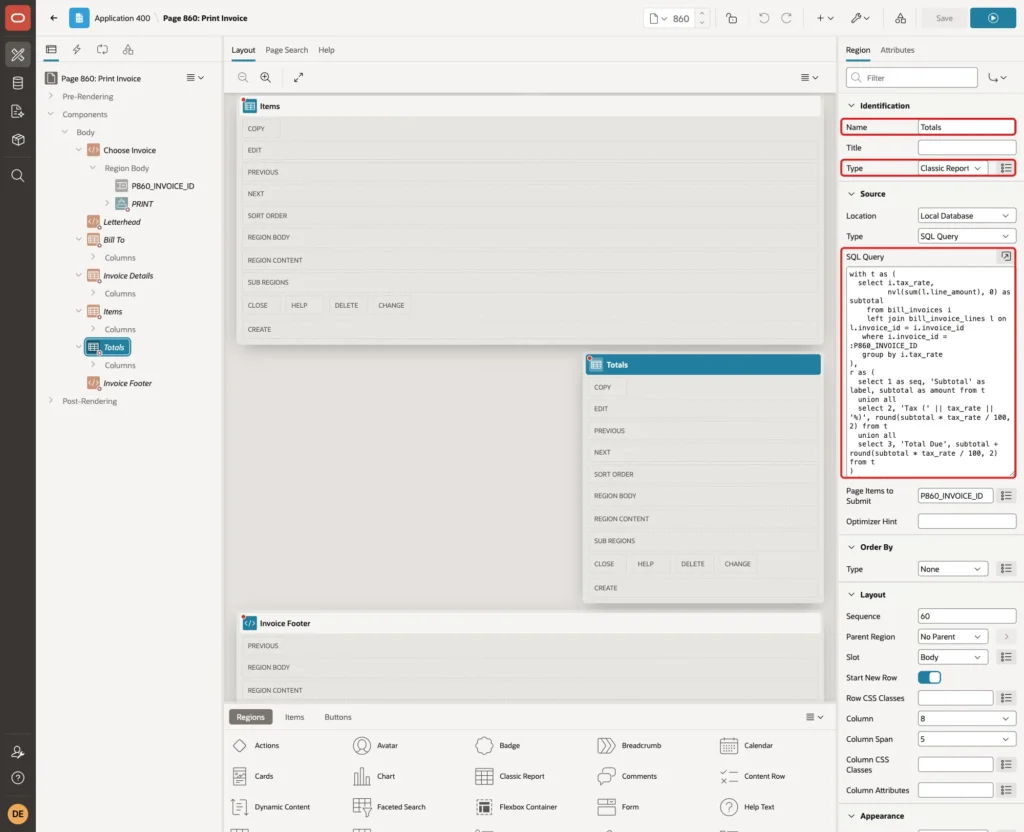
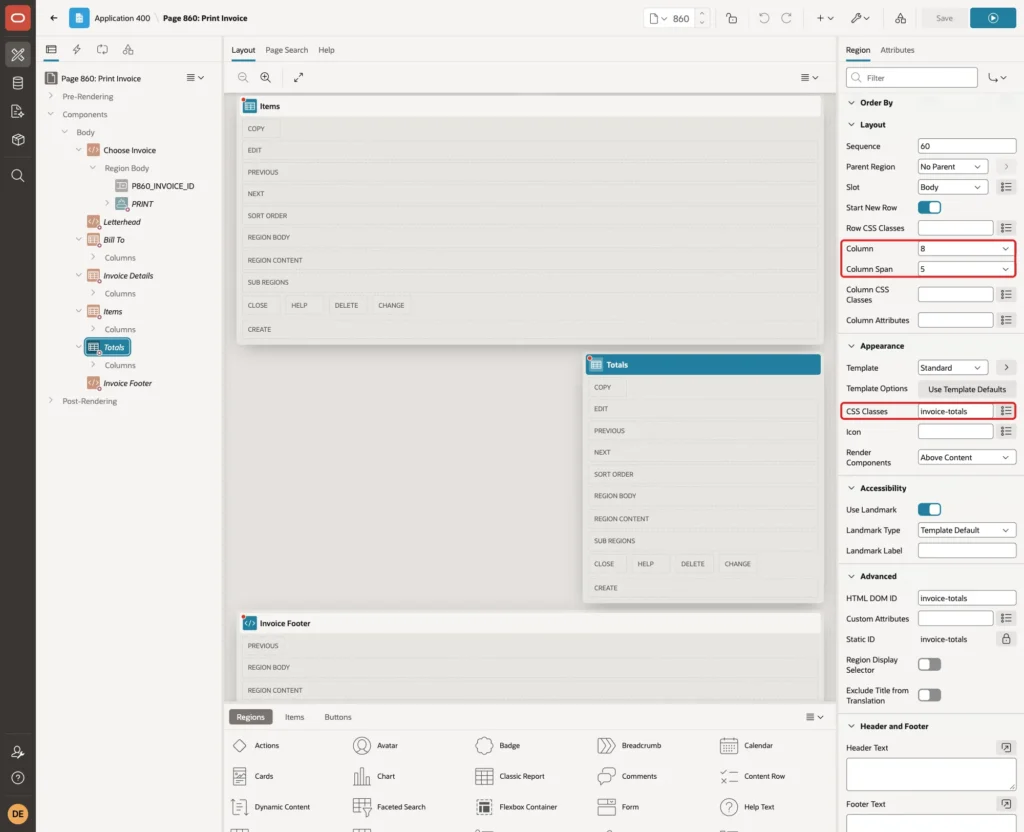
Under Layout, set Column to 8 and Column Span to 5, which places the totals on the right. Enter invoice-totals in Appearance > CSS Classes; the print CSS uses it for a page break rule:
On the Attributes tab, set Template to Value Attribute Pairs - Row. This template uses the first column as the label and the second as the value. Choose Template Options Label Width Variable - Large and Layout Right Aligned Details:

In a first version, the query also returned the sort column SEQ as its first column. The template then showed 1, 2 and 3 as labels and the totals as values, and the amounts disappeared. That is why the query sorts in an inline view and returns only LABEL and AMOUNT.
Step 9: Add a Footer That Only Prints
Create a Static Content region named Invoice Footer with this HTML:
Example:
<p class="invoice-thanks">Thank you for your business. Please quote the invoice number with your payment.</p>
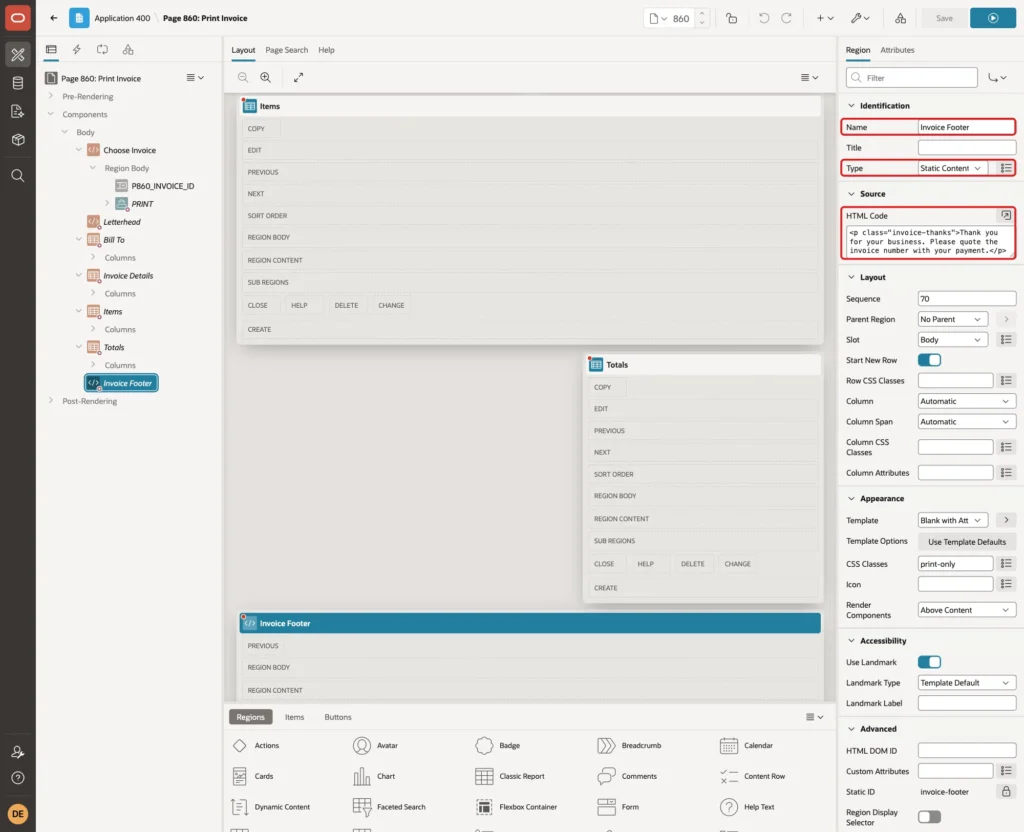
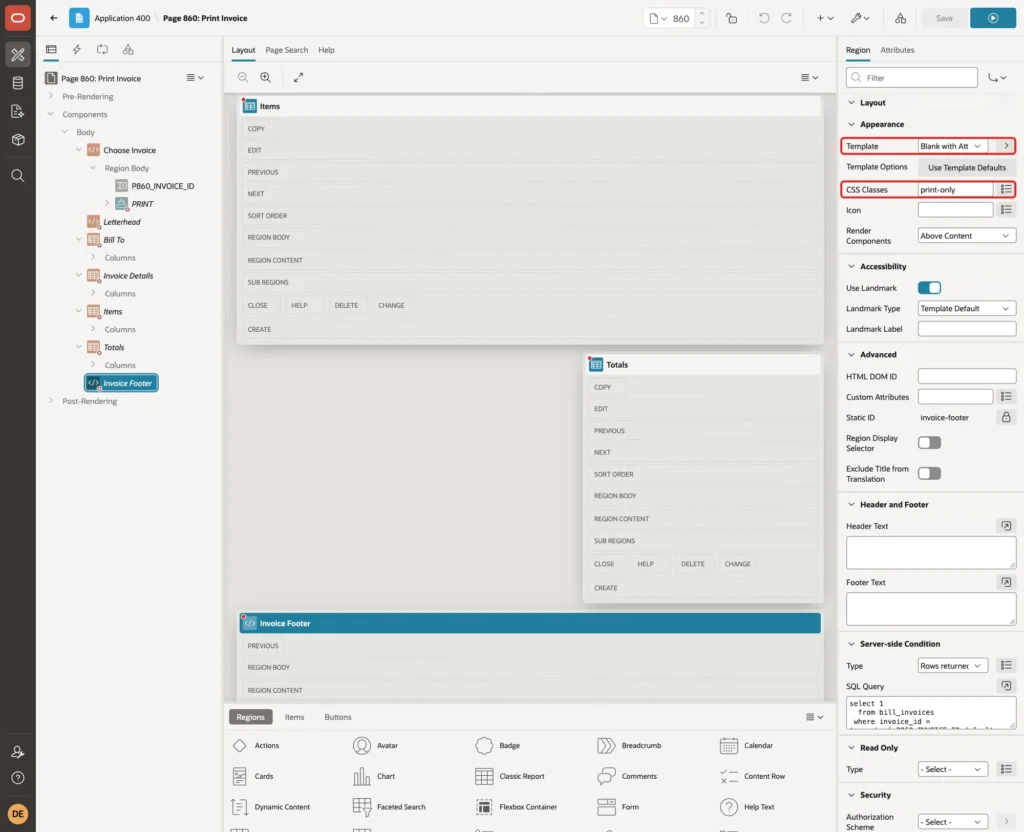
Set Template to Blank with Attributes and CSS Classes to print-only:
Step 10: Add the Print CSS
Click the page node (Page 860: Print Invoice) at the top of the Rendering tree and paste this into CSS > Inline:
Example:
.print-only {
  display: none;
}
.invoice-letterhead {
  display: flex;
  justify-content: space-between;
  align-items: flex-start;
  border-bottom: 2px solid #333;
  padding-bottom: 8px;
}
.invoice-company {
  font-size: 20px;
  font-weight: 700;
}
.invoice-title {
  font-size: 24px;
  font-weight: 700;
  letter-spacing: 3px;
}

@media print {
  @page {
    size: A4;
    margin: 12mm;
  }
  .t-Header,
  .t-Body-nav,
  .t-Footer,
  .no-print {
    display: none !important;
  }
  .t-Body-contentInner {
    padding: 0 !important;
  }
  .t-Region {
    border: 0 !important;
    box-shadow: none !important;
  }
  .print-only {
    display: block;
  }
  .t-AVPList-label {
    white-space: normal;
  }
  .t-AVPList-value {
    overflow-wrap: anywhere;
  }
  .invoice-totals {
    break-inside: avoid;
  }
}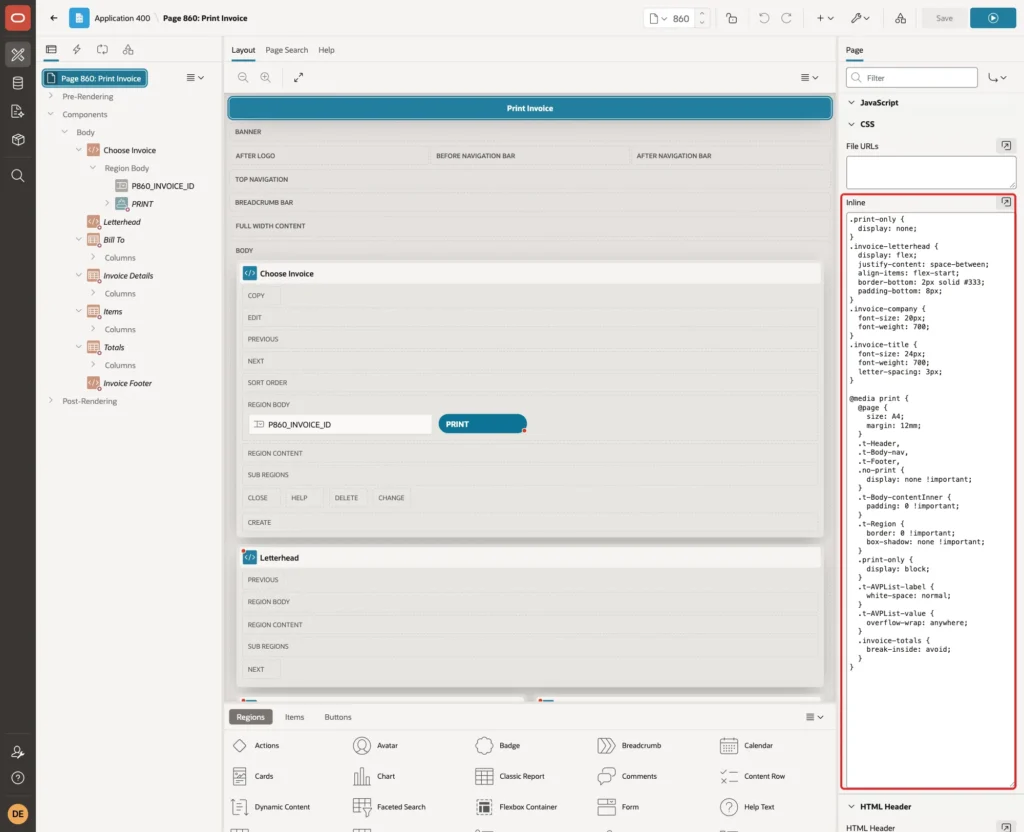
The rules before @media print apply on screen: they hide print-only elements and style the letterhead. The rules inside @media print apply only when printing:
- @page sets A4 paper and a 12 mm margin.
- .t-Header, .t-Body-nav, .t-Footer and .no-print hide the header bar, the navigation menu, the footer and the Choose Invoice region.
- .t-Body-contentInner removes the 16 px padding around the page content.
- .t-Region removes the region borders and shadows.
- .print-only shows the footer from Step 9.
- The .t-AVPList rules let long labels and values wrap. Without them, the label Invoice Date was cut to Invoice ... and a long email address ran out of its column on A4 paper.
- break-inside: avoid on .invoice-totals keeps the totals together on one page.
Step 11: Test the Printed Page
Run the page as any user. Before an invoice is selected, only the Choose Invoice region shows:

Select INV-1001 - Northwind Traders. The page submits and shows the invoice with the Print button:
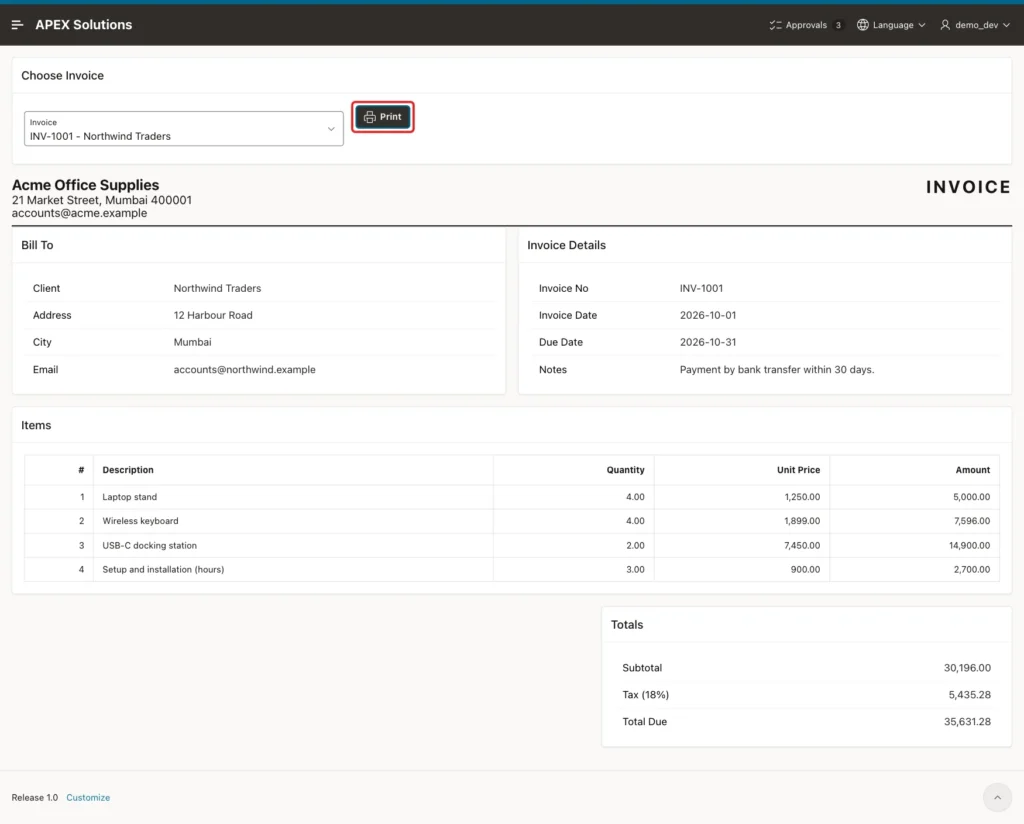
Clicking Print opens the browser's Print dialog. In an automated test, a script replaced window.print with a counter, and one click called it exactly once.
The printed pages below were saved as A4 PDF files by headless Chrome, which uses the print media type just like the Print dialog.
Print Without the Print CSS
First, the same invoice printed with the screen rules only, with the navigation menu open:
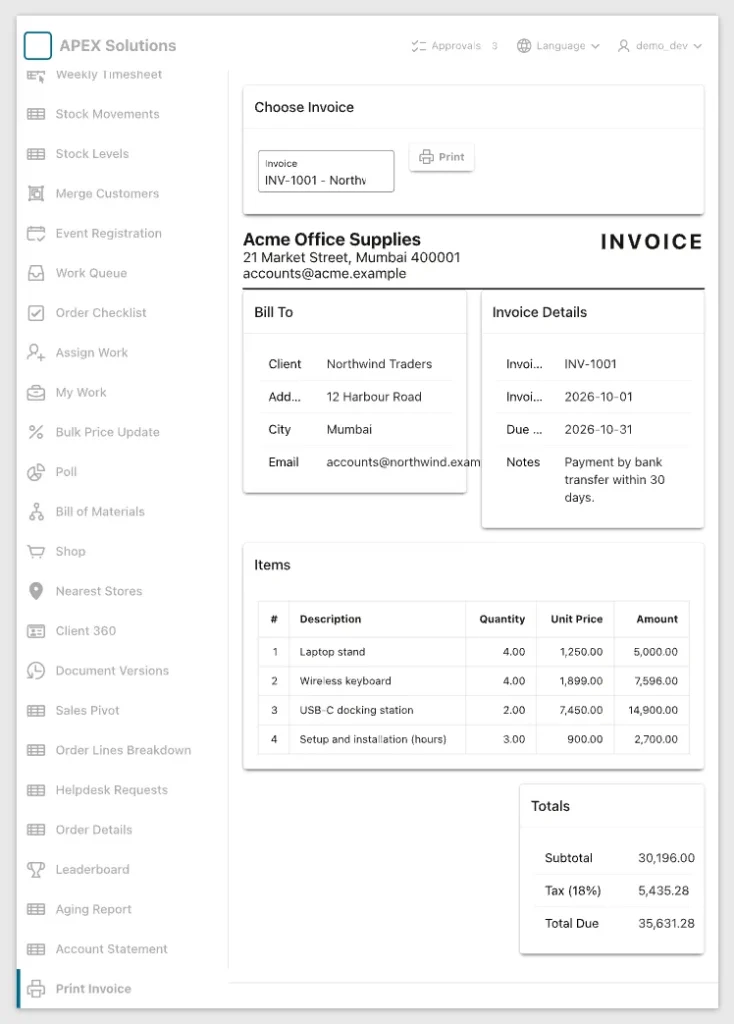
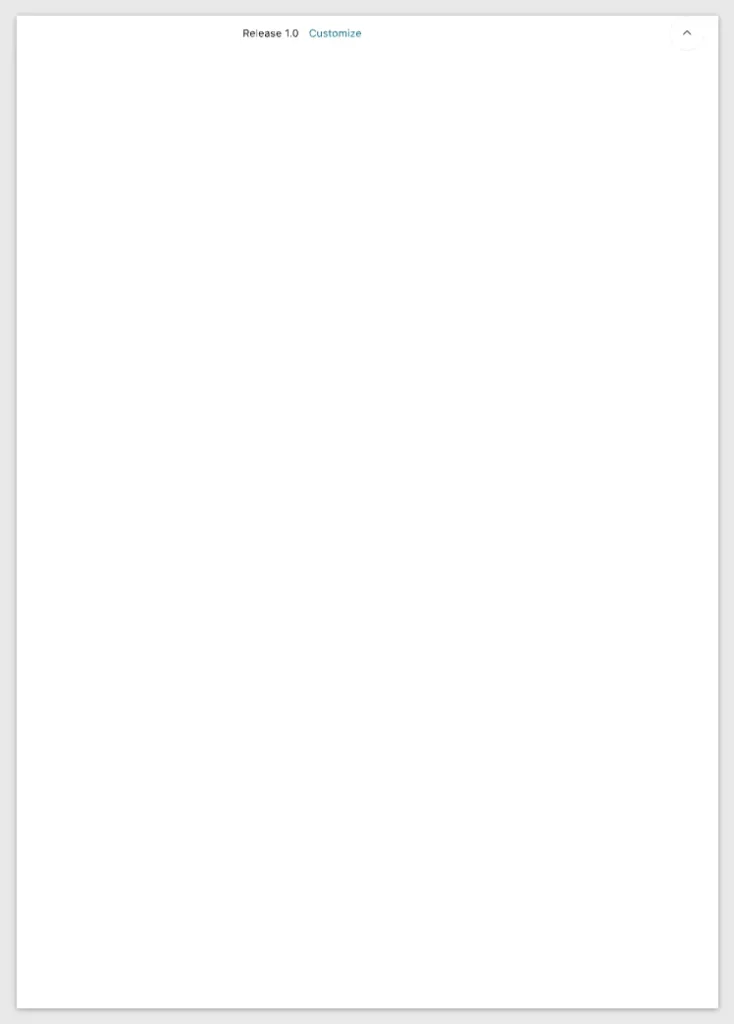
The navigation menu took 240 px of the page width, the header bar and the Choose Invoice region were printed, and the labels in Invoice Details were cut. The page footer did not fit and went to a second sheet:
Print With the Print CSS
Now with the print CSS, also with the navigation menu open:
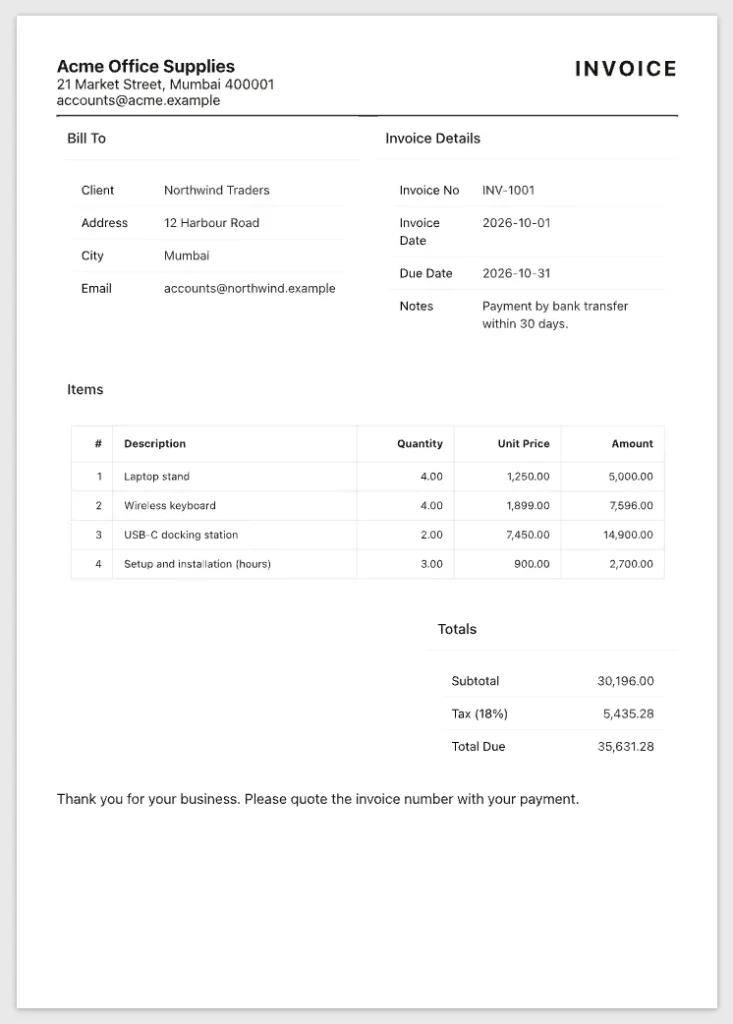
The invoice fits on one sheet. The menu, header, select list, button and page footer are gone, the regions have no frames, and the thank-you line from Step 9 appears at the bottom.
Print a Long Invoice
INV-1003 has 42 lines. With the print CSS, it printed on three pages:

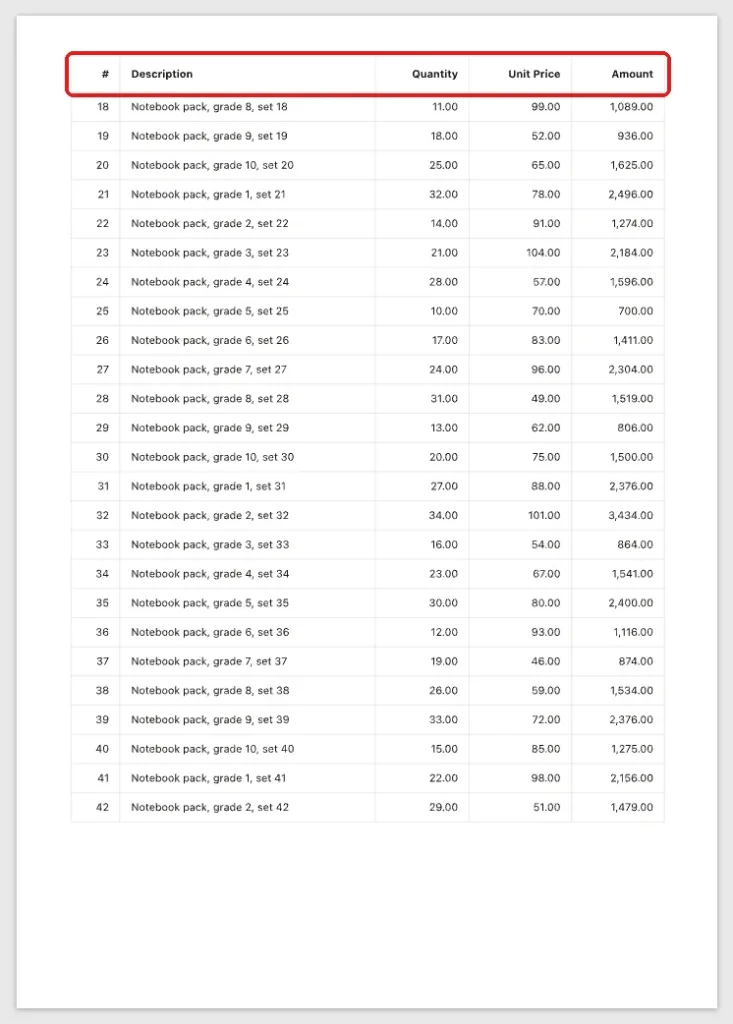
Chrome repeated the table header row at the top of page 2 by itself, because the classic report renders a real table with a header section. No line was split between pages.
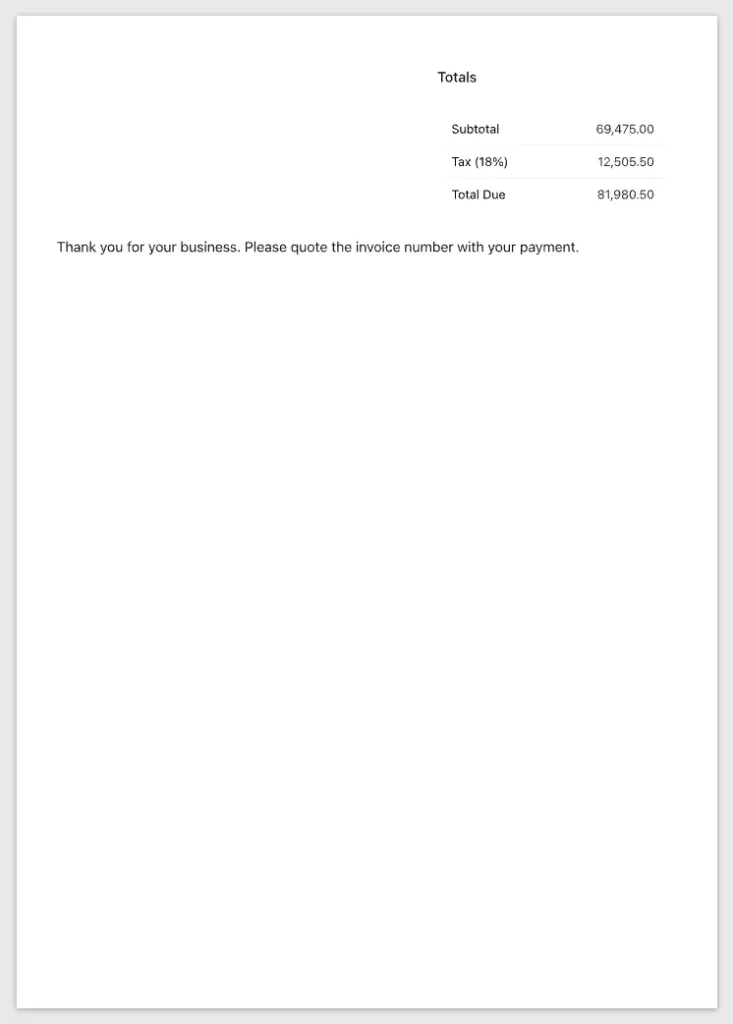
The totals did not fit below line 42, so the whole block moved to page 3. The next test shows what happens without the break rule.
Print Without the Break Rule
For this test, the rule break-inside: avoid was removed from the page CSS and INV-1003 was printed again:
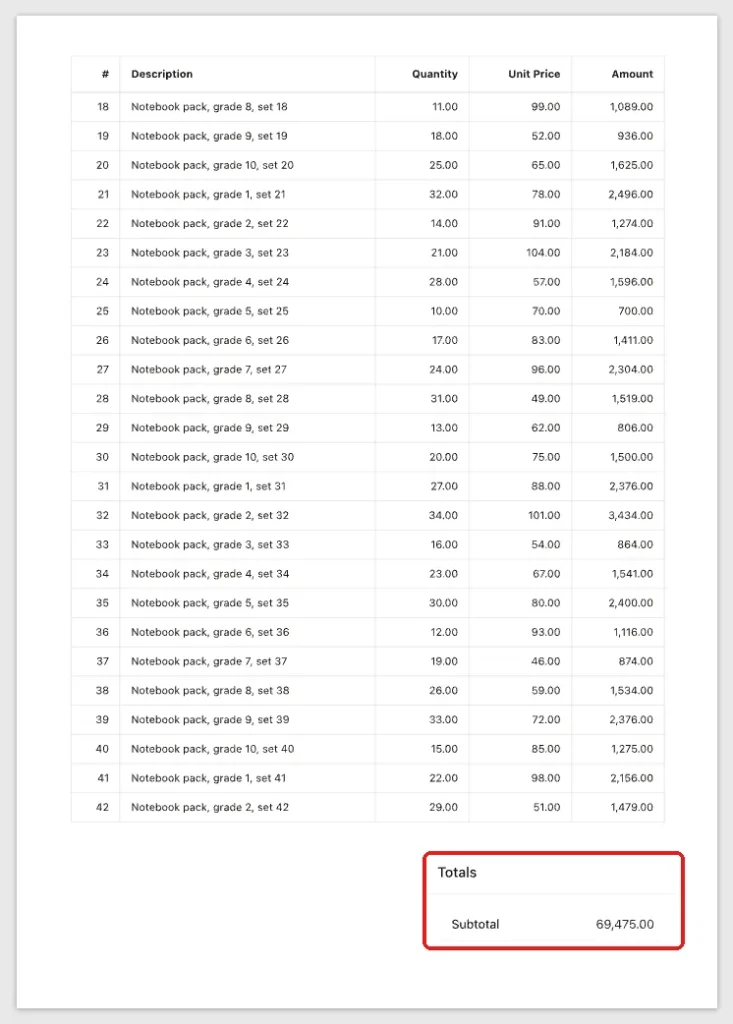
The Totals heading and the subtotal stayed at the bottom of page 2, while the tax and the total due went to page 3. A reader of page 2 sees a subtotal that looks like the amount to pay. With the rule, the three lines always stay together.
Force Invalid Invoice Values
First, as SALES_USER, I added p860_invoice_id=3 to the page URL without a checksum. APEX stopped with Session state protection violation, because Page Access Protection is Arguments Must Have Checksum on this page.
Next, I added a forged option to the select list from the browser console and selected it. APEX accepted the values 999 and abc. In a first version, which used the condition Item is NOT NULL, 999 printed an empty letterhead with No data found in every region, and abc failed with ORA-01722 in all four reports.
With the Rows returned condition from Step 4, both values showed only the Choose Invoice region. Here is the condition query in SQL with a real ID and the two forged values:
Output:
PL/SQL procedure successfully completed.

ITEM_VALUE       ROWS_RETURNED
_____________ ________________
3                            1

PL/SQL procedure successfully completed.

ITEM_VALUE       ROWS_RETURNED
_____________ ________________
999                          0

PL/SQL procedure successfully completed.

ITEM_VALUE       ROWS_RETURNED
_____________ ________________
abc                          0
Only the existing invoice 3 returns a row, so only a real invoice is ever rendered or printed.
Things to Know
- The stylesheets loaded by a Universal Theme 26.1 page in this example had no print rules for the page layout. The only @media print block was for the rich text editor. Every printable page needs its own print CSS.
- Use the CSS classes no-print and print-only on any region, item or button to control what appears on paper. The names are your own; they work because of the rules in Step 10.
- A classic report prints only its Number of Rows, even with Pagination Type No Pagination (Show All Rows). Check this on every report you print.
- Chrome repeated the table header row on each page and did not split single-line rows without extra CSS. Blocks such as totals need break-inside: avoid.
- Page Access Protection blocks a changed URL, but not a forged select list value. Region conditions must check that the record exists.
Related Guides
- How to Create PDF Reports in Oracle APEX: A Step-by-Step Tutorial
- Oracle APEX Files, PDF Export, and Printing
Conclusion
A printable page in Oracle APEX needs a Print button that calls window.print(), CSS classes on the regions that should or should not print, and a short @media print block that hides the theme's header, menu and footer and controls page breaks.
In this example, a short invoice printed on one clean A4 page instead of two, a 42-line invoice repeated its headings and kept its totals together, and forged invoice values printed nothing. The same rules work for orders, delivery notes and any other page users print.
See my articles more often when you search Google.
