
Every page view in an Oracle APEX application is written to an activity log. The log knows which page was opened, by whom, when, and how long the page took to render. With one view and one page, you can turn this log into a usage report and see which pages people really use and which ones are slow.
This guide builds that report: a view over the activity log, a bar chart of page views per day, a list of the most used pages with their rendering time, and a list of views per user. A period filter changes all three at once.
The guide How to Show Login History and Active Users in Oracle APEX covers only logins and active sessions. This guide is about the pages that people open after they sign in.
Step 1: Create the View
This report needs no table of its own, because Oracle APEX already stores the data. The view APEX_WORKSPACE_ACTIVITY_LOG lists every request of every application in the workspace. The sample data of this guide is the log itself, filled by real use of the application.
The view PAGE_USAGE_V below keeps only what the report needs. It counts rendered pages (page_view_type is Rendering), so form submits and Ajax calls are not counted as page views. It leaves out the user nobody, which is a visitor who is not signed in.
Example:
create or replace view page_usage_v as
select l.application_id,
       l.page_id,
       l.page_name,
       l.apex_user,
       l.apex_session_id,
       l.view_date,
       trunc(l.view_date) as view_day,
       l.elapsed_time
from   apex_workspace_activity_log l
where  l.page_view_type = 'Rendering'
and    l.apex_user <> 'nobody';

select count(*) as page_views,
       count(distinct page_id) as pages,
       count(distinct apex_user) as users,
       to_char(min(view_day), 'YYYY-MM-DD') as first_day,
       to_char(max(view_day), 'YYYY-MM-DD') as last_day
from   page_usage_v
where  application_id = 400;
Output:
View PAGE_USAGE_V created.

   PAGE_VIEWS    PAGES    USERS FIRST_DAY     LAST_DAY
_____________ ________ ________ _____________ _____________
         5886      184       11 2026-10-12    2026-10-27
VIEW_DAY removes the time part of VIEW_DATE, so the queries can group by day without repeating TRUNC. ELAPSED_TIME is the rendering time in seconds. Remove the last condition of the view if you also want to count visitors of public pages.
Step 2: Test the Queries in SQL
Test the three queries in SQL before building the page. They use a bind variable named P1250_DAYS, the same name as the page item that is created later. The value 14 means the last 14 days including today.
Example:
set linesize 200 pagesize 50
variable P1250_DAYS varchar2(10)
exec :P1250_DAYS := '14'

select to_char(view_day, 'YYYY-MM-DD') as day_label,
       count(*) as page_views
from   page_usage_v
where  application_id = 400
and    view_day >= trunc(sysdate) - to_number(:P1250_DAYS) + 1
group  by view_day
order  by view_day;

select page_id,
       page_name,
       count(*) as page_views,
       count(distinct apex_user) as users,
       round(avg(elapsed_time) * 1000) as avg_ms,
       round(max(elapsed_time) * 1000) as slowest_ms
from   page_usage_v
where  application_id = 400
and    view_day >= trunc(sysdate) - to_number(:P1250_DAYS) + 1
group  by page_id, page_name
order  by page_views desc
fetch first 10 rows only;

select apex_user,
       count(*) as page_views,
       count(distinct page_id) as pages,
       count(distinct apex_session_id) as sessions,
       to_char(max(view_date), 'YYYY-MM-DD HH24:MI') as last_seen
from   page_usage_v
where  application_id = 400
and    view_day >= trunc(sysdate) - to_number(:P1250_DAYS) + 1
group  by apex_user
order  by page_views desc;
Output:
PL/SQL procedure successfully completed.

DAY_LABEL        PAGE_VIEWS
_____________ _____________
2026-10-15              271
2026-10-16              366
2026-10-17              744
2026-10-18              503
2026-10-19              513
2026-10-20              252
2026-10-21              425
2026-10-22              463
2026-10-23              282
2026-10-24              339
2026-10-25              266
2026-10-26              335
2026-10-27               66

13 rows selected.

   PAGE_ID PAGE_NAME               PAGE_VIEWS    USERS    AVG_MS    SLOWEST_MS
__________ ____________________ _____________ ________ _________ _____________
         1 Home                          1605       10        40           373
      1160 Photo Gallery                  165        1        34           174
       860 Print Invoice                  136        2        64           248
       740 Bill of Materials              106        1        53           287
       890 Issues                          79        1        75           270
       650 Weekly Timesheet                72        2        80           183
       910 Staff Directory                 68        2        54           129
       960 Equipment Units                 67        2        61           157
       760 Nearest Stores                  61        1        72           235
      1060 Ticket Summary                  58        3      1192          4224

10 rows selected.

APEX_USER           PAGE_VIEWS    PAGES    SESSIONS LAST_SEEN
________________ _____________ ________ ___________ ___________________
DEMO_DEV                  3402      131        1065 2026-10-27 13:10
SALES_USER                1005       66         345 2026-10-27 13:10
ORDER_EDITOR               282       25          86 2026-10-27 09:42
SALES_MANAGER               83       10          32 2026-10-27 03:04
FIRST_NEW                   35        6           7 2026-10-26 15:13
SIGNUP_ADMIN                 6        2           2 2026-10-26 19:10
SIGNUP_ANNA                  5        2           2 2026-10-26 19:11
FIRST_REGULAR                4        3           2 2026-10-26 15:13
LOCK_TEST                    2        1           2 2026-10-26 11:13
FIRST_APEX                   1        1           1 2026-10-26 15:25

10 rows selected.
The condition view_day >= trunc(sysdate) - to_number(:P1250_DAYS) + 1 gives one day for the value 1 and fourteen days for the value 14. The Ticket Summary page stands out: its average time is 1192 ms while most pages take less than 100 ms.
Step 3: Create the Page
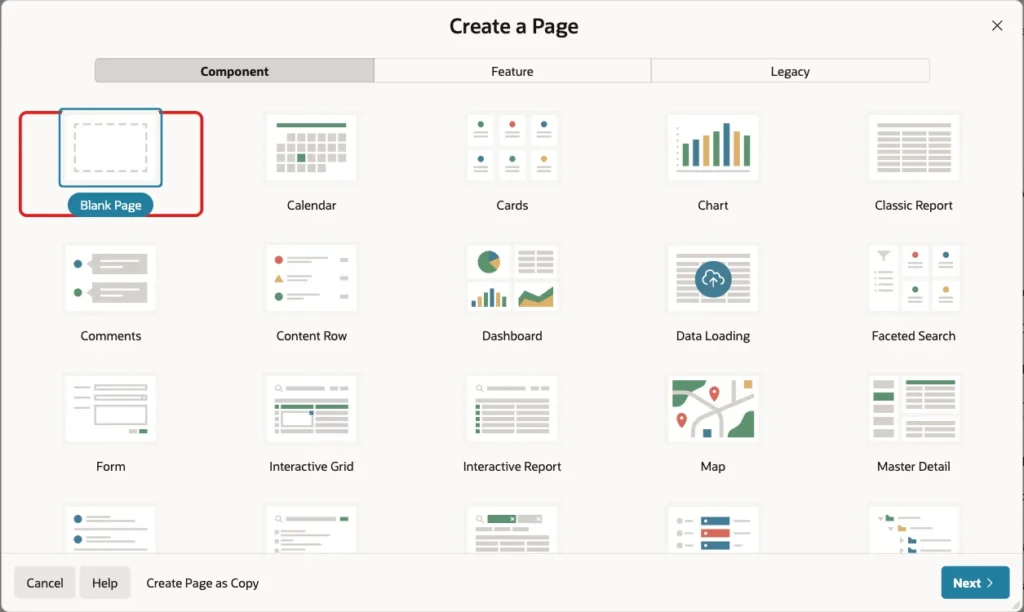
In App Builder, click Create Page. Select Blank Page and click Next:
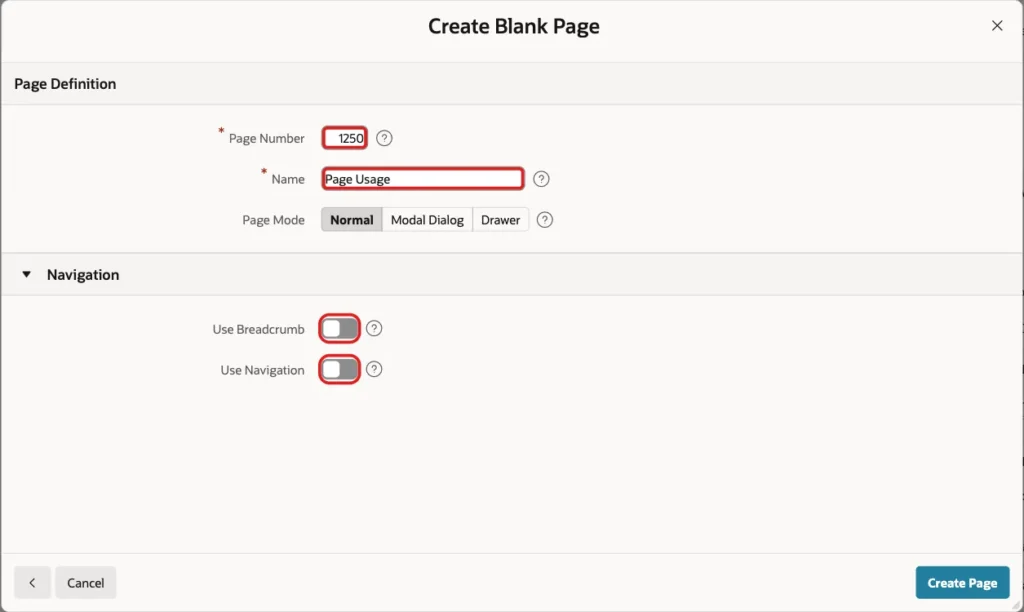
Enter Page Number 1250 and Name Page Usage. Turn off Use Breadcrumb and Use Navigation. Click Create Page:
Step 4: Restrict the Page to Administrators
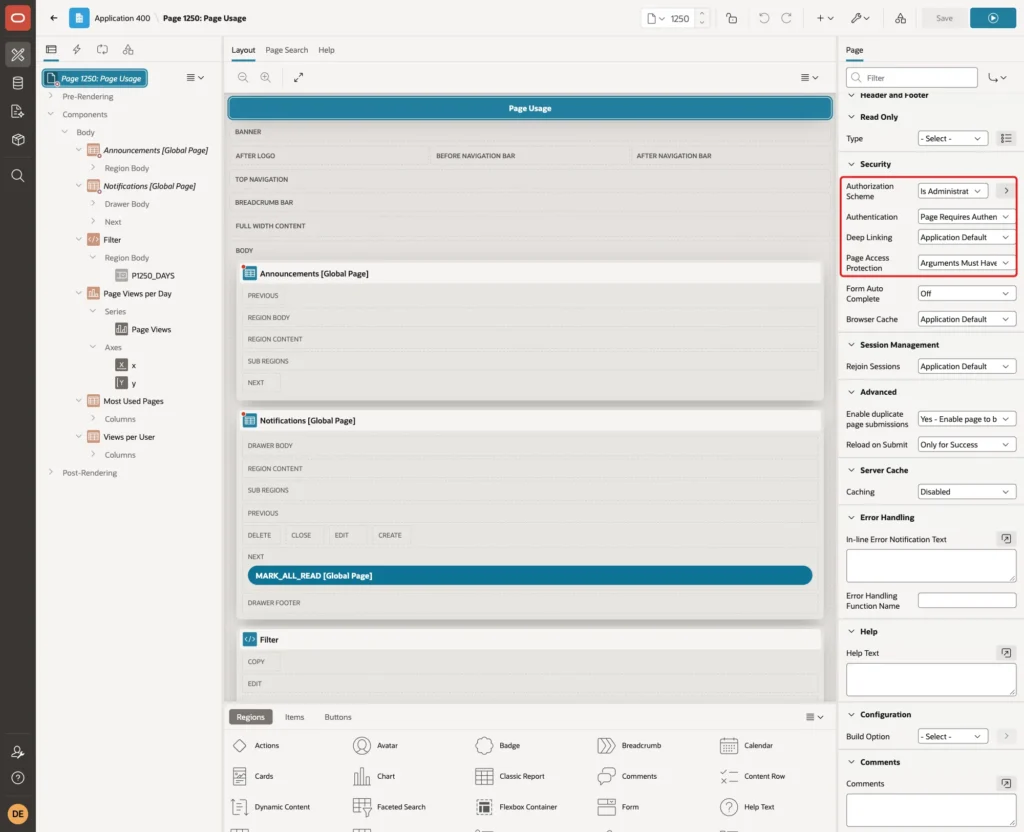
The report shows the names of users and what they open, so only administrators should see it. Click the page name at the top of the tree. Under Security, set Authorization Scheme to Is Administrator and Page Access Protection to Arguments Must Have Checksum. Click Save:
Step 5: Add the Period Filter
Create a Static Content region named Filter in the Body slot. Add a page item to it with these properties:
- Name: P1250_DAYS
- Type: Select List
- Label: Period
- Page Action on Selection: Submit Page
- List of Values Type: Static Values, with the entries Today (1), Last 7 days (7) and Last 14 days (14)
- Display Null Value: off
- Default Type: Static, Static Value 14
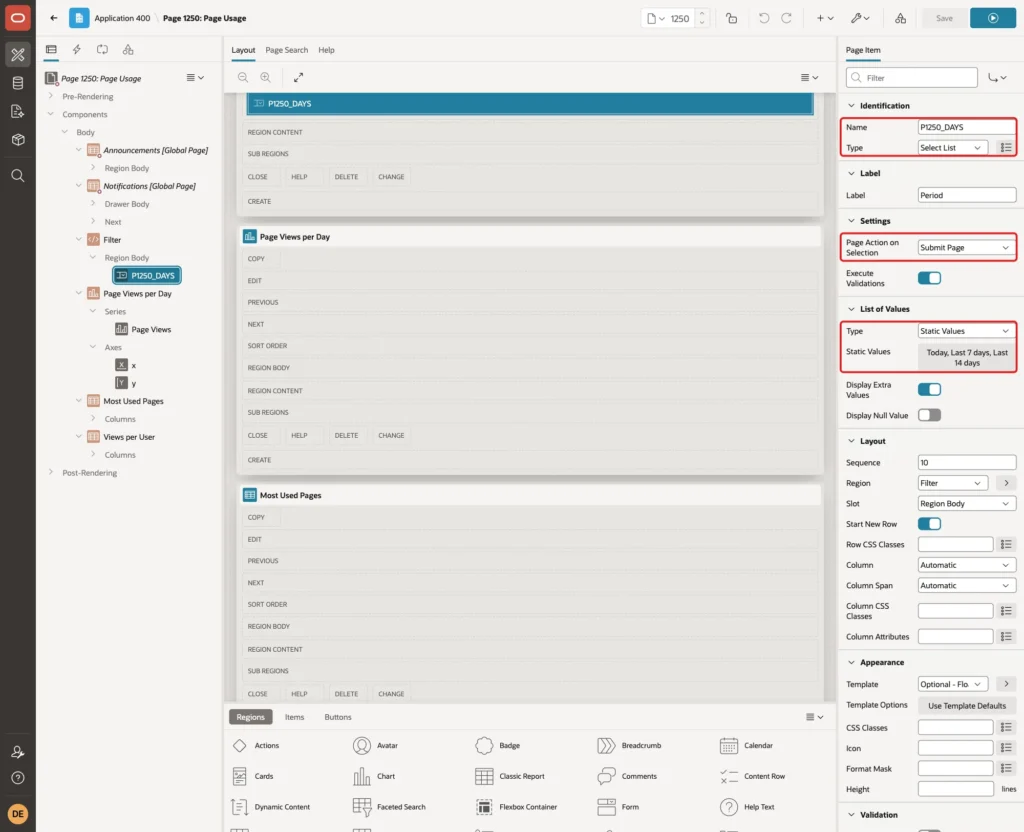
Page Action on Selection set to Submit Page reloads the page when the user picks a period. No dynamic action is needed, and the regions read the new value from session state.
Step 6: Add the Chart
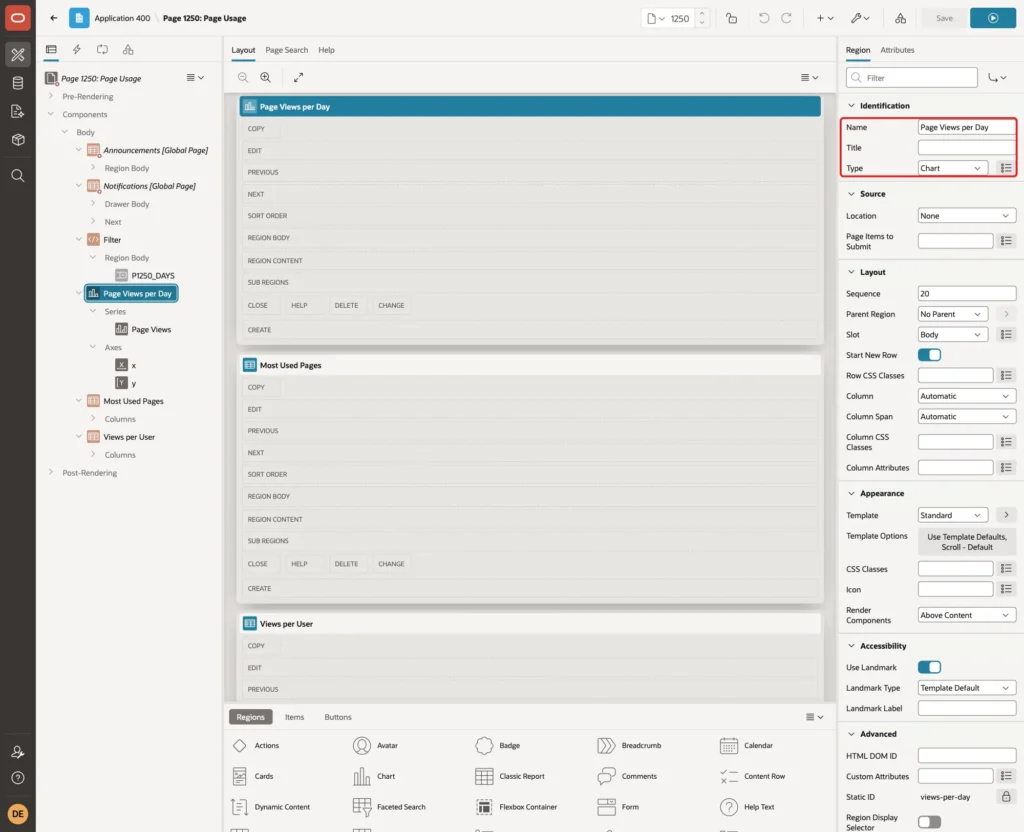
Create a region in the Body slot. Set the Name to Page Views per Day and the Type to Chart:
Under the region, open the series and set the Source Type to SQL Query. Enter the query below and set Page Items to Submit to P1250_DAYS. Map the Label column to DAY_LABEL and the Value column to PAGE_VIEWS:
Example:
select to_char(view_day, 'YYYY-MM-DD') as day_label,
       count(*) as page_views
from   page_usage_v
where  application_id = :APP_ID
and    view_day >= trunc(sysdate) - to_number(:P1250_DAYS) + 1
group  by view_day
order  by view_day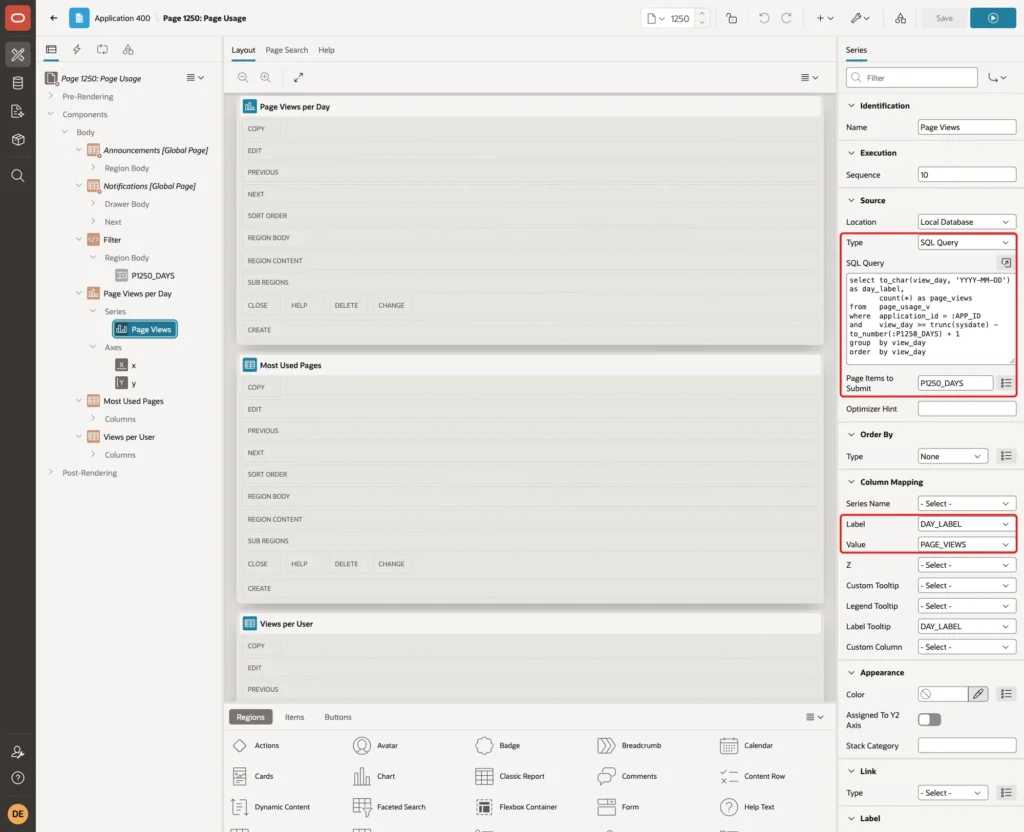
The condition application_id = :APP_ID limits the report to the current application, because the activity log contains all applications of the workspace.
Step 7: Add the Most Used Pages Report
Create a second region. Set the Name to Most Used Pages and the Type to Classic Report. Under Source, set Location to Local Database and Type to SQL Query. Enter the query below and set Page Items to Submit to P1250_DAYS:
Example:
select page_id,
       max(page_name) as page_name,
       count(*) as page_views,
       count(distinct apex_user) as users,
       round(avg(elapsed_time) * 1000) as avg_ms,
       round(max(elapsed_time) * 1000) as slowest_ms
from   page_usage_v
where  application_id = :APP_ID
and    view_day >= trunc(sysdate) - to_number(:P1250_DAYS) + 1
group  by page_id
order  by page_views desc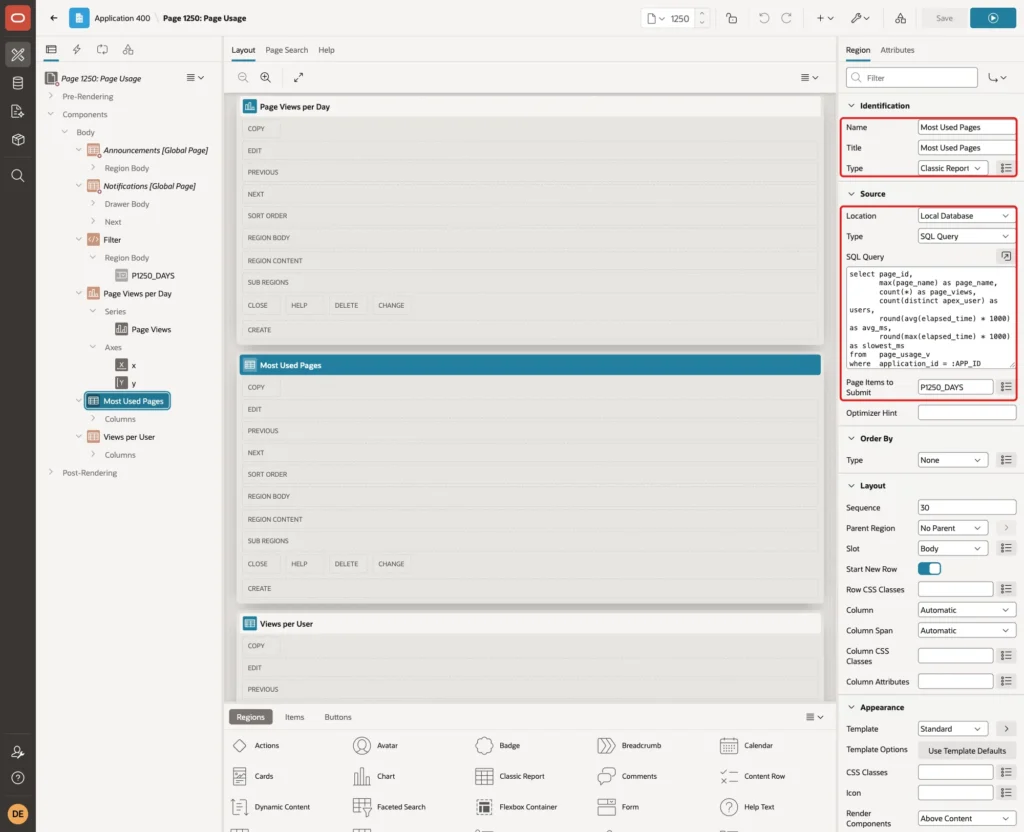
The query groups by PAGE_ID and takes MAX(PAGE_NAME). If a page is renamed, the old and the new name then still count as one page. Under Messages, set When No Data Found to No page views in this period.
Step 8: Add the Views per User Report
Create a third Classic Report region named Views per User with Location Local Database, Type SQL Query and Page Items to Submit P1250_DAYS. Use this query:
Example:
select apex_user,
       count(*) as page_views,
       count(distinct page_id) as pages,
       count(distinct apex_session_id) as sessions,
       to_char(max(view_date), 'YYYY-MM-DD HH24:MI') as last_seen
from   page_usage_v
where  application_id = :APP_ID
and    view_day >= trunc(sysdate) - to_number(:P1250_DAYS) + 1
group  by apex_user
order  by page_views desc
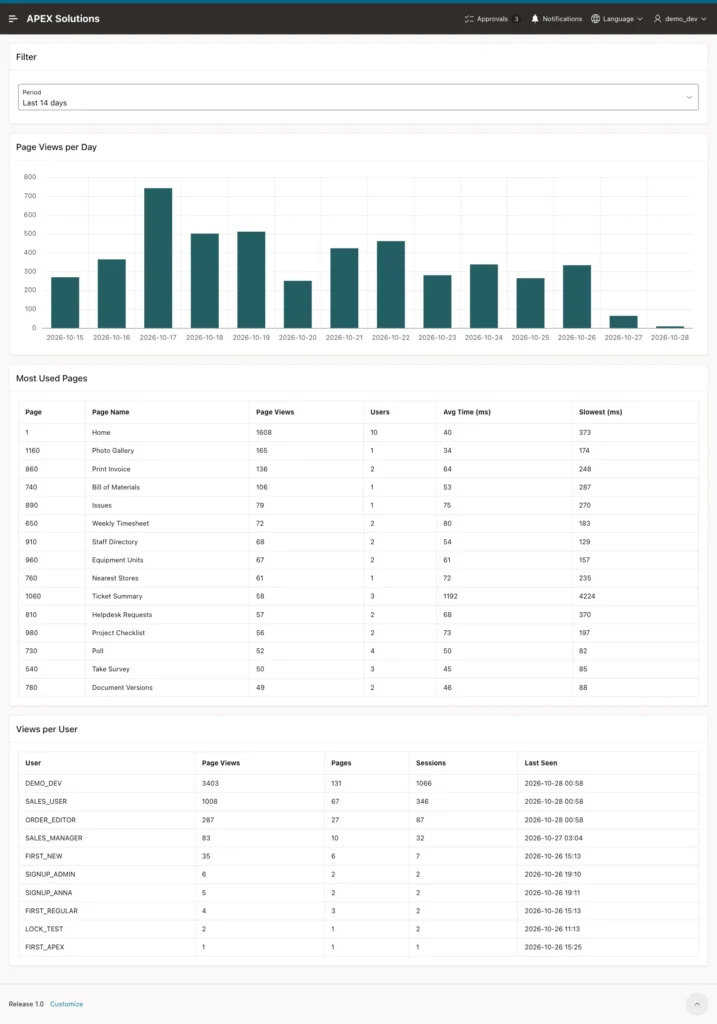
Both reports use the headings Page, Page Name, Page Views, Users, Avg Time (ms) and Slowest (ms), and User, Page Views, Pages, Sessions and Last Seen. Set them in the column properties. Click Save and run the page.
Step 9: Create Page Views as Different Users
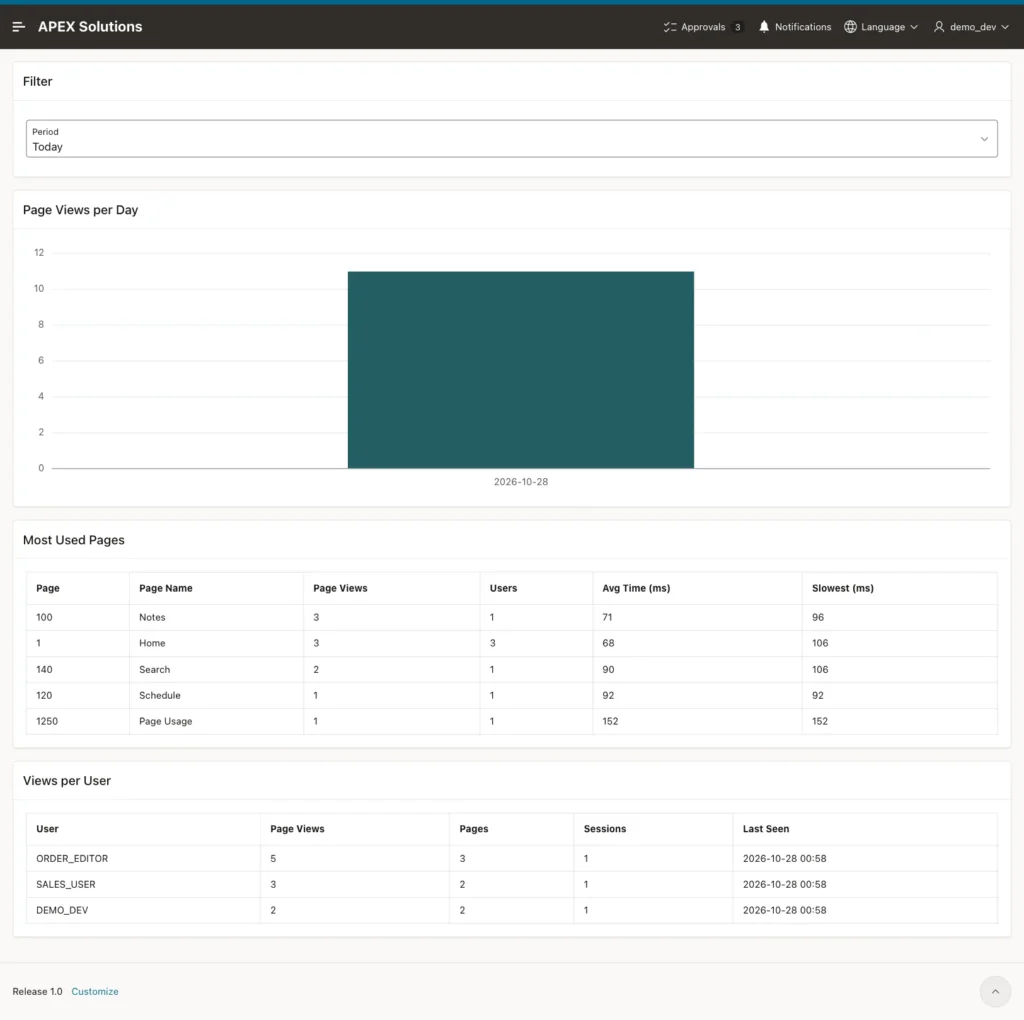
To see the report change, create known traffic. In a test, ORDER_EDITOR opened the Notes page three times and the Schedule page once. SALES_USER opened the Search page twice. Then the query below counted today's views of these users:
Example:
set linesize 200
select apex_user, page_id, count(*) as page_views
from   page_usage_v
where  application_id = 400
and    apex_user in ('ORDER_EDITOR', 'SALES_USER')
and    page_id in (100, 120, 140)
and    view_day = trunc(sysdate)
group  by apex_user, page_id
order  by 1, 2;
select to_char(sysdate, 'YYYY-MM-DD HH24:MI:SS') as db_time from dual;
Output:
APEX_USER          PAGE_ID    PAGE_VIEWS
_______________ __________ _____________
ORDER_EDITOR           100             3
ORDER_EDITOR           120             1
SALES_USER             140             2

DB_TIME
______________________
2026-10-28 00:58:11
The counts match the visits exactly: 3, 1 and 2. The rows were available in the view immediately, so there was no delay between the visit and the log.
Step 10: Test the Page
Sign in as an administrator and open the page. The default period is the last 14 days. The chart shows one bar per day and the lists show the totals for the whole period:
Select Today. The page is submitted again and shows only today's views. The visits from the previous step appear: Notes with 3 views, Search with 2 and Schedule with 1:
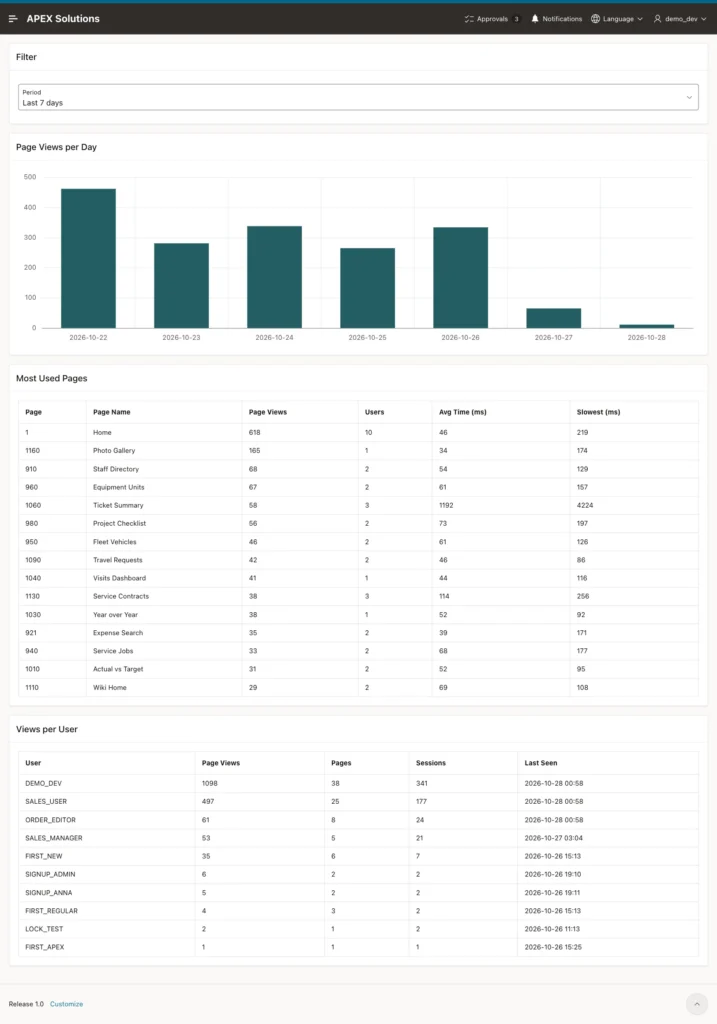
Select Last 7 days to see the middle period:
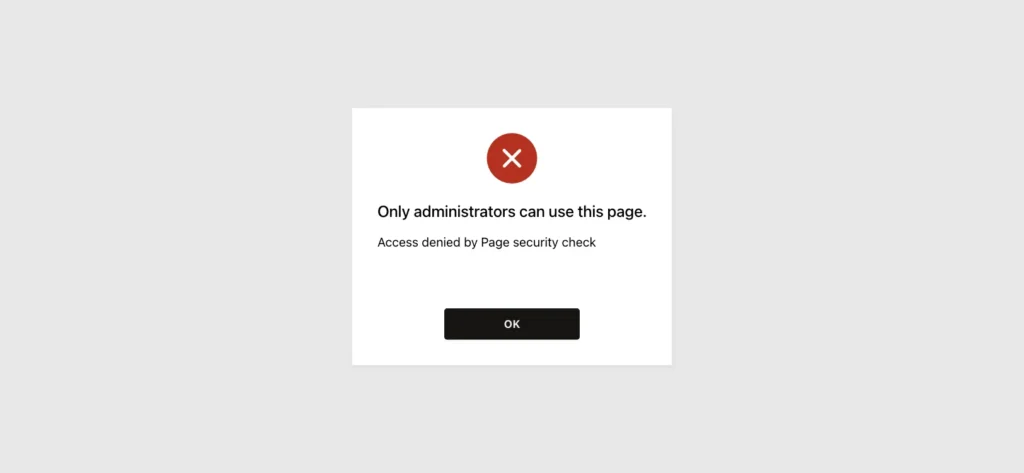
Now try the negative test. Sign in as SALES_USER, who is not an administrator, and open the page. The authorization scheme blocks it:
Things to Know
- The activity log is workspace-wide and is not kept forever. The oldest row in this example is from 2026-10-12. For long-term trends, copy the daily totals into your own table with a scheduled job.
- Only the page views of the Rendering type are counted. Form submits, Ajax calls and background jobs have their own types in the log.
- The page that you are looking at is written to the log after it is shown. In the Today test, Page Usage appeared with one view while the page had been opened more than once.
- Always filter by APPLICATION_ID. Without it, the report mixes in the pages of every application in the workspace.
- The page shows user names. Keep the Is Administrator authorization on it.
Related Guides
- How to Show Login History and Active Users in Oracle APEX
- How to Cache a Slow Region with Region Caching in Oracle APEX
Conclusion
The Oracle APEX activity log already holds everything you need to see page usage. A view that keeps the rendered pages of one application, three grouped queries and a period filter are enough for a useful report.
Use the report to find pages nobody opens and pages that are slow. A slow page that many people use, like Ticket Summary in this example, is the first one to tune or to cache.
See my articles more often when you search Google.
