
Many records relate to many others: a product carries several tags, a tag is on several products. A relational database stores such a many-to-many relationship in a junction table, one row per pair, with a foreign key to each side. A comma list in one column cannot be joined, indexed, or protected by keys.
This guide builds that in Oracle APEX: a junction table with keys, a Checkbox Group that shows the current tags of a product, a process that adds only the new pairs and removes only the unchecked ones, a validation, and a report that lists each product's tags.
The older guide Creating a Shuttle Item in Oracle APEX shows the Shuttle item and inserts the selected values into a table. This one keeps the junction table in sync on every save: it loads the saved values, deletes removed pairs, and inserts only new ones.
Step 1: Create the Tables
The products come from the PRODUCTS table of the earlier guides. If you start from scratch, create it with a few products:
Example:
create table products (
    product_id number generated by default as identity
               constraint products_pk primary key,
    name       varchar2(60)  not null,
    category   varchar2(30)  not null,
    price      number(10, 2) not null
               constraint products_price_ck check (price >= 0)
);

insert into products (name, category, price) values ('Laptop Pro 14', 'Computers', 1450);
insert into products (name, category, price) values ('Laptop Air 13', 'Computers', 990);
insert into products (name, category, price) values ('Monitor 27', 'Displays', 320);
insert into products (name, category, price) values ('Keyboard', 'Accessories', 45);
insert into products (name, category, price) values ('Mouse', 'Accessories', 25);
insert into products (name, category, price) values ('Headset', 'Audio', 95);
commit;
Now create TAGS and the junction table PRODUCT_TAGS, add six tags, and link some of them to products:
Example:
create table tags (
    tag_id number generated by default as identity
           constraint tags_pk primary key,
    name   varchar2(40) not null
           constraint tags_name_uk unique
);

create table product_tags (
    product_id number not null
               constraint product_tags_product_fk
               references products (product_id) on delete cascade,
    tag_id     number not null
               constraint product_tags_tag_fk
               references tags (tag_id),
    constraint product_tags_pk primary key (product_id, tag_id)
);

create index product_tags_tag_ix on product_tags (tag_id);

insert into tags (name) values ('Bestseller');
insert into tags (name) values ('New Arrival');
insert into tags (name) values ('Wireless');
insert into tags (name) values ('Office');
insert into tags (name) values ('Gaming');
insert into tags (name) values ('Eco-Friendly');

insert into product_tags (product_id, tag_id)
select p.product_id, t.tag_id
from   products p
join   tags t
on     (p.name, t.name) in (('Laptop Pro 14', 'Bestseller'),
                            ('Laptop Pro 14', 'Office'),
                            ('Laptop Air 13', 'New Arrival'),
                            ('Monitor 27',    'Office'),
                            ('Keyboard',      'Wireless'),
                            ('Mouse',         'Wireless'),
                            ('Mouse',         'Bestseller'),
                            ('Headset',       'Gaming'));
commit;

select p.name as product,
       listagg(t.name, ', ') within group (order by t.name) as tags
from   products p
join   product_tags pt on pt.product_id = p.product_id
join   tags t          on t.tag_id      = pt.tag_id
group by p.name
order by p.name;
Output:
Table TAGS created.

Table PRODUCT_TAGS created.

Index PRODUCT_TAGS_TAG_IX created.

1 row inserted.

1 row inserted.

1 row inserted.

1 row inserted.

1 row inserted.

1 row inserted.

8 rows inserted.

Commit complete.

PRODUCT          TAGS
________________ _______________________
Headset          Gaming
Keyboard         Wireless
Laptop Air 13    New Arrival
Laptop Pro 14    Bestseller, Office
Monitor 27       Office
Mouse            Bestseller, Wireless

6 rows selected.
- The primary key of PRODUCT_TAGS is the pair (PRODUCT_ID, TAG_ID), so a product cannot get the same tag twice.
- The foreign key to PRODUCTS has ON DELETE CASCADE: deleting a product deletes its tag links with it.
- The foreign key to TAGS has no cascade, so a tag that is still in use cannot be deleted by mistake.
- The primary key index starts with PRODUCT_ID. The extra index PRODUCT_TAGS_TAG_IX serves the other direction, finding the products of a tag.
Step 2: Create the Form Page
In App Builder, open the application and click Create Page. On the Component tab, click Form:

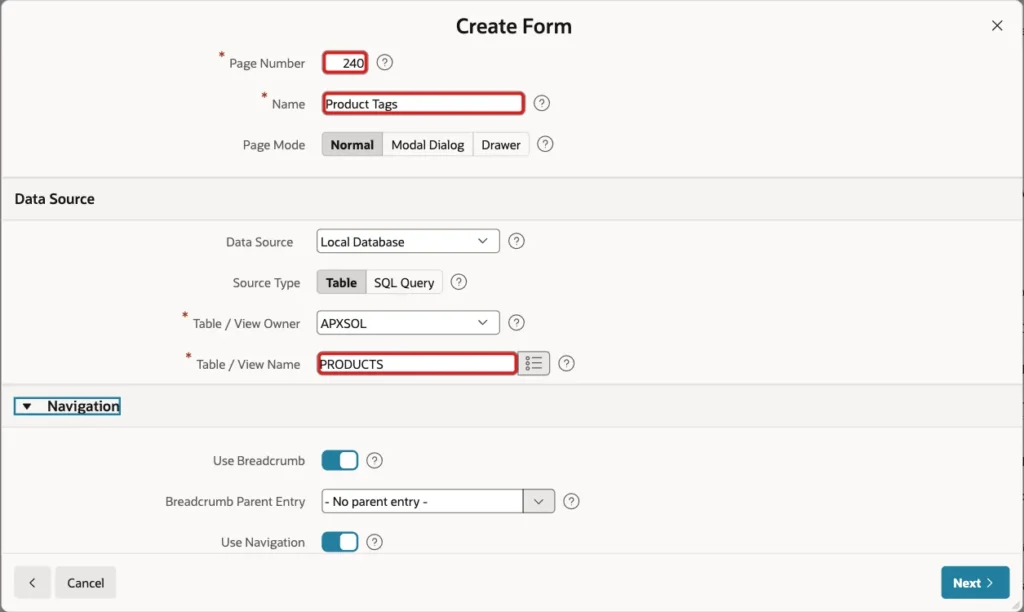
Enter Page Number 240 and Name Product Tags, keep Page Mode Normal and Data Source Local Database with Source Type Table, and enter PRODUCTS as Table / View Name:
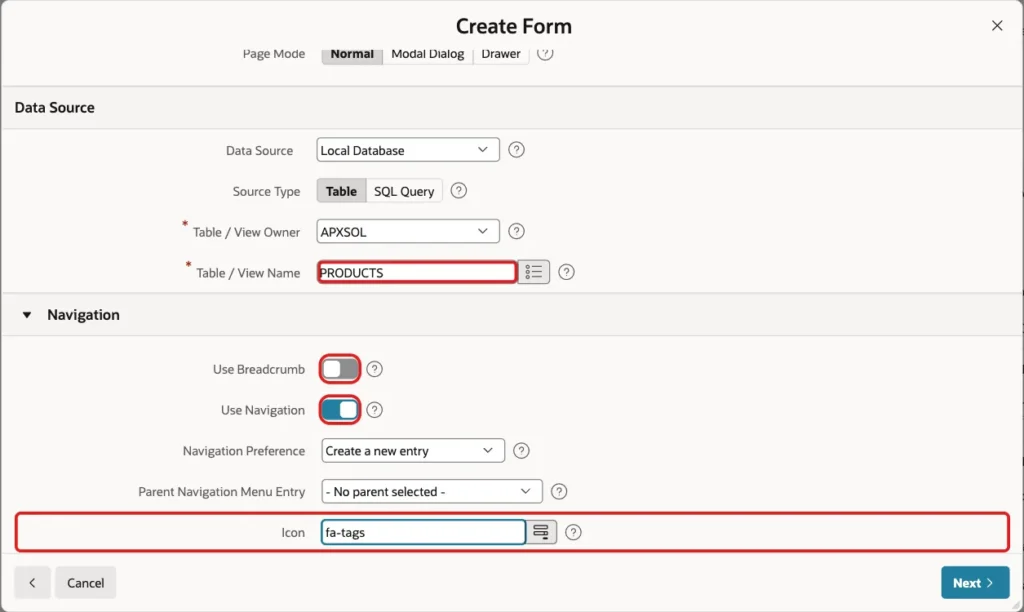
Scroll down to Navigation. Turn off Use Breadcrumb, keep Use Navigation on with Create a new entry, and set Icon to fa-tags. Click Next:
Primary Key Column 1 is already PRODUCT_ID (Number). Set both Branch Here on Submit and Cancel and Go To Page to 240, because the report of Step 8 goes on the same page. Click Create Page:
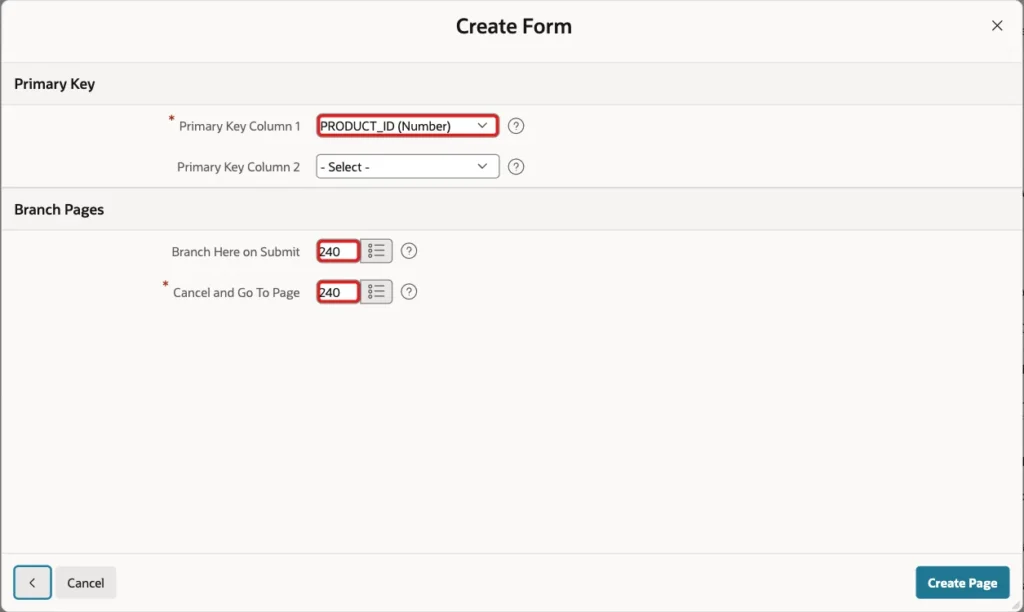
The wizard creates a form region with one item per column, the buttons Cancel, Delete, Apply Changes and Create, and the processes that fetch and save the row.
In the sample data of this guide, PRODUCTS also has image and audit columns from earlier guides. Their items are not needed here, so delete P240_IMAGE, P240_IMAGE_MIME, P240_IMAGE_NAME, P240_IMAGE_UPDATED, P240_CREATED_BY, P240_CREATED_ON, P240_UPDATED_BY and P240_UPDATED_ON. Then set the form region's Name to Product.
Step 3: Add the Checkbox Group
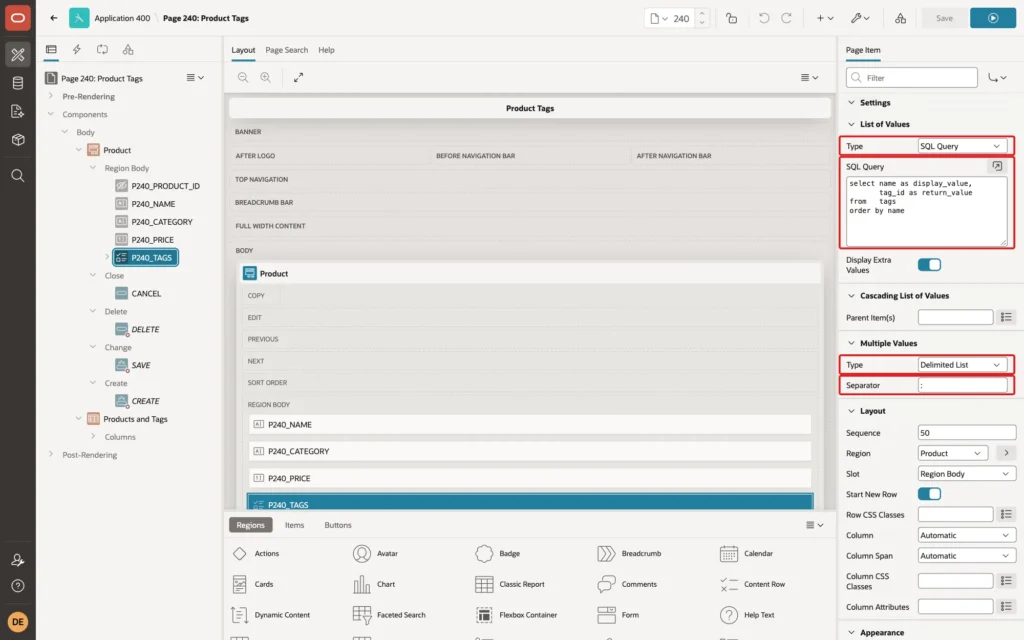
In the Product region, create a page item P240_TAGS. Set Type to Checkbox Group, Label to Tags, and in the Settings group set Number of Columns to 3:

In the List of Values group, set Type to SQL Query and enter this query:
Example:
select name as display_value,
       tag_id as return_value
from   tags
order by name
Keep the Multiple Values group at Type Delimited List and Separator : (colon). The item value is then a list of the checked tag IDs, such as 1:5.
Step 4: Load the Saved Tags
The item is not a column of PRODUCTS, so the form cannot fetch it. In the Source group of P240_TAGS, set Type to SQL Query (return multiple values), enter the query below, and set Used to Always, replacing any existing value in session state:
Example:
select tag_id
from   product_tags
where  product_id = :P240_PRODUCT_ID
order by tag_id

This needs no code: APEX runs the query when the page is shown and joins the TAG_ID values into 1:4, which checks the matching boxes. For a new product, P240_PRODUCT_ID is empty and no box is checked.
Step 5: Validate the Chosen Tags
The checked values come from the browser. In the Processing tab, create a validation named Tags exist, Type No Rows returned, with this query:
Example:
select null
from   apex_string.split(:P240_TAGS, ':') s
where  s.column_value is not null
and    not exists (
           select null
           from   tags t
           where  to_char(t.tag_id) = s.column_value)
Set Error Message to Choose tags from the list only., Associated Item to P240_TAGS, and in Server-side Condition set Type to Request is contained in Value with Value CREATE,SAVE:
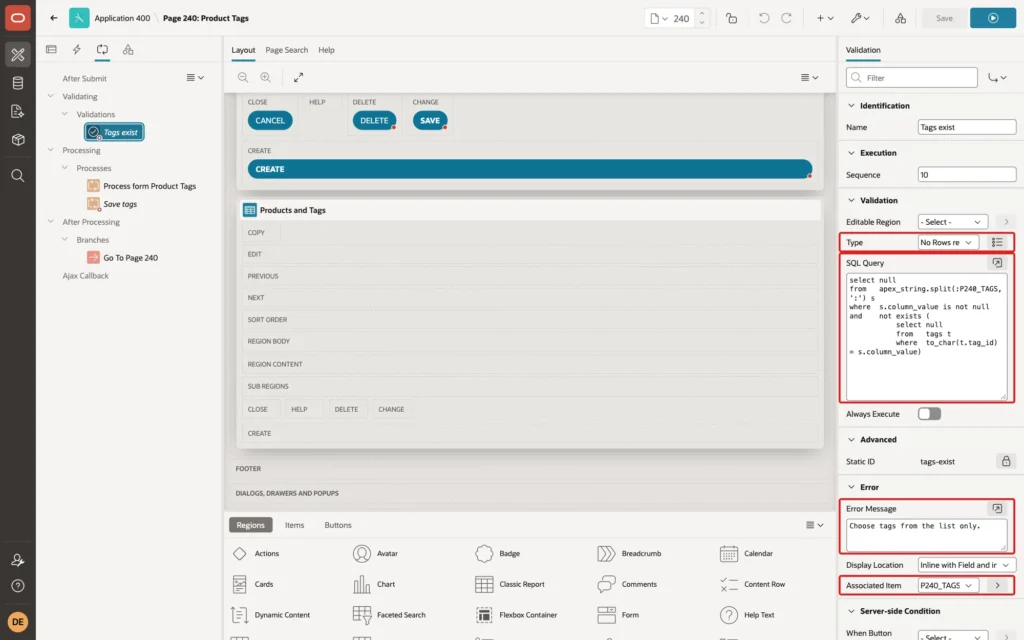
APEX_STRING.SPLIT turns the colon list into rows. The query returns a row for every value that is not a tag ID, and the validation fails if it returns any. Comparing as text with TO_CHAR avoids a conversion error: a forced value abc got the same message.
Step 6: Save the Tags into the Junction Table
Create a process named Save tags, Type Execute Code, below Process form Product Tags so it runs after the row is saved. Enter this code:
Example:
delete from product_tags pt
where  pt.product_id = :P240_PRODUCT_ID
and    not exists (
           select null
           from   apex_string.split(:P240_TAGS, ':') s
           where  to_number(s.column_value) = pt.tag_id);

insert into product_tags (product_id, tag_id)
select :P240_PRODUCT_ID, to_number(s.column_value)
from   apex_string.split(:P240_TAGS, ':') s
where  s.column_value is not null
and    not exists (
           select null
           from   product_tags pt
           where  pt.product_id = :P240_PRODUCT_ID
           and    pt.tag_id     = to_number(s.column_value));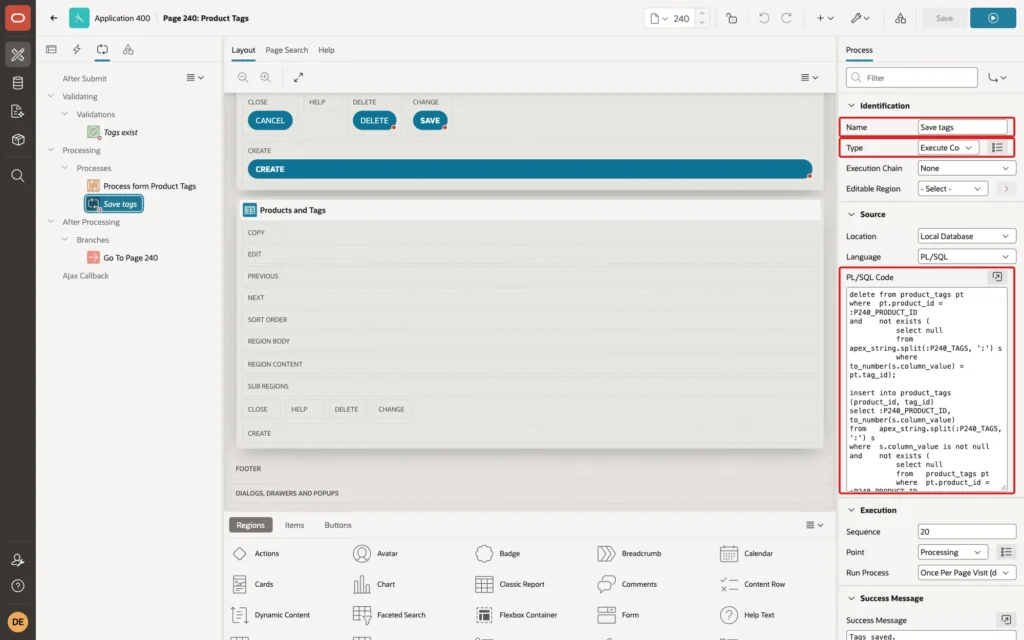
The DELETE removes the pairs whose tag is no longer checked. The INSERT adds the pairs that are checked but not stored yet. Tags that stay checked are not touched. When no box is checked, the list is empty, so the DELETE removes all tags of the product and the INSERT adds none.
For a new product, the form process runs first. It inserts the row and returns the new ID into P240_PRODUCT_ID, so the INSERT can use it.
Set Sequence to 20, Success Message to Tags saved., and in Server-side Condition set Type to Request is contained in Value with Value CREATE,SAVE. Delete needs no tag code, because the foreign key cascades:
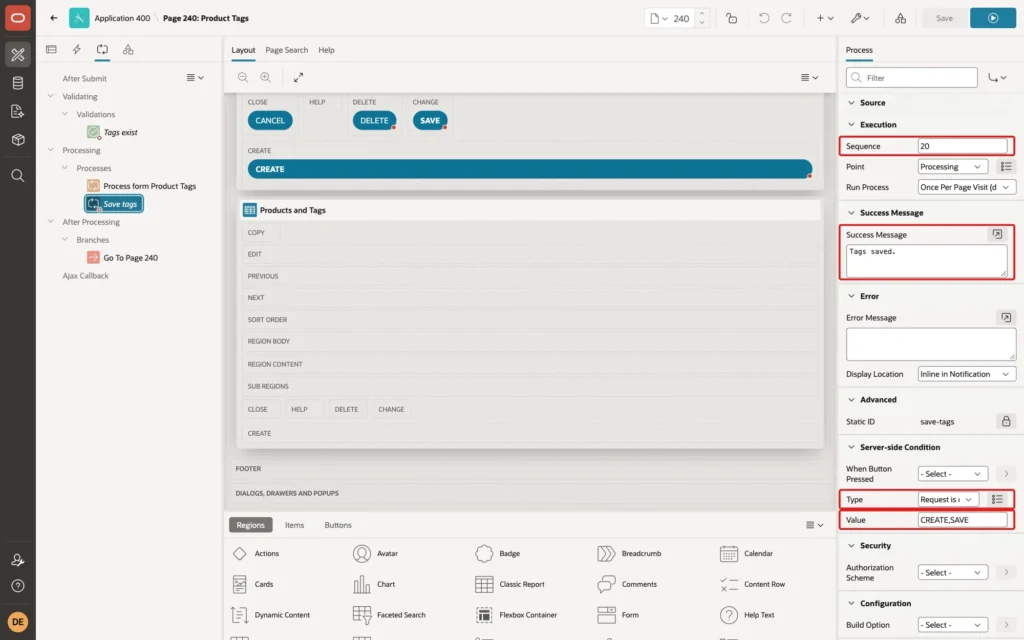
Why a separate message? When only tags change, no column of PRODUCTS changes. Process form Product Tags then updates nothing and shows no message. A first test gave the form process the message Product saved., and changing only a tag showed nothing at all.
Success messages of several processes are joined: with a message on both processes, a save with a new price showed Product saved. Product and tags saved. So the form process keeps the wizard default, an empty message, and Save tags shows Tags saved.
Step 7: Show Each Product's Tags in a Report
Create a Classic Report region below the form, Name Products and Tags, with Source Type SQL Query and this query:
Example:
select p.product_id,
       p.name,
       p.category,
       p.price,
       (select listagg(t.name, ', ') within group (order by t.name)
        from   product_tags pt
        join   tags t on t.tag_id = pt.tag_id
        where  pt.product_id = p.product_id) as tags
from   products p
order by p.name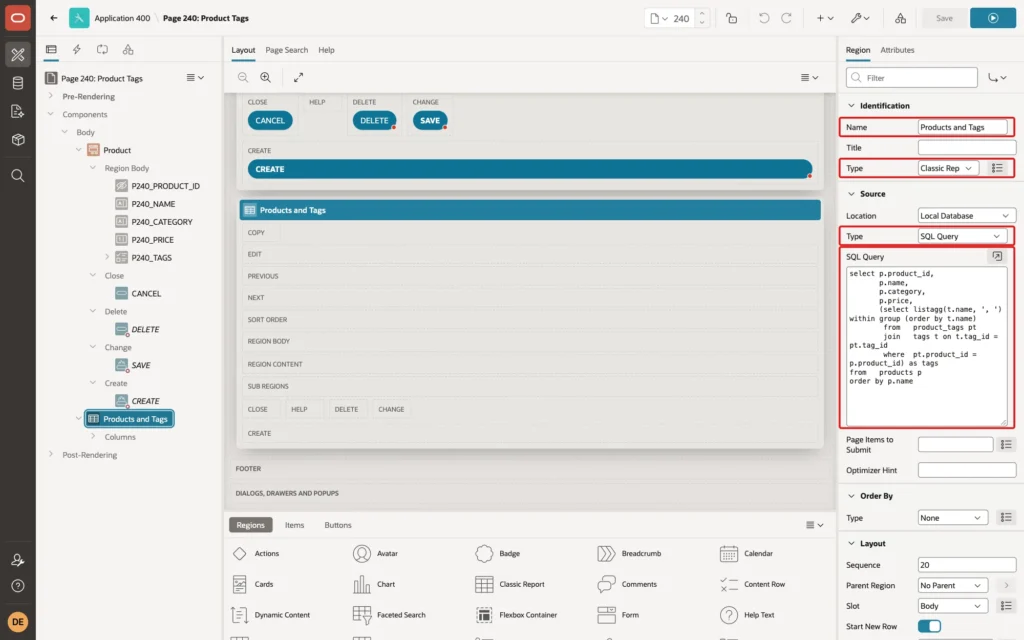
The scalar subquery with LISTAGG lists the tags of one product in alphabetical order. A product without tags still appears, with an empty Tags column.
Select the column PRODUCT_ID, set Type to Link and Heading to Edit. In the Link group, set Link Text to Edit and Target to Page 240, with Set Items Name P240_PRODUCT_ID and Value #PRODUCT_ID#, and Clear Cache 240:
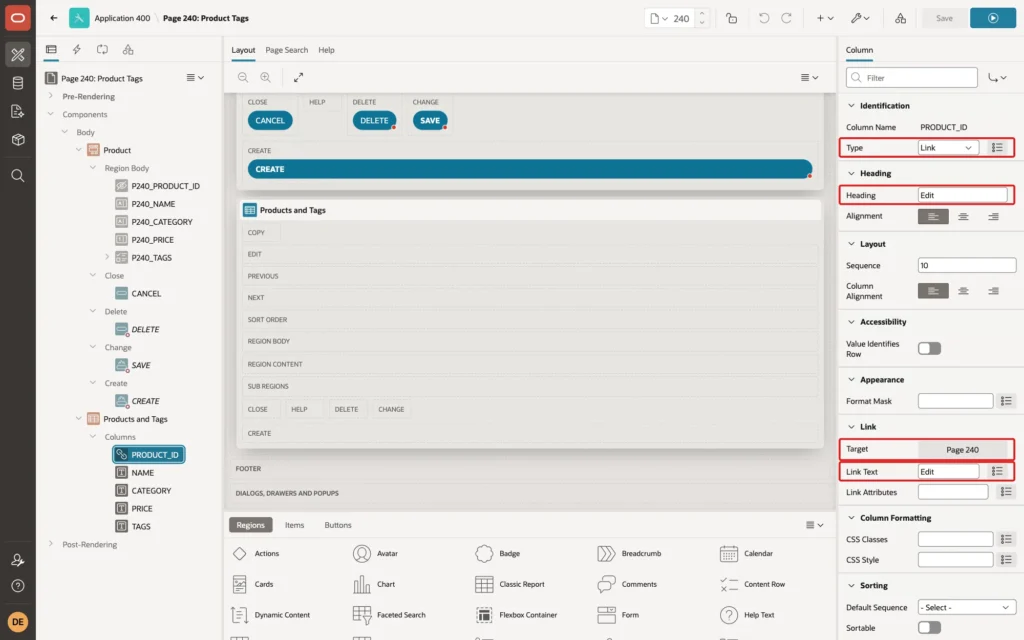
Classic report columns are sortable by default, and a user's sort click overrides the ORDER BY. In this example, Sortable is turned off in the Sorting group of each column, so the list stays in name order.
Step 8: Test It
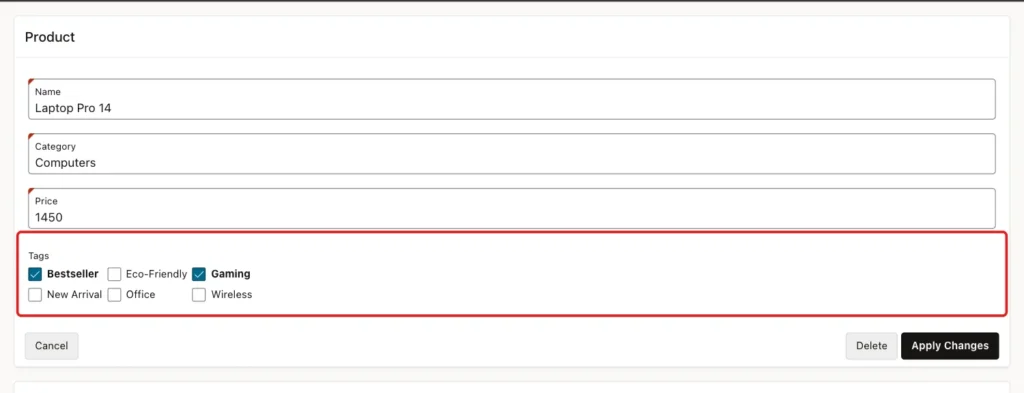
ORDER_EDITOR opened Product Tags and clicked Edit on Laptop Pro 14. Bestseller and Office were checked, the two tags from the sample data:

Office was unchecked and Gaming checked:
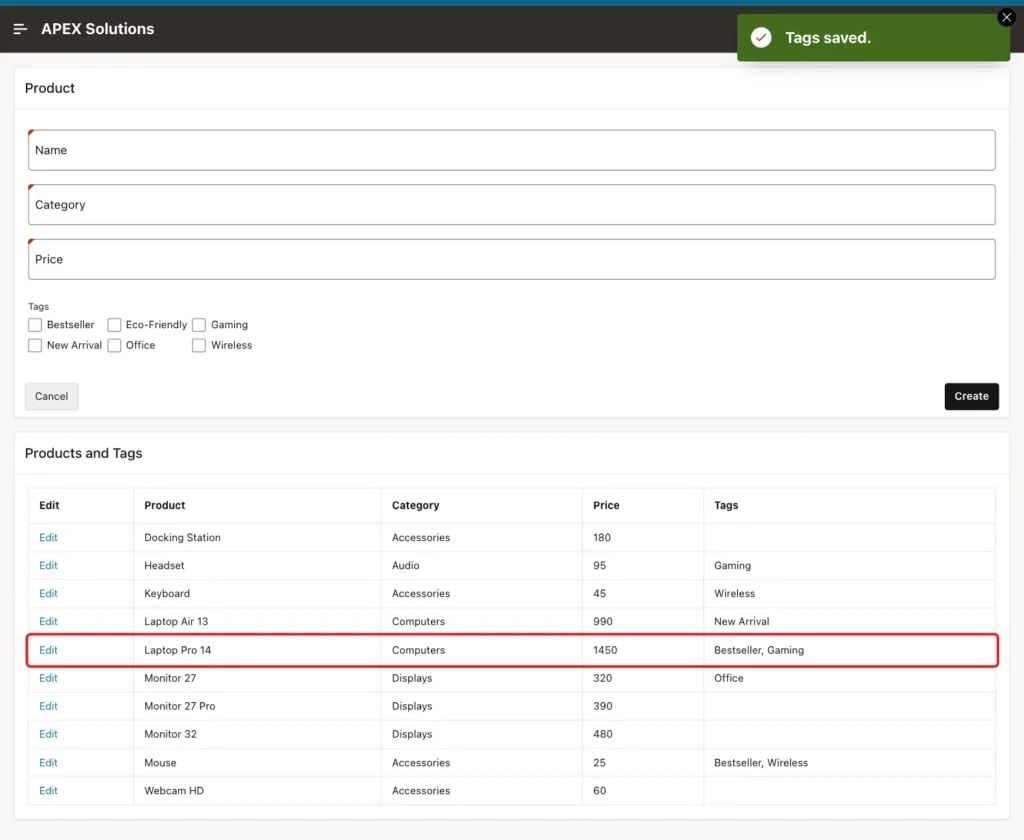
After Apply Changes, the page showed Tags saved. The form was empty again, ready for the next product, and the report showed Bestseller, Gaming for Laptop Pro 14:
Example:
select pt.product_id, p.name as product, pt.tag_id, t.name as tag
from   product_tags pt
join   products p on p.product_id = pt.product_id
join   tags t     on t.tag_id     = pt.tag_id
where  p.name = 'Laptop Pro 14'
order by t.name;
Output:
   PRODUCT_ID PRODUCT             TAG_ID TAG
_____________ ________________ _________ _____________
            1 Laptop Pro 14            1 Bestseller
            1 Laptop Pro 14            5 Gaming
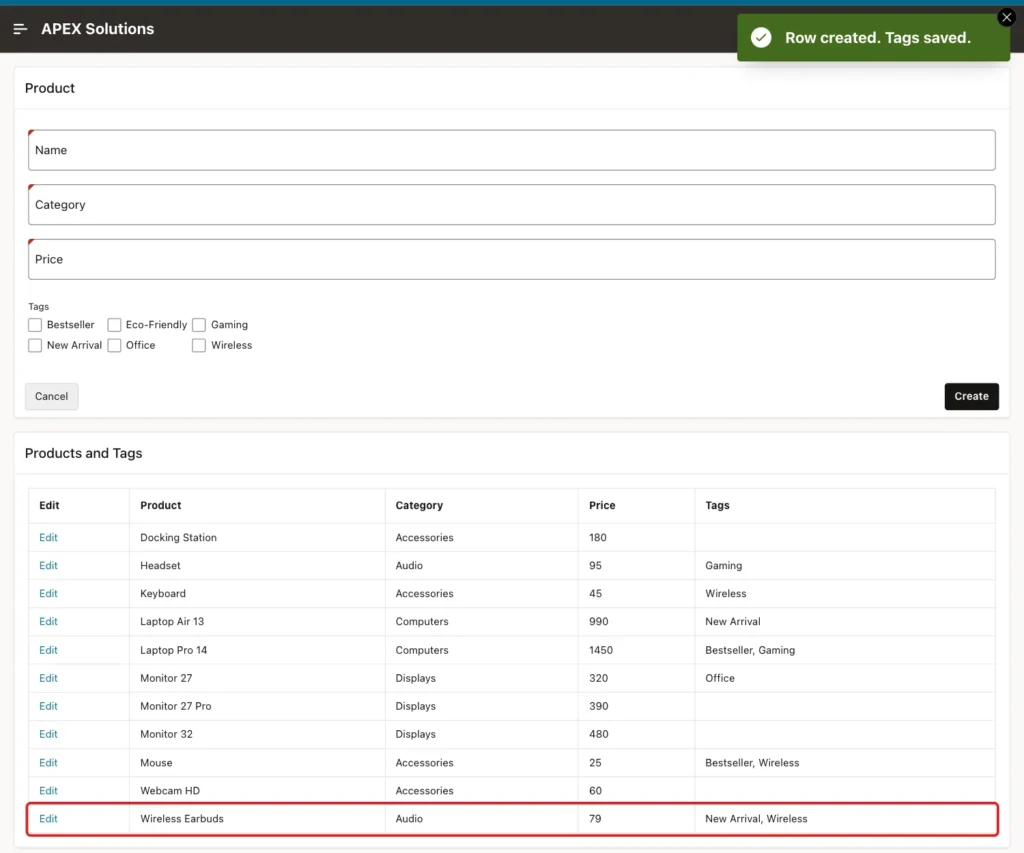
Next, a new product: Wireless Earbuds, category Audio, price 79, with New Arrival and Wireless checked:
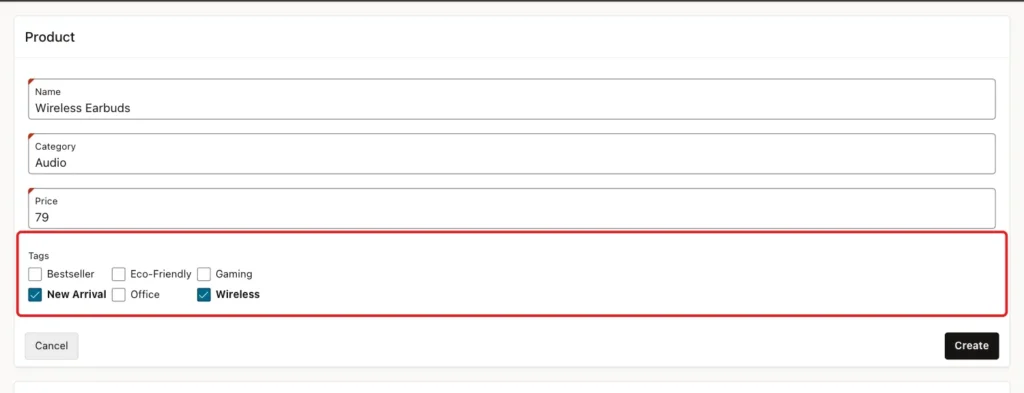
Create showed Row created. Tags saved., the first part from the form process and the second from Save tags:
Example:
select p.product_id, p.name as product, pt.tag_id, t.name as tag
from   products p
join   product_tags pt on pt.product_id = p.product_id
join   tags t          on t.tag_id      = pt.tag_id
where  p.name = 'Wireless Earbuds'
order by t.name;
Output:
   PRODUCT_ID PRODUCT                TAG_ID TAG
_____________ ___________________ _________ ______________
          103 Wireless Earbuds            2 New Arrival
          103 Wireless Earbuds            3 Wireless
Then Monitor 27 was opened and its only tag, Office, was unchecked. Apply Changes showed Tags saved., and the product had no tags left.
A forced value came last. On Keyboard, the browser console added a checked box with the value 999 to the Checkbox Group, and Apply Changes was clicked. The validation stopped the save:

Before the validation existed, the same test failed with ORA-02291: integrity constraint (APXSOL.PRODUCT_TAGS_TAG_FK) violated - parent key not found. The foreign key already protected the data, but the message was not meant for users.
Example:
select p.name as product,
       count(pt.tag_id) as tag_count,
       listagg(t.name, ', ') within group (order by t.name) as tags
from   products p
left join product_tags pt on pt.product_id = p.product_id
left join tags t          on t.tag_id      = pt.tag_id
where  p.name in ('Monitor 27', 'Keyboard')
group by p.name
order by p.name;
Output:
PRODUCT          TAG_COUNT TAGS
_____________ ____________ ___________
Keyboard                 1 Wireless
Monitor 27               0
Keyboard kept its Wireless tag, so nothing was saved from the forced submit. Finally, Wireless Earbuds was opened and Delete was clicked. APEX asked first:
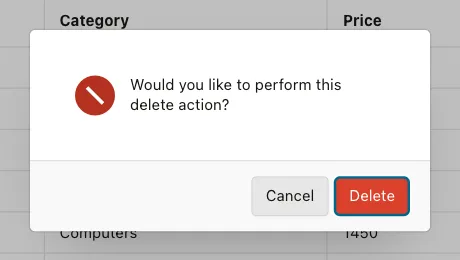
After Delete, the page showed Row deleted. The cascade removed the product's tag links with it:
Example:
select count(*) as products_left
from   products
where  name = 'Wireless Earbuds';

select count(*) as tag_links_left
from   product_tags
where  product_id = 103;
Output:
   PRODUCTS_LEFT
________________
               0

   TAG_LINKS_LEFT
_________________
                0
The other direction is protected too. Deleting a tag that products still use fails:
Example:
delete from tags
where  name = 'Bestseller';
Output:
Error starting at line : 1 File @ b26/05-tag-in-use.sql
In command -
delete from tags
where  name = 'Bestseller'
Error report -
ORA-02292: integrity constraint (APXSOL.PRODUCT_TAGS_TAG_FK) violated - child
record found
Help: https://docs.oracle.com/error-help/db/ora-02292/
Things to Know
- Keep the separator in the code equal to the Separator of the item's Multiple Values group, a colon here.
- Keep the foreign keys even with the validation: they protect the data from every program, as the ORA-02291 test showed.
- Do not delete all pairs and insert them again on every save. That rewrites rows that did not change and loses anything stored on the pair, such as who added a tag and when.
- To list the products of one tag, query PRODUCT_TAGS by TAG_ID; the index PRODUCT_TAGS_TAG_IX serves that query.
Related Guides
- Creating a Shuttle Item in Oracle APEX
- How to Split, Join, and Format Strings Using APEX_STRING in Oracle APEX
Conclusion
To save a multi-select in Oracle APEX properly, store each choice as a row in a junction table with a composite primary key and a foreign key to each side. Load the saved values with an item source of type SQL Query (return multiple values), so the checkboxes show the current state.
On save, validate the values, then delete the unchecked pairs and insert the new ones with two set-based statements over APEX_STRING.SPLIT. ON DELETE CASCADE cleans up when a product is deleted, and LISTAGG shows the tags in the report.
See my articles more often when you search Google.
