
Scheduler jobs run in the background, so nobody sees them fail. A job can stay disabled for weeks or fail every night, and the first sign is a report with old data. The database keeps the state, the run history and the error text of every job in dictionary views.
This guide builds an administrator page that reads those views. It lists the jobs with their last result, the recent runs and the APEX automation runs. It has Run Now, Enable and Disable links that call one small procedure. The example uses a heartbeat job and a failing job; the same page works for any job of your schema.
The guide How to Run a Scheduled Task with Automations in Oracle APEX shows how to create a scheduled task. This guide is about the next step: watching the jobs and controlling them from an application page.
Step 1: Create the Tables, the Procedure and the Jobs
The script creates two tables. JOB_HEARTBEAT receives one row each time the test job runs. JOB_ACTION_LOG records who ran, enabled or disabled a job. Both use identity columns and DEFAULT ON NULL values, so no trigger is needed.
The procedure JOB_ADMIN is the only code that touches the jobs. It first reads the job name from USER_SCHEDULER_JOBS, so a name that is not one of your jobs is rejected. The view JOB_MONITOR_V joins each job with its last run.
The last block creates two sample jobs. HEARTBEAT_DEMO inserts a row every minute. FAILING_DEMO is disabled and always raises an error, so that the page has a failure to show:
Example:
create table job_heartbeat (
  beat_id    number generated by default on null as identity,
  job_name   varchar2(128) not null,
  beat_on    timestamp default on null systimestamp not null,
  constraint job_heartbeat_pk primary key (beat_id)
);

create index job_heartbeat_demo_ix on job_heartbeat (job_name, beat_on);

create table job_action_log (
  action_id  number generated by default on null as identity,
  job_name   varchar2(128) not null,
  action     varchar2(10) not null,
  done_by    varchar2(255) default on null coalesce(sys_context('APEX$SESSION', 'APP_USER'), sys_context('USERENV', 'SESSION_USER')) not null,
  done_on    timestamp with local time zone default on null systimestamp not null,
  constraint job_action_log_pk primary key (action_id),
  constraint job_action_log_action_ck check (action in ('RUN', 'ENABLE', 'DISABLE'))
);

create index job_action_log_job_ix on job_action_log (job_name, done_on);

create or replace procedure job_admin (
  p_job_name in varchar2,
  p_action   in varchar2
) is
  l_job_name user_scheduler_jobs.job_name%type;
begin
  select job_name
  into   l_job_name
  from   user_scheduler_jobs
  where  job_name = upper(p_job_name);

  case upper(p_action)
    when 'RUN'     then dbms_scheduler.run_job(l_job_name, use_current_session => false);
    when 'ENABLE'  then dbms_scheduler.enable(l_job_name);
    when 'DISABLE' then dbms_scheduler.disable(l_job_name, force => true);
    else raise_application_error(-20001, 'Unknown action: ' || p_action);
  end case;

  insert into job_action_log (job_name, action)
  values (l_job_name, upper(p_action));
end job_admin;
/

create or replace view job_monitor_v as
select j.job_name,
       j.job_class,
       j.enabled,
       j.state,
       j.repeat_interval,
       j.last_start_date,
       j.next_run_date,
       j.run_count,
       j.failure_count,
       r.status as last_status,
       r.run_duration as last_duration,
       r.additional_info as last_error
from   user_scheduler_jobs j
       left join (select d.job_name,
                         d.status,
                         d.run_duration,
                         d.additional_info,
                         row_number() over (partition by d.job_name order by d.log_id desc) as rn
                  from   user_scheduler_job_run_details d) r
              on r.job_name = j.job_name
             and r.rn = 1;

begin
  dbms_scheduler.create_job(
    job_name        => 'HEARTBEAT_DEMO',
    job_type        => 'PLSQL_BLOCK',
    job_action      => 'begin insert into job_heartbeat (job_name) values (''HEARTBEAT_DEMO''); commit; end;',
    repeat_interval => 'FREQ=MINUTELY;INTERVAL=1',
    enabled         => true,
    comments        => 'Writes one row to JOB_HEARTBEAT every minute');

  dbms_scheduler.create_job(
    job_name        => 'FAILING_DEMO',
    job_type        => 'PLSQL_BLOCK',
    job_action      => 'begin raise_application_error(-20100, ''Sample failure''); end;',
    enabled         => false,
    comments        => 'Always fails, to show an error in the monitor');
end;
/

select job_name, enabled, state, repeat_interval from user_scheduler_jobs order by job_name;
Output:
Table JOB_HEARTBEAT created.

Index JOB_HEARTBEAT_DEMO_IX created.

Table JOB_ACTION_LOG created.

Index JOB_ACTION_LOG_JOB_IX created.

Procedure JOB_ADMIN compiled

View JOB_MONITOR_V created.

PL/SQL procedure successfully completed.

JOB_NAME          ENABLED    STATE       REPEAT_INTERVAL
_________________ __________ ___________ ___________________________
FAILING_DEMO      FALSE      DISABLED
HEARTBEAT_DEMO    TRUE       RUNNING     FREQ=MINUTELY;INTERVAL=1
Wait a minute and check that the heartbeat job writes rows:
Example:
select job_name, count(*) as beats, to_char(max(beat_on), 'YYYY-MM-DD HH24:MI:SS') as last_beat
from   job_heartbeat
group  by job_name;
Output:
JOB_NAME             BEATS LAST_BEAT
_________________ ________ ______________________
HEARTBEAT_DEMO          18 2026-10-30 01:54:05
Step 2: Read the Monitor View
The view gives one row per job, with the run count, the failure count and the last status. HEARTBEAT_DEMO has run and succeeded. FAILING_DEMO has never run:
Example:
select job_name, enabled, state, run_count, failure_count, last_status, last_error from job_monitor_v order by job_name;
Output:
JOB_NAME          ENABLED    STATE           RUN_COUNT    FAILURE_COUNT LAST_STATUS    LAST_ERROR
_________________ __________ ____________ ____________ ________________ ______________ _____________
FAILING_DEMO      FALSE      DISABLED                0                0
HEARTBEAT_DEMO    TRUE       SCHEDULED               2                0 SUCCEEDED
Step 3: Test the Procedure in SQL
Before building the page, test the procedure. The first call runs the failing job. The next two calls disable and enable the heartbeat job. DBMS_SESSION.SLEEP gives the background job a moment to finish:
Example:
exec job_admin('FAILING_DEMO', 'RUN')
exec job_admin('heartbeat_demo', 'DISABLE')
exec dbms_session.sleep(3)
select job_name, enabled, state, run_count, failure_count, last_status, substr(last_error, 1, 60) as last_error from job_monitor_v order by job_name;
exec job_admin('HEARTBEAT_DEMO', 'ENABLE')
select job_name, enabled, state from job_monitor_v order by job_name;
select job_name, action from job_action_log order by action_id;
Output:
PL/SQL procedure successfully completed.

PL/SQL procedure successfully completed.

PL/SQL procedure successfully completed.

JOB_NAME          ENABLED    STATE          RUN_COUNT    FAILURE_COUNT LAST_STATUS    LAST_ERROR
_________________ __________ ___________ ____________ ________________ ______________ ____________________________
FAILING_DEMO      FALSE      DISABLED               1                1 FAILED         ORA-20100: Sample failure
                                                                                      ORA-06512: at line 1
HEARTBEAT_DEMO    FALSE      DISABLED               2                0 SUCCEEDED

PL/SQL procedure successfully completed.

JOB_NAME          ENABLED    STATE
_________________ __________ ____________
FAILING_DEMO      FALSE      DISABLED
HEARTBEAT_DEMO    TRUE       SCHEDULED

JOB_NAME          ACTION
_________________ __________
FAILING_DEMO      RUN
HEARTBEAT_DEMO    DISABLE
HEARTBEAT_DEMO    ENABLE
FAILING_DEMO now shows one failure and the error text of the job. The log has one row for each action. Now two wrong calls: a job that is not in your schema and an action that does not exist:
Example:
exec job_admin('SYS.SOME_JOB', 'RUN')
exec job_admin('HEARTBEAT_DEMO', 'DROP')
select count(*) as log_rows from job_action_log;
Output:
BEGIN job_admin('SYS.SOME_JOB', 'RUN'); END;
*
ERROR at line 1:
ORA-01403: no data found
ORA-06512: at "APXSOL.JOB_ADMIN", line 7
ORA-06512: at line 1
Help: https://docs.oracle.com/error-help/db/ora-01403/

BEGIN job_admin('HEARTBEAT_DEMO', 'DROP'); END;
*
ERROR at line 1:
ORA-20001: Unknown action: DROP
ORA-06512: at "APXSOL.JOB_ADMIN", line 16
ORA-06512: at line 1
Help: https://docs.oracle.com/error-help/db/ora-20001/

   LOG_ROWS
___________
          3
Both calls fail and add no row to the log, so the log count is still 3.
Step 4: Create the Page
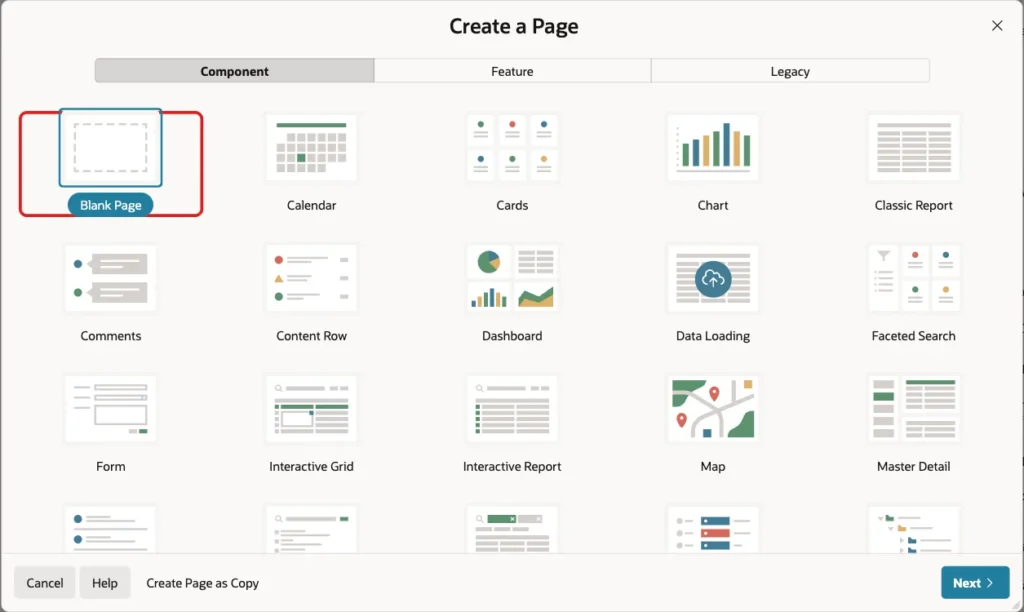
In App Builder, click Create Page. On the Component tab, click Blank Page:
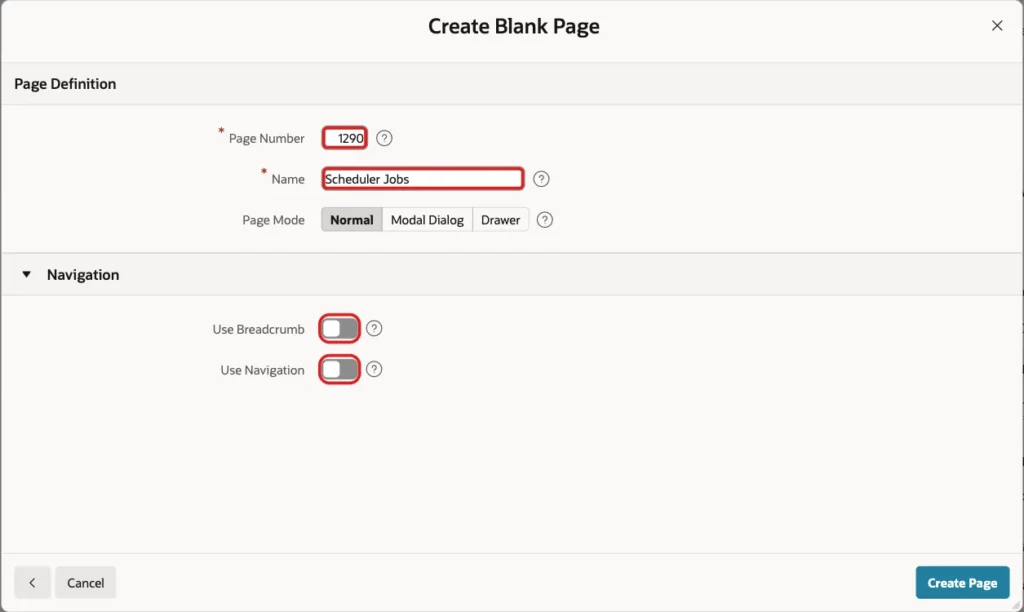
Enter Page Number 1290 and Name Scheduler Jobs. Turn off Use Breadcrumb and Use Navigation, then click Create Page. The menu entry is added in a later step:
Step 5: Add the Jobs Report
In Page Designer, add a Classic Report region to the Body and name it Scheduler Jobs. Set Location to Local Database, Type to SQL Query and enter this query. The three action columns return a text only when the action makes sense: Enable for a disabled job and Disable for an enabled job:
Example:
select job_name,
       enabled,
       state,
       repeat_interval,
       case when enabled = 'TRUE' then to_char(next_run_date at time zone sessiontimezone, 'YYYY-MM-DD HH24:MI:SS') end as next_run,
       run_count,
       failure_count,
       last_status,
       substr(last_error, 1, 80) as last_error,
       'Run Now' as run_action,
       case when enabled = 'FALSE' then 'Enable' end as enable_action,
       case when enabled = 'TRUE' then 'Disable' end as disable_action
from   job_monitor_v
order  by job_name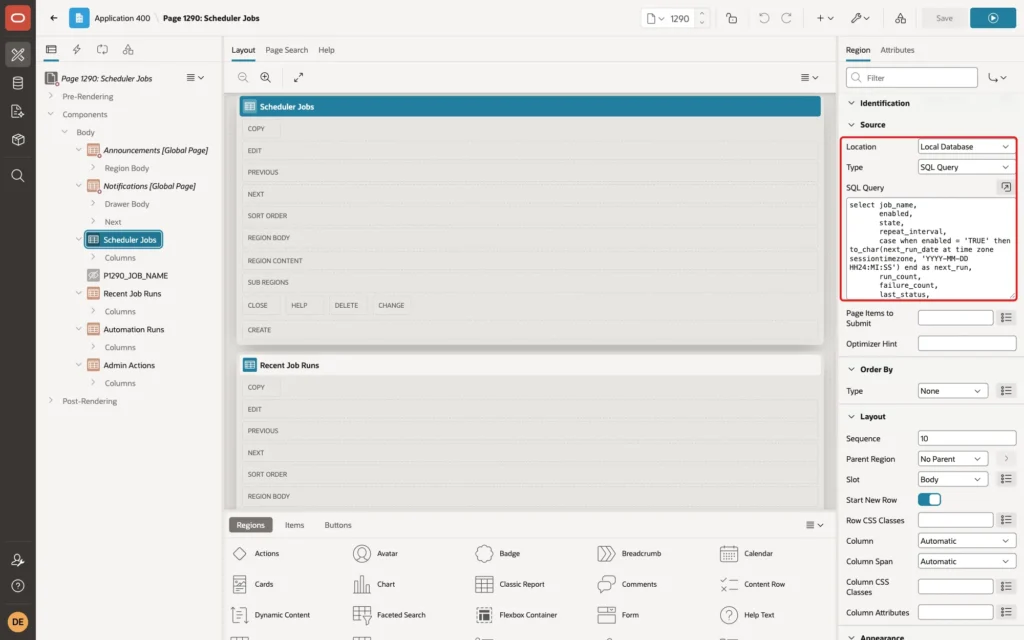
Step 6: Turn the Action Columns into Links
Open the columns of the region and select RUN_ACTION. Set Type to Link. In the Link section, click the Target property to open the Link Builder. Set Type to URL and enter the URL below. Set Link Text to #RUN_ACTION#:
Example:
javascript:apex.page.confirm('Run #JOB_NAME# now?', {request: 'RUN', set: {'P1290_JOB_NAME': '#JOB_NAME#'}});
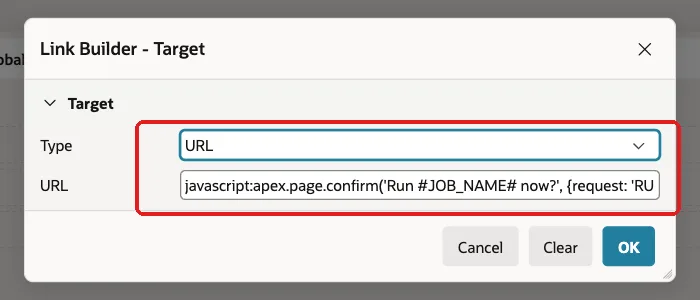
apex.page.confirm asks the user first. After OK it submits the page with the request RUN and puts the job name in the item P1290_JOB_NAME. Do the same for ENABLE_ACTION with the text Enable? and the request ENABLE, and for DISABLE_ACTION with Disable? and the request DISABLE:
Example:
javascript:apex.page.confirm('Enable #JOB_NAME#?', {request: 'ENABLE', set: {'P1290_JOB_NAME': '#JOB_NAME#'}});
javascript:apex.page.confirm('Disable #JOB_NAME#?', {request: 'DISABLE', set: {'P1290_JOB_NAME': '#JOB_NAME#'}});
Set the Link Text of these columns to #ENABLE_ACTION# and #DISABLE_ACTION#. When the column value is empty, no link is shown.
Step 7: Add the Hidden Item
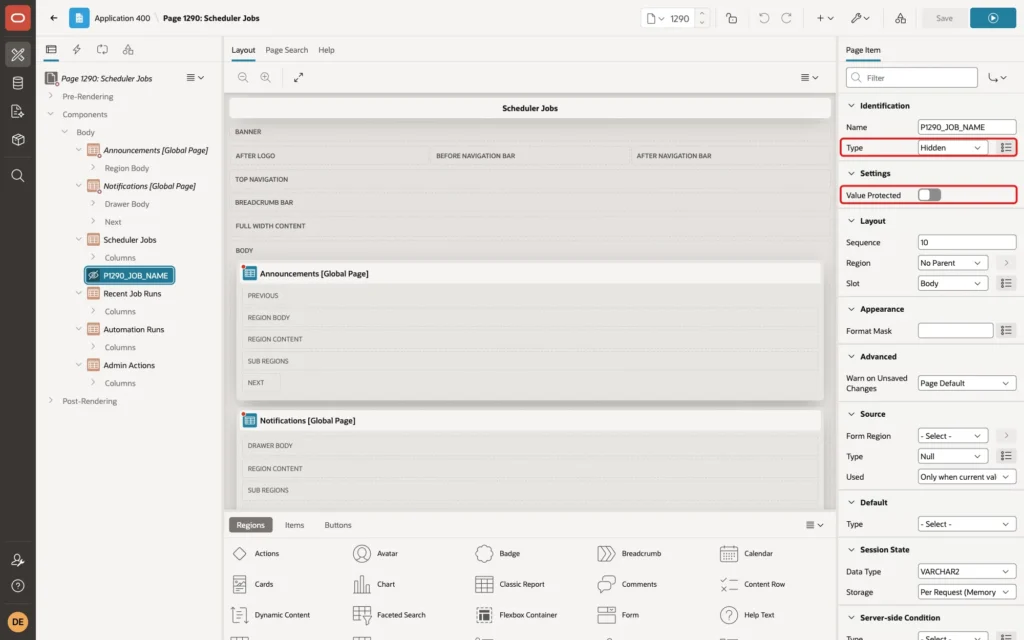
Create a page item named P1290_JOB_NAME in the Body. Set Type to Hidden and turn off Value Protected, because the link sets the value in the browser. In the Session State section, Storage stays at Per Request (Memory Only):
Step 8: Add the Process That Controls the Job
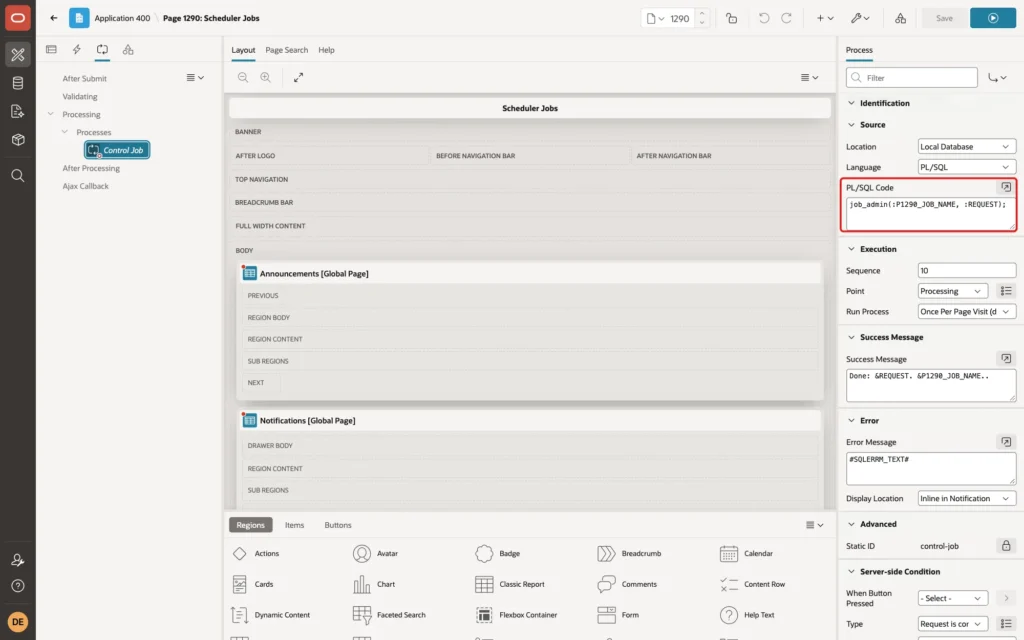
Switch to the Processing tab and create a process named Control Job. Set Type to Execute Code and enter this PL/SQL. The request name is the action, so RUN, ENABLE and DISABLE need only one process:
Example:
job_admin(:P1290_JOB_NAME, :REQUEST);
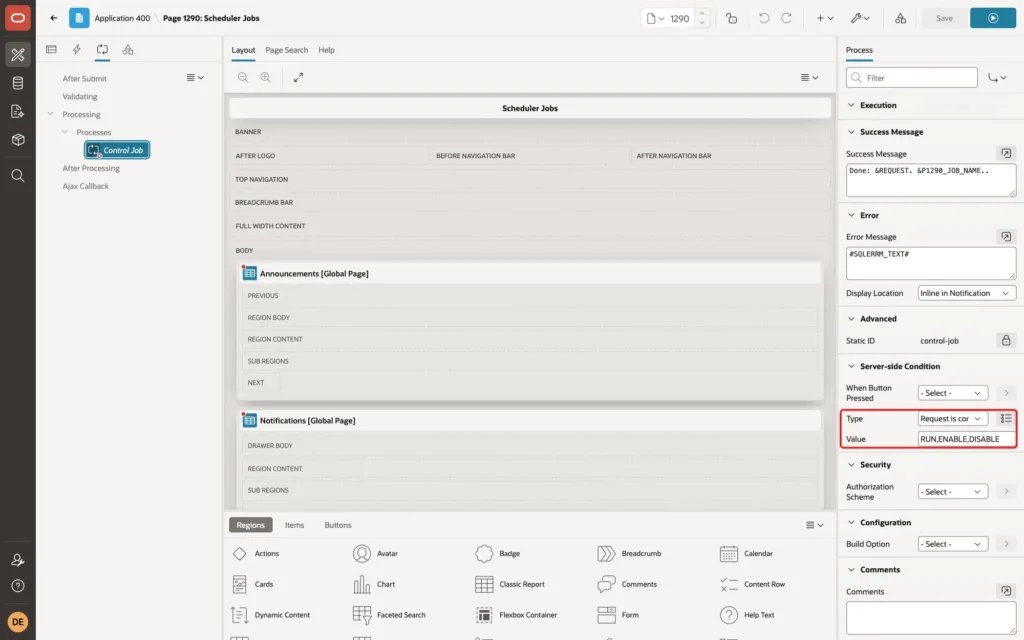
In the Server-side Condition section, set Type to Request is contained in Value and Value to RUN,ENABLE,DISABLE. Set the Success Message to the text below, and keep the Error Message at #SQLERRM_TEXT#:
Example:
Done: &REQUEST. &P1290_JOB_NAME..
Step 9: Add the Other Three Reports
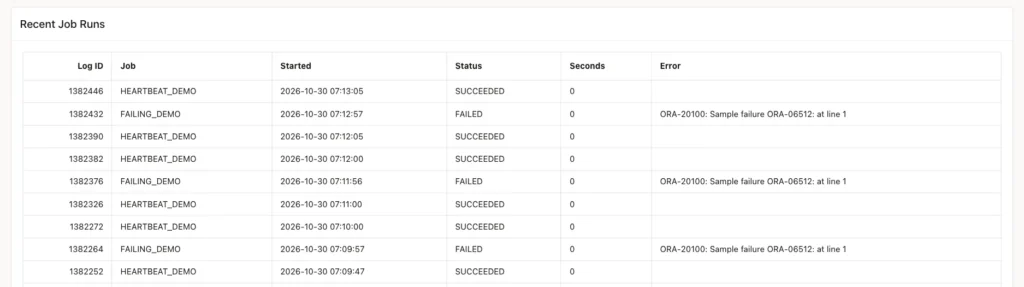
Add three more Classic Report regions below the first one, each with Location Local Database and Type SQL Query. Name the first Recent Job Runs. It shows the last 15 runs with the status and the error text. The start time is converted to the session time zone, because the scheduler stores it with a time zone:
Example:
select * from (
  select log_id,
         job_name,
         to_char(actual_start_date at time zone sessiontimezone, 'YYYY-MM-DD HH24:MI:SS') as started,
         status,
         round(extract(day from run_duration) * 86400 + extract(hour from run_duration) * 3600 + extract(minute from run_duration) * 60 + extract(second from run_duration), 2) as seconds,
         substr(additional_info, 1, 80) as info
  from   user_scheduler_job_run_details
  order  by actual_start_date desc
)
where  rownum <= 15
Name the second region Automation Runs. APEX_AUTOMATION_LOG holds the runs of the APEX automations, so the same page also shows the jobs that APEX itself creates:
Example:
select * from (
  select automation_name,
         status,
         to_char(start_timestamp, 'YYYY-MM-DD HH24:MI:SS') as started,
         successful_row_count,
         error_row_count
  from   apex_automation_log
  where  application_id = :APP_ID
  order  by start_timestamp desc
)
where  rownum <= 15
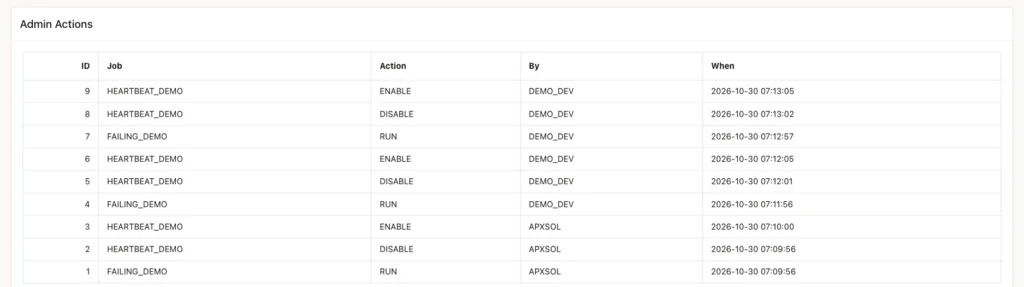
Name the third region Admin Actions. It shows the log of the actions that were started from this page:
Example:
select * from (
  select action_id,
         job_name,
         action,
         done_by,
         to_char(done_on, 'YYYY-MM-DD HH24:MI:SS') as done_on
  from   job_action_log
  order  by action_id desc
)
where  rownum <= 15
Step 10: Restrict the Page to Administrators
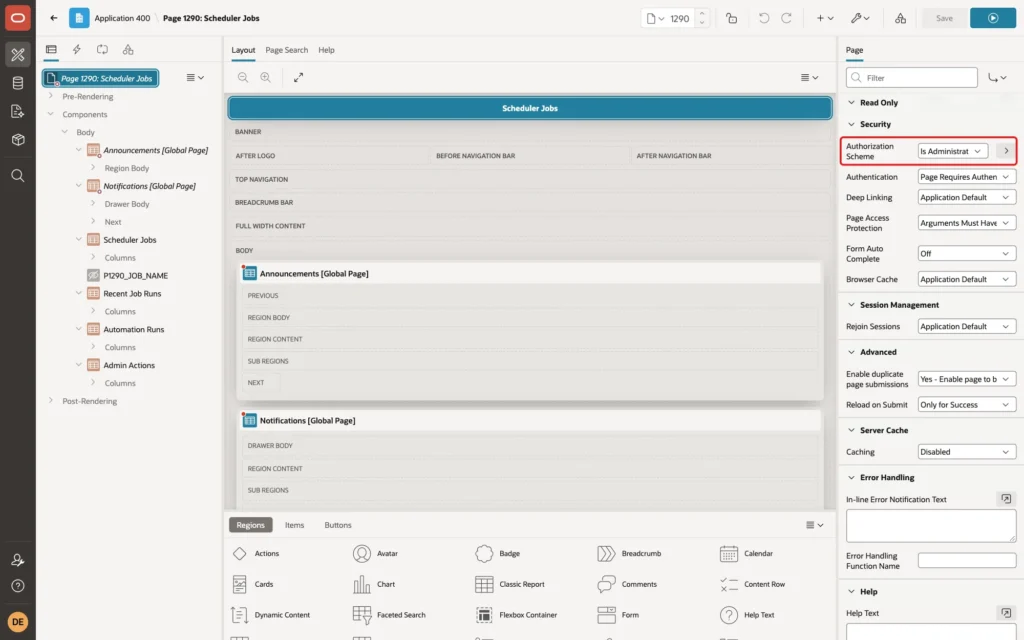
Select the page in the tree. In the Security section, set Authorization Scheme to Is Administrator. Without it, every signed-in user could run and disable jobs. Click Save:
Step 11: Add a Menu Entry
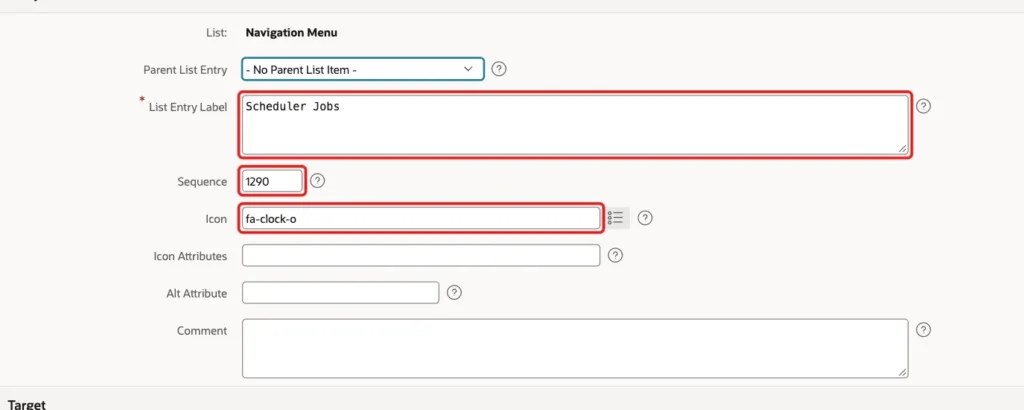
Go to Shared Components, open Lists and open the Navigation Menu list. Click Create List Entry. Enter the label Scheduler Jobs, the sequence 1290 and the icon fa-clock-o:
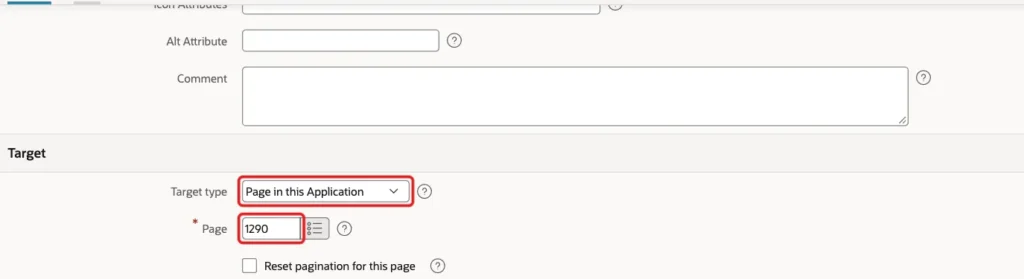
In the Target section, set Target type to Page in this Application and Page to 1290:
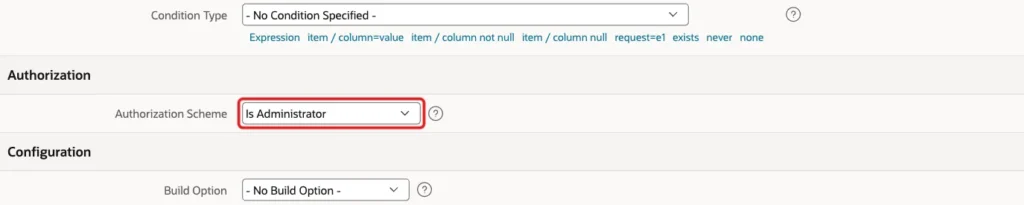
In the Authorization section, set Authorization Scheme to Is Administrator. Then the entry is hidden from users who cannot open the page. Click Create List Entry:
Step 12: Test the Page
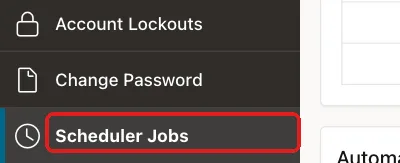
Run the application and sign in as an administrator. The menu has the new entry:
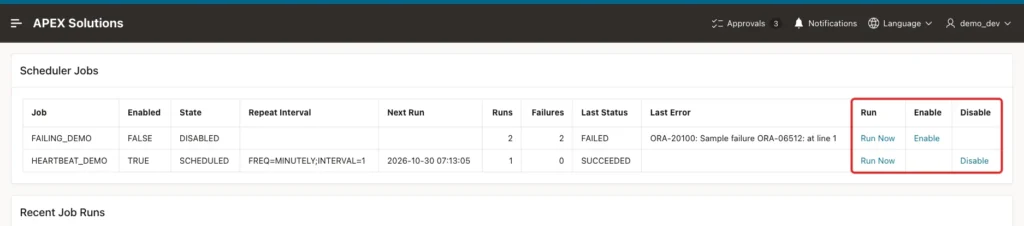
Open the page. The first report lists both jobs. The Run, Enable and Disable columns are marked. HEARTBEAT_DEMO shows Disable, because it is enabled. FAILING_DEMO shows Enable:
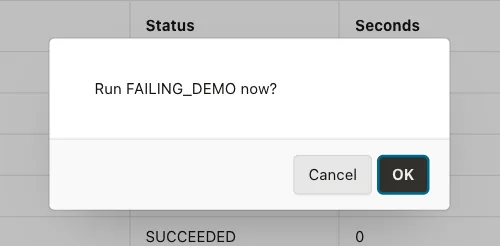
Click Run Now in the FAILING_DEMO row. The confirmation dialog names the job:
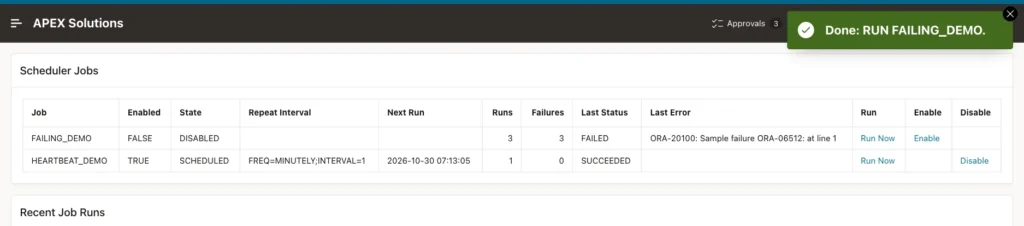
Click OK. The page shows the success message. The job runs in the background, so the counters were already up to date when the page came back in this test. The run count and the failure count of FAILING_DEMO go up, and the row shows the error text of the job:
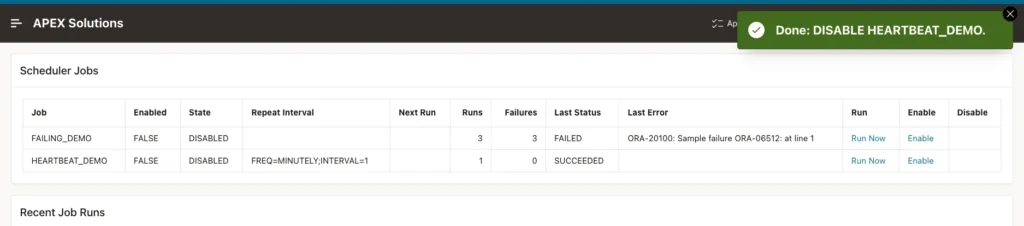
Now click Disable in the HEARTBEAT_DEMO row and confirm. The state changes to DISABLED, the next run date is empty and the row offers Enable instead of Disable:
Click Enable and confirm. The job is scheduled again:

The Recent Job Runs report lists each run, newest first. The failed runs show the error text:
The Automation Runs report shows the APEX automations of this application:

The Admin Actions report shows who did what. The rows of APXSOL come from the SQL tests in Step 3. The rows of DEMO_DEV come from the page:
Finally, sign in as a user who is not an administrator. The page is refused:

Step 13: Remove the Sample Jobs
The heartbeat job runs every minute, so drop the sample jobs when you finish testing:
Example:
exec dbms_scheduler.drop_job('HEARTBEAT_DEMO')
exec dbms_scheduler.drop_job('FAILING_DEMO')
select count(*) as jobs_left from user_scheduler_jobs;
Output:
PL/SQL procedure successfully completed.

PL/SQL procedure successfully completed.

   JOBS_LEFT
____________
           0
Things to Know
- My first version of the view used a subquery for the last run in an outer join. It failed with ORA-01799. The ROW_NUMBER version in Step 1 avoids it.
- Run Now starts the job in the background (use_current_session is false). The success message means that the job was started, not that it succeeded. The result appears in the report a moment later.
- The scheduler stores times with a time zone. In a first test, a run that was started from SQL showed 01:30 while the others showed 07:02. Converting with AT TIME ZONE SESSIONTIMEZONE fixed it.
- For the same reason, the done_on column of JOB_ACTION_LOG is TIMESTAMP WITH LOCAL TIME ZONE. A plain TIMESTAMP showed the database time in the report.
- A disabled job can still have a next run date. The query shows the date only for enabled jobs.
- The run history stays after a job is dropped. When I created a job again with an old name, the view showed a failed run for a job that had never run. Calling DBMS_SCHEDULER.PURGE_LOG from this schema failed with ORA-27486, so I used new job names.
- The page reads the USER_ views, so it shows the jobs of the schema that the application parses as.
- JOB_ADMIN rejects names that are not in USER_SCHEDULER_JOBS and actions other than RUN, ENABLE and DISABLE. The request value comes from the browser, so keep this check in the database.
Related Guides
- How to Run a Scheduled Task with Automations in Oracle APEX
- How to Handle Scheduler Job Failures in Oracle (job log, retries)
Conclusion
The scheduler views already hold everything an administrator needs: the state, the run history and the error text. A classic report, three link columns and one process turn them into a page with Run Now, Enable and Disable.
Keep the actions in one procedure that checks the job name, log every action, and restrict both the page and the menu entry to administrators.
See my articles more often when you search Google.
