
Many pages need the same facts about the signed in user: the display name, the department, the region. Reading them from a table on every page is slow and repeats the same query. In Oracle APEX, application items hold such values in the session, and computations fill them once, right after the user signs in.
This guide loads a profile into three application items with declarative computations that run after authentication. It then uses the items in a region title, in text and in a report query, and protects them from changes in the browser. Leads are the example, and the same steps work for any per-user value.
The guide Oracle Apex Application Process Example shows how an application process runs PL/SQL code. This guide needs no PL/SQL: a computation of type SQL Query fills each item, and the item protection keeps users from setting it by hand.
Step 1: Create the Tables
The profile of each user lives in USER_PROFILES, one row per APEX user name. PROFILE_LEADS holds the rows that the report will filter by region. The sample data has three profiles and eight leads, two in each region.
Example:
create table user_profiles (
    user_name     varchar2(100)  not null,
    display_name  varchar2(100)  not null,
    department    varchar2(50)   not null,
    region        varchar2(30)   not null,
    created_on    timestamp with time zone default on null systimestamp not null,
    constraint user_profiles_pk primary key (user_name),
    constraint user_profiles_name_ck check (user_name = upper(user_name)),
    constraint user_profiles_region_ck check (region in ('North', 'South', 'East', 'West'))
);

create table profile_leads (
    lead_id     number generated by default on null as identity,
    company     varchar2(100)  not null,
    department  varchar2(50)   not null,
    region      varchar2(30)   not null,
    lead_status varchar2(20)   default on null 'NEW' not null,
    constraint profile_leads_pk primary key (lead_id),
    constraint profile_leads_region_ck check (region in ('North', 'South', 'East', 'West')),
    constraint profile_leads_status_ck check (lead_status in ('NEW', 'CONTACTED', 'WON', 'LOST'))
);

create index profile_leads_region_ix on profile_leads (region, department);

insert into user_profiles (user_name, display_name, department, region) values ('DEMO_DEV', 'Priya Nair', 'Engineering', 'North');
insert into user_profiles (user_name, display_name, department, region) values ('SALES_USER', 'Marco Silva', 'Sales', 'West');
insert into user_profiles (user_name, display_name, department, region) values ('SALES_MANAGER', 'Hannah Lee', 'Sales', 'East');

insert into profile_leads (company, department, region, lead_status) values ('Northwind Traders', 'Sales', 'North', 'NEW');
insert into profile_leads (company, department, region, lead_status) values ('Fabrikam Metals', 'Engineering', 'North', 'CONTACTED');
insert into profile_leads (company, department, region, lead_status) values ('Contoso Foods', 'Sales', 'West', 'NEW');
insert into profile_leads (company, department, region, lead_status) values ('Litware Systems', 'Sales', 'West', 'WON');
insert into profile_leads (company, department, region, lead_status) values ('Adventure Works', 'Sales', 'East', 'CONTACTED');
insert into profile_leads (company, department, region, lead_status) values ('Tailspin Toys', 'Sales', 'East', 'LOST');
insert into profile_leads (company, department, region, lead_status) values ('Wingtip Studio', 'Engineering', 'South', 'NEW');
insert into profile_leads (company, department, region, lead_status) values ('Proseware Labs', 'Sales', 'South', 'NEW');

commit;

select user_name, display_name, department, region from user_profiles order by user_name;

select region, count(*) as leads from profile_leads group by region order by region;
Output:
Table USER_PROFILES created.

Table PROFILE_LEADS created.

Index PROFILE_LEADS_REGION_IX created.

1 row inserted.

1 row inserted.

1 row inserted.

1 row inserted.

1 row inserted.

1 row inserted.

1 row inserted.

1 row inserted.

1 row inserted.

1 row inserted.

1 row inserted.

Commit complete.

USER_NAME        DISPLAY_NAME    DEPARTMENT     REGION
________________ _______________ ______________ _________
DEMO_DEV         Priya Nair      Engineering    North
SALES_MANAGER    Hannah Lee      Sales          East
SALES_USER       Marco Silva     Sales          West

REGION       LEADS
_________ ________
East             2
North            2
South            2
West             2
A few details in the tables:
- USER_NAME is the primary key. The check constraint USER_PROFILES_NAME_CK keeps it in upper case, because APP_USER of an Oracle APEX account is upper case and the lookup compares both.
- The check constraints on REGION accept only North, South, East and West, so a typing mistake cannot create a region that matches no lead.
- CREATED_ON, LEAD_ID and LEAD_STATUS use DEFAULT ON NULL and an identity column, so the inserts never set them.
- One user, ORDER_EDITOR, has no profile row on purpose. The test section shows what the page does for such a user.
The constraints were tested with three bad inserts: a lower case user name, a region that does not exist, and a second profile for the same user. The database refused all three:
Example:
insert into user_profiles (user_name, display_name, department, region)
values ('demo_dev', 'Test', 'Sales', 'North');

insert into user_profiles (user_name, display_name, department, region)
values ('ZZ_TEST', 'Test', 'Sales', 'Nowhere');

insert into user_profiles (user_name, display_name, department, region)
values ('DEMO_DEV', 'Test', 'Sales', 'North');
Output:
Error starting at line : 1 File @ b120/21-dup.sql
In command -
insert into user_profiles (user_name, display_name, department, region)
values ('demo_dev', 'Test', 'Sales', 'North')
Error report -
ORA-02290: check constraint (APXSOL.USER_PROFILES_NAME_CK) violated
Help: https://docs.oracle.com/error-help/db/ora-02290/

Error starting at line : 4 File @ b120/21-dup.sql
In command -
insert into user_profiles (user_name, display_name, department, region)
values ('ZZ_TEST', 'Test', 'Sales', 'Nowhere')
Error report -
ORA-02290: check constraint (APXSOL.USER_PROFILES_REGION_CK) violated
Help: https://docs.oracle.com/error-help/db/ora-02290/

Error starting at line : 7 File @ b120/21-dup.sql
In command -
insert into user_profiles (user_name, display_name, department, region)
values ('DEMO_DEV', 'Test', 'Sales', 'North')
Error report -
ORA-00001: unique constraint (APXSOL.USER_PROFILES_PK) violated on table
APXSOL.USER_PROFILES columns (USER_NAME)
ORA-03301: (ORA-00001 details) row with column values (USER_NAME:'DEMO_DEV')
already exists
Help: https://docs.oracle.com/error-help/db/ora-00001/
Step 2: Create the Application Items
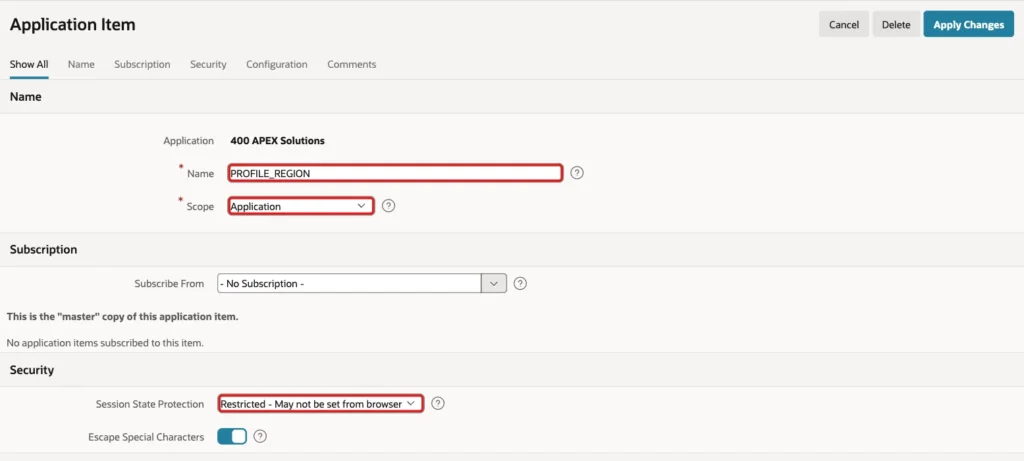
An application item is a session variable that belongs to the application and not to a page. Open Shared Components. Under Logic, click Application Items, then click Create. Create three items:
- PROFILE_NAME
- PROFILE_DEPARTMENT
- PROFILE_REGION
For each item, keep Scope as Application and set Session State Protection to Restricted - May not be set from browser. This is the setting that matters most for security, and Step 5 shows what happens without it:
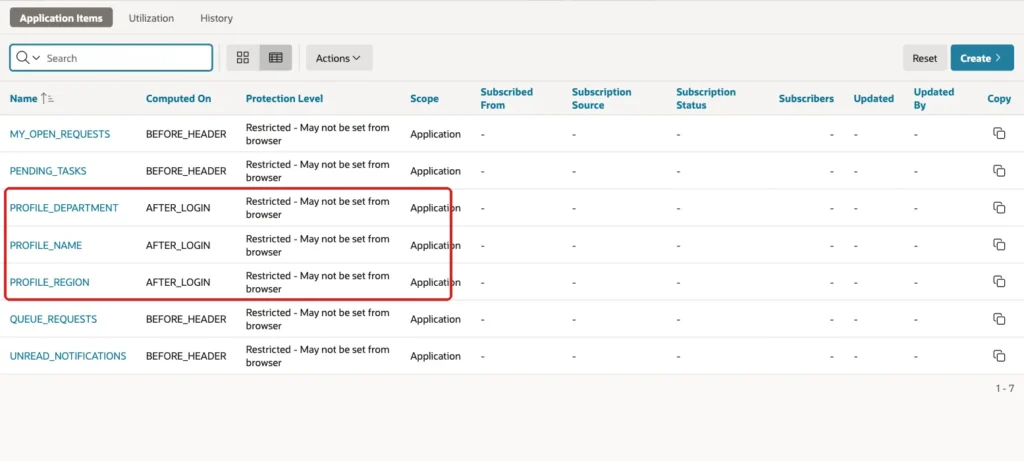
The list of application items shows the three new items. After the computations of the next step exist, the Computed On column shows AFTER_LOGIN for them:
Step 3: Create the Computations That Run After Login
Under Logic, click Application Computations, then click Create. Create one computation for each item. The values for PROFILE_REGION are:
- Sequence: 30
- Computation Item: PROFILE_REGION
- Computation Point: After Authentication
- Computation Type: SQL Query (return single value)
- Computation: the query below
Example:
select region
from   user_profiles
where  user_name = :APP_USER
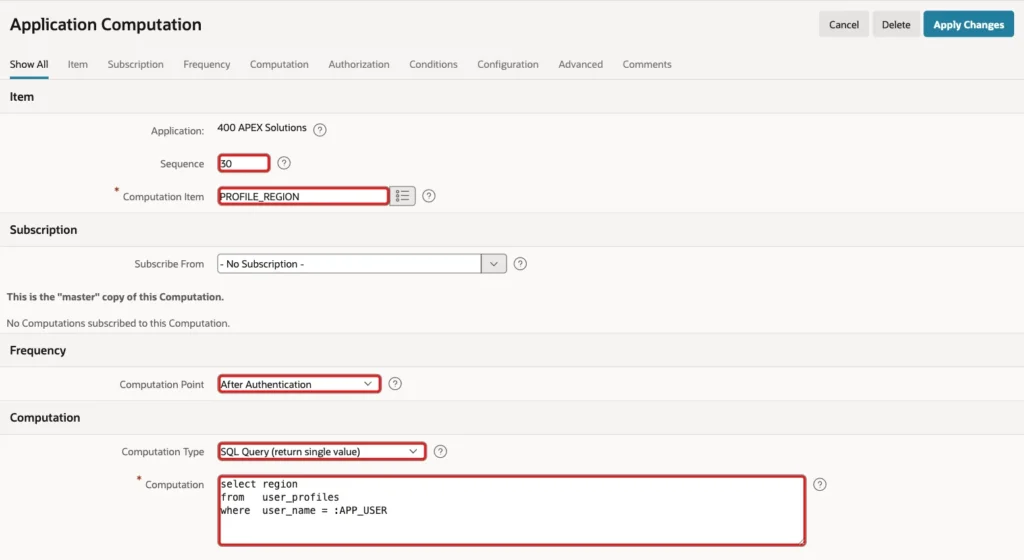
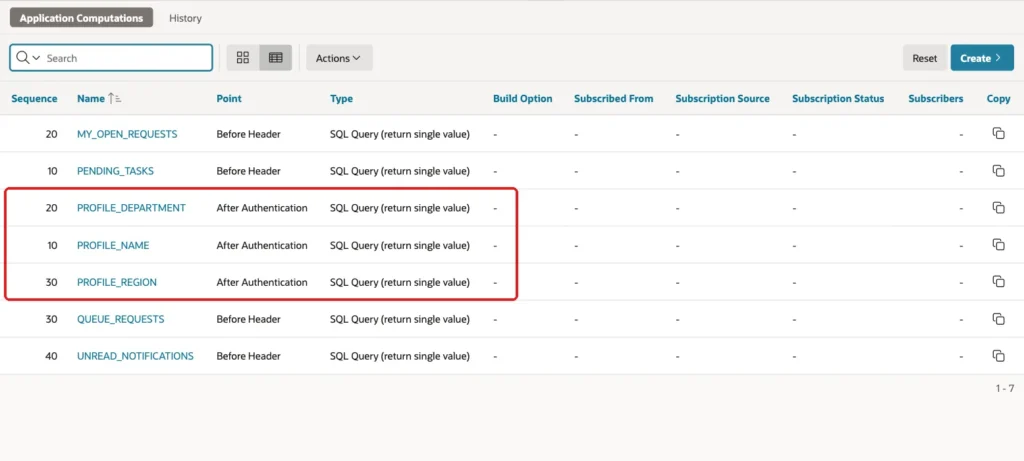
The other two computations are the same query with a different column. PROFILE_NAME uses sequence 10 and selects DISPLAY_NAME. PROFILE_DEPARTMENT uses sequence 20 and selects DEPARTMENT. The list of computations shows all three:
After Authentication runs once per session, right after a successful sign in and before the first page. APP_USER is already set at that point, so the query finds the row of the signed in user. A user without a row gets an empty value, and the query raises no error.
The same lookup was run in SQL for a user with a profile and for the user without one:
Example:
variable app_user varchar2(100)

exec :app_user := 'DEMO_DEV'
select display_name, department, region from user_profiles where user_name = :app_user;

exec :app_user := 'ORDER_EDITOR'
select display_name, department, region from user_profiles where user_name = :app_user;
Output:
PL/SQL procedure successfully completed.

DISPLAY_NAME    DEPARTMENT     REGION
_______________ ______________ _________
Priya Nair      Engineering    North

PL/SQL procedure successfully completed.

no rows selected
Step 4: Create the My Profile Page
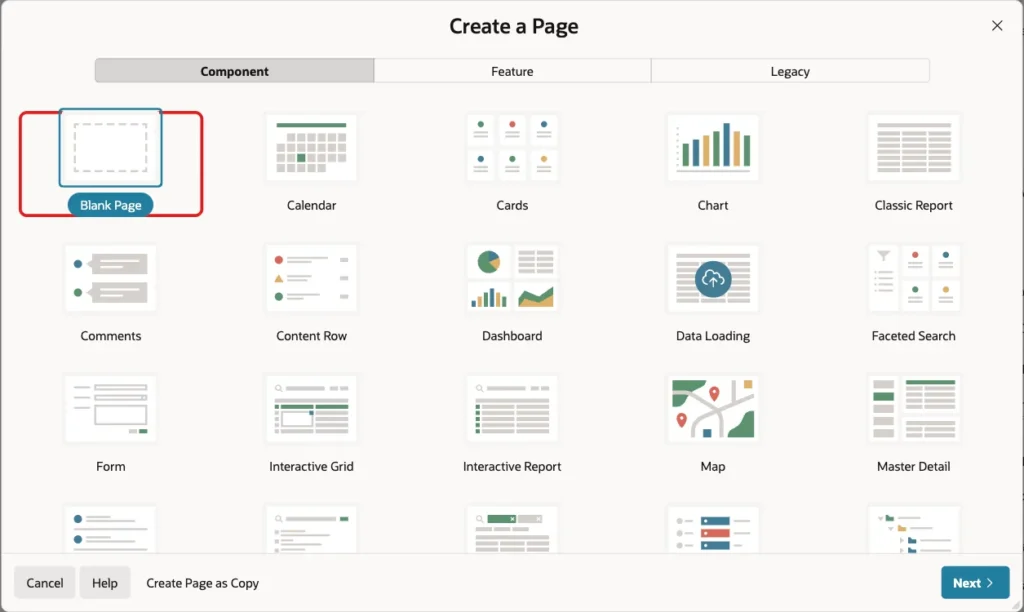
In App Builder, open the application and click Create Page. On the Component tab, select Blank Page:
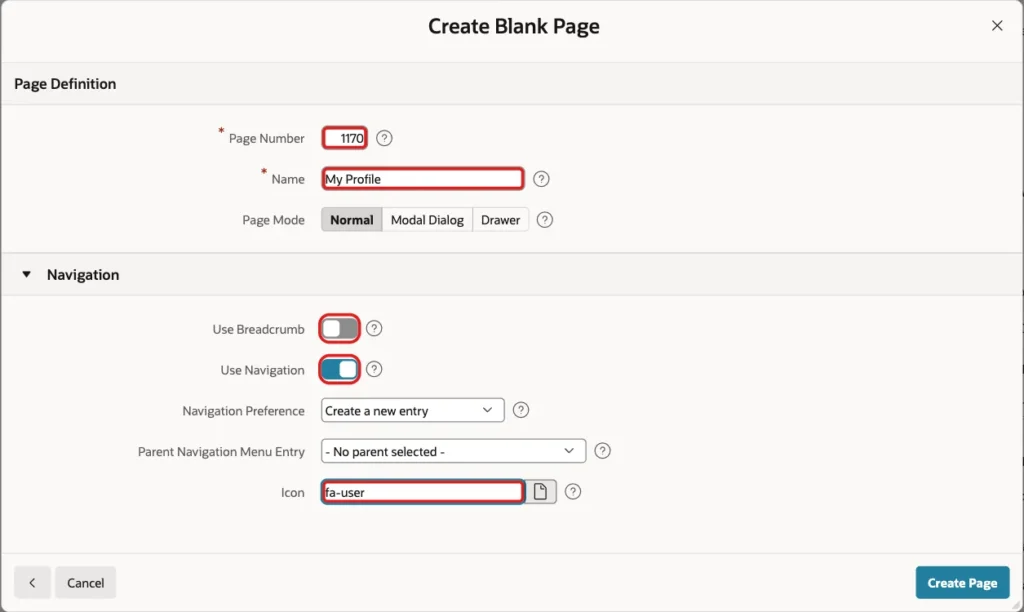
On the next screen, enter Page Number 1170 and Name My Profile. Turn off Use Breadcrumb, keep Use Navigation on and enter the Icon fa-user. Then click Create Page:
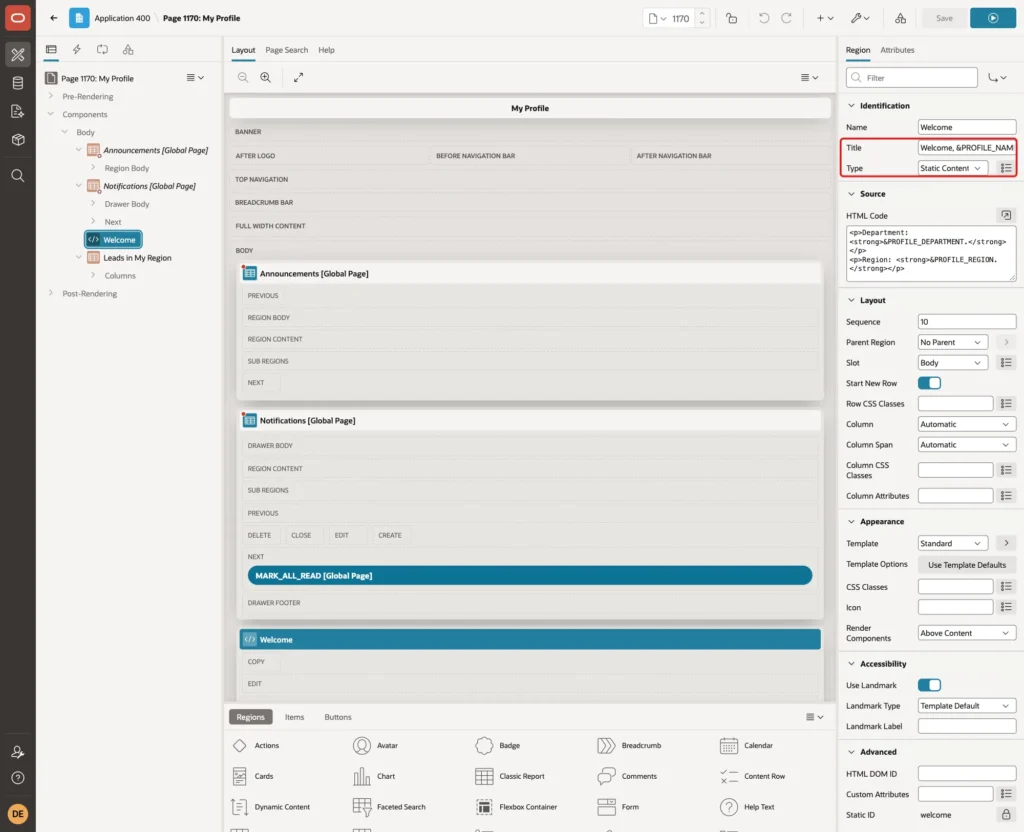
In Page Designer, drag a Static Content region into the Body. Set Name to Welcome. Set Title to the text below. The substitution string &PROFILE_NAME. is replaced by the value of the item, so the title shows the name of the signed in user:
Example:
Welcome, &PROFILE_NAME.
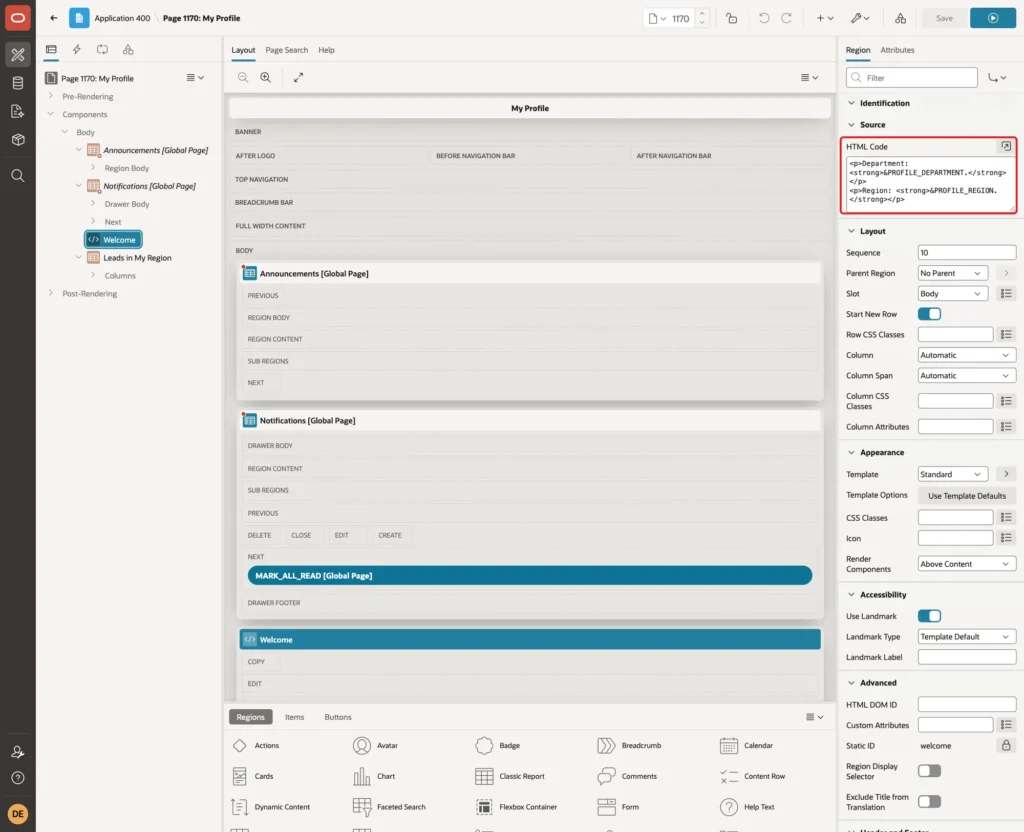
In the Source group, enter the HTML below as the HTML Code. Write the item name in capital letters, followed by a period:
Example:
<p>Department: <strong>&PROFILE_DEPARTMENT.</strong></p>
<p>Region: <strong>&PROFILE_REGION.</strong></p>
Drag a Classic Report region below it. Set Name and Title to Leads in My Region, Type to Classic Report, Location to Local Database and Type to SQL Query. The query filters the leads with the bind variable :PROFILE_REGION, so every user sees the leads of their own region:
Example:
select company,
       department,
       region,
       lead_status
from   profile_leads
where  region = :PROFILE_REGION
order by company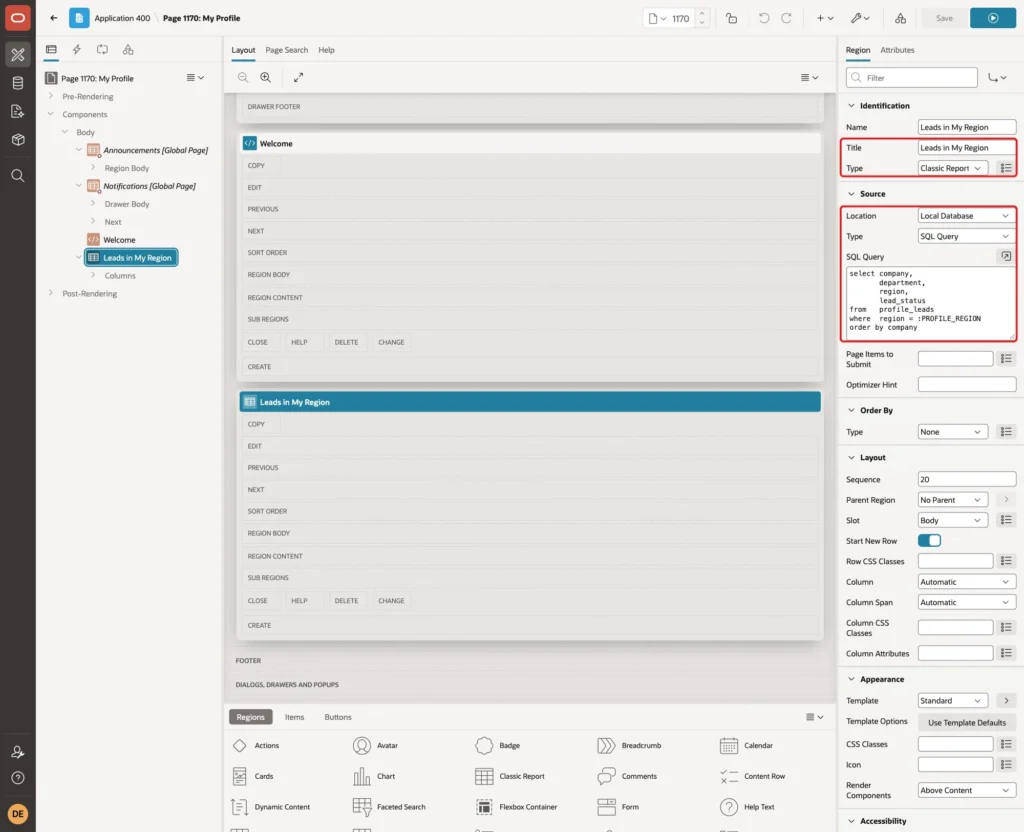
Click Save. Because the report uses only the session value, it needs no page item and no Page Items to Submit setting.
Step 5: Test the Page
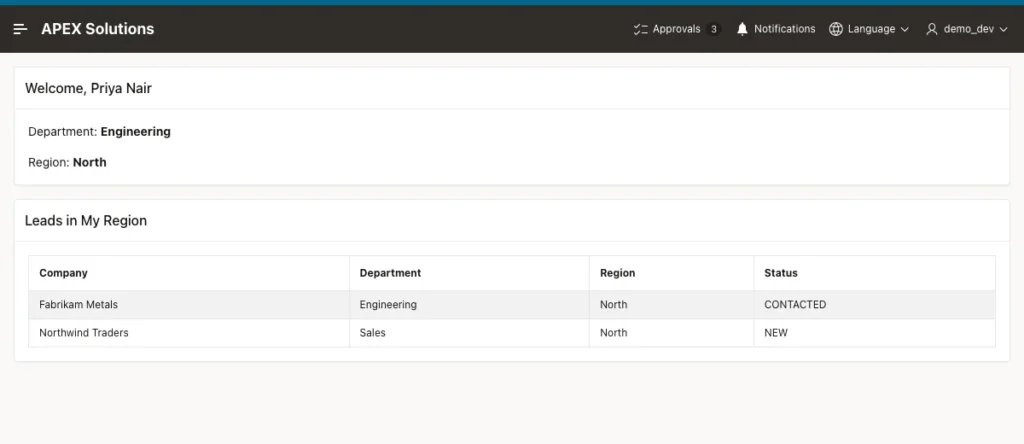
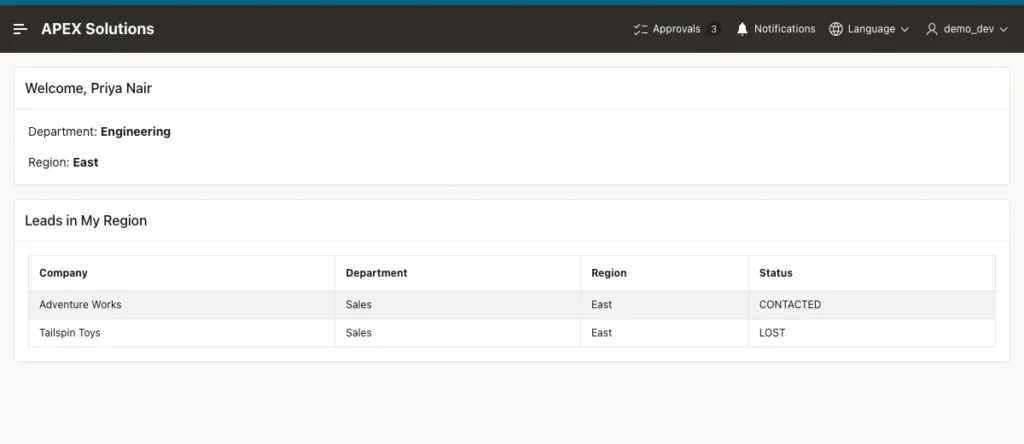
The page was tested by signing in as each user in a new browser session. First, DEMO_DEV. The title shows the name, the text shows the department and the region, and the report lists only the two North leads:
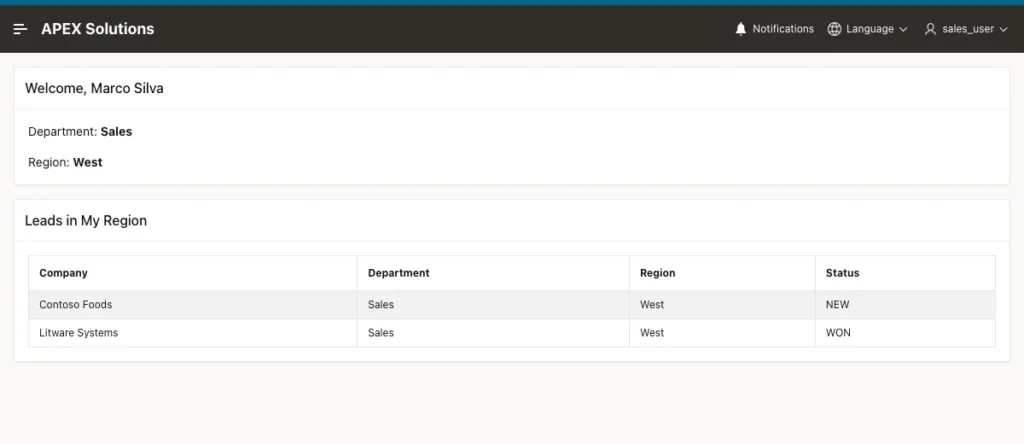
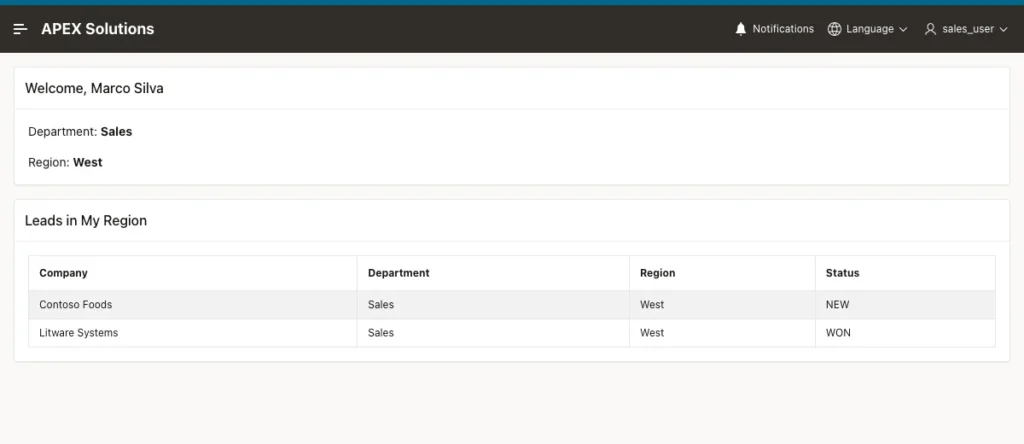
SALES_USER has a different profile, so the same page shows other values and other leads:
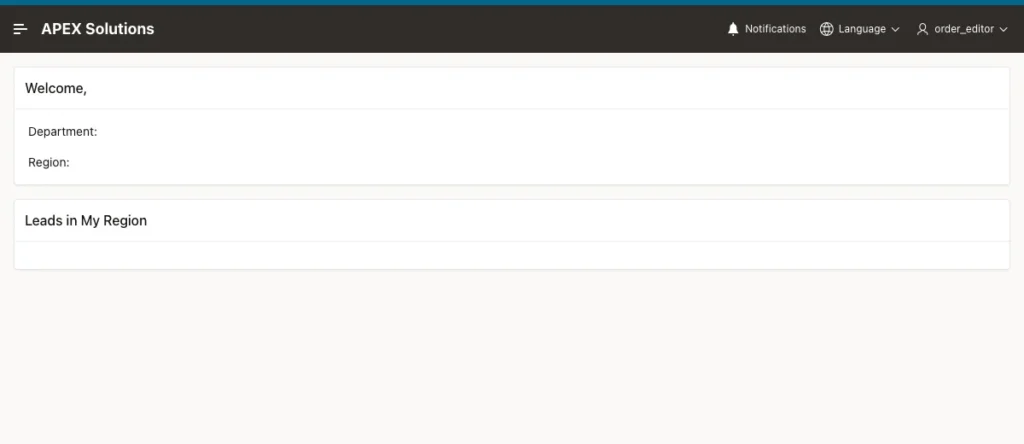
ORDER_EDITOR has no row in USER_PROFILES. The page does not fail. The title and the text are empty, and the report shows no rows, because no region equals an empty value:
Next, a user tried to change the region from the URL. The test used the signed in session of DEMO_DEV and added PROFILE_REGION=East to the page URL, in the f?p form and in the friendly URL form.
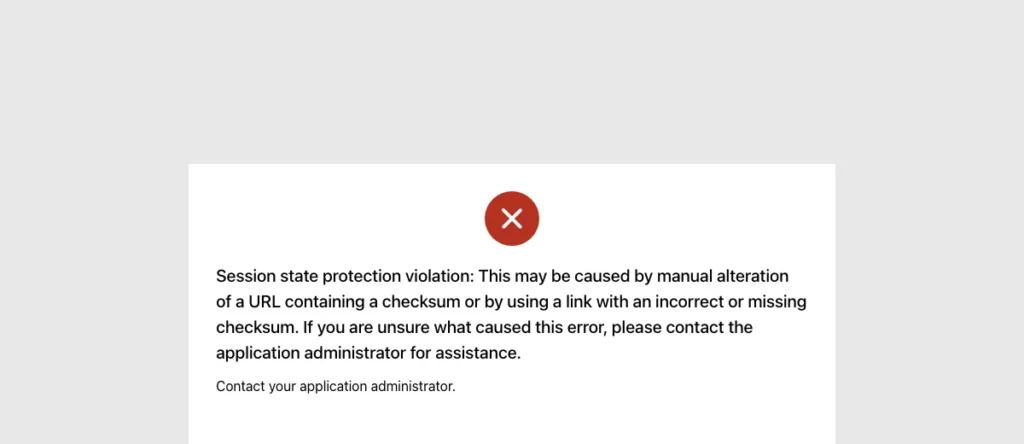
With the item set to Restricted, APEX answered with a session state protection violation and the page did not run. This was also true with the page protection of My Profile switched to Unrestricted for the test:
To see why the setting matters, the same two URLs were tried with both the page protection and the items set to Unrestricted. The name stayed Priya Nair, but the region became East and the report showed the East leads of another region. A user could read data that belongs to someone else:
The settings were put back to Restricted and to the default page protection after this test.
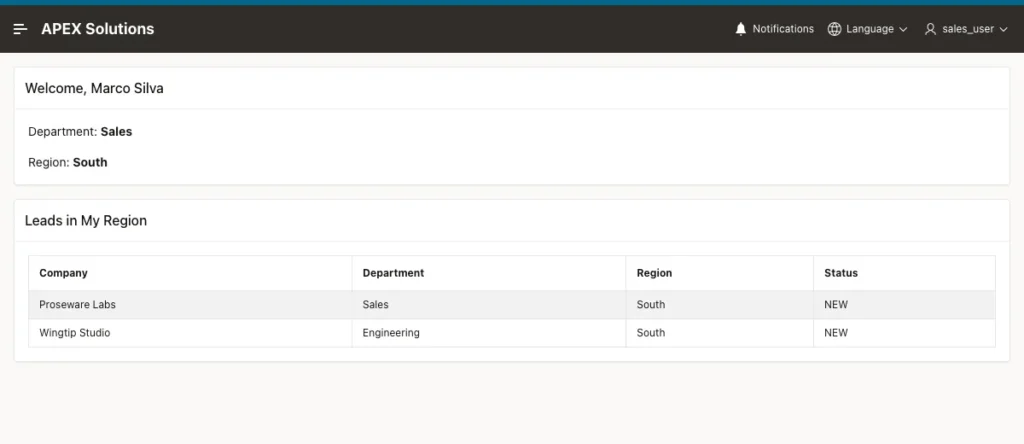
The last test shows when the items are loaded. While SALES_USER was signed in, the region of that user was changed to South in the table. Reloading the page in the same session still showed West, because After Authentication runs only at login:
Example:
update user_profiles set region = 'South' where user_name = 'SALES_USER';
commit;
select user_name, region from user_profiles where user_name = 'SALES_USER';
Output:
1 row updated.

Commit complete.

USER_NAME     REGION
_____________ _________
SALES_USER    South
A new sign in loaded the new value, and the report showed the South leads:
The region of SALES_USER was then set back to West:
Example:
update user_profiles set region = 'West' where user_name = 'SALES_USER';
commit;
select user_name, region from user_profiles where user_name = 'SALES_USER';
Output:
1 row updated.

Commit complete.

USER_NAME     REGION
_____________ _________
SALES_USER    West
Things to Know
- After Authentication computations run once per session. A change in USER_PROFILES shows up after the next sign in. To refresh a value in the middle of a session, add a computation at another point, such as Before Header.
- Always set Session State Protection to Restricted for items that carry the profile. In the test, an unrestricted item let a user change the region from the URL and see another region's data.
- A restricted item can still be set by a computation on the server, as this guide does. Only values sent from the browser are refused.
- Read the values with the substitution string, for example &PROFILE_REGION. in text, and with the bind variable :PROFILE_REGION in SQL. Test every page that uses them for a user without a profile.
- Three computations run three small queries at login. For a few items that is fine. For many items, consider one process that reads a single row and sets all of them.
- APP_USER is upper case for Oracle APEX accounts, which is why USER_NAME is checked to be upper case. With another authentication scheme, check which case APP_USER returns before you build the lookup.
Related Guides
Conclusion
A profile table, three application items and three After Authentication computations are all that is needed to keep a user's name, department and region in the session. Pages then read them as substitution strings and as bind variables, with no query on each page.
The tests showed that each user gets their own values, that a user without a profile gets an empty page, that a restricted item refuses a value from the URL, and that the values refresh at the next sign in. Keep the items restricted, because they decide which data a user sees.
See my articles more often when you search Google.
