
A dashboard shows counts, but users want the rows behind each count. The best place for those rows is often an existing interactive report, because users can then sort, search, highlight and download them. The link only has to open the report with the right filter already applied.
Oracle APEX supports this without code. Special item names such as IREQ_STATUS in a link add a filter to the interactive report on the target page, and RIR in Clear Cache removes old filters first. This guide builds a dashboard with cards, a report and buttons that open one interactive report with different filters.
How to Filter and Reset Interactive Reports and Grids from PL/SQL Using APEX_IR and APEX_IG sets filters with PL/SQL code. How to Drill Down from a Chart to the Matching Rows in Oracle APEX passes a value into a page item that the report query reads.
Here the target page needs no items and no code. The filters come from the link and show up as normal filters that the user can remove.
The example uses issues and teams of a help desk. The same steps work for any interactive report.
Step 1: Create the Tables
Two tables hold the data:
- ISSUE_TEAMS has one row per team, with a unique team name.
- ISSUES has one row per issue: a unique issue number, title, team, status, priority, the date it was opened and the due date.
Create the tables with three teams and fifteen issues. The due dates are relative to today, so some issues are always overdue. One team name contains an ampersand on purpose, to test how the link encodes it:
Example:
set define off


create table issue_teams (
    team_id    number generated by default on null as identity,
    team_name  varchar2(60) not null,
    constraint issue_teams_pk primary key (team_id),
    constraint issue_teams_name_uk unique (team_name)
);

create table issues (
    issue_id   number generated by default on null as identity,
    issue_no   varchar2(20) not null,
    title      varchar2(200) not null,
    team_id    number not null,
    status     varchar2(20) default on null 'OPEN' not null,
    priority   varchar2(10) default on null 'MEDIUM' not null,
    opened_on  date default on null trunc(sysdate) not null,
    due_on     date not null,
    constraint issues_pk primary key (issue_id),
    constraint issues_no_uk unique (issue_no),
    constraint issues_team_fk foreign key (team_id)
        references issue_teams (team_id),
    constraint issues_status_ck check (status in ('OPEN', 'IN_PROGRESS', 'RESOLVED', 'CLOSED')),
    constraint issues_priority_ck check (priority in ('LOW', 'MEDIUM', 'HIGH')),
    constraint issues_due_ck check (due_on >= opened_on)
);

create index issues_team_ix on issues (team_id);
create index issues_status_ix on issues (status, priority);

insert into issue_teams (team_name) values ('Web Portal');
insert into issue_teams (team_name) values ('Mobile App');
insert into issue_teams (team_name) values ('Billing & Payments');

insert into issues (issue_no, title, team_id, status, priority, opened_on, due_on)
values ('ISS-101', 'Login page times out after 30 seconds', 1, 'OPEN', 'HIGH', trunc(sysdate) - 12, trunc(sysdate) - 2);
insert into issues (issue_no, title, team_id, status, priority, opened_on, due_on)
values ('ISS-102', 'Password reset email not sent', 1, 'IN_PROGRESS', 'HIGH', trunc(sysdate) - 9, trunc(sysdate) + 1);
insert into issues (issue_no, title, team_id, status, priority, opened_on, due_on)
values ('ISS-103', 'Footer links point to old domain', 1, 'OPEN', 'LOW', trunc(sysdate) - 20, trunc(sysdate) + 10);
insert into issues (issue_no, title, team_id, status, priority, opened_on, due_on)
values ('ISS-104', 'Search returns duplicate results', 1, 'RESOLVED', 'MEDIUM', trunc(sysdate) - 30, trunc(sysdate) - 15);
insert into issues (issue_no, title, team_id, status, priority, opened_on, due_on)
values ('ISS-105', 'Profile photo upload fails on large files', 1, 'CLOSED', 'MEDIUM', trunc(sysdate) - 40, trunc(sysdate) - 25);
insert into issues (issue_no, title, team_id, status, priority, opened_on, due_on)
values ('ISS-106', 'App crashes when camera permission is denied', 2, 'OPEN', 'HIGH', trunc(sysdate) - 6, trunc(sysdate) - 1);
insert into issues (issue_no, title, team_id, status, priority, opened_on, due_on)
values ('ISS-107', 'Dark mode text is unreadable on settings page', 2, 'OPEN', 'MEDIUM', trunc(sysdate) - 4, trunc(sysdate) + 6);
insert into issues (issue_no, title, team_id, status, priority, opened_on, due_on)
values ('ISS-108', 'Push notifications arrive twice', 2, 'IN_PROGRESS', 'MEDIUM', trunc(sysdate) - 8, trunc(sysdate) - 3);
insert into issues (issue_no, title, team_id, status, priority, opened_on, due_on)
values ('ISS-109', 'Login with fingerprint not offered on new devices', 2, 'OPEN', 'LOW', trunc(sysdate) - 3, trunc(sysdate) + 14);
insert into issues (issue_no, title, team_id, status, priority, opened_on, due_on)
values ('ISS-110', 'Offline mode loses unsaved notes', 2, 'RESOLVED', 'HIGH', trunc(sysdate) - 25, trunc(sysdate) - 18);
insert into issues (issue_no, title, team_id, status, priority, opened_on, due_on)
values ('ISS-111', 'Invoice PDF shows wrong tax rate', 3, 'OPEN', 'HIGH', trunc(sysdate) - 5, trunc(sysdate) + 2);
insert into issues (issue_no, title, team_id, status, priority, opened_on, due_on)
values ('ISS-112', 'Card payment declined message is unclear', 3, 'IN_PROGRESS', 'LOW', trunc(sysdate) - 10, trunc(sysdate) - 4);
insert into issues (issue_no, title, team_id, status, priority, opened_on, due_on)
values ('ISS-113', 'Refund status not updated after approval', 3, 'OPEN', 'MEDIUM', trunc(sysdate) - 7, trunc(sysdate) - 1);
insert into issues (issue_no, title, team_id, status, priority, opened_on, due_on)
values ('ISS-114', 'Currency symbol missing in receipt email', 3, 'CLOSED', 'LOW', trunc(sysdate) - 35, trunc(sysdate) - 28);
insert into issues (issue_no, title, team_id, status, priority, opened_on, due_on)
values ('ISS-115', 'Monthly statement totals off by one cent', 3, 'RESOLVED', 'MEDIUM', trunc(sysdate) - 16, trunc(sysdate) - 9);
commit;

select t.team_name,
       count(*) as issues,
       count(case when i.status = 'OPEN' then 1 end) as open_issues,
       count(case when i.priority = 'HIGH' then 1 end) as high_priority
from   issues i
join   issue_teams t on t.team_id = i.team_id
group  by t.team_name
order  by t.team_name;
Output:
Table ISSUE_TEAMS created.

Table ISSUES created.

Index ISSUES_TEAM_IX created.

Index ISSUES_STATUS_IX created.

1 row inserted.

1 row inserted.

1 row inserted.

1 row inserted.

1 row inserted.

1 row inserted.

1 row inserted.

1 row inserted.

1 row inserted.

1 row inserted.

1 row inserted.

1 row inserted.

1 row inserted.

1 row inserted.

1 row inserted.

1 row inserted.

1 row inserted.

1 row inserted.

Commit complete.

TEAM_NAME                ISSUES    OPEN_ISSUES    HIGH_PRIORITY
_____________________ _________ ______________ ________________
Billing & Payments            5              2                1
Mobile App                    5              3                2
Web Portal                    5              2                2
- ISSUES_TEAM_FK links each issue to its team, and ISSUES_TEAM_IX indexes that foreign key.
- ISSUE_TEAMS_NAME_UK and ISSUES_NO_UK stop duplicate team names and issue numbers.
- ISSUES_STATUS_CK and ISSUES_PRIORITY_CK allow only known values. ISSUES_DUE_CK stops a due date before the opening date.
- STATUS, PRIORITY and OPENED_ON use DEFAULT ON NULL, so new rows get sensible values without a trigger.
- SET DEFINE OFF stops SQLcl from reading the ampersand in "Billing & Payments" as a substitution variable.
Step 2: Create the Interactive Report Page
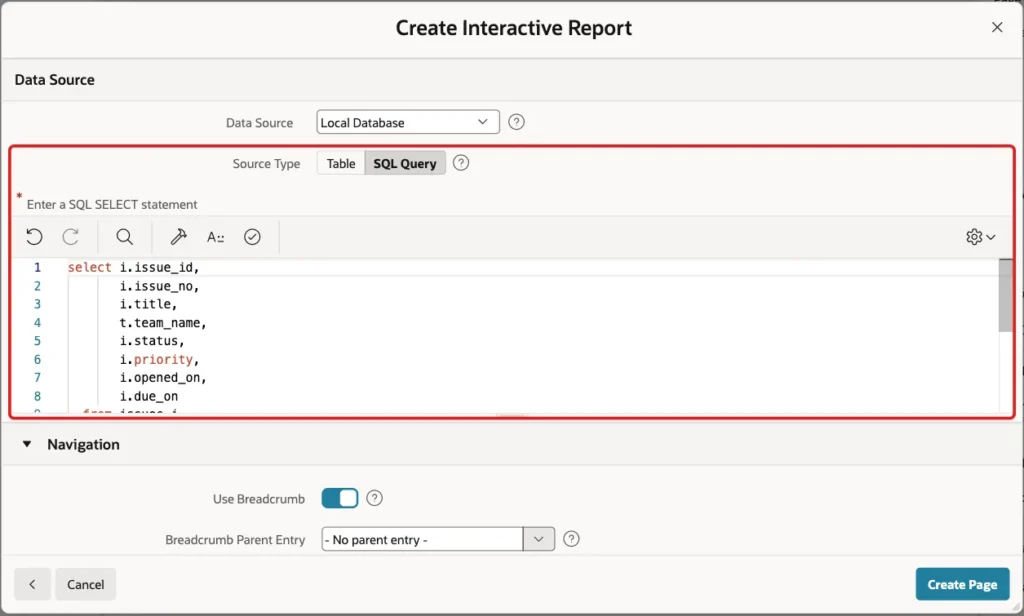
The target page is a plain interactive report on the issues. It needs no page items, because the filters will arrive as interactive report filters. This is the query:
Example:
select i.issue_id,
       i.issue_no,
       i.title,
       t.team_name,
       i.status,
       i.priority,
       i.opened_on,
       i.due_on
  from issues i
  join issue_teams t on t.team_id = i.team_id
In Page Designer, click Create (the plus icon) and choose Page. Select the Interactive Report tile:

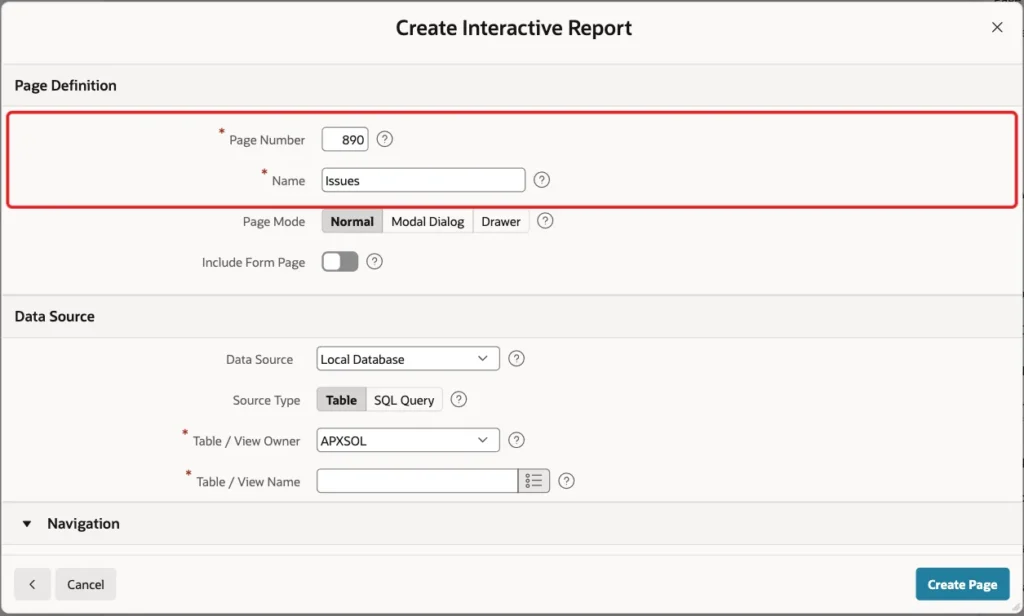
Enter Page Number 890 and Name Issues. Leave Page Mode Normal and Include Form Page off:
Under Data Source, keep Local Database, set Source Type to SQL Query and paste the query above:
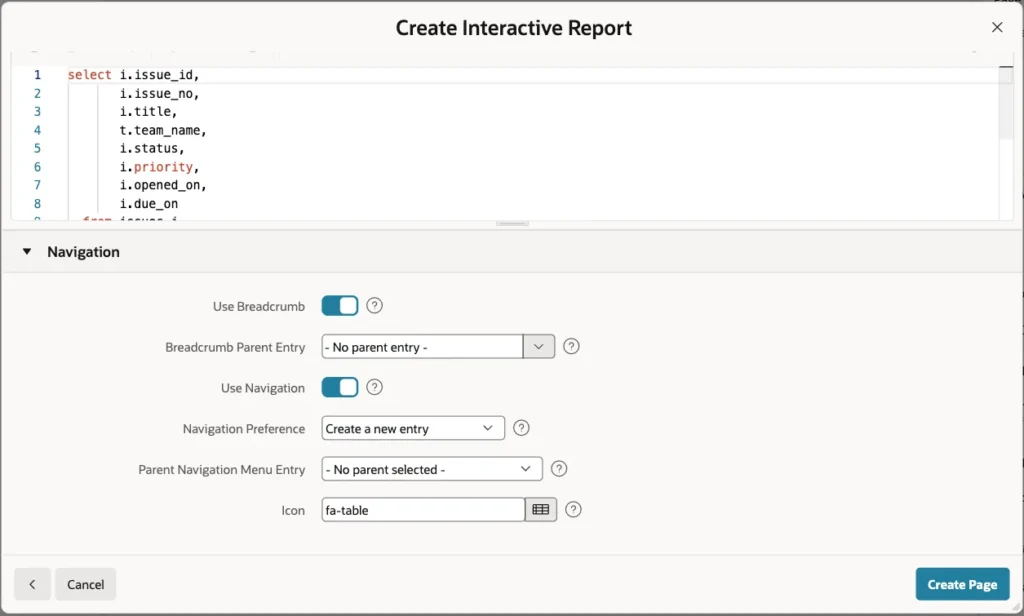
Under Navigation, keep the defaults: a breadcrumb and a new navigation menu entry. Click Create Page:
The wizard sets Page Access Protection of the new page to Arguments Must Have Checksum. Keep it. Links built in App Builder add the checksum, and a changed URL is rejected, as the test in Step 9 shows.
Step 3: Give the Report Region an HTML DOM ID
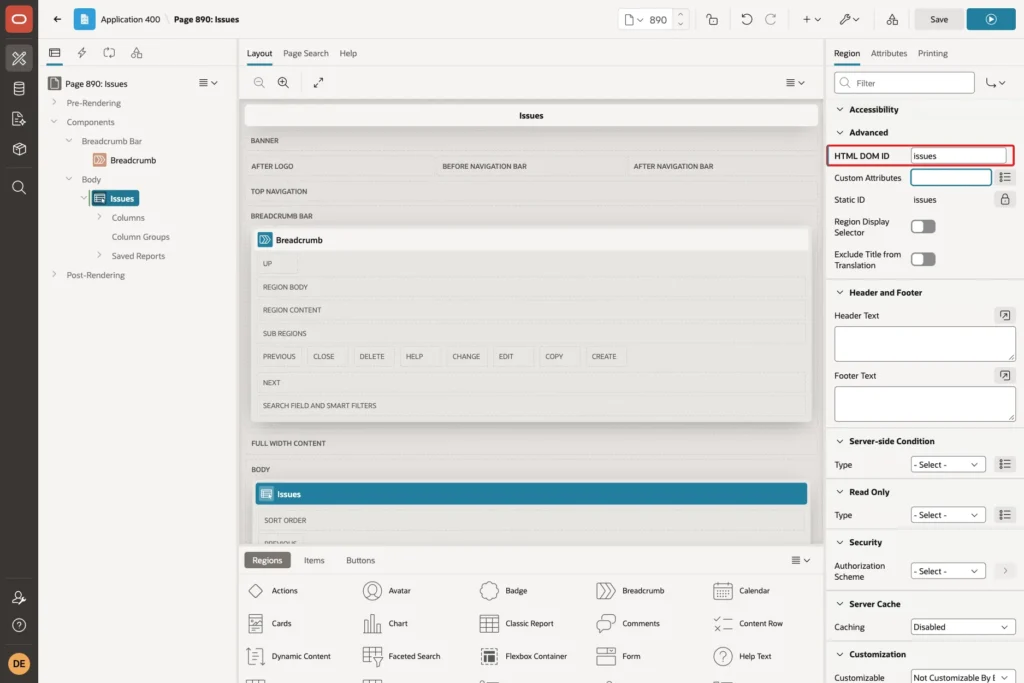
A filter item can name the report region, which matters when a page has more than one interactive report. APEX finds the region by its HTML DOM ID. The Static ID that Page Designer shows (issues) was not enough: a link with IR[issues] failed with "Region HTML DOM ID ISSUES does not exist."
Select the Issues region in the Rendering tree. Under Advanced, set HTML DOM ID to issues and click Save:
Step 4: Understand the Filter Item Names
A link to an interactive report sets special item names instead of page items. Each name adds one filter:
Syntax:
IR<operator>_<COLUMN>
IR[<html dom id>]<operator>_<COLUMN>
IR[<html dom id>]_<COLUMN>
COLUMN is the column name of the report, for example STATUS or DUE_ON. The first form filters the interactive report on the page. The second and third forms name the region, and IR[issues]_STATUS without an operator means equals.
These operators were tested on page 890, with the filter that the report showed for each:
| Operator | Item and value | Filter shown |
|---|---|---|
| EQ | IREQ_PRIORITY = HIGH | Priority = 'HIGH' |
| (none) | IR_STATUS = OPEN | Status = 'OPEN' |
| NEQ | IRNEQ_STATUS = CLOSED | Status != 'CLOSED' |
| LT | IRLT_DUE_ON = 10/22/2026 | Due On < 10/22/2026 |
| LTE | IRLTE_ISSUE_ID = 2 | Issue Id <= 2 |
| GT | IRGT_ISSUE_ID = 13 | Issue Id > 13 |
| GTE | IRGTE_ISSUE_ID = 13 | Issue Id >= 13 |
| C | IRC_TITLE = login | Title contains 'login' |
| NC | IRNC_TITLE = login | Title does not contain 'login' |
| LIKE | IRLIKE_ISSUE_NO = ISS-10% | Issue No like 'ISS-10%' |
| IN | IRIN_STATUS = OPEN,IN_PROGRESS | Status in 'OPEN, IN_PROGRESS' |
| NIN | IRNIN_STATUS = OPEN,IN_PROGRESS | Status not in 'OPEN, IN_PROGRESS' |
| N | IRN_DUE_ON (no value) | Due On is null |
| NN | IRNN_DUE_ON (no value) | Due On is not null |
| Row search | IR_ROWFILTER = payment | Row text contains 'payment' |
Some details from the same tests:
- EQ compares exactly. IREQ_STATUS=open found no rows, because the data holds OPEN. The contains filter is not case-sensitive: login also matched "Login page times out".
- IN and NIN take a comma-separated list. A list with a pipe, OPEN|IN_PROGRESS, became one value and found nothing.
- A date value must use the application date format, here MM/DD/YYYY. 2026-10-22 and 22-OCT-26 were ignored without an error, and the report showed all rows.
- An unknown column name, such as IREQ_NOCOL, was also ignored without an error. IRROWFILTER (without the underscore) failed with ERR-1002, unable to find item ID.
Clear Cache decides what happens to filters that are already there. RIR resets the interactive report to its primary default report, so only the new filters remain. Step 9 shows what happens without it.
Step 5: Create the Dashboard Page
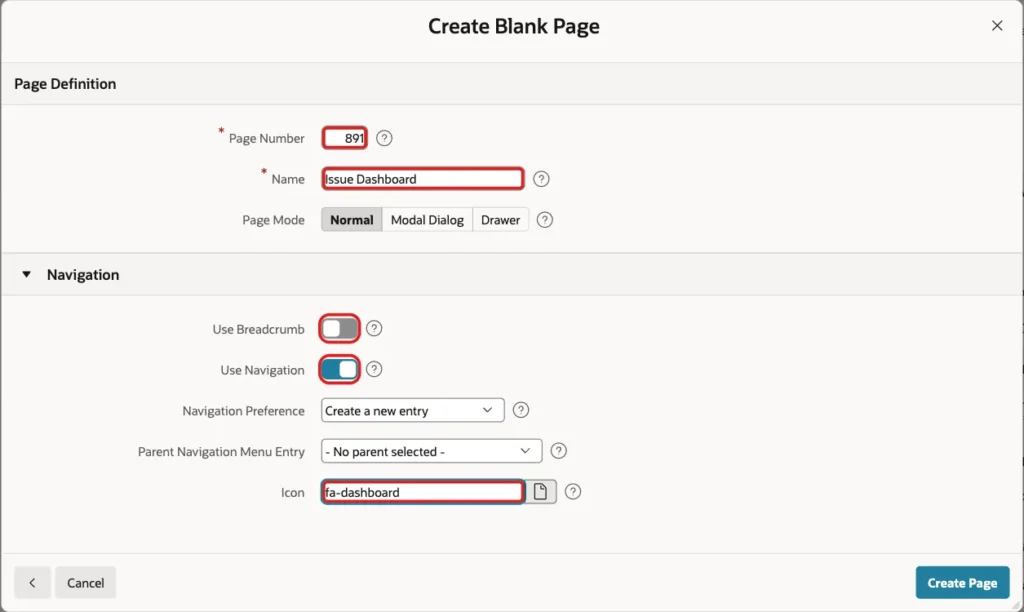
The links start from a dashboard page. Click Create and choose Page again, select Blank Page, and enter Page Number 891 and Name Issue Dashboard. Turn off Use Breadcrumb, keep Use Navigation on, set Icon to fa-dashboard and click Create Page:
Step 6: Add Status Cards That Open the Filtered Report
The first region shows one card per status with the number of issues. This is its query:
Example:
select status,
       initcap(replace(status, '_', ' ')) as status_label,
       count(*) as issues
  from issues
 group by status
 order by case status
            when 'OPEN' then 1
            when 'IN_PROGRESS' then 2
            when 'RESOLVED' then 3
            else 4
          end
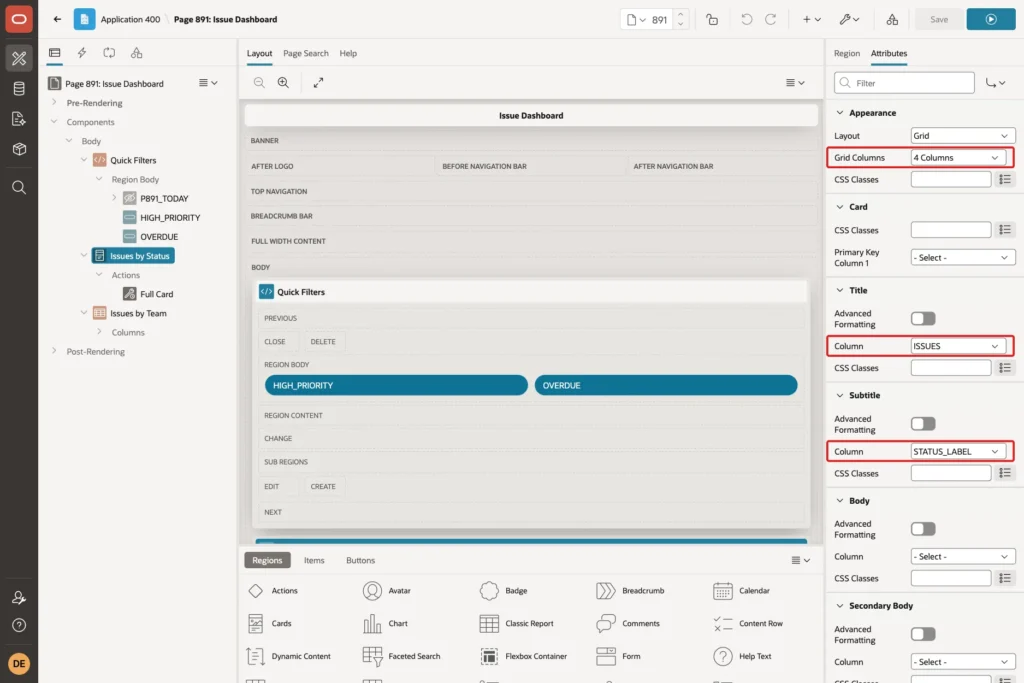
Drag a Cards region into the Body. Set Name to Issues by Status, keep Type Cards, set Source Type to SQL Query and paste the query:

Open the Attributes tab. Set Grid Columns to 4 Columns, Title Column to ISSUES and Subtitle Column to STATUS_LABEL:
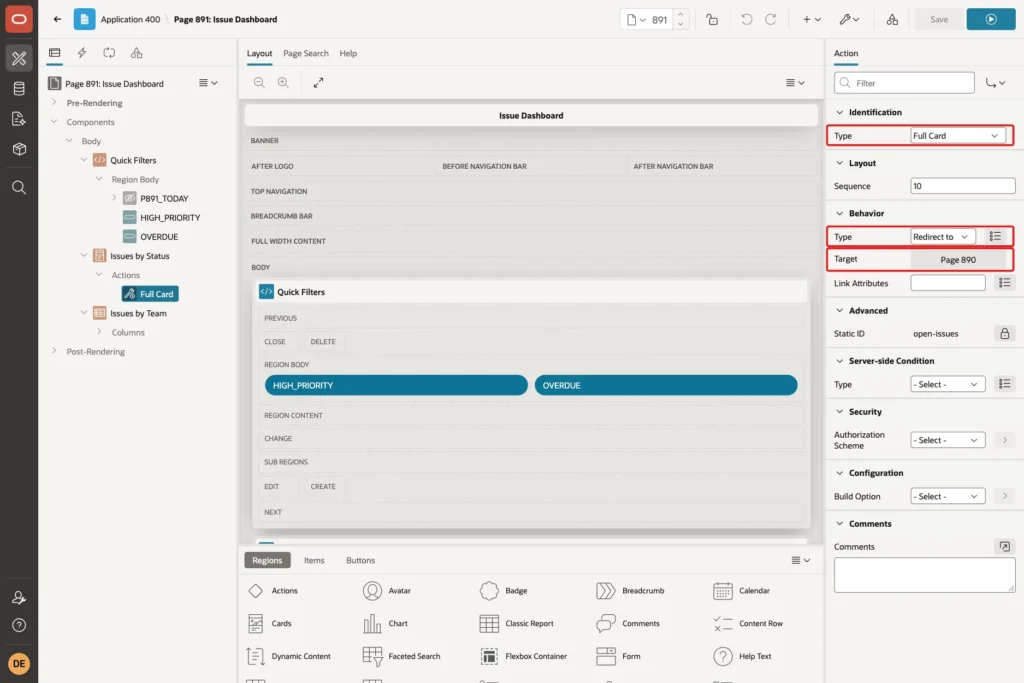
In the Rendering tree, the Issues by Status region has an Actions node. Right-click Actions and choose Create Action. Set Type to Full Card, so a click anywhere on the card opens the link. Keep Behavior Type as Redirect to Page in this Application and click the Target button:
In the Link Builder, enter these values and click OK:
- Page: 890
- Set Items: Name IREQ_STATUS, Value &STATUS.
- Clear Cache: RIR
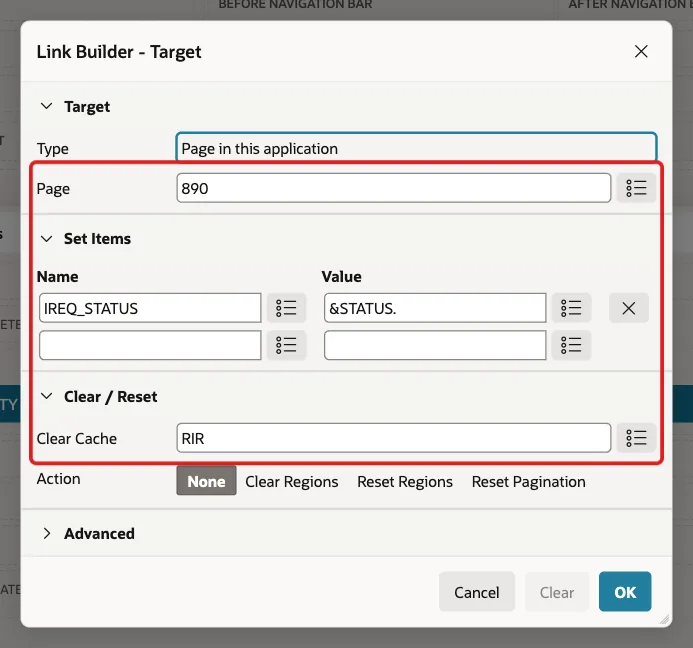
&STATUS. is replaced with the STATUS column of each card when the page is shown, so the Open card links with OPEN and the Closed card with CLOSED.
Step 7: Add a Team Report with Links
The second region lists the teams with their total and active issues. This is its query:
Example:
select t.team_name,
       count(i.issue_id) as issues,
       count(case when i.status in ('OPEN', 'IN_PROGRESS') then 1 end) as active_issues
  from issue_teams t
  left join issues i on i.team_id = t.team_id
 group by t.team_name
 order by t.team_name
Drag a Classic Report region below the cards. Set Name to Issues by Team, Source Type to SQL Query and paste the query:

Expand Columns and select TEAM_NAME. Set Type to Link and click the Target button under Link:
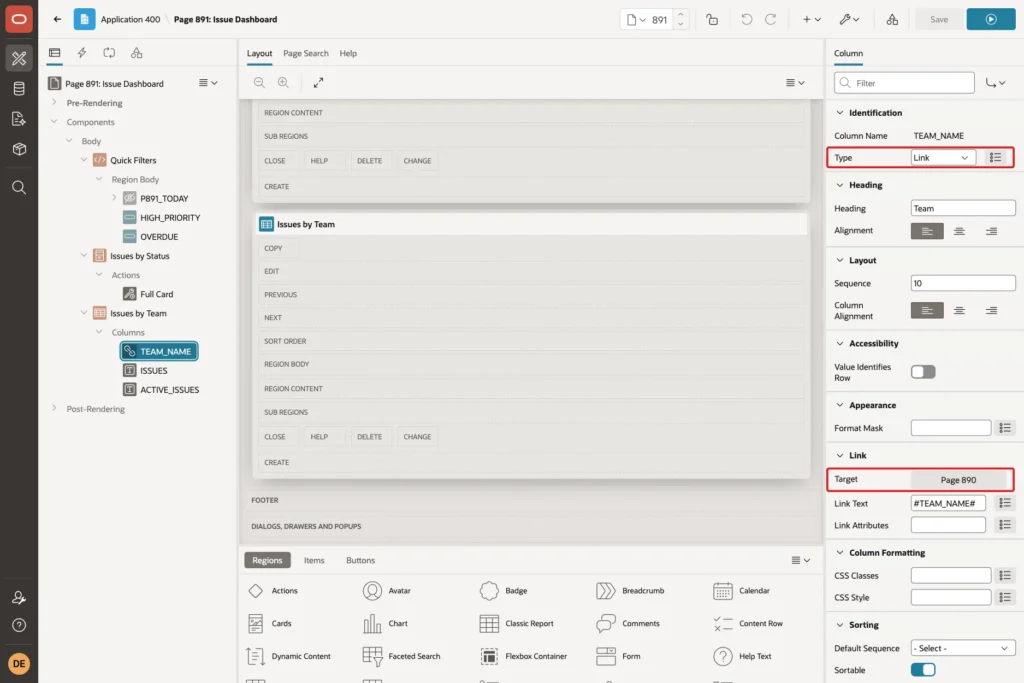
This link uses the form with the region name. Enter Page 890, item IR[issues]_TEAM_NAME with value #TEAM_NAME#, and Clear Cache RIR. Click OK, keep Link Text #TEAM_NAME# and save the page:
![Link Builder with Page 890, item IR[issues]_TEAM_NAME set to #TEAM_NAME# and Clear Cache RIR marked with a red box](https://vinish.dev/wp-content/uploads/2026/10/apxirlink-apex-irlink-lb-team.webp)
In a report column, the row value is written as #TEAM_NAME#, not &TEAM_NAME. as in the cards.
Step 8: Add Quick Filter Buttons
Two buttons open the report with two filters each: High Priority shows the high-priority issues that are still open or in progress, and Overdue shows the open or in-progress issues whose due date has passed.
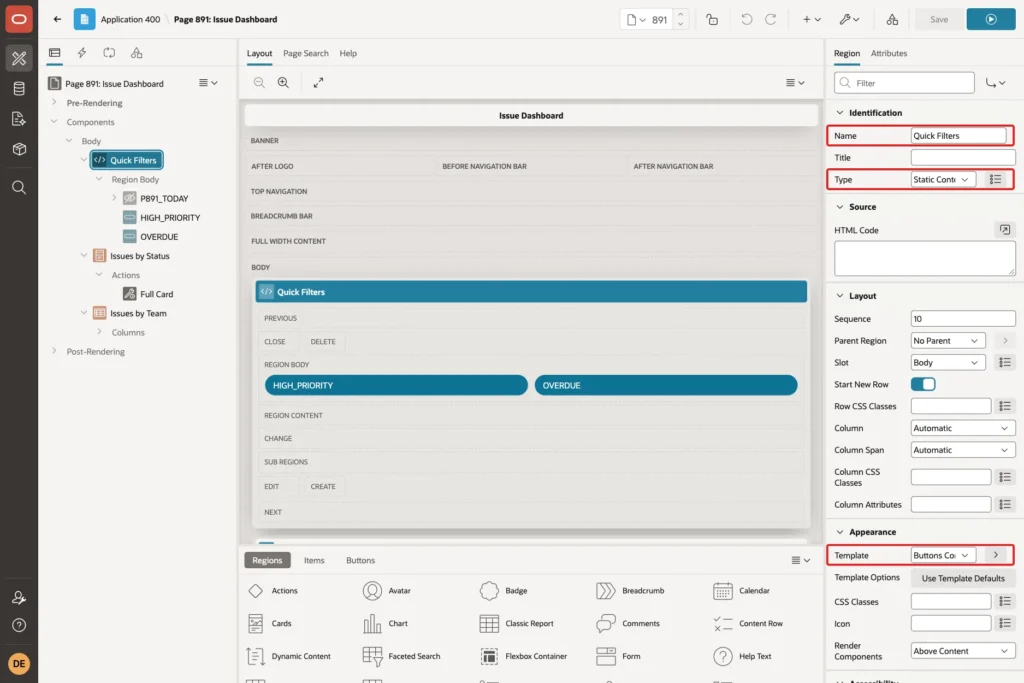
Drag a Static Content region above the cards. Set Name to Quick Filters and Template to Buttons Container:
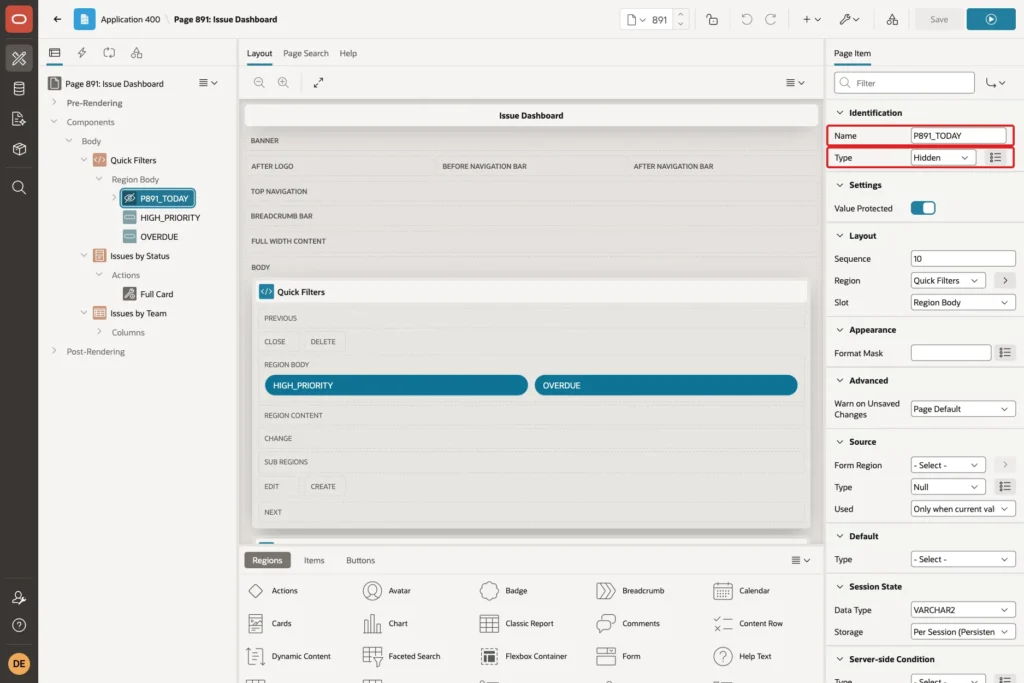
The overdue filter needs today's date in the application date format. Right-click the Quick Filters region and choose Create Page Item. Set Name to P891_TODAY and Type to Hidden, and make sure Value Protected is on:
Right-click P891_TODAY and choose Create Computation. Keep Point Before Header, set Type to Expression and enter this PL/SQL Expression:
Example:
to_char(trunc(sysdate))

TO_CHAR without a format mask uses the date format of the APEX session, which comes from the application date format. In this example the value was 10/21/2026, the same format as the Due On column. SYSDATE is the date of the database server.
Now right-click Quick Filters and choose Create Button. Set Button Name to HIGH_PRIORITY and Label to High Priority. Under Behavior, set Action to Redirect to Page in this Application and click Target:
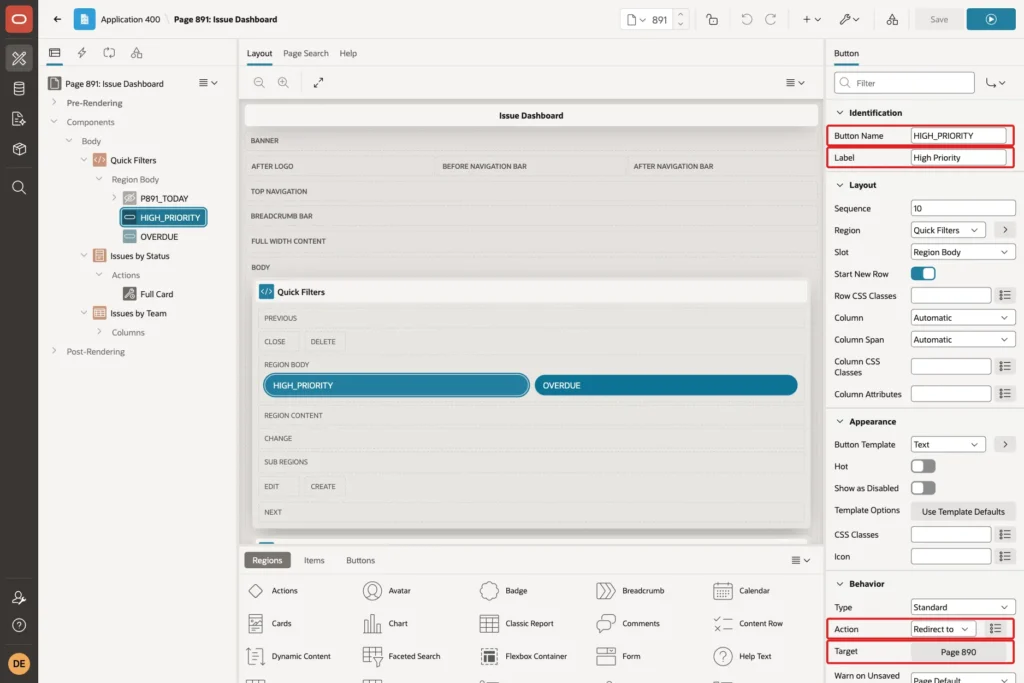
Enter Page 890, item IREQ_PRIORITY with value HIGH, item IRIN_STATUS with value \OPEN,IN_PROGRESS\ and Clear Cache RIR:
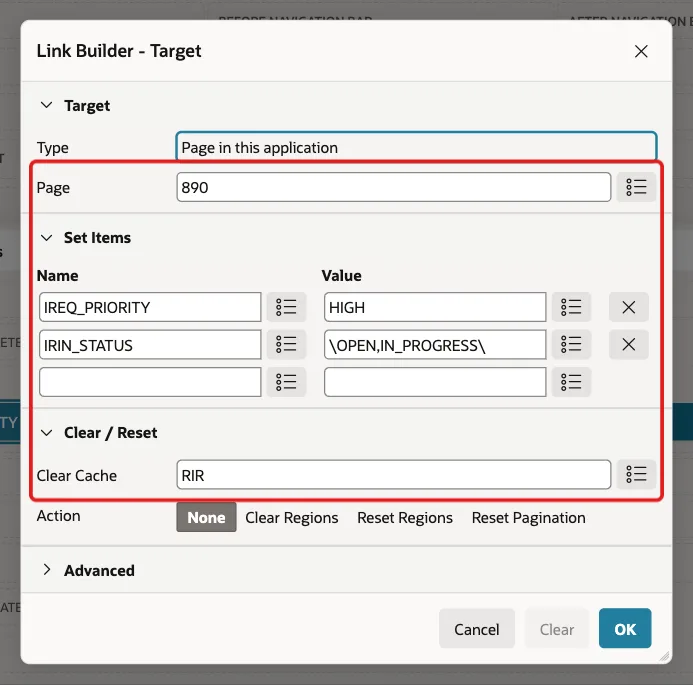
The backslashes matter. In a first test the value was OPEN,IN_PROGRESS without them, and the report showed the filter Status in 'OPEN'. APEX had cut the value at the comma, because commas separate values in a link. Backslashes around the value keep the comma in it.
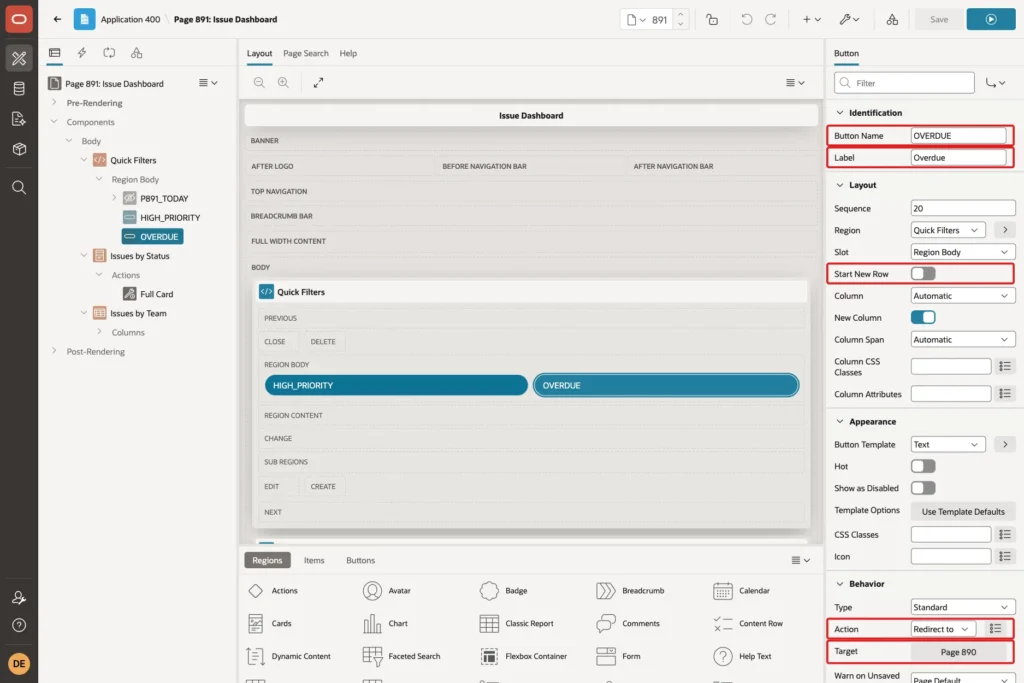
Create a second button in the same way, with Button Name OVERDUE and Label Overdue. Turn off Start New Row, so it sits next to the first button, and set the same Action:
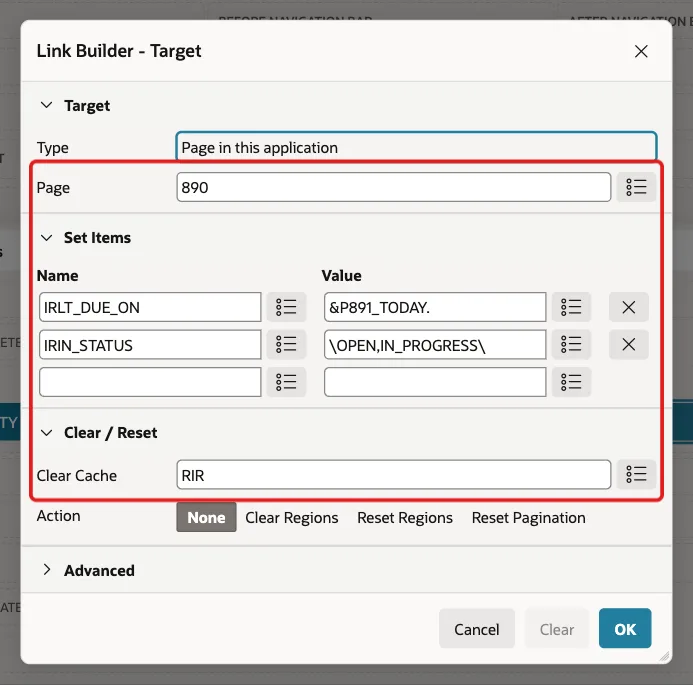
Enter Page 890, item IRLT_DUE_ON with value &P891_TODAY., item IRIN_STATUS with value \OPEN,IN_PROGRESS\ and Clear Cache RIR. Click OK and save the page:
Step 9: Test the Links
Run page 891. The buttons, the four status cards and the team report appear:
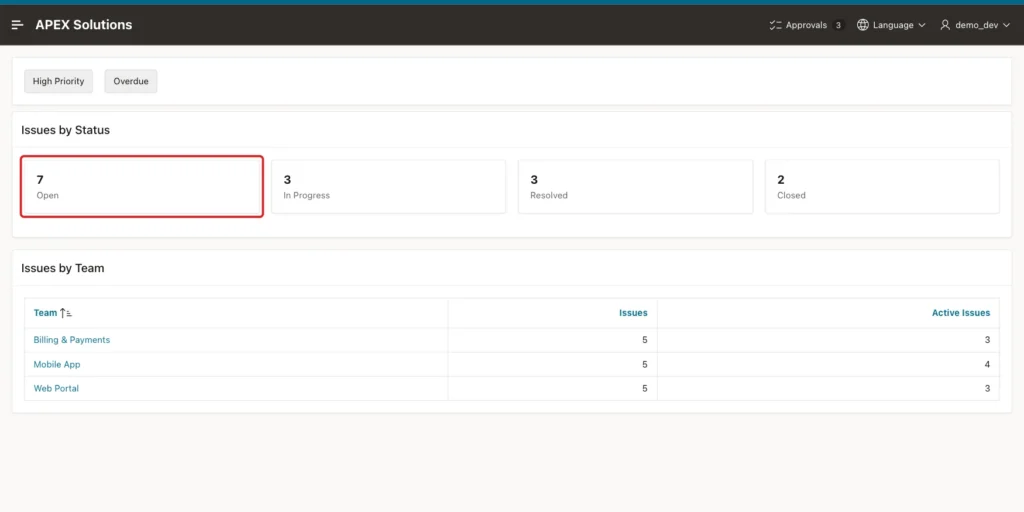
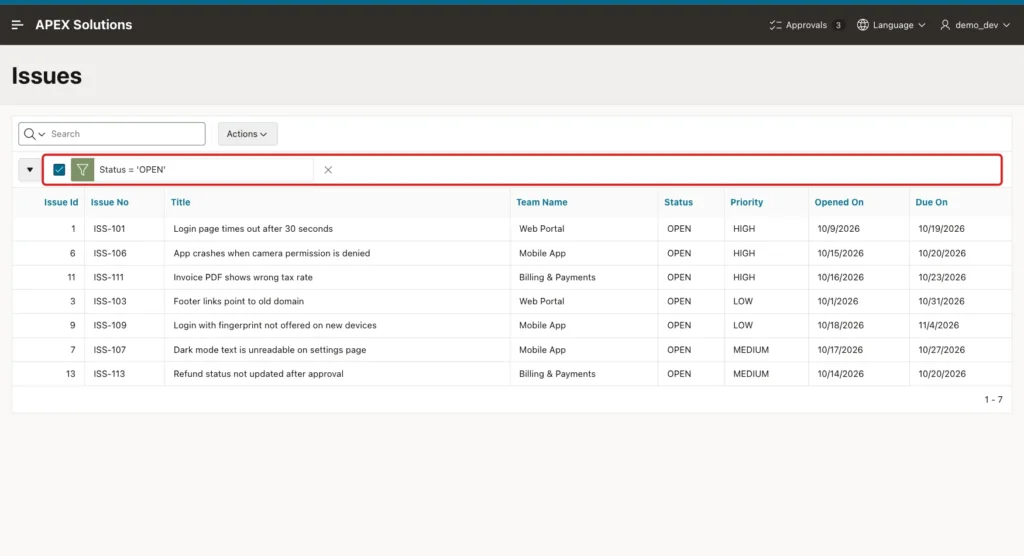
Click the Open card. Page 890 opens with the filter Status = 'OPEN' and seven rows, the same number the card showed:
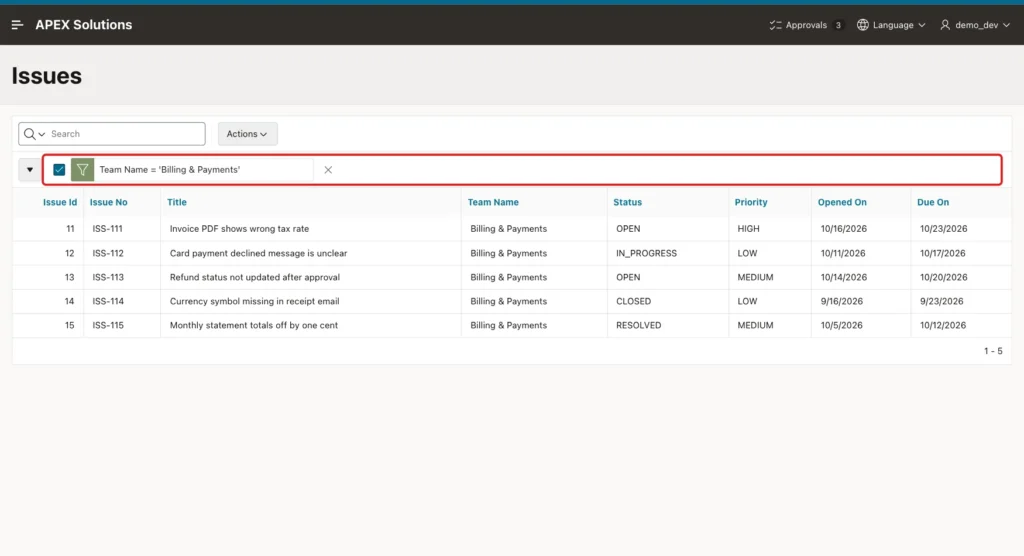
Go back and click Billing & Payments in the team report. The ampersand was encoded in the link as %26, and the filter shows the full team name with five issues:
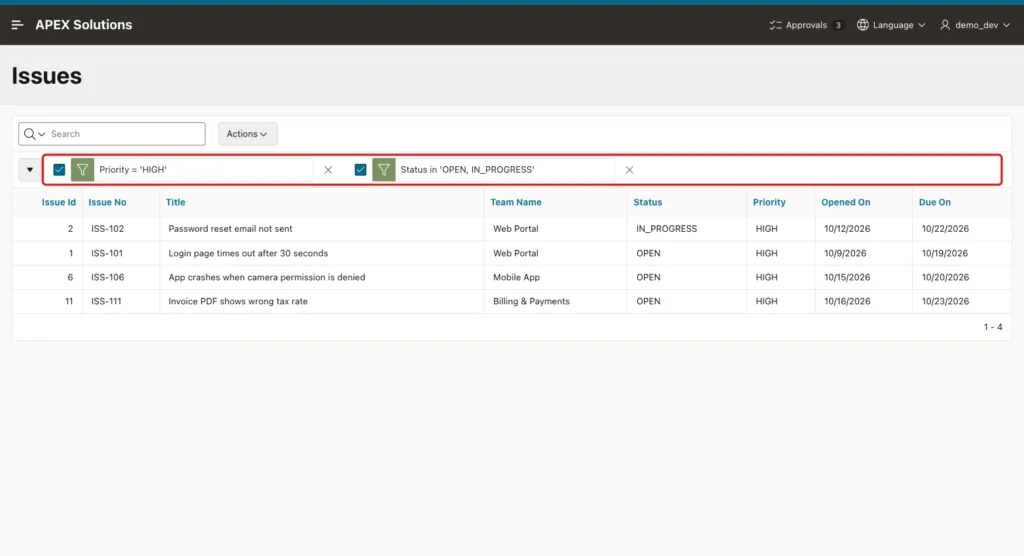
Click High Priority on the dashboard. The report shows both filters and four issues:
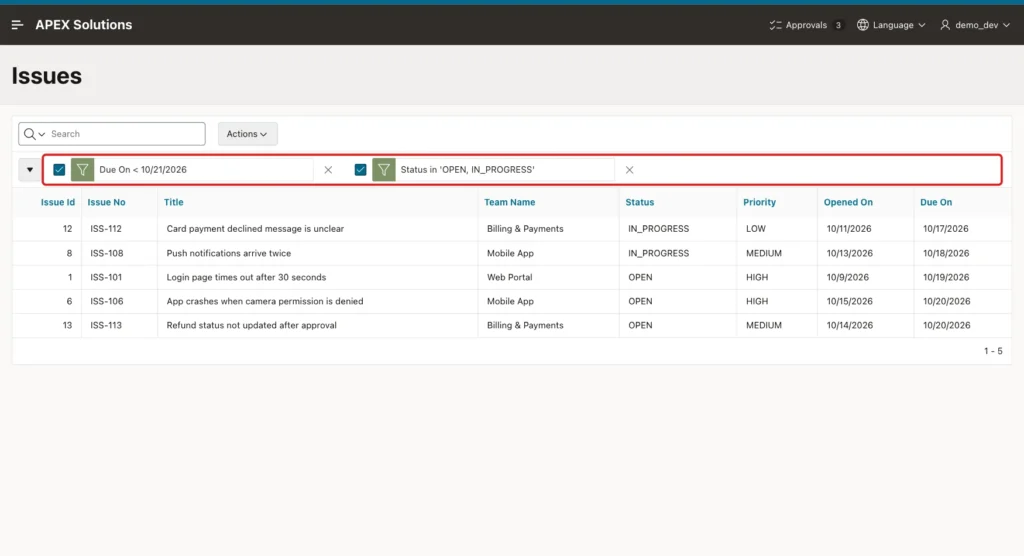
Click Overdue. The report shows the issues due before 10/21/2026 that are open or in progress:
To check the numbers, run the same conditions in SQL:
Example:
set define off
select 'Open card' as link, count(*) as issues from issues where status = 'OPEN'
union all
select 'Billing & Payments', count(*) from issues i join issue_teams t on t.team_id = i.team_id where t.team_name = 'Billing & Payments'
union all
select 'High Priority', count(*) from issues where priority = 'HIGH' and status in ('OPEN', 'IN_PROGRESS')
union all
select 'Overdue', count(*) from issues where due_on < trunc(sysdate) and status in ('OPEN', 'IN_PROGRESS');
Output:
LINK                     ISSUES
_____________________ _________
Open card                     7
Billing & Payments            5
High Priority                 4
Overdue                       5
All four counts match the rows that the report showed after each click.
The filters are normal interactive report filters. On the Overdue result, click the X next to the Due On filter:

The report keeps the status filter and shows all ten open or in-progress issues:
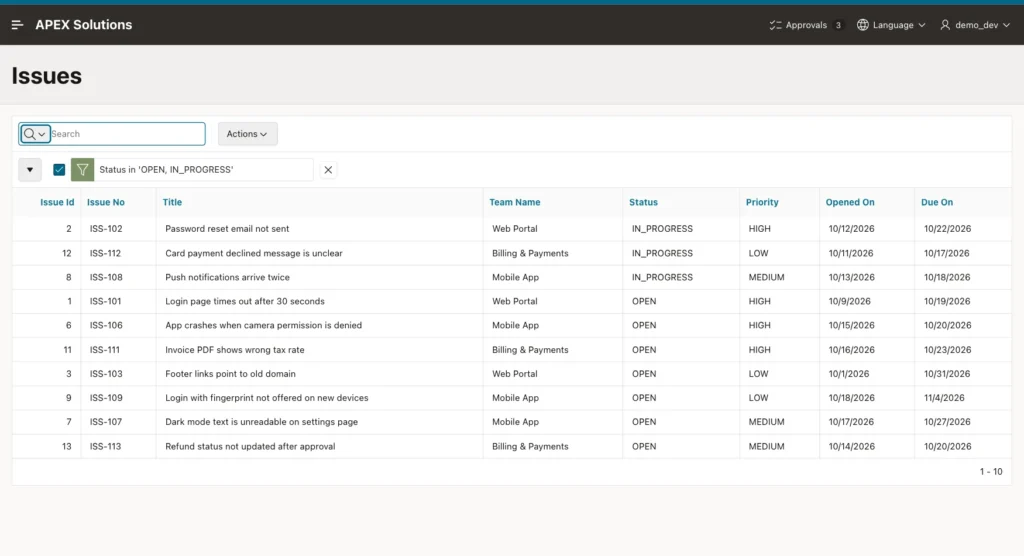
Three more tests showed why RIR and the checksum matter:
- After the Open card, the user typed login in the report search and pressed Enter, which added a second filter. Back on the dashboard, a click on In Progress showed only Status = 'IN_PROGRESS' and three rows. RIR removed the user's search too.
- In a test without RIR (Clear Cache 890 only), a link with IREQ_PRIORITY=HIGH after the Open card kept the old filter and added the new one: two filters and three rows. Clearing the page cache does not touch report filters.
- The Action option Reset Regions in the Link Builder (clear=RR) also removed the old filters in a test. Reset Pagination did not.
Last, copy the link of the Open card, change ireq_status=OPEN to ireq_status=CLOSED in the browser address bar and press Enter. The checksum no longer matches:
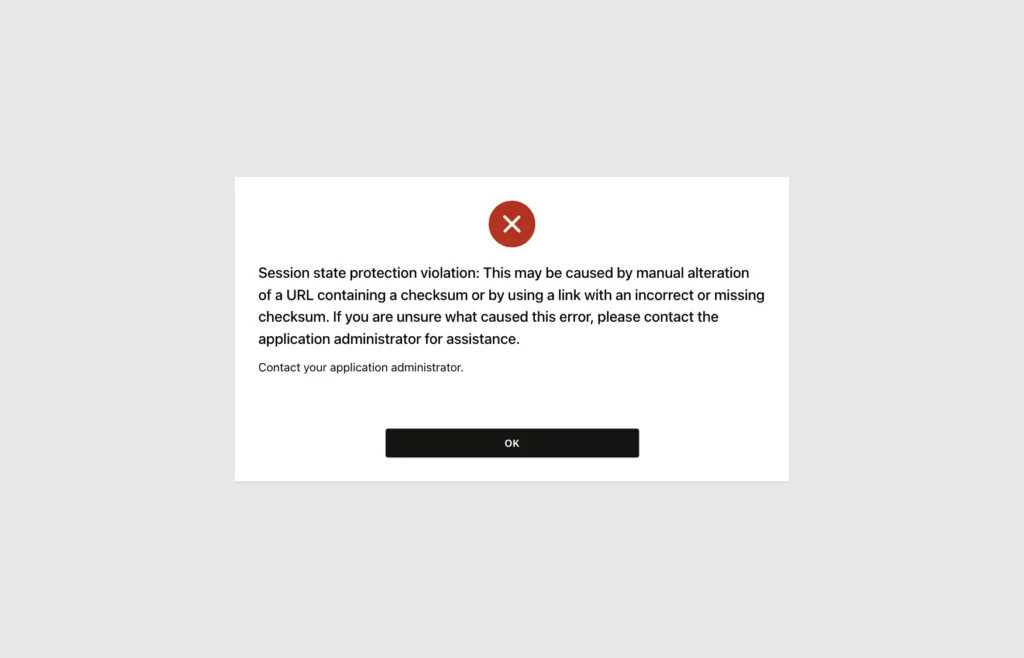
A filter link does not change who may see which rows. Users who can open page 890 can still remove the filter. Restrict the rows in the report query or with an authorization scheme, not with the link.
Things to Know
- Use RIR in Clear Cache for every link that sets filters. Without it, new filters are added to the ones from the last visit.
- Use the IR[html dom id] form when the target page has more than one interactive report, and set the HTML DOM ID of the region. A wrong ID stops the page with an error.
- Write list values for IN and NIN as \A,B\ in the Link Builder. Without the backslashes, only the first value arrives.
- Pass dates in the application date format. A date in another format is ignored without an error, and the user sees all rows.
- An unknown column name is ignored without an error too. After renaming a report column, test every link to it.
- Links built with the Link Builder carry a checksum. Keep Page Access Protection on Arguments Must Have Checksum unless users must type such URLs themselves.
Related Guides
- How to Filter and Reset Interactive Reports and Grids from PL/SQL Using APEX_IR and APEX_IG
- How to Drill Down from a Chart to the Matching Rows in Oracle APEX
Conclusion
To link to a filtered interactive report in Oracle APEX, set items such as IREQ_STATUS or IR[issues]_TEAM_NAME in the link and put RIR in Clear Cache. Cards, report columns and buttons all build these links declaratively with the Link Builder.
In this example, every link opened page 890 with the expected filters, and the row counts matched the SQL. The tests also showed the traps: commas in values need backslashes, dates need the application format, and links without RIR add up old filters.
See my articles more often when you search Google.
