
Typing detail rows one by one is slow when users already know what they want. They would rather open a list, tick several entries and get one new grid row for each of them. The rows should arrive with the right defaults, such as the current price and a quantity of 1, ready to change and save.
Oracle APEX can do this with a modal dialog page that has a selectable Interactive Grid. The dialog returns the ticked rows to the parent page, and a few lines of JavaScript insert them into the parent grid through its model. This guide builds both pages, handles items that are already on the list, and tests the whole flow.
The guide How to Return Values from a Modal Dialog to the Parent Page in Oracle APEX returns one value into page items. The older post on inserting Interactive Grid records with JavaScript adds rows from page items. This guide joins both ideas: a multi-select popup that fills a grid.
The example uses purchase requests and supply items; the same steps work for any parent and detail tables.
Step 1: Create the Tables
Three tables hold the data:
- SUPPLY_ITEMS is the list users pick from, with a code, a name, a category and a unit price.
- PURCHASE_REQUESTS has one row per request.
- PURCHASE_REQUEST_LINES has one row per item on a request, with the quantity and the unit price.
Example:
set define off

create table supply_items (
    item_id     number generated by default on null as identity,
    item_code   varchar2(20)  not null,
    item_name   varchar2(80)  not null,
    category    varchar2(30)  not null,
    unit_price  number(10,2)  not null,
    is_active   varchar2(1)   default on null 'Y' not null,
    constraint supply_items_pk primary key (item_id),
    constraint supply_items_code_uk unique (item_code),
    constraint supply_items_price_ck check (unit_price > 0),
    constraint supply_items_active_ck check (is_active in ('Y', 'N'))
);

create table purchase_requests (
    request_id     number generated by default on null as identity,
    request_title  varchar2(100) not null,
    requested_by   varchar2(60)  default on null
                   coalesce(sys_context('APEX$SESSION', 'APP_USER'), sys_context('USERENV', 'SESSION_USER')) not null,
    request_date   date default on null sysdate not null,
    constraint purchase_requests_pk primary key (request_id)
);

create table purchase_request_lines (
    line_id     number generated by default on null as identity,
    request_id  number not null,
    item_id     number not null,
    quantity    number(6)    default on null 1 not null,
    unit_price  number(10,2) not null,
    amount      number(12,2) generated always as (quantity * unit_price) virtual,
    constraint purchase_request_lines_pk primary key (line_id),
    constraint purchase_request_lines_req_fk foreign key (request_id)
        references purchase_requests (request_id) on delete cascade,
    constraint purchase_request_lines_item_fk foreign key (item_id)
        references supply_items (item_id),
    constraint purchase_request_lines_uk unique (request_id, item_id),
    constraint purchase_request_lines_qty_ck check (quantity > 0),
    constraint purchase_request_lines_price_ck check (unit_price >= 0)
);

create index purchase_request_lines_item_ix on purchase_request_lines (item_id);

insert into supply_items (item_code, item_name, category, unit_price) values ('PAP-A4', 'A4 Copy Paper (500 sheets)', 'Paper', 6.50);
insert into supply_items (item_code, item_name, category, unit_price) values ('PAP-NOTE', 'Sticky Notes Pack', 'Paper', 3.20);
insert into supply_items (item_code, item_name, category, unit_price) values ('WRT-PEN', 'Blue Ballpoint Pens (10)', 'Writing', 4.75);
insert into supply_items (item_code, item_name, category, unit_price) values ('WRT-MRK', 'Whiteboard Markers (4)', 'Writing', 5.90);
insert into supply_items (item_code, item_name, category, unit_price) values ('DSK-STP', 'Stapler', 'Desk', 12.00);
insert into supply_items (item_code, item_name, category, unit_price) values ('DSK-TAPE', 'Tape Dispenser', 'Desk', 7.40);
insert into supply_items (item_code, item_name, category, unit_price) values ('TEC-MOU', 'Wireless Mouse', 'Tech', 18.99);
insert into supply_items (item_code, item_name, category, unit_price) values ('TEC-USB', 'USB-C Hub', 'Tech', 34.50);
insert into supply_items (item_code, item_name, category, unit_price) values ('TEC-HDS', 'Headset with Microphone', 'Tech', 42.00);
insert into supply_items (item_code, item_name, category, unit_price, is_active) values ('TEC-FAX', 'Fax Machine Toner', 'Tech', 55.00, 'N');

insert into purchase_requests (request_title, requested_by) values ('Office restock - October', 'DEMO_DEV');
insert into purchase_requests (request_title, requested_by) values ('New starter desk kit', 'DEMO_DEV');

insert into purchase_request_lines (request_id, item_id, quantity, unit_price)
select 1, item_id, 5, unit_price from supply_items where item_code = 'PAP-A4';
insert into purchase_request_lines (request_id, item_id, quantity, unit_price)
select 1, item_id, 2, unit_price from supply_items where item_code = 'WRT-PEN';

commit;

select r.request_id, r.request_title, i.item_name, l.quantity, l.unit_price, l.amount
from purchase_requests r
left join purchase_request_lines l on l.request_id = r.request_id
left join supply_items i on i.item_id = l.item_id
order by r.request_id, l.line_id;
Output:
Table SUPPLY_ITEMS created.

Table PURCHASE_REQUESTS created.

Table PURCHASE_REQUEST_LINES created.

Index PURCHASE_REQUEST_LINES_ITEM_IX created.

1 row inserted.

1 row inserted.

1 row inserted.

1 row inserted.

1 row inserted.

1 row inserted.

1 row inserted.

1 row inserted.

1 row inserted.

1 row inserted.

1 row inserted.

1 row inserted.

1 row inserted.

1 row inserted.

Commit complete.

   REQUEST_ID REQUEST_TITLE               ITEM_NAME                        QUANTITY    UNIT_PRICE    AMOUNT
_____________ ___________________________ _____________________________ ___________ _____________ _________
            1 Office restock - October    A4 Copy Paper (500 sheets)              5           6.5      32.5
            1 Office restock - October    Blue Ballpoint Pens (10)                2          4.75       9.5
2 New starter desk kit- PURCHASE_REQUEST_LINES_REQ_FK links each line to its request and deletes the lines with the request. PURCHASE_REQUEST_LINES_ITEM_FK links each line to a supply item, and PURCHASE_REQUEST_LINES_ITEM_IX indexes that foreign key.
- PURCHASE_REQUEST_LINES_UK allows each item only once per request. The popup code below adds 1 to the quantity instead of adding a second line.
- AMOUNT is a virtual column (quantity times unit price), so no trigger or process has to keep it up to date.
- QUANTITY, IS_ACTIVE, REQUESTED_BY and REQUEST_DATE use DEFAULT ON NULL, so the database fills them without a trigger.
- The Fax Machine Toner item is inactive. The popup lists only active items.
Step 2: Create the Request Lines Page
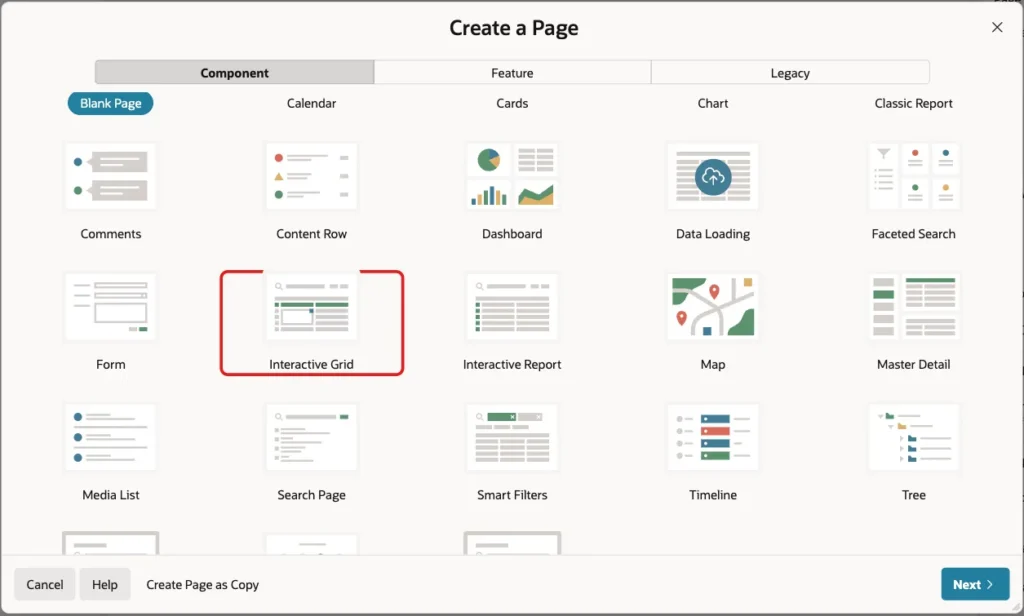
In App Builder, open the application and click Create Page. On the Component tab, select Interactive Grid:
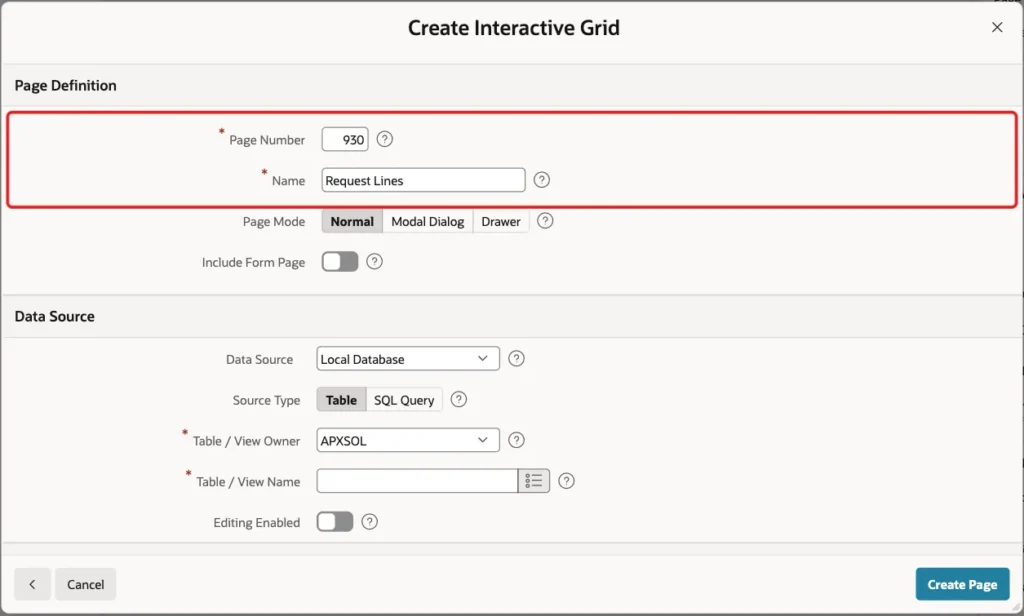
Set Page Number to 930 and Name to Request Lines. Keep Page Mode Normal:
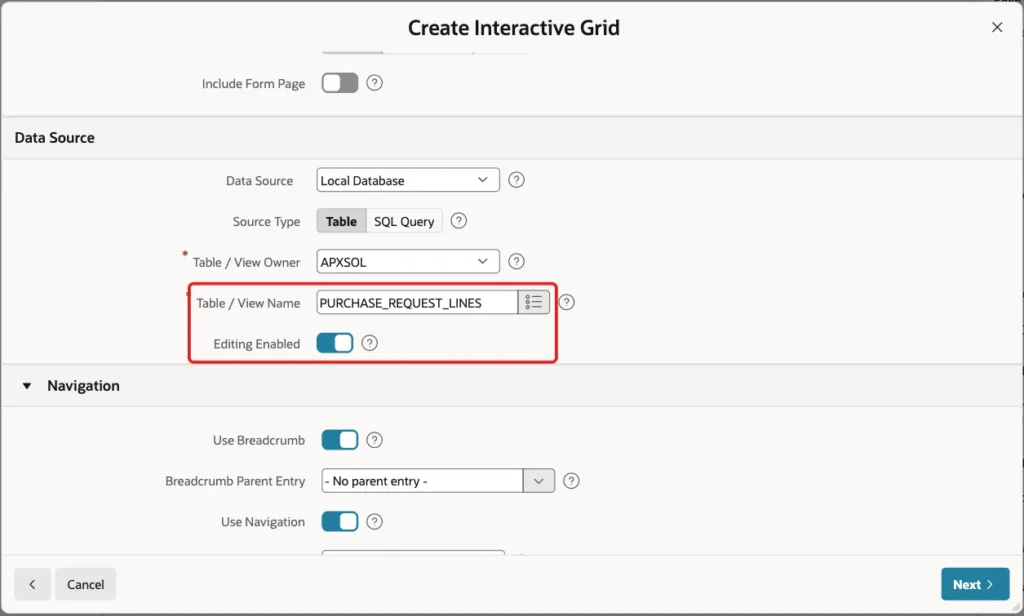
Under Data Source, keep Source Type Table, set Table / View Name to PURCHASE_REQUEST_LINES and turn on Editing Enabled:
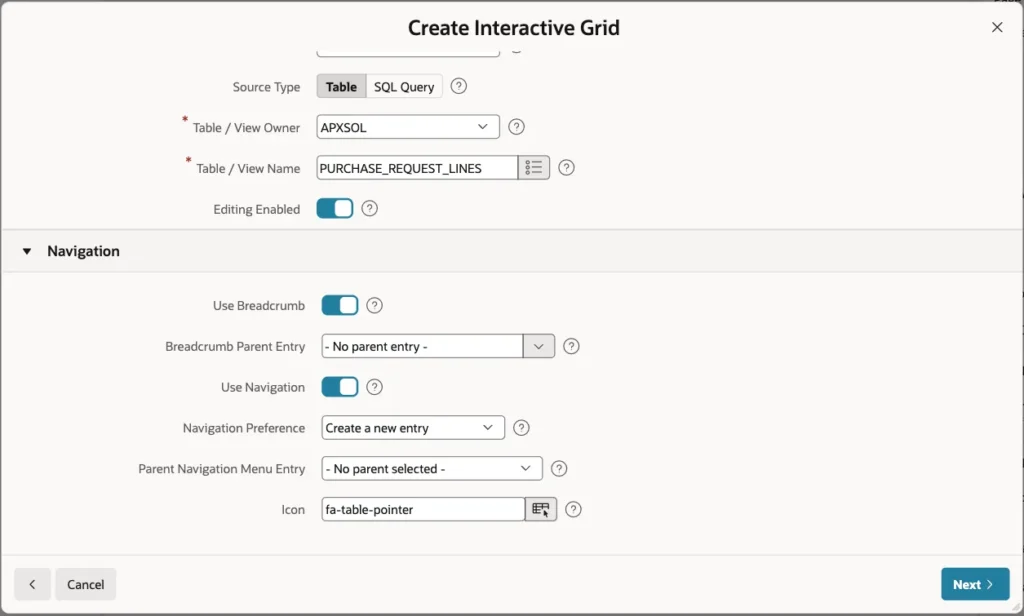
Keep the Navigation settings. The wizard adds a breadcrumb and a navigation menu entry:
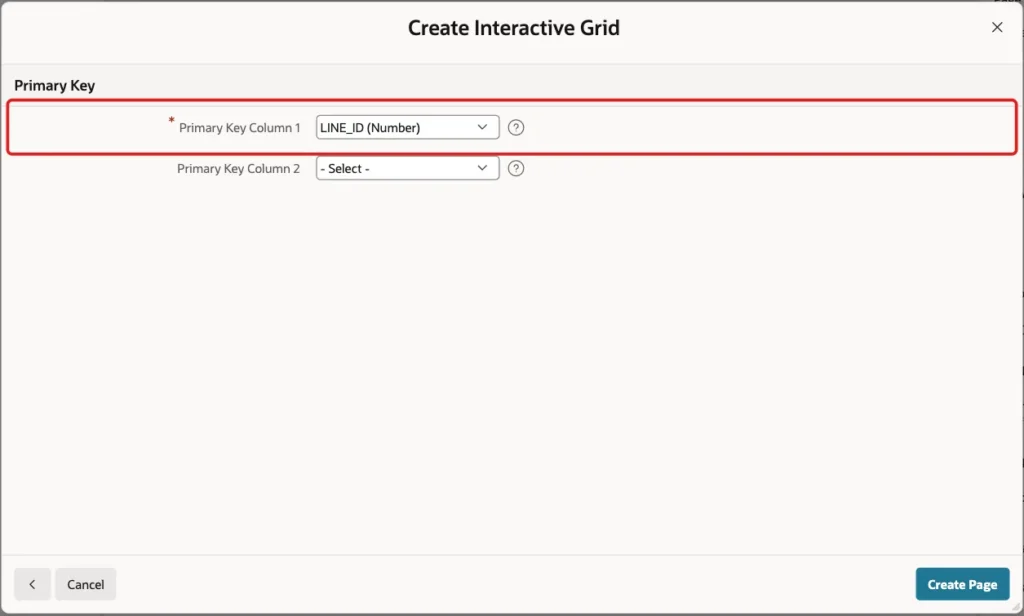
Click Next. On the Primary Key screen, select LINE_ID and click Create Page:
Step 3: Set the Grid Columns
In this example, APEX 26.1 created every column of the grid as a Select List based on the request titles, also QUANTITY, UNIT_PRICE and AMOUNT. Check the column types after the wizard and change them as shown below.
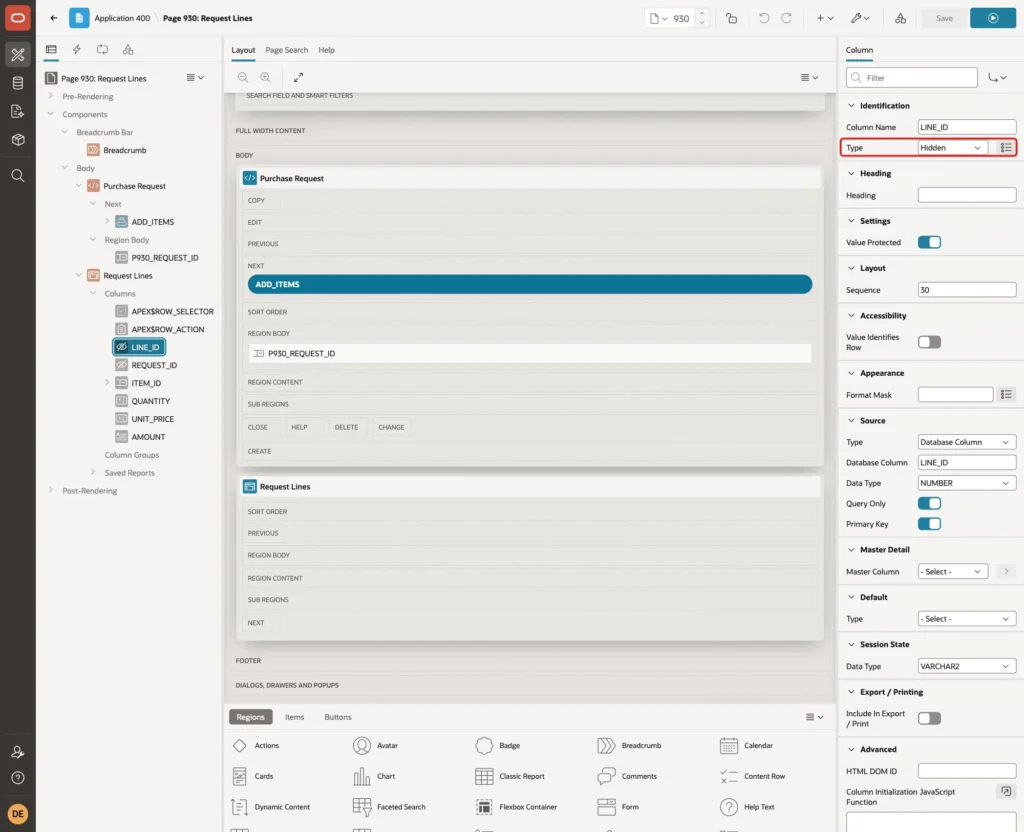
In Page Designer, expand Request Lines and Columns. Select LINE_ID and set Type to Hidden:
Select REQUEST_ID and set Type to Hidden:
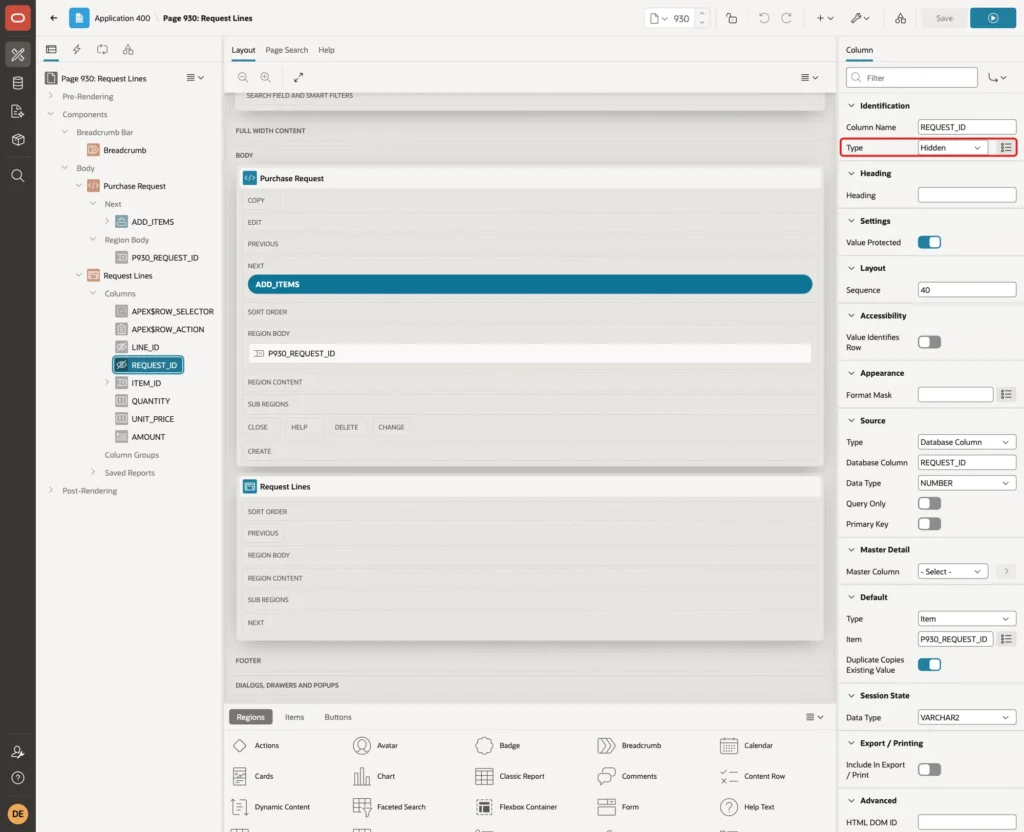
Under Default, set Type to Item and Item to P930_REQUEST_ID. You create this item in Step 4. Every new row then belongs to the request chosen on the page:

Select ITEM_ID. Keep Type Select List and set Heading to Item:
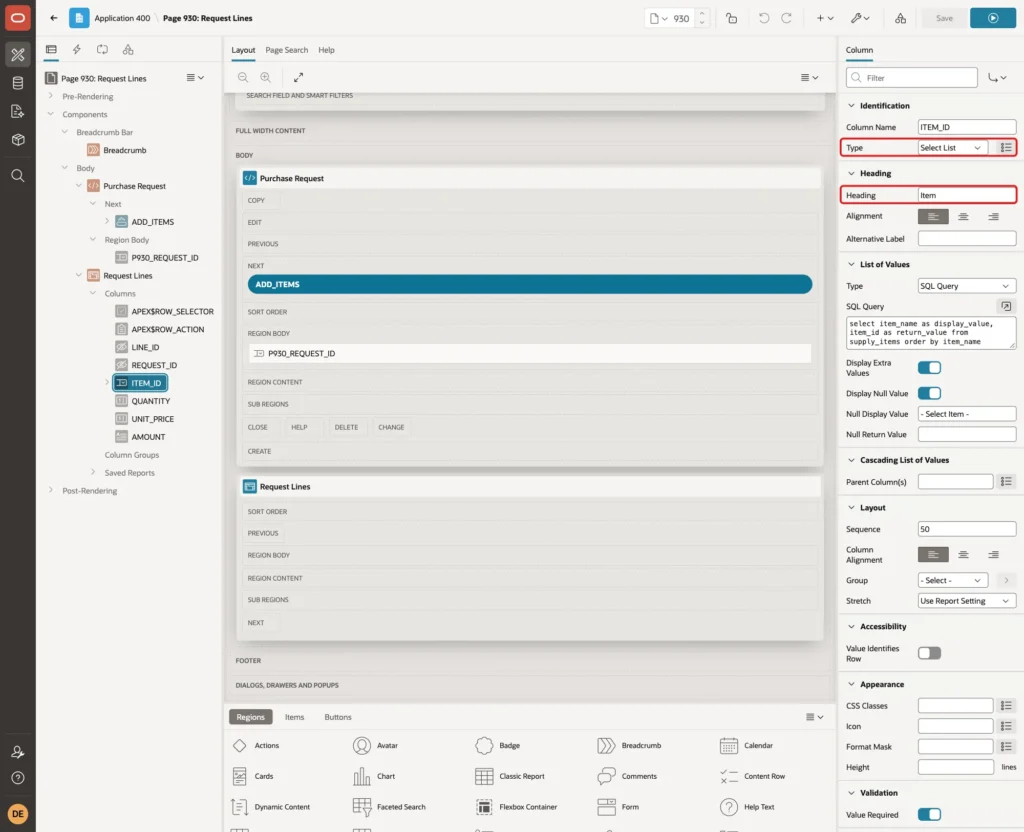
Under List of Values, set Type to SQL Query, enter this query, and set Null Display Value to - Select Item -:
Example:
select item_name as display_value,
       item_id as return_value
from supply_items
order by item_name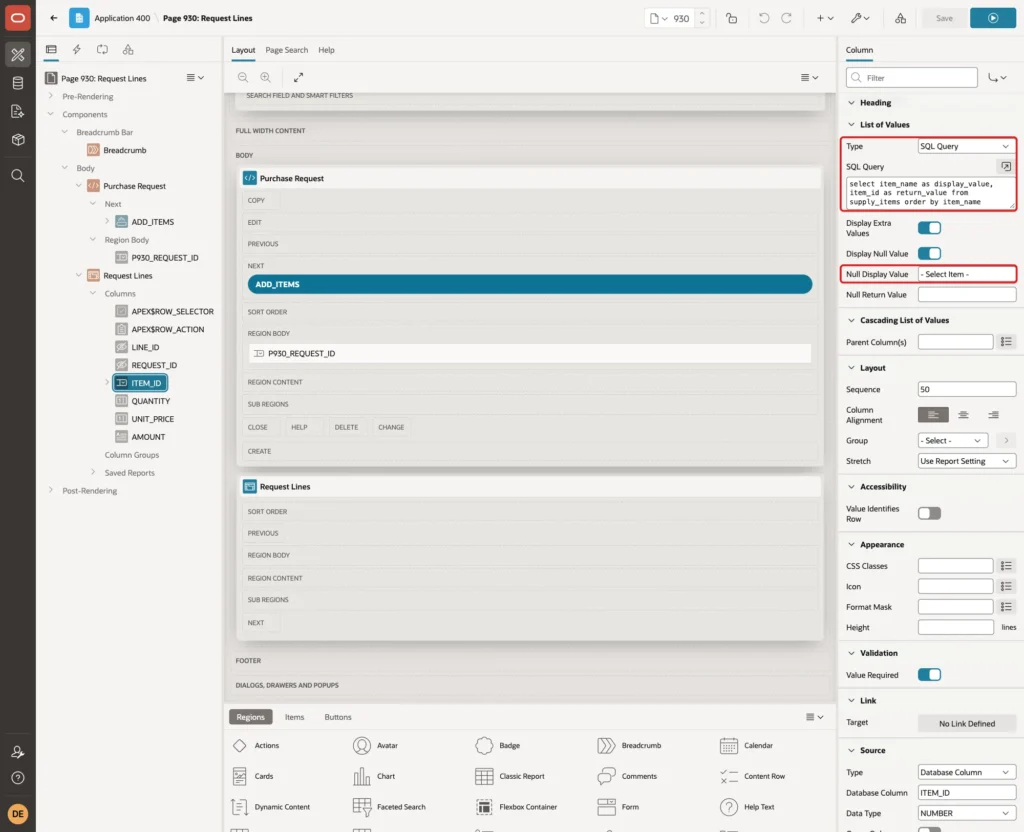
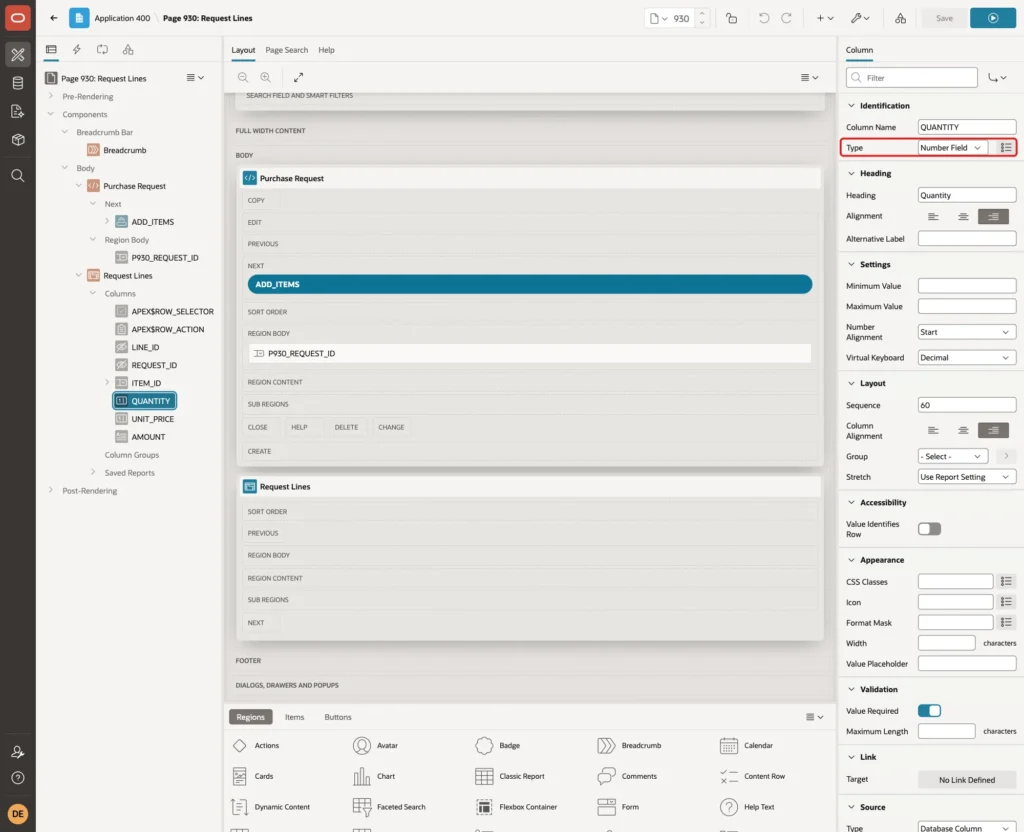
Select QUANTITY and set Type to Number Field:
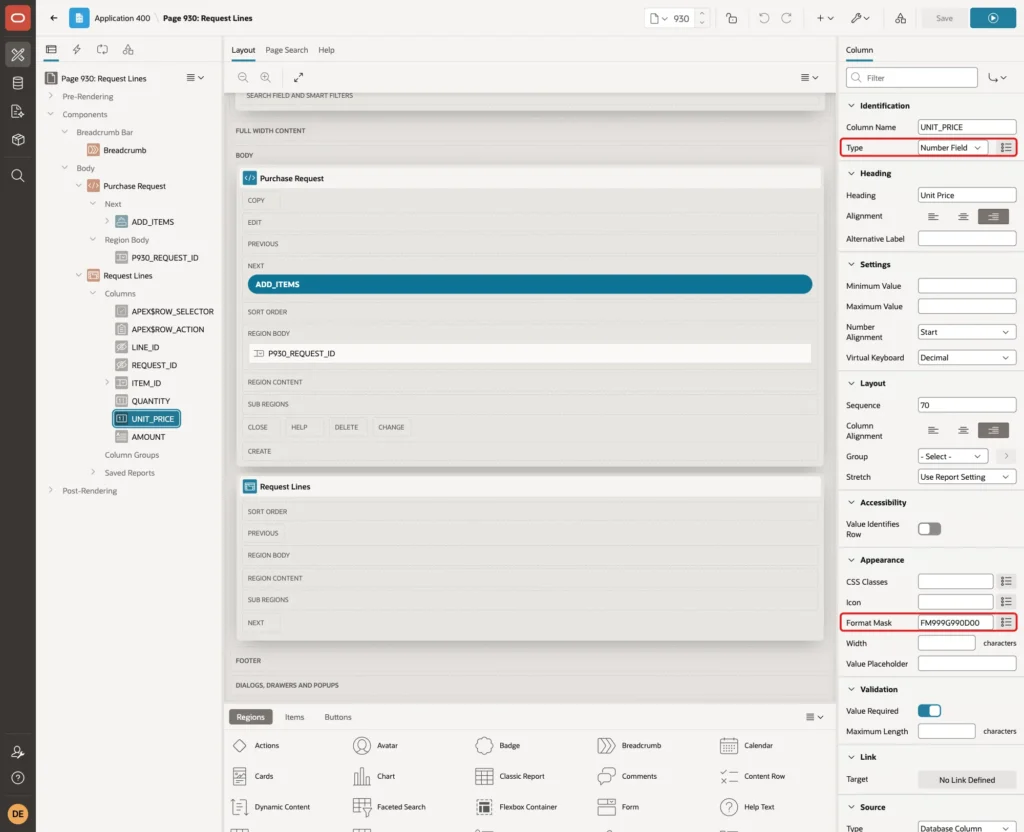
Select UNIT_PRICE, set Type to Number Field and Format Mask to FM999G990D00:
Select AMOUNT, set Type to Display Only, turn on Query Only under Source, and set Format Mask to FM999G990D00. The database computes this virtual column, so APEX must never try to write it:

Step 4: Add the Request Select List and the Add Items Button
In the Body of page 930, create a region above the grid. Set Name to Purchase Request and Type to Static Content. Then create a page item in this region.
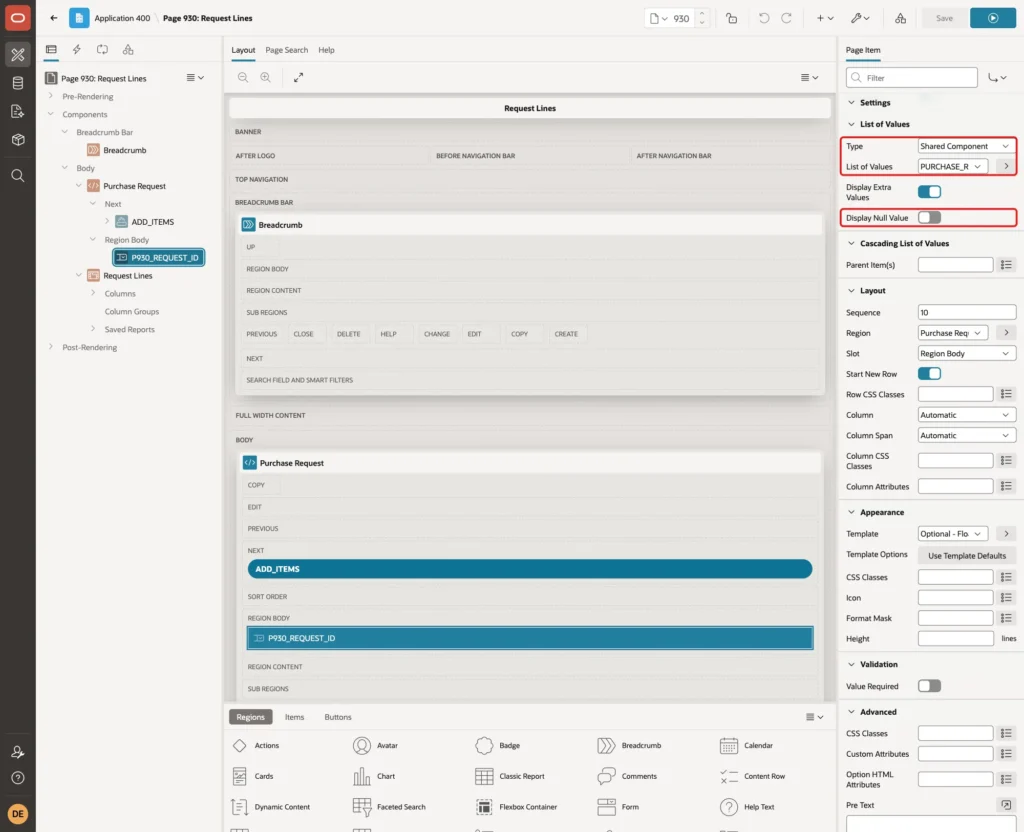
Set Name to P930_REQUEST_ID, Type to Select List, Label to Request, and Page Action on Selection to Submit Page:
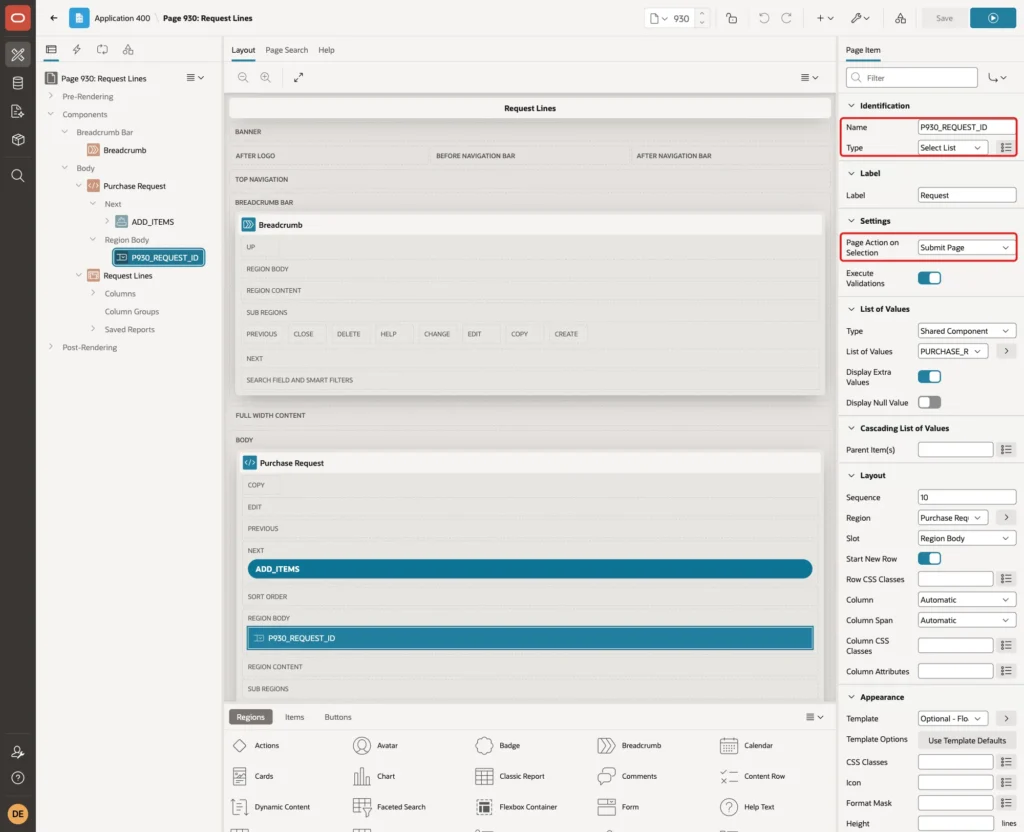
Under List of Values, set Type to Shared Component and List of Values to PURCHASE_REQUESTS.REQUEST_TITLE. The wizard created this list of values. Turn off Display Null Value, so a request is always selected:
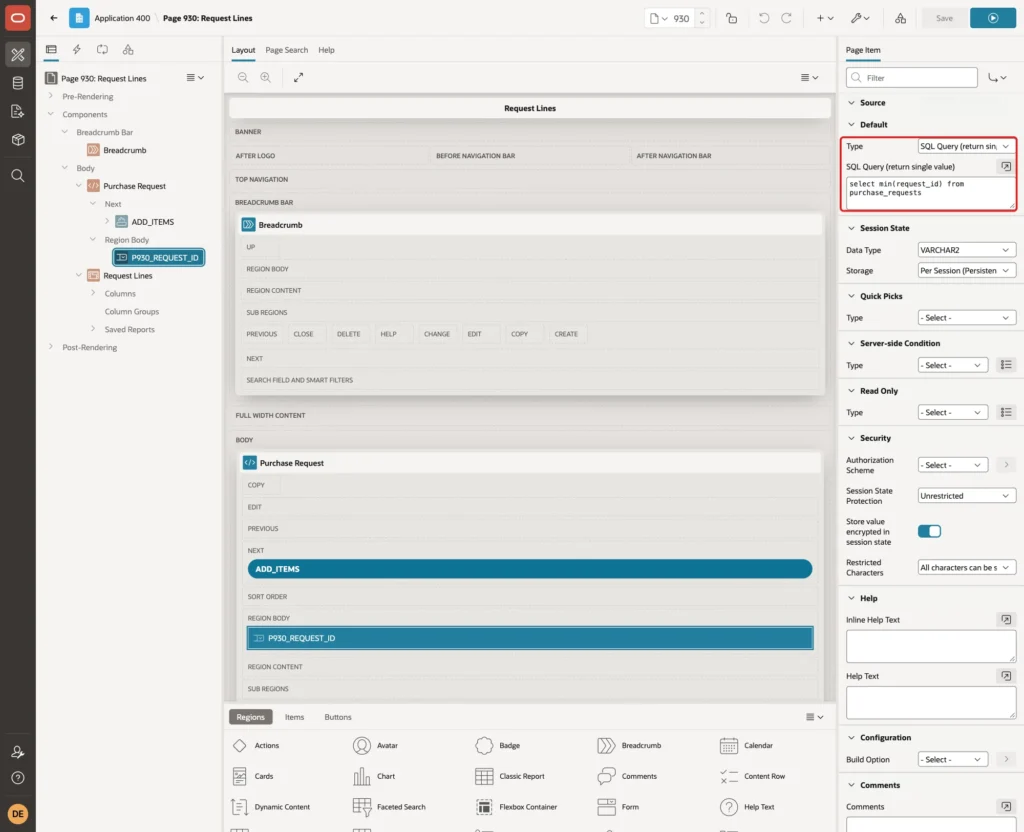
Under Default, set Type to SQL Query (return single value) and enter select min(request_id) from purchase_requests:
Create a button in the Next slot of the Purchase Request region. Set Button Name to ADD_ITEMS and Label to Add Items. Under Behavior, set Action to Redirect to Page in this Application and Target to page 931, which you create in Step 6:
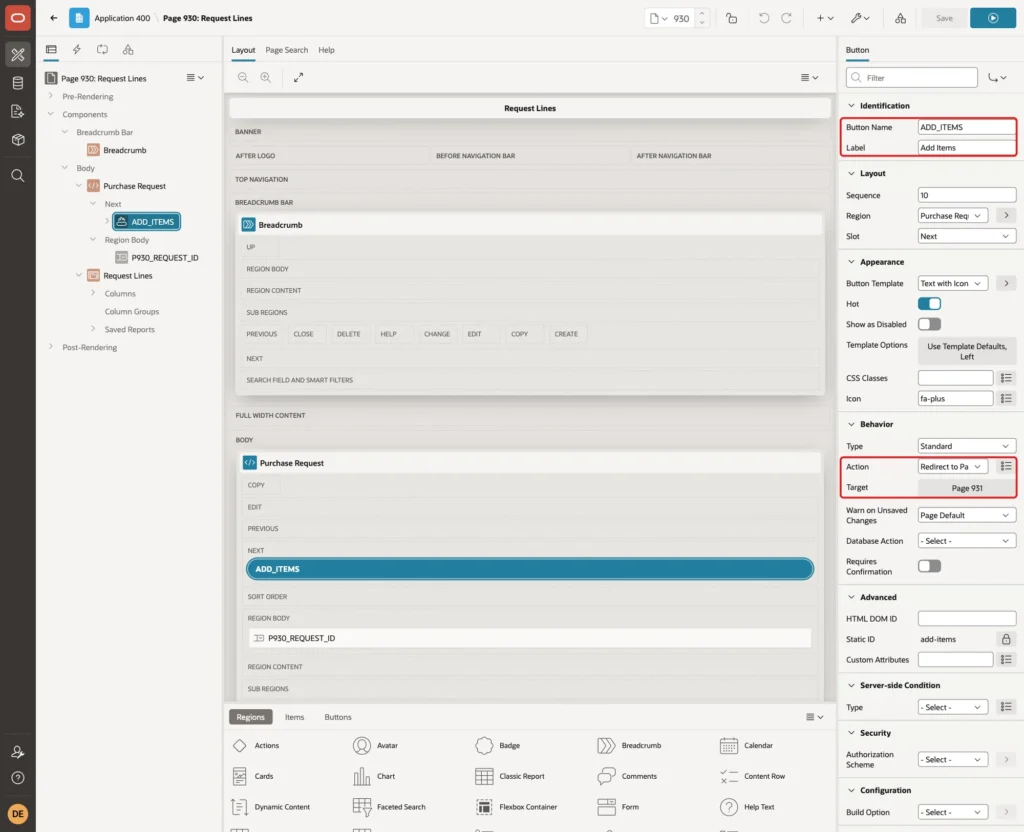
Page 931 is a modal dialog, so the redirect opens it as a popup over page 930. In this example, the button also uses the Text with Icon template, the icon fa-plus and the template option Icon Left.
Step 5: Filter and Prepare the Grid
Select the Request Lines region. Under Source, set Where Clause to request_id = :P930_REQUEST_ID, Order By Clause to line_id, and Page Items to Submit to P930_REQUEST_ID:
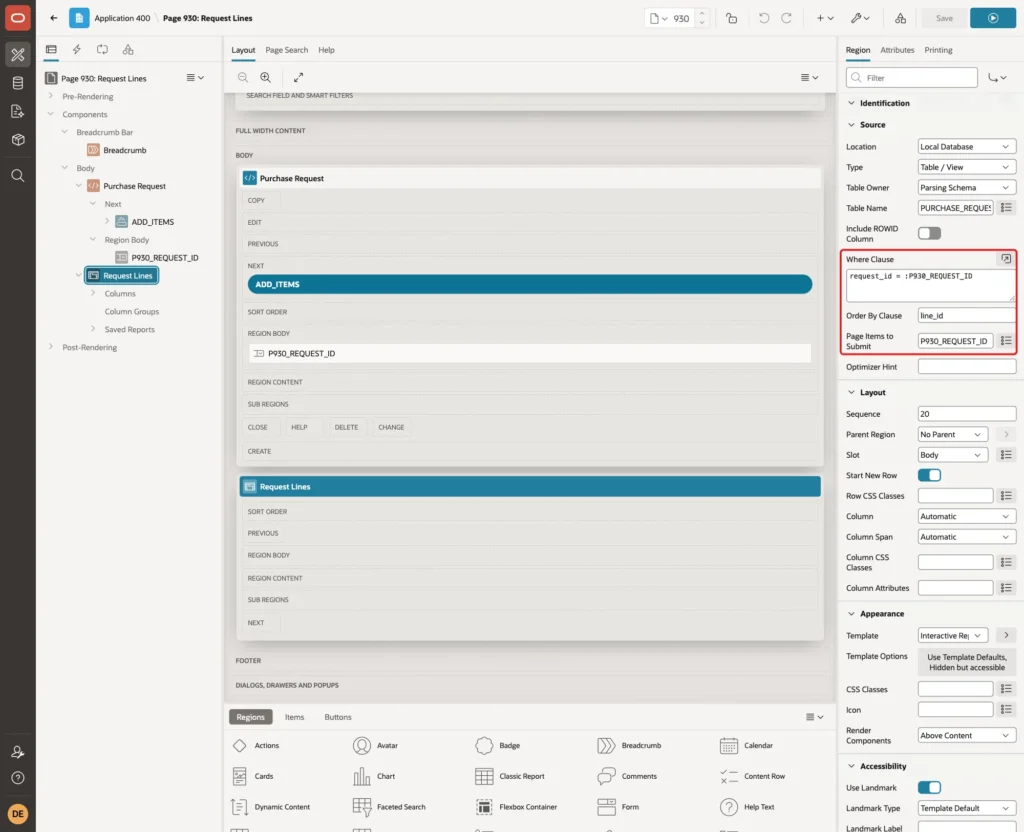
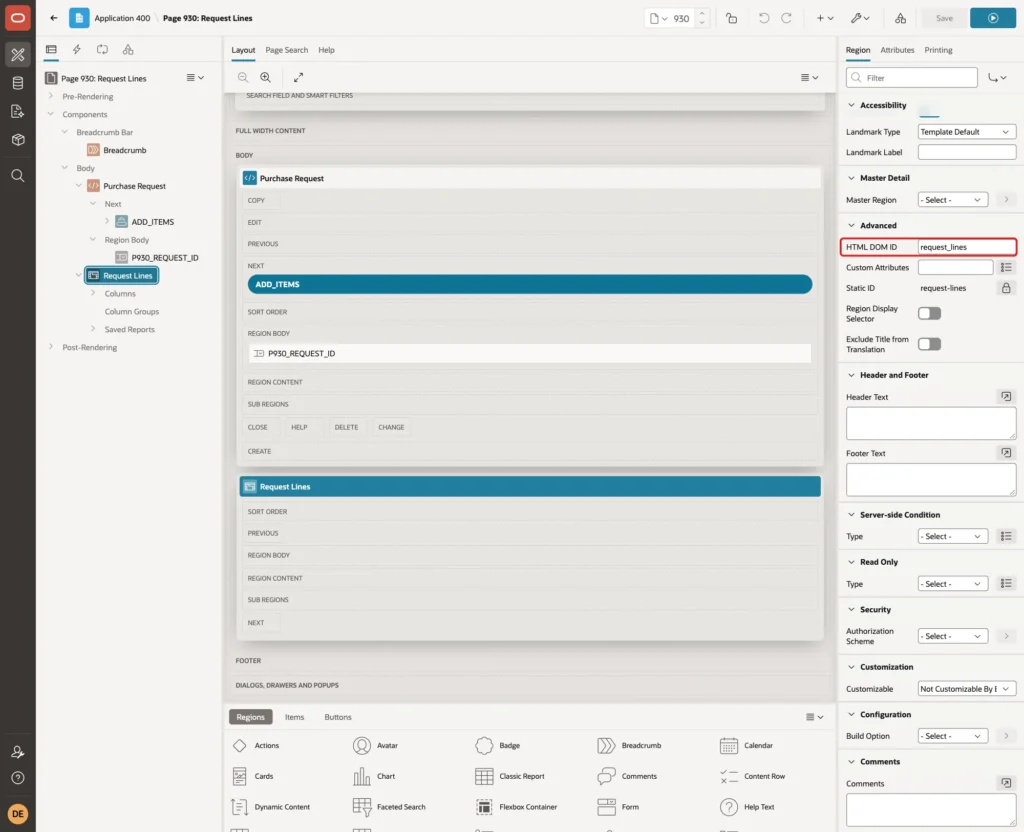
Under Advanced, set HTML DOM ID to request_lines. The JavaScript in Step 10 finds the grid by this ID:
Open the Attributes tab. Turn off Add Row If Empty and Select First Row:

With Add Row If Empty on, a request without lines showed one blank row. That blank row stayed under the picked rows, which looked odd, so this guide turns it off.
Step 6: Create the Select Supply Items Popup Page
Click Create Page again and select Interactive Grid on the Component tab. Set Page Number to 931, Name to Select Supply Items, and Page Mode to Modal Dialog:

Under Data Source, set Source Type to SQL Query and enter this query. Keep Editing Enabled off, then click Create Page:
Example:
select item_id,
       item_code,
       item_name,
       category,
       unit_price
from supply_items
where is_active = 'Y'
order by category, item_name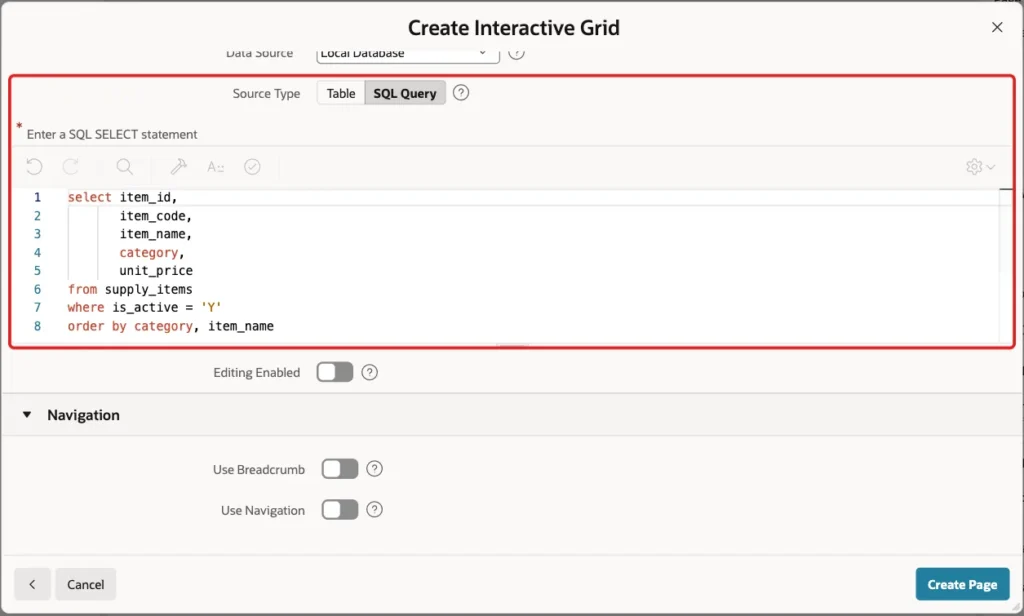
For a modal dialog, the wizard turns off the breadcrumb and the navigation entry, and the Create Page button appears on the first screen.
Step 7: Set Up the Selectable Grid
In Page Designer of page 931, select the Select Supply Items region. Under Advanced, set HTML DOM ID to supply_items_grid:
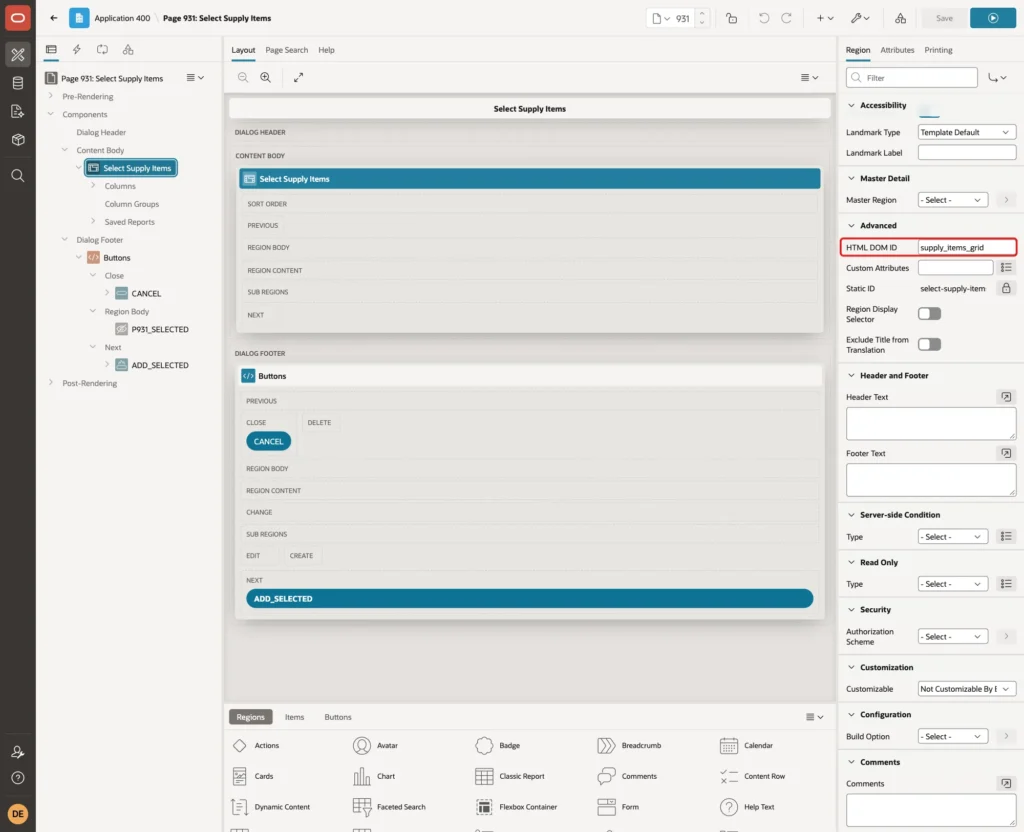
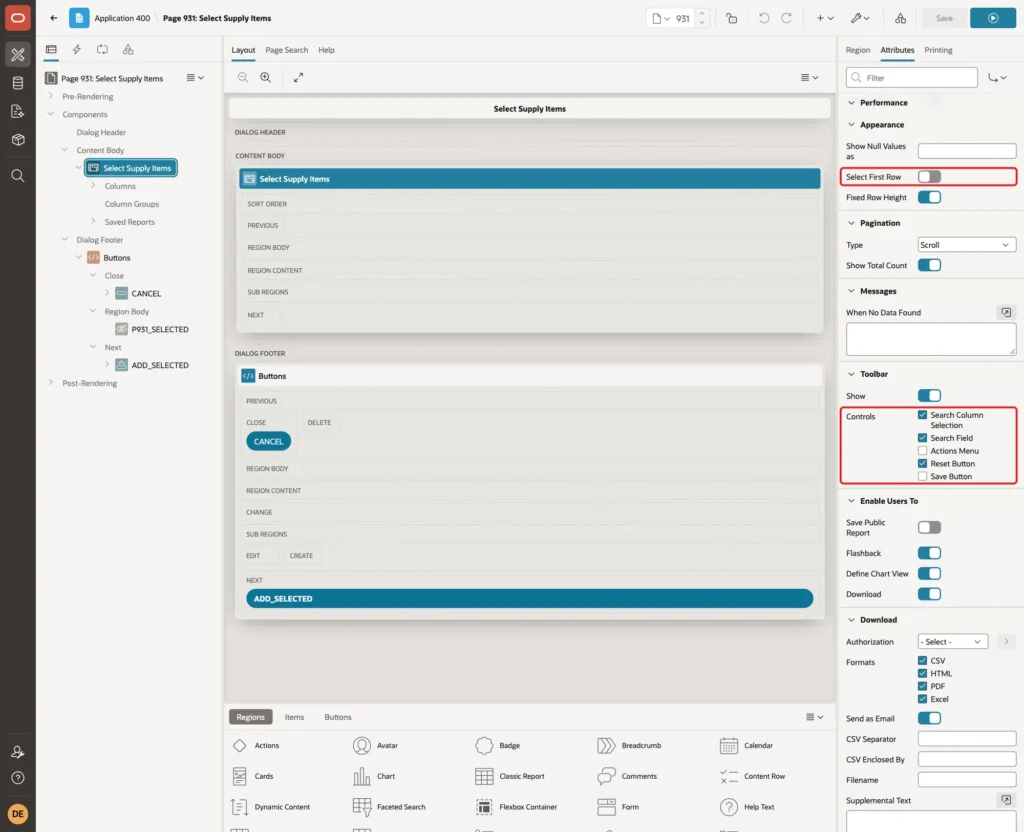
On the Attributes tab, turn off Select First Row. Under Toolbar, untick Actions Menu and Save Button. Users only search and tick rows here:
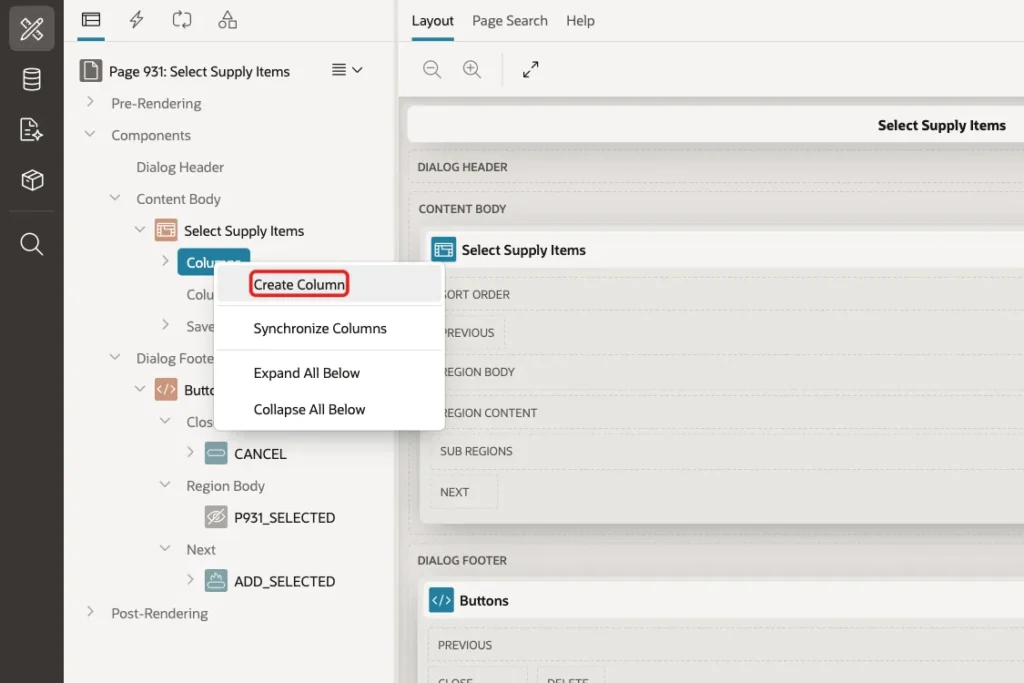
A read-only grid has no checkbox column by default. Right-click Columns and select Create Column:
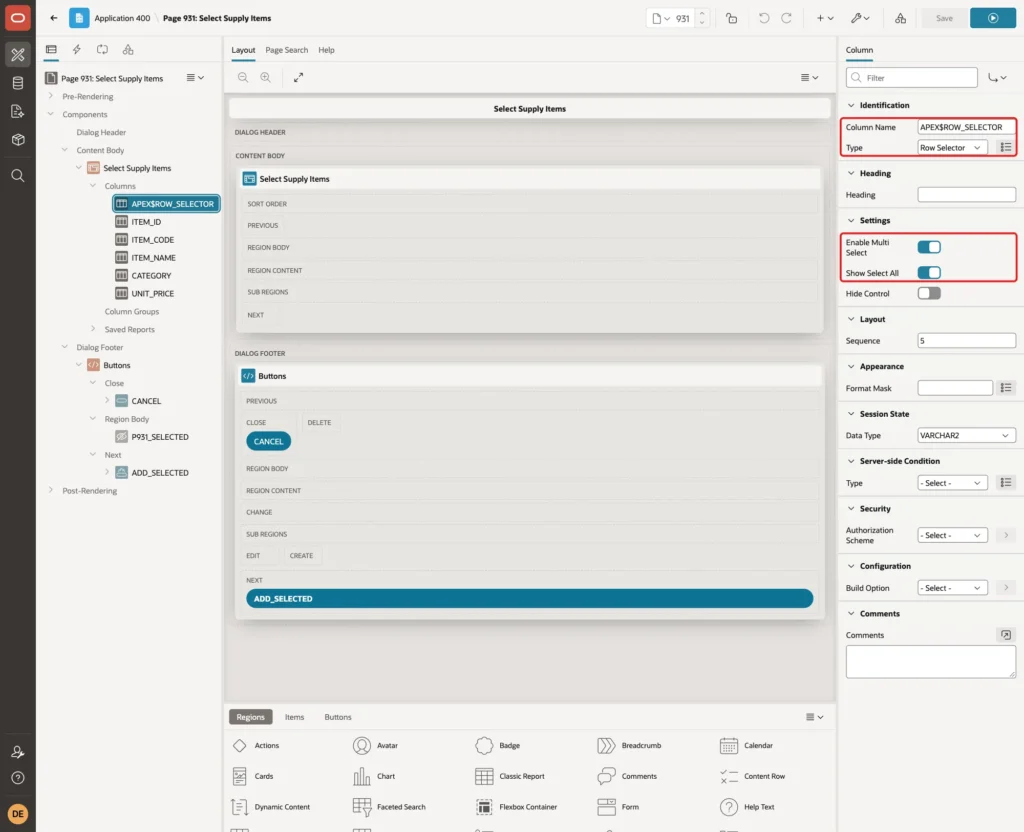
Set the new column's Column Name to APEX$ROW_SELECTOR and Type to Row Selector. Keep Enable Multi Select and Show Select All on:
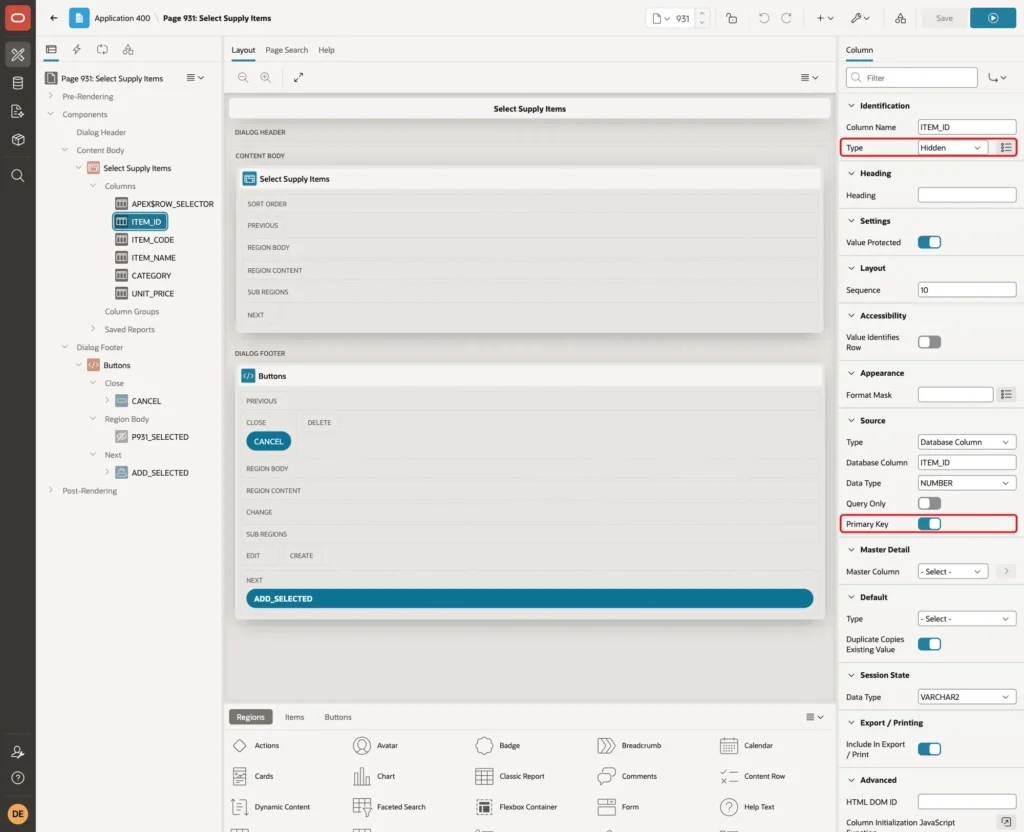
Select ITEM_ID, set Type to Hidden and turn on Primary Key under Source:
Select UNIT_PRICE and set Format Mask to FM999G990D00:

In this example, the grid's Heading also has Fixed To Region with a report height of 420 pixels, so all nine items fit without scrolling. Under Dialog on the page itself, Width is 800.
Step 8: Add the Hidden Item and the Buttons
In the Dialog Footer, create a region. Set Name to Buttons, Type to Static Content and Template to Buttons Container. In this region, create a page item P931_SELECTED with Type Hidden and turn off Value Protected:
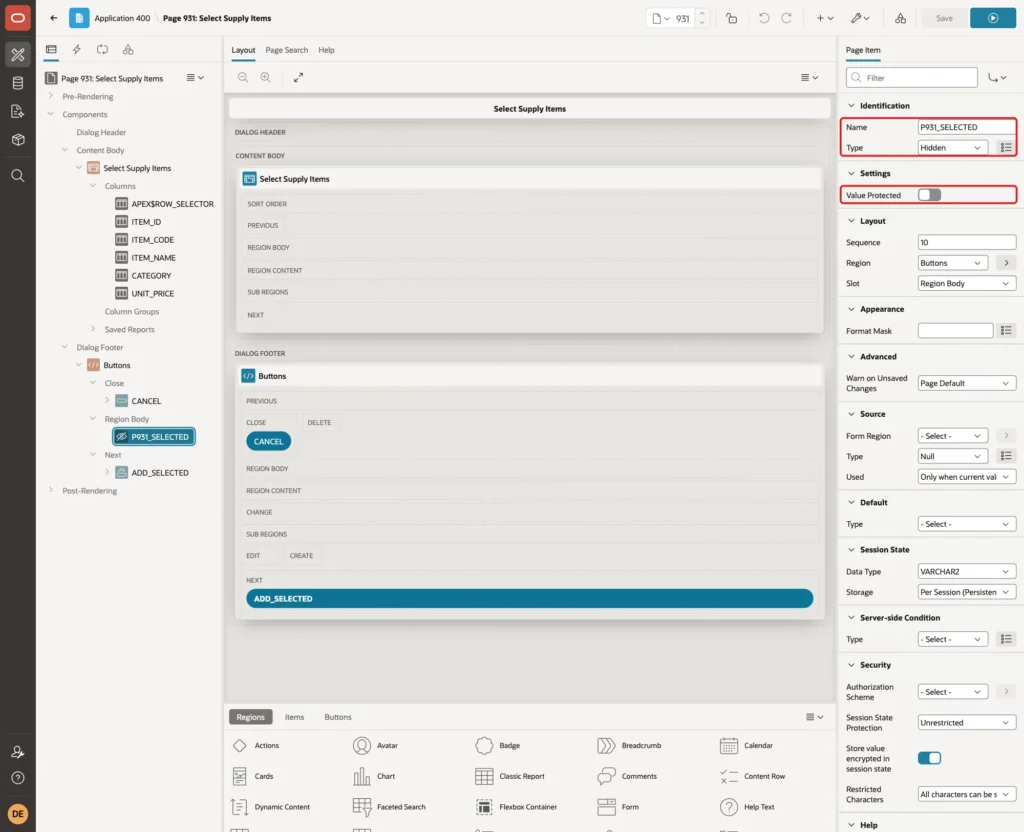
Value Protected must be off because JavaScript sets the item. The item is never submitted; the dialog only returns its value to page 930.
Create a button CANCEL in the Close slot of the Buttons region. Set Action to Trigger Action, then under the button add the action Cancel Dialog:

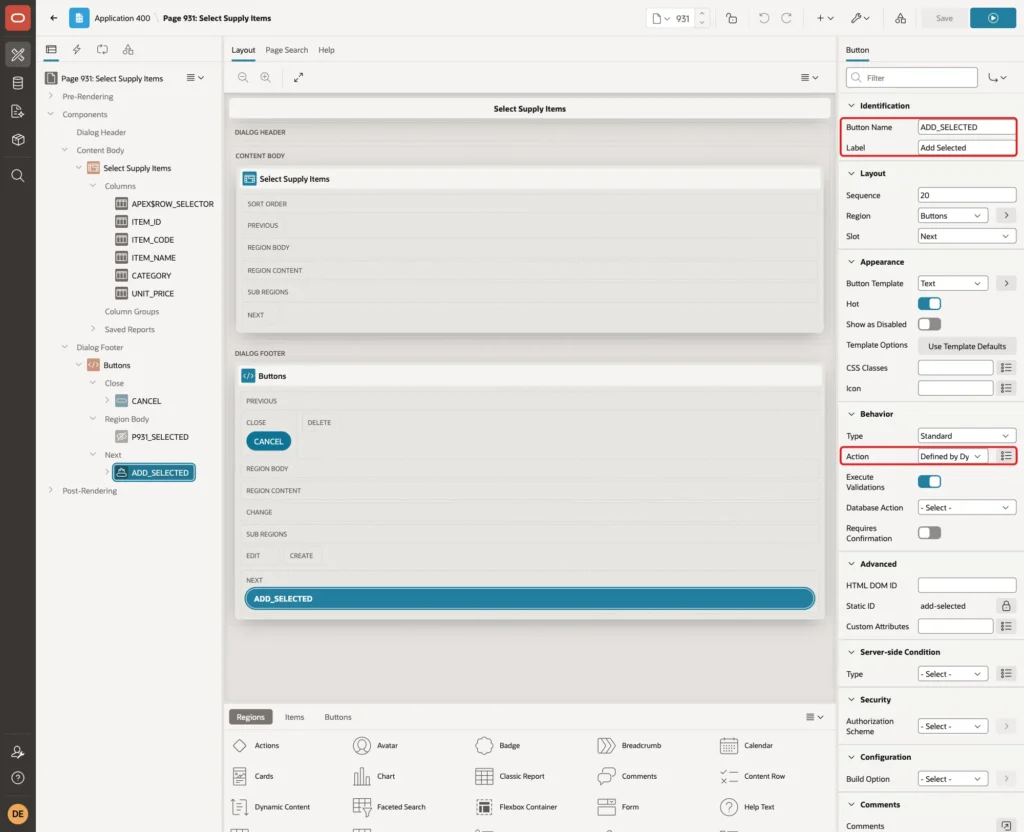
Create a button in the Next slot. Set Button Name to ADD_SELECTED, Label to Add Selected, turn on Hot, and set Action to Defined by Dynamic Action:
Step 9: Return the Ticked Rows from the Popup
On the Dynamic Actions tab, create a dynamic action. Set Name to Return Selected Items, Event to Click, Selection Type to Button and Button to ADD_SELECTED:

Under Client-side Condition, set Type to JavaScript expression and enter this expression:
Example:
apex.region("supply_items_grid").call("getSelectedRecords").length > 0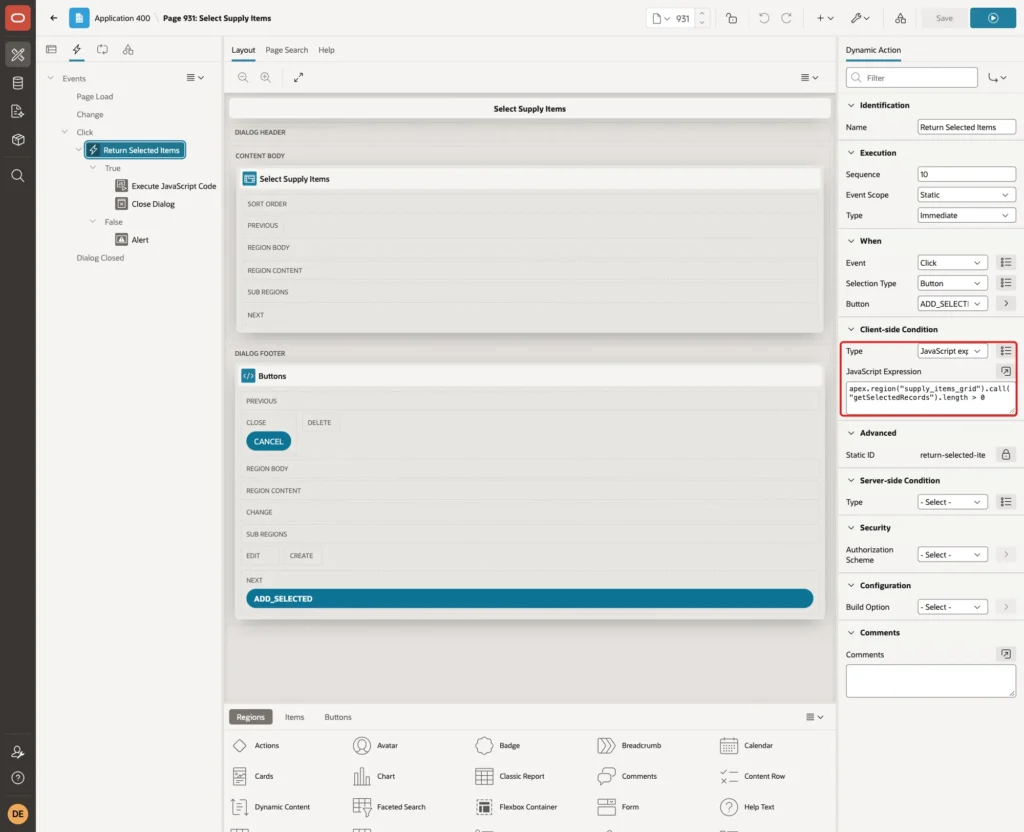
Set the first True action to Execute JavaScript Code with this code:
Example:
var grid = apex.region("supply_items_grid");
var model = grid.call("getViews", "grid").model;
var picked = grid.call("getSelectedRecords").map(function (record) {
    return {
        id: model.getValue(record, "ITEM_ID"),
        name: model.getValue(record, "ITEM_NAME"),
        price: model.getValue(record, "UNIT_PRICE")
    };
});
apex.item("P931_SELECTED").setValue(JSON.stringify(picked));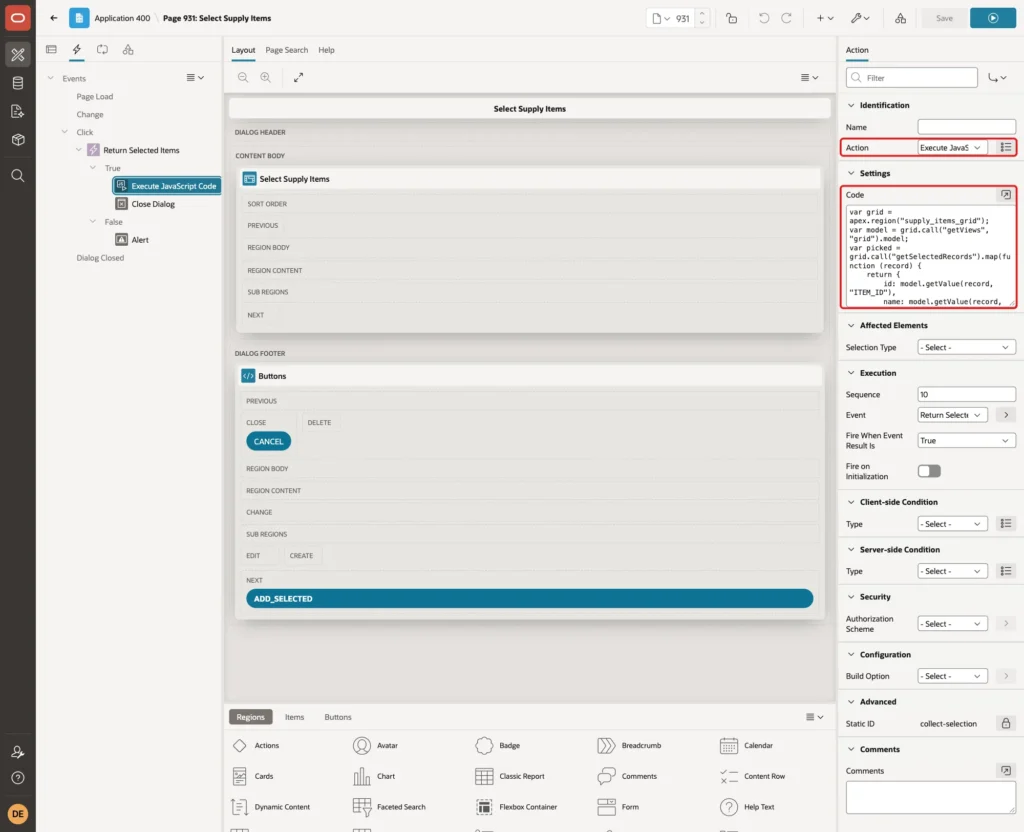
getSelectedRecords returns the ticked records of the grid. The code reads ITEM_ID, ITEM_NAME and UNIT_PRICE from each record through the grid model and stores the list as JSON text in P931_SELECTED.
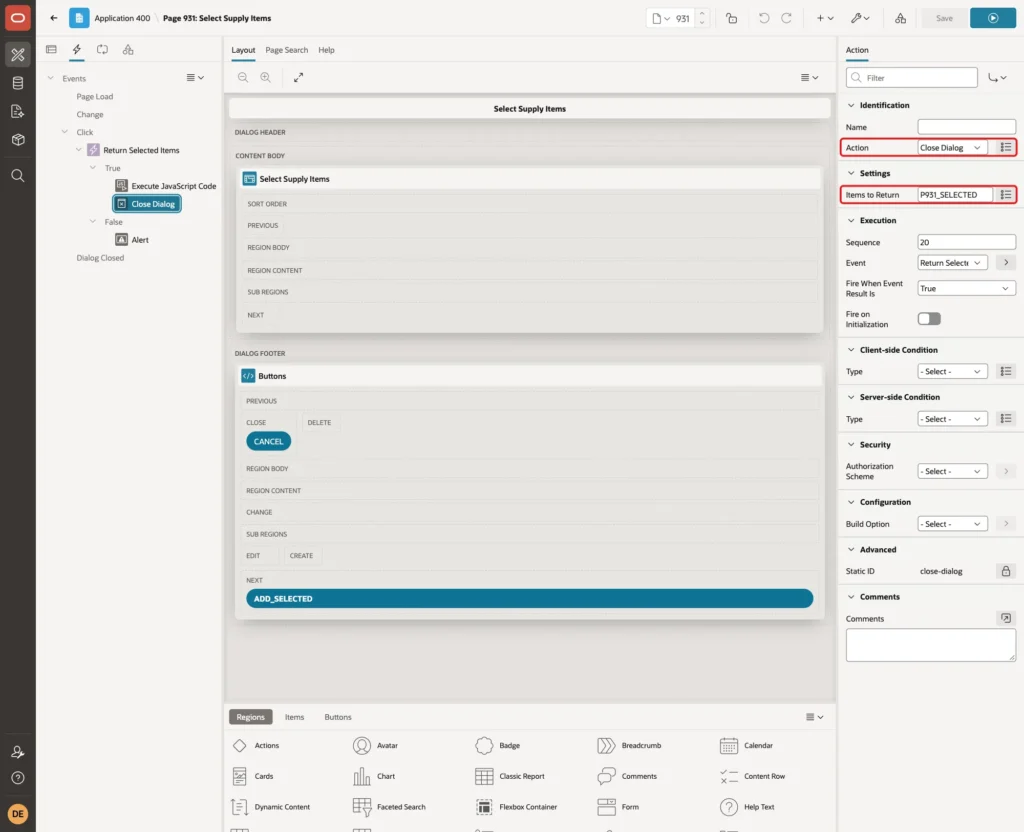
Add a second True action with Action Close Dialog and set Items to Return to P931_SELECTED:
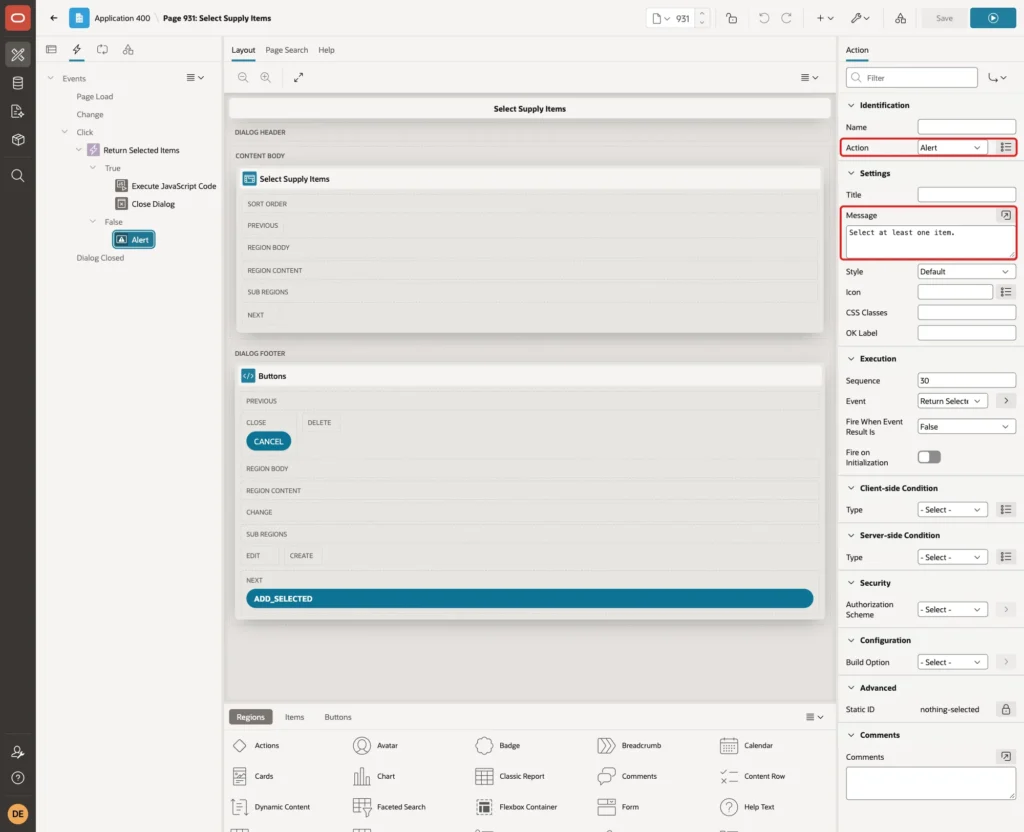
Add a False action with Action Alert and Message Select at least one item.:
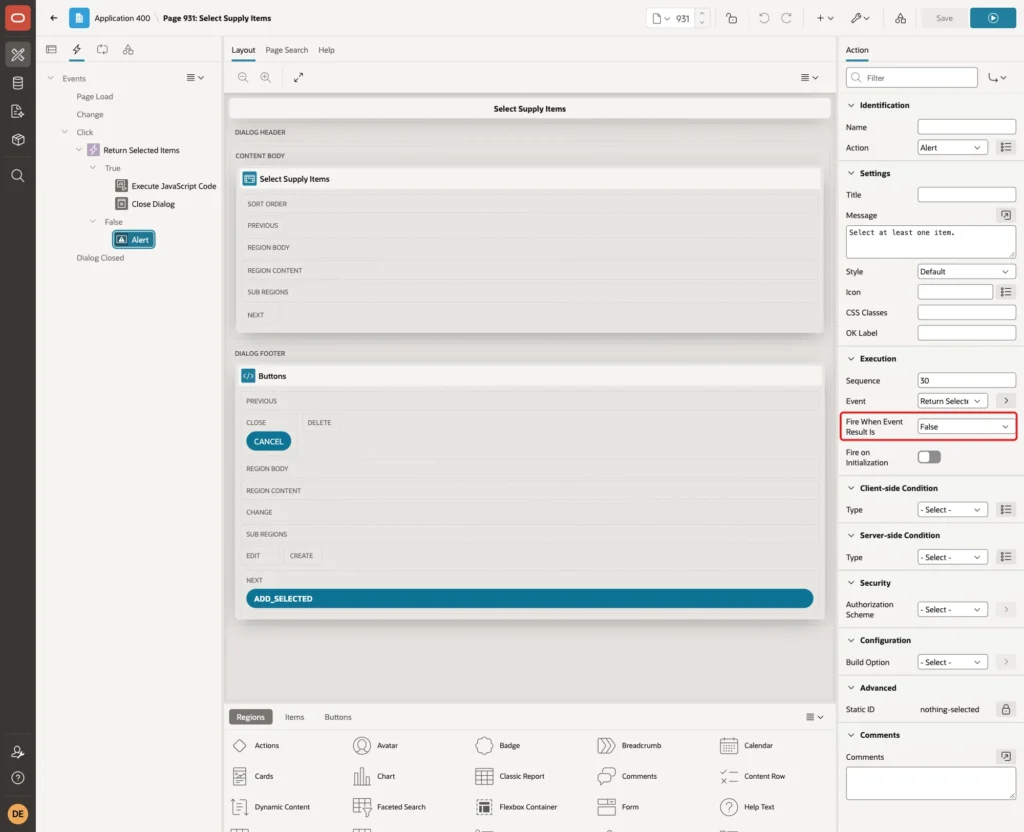
Under Execution, Fire When Event Result Is shows False for this action:
Step 10: Insert the Rows into the Parent Grid
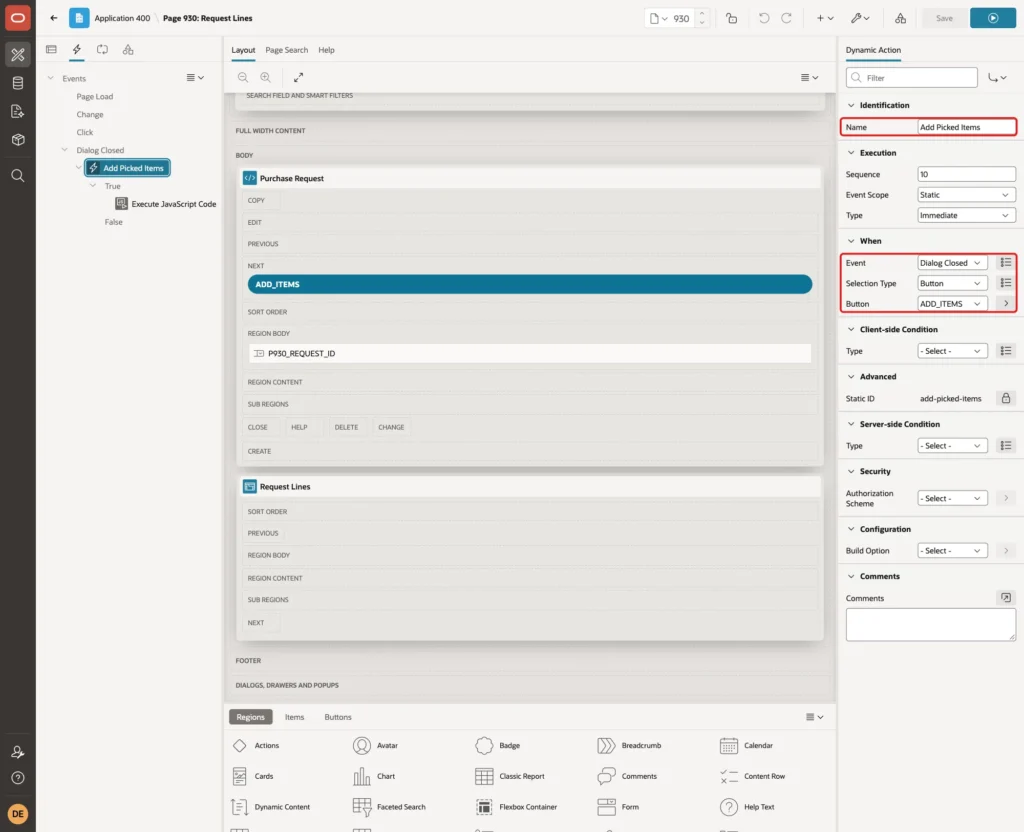
Go back to page 930. On the Dynamic Actions tab, create a dynamic action. Set Name to Add Picked Items, Event to Dialog Closed, Selection Type to Button and Button to ADD_ITEMS:
Set its True action to Execute JavaScript Code with this code:
Example:
var picked = JSON.parse(this.data.P931_SELECTED || "[]");
var model = apex.region("request_lines").call("getViews", "grid").model;
var lastAdded = null;
function plain(v) {
    return (v !== null && typeof v === "object") ? v.v : v;
}
picked.forEach(function (item) {
    var existing = null;
    model.forEach(function (record, index, id) {
        var meta = model.getRecordMetadata(id);
        if (!meta.deleted && String(plain(model.getValue(record, "ITEM_ID"))) === String(item.id)) {
            existing = record;
        }
    });
    if (existing) {
        var qty = Number(model.getValue(existing, "QUANTITY")) || 0;
        model.setValue(existing, "QUANTITY", String(qty + 1));
    } else {
        var newId = model.insertNewRecord(null, lastAdded);
        var record = model.getRecord(newId);
        lastAdded = record;
        model.setValue(record, "ITEM_ID", { v: String(item.id), d: item.name });
        model.setValue(record, "QUANTITY", "1");
        model.setValue(record, "UNIT_PRICE", String(item.price));
    }
});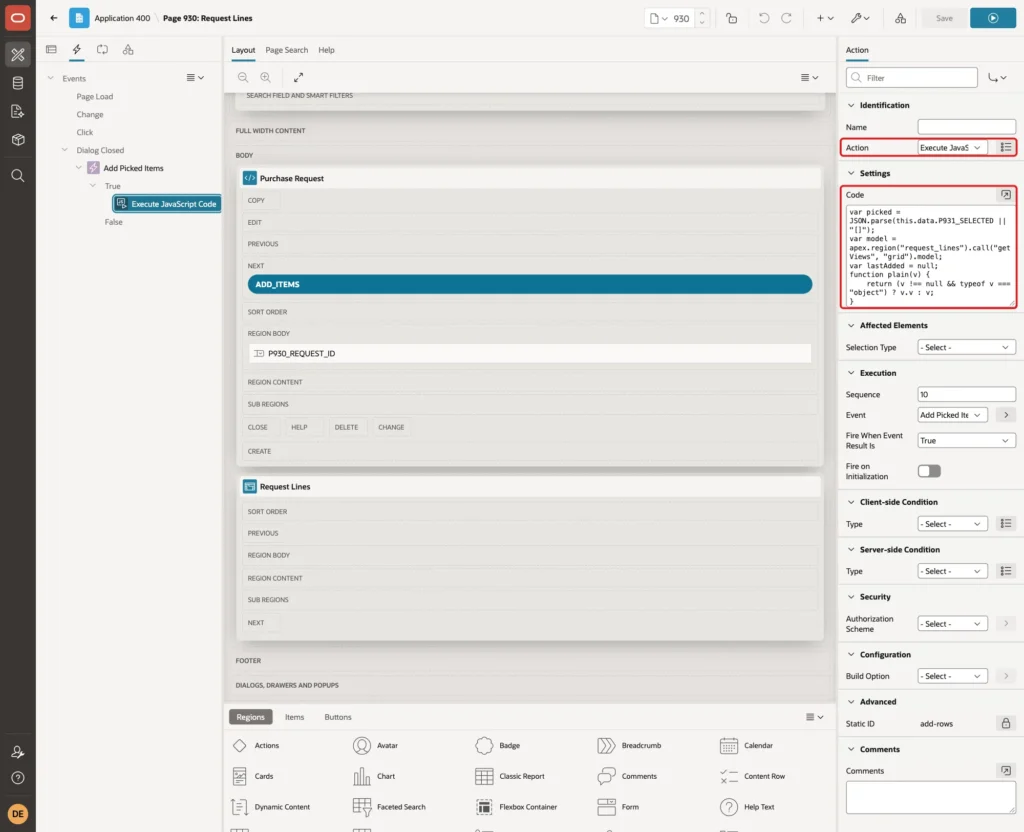
this.data holds the items the dialog returned, so this.data.P931_SELECTED is the JSON text from Step 9. The code gets the model of the grid with the DOM ID request_lines and goes through the picked items one by one.
For each item, model.forEach looks for a row that already has this ITEM_ID and is not deleted. If one exists, the code adds 1 to its quantity. Otherwise, insertNewRecord adds a row, and setValue fills the item, a quantity of 1 and the unit price.
A select list column holds its value as an object with v (value) and d (display text), so the code passes { v: id, d: name } and compares only v. The second argument of insertNewRecord puts each new row after the one added before it, so the rows keep the order of the popup.
REQUEST_ID is not set in the code. The column default from Step 3 fills it from P930_REQUEST_ID when the row is inserted.
Step 11: Stop Duplicate Items Added by Hand
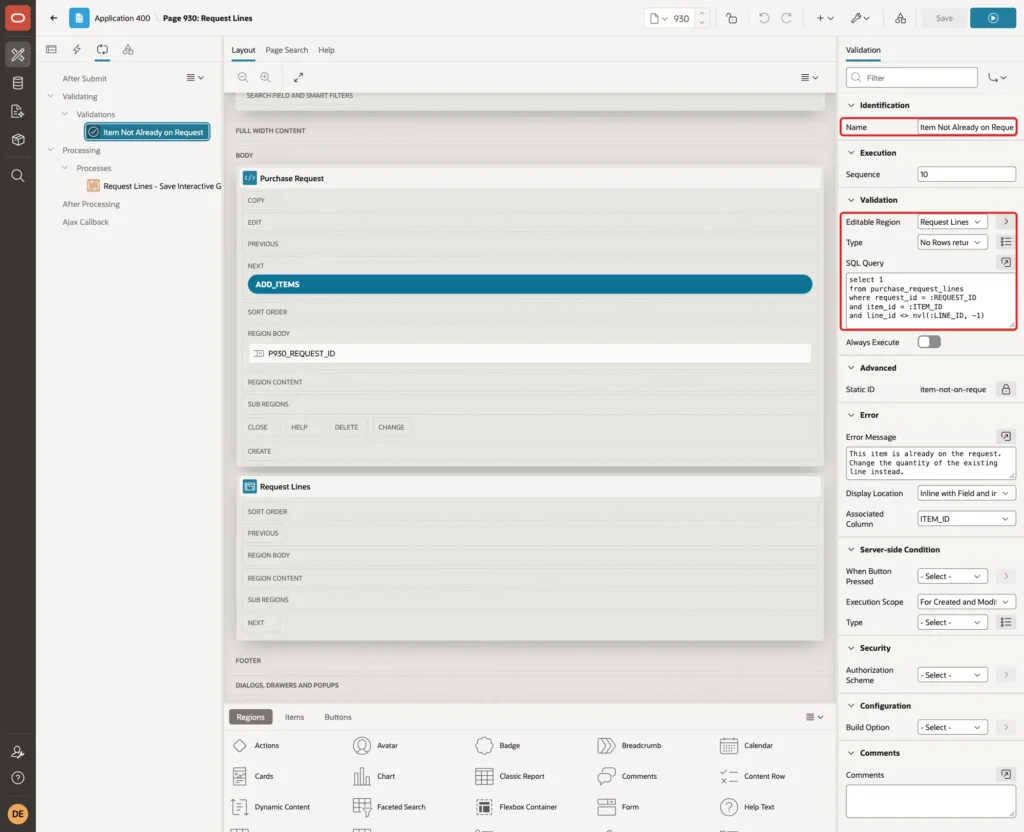
Users can still click Add Row and choose an item that is already on the request. On the Processing tab of page 930, create a validation. Set Name to Item Not Already on Request, Editable Region to Request Lines, Type to No Rows returned, and enter this query:
Example:
select 1
from purchase_request_lines
where request_id = :REQUEST_ID
and item_id = :ITEM_ID
and line_id <> nvl(:LINE_ID, -1)
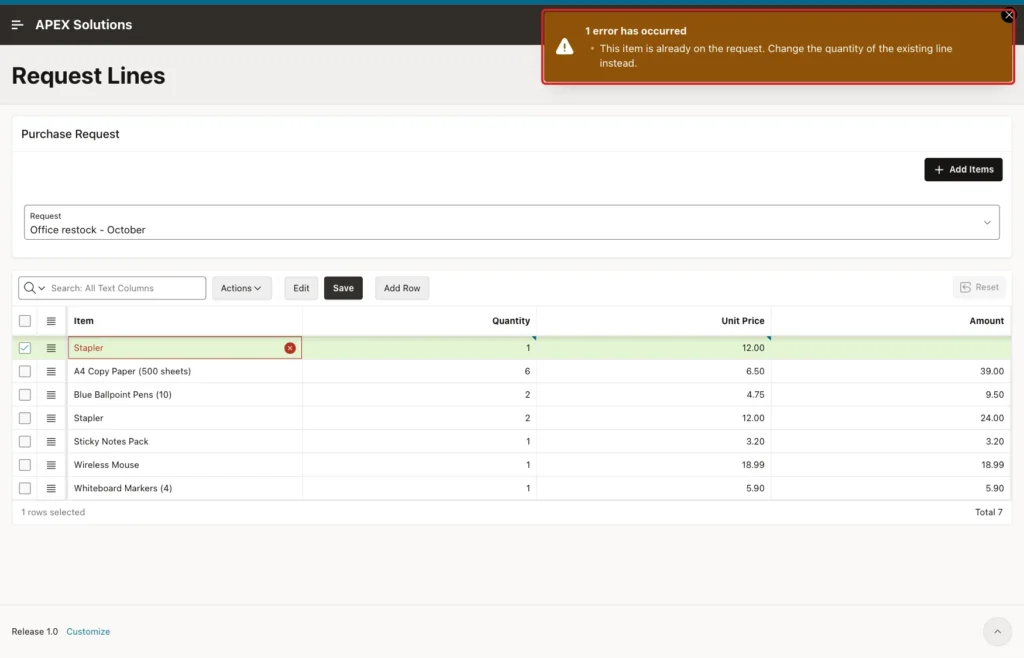
Set Error Message to This item is already on the request. Change the quantity of the existing line instead. and Associated Column to ITEM_ID:
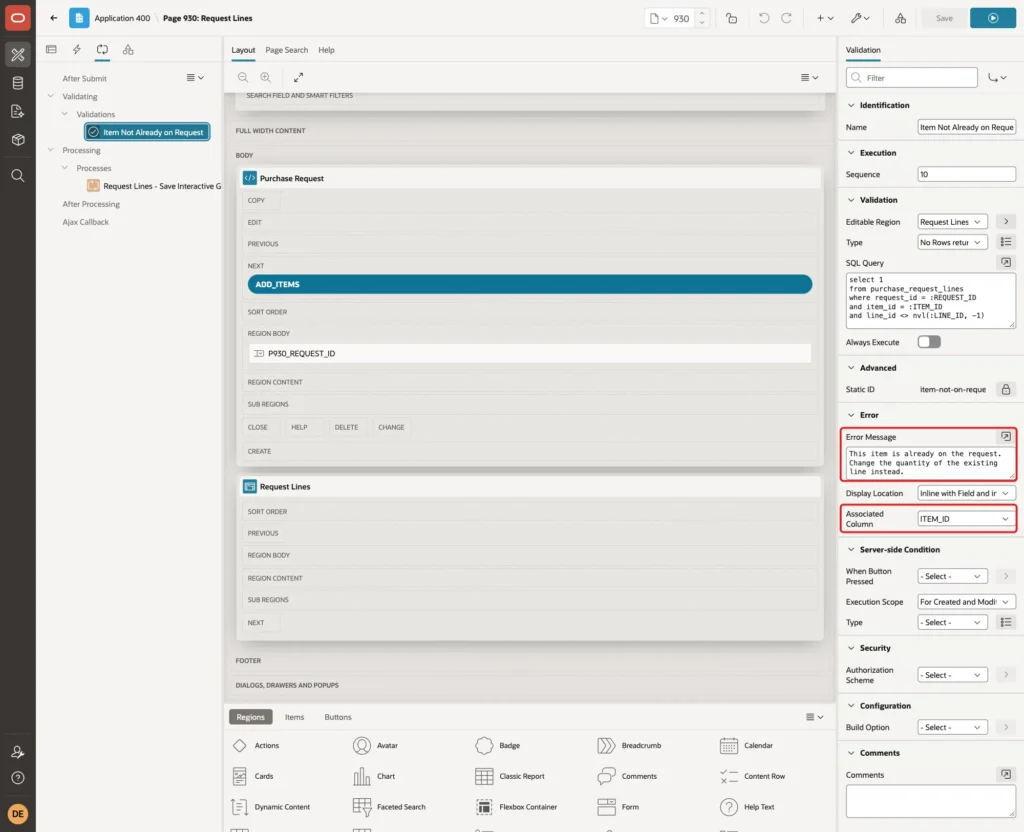
The query looks for another saved line of the same request with the same item. The unique constraint PURCHASE_REQUEST_LINES_UK stays as the final guard.
Step 12: Test the Popup Selection
Run page 930 as DEMO_DEV. The page opens with the request Office restock - October and its two sample lines:
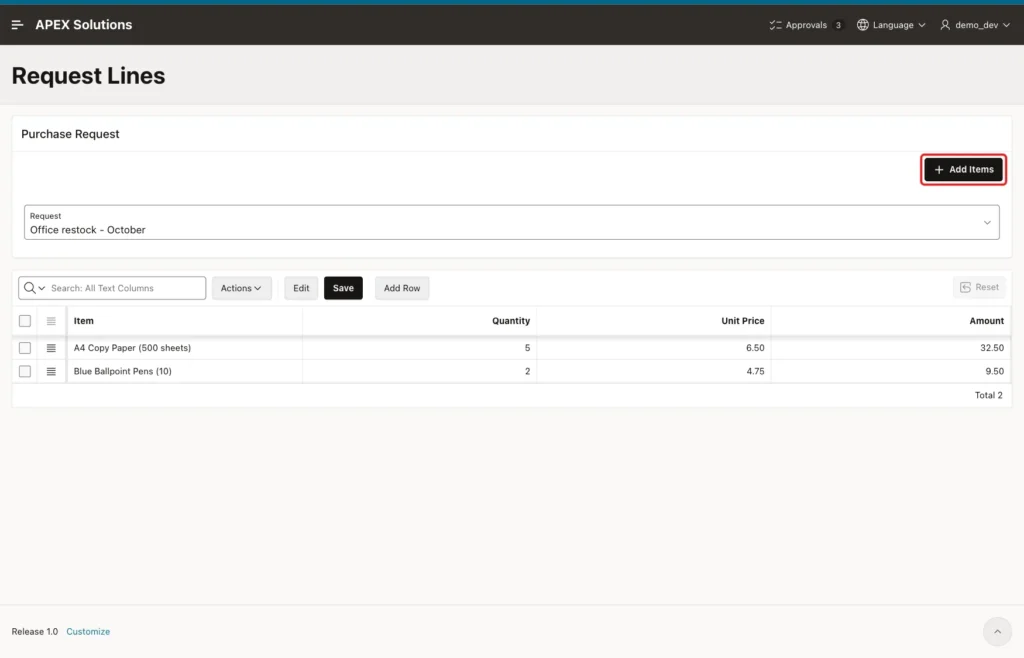
Click Add Items. Tick Stapler, Sticky Notes Pack and Wireless Mouse, and click Add Selected:
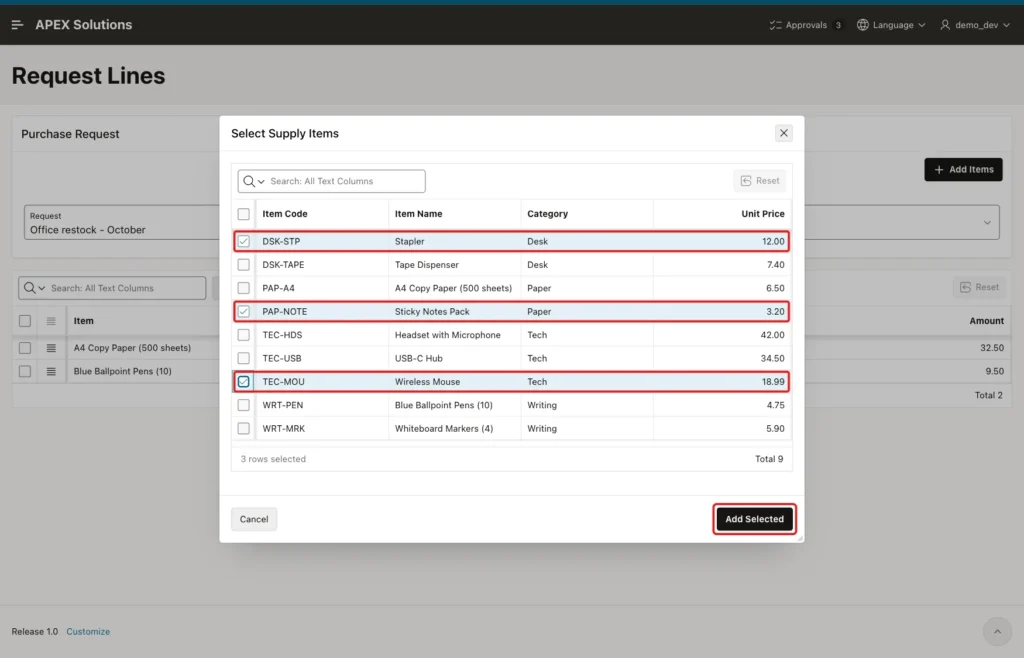
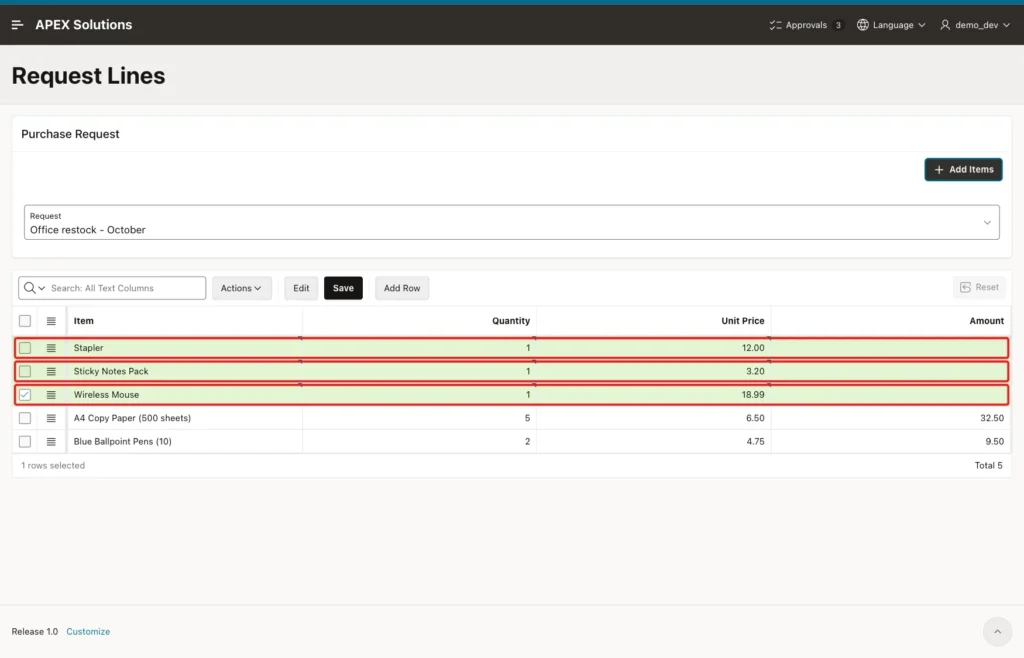
The popup closed and the grid got three new rows, with quantity 1 and the unit price of each item. They are not saved yet, so APEX marks them as new and AMOUNT is still empty:
Click Save. After the save, the grid shows AMOUNT from the virtual column:
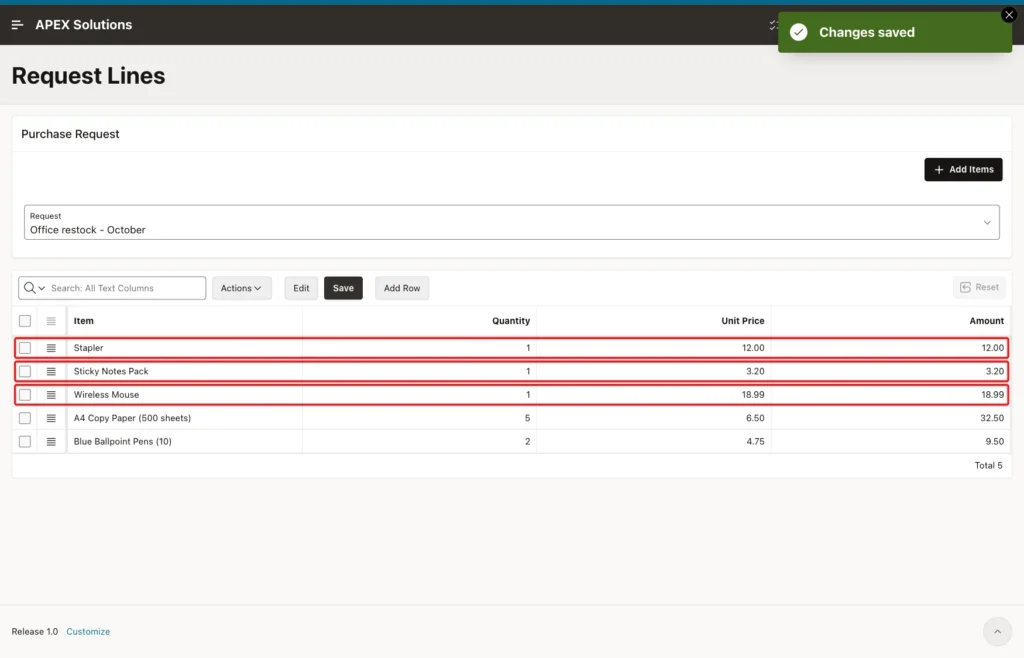
The table now has the three new lines of request 1:
Example:
select l.line_id, l.request_id, i.item_name, l.quantity, l.unit_price, l.amount
from purchase_request_lines l
join supply_items i on i.item_id = l.item_id
where l.request_id = 1
order by l.line_id;
Output:
   LINE_ID    REQUEST_ID ITEM_NAME                        QUANTITY    UNIT_PRICE    AMOUNT
__________ _____________ _____________________________ ___________ _____________ _________
         1             1 A4 Copy Paper (500 sheets)              5           6.5      32.5
         2             1 Blue Ballpoint Pens (10)                2          4.75       9.5
        45             1 Stapler                                 1            12        12
        46             1 Sticky Notes Pack                       1           3.2       3.2
        47             1 Wireless Mouse                          1         18.99     18.99
Next, open the popup again and tick A4 Copy Paper, Stapler and Whiteboard Markers. The first two are already on the request:

Stapler went from 1 to 2 and A4 Copy Paper from 5 to 6, and only Whiteboard Markers became a new row. AMOUNT of the changed rows updates after the save:
Example:
select l.line_id, l.request_id, i.item_name, l.quantity, l.unit_price, l.amount
from purchase_request_lines l
join supply_items i on i.item_id = l.item_id
where l.request_id = 1
order by l.line_id;
Output:
   LINE_ID    REQUEST_ID ITEM_NAME                        QUANTITY    UNIT_PRICE    AMOUNT
__________ _____________ _____________________________ ___________ _____________ _________
         1             1 A4 Copy Paper (500 sheets)              6           6.5        39
         2             1 Blue Ballpoint Pens (10)                2          4.75       9.5
        45             1 Stapler                                 2            12        24
        46             1 Sticky Notes Pack                       1           3.2       3.2
        47             1 Wireless Mouse                          1         18.99     18.99
        48             1 Whiteboard Markers (4)                  1           5.9       5.9

6 rows selected.
Clicking Add Selected with no ticked row showed the alert, and the popup stayed open:
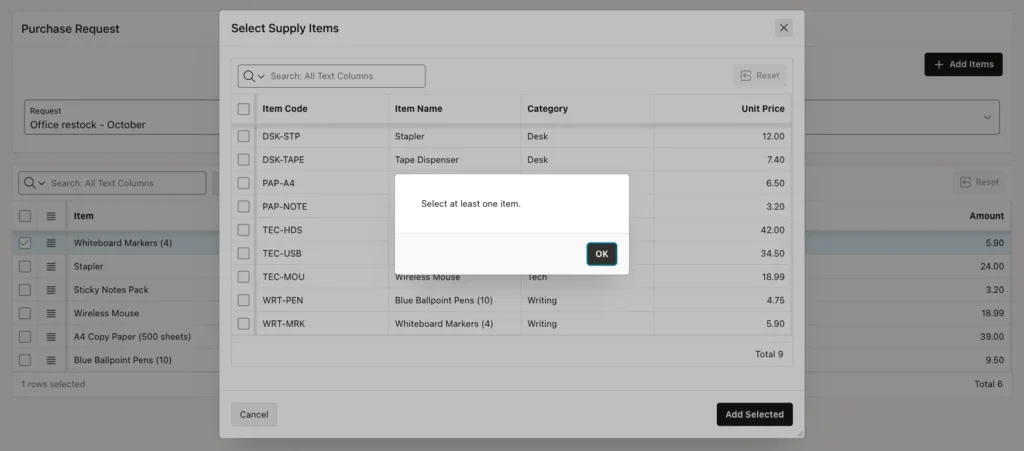
Cancel closed the popup and left the grid unchanged. Choosing New starter desk kit in the Request list reloaded the page with that request. Four picked items were saved with REQUEST_ID 2, which came from the column default.
Finally, click Add Row, choose Stapler by hand, enter a price and click Save. The validation stopped the save:
Things to Know
- The validation checks saved lines only. When two new rows with the same item were saved together, it let both pass, and the unique constraint stopped the save with ORA-00001. Nothing was saved. The popup never creates such rows, because it raises the quantity instead.
- The price comes from the popup at the time of picking. Users can still change it in the grid, which suits requests and quotes. If the price must always match the item list, make UNIT_PRICE read-only and set it on the server.
- Choosing another request submits the page, and the page submit also saves pending grid changes. In a test, an unsaved new row was saved to the request shown before the switch.
- Check the column types after the Interactive Grid wizard. In this example, the wizard turned all number columns into select lists based on the first foreign key.
- The row selector works on a read-only grid. Select First Row must be off on the popup grid, or the first item is already ticked.
Related Guides
- How to Return Values from a Modal Dialog to the Parent Page in Oracle APEX
- Oracle Apex: Inserting Records into Interactive Grid Using JavaScript
Conclusion
To add rows to an Interactive Grid from a popup selection in Oracle APEX, give the popup a read-only grid with a row selector, return the ticked rows as JSON with Close Dialog, and insert them through the parent grid's model in a Dialog Closed dynamic action.
In this example, three picked items became three saved lines with their prices. Items already on the request got a higher quantity instead of a second line. An empty selection, Cancel and a duplicate added by hand were all handled without bad data.
See my articles more often when you search Google.
