
A funnel chart shows how many records pass through each step of a process. The widest section is the first step, and every following section shows how many records got that far. It answers questions such as "where do we lose most of our leads?" much faster than a table of numbers.
Oracle APEX has a Funnel chart type built in. This guide prepares the funnel numbers in a view, shows them in a funnel with counts, percentages and tooltips, and lets users click a section to list the records behind it on the same page.
The guide Oracle APEX Charts: A Complete Guide gives an overview of all chart types. This guide goes deeper into one of them: the cumulative counts a funnel needs, the conversion rates, and a click-through report.
The example uses a sales pipeline with five stages; the same steps work for any process with ordered steps, such as job applications or support tickets.
Step 1: Create the Tables
Two tables hold the data. PIPELINE_STAGES has one row per stage with its position in STAGE_SEQ. PIPELINE_OPPORTUNITIES has one row per opportunity, with the furthest stage it reached and a status of OPEN or LOST. Create the tables and the sample data:
Example:
create table pipeline_stages (
  stage_id    number generated by default on null as identity
              constraint pipeline_stages_pk primary key,
  stage_name  varchar2(30) not null
              constraint pipeline_stages_name_uk unique,
  stage_seq   number(3) not null
              constraint pipeline_stages_seq_uk unique
              constraint pipeline_stages_seq_ck check (stage_seq > 0)
);

create table pipeline_opportunities (
  opportunity_id    number generated by default on null as identity
                    constraint pipeline_opportunities_pk primary key,
  opportunity_name  varchar2(100) not null,
  account_name      varchar2(100) not null,
  amount            number(12,2) not null
                    constraint pipeline_opps_amount_ck check (amount > 0),
  stage_id          number not null
                    constraint pipeline_opps_stage_fk references pipeline_stages,
  status            varchar2(10) default on null 'OPEN' not null
                    constraint pipeline_opps_status_ck check (status in ('OPEN', 'LOST')),
  created_on        date default on null sysdate not null
);

create index pipeline_opps_stage_ix on pipeline_opportunities (stage_id);

insert into pipeline_stages (stage_name, stage_seq)
values ('Lead', 1), ('Qualified', 2), ('Proposal', 3), ('Negotiation', 4), ('Won', 5);

insert into pipeline_opportunities (opportunity_name, account_name, amount, stage_id, status)
select v.opportunity_name, v.account_name, v.amount, s.stage_id, v.status
from (values
  ('Website Redesign',    'Northwind Traders',    12000, 'Lead',        'OPEN'),
  ('CRM Rollout',         'Contoso Ltd',          45000, 'Lead',        'OPEN'),
  ('Data Warehouse',      'Fabrikam Inc',         80000, 'Lead',        'LOST'),
  ('Mobile App',          'Adventure Works',      30000, 'Lead',        'OPEN'),
  ('Support Contract',    'Tailspin Toys',         8000, 'Lead',        'LOST'),
  ('Cloud Migration',     'Wide World Importers', 60000, 'Lead',        'OPEN'),
  ('Payroll System',      'Litware Inc',          25000, 'Qualified',   'OPEN'),
  ('Security Audit',      'Proseware',            15000, 'Qualified',   'LOST'),
  ('HR Portal',           'Coho Winery',          18000, 'Qualified',   'OPEN'),
  ('E-commerce Store',    'Alpine Ski House',     40000, 'Qualified',   'OPEN'),
  ('BI Dashboards',       'Blue Yonder',          22000, 'Qualified',   'LOST'),
  ('ERP Upgrade',         'Margie Travel',        95000, 'Proposal',    'OPEN'),
  ('Inventory Tracking',  'Lucerne Publishing',   27000, 'Proposal',    'OPEN'),
  ('Field Service App',   'Trey Research',        33000, 'Proposal',    'LOST'),
  ('Document Archive',    'Woodgrove Bank',       19000, 'Proposal',    'OPEN'),
  ('Customer Portal',     'Graphic Design Inst',  36000, 'Negotiation', 'OPEN'),
  ('Billing Integration', 'City Power',           28000, 'Negotiation', 'OPEN'),
  ('Analytics Platform',  'Humongous Insurance',  70000, 'Won',         'OPEN'),
  ('Training Program',    'School of Fine Art',   10000, 'Won',         'OPEN'),
  ('API Gateway',         'Fourth Coffee',        42000, 'Won',         'OPEN')
) v (opportunity_name, account_name, amount, stage_name, status)
join pipeline_stages s on s.stage_name = v.stage_name;

commit;

select s.stage_seq, s.stage_name, count(o.opportunity_id) as opportunities
from pipeline_stages s
left join pipeline_opportunities o on o.stage_id = s.stage_id
group by s.stage_seq, s.stage_name
order by s.stage_seq;
Output:
Table PIPELINE_STAGES created.

Table PIPELINE_OPPORTUNITIES created.

Index PIPELINE_OPPS_STAGE_IX created.

5 rows inserted.

20 rows inserted.

Commit complete.

   STAGE_SEQ STAGE_NAME        OPPORTUNITIES
____________ ______________ ________________
           1 Lead                          6
           2 Qualified                     5
           3 Proposal                      4
           4 Negotiation                   2
           5 Won                           3
The constraints matter for the funnel:
- PIPELINE_STAGES_SEQ_UK allows each position only once, so the order of the funnel sections is always clear. PIPELINE_STAGES_NAME_UK keeps the stage names unique.
- PIPELINE_OPPS_STAGE_FK links each opportunity to a stage, and the index PIPELINE_OPPS_STAGE_IX supports that join.
- PIPELINE_OPPS_STATUS_CK allows only OPEN and LOST. A lost opportunity keeps the stage where it was lost, so it still counts for every stage it passed.
- PIPELINE_OPPS_AMOUNT_CK stops zero or negative amounts. STATUS and CREATED_ON get their values from DEFAULT ON NULL, so no trigger is needed.
The final query counts the opportunities that stand in each stage. These are not yet funnel numbers: Negotiation shows 2 and Won shows 3, so the last section would be wider than the one above it.
Step 2: Create a View for the Funnel Numbers
A funnel stage must count every opportunity that reached it, including the ones that moved further. So the Qualified stage counts the opportunities now in Qualified, Proposal, Negotiation and Won. The view joins each stage to all opportunities whose stage has the same or a higher STAGE_SEQ:
Example:
create or replace view pipeline_funnel_v as
select s.stage_id,
       s.stage_name,
       s.stage_seq,
       count(o.opportunity_id) as reached,
       nvl(sum(o.amount), 0) as reached_amount,
       round(100 * count(o.opportunity_id)
             / nullif(first_value(count(o.opportunity_id)) over (order by s.stage_seq), 0), 1) as pct_of_first,
       round(100 * count(o.opportunity_id)
             / nullif(lag(count(o.opportunity_id)) over (order by s.stage_seq), 0), 1) as pct_of_previous
from pipeline_stages s
left join (pipeline_opportunities o
           join pipeline_stages os on os.stage_id = o.stage_id)
       on os.stage_seq >= s.stage_seq
group by s.stage_id, s.stage_name, s.stage_seq;

select stage_seq, stage_name, reached, reached_amount, pct_of_first, pct_of_previous
from pipeline_funnel_v
order by stage_seq;
Output:
View PIPELINE_FUNNEL_V created.

   STAGE_SEQ STAGE_NAME        REACHED    REACHED_AMOUNT    PCT_OF_FIRST    PCT_OF_PREVIOUS
____________ ______________ __________ _________________ _______________ __________________
           1 Lead                   20            715000             100
           2 Qualified              14            480000              70                 70
           3 Proposal                9            360000              45               64.3
           4 Negotiation             5            186000              25               55.6
           5 Won                     3            122000              15                 60
Now every stage is smaller than or equal to the one above it. The view also returns two conversion rates:
- PCT_OF_FIRST divides each count by the count of the first stage. FIRST_VALUE over STAGE_SEQ finds that first count.
- PCT_OF_PREVIOUS divides each count by the count of the stage before it. LAG returns null for the first stage, so its rate stays empty.
- NULLIF turns a zero divisor into null, so an empty stage does not raise ORA-01476 (divisor is equal to zero).
The left join keeps stages that nobody reached yet. They appear with a count of 0, which Step 11 tests.
Step 3: Create a Blank Page
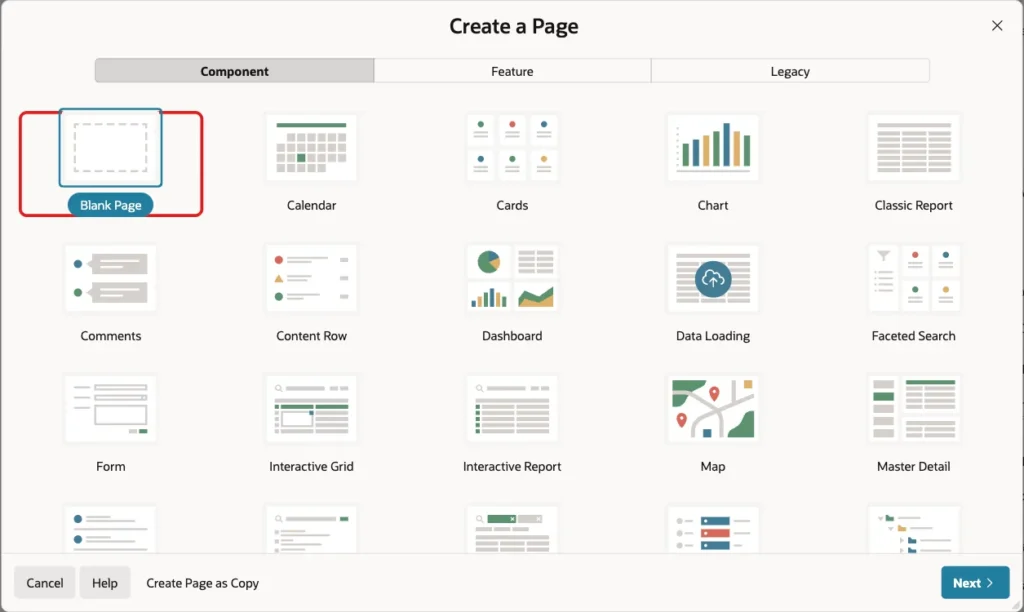
In App Builder, open the application and click Create Page. On the Component tab, select Blank Page:
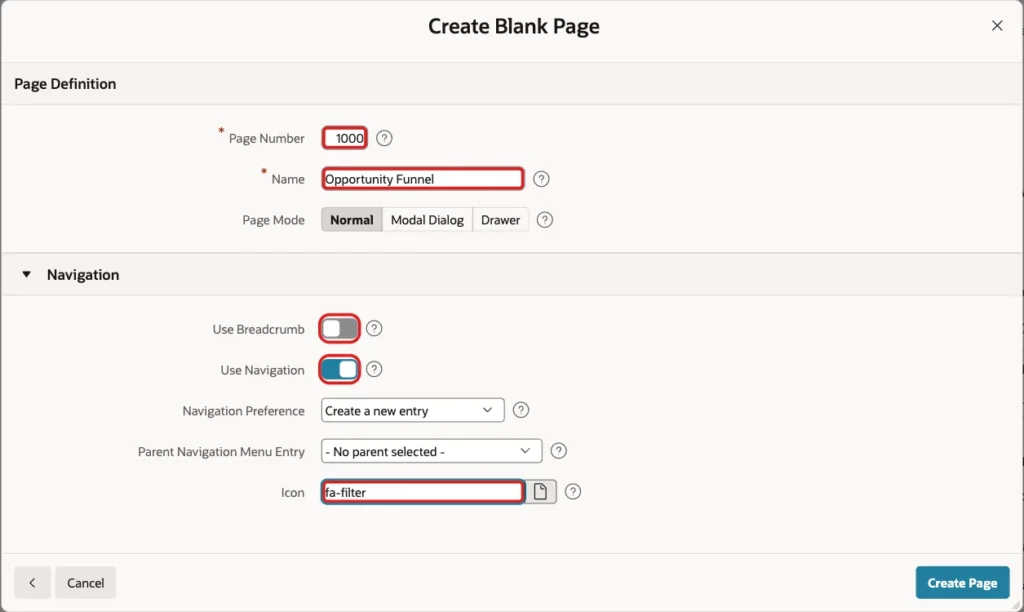
Set Page Number to 1000 and Name to Opportunity Funnel. Turn Use Breadcrumb off, keep Use Navigation on, set Icon to fa-filter and click Create Page:
APEX opens the new page in Page Designer.
Step 4: Add the Chart Region
In the Rendering tree, right-click Body and choose Create Region. Set Name to Opportunity Funnel and Type to Chart:
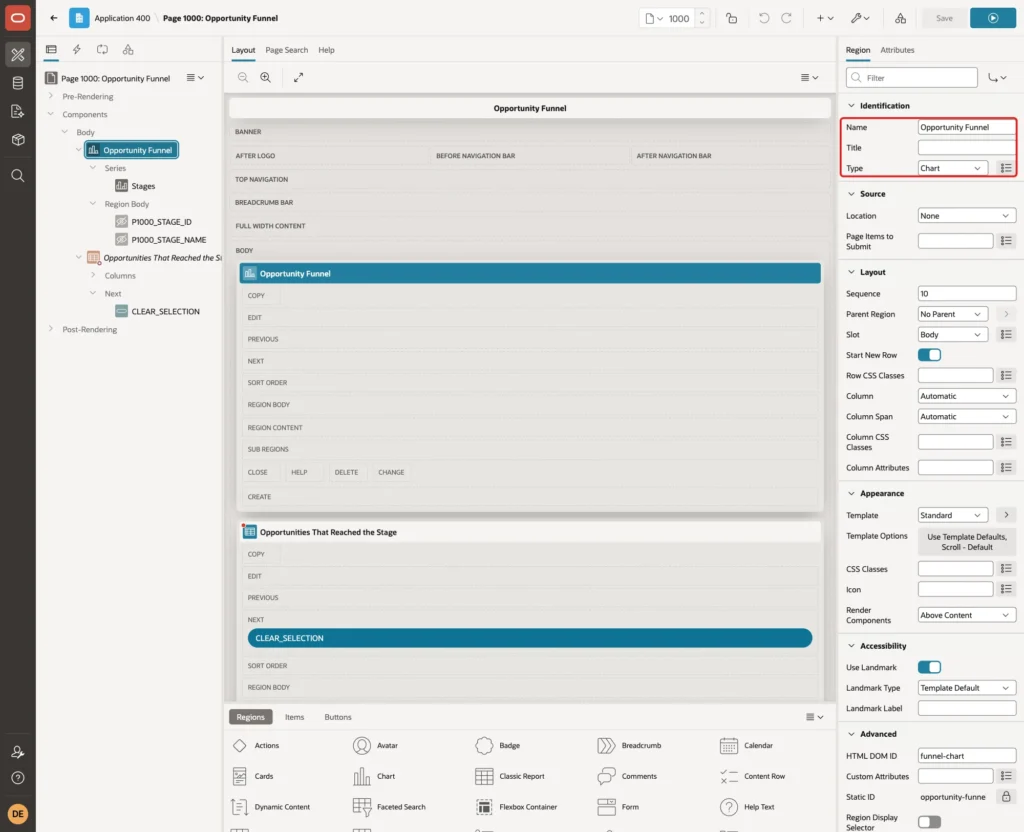
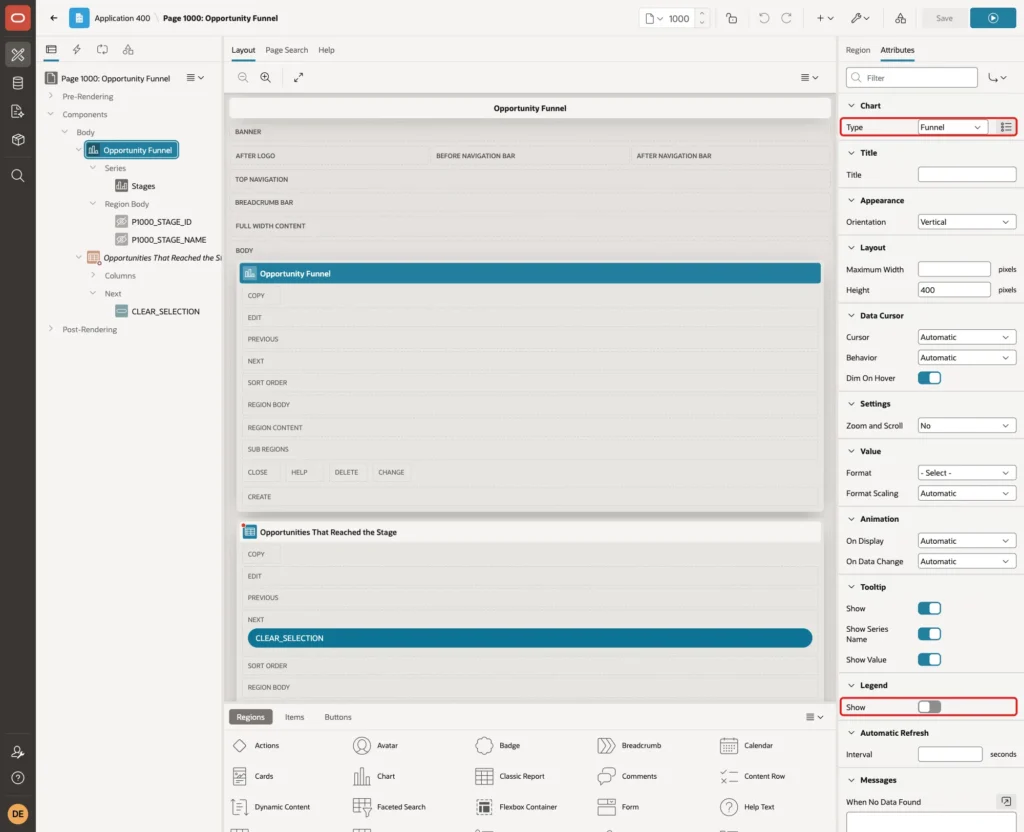
APEX creates the region as a bar chart with one series named New and two axes. Click the Attributes tab and set Type under Chart to Funnel. The x and y axes disappear from the tree, because a funnel has no axes.
Each funnel section will carry its own label, so the legend only repeats the same text. Turn Show under Legend off:
Step 5: Write the Series Query
Expand Series under the chart region and select New. Set Name to Stages. Under Source, set Type to SQL Query and enter this query:
Example:
select stage_id,
       stage_name,
       stage_name || ': ' || reached || ' (' || pct_of_first || '%)' as section_label,
       reached,
       stage_name || ': ' || reached || ' opportunities, '
         || pct_of_first || '% of all leads'
         || case when pct_of_previous is not null
                 then ', ' || pct_of_previous || '% of ' || lag(stage_name) over (order by stage_seq)
            end as tooltip
from pipeline_funnel_v
order by stage_seq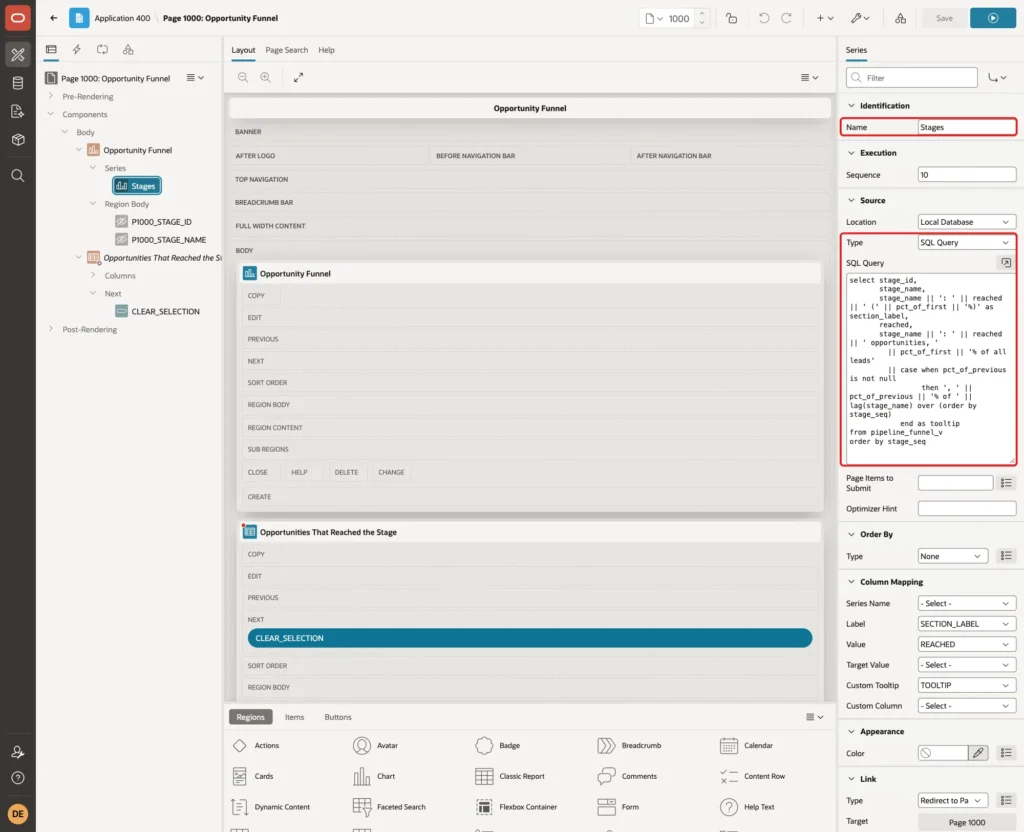
The query returns one row per funnel section:
- STAGE_ID is not shown in the chart. The link in Step 8 passes it to the report.
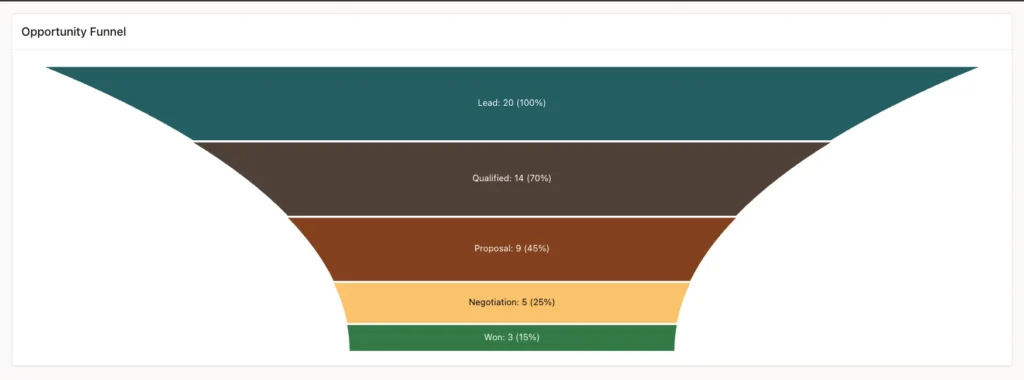
- SECTION_LABEL is the text inside each section, such as Proposal: 9 (45%).
- REACHED is the value that sets the size of the section.
- TOOLTIP is the text shown on hover. LAG(stage_name) adds the name of the previous stage to the step conversion rate.
- ORDER BY stage_seq sets the order of the sections. APEX passed the rows to the chart in this order, so Lead is drawn at the top and Won at the bottom.
Run the same query in SQL to see the values the chart will get:
Output:
   STAGE_ID STAGE_NAME     SECTION_LABEL              REACHED TOOLTIP
___________ ______________ _______________________ __________ ____________________________________________________________________
          1 Lead           Lead: 20 (100%)                 20 Lead: 20 opportunities, 100% of all leads
          2 Qualified      Qualified: 14 (70%)             14 Qualified: 14 opportunities, 70% of all leads, 70% of Lead
          3 Proposal       Proposal: 9 (45%)                9 Proposal: 9 opportunities, 45% of all leads, 64.3% of Qualified
          4 Negotiation    Negotiation: 5 (25%)             5 Negotiation: 5 opportunities, 25% of all leads, 55.6% of Proposal
          5 Won            Won: 3 (15%)                     3 Won: 3 opportunities, 15% of all leads, 60% of Negotiation
Step 6: Map the Columns
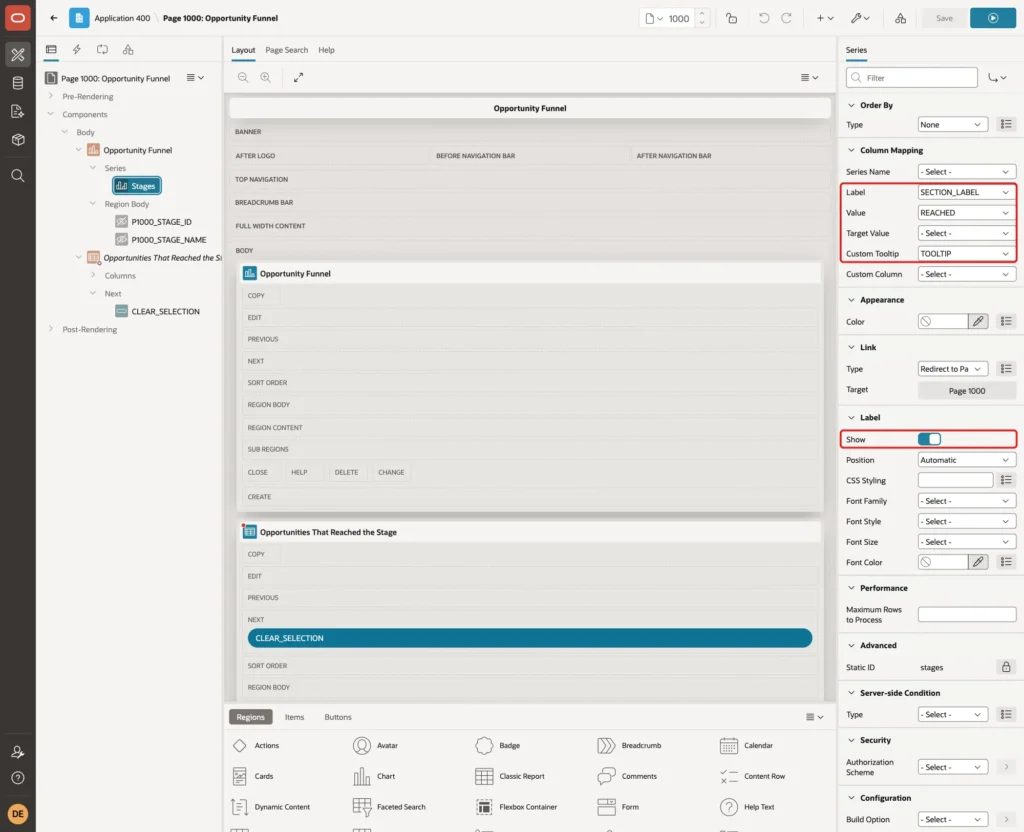
Under Column Mapping, set Label to SECTION_LABEL, Value to REACHED and Custom Tooltip to TOOLTIP. Leave Series Name empty. Under Label, turn Show on, so the label text is drawn inside each section:
Click Save and run the page. The funnel already shows the five stages with their counts and the share of all leads:
Step 7: Add Hidden Items for the Selected Stage
A click on a section should show the opportunities behind it. The page keeps the selected stage in two hidden items. Right-click the Opportunity Funnel region and choose Create Page Item. Set Name to P1000_STAGE_ID and Type to Hidden:
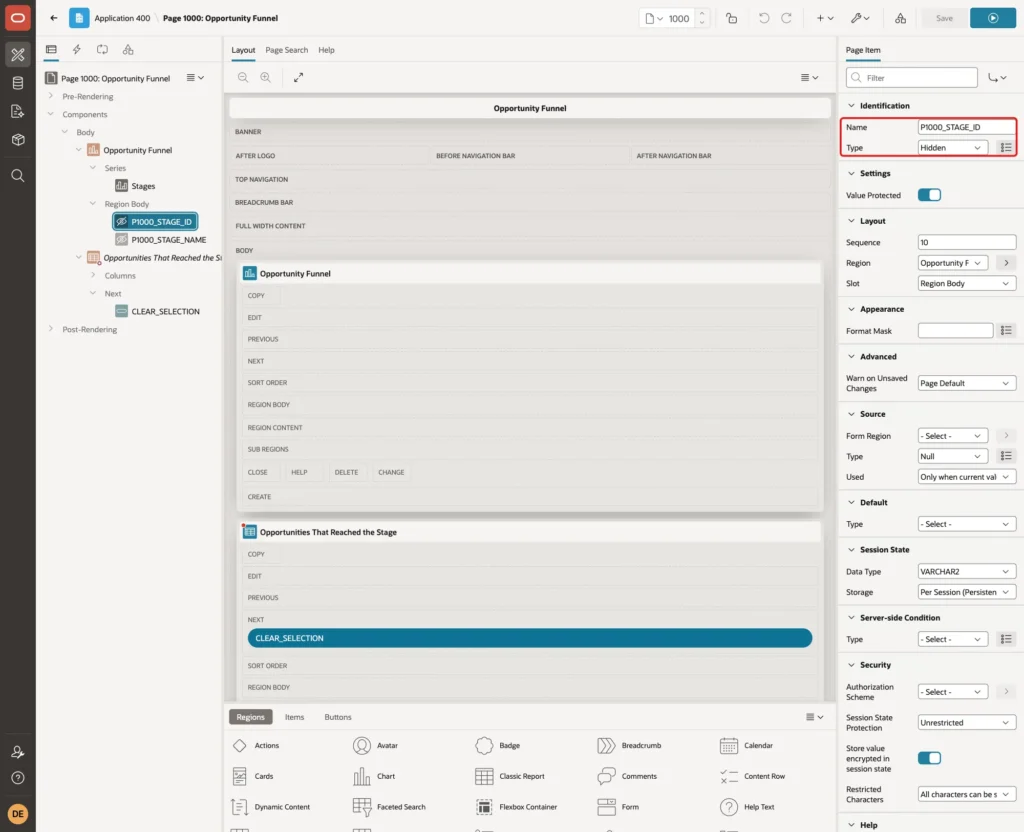
Create a second hidden item in the same way with the name P1000_STAGE_NAME. It only holds the stage name for the report title. Keep Value Protected on for both items, which is the default.
Step 8: Link the Funnel Sections
Select the Stages series again. Under Link, set Type to Redirect to Page in this Application and click Target:
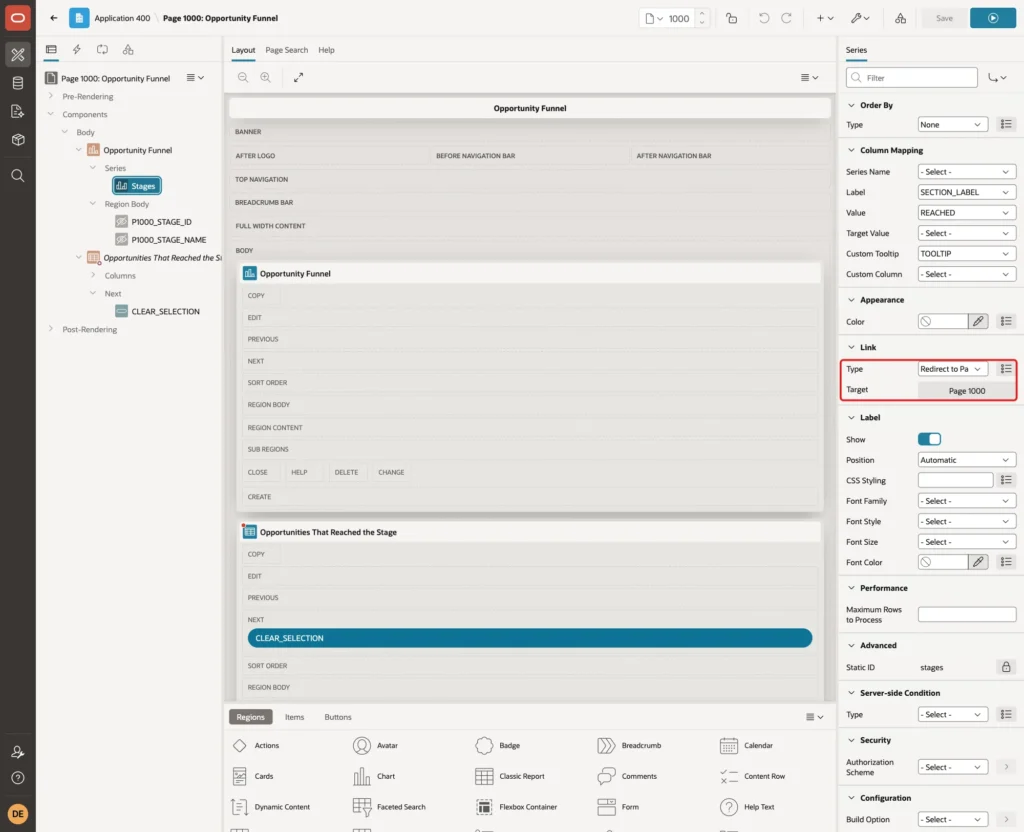
In the Link Builder, set Page to 1000. Under Set Items, set P1000_STAGE_ID to &STAGE_ID. and P1000_STAGE_NAME to &STAGE_NAME. and click OK:

The substitutions &STAGE_ID. and &STAGE_NAME. take their values from the row of the clicked section. The page reloads with both items set.
The guide How to Drill Down from a Chart to the Matching Rows in Oracle APEX opens a separate report page from a bar chart. Here the link targets the same page, so the funnel stays visible above the list.
Step 9: Add the Report for the Selected Stage
Right-click the Opportunity Funnel region and choose Create Region Below. Set Name to Opportunities That Reached the Stage, Title to Opportunities That Reached &P1000_STAGE_NAME. and Type to Classic Report. Under Source, set Type to SQL Query and enter this query:
Example:
select o.opportunity_name,
       o.account_name,
       o.amount,
       cs.stage_name as current_stage,
       o.status
from pipeline_opportunities o
join pipeline_stages cs on cs.stage_id = o.stage_id
where cs.stage_seq >= (select stage_seq
                       from pipeline_stages
                       where stage_id = :P1000_STAGE_ID)
order by cs.stage_seq desc, o.amount desc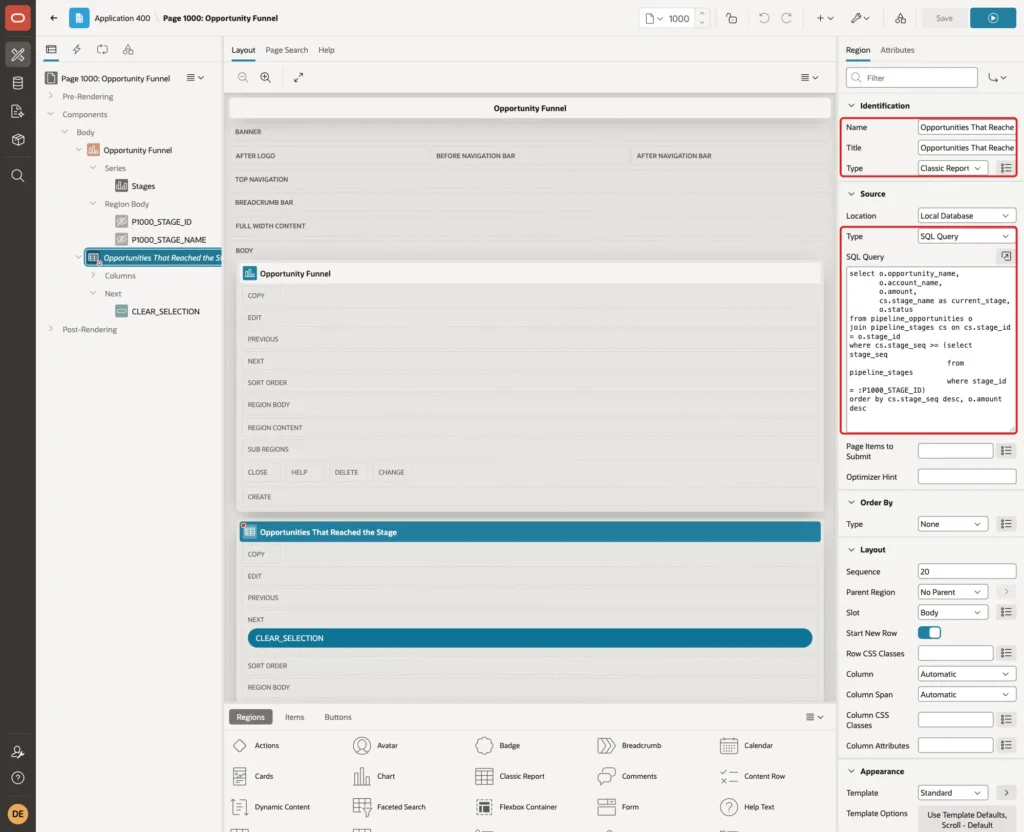
The WHERE clause uses the same rule as the view: an opportunity belongs to a stage when its own stage has the same or a higher STAGE_SEQ. So the report always lists as many rows as the section shows.
The report is only useful after a click. Under Server-side Condition, set Type to Item is NOT NULL and Item to P1000_STAGE_ID:
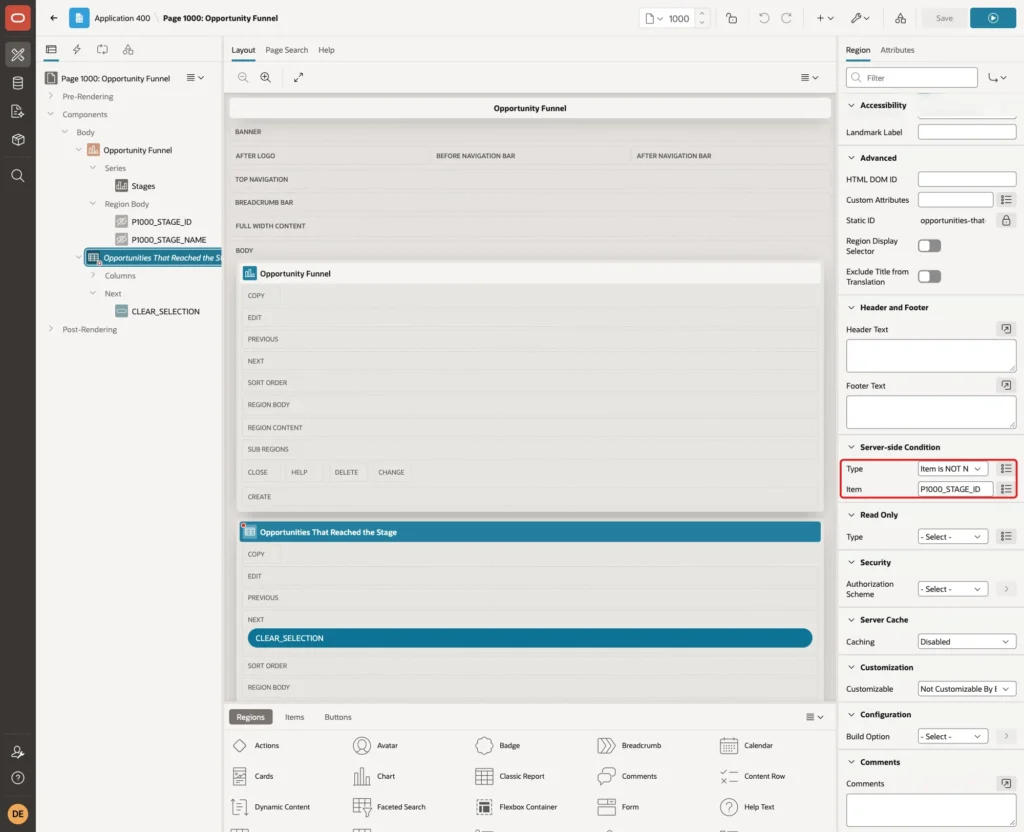
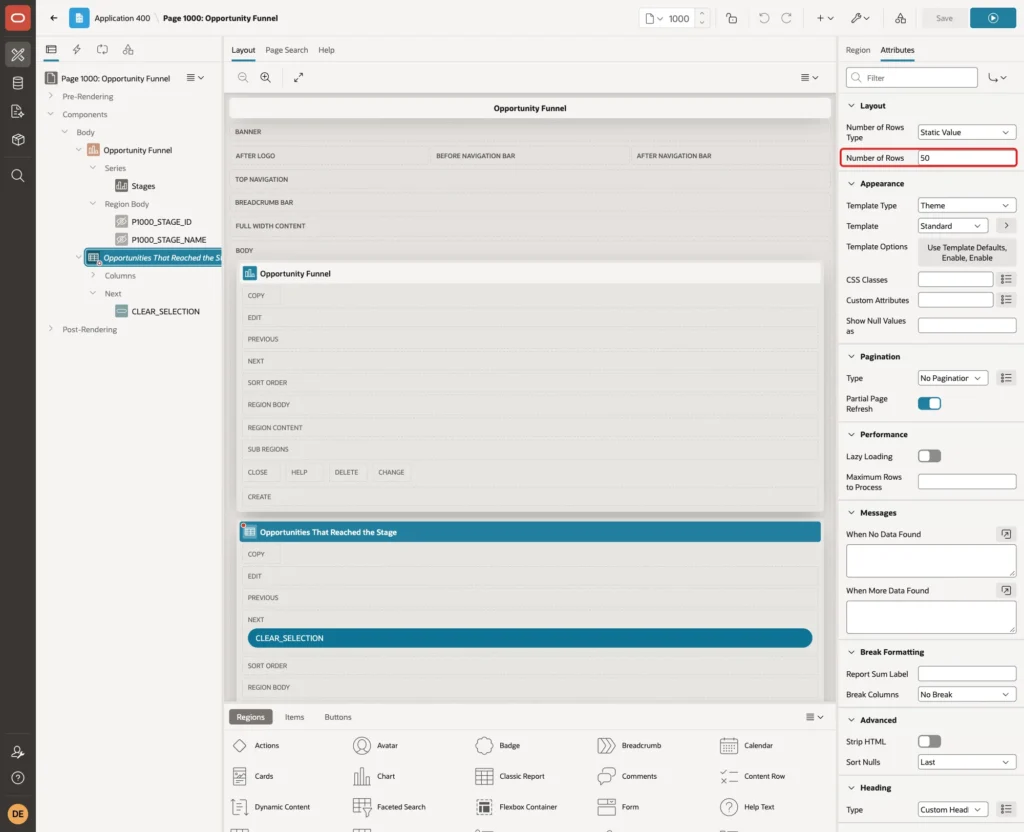
The first stage holds every opportunity, which is more than the default 15 rows per page. On the Attributes tab, set Number of Rows to 50:
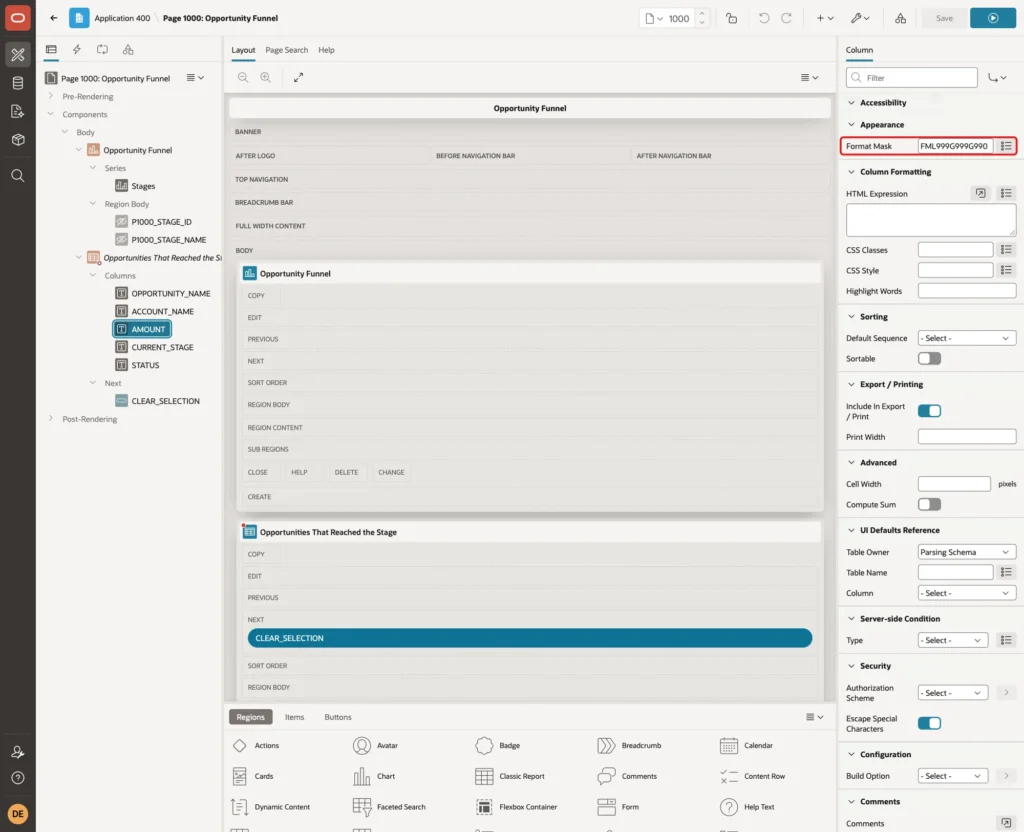
Expand Columns under the report and select AMOUNT. Under Appearance, set Format Mask to FML999G999G990:
Step 10: Add the Clear Selection Button
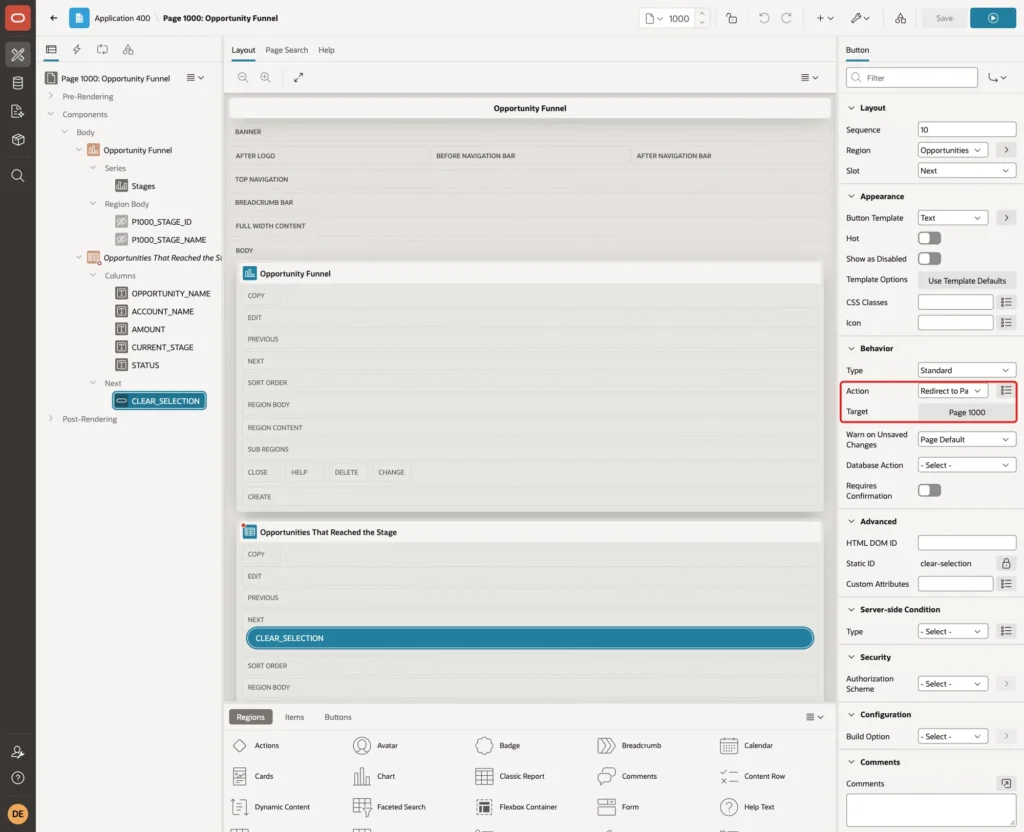
Users need a way back to the plain funnel. Right-click the report region and choose Create Button. Set Button Name to CLEAR_SELECTION, Label to Clear Selection and Slot to Next:

Under Behavior, set Action to Redirect to Page in this Application and click Target:
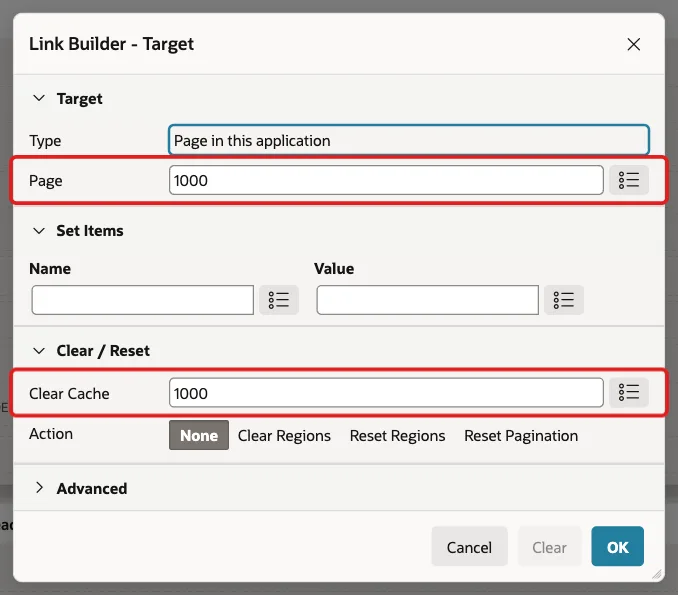
In the Link Builder, set Page to 1000 and Clear Cache to 1000, then click OK. Clearing the cache empties both hidden items, so the report is hidden again:
Click Save.
Step 11: Test the Funnel
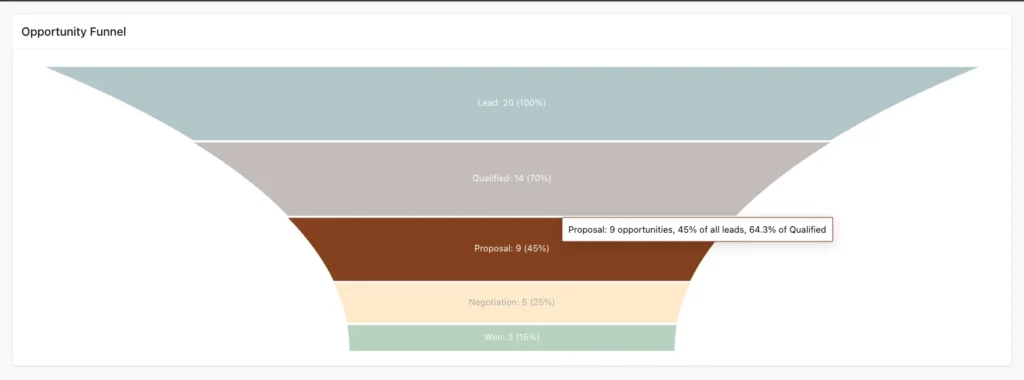
Run the page and move the mouse over the Proposal section. The tooltip shows the count, the share of all leads and the conversion from the previous stage:
Click the Proposal section. The page reloads, and the report lists the 9 opportunities that reached Proposal. They include the ones that moved on to Negotiation and Won, and the lost Field Service App:
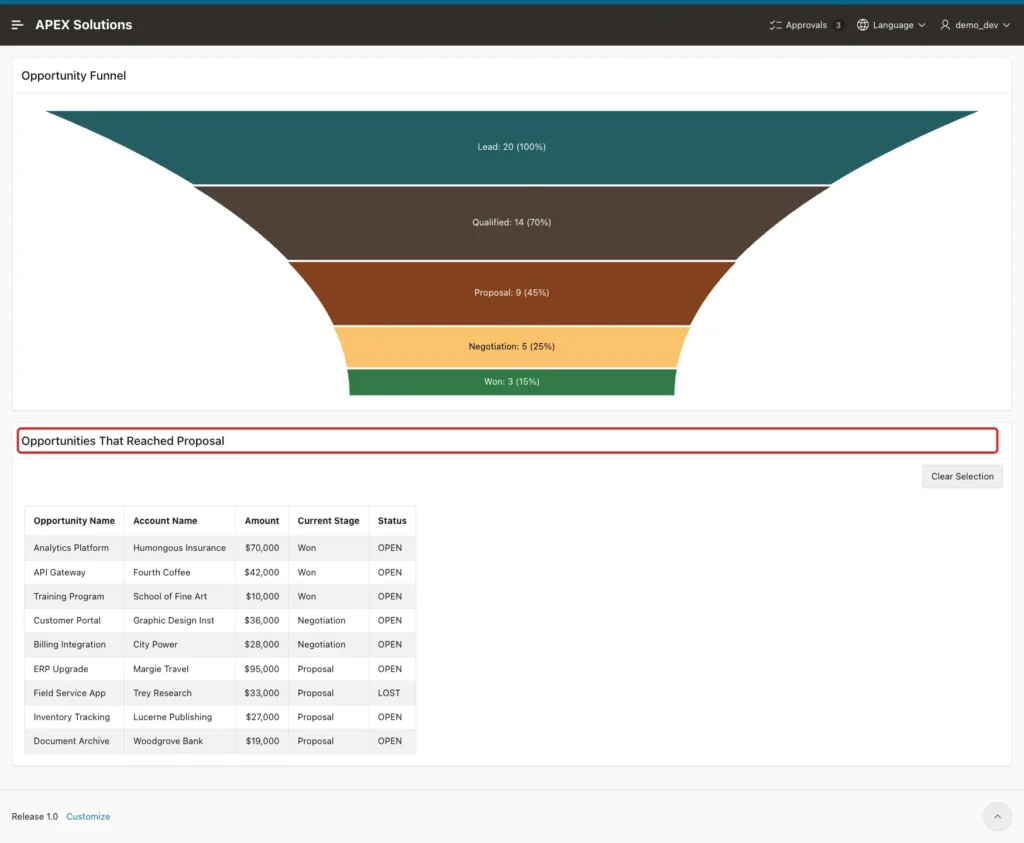
Click Clear Selection. The page reloads with an empty P1000_STAGE_ID, and only the funnel is shown.
Next, check in SQL that every section and its report agree. This query compares the funnel value of each stage with the number of rows the report query returns for it:
Example:
select f.stage_name,
       f.reached as funnel_value,
       (select count(*)
        from pipeline_opportunities o
        join pipeline_stages cs on cs.stage_id = o.stage_id
        where cs.stage_seq >= f.stage_seq) as report_rows
from pipeline_funnel_v f
order by f.stage_seq;
Output:
STAGE_NAME        FUNNEL_VALUE    REPORT_ROWS
______________ _______________ ______________
Lead                        20             20
Qualified                   14             14
Proposal                     9              9
Negotiation                  5              5
Won                          3              3
Now try a forged request. The link from the funnel carries a checksum in the cs parameter. Changing the URL by hand to p1000_stage_id=2 without that checksum, or to a value such as abc, stops the request:
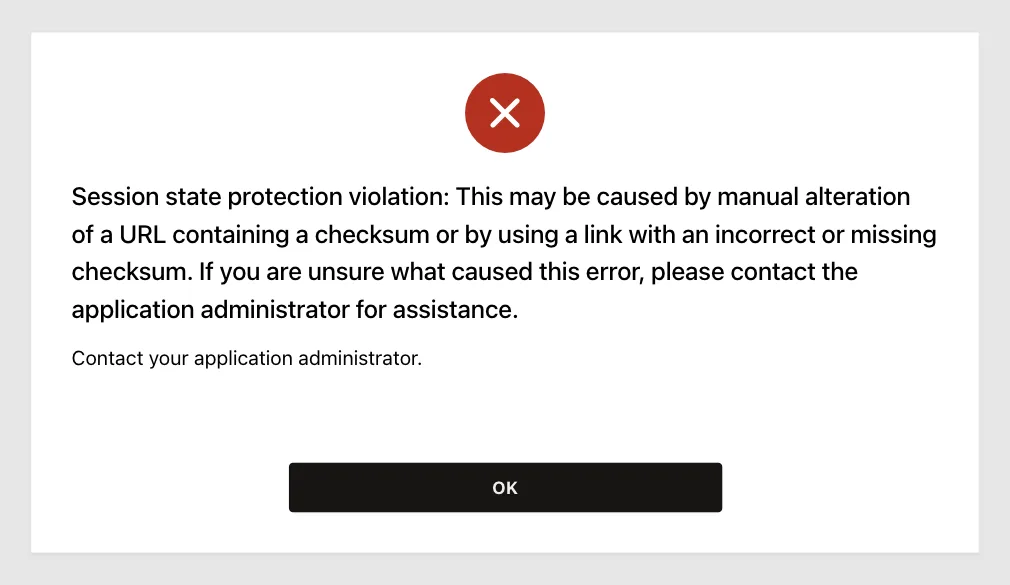
This works because the page keeps Page Access Protection at Arguments Must Have Checksum and the items are Value Protected. The report query never runs with a value that did not come from the funnel link.
Last, add a stage that no opportunity has reached yet:
Example:
insert into pipeline_stages (stage_name, stage_seq) values ('Onboarding', 6);
commit;

select stage_seq, stage_name, reached, pct_of_first, pct_of_previous
from pipeline_funnel_v
order by stage_seq;
Output:
1 row inserted.

Commit complete.

   STAGE_SEQ STAGE_NAME        REACHED    PCT_OF_FIRST    PCT_OF_PREVIOUS
____________ ______________ __________ _______________ __________________
           1 Lead                   20             100
           2 Qualified              14              70                 70
           3 Proposal                9              45               64.3
           4 Negotiation             5              25               55.6
           5 Won                     3              15                 60
           6 Onboarding              0               0                  0

6 rows selected.
The view returns Onboarding with 0 and no division error. The chart received the section with the value 0, but it did not draw it at all: the funnel still ended with Won, and there was no empty section or label for Onboarding. After this test the Onboarding stage was deleted again.
Things to Know
- A funnel needs cumulative counts. Counting only the current stage of each record can make a lower section wider than the one above it, as the Step 1 output showed.
- APEX turns each row of a funnel series into its own section. On this page the chart received five series, one per row, named after the Label column.
- The order of the sections follows the ORDER BY of the series query, so always sort by the stage sequence.
- A section with the value 0 is not drawn. If an empty stage must stay visible, show it in a report or in the label of the stage above it.
- The funnel has no axes and no Series Name mapping is needed. Use the Label column for the text inside each section and Custom Tooltip for longer details.
- Keep the link checksum. The report trusts P1000_STAGE_ID only because APEX rejects URLs whose items were changed by hand.
Related Guides
- How to Drill Down from a Chart to the Matching Rows in Oracle APEX
- Oracle APEX Charts: A Complete Guide
Conclusion
A funnel chart in Oracle APEX needs only a chart region with the type Funnel and a series query that returns one row per step. The real work is in the numbers: a view with cumulative counts, FIRST_VALUE and LAG for the conversion rates, and NULLIF for empty stages.
With labels, a custom tooltip and a link to a report on the same page, the chart becomes a working tool. Users see where records drop out of the process, click a section, and get the exact list of records behind it.
See my articles more often when you search Google.
