
When a page feels slow, guessing which region is the cause wastes time. Debug mode records every step APEX takes while it renders the page, together with the time each step needed. Sorted by time, the slow step comes to the top.
This guide builds a page with one slow report, finds the slow step in the debug messages, fixes it with an index and compares the times. It uses accounts and events as the example; the same method works for any page.
The guide How to Handle Errors, Debug, and Translate Messages Using APEX_ERROR and APEX_DEBUG covers the APEX_DEBUG API in detail, and Oracle APEX Debugging, Source Control, and Going to Production gives the overview. This guide is the practical one: reading the debug report to find the slow part of a page.
Step 1: Create the Tables
The example needs two tables. DBG_ACCOUNTS holds 20 accounts. DBG_EVENTS holds 2,000,000 events with a foreign key to the account. The foreign key has no index on purpose, because that is a common reason for a slow report. The script creates the tables and loads the rows:
Example:
create table dbg_accounts (
  account_id   number generated by default on null as identity,
  name         varchar2(100) not null,
  constraint dbg_accounts_pk primary key (account_id),
  constraint dbg_accounts_name_uk unique (name)
);

create table dbg_events (
  event_id     number generated by default on null as identity,
  account_id   number not null,
  event_type   varchar2(20) not null,
  amount       number(10,2) default on null 0 not null,
  created_on   date default on null sysdate not null,
  constraint dbg_events_pk primary key (event_id),
  constraint dbg_events_account_fk foreign key (account_id) references dbg_accounts (account_id),
  constraint dbg_events_type_ck check (event_type in ('LOGIN','PURCHASE','REFUND','SUPPORT'))
);

insert into dbg_accounts (name)
select 'Account ' || to_char(level, 'FM00') from dual connect by level <= 20;

insert into dbg_events (account_id, event_type, amount, created_on)
select mod(level, 20) + 1,
       case mod(level, 4) when 0 then 'LOGIN' when 1 then 'PURCHASE' when 2 then 'REFUND' else 'SUPPORT' end,
       mod(level, 500),
       sysdate - mod(level, 365)
from   dual connect by level <= 2000000;

commit;

select (select count(*) from dbg_accounts) as accounts,
       (select count(*) from dbg_events) as events
from   dual;
Output:
Table DBG_ACCOUNTS created.

Table DBG_EVENTS created.

20 rows inserted.

2,000,000 rows inserted.

Commit complete.

   ACCOUNTS     EVENTS
___________ __________
         20    2000000
Step 2: Create the Page
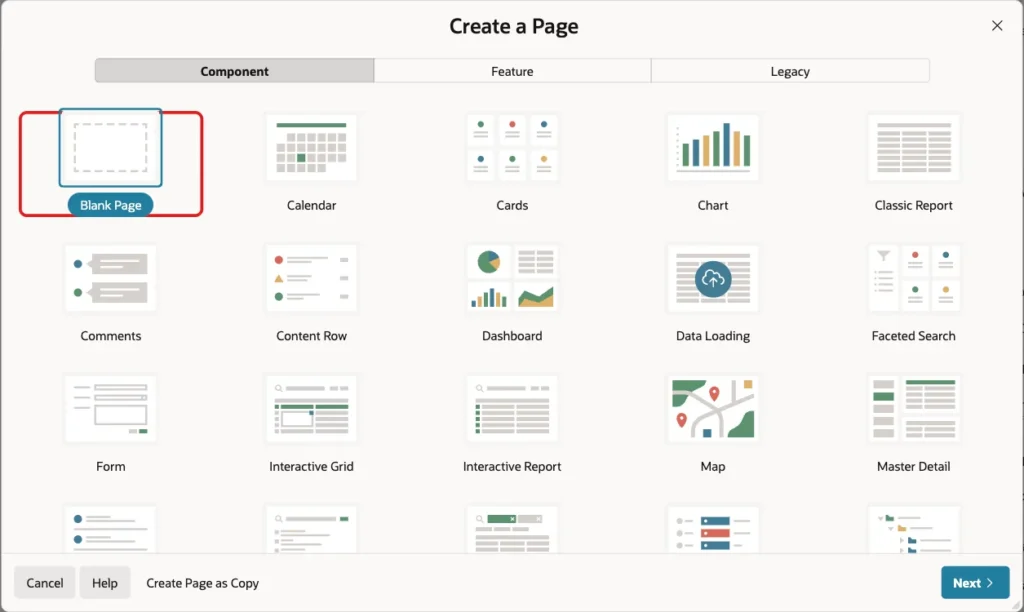
In App Builder, click Create Page. On the Component tab, click Blank Page:
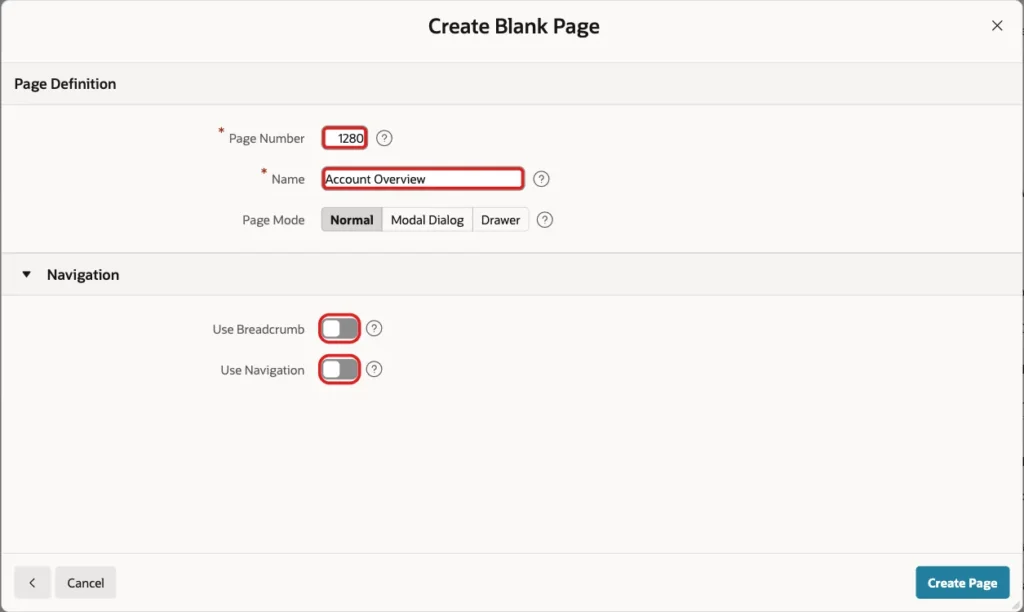
Enter Page Number 1280 and Name Account Overview. Turn off Use Breadcrumb and Use Navigation, then click Create Page:
Step 3: Add the Report
In Page Designer, add a Classic Report region to the Body and name it Account Summary. Set Location to Local Database, Type to SQL Query and enter this query. Each scalar subquery reads the events of one account, so the query needs the events of every account:
Example:
select a.account_id,
       a.name,
       (select count(*) from dbg_events e where e.account_id = a.account_id) as events,
       (select nvl(sum(e.amount), 0) from dbg_events e where e.account_id = a.account_id and e.event_type = 'PURCHASE') as purchases,
       (select nvl(sum(e.amount), 0) from dbg_events e where e.account_id = a.account_id and e.event_type = 'REFUND') as refunds,
       (select max(e.created_on) from dbg_events e where e.account_id = a.account_id) as last_event
from   dbg_accounts a
order  by a.account_id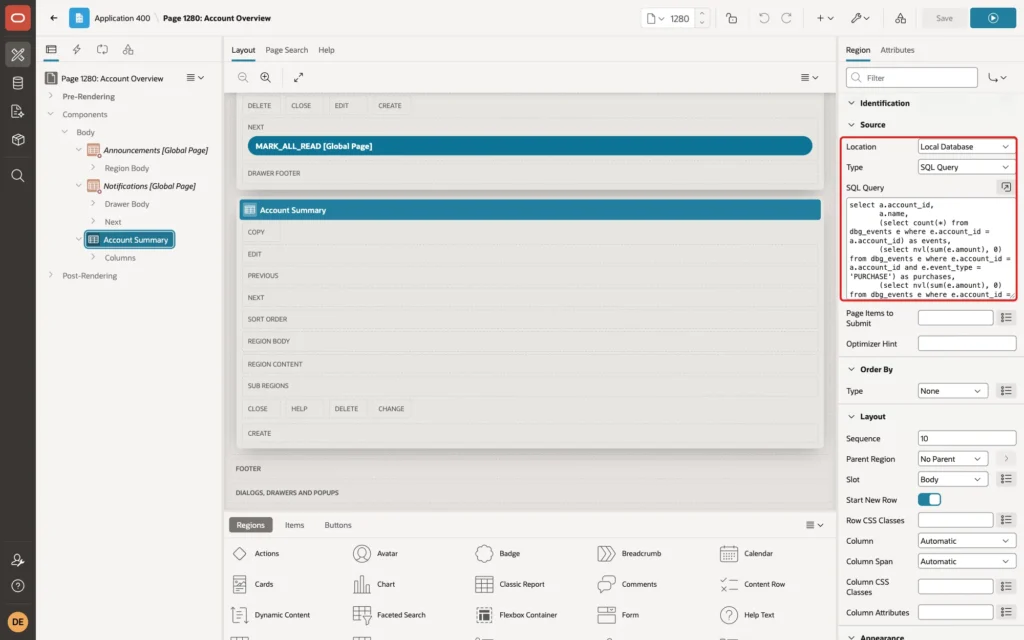
Step 4: Add Your Own Debug Message
APEX writes its own messages to the debug report. You can add yours with APEX_DEBUG.MESSAGE, so that you can find your code in the report. Create a page process named Log Page Load with Type Execute Code and Point Before Header. The first parameter is a text with %s placeholders:
Example:
apex_debug.message('Account Overview: loading the summary for %s accounts', 20);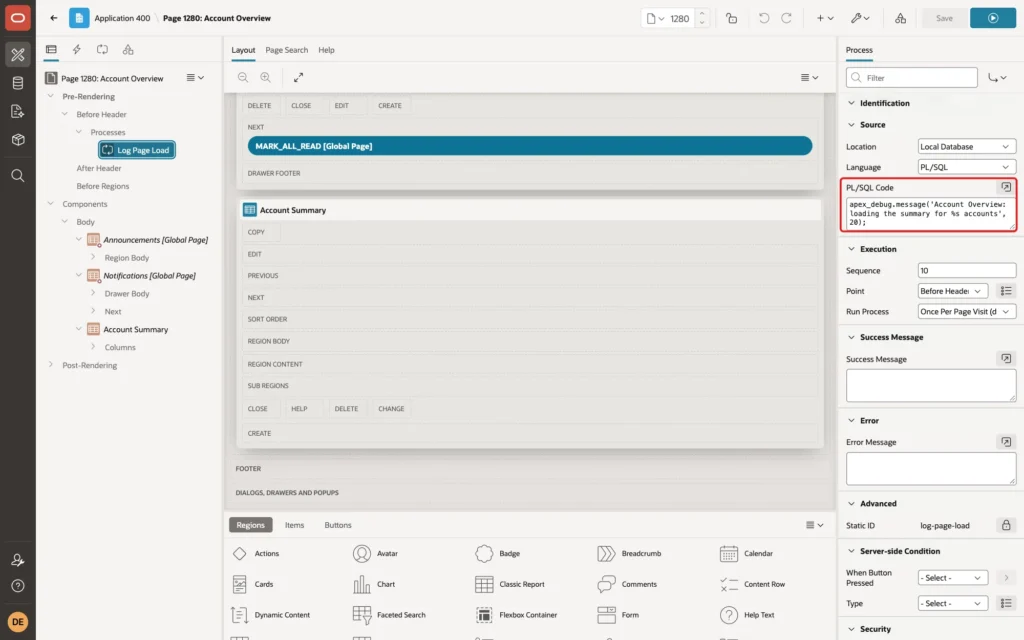
Click Save. The message is written only when debug is on, so the process costs almost nothing at normal runtime.
Step 5: Run the Page with Debug On
Run the page and sign in as a developer. In a first test I signed in to the application only, added debug=YES to the URL and found no debug entries at all. Debug needs a developer session of the App Builder in the same browser, so sign in to App Builder first, then run the page.
The Developer Toolbar appears at the bottom of the page. Open the Debug menu to see View Debug. A URL parameter does the same: add debug=LEVEL9 to the page URL to record every message:
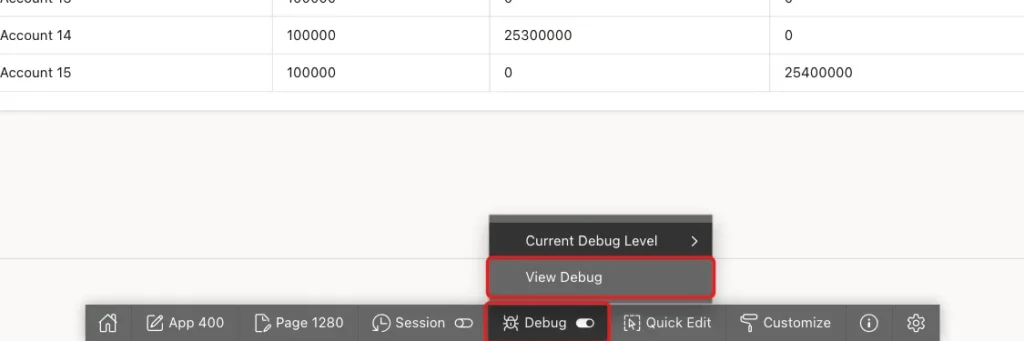
Debug levels run from 1 to 9. YES means level 4 and LEVEL9 means everything. The debug=NO value turns it off. The counts below come from three page views of this page:
Example:
select page_view_id,
       max(message_level) as max_level,
       count(*) as messages
from   apex_debug_messages
where  application_id = 400
and    page_id = 1280
and    page_view_id >= 241504
group  by page_view_id
order  by page_view_id;
Output:
   PAGE_VIEW_ID    MAX_LEVEL    MESSAGES
_______________ ____________ ___________
         241504            4         497
         241505            4         497
         241506            9        3531
The first view used debug=YES and the second debug=LEVEL4, both with 497 messages. The third view used LEVEL9 and recorded 3,531 messages. Use level 4 for a first look and level 9 when you need the details.
Step 6: Find the Slow Step in View Debug
Click View Debug. The list shows one row for every page view that was recorded, with the number of entries and the time in seconds. The page view of this example needed about one second:
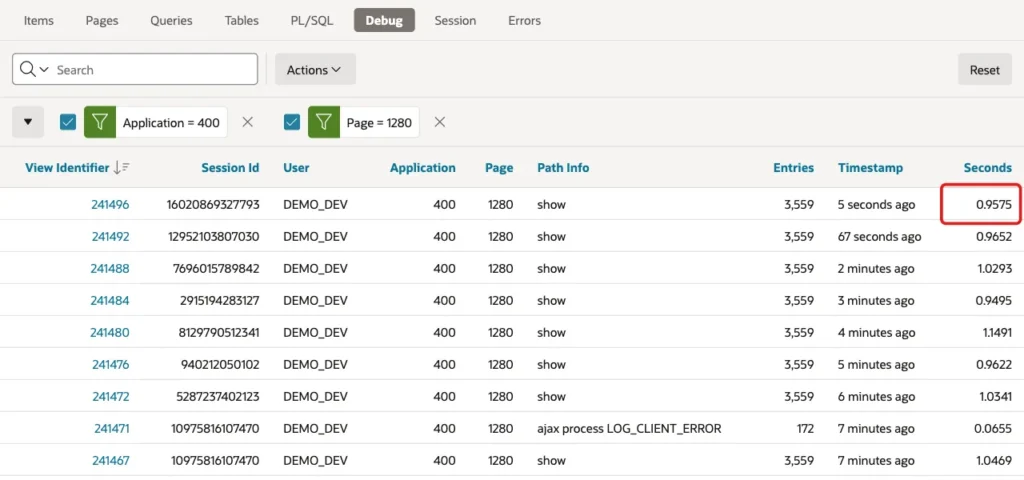
Click the view identifier to see the messages. The report shows the page Elapsed Time and the Maximum Execution Time, which is the longest single step. Click the heading of the Execution column and choose Sort Descending. The slowest step comes to the top:
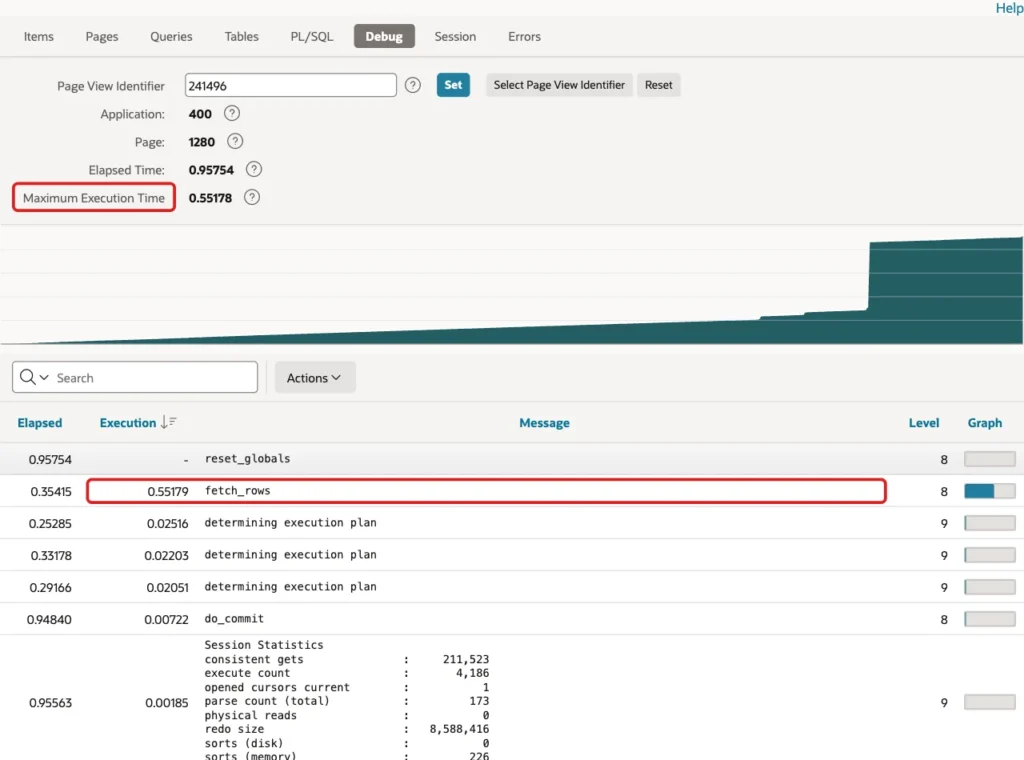
The step fetch_rows is the moment APEX runs the query of the report region and fetches the rows. It needed 0.55 seconds of the one second. The other steps are in the range of milliseconds, so the report query is the place to fix.
The same data is available in SQL through the view APEX_DEBUG_MESSAGES. This query lists the slow steps of the latest page view, plus the message from Step 4:
Example:
select round(elapsed_time, 3) as elapsed,
       round(execution_time, 3) as step_seconds,
       message
from   apex_debug_messages
where  application_id = 400
and    page_id = 1280
and    page_view_id = (select max(page_view_id)
                       from   apex_debug_messages
                       where  application_id = 400
                       and    page_id = 1280
                       and    message = 'fetch_rows')
and    (execution_time > 0.1 or message like 'Account Overview:%')
order  by execution_time desc nulls last;
Output:
   ELAPSED    STEP_SECONDS MESSAGE
__________ _______________ ________________________________________________________
     0.354           0.552 fetch_rows
     0.072               0 Account Overview: loading the summary for 20 accounts
Step 7: Fix It with an Index
Each of the four subqueries reads the whole DBG_EVENTS table for every account, because no index starts with ACCOUNT_ID. Measure the query in SQL first, so that you have a number to compare:
Example:
set timing on

select count(*) as accounts, sum(events) as events, sum(purchases) as purchases, sum(refunds) as refunds, max(last_event) as last_event
from (
  select a.account_id, a.name,
         (select count(*) from dbg_events e where e.account_id = a.account_id) as events,
         (select nvl(sum(e.amount), 0) from dbg_events e where e.account_id = a.account_id and e.event_type = 'PURCHASE') as purchases,
         (select nvl(sum(e.amount), 0) from dbg_events e where e.account_id = a.account_id and e.event_type = 'REFUND') as refunds,
         (select max(e.created_on) from dbg_events e where e.account_id = a.account_id) as last_event
  from   dbg_accounts a
);
Output:
   ACCOUNTS     EVENTS    PURCHASES      REFUNDS LAST_EVENT
___________ __________ ____________ ____________ _____________
         20    2000000    124500000    125000000 29-10-26

Elapsed: 00:00:00.734
Create an index that starts with the foreign key column and also holds the columns the subqueries read. The database can then answer them from the index alone. Gather the table statistics after the index is created:
Example:
create index dbg_events_account_ix on dbg_events (account_id, event_type, amount, created_on);

begin
  dbms_stats.gather_table_stats(user, 'DBG_EVENTS');
end;
/
Output:
Index DBG_EVENTS_ACCOUNT_IX created.

PL/SQL procedure successfully completed.
Run the same measurement again:
Example:
set timing on

select count(*) as accounts, sum(events) as events, sum(purchases) as purchases, sum(refunds) as refunds, max(last_event) as last_event
from (
  select a.account_id, a.name,
         (select count(*) from dbg_events e where e.account_id = a.account_id) as events,
         (select nvl(sum(e.amount), 0) from dbg_events e where e.account_id = a.account_id and e.event_type = 'PURCHASE') as purchases,
         (select nvl(sum(e.amount), 0) from dbg_events e where e.account_id = a.account_id and e.event_type = 'REFUND') as refunds,
         (select max(e.created_on) from dbg_events e where e.account_id = a.account_id) as last_event
  from   dbg_accounts a
);
Output:
   ACCOUNTS     EVENTS    PURCHASES      REFUNDS LAST_EVENT
___________ __________ ____________ ____________ _____________
         20    2000000    124500000    125000000 29-10-26

Elapsed: 00:00:00.279
The query time dropped from 0.73 to 0.28 seconds. The report returns the same totals as before.
Step 8: Compare in the Debug Report
Run the page again with debug on and open View Debug. The latest page view now needs 0.61 seconds instead of about one second:
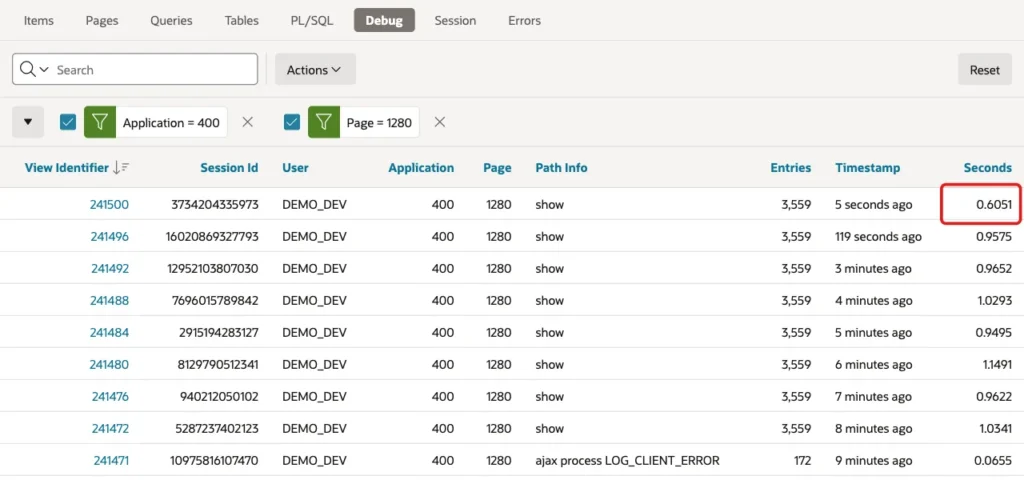
Open it and sort by Execution again. The Maximum Execution Time is now 0.17 seconds, and fetch_rows needs 0.165 seconds instead of 0.55:
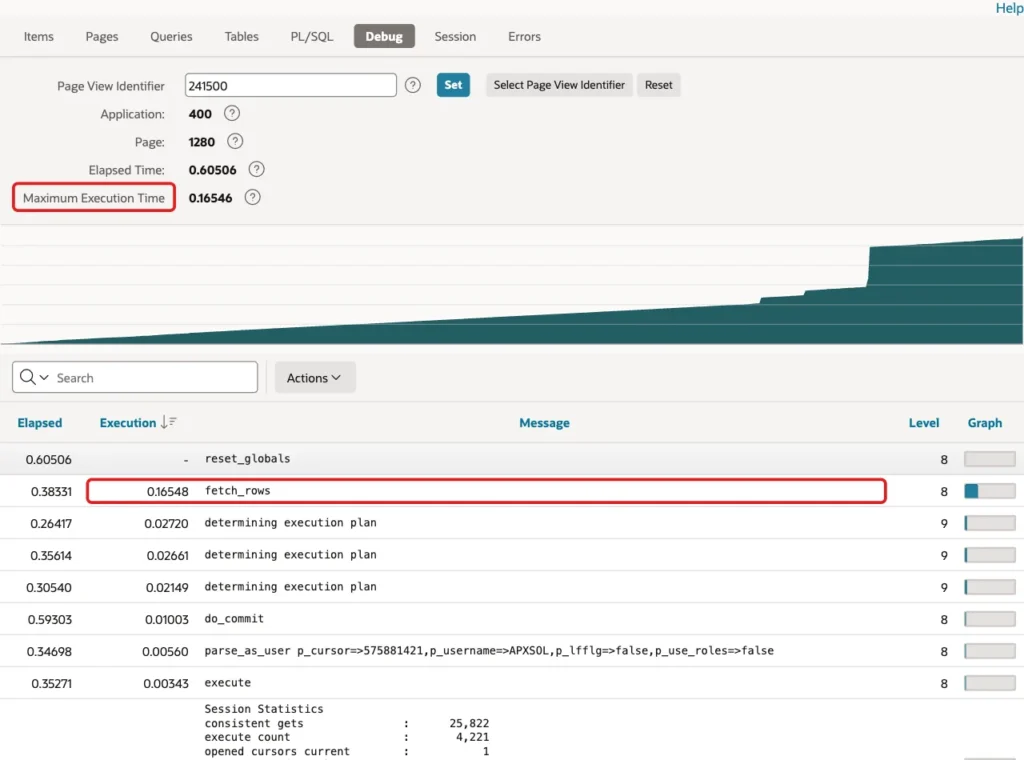
The same SQL query as in Step 6 shows the new numbers:
Example:
select round(elapsed_time, 3) as elapsed,
       round(execution_time, 3) as step_seconds,
       message
from   apex_debug_messages
where  application_id = 400
and    page_id = 1280
and    page_view_id = (select max(page_view_id)
                       from   apex_debug_messages
                       where  application_id = 400
                       and    page_id = 1280
                       and    message = 'fetch_rows')
and    (execution_time > 0.1 or message like 'Account Overview:%')
order  by execution_time desc nulls last;
Output:
   ELAPSED    STEP_SECONDS MESSAGE
__________ _______________ ________________________________________________________
     0.383           0.165 fetch_rows
     0.086               0 Account Overview: loading the summary for 20 accounts
Things to Know
- With only an application sign-in, debug=YES in the URL recorded nothing in this test. Sign in to App Builder in the same browser first.
- Level 9 recorded about seven times more messages than level 4 for this page. Do not leave it on for production users.
- The Execution column is the time of a single step, and Elapsed is the time since the page view started. Sort by Execution to find slow steps.
- The first row of the descending sort, reset_globals, has no Execution value (shown as a dash). It is not a slow step.
- The page view needed 0.6 seconds after the fix although fetch_rows needed 0.17. The rest is the time of the other steps that APEX runs for every page.
- Debug messages are stored in the database. Every page view you record adds entries, so record only the views you need.
Related Guides
- How to Handle Errors, Debug, and Translate Messages Using APEX_ERROR and APEX_DEBUG
- Oracle APEX Debugging, Source Control, and Going to Production
Conclusion
Debug mode shows where a page spends its time. Turn it on, open View Debug, sort by Execution and look at the top step. Fix that step, run the page again and compare the numbers.
Add your own APEX_DEBUG messages around code that you suspect, and keep the debug level at 4 until you need more detail.
See my articles more often when you search Google.
