
A form with a few required fields usually tells the user about a missing value only after they click Save. The page reloads or shows an error list, and the user has to find the empty field. A Save button that stays disabled until every required field has a value makes the rule visible before the click.
This guide builds that behavior with one dynamic action and no custom JavaScript file. A client-side condition checks the required items, and an Enable action and an opposite Disable action switch the Create and Apply Changes buttons.
The server-side Value Required checks stay in place. The guide uses visitor passes as the example; the same steps work for any table.
Two older posts are close to this topic. How to Make a Field Required Only When Another Field Has a Value in Oracle APEX changes whether one field is required.
Stop Duplicate Records from Double-Clicking Save in Oracle APEX disables the buttons while the page submits. Here the button state follows the values of all required fields while the user types.
Step 1: Create the Tables
The example needs two tables. OFFICE_LOCATIONS lists the places a visitor can come to. VISITOR_PASSES stores one row per planned visit, with five required columns and one optional column, PURPOSE.
The required columns are NOT NULL, so the table enforces the rule for every path into it. Two check constraints also reject names made only of spaces, and a simple check rejects an email without an @ sign. Create the tables, the index and the sample data:
Example:
create table office_locations (
  location_id    number generated by default on null as identity,
  location_name  varchar2(100 char) not null,
  city           varchar2(60 char) not null,
  constraint office_locations_pk primary key (location_id),
  constraint office_locations_name_uk unique (location_name)
);

create table visitor_passes (
  pass_id        number generated by default on null as identity,
  visitor_name   varchar2(100 char) not null,
  email          varchar2(255 char) not null,
  location_id    number not null,
  visit_date     date not null,
  host_name      varchar2(100 char) not null,
  purpose        varchar2(400 char),
  constraint visitor_passes_pk primary key (pass_id),
  constraint visitor_passes_location_fk foreign key (location_id)
    references office_locations (location_id),
  constraint visitor_passes_name_ck check (trim(visitor_name) is not null),
  constraint visitor_passes_host_ck check (trim(host_name) is not null),
  constraint visitor_passes_email_ck check (email like '_%@_%._%')
);

create index visitor_passes_location_ix on visitor_passes (location_id);

insert into office_locations (location_id, location_name, city) values (1, 'Head Office', 'Pune');
insert into office_locations (location_id, location_name, city) values (2, 'Tech Park Campus', 'Bengaluru');
insert into office_locations (location_id, location_name, city) values (3, 'Harbor Warehouse', 'Mumbai');

insert into visitor_passes (pass_id, visitor_name, email, location_id, visit_date, host_name, purpose)
values (1, 'Ritu Malhotra', 'ritu.malhotra@example.com', 1, date '2026-10-20', 'Arjun Mehta', 'Quarterly vendor review');
insert into visitor_passes (pass_id, visitor_name, email, location_id, visit_date, host_name, purpose)
values (2, 'Daniel Brooks', 'daniel.brooks@example.com', 2, date '2026-10-21', 'Kavya Iyer', null);
insert into visitor_passes (pass_id, visitor_name, email, location_id, visit_date, host_name, purpose)
values (3, 'Mei Tanaka', 'mei.tanaka@example.com', 3, date '2026-10-23', 'Rahul Verma', 'Warehouse safety audit');

commit;

alter table office_locations modify location_id generated by default on null as identity (start with limit value);
alter table visitor_passes modify pass_id generated by default on null as identity (start with limit value);

column visitor_name format a15
column location_name format a17
column host_name format a12
column purpose format a24
select p.pass_id,
       p.visitor_name,
       l.location_name,
       to_char(p.visit_date, 'YYYY-MM-DD') as visit_date,
       p.host_name,
       p.purpose
from   visitor_passes p
join   office_locations l on l.location_id = p.location_id
order by p.pass_id;
Output:
Table OFFICE_LOCATIONS created.

Table VISITOR_PASSES created.

Index VISITOR_PASSES_LOCATION_IX created.

1 row inserted.

1 row inserted.

1 row inserted.

1 row inserted.

1 row inserted.

1 row inserted.

Commit complete.

Table OFFICE_LOCATIONS altered.

Table VISITOR_PASSES altered.

   PASS_ID VISITOR_NAME     LOCATION_NAME       VISIT_DATE    HOST_NAME      PURPOSE
__________ ________________ ___________________ _____________ ______________ __________________________
         1 Ritu Malhotra    Head Office         2026-10-20    Arjun Mehta    Quarterly vendor review
         2 Daniel Brooks    Tech Park Campus    2026-10-21    Kavya Iyer
3 Mei Tanaka Harbor Warehouse 2026-10-23 Rahul Verma Warehouse safety audit- VISITOR_PASSES_LOCATION_FK links each pass to a location, and VISITOR_PASSES_LOCATION_IX indexes that foreign key.
- OFFICE_LOCATIONS_NAME_UK keeps location names unique.
- The two ALTER TABLE statements move the identity columns past the fixed IDs of the sample rows, so new rows get free IDs.
Step 2: Create the Report and Form Pages
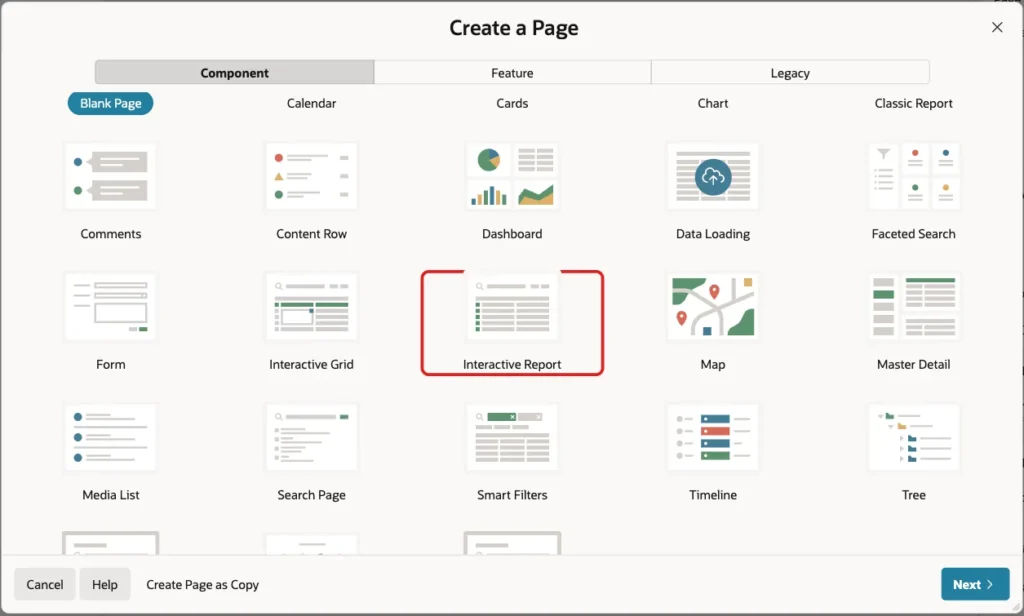
In App Builder, open the application and click Create Page. On the Component tab, click Interactive Report:
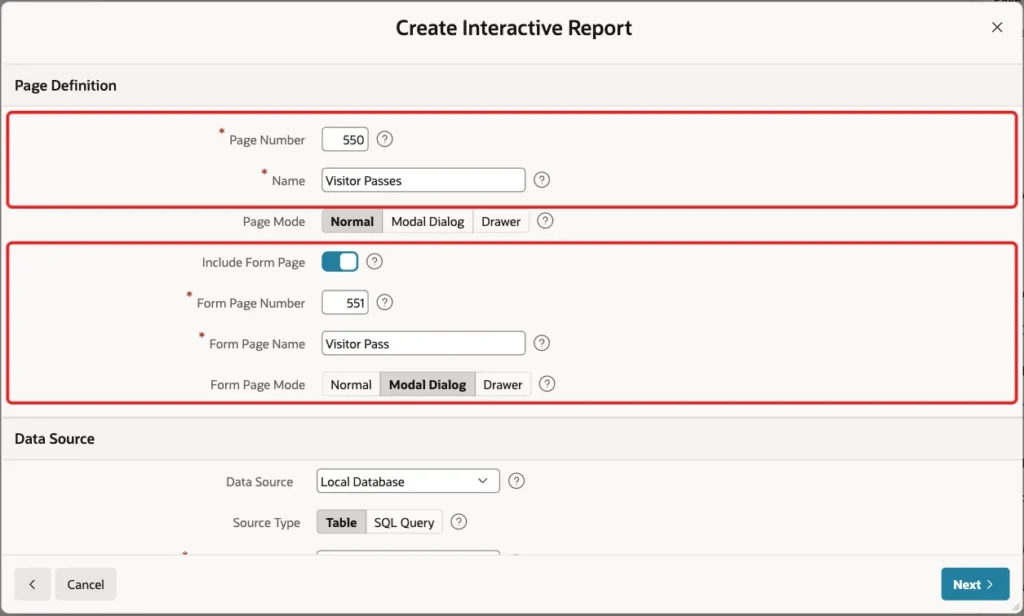
Enter Page Number 550 and Name Visitor Passes. Turn on Include Form Page, enter Form Page Number 551 and Form Page Name Visitor Pass, and keep Form Page Mode Modal Dialog:
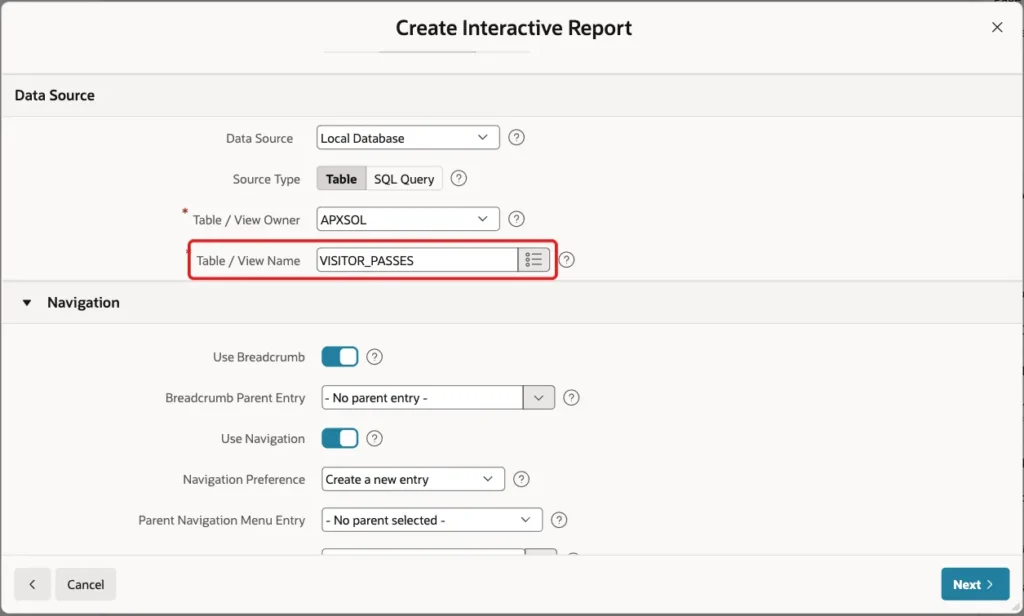
Under Data Source, keep Local Database and Source Type Table, and enter Table / View Name VISITOR_PASSES:
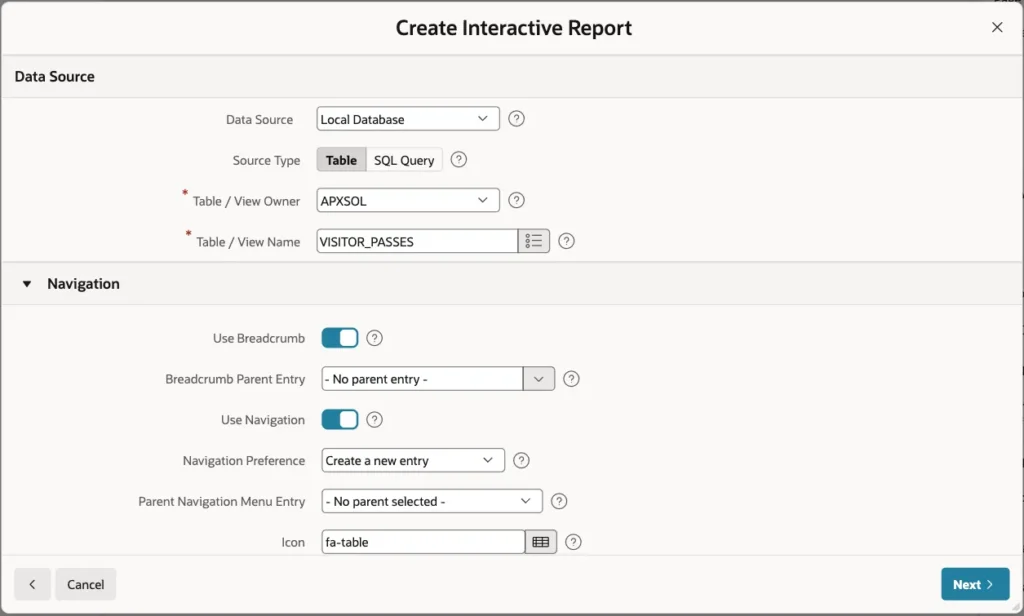
Keep Use Breadcrumb and Use Navigation on, so the report page gets a menu entry, and click Next:
On the Primary Key screen, select PASS_ID (Number) as Primary Key Column 1 and click Create Page:
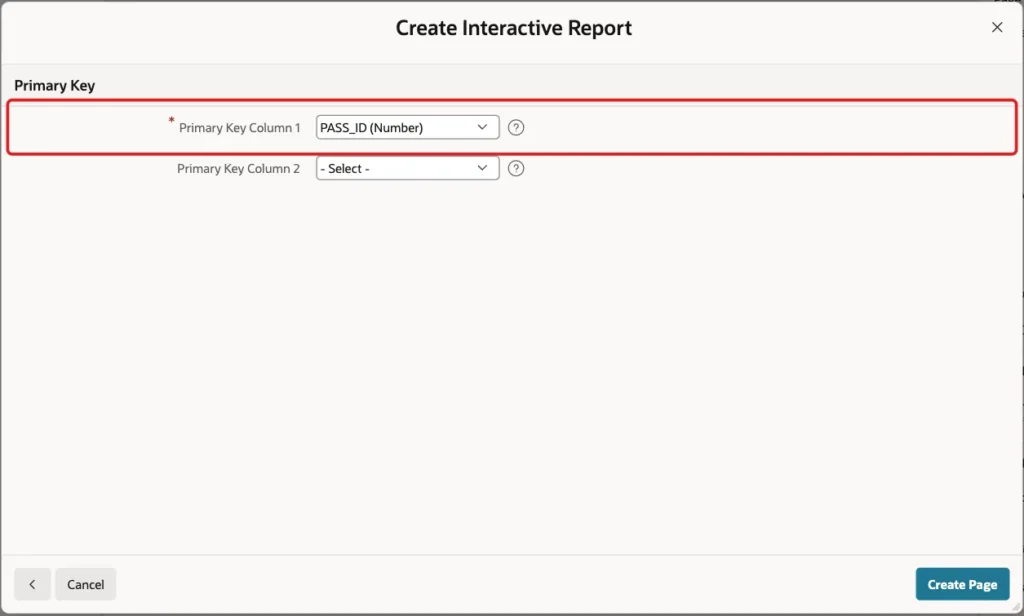
APEX creates the Visitor Passes report on page 550 and the Visitor Pass modal form on page 551. The wizard turned on Value Required for the five NOT NULL columns and gave them the Required - Floating template. P551_PURPOSE is optional.
Step 3: Set Up the Location Item
Open page 551 in Page Designer and select P551_LOCATION_ID. Change Label to Location. In the List of Values group, keep Display Null Value on and enter Null Display Value - Select Location -:
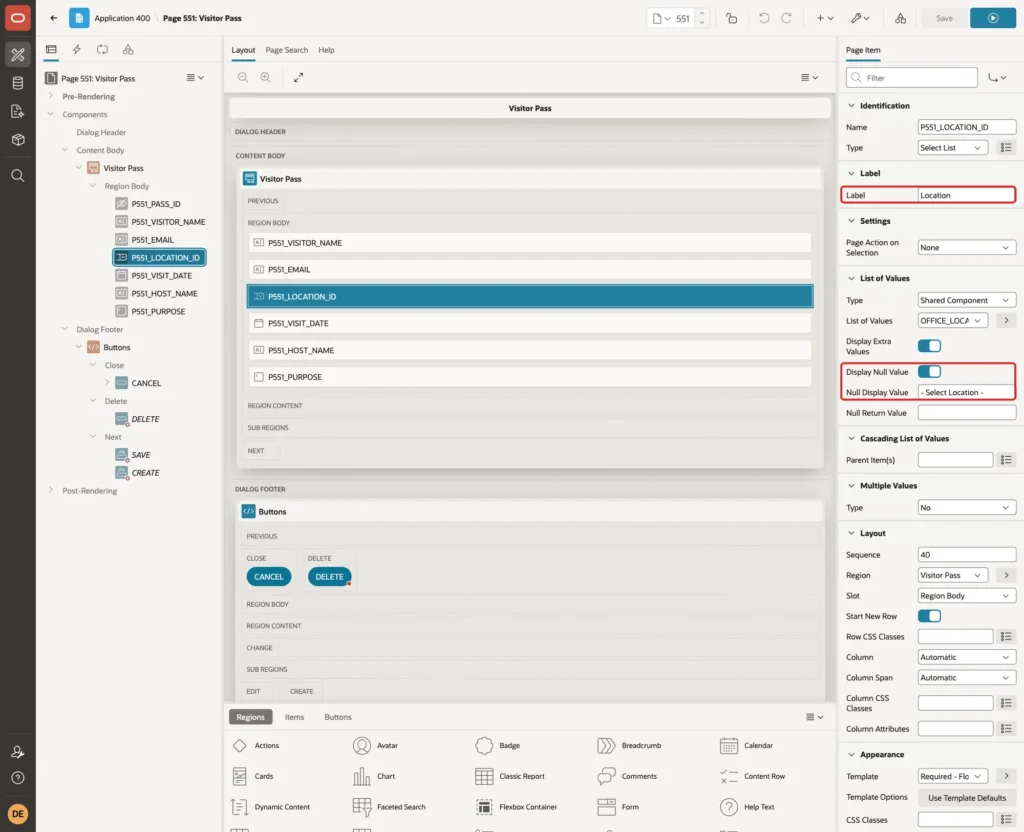
The empty entry matters for this guide. Without it, the select list would show the first location for a new pass, and the item would never be empty.
Step 4: Mark the Save Buttons
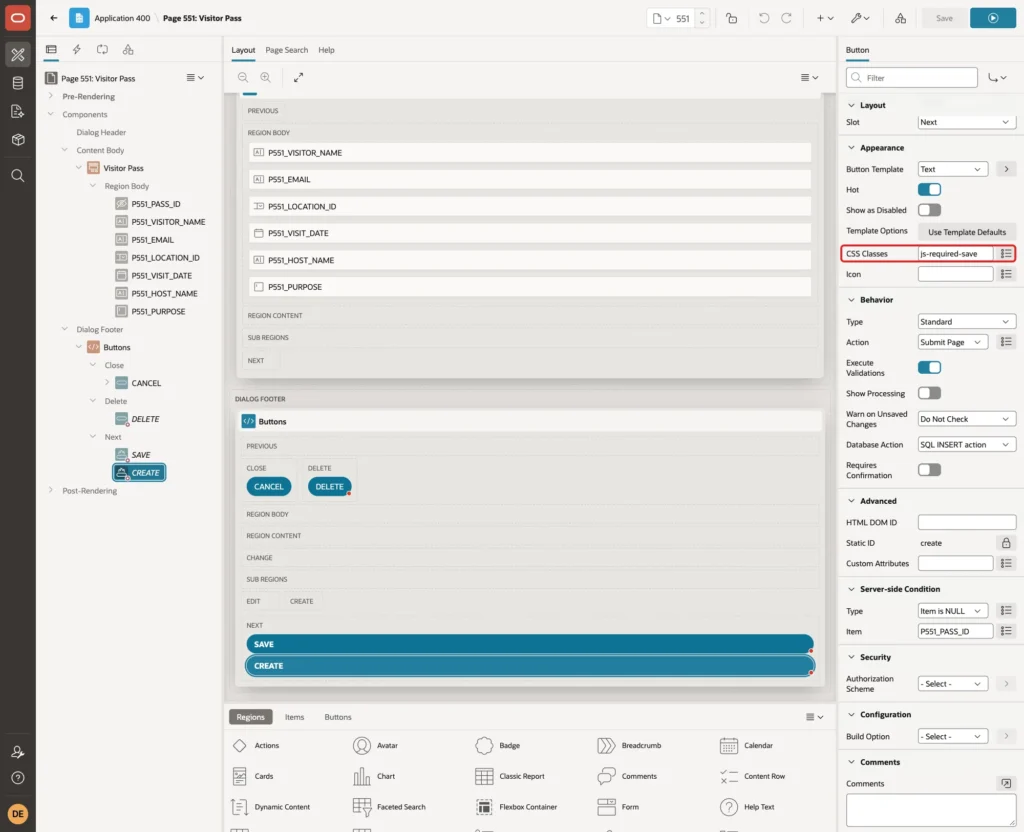
The form has two save buttons. CREATE shows for a new pass and SAVE (label Apply Changes) for an existing one. Both should follow the same rule, so give them the same CSS class.
Select the CREATE button. In the Appearance group, enter CSS Classes js-required-save:
Select the SAVE button and enter the same CSS Classes value, js-required-save:
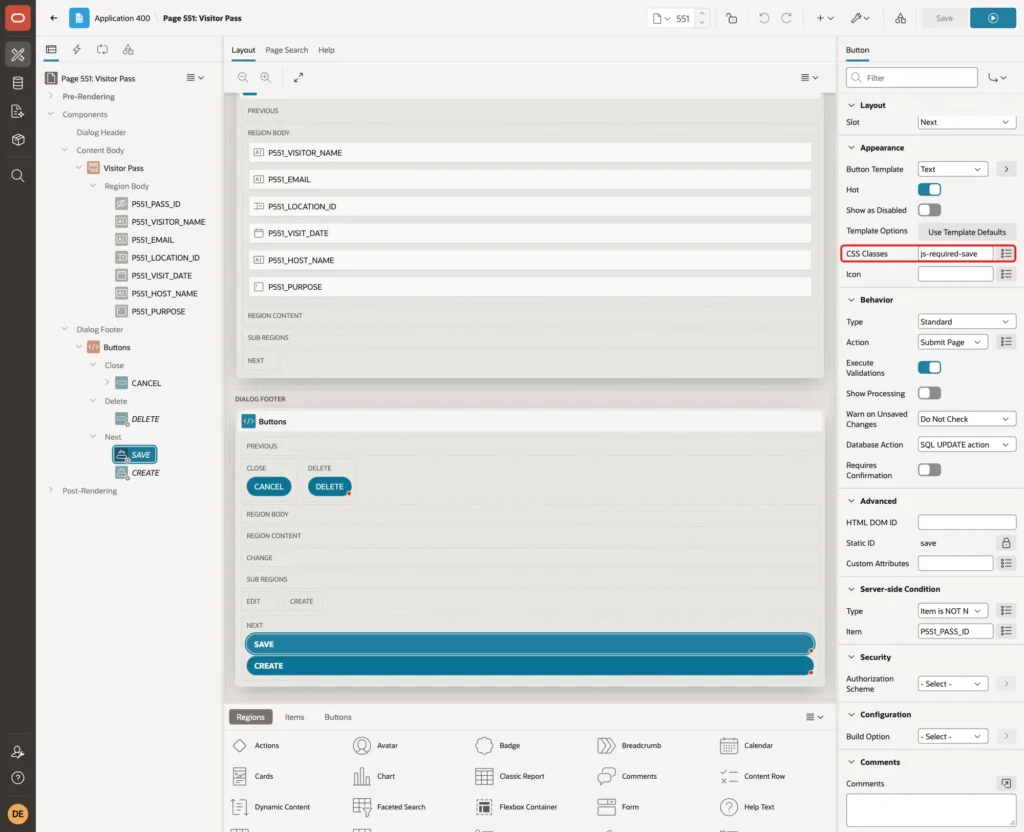
Leave the CANCEL and DELETE buttons as they are. A user must always be able to close the dialog or delete a pass.
Step 5: Create the Dynamic Action
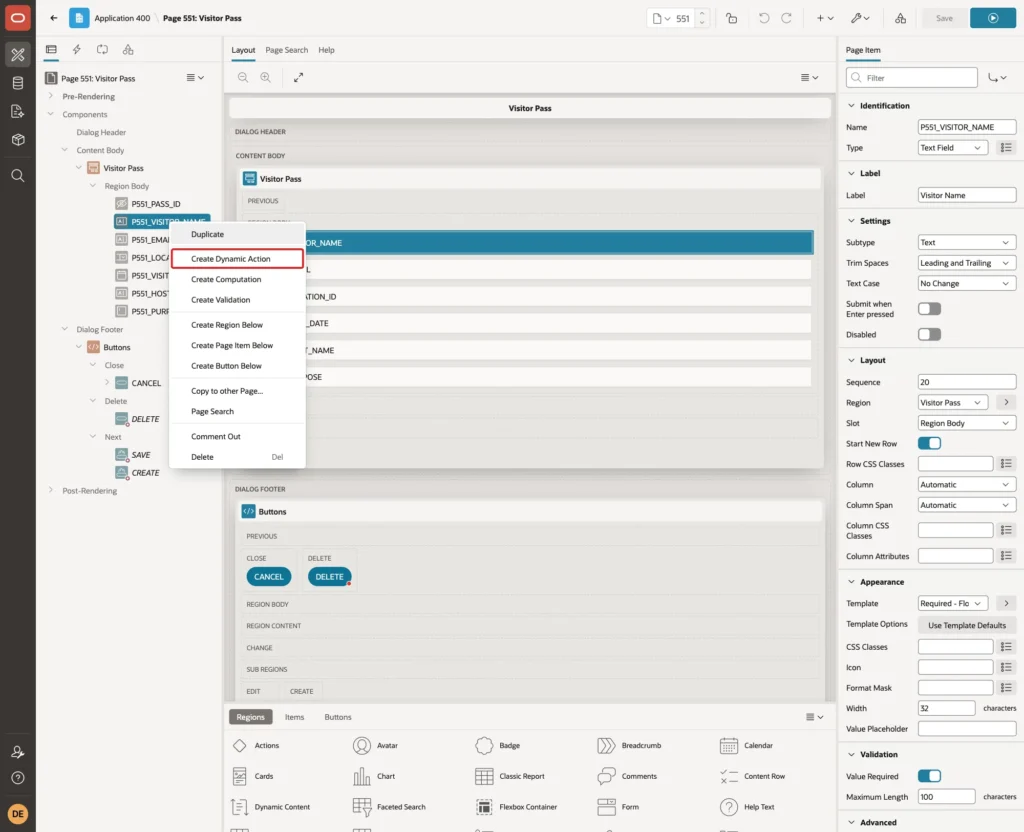
In the Rendering tree, right-click P551_VISITOR_NAME and choose Create Dynamic Action:
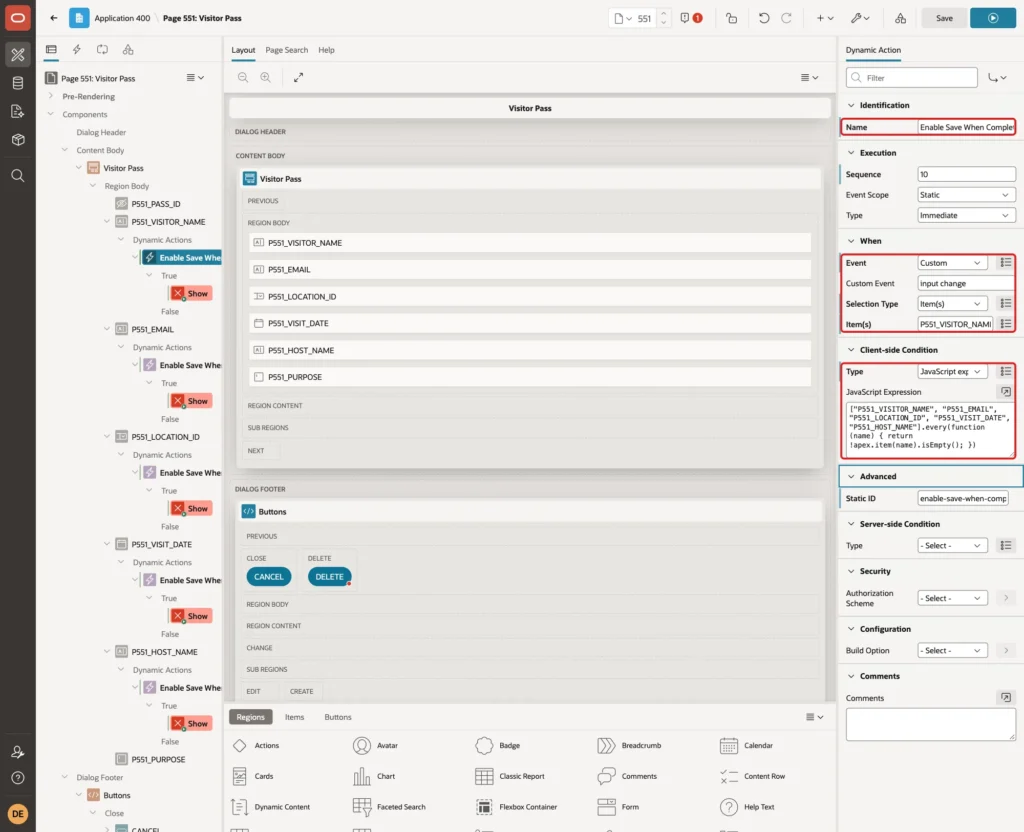
Set these properties of the new dynamic action:
- Identification > Name: Enable Save When Complete
- When > Event: Custom
- When > Custom Event: input change
- When > Selection Type: Item(s)
- When > Item(s): P551_VISITOR_NAME,P551_EMAIL,P551_LOCATION_ID,P551_VISIT_DATE,P551_HOST_NAME
- Client-side Condition > Type: JavaScript expression
The custom event input change runs the dynamic action on two browser events. Input fires on every keystroke, and change fires when a select list value or a date from the calendar popup is picked.
Enter this JavaScript Expression:
Example:
["P551_VISITOR_NAME", "P551_EMAIL", "P551_LOCATION_ID", "P551_VISIT_DATE", "P551_HOST_NAME"].every(function (name) { return !apex.item(name).isEmpty(); })The expression is true only when none of the five items is empty. apex.item().isEmpty() works for every item type here, including the select list and the date picker.
Step 6: Add the Enable and Disable Actions
Under True, select the Show action that APEX created. Set Action to Enable, Selection Type to jQuery Selector and jQuery Selector to .js-required-save. Keep Fire on Initialization on:
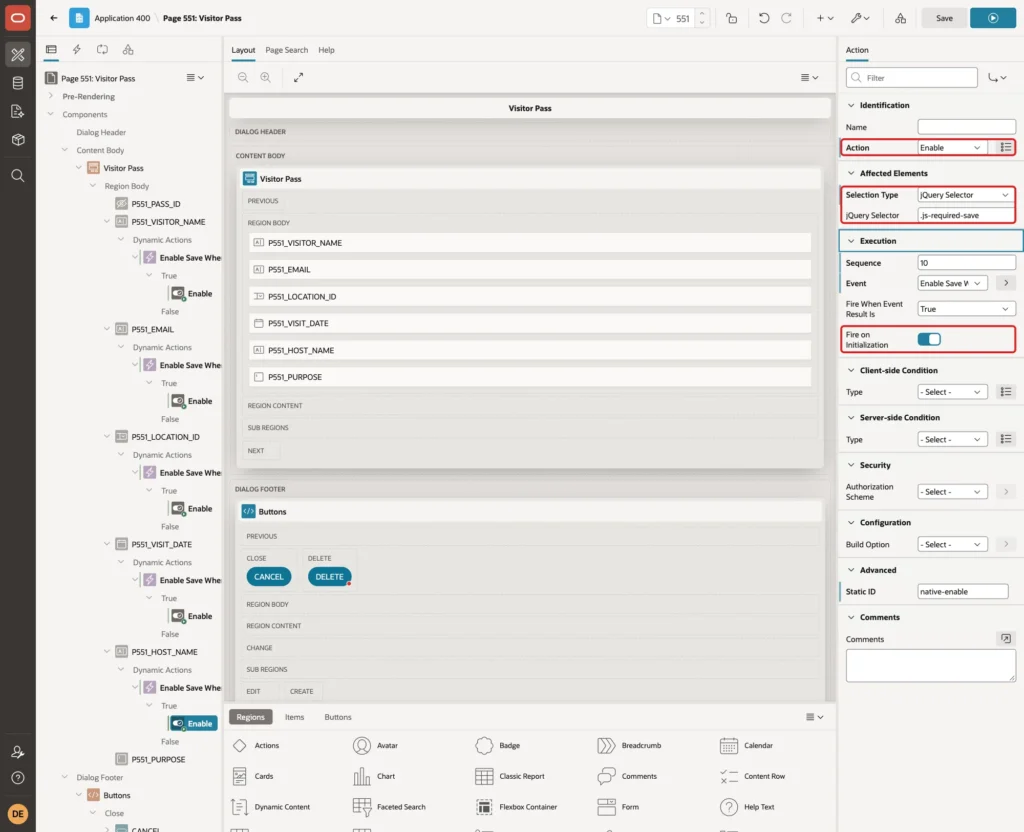
Fire on Initialization runs the action when the dialog opens. A new, empty pass then starts with a disabled button, and an existing complete pass starts with an enabled one.
Right-click the Enable action and choose Create Opposite Action:
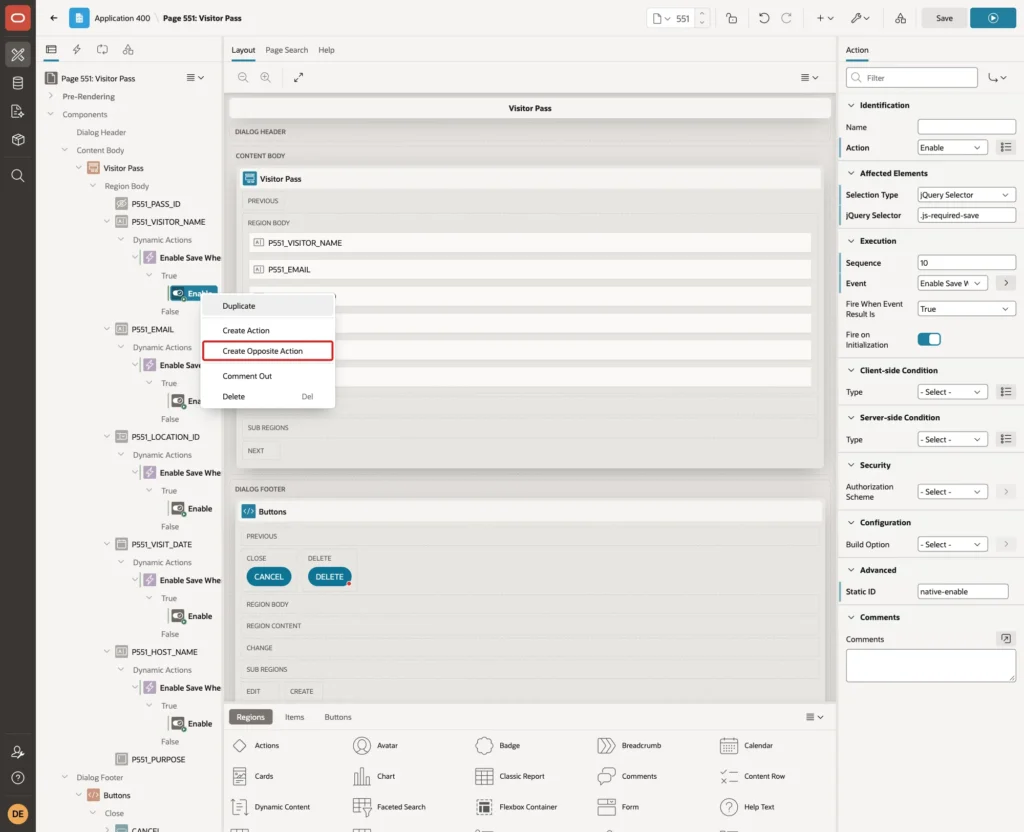
APEX adds a Disable action under False, with the same jQuery Selector and Fire on Initialization on:
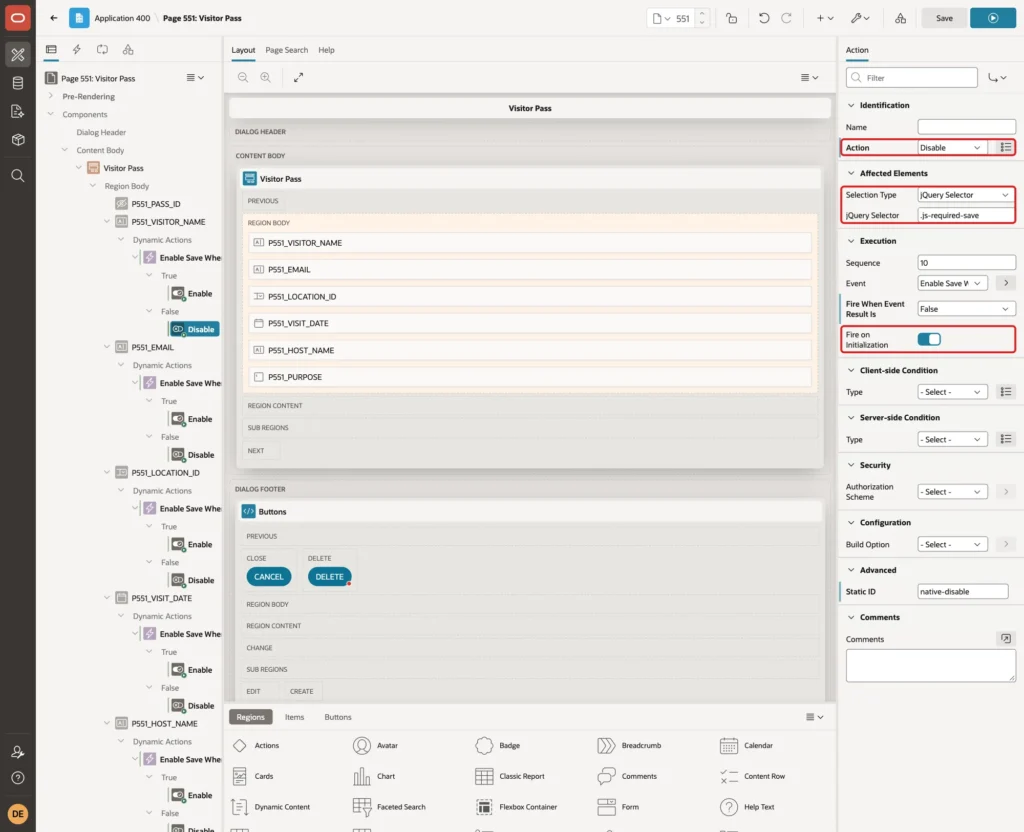
Click Save. The Value Required settings of the five items stay on. They are the server-side check that the button state cannot replace.
Step 7: Test the Form
A New Pass
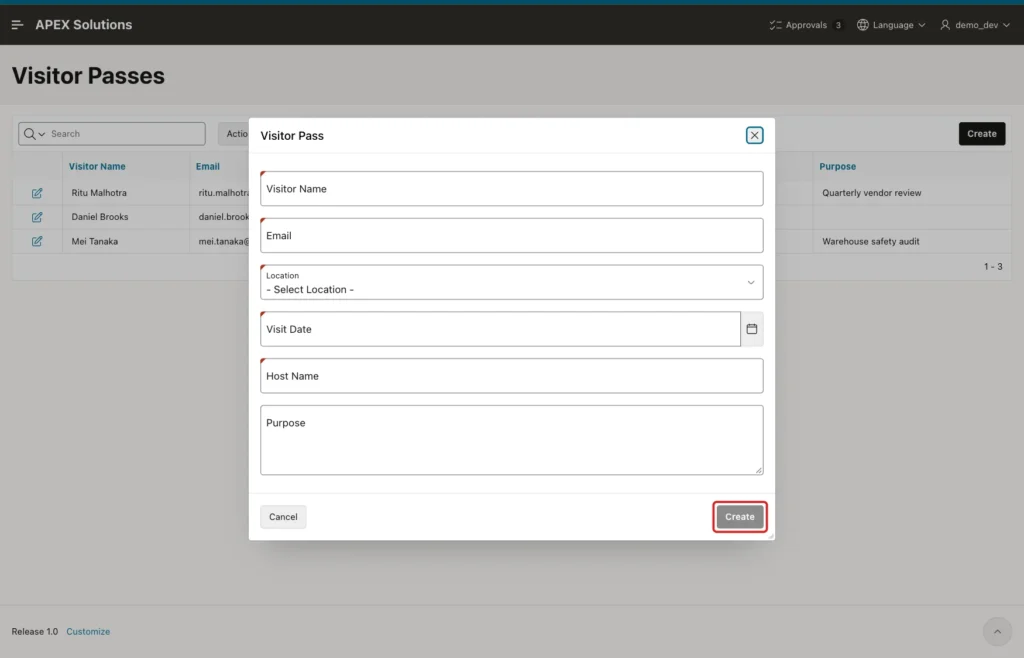
Run page 550 and click Create. All required fields are empty, so the Create button in the dialog is disabled and grey:
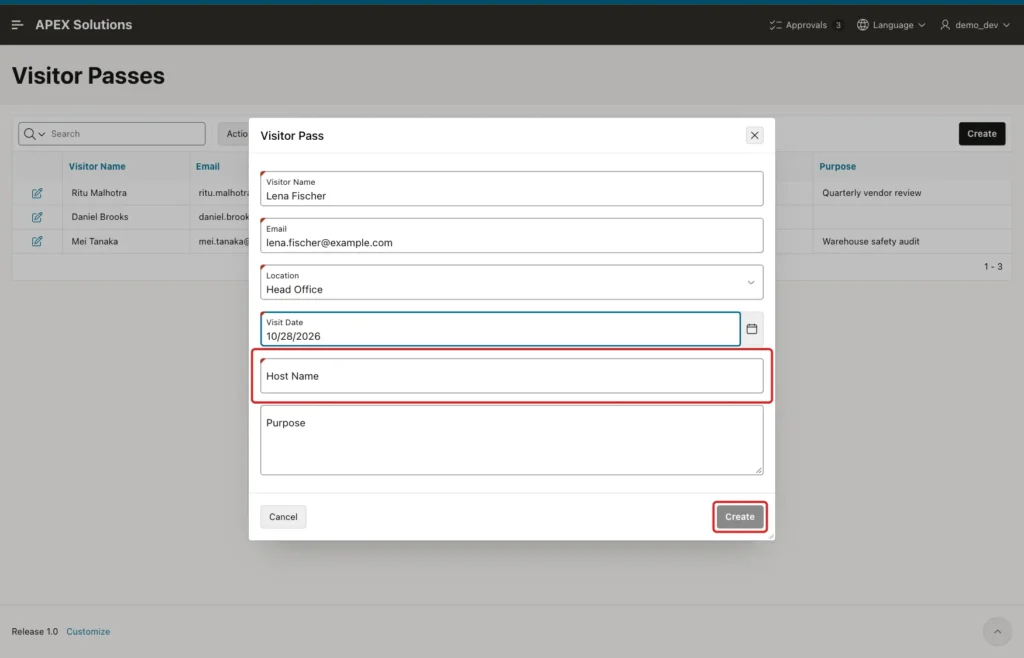
Enter Visitor Name Lena Fischer and Email lena.fischer@example.com, select Head Office and enter Visit Date 10/28/2026. Four of five required fields have a value, so Create is still disabled:
Type Arjun Mehta in Host Name. The button turns on while you type, without leaving the field:
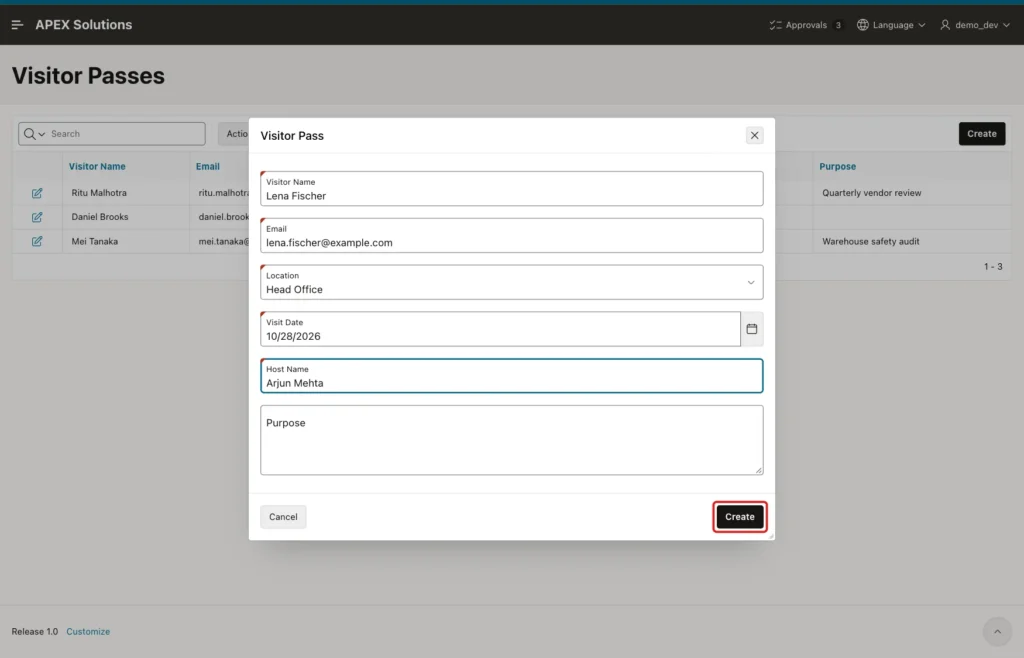
Purpose was left empty in this test. It is optional, so it does not affect the button.
Clearing a Field
Select the text in Email and delete it. The button is disabled again at once:
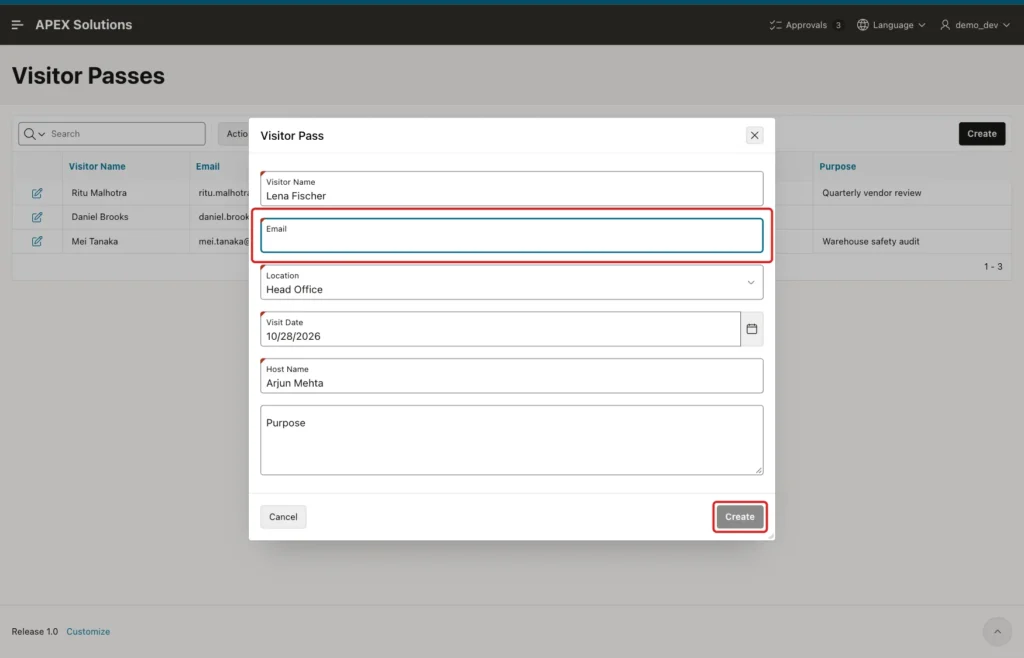
In the test, pressing Enter in Host Name did not submit the form either. The wizard creates text fields with Submit when Enter pressed turned off.
A Forced Submit (Negative Test)
A disabled button is only a browser feature. To check the server side, the form with the empty Email was submitted from the browser console:
Example:
apex.page.submit({ request: 'CREATE', validate: false });The request reached the server, and the Value Required check of P551_EMAIL stopped it:
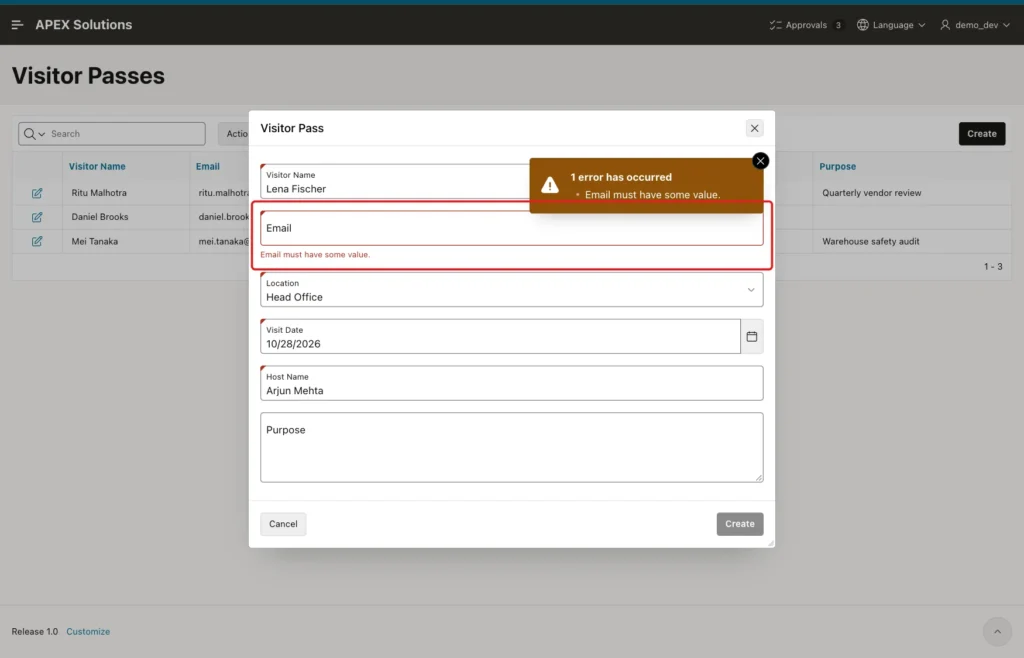
No row was inserted. After the page came back with the error, the Create button was disabled again, because Fire on Initialization ran on the reloaded dialog.
Saving the Pass
Type the email again. The button turns on, and Create saves the pass:
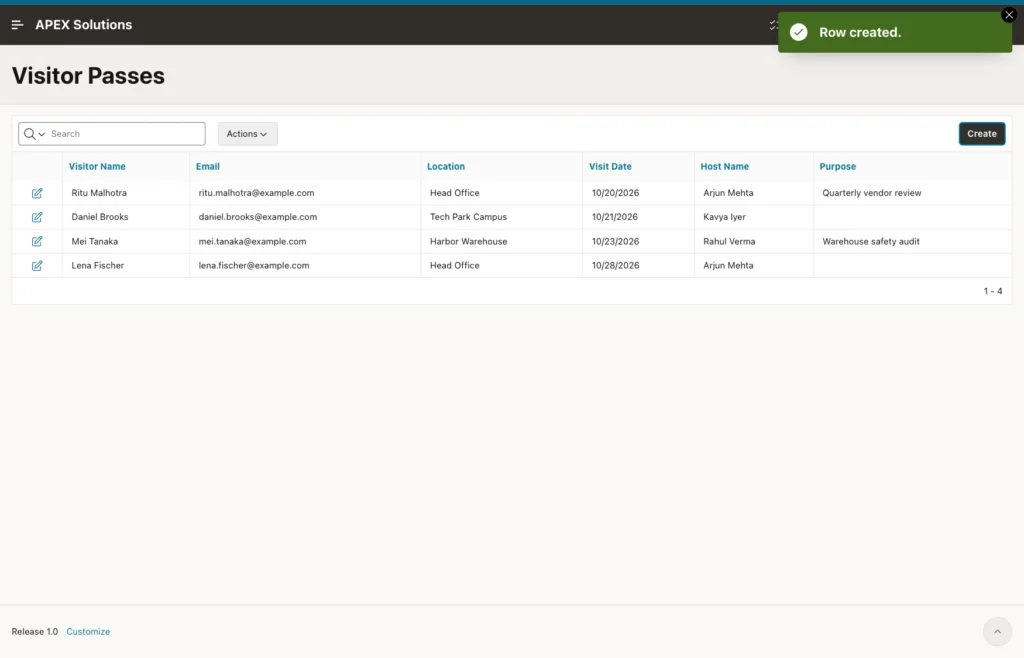
Editing an Existing Pass
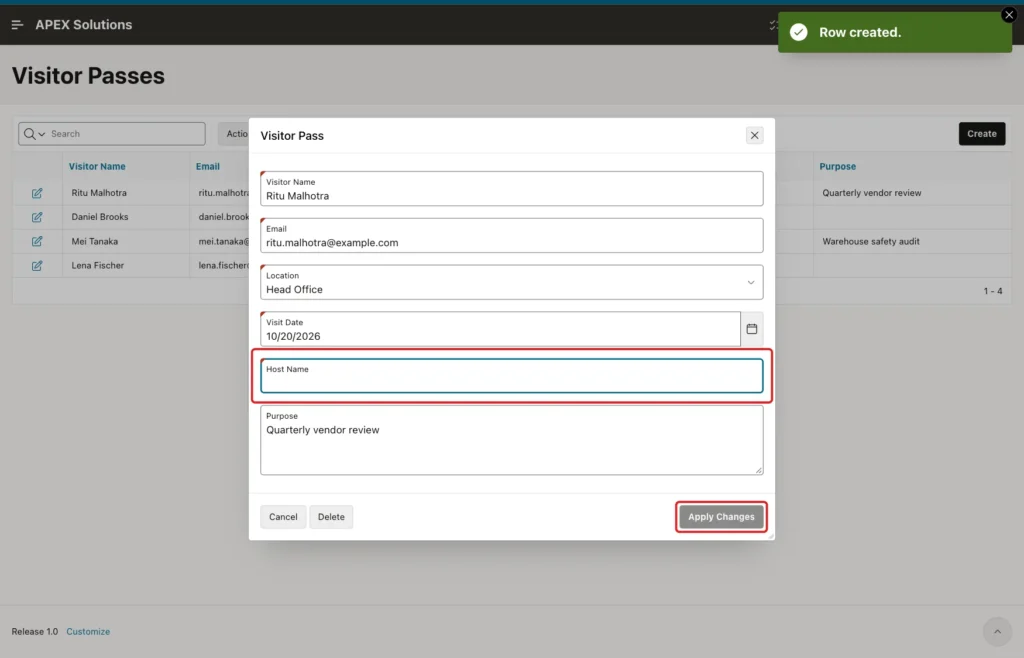
Open the pass of Ritu Malhotra. All required fields have values, so Apply Changes is enabled when the dialog opens. Clear Host Name, and the button is disabled:
The table shows what was saved:
Example:
column visitor_name format a15
column email format a26
column location_name format a17
column host_name format a12
select p.pass_id,
       p.visitor_name,
       p.email,
       l.location_name,
       to_char(p.visit_date, 'YYYY-MM-DD') as visit_date,
       p.host_name
from   visitor_passes p
join   office_locations l on l.location_id = p.location_id
order by p.pass_id;
Output:
   PASS_ID VISITOR_NAME     EMAIL                        LOCATION_NAME       VISIT_DATE    HOST_NAME
__________ ________________ ____________________________ ___________________ _____________ ______________
         1 Ritu Malhotra    ritu.malhotra@example.com    Head Office         2026-10-20    Arjun Mehta
         2 Daniel Brooks    daniel.brooks@example.com    Tech Park Campus    2026-10-21    Kavya Iyer
         3 Mei Tanaka       mei.tanaka@example.com       Harbor Warehouse    2026-10-23    Rahul Verma
        24 Lena Fischer     lena.fischer@example.com     Head Office         2026-10-28    Arjun Mehta
The new pass of Lena Fischer is the last row. Identity values can have gaps, so its PASS_ID is 24.
The Table as the Last Guard
Scripts and REST services skip the page and its buttons. The constraints of the table still apply to them:
Example:
insert into visitor_passes (visitor_name, email, location_id, visit_date, host_name)
values ('   ', 'guest@example.com', 1, date '2026-10-30', 'Arjun Mehta');

insert into visitor_passes (visitor_name, email, location_id, visit_date, host_name)
values ('Guest User', 'guest@example.com', 1, date '2026-10-30', null);

insert into visitor_passes (visitor_name, email, location_id, visit_date, host_name)
values ('Guest User', 'guest@example.com', 1, date '2026-10-30', 'Arjun Mehta');

rollback;
Output:
Error starting at line : 1 File @ b58/11-constraint.sql
In command -
insert into visitor_passes (visitor_name, email, location_id, visit_date, host_name)
values ('   ', 'guest@example.com', 1, date '2026-10-30', 'Arjun Mehta')
Error report -
ORA-02290: check constraint (APXSOL.VISITOR_PASSES_NAME_CK) violated
Help: https://docs.oracle.com/error-help/db/ora-02290/

Error starting at line : 4 File @ b58/11-constraint.sql
In command -
insert into visitor_passes (visitor_name, email, location_id, visit_date, host_name)
values ('Guest User', 'guest@example.com', 1, date '2026-10-30', null)
Error at Command Line : 5 Column : 66 File @ b58/11-constraint.sql
Error report -
SQL Error: ORA-01400: cannot insert NULL into ("APXSOL"."VISITOR_PASSES"."HOST_NAME")
Help: https://docs.oracle.com/error-help/db/ora-01400/

1 row inserted.

Rollback complete.
The name made of spaces failed with ORA-02290 and the missing host with ORA-01400. The complete row was inserted, and the ROLLBACK removed it.
Things to Know
- Keep Value Required on for the required items. The forced submit in the test reached the server, and only Value Required stopped it.
- Use the custom event input change, not Change alone. Change fires only when a text field loses focus, so the button would turn on late.
- The text fields have Trim Spaces set to Leading and Trailing. In the test, typing only spaces left Visitor Name empty, so the button stayed disabled.
- A select list needs an empty entry (Display Null Value) for this check. Otherwise its first value counts as filled.
- When you add a required item later, add it to the Item(s) list and to the JavaScript expression of the dynamic action.
- Users can't see why a button is disabled. The required markers of the Required - Floating template show which fields still need a value.
Related Guides
- How to Make a Field Required Only When Another Field Has a Value in Oracle APEX
- Stop Duplicate Records from Double-Clicking Save in Oracle APEX
Conclusion
Disabling the save button until all required fields are filled in Oracle APEX takes one dynamic action. A custom input change event and a JavaScript expression with apex.item().isEmpty() check the items, and an Enable action with its opposite Disable action switch the buttons through a shared CSS class.
Fire on Initialization sets the right state when the dialog opens, for new and existing records. Keep Value Required on the items and NOT NULL constraints on the table, because a disabled button stops only normal clicks, not a forced submit or another program.
See my articles more often when you search Google.
