
Some regions show data that changes only a few times an hour, but the query behind them is slow. Without caching, APEX runs that query again on every page view, for every user. Ten users opening a dashboard means ten slow queries that return the same numbers.
Region caching in Oracle APEX stores the rendered HTML of a region on the server and reuses it until a timeout ends or you purge it. This guide caches a slow summary for all users and a personal list for each user, measures the speed, and shows how to clear the cache after data changes.
The guide How to Speed Up a Dashboard with Lazy Loading Regions in Oracle APEX lets the page appear first while the slow query still runs. Region caching is different: the slow query does not run at all while the cache is valid.
The API overview How to Manage Users, Preferences, and Caches Using APEX_UTIL lists the cache procedures; this guide uses the Server Cache settings and APEX_REGION on a real page.
The example uses support tickets of four service desks. The same steps work for any slow region, such as monthly totals, stock levels or statistics.
Step 1: Create the Tables
The example needs two tables. SERVICE_DESKS holds the four desks, and DESK_TICKETS holds 120 tickets assigned to three users:
Example:
create table service_desks (
  desk_id      number generated by default on null as identity
               constraint service_desks_pk primary key,
  desk_name    varchar2(40) not null
               constraint service_desks_name_uk unique,
  region_code  varchar2(10) not null
);

create table desk_tickets (
  ticket_id    number generated by default on null as identity
               constraint desk_tickets_pk primary key,
  desk_id      number not null
               constraint desk_tickets_desk_fk references service_desks,
  subject      varchar2(100) not null,
  priority     varchar2(6) default on null 'MEDIUM' not null
               constraint desk_tickets_priority_ck check (priority in ('LOW', 'MEDIUM', 'HIGH')),
  status       varchar2(8) default on null 'OPEN' not null
               constraint desk_tickets_status_ck check (status in ('OPEN', 'CLOSED')),
  assigned_to  varchar2(30) not null,
  opened_on    date default on null sysdate not null,
  closed_on    date,
  constraint desk_tickets_closed_ck check (
    (status = 'CLOSED' and closed_on >= opened_on)
    or (status = 'OPEN' and closed_on is null))
);

create index desk_tickets_desk_ix on desk_tickets (desk_id);
create index desk_tickets_assigned_ix on desk_tickets (assigned_to, status);

insert into service_desks (desk_name, region_code)
values ('IT Support', 'EMEA'), ('Facilities', 'EMEA'), ('Payroll', 'APAC'), ('Access Requests', 'AMER');

insert into desk_tickets (desk_id, subject, priority, status, assigned_to, opened_on, closed_on)
select desk_id,
       'Request ' || lpad(n, 3, '0') || ' for ' || desk_name,
       case mod(n, 5) when 0 then 'HIGH' when 1 then 'LOW' else 'MEDIUM' end,
       case when mod(n, 3) = 0 then 'OPEN' else 'CLOSED' end,
       case mod(n + desk_id, 3) when 0 then 'DEMO_DEV' when 1 then 'SALES_MANAGER' else 'SALES_USER' end,
       date '2026-09-01' + mod(n * 7 + desk_id, 50),
       case when mod(n, 3) = 0 then null
            else date '2026-09-01' + mod(n * 7 + desk_id, 50) + mod(n, 4) + 0.5 end
from service_desks
cross join (select level as n from dual connect by level <= 30);

commit;

select d.desk_name,
       count(*) as tickets,
       sum(case when t.status = 'OPEN' then 1 else 0 end) as open_tickets,
       sum(case when t.priority = 'HIGH' then 1 else 0 end) as high_priority,
       count(distinct t.assigned_to) as agents
from service_desks d
join desk_tickets t on t.desk_id = d.desk_id
group by d.desk_name
order by d.desk_name;
Output:
Table SERVICE_DESKS created.

Table DESK_TICKETS created.

Index DESK_TICKETS_DESK_IX created.

Index DESK_TICKETS_ASSIGNED_IX created.

4 rows inserted.

120 rows inserted.

Commit complete.

DESK_NAME             TICKETS    OPEN_TICKETS    HIGH_PRIORITY    AGENTS
__________________ __________ _______________ ________________ _________
Access Requests            30              10                6         3
Facilities                 30              10                6         3
IT Support                 30              10                6         3
Payroll                    30              10                6         3
A few details in the tables:
- DESK_TICKETS_PRIORITY_CK and DESK_TICKETS_STATUS_CK allow only the listed values. PRIORITY, STATUS and OPENED_ON use DEFAULT ON NULL, so new tickets need no trigger.
- DESK_TICKETS_CLOSED_CK requires a close date for closed tickets, on or after the open date, and no close date for open ones.
- ASSIGNED_TO holds the APEX user name of the agent. The index on ASSIGNED_TO and STATUS supports the personal list of open tickets.
Step 2: Create a Function That Simulates a Slow Query
The sample tables are small, so every query on them is fast. To show the effect of caching, the regions need a query that takes a few seconds. This demo function waits for the given number of seconds:
Example:
create or replace function slow_query_delay (
  p_seconds in number
) return number
is
begin
  dbms_session.sleep(p_seconds);
  return p_seconds;
end slow_query_delay;
/

set timing on

select slow_query_delay(2) as waited from dual;
Output:
Function SLOW_QUERY_DELAY compiled

   WAITED
_________
        2

Elapsed: 00:00:02.072
Use this function only for the demo. In a real application, the slow part is a big table, a complex join or a remote call.
Step 3: Write the Region Queries
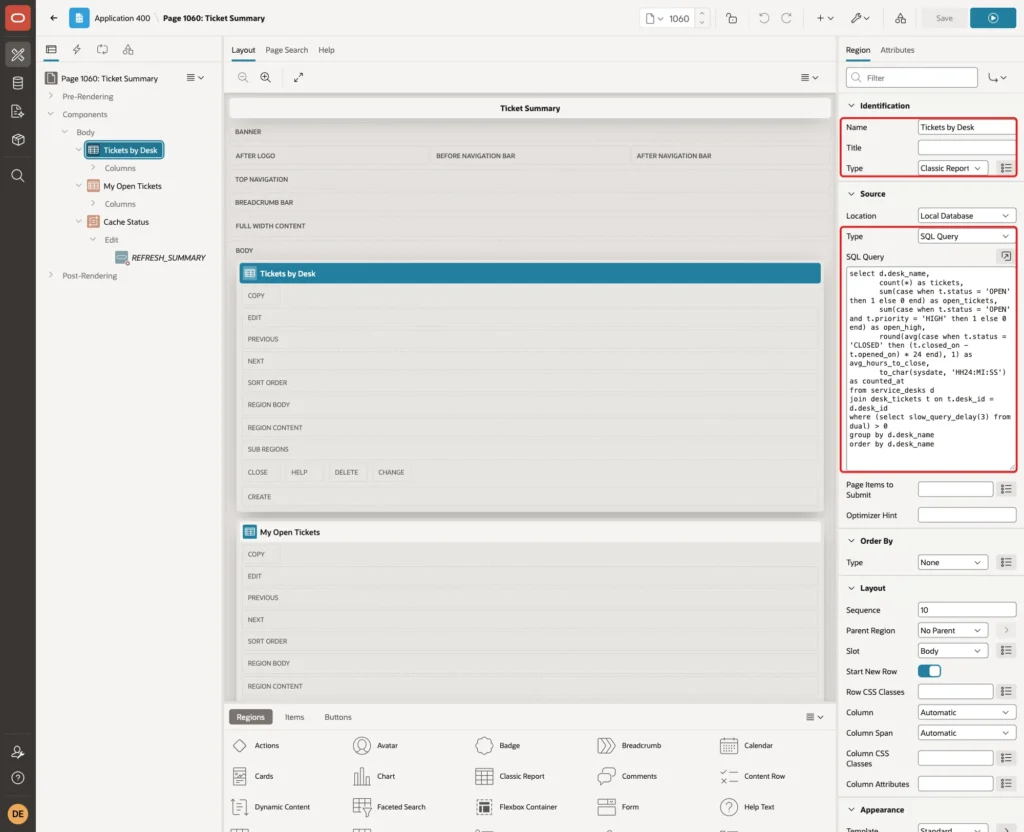
The Tickets by Desk region counts the tickets of each desk. The scalar subquery with SLOW_QUERY_DELAY(3) makes it 3 seconds slower. COUNTED_AT shows the database time when the query ran, so you can see on the page whether the numbers are fresh:
Example:
select d.desk_name,
       count(*) as tickets,
       sum(case when t.status = 'OPEN' then 1 else 0 end) as open_tickets,
       sum(case when t.status = 'OPEN' and t.priority = 'HIGH' then 1 else 0 end) as open_high,
       round(avg(case when t.status = 'CLOSED' then (t.closed_on - t.opened_on) * 24 end), 1) as avg_hours_to_close,
       to_char(sysdate, 'HH24:MI:SS') as counted_at
from service_desks d
join desk_tickets t on t.desk_id = d.desk_id
where (select slow_query_delay(3) from dual) > 0
group by d.desk_name
order by d.desk_name
The subquery does not depend on any row, so Oracle runs it once per query. In SQLcl with SET TIMING ON, this query took 3.10 seconds.
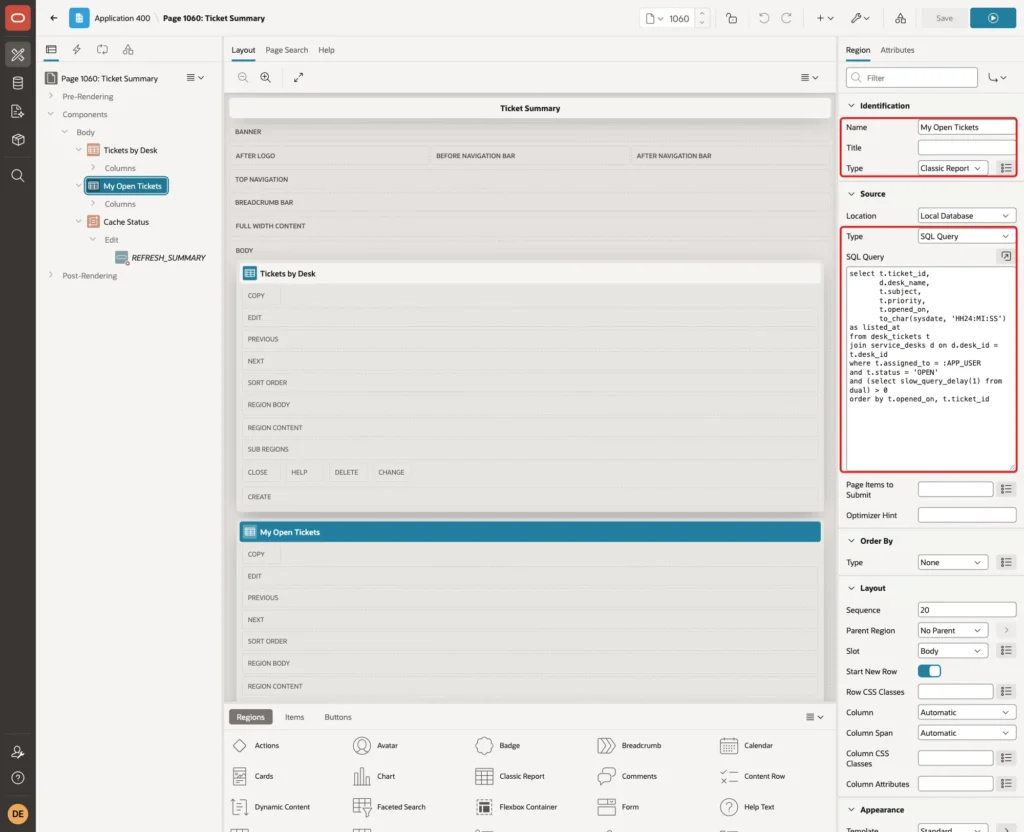
The My Open Tickets region lists the open tickets of the signed-in user, with a 1-second delay. LISTED_AT shows when the list was built:
Example:
select t.ticket_id,
       d.desk_name,
       t.subject,
       t.priority,
       t.opened_on,
       to_char(sysdate, 'HH24:MI:SS') as listed_at
from desk_tickets t
join service_desks d on d.desk_id = t.desk_id
where t.assigned_to = :APP_USER
and t.status = 'OPEN'
and (select slow_query_delay(1) from dual) > 0
order by t.opened_on, t.ticket_id
The two queries are different in one important way. The desk summary is the same for every user. The ticket list depends on :APP_USER, so each user must get their own copy.
Step 4: Create a Blank Page
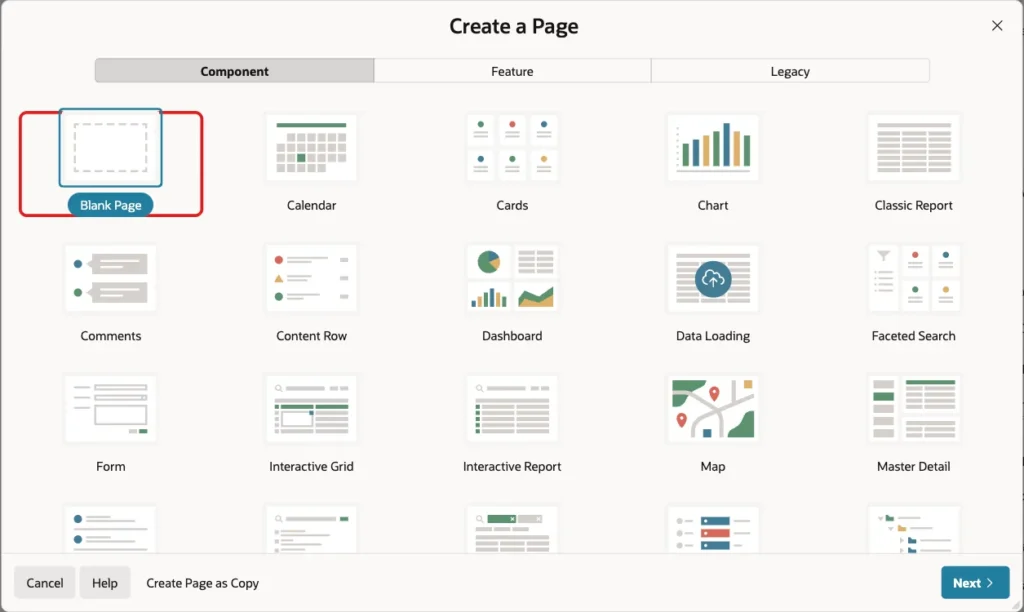
In App Builder, open the application and click Create Page. On the Component tab, select Blank Page:
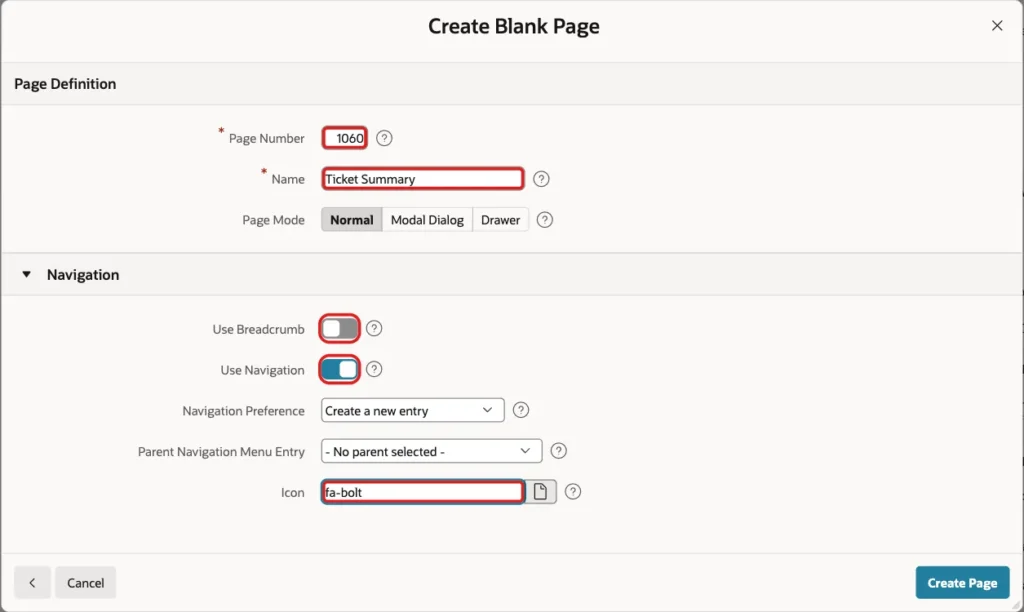
Set Page Number to 1060 and Name to Ticket Summary. Turn Use Breadcrumb off, keep Use Navigation on, set Icon to fa-bolt and click Create Page:
APEX opens the new page in Page Designer.
Step 5: Add the Tickets by Desk Region
In the Rendering tree, right-click Body and choose Create Region. Set Name to Tickets by Desk and Type to Classic Report. Under Source, keep Type SQL Query and enter the desk query from Step 3:
Under Advanced, set HTML DOM ID to tickets-by-desk:

The Static ID below shows the same value. APEX_REGION uses this ID in Steps 8 and 9 to read and purge the cache of this region.
Step 6: Add the My Open Tickets Region
Right-click the Tickets by Desk region and choose Create Region Below. Set Name to My Open Tickets and Type to Classic Report. Under Source, enter the ticket query from Step 3. Under Advanced, set HTML DOM ID to my-open-tickets:
Click the Attributes tab and set Number of Rows to 100:
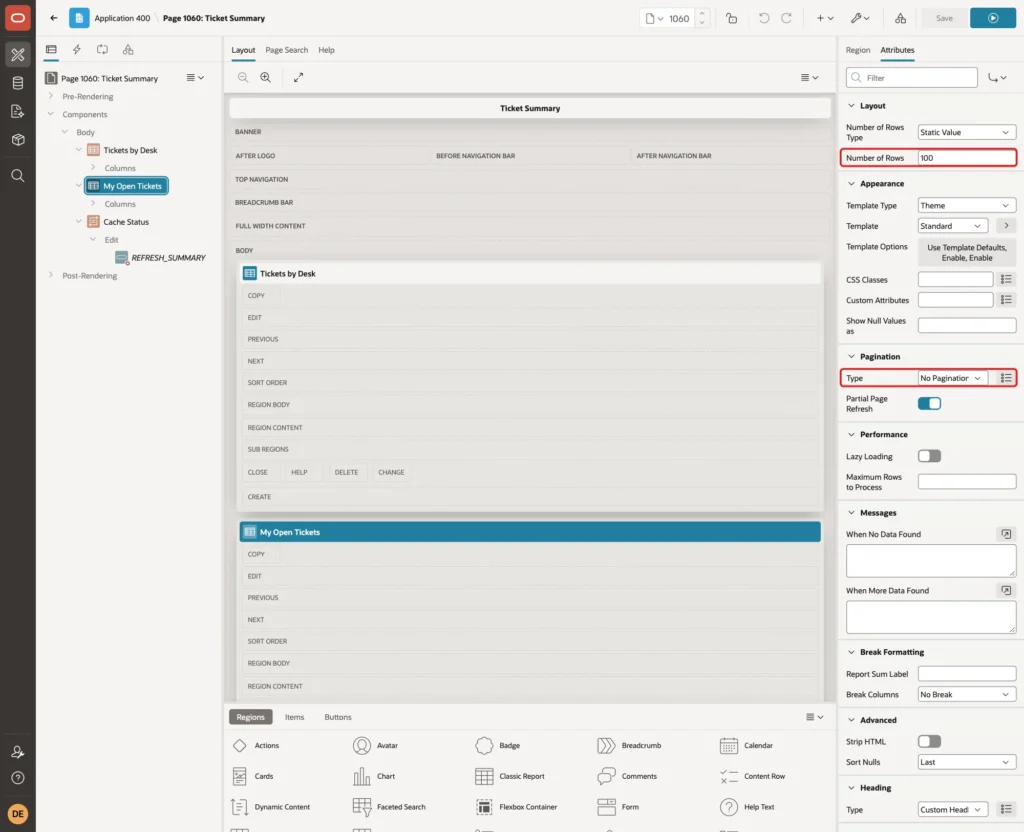
In a first test, SALES_MANAGER saw only 15 tickets, although the table had 20 open tickets for this user. The new region had Number of Rows 15 together with Pagination Type No Pagination (Show All Rows), so the list stopped at 15 rows without any hint. With 100, the full list is shown.
Step 7: Turn On the Server Cache
Before this step, the page was opened twice as DEMO_DEV and twice as SALES_MANAGER. Every view took about 4.1 seconds: 3 seconds for the summary and 1 second for the list.
Select the Tickets by Desk region and click the Region tab. Under Server Cache, set Caching to Enabled and Cache Timeout to 10 minutes:
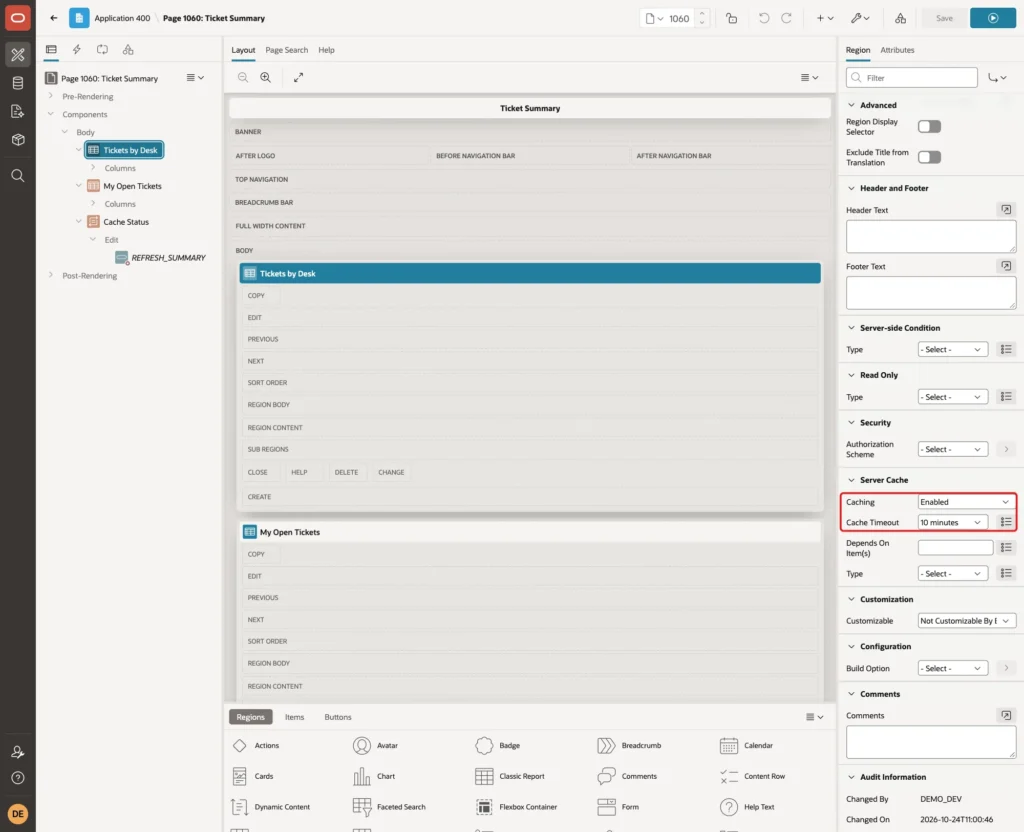
Enabled keeps one copy of the region for all users. The Caching list also offers Cache By User and Cache By Session. Cache Timeout sets how long a copy stays valid, from 10 seconds to 1 year.
Select the My Open Tickets region. Set Caching to Cache By User and Cache Timeout to 1 hour, then click Save:
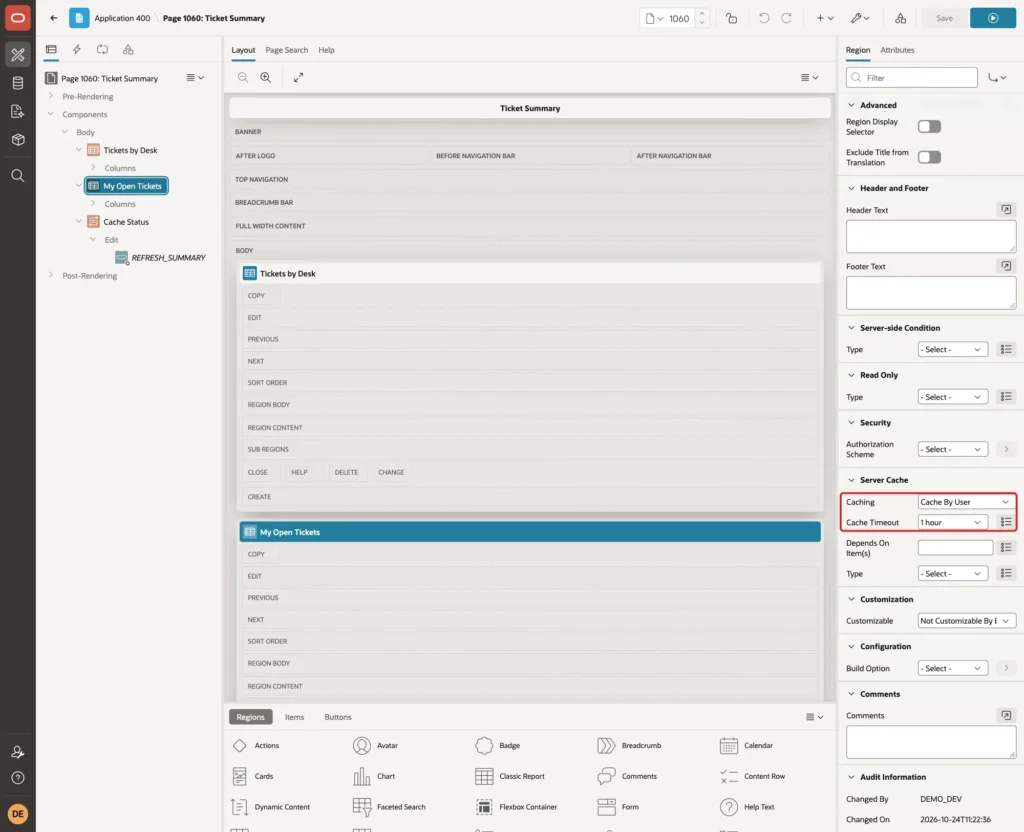
Cache By User is required here, because the query uses :APP_USER. Step 14 shows what goes wrong with Enabled.
Step 8: Add a Cache Status Region and a Refresh Button
Right-click the My Open Tickets region and choose Create Region Below. Set Name to Cache Status and Type to Dynamic Content. Enter this PL/SQL Function Body returning a CLOB, and set HTML DOM ID to cache-status:
Example:
declare
  l_cached date;
begin
  l_cached := apex_region.get_cache_date(
                p_application_id => :APP_ID,
                p_page_id        => :APP_PAGE_ID,
                p_static_id      => 'tickets-by-desk');
  return '<p>Tickets by Desk cached at: '
      || nvl(to_char(l_cached, 'YYYY-MM-DD HH24:MI:SS'), 'not cached yet')
      || '<br>Page built at: '
      || to_char(sysdate, 'YYYY-MM-DD HH24:MI:SS')
      || '</p>';
end;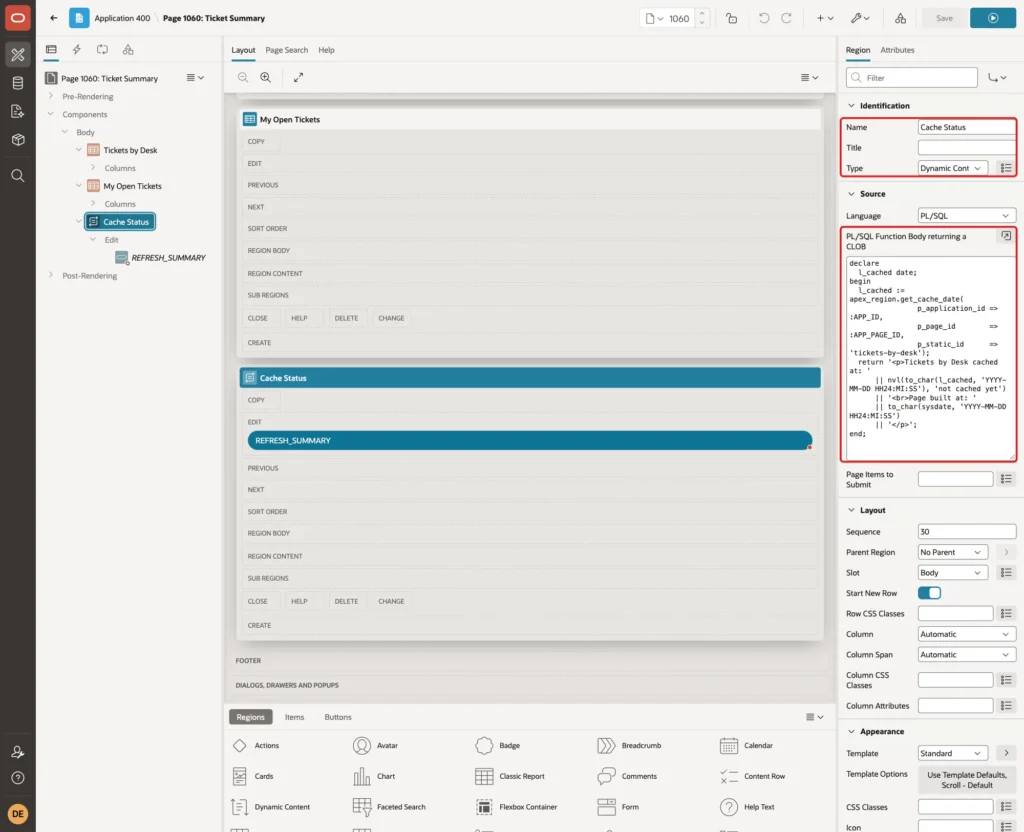
APEX_REGION.GET_CACHE_DATE returns when the region with the given Static ID was cached, or NULL. Leave the server cache of this region disabled, so it is built on every view.
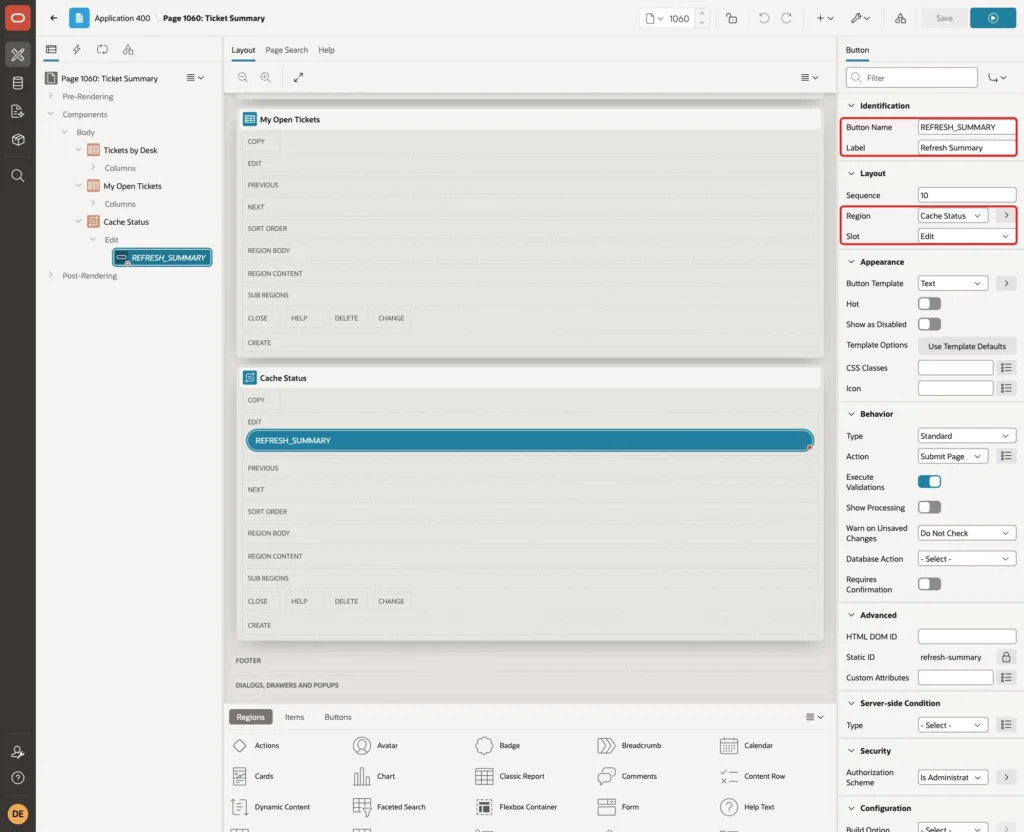
Right-click the Cache Status region and choose Create Button. Set Button Name to REFRESH_SUMMARY, Label to Refresh Summary and Slot to Edit:
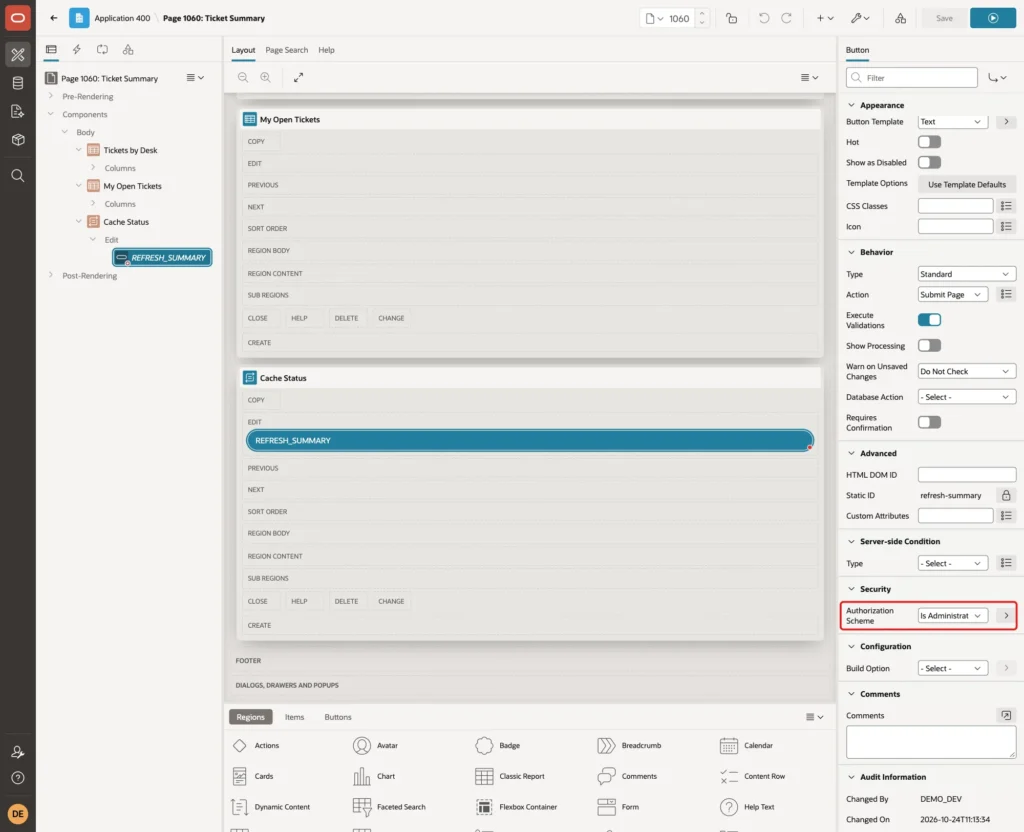
Under Security, set Authorization Scheme to Is Administrator and click Save:
Keep buttons out of a cached region. In a first test, the button was placed in the Edit slot of Tickets by Desk. The cached HTML of the region includes its buttons, so the button did not appear while an older copy was still valid.
Worse, after the cache expired, a Reader opened the page first. The cache was rebuilt without the button, because the authorization failed for that user, and then the administrator did not see the button either. A cached region looks the same for everyone, whatever their role.
Step 9: Add the Purge Process
Click the Processing tab, right-click Processing and choose Create Process. Set Name to Purge Summary Cache, Type to Execute Code, and enter this PL/SQL Code:
Example:
begin
  apex_region.purge_cache(
    p_page_id   => :APP_PAGE_ID,
    p_static_id => 'tickets-by-desk');
end;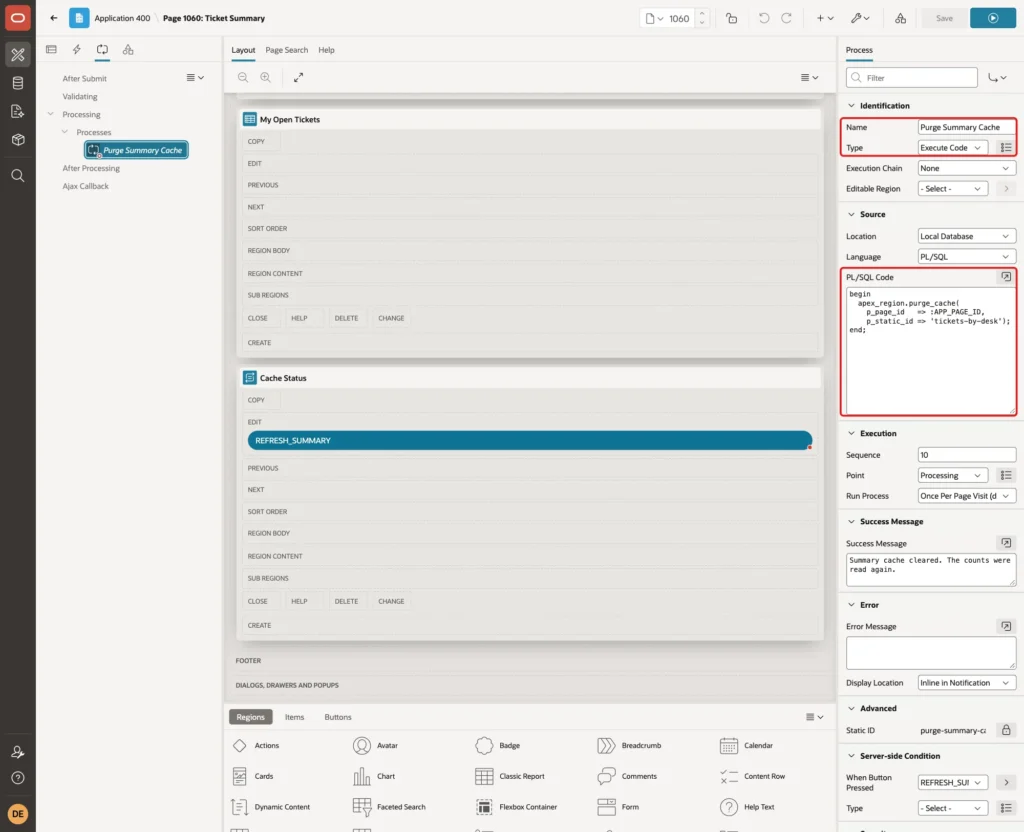
APEX_REGION.PURGE_CACHE with a Static ID removes the cached copies of that one region. The cached ticket lists of the users are not touched.
Set Success Message to Summary cache cleared. The counts were read again. Under Server-side Condition, set When Button Pressed to REFRESH_SUMMARY. Under Security, set Authorization Scheme to Is Administrator, then click Save:
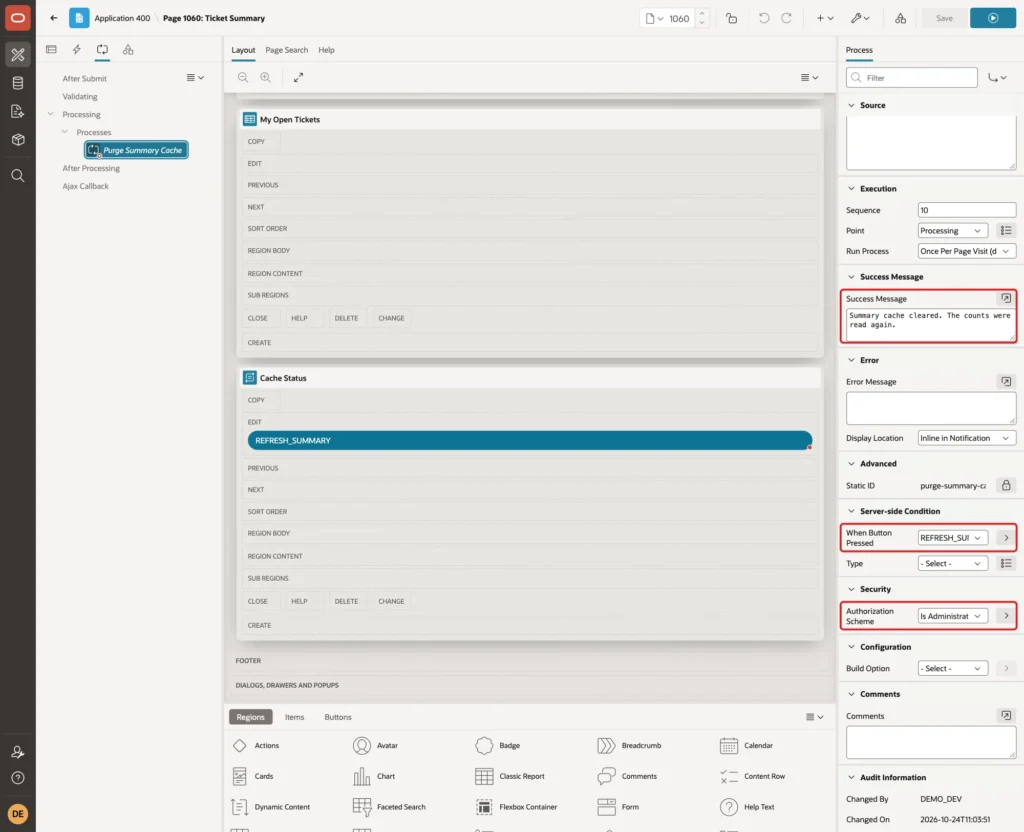
The authorization on the process matters more than the one on the button. A hidden button does not stop a user from sending the request from the browser console, as Step 12 tests.
Step 10: Test the Speed
The page was opened twice as DEMO_DEV and twice as SALES_MANAGER, right after the cache was purged. The first view built both regions:
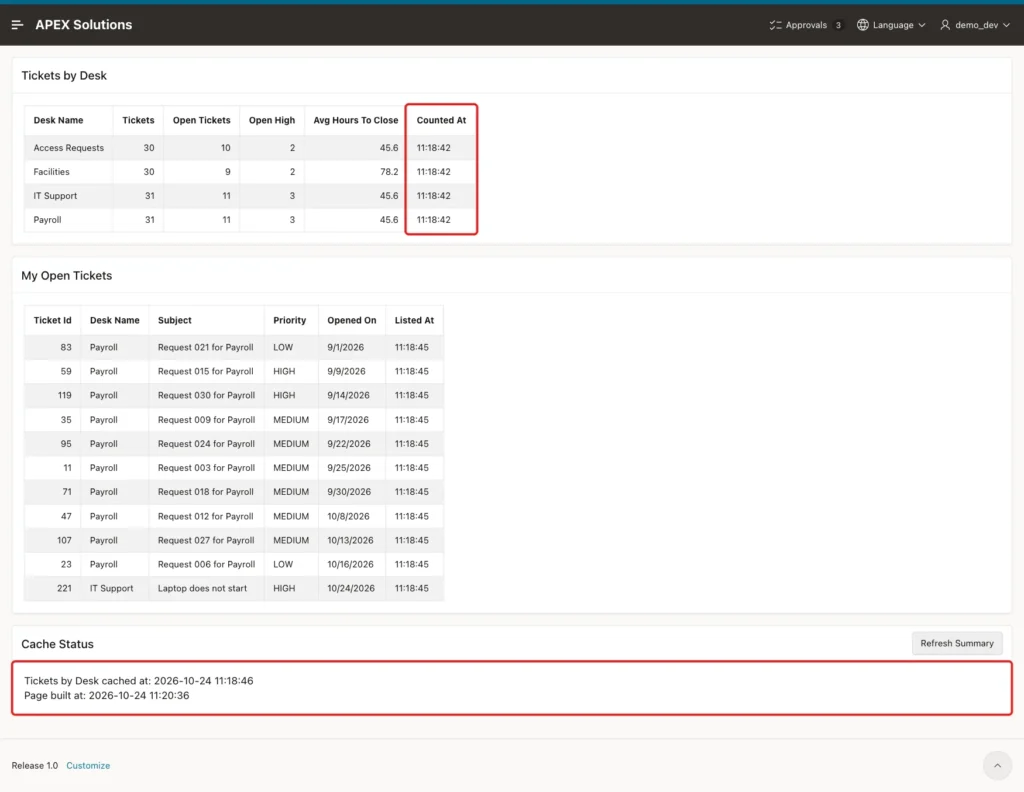
Counted At shows when the query started, and the Cache Status line shows when APEX stored the region, about 4 seconds later. Page built at changes on every view, while Counted At stays the same until the cache is rebuilt.
On the view that builds the cache, the line still shows not cached yet. The cache date is shown from the next view on. This query reads the last four views of page 1060 from the activity log, newest first:
Example:
exec apex_util.set_workspace('SOLUTIONS')

select to_char(view_timestamp, 'HH24:MI:SS') as viewed_at,
       apex_user,
       round(elapsed_time, 2) as seconds
from apex_workspace_activity_log
where application_id = 400
and page_id = 1060
order by view_timestamp desc
fetch first 4 rows only;
Output:
PL/SQL procedure successfully completed.

VIEWED_AT    APEX_USER           SECONDS
____________ ________________ __________
11:17:09     SALES_MANAGER          0.03
11:17:07     SALES_MANAGER          1.09
11:17:04     DEMO_DEV               0.05
11:17:00     DEMO_DEV               4.12
The first view of DEMO_DEV took 4.12 seconds and the second 0.05 seconds. SALES_MANAGER got the shared summary from the cache at once and waited 1.09 seconds only for the personal list. The second view of SALES_MANAGER took 0.03 seconds.
The cache by user also survives a new session. In an earlier run, DEMO_DEV signed in again in a new browser and got the page in 0.06 seconds, with the same Listed At time as before.
Step 11: Check That Each User Sees Their Own Tickets
This query counts the open tickets of each user:
Example:
select assigned_to,
       count(*) as open_tickets
from desk_tickets
where status = 'OPEN'
group by assigned_to
order by assigned_to;
Output:
ASSIGNED_TO         OPEN_TICKETS
________________ _______________
DEMO_DEV                      11
SALES_MANAGER                 20
SALES_USER                     9
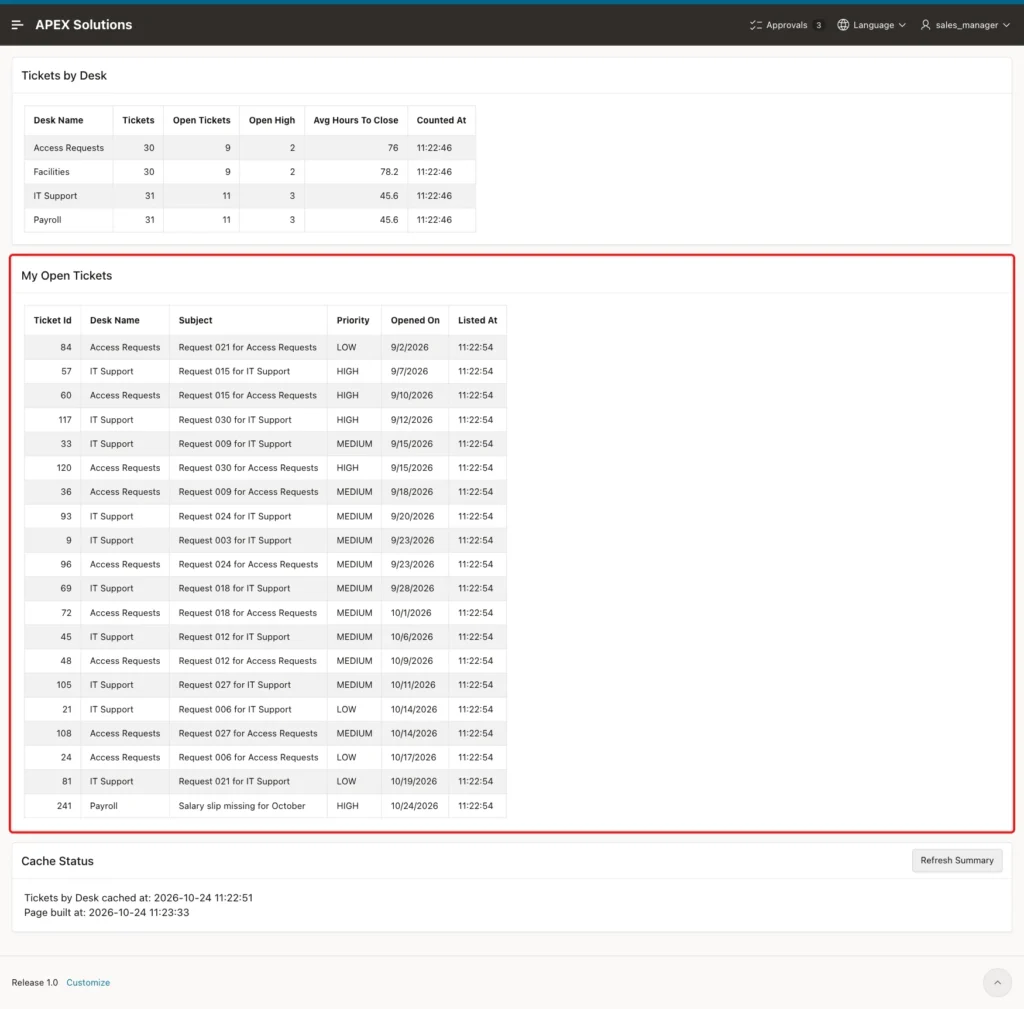
On the page, DEMO_DEV saw 11 tickets, SALES_MANAGER 20 and SALES_USER 9, the same numbers as the query. This is the view of SALES_MANAGER:
Step 12: See How Data Changes Wait for the Cache
A cached region does not see new data. To test this, a new ticket was added for IT Support while the summary was cached:
Example:
insert into desk_tickets (desk_id, subject, priority, assigned_to)
select desk_id, 'Laptop does not start', 'HIGH', 'DEMO_DEV'
from service_desks
where desk_name = 'IT Support';

commit;

select d.desk_name,
       count(*) as tickets,
       sum(case when t.status = 'OPEN' then 1 else 0 end) as open_tickets
from service_desks d
join desk_tickets t on t.desk_id = d.desk_id
group by d.desk_name
order by d.desk_name;
Output:
1 row inserted.

Commit complete.

DESK_NAME             TICKETS    OPEN_TICKETS
__________________ __________ _______________
Access Requests            30              10
Facilities                 30              10
IT Support                 31              11
Payroll                    30              10
The table now had 31 tickets and 11 open tickets for IT Support. The page still showed 30 and 10, for DEMO_DEV and for SALES_MANAGER. The new ticket was assigned to DEMO_DEV, but the cached list of DEMO_DEV also stayed at 10 tickets.
The summary showed 31 and 11 only when the 10-minute timeout had passed and the next view rebuilt the cache. Saving the page in Page Designer did not clear the cache either.
When users must see a change at once, purge the cache. Another change was made to test the Refresh Summary button. It closes one open ticket of Access Requests:
Example:
update desk_tickets
set status = 'CLOSED',
    closed_on = sysdate
where ticket_id = (
  select min(t.ticket_id)
  from desk_tickets t
  join service_desks d on d.desk_id = t.desk_id
  where d.desk_name = 'Access Requests'
  and t.status = 'OPEN');

commit;

select d.desk_name,
       count(*) as tickets,
       sum(case when t.status = 'OPEN' then 1 else 0 end) as open_tickets
from service_desks d
join desk_tickets t on t.desk_id = d.desk_id
group by d.desk_name
order by d.desk_name;
Output:
1 row updated.

Commit complete.

DESK_NAME             TICKETS    OPEN_TICKETS
__________________ __________ _______________
Access Requests            30               9
Facilities                 30               9
IT Support                 31              11
Payroll                    31              11
First, SALES_USER, a Reader, opened the page. The button was not shown. In the browser console, the user then sent the request anyway:
Example:
apex.submit({ request: 'REFRESH_SUMMARY' });The page was submitted, but the process did not run, because of its authorization scheme. Access Requests still showed 10 open tickets. Then DEMO_DEV opened the page, where the summary also showed 10:
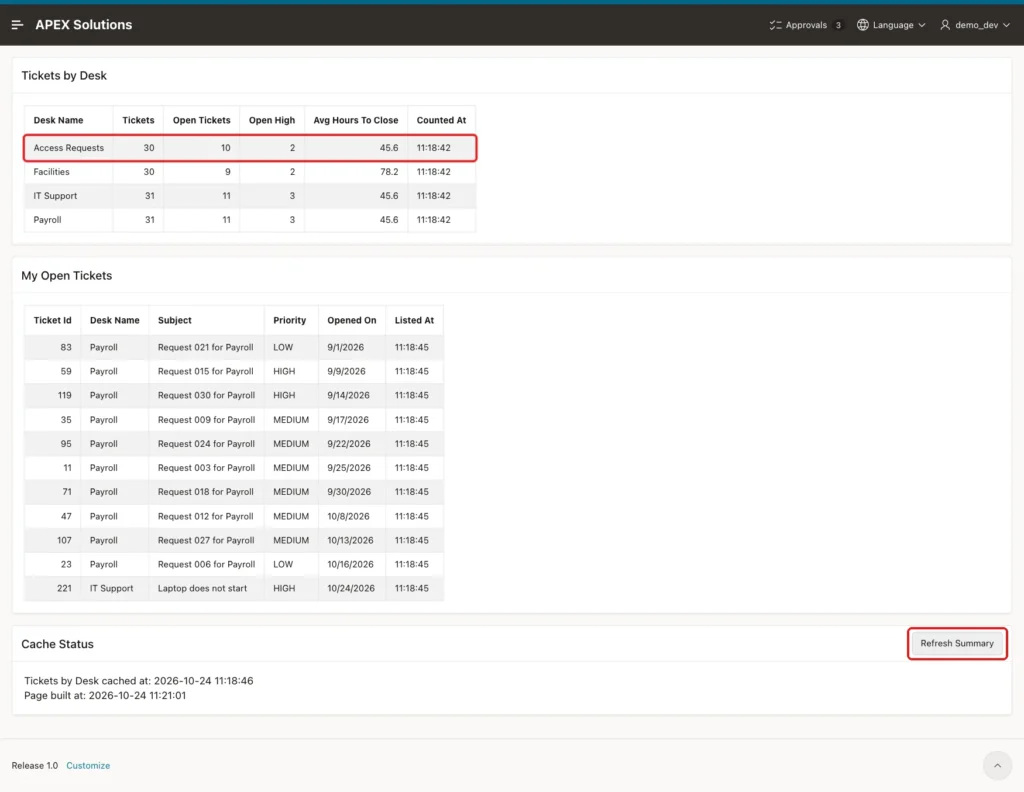
DEMO_DEV clicked Refresh Summary. The page took 4.7 seconds, because the summary was built again, and showed the success message with 9 open tickets for Access Requests:
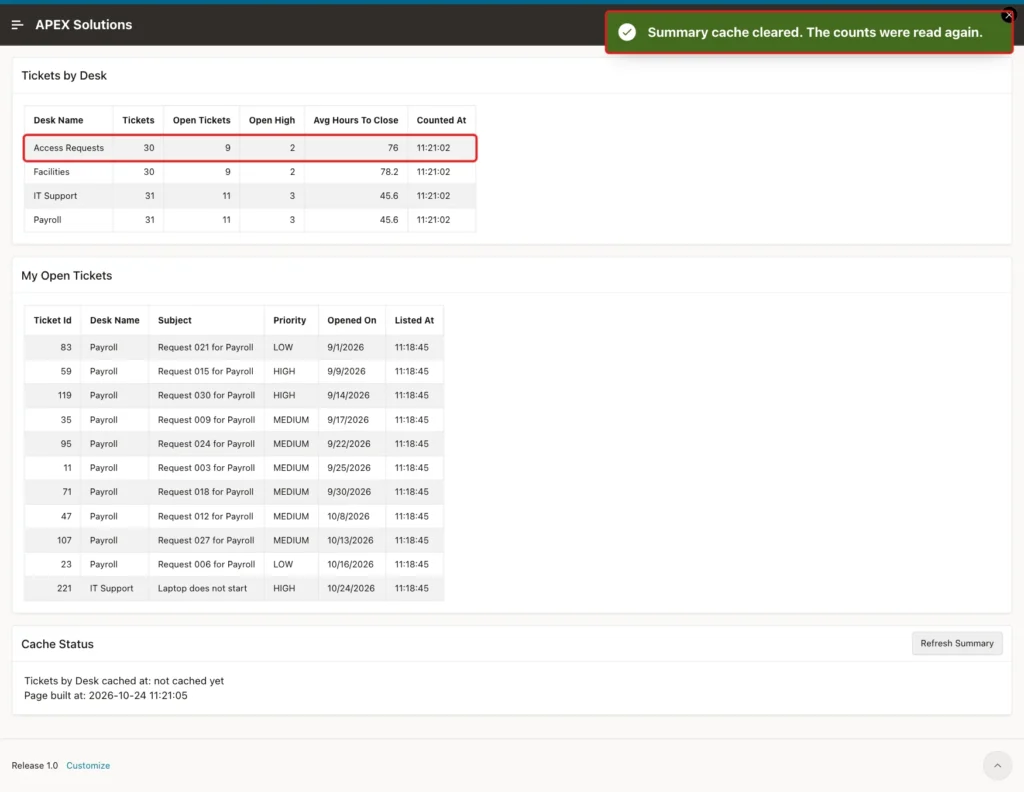
The Counted At time changed to the time of the click. The My Open Tickets list kept its old Listed At time, because the process purged only the summary region.
Step 13: Purge the Cache from a PL/SQL Script
Data often changes outside the page, for example in a nightly load. Such a job can purge the cache at its end. This script purges all cached regions of page 1060:
Example:
begin
  apex_util.set_workspace('SOLUTIONS');

  apex_region.purge_cache(
    p_application_id => 400,
    p_page_id        => 1060,
    p_region_id      => null);

  commit;
end;
/
Output:
PL/SQL procedure successfully completed.
APEX_UTIL.SET_WORKSPACE was enough here; the script did not need an APEX session. In a first test, the call had only p_application_id and p_page_id and failed with PLS-00307: too many declarations of 'PURGE_CACHE' match this call.
PURGE_CACHE has one version with p_region_id and one with p_static_id, and both have defaults. Passing p_region_id => null tells Oracle which version to use. Without a region, all regions of the page are purged.
After the script, the next view of DEMO_DEV took 4.12 seconds again and SALES_MANAGER waited 1.09 seconds for the list, so both the shared copy and the user copies were gone. These are the views in the activity log of Step 10.
Step 14: See What Happens with the Wrong Caching Mode
As a negative test, Caching of My Open Tickets was set to Enabled for a moment, and the cache was purged. DEMO_DEV opened the page first, and then SALES_MANAGER:
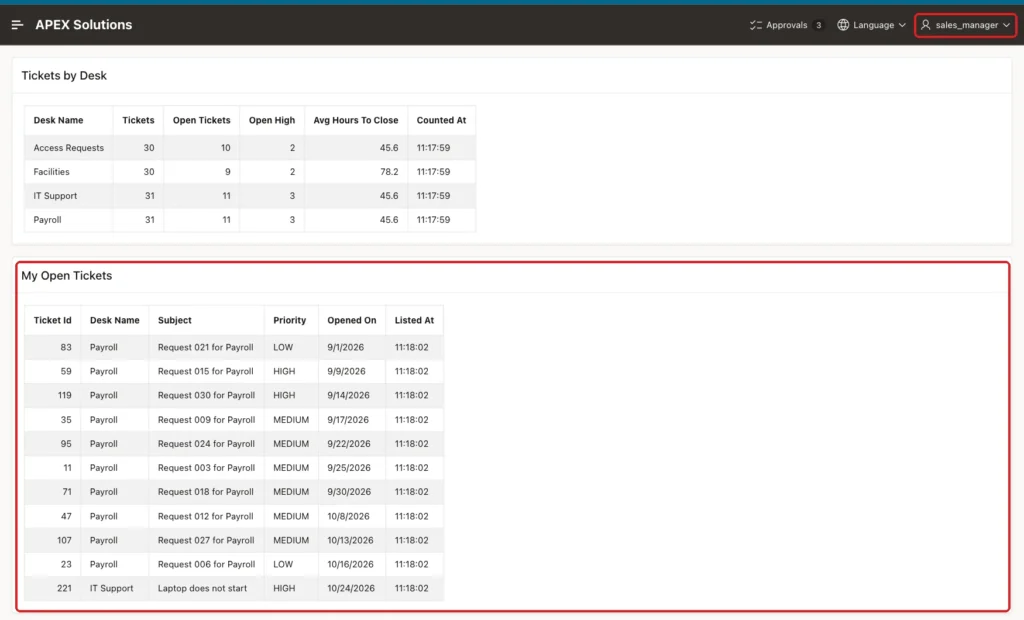
SALES_MANAGER saw the 11 tickets of DEMO_DEV, with the Listed At time of the view of DEMO_DEV, instead of their own 20 tickets. APEX does not warn about this. After the test, Caching was set back to Cache By User and the cache was purged.
Things to Know
- Server Cache stores the rendered HTML of a region. While the copy is valid, the region query does not run at all.
- Use Enabled only for regions that look the same for every user. A region that uses :APP_USER, roles or user preferences needs Cache By User.
- Buttons and other components inside a cached region are cached too, including the result of their authorization. Put role-based buttons in a region that is not cached.
- Cached regions show old data until the timeout ends or the cache is purged. Saving the page in Page Designer did not clear it.
- APEX_REGION.PURGE_CACHE purges one region by Static ID, or all regions of a page with p_region_id => null.
- APEX_REGION.GET_CACHE_DATE returns when a region was cached. It worked inside the page; called from a SQLcl script with a new APEX session, it returned NULL.
- Check Number of Rows on new classic reports. With No Pagination (Show All Rows), a value of 15 still cut the list at 15 rows.
- Secure a purge process with an authorization scheme, not only the button.
Related Guides
- How to Speed Up a Dashboard with Lazy Loading Regions in Oracle APEX
- How to Manage Users, Preferences, and Caches Using APEX_UTIL
Conclusion
Region caching in Oracle APEX turned a 4.1-second page into a 0.05-second page in this example. The shared summary was built once for all users, and the personal list once per user, until the timeout ended or the cache was purged.
Choose the caching mode with care, because a wrong mode shows one user's data to another. Keep role-based buttons outside cached regions, and purge the cache from the page or from your data load when users must see changes at once.
See my articles more often when you search Google.
