
A report often lists parent records whose details live in a child table. Opening a separate page for each record breaks the flow. An expandable row keeps the user on the report: a click on a small arrow opens the child rows right below the record, and a second click closes them again.
Oracle APEX has no single switch for this in a Classic Report, but a few declarative parts do the job. This guide adds an expand button column, an Ajax Callback process that returns the detail rows as JSON, and one dynamic action that loads them on demand, escapes them and toggles the row.
How to Build an Orders and Order Lines Master-Detail Page in Oracle APEX shows the details in a second region that changes with the selected master row. Here the details open inline, inside the report itself, and only for the rows the user clicks.
The example uses orders and their order lines. The same steps work for any parent and child table.
Step 1: Create the Tables
Two tables hold the data:
- DEPOT_ORDERS has one row per order, with a unique order number, the customer name, the order date and a status.
- DEPOT_ORDER_LINES has one row per order line: the line number, item, quantity and unit price. LINE_AMOUNT is a virtual column.
Create the tables with five orders and eight lines. One item name contains HTML tags on purpose, to test the escaping later:
Example:
create table depot_orders (
  order_id        number generated by default on null as identity,
  order_no        varchar2(20)   not null,
  customer_name   varchar2(100)  not null,
  order_date      date           default on null sysdate not null,
  status          varchar2(15)   default on null 'NEW' not null,
  constraint depot_orders_pk primary key (order_id),
  constraint depot_orders_no_uk unique (order_no),
  constraint depot_orders_status_ck check (status in ('NEW', 'SHIPPED', 'CANCELLED'))
);

create table depot_order_lines (
  line_id         number generated by default on null as identity,
  order_id        number         not null,
  line_no         number(3)      not null,
  item_name       varchar2(100)  not null,
  quantity        number(6)      not null,
  unit_price      number(10,2)   not null,
  line_amount     number(12,2)   generated always as (quantity * unit_price) virtual,
  constraint depot_order_lines_pk primary key (line_id),
  constraint depot_order_lines_order_fk foreign key (order_id) references depot_orders (order_id) on delete cascade,
  constraint depot_order_lines_uk unique (order_id, line_no),
  constraint depot_order_lines_qty_ck check (quantity > 0),
  constraint depot_order_lines_price_ck check (unit_price >= 0)
);

create index depot_order_lines_order_ix on depot_order_lines (order_id);

insert into depot_orders (order_no, customer_name, order_date, status)
select order_no, customer_name, order_date, status
from (values
  ('DO-3001', 'Northwind Traders',   date '2026-10-02', 'SHIPPED'),
  ('DO-3002', 'Blue Lake Stores',    date '2026-10-05', 'NEW'),
  ('DO-3003', 'Cedar Office Supply', date '2026-10-08', 'NEW'),
  ('DO-3004', 'Harbor Retail',       date '2026-10-12', 'CANCELLED'),
  ('DO-3005', 'Summit Books',        date '2026-10-15', 'NEW')
) v (order_no, customer_name, order_date, status);

insert into depot_order_lines (order_id, line_no, item_name, quantity, unit_price)
select o.order_id, v.line_no, v.item_name, v.quantity, v.unit_price
from (values
  ('DO-3001', 1, 'A4 Copy Paper (box)',    10, 24.50),
  ('DO-3001', 2, 'Stapler',                 4,  8.75),
  ('DO-3001', 3, 'Whiteboard Markers',     12,  2.40),
  ('DO-3002', 1, 'Desk Lamp',               2, 31.00),
  ('DO-3002', 2, '<b>Bold</b> Gel Pens',   20,  1.25),
  ('DO-3003', 1, 'Filing Cabinet',          1, 189.00),
  ('DO-3004', 1, 'Paper Shredder',          1, 145.00),
  ('DO-3004', 2, 'Shredder Oil',            2,  6.50)
) v (order_no, line_no, item_name, quantity, unit_price)
join depot_orders o on o.order_no = v.order_no;

commit;

select o.order_no, o.customer_name, count(l.line_id) line_count, nvl(sum(l.line_amount), 0) order_total
from depot_orders o
left join depot_order_lines l on l.order_id = o.order_id
group by o.order_no, o.customer_name
order by o.order_no;
Output:
Table DEPOT_ORDERS created.

Table DEPOT_ORDER_LINES created.

Index DEPOT_ORDER_LINES_ORDER_IX created.

5 rows inserted.

8 rows inserted.

Commit complete.

ORDER_NO    CUSTOMER_NAME             LINE_COUNT    ORDER_TOTAL
___________ ______________________ _____________ ______________
DO-3001     Northwind Traders                  3          308.8
DO-3002     Blue Lake Stores                   2             87
DO-3003     Cedar Office Supply                1            189
DO-3004     Harbor Retail                      2            158
DO-3005     Summit Books                       0              0
- DEPOT_ORDER_LINES_ORDER_FK links each line to its order and deletes the lines when the order is deleted. DEPOT_ORDER_LINES_ORDER_IX indexes that foreign key, which the detail lookup uses.
- DEPOT_ORDER_LINES_UK allows each line number only once per order.
- LINE_AMOUNT is calculated by the database, so no trigger or process has to keep it up to date.
- ORDER_DATE and STATUS use DEFAULT ON NULL, so a new order gets today's date and NEW without a trigger.
Order DO-3005 has no lines. It shows how the page handles an empty detail list.
Step 2: Create the Classic Report Page
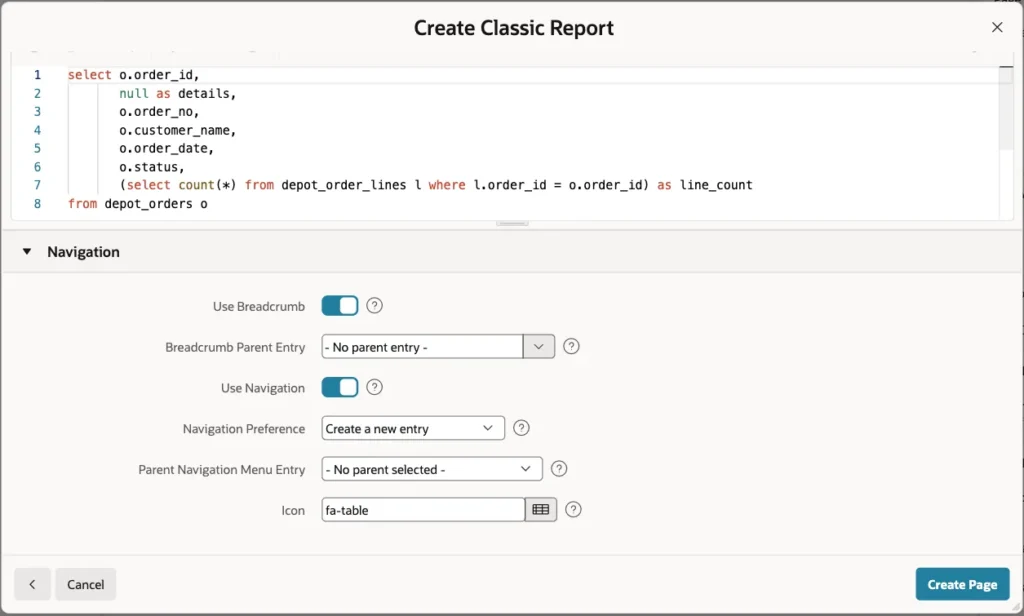
The report lists the orders. Its query has two extra columns: ORDER_ID, which the button needs, and DETAILS, an empty column that will hold the button:
Example:
select o.order_id,
       null as details,
       o.order_no,
       o.customer_name,
       o.order_date,
       o.status,
       (select count(*) from depot_order_lines l where l.order_id = o.order_id) as line_count
from depot_orders o
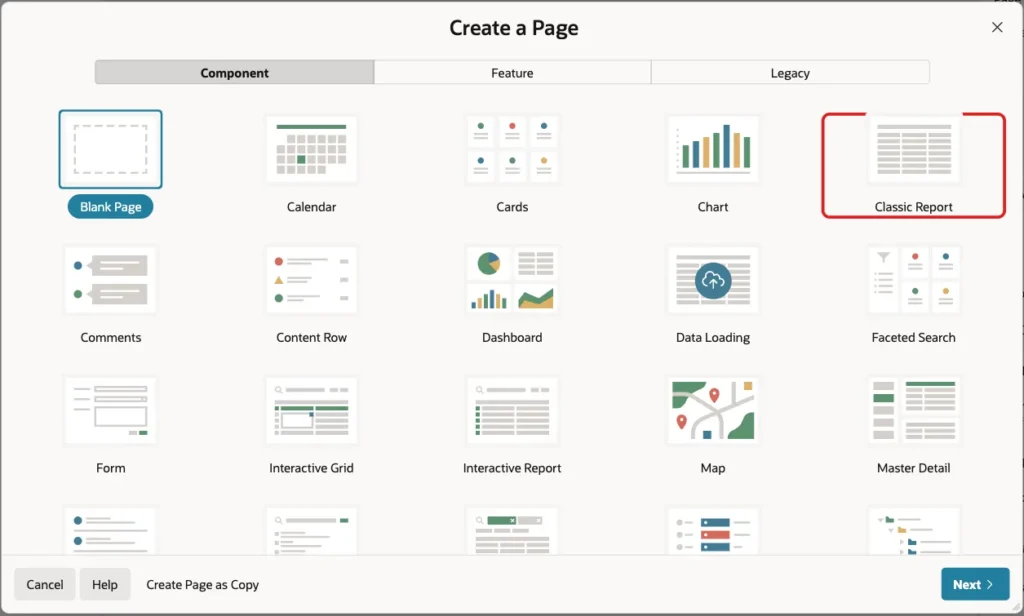
In Page Designer, click Create (the plus icon) and choose Page. Select the Classic Report tile:
On the Create Classic Report screen, enter Page Number 820 and Name Order Details. Leave Page Mode Normal and Include Form Page off:

Under Data Source, keep Local Database, set Source Type to SQL Query and paste the query above into the editor:

Under Navigation, keep the defaults: a breadcrumb and a new navigation menu entry with the icon fa-table. Click Create Page:
Step 3: Set Up the Report Columns
Page Designer opens page 820. In the Rendering tree, expand the Order Details region and its Columns. Select ORDER_ID and set Type to Hidden:
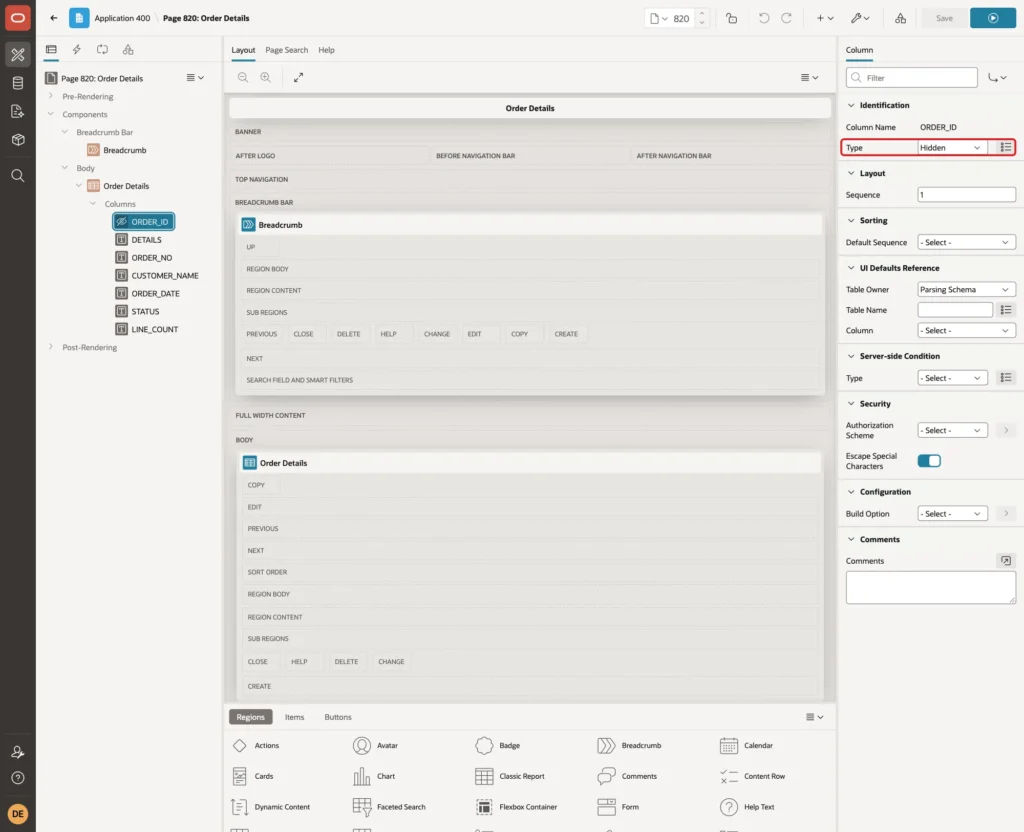
A hidden column is not displayed, but other columns can still use its value as #ORDER_ID#.
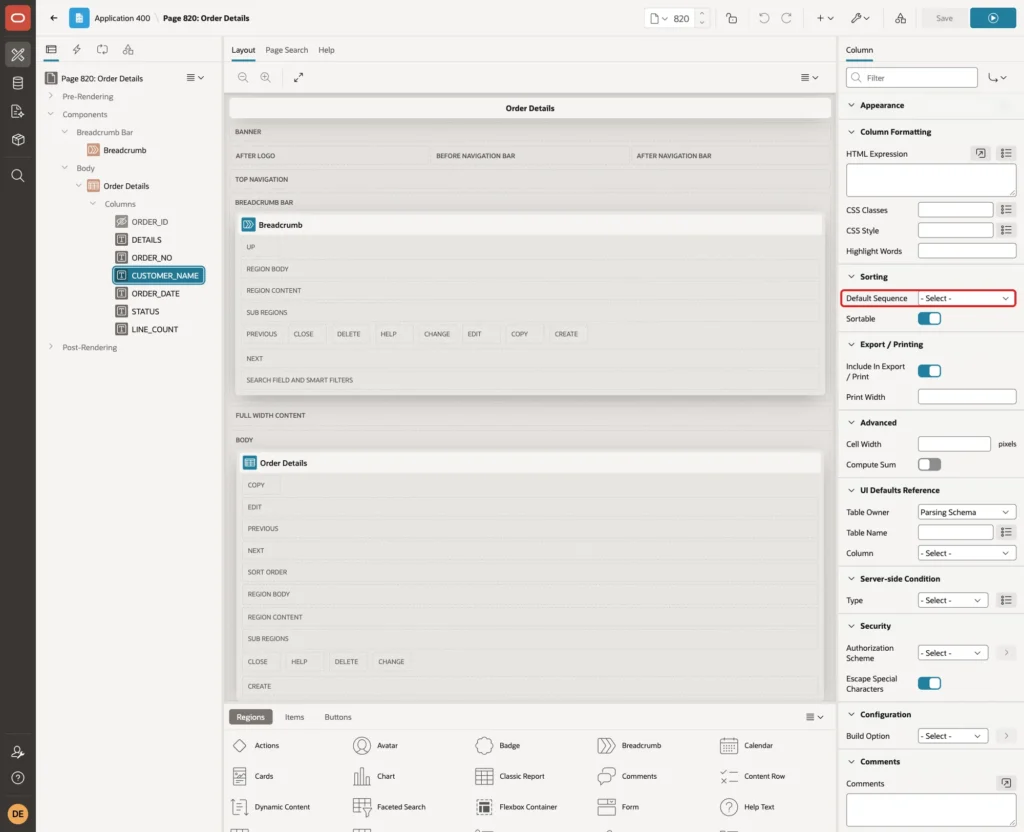
In this test, the wizard gave DETAILS, ORDER_NO, CUSTOMER_NAME and STATUS a Default Sequence of 1 under Sorting. Keep it only on the column the report should start with. Select ORDER_NO and check Default Sequence 1 and Direction Ascending:

Select CUSTOMER_NAME and set Default Sequence to - Select -. Do the same for STATUS. Both columns stay sortable by their headers:
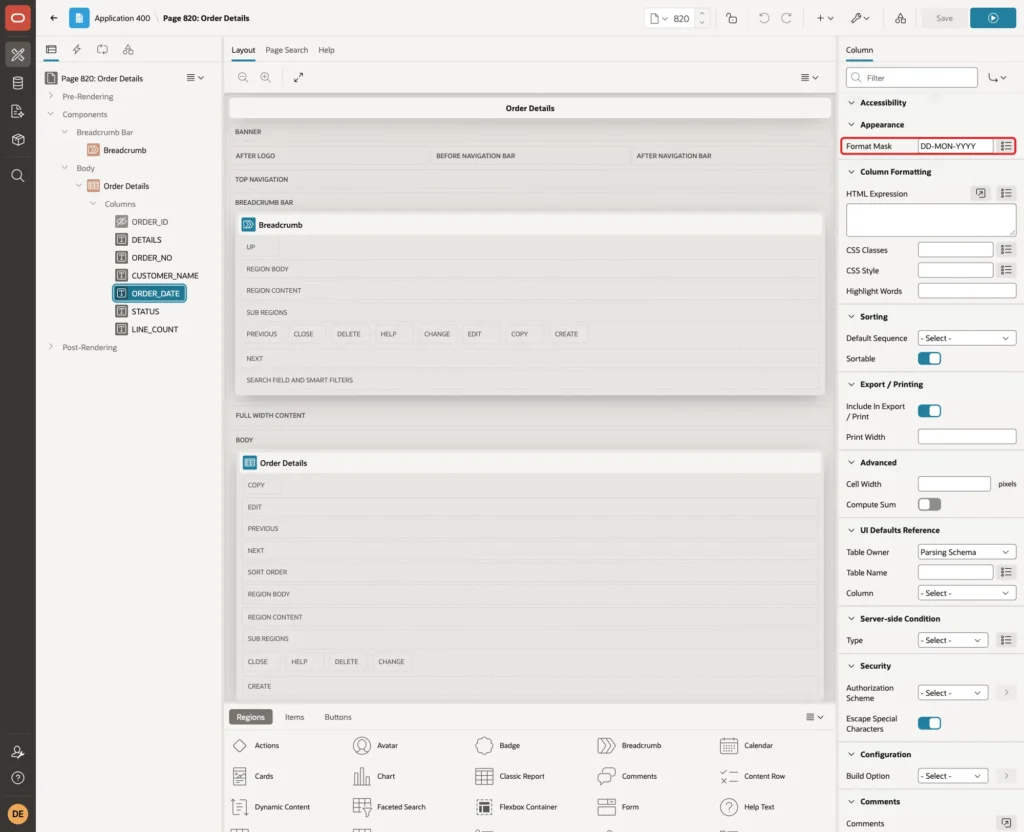
Select ORDER_DATE and set Format Mask to DD-MON-YYYY under Appearance:
Step 4: Turn the Details Column into an Expand Button
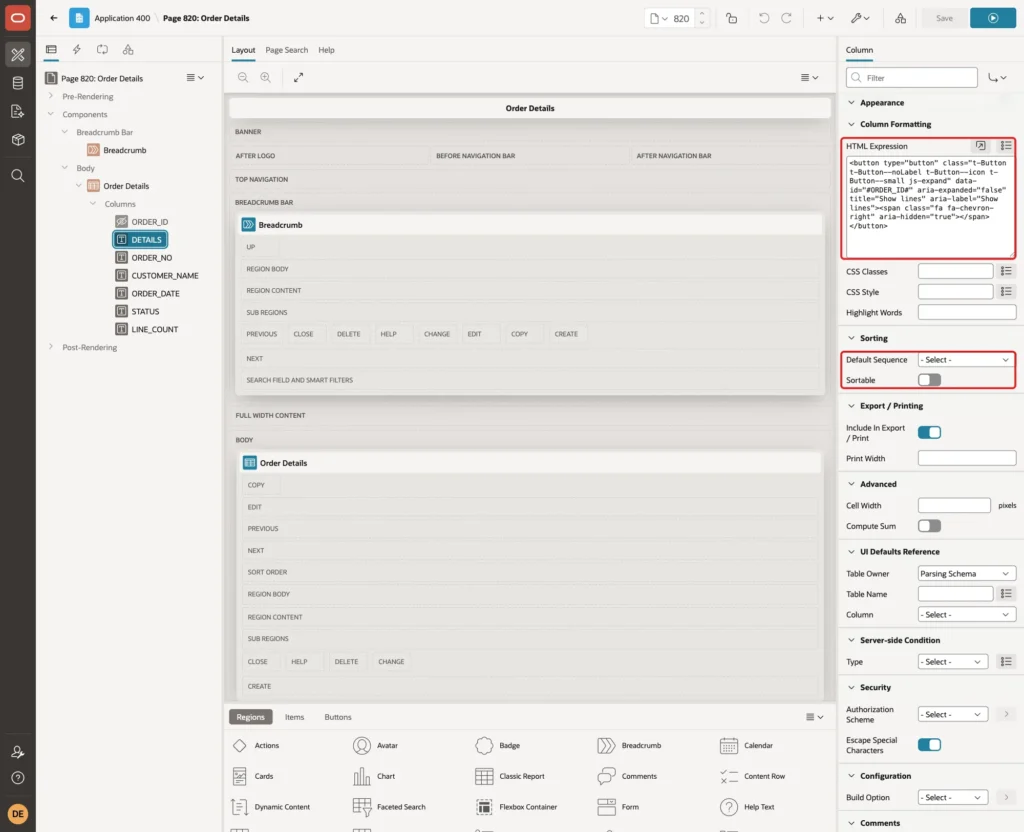
Select the DETAILS column. Under Column Formatting, enter this HTML Expression:
Example:
<button type="button" class="t-Button t-Button--noLabel t-Button--icon t-Button--small js-expand" data-id="#ORDER_ID#" aria-expanded="false" title="Show lines" aria-label="Show lines"><span class="fa fa-chevron-right" aria-hidden="true"></span></button>
Under Sorting, set Default Sequence to - Select - and turn Sortable off, because sorting by a button makes no sense:
- The class js-expand is what the dynamic action listens to.
- data-id carries the order ID of the row, taken from the hidden ORDER_ID column.
- aria-expanded tells screen readers whether the details are open. The script below keeps it up to date.
- type="button" stops the button from submitting the page.
Step 5: Give the Region an HTML DOM ID
The dynamic action and the JavaScript need a fixed ID for the report. Select the Order Details region. Under Advanced, set HTML DOM ID to order-details:

Step 6: Add the Ajax Callback That Returns the Lines
The lines are not loaded with the page. They come from the server only when a user opens a row. Open the Processing tab, right-click Ajax Callback and choose Create Process.
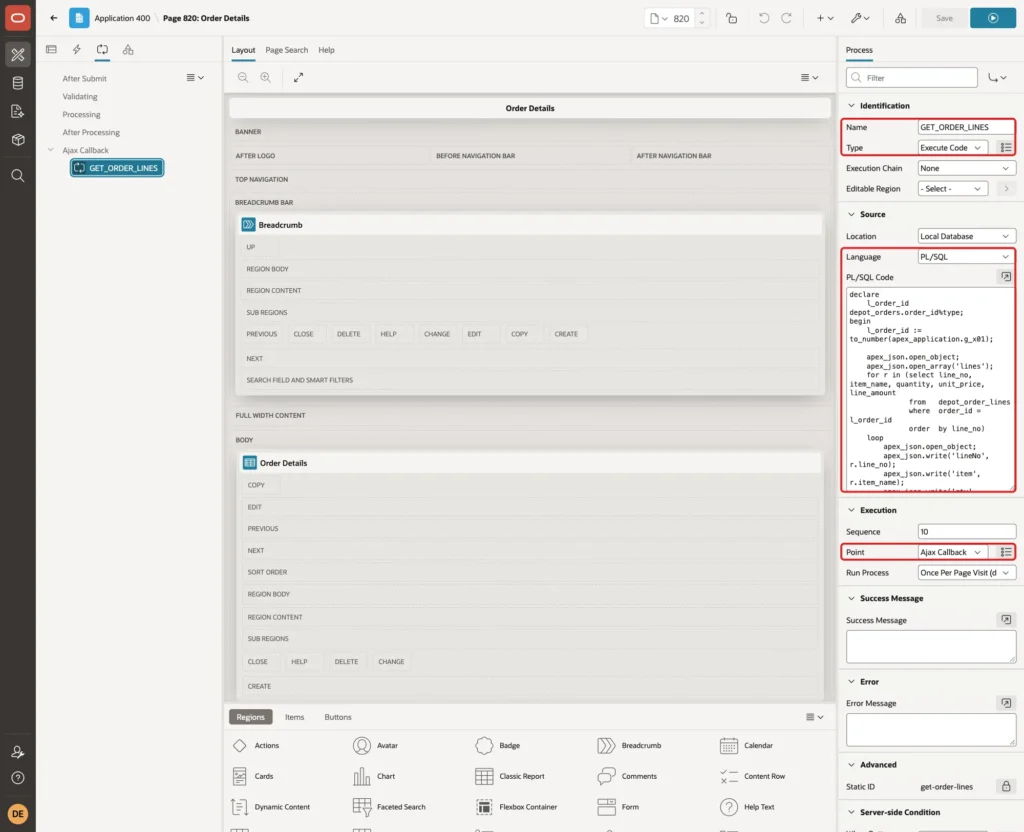
Set Name to GET_ORDER_LINES and Type to Execute Code. Keep Language PL/SQL and enter this PL/SQL Code:
Example:
declare
    l_order_id depot_orders.order_id%type;
begin
    l_order_id := to_number(apex_application.g_x01);

    apex_json.open_object;
    apex_json.open_array('lines');
    for r in (select line_no, item_name, quantity, unit_price, line_amount
              from   depot_order_lines
              where  order_id = l_order_id
              order  by line_no)
    loop
        apex_json.open_object;
        apex_json.write('lineNo', r.line_no);
        apex_json.write('item',   r.item_name);
        apex_json.write('qty',    r.quantity);
        apex_json.write('price',  to_char(r.unit_price,  'FM999G990D00'));
        apex_json.write('amount', to_char(r.line_amount, 'FM999G990D00'));
        apex_json.close_object;
    end loop;
    apex_json.close_array;
    apex_json.close_object;
exception
    when value_error then
        apex_json.open_object;
        apex_json.write('error', 'Invalid order ID.');
        apex_json.close_object;
end;
Under Execution, check that Point is Ajax Callback:
- apex_application.g_x01 holds the order ID that the JavaScript sends.
- to_number raises VALUE_ERROR for anything that is not a number. The handler then returns a JSON object with an error key.
- apex_json writes the lines as a JSON array. The prices are formatted on the server, so the browser only displays them.
- An order without lines returns an empty array.
Step 7: Add the Dynamic Action That Opens and Closes the Row
Open the Dynamic Actions tab, right-click Events and choose Create Dynamic Action. Set these properties:
- Name: Toggle Order Lines
- Event Scope: Dynamic, with Static Container (jQuery Selector) #order-details
- Event: Click, Selection Type: jQuery Selector, jQuery Selector: .js-expand

Event Scope Dynamic matters. Sorting or paging a Classic Report replaces its rows, and with them the buttons. A dynamic event keeps working for the new buttons inside the static container.
In a test with Event Scope Static, the buttons stopped working after the region was refreshed. With Dynamic, they kept working.
Select the True action, set Action to Execute JavaScript Code and enter this Code:
Example:
var btn  = this.triggeringElement,
    row  = btn.closest("tr"),
    next = row.nextElementSibling,
    icon = btn.querySelector(".fa");

if (next && next.classList.contains("detail-row")) {
    next.remove();
    btn.setAttribute("aria-expanded", "false");
    icon.classList.replace("fa-chevron-down", "fa-chevron-right");
} else {
    apex.server.process("GET_ORDER_LINES", { x01: btn.dataset.id }, { dataType: "json" })
        .then(function (data) {
            var esc = apex.util.escapeHTML,
                tr  = document.createElement("tr"),
                html;

            if (data.lines.length === 0) {
                html = "<p>This order has no lines.</p>";
            } else {
                html = '<table class="detail-lines"><thead><tr><th>Line</th><th>Item</th>' +
                       '<th class="num">Qty</th><th class="num">Unit Price</th><th class="num">Amount</th></tr></thead><tbody>' +
                       data.lines.map(function (l) {
                           return "<tr><td>" + esc(String(l.lineNo)) + "</td><td>" + esc(l.item) + "</td>" +
                                  '<td class="num">' + esc(String(l.qty)) + '</td><td class="num">' + esc(l.price) + "</td>" +
                                  '<td class="num">' + esc(l.amount) + "</td></tr>";
                       }).join("") +
                       "</tbody></table>";
            }
            tr.className = "detail-row";
            tr.innerHTML = '<td colspan="' + row.cells.length + '">' + html + "</td>";
            row.after(tr);
            btn.setAttribute("aria-expanded", "true");
            icon.classList.replace("fa-chevron-right", "fa-chevron-down");
        });
}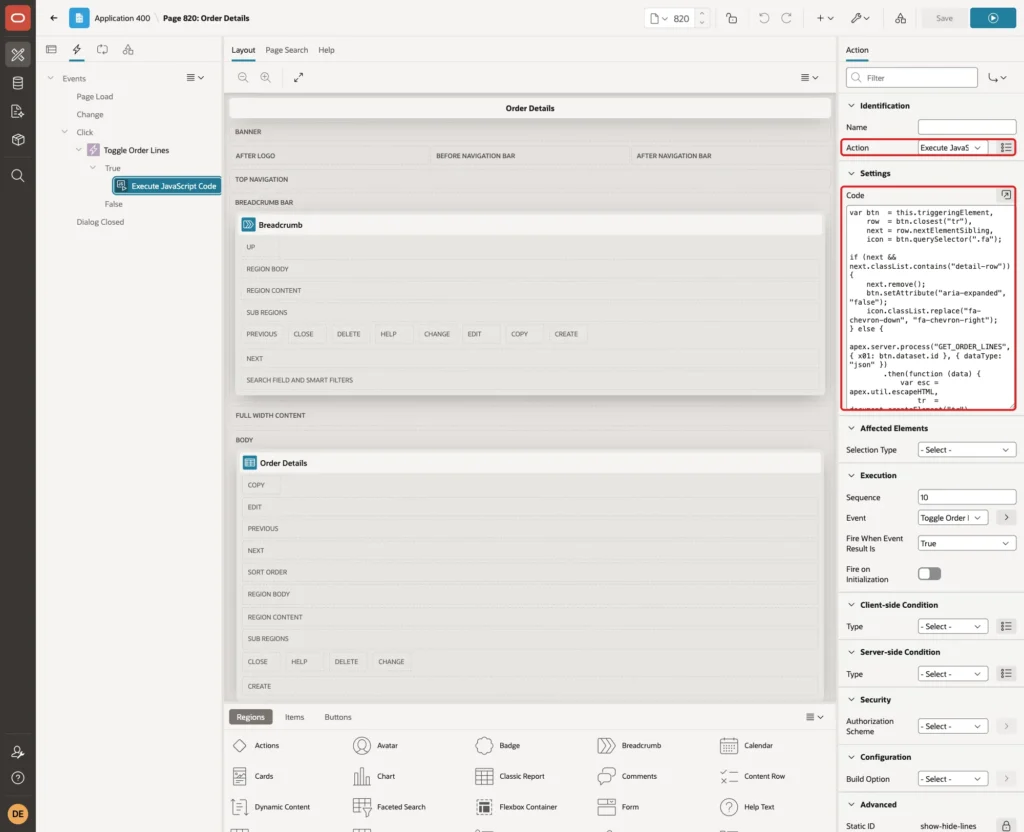
- this.triggeringElement is the clicked button. Its row is the closest tr element.
- If the next row is a detail row, the click closes it. Otherwise the script calls GET_ORDER_LINES with the order ID in x01.
- apex.util.escapeHTML escapes every value before it goes into the HTML, so data cannot inject markup or scripts.
- The new row has one cell that spans all columns of the report.
- The arrow icon and aria-expanded change with each click.
Under Execution, make sure Fire on Initialization is off:

In a first version of this page the switch was on. The action then ran once for every button when the page loaded, and all five orders opened their lines at once.
Step 8: Style the Detail Rows
Select the page (Page 820: Order Details) at the top of the tree. Under CSS, enter this Inline CSS:
Example:
.detail-row > td { background-color: #f6f8fa; padding: 8px 16px 12px 56px; }
.detail-lines { border-collapse: collapse; }
.detail-lines th, .detail-lines td { padding: 4px 16px 4px 0; text-align: left; }
.detail-lines .num { text-align: right; }
Click Save.
Step 9: Test the Expandable Rows
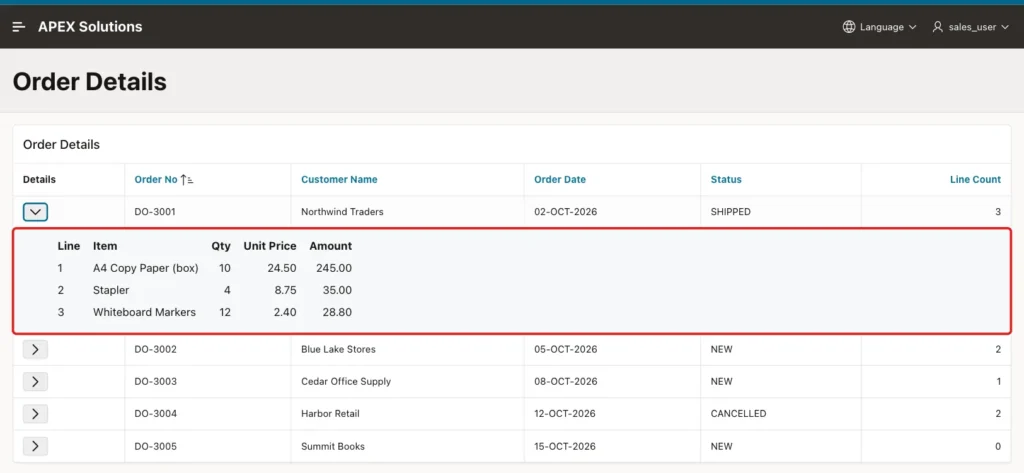
Before the test, list the lines the first two orders should show:
Example:
select o.order_no, l.line_no, l.item_name, l.quantity, l.unit_price, l.line_amount
from depot_orders o
join depot_order_lines l on l.order_id = o.order_id
where o.order_no in ('DO-3001', 'DO-3002')
order by o.order_no, l.line_no;
Output:
ORDER_NO       LINE_NO ITEM_NAME                  QUANTITY    UNIT_PRICE    LINE_AMOUNT
___________ __________ _______________________ ___________ _____________ ______________
DO-3001              1 A4 Copy Paper (box)              10          24.5            245
DO-3001              2 Stapler                           4          8.75             35
DO-3001              3 Whiteboard Markers               12           2.4           28.8
DO-3002              1 Desk Lamp                         2            31             62
DO-3002              2 <b>Bold</b> Gel Pens             20          1.25             25
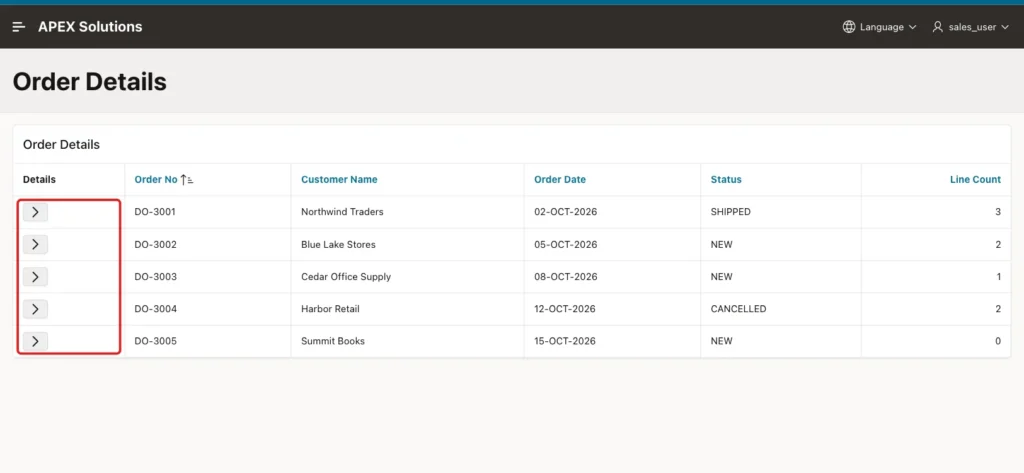
Run the page. This test used SALES_USER, a user with the Reader role. The report lists five orders, each with an arrow button:
Click the arrow of DO-3001. A detail row opens below it with the three lines from the query above, and the arrow points down:
Click the arrow of DO-3002 as well. Both orders stay open. The second line shows the item name with its HTML tags as plain text:
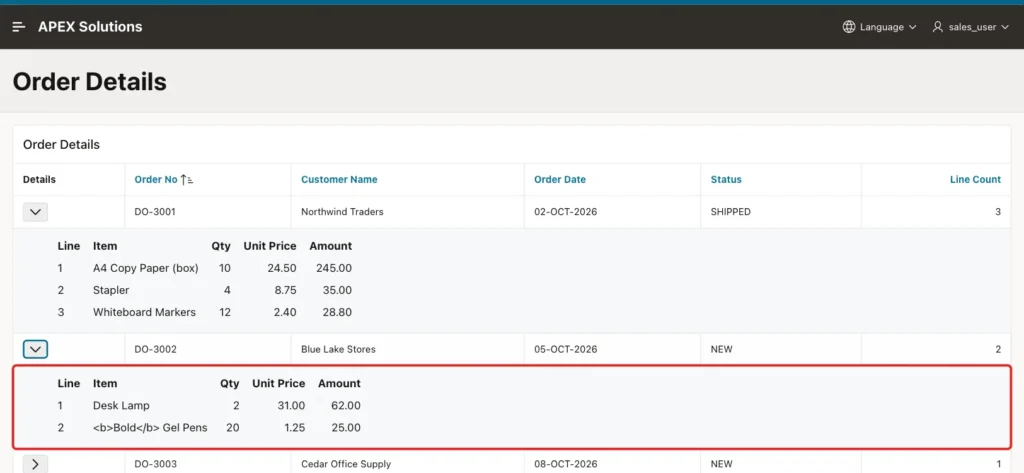
The page had no b element inside the detail rows. apex.util.escapeHTML turned the tags into text, as it should.
Click the arrow of DO-3005. It has no lines, so the detail row shows a short message:

Click the arrow of DO-3001 again. Its detail row closes and the arrow points right again. The other open rows stay open:

Now click the Customer Name heading to sort the report. The report reloads its rows, so all open details close. Click the arrow of DO-3004 in the new order. Its lines open as before:
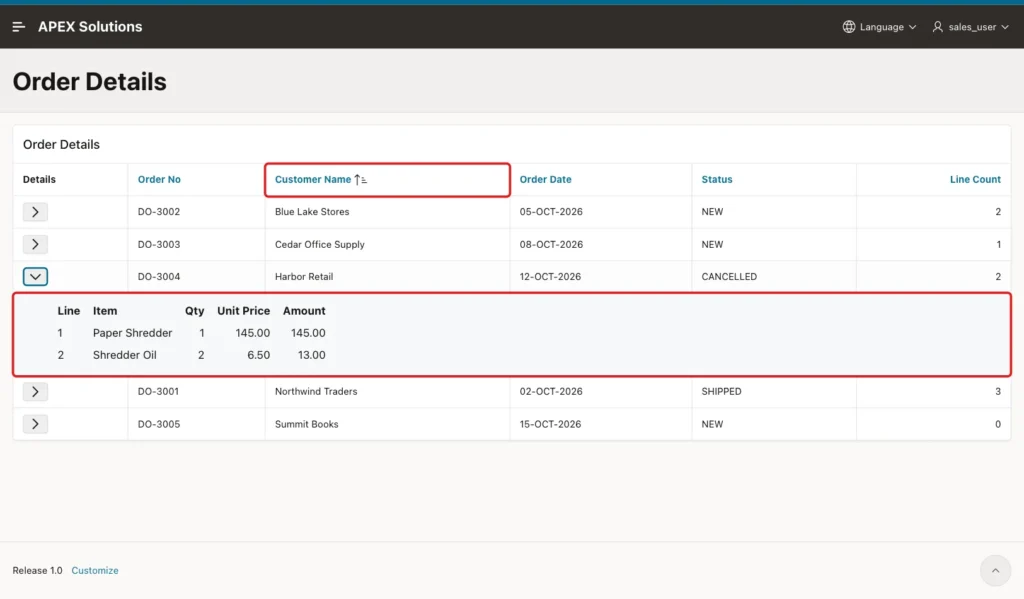
APEX remembered the sort for the user. In this test it was saved as a user preference named FSP400_P820_R..._SORT, and the report opened sorted by customer name on the next visit.
Step 10: Test Invalid Requests
Any user who can open the page can call the Ajax Callback with any value, not only through the buttons. Open the browser console on page 820 and run three calls: a valid order ID, an order ID that does not exist, and a value that is not a number:
Example:
apex.server.process("GET_ORDER_LINES", { x01: "2" }, { dataType: "json" })
    .then(function (data) { console.log(JSON.stringify(data)); });

apex.server.process("GET_ORDER_LINES", { x01: "999999" }, { dataType: "json" })
    .then(function (data) { console.log(JSON.stringify(data)); });

apex.server.process("GET_ORDER_LINES", { x01: "abc" }, { dataType: "json" })
    .fail(function (jqXHR, textStatus, errorThrown) { console.log("failed: " + textStatus + " - " + errorThrown); });
Output:
failed: APEX - Invalid order ID.
{"lines":[]}
{"lines":[{"lineNo":1,"item":"Desk Lamp","qty":2,"price":"31.00","amount":"62.00"},{"lineNo":2,"item":"<b>Bold</b> Gel Pens","qty":20,"price":"1.25","amount":"25.00"}]}
The three calls run at the same time, so the answers can arrive in any order:
- Order ID 2 (DO-3002) returned its two lines. The tags arrived as data, which is why the escaping in the browser matters.
- The unknown ID returned an empty list.
- The value abc did not cause a server error. The exception handler returned the error key.
apex.server.process treats a JSON reply with an error key as a failed call. The success function did not run, and the fail function received the message.
To see what a user gets, change the data-id of the first button to abc in the browser and click it. APEX showed the message as a page error and added no detail row:
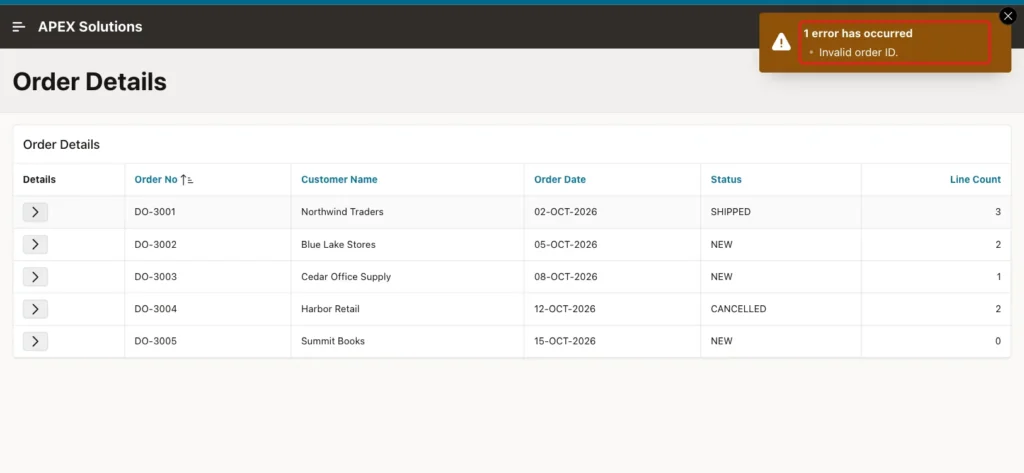
The dynamic action needs no error handling code of its own for this case.
Things to Know
- The detail rows are added in the browser. They are not part of the report, so sorting, paging or a region refresh removes them.
- Use Event Scope Dynamic with the region as the static container. With Static, the buttons stopped working after a refresh.
- Turn off Fire on Initialization on the JavaScript action, or every row opens when the page loads.
- Escape every value from the server with apex.util.escapeHTML before you build HTML with it.
- An Ajax Callback can be called with any x01 value. Check the input, and if the report shows only some records to a user, apply the same filter in the callback.
- A JSON reply with an error key makes apex.server.process fail, and APEX shows the message as a page error.
- Each opening of a row is one request to the server. Closing a row needs no request.
Related Guides
- How to Build an Orders and Order Lines Master-Detail Page in Oracle APEX
- Ajax in Oracle APEX: Callbacks and apex.server.process
Conclusion
An expandable row shows the details of a record without leaving the report in Oracle APEX. A button column, an Ajax Callback that returns JSON, and one dynamic action with a short script are all it takes. The details load only for the rows a user opens.
In this example, the rows opened and closed correctly, survived sorting, escaped HTML in the data and handled empty and invalid requests. Keep the event scope dynamic, the initialization off and every value escaped, and the same pattern works for any parent and child table.
See my articles more often when you search Google.
