
A control break splits a report into sections, one for each value of a column. Add an aggregate such as Sum, and every section ends with its own subtotal. Readers see each group's rows and total together, instead of scrolling a long list and adding numbers by hand.
The Interactive Report in Oracle APEX has both features in its Actions menu, with no SQL changes. A developer can build the layout once and save it as the primary default report, so every user opens the page with the sections, subtotals and highlights already in place.
The guide Oracle APEX Interactive Reports: The Complete Guide describes control breaks and aggregates in one short paragraph. This guide is the full task: the break, the sort inside each section, two subtotals, a highlight rule, saving it for all users, and checking every subtotal against SQL ROLLUP.
The example uses order lines grouped by customer. The same steps work for any table with a column to group by and numbers to add up.
Step 1: Create the Tables
Three tables hold the data:
- WHOLESALE_CUSTOMERS has one row per customer with a unique name and a city.
- WHOLESALE_ORDERS has one row per order with a unique order number, the customer, the order date and a status.
- WHOLESALE_ORDER_LINES has the items of each order with quantity and unit price. LINE_AMOUNT is a virtual column, quantity times unit price.
Create the tables with three customers, seven orders and 16 order lines:
Example:
create table wholesale_customers (
  customer_id     number generated by default on null as identity,
  customer_name   varchar2(100)  not null,
  city            varchar2(50)   not null,
  constraint wholesale_customers_pk primary key (customer_id),
  constraint wholesale_customers_name_uk unique (customer_name)
);

create table wholesale_orders (
  order_id        number generated by default on null as identity,
  order_no        varchar2(20)   not null,
  customer_id     number         not null,
  order_date      date           not null,
  status          varchar2(10)   default on null 'NEW' not null,
  constraint wholesale_orders_pk primary key (order_id),
  constraint wholesale_orders_no_uk unique (order_no),
  constraint wholesale_orders_customer_fk foreign key (customer_id) references wholesale_customers (customer_id),
  constraint wholesale_orders_status_ck check (status in ('NEW', 'SHIPPED', 'CANCELLED'))
);

create index wholesale_orders_customer_ix on wholesale_orders (customer_id);

create table wholesale_order_lines (
  line_id         number generated by default on null as identity,
  order_id        number         not null,
  line_no         number(3)      not null,
  item_name       varchar2(100)  not null,
  quantity        number(6)      not null,
  unit_price      number(10,2)   not null,
  line_amount     number(12,2)   generated always as (quantity * unit_price) virtual,
  constraint wholesale_order_lines_pk primary key (line_id),
  constraint wholesale_order_lines_order_fk foreign key (order_id) references wholesale_orders (order_id) on delete cascade,
  constraint wholesale_order_lines_no_uk unique (order_id, line_no),
  constraint wholesale_order_lines_qty_ck check (quantity > 0),
  constraint wholesale_order_lines_price_ck check (unit_price >= 0)
);

insert into wholesale_customers (customer_name, city) values
  ('Aster Retail', 'Pune'),
  ('Banyan Grocers', 'Chennai'),
  ('Coral Hotels', 'Goa');

insert into wholesale_orders (order_no, customer_id, order_date, status)
select v.order_no, c.customer_id, v.order_date, v.status
from wholesale_customers c
join (values
  ('SO-1001', 'Aster Retail',   date '2026-09-02', 'SHIPPED'),
  ('SO-1002', 'Aster Retail',   date '2026-09-18', 'NEW'),
  ('SO-1003', 'Banyan Grocers', date '2026-09-05', 'SHIPPED'),
  ('SO-1004', 'Banyan Grocers', date '2026-09-21', 'SHIPPED'),
  ('SO-1005', 'Banyan Grocers', date '2026-10-03', 'NEW'),
  ('SO-1006', 'Coral Hotels',   date '2026-09-11', 'SHIPPED'),
  ('SO-1007', 'Coral Hotels',   date '2026-10-08', 'NEW')
) v (order_no, customer_name, order_date, status)
  on v.customer_name = c.customer_name;

insert into wholesale_order_lines (order_id, line_no, item_name, quantity, unit_price)
select o.order_id, v.line_no, v.item_name, v.quantity, v.unit_price
from wholesale_orders o
join (values
  ('SO-1001', 1, 'Basmati Rice 25 kg',  10,  1850),
  ('SO-1001', 2, 'Sunflower Oil 15 L',   6,  2100),
  ('SO-1001', 3, 'Sugar 50 kg',          4,  2300),
  ('SO-1002', 1, 'Toor Dal 30 kg',       5,  3600),
  ('SO-1002', 2, 'Tea Leaves 5 kg',      8,  1450),
  ('SO-1003', 1, 'Wheat Flour 50 kg',   12,  1900),
  ('SO-1003', 2, 'Sugar 50 kg',          6,  2300),
  ('SO-1004', 1, 'Sunflower Oil 15 L',  10,  2100),
  ('SO-1004', 2, 'Basmati Rice 25 kg',   8,  1850),
  ('SO-1004', 3, 'Salt 25 kg',          20,   300),
  ('SO-1005', 1, 'Toor Dal 30 kg',       3,  3600),
  ('SO-1006', 1, 'Coffee Beans 5 kg',    6,  4200),
  ('SO-1006', 2, 'Tea Leaves 5 kg',     10,  1450),
  ('SO-1006', 3, 'Sugar 50 kg',          2,  2300),
  ('SO-1007', 1, 'Basmati Rice 25 kg',  15,  1850),
  ('SO-1007', 2, 'Coffee Beans 5 kg',    4,  4200)
) v (order_no, line_no, item_name, quantity, unit_price)
  on v.order_no = o.order_no;

commit;

select c.customer_name, o.order_no, o.status, count(l.line_id) as lines, sum(l.line_amount) as order_amount
from wholesale_customers c
join wholesale_orders o on o.customer_id = c.customer_id
join wholesale_order_lines l on l.order_id = o.order_id
group by c.customer_name, o.order_no, o.status
order by c.customer_name, o.order_no;
Output:
Table WHOLESALE_CUSTOMERS created.

Table WHOLESALE_ORDERS created.

Index WHOLESALE_ORDERS_CUSTOMER_IX created.

Table WHOLESALE_ORDER_LINES created.

3 rows inserted.

7 rows inserted.

16 rows inserted.

Commit complete.

CUSTOMER_NAME     ORDER_NO    STATUS        LINES    ORDER_AMOUNT
_________________ ___________ __________ ________ _______________
Aster Retail      SO-1001     SHIPPED           3           40300
Aster Retail      SO-1002     NEW               2           29600
Banyan Grocers    SO-1003     SHIPPED           2           36600
Banyan Grocers    SO-1004     SHIPPED           3           41800
Banyan Grocers    SO-1005     NEW               1           10800
Coral Hotels      SO-1006     SHIPPED           3           44300
Coral Hotels      SO-1007     NEW               2           44550

7 rows selected.
- WHOLESALE_ORDERS_CUSTOMER_FK links each order to an existing customer, and WHOLESALE_ORDERS_CUSTOMER_IX indexes that foreign key.
- WHOLESALE_ORDER_LINES_ORDER_FK links each line to its order. ON DELETE CASCADE removes the lines when an order is deleted.
- WHOLESALE_ORDER_LINES_NO_UK allows each line number only once per order. Its index also serves the foreign key on ORDER_ID.
- LINE_AMOUNT is declared as a virtual column, so the database always calculates it. No trigger or page process is needed.
- The check constraints allow only known statuses, quantities above zero and prices of zero or more.
Step 2: Get the Expected Subtotals with SQL
Before building the report, get the numbers it must show. GROUP BY ROLLUP adds a subtotal row per customer and a grand total row:
Example:
select case grouping_id(c.customer_name, o.order_no)
         when 0 then c.customer_name
         when 1 then c.customer_name || ' subtotal'
         else 'Grand total'
       end as customer_name,
       o.order_no,
       sum(l.quantity) as quantity,
       sum(l.line_amount) as line_amount
from wholesale_customers c
join wholesale_orders o on o.customer_id = c.customer_id
join wholesale_order_lines l on l.order_id = o.order_id
group by rollup (c.customer_name, o.order_no)
order by c.customer_name nulls last, o.order_no nulls last;
Output:
CUSTOMER_NAME              ORDER_NO       QUANTITY    LINE_AMOUNT
__________________________ ___________ ___________ ______________
Aster Retail               SO-1001              20          40300
Aster Retail               SO-1002              13          29600
Aster Retail subtotal                           33          69900
Banyan Grocers             SO-1003              18          36600
Banyan Grocers             SO-1004              38          41800
Banyan Grocers             SO-1005               3          10800
Banyan Grocers subtotal                         59          89200
Coral Hotels               SO-1006              18          44300
Coral Hotels               SO-1007              19          44550
Coral Hotels subtotal                           37          88850
Grand total                                    129         247950

11 rows selected.
The subtotal rows are the numbers each report section must end with: 69,900 for Aster Retail, 89,200 for Banyan Grocers and 88,850 for Coral Hotels. The order rows are used later for a break on two columns.
Step 3: Create the Interactive Report Page
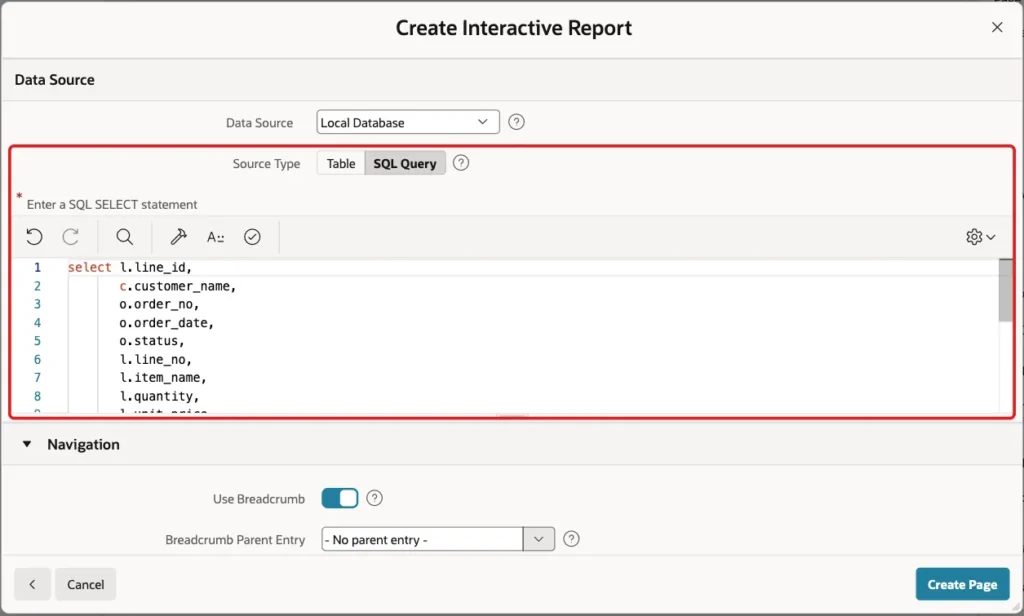
The report shows one row per order line, with the customer and order details joined in. The source query is:
Example:
select l.line_id,
       c.customer_name,
       o.order_no,
       o.order_date,
       o.status,
       l.line_no,
       l.item_name,
       l.quantity,
       l.unit_price,
       l.line_amount
from wholesale_order_lines l
join wholesale_orders o on o.order_id = l.order_id
join wholesale_customers c on c.customer_id = o.customer_id
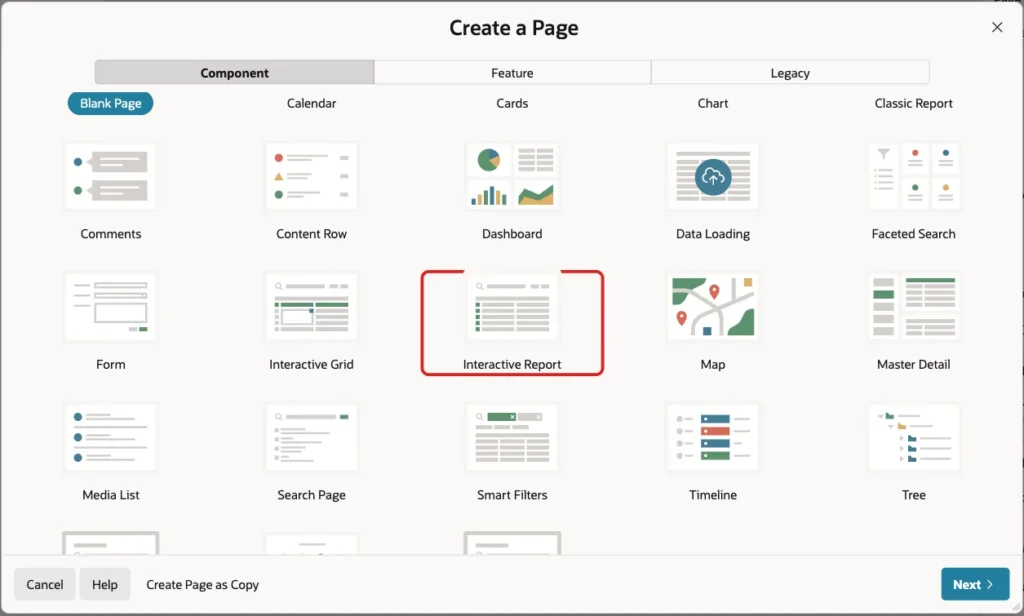
In Page Designer, click Create (the plus icon) and choose Page. Select the Interactive Report tile:
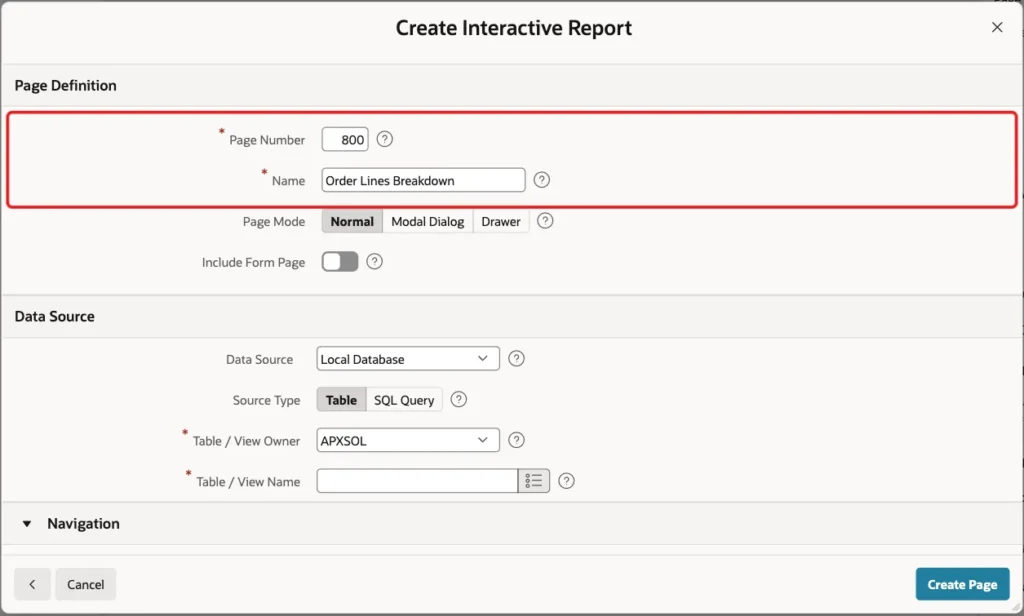
On the Create Interactive Report screen, enter Page Number 800 and Name Order Lines Breakdown. Leave Page Mode Normal and Include Form Page off:
Under Data Source, keep Local Database, set Source Type to SQL Query and paste the query above into the editor:
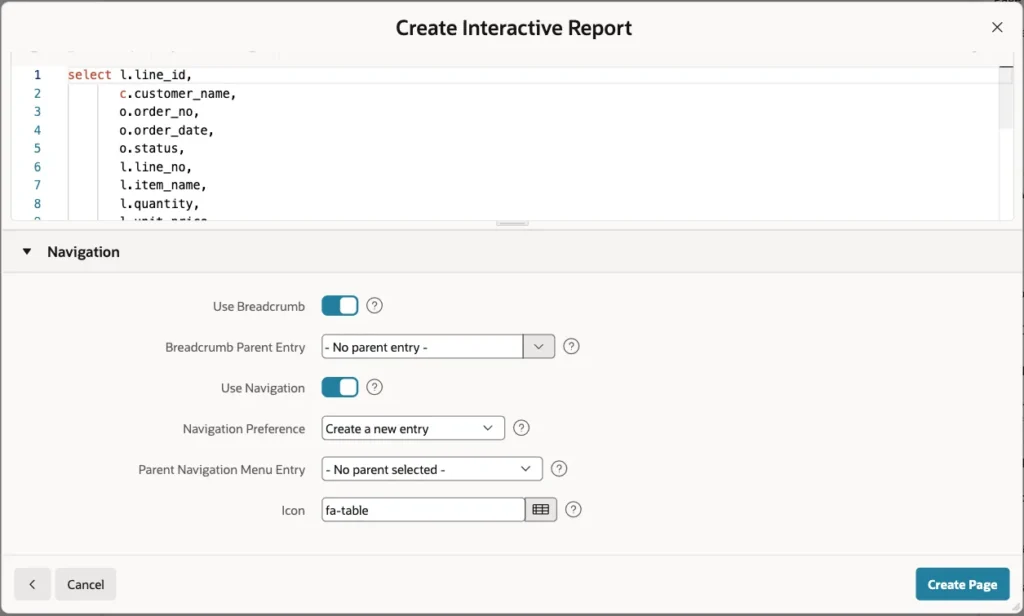
Under Navigation, keep the defaults: a breadcrumb and a new navigation menu entry with the icon fa-table. Click Create Page:
Step 4: Prepare the Columns in Page Designer
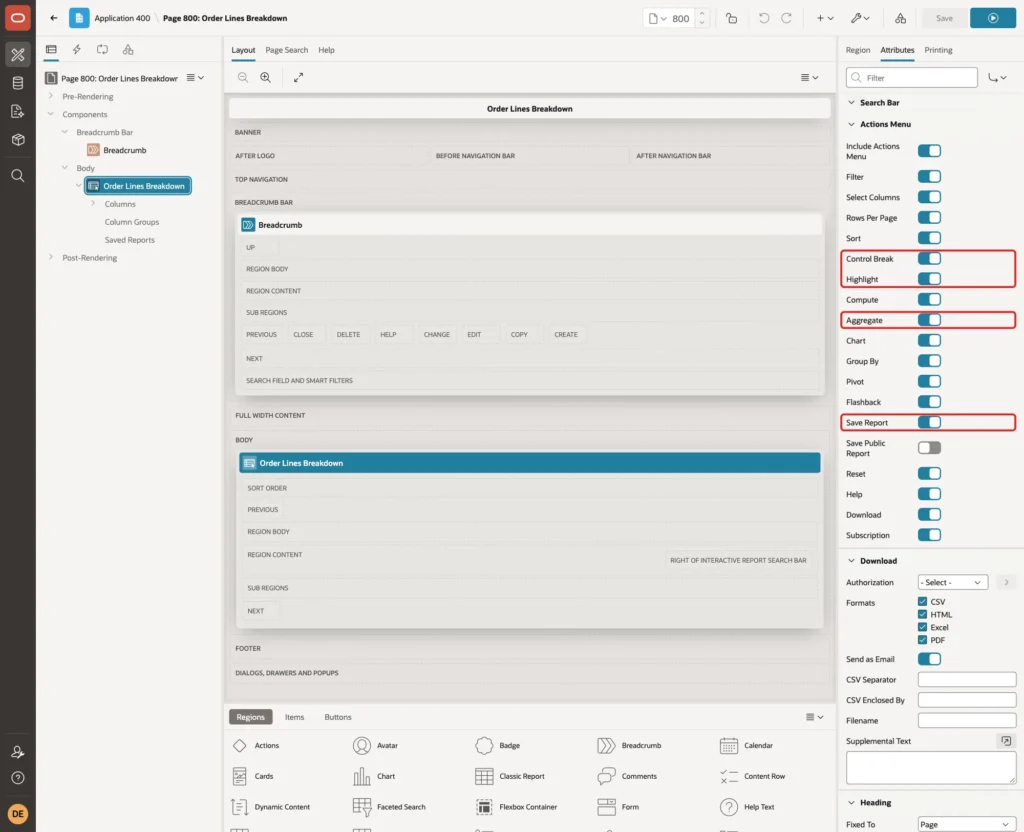
Page Designer opens page 800. Select the Order Lines Breakdown region and open the Attributes tab. Under Actions Menu, Control Break, Highlight, Aggregate and Save Report are on by default. These switches decide what users find in the Actions menu, so leave them on:
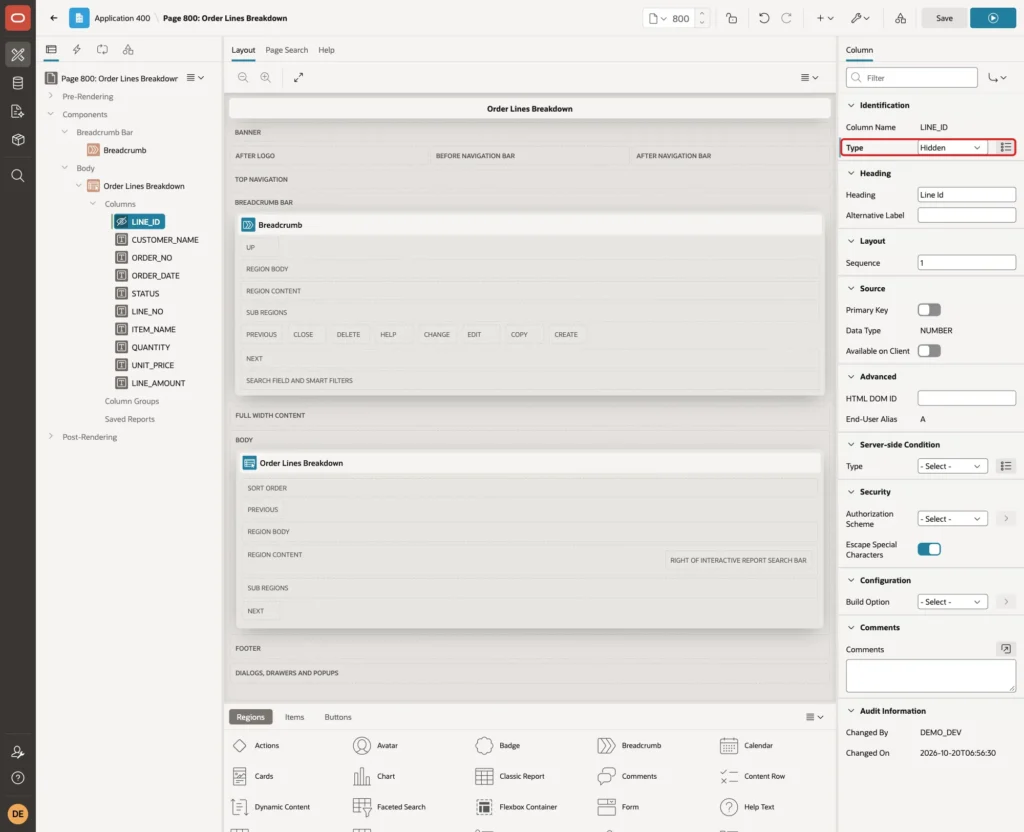
Expand Columns and select LINE_ID. Set Type to Hidden. The column is the row key, and readers do not need to see it:
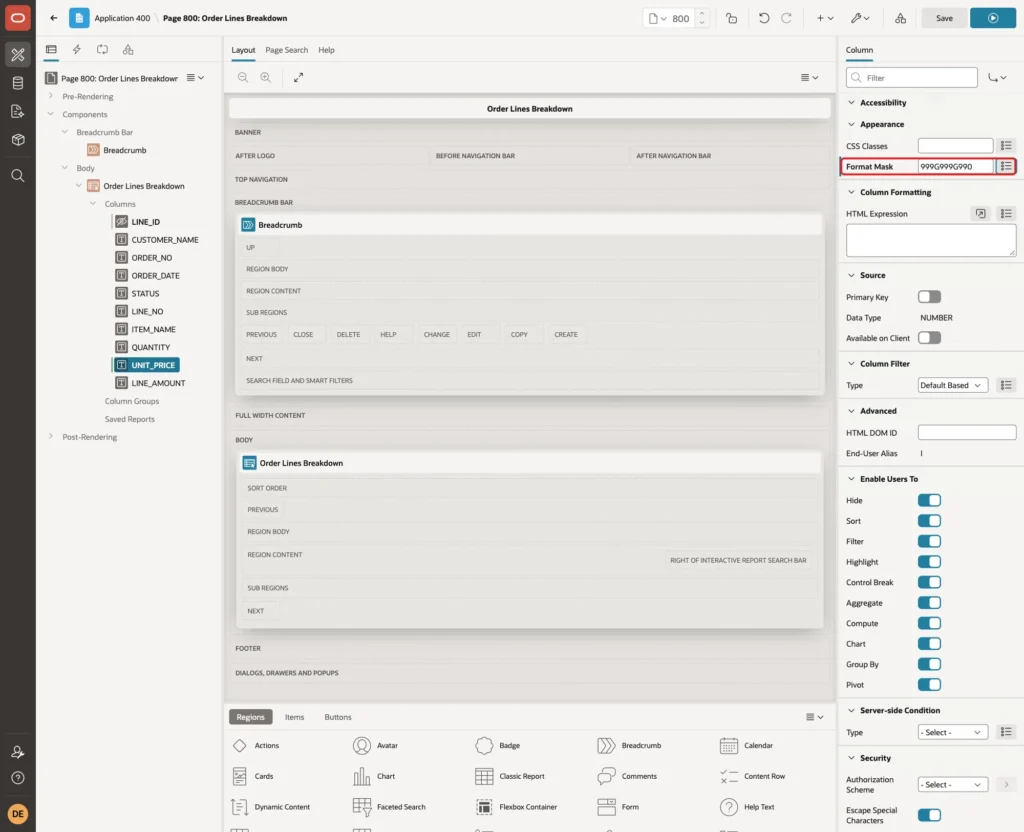
Select UNIT_PRICE and set Format Mask to 999G999G990 under Appearance:
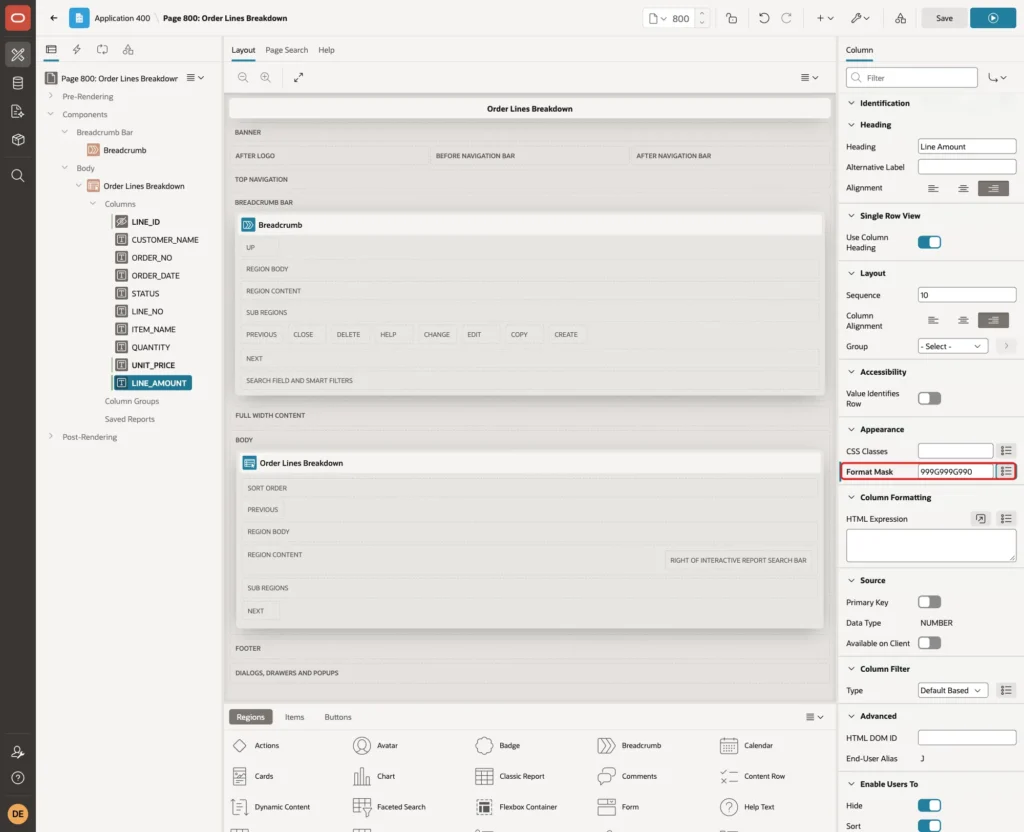
Select LINE_AMOUNT and set the same Format Mask. The subtotal of a column uses the column's format mask, so the sums get thousands separators too:
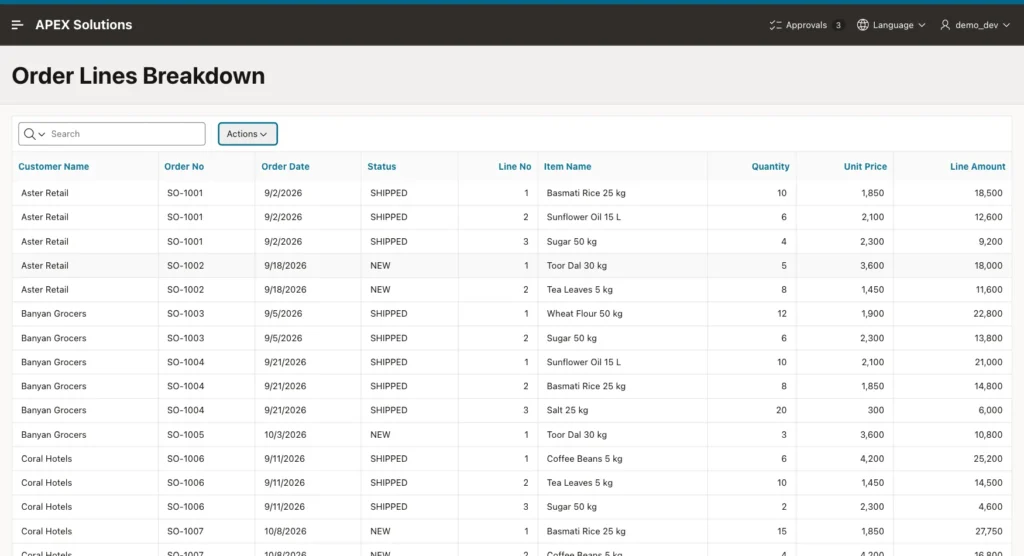
Click Save and run the page. The report lists all 16 order lines:
Step 5: Add a Control Break on the Customer
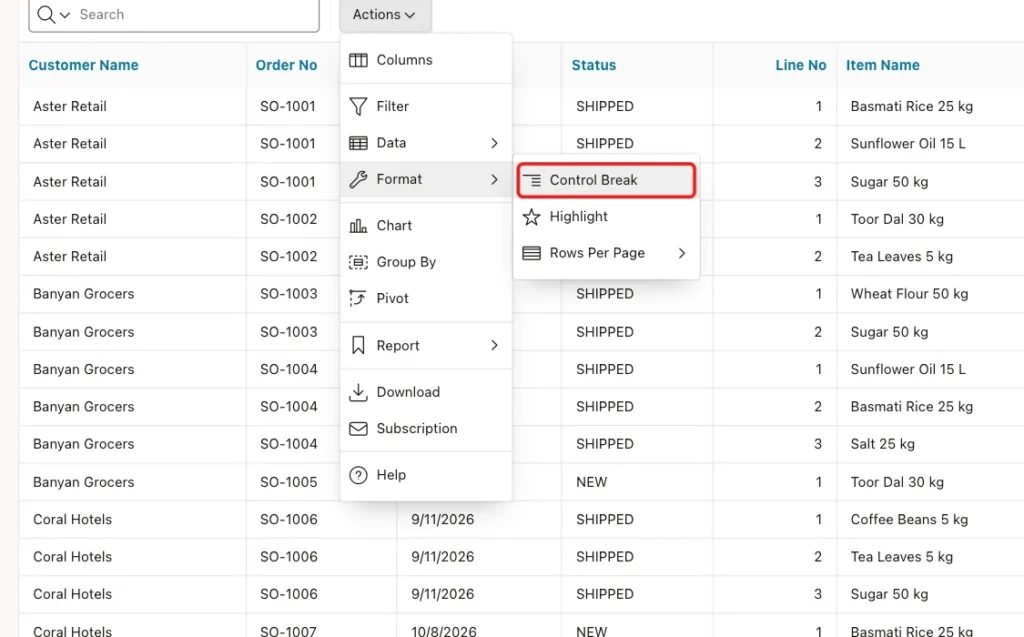
Sign in to the application as a developer, so you can save the result for all users in Step 9. Open page 800, click Actions, then Format, then Control Break:
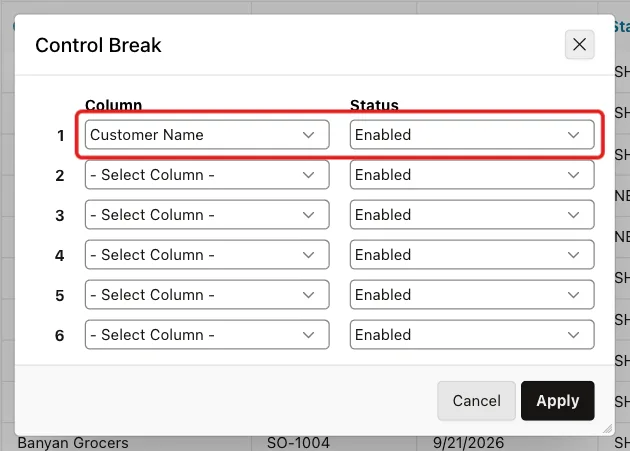
In the Control Break dialog, set Column 1 to Customer Name and keep Status Enabled:
Click Apply. The report now has a section per customer, with a heading such as "Customer Name: Aster Retail". The Customer Name column moves from the table into the heading. A Customer Name entry with a checkbox appears above the report:
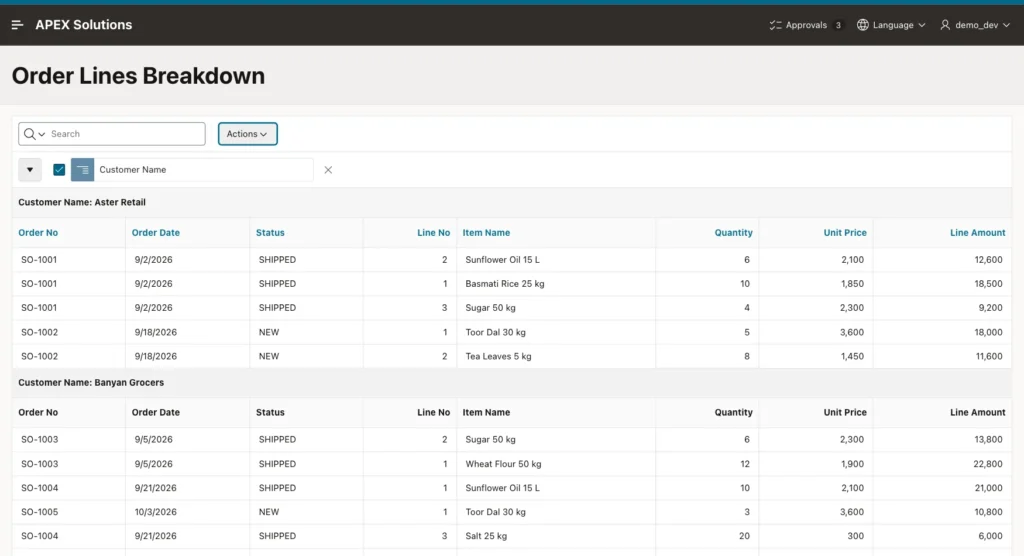
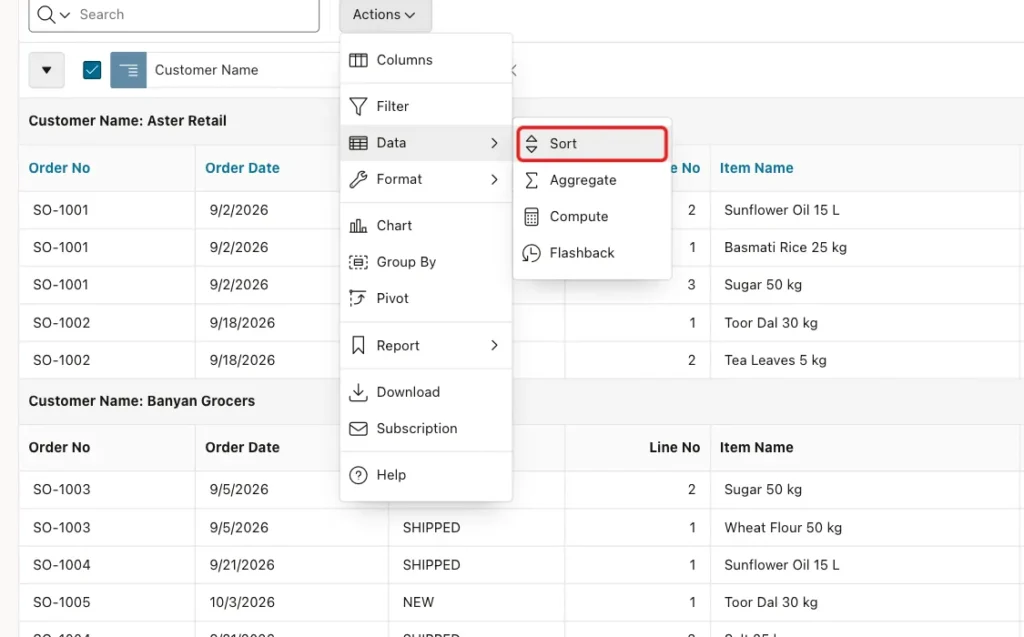
Look at the rows inside each section. In this test, Aster Retail started with line 2 of SO-1001, and SO-1005 came before the last line of SO-1004. The break sorts by customer, but the rows inside a section have no fixed order yet.
Step 6: Sort the Rows Inside Each Section
Click Actions, then Data, then Sort:
Set Column 1 to Order No and Column 2 to Line No, both Ascending:
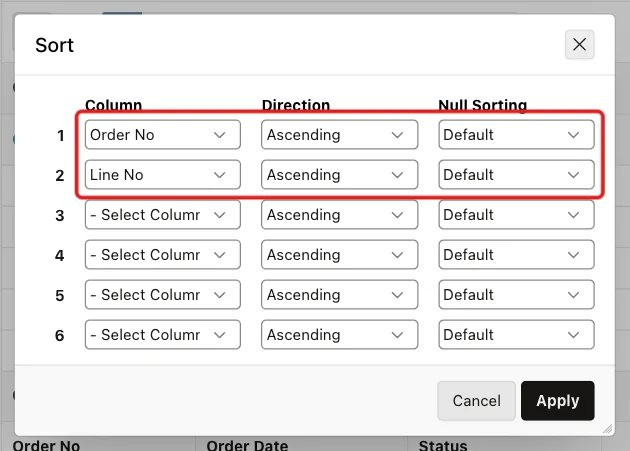
Click Apply. Each section now lists its orders in number order and each order's lines from 1 upward. The control break column stays the first sort, so the sections keep their customer order.
Step 7: Add the Subtotals
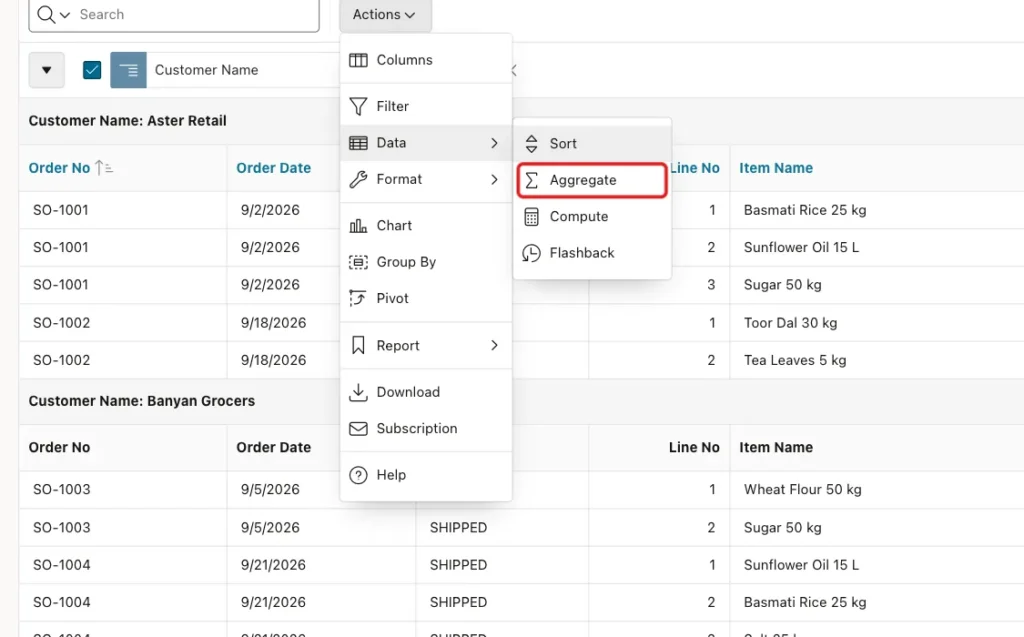
Click Actions, then Data, then Aggregate:
Keep Aggregation as New Aggregation. Set Function to Sum and Column to Line Amount:
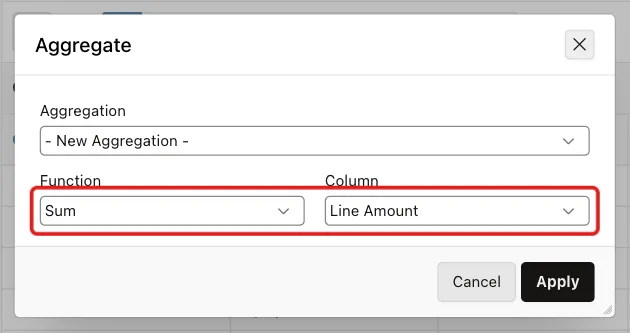
Click Apply. Open Actions, Data, Aggregate again and add a second aggregate, Sum of Quantity:
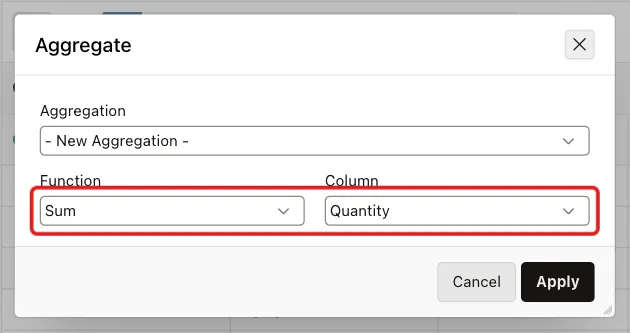
Click Apply. Each section now ends with a row that shows the total quantity and the total amount for that customer. For Sum, the Column list offered only the number columns: Line No, Quantity, Unit Price and Line Amount.
Step 8: Highlight Large Lines
A highlight rule colors rows or cells that meet a condition. Click Actions, then Format, then Highlight:
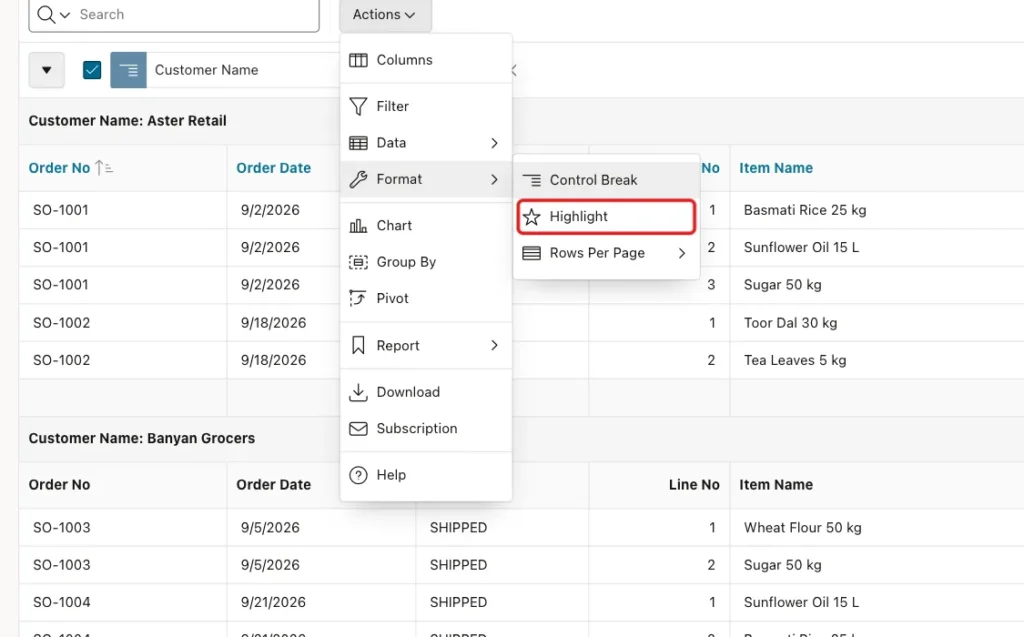
Fill in the Highlight dialog:
- Name: Large line. Highlight Type: Cell. Enabled: on.
- Background Color: #ffd6d6.
- Highlight Condition: Column Line Amount, Operator >=, Expression 20000.
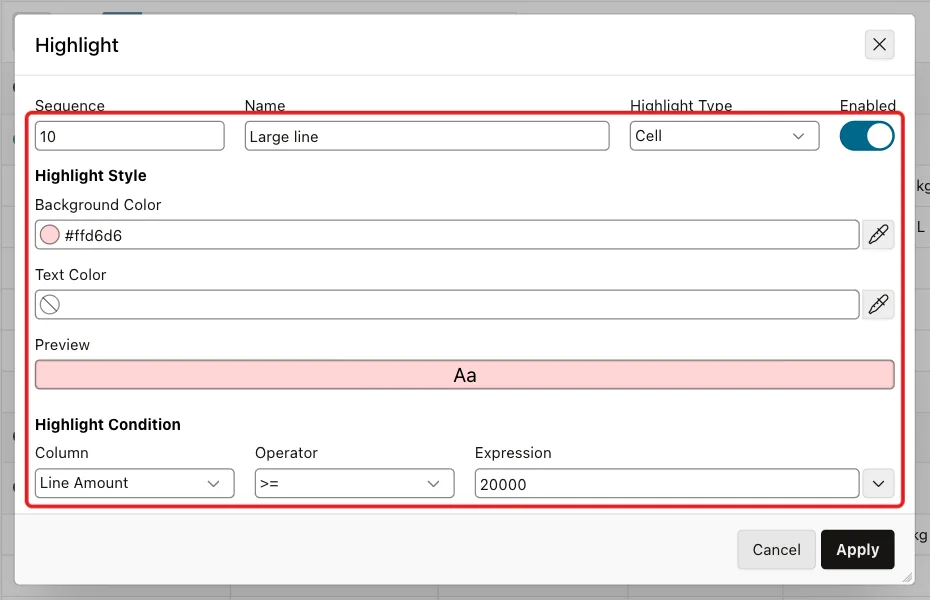
Click Apply. Cell highlights color only the Line Amount cell. Choose Row instead to color the whole row.
Step 9: Save the Layout as the Primary Default Report
So far, only your session sees the sections and subtotals. To give them to every user, click Actions, then Report, then Save Report:
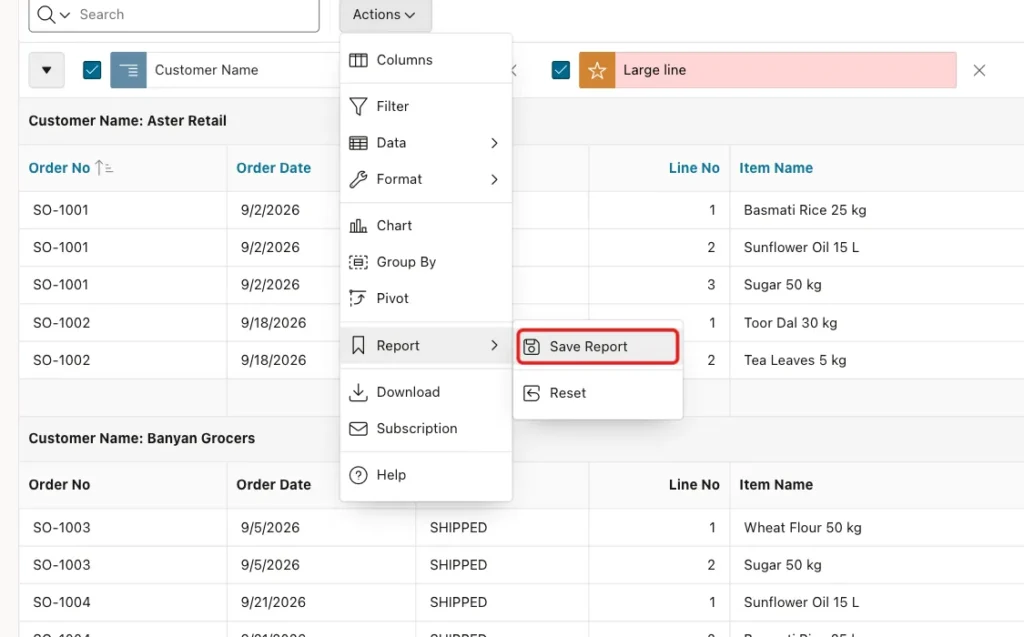
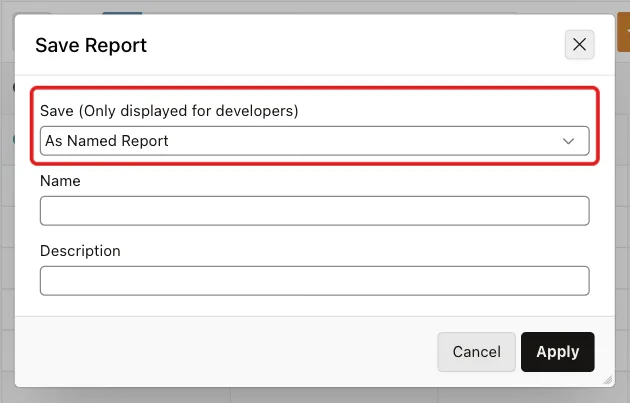
A developer session shows an extra list at the top of the Save Report dialog, Save (Only displayed for developers). Choose As Default Report Settings in that list:
The Save Default Report dialog opens. Choose Primary and click Apply:
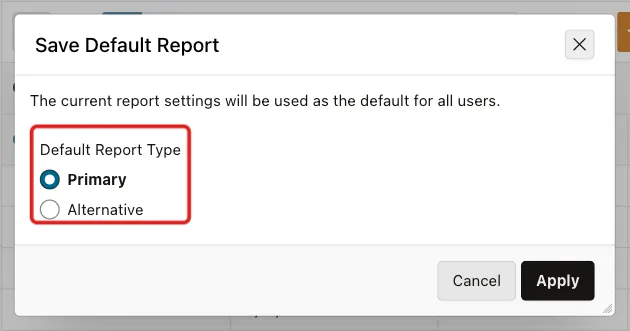
Primary replaces the report every user sees first. Alternative would keep the plain list as the first report and add this layout as a second, named report.
Back in Page Designer, the region's Saved Reports node now has a Primary Default report:
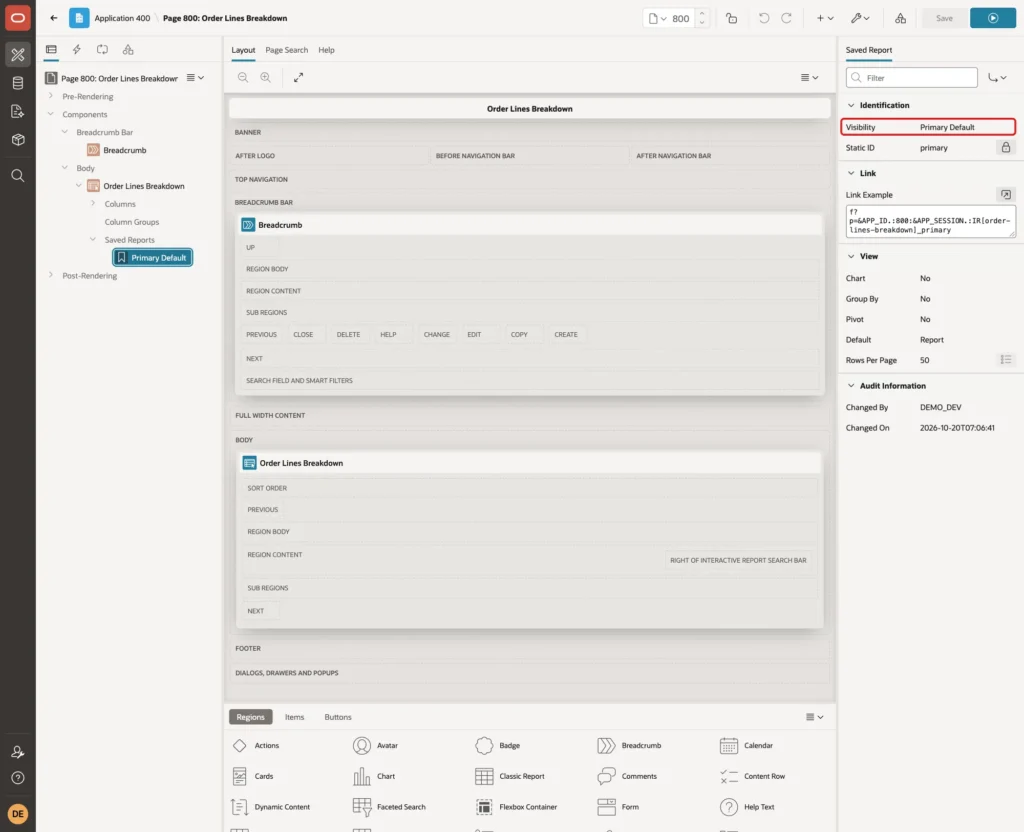
Because the default report is stored in the application, it moves with the application export to test and production. Query the APEX dictionary views to see what was saved:
Example:
select report_type, application_user, break_on, sum_columns_on_break,
       sort_column_1, sort_column_2, display_rows
from apex_application_page_ir_rpt
where application_id = 400
and page_id = 800
and report_type = 'PRIMARY_DEFAULT';

select c.condition_name, c.condition_column_name, c.condition_operator,
       c.condition_expression, c.highlight_cell_color
from apex_application_page_ir_cond c
join apex_application_page_ir_rpt r on r.report_id = c.report_id
where r.application_id = 400
and r.page_id = 800
and r.report_type = 'PRIMARY_DEFAULT';
Output:
REPORT_TYPE        APPLICATION_USER    BREAK_ON         SUM_COLUMNS_ON_BREAK    SORT_COLUMN_1    SORT_COLUMN_2       DISPLAY_ROWS
__________________ ___________________ ________________ _______________________ ________________ ________________ _______________
PRIMARY_DEFAULT    APXWS_DEFAULT       CUSTOMER_NAME    LINE_AMOUNT:QUANTITY    ORDER_NO         LINE_NO                       50

CONDITION_NAME    CONDITION_COLUMN_NAME    CONDITION_OPERATOR    CONDITION_EXPRESSION    HIGHLIGHT_CELL_COLOR
_________________ ________________________ _____________________ _______________________ _______________________
Large line        LINE_AMOUNT              >=                    20000                   #ffd6d6
BREAK_ON holds the break column, SUM_COLUMNS_ON_BREAK the two summed columns, and the two sort columns follow. The second query shows the highlight rule.
Step 10: Test the Report as Another User
Sign in as SALES_USER, a user with the Reader role who has never opened the page. The report opens with the control break, the sort, the subtotals and the highlighted cells:
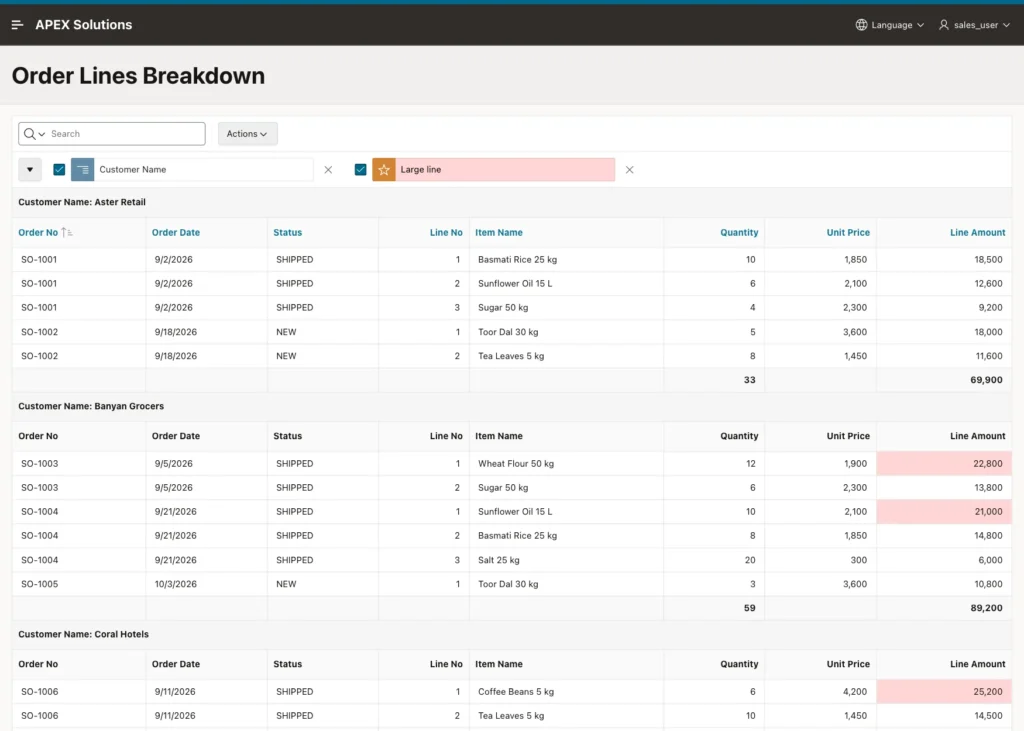
Scroll down to the last section. The subtotal rows read 33 and 69,900 for Aster Retail, 59 and 89,200 for Banyan Grocers, and 37 and 88,850 for Coral Hotels:
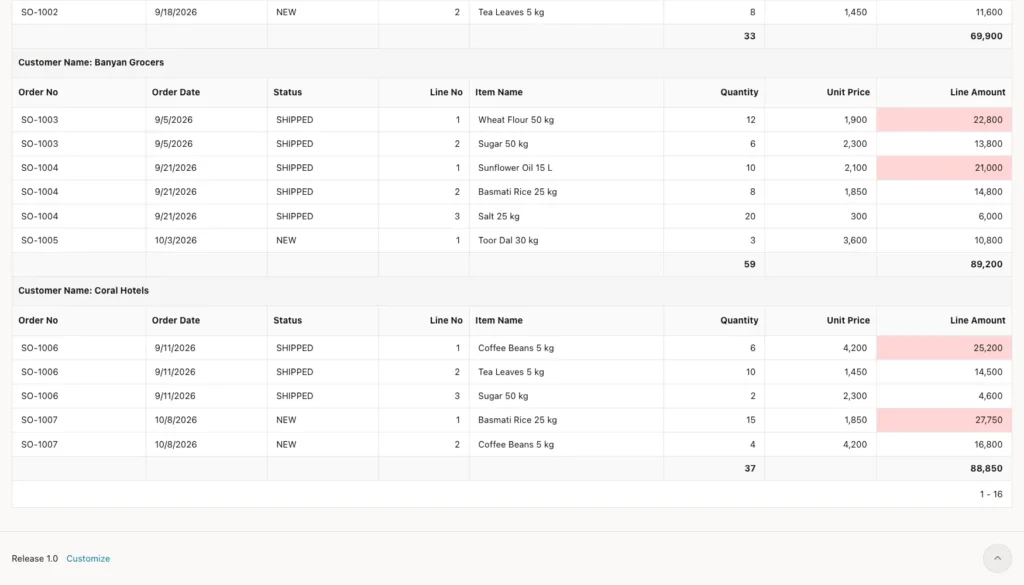
These are the same numbers as the ROLLUP subtotal rows in Step 2, for both the quantity and the amount.
The report has no grand total row while the control break is on. In this test, APEX showed only the section subtotals. To see the grand total, clear the checkbox next to Customer Name above the report. The break is switched off, and the last row shows 129 and 247,950, the ROLLUP grand total:
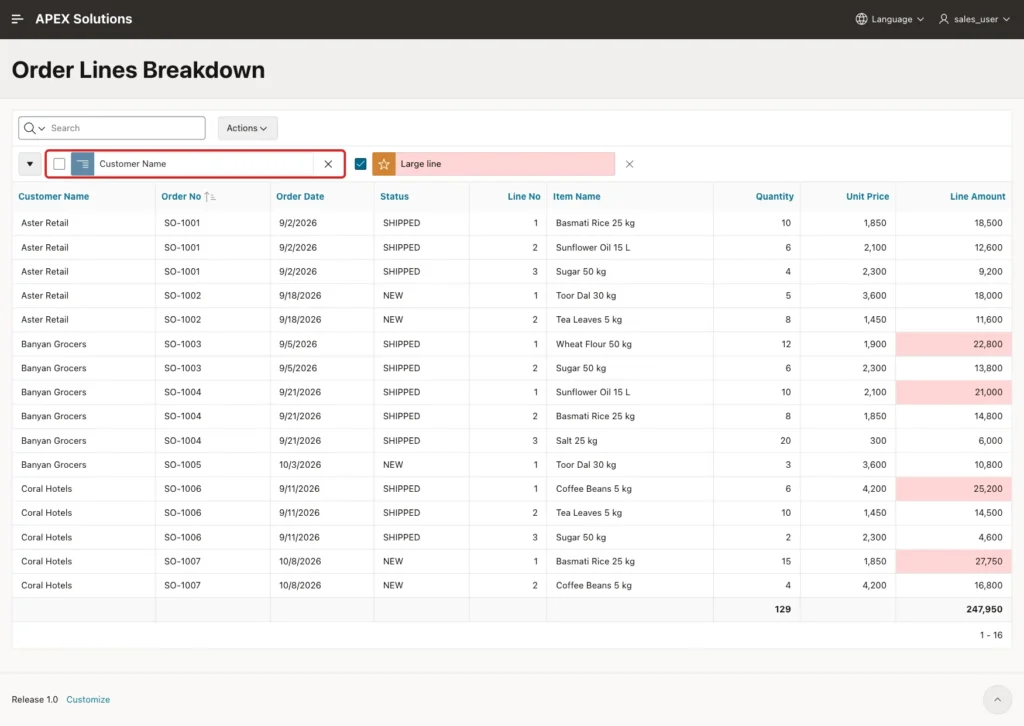
Tick the checkbox again to bring the sections back. Users can also change the report, for example remove the highlight. Actions, Report, Reset returns them to the saved primary report, not to the plain list. In this test, the report after Reset was identical to the saved layout.
Step 11: Break on Two Columns
A control break can use up to six columns. Open Actions, Format, Control Break again and set Column 2 to Order No:
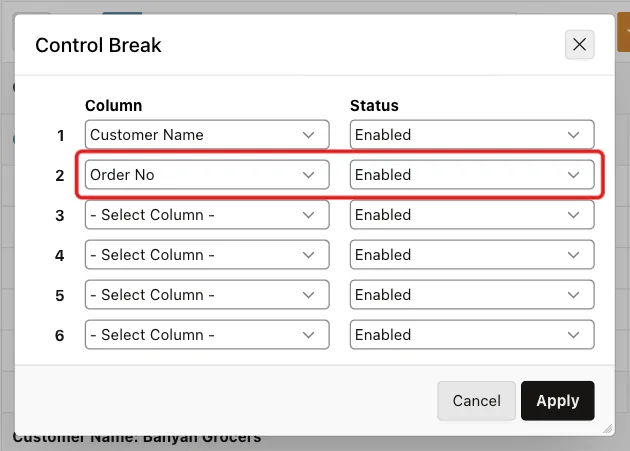
Click Apply. The two columns do not create nested sections with a subtotal on each level. They form one combined section per customer and order, such as "Customer Name: Aster Retail, Order No: SO-1001":
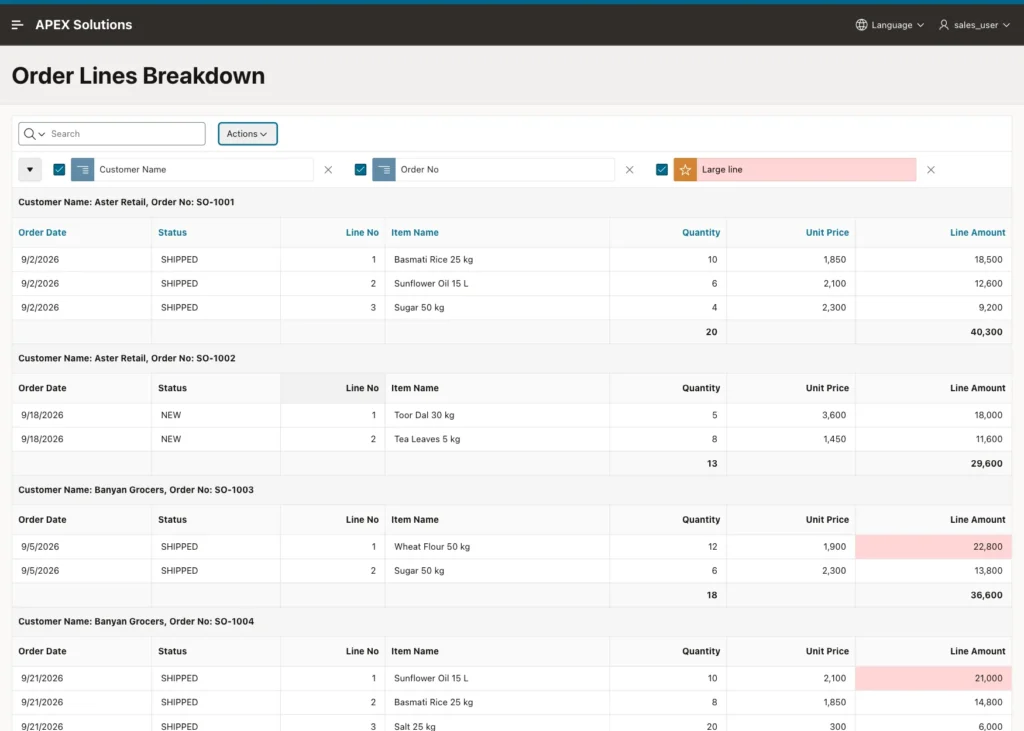
Each section ends with the order total: 40,300 for SO-1001, 29,600 for SO-1002 and so on. These match the order rows of the ROLLUP query. For subtotals per customer, use the single break from Step 5.
Things to Know
- A control break sorts the sections by the break column, but not the rows inside them. Add a sort on the columns that should order each section.
- Aggregates use the column's format mask, so set it in Page Designer first.
- With a control break on, the report showed section subtotals only and no grand total. Clearing the break checkbox showed the grand total.
- Several break columns form one combined section, not nested levels with their own subtotals.
- Only a developer session shows As Default Report Settings. Primary changes what every user sees first, and Reset returns users to it.
Related Guides
Conclusion
An Interactive Report in Oracle APEX can show grouped sections with subtotals without any SQL: break on a column, sort the rows inside each section, add Sum aggregates and a highlight rule, then save the layout as the primary default report.
Every user then opens the page with the sections and subtotals in place. In this example, every subtotal and the grand total matched SQL ROLLUP exactly.
