
"Which store is closest to me?" is a common question in business apps. The same question comes up for branches, service technicians, warehouses or pickup points. Sorting by city name does not answer it. The app has to measure the distance from one point to every location and show the closest ones first.
Oracle Database has this built in. Oracle Spatial measures distances on the earth's surface and finds the nearest rows through a spatial index, and the APEX Map region draws the result.
This guide stores latitude and longitude, adds a spatial index, writes the nearest-three query, and builds a page with a report and a map that shows the customer, the three nearest stores and a line to each one.
The earlier post How to Show Customers on a Map with Popups in Oracle APEX shows how to put points on a map with the Map page wizard. This guide does not repeat those steps. It is about measuring distances and ranking locations, and it builds the map region by hand with several layers.
The guide uses stores and customer addresses as the example. The same steps work for any table with coordinates.
Step 1: Create the Tables
Two tables hold the data:
- STORES holds the locations to search, with their latitude, longitude and an IS_ACTIVE flag for closed stores.
- CUSTOMER_ADDRESSES holds the starting points, one row per address.
Create the tables with fourteen stores in India and six customer addresses. The Karol Bagh store is closed:
Example:
create table stores (
  store_id    number generated by default on null as identity,
  store_code  varchar2(10)  not null,
  name        varchar2(100) not null,
  city        varchar2(50)  not null,
  latitude    number(8,5)   not null,
  longitude   number(8,5)   not null,
  is_active   varchar2(1)   default on null 'Y' not null,
  constraint stores_pk primary key (store_id),
  constraint stores_code_uk unique (store_code),
  constraint stores_lat_ck check (latitude between -90 and 90),
  constraint stores_lon_ck check (longitude between -180 and 180),
  constraint stores_active_ck check (is_active in ('Y', 'N'))
);

create table customer_addresses (
  address_id     number generated by default on null as identity,
  customer_name  varchar2(100) not null,
  address_line   varchar2(200) not null,
  city           varchar2(50)  not null,
  latitude       number(8,5)   not null,
  longitude      number(8,5)   not null,
  constraint customer_addresses_pk primary key (address_id),
  constraint customer_addresses_lat_ck check (latitude between -90 and 90),
  constraint customer_addresses_lon_ck check (longitude between -180 and 180)
);

insert into stores (store_code, name, city, latitude, longitude) values ('DL-CP',   'Connaught Place Store', 'New Delhi', 28.63150, 77.21670);
insert into stores (store_code, name, city, latitude, longitude) values ('DL-SAK',  'Saket Store',           'New Delhi', 28.52450, 77.20660);
insert into stores (store_code, name, city, latitude, longitude) values ('DL-DWK',  'Dwarka Store',          'New Delhi', 28.59210, 77.04600);
insert into stores (store_code, name, city, latitude, longitude, is_active) values ('DL-KB', 'Karol Bagh Store', 'New Delhi', 28.65190, 77.19090, 'N');
insert into stores (store_code, name, city, latitude, longitude) values ('GGN-CC',  'Cyber City Store',      'Gurugram',  28.49500, 77.08950);
insert into stores (store_code, name, city, latitude, longitude) values ('NOI-18',  'Sector 18 Store',       'Noida',     28.57080, 77.32610);
insert into stores (store_code, name, city, latitude, longitude) values ('GZB-IND', 'Indirapuram Store',     'Ghaziabad', 28.64110, 77.37120);
insert into stores (store_code, name, city, latitude, longitude) values ('FBD-NIT', 'NIT Faridabad Store',   'Faridabad', 28.39060, 77.30380);
insert into stores (store_code, name, city, latitude, longitude) values ('JAI-MI',  'MI Road Store',         'Jaipur',    26.91570, 75.80500);
insert into stores (store_code, name, city, latitude, longitude) values ('MUM-BKC', 'BKC Store',             'Mumbai',    19.06600, 72.86560);
insert into stores (store_code, name, city, latitude, longitude) values ('MUM-AND', 'Andheri Store',         'Mumbai',    19.11970, 72.84680);
insert into stores (store_code, name, city, latitude, longitude) values ('PUN-KP',  'Koregaon Park Store',   'Pune',      18.53620, 73.89400);
insert into stores (store_code, name, city, latitude, longitude) values ('BLR-MG',  'MG Road Store',         'Bengaluru', 12.97560, 77.60500);
insert into stores (store_code, name, city, latitude, longitude) values ('BLR-WF',  'Whitefield Store',      'Bengaluru', 12.96980, 77.75000);

insert into customer_addresses (customer_name, address_line, city, latitude, longitude) values ('Aarav Sharma', 'Lajpat Nagar II',      'New Delhi', 28.56770, 77.24330);
insert into customer_addresses (customer_name, address_line, city, latitude, longitude) values ('Priya Verma',  'Sector 62',            'Noida',     28.62080, 77.36330);
insert into customer_addresses (customer_name, address_line, city, latitude, longitude) values ('Kabir Singh',  'Pusa Road, Karol Bagh', 'New Delhi', 28.64400, 77.18800);
insert into customer_addresses (customer_name, address_line, city, latitude, longitude) values ('Rohan Mehta',  'Hiranandani, Powai',   'Mumbai',    19.11760, 72.90600);
insert into customer_addresses (customer_name, address_line, city, latitude, longitude) values ('Ananya Iyer',  'Koramangala 5th Block', 'Bengaluru', 12.93520, 77.62450);
insert into customer_addresses (customer_name, address_line, city, latitude, longitude) values ('Meera Nair',   'Marine Drive',         'Kochi',      9.97730, 76.27670);
commit;

select store_id, store_code, name, city, latitude, longitude, is_active from stores order by store_id;

select address_id, customer_name, city, latitude, longitude from customer_addresses order by address_id;
Output:
Table STORES created.

Table CUSTOMER_ADDRESSES created.

1 row inserted.

1 row inserted.

1 row inserted.

1 row inserted.

1 row inserted.

1 row inserted.

1 row inserted.

1 row inserted.

1 row inserted.

1 row inserted.

1 row inserted.

1 row inserted.

1 row inserted.

1 row inserted.

1 row inserted.

1 row inserted.

1 row inserted.

1 row inserted.

1 row inserted.

1 row inserted.

Commit complete.

   STORE_ID STORE_CODE    NAME                     CITY            LATITUDE    LONGITUDE IS_ACTIVE
___________ _____________ ________________________ ____________ ___________ ____________ ____________
          1 DL-CP         Connaught Place Store    New Delhi        28.6315      77.2167 Y
          2 DL-SAK        Saket Store              New Delhi        28.5245      77.2066 Y
          3 DL-DWK        Dwarka Store             New Delhi        28.5921       77.046 Y
          4 DL-KB         Karol Bagh Store         New Delhi        28.6519      77.1909 N
          5 GGN-CC        Cyber City Store         Gurugram          28.495      77.0895 Y
          6 NOI-18        Sector 18 Store          Noida            28.5708      77.3261 Y
          7 GZB-IND       Indirapuram Store        Ghaziabad        28.6411      77.3712 Y
          8 FBD-NIT       NIT Faridabad Store      Faridabad        28.3906      77.3038 Y
          9 JAI-MI        MI Road Store            Jaipur           26.9157       75.805 Y
         10 MUM-BKC       BKC Store                Mumbai            19.066      72.8656 Y
         11 MUM-AND       Andheri Store            Mumbai           19.1197      72.8468 Y
         12 PUN-KP        Koregaon Park Store      Pune             18.5362       73.894 Y
         13 BLR-MG        MG Road Store            Bengaluru        12.9756       77.605 Y
         14 BLR-WF        Whitefield Store         Bengaluru        12.9698        77.75 Y

14 rows selected.

   ADDRESS_ID CUSTOMER_NAME    CITY            LATITUDE    LONGITUDE
_____________ ________________ ____________ ___________ ____________
            1 Aarav Sharma     New Delhi        28.5677      77.2433
            2 Priya Verma      Noida            28.6208      77.3633
            3 Kabir Singh      New Delhi         28.644       77.188
            4 Rohan Mehta      Mumbai           19.1176       72.906
            5 Ananya Iyer      Bengaluru        12.9352      77.6245
            6 Meera Nair       Kochi             9.9773      76.2767

6 rows selected.
The check constraints keep the coordinates in their valid ranges: latitude from -90 to 90 and longitude from -180 to 180. IS_ACTIVE uses DEFAULT ON NULL, so a new store is active unless the insert says otherwise. In a real application, the coordinates come from the address, for example from a geocoding service.
Step 2: Add a Spatial Index
Oracle Spatial works with the SDO_GEOMETRY type. A point is SDO_GEOMETRY with type 2001, coordinate system 4326 (WGS84, the system of GPS coordinates), and the longitude first, then the latitude.
The first idea was a virtual SDO_GEOMETRY column built from LATITUDE and LONGITUDE. In a first test, CREATE TABLE failed with ORA-54003: specified data type is not supported for a virtual column.
So the point comes from a small DETERMINISTIC function, and the spatial index is built on that function. The table keeps only the two number columns, and no trigger is needed to keep a geometry column in sync.
Create the function, register the indexed expression in USER_SDO_GEOM_METADATA, and create the index:
Example:
create or replace function geo_point (
  p_longitude in number,
  p_latitude  in number
) return sdo_geometry deterministic
is
begin
  return sdo_geometry(2001, 4326, sdo_point_type(p_longitude, p_latitude, null), null, null);
end geo_point;
/

insert into user_sdo_geom_metadata (table_name, column_name, diminfo, srid)
values ('STORES', 'GEO_POINT(LONGITUDE,LATITUDE)',
        sdo_dim_array(sdo_dim_element('LONGITUDE', -180, 180, 0.05),
                      sdo_dim_element('LATITUDE',   -90,  90, 0.05)),
        4326);
commit;

create index stores_location_sx on stores (geo_point(longitude, latitude))
  indextype is mdsys.spatial_index_v2;

select index_name, index_type, ityp_name, status, domidx_opstatus
from   user_indexes
where  index_name = 'STORES_LOCATION_SX';
Output:
Function GEO_POINT compiled

1 row inserted.

Commit complete.

Index STORES_LOCATION_SX created.

INDEX_NAME            INDEX_TYPE               ITYP_NAME           STATUS    DOMIDX_OPSTATUS
_____________________ ________________________ ___________________ _________ __________________
STORES_LOCATION_SX    FUNCTION-BASED DOMAIN    SPATIAL_INDEX_V2    VALID     VALID
The metadata row tells Spatial the dimensions, the tolerance (0.05 meters) and the coordinate system of the expression GEO_POINT(LONGITUDE,LATITUDE). The index is maintained automatically on every insert, update and delete, as Step 4 shows.
Step 3: Write the Nearest Stores Query
SDO_NN (nearest neighbor) returns the rows nearest to a point, using the spatial index. SDO_NN_DISTANCE(1) returns the distance of each row; the 1 links it to the last argument of SDO_NN. With unit=KM, the distance is in kilometers.
Find the three nearest active stores to Kabir Singh's address in Karol Bagh:
Example:
set pagesize 100 linesize 200
variable address_id number
exec :address_id := 3

select s.store_code,
       s.name,
       s.city,
       round(sdo_nn_distance(1), 2) as distance_km
from   stores s
join   customer_addresses a on a.address_id = :address_id
where  sdo_nn(geo_point(s.longitude, s.latitude),
              geo_point(a.longitude, a.latitude),
              'unit=KM', 1) = 'TRUE'
and    s.is_active = 'Y'
order  by sdo_nn_distance(1)
fetch  first 3 rows only;
Output:
PL/SQL procedure successfully completed.

STORE_CODE    NAME                     CITY            DISTANCE_KM
_____________ ________________________ ____________ ______________
DL-CP         Connaught Place Store    New Delhi              3.13
DL-SAK        Saket Store              New Delhi             13.37
DL-DWK        Dwarka Store             New Delhi             15.03
The closed Karol Bagh store is not in the result. It is less than one kilometer from Kabir's address, as the next check shows, but IS_ACTIVE = 'Y' filters it out, and the query still returns three stores.
Do not limit the rows with the sdo_num_res parameter when the query has other filters. With sdo_num_res=3, SDO_NN picks the three nearest stores first, and the IS_ACTIVE filter runs afterwards:
Example:
set pagesize 100 linesize 200
variable address_id number
exec :address_id := 3

select s.store_code,
       round(sdo_nn_distance(1), 2) as distance_km
from   stores s
join   customer_addresses a on a.address_id = :address_id
where  sdo_nn(geo_point(s.longitude, s.latitude),
              geo_point(a.longitude, a.latitude),
              'sdo_num_res=3 unit=KM', 1) = 'TRUE'
and    s.is_active = 'Y'
order  by distance_km;
Output:
PL/SQL procedure successfully completed.

STORE_CODE       DISTANCE_KM
_____________ ______________
DL-CP                   3.13
DL-SAK                 13.37
Only two stores came back, because the closed store took one of the three places. Leave sdo_num_res out and use ORDER BY with FETCH FIRST, as in the main query.
The execution plan shows that the query reads the spatial index (DOMAIN INDEX) and stops after three rows (COUNT STOPKEY):
Example:
set pagesize 100 linesize 200
explain plan for
select s.store_code, round(sdo_nn_distance(1), 2) as distance_km
from   stores s
join   customer_addresses a on a.address_id = :address_id
where  sdo_nn(geo_point(s.longitude, s.latitude), geo_point(a.longitude, a.latitude), 'unit=KM', 1) = 'TRUE'
and    s.is_active = 'Y'
order  by sdo_nn_distance(1)
fetch  first 3 rows only;

select plan_table_output from table(dbms_xplan.display(format => 'basic'));
Output:
Explained.

PLAN_TABLE_OUTPUT
________________________________________________________________________
Plan hash value: 1156435416

---------------------------------------------------------------------
| Id  | Operation                           | Name                  |
---------------------------------------------------------------------
|   0 | SELECT STATEMENT                    |                       |
|   1 |  COUNT STOPKEY                      |                       |
|   2 |   VIEW                              |                       |
|   3 |    SORT ORDER BY STOPKEY            |                       |
|   4 |     NESTED LOOPS                    |                       |
|   5 |      TABLE ACCESS BY INDEX ROWID    | CUSTOMER_ADDRESSES    |
|   6 |       INDEX UNIQUE SCAN             | CUSTOMER_ADDRESSES_PK |
|   7 |      TABLE ACCESS BY INDEX ROWID    | STORES                |
|   8 |       DOMAIN INDEX (SEL: 0.100000 %)| STORES_LOCATION_SX    |
---------------------------------------------------------------------

15 rows selected.
Step 4: Check the Distances
To check the numbers, compare SDO_GEOM.SDO_DISTANCE with the haversine formula, which measures the distance on a sphere with the earth's mean radius of 6371.0088 km. This query does not use the index; it measures every store:
Example:
set pagesize 100 linesize 200
variable address_id number
exec :address_id := 3

select s.store_code,
       s.is_active,
       round(sdo_geom.sdo_distance(geo_point(s.longitude, s.latitude),
                                   geo_point(a.longitude, a.latitude),
                                   0.05, 'unit=KM'), 2) as spatial_km,
       round(2 * 6371.0088 * asin(sqrt(
               power(sin((s.latitude - a.latitude) * acos(-1) / 360), 2) +
               cos(a.latitude * acos(-1) / 180) * cos(s.latitude * acos(-1) / 180) *
               power(sin((s.longitude - a.longitude) * acos(-1) / 360), 2))), 2) as haversine_km
from   stores s
join   customer_addresses a on a.address_id = :address_id
order  by spatial_km
fetch  first 6 rows only;
Output:
PL/SQL procedure successfully completed.

STORE_CODE    IS_ACTIVE       SPATIAL_KM    HAVERSINE_KM
_____________ ____________ _____________ _______________
DL-KB         N                     0.92            0.92
DL-CP         Y                     3.13            3.13
DL-SAK        Y                    13.37           13.41
DL-DWK        Y                    15.03           15.01
NOI-18        Y                    15.76           15.75
GZB-IND       Y                    17.91           17.88

6 rows selected.
The order matches the SDO_NN result: Connaught Place, Saket and Dwarka, after the closed Karol Bagh store. The two methods differ by a few tens of meters at these distances.
For a longer distance, measure Connaught Place in New Delhi to BKC in Mumbai:
Example:
set pagesize 100 linesize 200
select round(sdo_geom.sdo_distance(geo_point(77.2167, 28.6315),
                                   geo_point(72.8656, 19.0660),
                                   0.05, 'unit=KM'), 1) as spatial_km,
       round(2 * 6371.0088 * asin(sqrt(
               power(sin((19.0660 - 28.6315) * acos(-1) / 360), 2) +
               cos(28.6315 * acos(-1) / 180) * cos(19.0660 * acos(-1) / 180) *
               power(sin((72.8656 - 77.2167) * acos(-1) / 360), 2))), 1) as haversine_km
from   dual;
Output:
   SPATIAL_KM    HAVERSINE_KM
_____________ _______________
       1148.1          1151.7
The values differ by 3.6 km, or 0.3 percent. Spatial measures on the WGS84 ellipsoid, the actual shape of the earth, while haversine assumes a perfect sphere. For "which store is closest", both are fine; Spatial is the more accurate one.
Next, check that the index follows changes in the table. Add a store in Kochi, next to Meera Nair's address, and then close it:
Example:
set pagesize 100 linesize 200
variable address_id number
exec :address_id := 6

insert into stores (store_code, name, city, latitude, longitude)
values ('KOC-MG', 'MG Road Kochi Store', 'Kochi', 9.96700, 76.28500);
commit;

select s.store_code, round(sdo_nn_distance(1), 2) as distance_km
from   stores s
join   customer_addresses a on a.address_id = :address_id
where  sdo_nn(geo_point(s.longitude, s.latitude), geo_point(a.longitude, a.latitude), 'unit=KM', 1) = 'TRUE'
and    s.is_active = 'Y'
order  by sdo_nn_distance(1)
fetch  first 3 rows only;

update stores set is_active = 'N' where store_code = 'KOC-MG';
commit;

select s.store_code, round(sdo_nn_distance(1), 2) as distance_km
from   stores s
join   customer_addresses a on a.address_id = :address_id
where  sdo_nn(geo_point(s.longitude, s.latitude), geo_point(a.longitude, a.latitude), 'unit=KM', 1) = 'TRUE'
and    s.is_active = 'Y'
order  by sdo_nn_distance(1)
fetch  first 3 rows only;
Output:
PL/SQL procedure successfully completed.

1 row inserted.

Commit complete.

STORE_CODE       DISTANCE_KM
_____________ ______________
KOC-MG                  1.46
BLR-MG                361.94
BLR-WF                367.98

1 row updated.

Commit complete.

STORE_CODE       DISTANCE_KM
_____________ ______________
BLR-MG                361.94
BLR-WF                367.98
PUN-KP                 981.2
The new store was found at once, 1.46 km away, with no index rebuild. After it was closed, Meera's nearest stores were in Bengaluru and Pune again. The Kochi store stays in the table as an inactive store.
Step 5: Create the Page
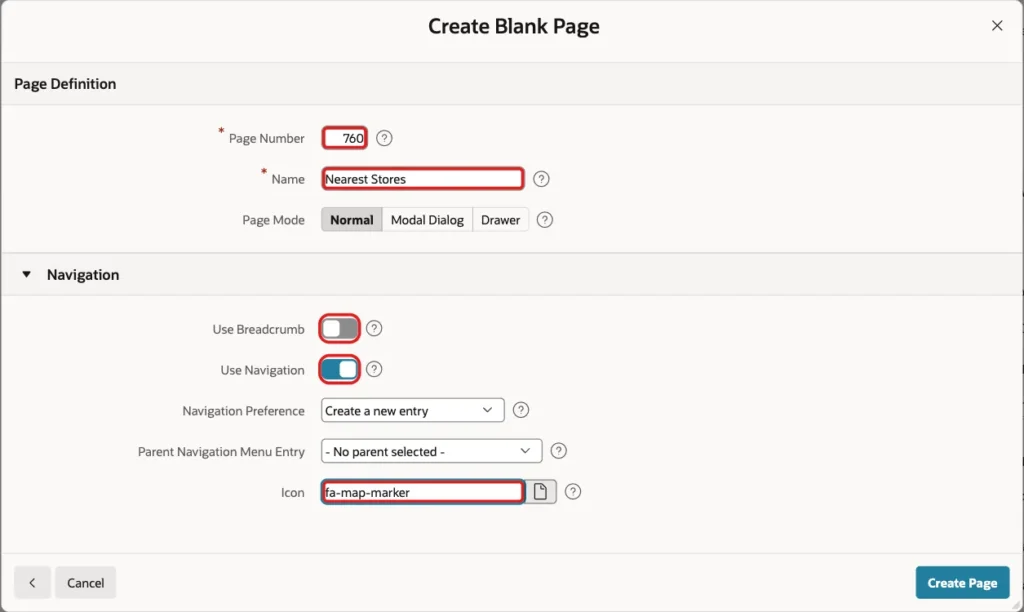
In App Builder, open the application, click Create Page, and select Blank Page:

Enter Page Number 760 and Name Nearest Stores. Turn off Use Breadcrumb, keep Use Navigation on, enter the icon fa-map-marker, and click Create Page:
Step 6: Add the Customer Select List
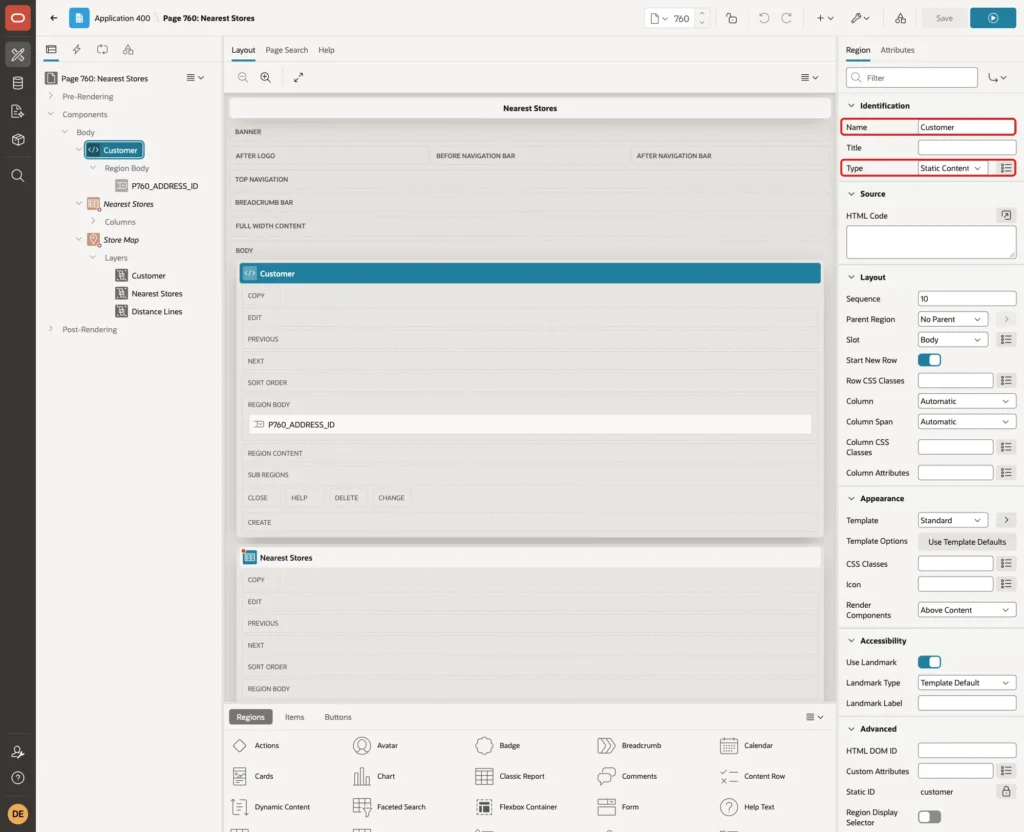
In Page Designer, add a Static Content region to the Body and name it Customer:
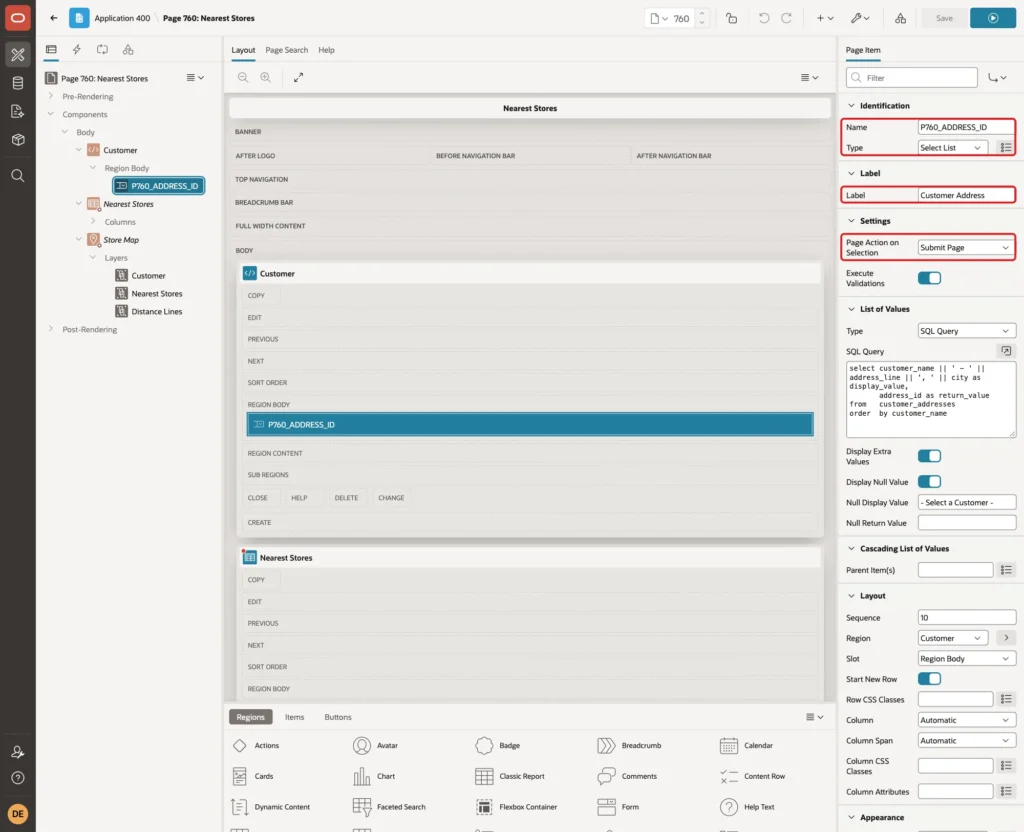
Add a page item to the region. Set Name to P760_ADDRESS_ID, Type to Select List and Label to Customer Address. Set Page Action on Selection to Submit Page, so the page loads again with the new address as soon as the user picks one:
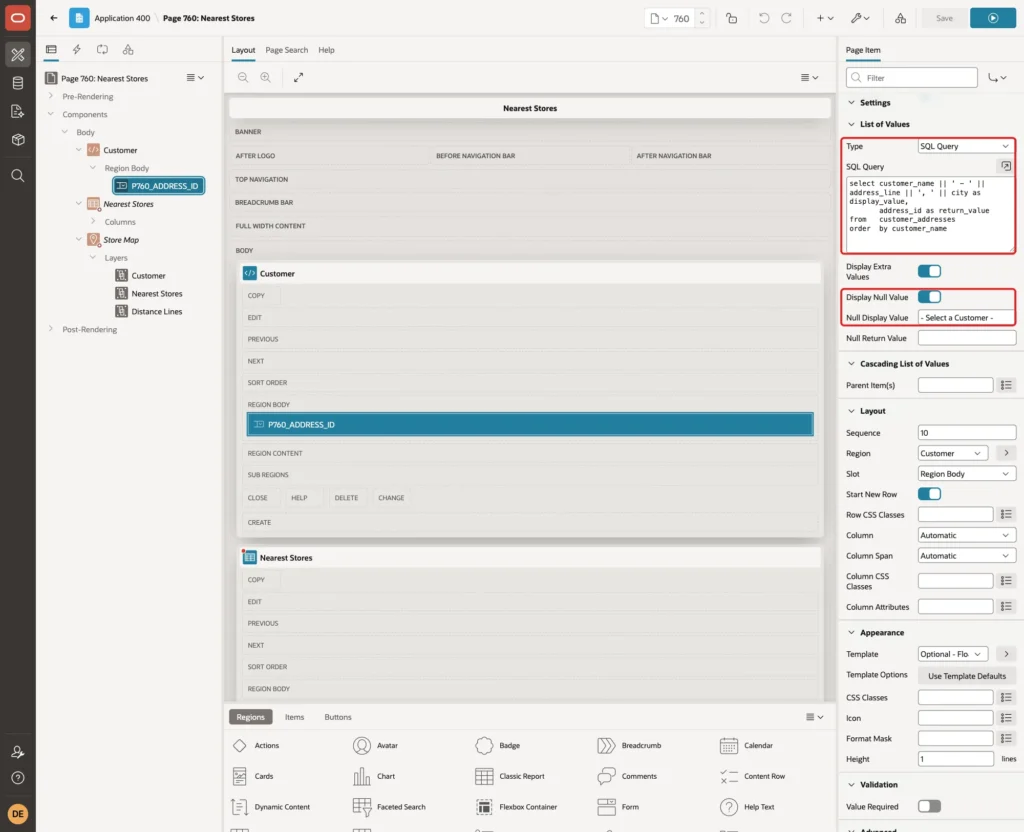
In List of Values, set Type to SQL Query and enter this query:
Example:
select customer_name || ' - ' || address_line || ', ' || city as display_value,
       address_id as return_value
from   customer_addresses
order  by customer_name
Keep Display Null Value on and set Null Display Value to - Select a Customer -:
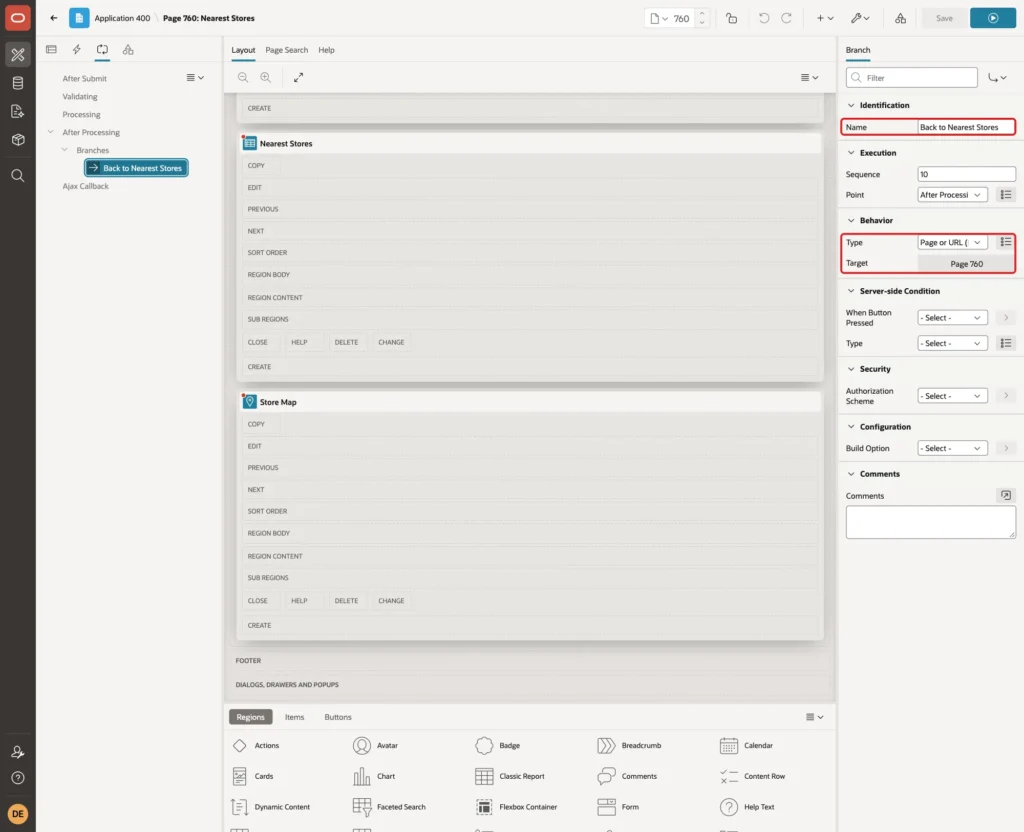
Because the select list submits the page, add a branch that loads the page again. On the Processing tab, create a branch named Back to Nearest Stores with Type Page or URL (Redirect) and Target page 760:
Step 7: Add the Nearest Stores Report
Add a Classic Report region below Customer and name it Nearest Stores. Set Source Type to SQL Query, enter this query and set Page Items to Submit to P760_ADDRESS_ID:
Example:
select row_number() over (order by sdo_nn_distance(1)) as rank_no,
       s.store_id,
       s.store_code,
       s.name,
       s.city,
       round(sdo_nn_distance(1), 2) as distance_km
from   stores s
join   customer_addresses a on a.address_id = :P760_ADDRESS_ID
where  sdo_nn(geo_point(s.longitude, s.latitude),
              geo_point(a.longitude, a.latitude),
              'unit=KM', 1) = 'TRUE'
and    s.is_active = 'Y'
order  by sdo_nn_distance(1)
fetch  first 3 rows only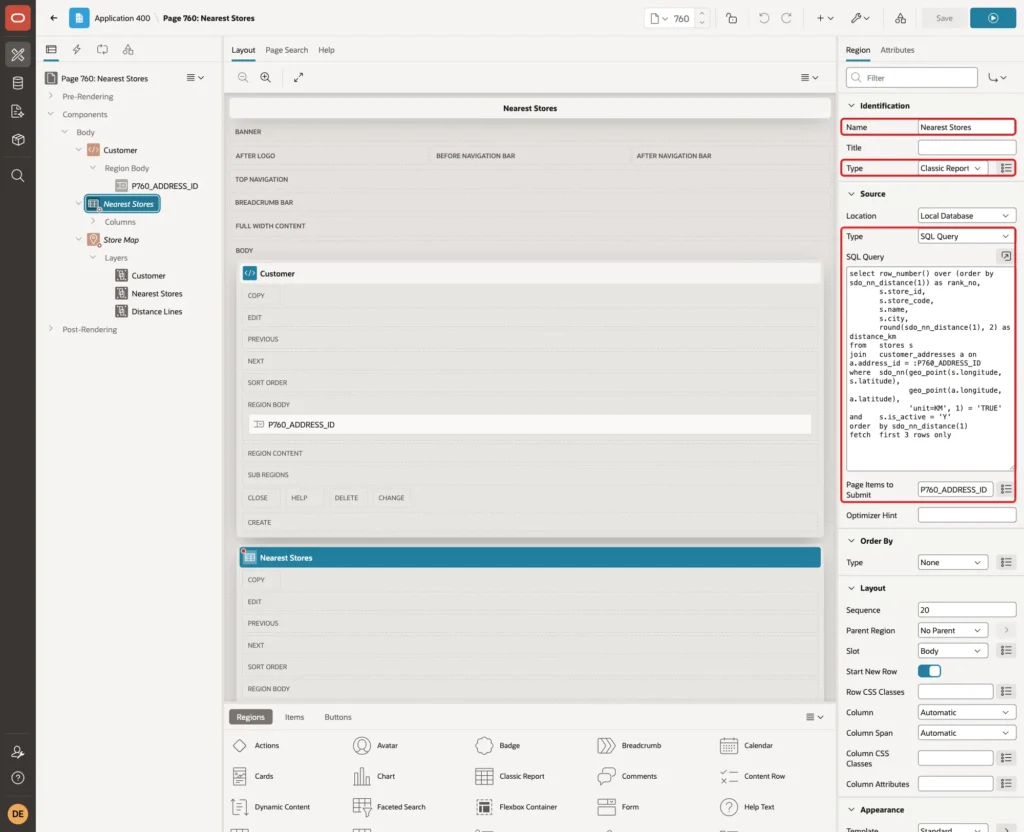
ROW_NUMBER() numbers the stores from the nearest to the farthest. It is calculated before FETCH FIRST, so the numbers are 1, 2 and 3.
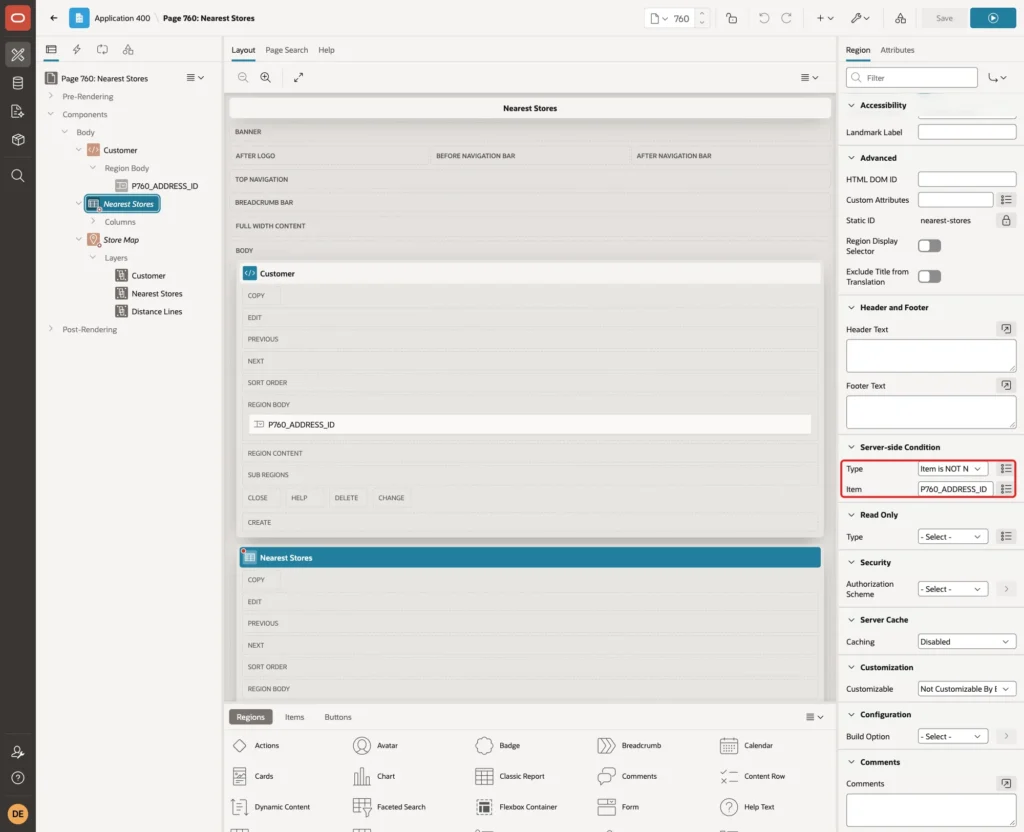
In Server-side Condition, set Type to Item is NOT NULL and Item to P760_ADDRESS_ID. Before an address is picked, the report does not show at all:
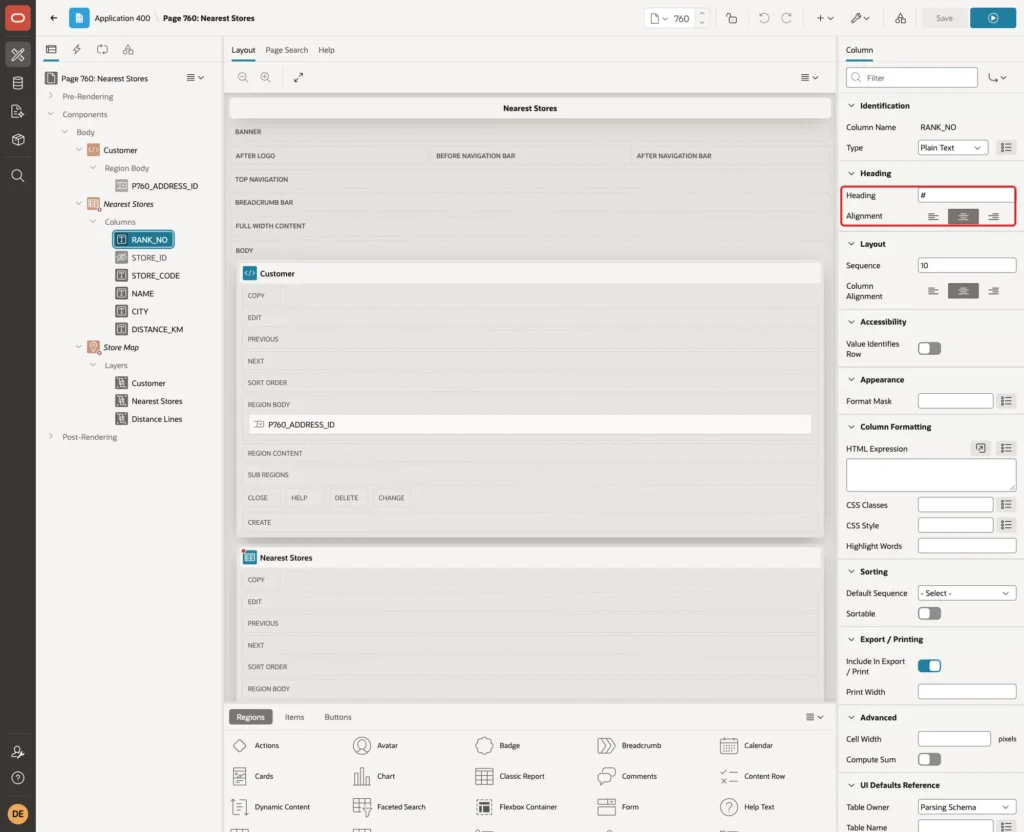
In the report's Messages group, set When No Data Found to No active stores found. Then expand Columns and set the column properties. For RANK_NO, set Heading to # and Alignment to center:
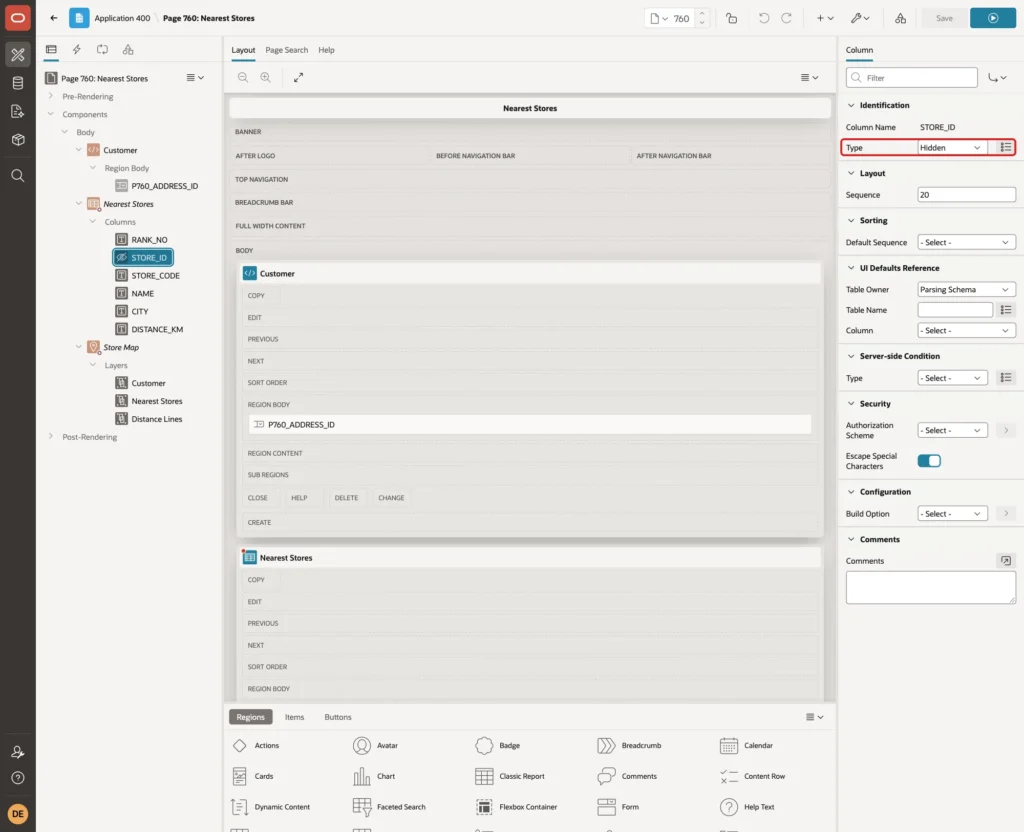
Set the Type of STORE_ID to Hidden:
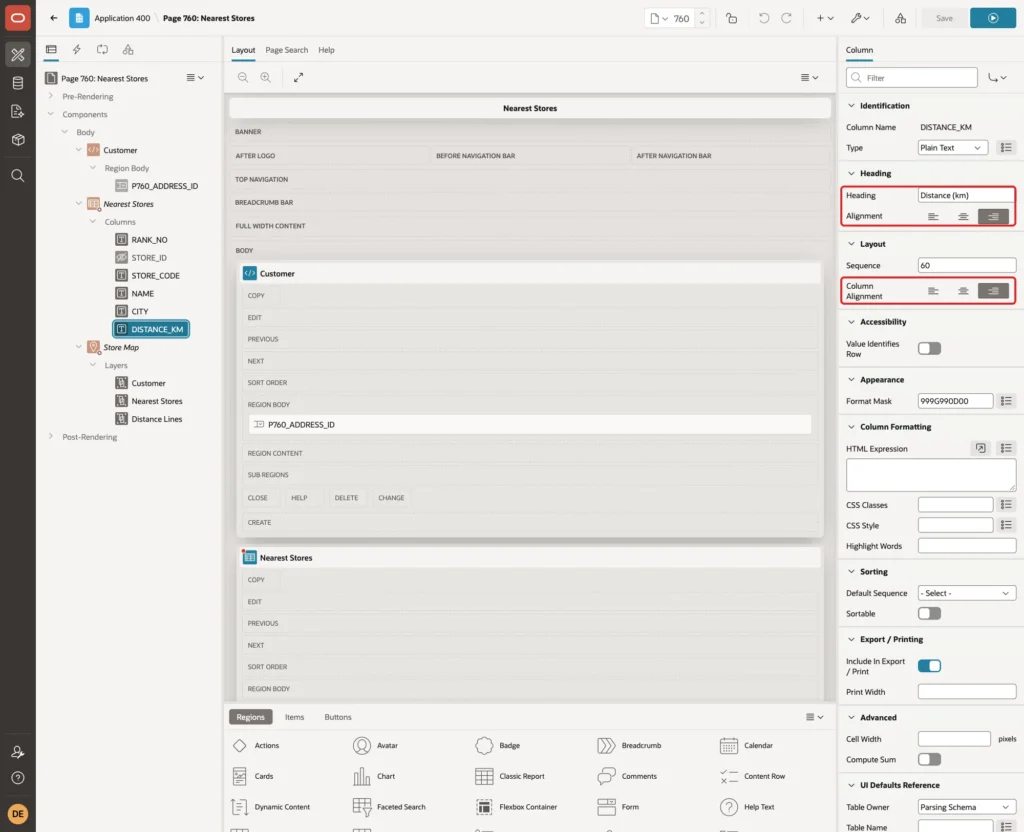
Set the headings of STORE_CODE, NAME and CITY to Code, Store and City. For DISTANCE_KM, set Heading to Distance (km), and set Alignment and Column Alignment to end:
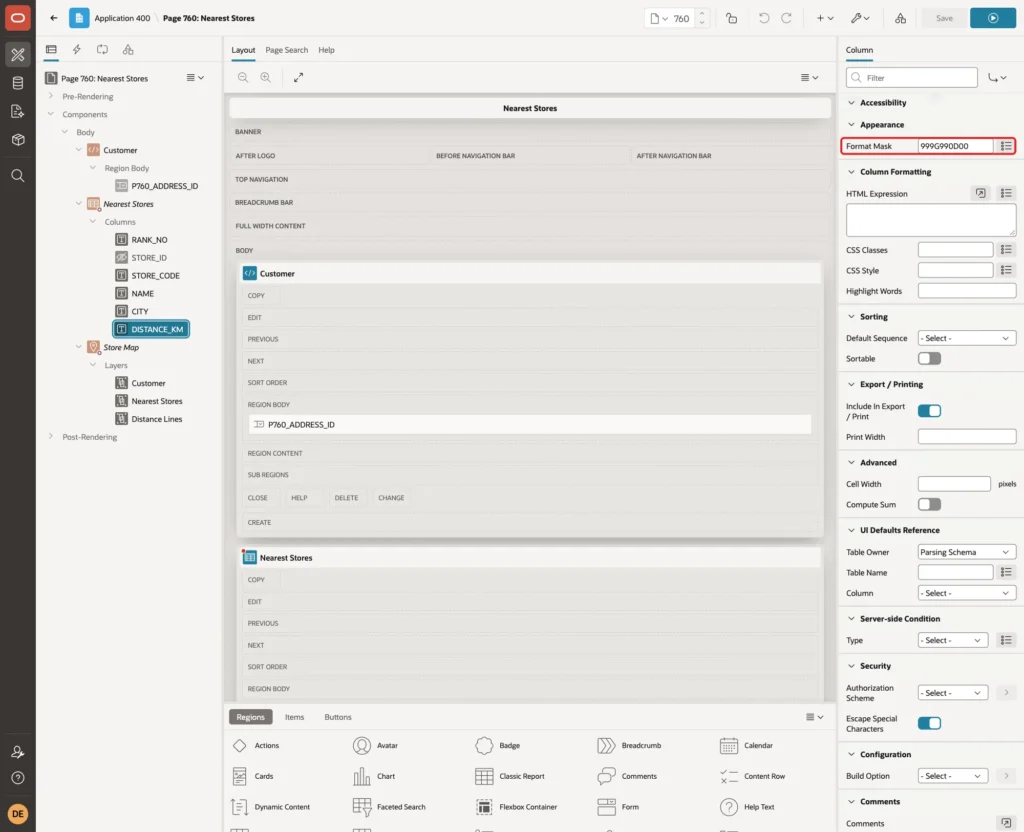
Set Format Mask to 999G990D00, so every distance shows two decimals:
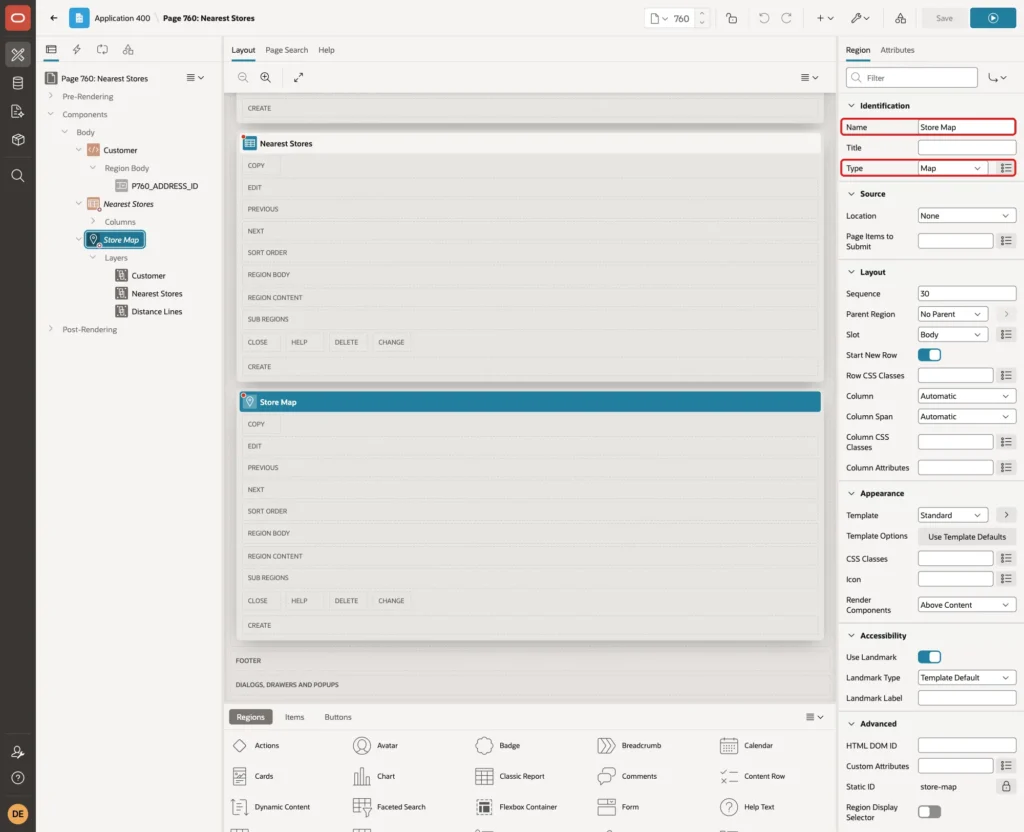
Step 8: Add the Map Region
Add a Map region below Nearest Stores and name it Store Map. Give it the same Server-side Condition: Item is NOT NULL, P760_ADDRESS_ID:
On the Attributes tab, in Controls, check Scale Bar, Infinite Map and Distance Tool. The distance tool lets users measure any distance on the map themselves:
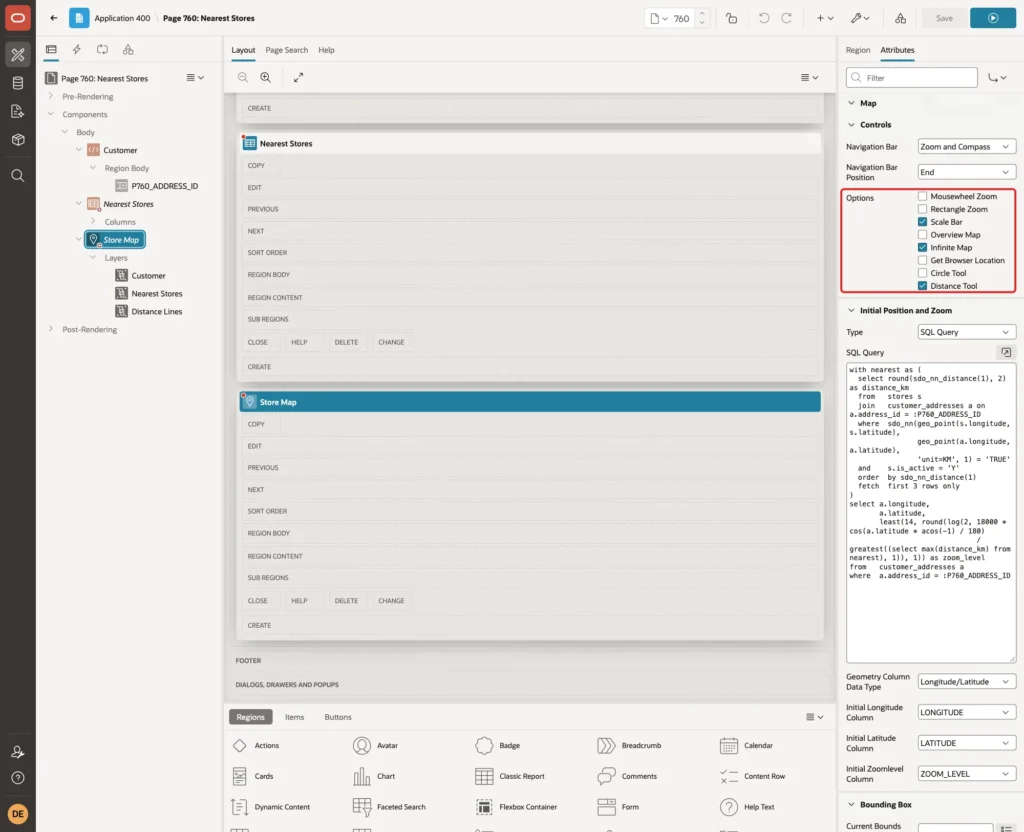
By default, the map zooms to fit all features. In testing, that put the customer's marker at the very edge of the map, with its top cut off. A better view puts the customer in the center and zooms out just far enough to show the farthest of the three stores.
In Initial Position and Zoom, set Type to SQL Query and enter this query. Set Geometry Column Data Type to Longitude/Latitude, and the three columns to LONGITUDE, LATITUDE and ZOOM_LEVEL:
Example:
with nearest as (
  select round(sdo_nn_distance(1), 2) as distance_km
  from   stores s
  join   customer_addresses a on a.address_id = :P760_ADDRESS_ID
  where  sdo_nn(geo_point(s.longitude, s.latitude),
                geo_point(a.longitude, a.latitude),
                'unit=KM', 1) = 'TRUE'
  and    s.is_active = 'Y'
  order  by sdo_nn_distance(1)
  fetch  first 3 rows only
)
select a.longitude,
       a.latitude,
       least(14, round(log(2, 18000 * cos(a.latitude * acos(-1) / 180)
                              / greatest((select max(distance_km) from nearest), 1)), 1)) as zoom_level
from   customer_addresses a
where  a.address_id = :P760_ADDRESS_ID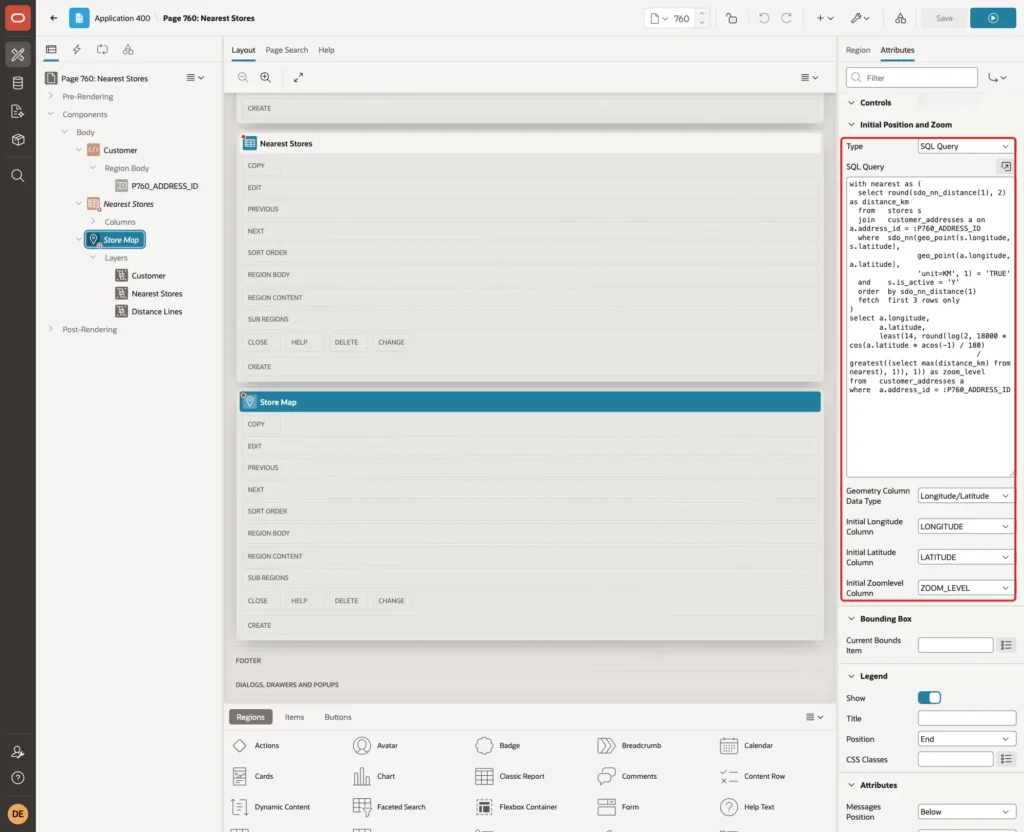
At zoom level z, one pixel of the map covers about 40075 × cos(latitude) / (512 × 2^z) km. The constant 18000 makes the farthest store land about 240 pixels from the center, which fits the map in this example, about 600 pixels high. For a smaller map, lower the constant.
The zoom level may have decimals; the map accepted values such as 10.9 for Aarav Sharma and 4.6 for Ananya Iyer. LEAST(14, ...) stops the map from zooming in too far when all stores are very close, and GREATEST(..., 1) avoids a division by a tiny distance.
Step 9: Add the Customer Layer
The map region starts with one layer. Select it under Layers, name it Customer, keep Layer Type Points, set Source Type to SQL Query, enter this query, and set Page Items to Submit to P760_ADDRESS_ID:
Example:
select address_id,
       customer_name,
       address_line,
       city as customer_city,
       latitude,
       longitude
from   customer_addresses
where  address_id = :P760_ADDRESS_ID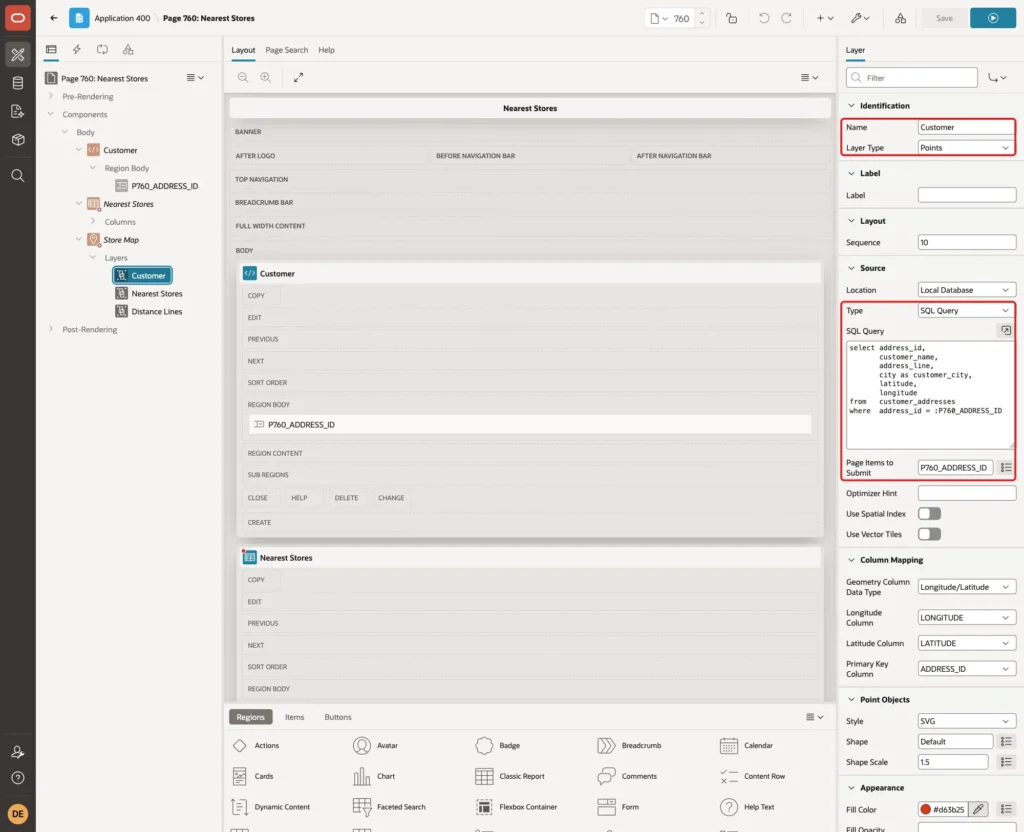
The city column is named CUSTOMER_CITY, not CITY, for a reason explained in Step 10. In Column Mapping, set Geometry Column Data Type to Longitude/Latitude, Longitude Column to LONGITUDE, Latitude Column to LATITUDE and Primary Key Column to ADDRESS_ID:
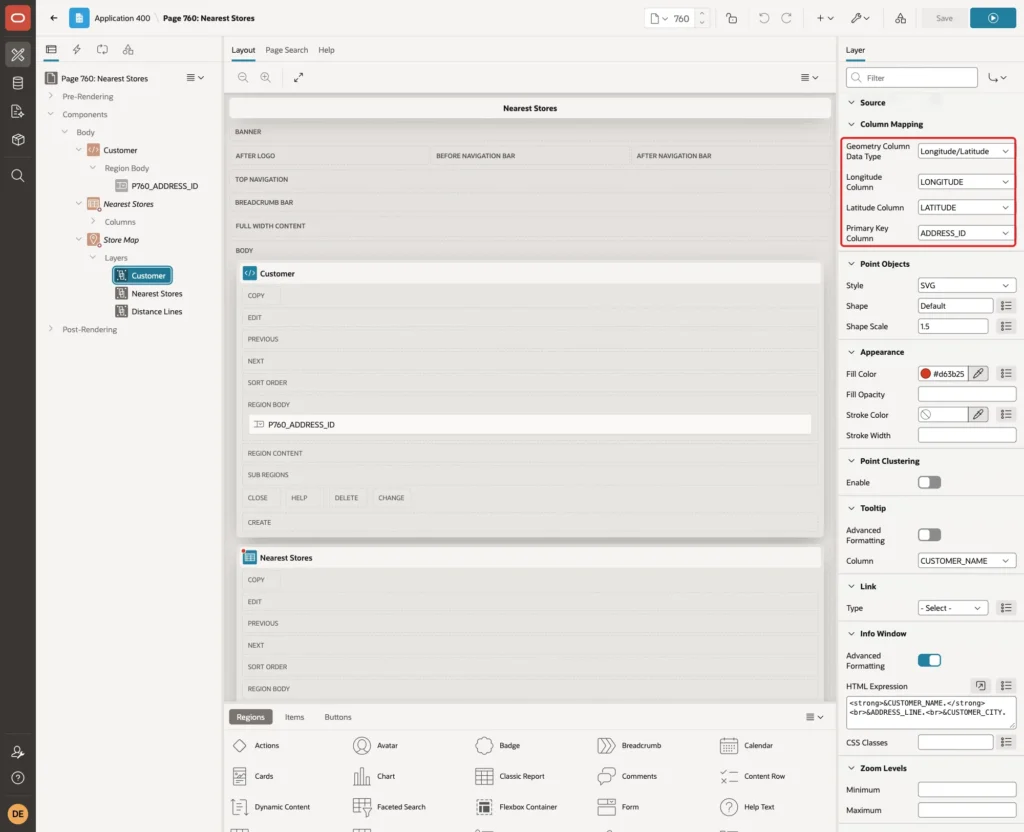
Set Shape Scale to 1.5 and Fill Color to #d63b25, so the customer is a larger red marker:
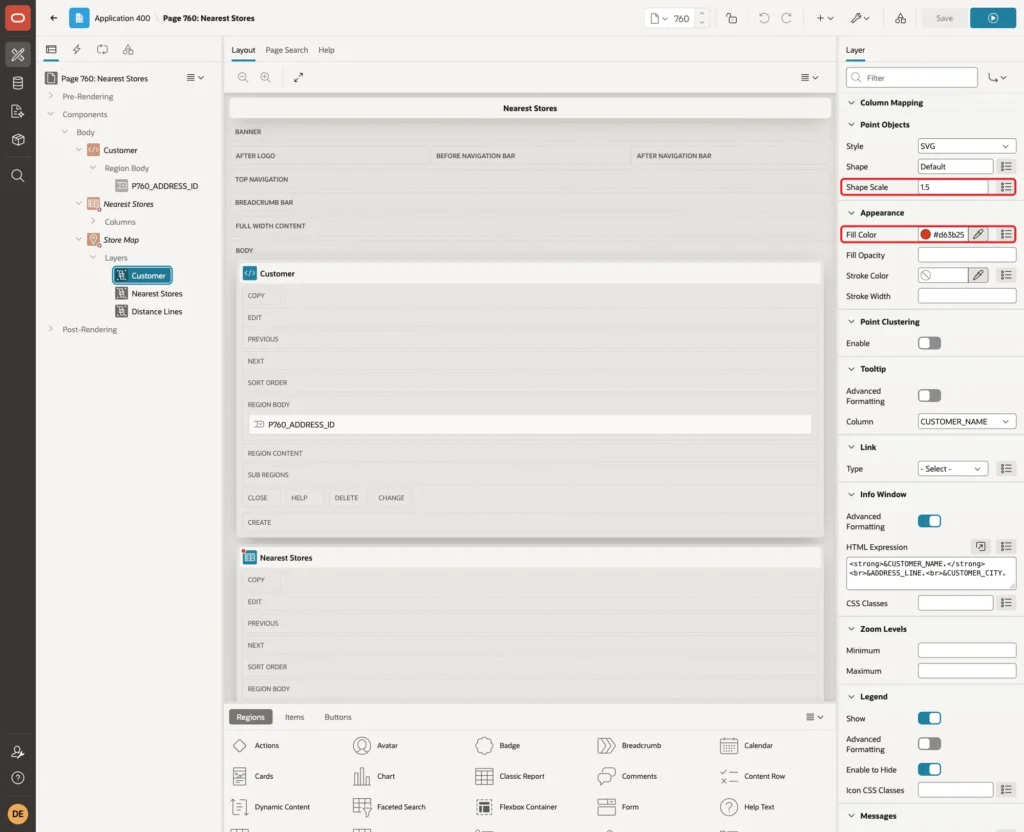
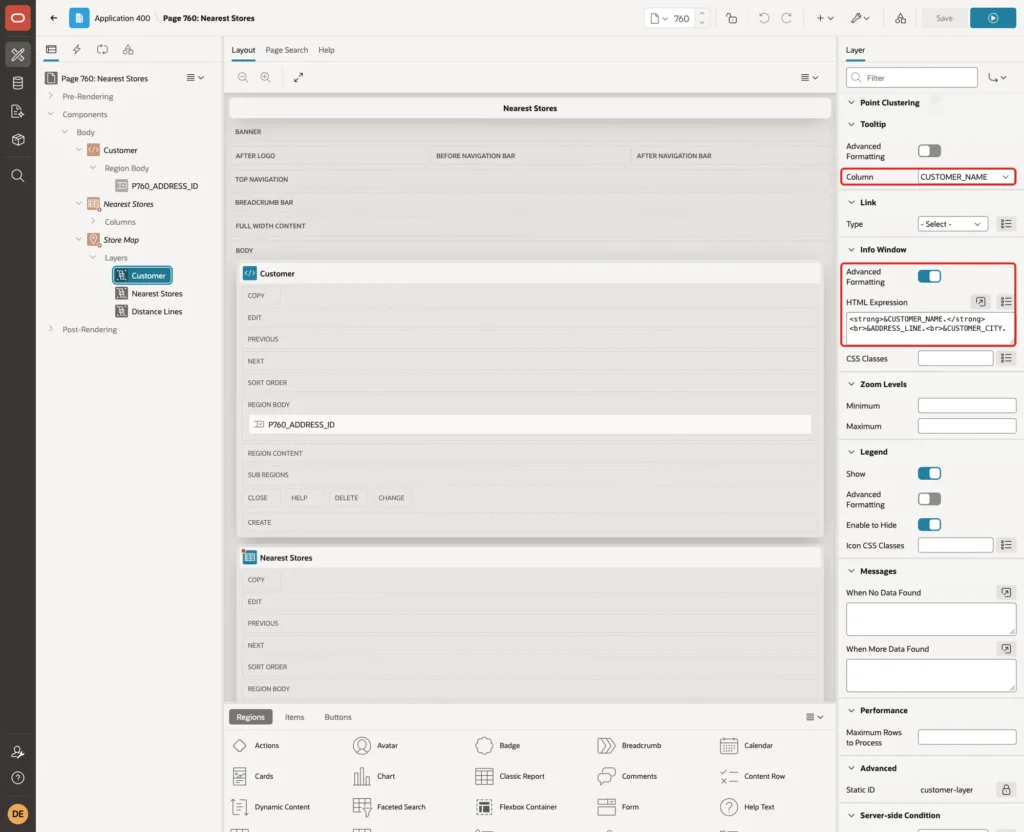
Set the Tooltip Column to CUSTOMER_NAME. In Info Window, turn on Advanced Formatting and enter the HTML Expression:
Example:
<strong>&CUSTOMER_NAME.</strong><br>&ADDRESS_LINE.<br>&CUSTOMER_CITY.
Step 10: Add the Nearest Stores Layer
Add a second layer under Layers, named Nearest Stores, Layer Type Points. Enter the same nearest-three query, with the coordinates added, and set Page Items to Submit to P760_ADDRESS_ID:
Example:
select s.store_id,
       s.name as store_name,
       s.city as store_city,
       s.latitude,
       s.longitude,
       round(sdo_nn_distance(1), 2) as km_away
from   stores s
join   customer_addresses a on a.address_id = :P760_ADDRESS_ID
where  sdo_nn(geo_point(s.longitude, s.latitude),
              geo_point(a.longitude, a.latitude),
              'unit=KM', 1) = 'TRUE'
and    s.is_active = 'Y'
order  by sdo_nn_distance(1)
fetch  first 3 rows only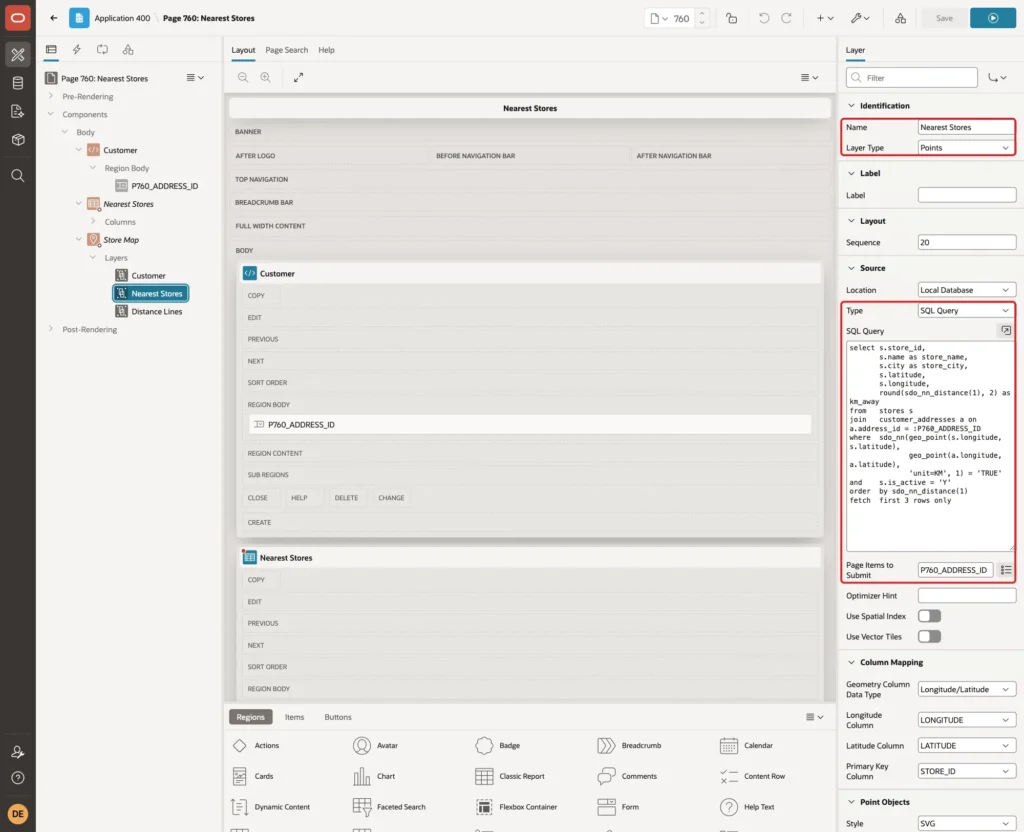
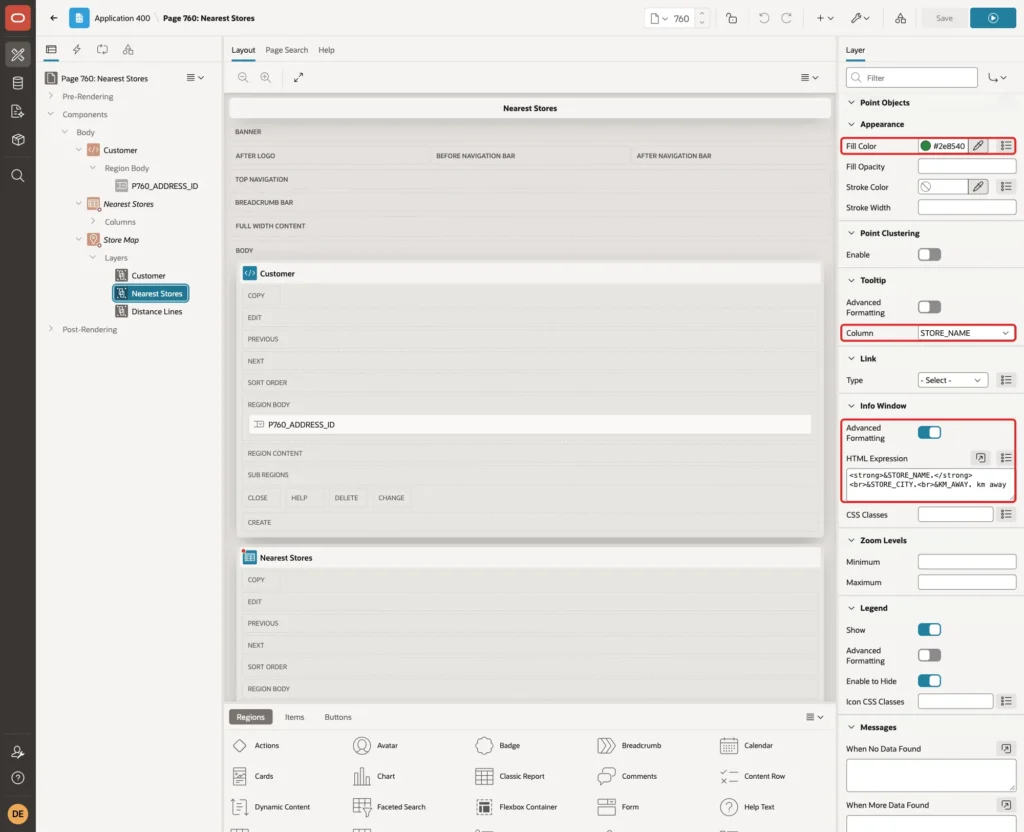
The columns are named STORE_NAME, STORE_CITY and KM_AWAY on purpose. In a first test, the layer used NAME, CITY and DISTANCE_KM, the same names as in the report. The popup then showed only " km away", and the customer popup lost its CITY line.
The reason: the info window replaces &NAME. like a page item reference, and the report's column headings have the HTML IDs NAME, CITY and DISTANCE_KM. The map found those heading cells first and used their empty values. Column names that no other element on the page uses avoid the clash.
In Column Mapping, set Longitude/Latitude with LONGITUDE and LATITUDE, and Primary Key Column STORE_ID:
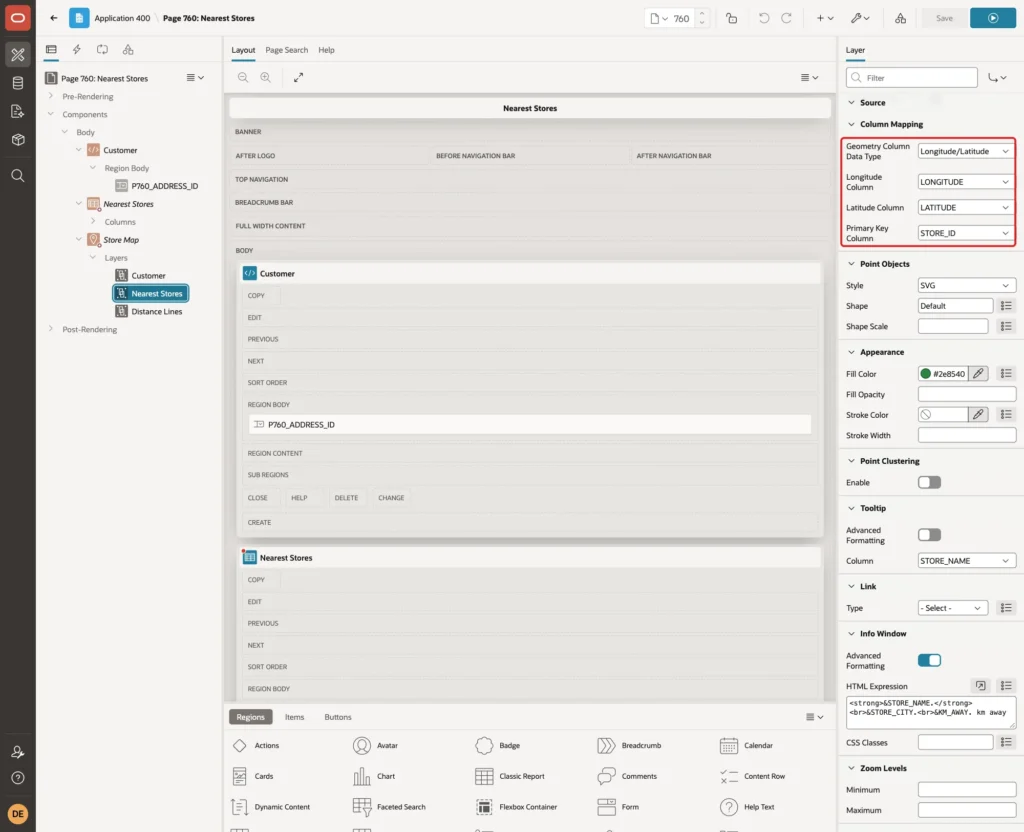
Set Fill Color to #2e8540 for green markers and the Tooltip Column to STORE_NAME. In Info Window, turn on Advanced Formatting and enter:
Example:
<strong>&STORE_NAME.</strong><br>&STORE_CITY.<br>&KM_AWAY. km away
Step 11: Add the Distance Lines Layer
Create a third layer named Distance Lines and set Layer Type to Lines. Its query builds one straight line per store, from the customer to the store, as an SDO_GEOMETRY of type 2002 (a line) with the two points in SDO_ORDINATE_ARRAY:
Example:
with nearest as (
  select s.store_id,
         s.name,
         s.latitude  as store_lat,
         s.longitude as store_lon,
         a.latitude  as home_lat,
         a.longitude as home_lon,
         round(sdo_nn_distance(1), 2) as distance_km
  from   stores s
  join   customer_addresses a on a.address_id = :P760_ADDRESS_ID
  where  sdo_nn(geo_point(s.longitude, s.latitude),
                geo_point(a.longitude, a.latitude),
                'unit=KM', 1) = 'TRUE'
  and    s.is_active = 'Y'
  order  by sdo_nn_distance(1)
  fetch  first 3 rows only
)
select store_id,
       name as store_name,
       distance_km as km_away,
       sdo_geometry(2002, 4326, null,
                    sdo_elem_info_array(1, 2, 1),
                    sdo_ordinate_array(home_lon, home_lat, store_lon, store_lat)) as route_line
from   nearest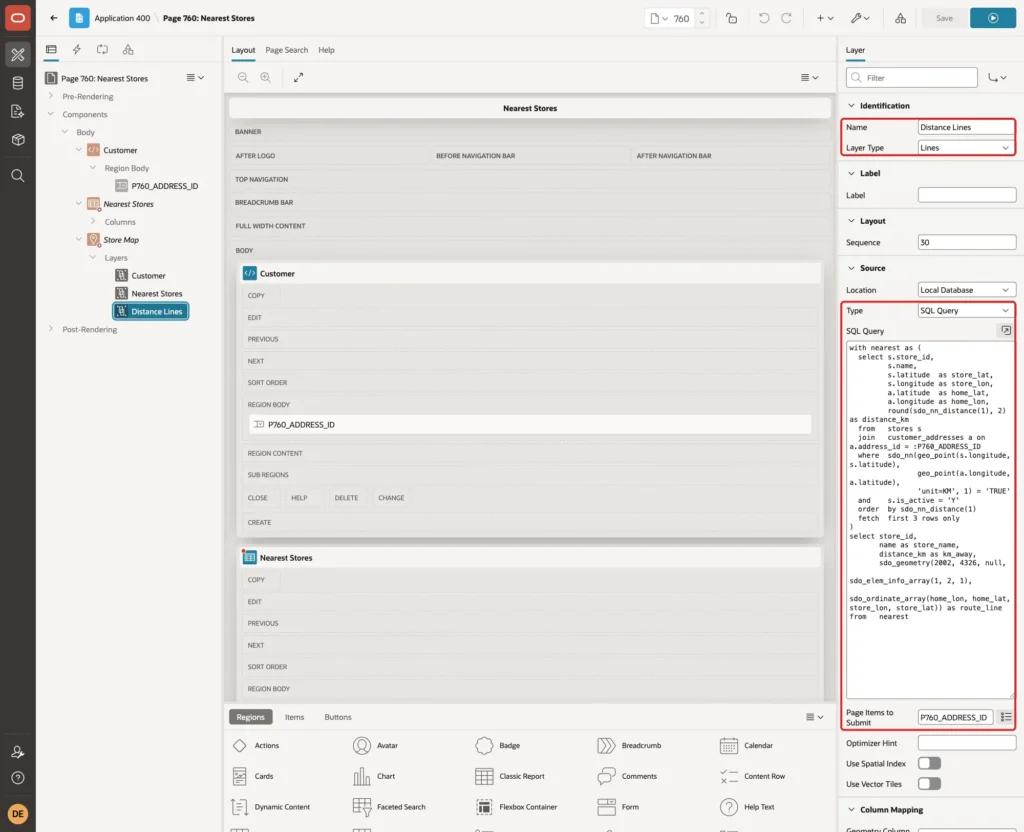
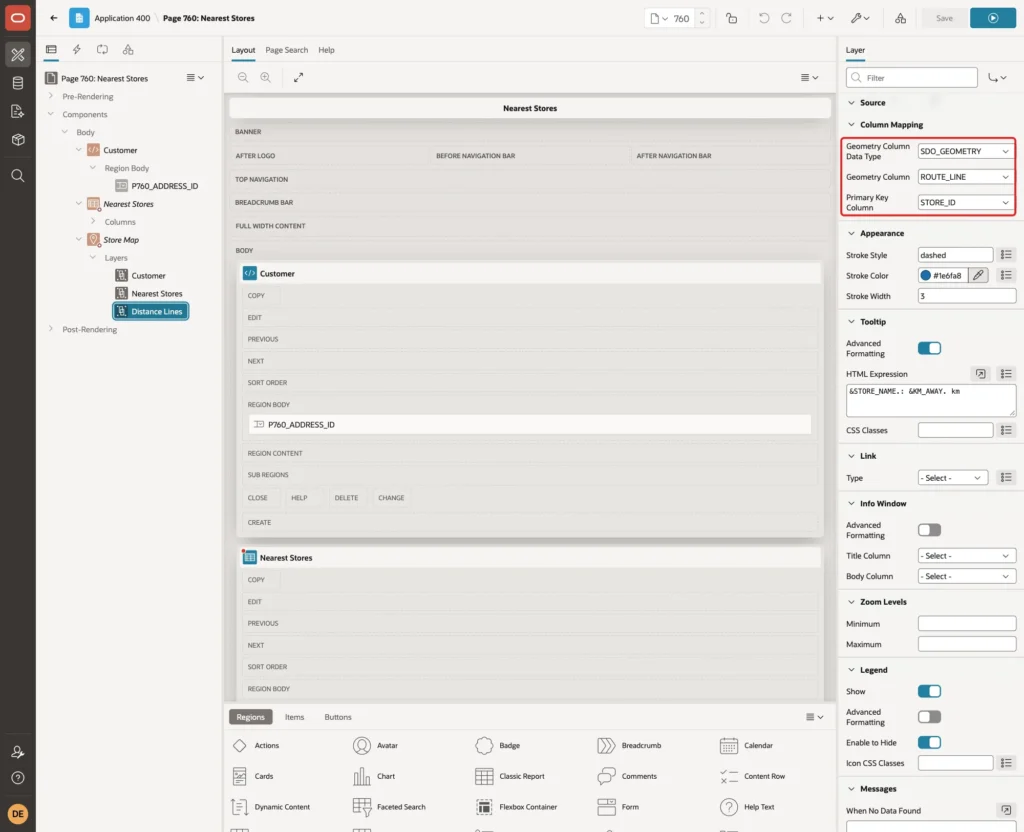
In Column Mapping, set Geometry Column Data Type to SDO_GEOMETRY, Geometry Column to ROUTE_LINE and Primary Key Column to STORE_ID:
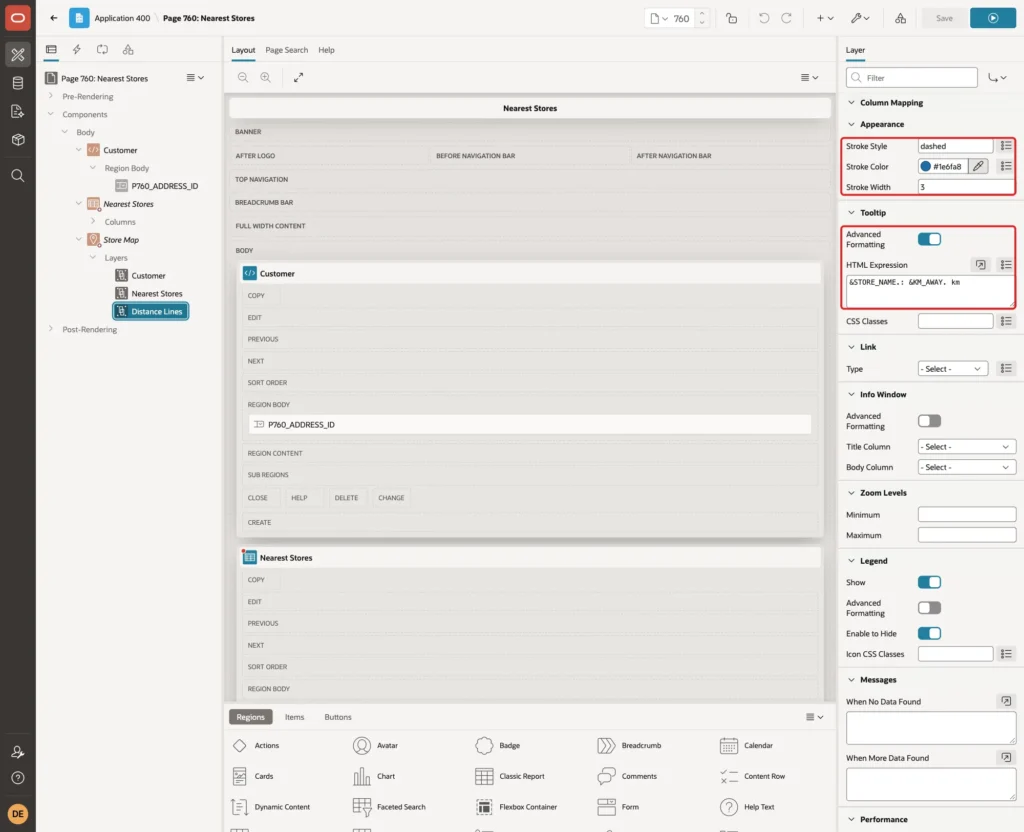
Set Stroke Style to dashed, Stroke Color to #1e6fa8 and Stroke Width to 3. In Tooltip, turn on Advanced Formatting and enter &STORE_NAME.: &KM_AWAY. km:
The lines are straight lines between two points, "as the crow flies". They are not road routes; the road distance is longer.
Click Save.
Step 12: Test the Page
DEMO_DEV opened Nearest Stores from the navigation menu. Before an address is picked, the page shows only the select list:

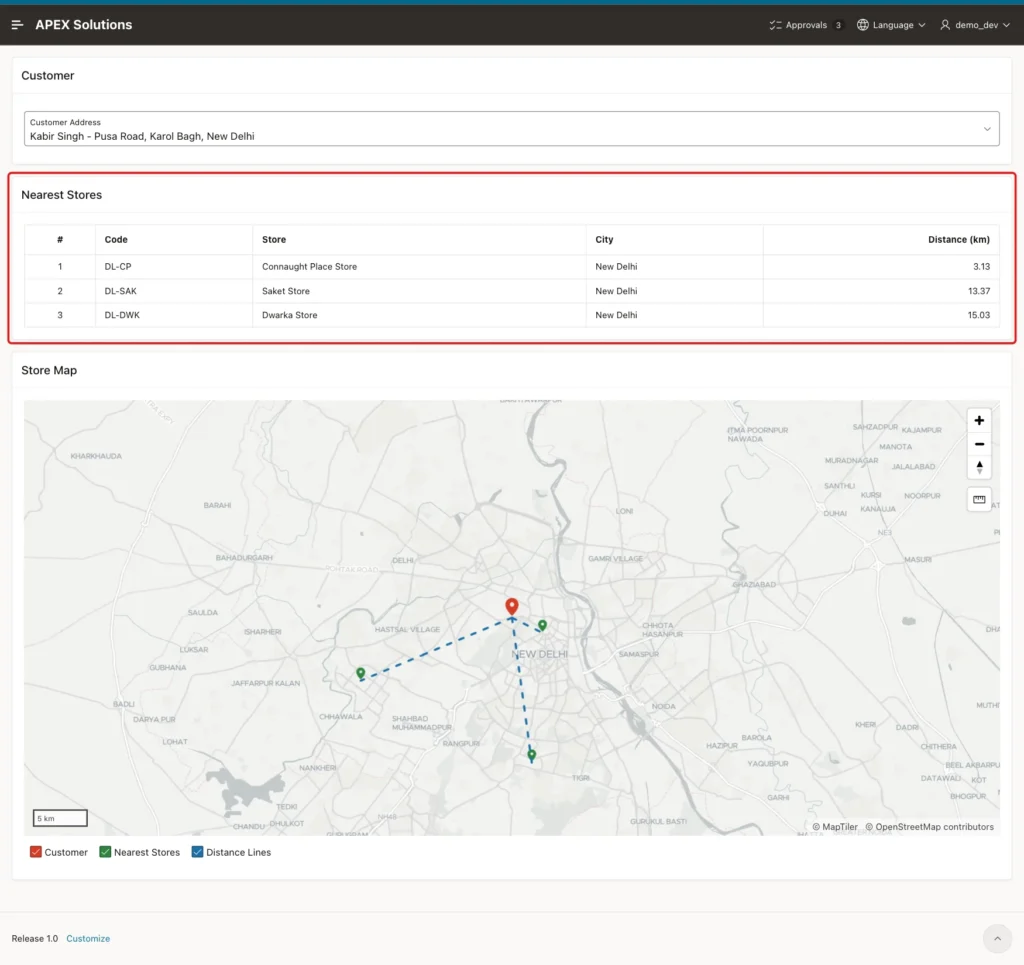
Picking Kabir Singh's address submitted the page. The report listed Connaught Place (3.13 km), Saket (13.37 km) and Dwarka (15.03 km), the same values as the SQL query in Step 3. The map centered on Kabir's red marker and showed all three green store markers with their lines:
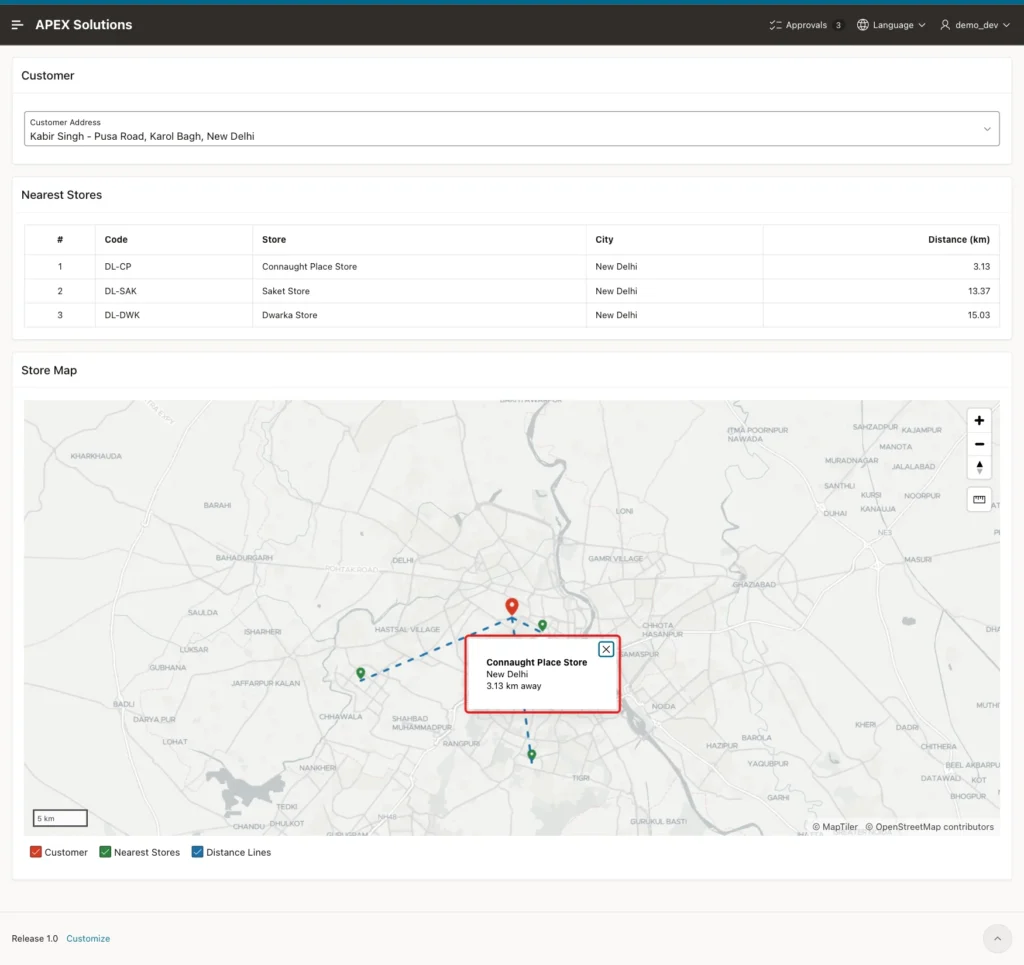
Clicking the Connaught Place marker opened its popup with the store name, city and distance:
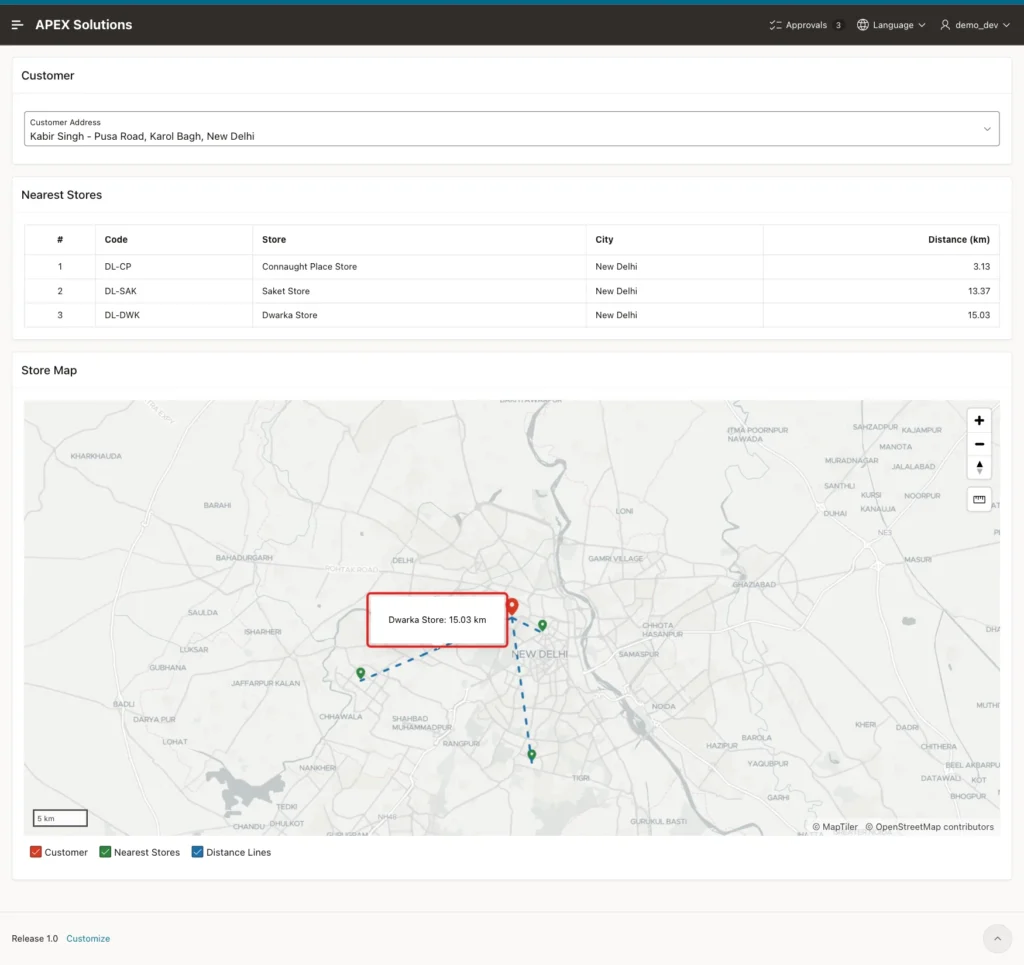
Moving the mouse over the line to Dwarka showed its tooltip:
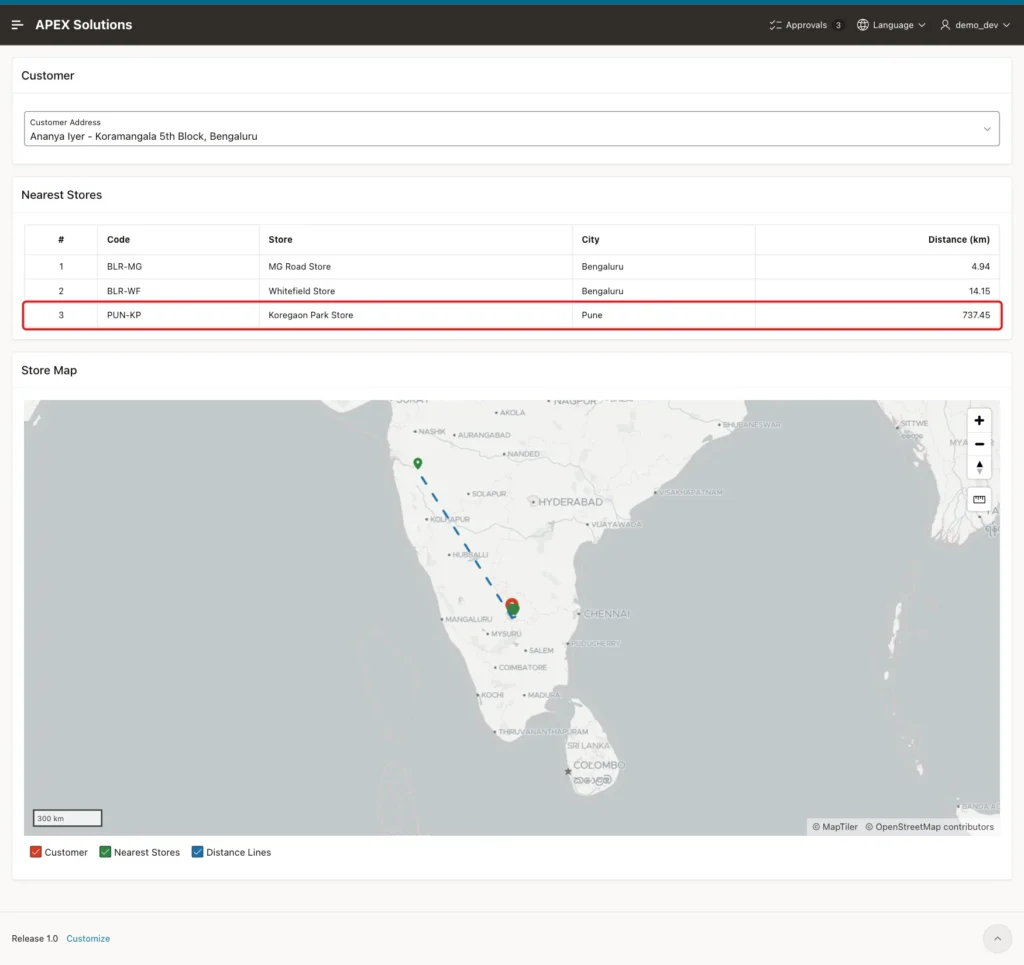
Ananya Iyer's address in Bengaluru showed a weakness of "the nearest three". Two stores are in Bengaluru, but the third nearest store is in Pune, 737.45 km away, and the map zoomed out to show it:
When a far store is not useful, add a distance limit around the nearest-three query. For Ananya, a 50 km limit keeps the two Bengaluru stores:
Example:
set pagesize 100 linesize 200
variable address_id number
exec :address_id := 5

select store_code, name, distance_km
from  (select s.store_code,
              s.name,
              round(sdo_nn_distance(1), 2) as distance_km
       from   stores s
       join   customer_addresses a on a.address_id = :address_id
       where  sdo_nn(geo_point(s.longitude, s.latitude),
                     geo_point(a.longitude, a.latitude),
                     'unit=KM', 1) = 'TRUE'
       and    s.is_active = 'Y'
       order  by sdo_nn_distance(1)
       fetch  first 3 rows only)
where  distance_km <= 50;
Output:
PL/SQL procedure successfully completed.

STORE_CODE    NAME                   DISTANCE_KM
_____________ ___________________ ______________
BLR-MG        MG Road Store                 4.94
BLR-WF        Whitefield Store             14.15
Finally, a forced request: JavaScript in the browser console added an option 999 to the select list and submitted the page. APEX accepted the value, the report showed No active stores found., and the map stayed empty. No error appeared and no data of other rows was shown, because the queries join on the address ID.
Things to Know
- A virtual column cannot have the SDO_GEOMETRY type (ORA-54003). Use a DETERMINISTIC function and a function-based spatial index, or store a real SDO_GEOMETRY column.
- SDO_GEOMETRY points take the longitude first and the latitude second. Swapping them puts the point in the wrong place without any error.
- SDO_NN needs a spatial index. On CUSTOMER_ADDRESSES, which has none, it failed with ORA-13249: SDO_NN cannot be evaluated without using index. Without an index, use SDO_GEOM.SDO_DISTANCE in ORDER BY, as in Step 4; that measures every row and is fine for small tables.
- Do not combine sdo_num_res with other filters such as IS_ACTIVE; the filters run after the nearest rows are picked. Use ORDER BY SDO_NN_DISTANCE(1) with FETCH FIRST instead.
- Oracle Spatial has been part of Oracle Database at no extra cost since 2019; this example ran on Oracle AI Database 26ai Free with no extra setup.
- In a map info window or tooltip, &COLUMN. can pick up a page element with the same ID, such as a classic report heading. Give the layer columns names that no other element on the page uses.
- The background map comes from the internet (MapTiler and OpenStreetMap); the browser needs access to it.
Related Guides
- How to Show Customers on a Map with Popups in Oracle APEX
- How to Control Map Layers, Features, and Popups Using JavaScript in Oracle APEX
Conclusion
To find the nearest locations in Oracle APEX, keep the latitude and longitude in the table, add a function-based spatial index, and rank the rows with SDO_NN and SDO_NN_DISTANCE. ORDER BY with FETCH FIRST returns the nearest active rows, and the index follows every change in the table.
On the page, a select list picks the starting point, a classic report lists the nearest three with their distances, and a map region shows the customer, the stores and a line to each one, centered by a SQL query. The same pattern finds the nearest branch, technician or warehouse.
