
A bulk update changes many rows with one action, such as raising all prices in a category by 10 percent. It saves a lot of clicks, but a wrong filter or a wrong number can change hundreds of rows at once.
Users need to see the result before anything is saved, and the change must be easy to trace later.
This guide builds a bulk update page in Oracle APEX with filters, a preview of the old and new values, and an Apply button that runs one UPDATE. A preview key makes sure the saved change is exactly what the user saw, and a history table keeps the old and new value of every row.
The guide uses product prices as the example; the same steps work for any table and any column. The post How to Process Selected Report Rows with Checkboxes in Oracle APEX lets users pick single rows by hand.
Here the rows come from filters instead, and nothing changes until the user has checked a preview.
Step 1: Create the Tables
The example needs four tables:
- BLK_CATEGORIES holds the categories used as a filter.
- BLK_PRODUCTS holds the rows to update, with UNIT_PRICE, an IS_ACTIVE flag and the columns PRICE_CHANGED_ON and PRICE_CHANGED_BY.
- BLK_PRICE_CHANGES keeps one row for every bulk change: the filter, the percent, the rounding, the number of rows and the user.
- BLK_PRICE_CHANGE_LINES keeps the old and the new price of every product in a change.
Create the tables and the sample data:
Example:
create table blk_categories (
  category_id    number generated by default on null as identity,
  category_name  varchar2(50)  not null,
  constraint blk_categories_pk primary key (category_id),
  constraint blk_categories_name_uk unique (category_name)
);

create table blk_products (
  product_id        number generated by default on null as identity,
  sku               varchar2(20)   not null,
  product_name      varchar2(100)  not null,
  category_id       number         not null,
  unit_price        number(10,2)   not null,
  is_active         varchar2(1)    default on null 'Y' not null,
  price_changed_on  date,
  price_changed_by  varchar2(128),
  constraint blk_products_pk primary key (product_id),
  constraint blk_products_sku_uk unique (sku),
  constraint blk_products_category_fk foreign key (category_id)
    references blk_categories (category_id),
  constraint blk_products_price_ck check (unit_price > 0),
  constraint blk_products_active_ck check (is_active in ('Y', 'N'))
);

create index blk_products_category_ix on blk_products (category_id, is_active);

create table blk_price_changes (
  change_id       number generated by default on null as identity,
  category_id     number,
  percent_change  number(5,2)    not null,
  rounding        varchar2(10)   not null,
  rows_updated    number         not null,
  changed_by      varchar2(128)  not null,
  changed_on      date           default on null sysdate not null,
  constraint blk_price_changes_pk primary key (change_id),
  constraint blk_price_changes_category_fk foreign key (category_id)
    references blk_categories (category_id),
  constraint blk_price_changes_percent_ck
    check (percent_change between -50 and 100 and percent_change <> 0),
  constraint blk_price_changes_rounding_ck
    check (rounding in ('NONE', 'WHOLE', 'END99'))
);

create table blk_price_change_lines (
  change_id   number        not null,
  product_id  number        not null,
  old_price   number(10,2)  not null,
  new_price   number(10,2)  not null,
  constraint blk_price_change_lines_pk primary key (change_id, product_id),
  constraint blk_price_change_lines_change_fk foreign key (change_id)
    references blk_price_changes (change_id) on delete cascade,
  constraint blk_price_change_lines_product_fk foreign key (product_id)
    references blk_products (product_id)
);

create index blk_price_change_lines_prod_ix on blk_price_change_lines (product_id);

insert into blk_categories (category_name) values ('Office Supplies');
insert into blk_categories (category_name) values ('Electronics');
insert into blk_categories (category_name) values ('Furniture');

insert into blk_products (sku, product_name, category_id, unit_price) values ('OS-100', 'Stapler', 1, 8.50);
insert into blk_products (sku, product_name, category_id, unit_price) values ('OS-110', 'Paper A4, 500 Sheets', 1, 5.20);
insert into blk_products (sku, product_name, category_id, unit_price) values ('OS-120', 'Gel Pens, Pack of 10', 1, 12.75);
insert into blk_products (sku, product_name, category_id, unit_price) values ('OS-130', 'Desk Organizer', 1, 19.90);
insert into blk_products (sku, product_name, category_id, unit_price, is_active) values ('OS-140', 'Fax Paper Roll', 1, 4.10, 'N');
insert into blk_products (sku, product_name, category_id, unit_price) values ('EL-200', 'Wireless Mouse', 2, 24.99);
insert into blk_products (sku, product_name, category_id, unit_price) values ('EL-210', 'USB-C Hub', 2, 39.00);
insert into blk_products (sku, product_name, category_id, unit_price) values ('EL-220', '27-inch Monitor', 2, 219.00);
insert into blk_products (sku, product_name, category_id, unit_price) values ('FU-300', 'Office Chair', 3, 149.00);
insert into blk_products (sku, product_name, category_id, unit_price) values ('FU-310', 'Standing Desk', 3, 389.50);
commit;

select p.sku, p.product_name, c.category_name, p.unit_price, p.is_active
from blk_products p
join blk_categories c on c.category_id = p.category_id
order by p.sku;
Output:
Table BLK_CATEGORIES created.

Table BLK_PRODUCTS created.

Index BLK_PRODUCTS_CATEGORY_IX created.

Table BLK_PRICE_CHANGES created.

Table BLK_PRICE_CHANGE_LINES created.

Index BLK_PRICE_CHANGE_LINES_PROD_IX created.

1 row inserted.

1 row inserted.

1 row inserted.

1 row inserted.

1 row inserted.

1 row inserted.

1 row inserted.

1 row inserted.

1 row inserted.

1 row inserted.

1 row inserted.

1 row inserted.

1 row inserted.

Commit complete.

SKU       PRODUCT_NAME            CATEGORY_NAME         UNIT_PRICE IS_ACTIVE
_________ _______________________ __________________ _____________ ____________
EL-200    Wireless Mouse          Electronics                24.99 Y
EL-210    USB-C Hub               Electronics                   39 Y
EL-220    27-inch Monitor         Electronics                  219 Y
FU-300    Office Chair            Furniture                    149 Y
FU-310    Standing Desk           Furniture                  389.5 Y
OS-100    Stapler                 Office Supplies              8.5 Y
OS-110    Paper A4, 500 Sheets    Office Supplies              5.2 Y
OS-120    Gel Pens, Pack of 10    Office Supplies            12.75 Y
OS-130    Desk Organizer          Office Supplies             19.9 Y
OS-140    Fax Paper Roll          Office Supplies              4.1 N

10 rows selected.
- BLK_PRODUCTS_PRICE_CK rejects a price of zero or less, whatever code runs the update.
- BLK_PRICE_CHANGES_PERCENT_CK allows a percent between -50 and 100, other than 0.
- BLK_PRICE_CHANGES_ROUNDING_CK allows only the three rounding options of the page.
- BLK_PRICE_CHANGES.CATEGORY_ID is NULL when a change applies to all categories.
- IS_ACTIVE and CHANGED_ON use DEFAULT ON NULL, so no trigger is needed to fill them.
OS-140 Fax Paper Roll is inactive. A bulk change must never touch it.
Step 2: Create the Price Package
The rules live in one package, so the page cannot skip them. It has three parts:
- NEW_PRICE returns the new price for a percent and a rounding option. The preview and the update both call it, so they always agree.
- PREVIEW_KEY returns a short text that describes a preview: the filter, the percent, the rounding, the number of rows, and a hash of every row ID with its current price.
- APPLY_CHANGE locks the matching rows, checks the key again, runs the UPDATE and writes the history.
Create the package:
Example:
create or replace package blk_price_pkg as
  function new_price (
    p_price     in number,
    p_percent   in number,
    p_rounding  in varchar2
  ) return number deterministic;

  function preview_key (
    p_category_id  in number,
    p_percent      in number,
    p_rounding     in varchar2
  ) return varchar2;

  procedure apply_change (
    p_category_id  in  number,
    p_percent      in  number,
    p_rounding     in  varchar2,
    p_preview_key  in  varchar2,
    p_changed_by   in  varchar2,
    p_change_id    out number,
    p_count        out number
  );
end blk_price_pkg;
/

create or replace package body blk_price_pkg as
  procedure check_params (
    p_percent   in number,
    p_rounding  in varchar2
  ) is
  begin
    if p_percent is null or p_percent = 0 or p_percent not between -50 and 100 then
      raise_application_error(-20001,
        'Enter a percent change between -50 and 100, other than 0.');
    end if;
    if p_rounding is null or p_rounding not in ('NONE', 'WHOLE', 'END99') then
      raise_application_error(-20001, 'Select a valid rounding option.');
    end if;
  end check_params;

  function new_price (
    p_price     in number,
    p_percent   in number,
    p_rounding  in varchar2
  ) return number deterministic is
    l_price number := p_price * (1 + p_percent / 100);
  begin
    return case p_rounding
             when 'WHOLE' then greatest(round(l_price), 1)
             when 'END99' then trunc(l_price) + 0.99
             else round(l_price, 2)
           end;
  end new_price;

  function preview_key (
    p_category_id  in number,
    p_percent      in number,
    p_rounding     in varchar2
  ) return varchar2 is
    l_count number;
    l_hash  number;
  begin
    check_params(p_percent, p_rounding);
    select count(*),
           sum(ora_hash(product_id || ':' || unit_price))
    into   l_count, l_hash
    from   blk_products
    where  is_active = 'Y'
    and    (p_category_id is null or category_id = p_category_id);

    return nvl(to_char(p_category_id), 'ALL') || '|' || p_percent || '|'
        || p_rounding || '|' || l_count || '|' || nvl(l_hash, 0);
  end preview_key;

  procedure apply_change (
    p_category_id  in  number,
    p_percent      in  number,
    p_rounding     in  varchar2,
    p_preview_key  in  varchar2,
    p_changed_by   in  varchar2,
    p_change_id    out number,
    p_count        out number
  ) is
    type t_numbers is table of number;
    l_ids        t_numbers;
    l_old_prices t_numbers;
    l_new_prices t_numbers;
    l_count      pls_integer;
  begin
    check_params(p_percent, p_rounding);

    select product_id
    bulk collect into l_ids
    from   blk_products
    where  is_active = 'Y'
    and    (p_category_id is null or category_id = p_category_id)
    for update;

    l_count := l_ids.count;
    if l_count = 0 then
      raise_application_error(-20002, 'No products match the filters.');
    end if;

    if p_preview_key is null
       or p_preview_key <> preview_key(p_category_id, p_percent, p_rounding) then
      raise_application_error(-20003,
        'The filters or the prices changed after the preview. Click Preview again.');
    end if;

    insert into blk_price_changes
      (category_id, percent_change, rounding, rows_updated, changed_by)
    values
      (p_category_id, p_percent, p_rounding, l_count, p_changed_by)
    returning change_id into p_change_id;

    update blk_products
    set    unit_price       = new_price(unit_price, p_percent, p_rounding),
           price_changed_on = sysdate,
           price_changed_by = p_changed_by
    where  is_active = 'Y'
    and    (p_category_id is null or category_id = p_category_id)
    returning product_id, old unit_price, new unit_price
    bulk collect into l_ids, l_old_prices, l_new_prices;

    forall i in 1 .. l_ids.count
      insert into blk_price_change_lines (change_id, product_id, old_price, new_price)
      values (p_change_id, l_ids(i), l_old_prices(i), l_new_prices(i));

    p_count := l_ids.count;
  end apply_change;
end blk_price_pkg;
/

select object_name, object_type, status
from user_objects
where object_name = 'BLK_PRICE_PKG'
order by object_type;
Output:
Package BLK_PRICE_PKG compiled

Package Body BLK_PRICE_PKG compiled

OBJECT_NAME      OBJECT_TYPE     STATUS
________________ _______________ _________
BLK_PRICE_PKG    PACKAGE         VALID
BLK_PRICE_PKG    PACKAGE BODY    VALID
The three rounding options work like this. NONE rounds to cents. WHOLE rounds to a whole number, but never below 1. END99 keeps the whole part and sets the cents to .99, so 9.35 becomes 9.99.
APPLY_CHANGE first selects the matching rows with FOR UPDATE. While the rows are locked, no other session can change their prices.
It then builds the key again from the locked rows. If the key differs from the key of the preview, the filters or the prices have changed since the user looked at them, and the procedure stops with ORA-20003.
The UPDATE uses RETURNING with OLD and NEW values to collect the old and the new price of every row in one statement. FORALL then writes them into BLK_PRICE_CHANGE_LINES. RETURNING OLD and NEW is new in Oracle Database 23ai; on older releases, copy the old prices into the lines table before the UPDATE.
In a first version, the INSERT into BLK_PRICE_CHANGES used l_ids.count directly in the VALUES list. The package body did not compile and showed ORA-00984: column not allowed here. A collection method cannot be used inside a SQL statement, so the count is copied into the variable l_count first.
A trigger could not do this work. The check needs the preview key from the page and the name of the APEX user, and neither is a column of the table. The procedure does not commit; APEX commits at the end of the request.
Step 3: Test the Package in SQL
First compare the three rounding options for a 10 percent increase, and print a few preview keys:
Example:
set serveroutput on

select p.sku, p.product_name, to_char(p.unit_price, 'FM9990.00') as old_price,
       to_char(blk_price_pkg.new_price(p.unit_price, 10, 'NONE'), 'FM9990.00') as plus_10,
       to_char(blk_price_pkg.new_price(p.unit_price, 10, 'WHOLE'), 'FM9990.00') as whole,
       to_char(blk_price_pkg.new_price(p.unit_price, 10, 'END99'), 'FM9990.00') as end_99
from blk_products p
where p.category_id = 1
and p.is_active = 'Y'
order by p.sku;

begin
  dbms_output.put_line('Office +10% END99: ' || blk_price_pkg.preview_key(1, 10, 'END99'));
  dbms_output.put_line('Office +10% WHOLE: ' || blk_price_pkg.preview_key(1, 10, 'WHOLE'));
  dbms_output.put_line('All -5% NONE:      ' || blk_price_pkg.preview_key(null, -5, 'NONE'));
end;
/
Output:
SKU       PRODUCT_NAME            OLD_PRICE    PLUS_10    WHOLE    END_99
_________ _______________________ ____________ __________ ________ _________
OS-100    Stapler                 8.50         9.35       9.00     9.99
OS-110    Paper A4, 500 Sheets    5.20         5.72       6.00     5.99
OS-120    Gel Pens, Pack of 10    12.75        14.03      14.00    14.99
OS-130    Desk Organizer          19.90        21.89      22.00    21.99

Office +10% END99: 1|10|END99|4|9073310215
Office +10% WHOLE: 1|10|WHOLE|4|9073310215
All -5% NONE:      ALL|-5|NONE|9|24420305703

PL/SQL procedure successfully completed.
The two Office Supplies keys differ only in the rounding part. The count 4 leaves out the inactive OS-140, and the hash part changes when any matching price changes.
Now call APPLY_CHANGE with good and bad input. The test is rolled back at the end:
Example:
set serveroutput on
declare
  l_key       varchar2(200);
  l_change_id number;
  l_count     number;

  procedure try (p_label in varchar2, p_category_id in number, p_percent in number,
                 p_rounding in varchar2, p_key in varchar2) is
  begin
    blk_price_pkg.apply_change(p_category_id, p_percent, p_rounding, p_key,
                               'DEMO_DEV', l_change_id, l_count);
    dbms_output.put_line(rpad(p_label, 28) || 'OK, change ' || l_change_id
                         || ', ' || l_count || ' products');
  exception
    when others then
      dbms_output.put_line(rpad(p_label, 28) || sqlerrm);
  end try;
begin
  l_key := blk_price_pkg.preview_key(2, 5, 'NONE');
  try('Electronics +5%', 2, 5, 'NONE', l_key);
  try('Same key again', 2, 5, 'NONE', l_key);
  try('Key of +5%, apply +8%', 2, 8, 'NONE', l_key);
  try('No preview key', 3, 5, 'NONE', null);

  l_key := blk_price_pkg.preview_key(3, -10, 'WHOLE');
  update blk_products set unit_price = 155 where sku = 'FU-300';
  try('Price changed after preview', 3, -10, 'WHOLE', l_key);

  try('Percent 0', 3, 0, 'NONE', 'x');
  try('Percent 250', 3, 250, 'NONE', 'x');
  try('Rounding UP', 3, 5, 'UP', 'x');
  try('Category without products', 99, 5, 'NONE', 'x');
end;
/

select p.sku, to_char(p.unit_price, 'FM9990.00') as unit_price, p.is_active,
       p.price_changed_by
from blk_products p
order by p.sku;

select l.change_id, p.sku, to_char(l.old_price, 'FM9990.00') as old_price,
       to_char(l.new_price, 'FM9990.00') as new_price
from blk_price_change_lines l
join blk_products p on p.product_id = l.product_id
order by p.sku;

rollback;
Output:
Electronics +5%             OK, change 2, 3 products
Same key again              ORA-20003: The filters or the prices changed after the preview. Click Preview again.
Key of +5%, apply +8%       ORA-20003: The filters or the prices changed after the preview. Click Preview again.
No preview key              ORA-20003: The filters or the prices changed after the preview. Click Preview again.
Price changed after preview ORA-20003: The filters or the prices changed after the preview. Click Preview again.
Percent 0                   ORA-20001: Enter a percent change between -50 and 100, other than 0.
Percent 250                 ORA-20001: Enter a percent change between -50 and 100, other than 0.
Rounding UP                 ORA-20001: Select a valid rounding option.
Category without products   ORA-20002: No products match the filters.

PL/SQL procedure successfully completed.

SKU       UNIT_PRICE    IS_ACTIVE    PRICE_CHANGED_BY
_________ _____________ ____________ ___________________
EL-200    26.24         Y            DEMO_DEV
EL-210    40.95         Y            DEMO_DEV
EL-220    229.95        Y            DEMO_DEV
FU-300    155.00        Y
FU-310    389.50        Y
OS-100    8.50          Y
OS-110    5.20          Y
OS-120    12.75         Y
OS-130    19.90         Y
OS-140    4.10          N

10 rows selected.

   CHANGE_ID SKU       OLD_PRICE    NEW_PRICE
____________ _________ ____________ ____________
           2 EL-200    24.99        26.24
           2 EL-210    39.00        40.95
           2 EL-220    219.00       229.95

Rollback complete.
The first call updated the three Electronics prices and wrote three lines. Calling it again with the same key failed, because the prices were no longer the ones in the key. This also protects against a double click or a resubmitted page.
A key made for +5% did not work for +8%, an empty key did not work, and a price that changed after the preview stopped the update.
A percent of 0 or 250, an unknown rounding option and a category without products were all refused. Identity values are not reused after a rollback, so the change IDs in this example have gaps.
Step 4: Test Two Users Applying the Same Change
Two administrators may preview the same change and click Apply at nearly the same time. Run two sessions. Session A applies +10% to Furniture and commits six seconds later:
Example:
set serveroutput on
declare
  l_change_id number;
  l_count     number;
begin
  blk_price_pkg.apply_change(3, 10, 'NONE', blk_price_pkg.preview_key(3, 10, 'NONE'),
                             'DEMO_DEV', l_change_id, l_count);
  dbms_output.put_line(to_char(systimestamp, 'HH24:MI:SS') || ' A updated '
                       || l_count || ' products, change ' || l_change_id);
  dbms_session.sleep(6);
  commit;
  dbms_output.put_line(to_char(systimestamp, 'HH24:MI:SS') || ' A committed');
end;
/
Output:
22:58:13 A updated 2 products, change 3
22:58:19 A committed

PL/SQL procedure successfully completed.
Session B builds its key two seconds after A started, before A committed, and applies the same change:
Example:
set serveroutput on
declare
  l_key       varchar2(200) := blk_price_pkg.preview_key(3, 10, 'NONE');
  l_change_id number;
  l_count     number;
begin
  dbms_output.put_line(to_char(systimestamp, 'HH24:MI:SS') || ' B key ' || l_key);
  blk_price_pkg.apply_change(3, 10, 'NONE', l_key, 'SALES_MANAGER', l_change_id, l_count);
  dbms_output.put_line(to_char(systimestamp, 'HH24:MI:SS') || ' B updated ' || l_count);
  commit;
exception
  when others then
    dbms_output.put_line(to_char(systimestamp, 'HH24:MI:SS') || ' B ' || sqlerrm);
    rollback;
end;
/

select sku, to_char(unit_price, 'FM9990.00') as unit_price, price_changed_by
from blk_products
where category_id = 3
order by sku;
Output:
22:58:15 B key 3|10|NONE|2|4820198098
22:58:19 B ORA-20003: The filters or the prices changed after the preview. Click Preview again.

PL/SQL procedure successfully completed.

SKU       UNIT_PRICE    PRICE_CHANGED_BY
_________ _____________ ___________________
FU-300    163.90        DEMO_DEV
FU-310    428.45        DEMO_DEV
Session B still saw the old prices, so its key matched the old data. Its FOR UPDATE waited four seconds until A committed. B then built the key again from the new prices, saw the difference and stopped with ORA-20003.
The Furniture prices went up by 10 percent once, not twice. After this test, the Furniture prices were set back and the test change was removed.
Step 5: Create the Bulk Price Update Page
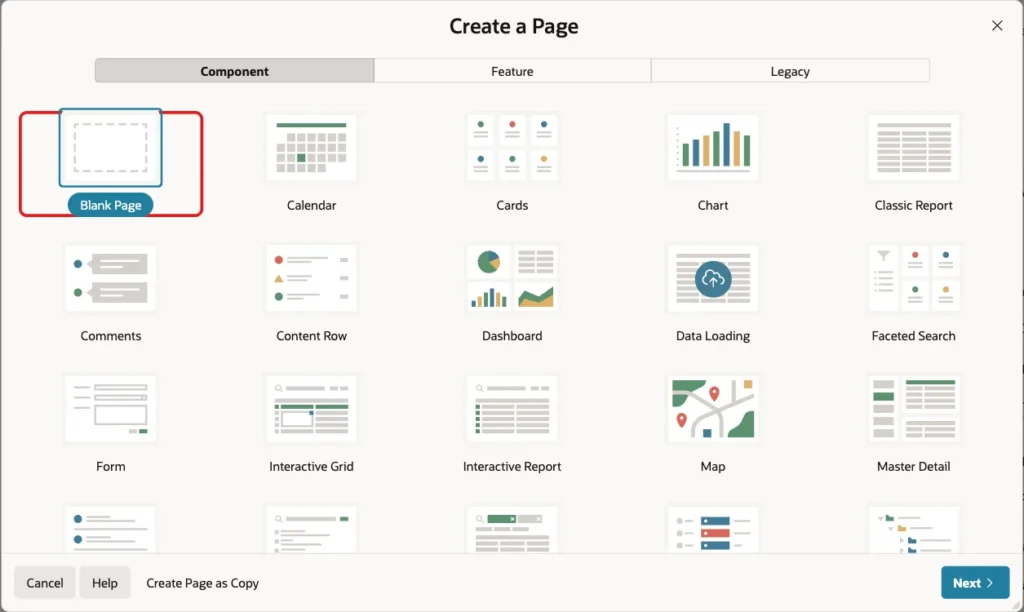
In App Builder, open the application, click Create Page and select Blank Page:
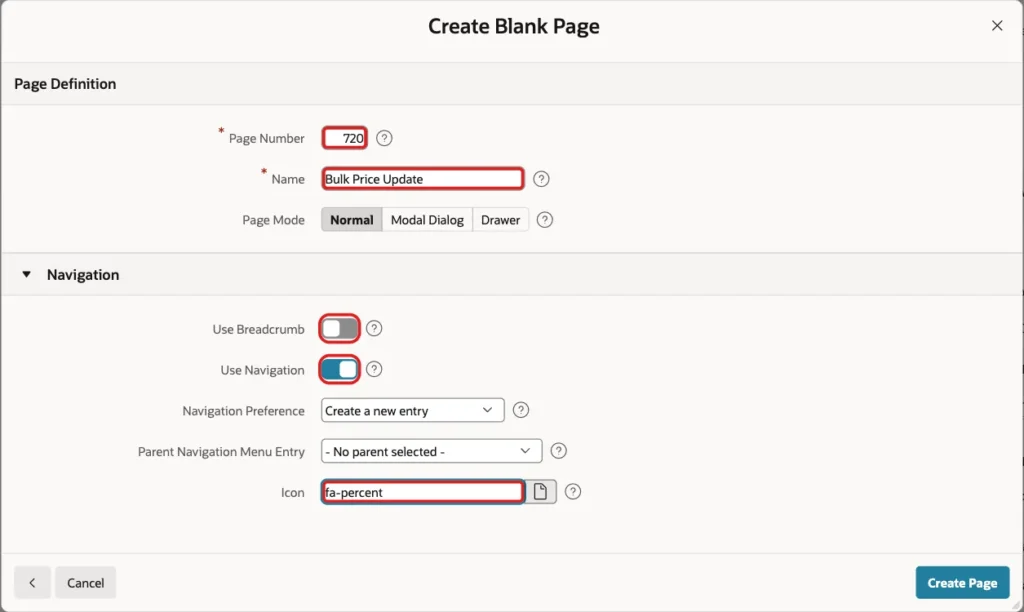
Enter page number 720 and the name Bulk Price Update. Turn Use Breadcrumb off, keep Use Navigation on and enter the icon fa-percent. Click Create Page:
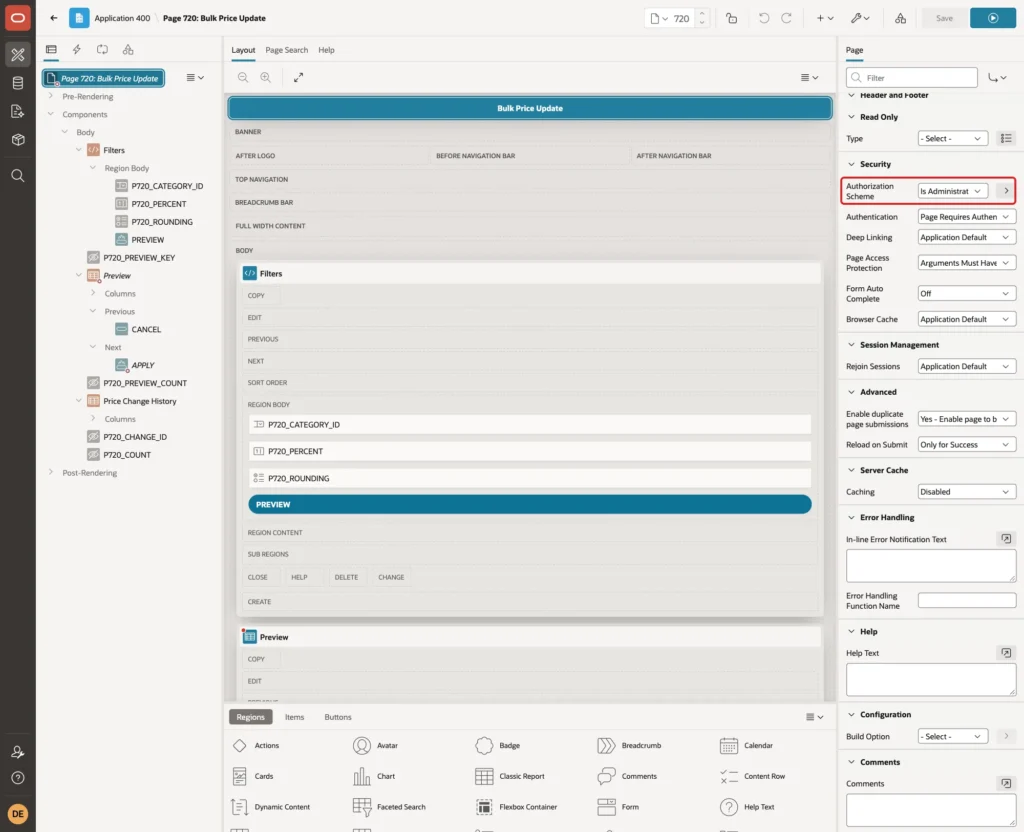
Only administrators may change prices in bulk. In Page Designer, select the page node and set Security, Authorization Scheme to Is Administrator:
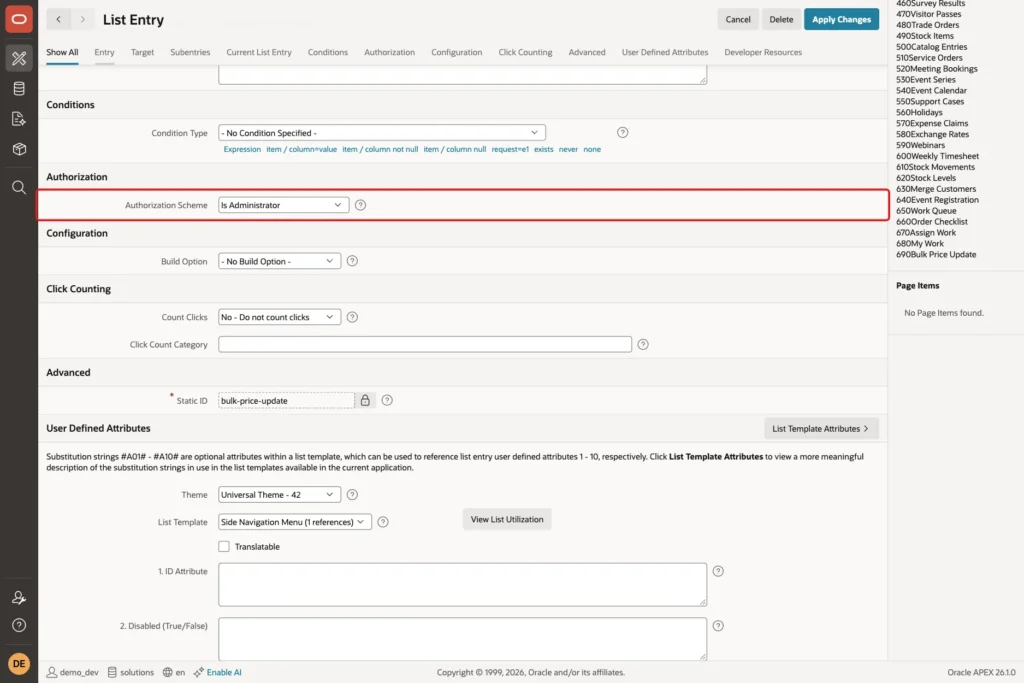
The wizard also created a Bulk Price Update entry in the navigation menu. In Shared Components, open Navigation Menu, edit the entry, set Authorization Scheme to Is Administrator and click Apply Changes:
Step 6: Add the Filters Region
Right-click Body and select Create Region. Set Name to Filters and Type to Static Content:
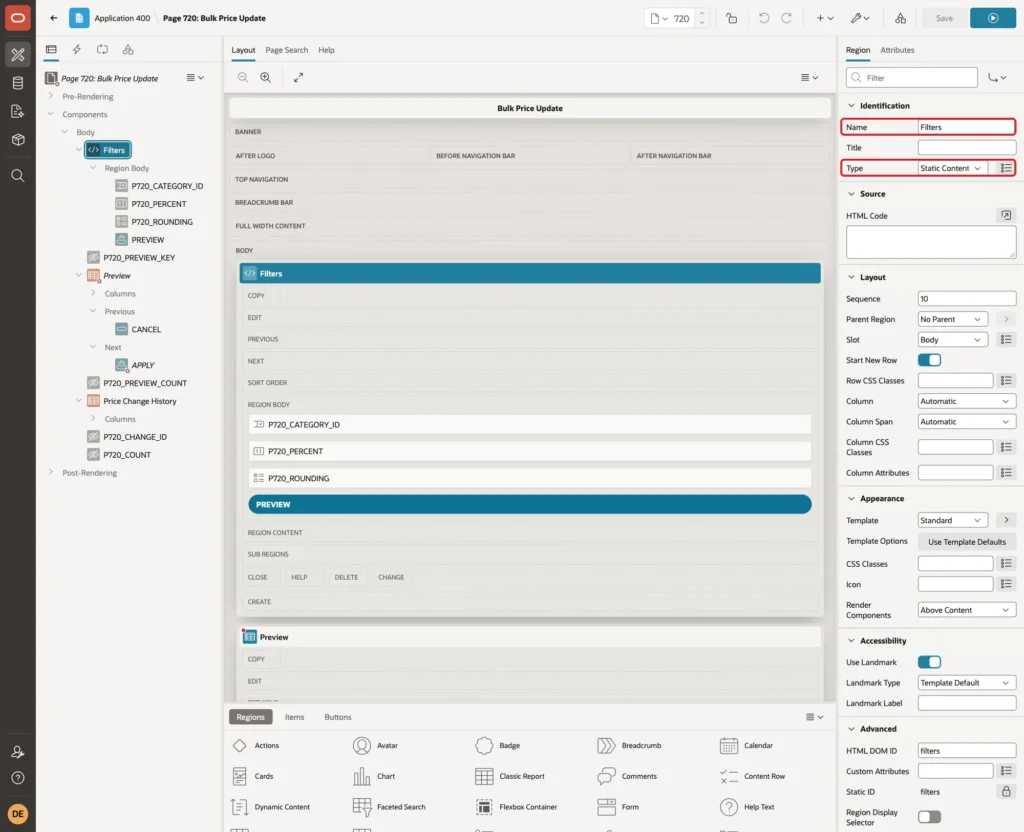
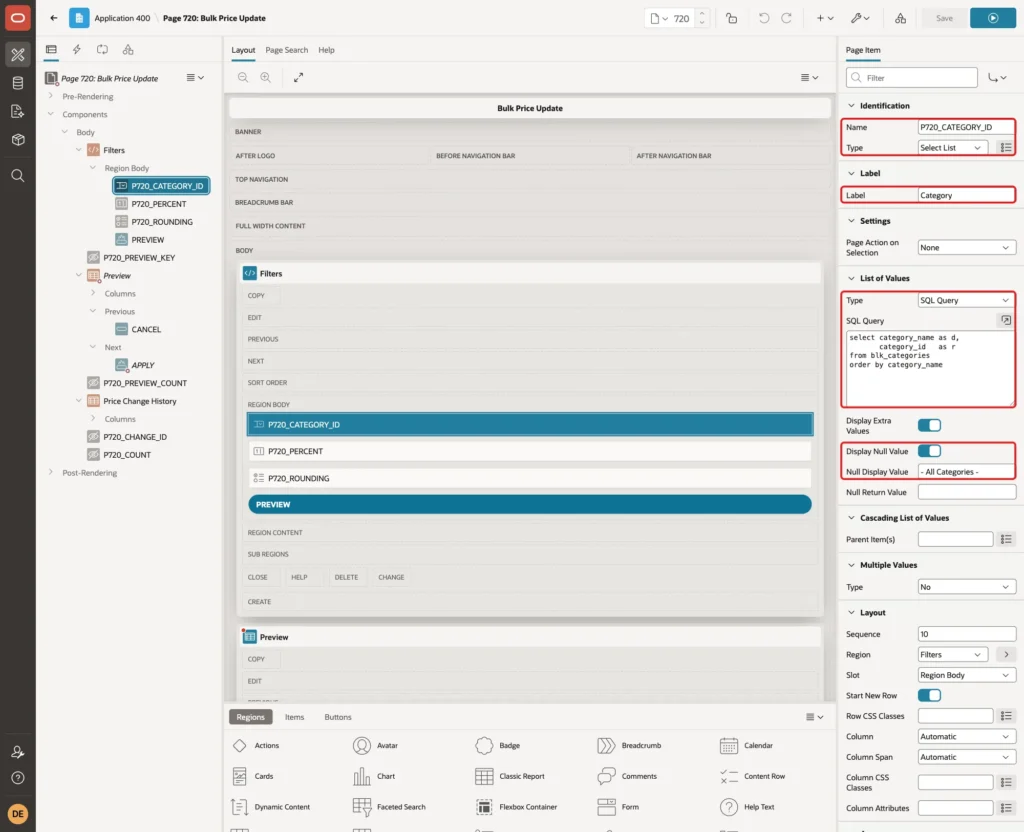
Right-click Filters and select Create Page Item. Set Name to P720_CATEGORY_ID, Type to Select List and Label to Category. Set List of Values, Type to SQL Query and enter this query:
Example:
select category_name as d,
       category_id   as r
from blk_categories
order by category_name
Keep Display Null Value on and set Null Display Value to "- All Categories -":
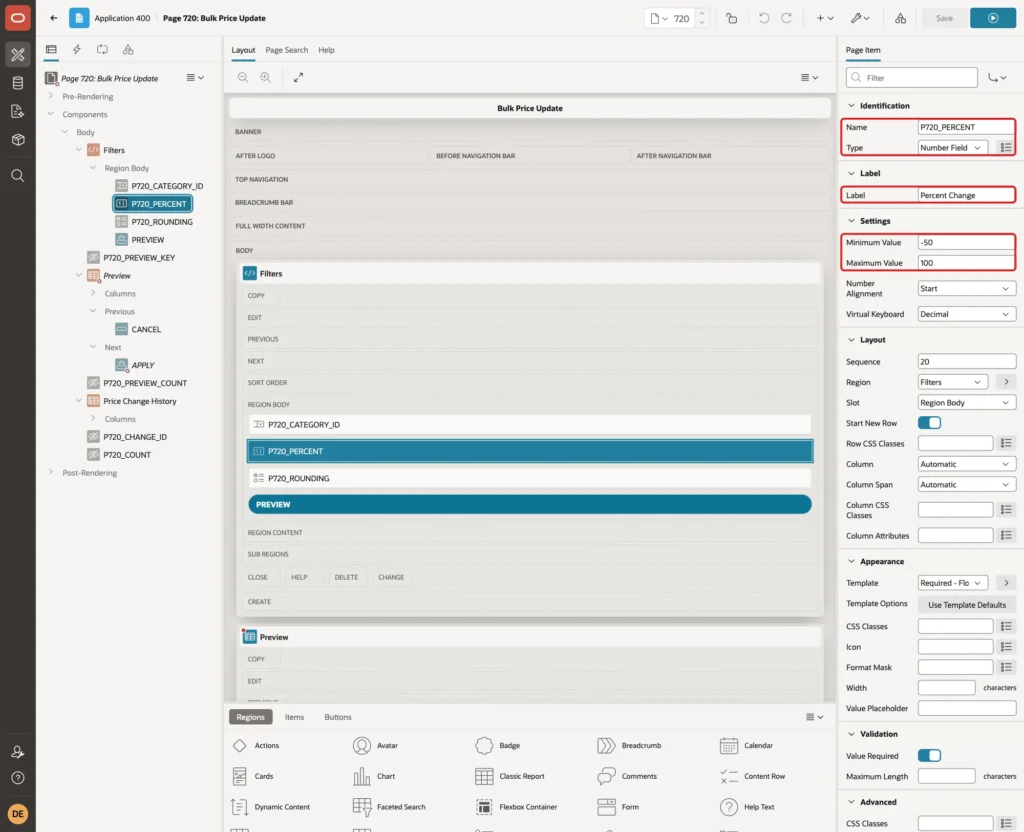
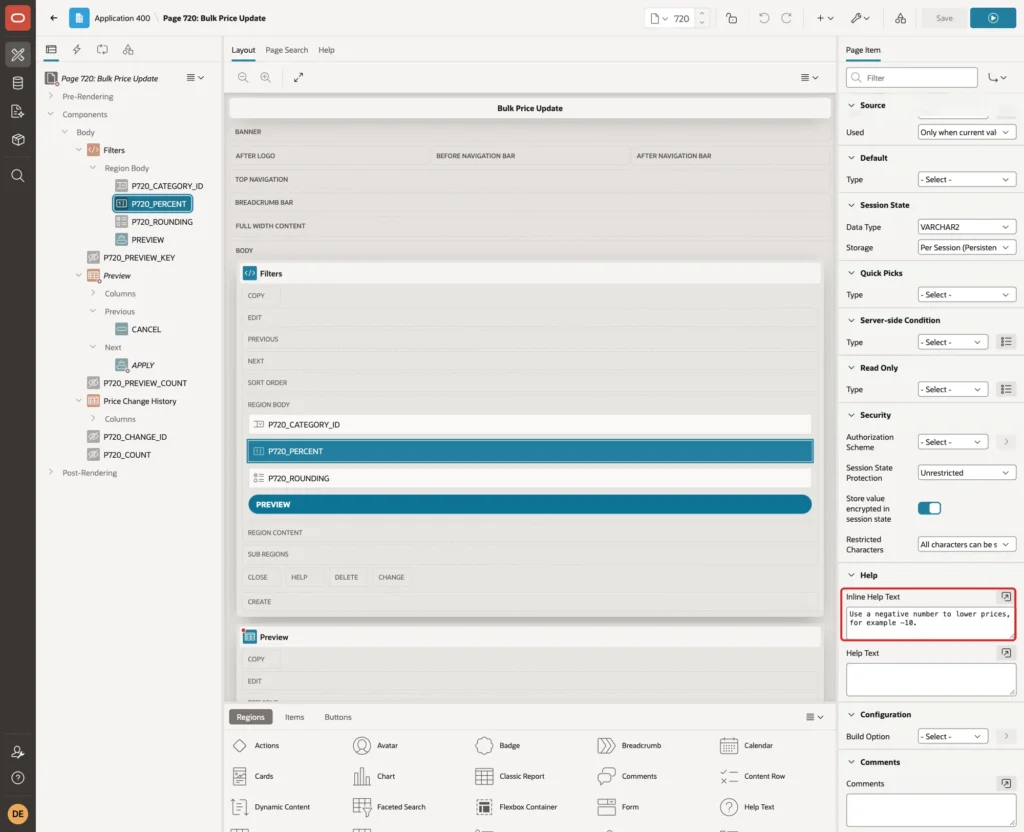
Create P720_PERCENT with Type Number Field and Label Percent Change. Under Settings, set Minimum Value to -50 and Maximum Value to 100:
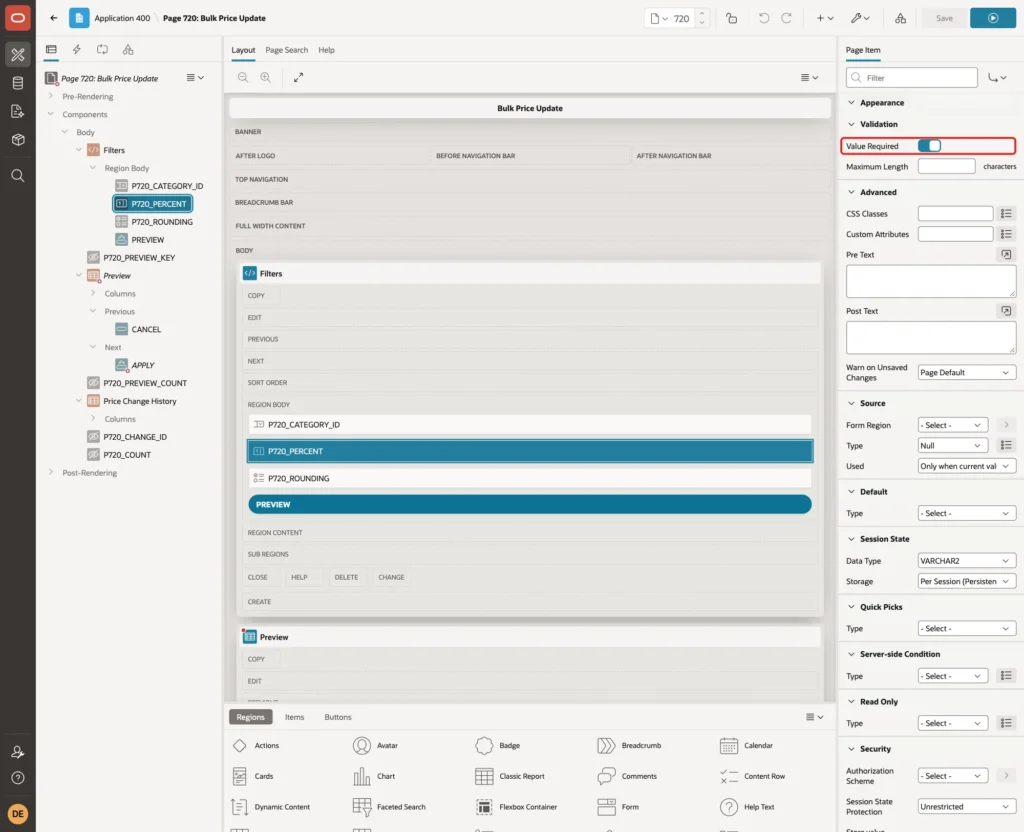
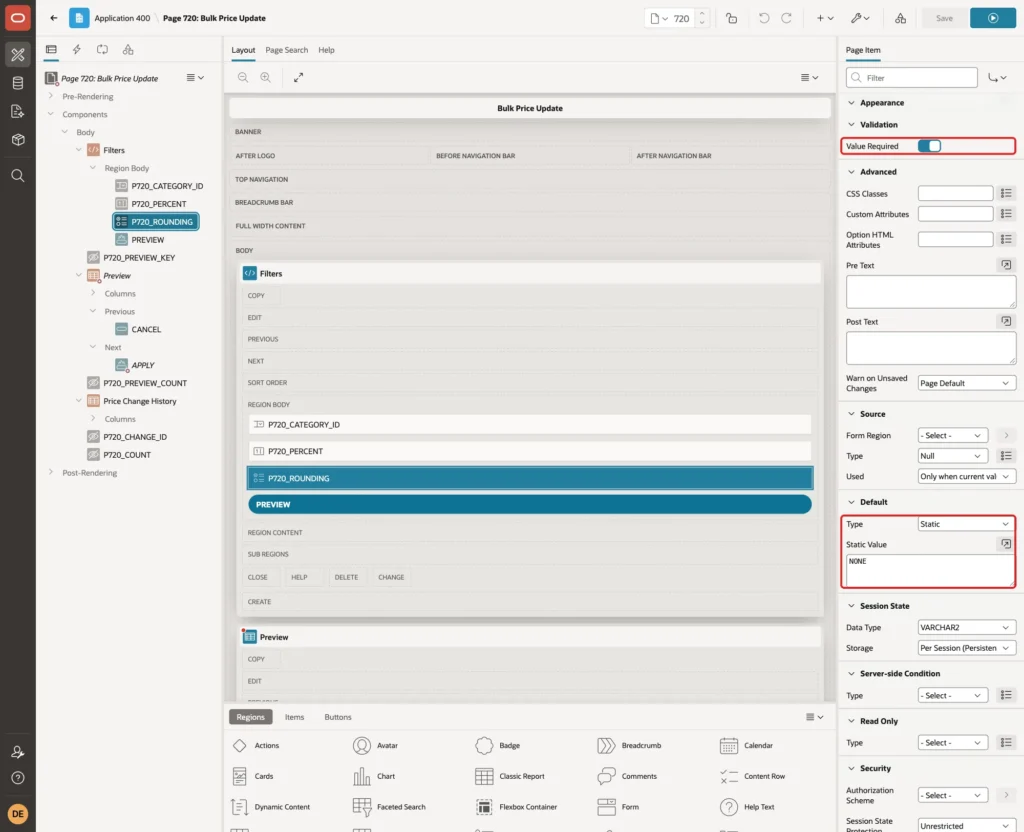
Turn Validation, Value Required on:
Under Help, set Inline Help Text to "Use a negative number to lower prices, for example -10.":
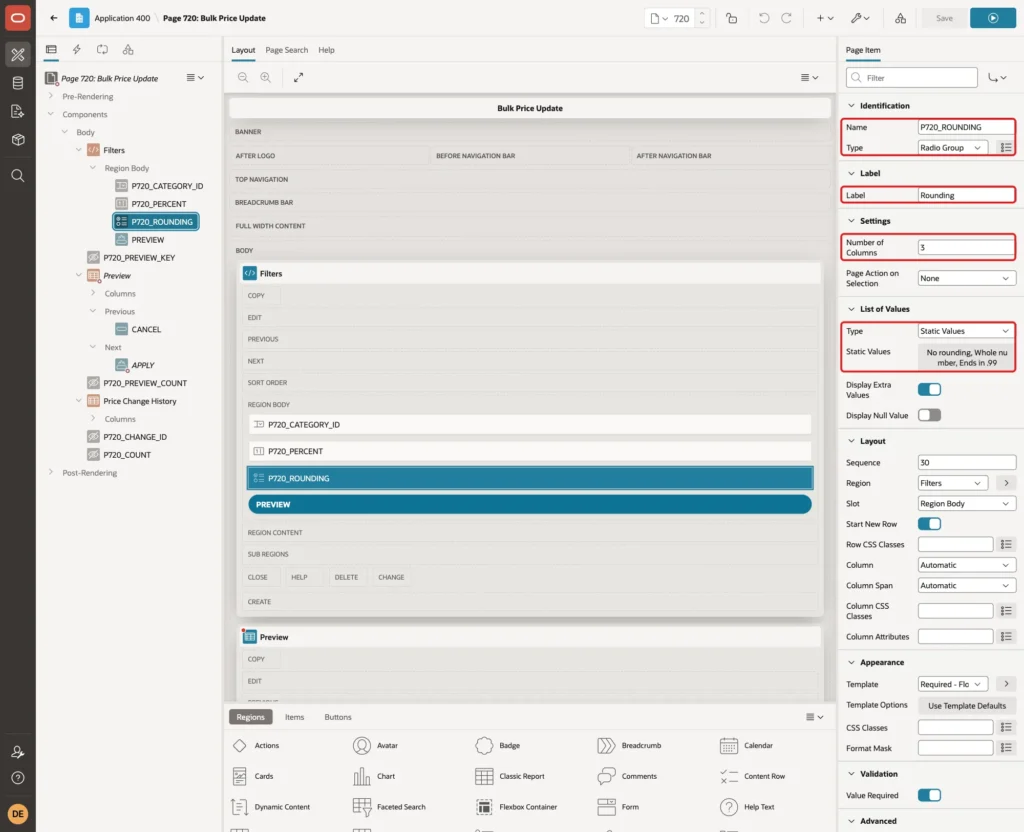
Create P720_ROUNDING with Type Radio Group and Label Rounding. Set Number of Columns to 3. Set List of Values, Type to Static Values with these values:
- Display No rounding, Return NONE
- Display Whole number, Return WHOLE
- Display Ends in .99, Return END99
Turn Value Required on and set Default, Type to Static with Static Value NONE:
Right-click Filters and select Create Button. Set Button Name to PREVIEW, Label to Preview, Slot to Region Body and Hot on. Give it a sequence after the three items, so it shows below them:
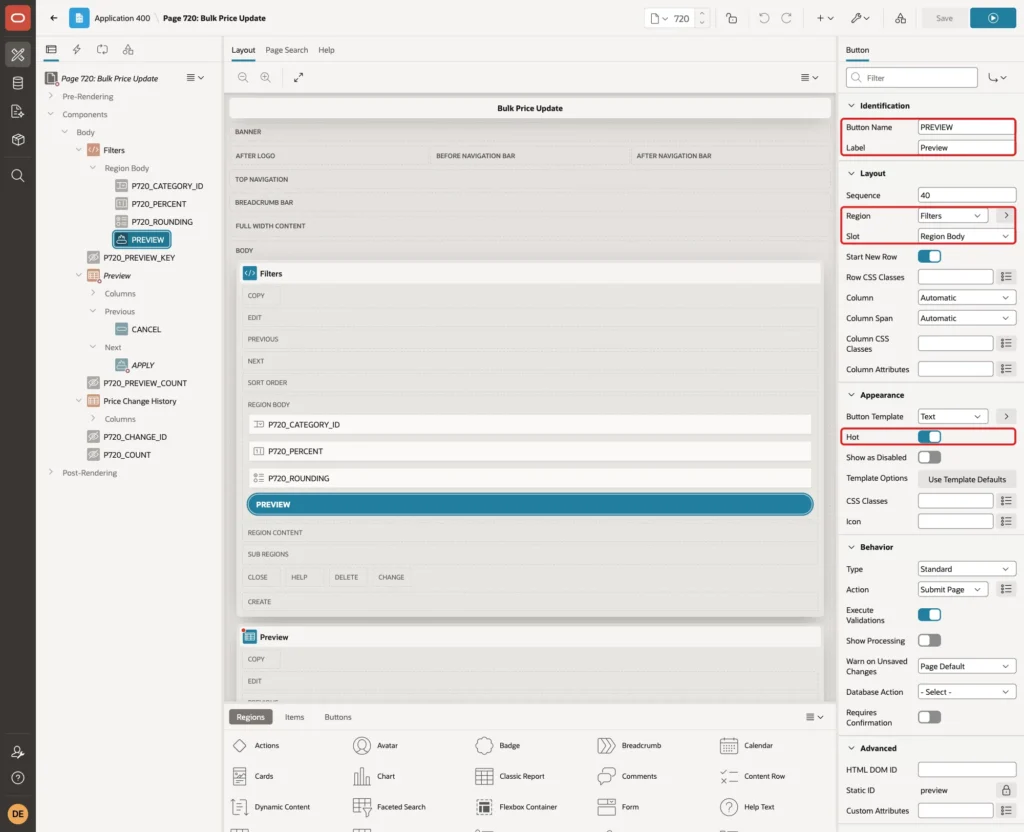
All three filter items keep the default storage Per Session (Persistent). Their values stay in the session after the page reloads, so the preview report can read them.
Step 7: Add the Hidden Items
Right-click Body and create the page item P720_PREVIEW_KEY with Type Hidden. Keep Value Protected on and Storage Per Session (Persistent):
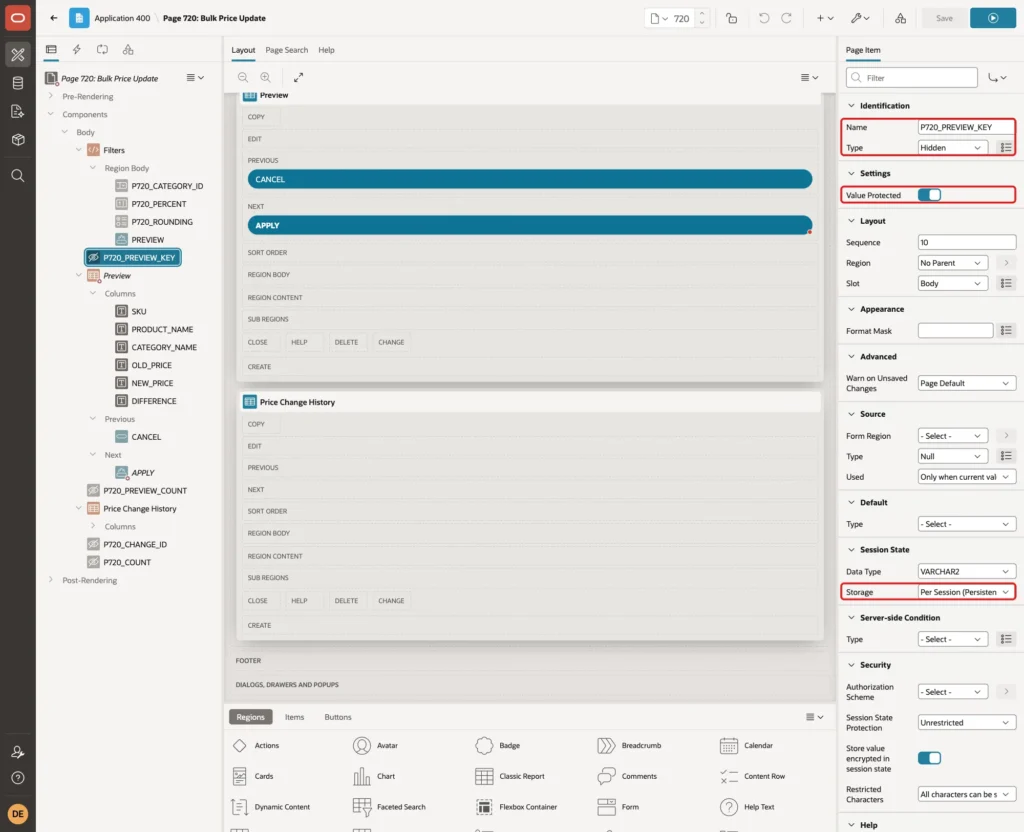
Only the server sets the key. Value Protected adds a checksum, so a key changed in the browser is rejected. Create P720_PREVIEW_COUNT the same way. It holds the number of rows in the preview.
Create P720_CHANGE_ID and P720_COUNT with Type Hidden and Storage Per Request (Memory Only). They receive the change ID and the row count for the success message:
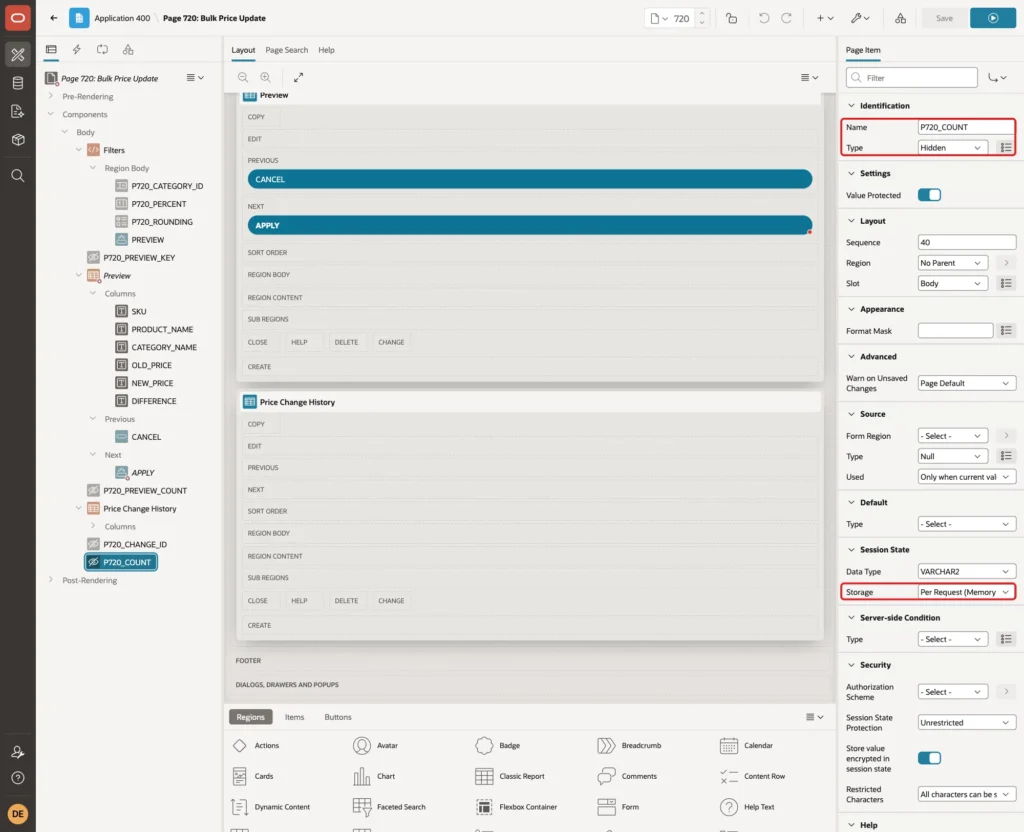
Step 8: Add the Preview Region
Create a region below Filters. Set Name to Preview, Type to Classic Report and enter this SQL Query:
Example:
select p.sku,
       p.product_name,
       c.category_name,
       p.unit_price as old_price,
       blk_price_pkg.new_price(p.unit_price, to_number(:P720_PERCENT), :P720_ROUNDING) as new_price,
       blk_price_pkg.new_price(p.unit_price, to_number(:P720_PERCENT), :P720_ROUNDING)
         - p.unit_price as difference
from blk_products p
join blk_categories c on c.category_id = p.category_id
where p.is_active = 'Y'
and (:P720_CATEGORY_ID is null or p.category_id = :P720_CATEGORY_ID)
order by c.category_name, p.sku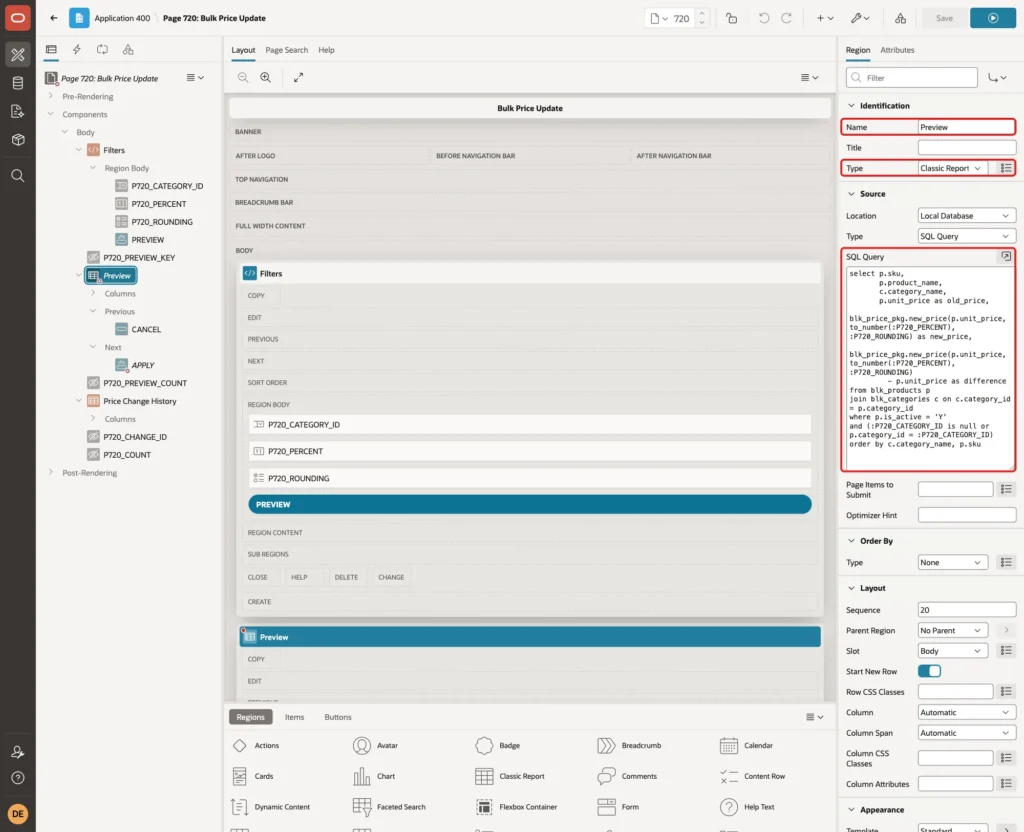
The query calls BLK_PRICE_PKG.NEW_PRICE, the same function the UPDATE uses. The WHERE clause is the same filter as in the package: active rows, and one category or all of them.
Set Server-side Condition, Type to Item is NOT NULL and Item to P720_PREVIEW_KEY. The region shows only after a preview:
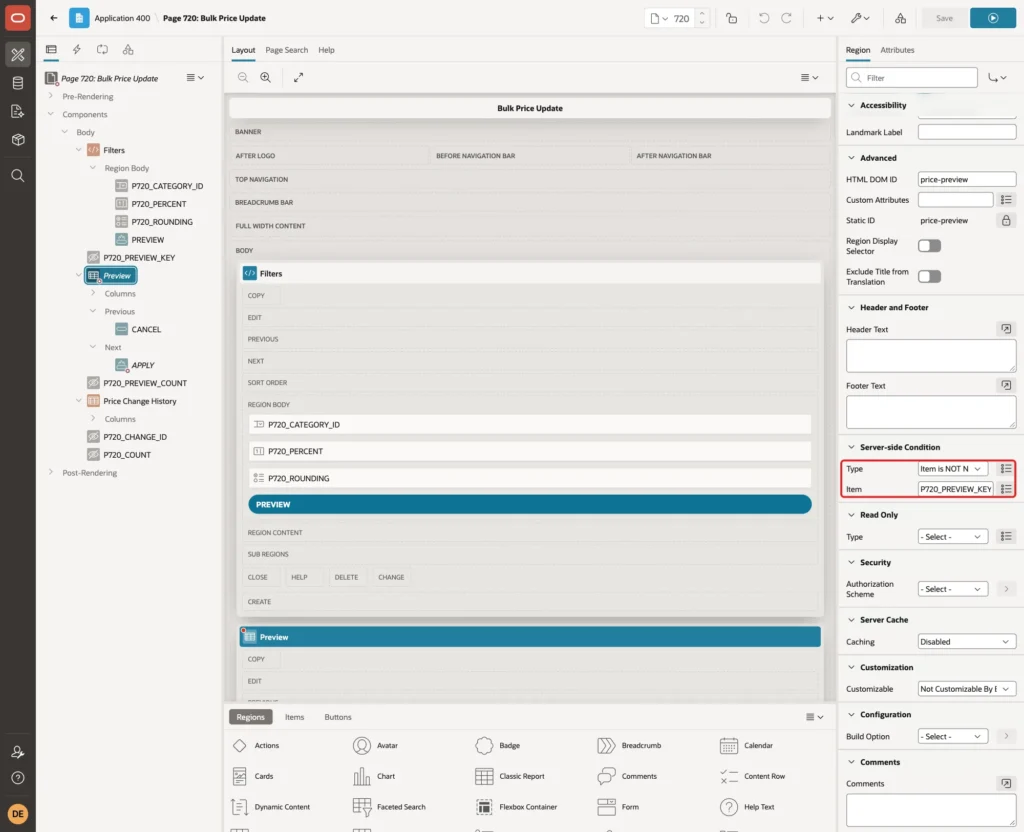
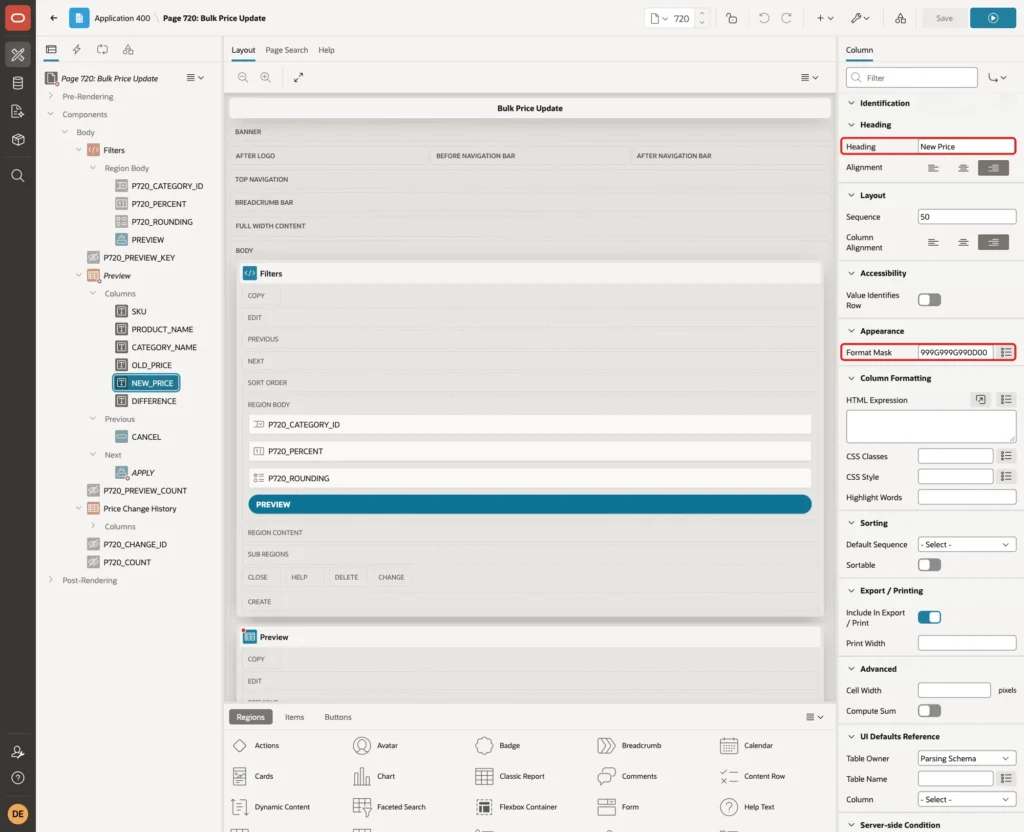
Expand Columns. Set the headings to SKU, Product, Category, Old Price, New Price and Difference. Set Format Mask to 999G999G990D00 for OLD_PRICE, NEW_PRICE and DIFFERENCE:
Under Messages, set When No Data Found to "No active products match the filters.".
Right-click Preview and select Create Button. Set Button Name to APPLY, Label to Apply Price Change, Slot to Next and Hot on:
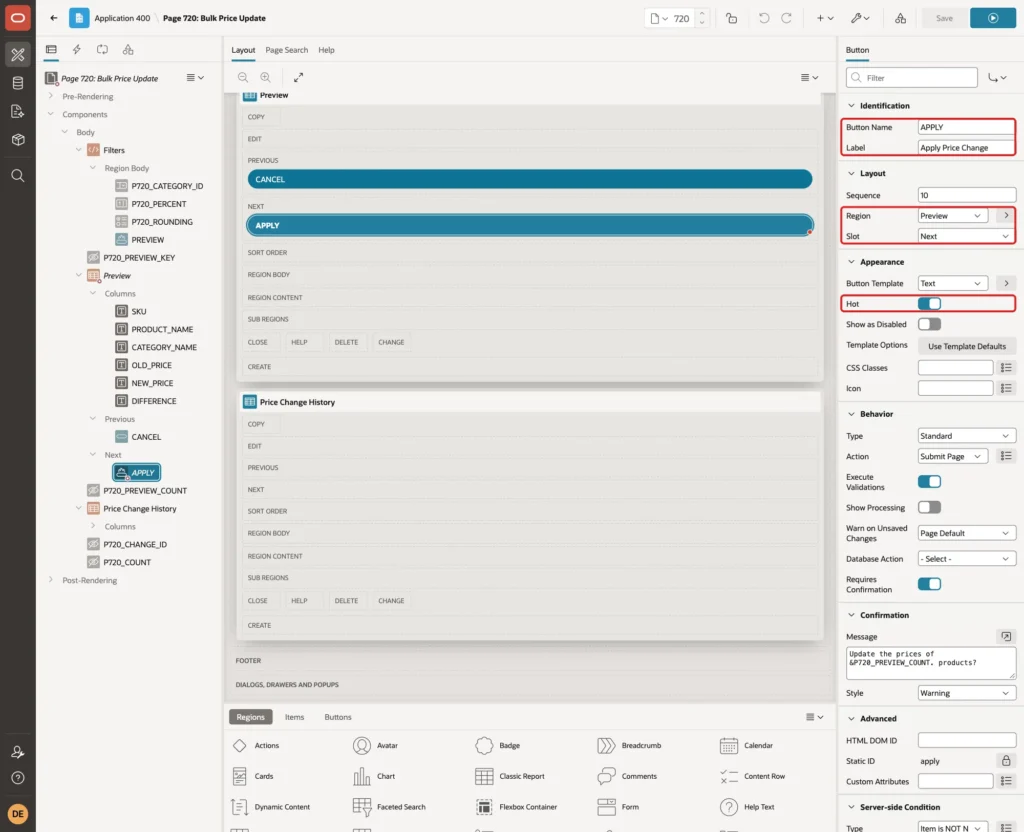
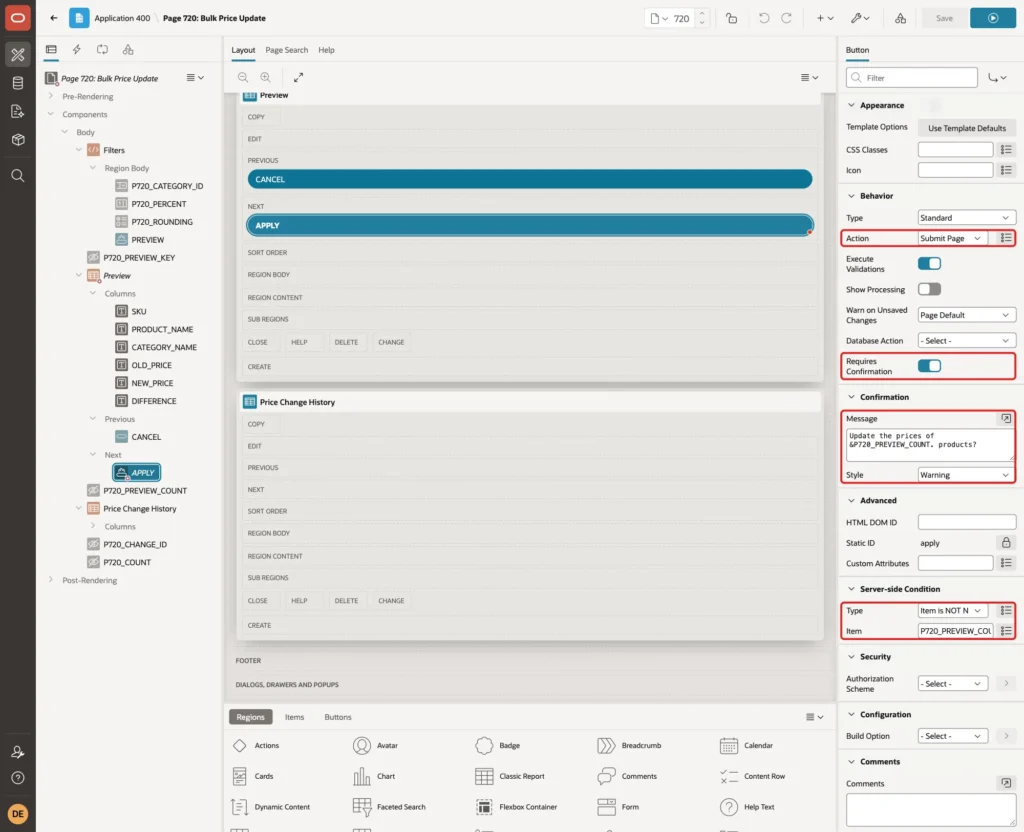
Under Behavior, turn Requires Confirmation on. Set Confirmation, Message to "Update the prices of &P720_PREVIEW_COUNT. products?" and Style to Warning. Set Server-side Condition, Type to Item is NOT NULL and NOT zero with Item P720_PREVIEW_COUNT:
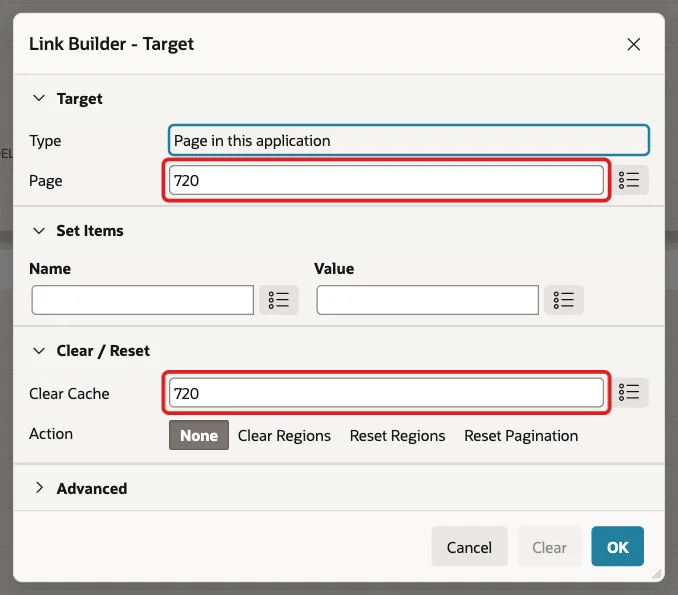
Create a second button. Set Button Name to CANCEL, Label to Cancel, Slot to Previous, and Behavior, Action to Redirect to Page in this Application:
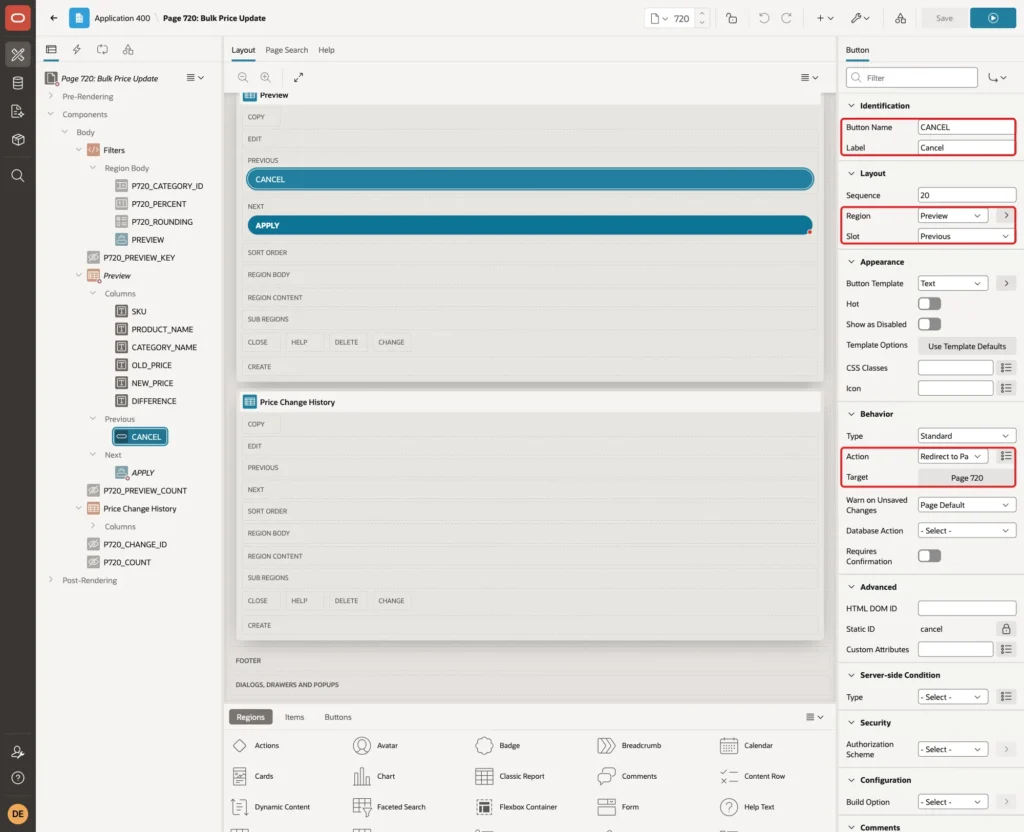
Click Target. Set Page to 720 and Clear Cache to 720, and click OK:
Step 9: Add the Price Change History Region
Create a third region. Set Name to Price Change History, Type to Classic Report and enter this SQL Query:
Example:
select h.change_id,
       nvl(c.category_name, 'All Categories') as category_name,
       h.percent_change,
       case h.rounding
         when 'NONE'  then 'No rounding'
         when 'WHOLE' then 'Whole number'
         when 'END99' then 'Ends in .99'
       end as rounding_label,
       h.rows_updated,
       h.changed_by,
       h.changed_on
from blk_price_changes h
left join blk_categories c on c.category_id = h.category_id
order by h.change_id desc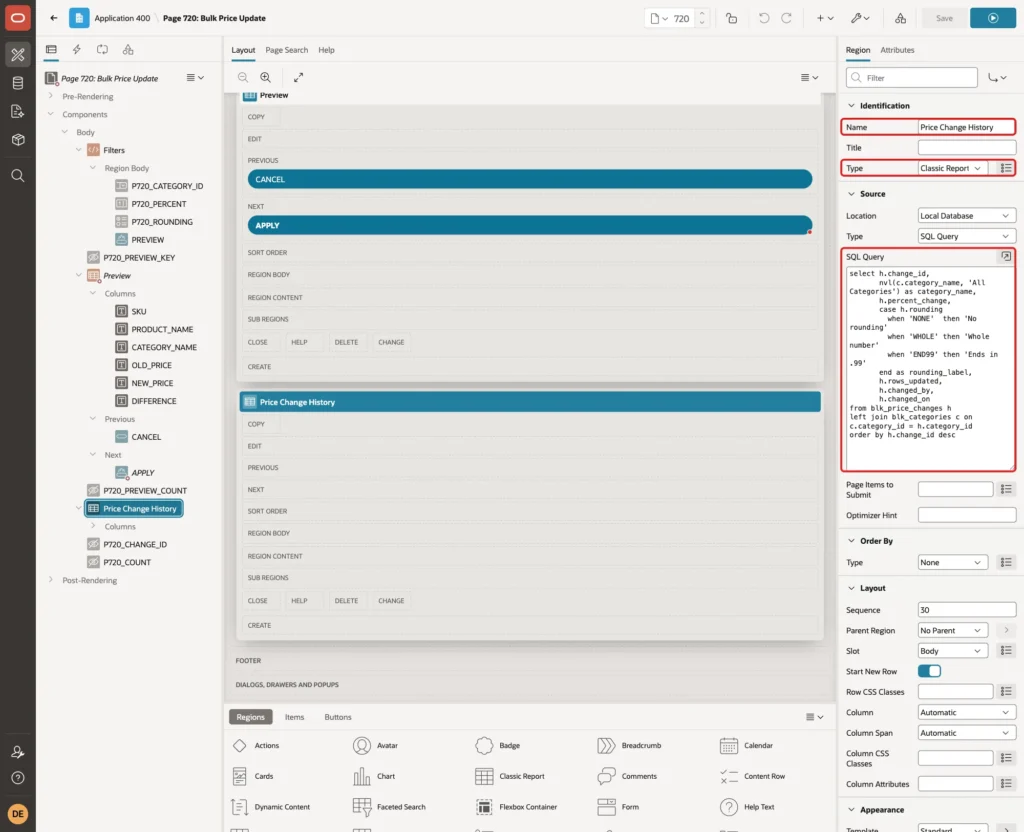
Set the headings to Change, Category, Percent, Rounding, Products, Changed By and Changed On. Set Format Mask to DD-MON-YYYY HH24:MI for CHANGED_ON, and When No Data Found to "No price changes yet.".
Step 10: Add the Processes and the Branch
Open the Processing tab, right-click Processing and select Create Process. Set Name to Preview Price Change, Type to Execute Code and enter this PL/SQL Code:
Example:
:P720_PREVIEW_KEY := null;
:P720_PREVIEW_KEY := blk_price_pkg.preview_key(
  p_category_id => :P720_CATEGORY_ID,
  p_percent     => :P720_PERCENT,
  p_rounding    => :P720_ROUNDING);

select count(*)
into   :P720_PREVIEW_COUNT
from   blk_products
where  is_active = 'Y'
and    (:P720_CATEGORY_ID is null or category_id = :P720_CATEGORY_ID);
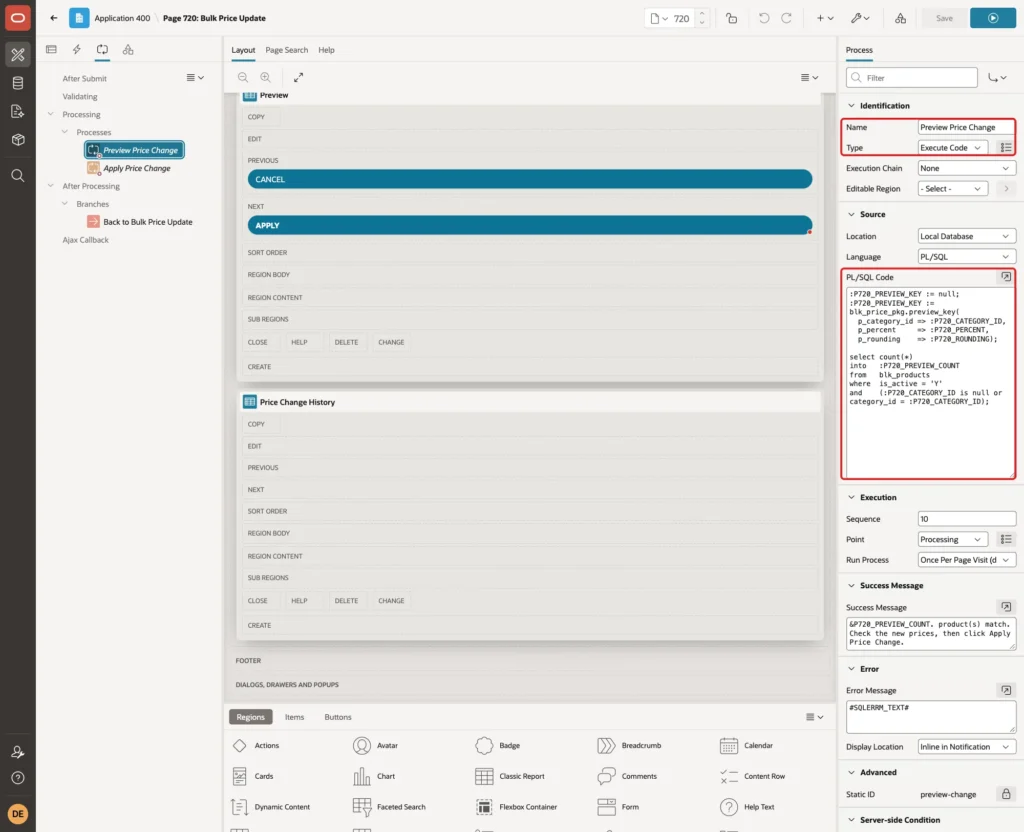
The process first clears the old key. PREVIEW_KEY then checks the percent and the rounding and raises an error for bad input, so a failed preview never leaves a usable key behind.
Set Success Message to "&P720_PREVIEW_COUNT. product(s) match. Check the new prices, then click Apply Price Change.", Error Message to #SQLERRM_TEXT#, and When Button Pressed to PREVIEW:
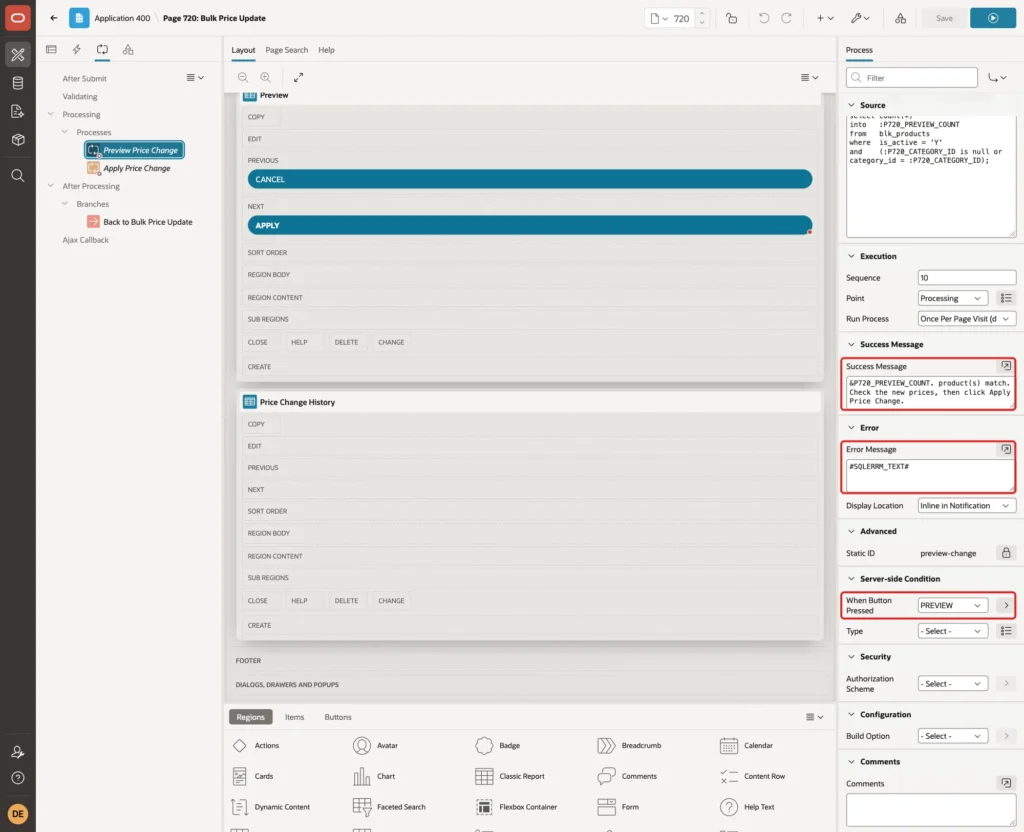
Create a second process. Set Name to Apply Price Change, Type to Execute Code and enter this code:
Example:
blk_price_pkg.apply_change(
  p_category_id => :P720_CATEGORY_ID,
  p_percent     => :P720_PERCENT,
  p_rounding    => :P720_ROUNDING,
  p_preview_key => :P720_PREVIEW_KEY,
  p_changed_by  => :APP_USER,
  p_change_id   => :P720_CHANGE_ID,
  p_count       => :P720_COUNT);

:P720_PREVIEW_KEY   := null;
:P720_PREVIEW_COUNT := null;
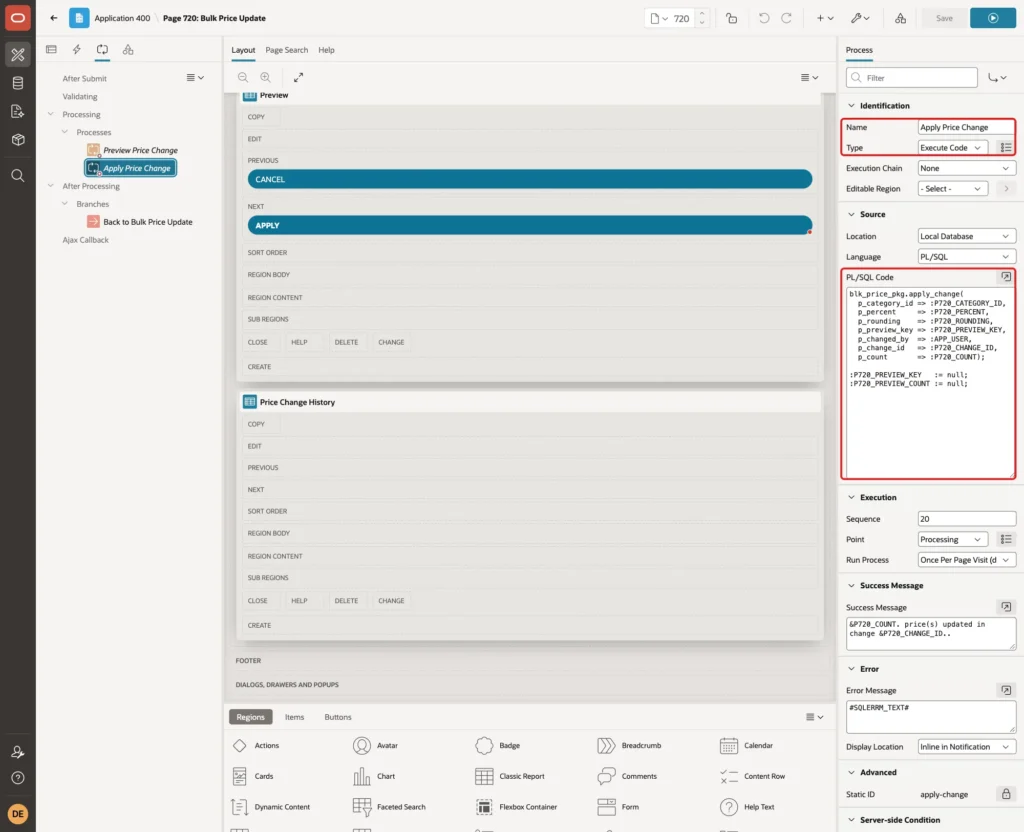
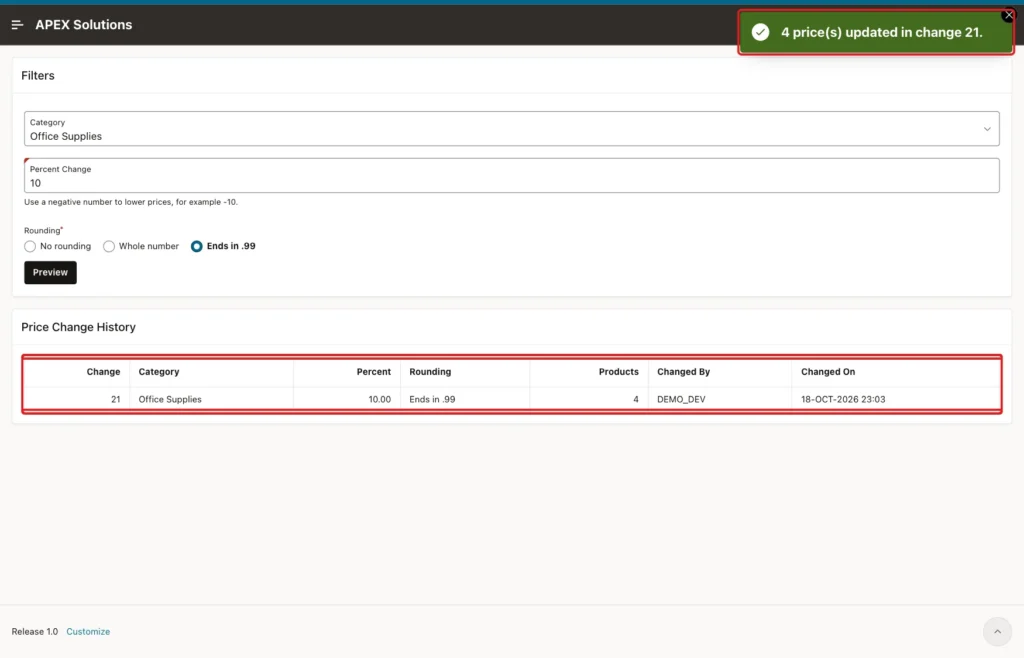
After a successful update, the process clears the key and the count, so the Preview region disappears. Set Success Message to "&P720_COUNT. price(s) updated in change &P720_CHANGE_ID..", Error Message to #SQLERRM_TEXT#, and When Button Pressed to APPLY:
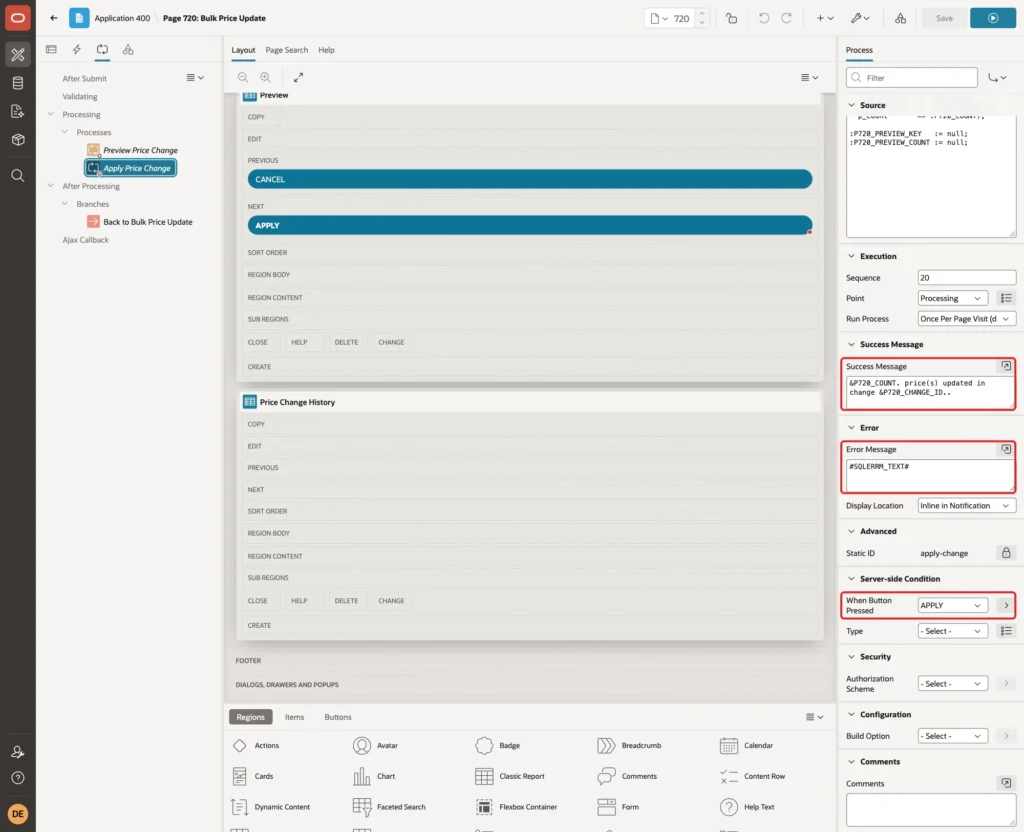
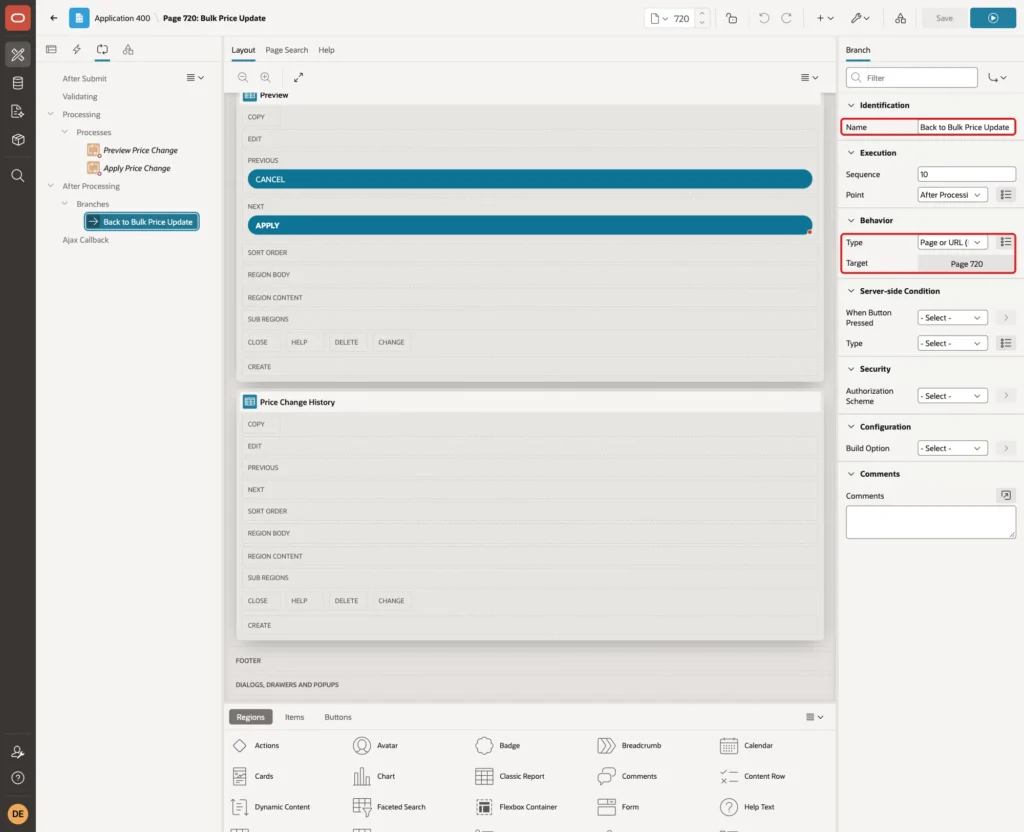
The first dot after &P720_CHANGE_ID ends the substitution, and the second one ends the sentence. Right-click After Processing and select Create Branch. Set Name to Back to Bulk Price Update, Type to Page or URL (Redirect) and Target to page 720:
Save the page.
Step 11: Test the Preview and Apply
Run page 720 as DEMO_DEV, an administrator. Select Office Supplies, enter 10 and select Ends in .99:
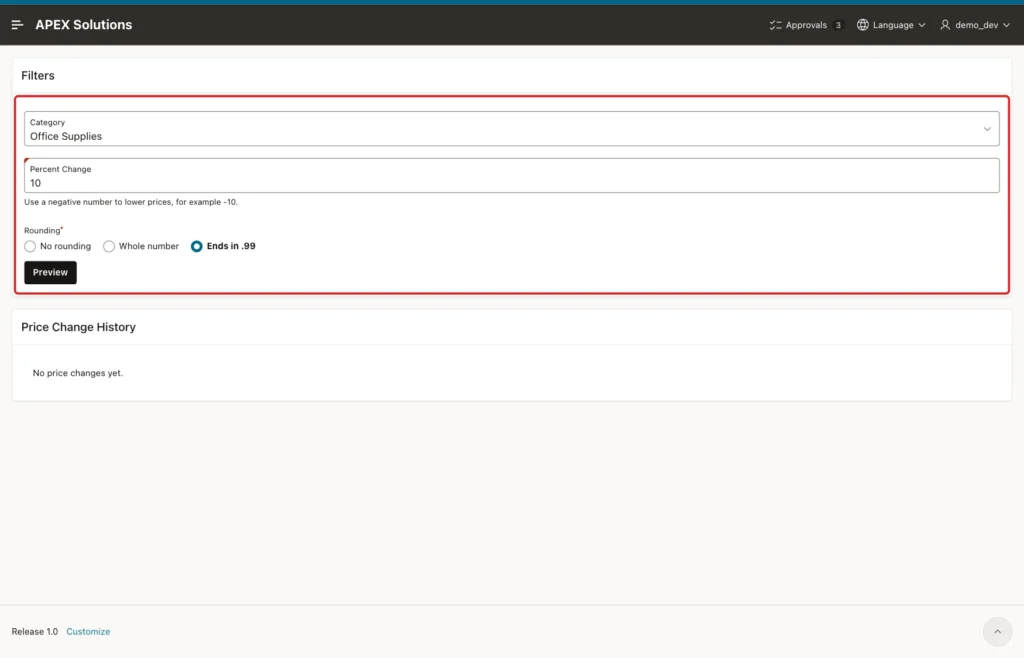
Click Preview. The message says 4 product(s) match, and the Preview region lists the four active Office Supplies products with the old and the new price. The inactive OS-140 is not in the list:
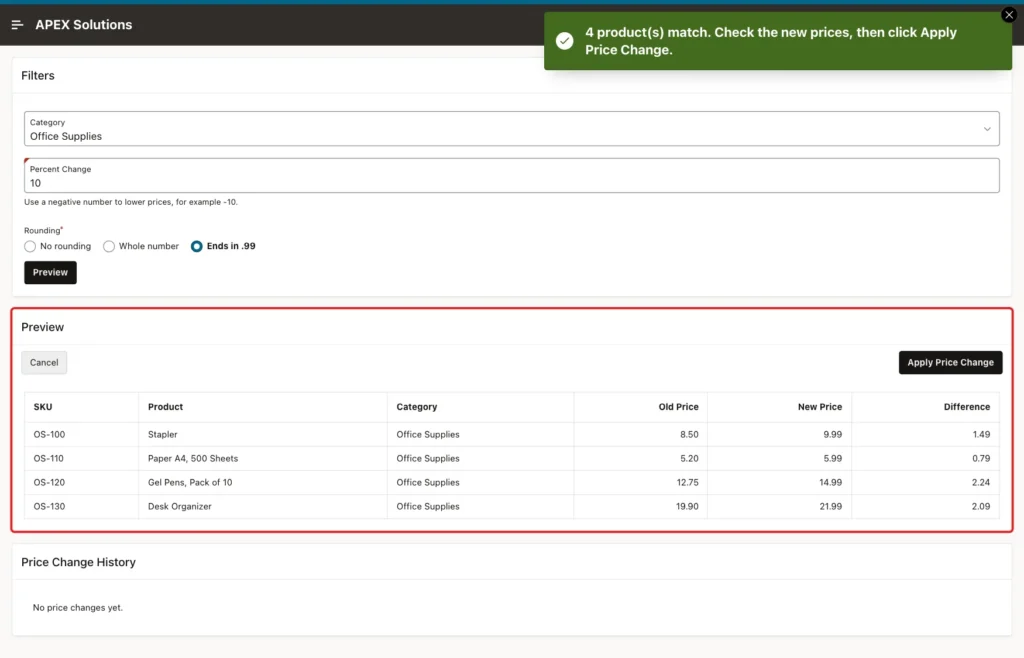
Nothing has been saved yet. The preview shows that Ends in .99 raised the Stapler from 8.50 to 9.99, which is more than 10 percent. This is exactly the kind of result a user should see before saving.
Click Apply Price Change. APEX shows the confirmation message with the number of rows:
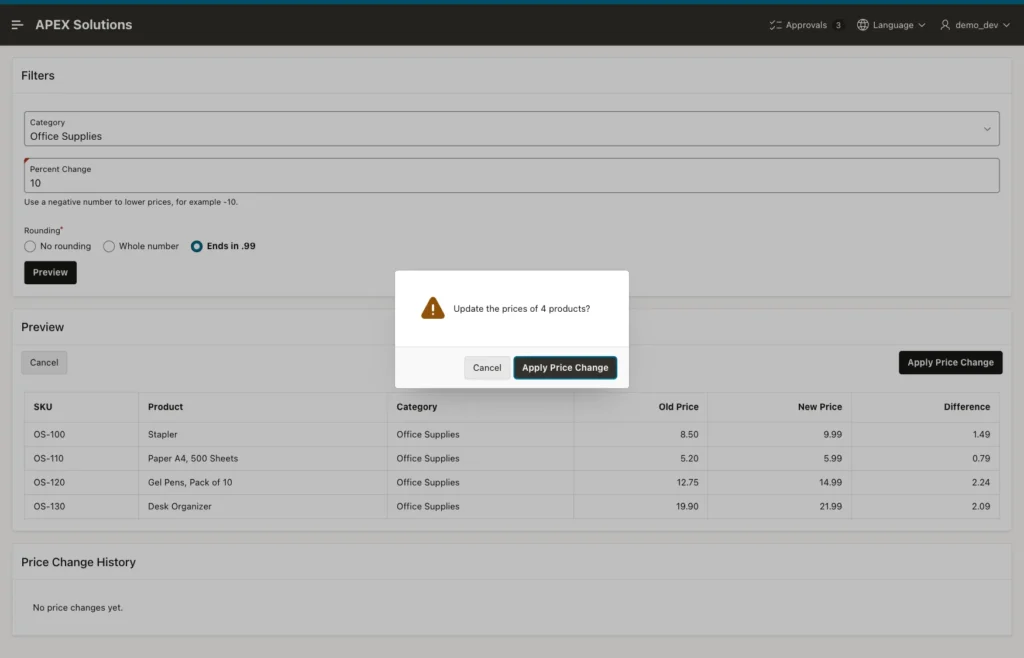
Clicking Cancel in the dialog closed it, and the history stayed empty. Clicking Apply Price Change in the dialog updated the prices:
Check the result in SQL:
Example:
select p.sku, c.category_name, to_char(p.unit_price, 'FM9990.00') as unit_price,
       p.is_active, p.price_changed_by
from blk_products p
join blk_categories c on c.category_id = p.category_id
order by p.sku;

select l.change_id, p.sku, to_char(l.old_price, 'FM9990.00') as old_price,
       to_char(l.new_price, 'FM9990.00') as new_price
from blk_price_change_lines l
join blk_products p on p.product_id = l.product_id
order by l.change_id, p.sku;
Output:
SKU       CATEGORY_NAME      UNIT_PRICE    IS_ACTIVE    PRICE_CHANGED_BY
_________ __________________ _____________ ____________ ___________________
EL-200    Electronics        24.99         Y
EL-210    Electronics        39.00         Y
EL-220    Electronics        219.00        Y
FU-300    Furniture          149.00        Y
FU-310    Furniture          389.50        Y
OS-100    Office Supplies    9.99          Y            DEMO_DEV
OS-110    Office Supplies    5.99          Y            DEMO_DEV
OS-120    Office Supplies    14.99         Y            DEMO_DEV
OS-130    Office Supplies    21.99         Y            DEMO_DEV
OS-140    Office Supplies    4.10          N

10 rows selected.

   CHANGE_ID SKU       OLD_PRICE    NEW_PRICE
____________ _________ ____________ ____________
          21 OS-100    8.50         9.99
          21 OS-110    5.20         5.99
          21 OS-120    12.75        14.99
          21 OS-130    19.90        21.99
Only the four active Office Supplies rows changed. Electronics, Furniture and the inactive OS-140 kept their prices, and the lines table holds the old and the new price of each changed row.
Step 12: Test Cancel
Select Electronics, enter -10, select Whole number and click Preview. The Preview region shows the lower prices. Then click Cancel:
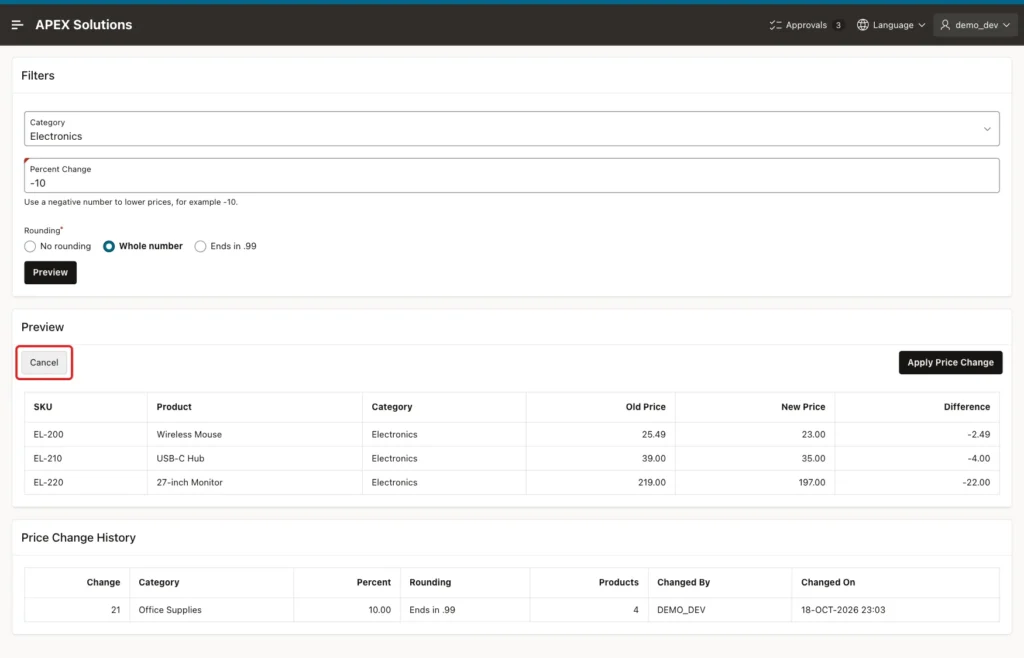
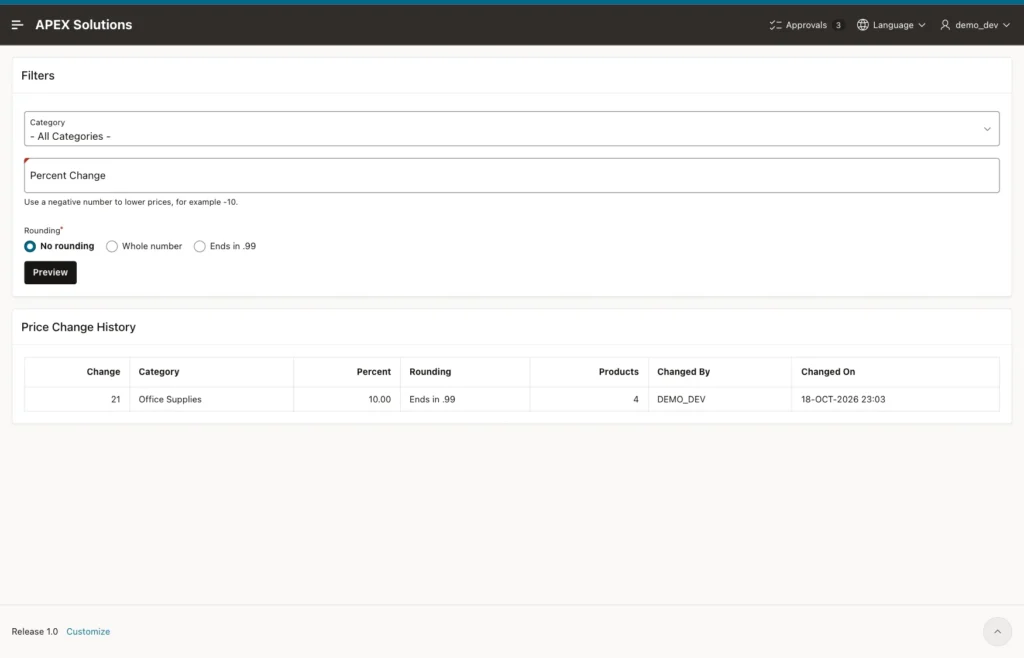
The page reloads with empty filters, the default rounding and no Preview region. The history still has one change, and the Electronics prices did not change:
Step 13: Test the Error Cases
First, a price changes after the preview. Preview Electronics with +5% and No rounding. Before clicking Apply, another session changes the price of EL-200:
Example:
update blk_products
set    unit_price = 25.49
where  sku = 'EL-200';
commit;
Now click Apply Price Change and confirm. The package finds a different key and stops:
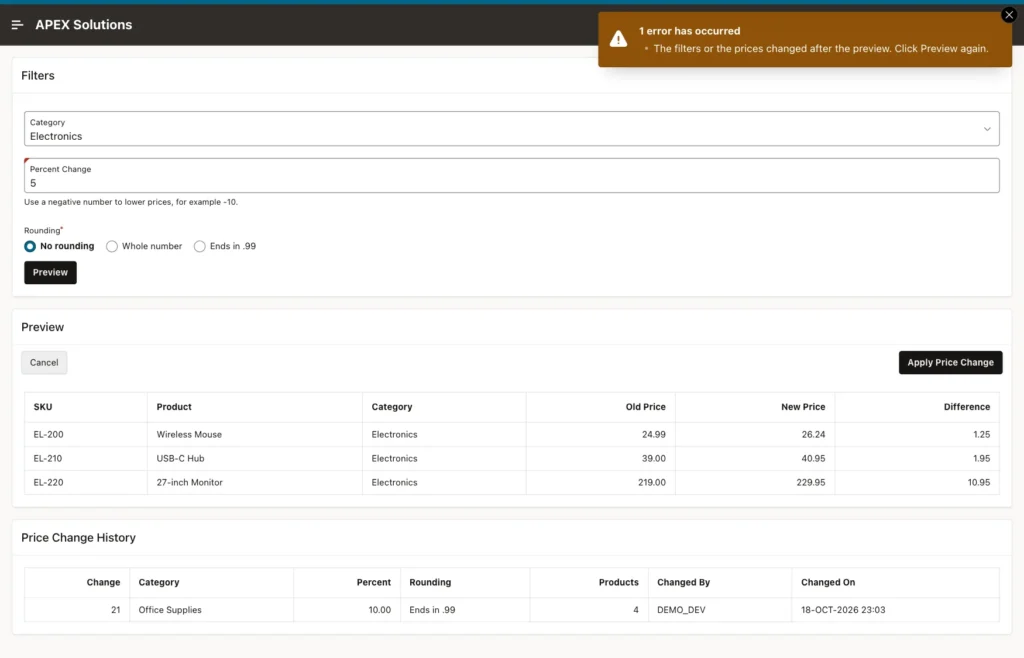
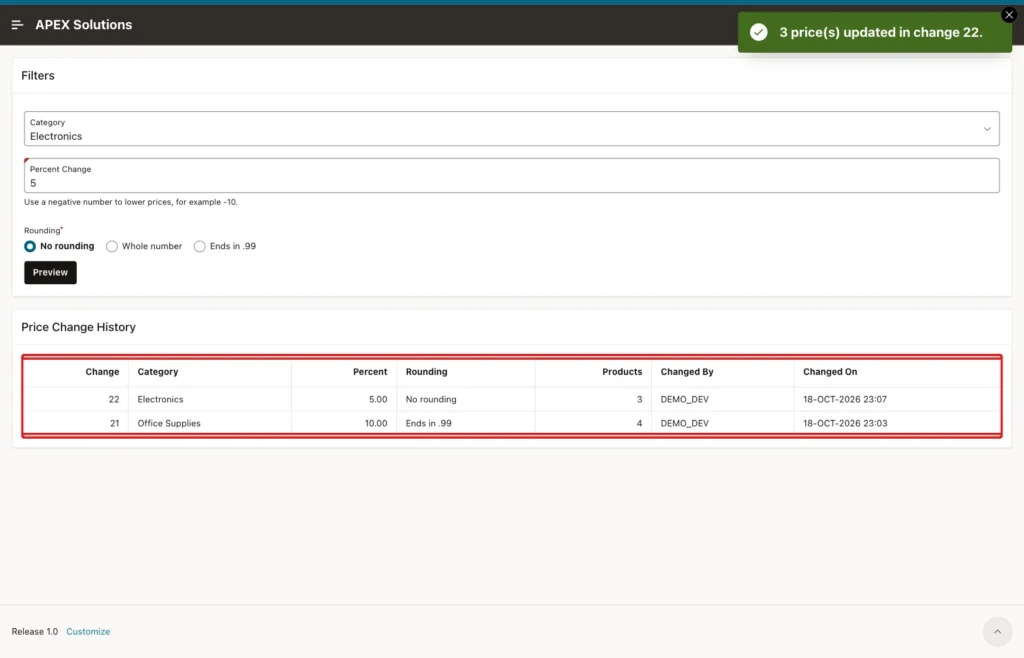
The error did not reload the page, so the old preview with 24.99 is still on the screen. After clicking Preview again, the report showed EL-200 at 25.49 with a new price of 26.76, and Apply saved change 22:
Second, the filters change after the preview. Furniture was previewed with +5%, the percent was then changed to 50 without a new preview, and Apply was clicked. APEX submitted the new value, the key did not match, and the same "changed after the preview" error appeared. No Furniture price changed.
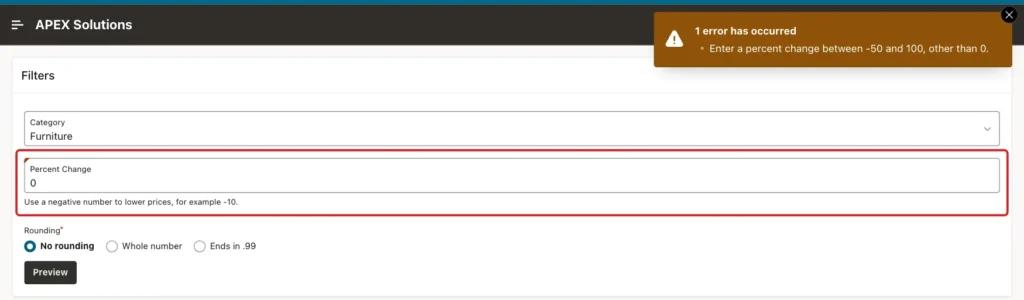
Third, invalid input. A percent of 0 passed the item range check, and the package refused it in the Preview process:
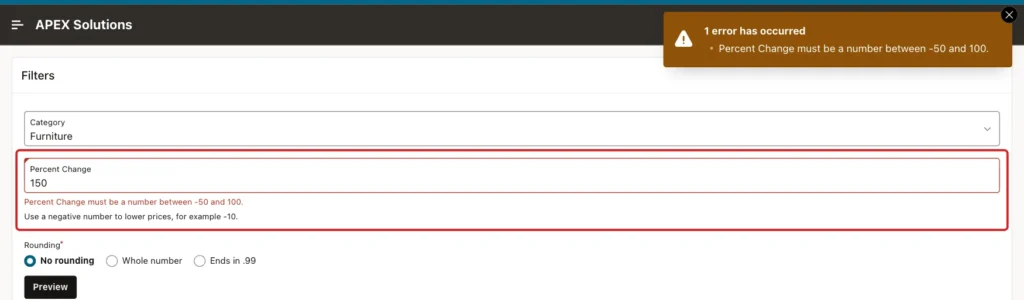
A percent of 150 was stopped by the Maximum Value of the Number Field:
Fourth, forced requests from the browser console. Without any preview, this call was run with Furniture and 5 percent in the filters:
Example:
apex.page.submit('APPLY');The Apply process ran, because the hidden button does not stop a request, but the empty key failed the check. The page showed "The filters or the prices changed after the preview. Click Preview again." and nothing was saved.
After a real Furniture preview, the console changed the hidden key before Apply:
Example:
apex.item('P720_PREVIEW_KEY').setValue('3|5|NONE|2|1');APEX stopped the request with "Session state protection violation: This may be caused by manual alteration of protected page item P720_PREVIEW_KEY.", because Value Protected is on.
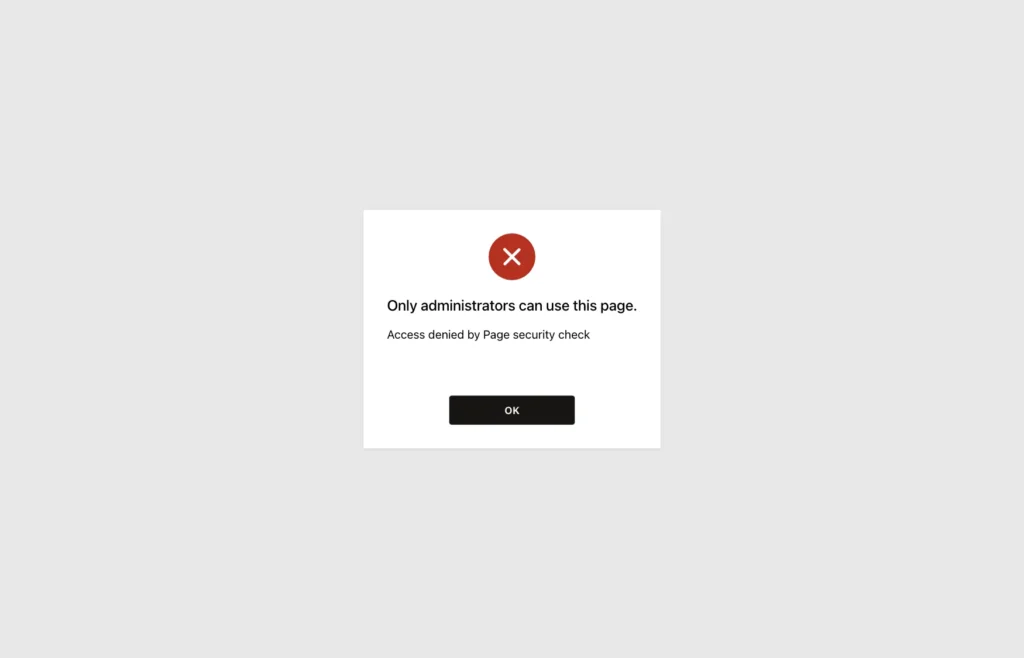
Last, a user without the administrator role. SALES_USER does not see Bulk Price Update in the menu, and opening the page URL is blocked:
The final state in SQL:
Example:
select p.sku, c.category_name, to_char(p.unit_price, 'FM9990.00') as unit_price,
       p.price_changed_by
from blk_products p
join blk_categories c on c.category_id = p.category_id
where p.is_active = 'Y'
order by p.sku;

select change_id, category_id, percent_change, rounding, rows_updated, changed_by
from blk_price_changes
order by change_id;
Output:
SKU       CATEGORY_NAME      UNIT_PRICE    PRICE_CHANGED_BY
_________ __________________ _____________ ___________________
EL-200    Electronics        26.76         DEMO_DEV
EL-210    Electronics        40.95         DEMO_DEV
EL-220    Electronics        229.95        DEMO_DEV
FU-300    Furniture          149.00
FU-310    Furniture          389.50
OS-100    Office Supplies    9.99          DEMO_DEV
OS-110    Office Supplies    5.99          DEMO_DEV
OS-120    Office Supplies    14.99         DEMO_DEV
OS-130    Office Supplies    21.99         DEMO_DEV

9 rows selected.

   CHANGE_ID    CATEGORY_ID    PERCENT_CHANGE ROUNDING       ROWS_UPDATED CHANGED_BY
____________ ______________ _________________ ___________ _______________ _____________
          21              1                10 END99                     4 DEMO_DEV
          22              2                 5 NONE                      3 DEMO_DEV
Two bulk changes were saved, Furniture never changed, and every changed row has PRICE_CHANGED_BY set.
Things to Know
- Use the same function for the preview and the update, so the user saves exactly the numbers they saw.
- Store a key of the preview and check it under a row lock. It catches changed filters, changed data, double clicks and two users applying the same change.
- Lock the rows with FOR UPDATE before the check. A second session then waits, sees the committed data and stops.
- A hidden button does not stop a forced request. Check the rules in the code that changes the data.
- Keep Value Protected on for items that only the server sets.
- RETURNING OLD and NEW values in an UPDATE fill a history table in one pass in Oracle Database 23ai and later.
- A collection method such as l_ids.count cannot be used inside a SQL statement (ORA-00984); copy it into a variable first.
Related Guides
- How to Process Selected Report Rows with Checkboxes in Oracle APEX
- How to Lock a Record While a User Is Editing It in Oracle APEX
Conclusion
A safe bulk update in Oracle APEX needs a preview of the old and new values and an Apply step that saves exactly that preview. A PL/SQL package computes the new values, builds a key of the preview, locks the rows, checks the key again and runs one UPDATE that also fills a history table.
On the page, filters, a classic report and two buttons with a confirmation dialog are enough. Cancel, stale previews, changed filters, invalid percents, forced requests, a changed key and a user without the role were all tested, and none of them changed a price.
