
An inventory application must answer two questions at any time: how much of each item is on hand, and which items need to be reordered. If the stock quantity is a single number that users overwrite, nobody can tell later why it changed, and two users who update it at the same time can lose each other's changes.
This guide records every receipt and issue as a row in a movements table and calculates the stock on hand from those rows. An Oracle APEX form records new movements and refuses to issue more than is on hand. A report page highlights low and empty stock and shows the counts as badges.
This guide uses office supplies as the example; the same steps work for spare parts, materials or any other stock you count.
Step 1: Create the Tables
The example needs two tables and a view. INV_ITEMS holds the items and their reorder level. INV_MOVEMENTS holds one row per stock movement. The view INV_STOCK_LEVELS_V adds up the movements per item and works out the stock status.
Create the tables, the index, the view and the sample data:
Example:
set lines 200 pages 100 feedback on
create table inv_items (
  item_id       number generated by default on null as identity constraint inv_items_pk primary key,
  sku           varchar2(30)  not null,
  item_name     varchar2(100) not null,
  unit          varchar2(10)  default on null 'Each' not null,
  reorder_level number(10)    default on null 0 not null,
  constraint inv_items_sku_uk unique (sku),
  constraint inv_items_reorder_ck check (reorder_level >= 0)
);

create table inv_movements (
  movement_id   number generated by default on null as identity constraint inv_movements_pk primary key,
  item_id       number        not null,
  movement_type varchar2(10)  not null,
  quantity      number(10)    not null,
  qty_change    number(10)    generated always as (
                  case when movement_type in ('ISSUE', 'WRITE_OFF') then -quantity else quantity end
                ) virtual,
  moved_on      date          default on null trunc(sysdate) not null,
  reference     varchar2(100),
  created_by    varchar2(255) default on null coalesce(sys_context('APEX$SESSION', 'APP_USER'), user) not null,
  created_on    date          default on null sysdate not null,
  constraint inv_movements_item_fk foreign key (item_id)
    references inv_items (item_id),
  constraint inv_movements_type_ck check (movement_type in ('RECEIPT', 'RETURN', 'ISSUE', 'WRITE_OFF')),
  constraint inv_movements_qty_ck check (quantity > 0)
);

create index inv_movements_item_ix on inv_movements (item_id, moved_on);

create or replace view inv_stock_levels_v as
select i.item_id,
       i.sku,
       i.item_name,
       i.unit,
       i.reorder_level,
       nvl(sum(m.qty_change), 0) as on_hand,
       max(m.moved_on)           as last_movement_on,
       case
         when nvl(sum(m.qty_change), 0) <= 0               then 'OUT'
         when nvl(sum(m.qty_change), 0) <= i.reorder_level then 'LOW'
         else 'OK'
       end                       as stock_status
from   inv_items i
left   join inv_movements m on m.item_id = i.item_id
group  by i.item_id, i.sku, i.item_name, i.unit, i.reorder_level;

insert into inv_items (sku, item_name, unit, reorder_level) values ('KB-100', 'USB Keyboard', 'Each', 10);
insert into inv_items (sku, item_name, unit, reorder_level) values ('MS-200', 'Wireless Mouse', 'Each', 15);
insert into inv_items (sku, item_name, unit, reorder_level) values ('MN-270', '27-inch Monitor', 'Each', 5);
insert into inv_items (sku, item_name, unit, reorder_level) values ('CB-HDMI', 'HDMI Cable 2m', 'Each', 20);
insert into inv_items (sku, item_name, unit, reorder_level) values ('PP-A4', 'A4 Copy Paper', 'Box', 8);

insert into inv_movements (item_id, movement_type, quantity, moved_on, reference) values (1, 'RECEIPT', 40, date '2026-10-01', 'PO-1001');
insert into inv_movements (item_id, movement_type, quantity, moved_on, reference) values (2, 'RECEIPT', 30, date '2026-10-01', 'PO-1001');
insert into inv_movements (item_id, movement_type, quantity, moved_on, reference) values (3, 'RECEIPT', 12, date '2026-10-02', 'PO-1002');
insert into inv_movements (item_id, movement_type, quantity, moved_on, reference) values (4, 'RECEIPT', 25, date '2026-10-02', 'PO-1002');
insert into inv_movements (item_id, movement_type, quantity, moved_on, reference) values (1, 'ISSUE',   12, date '2026-10-06', 'Sales desk');
insert into inv_movements (item_id, movement_type, quantity, moved_on, reference) values (2, 'ISSUE',   18, date '2026-10-07', 'New hires');
insert into inv_movements (item_id, movement_type, quantity, moved_on, reference) values (2, 'RETURN',   2, date '2026-10-09', 'Unused');
insert into inv_movements (item_id, movement_type, quantity, moved_on, reference) values (3, 'ISSUE',    8, date '2026-10-12', 'Design team');
insert into inv_movements (item_id, movement_type, quantity, moved_on, reference) values (4, 'ISSUE',   24, date '2026-10-13', 'Meeting rooms');
insert into inv_movements (item_id, movement_type, quantity, moved_on, reference) values (4, 'WRITE_OFF', 1, date '2026-10-14', 'Damaged');
commit;

select sku, item_name, unit, reorder_level, on_hand, stock_status
from   inv_stock_levels_v
order  by sku;
Output:
Table INV_ITEMS created.

Table INV_MOVEMENTS created.

Index INV_MOVEMENTS_ITEM_IX created.

View INV_STOCK_LEVELS_V created.

1 row inserted.

1 row inserted.

1 row inserted.

1 row inserted.

1 row inserted.

1 row inserted.

1 row inserted.

1 row inserted.

1 row inserted.

1 row inserted.

1 row inserted.

1 row inserted.

1 row inserted.

1 row inserted.

1 row inserted.

Commit complete.

SKU        ITEM_NAME          UNIT       REORDER_LEVEL    ON_HAND STOCK_STATUS
__________ __________________ _______ ________________ __________ _______________
CB-HDMI    HDMI Cable 2m      Each                  20          0 OUT
KB-100     USB Keyboard       Each                  10         28 OK
MN-270     27-inch Monitor    Each                   5          4 LOW
MS-200     Wireless Mouse     Each                  15         14 LOW
PP-A4      A4 Copy Paper      Box                    8          0 OUT

5 rows selected.
- INV_ITEMS_SKU_UK allows each SKU only once, and INV_ITEMS_REORDER_CK rejects a negative reorder level.
- INV_MOVEMENTS_ITEM_FK allows movements only for existing items. INV_MOVEMENTS_ITEM_IX supports the foreign key and the sum per item.
- INV_MOVEMENTS_TYPE_CK allows four movement types. RECEIPT and RETURN add stock, ISSUE and WRITE_OFF take stock out.
- INV_MOVEMENTS_QTY_CK accepts only positive quantities. The user always enters a positive number, and the type decides the direction.
QTY_CHANGE is a virtual column. It turns the quantity of an issue or a write-off into a negative number, so the stock on hand is simply SUM(qty_change). No trigger is needed for this.
MOVED_ON, CREATED_BY and CREATED_ON use DEFAULT ON NULL. CREATED_BY takes the APEX user from the APEX$SESSION context, and the database user when a row is inserted outside APEX, as the sample rows were.
The view returns OUT when the stock is zero or less, LOW when it is at or below the reorder level, and OK otherwise. The 27-inch Monitor has 4 on hand with a reorder level of 5, so it is LOW. The HDMI cable was issued and written off completely, so it is OUT.
Step 2: Test the Constraints in SQL
Try a quantity of zero and an unknown movement type:
Example:
insert into inv_movements (item_id, movement_type, quantity) values (1, 'ISSUE', 0);
insert into inv_movements (item_id, movement_type, quantity) values (1, 'LOAN', 5);
Output:
Error starting at line : 1 File @ b69/02-checks.sql
In command -
insert into inv_movements (item_id, movement_type, quantity) values (1, 'ISSUE', 0)
Error report -
ORA-02290: check constraint (APXSOL.INV_MOVEMENTS_QTY_CK) violated
Help: https://docs.oracle.com/error-help/db/ora-02290/

Error starting at line : 2 File @ b69/02-checks.sql
In command -
insert into inv_movements (item_id, movement_type, quantity) values (1, 'LOAN', 5)
Error report -
ORA-02290: check constraint (APXSOL.INV_MOVEMENTS_TYPE_CK) violated
Help: https://docs.oracle.com/error-help/db/ora-02290/
Both rows are rejected by the database, so these rules hold for every program that writes movements, not only the APEX form.
The rule "stock must not go below zero" is different. It depends on the sum of many rows, and a check constraint can only see one row. Oracle AI Database 26ai has SQL assertions, so a first idea was an assertion on the sum:
Example:
create assertion inv_no_negative_stock check (
  not exists (select 'x'
                from inv_movements
               group by item_id
              having sum(qty_change) < 0)
);
Output:
Error starting at line : 3 File @ b69/03-assertion.sql
In command -
create assertion inv_no_negative_stock check (
  not exists (select 'x'
                from inv_movements
               group by item_id
              having sum(qty_change) < 0)
)
Error report -
ORA-08689: CREATE ASSERTION failed
ORA-08661: Aggregates are not supported.
Help: https://docs.oracle.com/error-help/db/ora-08689/
Assertions do not accept aggregates such as SUM in this release. The stock check is therefore done when a movement is saved, in Step 6.
Step 3: Create the Movement Pages
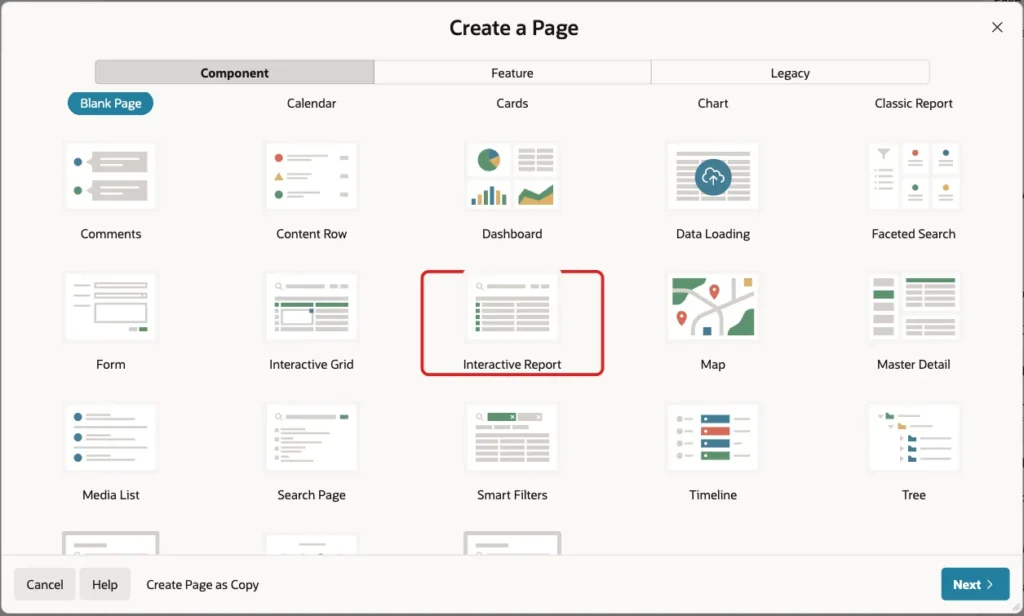
In App Builder, open the application and click Create Page. On the Component tab, click Interactive Report:
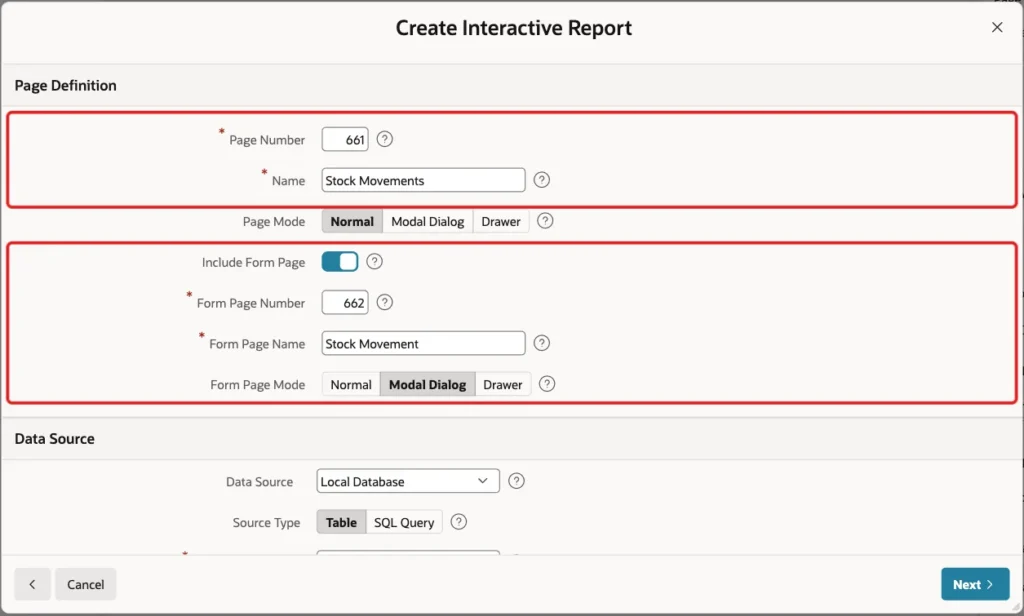
Enter Page Number 661 and Name Stock Movements. Turn on Include Form Page, enter Form Page Number 662 and Form Page Name Stock Movement, and keep Form Page Mode Modal Dialog:
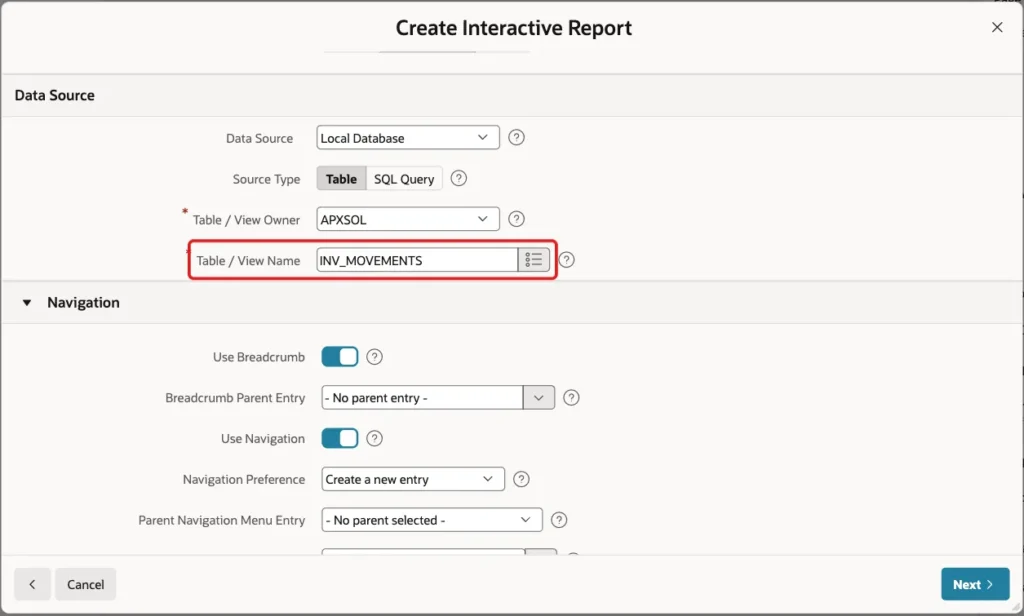
Under Data Source, keep Source Type Table and select the table INV_MOVEMENTS:
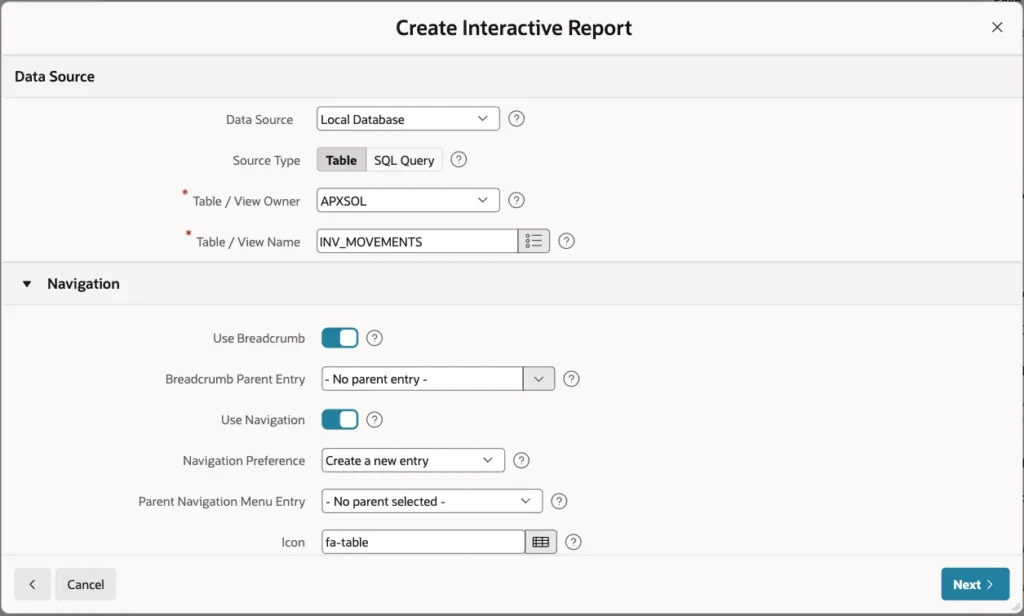
Keep the Navigation settings, so the wizard adds a breadcrumb and a navigation menu entry. Click Next:
On the Primary Key screen, select MOVEMENT_ID (Number) for Primary Key Column 1 and click Create Page:
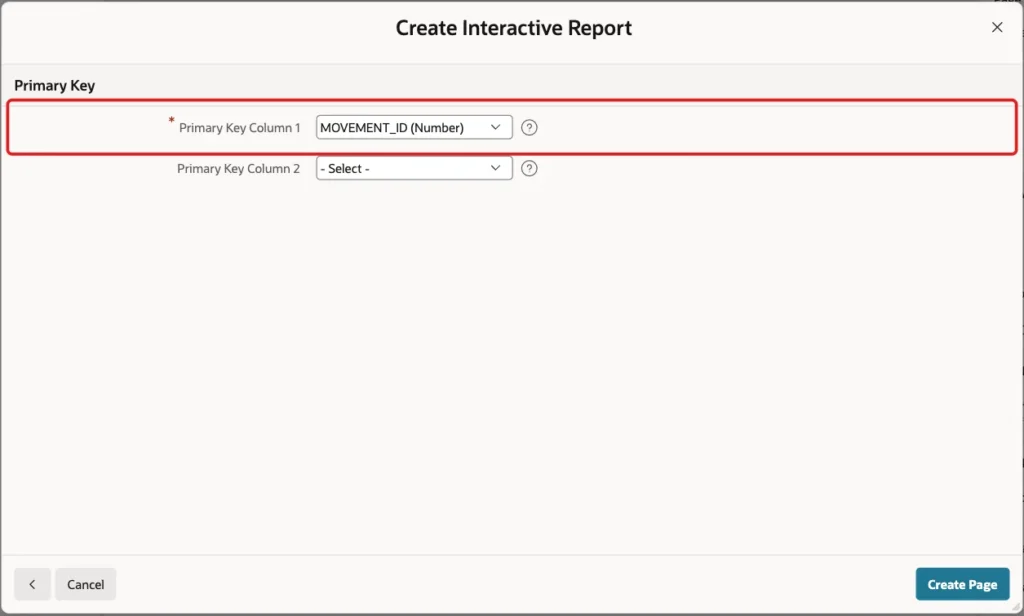
The wizard creates both pages. It turns the foreign key ITEM_ID into a select list with a new shared list of values named INV_ITEMS.SKU. It also adds a Dialog Closed dynamic action to page 661 that refreshes the report when the form closes.
Step 4: Make the Form Insert-Only
The movements table is a ledger. A wrong movement is not edited or deleted; it is corrected with a new movement, for example a Write-off or a Receipt. That keeps the full history and makes the stock check simple.
Open page 662 in Page Designer and make these changes:
- Delete the items P662_QTY_CHANGE, P662_CREATED_BY and P662_CREATED_ON. The database fills these columns: QTY_CHANGE is virtual, and the other two have defaults.
- Delete the buttons DELETE and SAVE. Only CANCEL and CREATE stay.
- Select the Stock Movement region, open the Attributes tab and, under Edit, keep only Add Row checked in Allowed Operations.
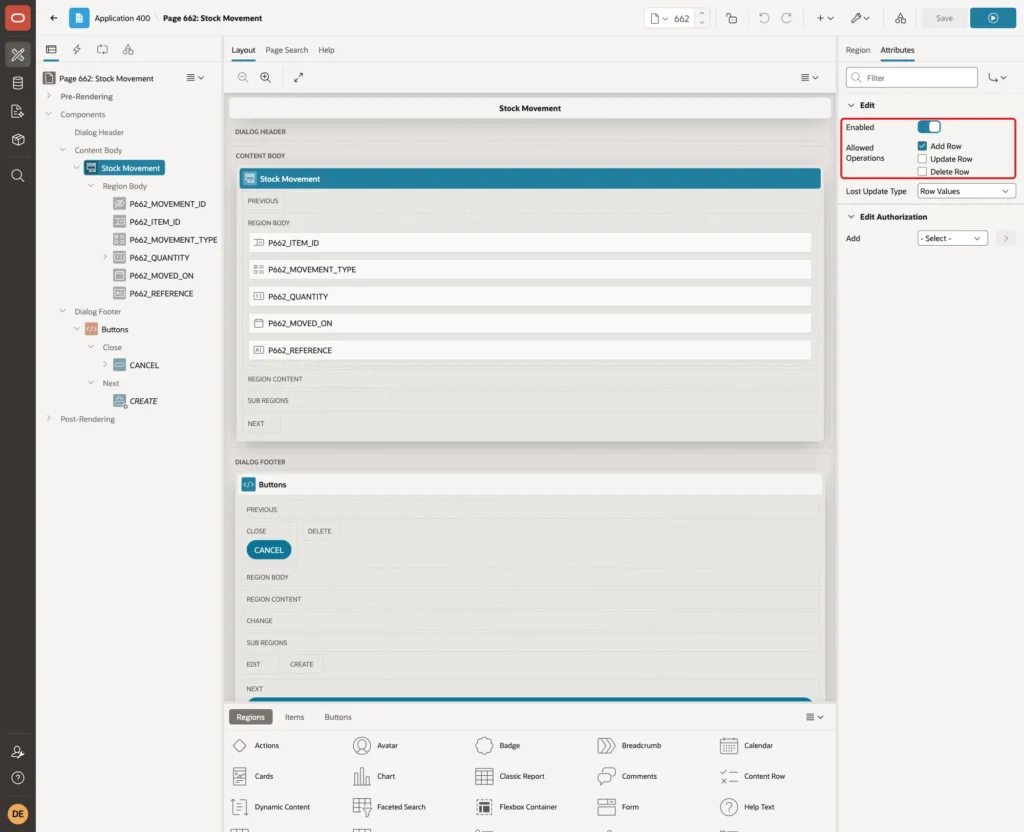
Allowed Operations tells the Form - Automatic Row Processing (DML) process which statements it may run. With only Add Row checked, it matches the one button left, CREATE.
Step 5: Set Up the Form Items
Select P662_ITEM_ID and set Label to Item. Under List of Values, set Type to SQL Query and enter this query, so the list shows the item name with its SKU. Turn on Display Null Value and set Null Display Value to - Select Item -:
Example:
select item_name || ' (' || sku || ')' as d,
       item_id as r
  from inv_items
 order by item_name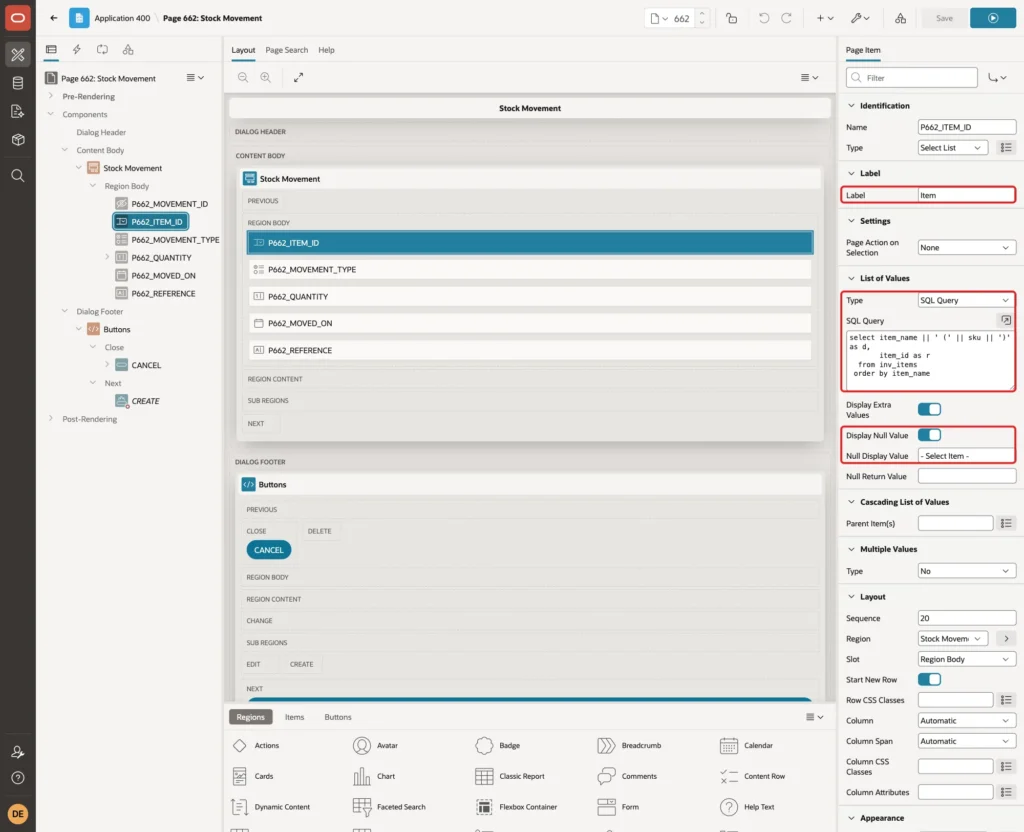
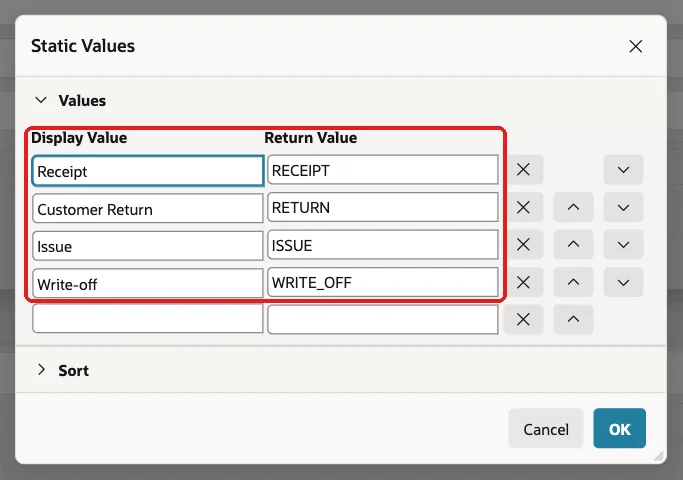
Select P662_MOVEMENT_TYPE. Set Type to Radio Group and Number of Columns to 4. Under List of Values, set Type to Static Values and turn off Display Null Value:
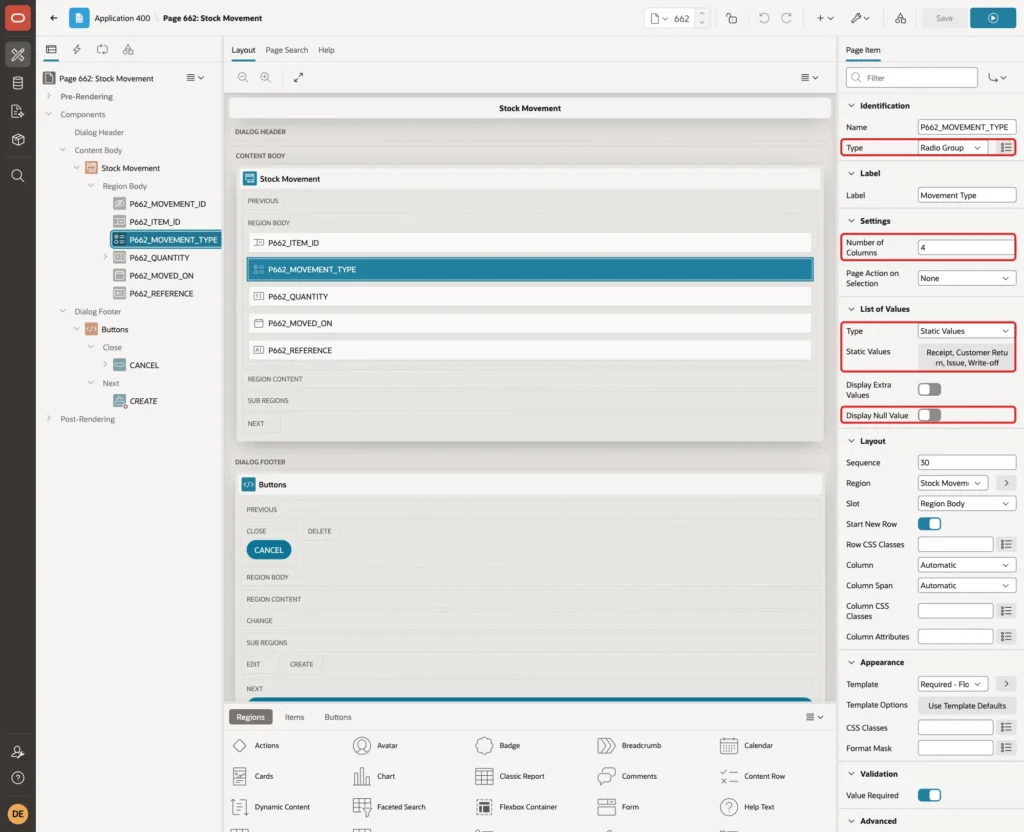
Click Static Values and enter the four types. The return values must match the check constraint INV_MOVEMENTS_TYPE_CK:
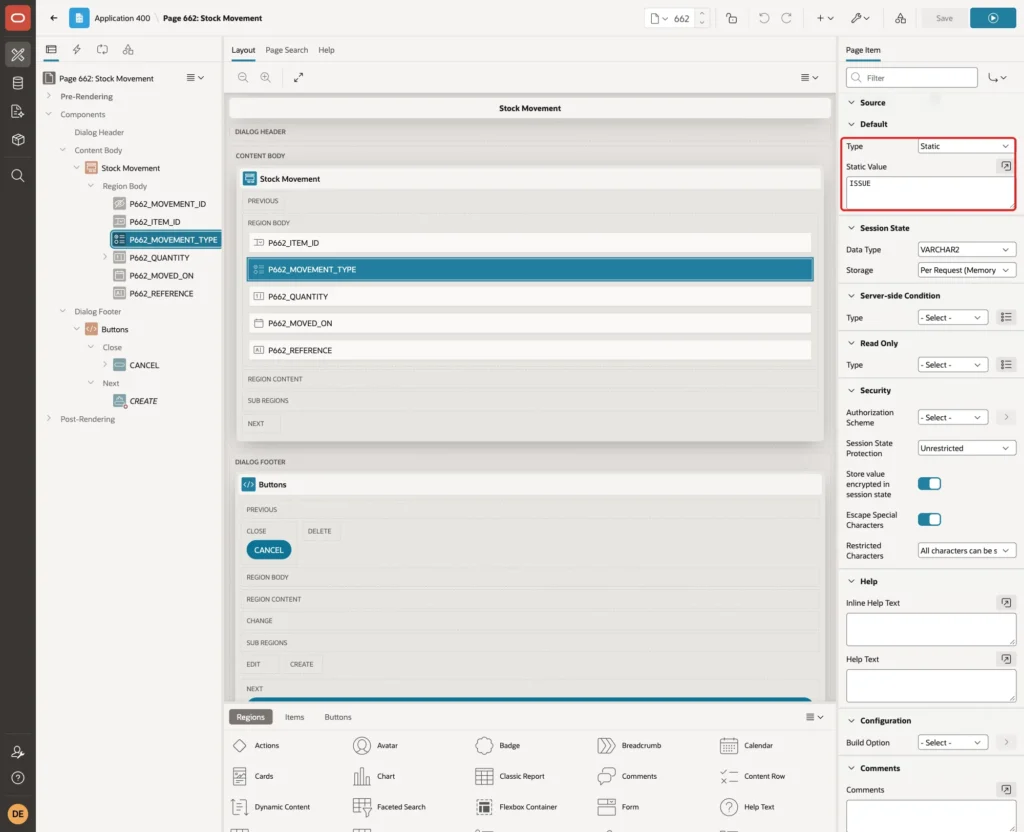
Under Default, set Type to Static and Static Value to ISSUE, the most common movement:
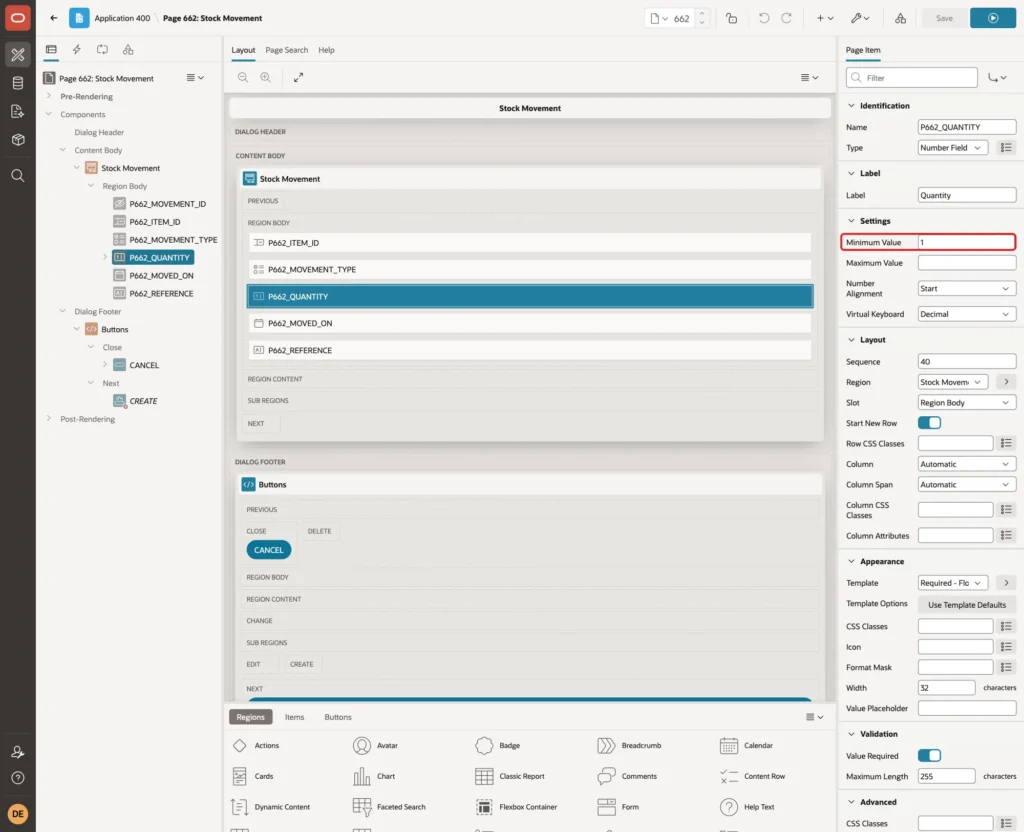
Select P662_QUANTITY and set Minimum Value to 1 under Settings. APEX then rejects zero and negative numbers with its own message, before the check constraint is reached:
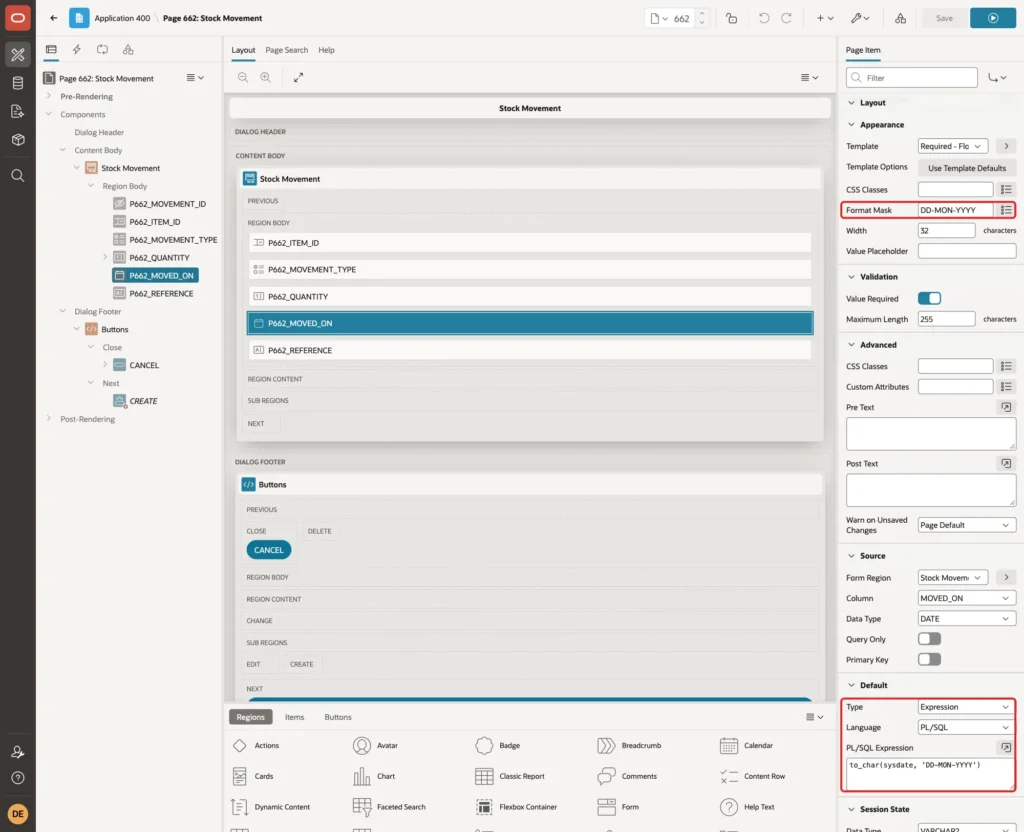
Select P662_MOVED_ON and set Label to Movement Date and Format Mask to DD-MON-YYYY. Under Default, set Type to Expression, Language to PL/SQL and PL/SQL Expression to to_char(sysdate, 'DD-MON-YYYY'), so the form proposes today:
Step 6: Add the Stock Check Validation
On the Processing tab of page 662, right-click Validations and click Create Validation. Set Name to Enough Stock, Type to Function Body (returning Error Text), and enter this code:
Example:
declare
    l_item_id number;
    l_on_hand number;
    l_change  number;
begin
    select item_id
      into l_item_id
      from inv_items
     where item_id = :P662_ITEM_ID
       for update;

    select nvl(sum(qty_change), 0)
      into l_on_hand
      from inv_movements
     where item_id = l_item_id;

    l_change := case when :P662_MOVEMENT_TYPE in ('ISSUE', 'WRITE_OFF')
                     then -to_number(:P662_QUANTITY)
                     else  to_number(:P662_QUANTITY)
                end;

    if l_on_hand + l_change < 0 then
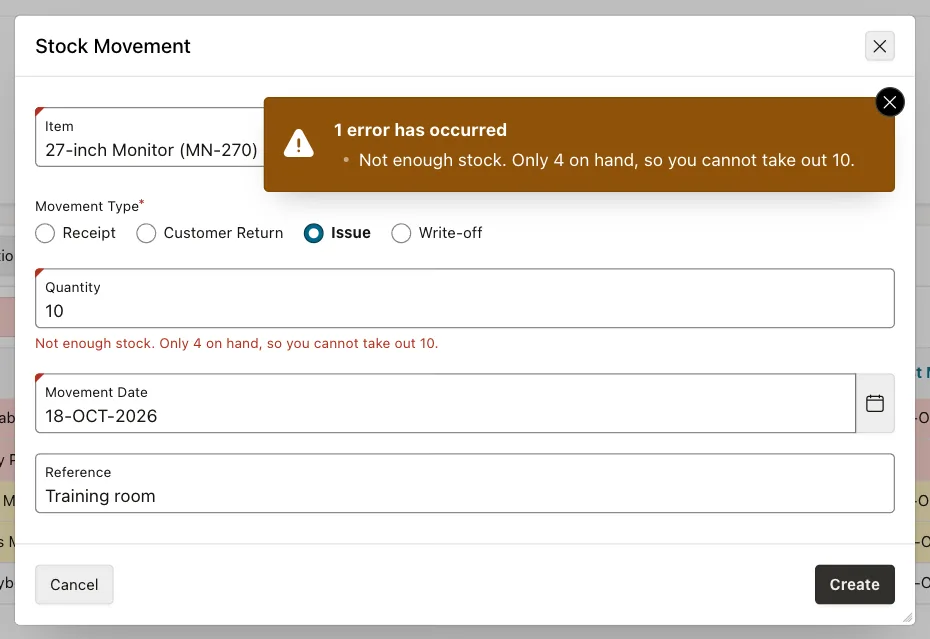
        return 'Not enough stock. Only ' || l_on_hand || ' on hand, so you cannot take out '
               || :P662_QUANTITY || '.';
    end if;
    return null;
end;
Under Error, set Associated Item to P662_QUANTITY, so the message appears below the quantity field:
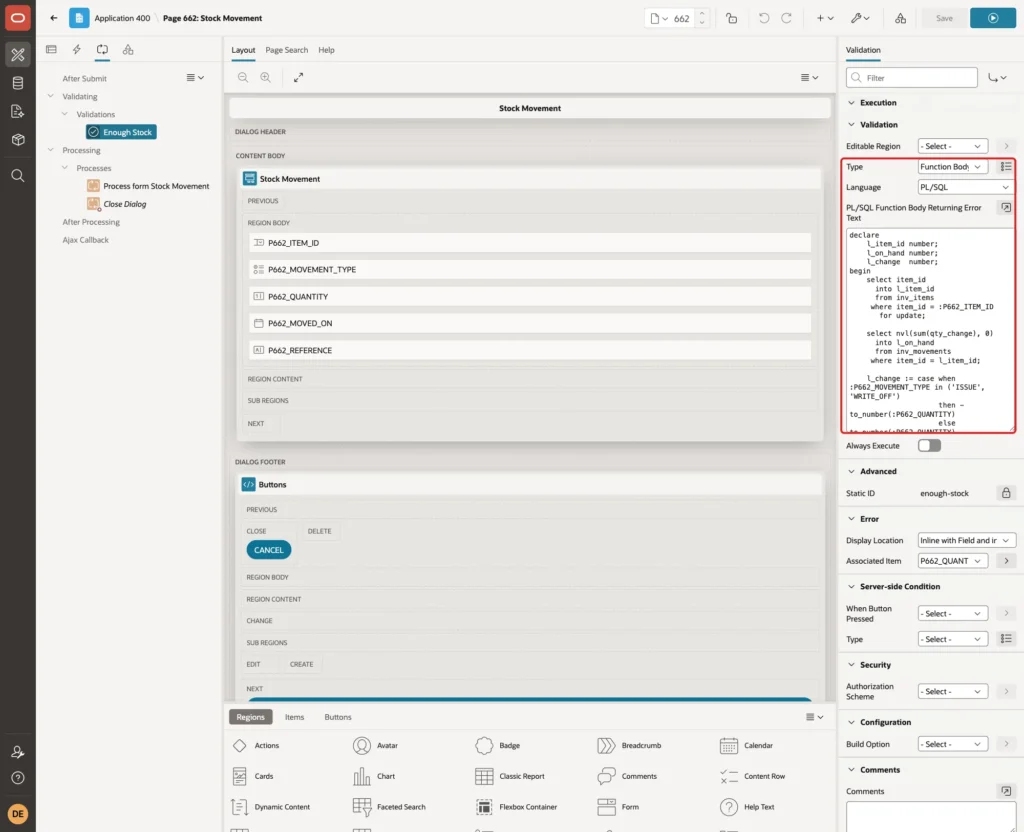
The code works in three parts:
- SELECT ... FOR UPDATE locks the item row in INV_ITEMS. A second user who saves a movement for the same item at the same moment waits until the first save is committed.
- The sum of QTY_CHANGE is the stock on hand. Because of the lock, it already includes a movement that another user saved a moment before.
- L_CHANGE is negative for an issue or a write-off. If the stock after the movement would be below zero, the function returns the error text; otherwise it returns NULL and the save continues.
The lock is held until APEX commits at the end of the page submit, after the form process has inserted the row. Receipts and returns also take the lock, but they can never fail the check.
Without FOR UPDATE, the check is not safe. In a test with the same check but no lock, two sessions both read 14 Wireless Mice on hand and both issued 10. After both commits, the stock was -6.
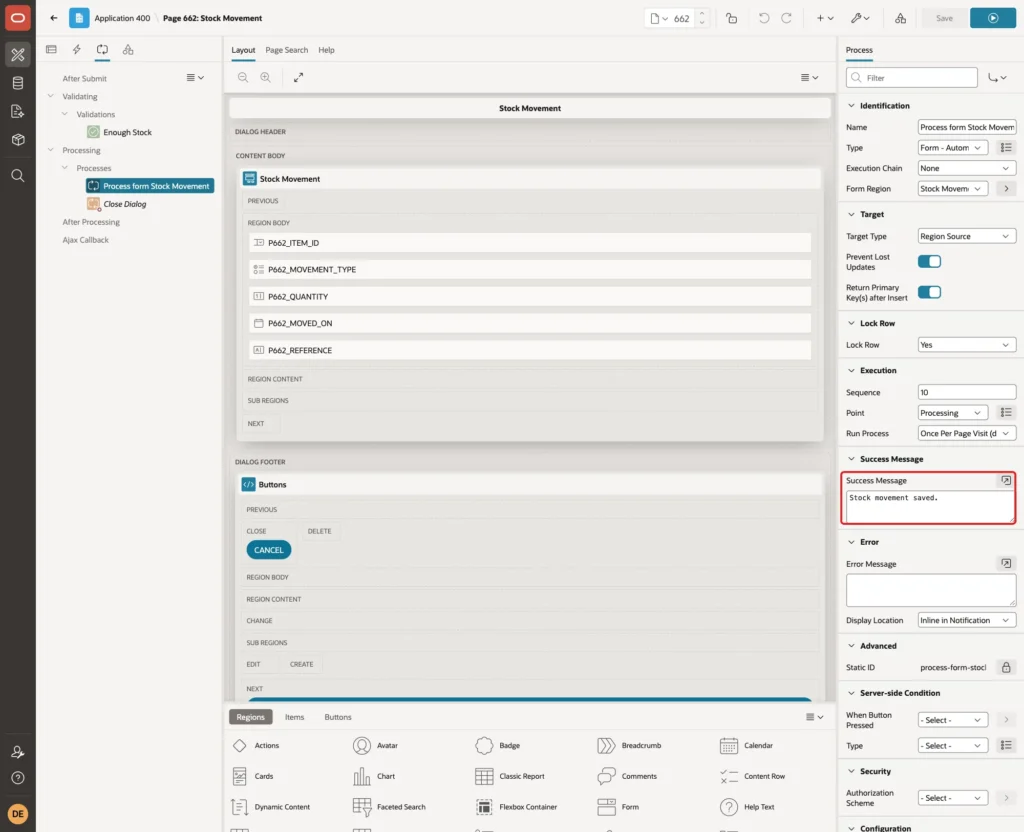
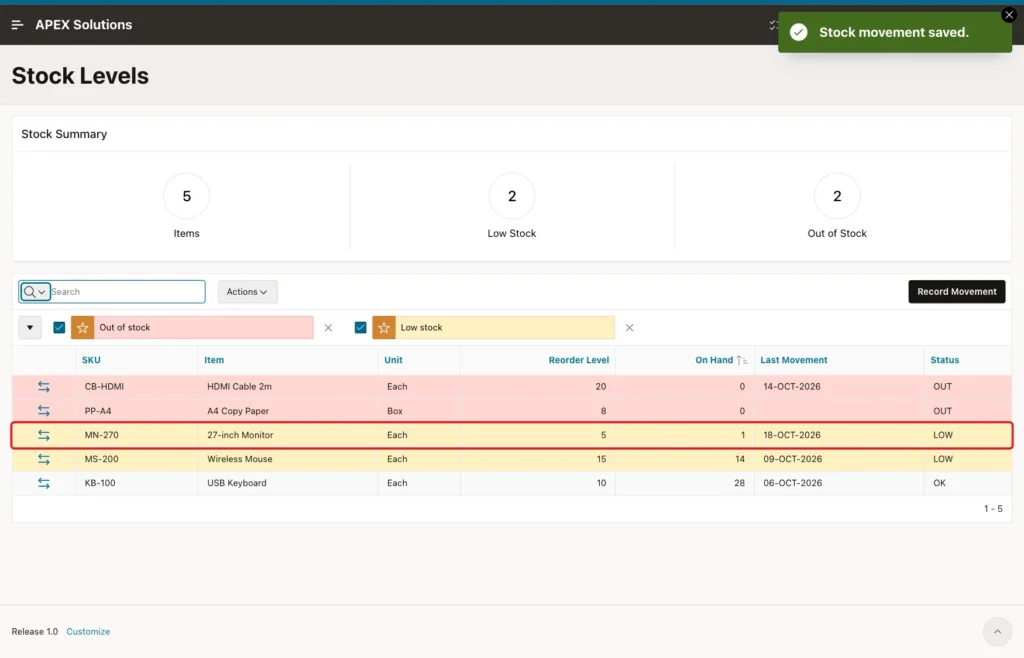
Finally, select the process Process form Stock Movement and set Success Message to Stock movement saved.:
Step 7: Adjust the Movement History Page
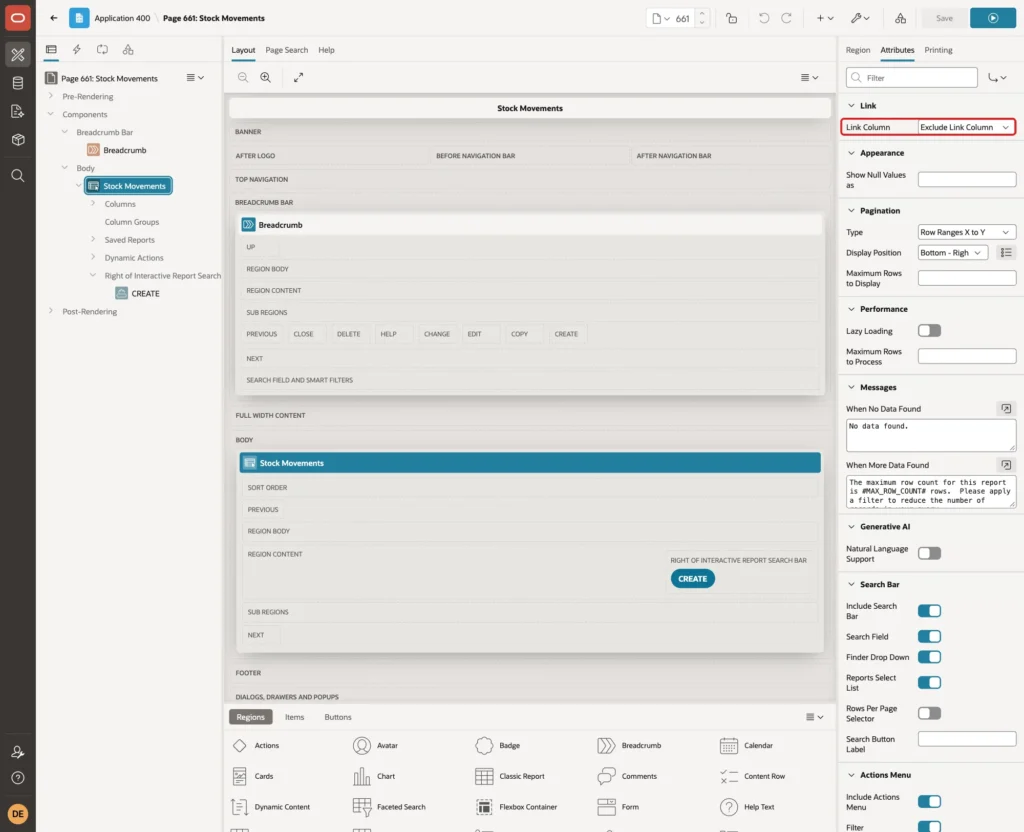
Open page 661 in Page Designer and select the Stock Movements region. On the Attributes tab, set Link Column to Exclude Link Column, because movements are not edited:
Change the Label of the CREATE button to Record Movement. Under Columns, set the Heading of MOVED_ON to Movement Date with Format Mask DD-MON-YYYY, and the Heading of QTY_CHANGE to Stock Change. Click Save.
Step 8: Create the Stock Levels Page
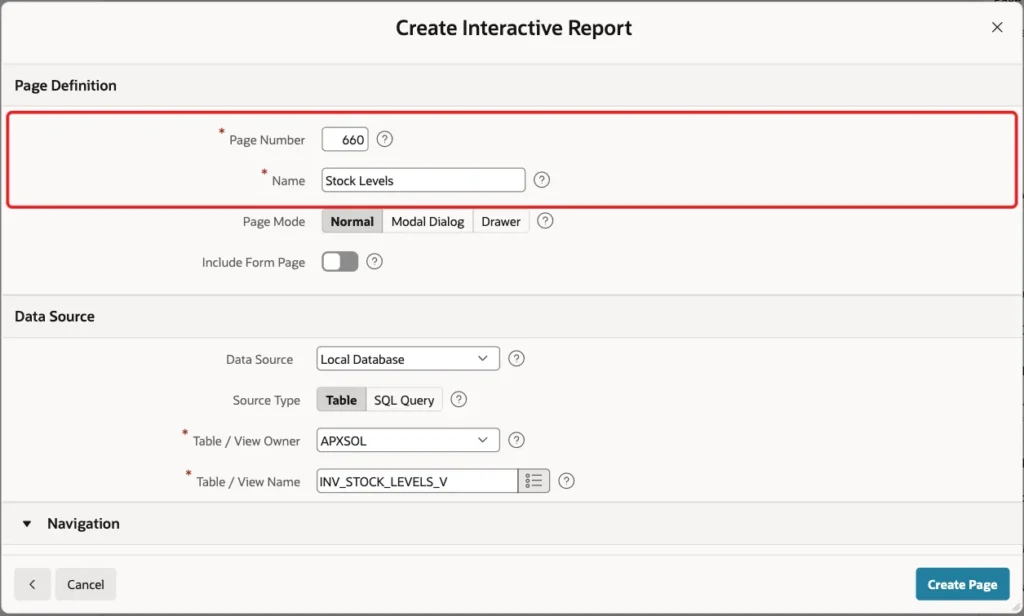
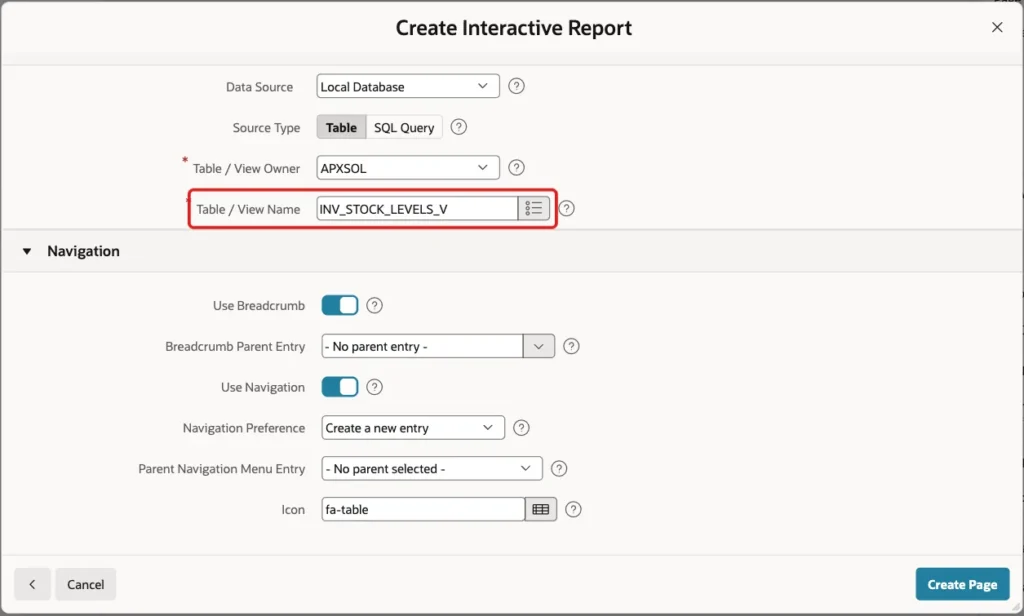
Click Create Page again and pick Interactive Report. Enter Page Number 660 and Name Stock Levels, and leave Include Form Page off:
Under Data Source, select the view INV_STOCK_LEVELS_V as Table / View Name. Keep the Navigation settings and click Create Page:
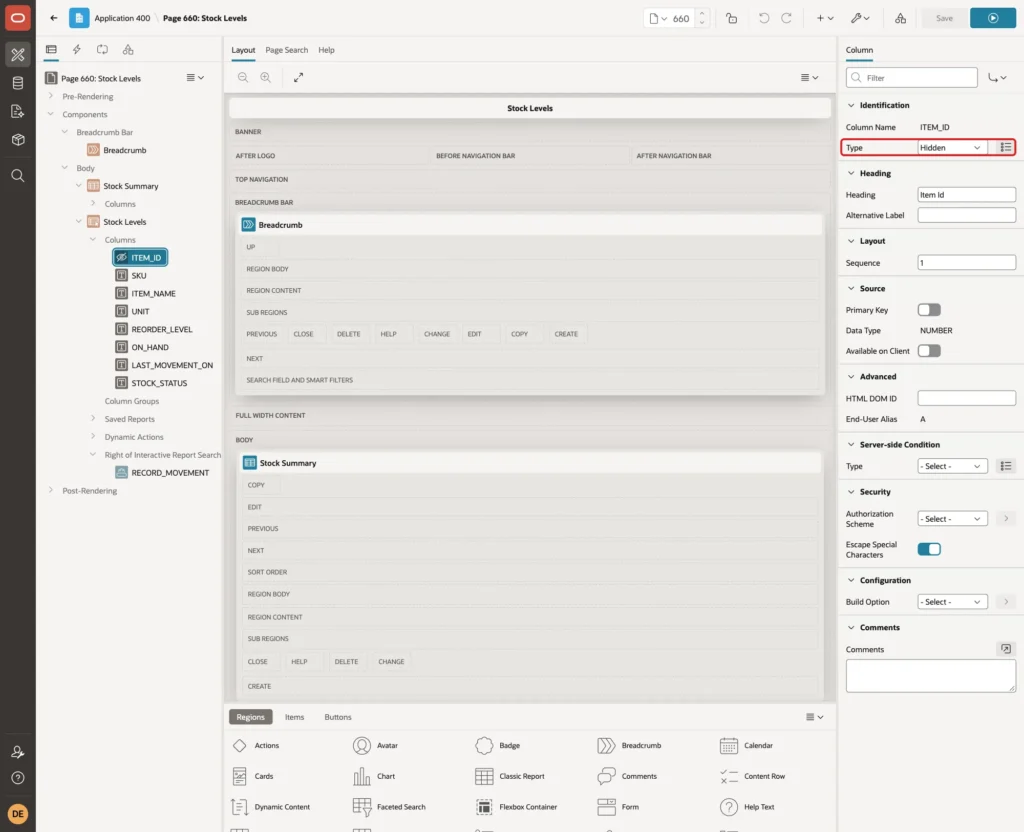
Open page 660 in Page Designer and expand the columns of the Stock Levels region. Select ITEM_ID and set Type to Hidden; the report needs it for links but not on screen:
Set the Headings of SKU to SKU, ITEM_NAME to Item and STOCK_STATUS to Status. Set the Heading of LAST_MOVEMENT_ON to Last Movement with Format Mask DD-MON-YYYY.
Step 9: Add the Stock Summary Badges
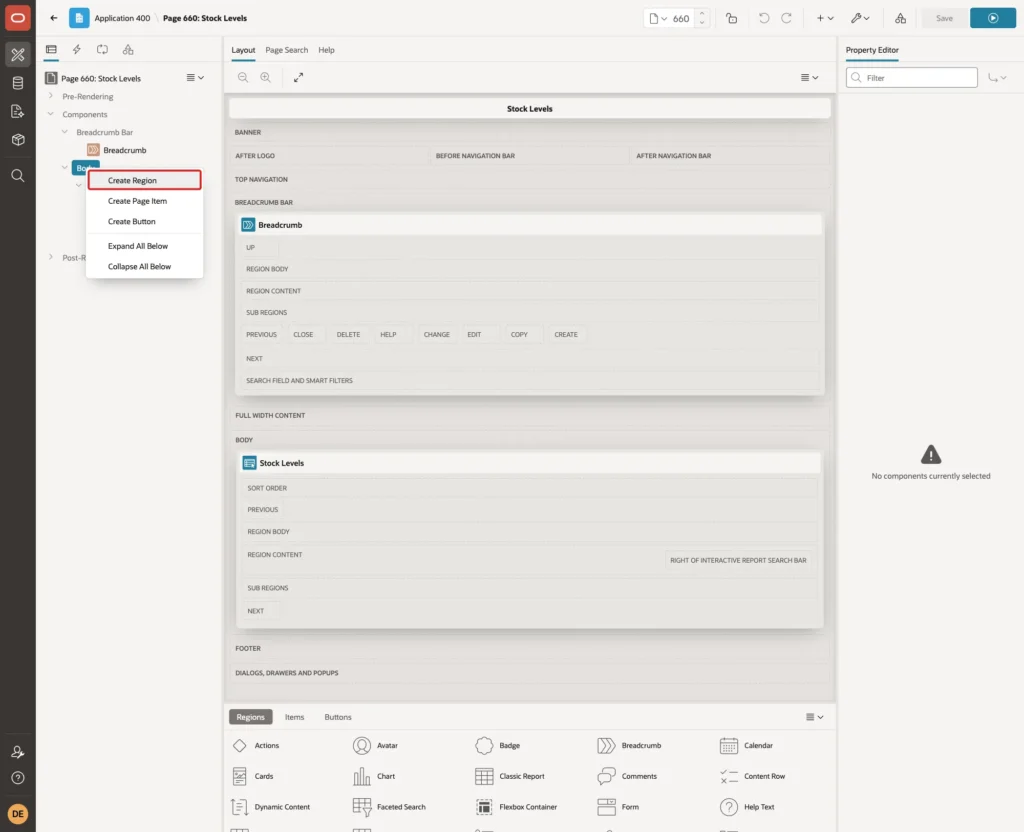
In the Rendering tree of page 660, right-click Body and click Create Region:
Set Name to Stock Summary and Type to Classic Report. Under Source, set Type to SQL Query and enter this query. Set Sequence to 5 under Layout, so the region comes before the report:
Example:
select count(*)                                          as items,
       count(case when stock_status = 'LOW' then 1 end) as low_stock,
       count(case when stock_status = 'OUT' then 1 end) as out_of_stock
  from inv_stock_levels_v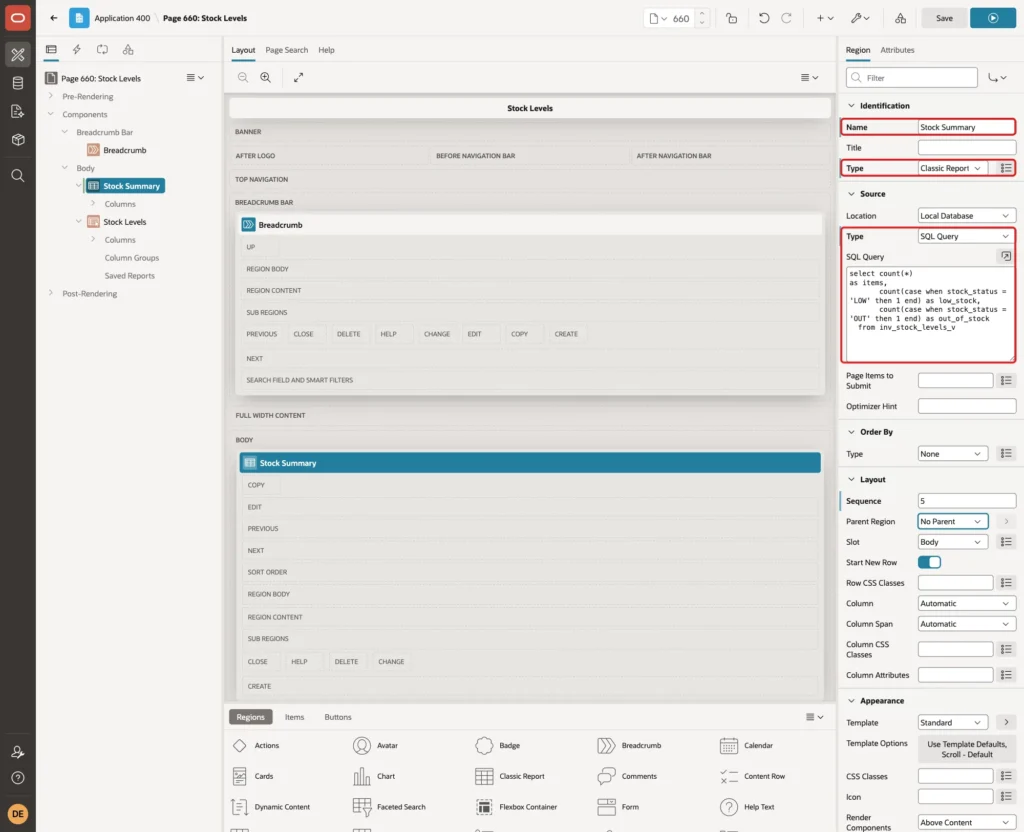
Open the Attributes tab of the region and set Template to Badge List under Appearance. The Badge List template shows each column as a badge with its heading below it:
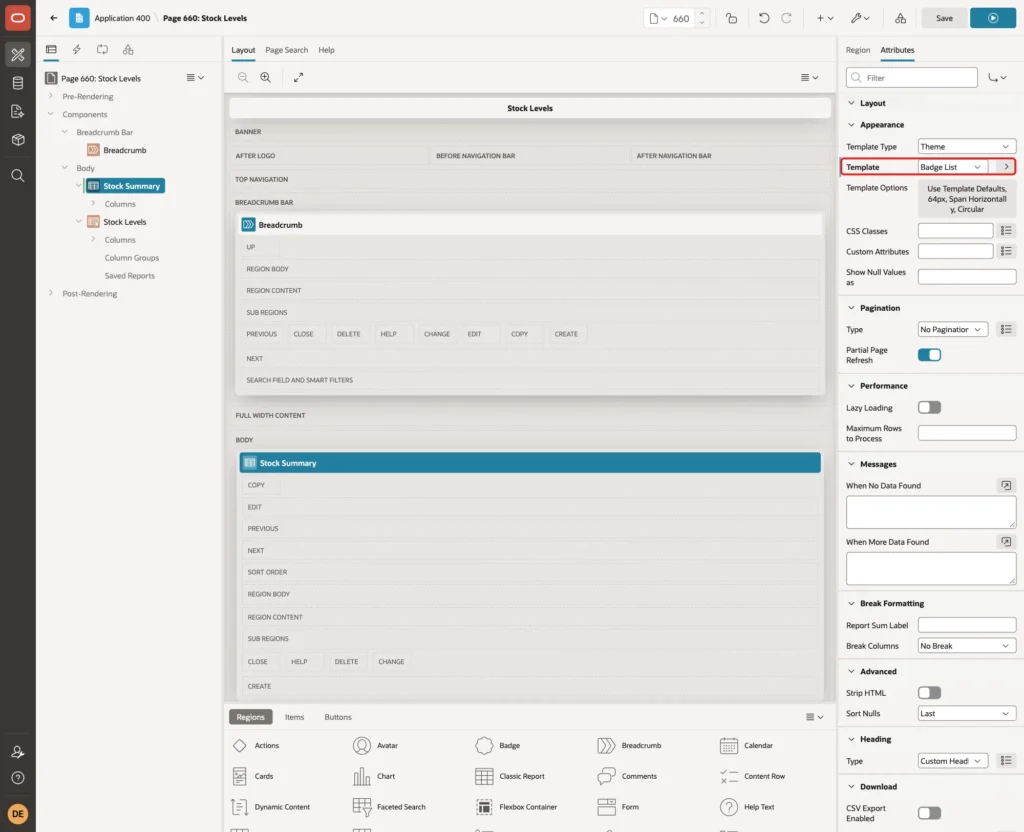
Set the Heading of the column OUT_OF_STOCK to Out of Stock and click Save. The query on the view returns this row:
Output:
   ITEMS    LOW_STOCK    OUT_OF_STOCK
________ ____________ _______________
       5            2               2
Step 10: Open the Form from the Report
Select the Stock Levels region and open the Attributes tab. Under Link, set Link Column to Link to Custom Target, and enter a Link Icon with the class fa fa-exchange:
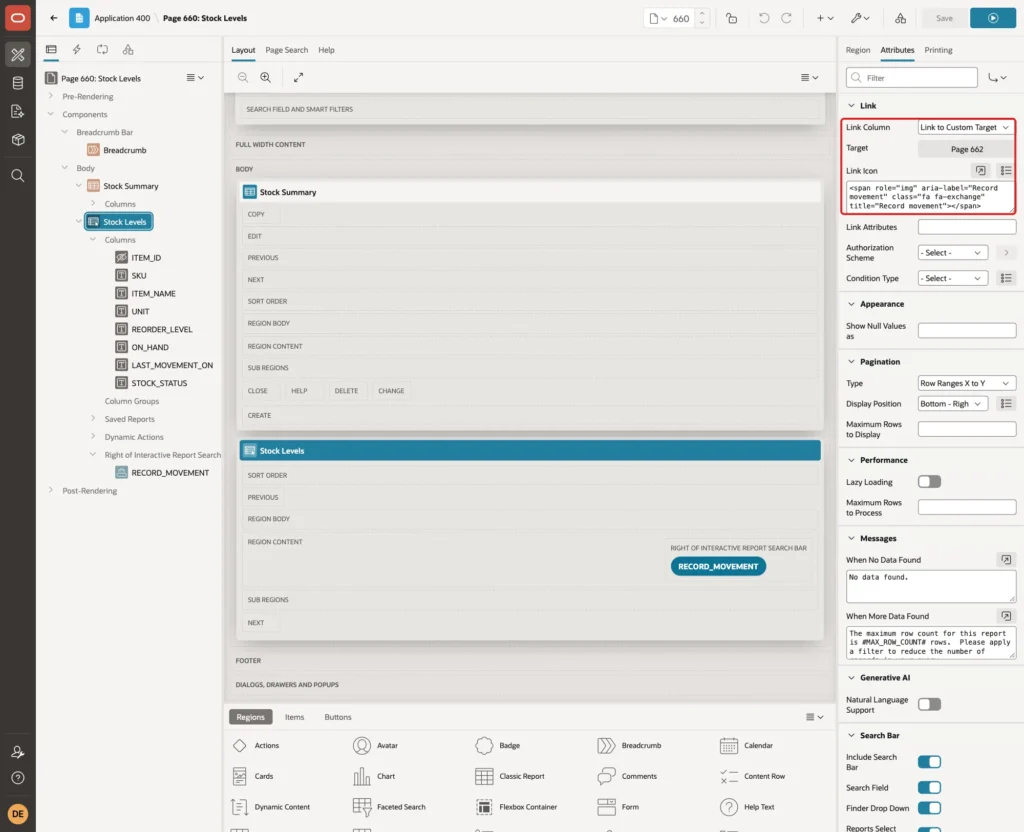
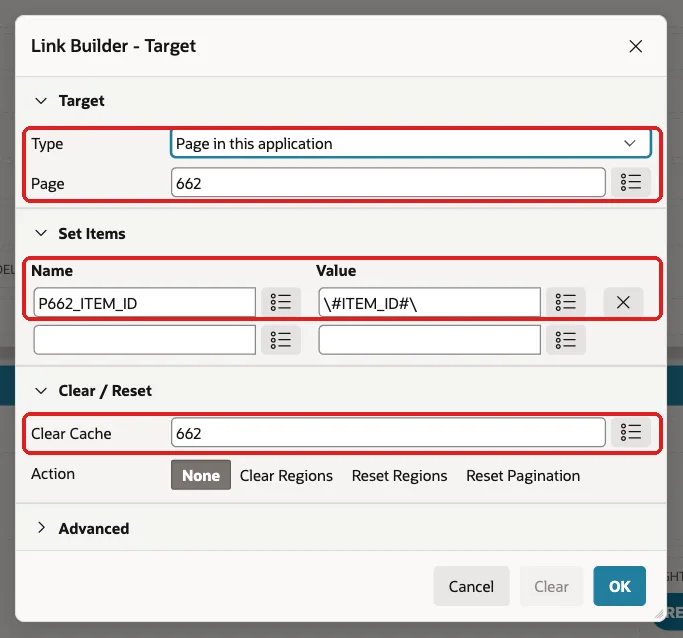
Click Target. Set Page to 662, set the item P662_ITEM_ID to the ITEM_ID column, and set Clear Cache to 662. APEX shows the value as \#ITEM_ID#\; the backslashes keep the value in one piece even if it contains a comma, and the wizard writes its own edit links the same way:
Right-click the Stock Levels region, click Create Button and set Button Name to RECORD_MOVEMENT and Label to Record Movement. Set Slot to Right of Interactive Report Search Bar, turn on Hot, and set Action to Redirect to Page in this Application:
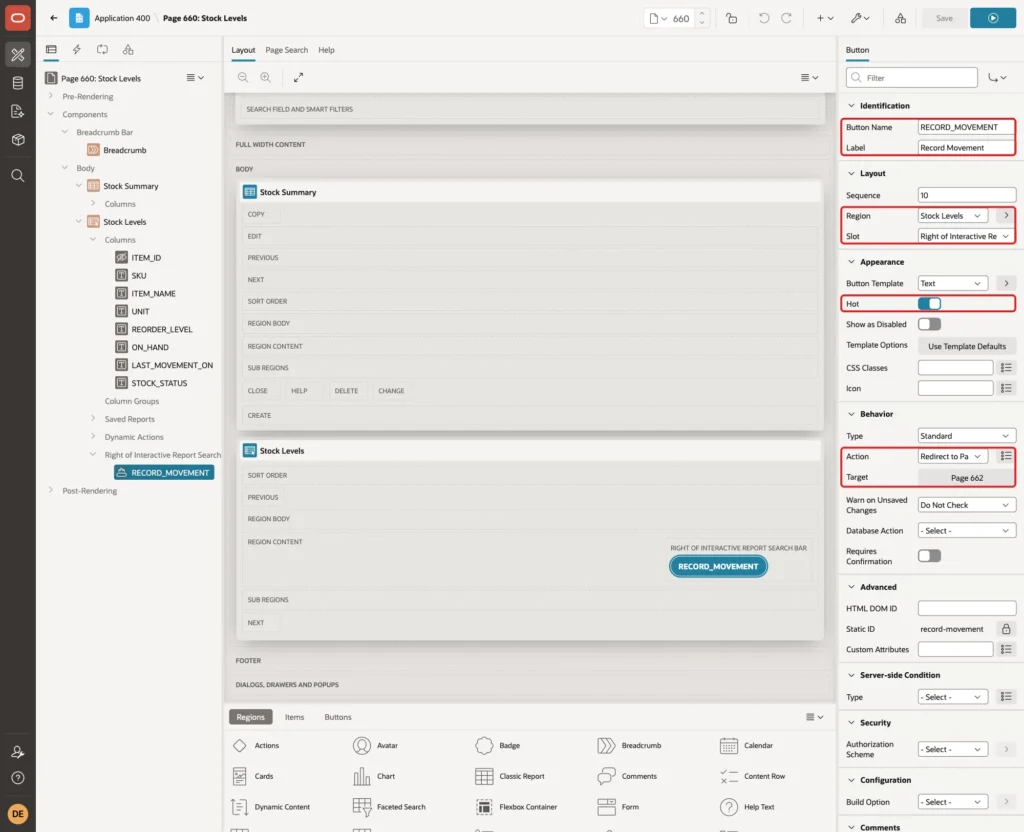
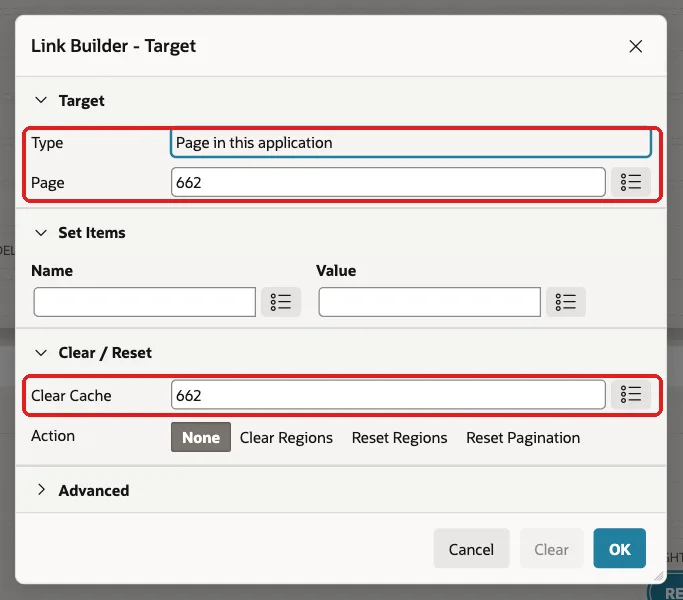
Click Target, set Page to 662 and Clear Cache to 662, and click OK:
Step 11: Refresh the Page When the Form Closes
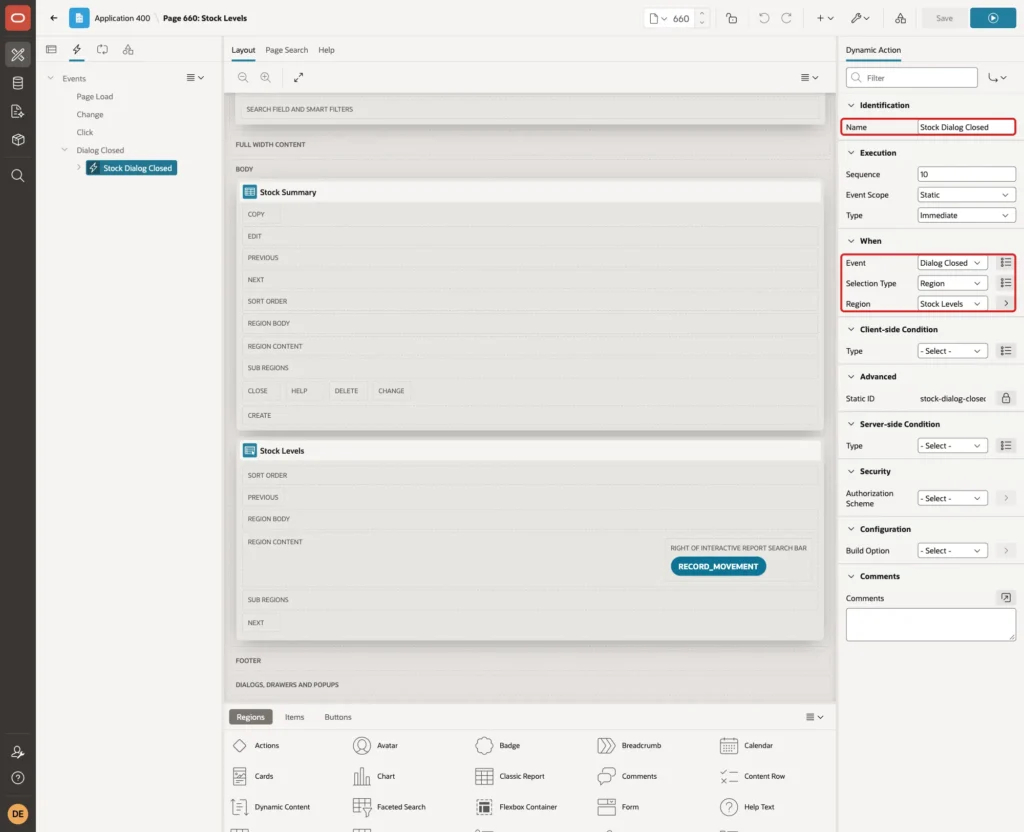
Both the link and the button sit inside the Stock Levels region, so one dynamic action on that region catches the Dialog Closed event of both. Open the Dynamic Actions tab, right-click Events and create a dynamic action.
Set Name to Stock Dialog Closed, Event to Dialog Closed, Selection Type to Region and Region to Stock Levels:
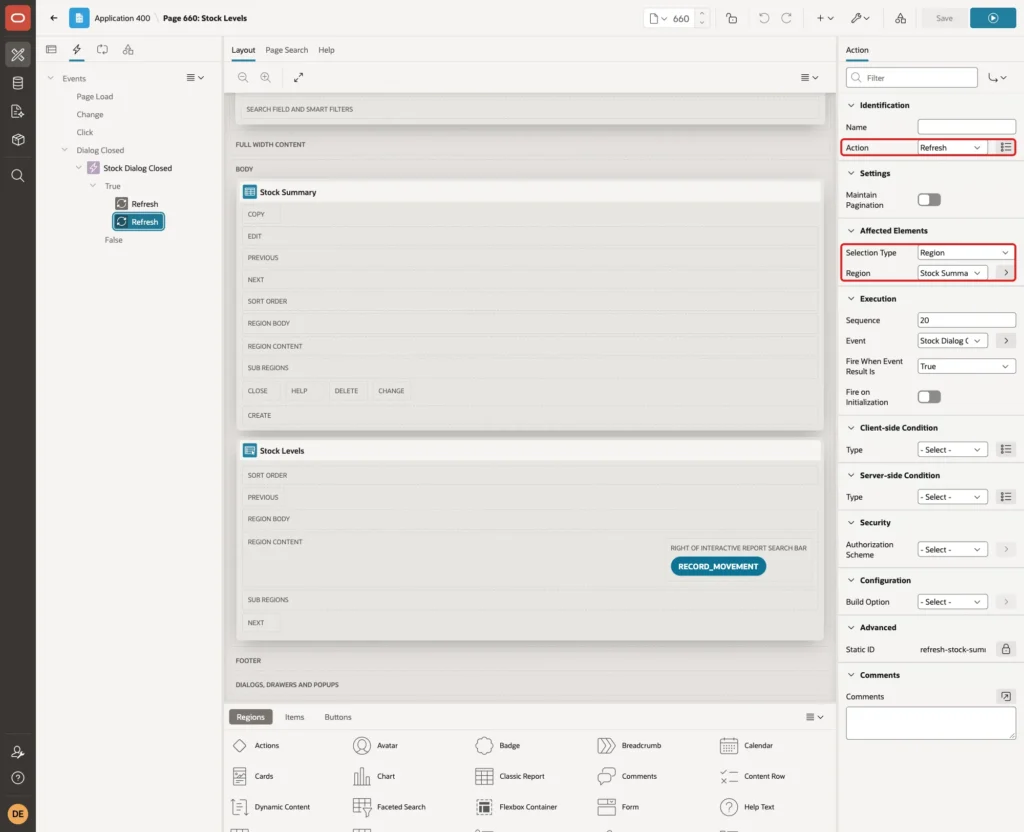
Set the first True action to Refresh with the region Stock Levels. Add a second True action Refresh with the region Stock Summary, so the badges update too, and click Save:
Step 12: Highlight Low and Empty Stock
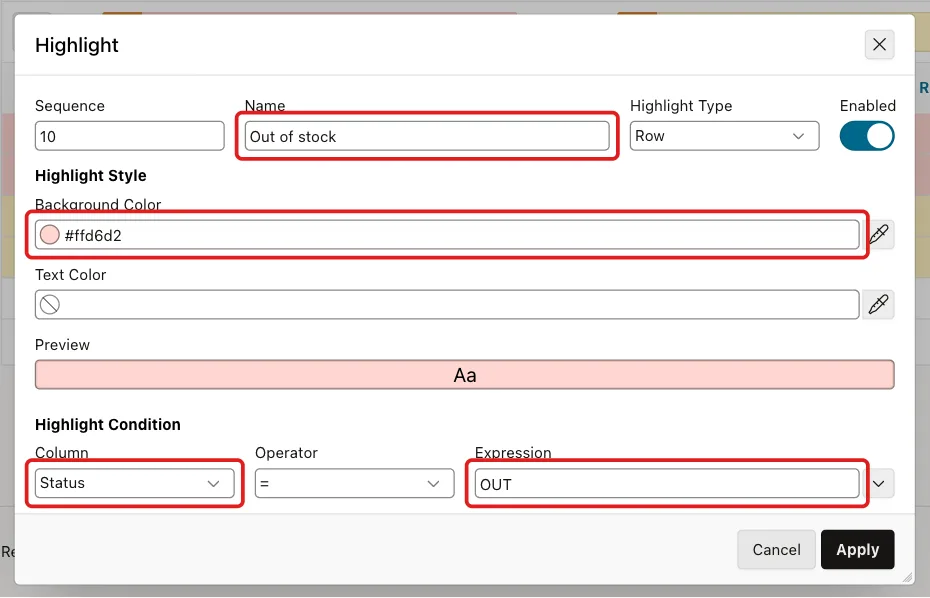
Run page 660 as a developer. Click Actions, Format, Highlight. Enter Name Out of stock, Background Color #FFD6D2, and the condition Status = OUT, then click Apply:
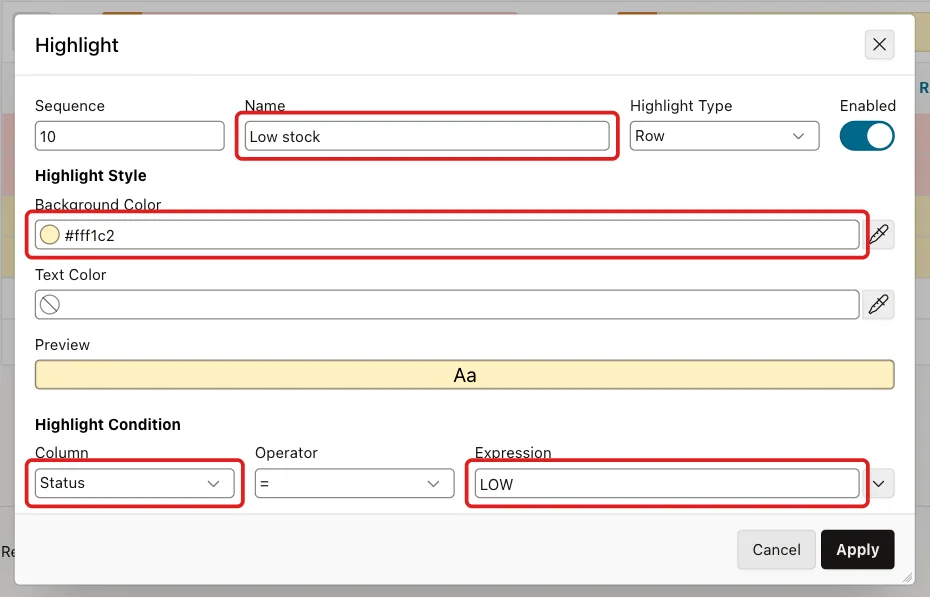
Add a second highlight with Name Low stock, Background Color #FFF1C2 and the condition Status = LOW:
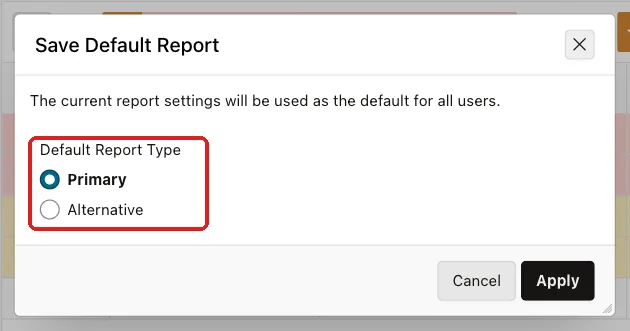
Click the On Hand heading and sort ascending, so the most urgent items come first. Then click Actions, Report, Save Report, select As Default Report Settings and keep Primary:
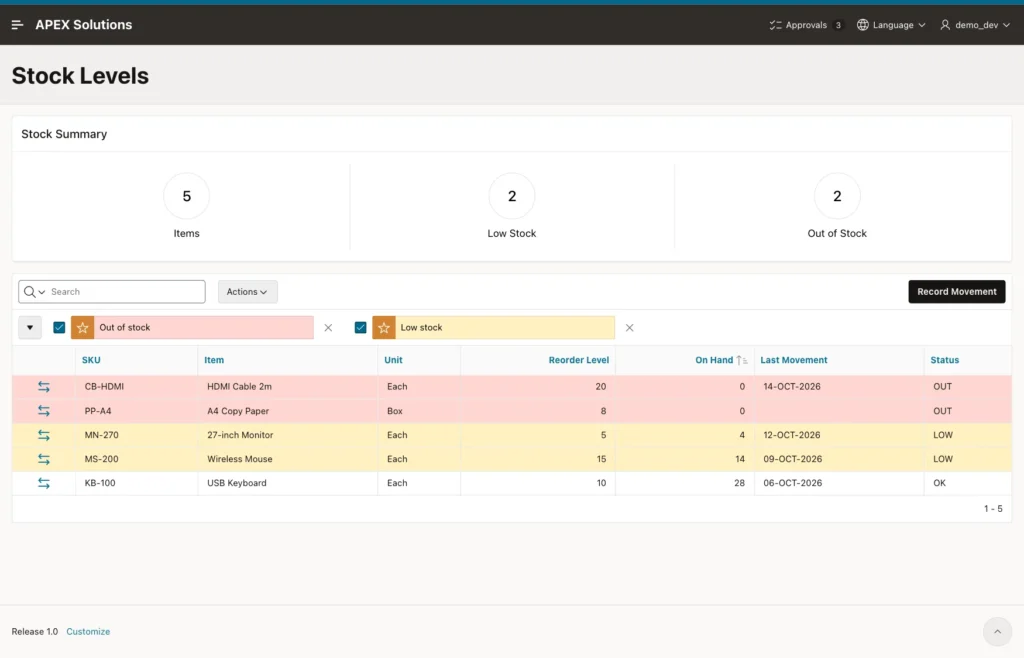
Open Stock Levels in a new session. The highlights and the sort order are now the default, and the badges count 2 low and 2 out-of-stock items. SALES_USER, who never changed the report, sees the same highlights:
Step 13: Test the Pages
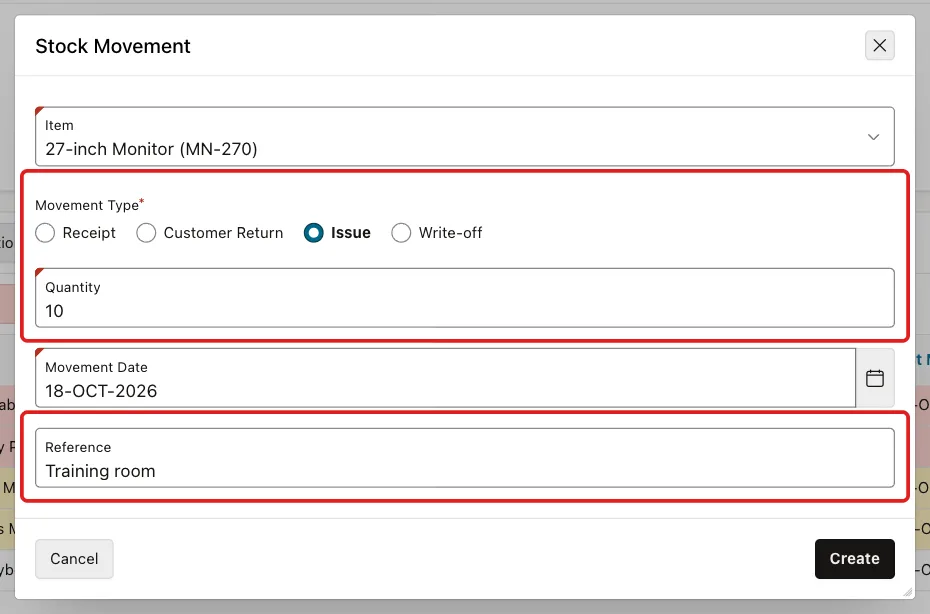
Click the link icon of the 27-inch Monitor, which has 4 on hand. The form opens with the item selected and Issue preset. Enter Quantity 10 and Reference Training room:
Click Create. The validation stops the save and shows how much is on hand:
Change the quantity to 3 and click Create. The dialog closes, the success message appears, and the report and badges refresh. The monitor now has 1 on hand and is still LOW:
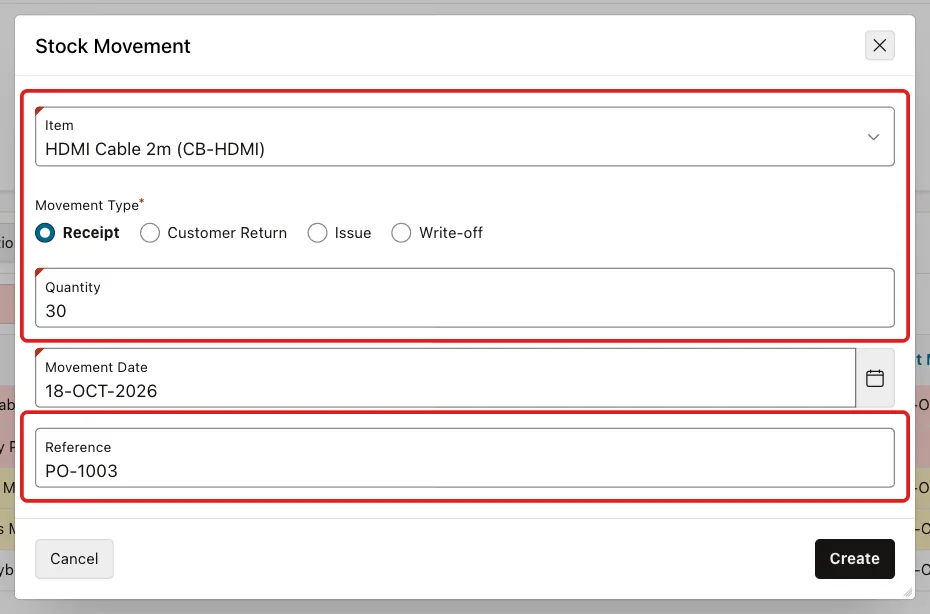
Now click Record Movement. Select HDMI Cable 2m (CB-HDMI), choose Receipt, enter Quantity 30 and Reference PO-1003:
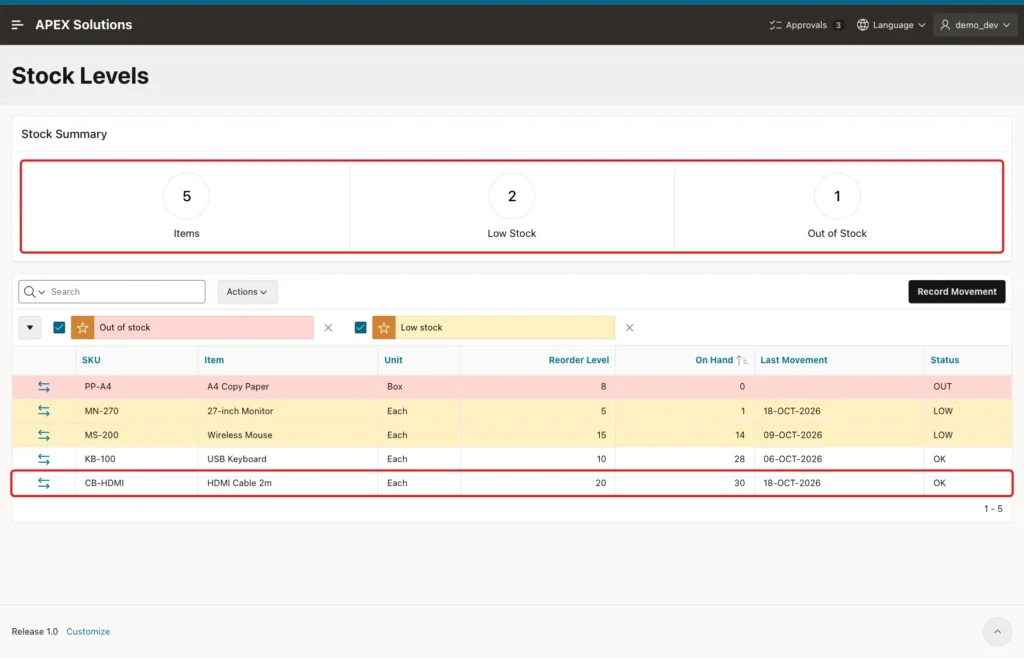
After Create, the cable has 30 on hand, above its reorder level of 20. Its row is no longer highlighted, and the Out of Stock badge drops from 2 to 1:
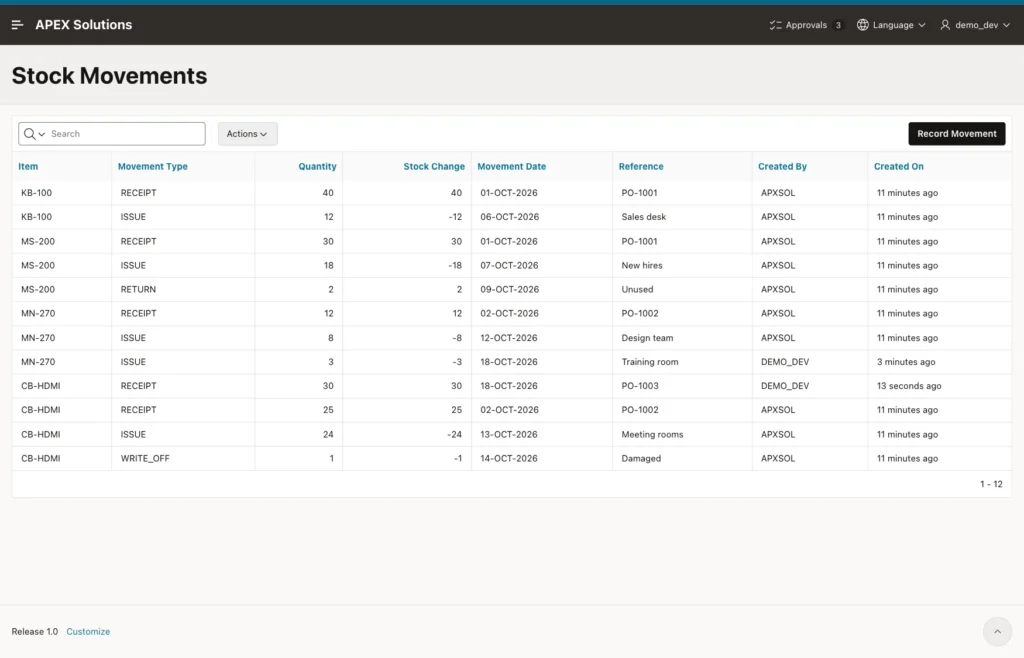
A quantity of 0 is refused by the Minimum Value setting with the message "Quantity must be a number greater than or equal to 1." The Stock Movements page shows the full history, including both new movements by DEMO_DEV:
Check the result in SQL:
Example:
set lines 200 pages 100 feedback on
select i.sku, m.movement_type, m.quantity, m.qty_change,
       to_char(m.moved_on, 'DD-MON-YYYY') as moved_on, m.reference, m.created_by
from   inv_movements m
join   inv_items i on i.item_id = m.item_id
where  m.moved_on = trunc(sysdate)
order  by m.movement_id;

select sku, reorder_level, on_hand, stock_status
from   inv_stock_levels_v
order  by sku;
Output:
SKU        MOVEMENT_TYPE       QUANTITY    QTY_CHANGE MOVED_ON       REFERENCE        CREATED_BY
__________ ________________ ___________ _____________ ______________ ________________ _____________
MN-270     ISSUE                      3            -3 18-OCT-2026    Training room    DEMO_DEV
CB-HDMI    RECEIPT                   30            30 18-OCT-2026    PO-1003          DEMO_DEV

2 rows selected.

SKU           REORDER_LEVEL    ON_HAND STOCK_STATUS
__________ ________________ __________ _______________
CB-HDMI                  20         30 OK
KB-100                   10         28 OK
MN-270                    5          1 LOW
MS-200                   15         14 LOW
PP-A4                     8          0 OUT

5 rows selected.
Last, test two saves at the same moment. A SQL session locked the Wireless Mouse row, issued all 14 mice and waited 15 seconds before its commit. During that time, DEMO_DEV tried to issue 5 mice in the form.
The form did not return at once. It waited 14 seconds, until the other session committed, and then showed "Not enough stock. Only 0 on hand, so you cannot take out 5." The lock in the validation did its job. The test rows were removed afterwards.
Things to Know
- The stock on hand is never stored; it is always the sum of the movements. There is no second number that can drift away from the history.
- The validation protects the APEX form. A program that inserts movements directly must take the same lock and do the same check, for example in a PL/SQL API that all programs call.
- SQL assertions in Oracle AI Database 26ai do not support aggregates (ORA-08661), so they cannot enforce "sum not below zero".
- Fix a wrong movement with a new one: a Write-off to reduce the stock, a Receipt or Customer Return to add to it. The history then shows both the mistake and the fix.
- Highlights saved as the default report apply to every user who has not saved a report of their own.
- The Badge List template turns each column of one row into a badge. To add a badge, add a column to the query.
Related Guides
Conclusion
Stock tracking in Oracle APEX works best as a ledger: every receipt, issue, return and write-off is a row, and a view adds them up. A virtual column gives each movement its sign, check constraints keep bad rows out, and the form only adds movements.
A validation that locks the item row stops stock from going below zero, even when two users save at once. Interactive report highlights and a Badge List region turn the view into a low-stock alert that every user sees on one page.
