
Service levels, payment terms and approval deadlines are usually counted in business days. "Two business days" from a Friday is the next Tuesday, and a public holiday pushes the date one more day. Plain date arithmetic such as RECEIVED_ON + 2 adds calendar days and gets these dates wrong.
This guide builds a small PL/SQL package that adds business days while skipping weekends and the dates in a HOLIDAYS table. An Oracle APEX form then shows the due date while the user types and computes it again on the server when the record is saved. A report shows how many business days are left.
This guide uses support cases as the example; the same steps work for any table with a due date. Oracle SQL Query to Calculate Business Days Excluding Holidays counts the working days between two dates in a query.
Here, a due date is calculated from a start date and a number of business days, and the result is wired into an APEX form, a report and a holiday maintenance page.
Step 1: Create the Tables
The example needs three tables. HOLIDAYS lists the non-working dates. CASE_PRIORITIES defines how many business days each priority allows. SUPPORT_CASES holds the cases with their RECEIVED_ON and DUE_ON dates.
Create the tables, the indexes, the holidays and the priorities:
Example:
set lines 200 pages 100 feedback on
create table holidays (
  holiday_id   number generated by default on null as identity constraint holidays_pk primary key,
  holiday_date date          not null,
  holiday_name varchar2(100) not null,
  constraint holidays_date_uk unique (holiday_date),
  constraint holidays_date_ck check (holiday_date = trunc(holiday_date))
);

create table case_priorities (
  priority_code varchar2(2)  constraint case_priorities_pk primary key,
  priority_name varchar2(30) not null,
  response_days number(2)    not null,
  display_seq   number(2)    not null,
  constraint case_priorities_name_uk unique (priority_name),
  constraint case_priorities_days_ck check (response_days between 0 and 30)
);

create table support_cases (
  case_id       number generated by default on null as identity constraint support_cases_pk primary key,
  subject       varchar2(200) not null,
  priority_code varchar2(2)   not null,
  received_on   date          default on null trunc(sysdate) not null,
  due_on        date          not null,
  status        varchar2(10)  default on null 'OPEN' not null,
  created_by    varchar2(255) default on null
                  coalesce(sys_context('APEX$SESSION', 'APP_USER'), user) not null,
  constraint support_cases_priority_fk foreign key (priority_code)
    references case_priorities (priority_code),
  constraint support_cases_status_ck check (status in ('OPEN', 'CLOSED')),
  constraint support_cases_received_ck check (received_on = trunc(received_on)),
  constraint support_cases_due_ck check (due_on >= received_on)
);

create index support_cases_priority_ix on support_cases (priority_code);
create index support_cases_due_ix on support_cases (status, due_on);

insert into holidays (holiday_date, holiday_name) values (date '2026-10-20', 'Founders Day');
insert into holidays (holiday_date, holiday_name) values (date '2026-11-26', 'Thanksgiving Day');
insert into holidays (holiday_date, holiday_name) values (date '2026-11-27', 'Day after Thanksgiving');
insert into holidays (holiday_date, holiday_name) values (date '2026-12-25', 'Christmas Day');
insert into holidays (holiday_date, holiday_name) values (date '2027-01-01', 'New Year''s Day');

insert into case_priorities values ('P1', 'Critical', 1, 1);
insert into case_priorities values ('P2', 'High', 2, 2);
insert into case_priorities values ('P3', 'Normal', 5, 3);
insert into case_priorities values ('P4', 'Low', 10, 4);
commit;

select holiday_id, to_char(holiday_date, 'DY DD-MON-YYYY') holiday, holiday_name
  from holidays order by holiday_date;

select priority_code, priority_name, response_days from case_priorities order by display_seq;
Output:
Table HOLIDAYS created.

Table CASE_PRIORITIES created.

Table SUPPORT_CASES created.

Index SUPPORT_CASES_PRIORITY_IX created.

Index SUPPORT_CASES_DUE_IX created.

1 row inserted.

1 row inserted.

1 row inserted.

1 row inserted.

1 row inserted.

1 row inserted.

1 row inserted.

1 row inserted.

1 row inserted.

Commit complete.

   HOLIDAY_ID HOLIDAY            HOLIDAY_NAME
_____________ __________________ _________________________
            1 TUE 20-OCT-2026    Founders Day
            2 THU 26-NOV-2026    Thanksgiving Day
            3 FRI 27-NOV-2026    Day after Thanksgiving
            4 FRI 25-DEC-2026    Christmas Day
            5 FRI 01-JAN-2027    New Year's Day

5 rows selected.

PRIORITY_CODE    PRIORITY_NAME       RESPONSE_DAYS
________________ ________________ ________________
P1               Critical                        1
P2               High                            2
P3               Normal                          5
P4               Low                            10

4 rows selected.- HOLIDAYS_DATE_UK allows each date only once, and HOLIDAYS_DATE_CK makes sure a holiday has no time part, so an equality test against TRUNC(date) finds it.
- CASE_PRIORITIES_DAYS_CK limits RESPONSE_DAYS to 0 through 30, so a priority can never have a negative target.
- SUPPORT_CASES_PRIORITY_FK allows only existing priorities, and SUPPORT_CASES_PRIORITY_IX indexes that foreign key.
- RECEIVED_ON, STATUS and CREATED_BY are filled by DEFAULT ON NULL. DUE_ON is NOT NULL, and SUPPORT_CASES_DUE_CK makes sure it is never before RECEIVED_ON.
DUE_ON cannot be a virtual column or a column default. Both may only use the values of the same row and cannot read the HOLIDAYS table, so the due date is calculated in PL/SQL and saved by the application.
Step 2: Create the Business Calendar Package
The package BUSINESS_CALENDAR has three functions. IS_BUSINESS_DAY returns Y or N for a date. ADD_DAYS moves a date forward or backward by a number of business days. DAYS_BETWEEN counts the business days from one date to another.
Example:
create or replace package business_calendar as
  function is_business_day (p_day in date) return varchar2;
  function add_days (p_start in date, p_days in number) return date;
  function days_between (p_from in date, p_to in date) return number;
end business_calendar;
/

create or replace package body business_calendar as

  function is_business_day (p_day in date) return varchar2 is
    l_count pls_integer;
  begin
    if to_char(p_day, 'DY', 'NLS_DATE_LANGUAGE=ENGLISH') in ('SAT', 'SUN') then
      return 'N';
    end if;
    select count(*) into l_count from holidays where holiday_date = trunc(p_day);
    return case when l_count = 0 then 'Y' else 'N' end;
  end is_business_day;

  function add_days (p_start in date, p_days in number) return date is
    l_day  date := trunc(p_start);
    l_left pls_integer := abs(trunc(p_days));
    l_step pls_integer := sign(p_days);
  begin
    if p_start is null or p_days is null then
      return null;
    end if;
    if l_left > 366 then
      raise_application_error(-20001, 'Use at most 366 business days.');
    end if;
    if l_left = 0 then
      while is_business_day(l_day) = 'N' loop
        l_day := l_day + 1;
      end loop;
      return l_day;
    end if;
    while l_left > 0 loop
      l_day := l_day + l_step;
      if is_business_day(l_day) = 'Y' then
        l_left := l_left - 1;
      end if;
    end loop;
    return l_day;
  end add_days;

  function days_between (p_from in date, p_to in date) return number is
    l_low   date := least(trunc(p_from), trunc(p_to));
    l_high  date := greatest(trunc(p_from), trunc(p_to));
    l_count pls_integer;
  begin
    if p_from is null or p_to is null then
      return null;
    end if;
    select count(*)
      into l_count
      from (select l_low + level as d from dual connect by level <= l_high - l_low)
     where d <= l_high
       and to_char(d, 'DY', 'NLS_DATE_LANGUAGE=ENGLISH') not in ('SAT', 'SUN')
       and not exists (select null from holidays h where h.holiday_date = d);
    return case when trunc(p_to) < trunc(p_from) then -l_count else l_count end;
  end days_between;

end business_calendar;
/
show errors
Output:
Package BUSINESS_CALENDAR compiled

Package Body BUSINESS_CALENDAR compiled

No errors.
- ADD_DAYS steps one calendar day at a time and counts only business days. A positive number moves forward, a negative number moves backward.
- Zero business days returns the start date when it is a business day, or the next business day when it is not.
- More than 366 business days raises ORA-20001, so a wrong input cannot start a very long loop.
- DAYS_BETWEEN does not count the start date. From a Saturday to the following Monday is one business day, and a past date gives a negative number.
The weekend test uses TO_CHAR with the format DY and the parameter NLS_DATE_LANGUAGE=ENGLISH, so SAT and SUN are found in every session. The day number format D is not safe, because its value depends on NLS_TERRITORY:
Example:
alter session set nls_territory = 'AMERICA';
select to_char(date '2026-10-17', 'D') as sat_america from dual;
alter session set nls_territory = 'GERMANY';
select to_char(date '2026-10-17', 'D') as sat_germany,
       to_char(date '2026-10-17', 'DY', 'NLS_DATE_LANGUAGE=ENGLISH') as day_name
  from dual;
Output:
Session altered.

SAT_AMERICA
______________
7

Session altered.

SAT_GERMANY    DAY_NAME
______________ ___________
6              SAT
The same Saturday is day 7 in AMERICA and day 6 in GERMANY. A test on day numbers would treat the wrong days as weekend days in a session with another territory. The DY test with a fixed language returns SAT in both.
In a first version of DAYS_BETWEEN, the same start and end date returned 1 instead of 0. The reason is that CONNECT BY always returns the first row, even when the LEVEL condition is false:
Example:
select count(*) as rows_returned from dual connect by level <= 0;
Output:
   ROWS_RETURNED
________________
               1
The condition WHERE d <= l_high in the package removes that extra row, so the same date now gives 0.
Step 3: Test the Functions in SQL
Test the edge cases before using the package in APEX. Each row below adds business days to a start date. The holidays of Step 1 are Tuesday 20 October, Thursday and Friday 26-27 November, 25 December and 1 January.
Example:
set lines 200 pages 100
select t.test_name,
       to_char(t.start_day, 'DY DD-MON-YYYY') as start_day,
       t.add_days,
       to_char(business_calendar.add_days(t.start_day, t.add_days), 'DY DD-MON-YYYY') as due_day
  from (select 'Friday + 1' test_name, date '2026-10-30' start_day, 1 add_days from dual union all
        select 'Across a holiday',      date '2026-10-19', 1  from dual union all
        select 'Two holidays in a row', date '2026-11-25', 1  from dual union all
        select 'Saturday + 1',          date '2026-10-17', 1  from dual union all
        select 'Zero on a business day', date '2026-10-21', 0 from dual union all
        select 'Zero on a holiday',     date '2026-11-26', 0  from dual union all
        select 'Minus 1 from Monday',   date '2026-11-02', -1 from dual union all
        select 'Ten days over Christmas', date '2026-12-21', 10 from dual) t;

select business_calendar.days_between(date '2026-10-16', date '2026-10-21') as fri_to_wed,
       business_calendar.days_between(date '2026-10-21', date '2026-10-21') as same_day,
       business_calendar.days_between(date '2026-10-21', date '2026-10-16') as wed_to_fri
  from dual;

select nvl(to_char(business_calendar.add_days(null, 3)), '(null)') as null_start,
       nvl(to_char(business_calendar.add_days(date '2026-10-21', null)), '(null)') as null_days
  from dual;

select business_calendar.add_days(date '2026-10-21', 400) from dual;
Output:
TEST_NAME                  START_DAY             ADD_DAYS DUE_DAY
__________________________ __________________ ___________ __________________
Friday + 1                 FRI 30-OCT-2026              1 MON 02-NOV-2026
Across a holiday           MON 19-OCT-2026              1 WED 21-OCT-2026
Two holidays in a row      WED 25-NOV-2026              1 MON 30-NOV-2026
Saturday + 1               SAT 17-OCT-2026              1 MON 19-OCT-2026
Zero on a business day     WED 21-OCT-2026              0 WED 21-OCT-2026
Zero on a holiday          THU 26-NOV-2026              0 MON 30-NOV-2026
Minus 1 from Monday        MON 02-NOV-2026             -1 FRI 30-OCT-2026
Ten days over Christmas    MON 21-DEC-2026             10 WED 06-JAN-2027

8 rows selected.

   FRI_TO_WED    SAME_DAY    WED_TO_FRI
_____________ ___________ _____________
            2           0            -2

NULL_START    NULL_DAYS
_____________ ____________
(null)        (null)

Error starting at line : 24 File @ b65/03-tests.sql
In command -
select business_calendar.add_days(date '2026-10-21', 400) from dual
Error at Command Line : 24 Column : 8 File @ b65/03-tests.sql
Error report -
SQL Error: ORA-20001: Use at most 366 business days.
ORA-06512: at "APXSOL.BUSINESS_CALENDAR", line 22
Help: https://docs.oracle.com/error-help/db/ora-20001/- Friday 30 October + 1 business day is Monday 2 November.
- Monday 19 October + 1 skips the Founders Day holiday on Tuesday and returns Wednesday 21 October.
- Wednesday 25 November + 1 skips two holidays and the weekend and returns Monday 30 November.
- A Saturday + 1 returns Monday, the first business day after it.
- Zero days keeps a business day and moves a holiday to the next business day. Minus 1 from Monday returns the Friday before.
- Ten business days from 21 December skip Christmas Day and New Year's Day and end on Wednesday 6 January.
- From Friday 16 October to Wednesday 21 October there are 2 business days (Monday and Wednesday). The same date gives 0, and the reverse direction gives -2.
- A NULL date or a NULL number returns NULL, and 400 business days are rejected with ORA-20001.
Step 4: Add the Sample Cases
Insert five cases. The insert calls BUSINESS_CALENDAR.ADD_DAYS with the RESPONSE_DAYS of each priority, because DUE_ON is required:
Example:
set lines 200 pages 100 feedback on
insert into support_cases (subject, priority_code, received_on, due_on)
select subject, priority_code, received_on,
       business_calendar.add_days(received_on,
         (select p.response_days from case_priorities p where p.priority_code = s.priority_code))
  from (select 'Printer offline in finance' subject, 'P1' priority_code, date '2026-10-16' received_on from dual union all
        select 'VPN drops every hour',              'P2', date '2026-10-16' from dual union all
        select 'Laptop for a new hire',             'P3', date '2026-10-15' from dual union all
        select 'Update the email signature',        'P4', date '2026-10-12' from dual union all
        select 'Password reset for a shared mailbox', 'P1', date '2026-10-14' from dual) s;
commit;

select case_id, subject, priority_code,
       to_char(received_on, 'DY DD-MON-YYYY') received,
       to_char(due_on, 'DY DD-MON-YYYY') due
  from support_cases
 order by case_id;
Output:
5 rows inserted.

Commit complete.

   CASE_ID SUBJECT                                PRIORITY_CODE    RECEIVED           DUE
__________ ______________________________________ ________________ __________________ __________________
         1 Printer offline in finance             P1               FRI 16-OCT-2026    MON 19-OCT-2026
         2 VPN drops every hour                   P2               FRI 16-OCT-2026    WED 21-OCT-2026
         3 Laptop for a new hire                  P3               THU 15-OCT-2026    FRI 23-OCT-2026
         4 Update the email signature             P4               MON 12-OCT-2026    TUE 27-OCT-2026
         5 Password reset for a shared mailbox    P1               WED 14-OCT-2026    THU 15-OCT-2026

5 rows selected.
The VPN case was received on Friday 16 October with priority High (2 business days). Monday counts as day one, Tuesday is a holiday, so it is due on Wednesday 21 October.
Step 5: Create the Report and Form Pages
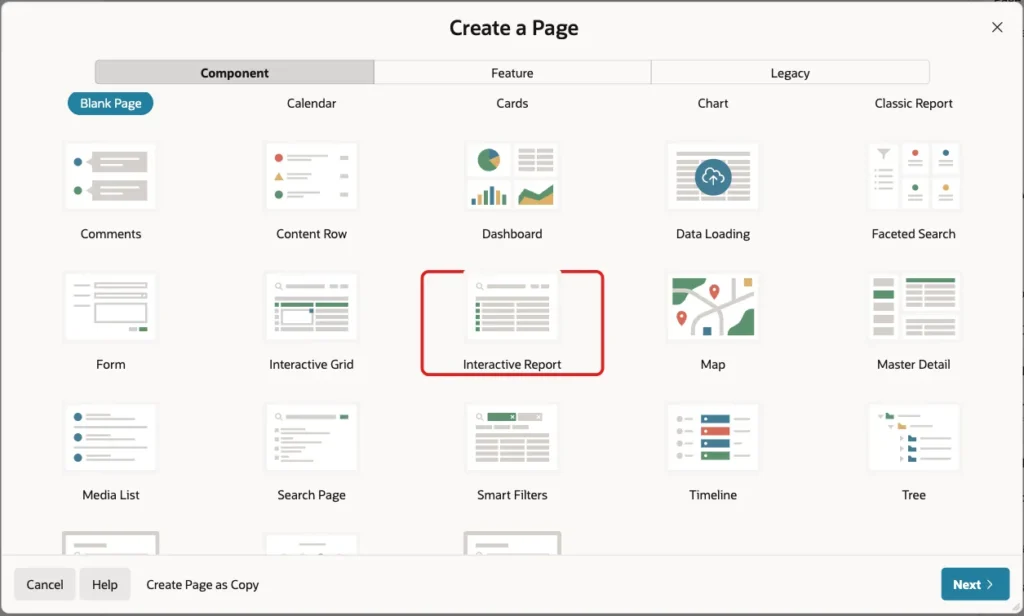
In App Builder, open the application and click Create Page. On the Component tab, click Interactive Report:
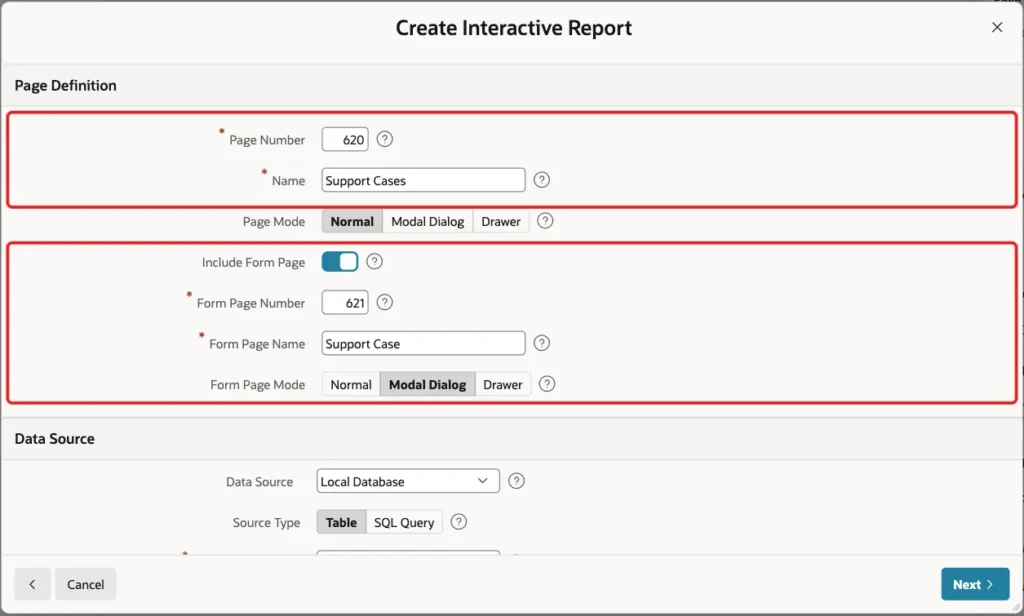
Enter Page Number 620 and Name Support Cases. Turn on Include Form Page, enter Form Page Number 621 and Form Page Name Support Case, and keep Form Page Mode Modal Dialog:
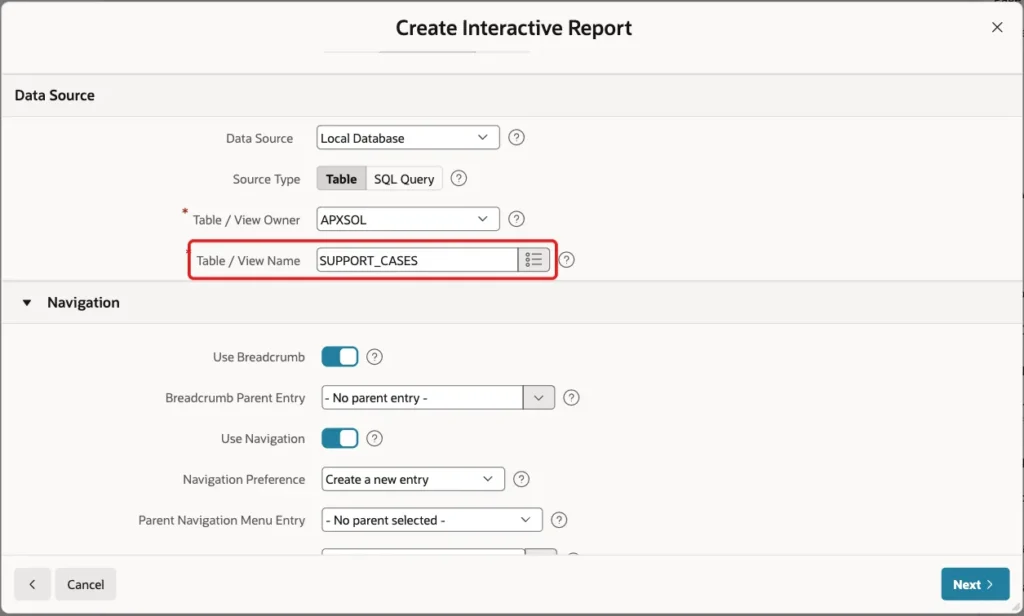
Under Data Source, keep Source Type Table and select the table SUPPORT_CASES:
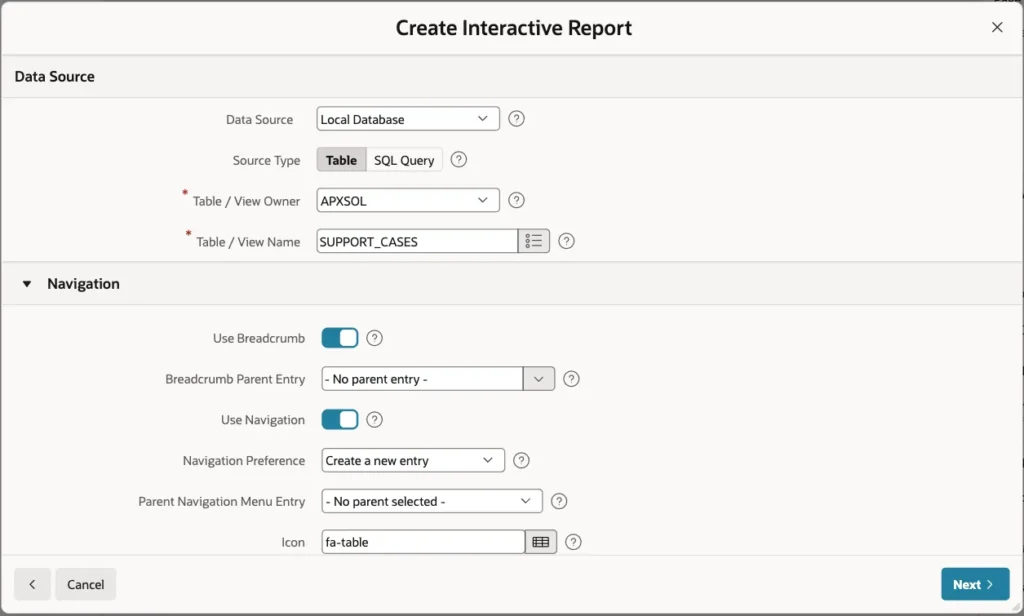
Keep the Navigation settings as they are, so the wizard adds a breadcrumb and a navigation menu entry. Click Next:
On the Primary Key screen, select CASE_ID (Number) for Primary Key Column 1 and click Create Page:
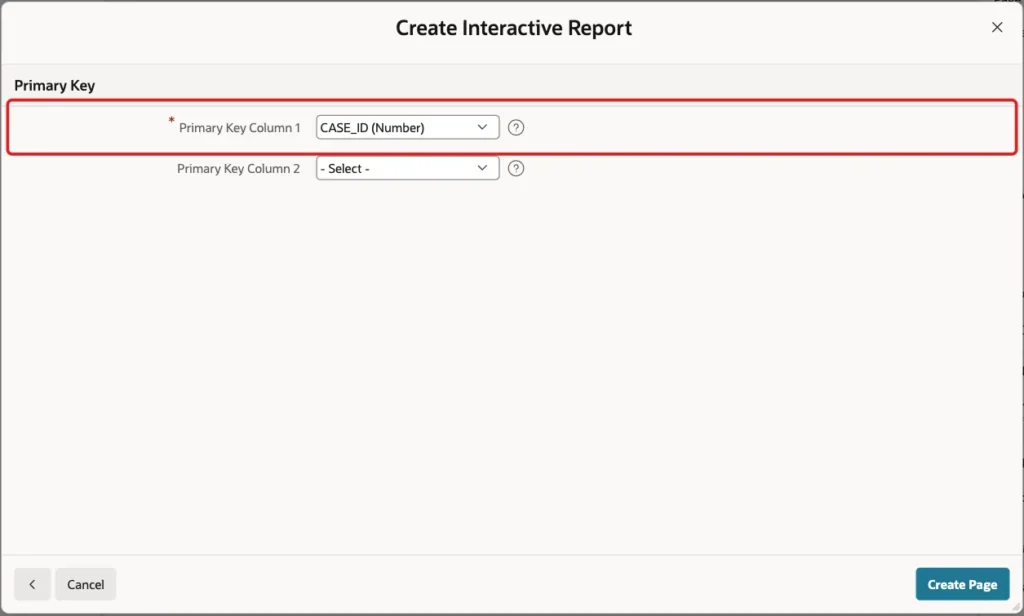
The wizard creates page 620 with the report and page 621 with the form. It turns the foreign key PRIORITY_CODE into a select list with a new shared list of values CASE_PRIORITIES.PRIORITY_NAME.
Step 6: Set Up the Priority and Received On Items
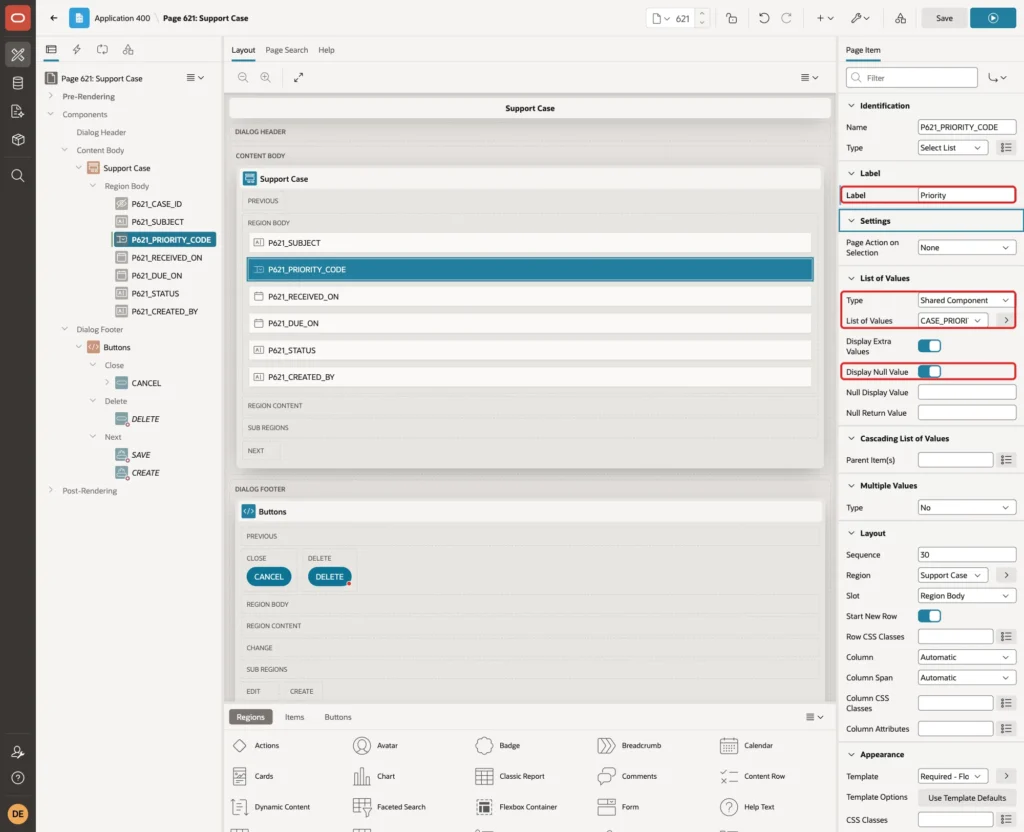
Open page 621 in Page Designer. Select P621_PRIORITY_CODE, set Label to Priority and turn on Display Null Value, so a new case starts without a priority instead of the first one in the list:
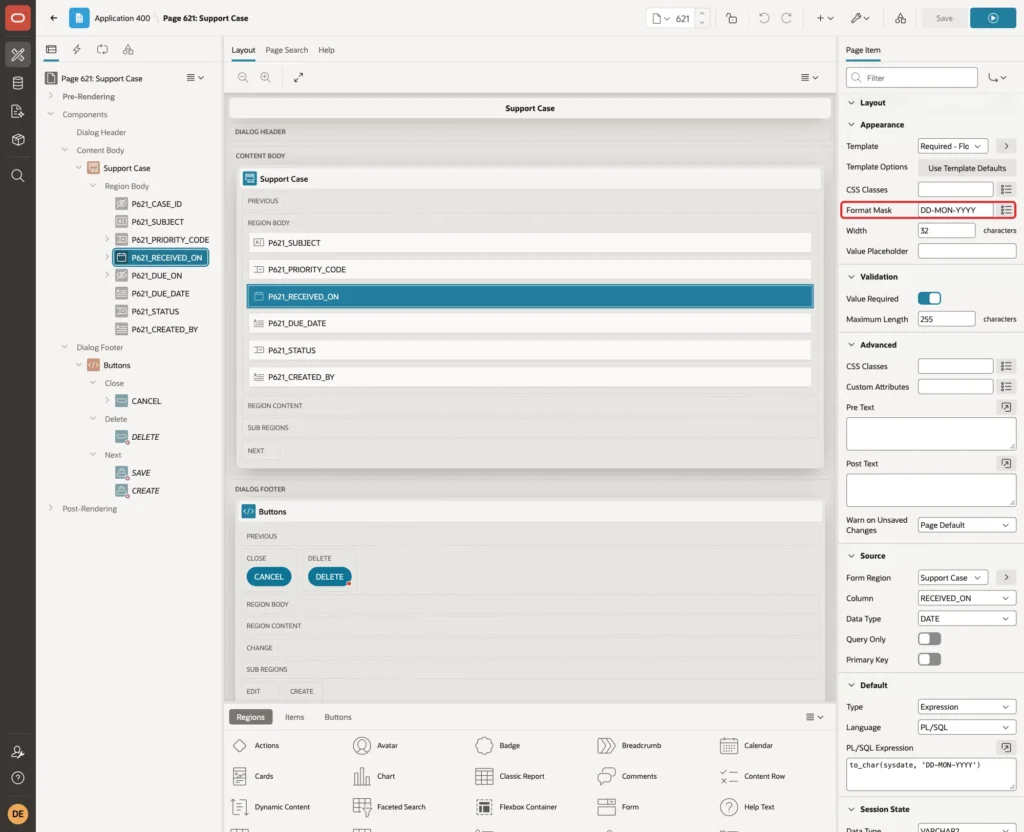
Select P621_RECEIVED_ON and set Appearance > Format Mask to DD-MON-YYYY. The PL/SQL code of the next steps converts the item with the same mask:
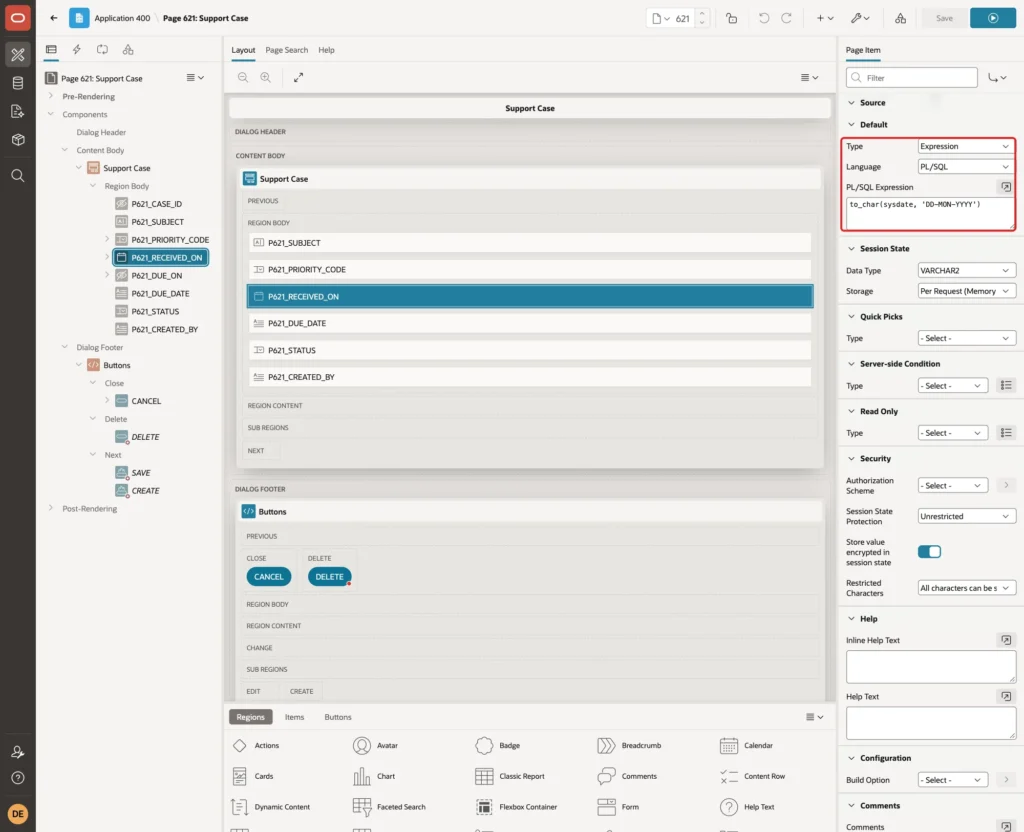
Under Default, set Type to Expression, Language PL/SQL and PL/SQL Expression to to_char(sysdate, 'DD-MON-YYYY'). A new case now starts with the current date:
Step 7: Keep the Saved Due Date on the Server
The user must not be able to type or change the due date. The obvious choice is to make P621_DUE_ON a Display Only item and let a dynamic action change it. Both variants of that failed when tested for this guide.
With Send On Page Submit turned on, every save after the dynamic action had changed the value failed with "Session state protection violation: This may be caused by manual alteration of protected page item P621_DUE_ON". APEX protects a Display Only value with a checksum, and the changed value no longer matches it.
With Send On Page Submit turned off, the computation of Step 9 did set the item, but the save failed with ORA-01400: cannot insert NULL into DUE_ON. A test validation showed the computed value 02-NOV-2026, so the form process simply leaves out items that are not sent with the page.
The working design uses two items. P621_DUE_ON becomes a Hidden item that keeps the saved value, and a separate Display Only item shows the due date. Select P621_DUE_ON and set Type to Hidden. Keep Value Protected turned on:
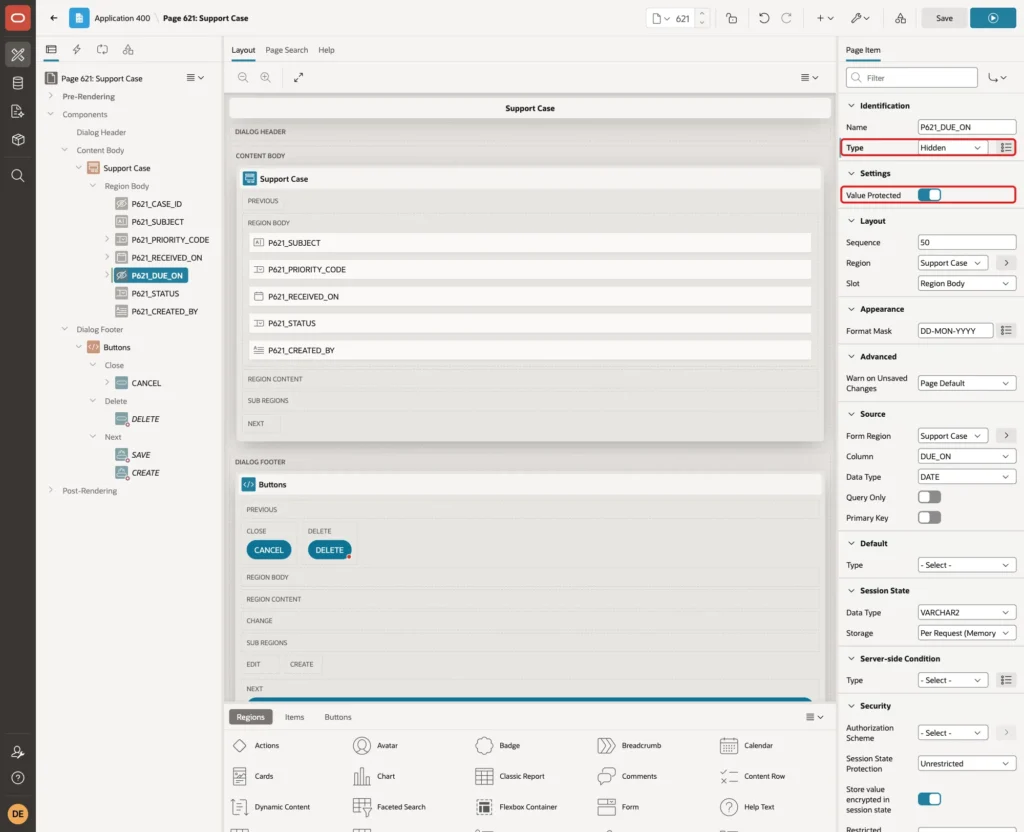
Value Protected adds a checksum to the hidden value, so a value changed in the browser is rejected. The server computation of Step 9 sets the item before the form process saves it.
Step 8: Add a Display Item for the Due Date
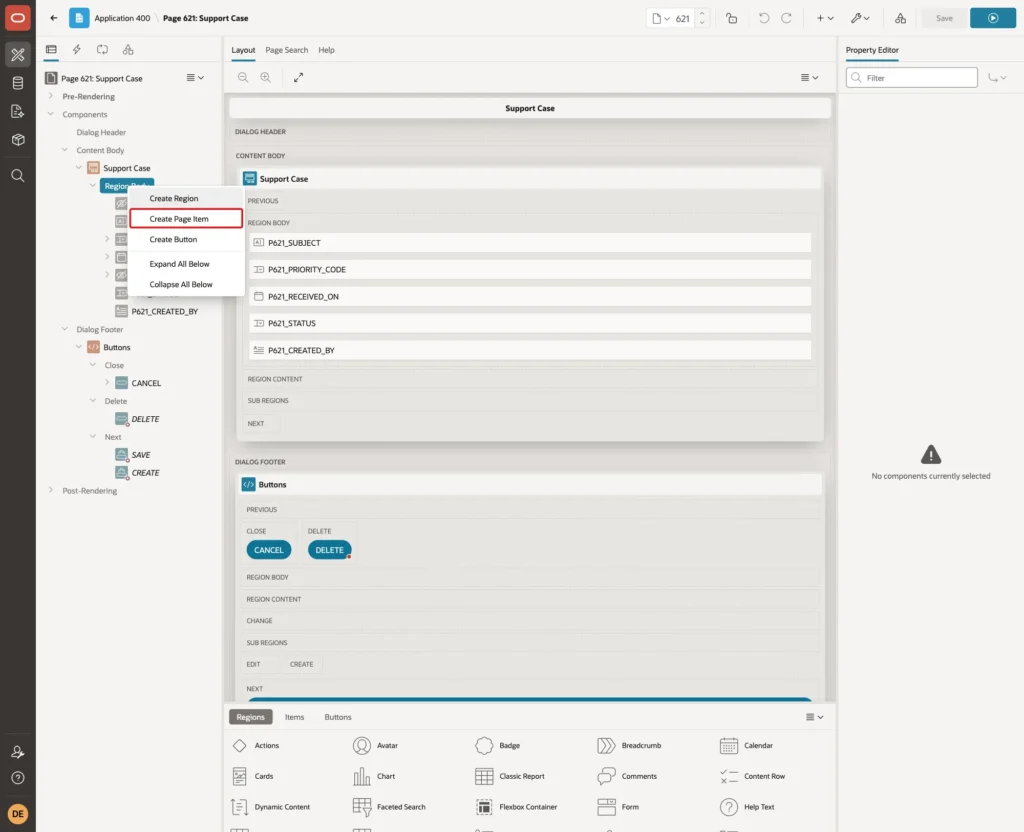
In the Rendering tree, right-click Region Body under Support Case and click Create Page Item:
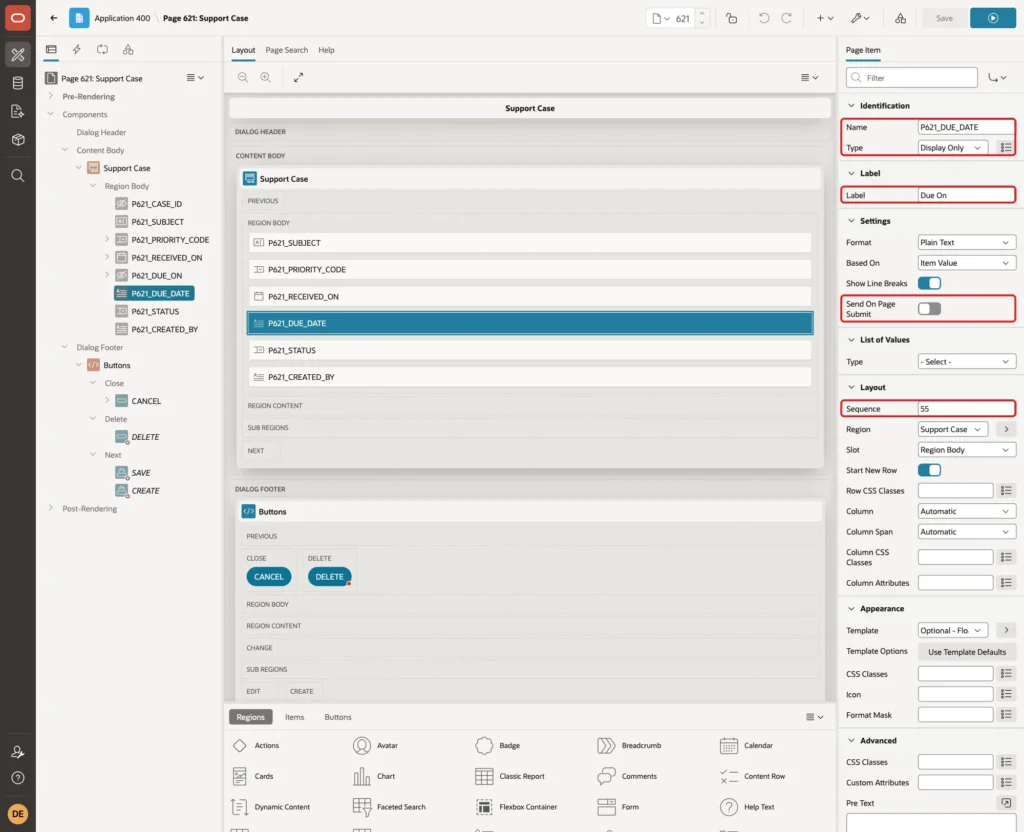
Set Name to P621_DUE_DATE, Type to Display Only, Label to Due On and Sequence to 55, so it appears below Received On. Turn off Send On Page Submit. The item only shows a value, and the browser never sends it back:
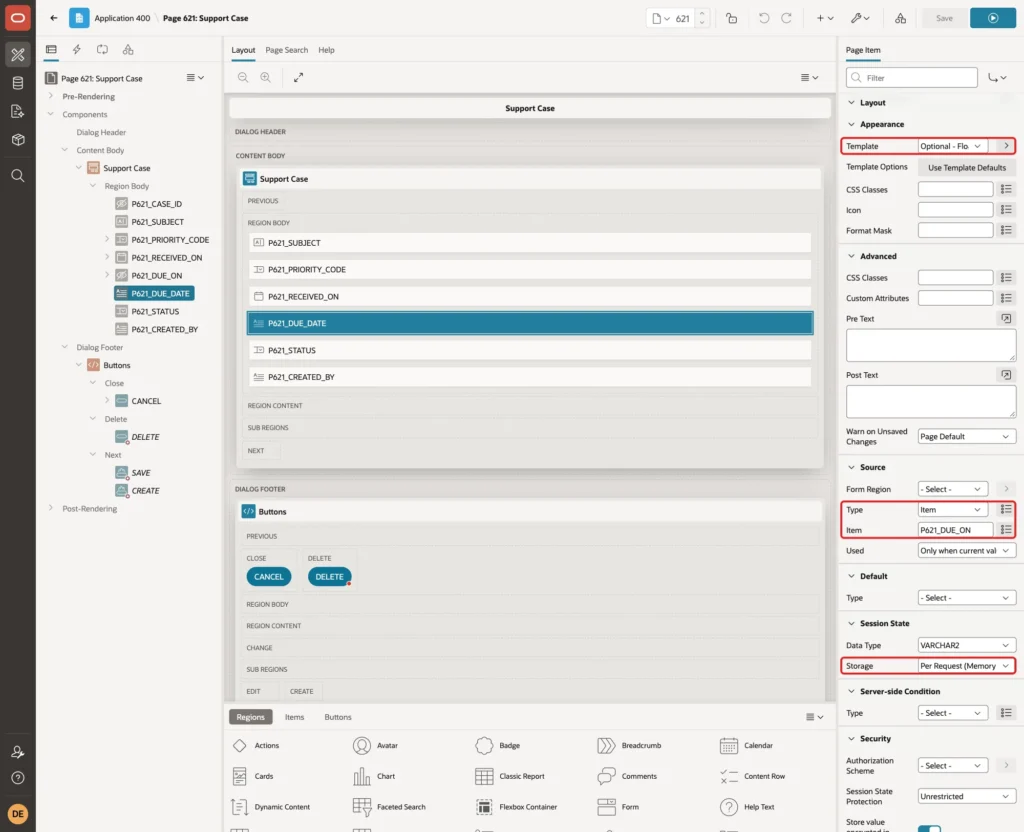
Set Template to Optional - Floating. Under Source, set Type to Item and Item to P621_DUE_ON, so an existing case shows its saved due date. Set Session State > Storage to Per Request (Memory Only):
Step 9: Compute the Due Date When the Form Is Saved
Right-click P621_DUE_ON and click Create Computation:
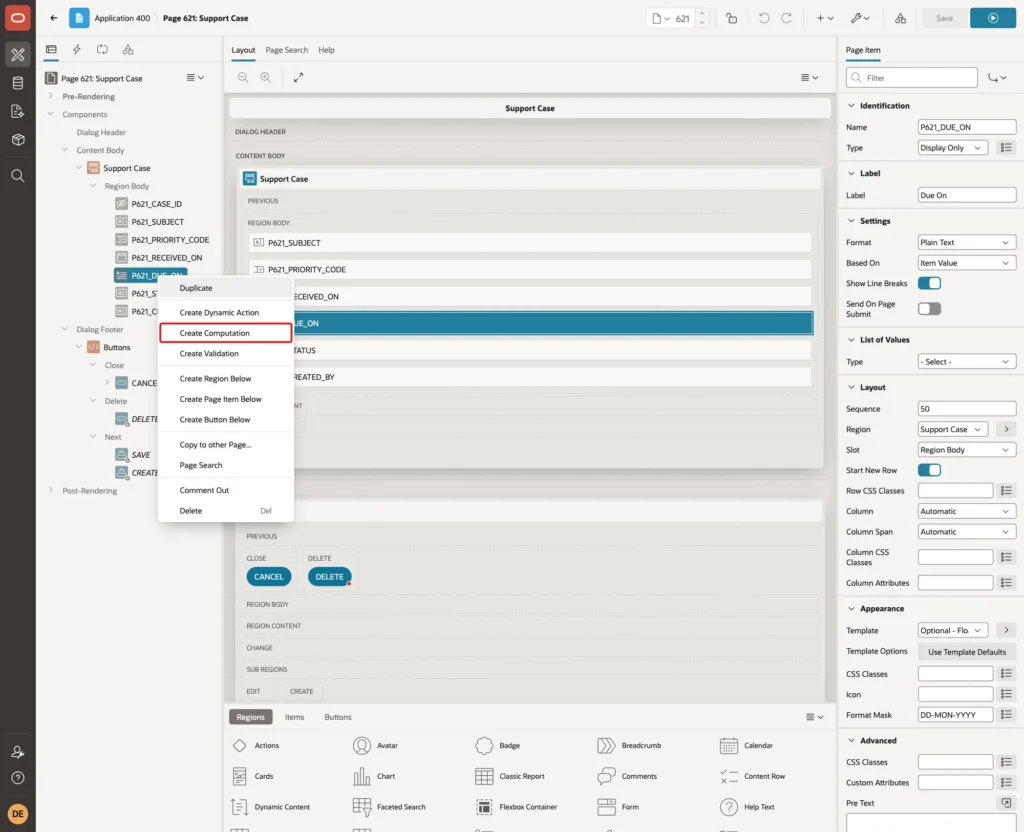
Set Execution > Point to After Submit and Computation > Type to SQL Query (return single value). Enter this query:
Example:
select to_char(business_calendar.add_days(to_date(:P621_RECEIVED_ON, 'DD-MON-YYYY'), response_days), 'DD-MON-YYYY')
  from case_priorities
 where priority_code = :P621_PRIORITY_CODE
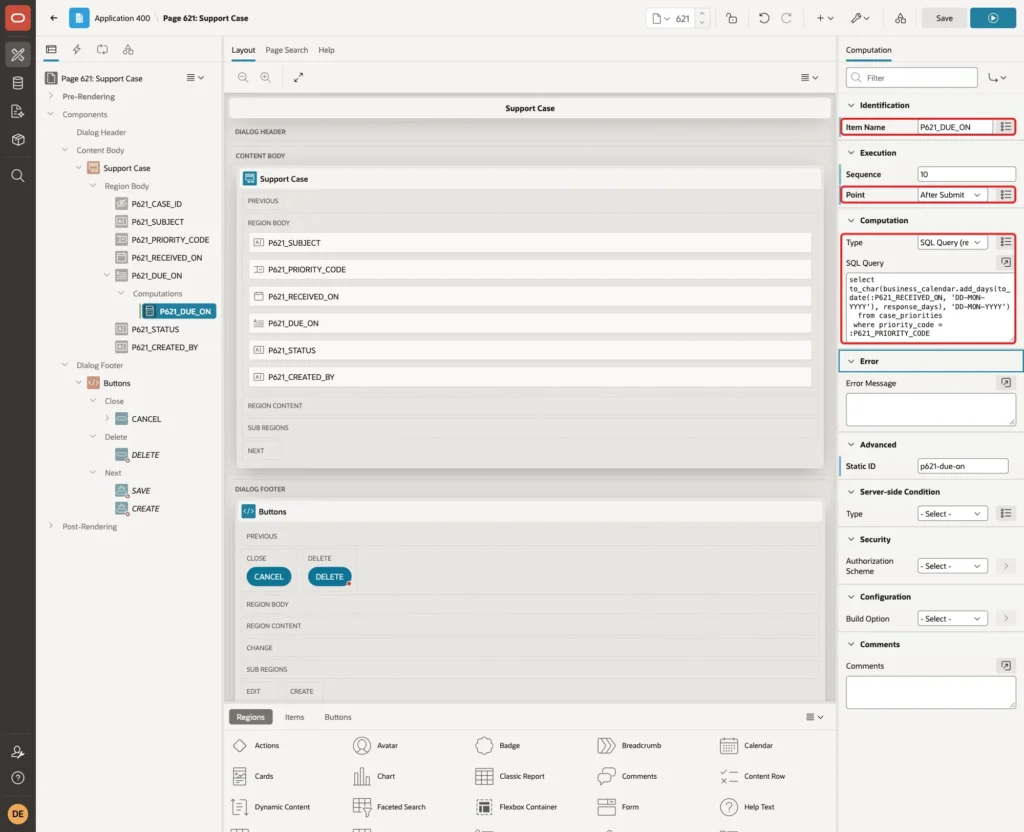
After Submit computations run before validations and before the form process. The query reads the RESPONSE_DAYS of the chosen priority, adds them to Received On, and returns the date as text in the item's format DD-MON-YYYY. The form process then saves that value into DUE_ON.
Step 10: Show the Due Date While Typing
Right-click P621_PRIORITY_CODE and click Create Dynamic Action:
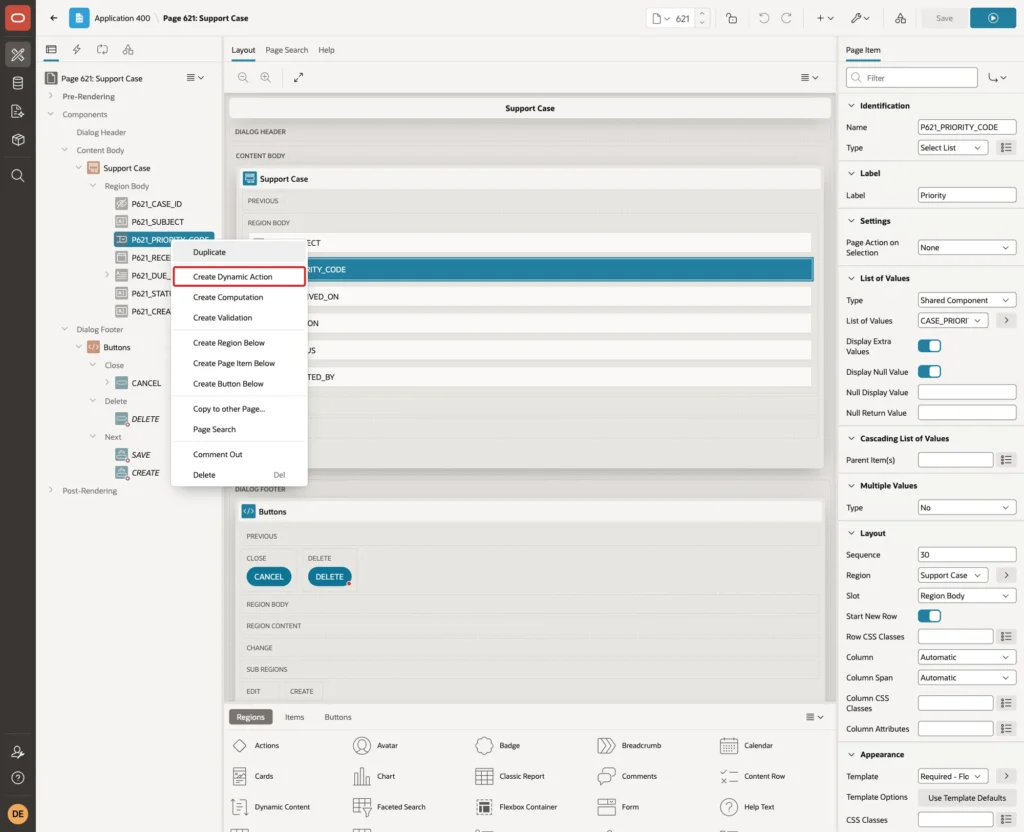
Set Name to Show Due Date. Keep Event Change and Selection Type Item(s), and set Item(s) to P621_PRIORITY_CODE,P621_RECEIVED_ON, so a change of either item fires it:
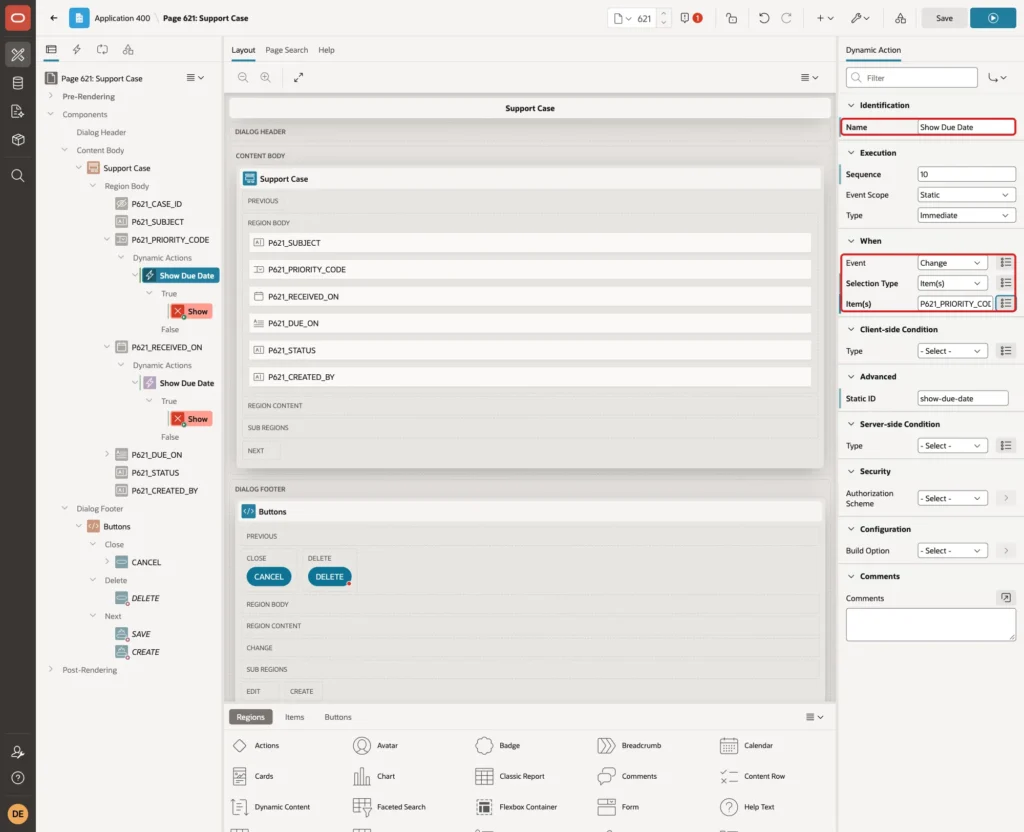
Select the true action. Set Action to Set Value, Set Type to SQL Query, and enter the same query as in Step 9. Set Items to Submit to P621_PRIORITY_CODE,P621_RECEIVED_ON. Under Affected Elements, select Item(s) P621_DUE_DATE, and turn off Fire on Initialization:
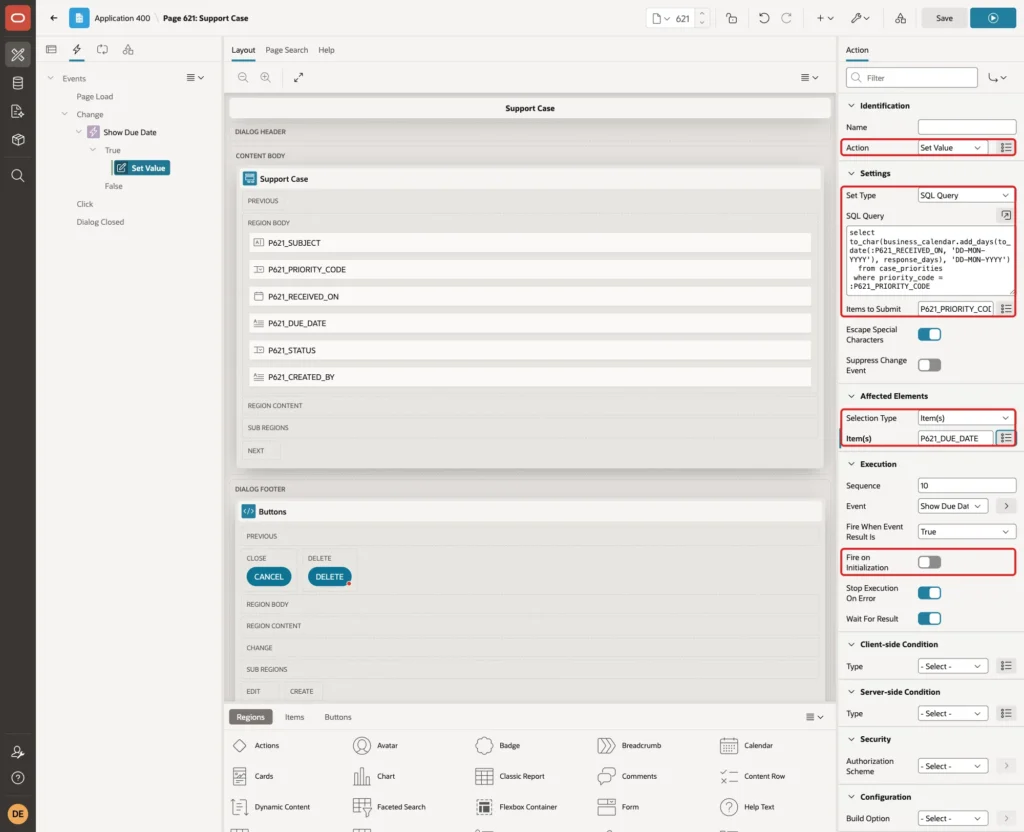
Fire on Initialization stays off, so an existing case shows its saved due date when the form opens, not a date recalculated with today's holiday list.
Step 11: Finish the Status and Created By Items
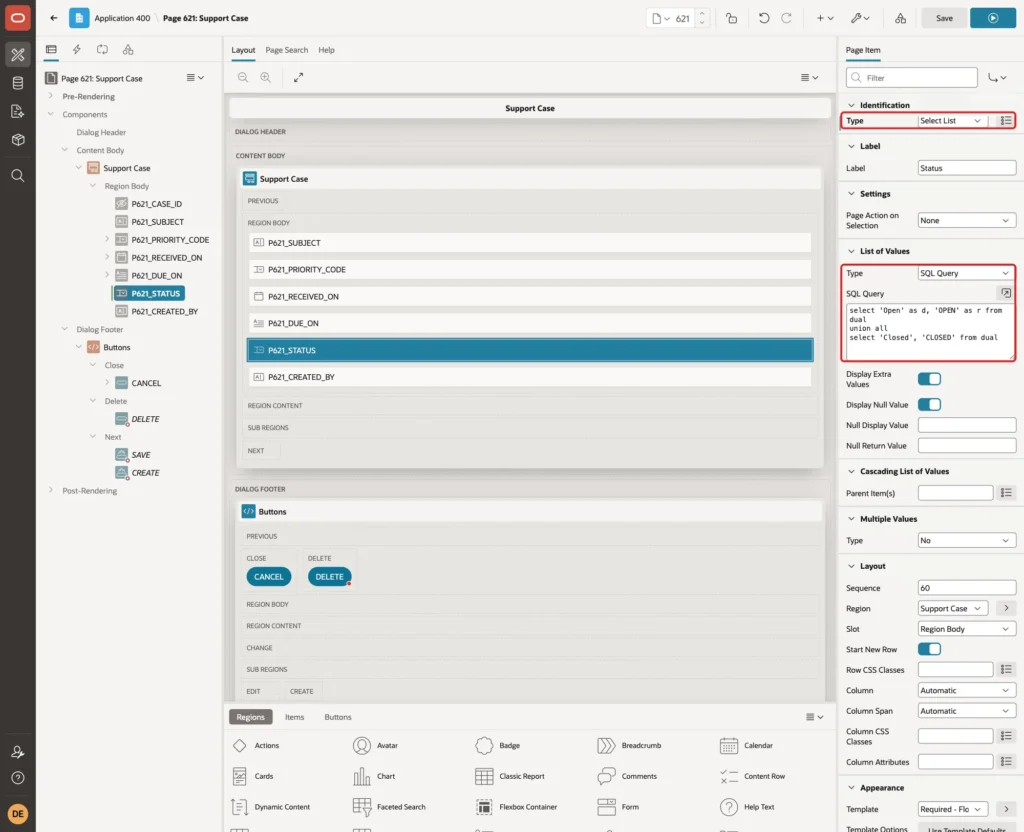
Select P621_STATUS, set Type to Select List, and set List of Values Type to SQL Query with this query:
Example:
select 'Open' as d, 'OPEN' as r from dual
union all
select 'Closed', 'CLOSED' from dual
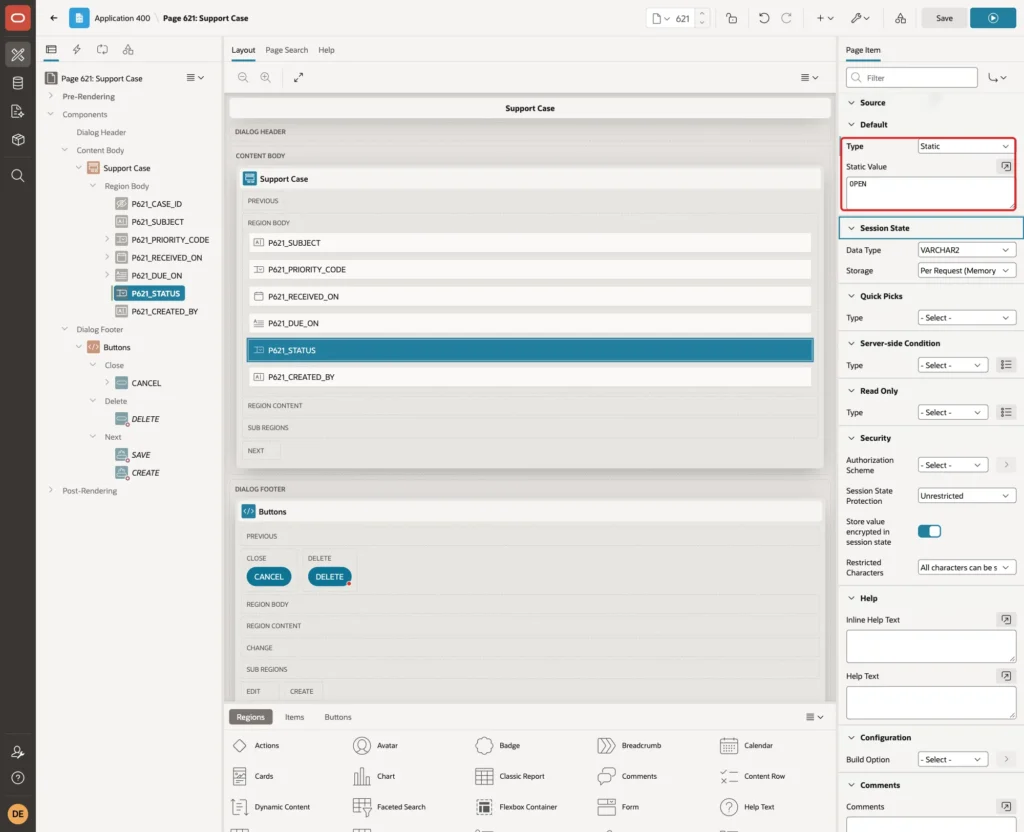
Under Default, set Type to Static and Static Value to OPEN:
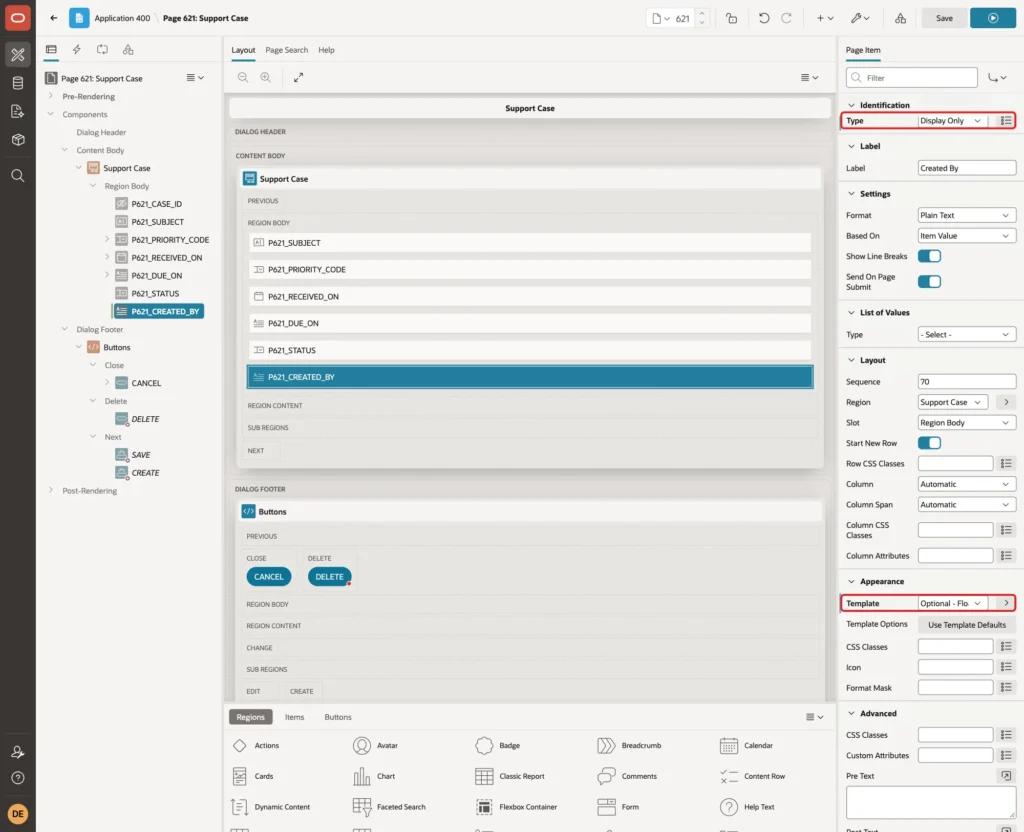
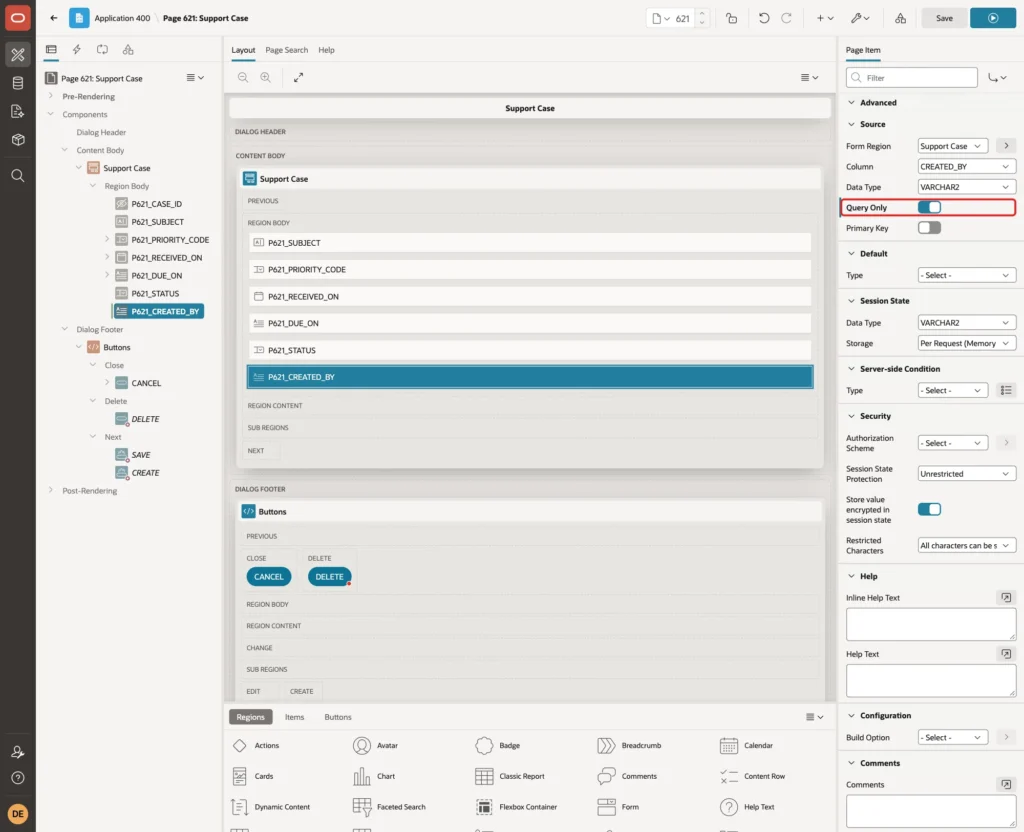
Select P621_CREATED_BY, set Type to Display Only and Template to Optional - Floating:
Under Source, turn on Query Only, so the form never writes this column and the DEFAULT ON NULL of the table fills it. Click Save:
Step 12: Test the Form
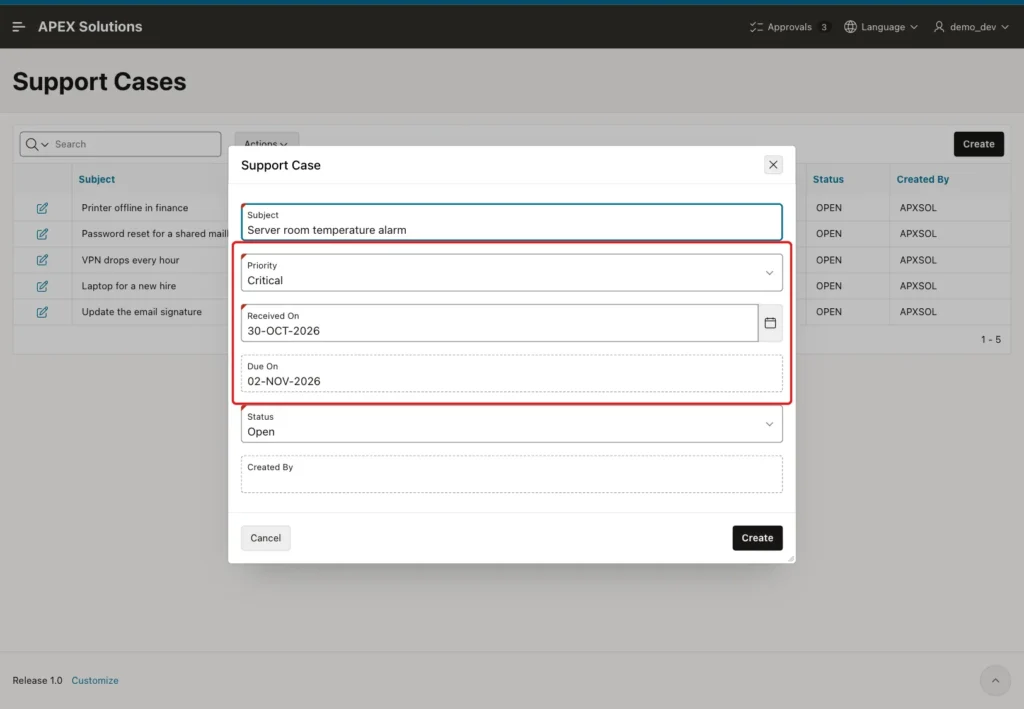
Run page 620 and click Create. Enter a subject, set Received On to 30-OCT-2026 (a Friday) and pick Critical. Due On shows 02-NOV-2026, the Monday:
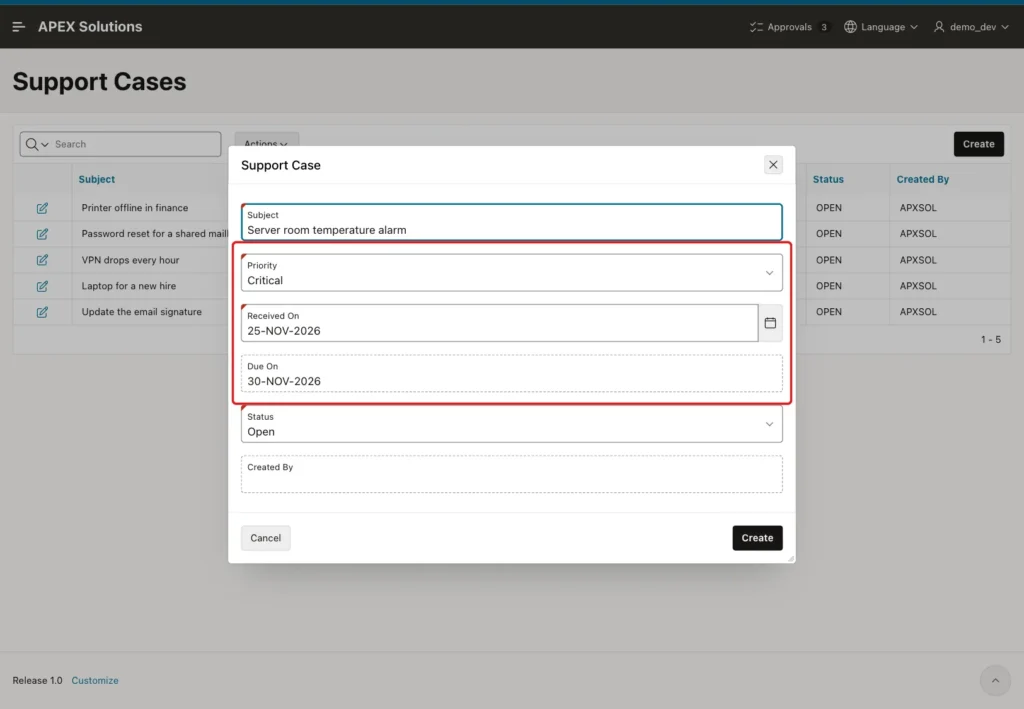
Change Received On to 25-NOV-2026. Due On jumps to 30-NOV-2026, because 26 and 27 November are holidays and 28-29 November is a weekend. Click Create:
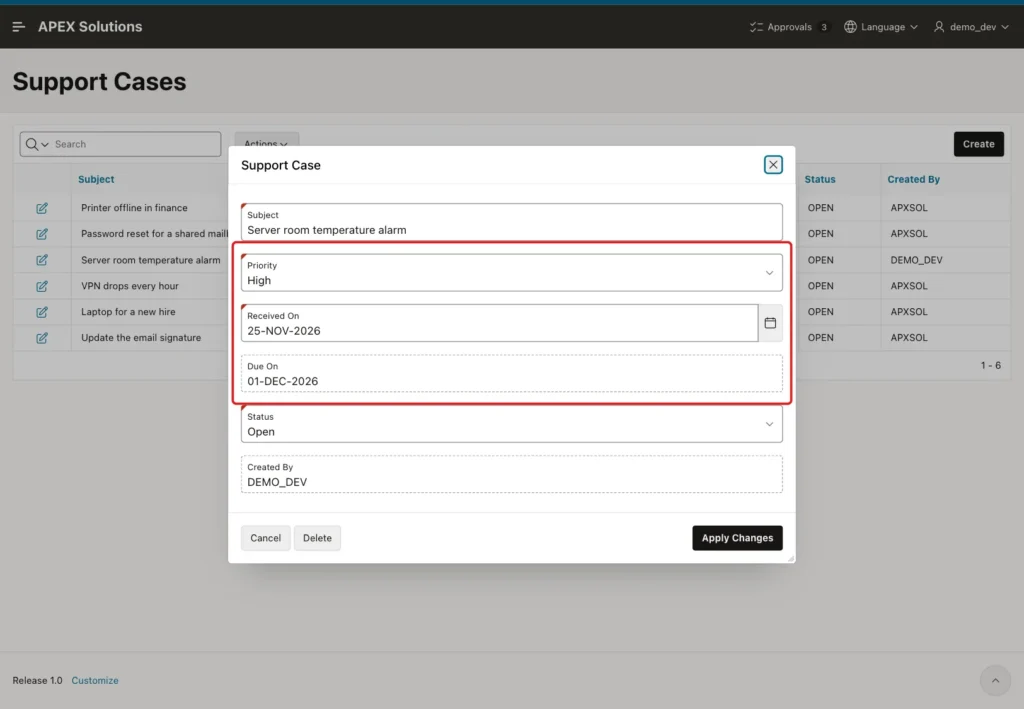
Open the new case again and change Priority to High. The display shows 01-DEC-2026, two business days after 25 November. Click Apply Changes:
The saved row in the table:
Example:
select case_id, subject, priority_code,
       to_char(received_on, 'DY DD-MON-YYYY') received,
       to_char(due_on, 'DY DD-MON-YYYY') due, created_by
  from support_cases
 where case_id > 5
 order by case_id;
Output:
   CASE_ID SUBJECT                          PRIORITY_CODE    RECEIVED           DUE                CREATED_BY
__________ ________________________________ ________________ __________________ __________________ _____________
        24 Server room temperature alarm    P2               WED 25-NOV-2026    TUE 01-DEC-2026    DEMO_DEV
The server computation saved the same date the user saw, and CREATED_BY was filled with the APEX user DEMO_DEV.
Next, a negative test. A new case was filled in for 30-OCT-2026 with priority Critical, and then the hidden item was changed in the browser console with apex.item('P621_DUE_ON').setValue('31-DEC-2027'). Clicking Create was rejected:
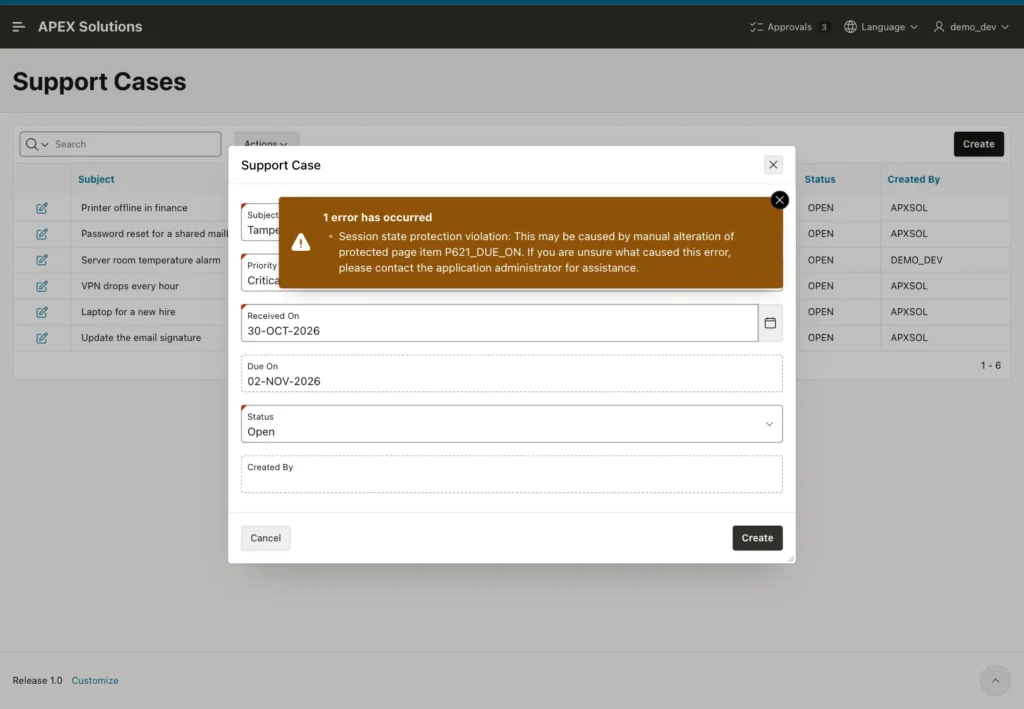
Nothing was saved. A case without a priority is also stopped, with the message "Priority must have some value." from the Value Required setting the wizard added.
Step 13: Show Business Days Left in the Report
Open page 620 in Page Designer and select the region Support Cases. Under Source, set Type to SQL Query and enter this query:
Example:
select c.case_id,
       c.subject,
       p.priority_name as priority,
       c.received_on,
       c.due_on,
       c.status,
       case when c.status = 'OPEN'
            then business_calendar.days_between(trunc(sysdate), c.due_on)
       end as business_days_left,
       case
         when c.status = 'CLOSED' then 'Closed'
         when c.due_on < trunc(sysdate) then 'Overdue'
         when c.due_on = trunc(sysdate) then 'Due today'
         else 'On track'
       end as due_status
  from support_cases c
  join case_priorities p on p.priority_code = c.priority_code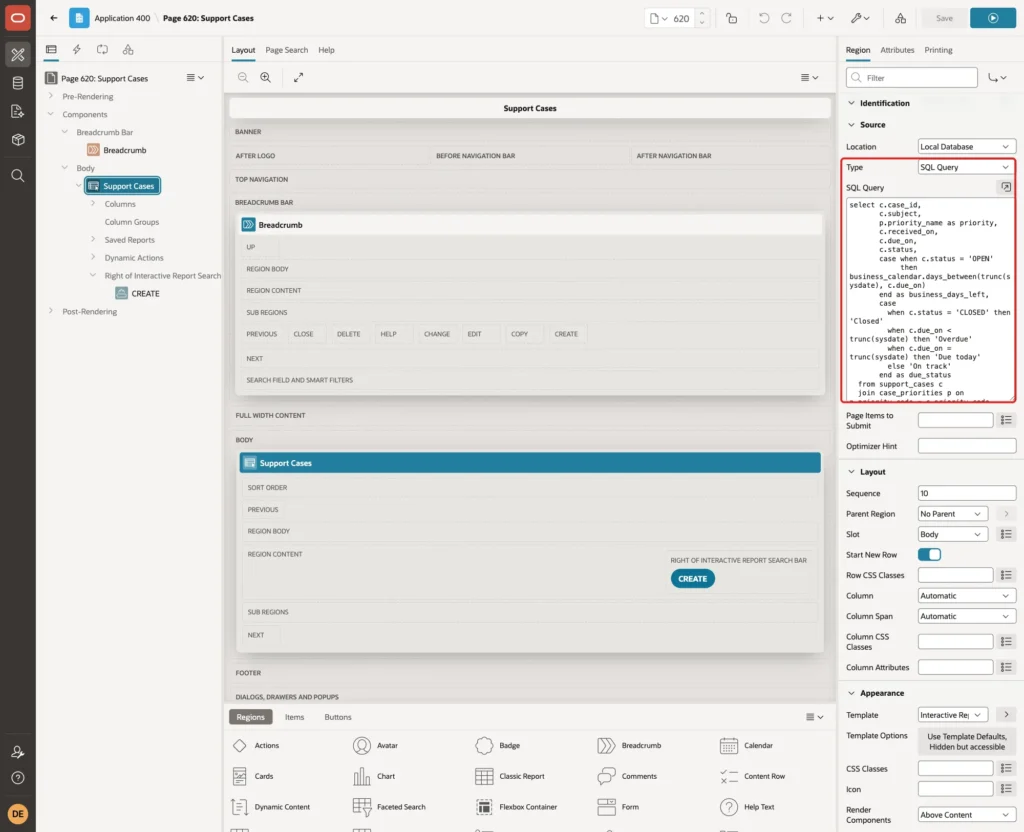
BUSINESS_DAYS_LEFT counts the business days from today to the due date, only for open cases. DUE_STATUS shows Overdue, Due today, On track or Closed.
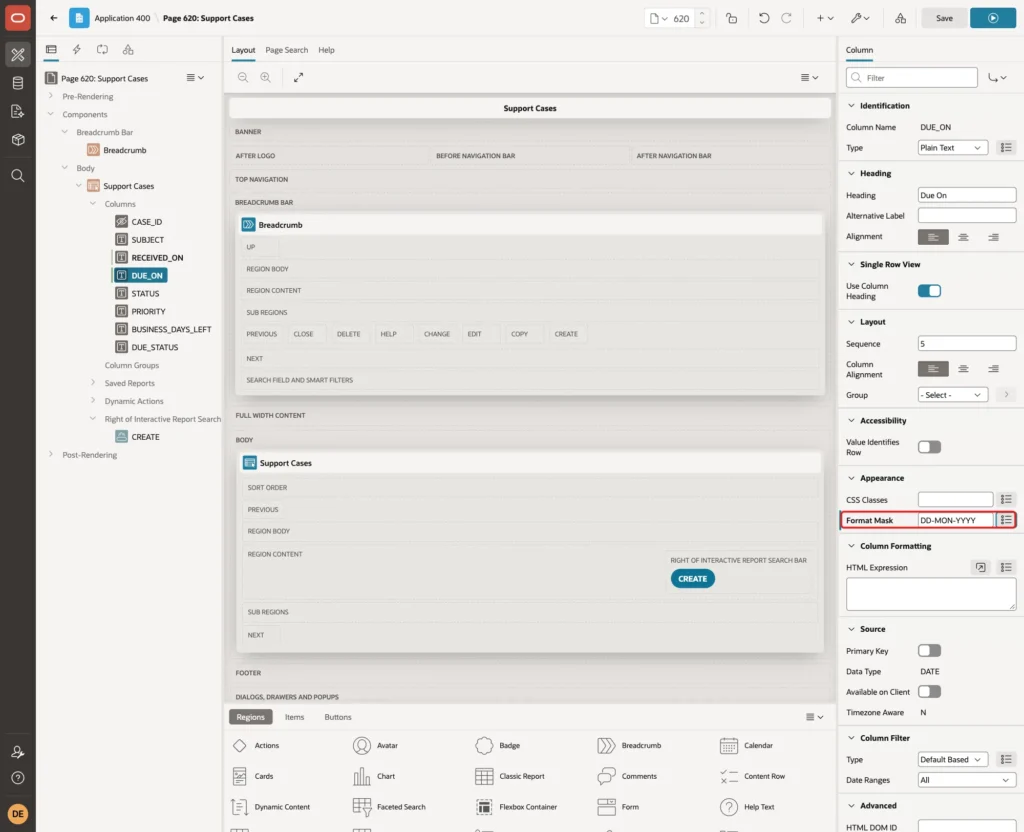
Expand Columns, select RECEIVED_ON and set Format Mask to DD-MON-YYYY. Do the same for DUE_ON, and click Save:
The report query for the sample cases, run on Saturday 17 October 2026:
Example:
set lines 200 pages 100
select case_id, subject, priority, to_char(due_on, 'DY DD-MON-YYYY') due, business_days_left, due_status
  from (
@@ir-source.sql
)
 where case_id <= 5
 order by due_on;
Output:
   CASE_ID SUBJECT                                PRIORITY    DUE                   BUSINESS_DAYS_LEFT DUE_STATUS
__________ ______________________________________ ___________ __________________ _____________________ _____________
         5 Password reset for a shared mailbox    Critical    THU 15-OCT-2026                       -1 Overdue
         1 Printer offline in finance             Critical    MON 19-OCT-2026                        1 On track
         2 VPN drops every hour                   High        WED 21-OCT-2026                        2 On track
         3 Laptop for a new hire                  Normal      FRI 23-OCT-2026                        4 On track
         4 Update the email signature             Low         TUE 27-OCT-2026                        6 On track
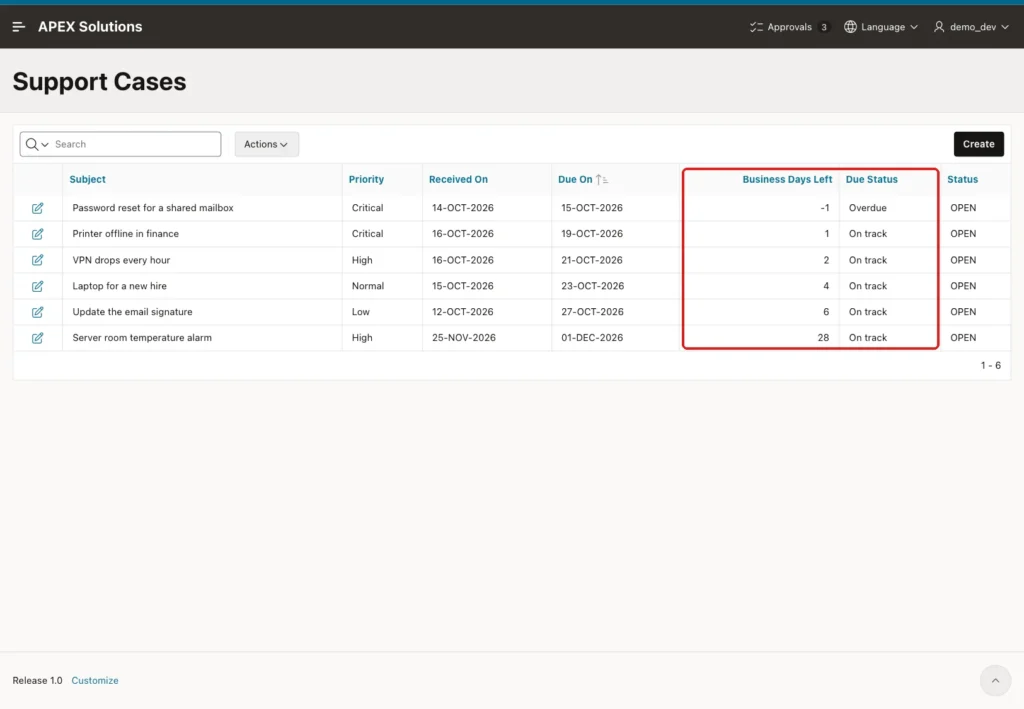
The password reset was due on Thursday 15 October, so it is one business day overdue. The VPN case is due on Wednesday 21 October, which is two business days away, because Tuesday is a holiday. A closed case shows no days left:
Example:
update support_cases set status = 'CLOSED' where case_id = 5;

select case_id, subject, business_days_left, due_status
  from (
@@ir-source.sql
)
 where case_id = 5;

rollback;
Output:
1 row updated.

   CASE_ID SUBJECT                                   BUSINESS_DAYS_LEFT DUE_STATUS
__________ ______________________________________ _____________________ _____________
         5 Password reset for a shared mailbox                          Closed

Rollback complete.
The new columns are hidden in the report at first, because the saved default report still lists only the old columns. Run page 620 as a developer. Click Actions > Columns, move Priority, Business Days Left and Due Status to Display in Report, put them in this order and click Apply:
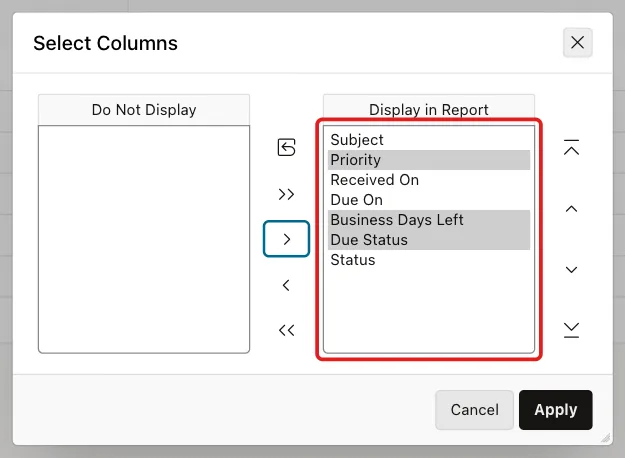
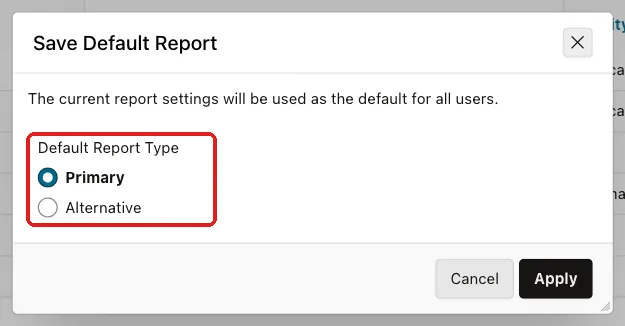
Click the Due On heading and choose Sort Ascending. Then click Actions > Report > Save Report, select As Default Report Settings, keep Primary and click Apply:
The report now shows the business days left for every case:
Step 14: Maintain Holidays on an Editable Grid
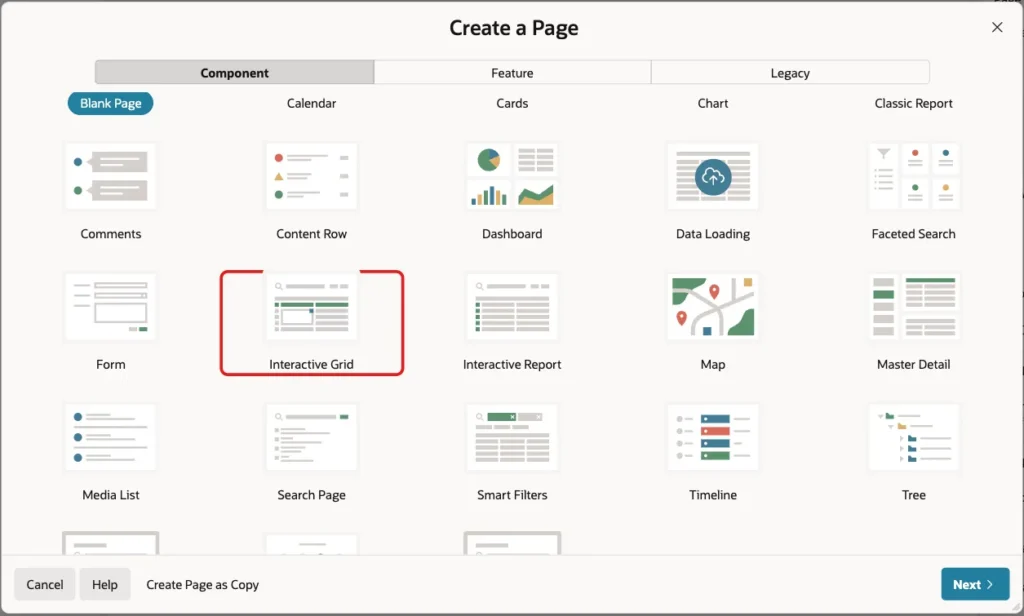
The holiday list changes every year, so users need a page to maintain it. Click Create Page and choose Interactive Grid:
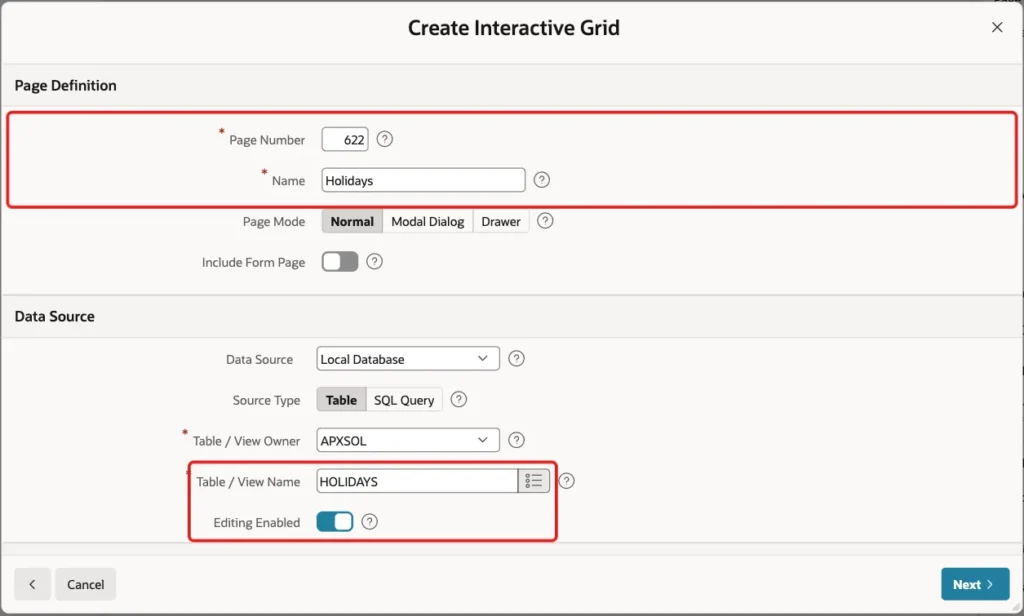
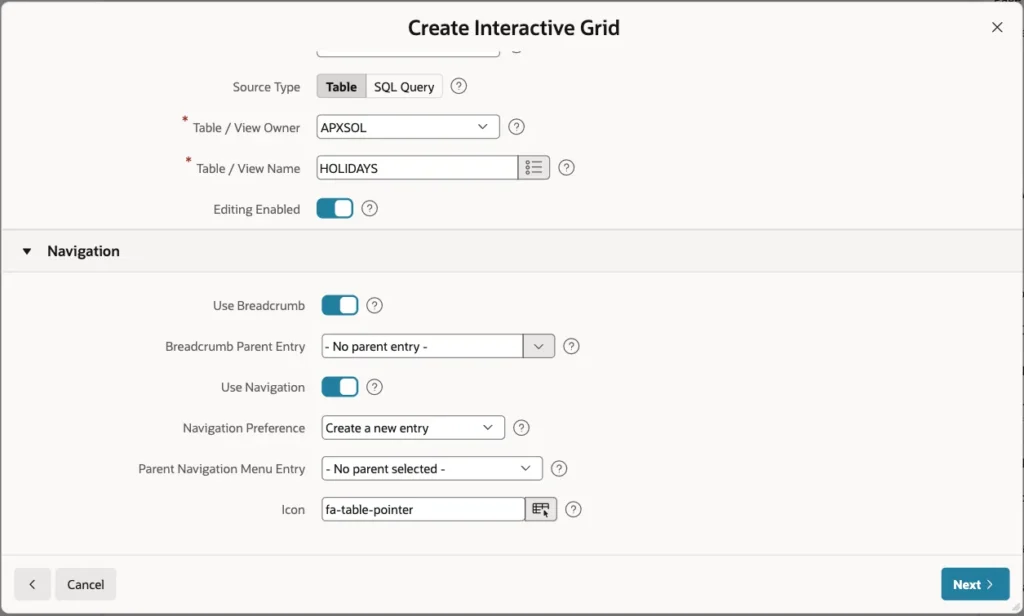
Enter Page Number 622 and Name Holidays. Select the table HOLIDAYS and turn on Editing Enabled:
Keep the Navigation settings and click Next:
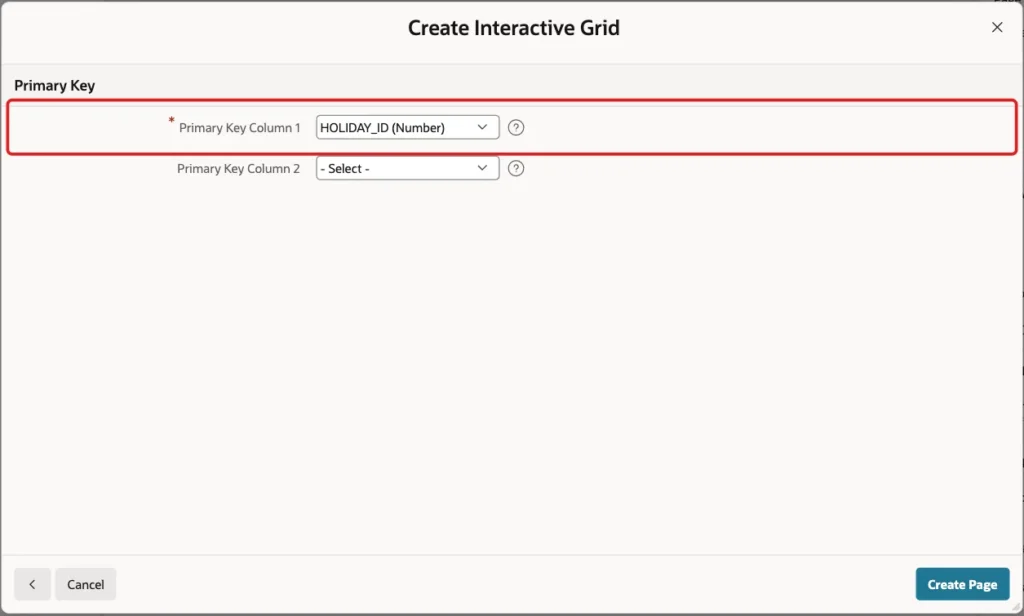
Select HOLIDAY_ID (Number) as Primary Key Column 1 and click Create Page:
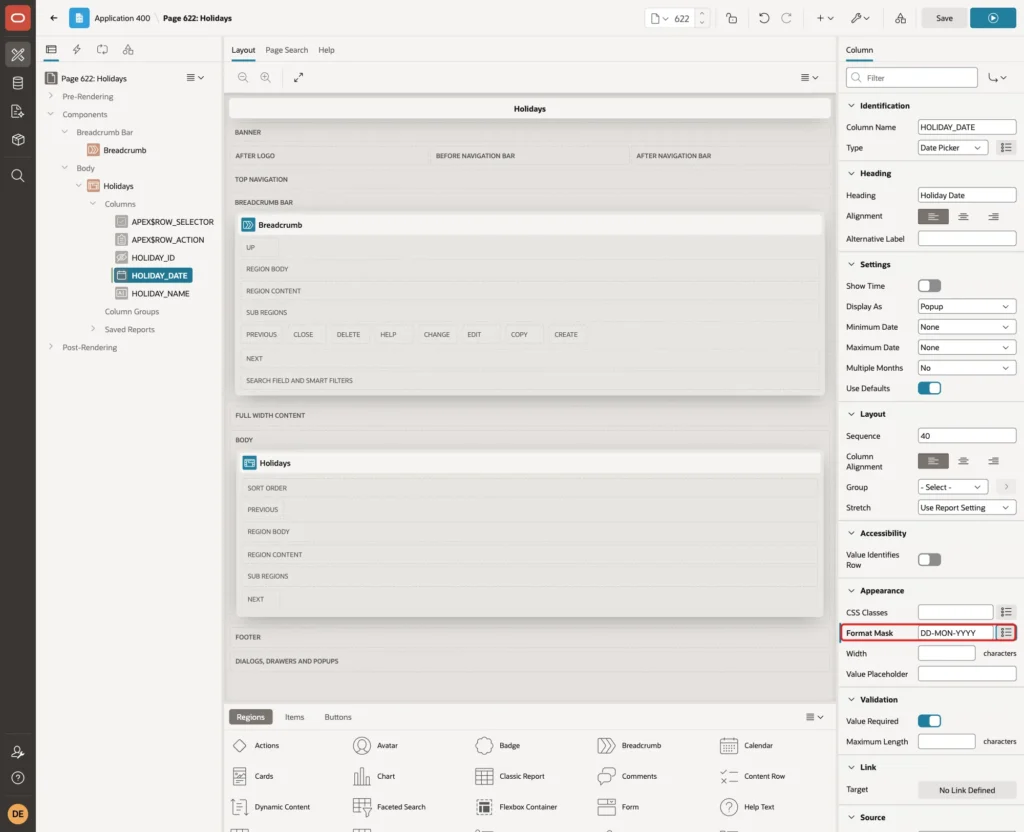
In Page Designer, expand the Columns of the Holidays region, select HOLIDAY_DATE, set Format Mask to DD-MON-YYYY and click Save:
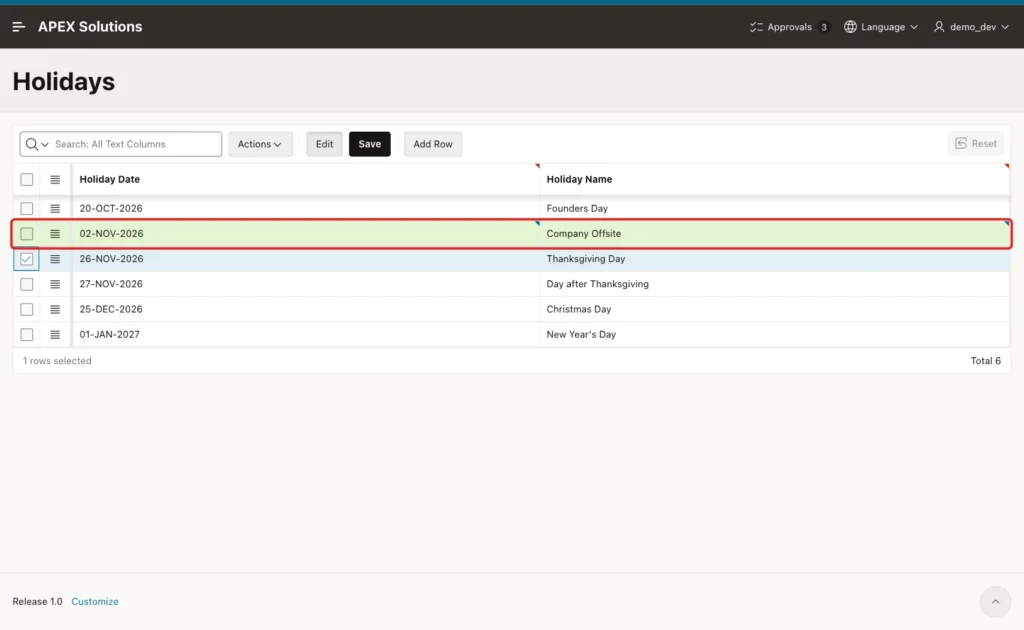
Run page 622, click Add Row, enter 02-NOV-2026 and Company Offsite, and click Save:
The function picks up the new holiday at once:
Example:
select holiday_id, to_char(holiday_date, 'DY DD-MON-YYYY') holiday, holiday_name
  from holidays order by holiday_date;

select to_char(business_calendar.add_days(date '2026-10-30', 1), 'DY DD-MON-YYYY') as fri_plus_1
  from dual;
Output:
   HOLIDAY_ID HOLIDAY            HOLIDAY_NAME
_____________ __________________ _________________________
            1 TUE 20-OCT-2026    Founders Day
           21 MON 02-NOV-2026    Company Offsite
            2 THU 26-NOV-2026    Thanksgiving Day
            3 FRI 27-NOV-2026    Day after Thanksgiving
            4 FRI 25-DEC-2026    Christmas Day
            5 FRI 01-JAN-2027    New Year's Day

6 rows selected.

FRI_PLUS_1
__________________
TUE 03-NOV-2026
Friday 30 October + 1 business day was Monday 2 November in Step 3. Now it is Tuesday 3 November. The form shows the same for a new Critical case received on 30 October:
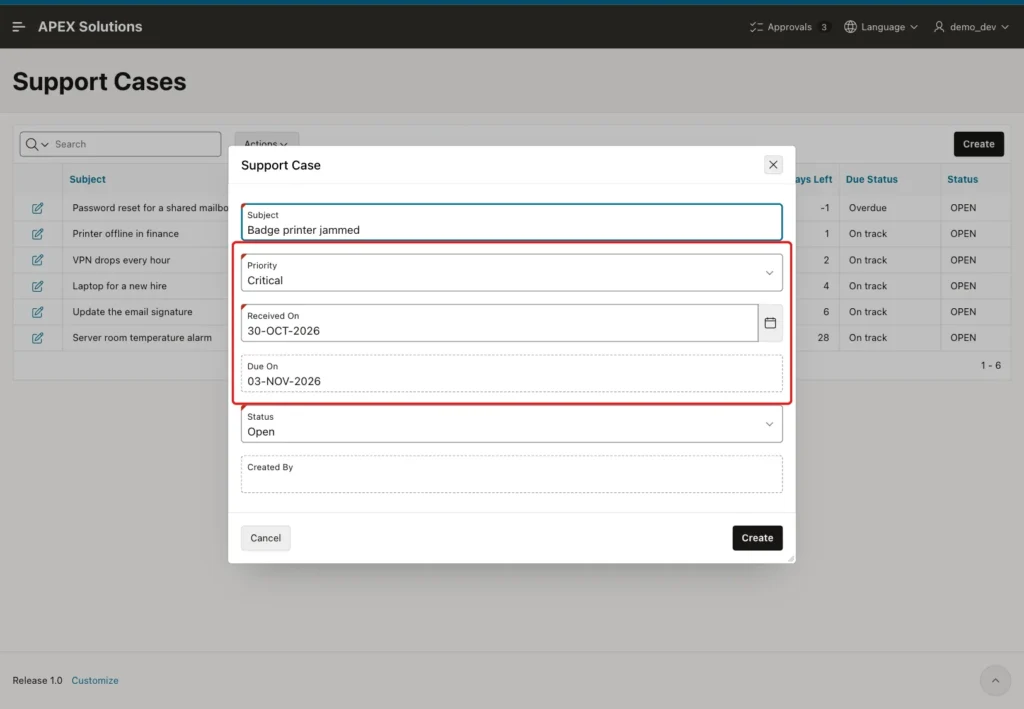
Cases saved before the new holiday keep their stored due date. In this example, the Server room case still has 01-DEC-2026, but its Business Days Left dropped from 29 to 28, because the report counts with the current holiday list.
A second row for 20-OCT-2026 was rejected by the unique constraint, and nothing was saved:
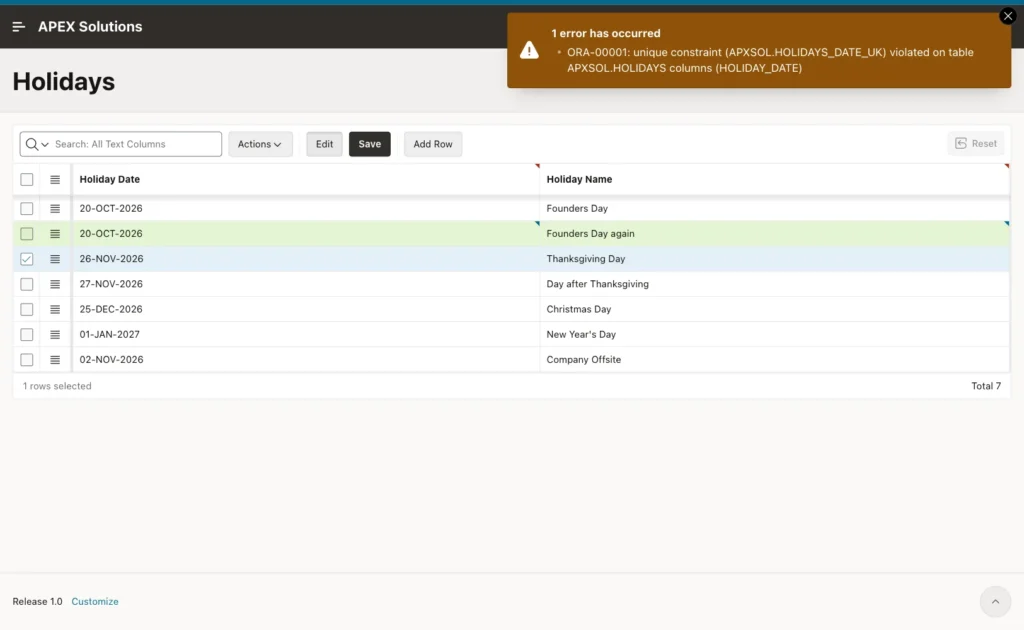
The raw ORA-00001 text is not friendly. An error handling function can map HOLIDAYS_DATE_UK to a clear message, as shown in the guide on case-insensitive unique names linked below.
Things to Know
- A due date is calculated once and stored. Holidays added later change new due dates and the business days left, but not the stored due dates. Edit and save a case to recalculate it.
- TRUNC(SYSDATE) uses the database server's date and time zone. The database in this example runs on UTC, so "today" changes at 05:30 in India.
- Use TO_CHAR(date, 'DY', 'NLS_DATE_LANGUAGE=ENGLISH') to find weekends. The day number format D changes with NLS_TERRITORY.
- The weekend days are the IN lists ('SAT', 'SUN') in IS_BUSINESS_DAY and DAYS_BETWEEN. For a different working week, change both lists.
- A Display Only item changed by a dynamic action cannot be saved by the form process: with Send On Page Submit on, the checksum fails, and with it off, the column is left out. Save through a protected Hidden item and a server computation.
- Keep the format mask of Received On and the TO_DATE and TO_CHAR masks in the computation and the dynamic action identical.
- The computation guards the APEX form only. Other programs that insert cases must call BUSINESS_CALENDAR.ADD_DAYS too. The NOT NULL constraint on DUE_ON makes sure they cannot forget it.
Related Guides
- Oracle SQL Query to Calculate Business Days Excluding Holidays
- How to Enforce Case-Insensitive Unique Names with a Friendly Message in Oracle APEX
Conclusion
Calculating due dates in business days in Oracle APEX needs a holiday table and one PL/SQL function that steps over weekends and holidays. A Set Value dynamic action shows the due date while the user types, and an After Submit computation calculates it again on the server, so the browser never decides the saved value.
The same package counts the business days left in the report, and an editable grid keeps the holiday list current. Test the edge cases in SQL first: Fridays, holidays next to weekends, zero and negative days, and the same start and end date.
