
Not every rule in a form is a hard rule. Some values are unusual but allowed, like an order that goes above a credit limit or a date far in the future. A validation error blocks the save, so users can't continue even when they have a good reason.
A warning that still allows saving solves this. When the user clicks Save, the page checks the rule on the server. If it fails, a confirm dialog explains the problem and offers Save Anyway or Go Back. Hard errors stay real errors and still block the save.
This guide builds that pattern with a dynamic action, the declarative Confirm action and one server-side validation that also stops a scripted submit. It uses orders and a customer credit limit as the example; the same steps work for any table and any warning rule.
How to Show Success, Error, and Confirm Messages Using apex.message in Oracle APEX explains the JavaScript message API. How to Warn About Possible Duplicate Records While Typing in Oracle APEX shows a region while the user types. Here the warning comes at save time and the server checks that the user confirmed it.
Step 1: Create the Tables
The example needs two tables. TRADE_ACCOUNTS stores each account with a credit limit and a status. TRADE_ORDERS stores the orders. The open balance of an account is the sum of its orders with the status OPEN.
Create the tables, the index and the sample data:
Example:
create table trade_accounts (
  account_id      number generated by default on null as identity,
  account_name    varchar2(100 char) not null,
  credit_limit    number(12,2) not null,
  account_status  varchar2(10 char) default on null 'ACTIVE' not null,
  constraint trade_accounts_pk primary key (account_id),
  constraint trade_accounts_name_uk unique (account_name),
  constraint trade_accounts_limit_ck check (credit_limit >= 0),
  constraint trade_accounts_status_ck check (account_status in ('ACTIVE', 'ON_HOLD'))
);

create table trade_orders (
  order_id      number generated by default on null as identity,
  account_id    number not null,
  order_date    date default on null trunc(sysdate) not null,
  order_total   number(12,2) not null,
  order_status  varchar2(10 char) default on null 'OPEN' not null,
  notes         varchar2(400 char),
  constraint trade_orders_pk primary key (order_id),
  constraint trade_orders_account_fk foreign key (account_id)
    references trade_accounts (account_id),
  constraint trade_orders_total_ck check (order_total > 0),
  constraint trade_orders_status_ck check (order_status in ('OPEN', 'PAID'))
);

create index trade_orders_account_ix on trade_orders (account_id, order_status);

insert into trade_accounts (account_id, account_name, credit_limit, account_status) values (1, 'Northwind Traders', 50000, 'ACTIVE');
insert into trade_accounts (account_id, account_name, credit_limit, account_status) values (2, 'Blue Harbor Supplies', 20000, 'ACTIVE');
insert into trade_accounts (account_id, account_name, credit_limit, account_status) values (3, 'Summit Retail Group', 30000, 'ON_HOLD');

insert into trade_orders (order_id, account_id, order_date, order_total, order_status) values (1, 1, date '2026-10-01', 18000, 'OPEN');
insert into trade_orders (order_id, account_id, order_date, order_total, order_status) values (2, 1, date '2026-10-05', 12500, 'OPEN');
insert into trade_orders (order_id, account_id, order_date, order_total, order_status) values (3, 1, date '2026-09-12', 22000, 'PAID');
insert into trade_orders (order_id, account_id, order_date, order_total, order_status) values (4, 2, date '2026-10-08', 16000, 'OPEN');
insert into trade_orders (order_id, account_id, order_date, order_total, order_status) values (5, 3, date '2026-10-02', 9000, 'OPEN');

commit;

alter table trade_accounts modify account_id generated by default on null as identity (start with limit value);
alter table trade_orders modify order_id generated by default on null as identity (start with limit value);

column account_name format a21
column account_status format a14
select a.account_id,
       a.account_name,
       a.credit_limit,
       a.account_status,
       nvl(sum(case when o.order_status = 'OPEN' then o.order_total end), 0) as open_balance
from   trade_accounts a
left join trade_orders o on o.account_id = a.account_id
group by a.account_id, a.account_name, a.credit_limit, a.account_status
order by a.account_id;
Output:
Table TRADE_ACCOUNTS created.

Table TRADE_ORDERS created.

Index TRADE_ORDERS_ACCOUNT_IX created.

1 row inserted.

1 row inserted.

1 row inserted.

1 row inserted.

1 row inserted.

1 row inserted.

1 row inserted.

1 row inserted.

Commit complete.

Table TRADE_ACCOUNTS altered.

Table TRADE_ORDERS altered.

   ACCOUNT_ID ACCOUNT_NAME               CREDIT_LIMIT ACCOUNT_STATUS       OPEN_BALANCE
_____________ _______________________ _______________ _________________ _______________
            1 Northwind Traders                 50000 ACTIVE                      30500
            2 Blue Harbor Supplies              20000 ACTIVE                      16000
3 Summit Retail Group 30000 ON_HOLD 9000- TRADE_ORDERS_ACCOUNT_FK links each order to an account, and TRADE_ORDERS_ACCOUNT_IX indexes it together with the status used by the balance query.
- TRADE_ORDERS_TOTAL_CK rejects a total of zero or less. That is a hard rule, so the table enforces it.
- DEFAULT ON NULL fills ORDER_DATE, ORDER_STATUS and ACCOUNT_STATUS when a program inserts a row without them.
- Summit Retail Group is ON_HOLD. The form will block its orders with a real error.
Northwind Traders has a credit limit of 50,000 and an open balance of 30,500. A new open order of more than 19,500 will take it over the limit.
Step 2: Write the Warning Rule Once
The warning is checked twice: once before the save to show the dialog, and once during the save to make sure the user confirmed it. Put the rule in one function, so both checks always agree.
The function returns the warning text, or NULL when the order is fine. It leaves out the order being edited from the open balance, and it ignores orders with the status PAID:
Example:
create or replace function credit_limit_warning (
  p_account_id  in number,
  p_order_id    in number,
  p_order_total in number,
  p_status      in varchar2 default 'OPEN'
) return varchar2
is
  l_limit   trade_accounts.credit_limit%type;
  l_open    number;
  l_new     number;
begin
  if p_account_id is null or p_order_total is null or p_status = 'PAID' then
    return null;
  end if;

  select credit_limit into l_limit
  from   trade_accounts
  where  account_id = p_account_id;

  select nvl(sum(order_total), 0) into l_open
  from   trade_orders
  where  account_id = p_account_id
  and    order_status = 'OPEN'
  and    order_id <> nvl(p_order_id, -1);

  l_new := l_open + p_order_total;

  if l_new > l_limit then
    return 'This order brings the open balance to '
        || to_char(l_new, 'FM999G999G990D00')
        || ', which is above the credit limit of '
        || to_char(l_limit, 'FM999G999G990D00') || '.';
  end if;
  return null;
exception
  when no_data_found then
    return null;
end credit_limit_warning;
/

column warning format a100
select credit_limit_warning(1, null, 15000) as warning from dual;
select credit_limit_warning(1, null, 25000) as warning from dual;
select credit_limit_warning(1, 2, 30000) as warning from dual;
select credit_limit_warning(1, null, 25000, 'PAID') as warning from dual;
Output:
Function CREDIT_LIMIT_WARNING compiled

WARNING
__________

WARNING
_________________________________________________________________________________________________
This order brings the open balance to 55,500.00, which is above the credit limit of 50,000.00.

WARNING
__________

WARNING
__________
The four test calls show the cases. An extra 15,000 stays under the limit. An extra 25,000 goes over it. Editing order 2 to 30,000 is fine, because its old amount is not counted twice. A PAID order never gives a warning.
Step 3: Create the Report and Form Pages
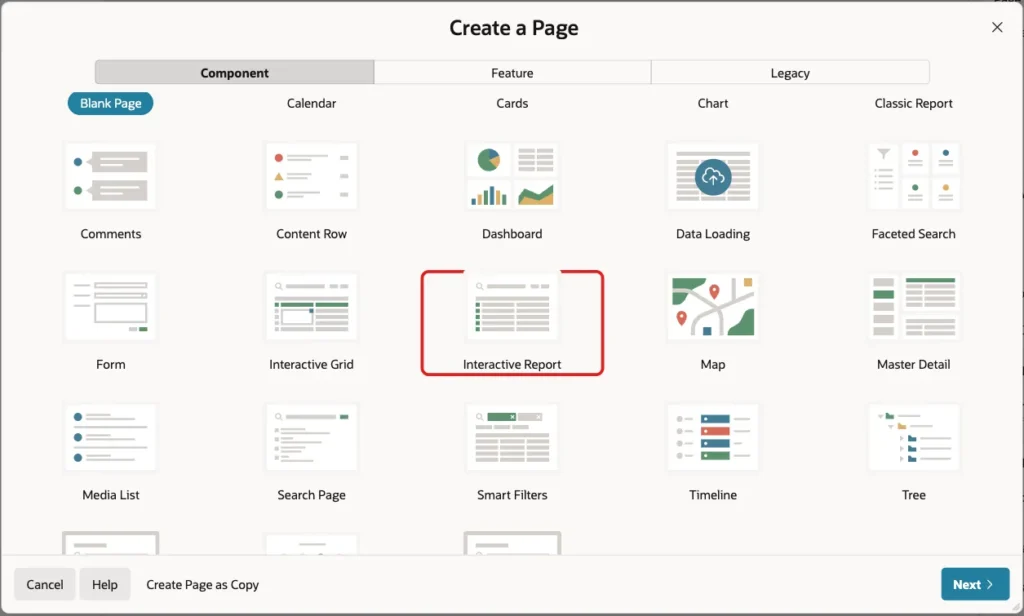
In App Builder, open the application and click Create Page. On the Component tab, click Interactive Report:
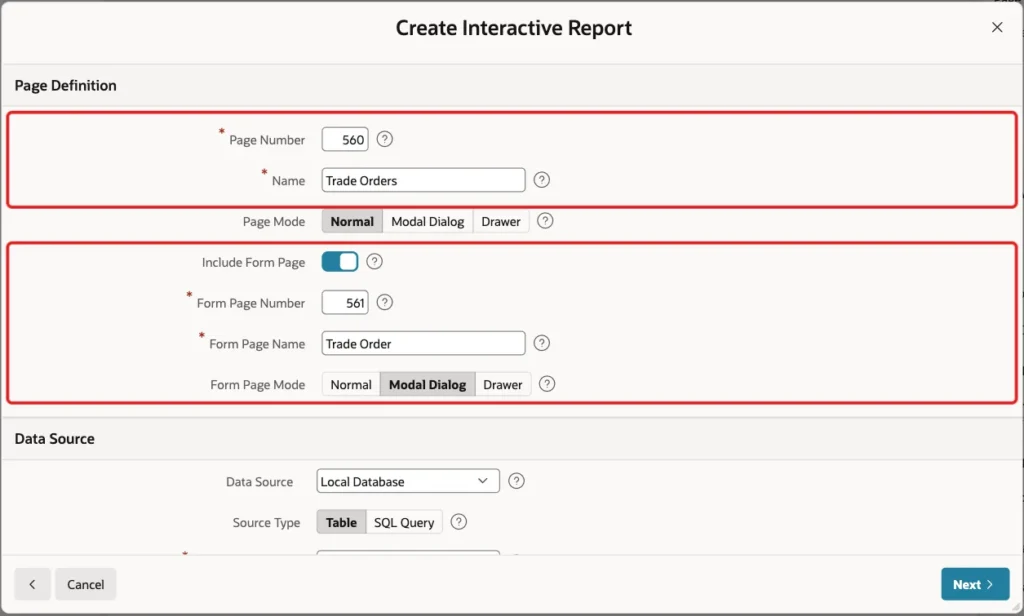
Enter Page Number 560 and Name Trade Orders. Turn on Include Form Page, enter Form Page Number 561 and Form Page Name Trade Order, and keep Form Page Mode Modal Dialog:
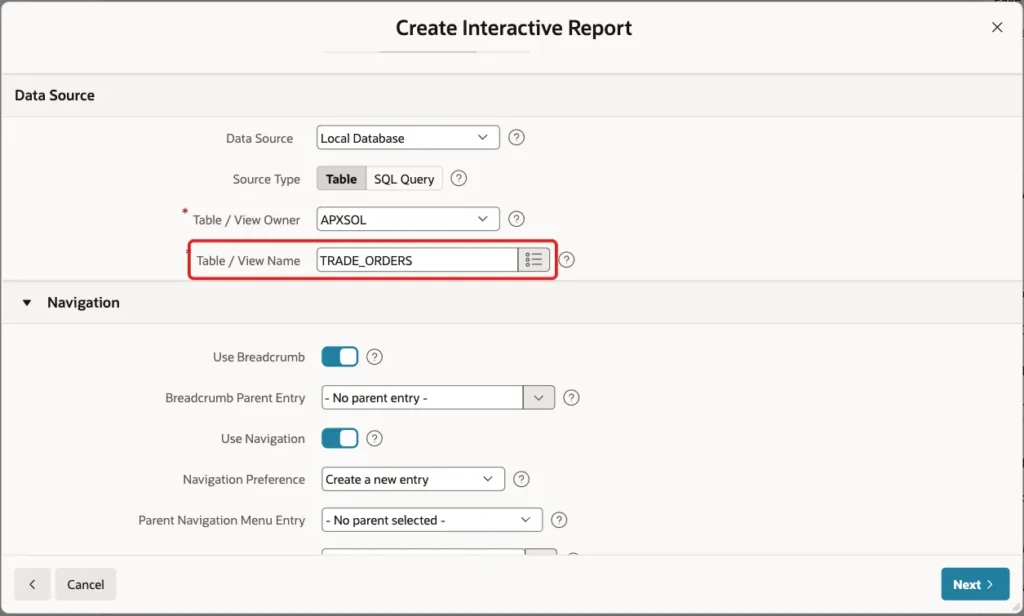
Under Data Source, keep Local Database and Source Type Table, and enter Table / View Name TRADE_ORDERS:
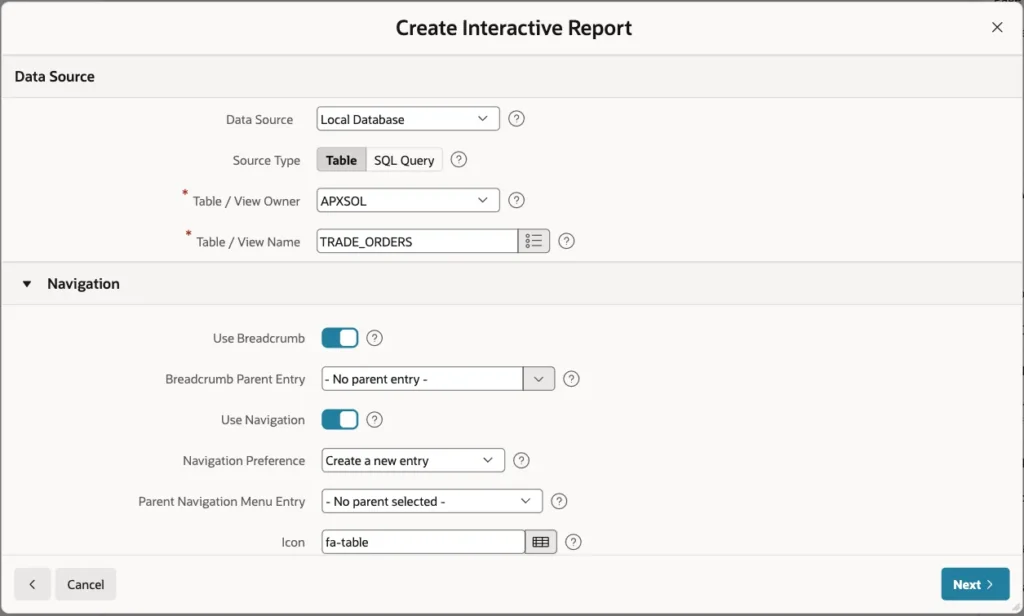
Keep Use Breadcrumb and Use Navigation on, so the report gets a menu entry, and click Next:
On the Primary Key screen, select ORDER_ID (Number) as Primary Key Column 1 and click Create Page:
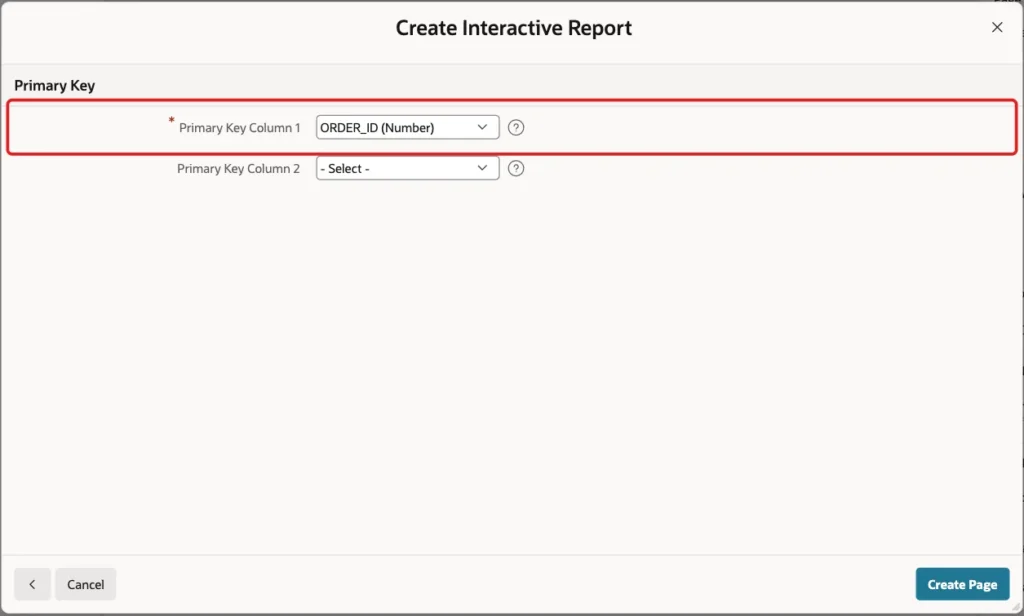
APEX creates the Trade Orders report on page 560 and the Trade Order modal form on page 561. It also created a select list for ACCOUNT_ID with a shared list of values that shows the account names.
Step 4: Set Up the Form Items
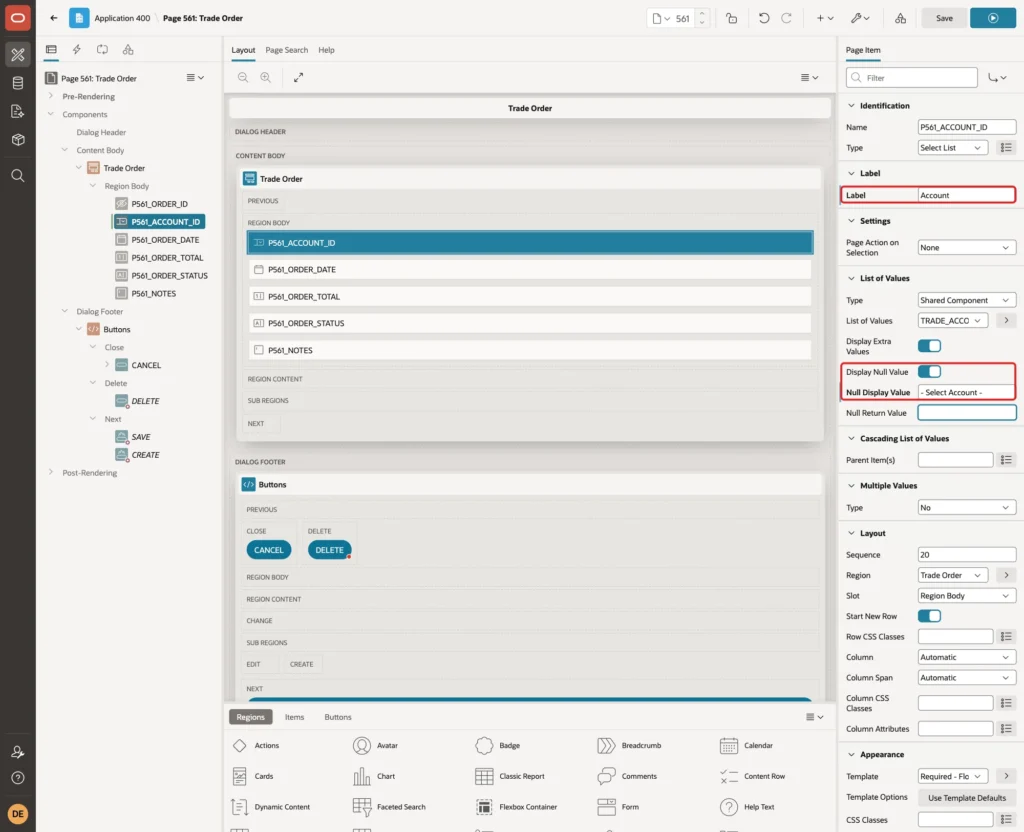
Open page 561 in Page Designer and select P561_ACCOUNT_ID. Change Label to Account, turn on Display Null Value and enter Null Display Value - Select Account -:
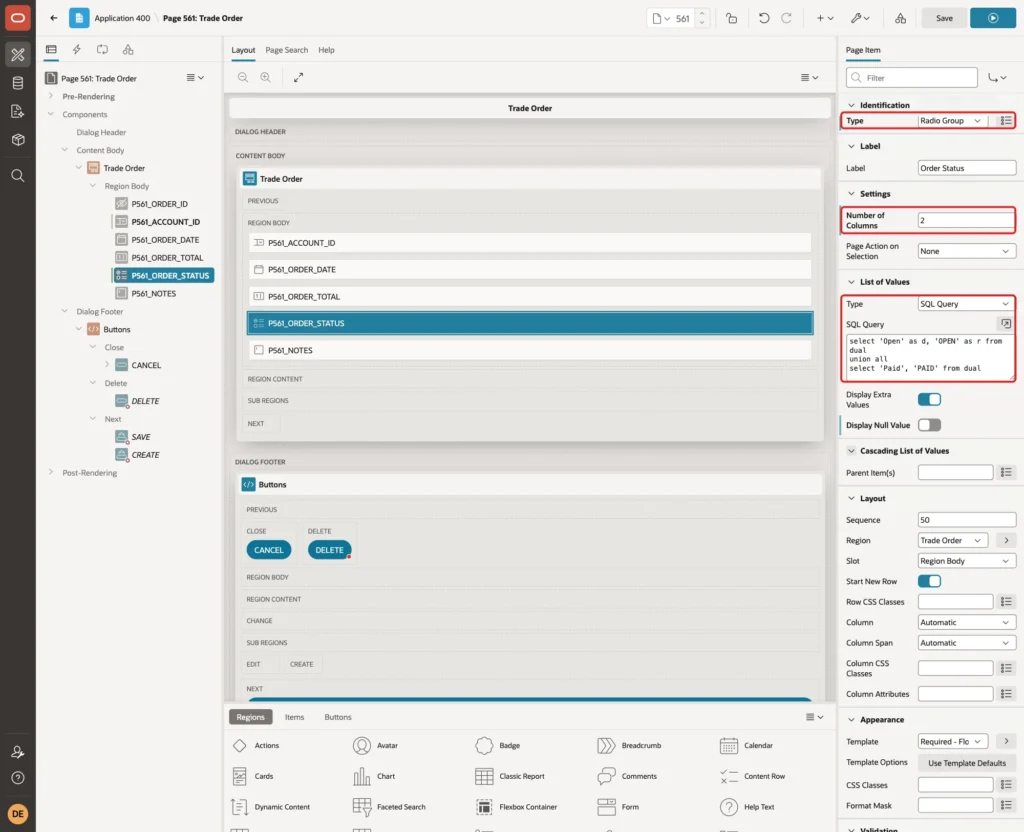
Select P561_ORDER_STATUS. Change Type to Radio Group and Number of Columns to 2. In the List of Values group, select Type SQL Query and enter this query:
Example:
select 'Open' as d, 'OPEN' as r from dual
union all
select 'Paid', 'PAID' from dual
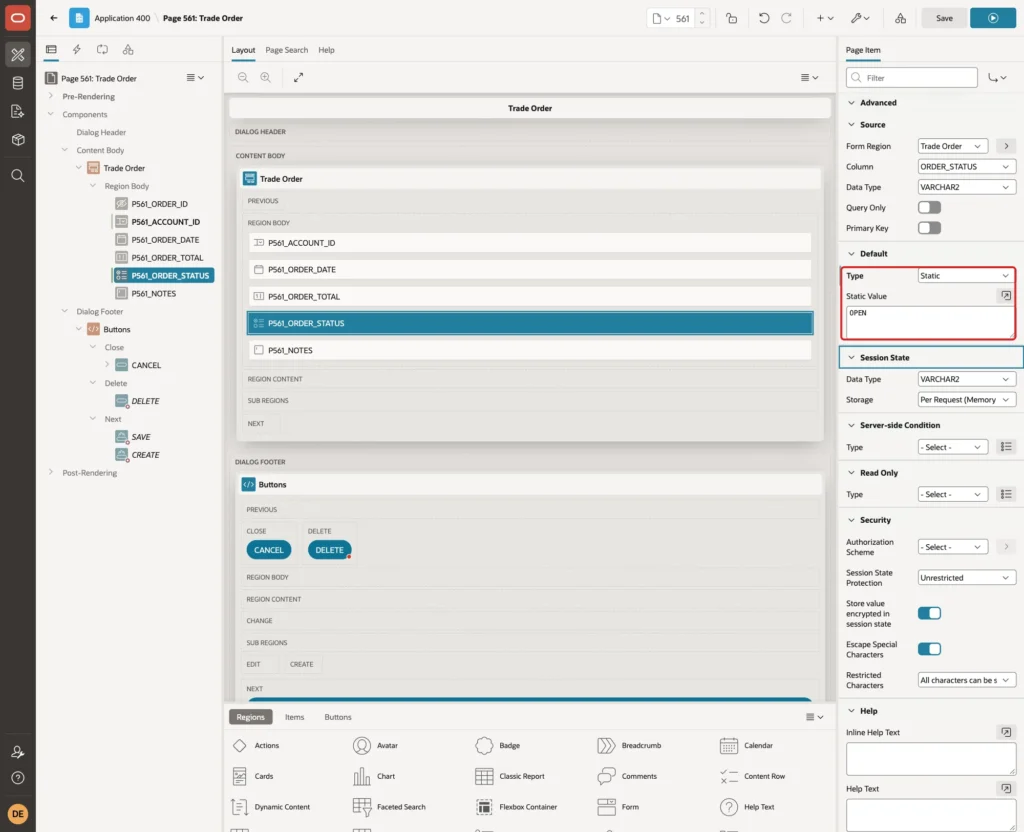
In the Default group of the same item, select Type Static and enter Static Value OPEN:
Select P561_ORDER_TOTAL. In the Settings group, enter Minimum Value 0.01 and Maximum Value 1000000:
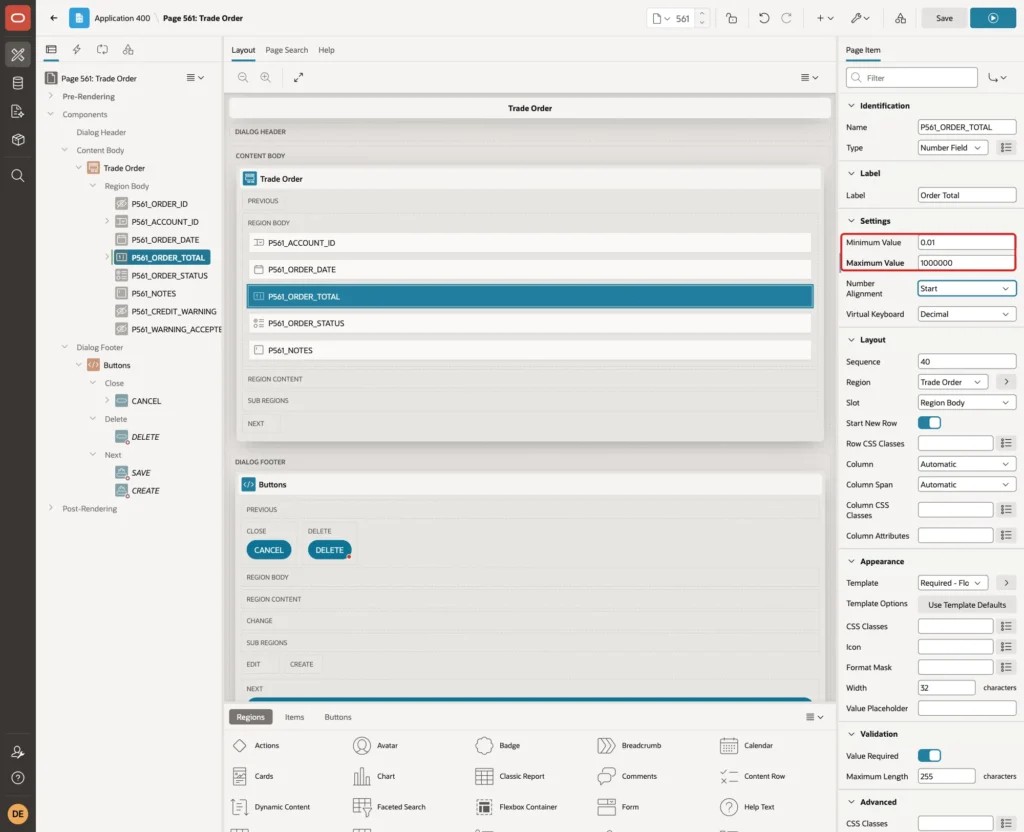
In a first test, only Minimum Value was set. A total of 0 then showed the message "must be a number less than or equal to ." with no number in it. With both values set, the message was correct.
Step 5: Add Two Hidden Items
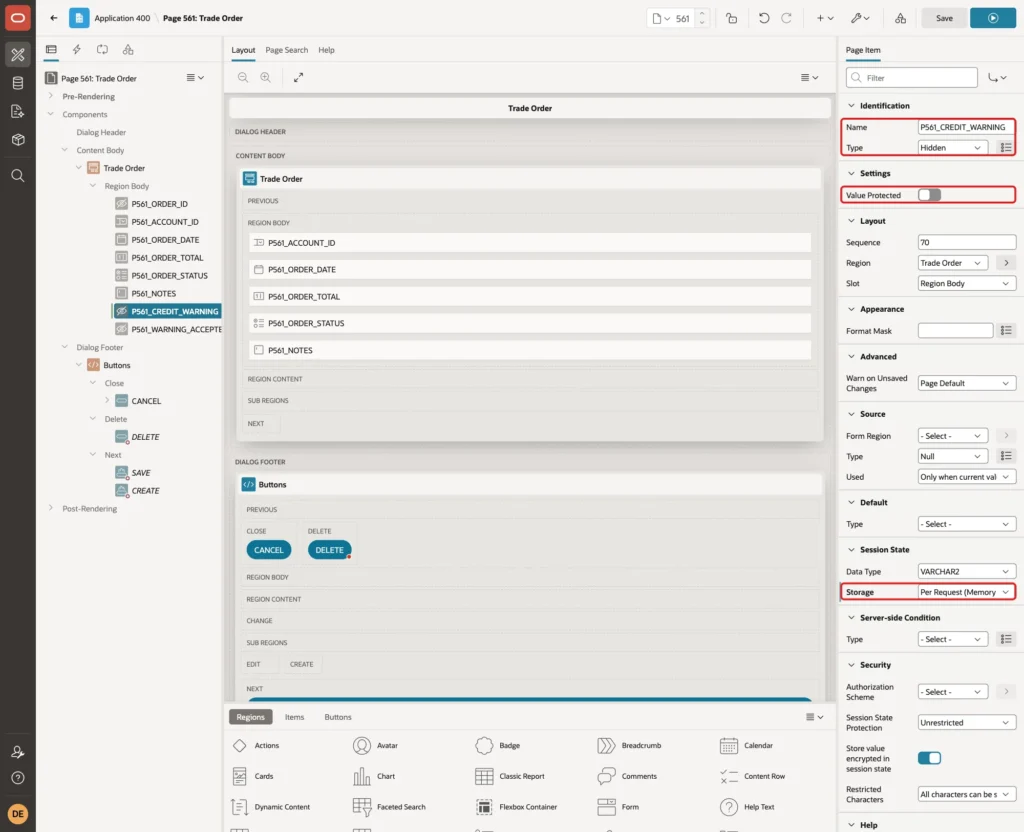
The page needs two hidden items. P561_CREDIT_WARNING holds the warning text returned by the server. P561_WARNING_ACCEPTED is set to Y when the user clicks Save Anyway.
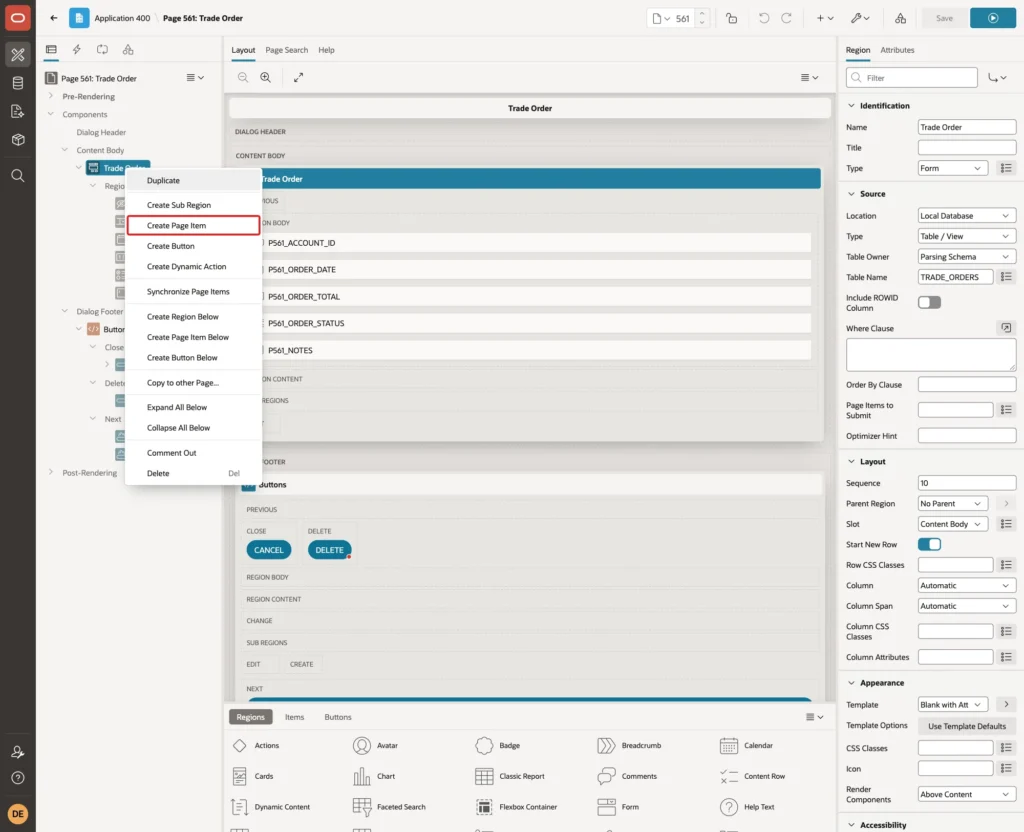
Right-click the Trade Order region and choose Create Page Item:
Enter Name P561_CREDIT_WARNING and select Type Hidden. Turn off Value Protected, and set Storage to Per Request (Memory Only):
Create the second item the same way, with Name P561_WARNING_ACCEPTED:
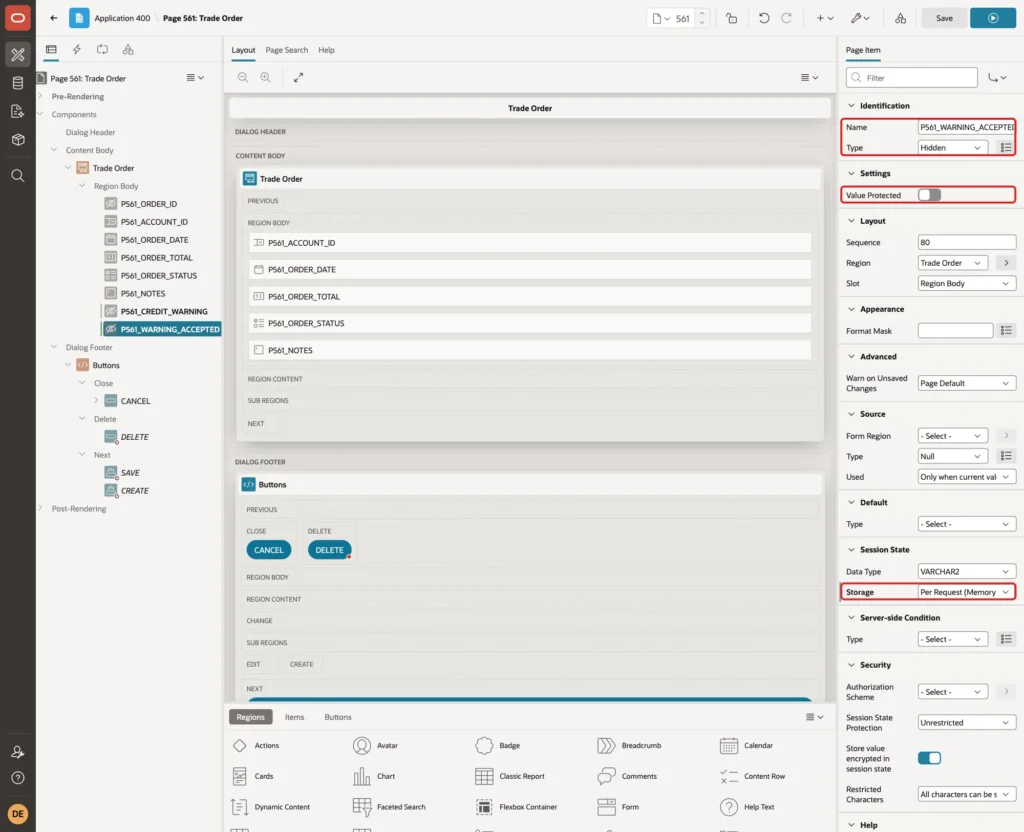
Both settings matter. JavaScript changes these values in the browser, and a protected hidden item rejects a changed value with a checksum error. Per Request storage means the value lives only for one request, so an old Y can't carry over to the next order.
Step 6: Add the Hard Error
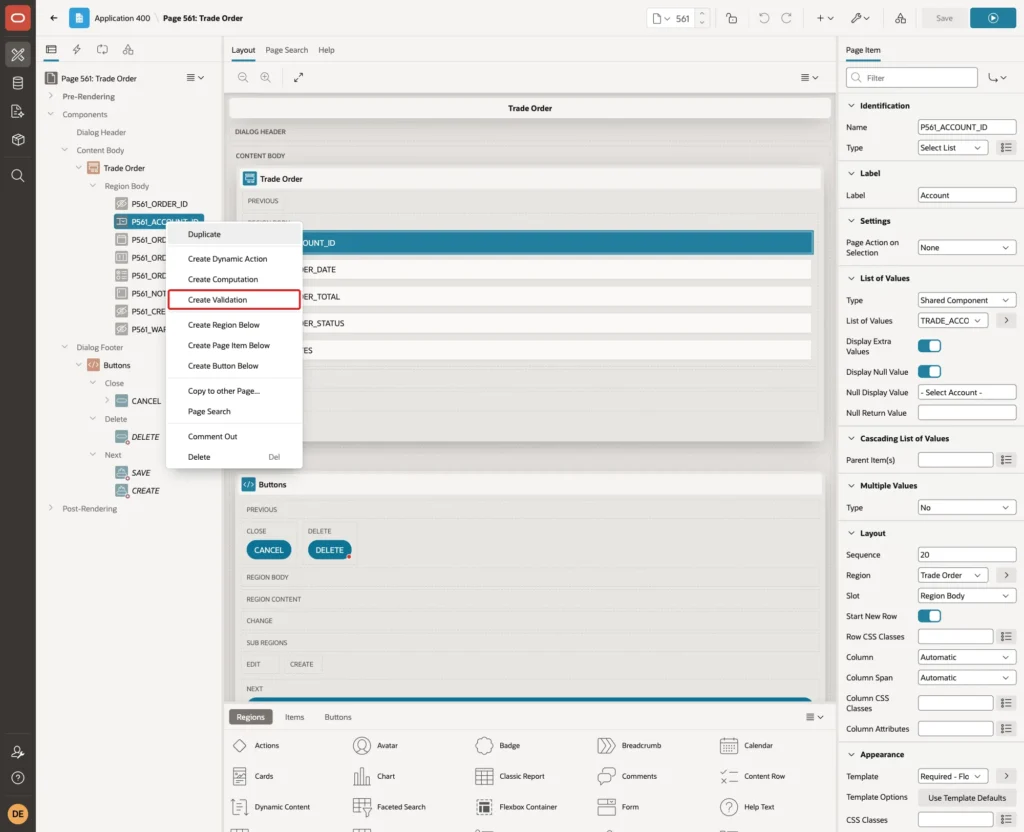
An account on hold must never get an order. That is a hard rule, so it stays a normal validation.
Right-click P561_ACCOUNT_ID and choose Create Validation:
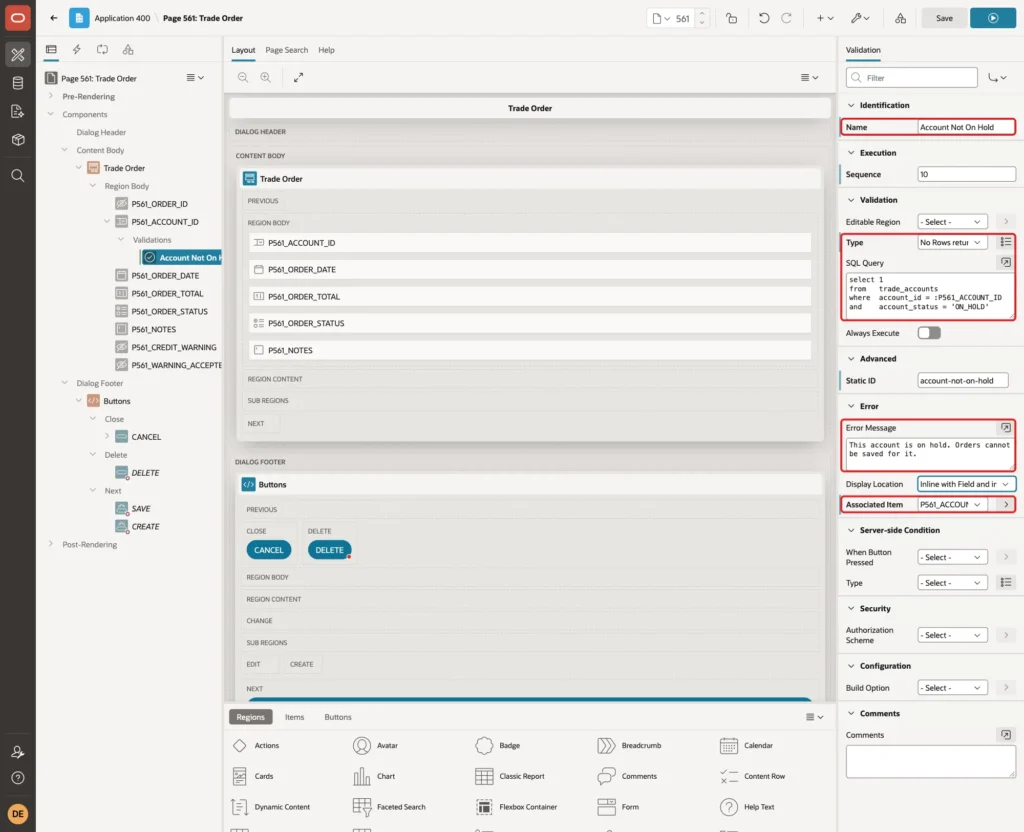
Enter Name Account Not On Hold, select Type No Rows returned and enter this SQL Query:
Example:
select 1
from   trade_accounts
where  account_id = :P561_ACCOUNT_ID
and    account_status = 'ON_HOLD'
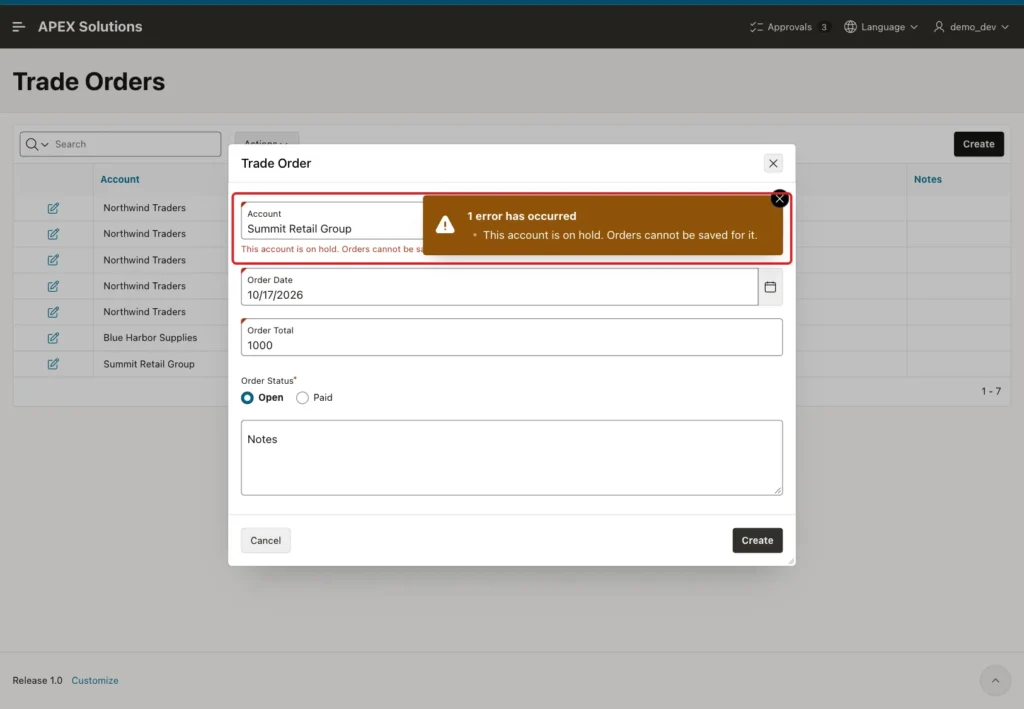
Enter Error Message This account is on hold. Orders cannot be saved for it. Associated Item is already P561_ACCOUNT_ID:
Step 7: Add the Validation That Checks the Answer
The dialog runs in the browser, and a browser can be skipped. This validation runs during the save and fails when the order is over the limit and the user has not confirmed the warning.
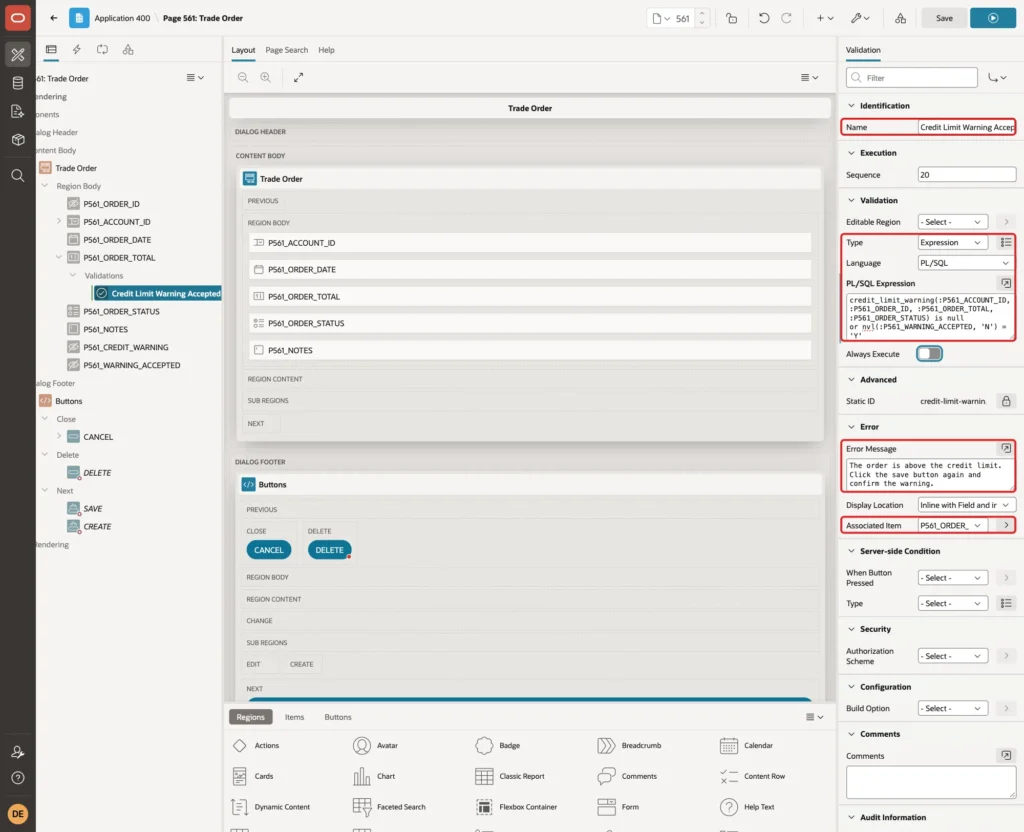
Right-click P561_ORDER_TOTAL and choose Create Validation. Enter Name Credit Limit Warning Accepted, keep Type Expression and Language PL/SQL, and enter this PL/SQL Expression:
Example:
credit_limit_warning(:P561_ACCOUNT_ID, :P561_ORDER_ID, :P561_ORDER_TOTAL, :P561_ORDER_STATUS) is null
or nvl(:P561_WARNING_ACCEPTED, 'N') = 'Y'
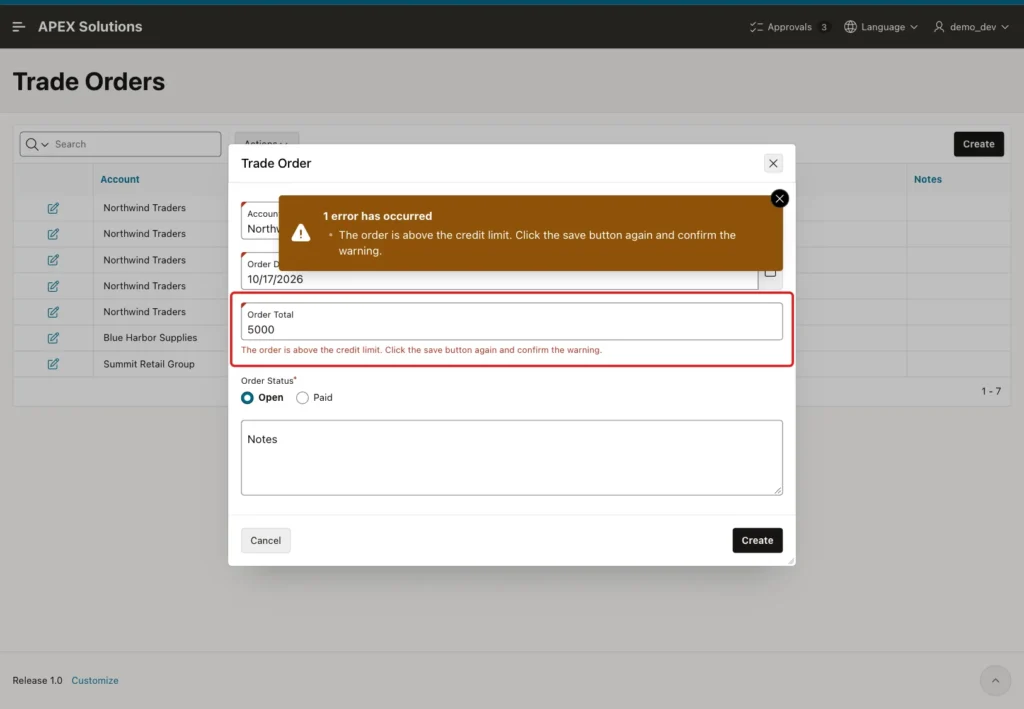
Enter Error Message The order is above the credit limit. Click the save button again and confirm the warning. Associated Item is already P561_ORDER_TOTAL:
Don't leave out the NVL. In a first test, the expression ended with or :P561_WARNING_ACCEPTED = 'Y'. A scripted submit over the limit then saved the order.
The reason is PL/SQL logic. FALSE OR NULL gives NULL, not FALSE, and APEX did not raise the error for a NULL result. With NVL, the expression is FALSE, and the same submit was blocked.
Step 8: Let a Dynamic Action Handle the Save Buttons
The CREATE and SAVE buttons must not submit the page directly. A dynamic action will check the rule first.
Select the CREATE button. Enter CSS Classes js-credit-check, change Action to Defined by Dynamic Action and enter HTML DOM ID CREATE:
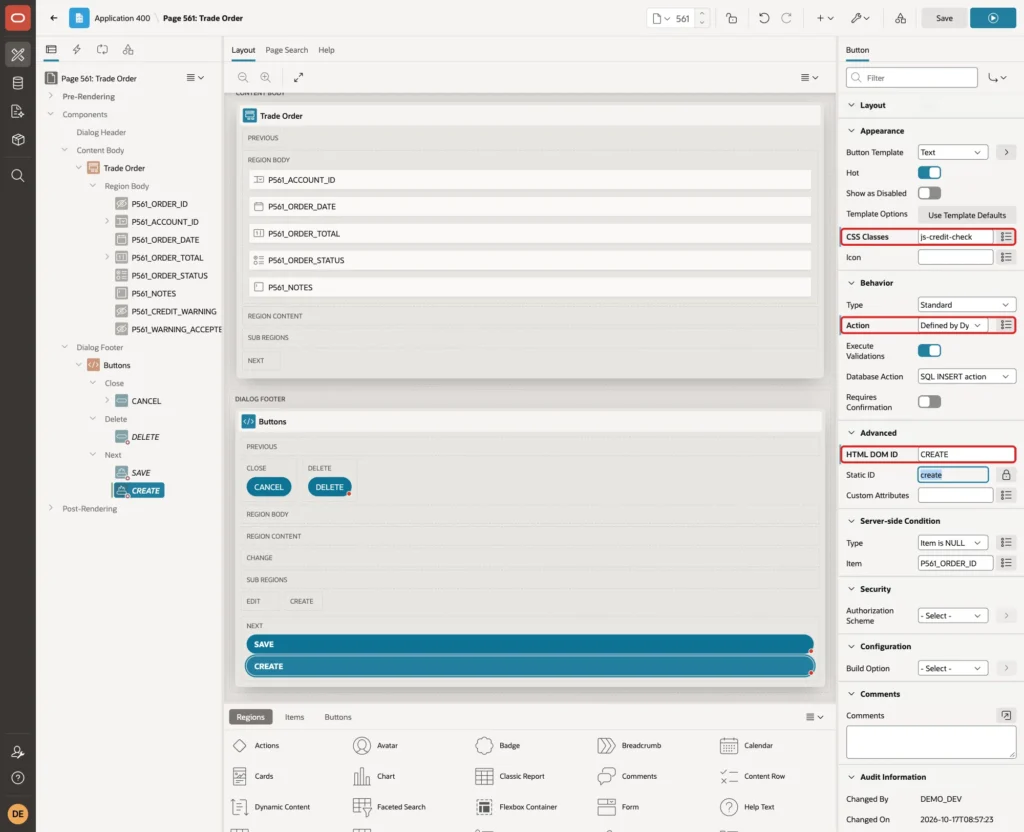
Select the SAVE button and set the same values, with HTML DOM ID SAVE:
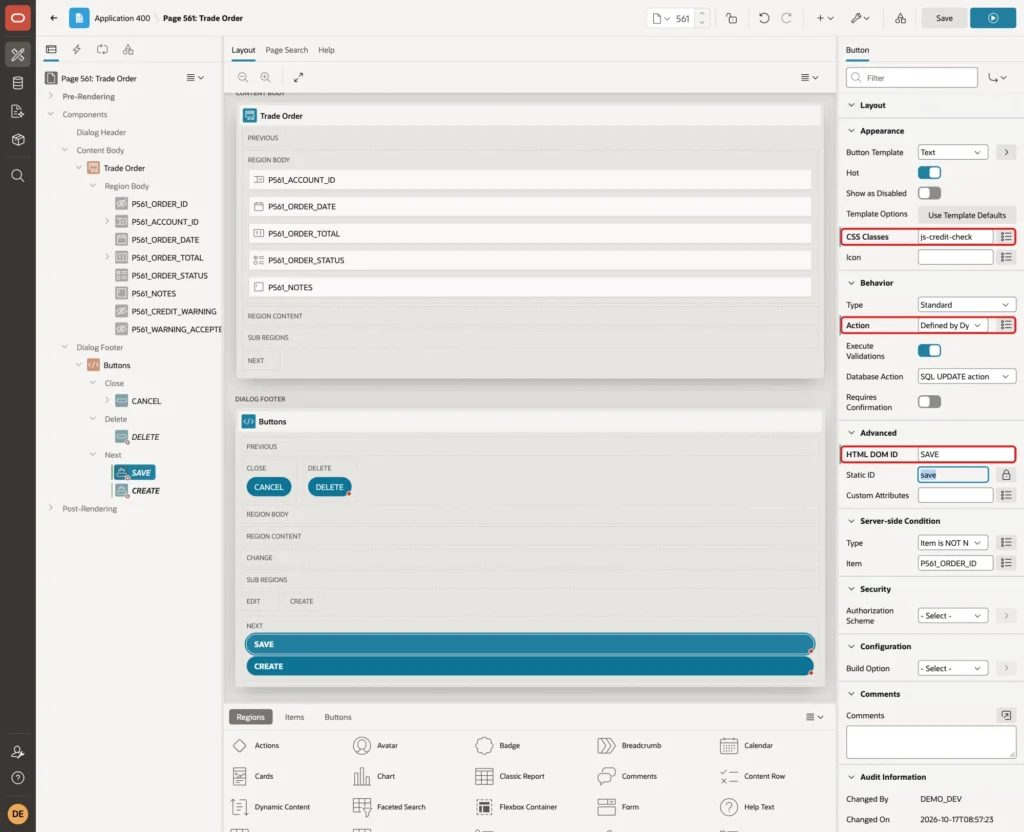
The HTML DOM ID equals the button name. The dynamic action later submits the page with that ID as the request, so the form process still inserts for CREATE and updates for SAVE. Without it, APEX renders an ID like B53383862216938050.
Step 9: Create the Dynamic Action
Right-click the CREATE button and choose Create Dynamic Action:
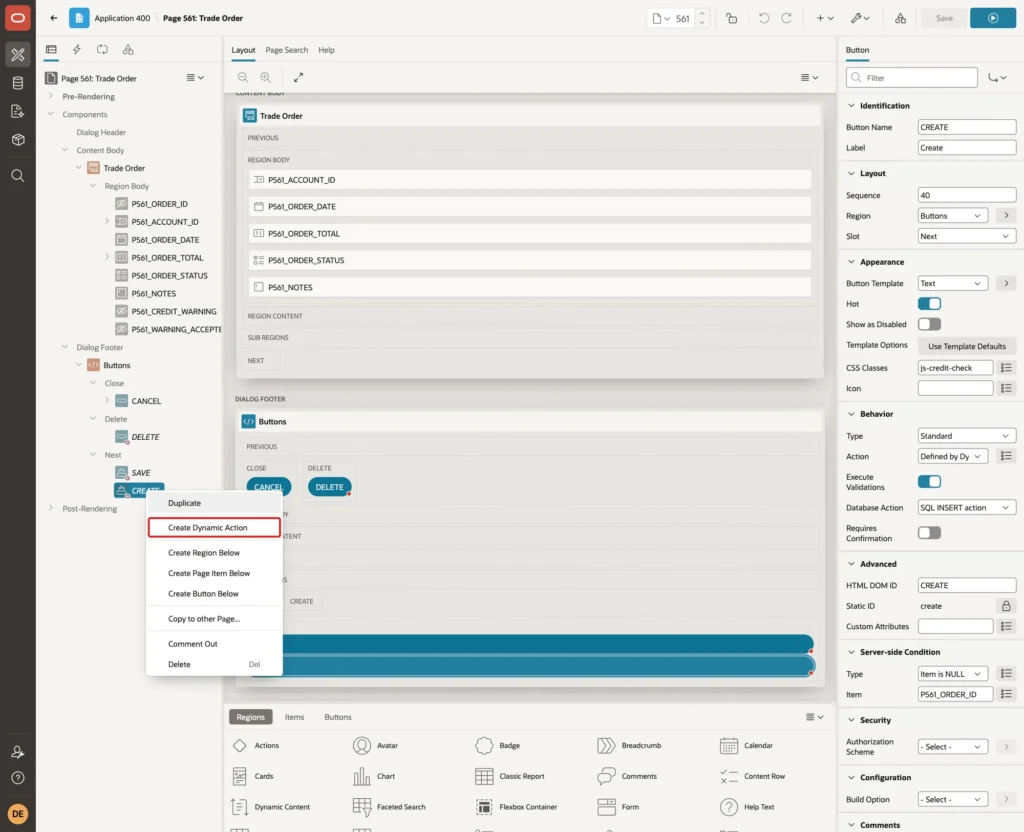
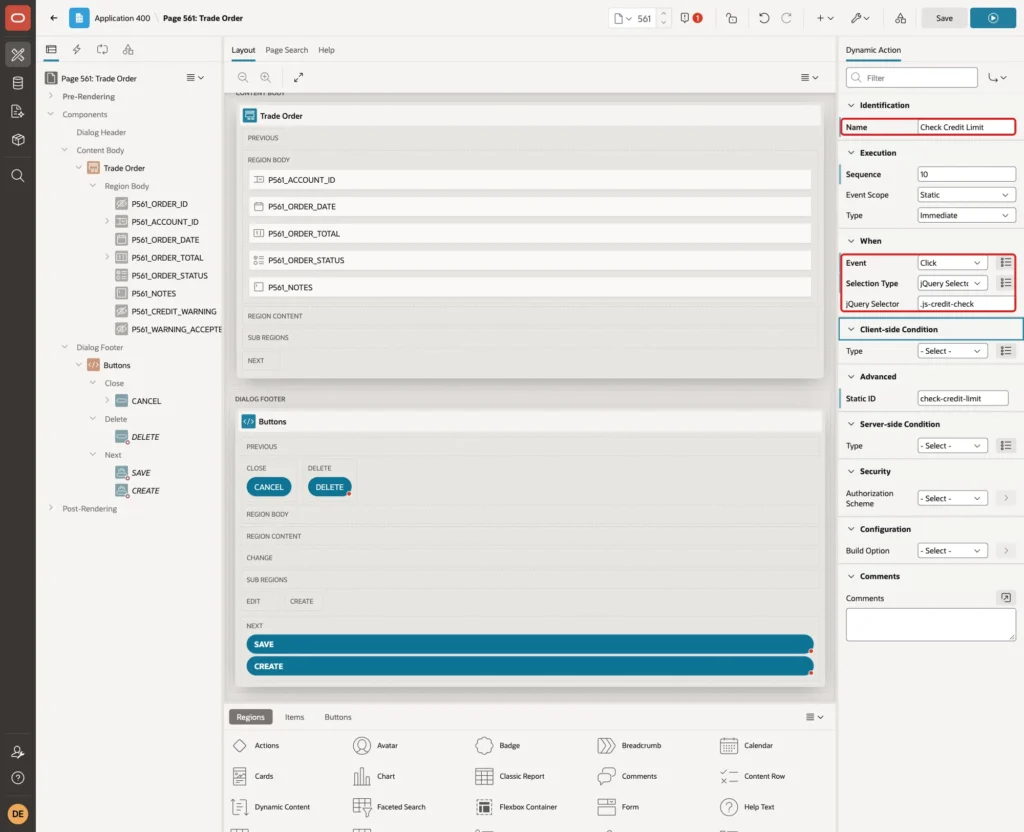
Enter Name Check Credit Limit. Keep Event Click, change Selection Type to jQuery Selector and enter jQuery Selector .js-credit-check. Now one dynamic action serves both buttons:
Action 1: Ask the Server
Open the Dynamic Actions tab, expand Check Credit Limit and select the Show action under True. Change Action to Execute Server-side Code and enter this PL/SQL Code:
Example:
:P561_CREDIT_WARNING := credit_limit_warning(
    :P561_ACCOUNT_ID, :P561_ORDER_ID,
    :P561_ORDER_TOTAL, :P561_ORDER_STATUS);
Enter Items to Submit P561_ACCOUNT_ID,P561_ORDER_ID,P561_ORDER_TOTAL,P561_ORDER_STATUS and Items to Return P561_CREDIT_WARNING. Keep Wait For Result on:
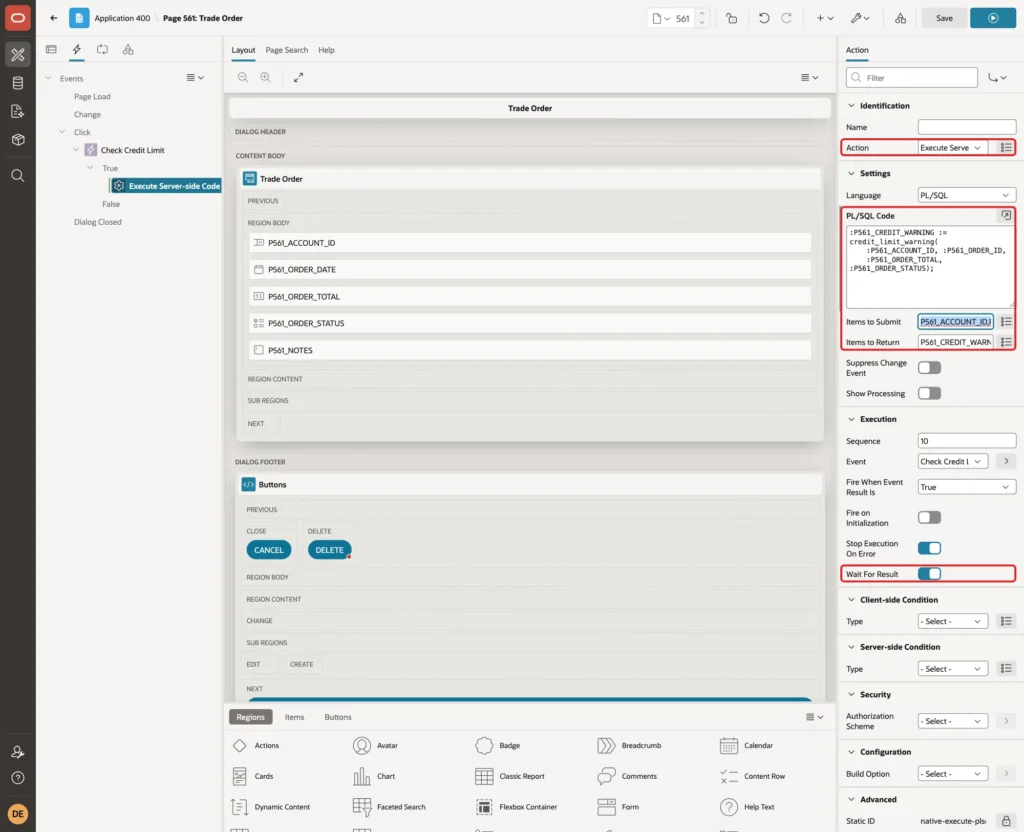
Wait For Result makes the next actions wait until the warning text is back in the browser.
Action 2: The Confirm Dialog
Right-click True and choose Create TRUE Action. Set these properties:
- Identification > Action: Confirm
- Settings > Title: Credit Limit Warning
- Settings > Message: &P561_CREDIT_WARNING. Do you want to save the order anyway?
- Settings > Style: Warning
- Settings > Confirm Label: Save Anyway
- Settings > Cancel Label: Go Back
- Client-side Condition > Type: Item is not null
- Client-side Condition > Item: P561_CREDIT_WARNING
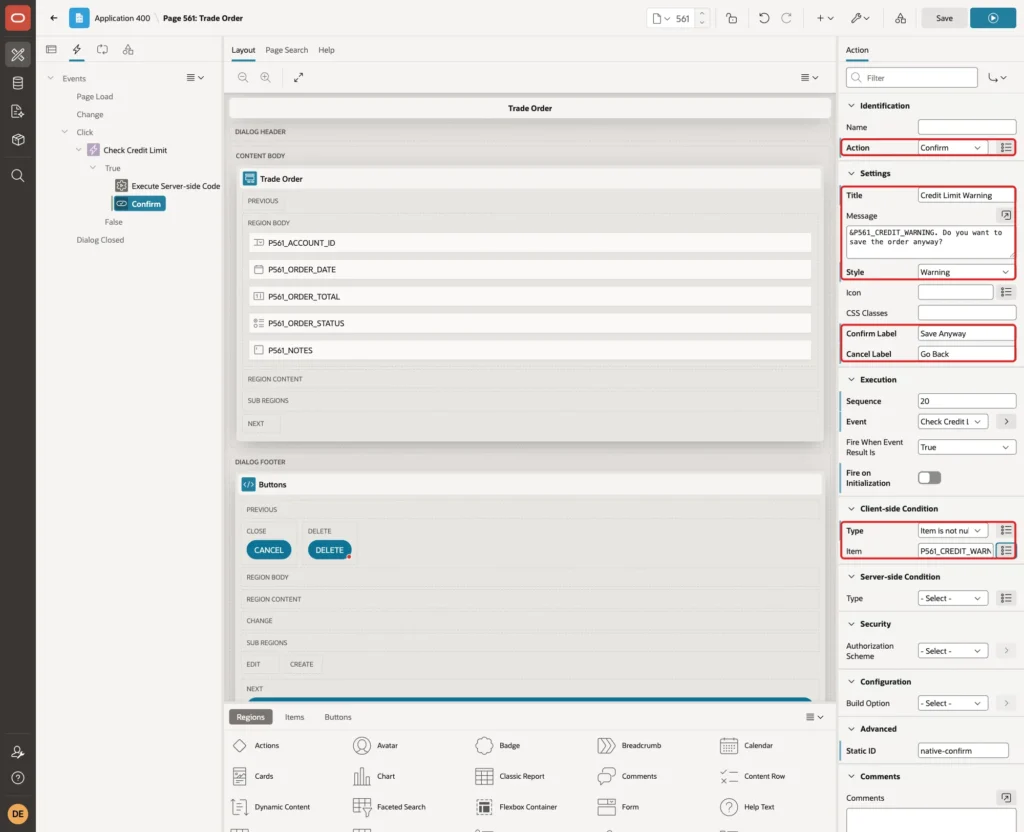
The &P561_CREDIT_WARNING. reference is replaced in the browser with the text the server returned. When the user clicks Go Back, the Confirm action stops the dynamic action, and nothing after it runs.
Action 3: Submit the Page
Right-click True again, choose Create TRUE Action, and select Action Execute JavaScript Code. Enter this Code:
Example:
apex.item("P561_WARNING_ACCEPTED").setValue(apex.item("P561_CREDIT_WARNING").isEmpty() ? "" : "Y");
apex.page.submit({ request: this.triggeringElement.id, showWait: true });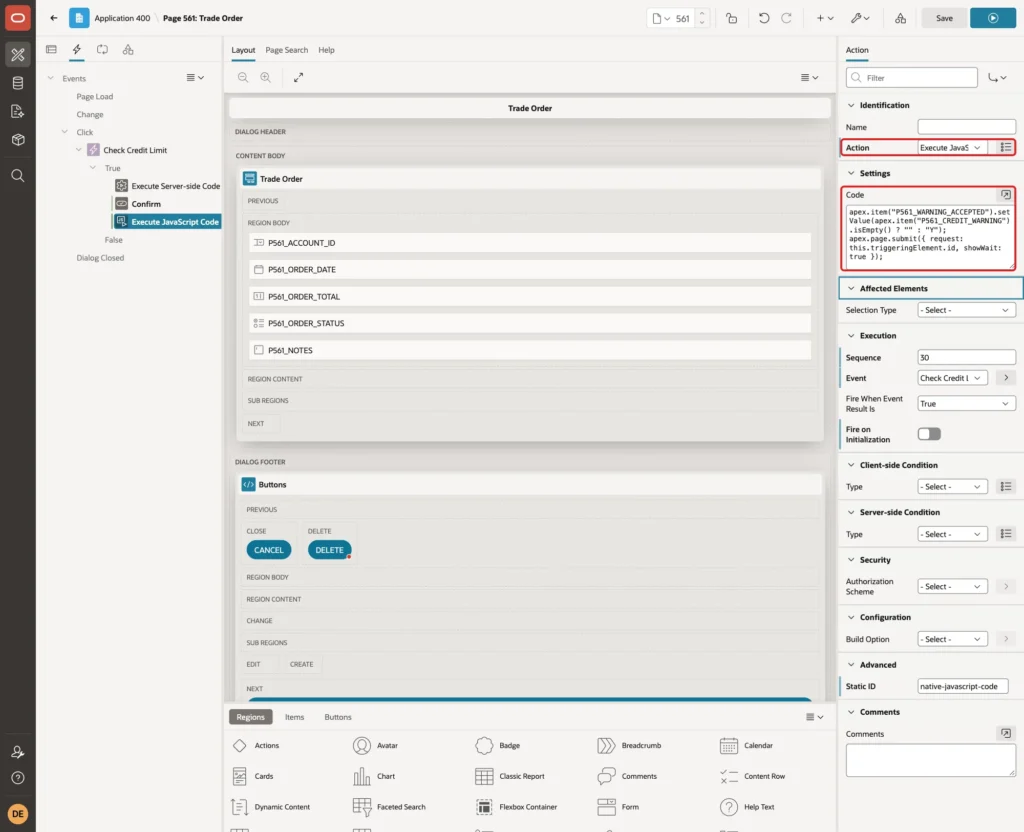
This action runs when there was no warning, or when the user clicked Save Anyway. It sets P561_WARNING_ACCEPTED to Y only in the second case. this.triggeringElement.id is CREATE or SAVE, the button that was clicked.
Click Save in Page Designer.
Step 10: Test the Form
An Order Under the Limit
Run page 560 and click Create. Select Northwind Traders, enter Order Date 10/17/2026 and Order Total 10000, and click Create:
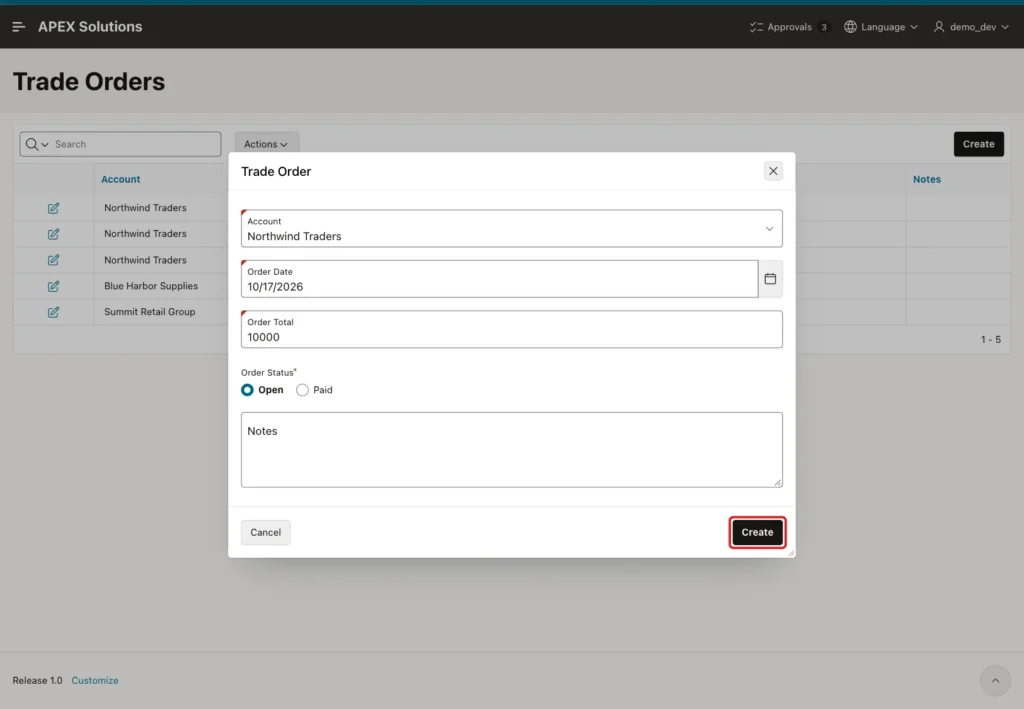
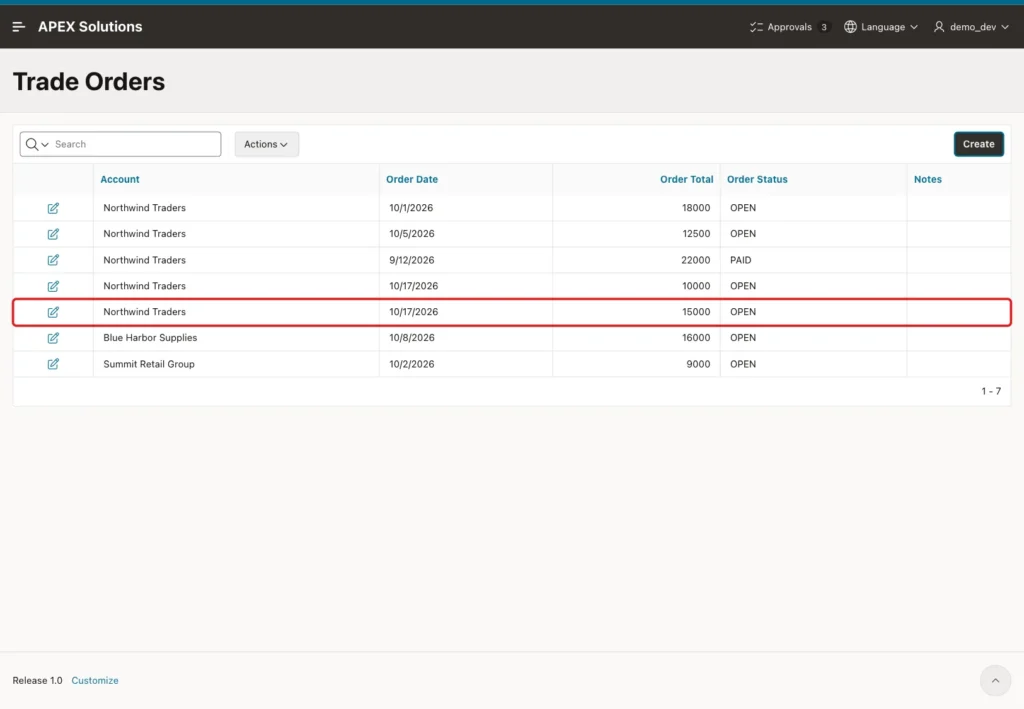
The open balance becomes 40,500, which is under 50,000. The server returned no warning, so no dialog appeared and the order was saved at once.
An Order Over the Limit
Click Create again. Select Northwind Traders, enter Order Total 15000 and click Create. The new balance would be 55,500, so the warning appears:
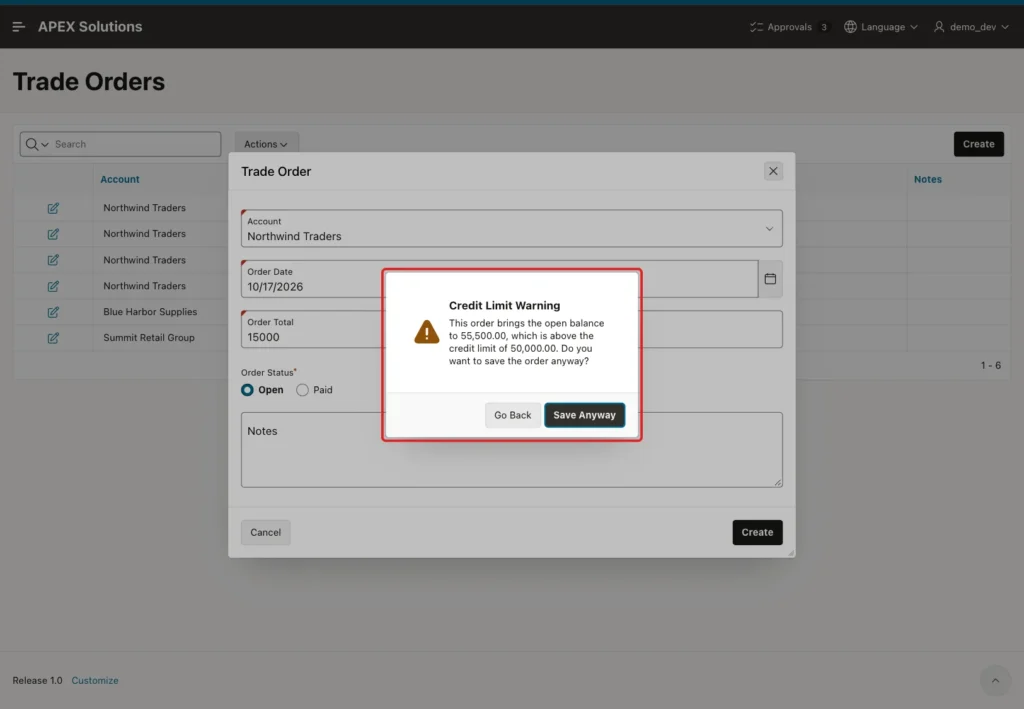
Click Go Back. The dialog closes, the form keeps the value 15000, and nothing is saved. The user can lower the amount.
Click Create again and choose Save Anyway this time. The order is saved and the report shows it:
A Scripted Submit (Negative Test)
A user could skip the dialog by submitting the form from the browser console. To test the server-side check, a new Northwind Traders order of 5000 was submitted with this script:
Example:
apex.page.submit("CREATE");No dialog appeared, because the dynamic action did not run. The Credit Limit Warning Accepted validation stopped the save:
The Hard Error
Create an order of 1000 for Summit Retail Group. The amount is under its limit, so no warning appears. The Account Not On Hold validation blocks the save:
Then the total was changed to 25000, which would take Summit Retail Group to 34,000 against a limit of 30,000. The warning appeared first. After Save Anyway, the on-hold error still blocked the save. A confirmed warning never overrides a hard error.
A total of 0 was also tested. No warning appeared, and the server returned Order Total must be a number between .01 and 1000000.
Editing an Existing Order
Open the 16000 order of Blue Harbor Supplies and change Order Total to 25000. Click Apply Changes:
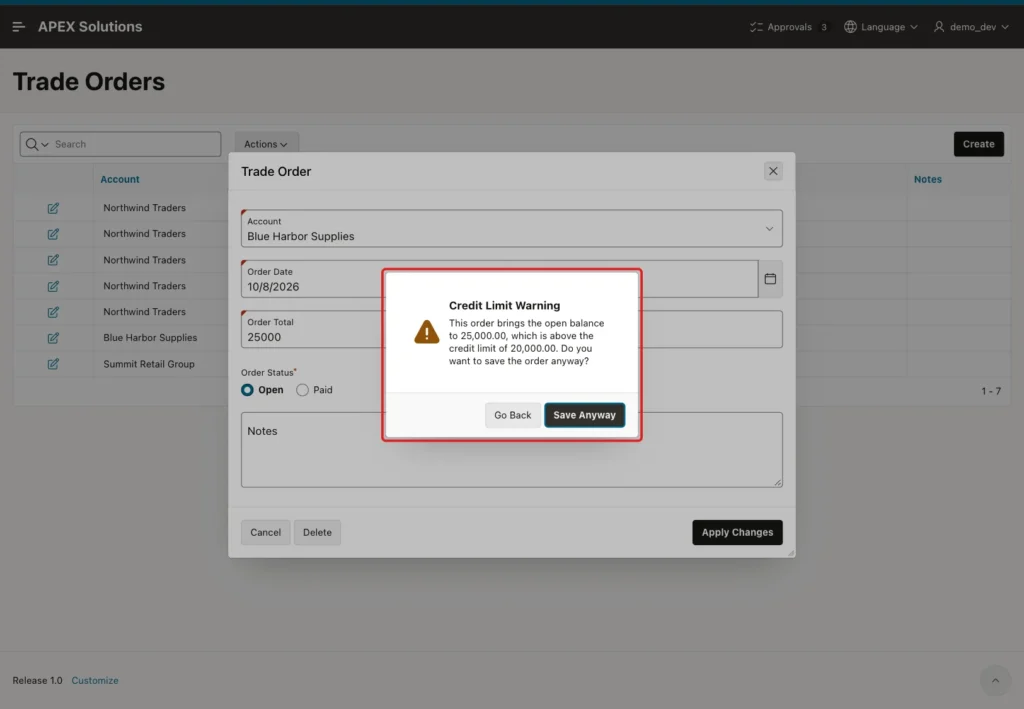
The balance in the message is 25,000, not 41,000, because the function leaves out the old amount of this order. After Go Back, the total was changed to 19000. Apply Changes then saved it without a dialog.
Paid Orders and the Hidden Flag
A new PAID order of 30000 for Blue Harbor Supplies was saved without a warning. The rule only counts open orders.
Last, a Northwind Traders order of 2000 was submitted from the console with the flag already set:
Example:
apex.item("P561_WARNING_ACCEPTED").setValue("Y");
apex.page.submit("CREATE");
That order was saved. Setting the flag by hand gives the same result as clicking Save Anyway, which a warning allows anyway. A limit that must never be passed belongs in a hard error, like the on-hold check.
The Saved Data
The tables show what the tests saved:
Example:
column account_name format a21
select o.order_id,
       a.account_name,
       o.order_total,
       o.order_status
from   trade_orders o
join   trade_accounts a on a.account_id = o.account_id
order by o.order_id;

select a.account_name,
       a.credit_limit,
       nvl(sum(case when o.order_status = 'OPEN' then o.order_total end), 0) as open_balance
from   trade_accounts a
left join trade_orders o on o.account_id = a.account_id
group by a.account_name, a.credit_limit
order by a.account_name;
Output:
   ORDER_ID ACCOUNT_NAME               ORDER_TOTAL ORDER_STATUS
___________ _______________________ ______________ _______________
          1 Northwind Traders                18000 OPEN
          2 Northwind Traders                12500 OPEN
          3 Northwind Traders                22000 PAID
          4 Blue Harbor Supplies             19000 OPEN
          5 Summit Retail Group               9000 OPEN
         16 Northwind Traders                10000 OPEN
         17 Northwind Traders                15000 OPEN
         18 Blue Harbor Supplies             30000 PAID
         19 Northwind Traders                 2000 OPEN

9 rows selected.

ACCOUNT_NAME               CREDIT_LIMIT    OPEN_BALANCE
_______________________ _______________ _______________
Blue Harbor Supplies              20000           19000
Northwind Traders                 50000           57500
Summit Retail Group               30000            9000
Orders 16, 17 and 19 belong to Northwind Traders, whose open balance is now 57,500, above its limit, by confirmed choice. Identity values can have gaps, so the new IDs start at 16. The blocked orders for Summit Retail Group are not in the table.
Things to Know
- Keep the rule in one function. The dynamic action and the validation call the same code, so the dialog and the server check can't disagree.
- Always add the server-side validation. In the scripted submit test, the dynamic action never ran, and only the validation stopped the order.
- Wrap the flag in NVL. FALSE OR NULL is NULL in PL/SQL, and in this test APEX let a NULL expression result pass.
- Turn off Value Protected on the hidden items that JavaScript changes, and use Per Request (Memory Only) storage so an old answer is never reused.
- The Confirm action replaces &ITEM. references in its message in the browser, so the server can build the message text.
- Warnings run before hard errors in this design. A confirmed warning still ends in an error when a hard validation fails.
- Set both Minimum Value and Maximum Value on a Number Field. With only Minimum Value, the range message had an empty number in this test.
Related Guides
- How to Show Success, Error, and Confirm Messages Using apex.message in Oracle APEX
- How to Warn About Possible Duplicate Records While Typing in Oracle APEX
Conclusion
Warnings that still allow saving in Oracle APEX need three parts. A function holds the rule, a dynamic action asks the server and shows a declarative Confirm dialog with Save Anyway and Go Back, and a hidden item records the user's answer for the submit.
The server-side validation makes the warning reliable. It blocks an unconfirmed save that skips the dialog, while hard errors like an account on hold stay normal validations that no confirmation can override.
See my articles more often when you search Google.
