
A list of customers does not show where they are. On a map, a sales team sees at a glance which regions have many customers, which have few, and which customers are close to each other. Clicking a marker should show the customer's details without leaving the map.
Oracle APEX has a Map region that draws points from latitude and longitude columns, with tooltips, popups, and zoom, and no JavaScript. This guide adds coordinates to customers, creates a map page with the wizard, and adds a popup with the customer's city and number of orders.
Controlling a map from JavaScript is a separate topic, covered in How to Control Map Layers, Features, and Popups Using JavaScript in Oracle APEX.
Step 1: The Tables
Customers belong to cities, cities to states, and states to countries:
Example:
create table countries (
    country_id number generated by default as identity primary key,
    name       varchar2(60) not null unique
);

create table states (
    state_id   number generated by default as identity primary key,
    country_id number not null references countries,
    name       varchar2(60) not null
);

create table cities (
    city_id  number generated by default as identity primary key,
    state_id number not null references states,
    name     varchar2(60) not null
);

create table customers (
    customer_id   number generated by default as identity primary key,
    name          varchar2(100) not null,
    email         varchar2(120) not null,
    customer_type varchar2(10) default 'PERSON' not null
                  constraint customers_type_ck check (customer_type in ('PERSON', 'COMPANY')),
    company_name  varchar2(100),
    tax_id        varchar2(30),
    country_id    number references countries,
    state_id      number references states,
    city_id       number references cities,
    created_at    date default sysdate not null
);
The map needs a position for each customer. Add LATITUDE and LONGITUDE columns with check constraints for the valid ranges, fill the cities with their real coordinates, and place each customer near the center of their city:
Example:
alter table cities add (
    latitude  number(9, 6)
              constraint cities_latitude_ck check (latitude between -90 and 90),
    longitude number(9, 6)
              constraint cities_longitude_ck check (longitude between -180 and 180)
);

alter table customers add (
    latitude  number(9, 6)
              constraint customers_latitude_ck check (latitude between -90 and 90),
    longitude number(9, 6)
              constraint customers_longitude_ck check (longitude between -180 and 180)
);

merge into cities c
using (select 'Mumbai' as name, 19.0760 as lat, 72.8777 as lon from dual union all
       select 'Pune',           18.5204,  73.8567 from dual union all
       select 'Nagpur',         21.1458,  79.0882 from dual union all
       select 'Bengaluru',      12.9716,  77.5946 from dual union all
       select 'Mysuru',         12.2958,  76.6394 from dual union all
       select 'New Delhi',      28.6139,  77.2090 from dual union all
       select 'Los Angeles',    34.0522, -118.2437 from dual union all
       select 'San Francisco',  37.7749, -122.4194 from dual union all
       select 'Austin',         30.2672,  -97.7431 from dual union all
       select 'Houston',        29.7604,  -95.3698 from dual union all
       select 'New York City',  40.7128,  -74.0060 from dual union all
       select 'Buffalo',        42.8864,  -78.8784 from dual union all
       select 'Munich',         48.1351,   11.5820 from dual union all
       select 'Nuremberg',      49.4521,   11.0767 from dual union all
       select 'Berlin',         52.5200,   13.4050 from dual union all
       select 'Sao Paulo',     -23.5505,  -46.6333 from dual union all
       select 'Campinas',      -22.9099,  -47.0626 from dual union all
       select 'Salvador',      -12.9777,  -38.5016 from dual) s
on (c.name = s.name)
when matched then update set c.latitude = s.lat, c.longitude = s.lon;

update customers cu
set    (latitude, longitude) =
       (select ci.latitude  + (mod(cu.customer_id, 5) - 2) * 0.02,
               ci.longitude + (mod(cu.customer_id, 3) - 1) * 0.02
        from   cities ci
        where  ci.city_id = cu.city_id)
where  cu.city_id is not null;

commit;

select cu.customer_id, cu.name, ci.name as city, cu.latitude, cu.longitude
from   customers cu
left join cities ci on ci.city_id = cu.city_id
order by cu.customer_id
fetch first 6 rows only;
Output:
Table CITIES altered.

Table CUSTOMERS altered.

18 rows merged.

41 rows updated.

Commit complete.

   CUSTOMER_ID NAME          CITY              LATITUDE    LONGITUDE
______________ _____________ ______________ ___________ ____________
             1 Customer 1    Pune               18.5004      73.8567
             2 Customer 2    Nagpur             21.1458      79.1082
             3 Contact 3     Bengaluru          12.9916      77.5746
             4 Customer 4    Mysuru             12.3358      76.6394
             5 Customer 5    New Delhi          28.5739       77.229
             6 Contact 6     Los Angeles        34.0322    -118.2637

6 rows selected.
The small offsets by customer ID keep customers of the same city from sitting on the same point. In a real application, the coordinates come from the customer's address, for example from a geocoding service.
Step 2: Create the Map Page
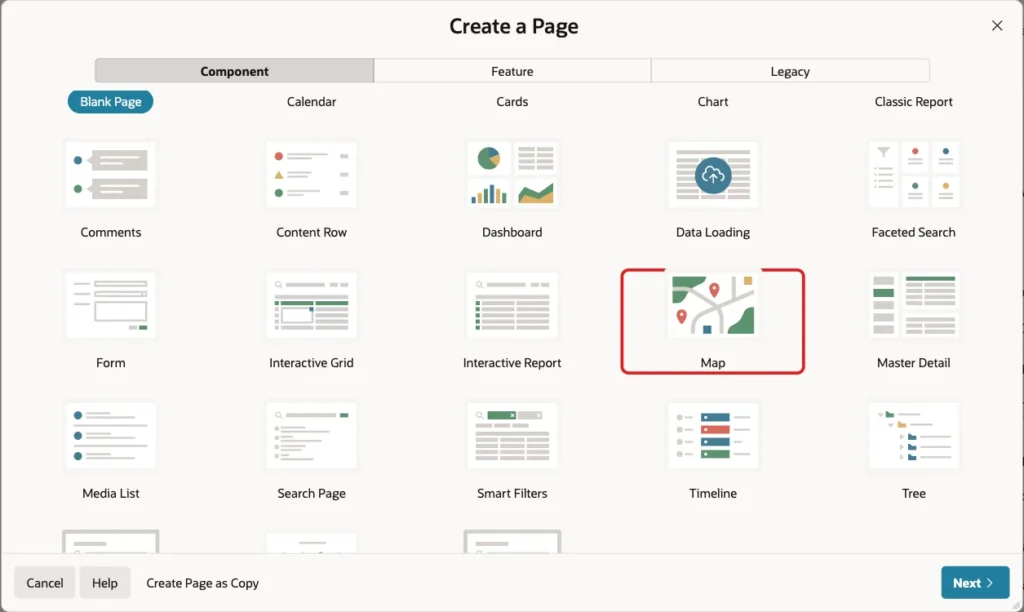
In App Builder, click Create Page, and on the Component tab click Map:
Enter Page Number 210 and Name Customer Map, and set Source Type to SQL Query:
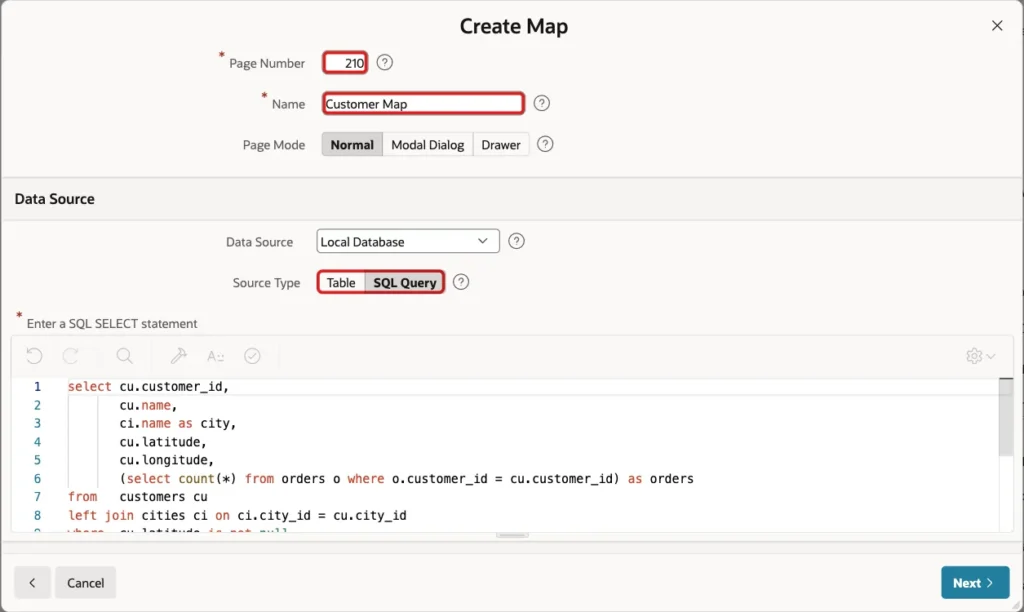
Enter this query. It returns each customer with the city name and the number of orders, which the popup will show:
Example:
select cu.customer_id,
       cu.name,
       ci.name as city,
       cu.latitude,
       cu.longitude,
       (select count(*) from orders o where o.customer_id = cu.customer_id) as orders
from   customers cu
left join cities ci on ci.city_id = cu.city_id
where  cu.latitude is not null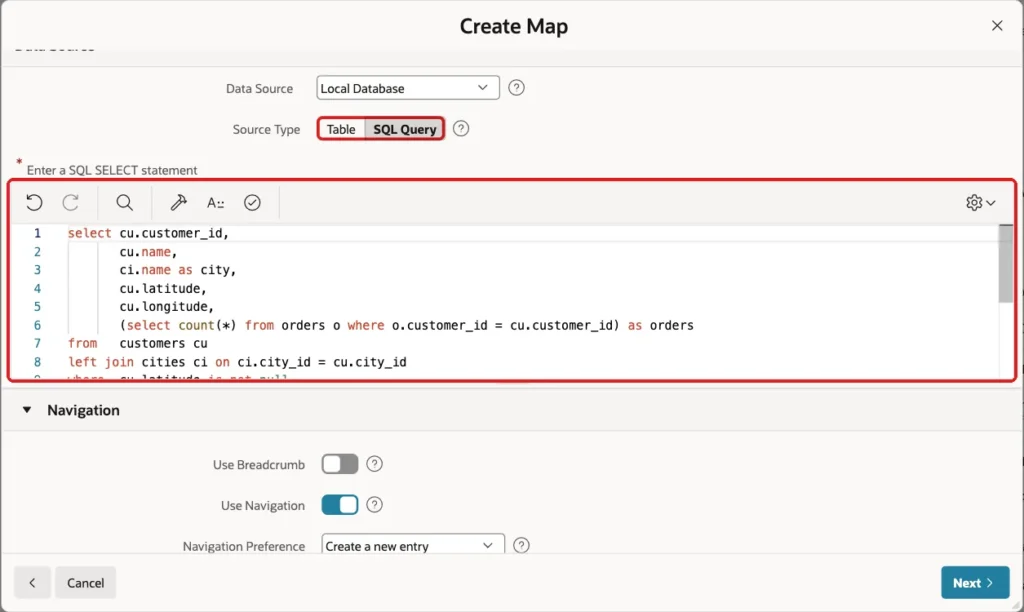
Turn off Use Breadcrumb, keep Use Navigation on, and click Next. In the Map Style step, choose Points, set Geometry Column Type to Two Numeric Columns, Longitude Column LONGITUDE, Latitude Column LATITUDE, and Tooltip Column NAME:
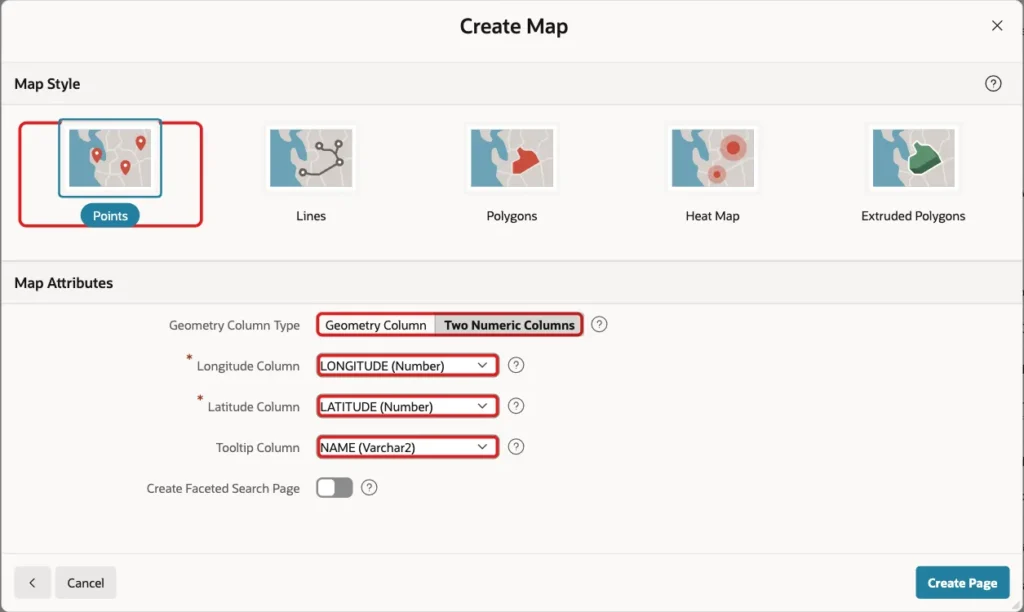
Two Numeric Columns is the choice for plain latitude and longitude columns; Geometry Column is for SDO_GEOMETRY columns of Oracle Spatial. Click Create Page.
Step 3: Name the Layer and Set Its Key
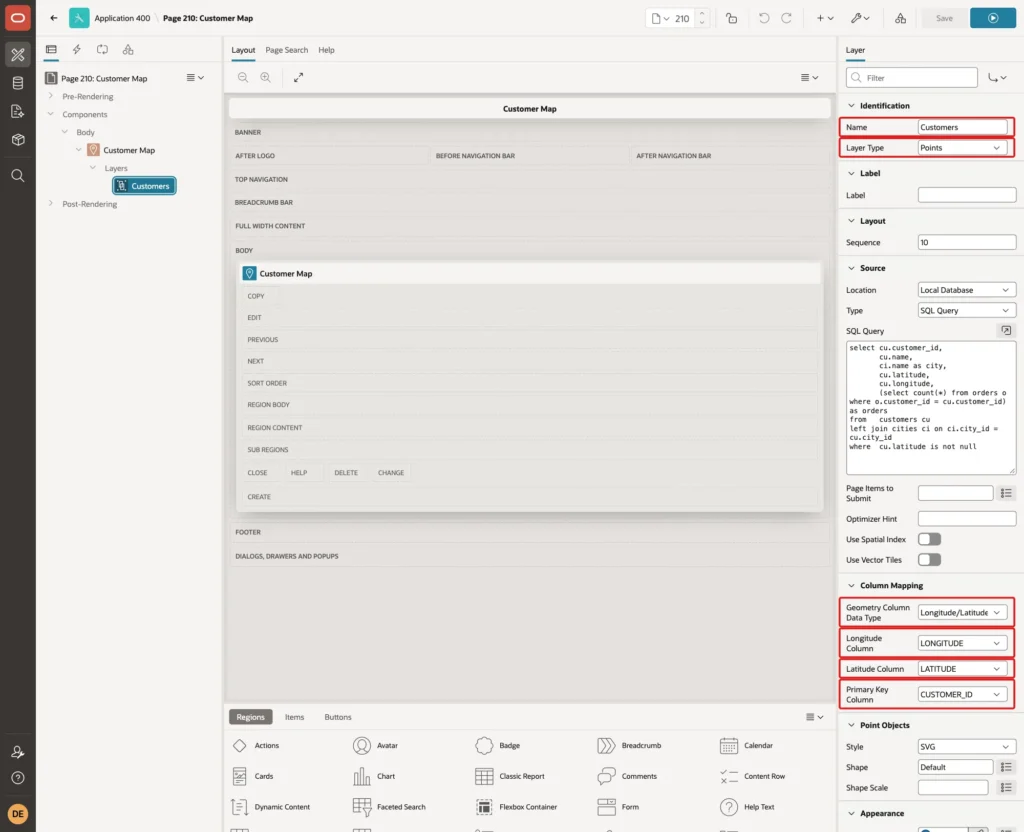
The wizard creates a Map region with one layer, both named Customer Map. In Page Designer, select the layer under Layers. Set Name to Customers, the label of the layer in the map's legend, and in Column Mapping set Primary Key Column to CUSTOMER_ID, so each point is identified by its customer:
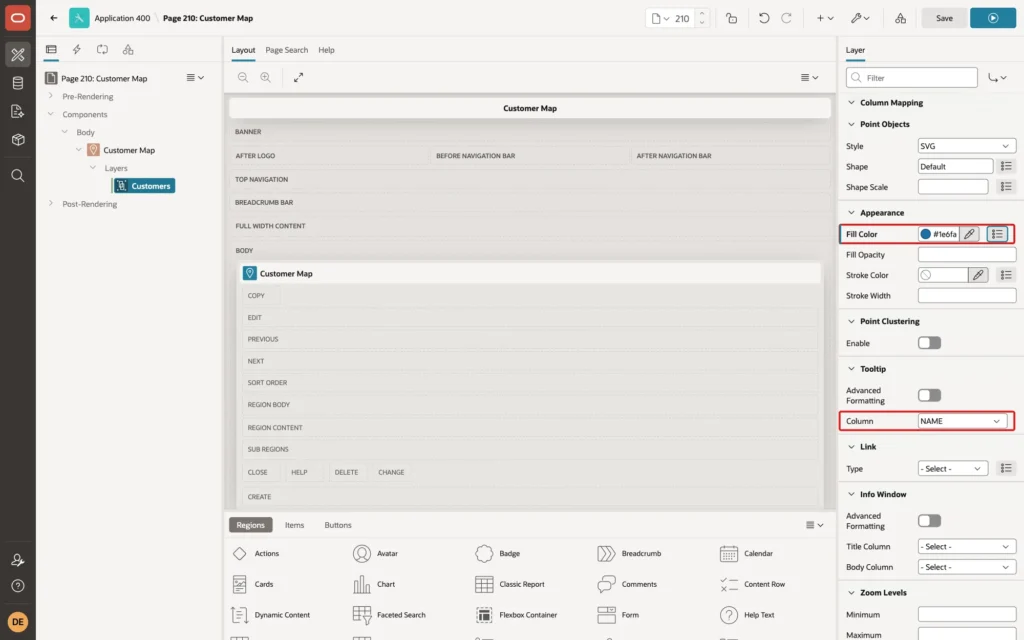
In the Appearance group, set Fill Color to #1E6FA8 for the markers. The Tooltip Column NAME from the wizard shows the customer's name when the mouse is over a marker:
Step 4: Add the Popup
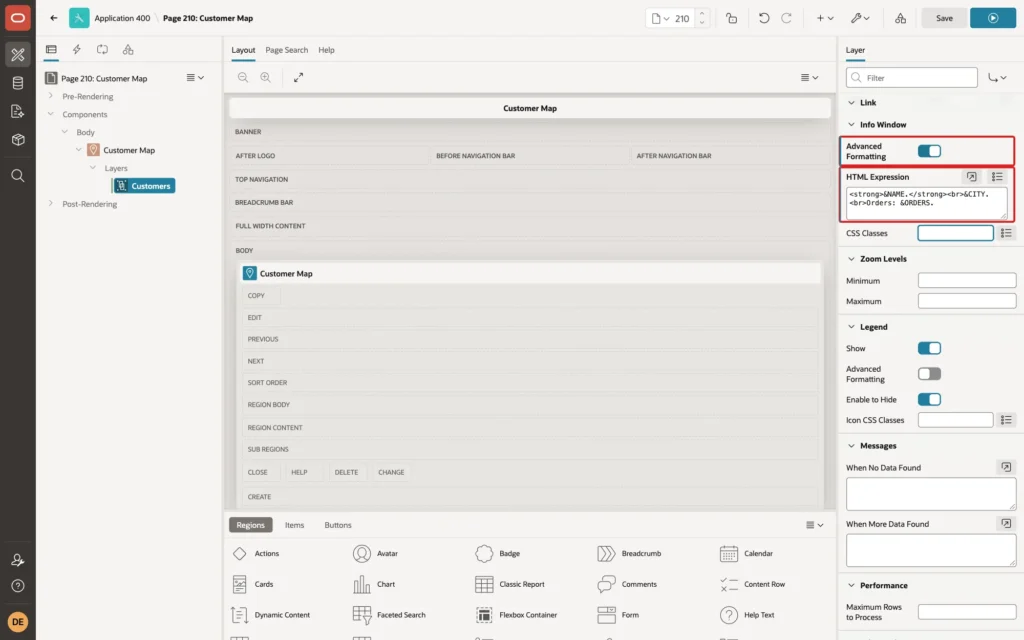
In the Info Window group, turn on Advanced Formatting and enter this HTML Expression. The substitutions &NAME., &CITY., and &ORDERS. are the columns of the layer's query:
Example:
<strong>&NAME.</strong><br>&CITY.<br>Orders: &ORDERS.
Click Save.
Step 5: Test It
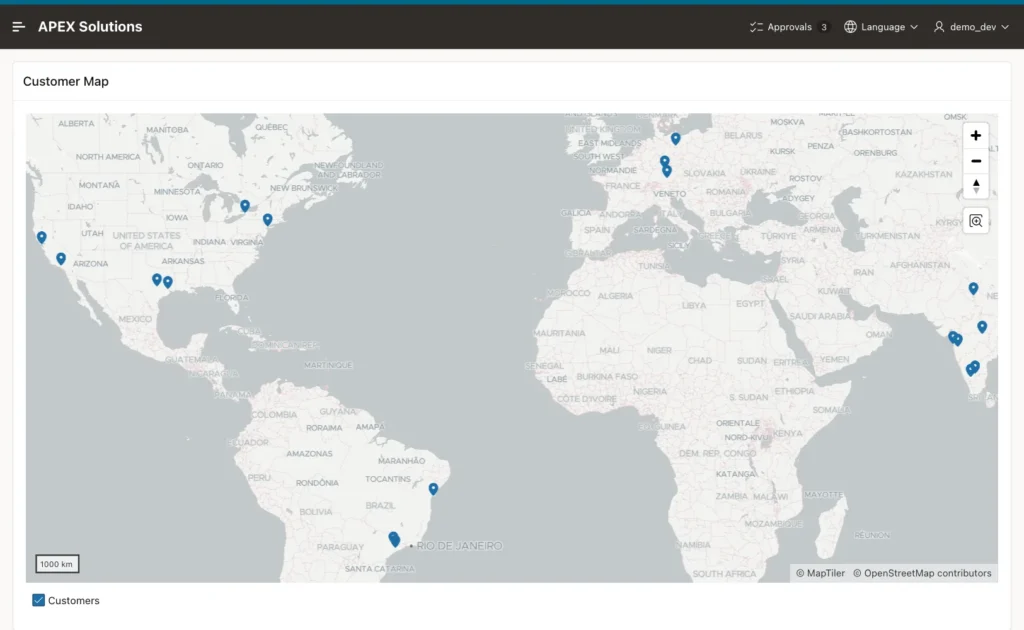
DEMO_DEV opened Customer Map. APEX zoomed the map to show all 41 customers with coordinates, in India, the United States, Germany, and Brazil, with the legend entry Customers below the map:
Zooming in on Berlin and clicking a marker opened the popup with the customer's name, city, and number of orders:
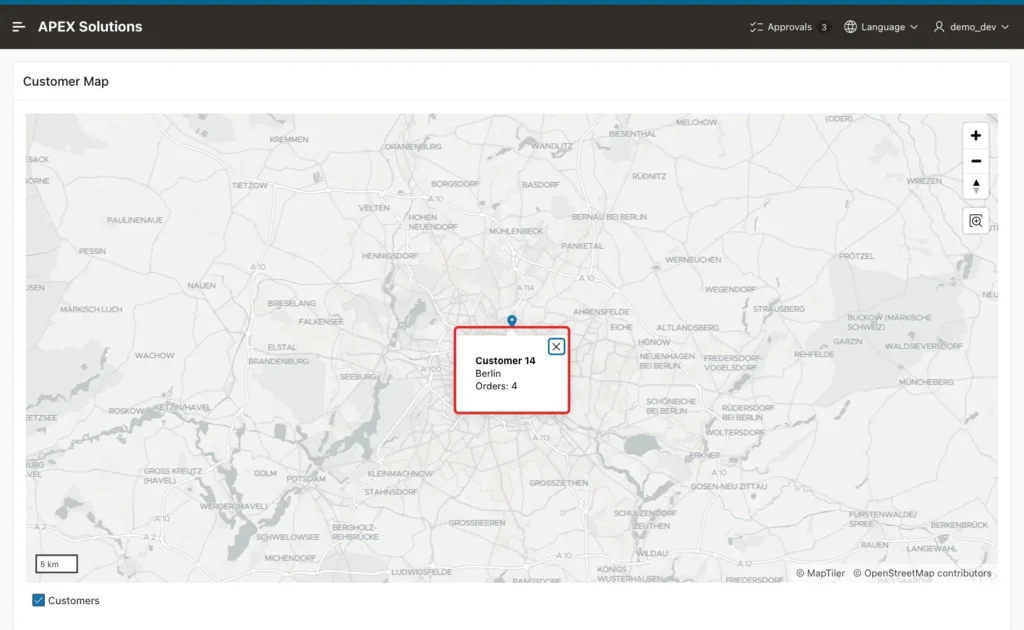
Customer 14 has four orders in the ORDERS table, as the popup shows. Moving the mouse over a marker showed the tooltip with the customer's name.
Things to Know
- The background map in this example comes from the internet, with credits for MapTiler and OpenStreetMap; the browser needs access to it.
- Point Clustering, in the layer's attributes, groups close points into one marker with a count. It needs a Shape for the cluster; saving the page without one failed with Shape Is required!.
- Each layer has a checkbox in the legend below the map, like Customers here, so users can hide it; a map region can have several layers.
Related Guides
- How to Control Map Layers, Features, and Popups Using JavaScript in Oracle APEX
- Maps, Calendars, and Trees in Oracle APEX
Conclusion
To show customers on a map in Oracle APEX, add latitude and longitude columns, create a Map page with the wizard, and choose Points with Two Numeric Columns.
Name the layer, set its primary key and color, and add a popup with an HTML Expression in the Info Window. Users then see where their customers are and the key facts of each one with a click.
