
An application that is used in several countries should speak the user's language: page titles, labels, buttons, menus, and messages. Copying the application for each language doubles the maintenance, and every later change must be made twice.
Oracle APEX 26.1 has a translation method based on text messages: one application, in which every translatable text is a text message such as &{ORDER}., with one text per language. APEX converts the existing texts for you, and you export them, translate them, and import them back.
This guide translates an order application into German, adds a language switch to the navigation bar, and tests the result.
Step 1: The Tables
The page translated in this guide, Request Order Approval, works on orders and customers. Here are the order tables of the example with their keys:
Example:
create table customers (
    customer_id number generated by default as identity
                constraint customers_pk primary key,
    name        varchar2(100) not null,
    email       varchar2(120) not null
);

create table products (
    product_id number generated by default as identity
               constraint products_pk primary key,
    name       varchar2(60)  not null,
    category   varchar2(30)  not null,
    price      number(10, 2) not null
);

create table orders (
    order_id    number generated by default as identity
                constraint orders_pk primary key,
    customer_id number not null
                constraint orders_customer_fk references customers,
    order_date  date default sysdate not null,
    status      varchar2(12) default 'NEW' not null
                constraint orders_status_ck
                check (status in ('NEW', 'APPROVED', 'SHIPPED', 'CANCELLED')),
    approved_by varchar2(60),
    approved_on date
);

create table order_lines (
    line_id    number generated by default as identity
               constraint order_lines_pk primary key,
    order_id   number not null
               constraint order_lines_order_fk references orders on delete cascade,
    product_id number not null
               constraint order_lines_product_fk references products,
    quantity   number not null
               constraint order_lines_qty_ck check (quantity > 0),
    unit_price number(10, 2) not null,
    constraint order_lines_product_uk unique (order_id, product_id)
);

create index order_lines_order_ix on order_lines (order_id);
create index order_lines_product_ix on order_lines (product_id);
Translation does not change the tables. Data stays as it is stored; only the application's own texts are translated.
Step 2: Turn On Translation
In App Builder, open Shared Components and click Globalization Attributes. Keep Application Primary Language English (en), and set:
- Translate Application: on.
- Translation Method: Text Message-Based. Application-Based is the older method, which publishes a separate copy of the application for each language.
- Translation Language Derived From: Session, so the language can be switched for each user's session.
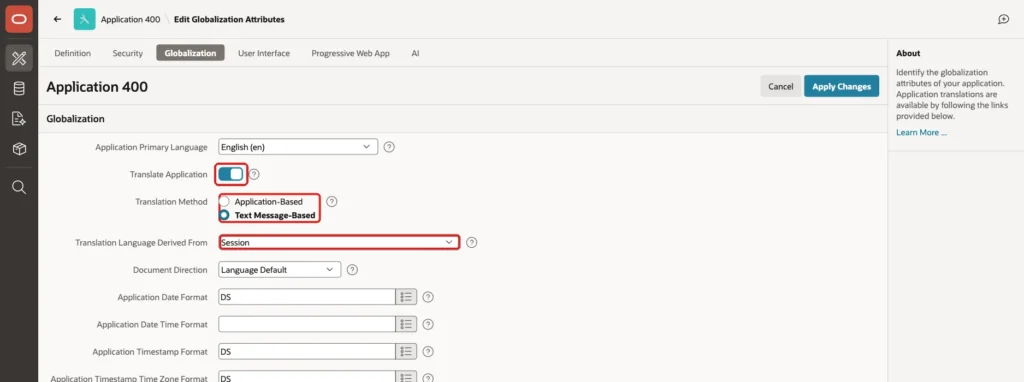
Click Apply Changes. The other choices for Translation Language Derived From are Browser, which uses the browser's language preference, and Application Preference or Item Preference, which keep a user's language as a preference.
Step 3: Convert the Texts to Text Messages
In Shared Components, click Application Translations, then Convert to Text Messages. The dialog explains what it does: it converts the texts throughout the application into text messages, such as page titles, labels, column headings, list entries, and success messages:
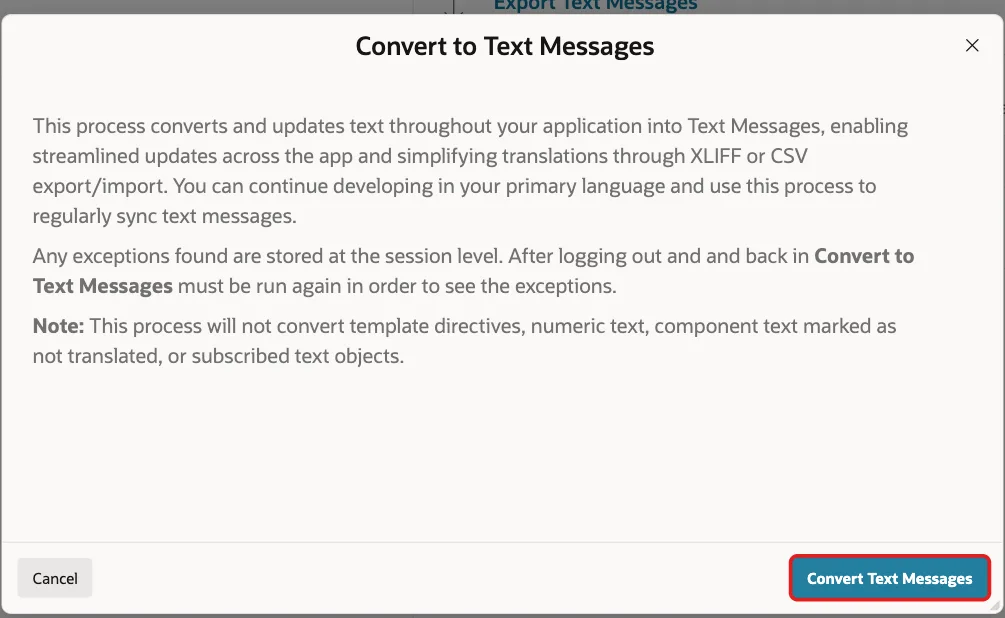
Click Convert Text Messages. In the application of this guide, APEX created 269 text messages and reported 3 exceptions:
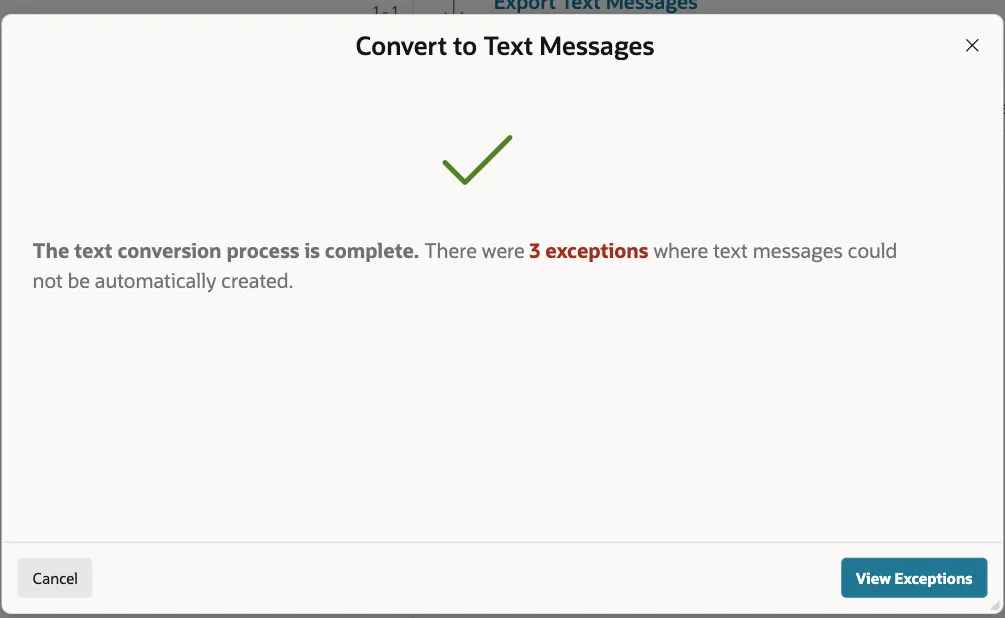
View Exceptions listed texts with template directives, in the task list pages, which use APEX's own messages already. The first run also printed Created 269 new text messages.; a second run created no new messages, so the conversion can be run again whenever new pages are added.
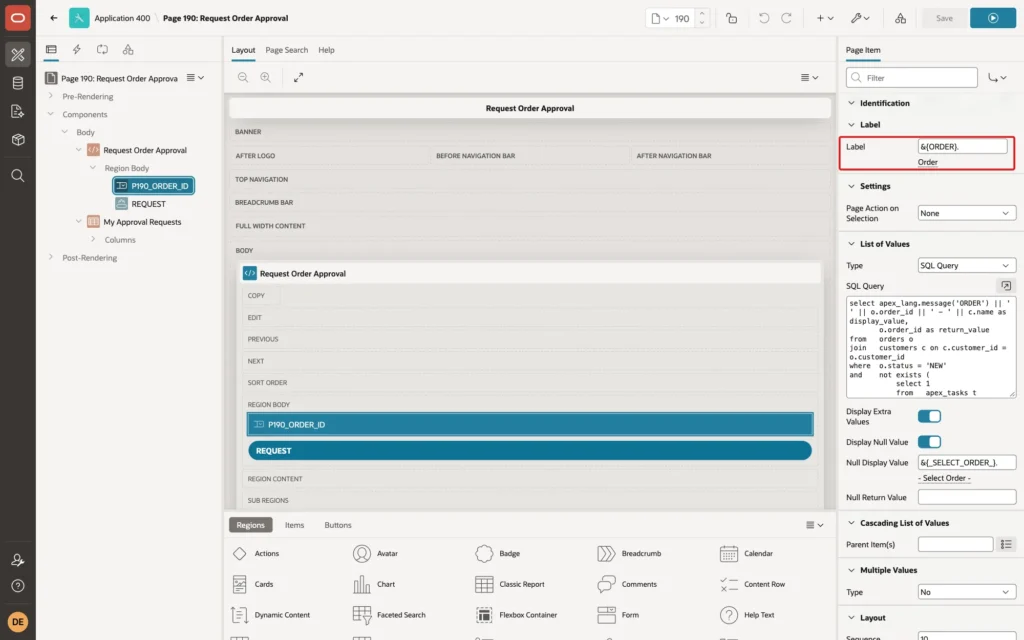
Each converted text is now a reference to a text message. The label of the item P190_ORDER_ID, for example, is &{ORDER}.:
Step 4: Add German
On the Application Translations page, click Add Language. Type German, choose German (Germany) (de), and click Add Language:
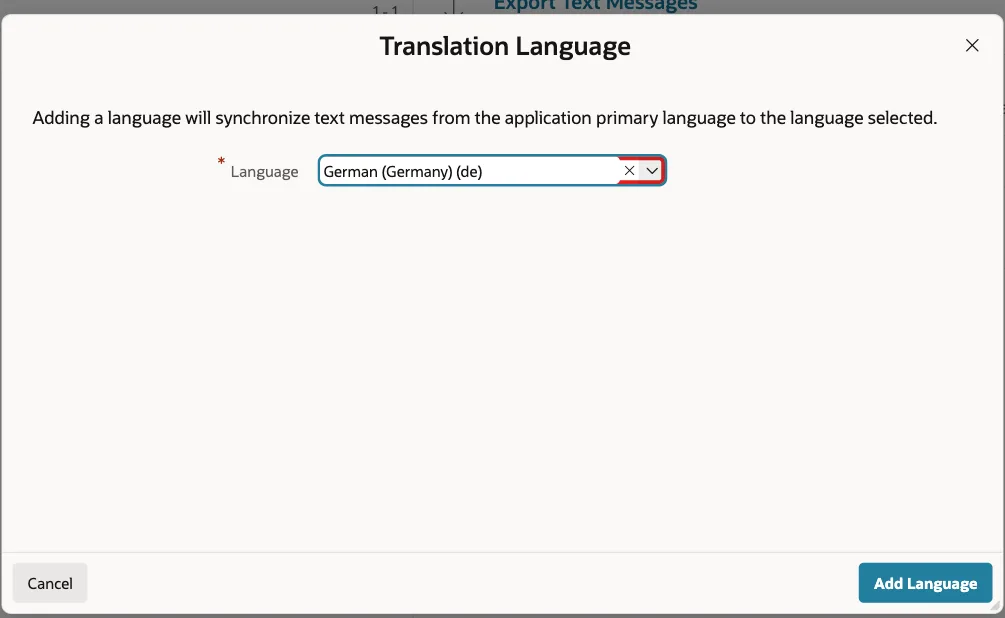
APEX copies every text message into German, still with the English text, so nothing is missing before the translation is done. The application now has the same number of messages in both languages:
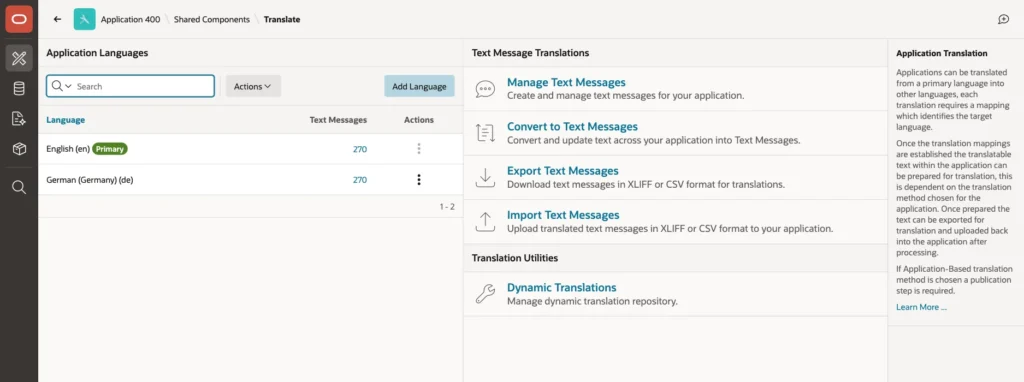
The count is 270 here because one more message, LANGUAGE, is added in Step 8.
Step 5: Export, Translate, and Import
Click Export Text Messages, choose Language German (Germany) (de) and Format CSV, and click Export. APEX downloads f400_en_de.csv:
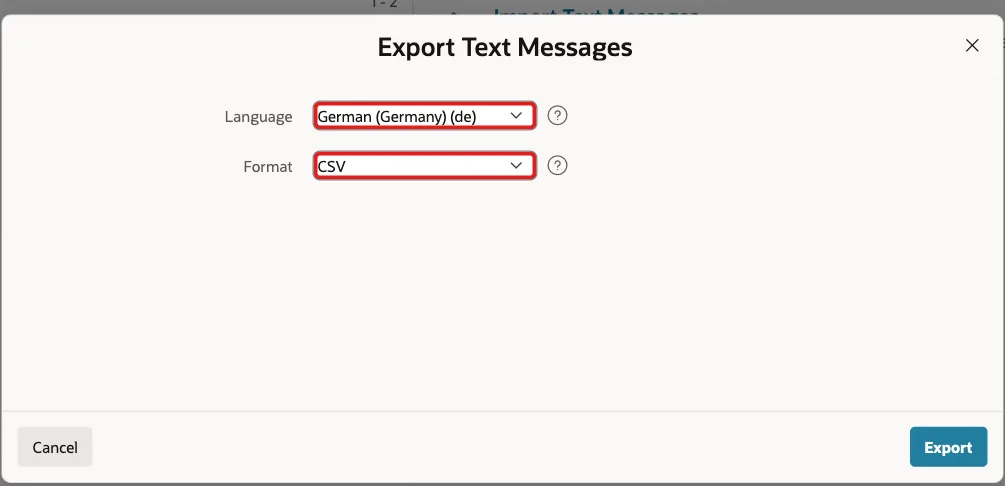
Each row has the message name, the English source, and the target to translate. Translate the target column in a spreadsheet or give the file to a translator. These are some of the rows after translation:
Example:
name,source,target,source language,target language,comment
REQUEST_ORDER_APPROVAL,Request Order Approval,Bestellfreigabe anfordern,en,de,
ORDER,Order,Bestellung,en,de,
REQUEST_APPROVAL,Request Approval,Freigabe anfordern,en,de,
_SELECT_ORDER_,- Select Order -,- Bestellung auswählen -,en,de,
APPROVAL_REQUESTED_FOR_ORDER_P190ORDERID,Approval requested for order %P190_ORDER_ID.,Freigabe für Bestellung %P190_ORDER_ID angefordert.,en,de,
%P190_ORDER_ID is a placeholder: the success message passes the order number into it, so the translation keeps it where German grammar needs it. This guide translated 23 messages: the menus and the texts of the Request Order Approval page.
Back in Application Translations, click Import Text Messages, choose the translated file, and click Import:
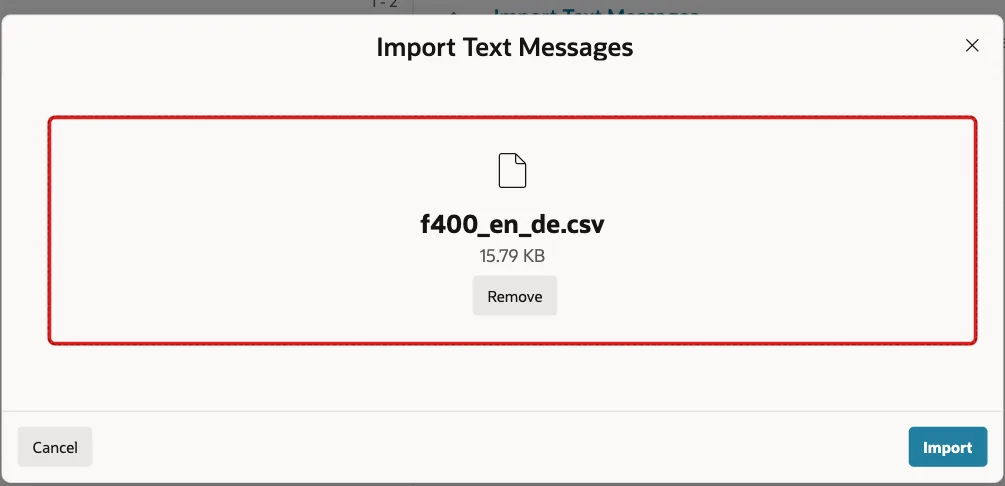
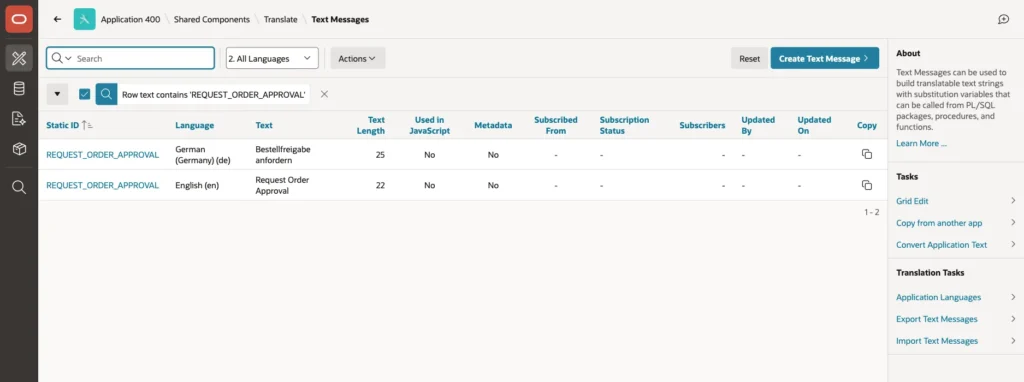
APEX showed Text Messages file processed. Manage Text Messages, with the report 2. All Languages, shows both texts of a message:
The view APEX_APPLICATION_TRANSLATIONS has the messages of every language:
Example:
select e.translatable_message as name,
       e.message_text        as english,
       d.message_text        as german
from   apex_application_translations e
join   apex_application_translations d
       on  d.application_id       = e.application_id
       and d.translatable_message = e.translatable_message
       and d.language_code        = 'de'
where  e.application_id = 400
and    e.language_code  = 'en'
and    e.translatable_message in ('REQUEST_ORDER_APPROVAL', 'ORDER', 'REQUEST_APPROVAL',
                                  '_SELECT_ORDER_', 'APPROVAL_REQUESTED_FOR_ORDER_P190ORDERID')
order by e.translatable_message;
Output:
NAME                                        ENGLISH                                         GERMAN
___________________________________________ _______________________________________________ ______________________________________________________
APPROVAL_REQUESTED_FOR_ORDER_P190ORDERID    Approval requested for order %P190_ORDER_ID.    Freigabe für Bestellung %P190_ORDER_ID angefordert.
ORDER                                       Order                                           Bestellung
REQUEST_APPROVAL                            Request Approval                                Freigabe anfordern
REQUEST_ORDER_APPROVAL                      Request Order Approval                          Bestellfreigabe anfordern
_SELECT_ORDER_                              - Select Order -                                - Bestellung auswählen -
Step 6: Translate Texts Built in SQL
The conversion translates the texts of components, but not text that a SQL query builds. The select list on page 190 showed Order 30 - Customer 11 in German too, because 'Order ' was part of its query. APEX_LANG.MESSAGE returns a text message in the session's language, so use it in the query:
Example:
select apex_lang.message('ORDER') || ' ' || o.order_id || ' - ' || c.name as display_value,
       o.order_id as return_value
from   orders o
join   customers c on c.customer_id = o.customer_id
where  o.status = 'NEW'
and    not exists (
           select 1
           from   apex_tasks t
           where  t.task_def_static_id = 'order-approval'
           and    t.detail_pk = to_char(o.order_id)
           and    t.state_code in ('UNASSIGNED', 'ASSIGNED'))
order by o.order_id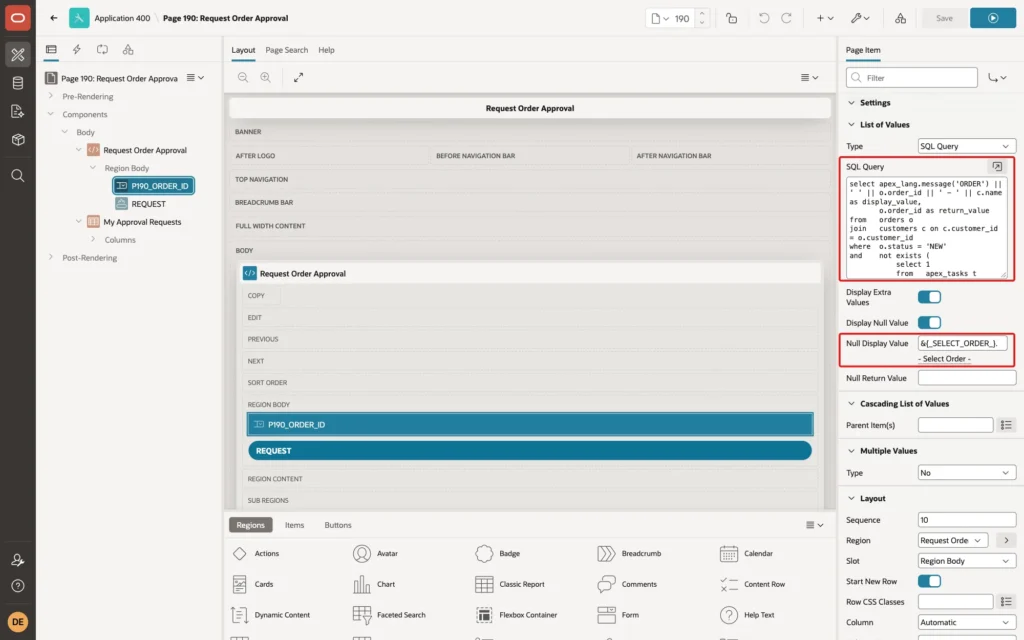
The Null Display Value was converted to &{_SELECT_ORDER_}. in Step 3.
Step 7: An Application Process That Sets the Language
APEX_UTIL.SET_SESSION_LANG sets the language of the current session. In Shared Components, click Application Processes, then Create, and enter Name Set language, Process Point On Load: Before Header (page template header), and this code:
Example:
apex_util.set_session_lang(lower(substr(:REQUEST, 6)));
apex_util.redirect_url(apex_page.get_url(p_page => :APP_PAGE_ID));
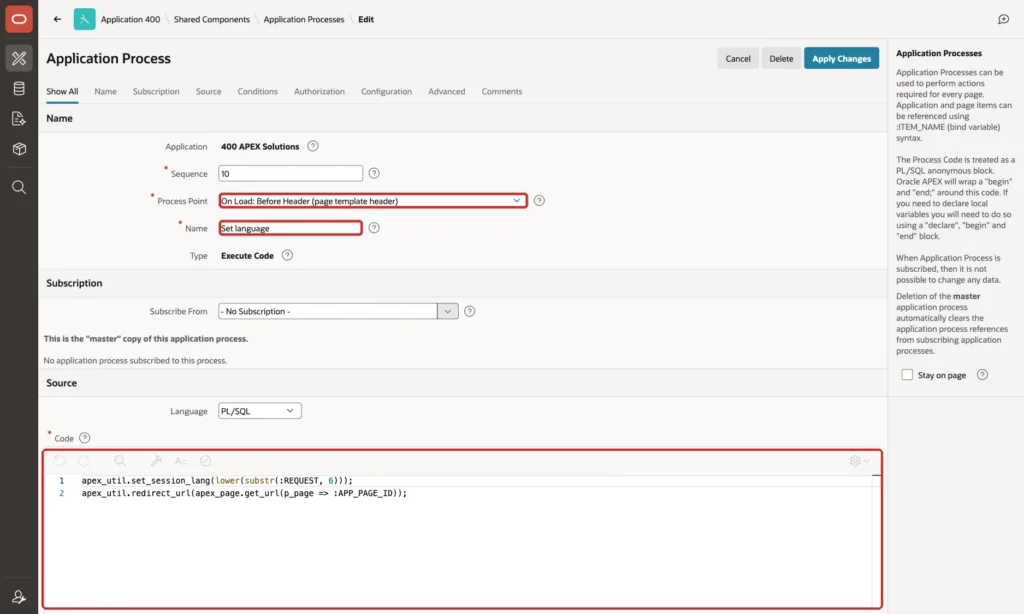
The request LANG_DE becomes de, and LANG_EN becomes en. In a first test without the redirect, the page that set the language was still shown in English, and only the next page was German: by Before Header, the page's language is already chosen. The redirect opens the same page again in the new language.
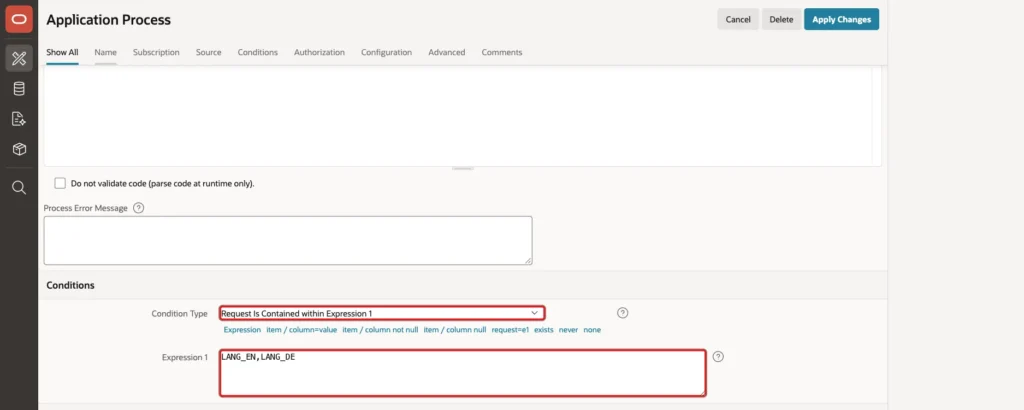
In Conditions, set Condition Type to Request Is Contained within Expression 1, and Expression 1 to LANG_EN,LANG_DE, so the process runs only for these two requests:
Step 8: Add the Language Menu
In Shared Components, click Lists, then Navigation Bar, and create three list entries:
- A parent entry with List Entry Label &{LANGUAGE}., Sequence 8, Icon fa-globe, and Target type URL with URL #. Create the text message LANGUAGE in Manage Text Messages, with Language for English and Sprache for German.
- English: Parent List Entry the language entry, Sequence 10, Target Page &APP_PAGE_ID., Request LANG_EN.
- Deutsch: Parent List Entry the language entry, Sequence 20, Target Page &APP_PAGE_ID., Request LANG_DE.
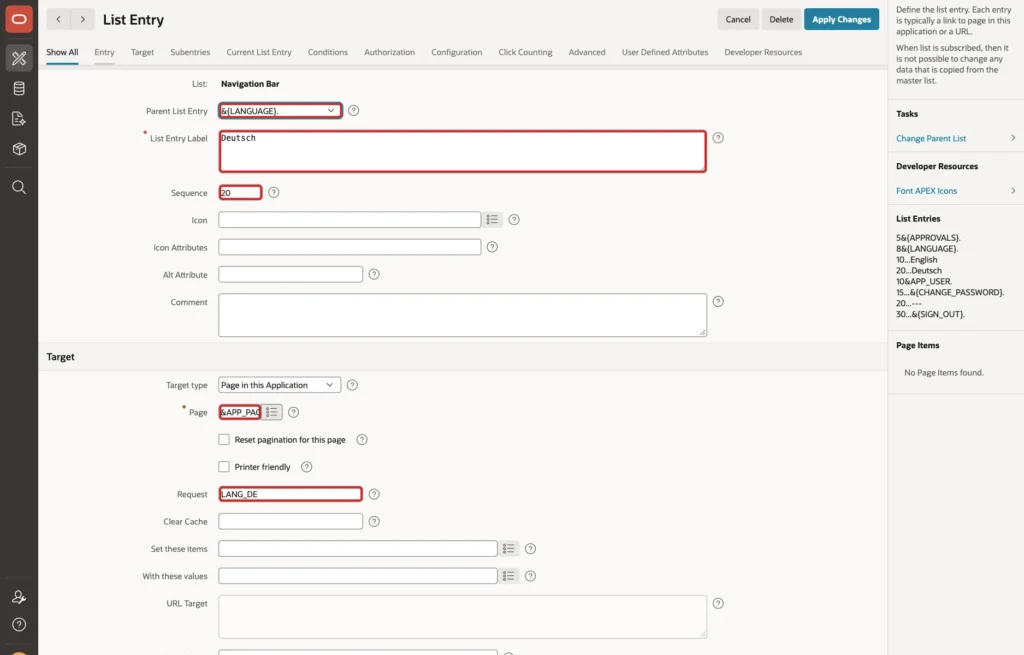
&APP_PAGE_ID. is the current page, so the user stays on the page where they switch. The names English and Deutsch stay in their own language on purpose.
Step 9: Test It
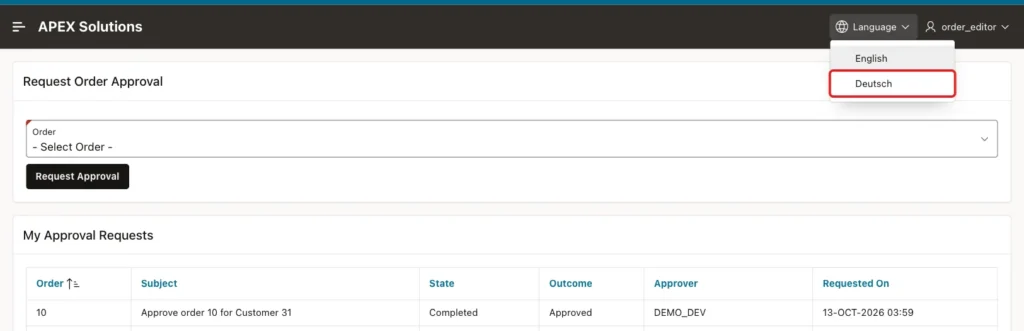
ORDER_EDITOR opened Request Order Approval in English, opened the Language menu, and clicked Deutsch:
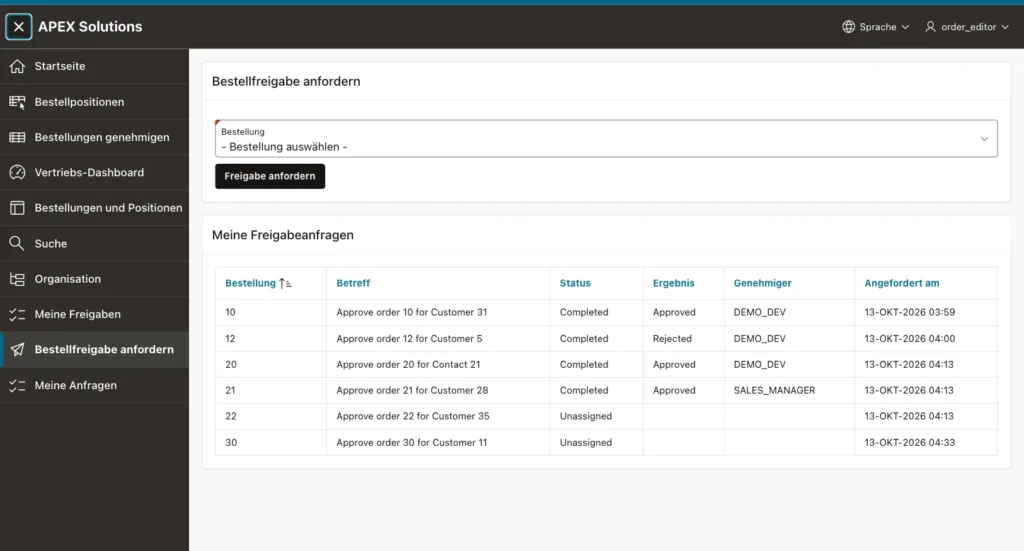
The page opened again in German: the menu, the page and region titles, the label, the select list, the button, and the report headings. The report's dates followed the language too, as 13-OKT-2026:
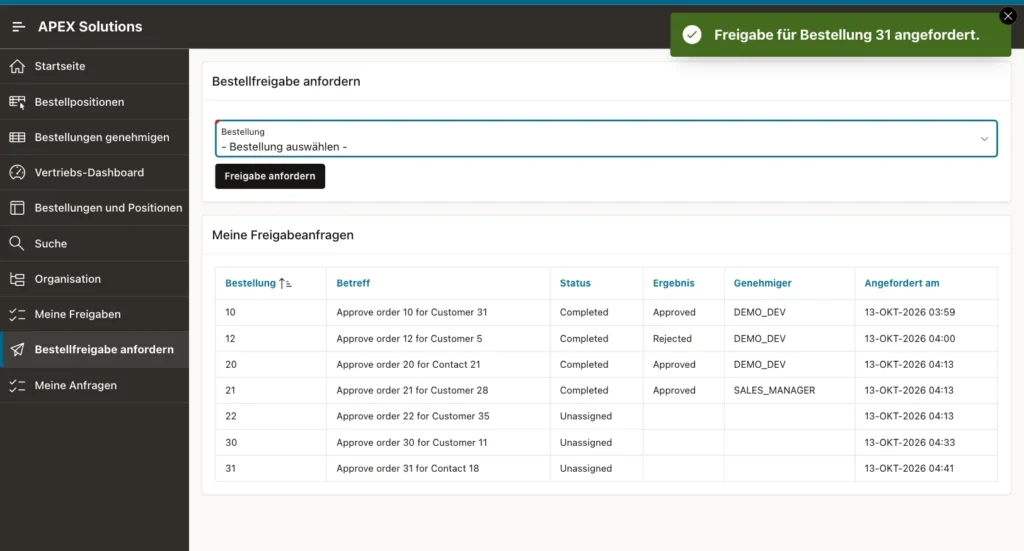
The language stayed German on the next pages of the session, such as Meine Anfragen. Requesting approval for order 31 showed the translated success message with the order number in its place:
Clicking English in the same menu switched the session back to English.
Things to Know
- Data is not translated: the task subjects and the states Completed and Approved in the report stay as they are stored.
- APEX's own runtime messages, such as 1 error has occurred and must have some value, stayed English in this test, because APEX's German messages were not installed in the instance. An instance administrator can install the APEX language files for German.
- The export puts a tab before values that start with a minus sign, such as - Select Order -. The import keeps the tab in the translation, so remove it when translating.
- Run Convert to Text Messages again after adding pages; it creates messages only for new texts.
Related Guides
- Oracle APEX Globalization and Translation
- How to Handle Errors, Debug, and Translate Messages Using APEX_ERROR and APEX_DEBUG
Conclusion
To translate an Oracle APEX 26.1 application, turn on Translate Application with the Text Message-Based method, convert the texts to text messages, and add the target language. Export the messages as CSV, translate them, and import them back.
Use APEX_LANG.MESSAGE for texts built in SQL, and let users switch the language with an application process that calls APEX_UTIL.SET_SESSION_LANG. One application then serves every language, and new texts are converted with one more run.
See my articles more often when you search Google.
