
Much of the value of AI in an application is quiet: a reply drafted for the user, a record classified as it is saved. No chat window, no new page, just a form that does a little more. Oracle APEX 26.1 builds both with almost no code.
This guide adds two AI features to an APEX ticket form: a Suggest Reply button that drafts an answer grounded in the knowledge base with the Generate Text With AI dynamic action, and a process that classifies each new ticket when it is saved. It starts with three changes a wizard-generated form needs first.
Code for This Guide
The finished application is apex/f200.sql, and the SQL examples are in the examples/ch20 folder of the Oracle AI code repository on GitHub.
These examples come from AI Applications with Oracle Database 26ai and APEX 26.1, a book of 237 tested examples of AI in Oracle Database and APEX.
The reply uses the Atlas Assistant agent and its knowledge base search tool from how to add an AI assistant to an Oracle APEX page, and the save process calls the CLASSIFY_TICKETS procedure from how to classify data with an LLM in Oracle SQL.
Prepare the Form
The Create App wizard built the ticket form from the TICKETS table as it was. Three changes prepare it for AI:
- Delete the vector items, such as P3_EMBEDDING. A form is no place for 384 numbers, and triggers and jobs maintain embeddings.
- Make the AI columns read-only: set Type to Display Only for items such as P3_AI_CATEGORY and P3_AI_SUMMARY, with labels like AI Category. The model sets them; users read them.
- Let the database number new tickets, as below.
Example:
-- new tickets entered in APEX get their number and creation time from the database;
-- ON NULL: the form inserts null into both, which a plain default would keep
create sequence tickets_seq start with 10001;

alter table tickets modify (ticket_id  default on null tickets_seq.nextval,
                            created_at default on null systimestamp);
Output:
Sequence TICKETS_SEQ created.

Table TICKETS altered.
DEFAULT ON NULL is the important part. The form's insert names both columns and passes null; a plain DEFAULT applies only when a column is left out of the insert, so the insert would fail.
Draft a Reply with Generate Text With AI
The Generate Text With AI dynamic action sends a page item's value to an AI service or agent and puts the response in another item. It needs no code.
- In Page Designer, add a Textarea item P3_REPLY, labeled Suggested Reply, with Source Null: it is not a column.
- Below it, add a button SUGGEST_REPLY, labeled Suggest Reply, with Action Defined by Dynamic Action.
- Right-click the button and create a dynamic action named Suggest Reply.
- Select the action under True. In Action, choose Generate Text With AI; in Agent, choose Atlas Assistant.
- Under Input Value, set Type to Item and Item to P3_DESCRIPTION. Under Use Response, set Item to P3_REPLY.
- Save the page.
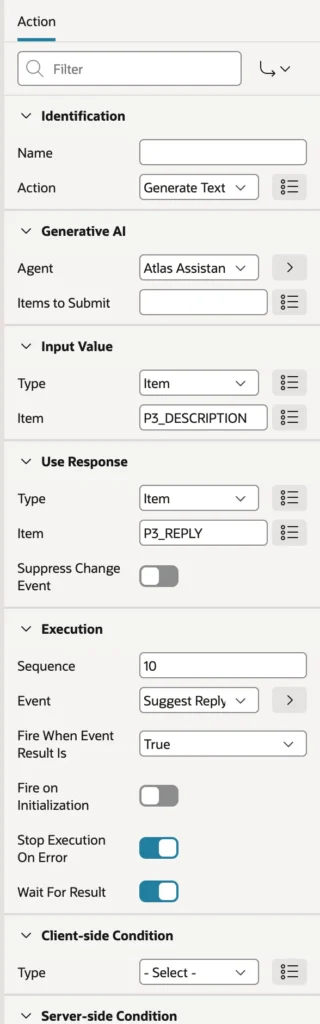
The action can call an AI service directly, with its own System Prompt that accepts substitutions such as &P3_SUBJECT., or an agent, as here. The agent brings its system prompt and its tools: the search tool finds the articles that answer the customer, so the draft is grounded in the knowledge base rather than the model's general knowledge. Input Value can also be Only System Prompt, for prompts built entirely from substitutions, or JavaScript Code.
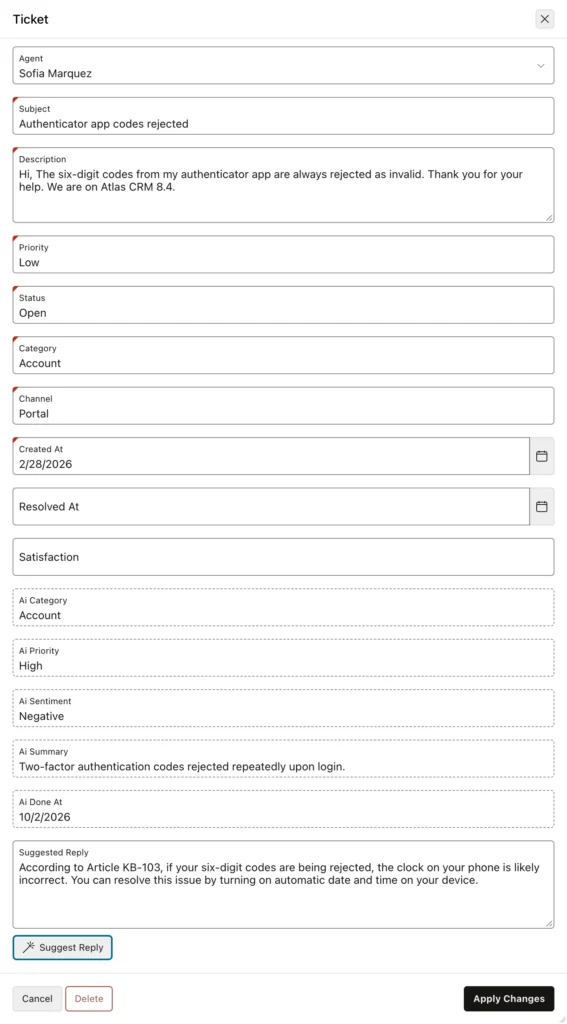
For a ticket about rejected authenticator codes, the draft answers from the matching article: the phone's clock is probably wrong, and turning on automatic date and time fixes it. The support agent reviews and edits the draft before sending: the draft saves typing, and the person stays responsible for what the customer receives.
The Process list has a Generate Text With AI type too, which does the same work on the server when the page is submitted.
Classify the Record on Save
Agents entering a ticket by phone want the classification at once. A page process can run it when the ticket is saved:
- On the Processing tab, create a process named Classify New Ticket of type Execute Code, with the PL/SQL code classify_tickets;
- Under Server-side Condition, in When Button Pressed, choose CREATE.
- Place it after the form's own Process form step, so the ticket exists when it runs.
CLASSIFY_TICKETS classifies every ticket without a classification: the new one, and any a background job has not reached yet. After an agent saved a new ticket about an invoice paid twice whose refund had not arrived, with an upset finance team, the row looked like this.
Example:
-- the ticket created on the form: classified and embedded when it was saved
select ticket_id, priority, ai_category, ai_priority, ai_sentiment,
       vector_dimension_count(embedding) as embedding
from   tickets
where  ticket_id = 10001;
Output:
   TICKET_ID PRIORITY    AI_CATEGORY    AI_PRIORITY    AI_SENTIMENT       EMBEDDING
____________ ___________ ______________ ______________ _______________ ____________
       10001 Normal      Billing        High           Negative                 384
The database numbered it 10001, a trigger embedded it, and the process classified it: Billing, High, Negative. The agent had entered Normal; the model's priority reflects the upset customer. Saving took a few seconds longer, the time of one call to Gemini.
| When | Classify |
|---|---|
| The result is needed at once, for example to route the ticket | On save, with a page process |
| The save must stay fast and the result can wait | In a background job every minute |
Conclusion
To add AI to an APEX form, first remove vector items, make AI columns display-only, and give keys and timestamps DEFAULT ON NULL. Then use the Generate Text With AI dynamic action with an AI agent to draft text grounded in your knowledge base, and a page process on CREATE to classify a record as it is saved, accepting one model call's delay, or leave classification to a background job when speed matters more.
