
Template component reports, interactive reports, and cards regions each have a JavaScript interface with methods of their own. Through them you can select rows, move the current row, page through results, and, for cards, reach the data model behind the cards.
This guide covers all three. It starts with the selection, current row, and paging methods the report regions share, then the two methods specific to interactive reports, and finally the cards region's model and paging methods. Every method has a tested example with its real output, and a few surprises in APEX 26.1 are called out along the way.
Quick Reference
| Methods | Template component | Interactive report | Cards |
|---|---|---|---|
| getSelectedValues, setSelectedValues, getSelection, setSelection, selectAll | Yes | Yes | Yes |
| getCurrentRow, getCurrentRowValue, setCurrentRow, setCurrentRowValue | Yes | Yes | Named ...Item... instead |
| firstPage, previousPage, nextPage, lastPage | Yes | No | Yes |
| getViewName, refresh(pKeepPagination) | No | Yes | No |
| getModel, getRecords, getSelectedRecords, setSelectedRecords, getPageInfo, gotoPage, loadMore, refreshView | No | No | Yes |
Every region also has the shared members covered in the guide to refreshing and controlling regions with apex.region, such as element, type, refresh, focus, and call.
How to Run These Examples
The examples ran in Oracle APEX 26.1 on a test application. The report examples use a Recent Orders list on the home page: a Content Row template component with Row Selection set to Multiple and ORDER_ID as its primary key. The interactive report is a customers report, and the cards region is a product catalog of 93 products with virtual scrolling. The output under each example is exactly what the browser console printed.
To try one, open a page of your own, press F12, paste the code into the Console tab, and replace the region ID with your region's HTML DOM ID. A few examples pause with await at the top level, which the console allows; inside a dynamic action, wrap such code in an async function.
Before You Use the Selection Methods
The methods only work when the region supports what they do, and when it does not they fail quietly rather than throwing an error:
- Selection needs row selection switched on in the region's attributes. For a template component report that means the Row Selection attribute plus a primary key column, so each row gets a data-id. Without it, the getters return null and setSelectedValues returns -1.
- A current row exists wherever selection or keyboard navigation does.
- A row's value is its primary key, which is the data-id attribute that #APEX$ROW_IDENTIFICATION# adds to the row element in a template.
Every selection change fires apexselectionchange, and every change of the current row fires apexcurrentrowchange. Both events are covered in the guide to the apex namespace and page events.
Selecting Rows in a Report
getSelectedValues and setSelectedValues
getSelectedValues returns the primary key of each selected row. setSelectedValues selects the rows with the values you pass, deselecting all others, and returns how many rows it actually found.
region.getSelectedValues() → string[] | null
region.setSelectedValues(pValues, [pFocus], [pNoNotify]) → number
| Parameter | Type | Description |
|---|---|---|
| pValues | string[] | The primary keys of the rows to select. An empty array clears the selection. |
| pFocus | boolean | Move focus to the first selected row. |
| pNoNotify | boolean | Do not fire apexselectionchange. |
const orders = apex.region("recent_orders");
orders.element.on("apexselectionchange", () =>
    console.log("apexselectionchange:", orders.getSelectedValues()));
const count = orders.setSelectedValues(["2280", "2278", "9999"]);
console.log("rows selected:", count);
console.log(orders.getSelectedValues());
Output:
rows selected: 2
["2280", "2278"]
apexselectionchange: ["2280", "2278"]
Three values went in and two rows were selected, because no order 9999 is on the page. A row has to be rendered to be selected, so in a paged report setSelectedValues can only reach rows on the current page. Also notice the order of the output: the event arrived after the method returned, because APEX fires it a moment later rather than inside the call.
getSelection and setSelection
The same pair, working with row elements instead of values. getSelection returns the selected rows as a jQuery object, and setSelection selects the rows in a jQuery object you pass.
region.getSelection() → jQuery | null
region.setSelection(pElements$, [pFocus], [pNoNotify])
| Parameter | Type | Description |
|---|---|---|
| pElements$ | jQuery | The row elements to select, such as the result of getSelection or a jQuery search inside the region. |
| pFocus, pNoNotify | boolean | As for setSelectedValues. |
const orders = apex.region("recent_orders");
const rows$ = orders.element.find("[data-id]");
orders.setSelection(rows$.slice(1, 3));                  // the second and third row
orders.getSelection().each((i, row) => console.log(row.dataset.id,
    row.querySelector(".t-ContentRow-overline").textContent,
    row.querySelector(".t-ContentRow-title").textContent));
Output:
2280 ORD-12280 Linda Kim
2279 ORD-12279 Matthew Jones
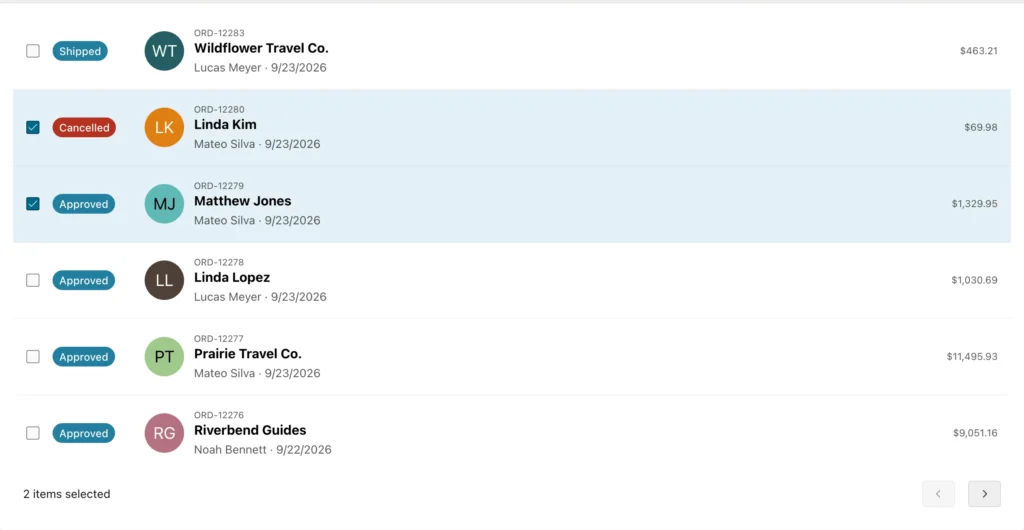
Selecting from code looks exactly like the user doing it: the checkboxes are ticked and the footer updates its count. Working with elements is handy when you need other content from the row, as the example does with the order number and customer. getSelection can only return rows that exist in the DOM, though. With virtual scrolling, rows outside the view are removed from the page, so use getSelectedValues there.
selectAll
Selects every row on the current page, but only when the region allows multiple selection and also has a select-all control.
region.selectAll([pFocus], [pNoNotify])
The Content Row component used here has no select-all control, so selectAll does nothing. Passing the values of every row to setSelectedValues has the same effect:
const orders = apex.region("recent_orders");
orders.selectAll();
console.log("after selectAll:", orders.getSelectedValues());
orders.setSelectedValues(orders.element.find("[data-id]").map((i, e) => e.dataset.id).get());
console.log("after setSelectedValues:", orders.getSelectedValues().length, "rows");
Output:
after selectAll: []
after setSelectedValues: 6 rows
For pFocus, true focuses the first selected row, false makes it the row that receives focus next, and null leaves the current row alone.
Moving the Current Row
getCurrentRow, getCurrentRowValue, setCurrentRow, and setCurrentRowValue
The current row is the one that has, or last had, keyboard focus. These methods read and move it, either as an element or by its primary key. The pFocus parameter of the two setters also moves keyboard focus into the row.
region.getCurrentRow() → jQuery | null
region.getCurrentRowValue() → string | null
region.setCurrentRow(pRow$, [pFocus])
region.setCurrentRowValue(pRowValue, [pFocus])
const orders = apex.region("recent_orders");
orders.element.on("apexcurrentrowchange", () =>
    console.log("apexcurrentrowchange, now", orders.getCurrentRowValue()));
console.log("current row:", orders.getCurrentRowValue());
orders.setCurrentRowValue("2280", true);
console.log("current row:", orders.getCurrentRowValue(),
    "- focus in", document.activeElement.closest("[data-id]").dataset.id);
await new Promise((resolve) => setTimeout(resolve, 300));
orders.setCurrentRow(orders.element.find("[data-id]").last());
const row$ = orders.getCurrentRow();
console.log("current row:", row$.data("id"), row$.find(".t-ContentRow-title").text());
Output:
current row: 2282
current row: 2280 - focus in 2280
apexcurrentrowchange, now 2280
current row: 2276 Riverbend Guides
apexcurrentrowchange, now 2276
When the page loads, the first row is the current row. Passing an element that is not in the report, or a value that no row has, leaves the current row where it was. As with selection, the change event arrives just after the method returns.
Paging Through a Report
firstPage, previousPage, nextPage, and lastPage
Show a different page of rows. Each returns true, or false when a page is still being rendered. With scroll pagination they scroll the region instead, fetching more rows when needed. lastPage only works when the region knows the total row count.
region.firstPage() → boolean
region.previousPage() → boolean
region.nextPage() → boolean
region.lastPage() → boolean
const orders = apex.region("recent_orders");
const ids = () => orders.element.find("[data-id]").map((i, e) => e.dataset.id).get().join(" ");
const pause = (ms) => new Promise((resolve) => setTimeout(resolve, ms));
console.log("page 1:", ids());
console.log("nextPage:", orders.nextPage());
await pause(1500);                                        // the next page is fetched from the server
console.log("page 2:", ids());
console.log("previousPage:", orders.previousPage());
await pause(1500);
console.log("page 1:", ids());
Output:
page 1: 2282 2280 2279 2278 2277 2276
nextPage: true
page 2: 2275 2274 2273 2272 2271 2270
previousPage: true
page 1: 2282 2280 2279 2278 2277 2276
Paging fires neither apexbeforerefresh nor apexafterrefresh, and the methods return no promise, so there is no clean signal that the new page has arrived. The example simply pauses while the server responds. In a real page, react to what the user sees next rather than chaining code straight after a paging call.
Template Component Reports
Any region built on a template component plug-in with the Multiple (Report) display, such as Content Row, Media List, Timeline, or a component of your own, reports its type as TemplateComponent. Its interface is the selection, current row, and paging methods above plus refresh and focus, which focuses the current row. To build such regions in Page Designer, see the guide to cards, content rows, and template components.
Interactive Reports
The interactive report has had a region interface for years, but APEX 26.1 is the first release that documents it, as interactiveReportRegion. Besides the selection and current row methods, which need Row Selection in the report's attributes, it has two methods of its own. The customers report used here has no row selection.
getViewName
Returns the view the report is showing: REPORT for the standard view, or CHART, DETAIL, GROUP_BY, ICON, or PIVOT.
region.getViewName() → string
const customers = apex.region("customers");
console.log("view:", customers.getViewName());
console.log("selection:", customers.getSelectedValues(), "- current row:", customers.getCurrentRowValue());
Output:
view: REPORT
selection: null - current row: undefined
Without row selection, getSelectedValues returns null and the current row value is undefined, which is a useful way to confirm the setting from the console.
refresh
Fetches the rows again. Pass true to stay on the current page and scroll position; without it, the report goes back to its first page.
region.refresh([pKeepPagination])
| Parameter | Type | Description |
|---|---|---|
| pKeepPagination | boolean | Stay on the current page of rows. The default is false. |
const customers = apex.region("customers");
const range = () => customers.element.find(".a-IRR-pagination-label").first().text().replace(/\s+/g, " ").trim();
const refreshed = () => new Promise((resolve) => customers.element.one("apexafterrefresh", resolve));
const next = () => customers.element.find(".a-IRR-button--pagination[aria-label='Next']").first().trigger("click");

next();
await refreshed();
console.log("after Next:   ", range());
customers.refresh(true);                                  // returns undefined: wait for the event
await refreshed();
console.log("refresh(true):", range());
customers.refresh();
await refreshed();
console.log("refresh():    ", range());
Output:
after Next:    51 - 100
refresh(true): 51 - 100
refresh():     1 - 50
The interactive report returns no promise from refresh, so the example waits for apexafterrefresh each time. Passing true matters whenever you refresh after the user edits a row on page three: without it, they are thrown back to page one and lose their place. Everything else about this region type is in the complete guide to Oracle APEX interactive reports.
Cards Regions
A cards region is built on the tableModelView widget and keeps its rows in an APEX model, where each card is one record. Its interface has the paging methods above, the current row methods renamed to getCurrentItem, getCurrentItemValue, setCurrentItem, and setCurrentItemValue, and several methods that reach the model.
The catalog in these examples uses virtual scrolling: the region fetches all 93 records but only renders the cards near the visible part of the page.
getModel
Returns the model that holds the region's records. Use it straight away instead of storing it in a variable for later, because the region can replace the model, for example when it is refreshed with different filter values.
region.getModel() → model
const catalog = apex.region("catalog");
const model = catalog.getModel();
console.log("model:", model.name, "- records:", model.getTotalRecords());
model.forEach((record, index) => {
    if (index < 3) console.log(model.getValue(record, "SKU"), model.getValue(record, "PRODUCT_NAME"),
                               model.getValue(record, "PRICE"));
});
Output:
model: catalog - records: 93
FTW-1005 Alpine Mountaineering Boot $209.99
POL-1002 Aluminium Trekking Poles $34.99
JKT-1001 Aurora Down Jacket $209.99
The model's fields are the columns of the region's query, plus a few APEX adds, such as APEX$FULL_CARD_LINK. Reading the model is the reliable way to get card data, since values like the SKU or stock level may not be displayed on the card at all.
getRecords
Returns the model records behind card elements, such as the card a user just clicked in a dynamic action.
region.getRecords(pElements$) → model.Record[]
const catalog = apex.region("catalog");
const model = catalog.getModel();
const cards$ = catalog.element.find(".a-CardView-item").slice(0, 2);
for (const record of catalog.getRecords(cards$)) {
    console.log(model.getRecordId(record), model.getValue(record, "PRODUCT_NAME"),
                model.getValue(record, "STOCK_ON_HAND"), "in stock");
}
Output:
39 Alpine Mountaineering Boot 451 in stock
43 Aluminium Trekking Poles 592 in stock
In a dynamic action that reacts to a card click, pass the clicked card's element and you get back its full record, including columns the card template never shows.
getPageInfo
Returns the region's paging state, or null when there is no data.
region.getPageInfo() → object | null
| Property | Description |
|---|---|
| firstOffset, lastOffset | The first and last record shown, counting from 1. |
| total | The total number of records, when the region knows it. |
| pageSize | Records per page, or per fetch with scroll pagination. |
| pageOffset | The offset of the current page. |
| recordsPerRow, rowHeight | How many cards fit across one row, and a row's height in pixels. |
| scrollOffset, viewOffset | The scroll position, with scroll pagination. |
const info = apex.region("catalog").getPageInfo();
console.log(info);
console.log(`cards ${info.firstOffset} to ${info.lastOffset} of ${info.total}, ${info.recordsPerRow} per row`);
Output:
{
  "rowHeight": 398.62545454545455,
  "recordsPerRow": 4,
  "firstOffset": 1,
  "lastOffset": 44,
  "pageSize": 20,
  "pageOffset": 0,
  "total": 93,
  "scrollOffset": 0,
  "viewOffset": 0
}
cards 1 to 44 of 93, 4 per row
That last line is exactly the kind of "showing 1 to 44 of 93" text you might want to display yourself.
loadMore and gotoPage
loadMore adds the next batch of cards when the region has a Load More button, and behaves like nextPage in a region with pages. gotoPage jumps to a page by number, starting at 0, and only works for paged regions that know their total record count. Both return false while a page is still rendering.
region.loadMore() → boolean
region.gotoPage(pPageNumber) → boolean
const catalog = apex.region("catalog");
const pause = (ms) => new Promise((resolve) => setTimeout(resolve, ms));
const cards = () => catalog.element.find(".a-CardView-item").length + " cards in the DOM";
console.log(cards());
console.log("loadMore:", catalog.loadMore());
await pause(1500);
console.log(cards());
console.log("lastPage:", catalog.lastPage());
await pause(2000);
console.log(cards(), "- last offset", catalog.getPageInfo().lastOffset);
Output:
44 cards in the DOM
loadMore: true
44 cards in the DOM
lastPage: true
57 cards in the DOM - last offset 93
With virtual scrolling, loadMore has nothing to add because every record is already in the model, which is why the card count did not change. The page methods scroll instead: after lastPage, the region renders the cards near the end, and the last offset becomes the last record.
refreshView
Redraws the cards from the model without calling the server. Use it after you change records in the model yourself. refresh, by contrast, fetches the records from the server again.
region.refreshView()
const catalog = apex.region("catalog");
catalog.element.find(".a-CardView-title").first().text("Changed in the DOM");
console.log(catalog.element.find(".a-CardView-title").first().text());
catalog.refreshView();                                    // redraw from the model, no server call
console.log(catalog.element.find(".a-CardView-title").first().text());
Output:
Changed in the DOM
Alpine Mountaineering Boot
The example also shows why you should never change card text directly in the DOM: the next redraw puts the model's value back.
refresh
Fetches the records from the server again and returns a promise.
region.refresh() → Promise
const catalog = apex.region("catalog");
const model = catalog.getModel();
await catalog.refresh();
console.log("refreshed:", catalog.getModel().getTotalRecords(), "records");
console.log("same model:", model === catalog.getModel());
Output:
refreshed: 93 records
same model: true
Selection in Cards
Cards have the same selection methods as the reports, plus two that work with model records, and the current item methods:
region.getSelectedRecords() → model.Record[] | null
region.setSelectedRecords(pRecords, [pFocus], [pNoNotify]) → number
region.getCurrentItem() → jQuery | null
region.getCurrentItemValue() → string | null
region.setCurrentItem(pItem$, [pFocus])
region.setCurrentItemValue(pItemValue, [pFocus])
All of them need the widget's itemNavigationMode option set to "select", or "focus" for the current item methods. Here is what you get on a regular cards region:
const catalog = apex.region("catalog");
console.log("itemNavigationMode:", catalog.call("option", "itemNavigationMode"));
console.log("getSelectedValues:", catalog.getSelectedValues());
console.log("setSelectedValues:", catalog.setSelectedValues(["39"]));
console.log("getCurrentItemValue:", catalog.getCurrentItemValue());
Output:
itemNavigationMode: none
getSelectedValues: null
setSelectedValues: -1
getCurrentItemValue: null
In 26.1 the Cards region has no attribute for selection and sets itemNavigationMode to "none", so on a native cards region these methods return null and -1. When you need selectable cards, build the region as a template component report instead, as in the first half of this guide. The record methods otherwise work like the value methods, and with virtual scrolling and a persisted selection, getSelectedRecords returns only records that are in the model. For the Page Designer side of cards, see creating a card layout report with images.
Conclusion
Template component reports, interactive reports, and cards share a family of JavaScript methods for selection, the current row, and paging. getSelectedValues and setSelectedValues work with primary keys, getSelection and setSelection with row elements, and both reach only rendered rows. The current row methods move focus by element or value, and the paging methods return no promise and fire no refresh events. Interactive reports add getViewName and a refresh that can keep the user's page. Cards expose their model through getModel and getRecords, report their paging state through getPageInfo, and redraw locally with refreshView. Before relying on any selection method, check the region actually supports selection: a native cards region does not in 26.1, and a template component report needs both Row Selection and a primary key.
