
Semantic search finds answers by meaning, even when the question shares no words with them. In Oracle APEX 26.1 it needs no SQL at all: a vector provider embeds the user's words, a search configuration of type Oracle AI Vector Search compares them with a vector column, and a search page shows the results.
This guide creates a vector provider that runs an embedding model inside the database, a vector search configuration over a knowledge base, and a search page, and shows how several configurations on one page give hybrid search.
Code for This Guide
The finished application, with the search configuration and page, is apex/f200.sql in the Oracle AI code repository on GitHub.
These examples come from AI Applications with Oracle Database 26ai and APEX 26.1, a book of 237 tested examples of AI in Oracle Database and APEX.
The articles of KB_ARTICLES have an EMBEDDING column computed with the in-database model ALL_MINILM_L12_V2, as shown in how to generate embeddings in SQL with VECTOR_EMBEDDING. The same search written in SQL is in how to build semantic search in Oracle Database.
Step 1: Create a Vector Provider
A vector provider turns text into an embedding for APEX, for search configurations and for APEX_AI.GET_VECTOR_EMBEDDINGS. It comes in three types:
| Provider Type | Embeds with | Settings |
|---|---|---|
| Database ONNX Model | A model loaded in the database | ONNX Model Owner, ONNX Model Name |
| Generative AI Service | A provider's embedding model | AI Provider and its settings |
| Custom PL/SQL | A function you write | Custom Function Name |
- Go to Workspace Utilities, Vector Providers, and choose Create.
- In Provider Type, choose Database ONNX Model; in Name, type Atlas MiniLM.
- In ONNX Model Owner, choose ATLAS; in ONNX Model Name, choose ALL_MINILM_L12_V2.
- Leave Static ID as APEX derives it, atlas-minilm, and choose Create.
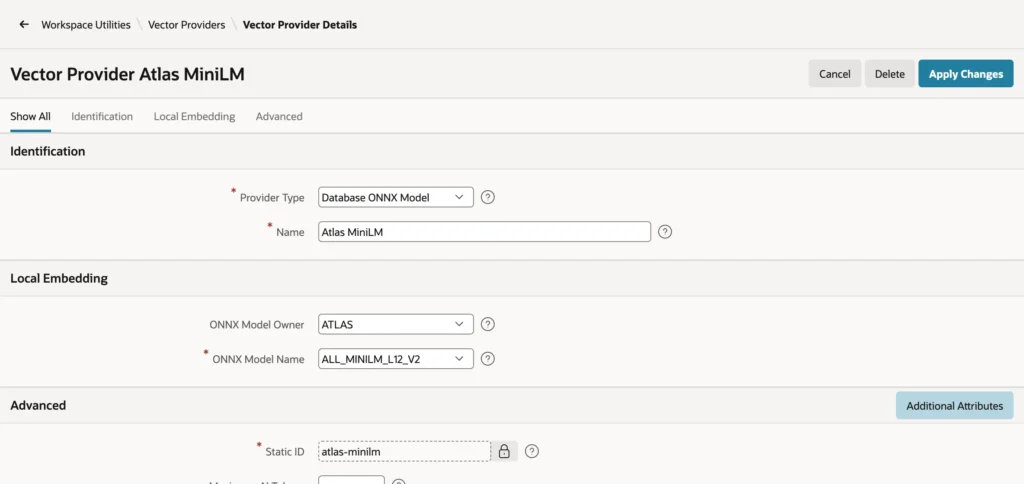
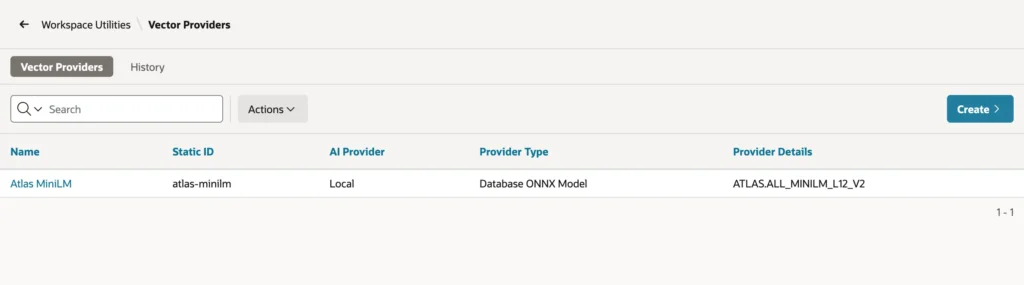
The Static ID is locked once the provider is saved, because code and exported applications refer to it, so choose it before you choose Create. A vector provider must embed with the same model as the stored vectors it is compared with.
Step 2: Create a Search Configuration
A search configuration is a shared component. APEX 26.1 offers five search types:
| Search Type | How it searches |
|---|---|
| Standard | A SQL query with LIKE expressions over chosen columns |
| Oracle AI Vector Search | The distance between the embedded search words and a vector column |
| Oracle Text | CONTAINS on a column with an Oracle Text index |
| Oracle Ubiquitous Search | A search index of the DBMS_SEARCH package |
| List | The entries of an APEX list |
- Go to Shared Components, Search Configurations, and choose Create.
- In Name, type Knowledge Base; in Search Type, choose Oracle AI Vector Search.
- In Vector Provider, choose Atlas MiniLM; in Source Type, Table; in Table / View Name, KB_ARTICLES.
- In Primary Key Column, choose ARTICLE_ID; in Vector Column, EMBEDDING; in Title Column, TITLE; in Description Column, BODY.
- Choose Create Search Configuration.
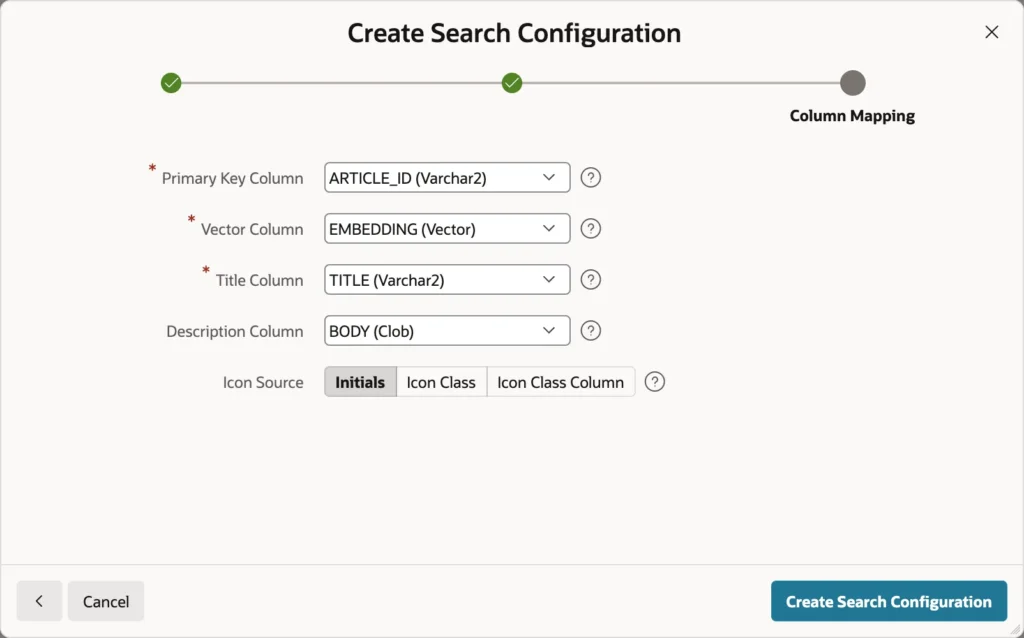
The Vector Column list offers only VECTOR columns. The column must hold embeddings from the same model as the provider: choosing a column of Gemini embeddings here would compare 384 dimensions with 3,072 and fail. Subtitle, Badge, and custom columns can add more to each result, and a Score Column can show relevance.
Step 3: Set the Vector Attributes
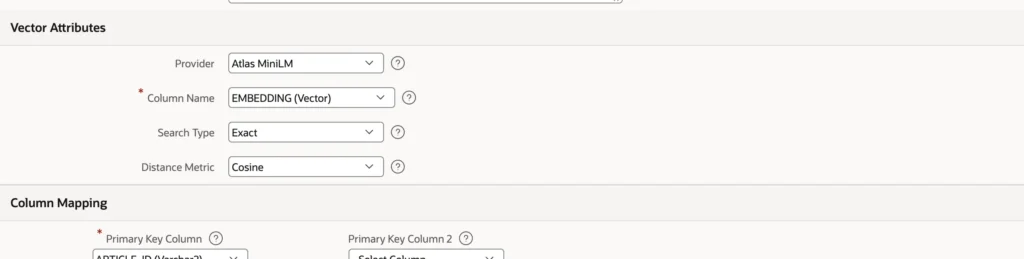
| Setting | What it does |
|---|---|
| Provider | The vector provider that embeds the search words |
| Column Name | The vector column the words are compared with |
| Search Type | Exact compares every row; Approximate uses a vector index of the column |
| Distance Metric | Cosine, Dot, Euclidean, Euclidean Squared, Hamming, or Manhattan; the index's metric if there is one |
| Maximum Vector Distance | Rows farther than this are not returned |
| Maximum Rows to Return | The largest number of results |
| Where Clause | A condition that limits the rows; it can use APEX$VECTOR_DISTANCE, the row's distance |
On this data, right articles lie within 0.75 of their questions and unrelated questions are 0.876 or more from every article, so set Maximum Vector Distance to 0.8 and Maximum Rows to Return to 5, and apply the changes. An unrelated search now returns nothing, and a related one at most five results. With 24 articles, Exact is right; for tens of thousands of rows, choose Approximate with a vector index for the same metric.
Step 4: Create the Search Page
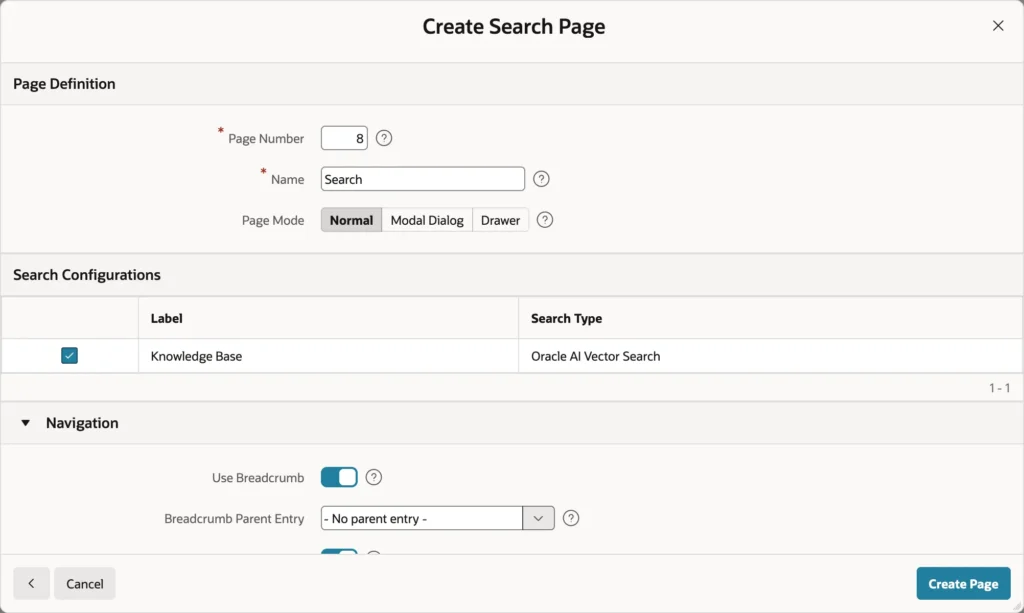
- Choose Create Page, then Search Page.
- In Name, type Search.
- Under the search configurations, check Knowledge Base.
- Choose Create Page.
Run the page and type a question that shares no words with its answer.
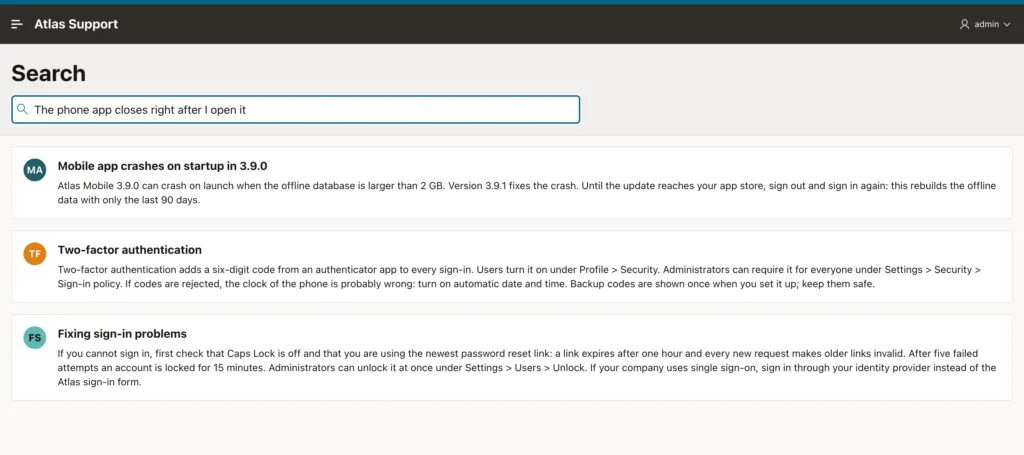
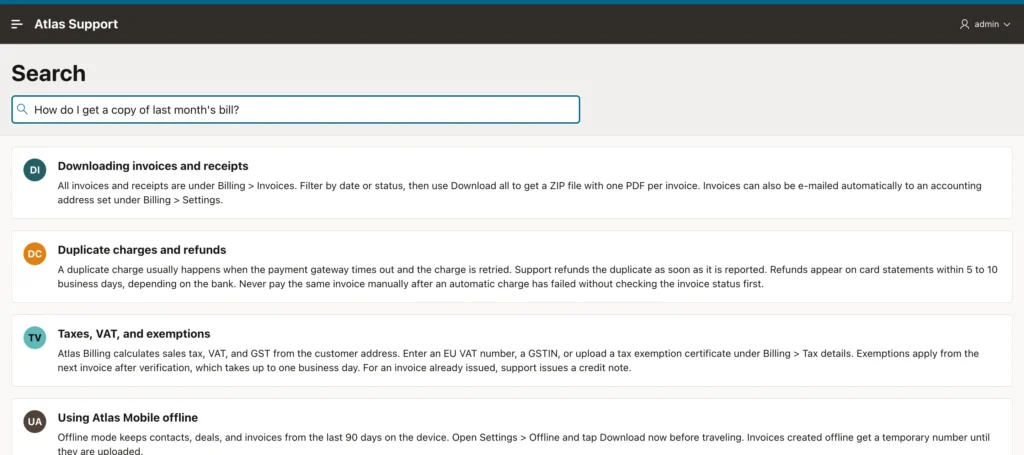
The article on mobile crashes at startup comes first: the search went by meaning, with no SQL written. The other results are the articles within 0.8, nearest first. A question about bills finds the article on invoices the same way.
Combine Configurations for Hybrid Search
A Search region can use several configurations at once, each with its own group of results. A help desk search page might combine:
- Knowledge Base: vector search over the articles, as above.
- Documents: vector search over document chunks, with the document title as title and the chunk as description.
- Codes: an Oracle Text configuration for exact words such as GSTIN or 8.4.1, where semantic search is weak.
That is hybrid search in declarative form: each configuration finds what it is good at, and the user sees both. A Search Query Prefix on a configuration, such as doc:, lets users direct a search to one of them. The SQL version is covered in how to build hybrid search in Oracle Database.
Conclusion
A semantic search page in Oracle APEX 26.1 takes three shared parts: a vector provider that embeds with the same model as your stored vectors, a search configuration of type Oracle AI Vector Search that maps the key, vector, title, and description columns, and a search page from the Create Page wizard. Set Maximum Vector Distance from measured distances to drop unrelated results, and add Oracle Text configurations to the same page for exact codes and names.
