
An image item shows a picture in a form, such as a patient's photo or a product image. When it is based on a BLOB column, Forms queries, inserts, and updates the picture like any other value, and READ_IMAGE_FILE loads a new picture from a file.
This guide covers image items in Oracle Forms 14.1.2: the properties that decide how pictures are stored and sized, loading a photo with READ_IMAGE_FILE, checking what was saved in the database, and where the file must be.
Sample Form for This Guide
The examples and screenshots use the sample form CH11_PHOTO from the Oracle Forms code repository on GitHub. Download it, open it in Forms Builder, and connect as CAREWELL to follow along.
| Form | File | What it shows |
|---|---|---|
| CH11_PHOTO | forms/ch11/ch11_photo.fmb | A patient photo in an image item, loaded from a file |
The forms run against the CareWell Clinic sample schema, which you install first.
Image Item Properties at a Glance
| Property | What it controls |
|---|---|
| Image Format | The format Forms keeps the picture in and writes to the database: JFIF (JPEG), GIF, TIFF (the default), BMP, older formats, or Native. |
| Sizing Style | What happens when the picture and the item differ in size: Crop, Adjust, or Fill. |
| Image Depth, Display Quality, Compression Quality | Trade quality for size, for formats other than Native. |
| Show Horizontal Scroll Bar, Show Vertical Scroll Bar | Let the user scroll a cropped picture. |
Database and Control Image Items
A database image item is based on a BLOB column, here PATIENTS.PHOTO, and Forms queries, inserts, and updates it like any other item. A control image item shows a picture that code loads into it and is not saved anywhere.
Choose the Image Format
Native keeps the file exactly as it was read, without converting or recompressing it. It requires the picture to be GIF, JPEG, or PNG, and it gives the best quality. The other formats convert the picture, which is where Image Depth, Display Quality, and Compression Quality come in.
Choose the Sizing Style
- Crop shows the top-left part of the picture that fits in the item.
- Adjust scales the picture to fit and keeps its proportions.
- Fill scales the picture to fill the item, changing its proportions.
The PHOTO item of the sample form uses Native and Adjust, which suits photos of different sizes.
Load a Picture from a File with READ_IMAGE_FILE
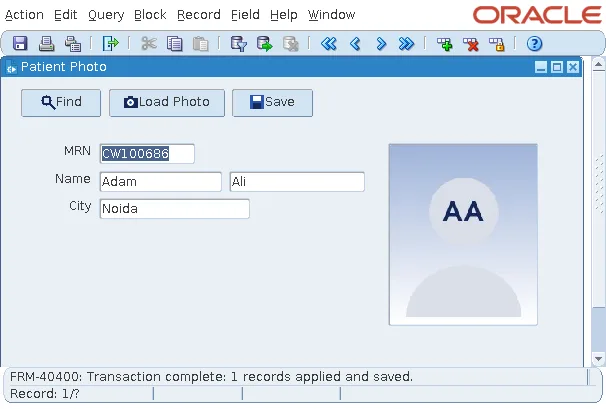
The Load Photo button of the sample photo form reads the file named after the patient's MRN into the image item.
Example (WHEN-BUTTON-PRESSED trigger on TOOLS.LOAD_PHOTO):
declare
  v_file varchar2(200) := '/work/images/patients/' || :patients.mrn || '.jpg';
begin
  read_image_file(v_file, 'JFIF', 'PATIENTS.PHOTO');
  if not form_success then
    message('There is no photo file for ' || :patients.mrn || '.');
  end if;
end;
READ_IMAGE_FILE sets FORM_SUCCESS to FALSE when it fails, for example because the file does not exist, so the trigger checks it and tells the user.
After the button is clicked, the photo appears and the record is marked as changed. Save then writes it to the database.
Check What Was Saved
Because the format is Native, the column holds the file byte for byte: the 2,982 bytes of CW100686.jpg, which start with FFD8FF, the signature of a JPEG file.
Check the saved photo in SQL*Plus:
select mrn, dbms_lob.getlength(photo) as photo_bytes,
       rawtohex(dbms_lob.substr(photo, 3, 1)) as first_bytes
from   patients
where  mrn = 'CW100686';
Output:
MRN        PHOTO_BYTES FIRST_BYTES
---------- ----------- -----------
CW100686          2982 FFD8FF
The File Must Be on the Server
READ_IMAGE_FILE runs in the Forms runtime, so it reads the file on the server that runs the form, not on the user's computer. In the sample, the directory /work/images/patients holds placeholder pictures that show each patient's initials.
To let users load a picture from their own computer, you need WebUtil, which transfers files between the client and the server. See how to use WebUtil to upload and download files. For another approach to pictures in forms, see how to add images in Oracle Forms.
READ_IMAGE_FILE and WRITE_IMAGE_FILE Syntax
Syntax:
read_image_file(file_name varchar2, file_type varchar2, item_name varchar2 | item_id item)
write_image_file(file_name varchar2, file_type varchar2, item_name varchar2 | item_id item
[, compression_quality number [, image_depth number]])| Built-in | Purpose |
|---|---|
| READ_IMAGE_FILE | Loads a file into an image item. The file type is BMP, CALS, GIF, JFIF (or JPG), PICT, RAS, TIFF, or TPIC, or URL, in which case the file name is a URL the Forms runtime downloads. |
| WRITE_IMAGE_FILE | Writes an image item's picture to a file on the server. |
| IMAGE_ZOOM, IMAGE_SCROLL | Zoom and scroll a picture in its item, except with the sizing style Fill. |
Conclusion
An image item in Oracle Forms shows a picture and, when based on a BLOB column, stores it like any other value. Use Image Format Native to keep GIF, JPEG, and PNG files unchanged, and Sizing Style Adjust to fit pictures while keeping their proportions. Load pictures with READ_IMAGE_FILE and check FORM_SUCCESS afterward, write them out with WRITE_IMAGE_FILE, and remember that both work with files on the server; use WebUtil to reach the user's computer.
