
Every Oracle APEX page has a standard place for a green success message, a notification for errors, and styled dialogs for alerts and confirmations. When the work happens in JavaScript, such as after an Ajax call or a client-side check, apex.message is how you use those same places, so your messages look exactly like the ones APEX shows after a page submit.
This guide covers every function in the namespace: showing and hiding success messages, showing and clearing errors inline and at page level, alert and confirm dialogs, announcements for screen reader users, auto-dismiss settings, and the two hooks for theme and plug-in developers. Each has a tested example with its real output.
Quick Reference
| Function | What it does |
|---|---|
| showPageSuccess, hidePageSuccess | Show or hide the page's success message |
| showErrors, clearErrors | Show errors at page level and under items, or remove them all |
| alert | A styled message dialog with an OK button |
| confirm | A styled OK and Cancel dialog that calls back with the answer |
| ariaMessage, ariaAlertMessage | Announce something to screen reader users |
| setDismissPreferences | Make success messages disappear after a delay |
| setThemeHooks | Run code before messages show or hide, or replace them |
| addVisibilityCheck | Let a region reveal a hidden item when the user clicks its error |
How to Run These Examples
The examples ran in Oracle APEX 26.1 with Universal Theme, on a home page and on a page with one item of every type. The output under each example is exactly what the browser console printed.
To try one, open any page of your own, press F12, paste the code into the Console tab, and swap in your own item names. A few examples pause with await at the top level so the dialog or message has time to appear, which the console allows; inside a dynamic action, wrap such code in an async function.
Success Messages
apex.message.showPageSuccess
Shows a success message at the top of the page, using the Success Message subtemplate of the page template. It replaces any success message or error already on the page.
apex.message.showPageSuccess(pMessage)
apex.message.showPageSuccess("Order ORD-12283 was shipped.");
console.log("message shown");
Output:
message shown

The message is plain text. In an application with Auto Dismiss Success Messages switched on, it disappears after five seconds; setDismissPreferences, below, changes that. For other ways to notify users, see showing notifications in Oracle APEX.
apex.message.hidePageSuccess
Hides the success message.
apex.message.hidePageSuccess()
const visible = () => apex.jQuery("#t_Alert_Success").is(":visible");
apex.message.showPageSuccess("Order ORD-12283 was shipped.");
console.log("shown:", visible());
apex.message.hidePageSuccess();
await new Promise((resolve) => setTimeout(resolve, 500));
console.log("after hidePageSuccess:", visible());
Output:
shown: true
after hidePageSuccess: false
Error Messages
apex.message.showErrors
Shows errors at page level in the page template's notification area, inline under an item, or in both places. New errors are added to any already showing, so call clearErrors first when you want to replace them.
apex.message.showErrors(pErrors)
pErrors is one error object or an array of them:
| Property | Type | Description |
|---|---|---|
| type | string | Always "error". |
| location | string or string[] | "page", "inline", or both. |
| pageItem | string | The item for an inline error. A page error with a pageItem becomes a link to that item. |
| message | string | The error text. |
| unsafe | boolean | Defaults to true, which escapes the message. Pass false only for a message that is already escaped HTML. |
apex.message.showErrors([
    { type: "error", location: "page", message: "The order could not be saved." },
    { type: "error", location: ["inline", "page"], pageItem: "P20_TEXT",
      message: "Enter a name of at most 30 characters." }
]);
console.log("page errors:", apex.jQuery("#t_Alert_Notification li").length);
console.log("inline error:", apex.jQuery("#P20_TEXT_error").text());
Output:
page errors: 2
inline error: Enter a name of at most 30 characters.
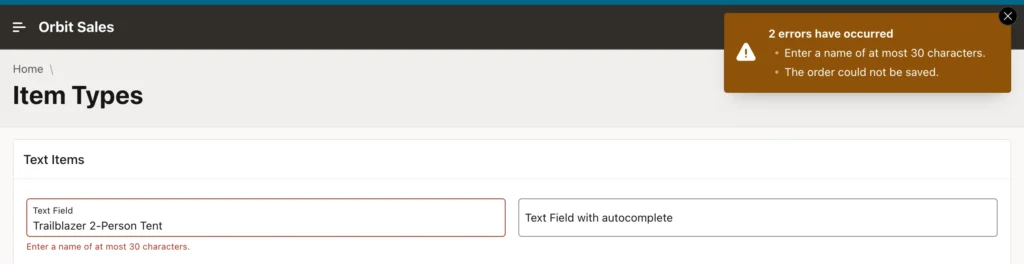
Keep unsafe at its default unless you built the HTML yourself from trusted values. A message that includes anything the user typed or the server returned should be escaped, which is exactly what the default does. More patterns are in displaying error messages using JavaScript in Oracle APEX.
apex.message.clearErrors
Removes every error, both page-level and inline.
apex.message.clearErrors()
apex.message.showErrors({ type: "error", location: ["inline", "page"], pageItem: "P20_TEXT",
                          message: "Enter a name." });
console.log("errors:", apex.jQuery("#t_Alert_Notification li").length, "- inline:", apex.jQuery("#P20_TEXT_error").text());
apex.message.clearErrors();
console.log("errors:", apex.jQuery("#t_Alert_Notification li").length, "- inline:", apex.jQuery("#P20_TEXT_error").text() || "(none)");
Output:
errors: 1 - inline: Enter a name.
errors: 0 - inline: (none)
A typical client-side check calls clearErrors first and then showErrors with whatever is wrong now, so fixed problems disappear and new ones appear in a single step.
Alert and Confirm Dialogs
apex.message.alert
Shows a message in a dialog with an OK button, styled to match the rest of the application. Unlike the browser's own alert, it does not block: the code after it runs at once, and the callback runs when the user closes the dialog.
apex.message.alert(pMessage, pCallback, [pOptions])
alert and confirm share these options:
| Option | Type | Description |
|---|---|---|
| title | string | The dialog title. There is none by default. |
| style | string | "information", "warning", "danger", or "success", which sets an icon and colors. |
| iconClasses | string | Icon classes that replace the style's icon. |
| dialogClasses | string | Extra classes for the dialog. |
| okLabel, okLabelKey | string | For alert: the button label, or the key of a text message that holds it. |
| confirmLabel, confirmLabelKey, cancelLabel, cancelLabelKey | string | For confirm: the two button labels, or keys of text messages. |
apex.message.alert("The order has been cancelled.", () => console.log("alert closed"),
                   { title: "Order ORD-12283", style: "warning", okLabel: "Got it" });
await new Promise((resolve) => setTimeout(resolve, 600));
console.log("the code after alert runs at once: alert does not block");
Output:
the code after alert runs at once: alert does not block
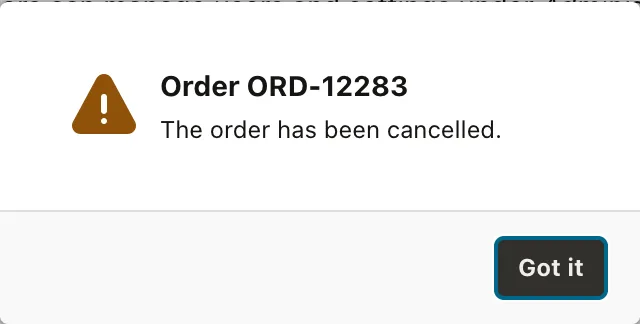
The output proves the non-blocking behavior: the line after alert printed while the dialog was still open, and "alert closed" never appeared because nobody closed it. Anything that must wait for the user belongs in the callback. The guide to alert messages in Oracle APEX has more examples.
apex.message.confirm
Asks a question in a dialog with OK and Cancel buttons and calls the callback with true when the user confirms, and with false for Cancel, the Escape key, or the close button. To confirm and submit the page in one step, use apex.page.confirm instead.
apex.message.confirm(pMessage, pCallback, [pOptions])
apex.message.confirm("Cancel order ORD-12283?", (okPressed) => console.log("okPressed:", okPressed),
                     { title: "Cancel Order", style: "danger", confirmLabel: "Cancel Order", cancelLabel: "Keep" });
await new Promise((resolve) => setTimeout(resolve, 600));
const buttons = apex.jQuery(".ui-dialog:visible .ui-dialog-buttonpane button");
console.log("buttons:", buttons.map((i, b) => b.textContent.trim()).get().join(", "));
buttons.last().trigger("click");                          // as if the user clicked "Cancel Order"
Output:
buttons: Keep, Cancel Order
okPressed: true
Custom labels matter most on destructive actions. "Cancel Order" and "Keep" are much clearer than OK and Cancel when the question itself is about cancelling. If you use label keys instead of literal labels, the buttons are translated along with the rest of the application. apex.page.confirm is covered in the guide to submitting pages and opening dialogs with apex.page and apex.navigation.
Announcing Changes to Screen Readers
apex.message.ariaMessage and ariaAlertMessage
Announce a change to screen reader users without changing anything visible, for example after a region refreshes, or when something happens that sighted users notice at a glance. ariaMessage waits until the screen reader has finished what it is saying; ariaAlertMessage interrupts it, so keep it for urgent messages.
apex.message.ariaMessage(pMessage)
apex.message.ariaAlertMessage(pMessage)
apex.message.ariaMessage("12 orders loaded.");
apex.message.ariaAlertMessage("Connection lost. Changes are not saved.");
await new Promise((resolve) => setTimeout(resolve, 100));
// Each message goes into a visually hidden element that is removed after 5 seconds:
apex.jQuery("body > .u-vh[role]").each((i, e) =>
    console.log(`role=${e.getAttribute("role")} id=${e.id}: ${e.textContent}`));
await new Promise((resolve) => setTimeout(resolve, 5100));
console.log("after 5 s:", apex.jQuery("body > .u-vh[role]").length, "elements");
Output:
role=status id=apexAriaStatus: 12 orders loaded.
role=alert id=apexAriaAlert: Connection lost. Changes are not saved.
after 5 s: 0 elements
Under the hood, each message goes into a visually hidden element with role status or alert, which is removed after five seconds. A good habit is to call ariaMessage after any refresh that changes a count or a list, such as "12 orders loaded", because screen reader users otherwise have no idea the content changed.
Configuring Message Behavior
apex.message.setDismissPreferences
Controls whether success messages disappear on their own, and after how long. You could use it to honor a user preference, for instance. Call it in the page's Function and Global Variable Declaration attribute or in an application JavaScript file.
apex.message.setDismissPreferences(pOptions)
| Option | Type | Description |
|---|---|---|
| dismissPageSuccess | boolean | Dismiss success messages automatically. |
| dismissPageSuccessDuration | number | The delay in milliseconds. The default is 5000. |
const visible = () => apex.jQuery("#t_Alert_Success").is(":visible");
apex.message.setDismissPreferences({ dismissPageSuccess: true, dismissPageSuccessDuration: 1500 });
apex.message.showPageSuccess("Price list imported.");
console.log("shown:", visible());
await new Promise((resolve) => setTimeout(resolve, 2500));
console.log("after 2.5 s:", visible());
Output:
shown: true
after 2.5 s: false
apex.message.setThemeHooks
Meant for theme developers. It registers functions that run before a message is shown or hidden, and sets the selectors of the theme's message elements. A hook that returns false replaces APEX's own showing or hiding.
apex.message.setThemeHooks(pOptions)
| Option | Type | Description |
|---|---|---|
| beforeShow, beforeHide | function | Called with the message type, apex.message.TYPE.SUCCESS or ERROR, and the message element as jQuery. |
| closeNotificationSelector | string | The close buttons. The default is button.t-Button-closeAlert. |
| pageErrorsContainerSelector | string | The page errors container. The default is #t_Alert_Notification. |
| successMessageContainerSelector | string | The success message container. The default is #t_Alert_Success. |
apex.message.setThemeHooks({
    beforeShow: (msgType, element$) => {
        console.log("beforeShow:", msgType, element$.attr("id"));
        if (msgType === apex.message.TYPE.SUCCESS) {
            console.log("showing my own notification instead");
            return false;                                 // skip the theme's success message
        }
    }
});
apex.message.showPageSuccess("Order saved.");
console.log("theme message visible:", apex.jQuery("#t_Alert_Success").is(":visible"));
Output:
beforeShow: success APEX_SUCCESS_MESSAGE
showing my own notification instead
theme message visible: false
apex.message.TYPE holds two constants, SUCCESS with the value "success" and ERROR with the value "error". In an ordinary application you rarely call it yourself; it matters when you build a theme of your own or want to route messages somewhere else, as covered in the guide to themes, templates, and Theme Roller.
apex.message.addVisibilityCheck
Meant for region plug-in developers. When the user clicks an error in the notification, APEX moves focus to the item, which only works if the item is visible. A region that can hide its content, such as tabs or a collapsible region, registers a function that makes an element visible, and APEX calls it with the element's ID.
apex.message.addVisibilityCheck(pFunction)
// A region plug-in that hides its content would register a check like this one.
apex.message.addVisibilityCheck((id) => console.log("make visible:", id));
apex.message.showErrors({ type: "error", location: ["inline", "page"], pageItem: "P20_TEXT",
                          message: "Enter a name." });
apex.jQuery("#t_Alert_Notification a").first().trigger("click");   // the user clicks the error
await new Promise((resolve) => setTimeout(resolve, 300));
console.log("focus in:", document.activeElement.id);
Output:
make visible: P20_TEXT
focus in: P20_TEXT
A real check would look up the element, find the tab or collapsed section that contains it, and open it. Building region plug-ins is covered in building your first Oracle APEX plug-in.
Conclusion
apex.message puts your JavaScript's messages in the same places, with the same look, as the ones APEX shows after a submit. showPageSuccess and hidePageSuccess handle success messages, and setDismissPreferences decides whether they fade away. showErrors adds page-level and inline errors, escaped by default, and clearErrors removes them all. alert and confirm show styled dialogs that do not block, so any follow-up code belongs in their callbacks. ariaMessage and ariaAlertMessage keep screen reader users informed of changes they cannot see. setThemeHooks and addVisibilityCheck are the extension points for theme and plug-in authors.
