
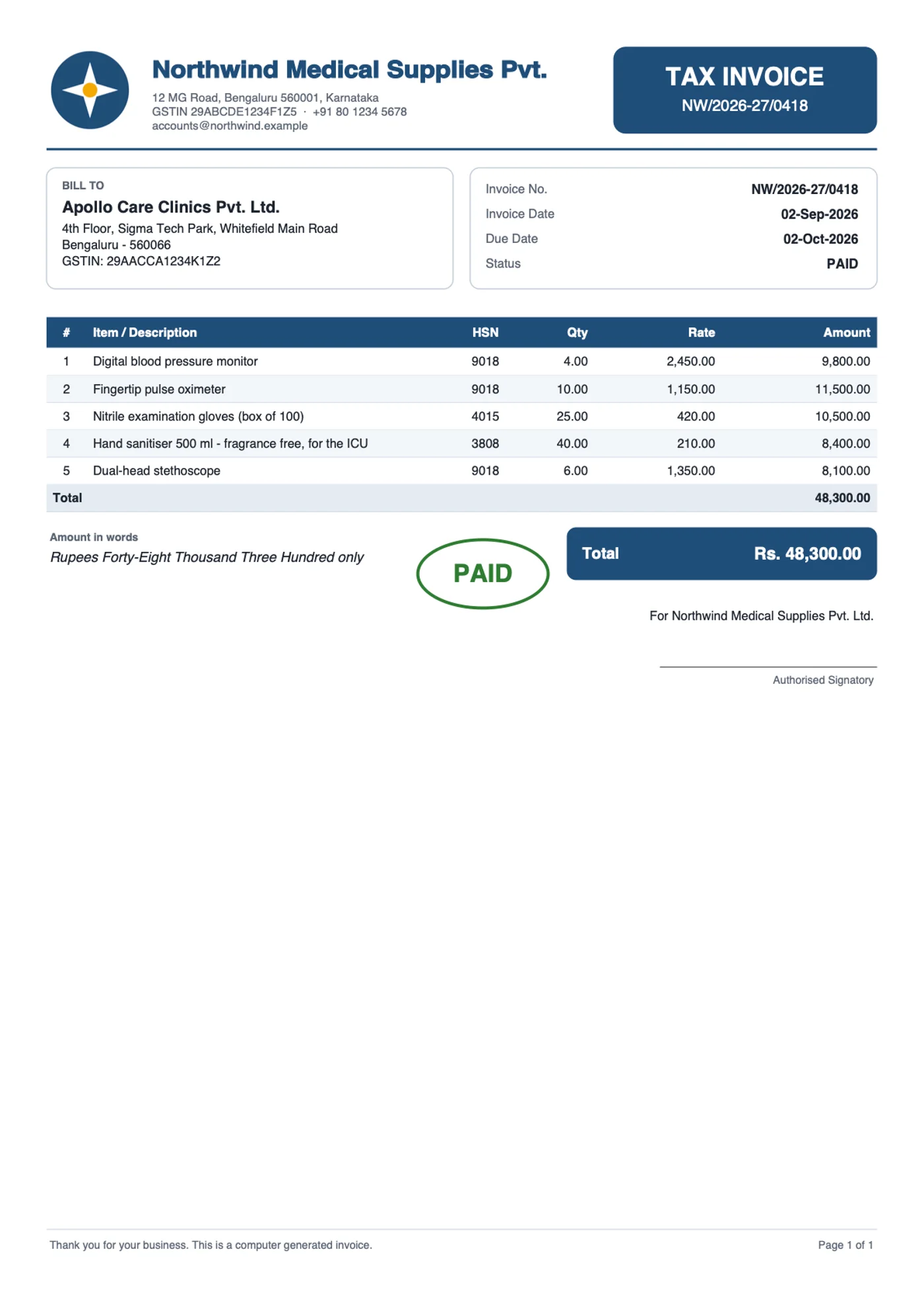
Sooner or later, every Oracle APEX application needs a PDF. An invoice with company logo and a bill-to box. A statement of account. A sheet of shelf labels with barcodes. The screen is easy; the printed document is where the work starts.
Oracle APEX does have printing built in. You can switch on PDF printing for a classic or interactive report, and with a print server you can design the document in Microsoft Word and let BI Publisher fill it with data. That works well, but it comes with conditions: BI Publisher is licensed separately, and many hosting plans and small Oracle installations do not offer a print server at all. You design in Word, map every field to an XML element, and redeploy the template for each change.
The other routes have their own costs. Commercial PL/SQL PDF packages and cloud print services do the job, but they are paid, and some of them send your data outside your database. The free libraries ask you to write the document in code and place every line by its x and y position. There are visual report designers for Oracle, but the free ones are hard to find.
This tutorial takes a different route. VinAura is a free Oracle APEX application that you install in your development environment. You draw the document on a canvas, bind it to your SQL queries, and print it from any page with one line of PL/SQL:
l_pdf := pdf_api.generate('INVOICE');By the end of this guide you will have installed it, designed an invoice, printed it from an interactive report in a dialog and in a new tab, and moved the finished report to production.
What You Need Before You Start
- Oracle Database 19c or later with Oracle APEX. The PDF engine is pure PL/SQL, so no Java, no print server and no outside service are involved.
- Oracle APEX 26.1 or later in the workspace where you design. This is the version the designer application is built for.
- A workspace and a parsing schema you can install into. It can be your application's own schema, or a schema of its own that several applications share.
- SQL Developer or SQLcl, for the production step at the end.
- About ten minutes for the installation and the first report.
You do not need BI Publisher, APEX Office Print, a print server, or any licence.
Step 1: Install VinAura in Your Development Workspace
- Download the project from GitHub: github.com/devvinish/pdfgen-apex. Use Code > Download ZIP and unzip it, or clone it.
- In your development workspace, go to App Builder > Import.
- Choose the file
dist/pdf_report_designer.sqlfrom the project and click Next until you reach the install step. - Pick the parsing schema, and tick Install Supporting Objects.
- Click Install.
The supporting objects create everything the engine needs in that schema:
| Object | What it holds |
|---|---|
| PDF_REPORTS, PDF_QUERIES | Your report layouts (as JSON) and their SQL queries |
| PDF_IMAGES | Logos, stamps and signatures |
| PDF_LOG | One row per PDF made: report, user, pages, size, time |
| PDF_WRITER, PDF_ENGINE, PDF_API, PDF_DESIGNER | The packages that write the PDF and the API you call |
| PDF_DEMO_* tables and four sample reports | Demo customers, products and invoices, so you have something to print today |
Run the application. The Reports page lists what is installed: a tax invoice, a batch of invoices, a customer statement and a sheet of product labels. Each row has Design, Try and Export, and the page has New Report and Import buttons.
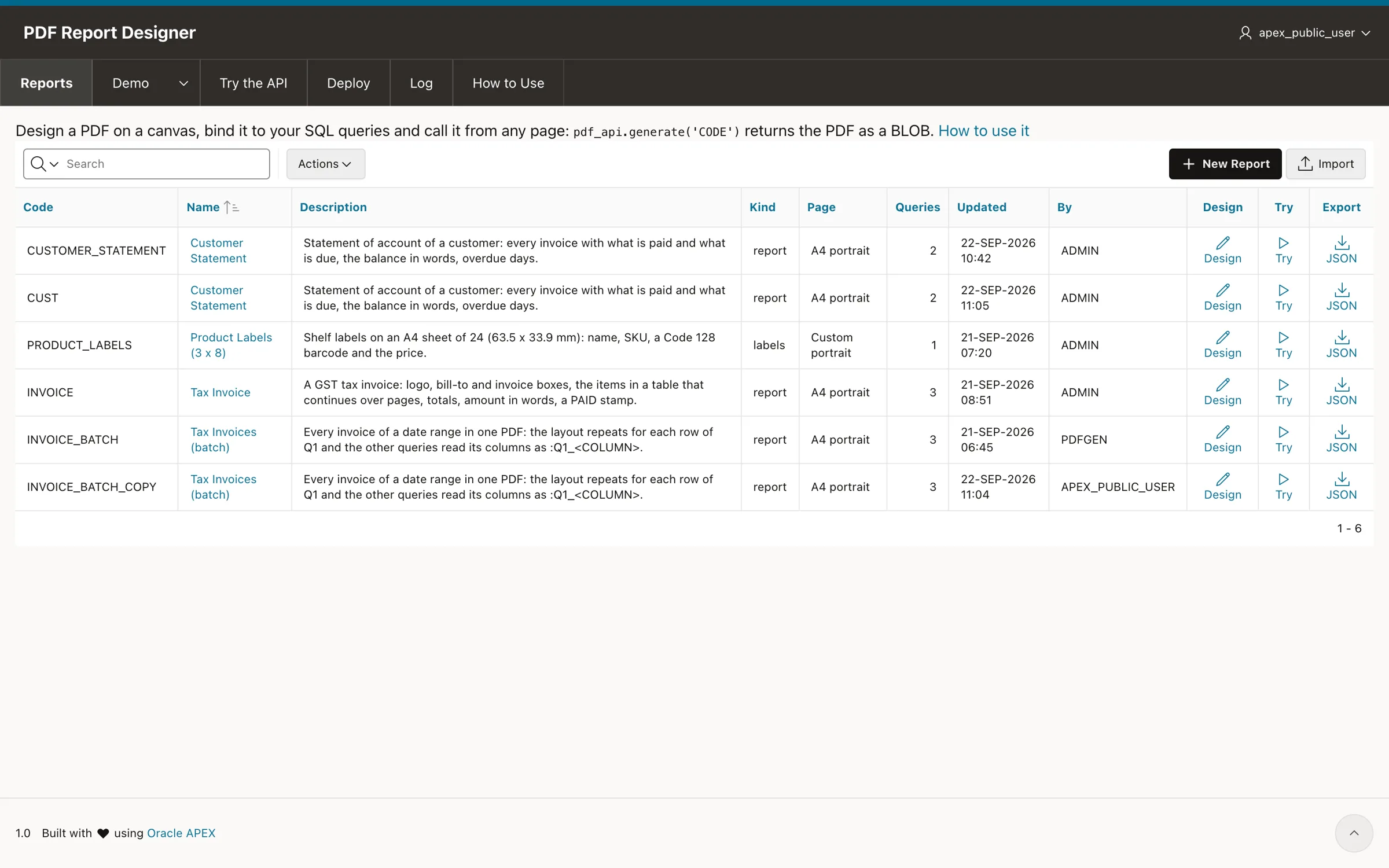
Open the Demo menu to see the whole idea working before you build anything: invoices, customers and products, each with a Preview link that opens the PDF in a dialog.
Step 2: Create a New PDF Report
Click New Report and fill in the form:
- Code: the name your PL/SQL will use, for example
CUSTOMER_INVOICE. Letters, digits and underscores. - Name and Description: for the people who maintain it.
- Kind: Document / report (bands) for an invoice or a statement, or Labels for a grid of labels.
- Page size and Orientation: A4 portrait here, but A3 to A6, Letter, Legal and custom sizes are all there.
- Start from a copy of: pick an existing report to copy its layout and queries, or leave it empty for a blank page.
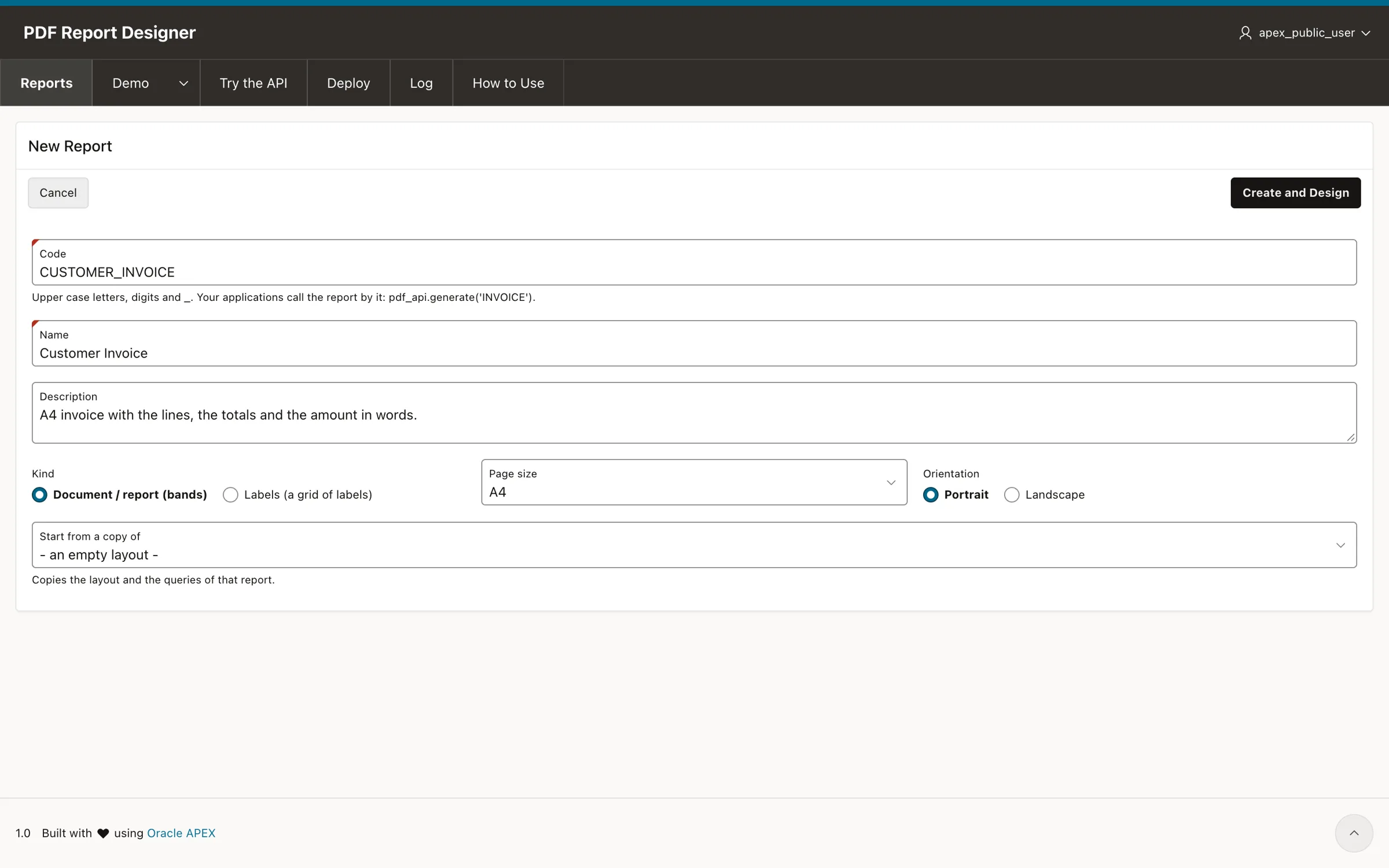
Create and Design saves the report and opens the designer.
Step 3: Write the Queries
A report reads its data from up to ten queries. They are ordinary SELECT statements, and your APEX page items are the bind variables.
Each query gets an alias as soon as you add it: the first is Q1, the second Q2, and so on up to Q10. The alias is how you point at that query's data later on: the column INVOICE_NO of the first query is written {Q1.INVOICE_NO} on the layout. Keep this in mind while you write the queries, because every field you place on the page carries its query's alias.
On the Queries tab, write Q1 for the invoice header. These queries use the demo tables, so you can follow along exactly:
select i.invoice_no,
       i.invoice_date,
       i.due_date,
       i.status,
       c.name customer_name,
       c.address,
       c.city || ' - ' || c.pincode city,
       c.gstin
  from pdf_demo_invoices i
  join pdf_demo_customers c on c.customer_id = i.customer_id
 where i.invoice_id = :P11_INVOICE_ID
Q2 for the lines, one row per item:
select l.line_no,
       nvl(l.description, p.name) description,
       p.hsn,
       l.qty,
       l.unit_price,
       round(l.qty * l.unit_price, 2) amount
  from pdf_demo_invoice_lines l
  join pdf_demo_products p on p.product_id = l.product_id
 where l.invoice_id = :P11_INVOICE_ID
 order by l.line_no
Press the check mark beside a query. VinAura runs it, and two things happen: its columns appear under Fields, ready to drag onto the page, and its bind variables appear under Parameters, where you give test values. Set P11_INVOICE_ID to 1001 so the preview has data to show.
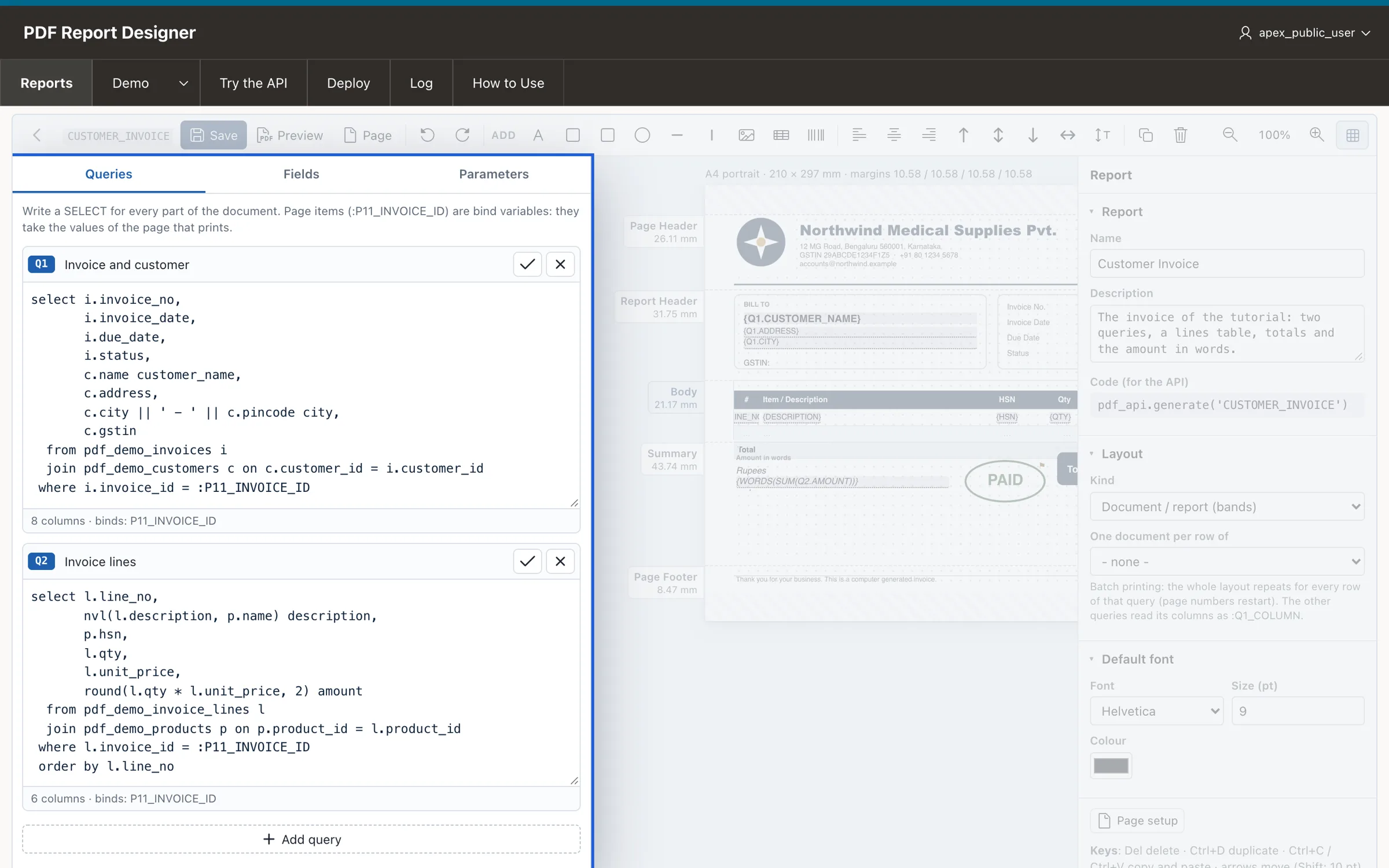
:P11_INVOICE_ID is simply the item of the page that will print the report. When your page calls the API, the value comes from session state, so the report prints the invoice the user is looking at.
Step 4: Design the Layout
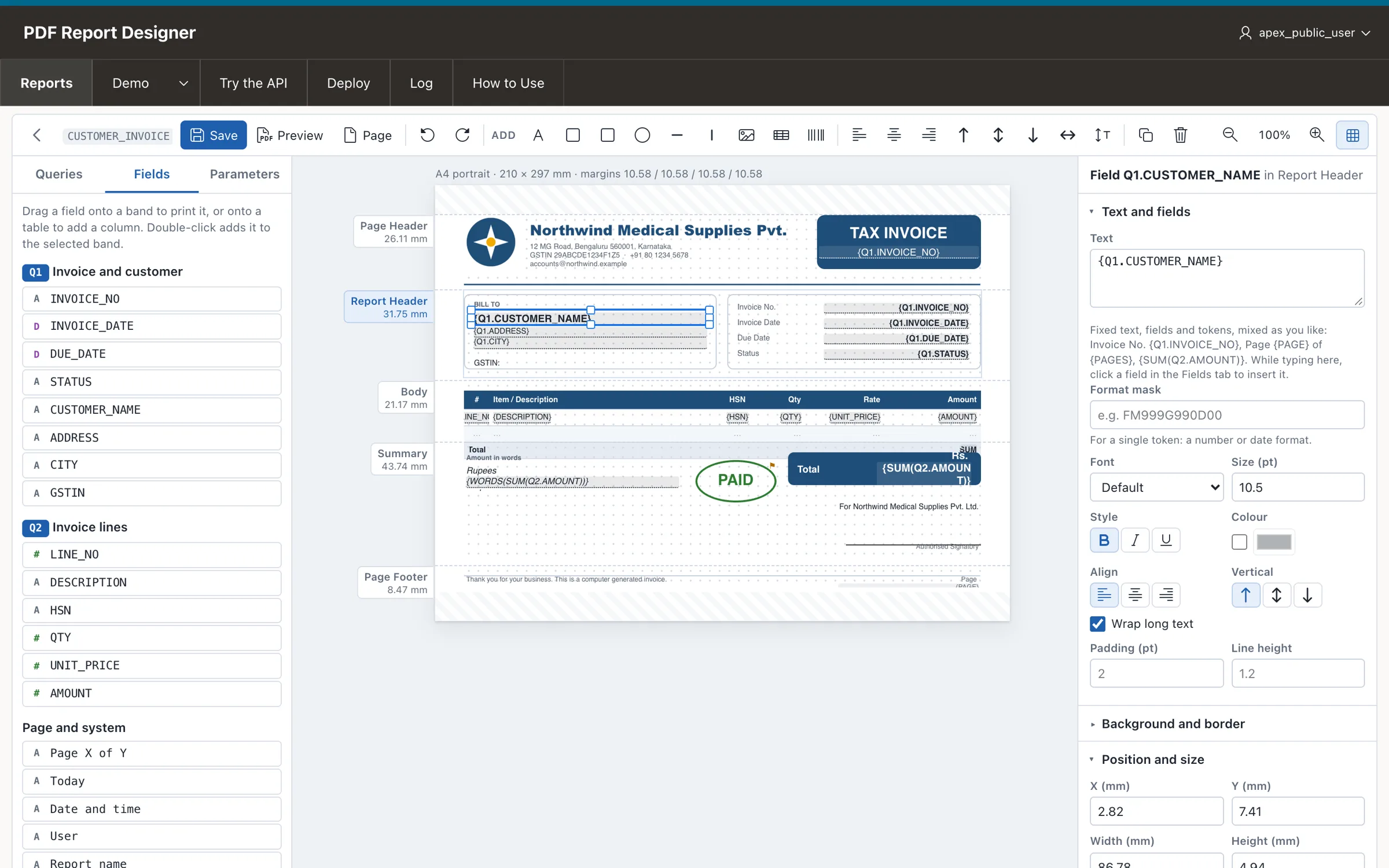
The canvas is divided into bands, and each band has its own job:
| Band | Prints | Good for |
|---|---|---|
| Page header | On every page | Company logo, name and address |
| Report header | Once, at the start | Bill-to box, invoice number and dates |
| Body | Grows over as many pages as needed | The table of lines |
| Summary | Once, after the body | Totals, amount in words, signature |
| Page footer | On every page | Page X of Y, terms, a note |
Put Fields on the Page
Drag a field from the Fields list onto a band and it becomes a text element bound to that column. To mix text and data, add a Text / Field element and type both together, using a token for the data:
Invoice No. {Q1.INVOICE_NO}A token is simply a field of one of your queries, written in braces as {alias.COLUMN}: the query alias (Q1, Q2 ...) and the column name of that query, for example {Q1.INVOICE_NO} or {Q2.AMOUNT}. Wherever you type a token, the engine puts the value of that column when the PDF is made. Dragging a field does exactly the same thing, and writes the token for you.
Every element has a font, a size, a colour, an alignment, a border and a background on the right-hand panel. Boxes, rounded boxes, circles and lines frame the page; an uploaded logo or a stamp goes in as an image.
Add the Table of Lines
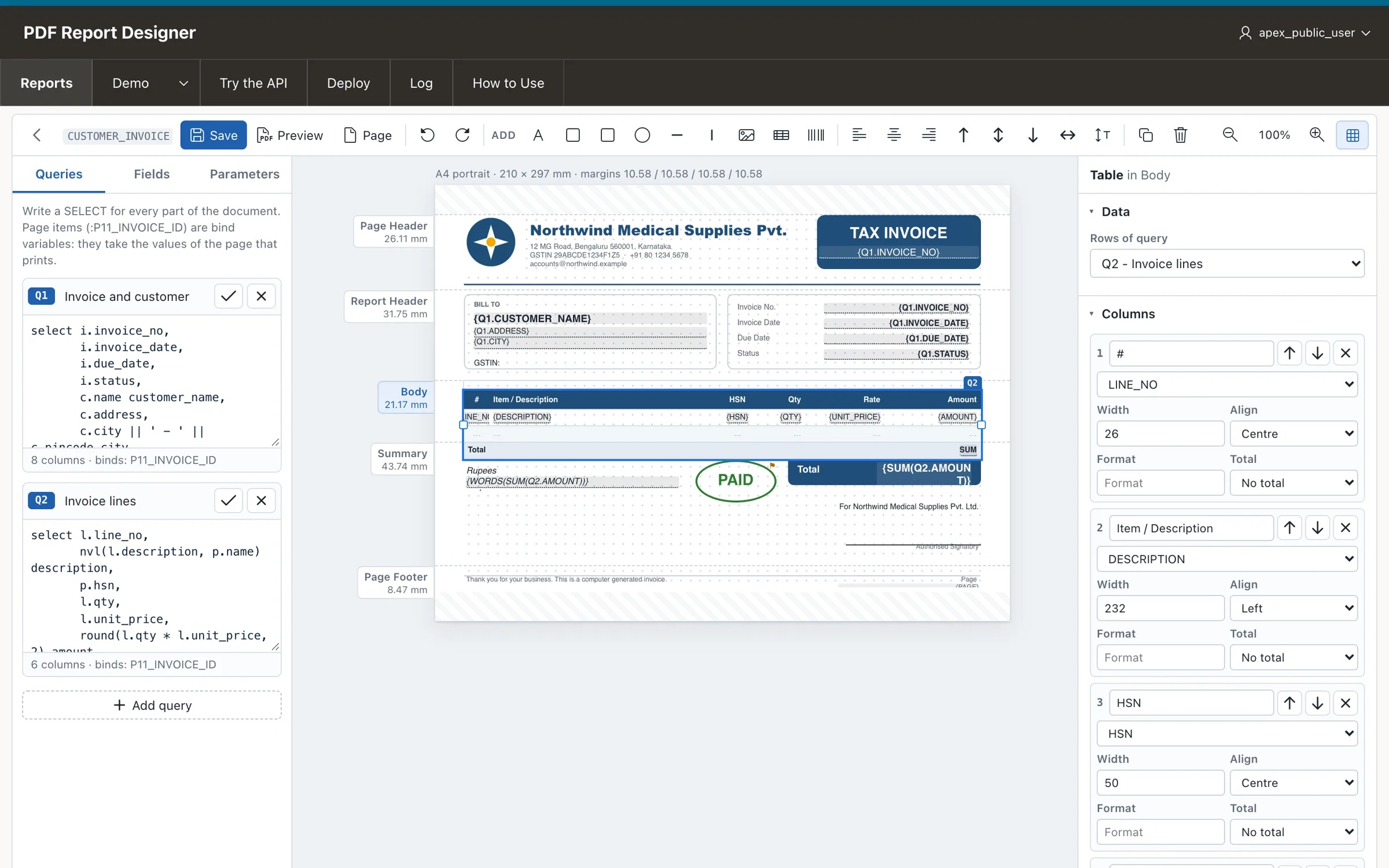
Add a Table to the body and choose its query, Q2. Its columns come from the fields, and for each column you set a heading, a width, an alignment, a format mask such as FM999G999G990D00, and a total.
The table looks after itself while printing: rows grow when the text is long, the header row repeats on every new page, and the totals follow the last line.
The summary band under it needs no query of its own. {SUM(Q2.AMOUNT)} adds up the Amount column of Q2 for the total, and {WORDS(SUM(Q2.AMOUNT))} writes the same figure in words.
Tokens You Can Type Anywhere
Besides the fields of your queries, a few tokens give you totals, dates and page numbers. All of them can be typed into any text element, on their own or inside a sentence.
| Token | Prints |
|---|---|
| {Q1.CUSTOMER_NAME} | A column of a query: its alias and the column name |
| {Q2.AMOUNT|FM999G990D00} | The same, with a format mask |
| {SUM(Q2.AMOUNT)} | A total of a query; COUNT, AVG, MIN and MAX work too |
| {WORDS(SUM(Q2.AMOUNT))} | The amount in words, in lakh and crore with paise |
| Page {PAGE} of {PAGES} | Page numbers, in the page header or footer |
| {TODAY|DD-MON-YYYY} | The date; {NOW}, {APP_USER} and {REPORT} are there as well |
Each element also has a Print when condition. A PAID stamp that appears only on paid invoices is one line:
{Q1.STATUS} = PAIDCheck the Page Setup
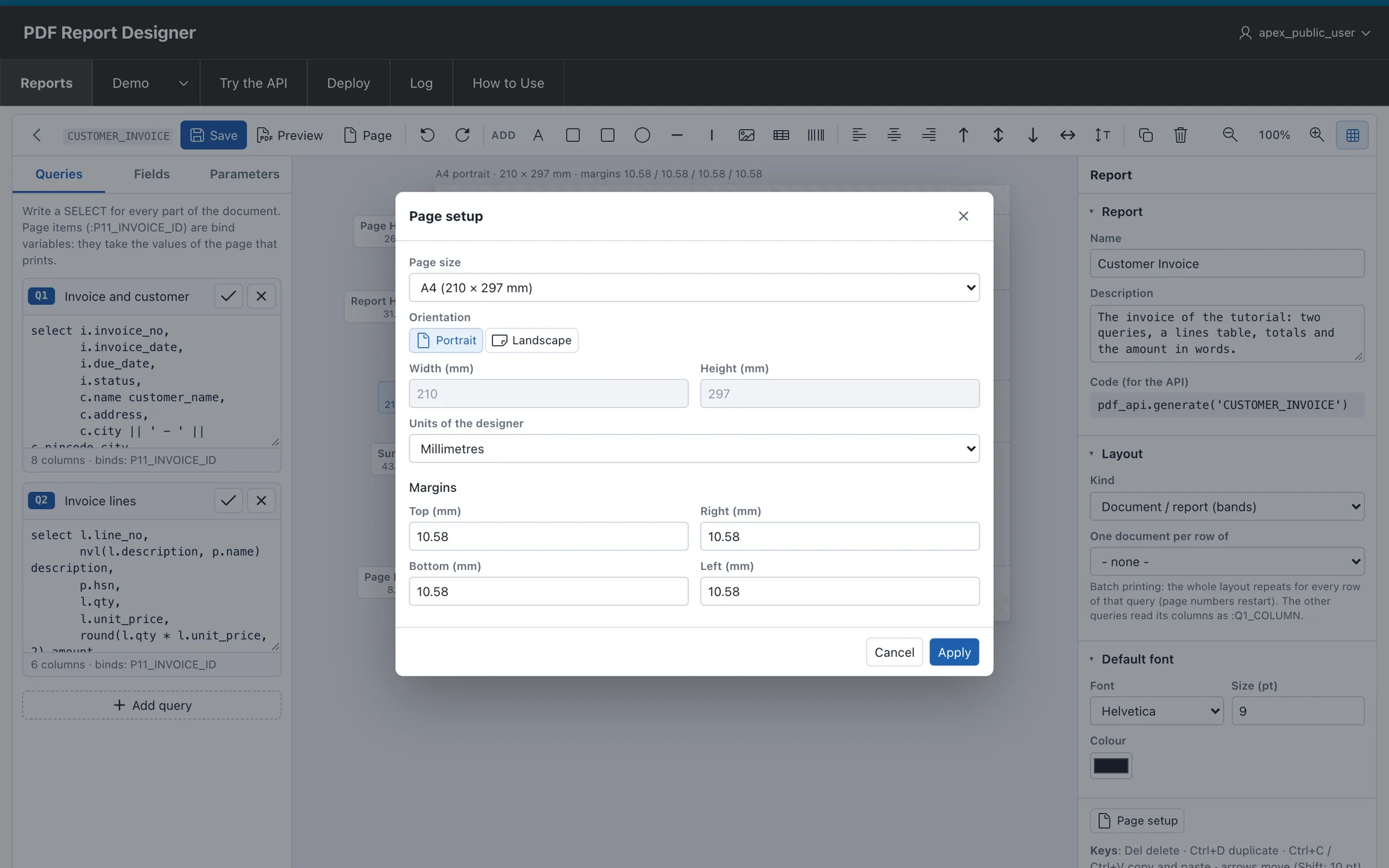
The Page button holds the page size, the orientation and the margins, in millimetres, inches or points.
Step 5: Preview and Save
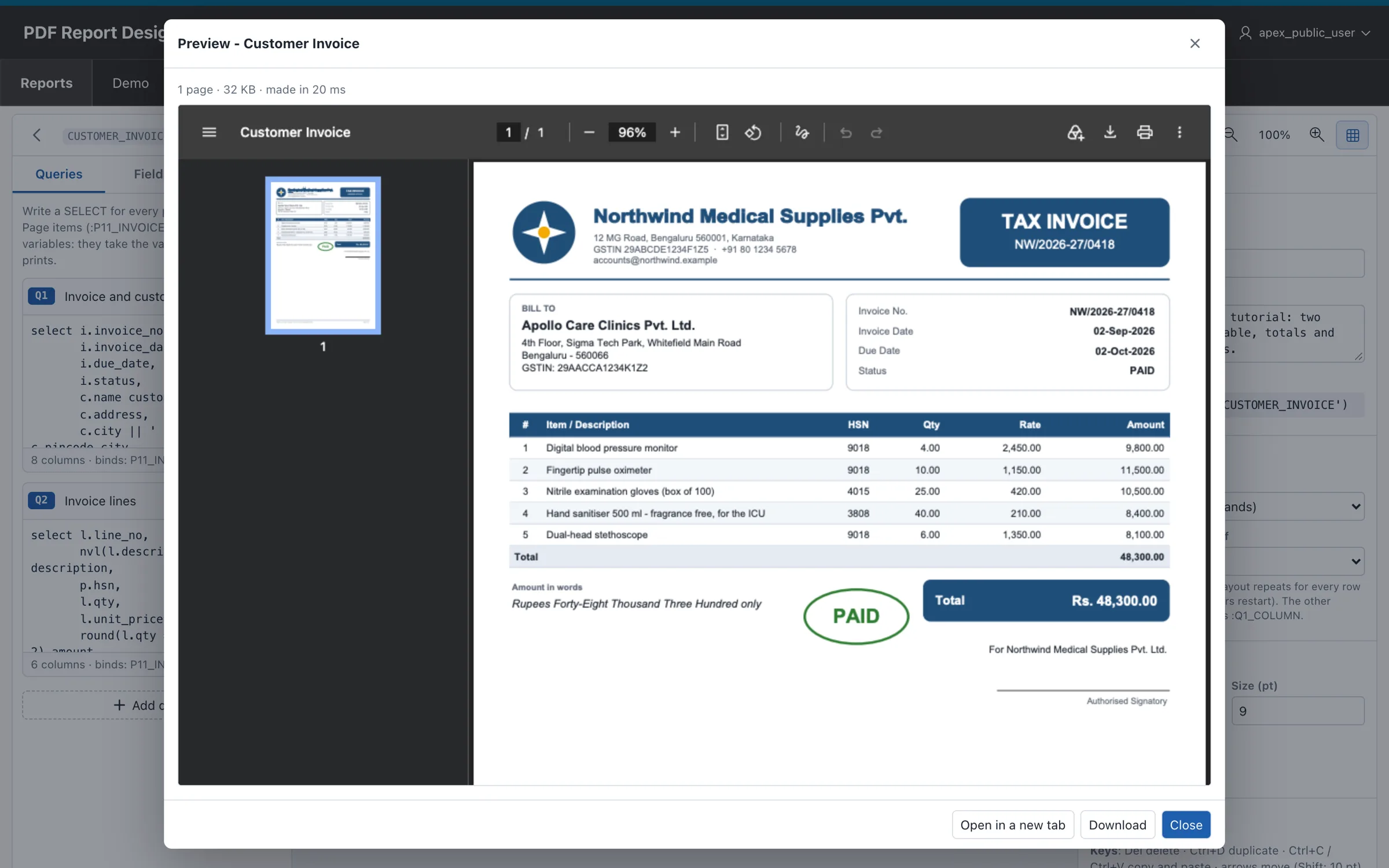
Preview builds the real PDF from what is on the screen, saved or not, using the test values from the Parameters tab. It reports the pages, the size and the milliseconds it took, so you see at once what a user will get.
When it looks right, press Save (or Ctrl+S). From that moment every page that prints this report uses the new layout. There is nothing to deploy inside development.
Step 6: Print the PDF from PL/SQL
Two calls cover almost everything.
Get the PDF as a BLOB, to store it, attach it to an e-mail or hand it to your own code:
declare
  l_pdf blob;
begin
  -- the page items of the queries come from session state
  l_pdf := pdf_api.generate('CUSTOMER_INVOICE');

  -- or pass the values yourself
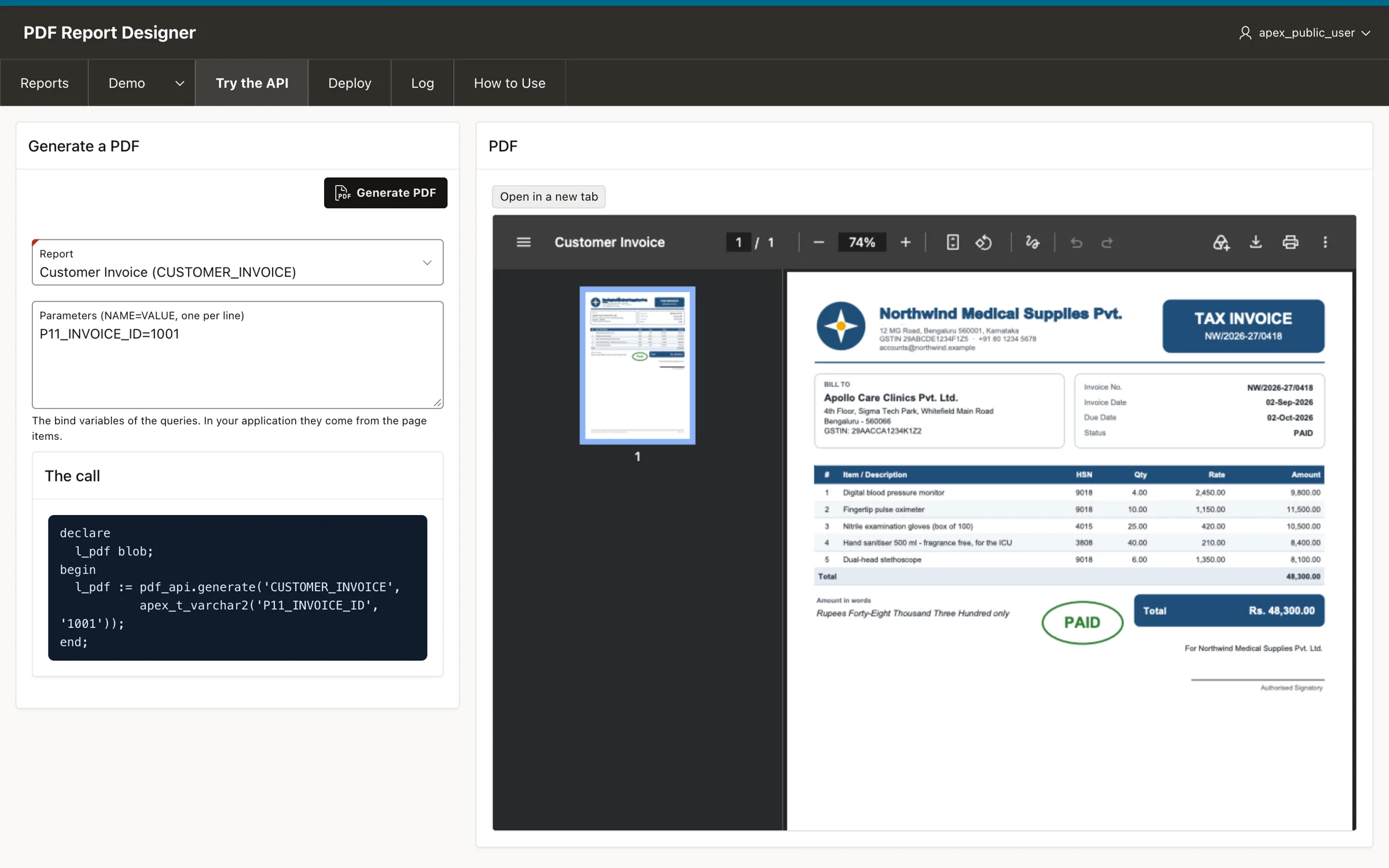
  l_pdf := pdf_api.generate('CUSTOMER_INVOICE',
             apex_t_varchar2('P11_INVOICE_ID', 1001));
end;
Send it to the browser from an application process or a page process:
pdf_api.download('CUSTOMER_INVOICE',
  p_params   => apex_t_varchar2('P11_INVOICE_ID', :P92_INVOICE_ID),
  p_filename => 'invoice.pdf');
The Try the API page runs any report with the parameters you type, shows the PDF, and writes the exact call for you to copy into your page.
Step 7: Open the PDF from an Interactive Report
This is the part most applications need: a Preview link on each row of an interactive report that opens that invoice as a PDF in a dialog. It takes three declarative pieces and no JavaScript.
1. An Application Process
Shared Components > Application Processes > Create. Process point Ajax Callback, name INVOICE_PDF:
pdf_api.download('CUSTOMER_INVOICE',
  p_params   => apex_t_varchar2('P11_INVOICE_ID', :P92_INVOICE_ID),
  p_filename => 'invoice-' || :P92_INVOICE_ID || '.pdf');
2. A Modal Page That Shows It
- Create a page, for example 92, with Page Mode: Modal Dialog.
- Add a hidden item
P92_INVOICE_IDto it. - Add one region of type URL, with Inclusion Mode IFrame and this URL:
f?p=&APP_ID.:0:&SESSION.:APPLICATION_PROCESS=INVOICE_PDF
Give the iframe a height so the PDF fills the dialog:
style="width:100%;height:calc(100vh - 70px);border:0"
3. The Link on the Report
In your interactive report, add a link column (or a link on an existing column) with:
- Target: page
92 - Set Items:
P92_INVOICE_ID=#INVOICE_ID#
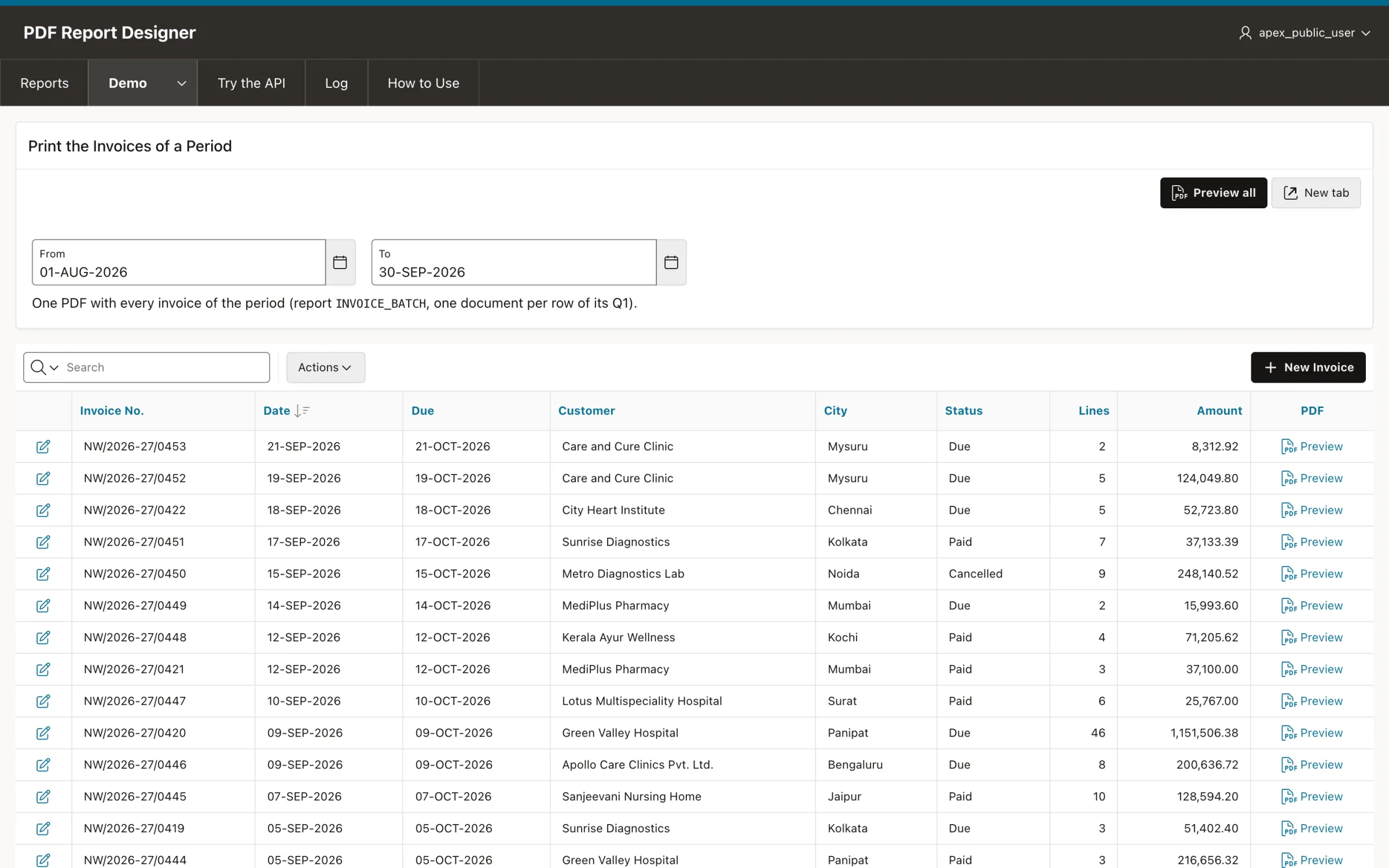
Because page 92 is a modal page, APEX opens it as a dialog, and the region shows the PDF of that row.
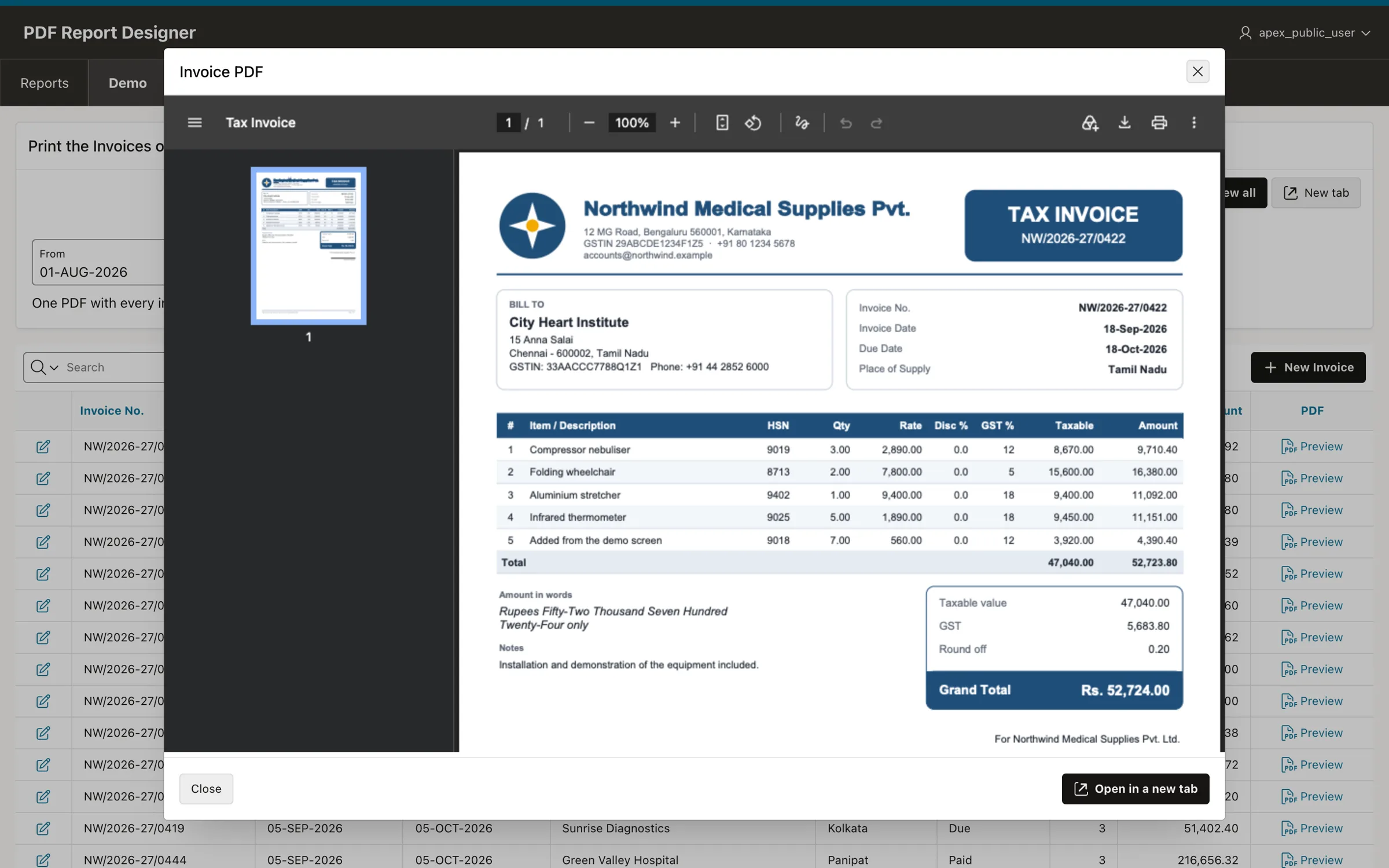
The Same PDF in a New Tab, or as a Download
For a button that opens the PDF in a new browser tab, use action Redirect to URL with:
javascript:window.open('f?p=&APP_ID.:0:&SESSION.:APPLICATION_PROCESS=INVOICE_PDF:::P92_INVOICE_ID:&P11_INVOICE_ID.', '_blank');To download the file instead of showing it, make a second application process with one extra parameter:
pdf_api.download('CUSTOMER_INVOICE',
  p_params   => apex_t_varchar2('P11_INVOICE_ID', :P92_INVOICE_ID),
  p_filename => 'invoice.pdf',
  p_inline   => false);
Every PDF made through the API is written to the Log page: which report, which user, how many pages, how many bytes and how long it took.
Step 8: Move the Report to Production
The designer belongs in development. Production needs only the engine and your reports.
What to Install in Production
- Run these scripts from the project in the production schema, in this order:
10_tables.sql,20_pdf_writer.sql,30_pdf_engine.sql,40_pdf_api.sql. - Leave out
45_pdf_designer.sqlunless you want the designer there too, and leave out50_demo_data.sqland60_samples.sql: nobody wants demo invoices in production. - If the objects live in a schema of their own, grant the API to each application schema and add a synonym:
grant execute on pdfgen.pdf_api to your_schema;
-- then, as your_schema:
create synonym pdf_api for pdfgen.pdf_api;
Send Your Reports Over with a Deploy Script
Open Deploy in the designer's menu, tick the reports you want to move, and choose what should happen to reports that already exist in the target: replace them, or leave them as they are.
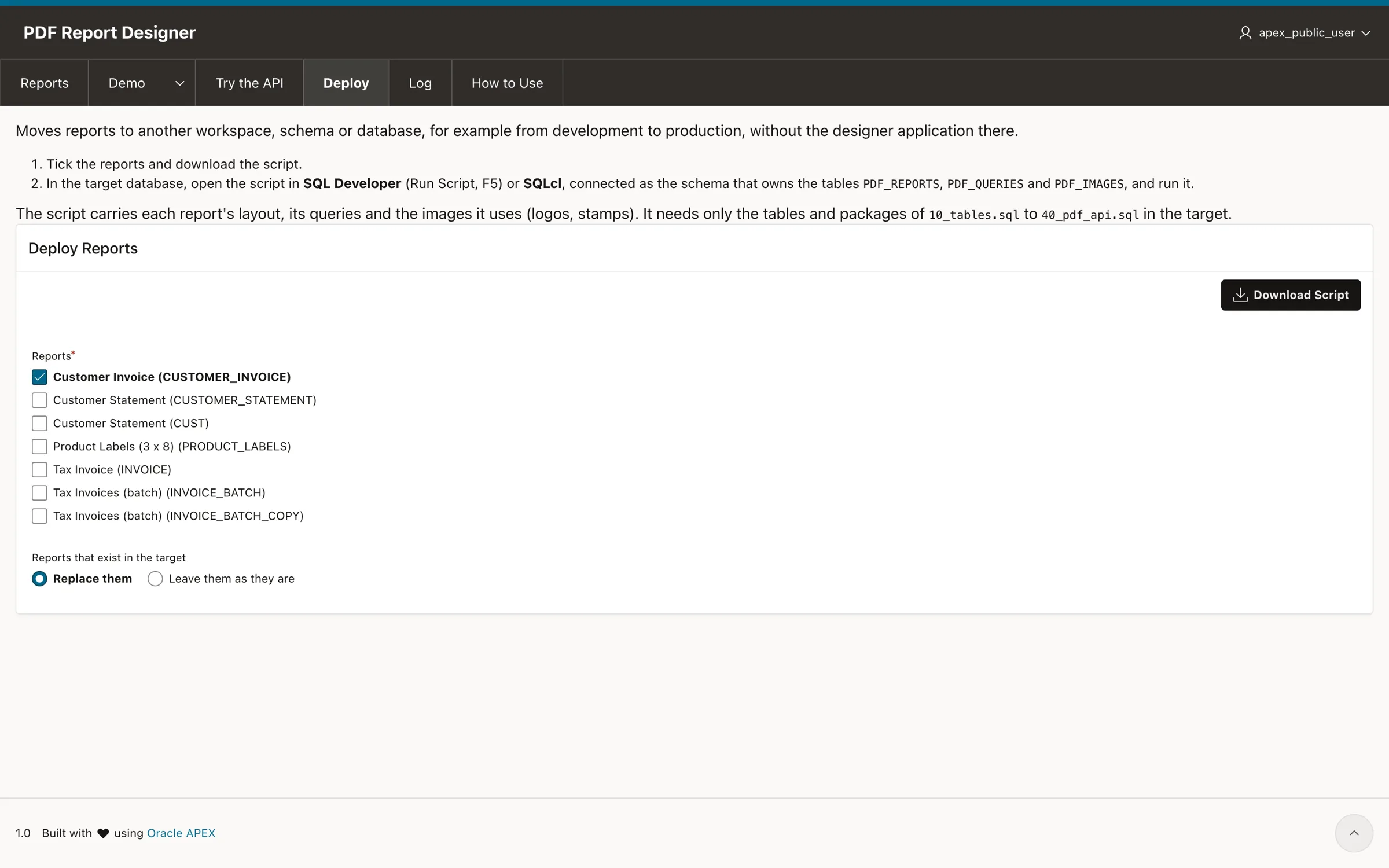
Download Script gives you a single .sql file with each report's layout, its queries and the images it uses. In production, open it in SQL Developer (Run Script, F5) or SQLcl, connected as the schema that owns the PDF tables, and run it:
SQL> @vinaura_reports_20260922_1055.sql
CUSTOMER_STATEMENT: imported
INVOICE: imported
Commit complete.
2 report(s) done.
The script is plain text, so it can live in your version control and travel with the rest of your release.
Or Export and Import a Single Report
When the designer runs in both environments, one report moves in two clicks. On the Reports page, the JSON link in the Export column downloads the report with its images. In the other workspace, click Import on the Reports page and choose that file.
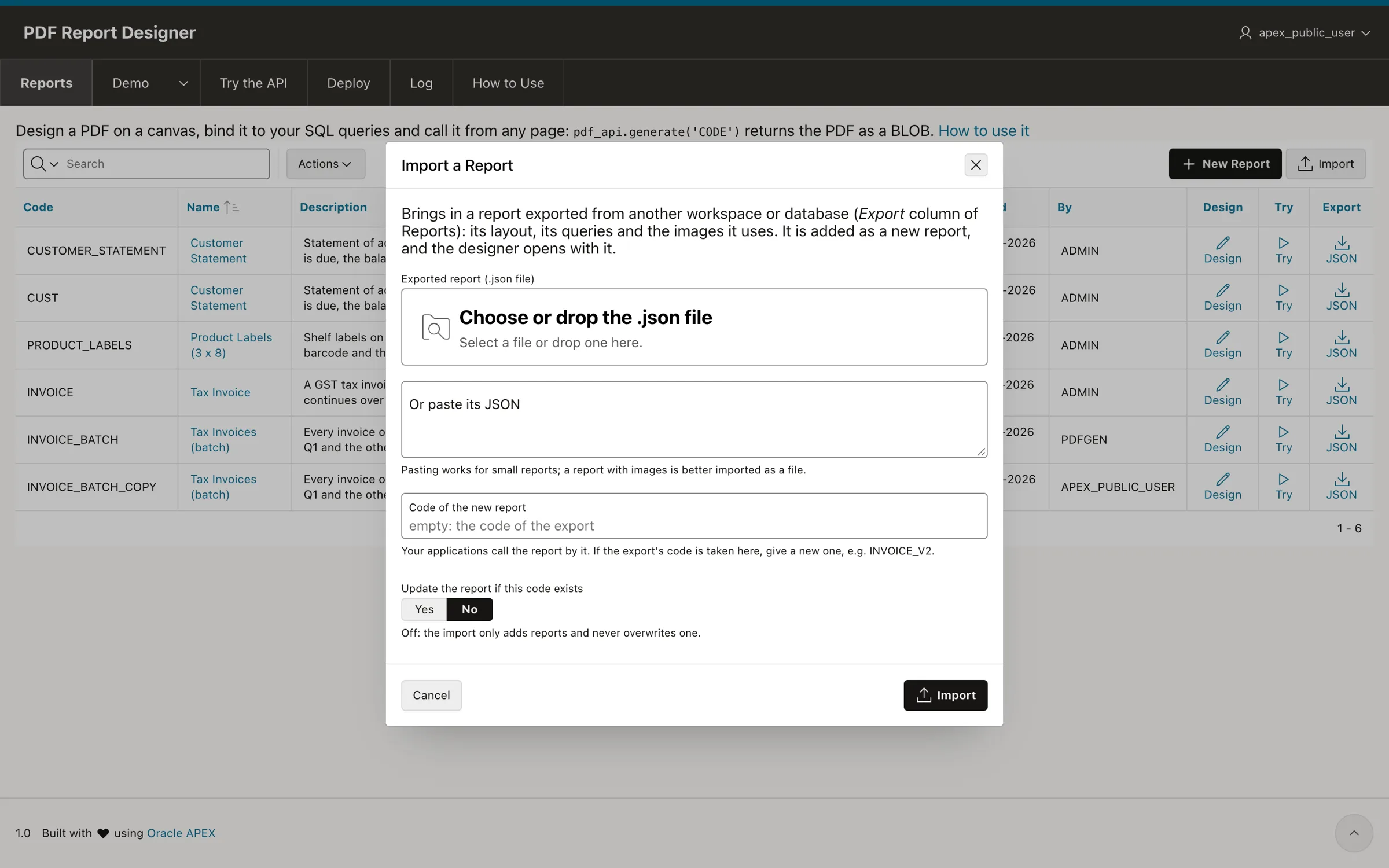
You can keep the exported code or give the report a new one, such as INVOICE_V2, to place it next to the report you already have. Nothing is ever overwritten unless you switch on Update the report if this code exists.
Things Worth Knowing
- Fonts: Helvetica, Arial, Arial Narrow, Arial Black, Times and Courier, in regular, bold and italic. They cover Western European characters; the rupee sign prints as
Rs. - Images: uploads are stored as JPEG. An image can also come from a BLOB column of a query, written as
{Q1.PHOTO}. - Barcodes: Code 128, with or without the text under the bars.
- Labels: a label layout repeats for every row of its query, across and down the sheet, and can start part way down a sheet you have already used.
- Batches: set One document per row of Q1 and a single call prints every invoice of a period into one PDF, each with its own page numbers.
- Speed: a one-page invoice with a logo takes about 30 milliseconds and weighs about 35 KB.
Conclusion
Creating PDF reports in Oracle APEX does not have to mean BI Publisher, a print server or a paid library. With VinAura you write ordinary SQL queries that use your page items as binds, draw the document on a canvas with bands, tables, totals, images and barcodes, and print it from any page with pdf_api.generate or pdf_api.download. Everything runs in PL/SQL inside your own database, so your data never leaves it, and production needs only four tables, three packages and the reports you deploy with one script.
The project is free on GitHub: github.com/devvinish/pdfgen-apex. Install it in your development workspace, print the demo invoice first, and then build your own.
