
Oracle APEX writes the JavaScript and CSS a page needs, and dynamic actions cover most behavior without a line of either. Some things still need your own code: a calculation in the browser, a keyboard shortcut, a function several pages share, a style the theme does not provide.
The question is rarely whether you can write it and almost always where it belongs. This guide covers the places code can live, the apex JavaScript API that makes it robust, and how to share code and styles across an application without creating a maintenance problem.
Where Code Belongs
| Level | JavaScript | CSS |
|---|---|---|
| Dynamic action | Execute JavaScript Code | Add Class and Set Style actions |
| Component | Not applicable | CSS Classes and template options on items, regions, and buttons |
| Page | File URLs, Function and Global Variable Declaration, Execute when Page Loads | File URLs and Inline |
| Application | User Interface JavaScript File URLs | User Interface CSS File URLs |
| Theme | Theme and template files | Theme Roller and its custom CSS |
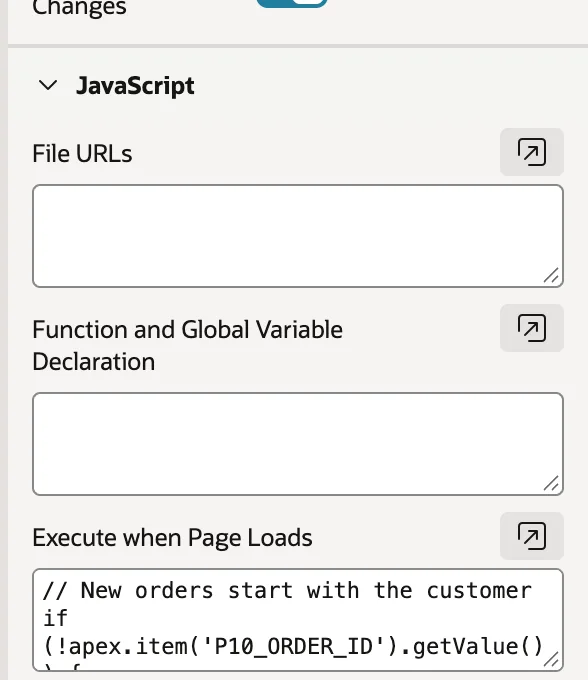
Two page attributes are easy to mix up. Function and Global Variable Declaration is placed in the page before it initializes, which makes it the home for functions the page's dynamic actions call. Execute when Page Loads runs after the page and its components are ready, which makes it the home for anything that touches items or regions.
A few lines that concern one page are fine typed into these attributes. Anything used on several pages, or longer than a screen, belongs in a file, where it is written once, cached by the browser, and can live in version control with the rest of your code.
The apex JavaScript API
| Namespace | For |
|---|---|
| apex.item and apex.items | Reading and changing page items |
| apex.region and apex.regions | Refreshing and driving regions |
| apex.message | Success messages, errors, alerts, and confirmations |
| apex.page and apex.navigation | Submitting, validating, redirecting, opening dialogs |
| apex.server | Ajax requests |
| apex.actions | Named actions with labels and keyboard shortcuts |
| apex.env | The application, page, session, and user |
| apex.util, apex.date, apex.locale, apex.lang | Escaping, dates, number formats, translated messages |
The fastest way to learn any of it is the browser console. Open a page of your application, open the console, and try the calls below against the real thing.
Items
apex.item('P10_STATUS').getValue();
apex.item('P10_CUSTOMER_ID').setValue('16', 'Riverbend Guides');
apex.item('P10_NOTES').isEmpty();
apex.item('P10_SHIPPED_DATE').hide();
apex.item('P10_CUSTOMER_ID').setFocus();
One object, the same methods, whatever the item type. setValue takes the value and, for items with a list of values, the display text, plus an optional third argument that suppresses the change event so you do not set off a chain of dynamic actions.
Always go through this API rather than touching the HTML element. Many items are several elements at once: a popup LOV has a hidden value and a visible display field, a date picker has formatted text. Only the item API keeps them in step and fires the events other components are listening for. It is also why calculating field values in JavaScript works reliably when done this way and mysteriously fails when done with raw DOM access.
Regions
apex.region('top_customers').refresh();
apex.region('top_customers').focus();
apex.region('top_customers').type;
apex.region finds a region by its HTML DOM ID, which you set in the region's Advanced properties. It is not the region title and not the static ID, and getting that wrong is the usual reason a refresh call quietly does nothing.
Regions built on a widget, such as interactive grids, expose it through call, which is how you reach the grid's model: the rows as they exist in the browser right now, including edits not yet saved.
const grid = apex.region('order_lines').call('getViews', 'grid');
let units = 0;
grid.model.forEach((record) => {
    units += Number(grid.model.getValue(record, 'QUANTITY')) || 0;
});
apex.message.showPageSuccess('This order has ' + units + ' units.');
From there, getSelectedRecords returns the selected rows, setValue changes a cell as though the user typed it, and the region's actions let you invoke toolbar commands such as save. This is the same ground as looping through grid records, and the model is always the right place to start.
Messages
apex.message.showPageSuccess('Order saved.');
apex.message.showErrors([
    { type: 'error', location: 'inline', pageItem: 'P10_DISCOUNT_PCT',
      message: 'A discount above 10% needs approval.' }
]);
apex.message.clearErrors();
An error with an inline location and a page item appears beneath that item, looking exactly like a failed validation, while a page location puts it in the notification area. Because it is the same presentation APEX uses itself, users cannot tell your feedback from the framework's, which is the point.
apex.message.confirm and alert use the same dialogs as the matching dynamic actions and hand control back to your callback when the user answers, which is how you branch on a decision in code.
Pages, Navigation, and Environment
apex.page.submit({ request: 'SAVE', showWait: true });
apex.page.validate();
apex.navigation.redirect(url);
There is a trap in that last line. A URL you build in JavaScript has no checksum, and any page whose access protection requires one will reject it. When JavaScript needs a link to a protected page, have the server build it, with apex_page.get_url in an Ajax callback or a hidden item, and redirect to that.
apex.env describes the context: application ID, page ID, user, session. Use it inside files, where substitution strings such as the application ID are never replaced because the file is static.
Keyboard Shortcuts with apex.actions
// New orders start with the customer
if (!apex.item('P10_ORDER_ID').getValue()) {
    apex.item('P10_CUSTOMER_ID').setFocus();
}

// Ctrl+Alt+S saves the order
apex.actions.add({
    name: 'orbit-save-order',
    label: 'Save Order',
    shortcut: 'Ctrl+Alt+S',
    action: () => apex.page.submit(
        apex.item('P10_ORDER_ID').getValue() ? 'SAVE' : 'CREATE')
});
apex.actions is the machinery behind interactive grid actions and Page Designer's own shortcuts. An action has a name, a label, a function, and optionally a shortcut, and buttons or menu entries can invoke it by name.
Keep shortcuts few and memorable, and stay away from combinations the browser or a screen reader already claims. A shortcut nobody can discover is decoration, and one that overrides a browser default is a bug report waiting to happen.
Sharing Code in a Static File
Code pasted into a dynamic action is fine until a second page needs it. Then you have two copies, and eventually two behaviors. Moving it into a file solves that permanently.
/* Orbit Sales: shared JavaScript */
window.orbit = window.orbit || {};

(function (orbit) {
    'use strict';

    const money = new Intl.NumberFormat('en-US',
        { style: 'currency', currency: 'USD', maximumFractionDigits: 0 });

    // Formats a number as whole US dollars: 73499.05 -> "$73,499"
    orbit.formatMoney = (value) => money.format(value || 0);

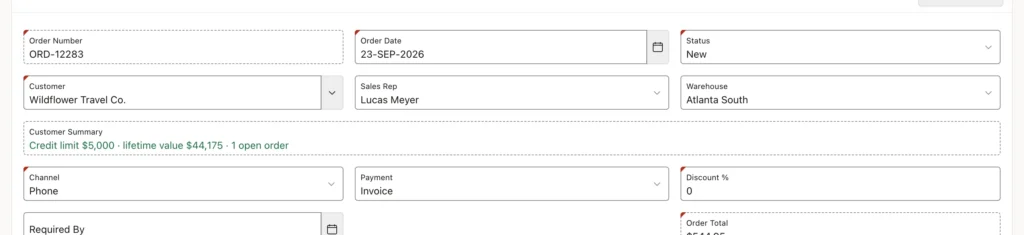
    // Loads the customer summary of the Order form
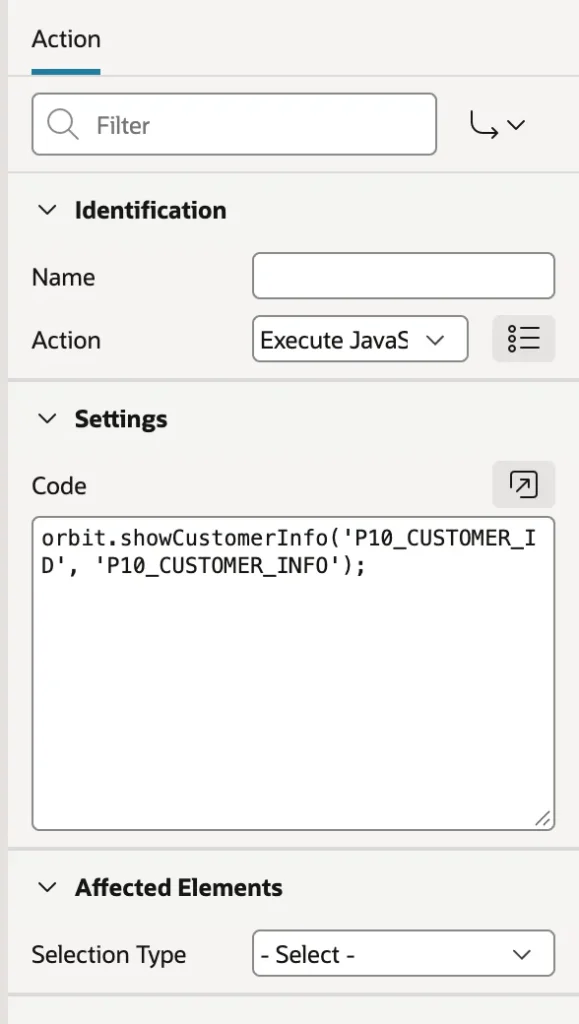
    orbit.showCustomerInfo = function (customerItem, targetItem) {
        return apex.server.process('GET_CUSTOMER_INFO', {
            x01: apex.item(customerItem).getValue()
        }).then((data) => {
            apex.item(targetItem).setValue(
                'Credit limit ' + orbit.formatMoney(data.creditLimit) +
                ' · lifetime value ' + orbit.formatMoney(data.lifetimeValue) +
                ' · ' + data.openOrders +
                (data.openOrders === 1 ? ' open order' : ' open orders'));
        }).catch(() => {
            apex.message.showErrors([{
                type: 'error', location: 'page',
                message: 'Customer details could not be loaded.'
            }]);
        });
    };
})(window.orbit);
Two decisions make this file worth having. Everything hangs off one global object, so your names cannot collide with APEX, a plug-in, or a library. And the function takes item names as parameters rather than hard-coding them, so it is not welded to one page.
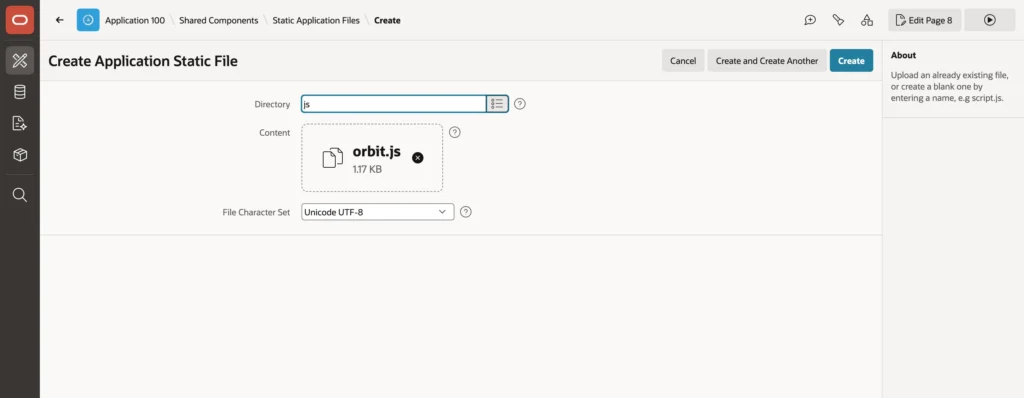
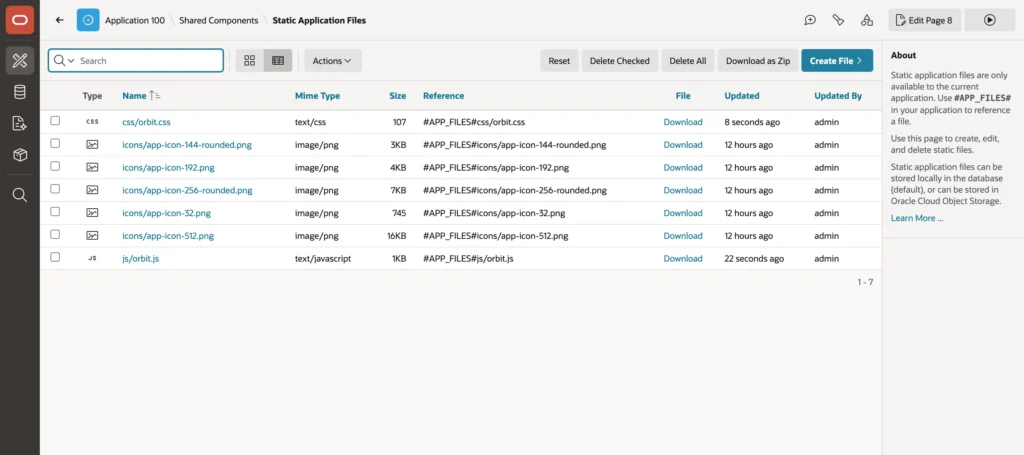
Upload it under Static Application Files with a directory such as js, and APEX gives you a reference beginning with the application files token. The clever part is how APEX serves it: the URL contains a version number that changes whenever the file changes, so browsers cache aggressively and still pick up every new version. You never have to tell anyone to clear their cache.
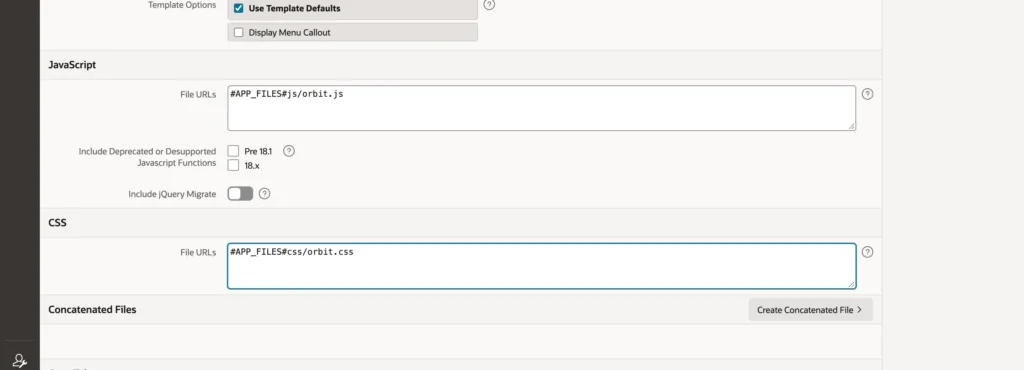
Enter the references in the application's User Interface attributes and every page loads them. Workspace Files work the same way for code shared between applications. Static files export with the application, so they travel to test and production with everything else.
For large files, upload a minified copy beside the original and reference it with the MIN token in the name. APEX substitutes the minified version normally and the readable one in debug mode. Note that APEX does not minify for you.
CSS: Check the Theme First
Before writing a line of CSS, check whether the theme already does it. Template options on regions, items, and buttons change size, spacing, and emphasis without any styling. Theme Roller changes colors, fonts, and roundness across the whole application and saves the result as a theme style. Universal Theme also ships utility classes for alignment, spacing, color, and visibility.
When you do write your own, two rules keep it from becoming a liability. Put it in a file loaded by the application rather than in the inline CSS of individual pages, and style your own class names rather than the theme's internal ones. The theme's markup can change in an upgrade, while your class names cannot. Where you need the theme's colors, use its CSS variables so your styles follow Theme Roller and dark mode instead of fighting them. The same discipline applies to any HTML and CSS snippets you add.
Debugging
The browser's developer tools are the debugger. The console shows errors and runs apex calls against the live page, the network tab shows every Ajax request and response, and the sources tab sets breakpoints in your files. That last point is another argument for files over attributes: breakpoints in real files are far easier to work with than code injected into a page.
apex.debug.info('Customer summary loaded %s', data);apex.debug writes only when the page runs in debug mode, which the Developer Toolbar switches on. Leave those calls in: with debug off they cost nothing, and when something goes wrong in production you can turn debug on and immediately see what your code thought was happening. Debug mode also loads the APEX JavaScript unminified, so its own stack traces become readable.
Conclusion
The skill here is restraint about placement rather than cleverness in code. Dynamic actions and template options first, then page attributes for a few lines that genuinely belong to one page, then a static application file for anything shared, namespaced under a single global object and taking its targets as parameters so it works on more than one page. Use the apex API rather than the DOM, because an item is often several elements and only the API keeps them consistent and fires the events other components depend on, and remember that apex.region wants the HTML DOM ID. Let the server build any URL that needs a checksum. Reach for Theme Roller and utility classes before custom CSS, and when you write it, use your own class names and the theme's variables so an upgrade does not undo your work. Leave apex.debug calls in the code, and the next person to investigate a problem, quite possibly you, will have something to work with.
