
DocuSign, Adobe Acrobat Sign, and similar services charge per user or per envelope. What you pay for is not the signature image. It is the proof around it: who signed, that they meant to sign, that they agreed to sign electronically, and that nobody changed the document afterwards. All of that can be built in Oracle APEX, in the schema you already use, without a paid service and without an extra server.
This guide builds that step by step in Oracle APEX 26.1 on Oracle AI Database 26ai, and shows how to run the same application on Oracle Database 19c. A sender uploads a PDF, adds the people who must sign, and sends it. Each signer opens a private link, proves their identity with a one-time code sent by e-mail, reviews the document, and draws or types a signature. When the last person signs, the database stamps the signatures on the PDF, appends a certificate of completion with the full audit trail, and seals the file with a real PKCS#7 digital signature that PDF readers check. Every step is recorded in an immutable, hash-chained audit table.
You will create the tables, a JavaScript module that works on the PDF inside the database, a PL/SQL package, and two small APEX applications: one for senders and one public application for signers. The complete source of the finished demo, called ESign Lab, is in the GitHub repository devvinish/apex-esign.
Quick Start
To have it running in your own schema first and read how it is built afterwards, take the files from the GitHub repository and:
- Ask your DBA to run sql/00_grants.sql with your schema name. On Oracle Database 19c, only its first grant is needed.
- Connect as your schema in SQL*Plus or SQLcl, in the repository folder, and run @install.sql on 23ai and 26ai, or @install_19c.sql on 19c, as shown in step 1.
- Create the seal certificate with openssl and store it with sql/05_seal_key.sql, as shown in step 2.
- In App Builder, import apex/f301.sql and apex/f300.sql with your schema as the parsing schema, keeping their aliases ESIGN-SIGN and ESIGN.
- Optional: to make the final PDF with your own PDF tool, change the function ESIGN_RENDER_PDF, as shown in The Final PDF: Use Any PDF Tool.
Then run ESign Lab, sign in with a user of your workspace, and send samples/website-development-agreement.pdf for signature, as in steps 5 to 8. The rest of this guide explains how each part works and how to build the pages yourself.
What You Will Build
- Envelopes: a PDF with one or more signers, sent in signing order (one after another) or to everyone at once.
- Signing links that carry a random 256-bit token. Only a SHA-256 hash of the token is stored, links expire, and the sender can replace a link at any time.
- Identity check with a 6-digit one-time code sent to the signer's e-mail address. The code is hashed, expires after 10 minutes, and allows five attempts.
- A signing page where the signer reviews the PDF, accepts an electronic signature disclosure, and draws or types a signature, or declines with a reason.
- A final PDF with the signatures stamped where the sender placed them, the envelope ID on every page, and a certificate of completion.
- A digital seal (PKCS#7, RSA 2048, SHA-256) over the whole PDF. Changing a single byte breaks it.
- An audit trail in an immutable table, with each row chained to the previous one by SHA-256.
- A public Verify page that tells anyone whether a PDF is an authentic signed document.
- A demo mailbox, so everything can be tried on an instance that has no mail server.
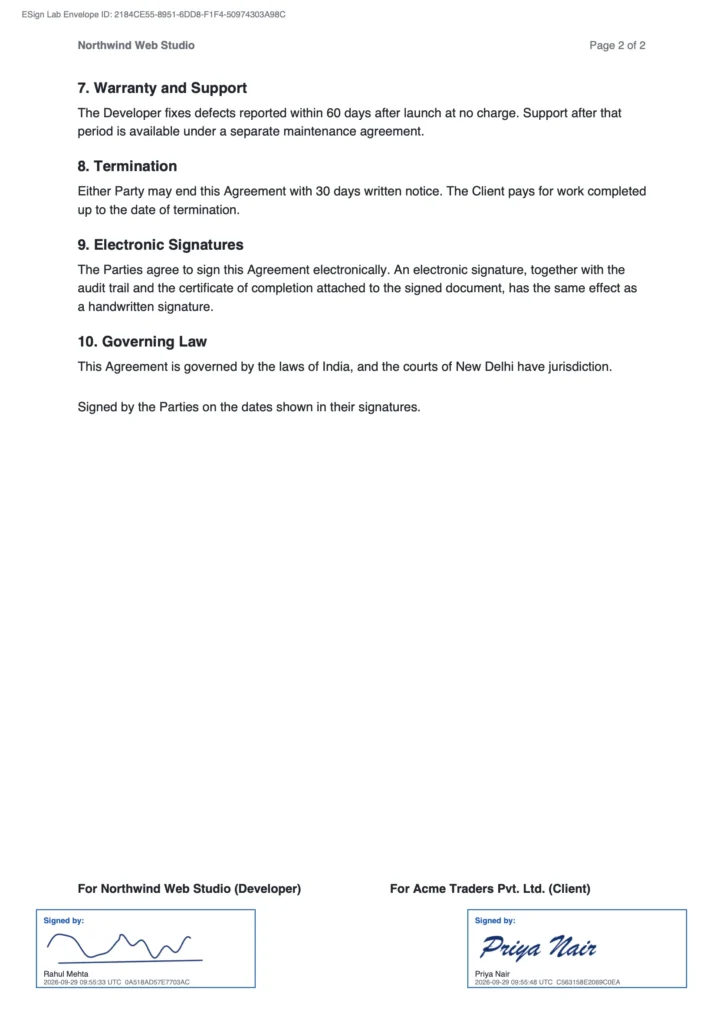
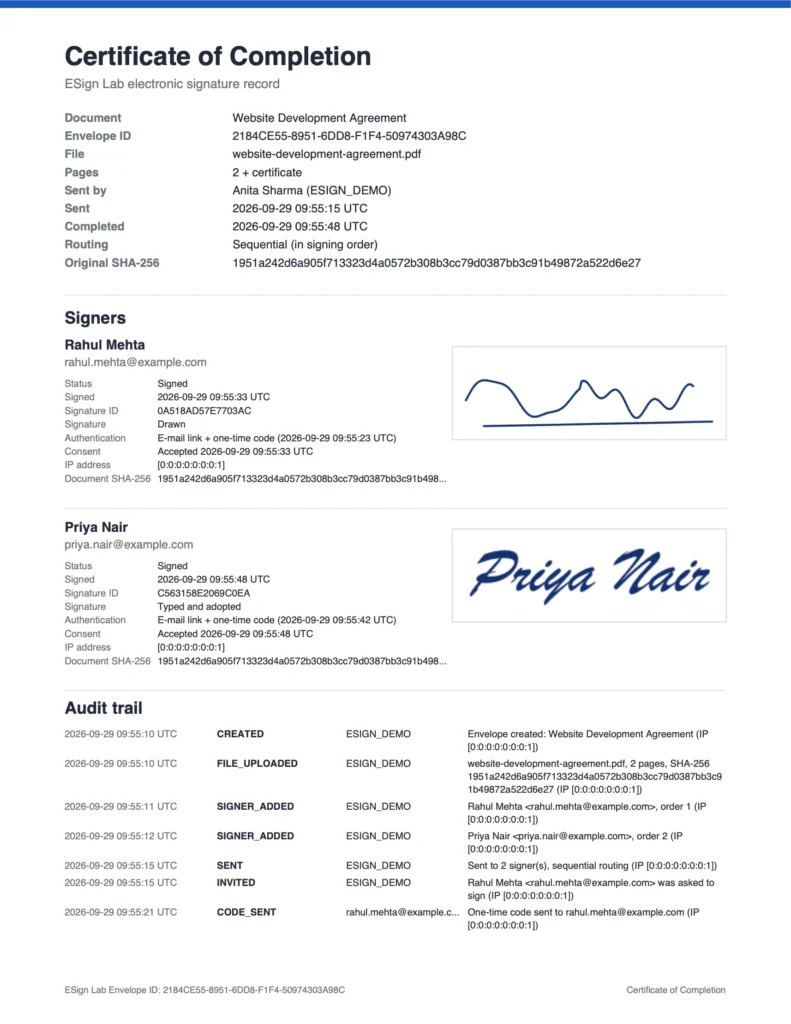
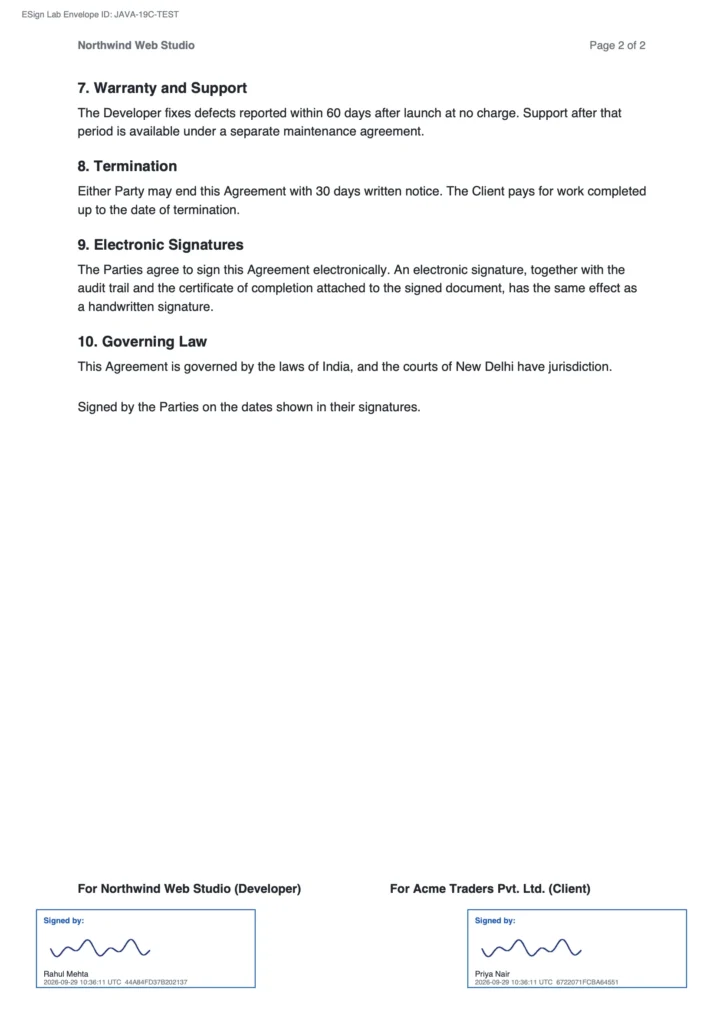
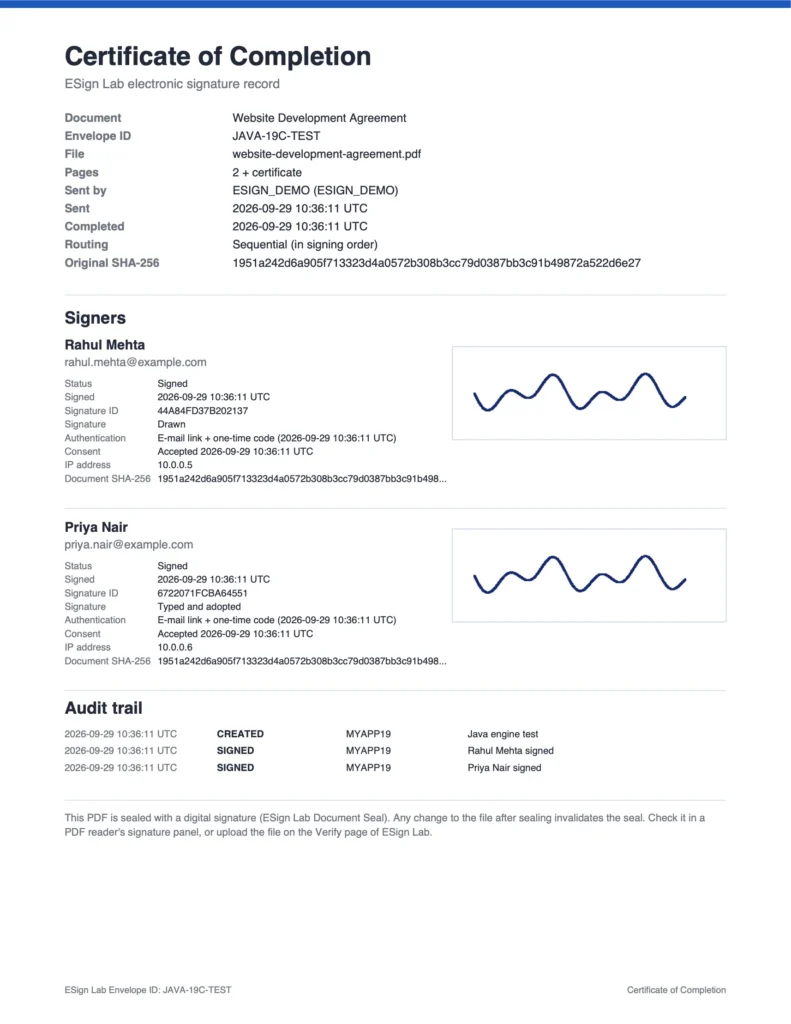
This is the last page of a document signed with it, and the certificate of completion that is appended to it:
What Makes an Electronic Signature Valid
Laws such as the ESIGN Act and UETA in the United States, eIDAS in the European Union, and the Information Technology Act 2000 in India accept electronic signatures for most business documents when you can show four things. The design follows them:
| Requirement | How the application meets it |
|---|---|
| Intent to sign | The signer draws or types a signature and clicks Adopt and Sign. |
| Consent to do business electronically | The signer must tick an electronic signature disclosure. Its text and the time are stored. |
| Association of the signature with the record | The SHA-256 fingerprint of the exact document is recorded when it is sent and again when each person signs, and the stamps go onto that document. |
| A record that can be kept and reproduced | The sealed PDF carries the certificate of completion and audit trail, and the database keeps the immutable audit table. |
Some documents need more than a simple electronic signature: wills, powers of attorney, property sale deeds, and negotiable instruments, for example. In India these need Aadhaar eSign or a digital signature certificate (DSC). Check the rules for your documents, because this guide is not legal advice.
How It Works
| Part | What it does |
|---|---|
| Tables | Settings, documents, signers, seal keys, a demo mailbox, and the immutable audit table |
| PDF engine (package ESIGN_PDF) | On 23ai and 26ai, the open-source JavaScript library pdf-lib runs inside the database through the Multilingual Engine (MLE). On 19c, a small Java engine does the same in the database's Java. Either one reads the uploaded PDF, draws the stamps, builds the certificate pages, and prepares an empty signature field. |
| Package ESIGN_PKG | All the logic: envelopes, links, one-time codes, signing, the audit chain, the digital seal, and verification |
| Sender application (ESign Lab) | Signed-in users upload documents, add signers, send, follow the audit trail, and download the signed PDF. |
| Signing application (ESign Signing) | Public pages where signers sign and anyone can verify a PDF. It has its own session cookie, so a signer's session never replaces a sender's session in the same browser. |
When the last signer signs, the package checks that the stored PDF still has its original fingerprint and asks one function, ESIGN_RENDER_PDF, for the final PDF. By default that function uses the built-in PDF engine, which stamps the signatures on the PDF and appends the certificate, but it can use any PDF tool you already have. The package then seals whatever PDF it returns with a PKCS#7 digital signature, stores it, and e-mails it to everyone.
Prerequisites
- Oracle AI Database 26ai or 23ai, including the Free edition, with MLE available (MLE runs on Linux x86-64 and ARM64, which covers the Free container images and Autonomous Database). Or Oracle Database 19c with the database's Java: see Running on Oracle Database 19c.
- Oracle APEX 26.1 or later, and a workspace with its parsing schema. Everything goes into that schema.
- SQL*Plus or SQLcl, to run the installation scripts.
- openssl, to create the certificate that seals the PDFs. It is part of macOS and Linux, and Git for Windows includes it.
Step 1: Download and Install the Database Objects
Download the repository devvinish/apex-esign from GitHub, with the Code button's Download ZIP or with git:
git clone https://github.com/devvinish/apex-esign.git
cd apex-esign
Your schema needs a few privileges that a workspace schema usually does not have. Ask your DBA to grant them, connected as SYS or SYSTEM to the pluggable database (or as ADMIN on Autonomous Database), with your schema's name in place of MY_SCHEMA. On 19c, only the first grant is needed:
grant execute on sys.dbms_crypto to MY_SCHEMA;
grant create mle to MY_SCHEMA;
grant execute on javascript to MY_SCHEMA;
grant execute dynamic mle to MY_SCHEMA;
Then connect as your schema in SQL*Plus or SQLcl, in the repository folder, and run the installer for your database version:
SQL> @install.sql          -- Oracle AI Database 23ai and 26ai
SQL> @install_19c.sql      -- Oracle Database 19c
The installer ends by listing invalid objects and compile errors. Both lists should be empty. It creates:
| Object | What it is | File |
|---|---|---|
| ESIGN_SETTINGS, ESIGN_DOCUMENTS, ESIGN_SIGNERS, ESIGN_AUDIT, ESIGN_SEAL_KEYS, ESIGN_DEV_OUTBOX, ESIGN_DOCUMENTS_V | The settings, the envelopes with their original and signed PDFs, the signers, the audit trail, the seal certificate, the demo mailbox, and a view for the reports | sql/01_tables.sql |
| PDF_LIB, ESIGN_PDF_JS, ESIGN_PDF | The PDF engine on 23ai and 26ai: the open-source library pdf-lib as a JavaScript module, and the module that uses it | sql/02_pdf_lib.sql, sql/03_pdf_mle.sql |
| ESignPdf, ESIGN_PDF | The PDF engine on 19c, in Java | sql/03_pdf_java.sql |
| ESIGN_PKG | The package with all the logic | sql/04_esign_pkg.sql |
| ESIGN_RENDER_PDF | The function that makes the final PDF, the one place to change for your own PDF tool | sql/06_render_pdf.sql |
How the Database Part Works
The pages you create in steps 3 and 4 call the package ESIGN_PKG. This is what it does behind them.
Audit trail. Every event goes through one procedure, which writes a row into ESIGN_AUDIT with a SHA-256 hash over the row's data and the hash of the envelope's previous row. ESIGN_AUDIT is an immutable table, so the database refuses to update its rows or to delete them within 16 days. Immutable tables exist from Oracle Database 19.11; on older releases the installer creates a normal table with a trigger that refuses changes. The function VERIFY_CHAIN recalculates the hashes and reports whether the chain is intact.
Signing links. For each signer, the package creates a random 32-byte token with DBMS_CRYPTO.RANDOMBYTES, puts it in the link, and stores only its SHA-256 hash. A link stops working when it expires, when the sender creates a new one, or when the envelope is voided or declined.
One-time codes. The code is a random 6-digit number, stored as a hash, valid for 10 minutes, with five attempts. Checking it is an autonomous transaction, so a wrong attempt is counted and logged even when the page shows an error.
Signing. When a signer signs, the package checks everything again on the server: the envelope is waiting for this signer, the code was entered within the last hour, the link is valid, and earlier signers have signed when the order matters. It recomputes the SHA-256 of the stored PDF and compares it with the fingerprint from sending, so a signature always belongs to exactly the document that was sent. Then it stores the signature image, the consent, the time, the IP address, and the browser.
The final PDF and the seal. When the last signer signs, FINALIZE asks the function ESIGN_RENDER_PDF for the final PDF. By default it uses the PDF engine, which stamps the signatures on the original, writes the envelope ID on every page, appends a certificate of completion, and adds an empty signature field. FINALIZE then seals the PDF: it hashes the file except the signature field's placeholder, signs the hash with the seal's private key, and writes the result into the placeholder as a PKCS#7 signature. This is the adbe.pkcs7.detached format that Adobe Acrobat also uses, so every PDF reader with a signature panel can check the seal.
Step 2: Create the Seal Certificate
The seal needs an RSA key pair and a certificate. For development, a self-signed certificate is enough. Create one, valid for ten years, with openssl:
openssl req -x509 -newkey rsa:2048 -nodes -sha256 -days 3650 \
  -keyout seal-key.pem -out seal-cert.pem \
  -subj "/CN=ESign Lab Document Seal/O=ESign Lab" \
  -addext "keyUsage=critical,digitalSignature,nonRepudiation"
Then store both with SET_SEAL_KEY. Paste the contents of seal-cert.pem and seal-key.pem, including the BEGIN and END lines, and run the block in your schema. SET_SEAL_KEY signs a test value with the key before storing it, and makes the new key the active one. Delete seal-key.pem afterwards, and do not save the block with the key in it:
The block to run, from sql/05_seal_key.sql:
begin
    esign_pkg.set_seal_key(
        p_label    => 'ESign Lab Document Seal',
        p_cert_pem => q'[
-----BEGIN CERTIFICATE-----
PASTE THE CONTENTS OF seal-cert.pem HERE
-----END CERTIFICATE-----
]',
        p_key_pem  => q'[
-----BEGIN PRIVATE KEY-----
PASTE THE CONTENTS OF seal-key.pem HERE
-----END PRIVATE KEY-----
]');
    commit;
end;
/
With a self-signed certificate, PDF readers report the signature as valid but the signer's identity as unknown. For production, use a document-signing certificate from a certificate authority on the Adobe Approved Trust List.
Step 3: Create the Sender Application
In App Builder, create a new application named ESign Lab with the alias ESIGN, the Universal Theme, and the default authentication, Oracle APEX Accounts. Every user of your workspace can then sign in and send documents, and each of them sees only the envelopes they sent.
Set one application attribute: in Application Definition, under Error Handling, set Error Handling Function to esign_pkg.apex_error_handler. The package reports problems with RAISE_APPLICATION_ERROR, and this function shows its messages without the ORA-20001 prefix.
Add these pages to the navigation menu: Documents (page 1), New Document (page 2 with its cache cleared), Demo Mailbox (page 5), and Verify a PDF, which points to the signing application with the URL f?p=ESIGN-SIGN:VERIFY:0.
Both applications share a stylesheet for the status badges, the hashes, and the counters. Put it in each page's CSS, Inline property, or in a static application file:
The shared CSS:
.esign-badge { display: inline-block; padding: 2px 9px; border-radius: 999px; font-size: 11px; font-weight: 600; letter-spacing: .02em; background: #eef1f5; color: #4b5563; }
.esign-badge--SENT, .esign-badge--VIEWED { background: #e3edfb; color: #1c59b8; }
.esign-badge--SIGNED, .esign-badge--COMPLETED { background: #e2f4e8; color: #16713a; }
.esign-badge--DECLINED, .esign-badge--VOIDED { background: #fbe6e6; color: #b42318; }
.esign-badge--PENDING { background: #fdf3dc; color: #8a5a00; }
.js-esign-action[data-request=""] { display: none; }
.esign-hash { font-family: var(--a-base-font-family-mono, monospace); font-size: 11px; word-break: break-all; color: #6b7280; }
.esign-metrics { display: grid; grid-template-columns: repeat(auto-fit, minmax(150px, 1fr)); gap: 12px; }
.esign-metric { border: 1px solid rgba(0,0,0,.08); border-radius: 8px; padding: 14px 16px; background: var(--ut-component-background-color, #fff); }
.esign-metric b { display: block; font-size: 26px; line-height: 1.1; }
.esign-metric span { color: #6b7280; font-size: 12px; }
.esign-code { font-family: var(--a-base-font-family-mono, monospace); font-size: 16px; letter-spacing: 3px; font-weight: 700; }
.esign-mail-link:not([href]), .esign-mail-link[href=""] { display: none; }
Page 1: Documents
Page 1 lists the user's envelopes. It has three regions:
| Region | Type and settings |
|---|---|
| Documents | Static Content, template Hero, in the Breadcrumb Bar. Text: a sentence about the page. Button NEW (New Document, Hot), action Redirect to Page 2 with its cache cleared. |
| Summary | Dynamic Content, PL/SQL Function Body returning a CLOB, template Blank with Attributes. It shows four counters. |
| Envelopes | Classic Report on the SQL query below. Link the TITLE column to page 2, setting P2_DOC_ID to #DOC_ID# and clearing the cache of page 2. Hide DOC_ID and STATUS, and give STATUS_LABEL the HTML Expression <span class="esign-badge esign-badge--#STATUS#">#STATUS_LABEL#</span>. Format the date columns as SINCE. |
The Summary region's PL/SQL:
declare
    l_html varchar2(4000);
begin
    for r in (select count(case when status = 'DRAFT' then 1 end)                    as drafts,
                     count(case when status = 'SENT' then 1 end)                     as waiting,
                     count(case when status = 'COMPLETED' then 1 end)                as completed,
                     count(case when status in ('DECLINED', 'VOIDED') then 1 end)    as stopped
                from esign_documents
               where upper(created_by) = upper(:APP_USER))
    loop
        l_html := '<div class="esign-metrics">'
               || '<div class="esign-metric"><b>' || r.drafts    || '</b><span>Drafts</span></div>'
               || '<div class="esign-metric"><b>' || r.waiting   || '</b><span>Waiting for signatures</span></div>'
               || '<div class="esign-metric"><b>' || r.completed || '</b><span>Completed</span></div>'
               || '<div class="esign-metric"><b>' || r.stopped   || '</b><span>Declined or voided</span></div>'
               || '</div>';
    end loop;
    return l_html;
end;
The Envelopes report's query:
select doc_id,
       title,
       status,
       initcap(status) as status_label,
       signed || ' of ' || signers as progress,
       envelope_id,
       created_by,
       created_on,
       sent_on,
       completed_on
  from esign_documents_v
 where upper(created_by) = upper(:APP_USER)
 order by created_on desc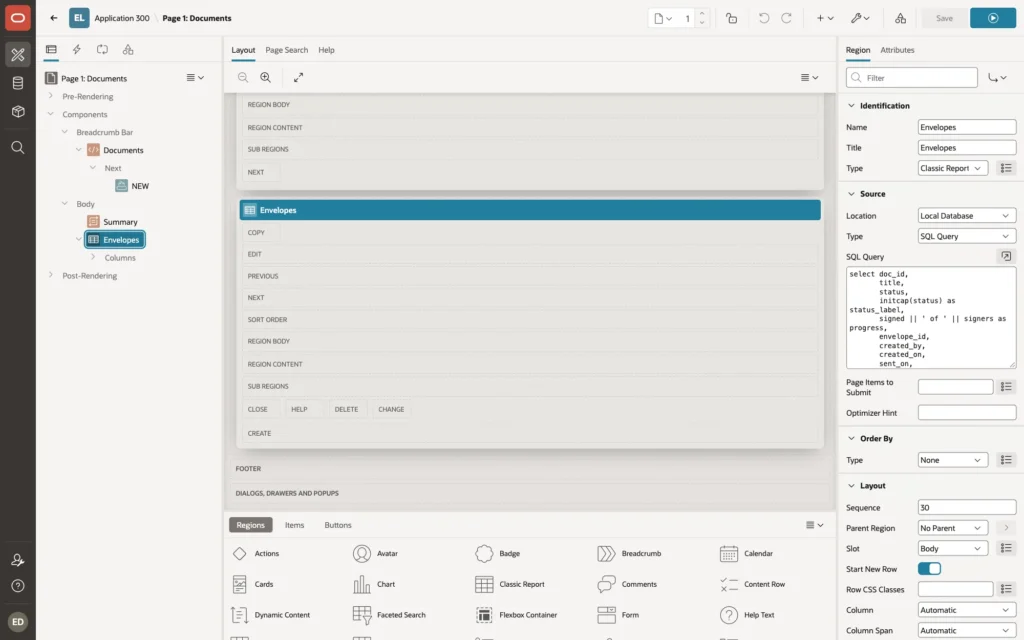
Page 2: Document
Page 2 creates an envelope, manages its signers, sends it, and shows its demo mailbox and audit trail. It is the largest page. Its regions, in order:
| Region | Type and settings |
|---|---|
| Document Header | Static Content, template Hero, in the Breadcrumb Bar. Title &P2_HEADING., text &P2_SUBHEADING!RAW. |
| Envelope | Static Content with the envelope's items and buttons |
| Signers | Classic Report, shown when P2_DOC_ID is not null, Page Items to Submit P2_DOC_ID |
| Demo Mailbox Help, Demo Mailbox | An Alert region and a Classic Report, shown when P2_DOC_ID is not null and esign_pkg.setting('DEV_MODE') = 'Y' |
| Add Signer | Static Content with the signer's items, shown while the envelope is a draft |
| Void Envelope | Static Content, template Collapsible (collapsed), shown for a draft or sent envelope |
| Audit Trail | Classic Report with the display-only item P2_CHAIN above it |
The items of the Envelope region:
| Item | Type | Settings |
|---|---|---|
| P2_DOC_ID, P2_STATUS, P2_HEADING, P2_SUBHEADING | Hidden | Value Protected on |
| P2_SIGNER_ID | Hidden | Value Protected off: the Signers report's buttons set it in the browser. The processes check that the signer belongs to the envelope. |
| P2_TITLE | Text Field | Required. Read Only when :P2_STATUS is not null and :P2_STATUS <> 'DRAFT' |
| P2_MESSAGE | Textarea | Read Only as P2_TITLE |
| P2_ROUTING | Select List | Static values One after another (in signing order);SEQUENTIAL and All at the same time;PARALLEL, default SEQUENTIAL, Read Only as P2_TITLE |
| P2_FILE | File Upload | Display As Block Dropzone, Storage Type Table APEX_APPLICATION_TEMP_FILES, Purge File at End of Request, File Types .pdf,application/pdf. Shown when :P2_DOC_ID is null or :P2_STATUS = 'DRAFT' |
| P2_FILE_INFO | Display Only | Format HTML, shown when P2_DOC_ID is not null |
The buttons of the Envelope region:
| Button | Action and condition |
|---|---|
| BACK | Redirect to page 1 |
| CREATE (Create and Add Signers) | Submit Page, Hot, shown when P2_DOC_ID is null |
| SAVE | Submit Page, shown for a draft (:P2_DOC_ID is not null and :P2_STATUS = 'DRAFT') |
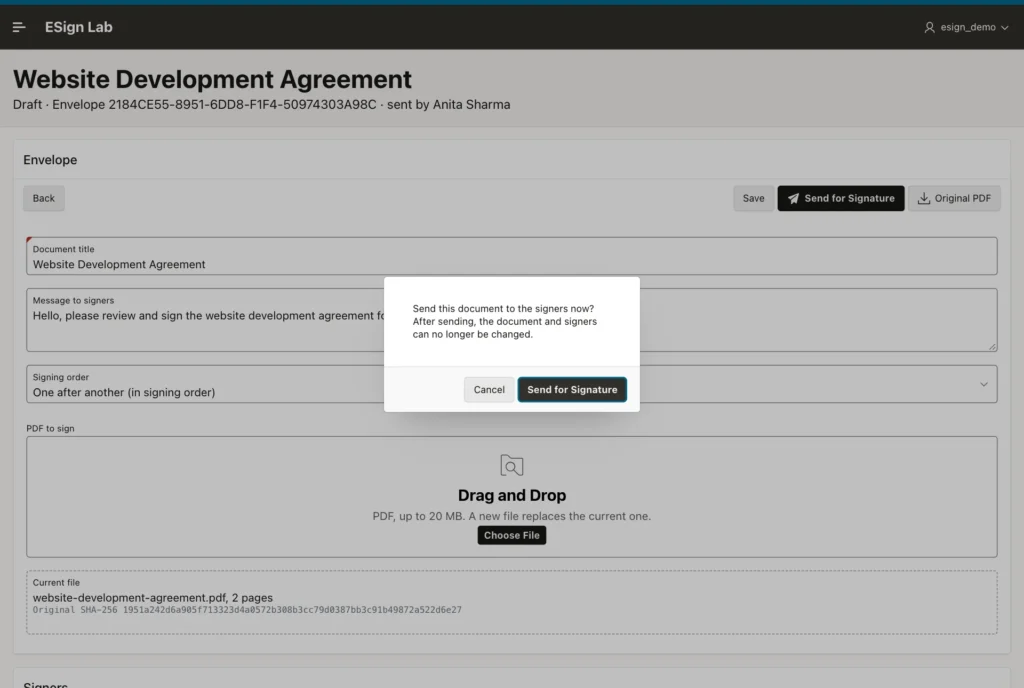
| SEND (Send for Signature) | Submit Page, Hot, shown for a draft, with the confirmation message "Send this document to the signers now? After sending, the document and signers can no longer be changed." |
| DOWNLOAD_ORIGINAL (Original PDF) | Redirect to page 3, setting P3_DOC_ID to &P2_DOC_ID. and P3_WHICH to ORIGINAL, shown when P2_DOC_ID is not null |
| DOWNLOAD_SIGNED (Signed PDF) | Redirect to page 3 with P3_WHICH SIGNED, Hot, shown when P2_STATUS = COMPLETED |
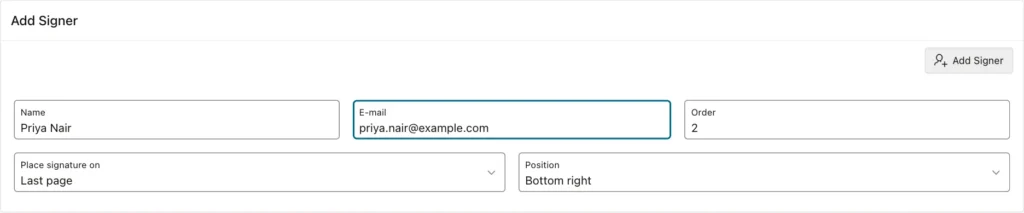
The Add Signer region has P2_SIGNER_NAME (Text Field), P2_SIGNER_EMAIL (Text Field, subtype E-mail), P2_SIGNER_ORDER (Number Field), P2_STAMP_PAGE (Select List: Last page;LAST, First page;FIRST, Certificate page only;NONE), P2_STAMP_POSITION (Select List: Bottom right;BOTTOM_RIGHT, Bottom left;BOTTOM_LEFT, Bottom center;BOTTOM_CENTER, Top right;TOP_RIGHT, Top left;TOP_LEFT), and the button ADD_SIGNER. The Void Envelope region has P2_VOID_REASON and the button VOID with a danger confirmation.
The Signers report's query returns, per signer, the request and label of the button that the row should show: Remove while the envelope is a draft, and New link while the signer is waiting to sign:
The Signers report's query:
select s.signer_id,
       s.sign_order,
       s.signer_name,
       s.signer_email,
       case s.stamp_page
           when 'NONE' then 'Certificate page only'
           else initcap(s.stamp_page) || ' page, ' || lower(replace(s.stamp_position, '_', ' '))
       end as stamp,
       s.status,
       initcap(s.status) as status_label,
       esign_pkg.utc(s.signed_on) as signed_on,
       case
           when d.status = 'DRAFT' then 'REMOVE_SIGNER'
           when d.status = 'SENT' and s.status in ('SENT', 'VIEWED') then 'NEW_LINK'
       end as action_request,
       case
           when d.status = 'DRAFT' then 'Remove'
           when d.status = 'SENT' and s.status in ('SENT', 'VIEWED') then 'New link'
       end as action_label
  from esign_signers s
  join esign_documents d on d.doc_id = s.doc_id
 where s.doc_id = :P2_DOC_ID
 order by s.sign_order, s.signer_id
Hide SIGNER_ID, STATUS, and ACTION_REQUEST. STATUS_LABEL gets the same badge HTML Expression as on page 1, and ACTION_LABEL this HTML Expression, which renders a button (the CSS hides it when there is no action):
<button type="button" class="t-Button t-Button--small t-Button--simple js-esign-action" data-request="#ACTION_REQUEST#" data-id="#SIGNER_ID#">#ACTION_LABEL#</button>
The page's Execute when Page Loads JavaScript handles those buttons: it asks for confirmation, sets P2_SIGNER_ID, and submits the page with the button's request:
Execute when Page Loads (page 2):
// Remove signer / new signing link buttons in the Signers report
$(document).on('click', '.js-esign-action', function () {
    var request = this.dataset.request, id = this.dataset.id;
    var go = function () { apex.page.submit({ request: request, set: { P2_SIGNER_ID: id }, showWait: true }); };
    if (request === 'REMOVE_SIGNER') {
        apex.message.confirm('Remove this signer?', function (ok) { if (ok) { go(); } });
    } else {
        apex.message.confirm('Create a new signing link? The previous link stops working.', function (ok) { if (ok) { go(); } });
    }
});
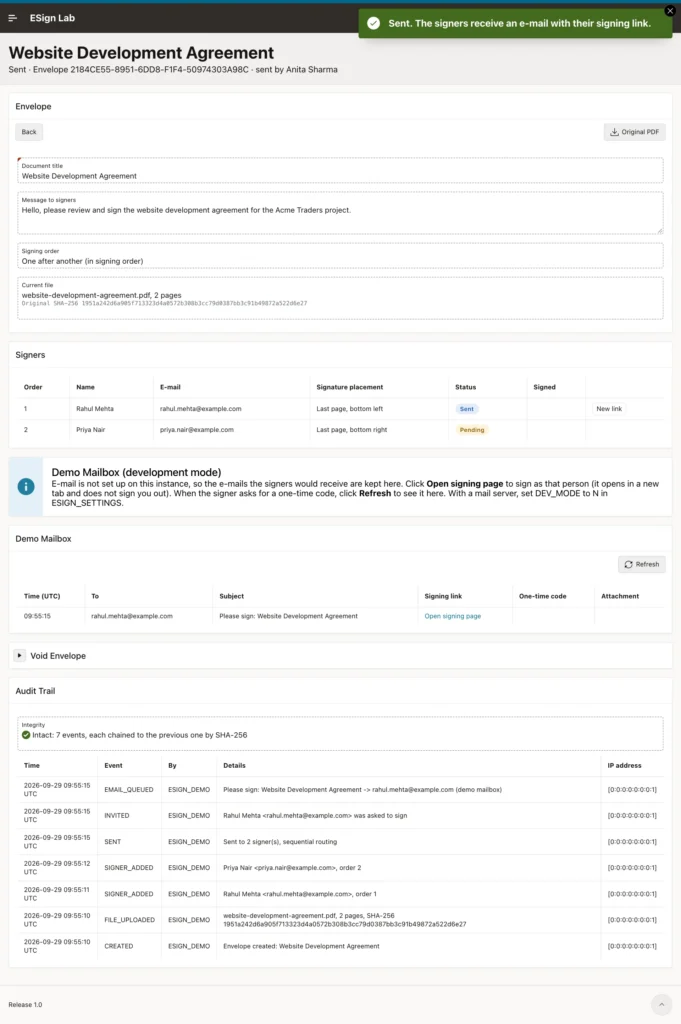
The Demo Mailbox report shows the e-mails of the envelope. Its LINK_LABEL column gets the HTML Expression <a href="#LINK_URL#" target="_blank" rel="noopener" class="esign-mail-link">#LINK_LABEL#</a>, which opens the signing page in a new tab, and OTP_CODE gets <span class="esign-code">#OTP_CODE#</span>. Add a Refresh button that redirects to page 2 with P2_DOC_ID.
The Demo Mailbox report's query:
select m.mail_id,
       to_char(m.created_on at time zone 'UTC', 'HH24:MI:SS') as sent_at,
       m.to_email,
       m.subject,
       m.link_url,
       case when m.link_url is not null then 'Open signing page' end as link_label,
       m.otp_code,
       case when m.has_attachment = 'Y' then 'signed PDF attached' end as attachment
  from esign_dev_outbox m
 where m.doc_id = :P2_DOC_ID
 order by m.mail_id desc
The Audit Trail report's query:
select to_char(event_time, 'YYYY-MM-DD HH24:MI:SS') || ' UTC' as event_time,
       event_type,
       actor,
       details,
       ip_address
  from esign_audit
 where doc_id = :P2_DOC_ID
 order by audit_id desc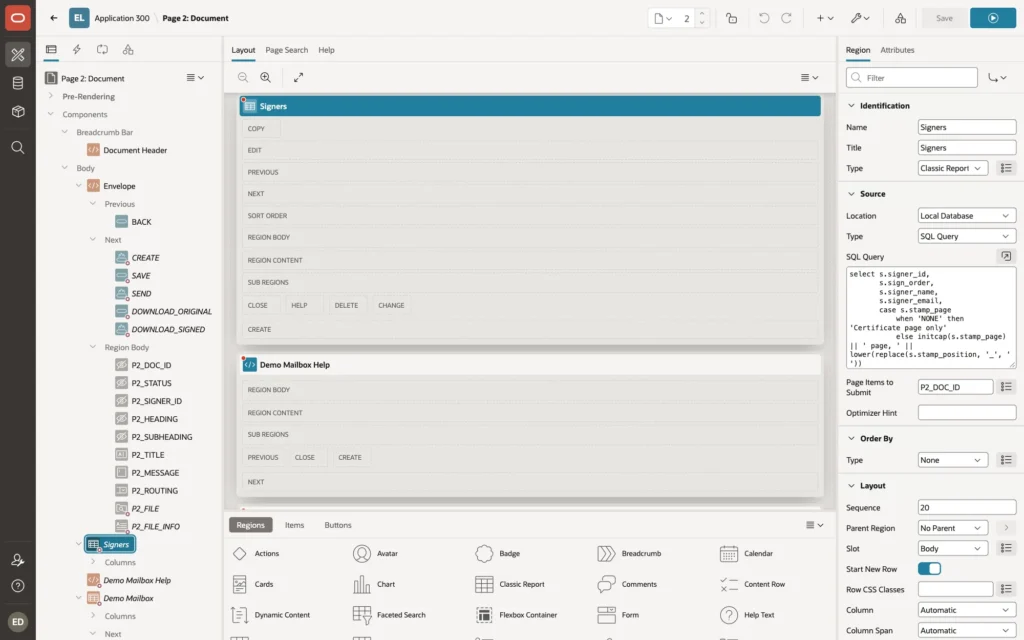
A Before Header process loads the envelope into the items. It reads only envelopes that the signed-in user sent. It also fills the header, the file details with both fingerprints, and the result of the audit chain check:
Process Load Document (Before Header):
declare
    l_doc esign_documents%rowtype;
begin
    if :P2_DOC_ID is null then
        :P2_HEADING    := 'New Document';
        :P2_SUBHEADING := 'Upload the PDF, add the signers, and send it for signature.';
        :P2_STATUS     := null;
        return;
    end if;
    -- only envelopes the user sent
    select * into l_doc from esign_documents
     where doc_id = :P2_DOC_ID and upper(created_by) = upper(:APP_USER);
    :P2_STATUS     := l_doc.status;
    :P2_TITLE      := l_doc.title;
    :P2_MESSAGE    := l_doc.message;
    :P2_ROUTING    := l_doc.routing;
    :P2_HEADING    := l_doc.title;
    :P2_SUBHEADING := initcap(l_doc.status) || ' · Envelope ' || l_doc.envelope_id || ' · sent by '
                   || apex_escape.html(esign_pkg.sender_name(l_doc.created_by));
    :P2_FILE_INFO  := apex_escape.html(l_doc.file_name) || case when l_doc.page_count is not null then ', ' || l_doc.page_count || ' pages' end
                   || '<div class="esign-hash">Original SHA-256 ' || l_doc.original_sha256 || '</div>'
                   || case when l_doc.signed_sha256 is not null
                           then '<div class="esign-hash">Signed PDF SHA-256 ' || l_doc.signed_sha256 || '</div>' end
                   || case when l_doc.void_reason is not null
                           then '<div>Voided: ' || apex_escape.html(l_doc.void_reason) || '</div>' end;
    :P2_CHAIN      := '<span class="fa ' || case when esign_pkg.verify_chain(l_doc.doc_id) like 'Intact%'
                                                then 'fa-check-circle u-success-text' else 'fa-warning u-danger-text' end
                   || '"></span> ' || apex_escape.html(esign_pkg.verify_chain(l_doc.doc_id));
    if :P2_SIGNER_ORDER is null or :REQUEST is null then
        select nvl(max(sign_order), 0) + 1 into :P2_SIGNER_ORDER from esign_signers where doc_id = l_doc.doc_id;
    end if;
exception
    when no_data_found then
        :P2_DOC_ID := null;
end;
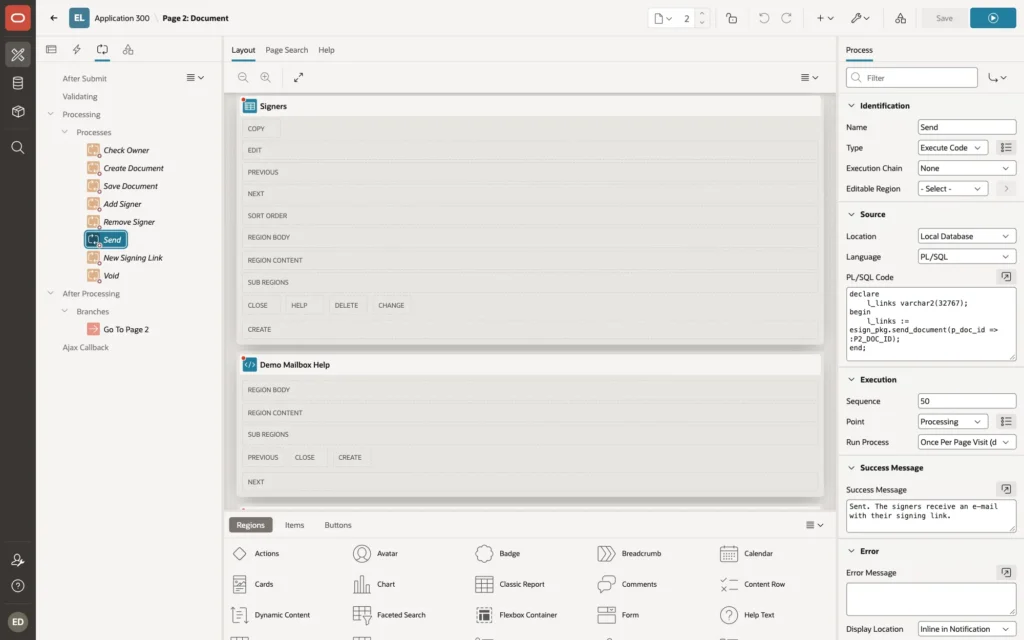
The page processes run in this order. Each one after Check Owner runs for one request (Server-side Condition: Request = Value), and each shows a success message:
| Seq | Process | Request | PL/SQL code |
|---|---|---|---|
| 5 | Check Owner | (when P2_DOC_ID is not null) | esign_pkg.check_owner(:P2_DOC_ID); |
| 10 | Create Document | CREATE | :P2_DOC_ID := esign_pkg.create_document(p_title => :P2_TITLE, p_message => :P2_MESSAGE, p_routing => :P2_ROUTING, p_temp_file => :P2_FILE); |
| 20 | Save Document | SAVE | esign_pkg.update_document with the same items and P2_DOC_ID |
| 30 | Add Signer | ADD_SIGNER | esign_pkg.add_signer, then clears the signer items |
| 40 | Remove Signer | REMOVE_SIGNER | esign_pkg.remove_signer for P2_SIGNER_ID, when it belongs to P2_DOC_ID |
| 50 | Send | SEND | esign_pkg.send_document |
| 60 | New Signing Link | NEW_LINK | esign_pkg.new_signing_link for P2_SIGNER_ID, when it belongs to P2_DOC_ID |
| 70 | Void | VOID | esign_pkg.void_document with P2_VOID_REASON |
Processes Add Signer, Remove Signer, Send, and New Signing Link:
esign_pkg.add_signer(
    p_doc_id   => :P2_DOC_ID,
    p_name     => :P2_SIGNER_NAME,
    p_email    => :P2_SIGNER_EMAIL,
    p_order    => :P2_SIGNER_ORDER,
    p_page     => :P2_STAMP_PAGE,
    p_position => :P2_STAMP_POSITION);
:P2_SIGNER_NAME  := null;
:P2_SIGNER_EMAIL := null;
:P2_SIGNER_ORDER := null;

for s in (select signer_id from esign_signers where signer_id = :P2_SIGNER_ID and doc_id = :P2_DOC_ID) loop
    esign_pkg.remove_signer(s.signer_id);
end loop;

declare
    l_links varchar2(32767);
begin
    l_links := esign_pkg.send_document(p_doc_id => :P2_DOC_ID);
end;

declare
    l_link varchar2(4000);
begin
    for s in (select signer_id from esign_signers where signer_id = :P2_SIGNER_ID and doc_id = :P2_DOC_ID) loop
        l_link := esign_pkg.new_signing_link(s.signer_id);
    end loop;
end;
An After Processing branch returns to page 2 with P2_DOC_ID and the success message: f?p=&APP_ID.:2:&APP_SESSION.::&DEBUG.::P2_DOC_ID:&P2_DOC_ID.&success_msg=#SUCCESS_MSG#
Page 3: Download
Page 3 has no visible content. It has two hidden, value-protected items, P3_DOC_ID and P3_WHICH, and one Before Header process that sends the file. The download buttons of page 2 link to it:
Process Download PDF (Before Header):
esign_pkg.check_owner(:P3_DOC_ID);
esign_pkg.download(p_doc_id => :P3_DOC_ID, p_which => :P3_WHICH);
apex_application.stop_apex_engine;
Page 5: Demo Mailbox
Page 5 is a Classic Report on ESIGN_DEV_OUTBOX joined to ESIGN_DOCUMENTS, filtered with upper(d.created_by) = upper(:APP_USER), with the same columns as the mailbox of page 2 plus the document title. It has a Refresh button and an Empty Mailbox button whose process deletes the user's e-mails:
Process Empty Mailbox:
delete from esign_dev_outbox m
 where m.doc_id in (select doc_id from esign_documents where upper(created_by) = upper(:APP_USER));
Step 4: Create the Signing Application
Signers are not users of your workspace, so their pages go into a second, public application. Keeping them apart has one more reason. APEX identifies a session by a cookie, and applications of one workspace share it by default. If the signing pages were in the sender application, opening a signing link in the sender's browser would start a new public session and sign the sender out.
Create a new application named ESign Signing with the alias ESIGN-SIGN. The package builds the signing links with this alias: if you use another alias, update the setting SIGN_APP in ESIGN_SETTINGS. Set its Error Handling Function to esign_pkg.apex_error_handler as well. Then change its authentication:
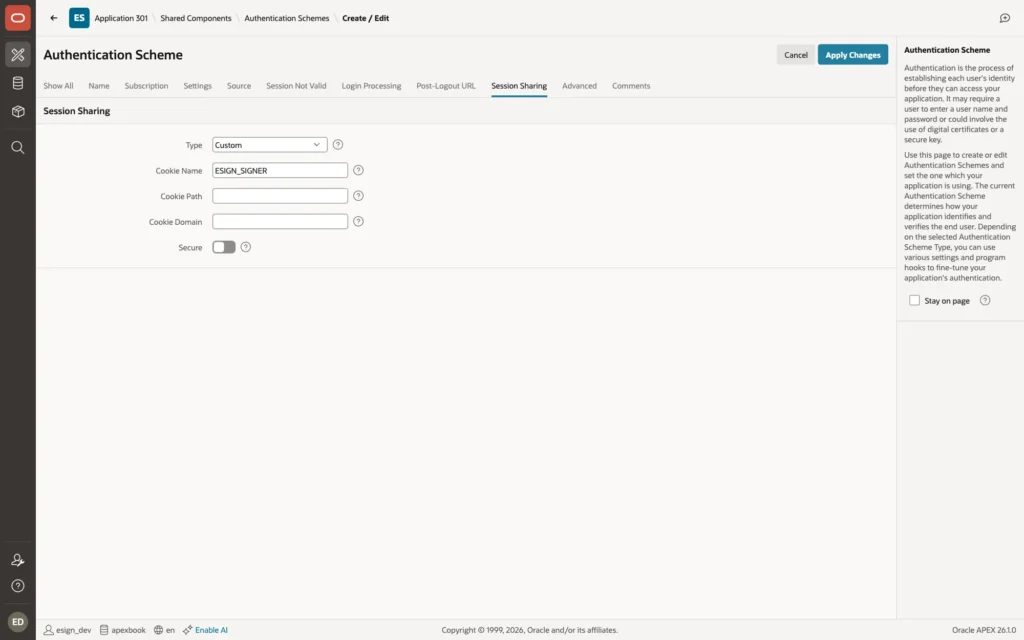
- In Shared Components, Authentication Schemes, create a scheme based on the preconfigured scheme No Authentication, and make it current.
- Edit the scheme, and in Session Sharing, set Type to Custom and Cookie Name to ESIGN_SIGNER. The application now has a cookie of its own.
Create two application items, G_SIGNER_ID and G_OTP_OK, with Session State Protection set to Restricted - May not be set from browser. G_SIGNER_ID holds the signer of the link, and G_OTP_OK the signer who entered the correct code in this session. Only server-side code can set them.
Page 100: Sign
Page 100 (alias SIGN) is the page that signing links open, with the token in the item P100_TOKEN, for example /ords/r/apexbook/esign-sign/sign?p100_token=... . Set its properties:
- Page Template: Minimal (No Navigation)
- Security, Authentication: Page Is Public
- Security, Page Access Protection: Unrestricted, so that the link can set P100_TOKEN without a checksum
The regions and items:
| Region | Type and contents | Shown when |
|---|---|---|
| Envelope | Dynamic Content: who sent the document to whom, and the message. Hidden items P100_TOKEN (Value Protected off, Session State Protection Unrestricted), P100_TOKEN_OK, P100_STEP, P100_ERROR, P100_EMAIL_HINT, P100_PDF_URL (Value Protected on), and P100_SIGNATURE, P100_METHOD (Value Protected off, set by JavaScript) | Always |
| Verify Your Identity | Static Content with P100_CODE (Text Field, Submit when Enter pressed), the buttons SEND_CODE (E-mail Me a Code) and VERIFY, and the child region Development Code (template Alert) that shows &P100_DEV_CODE. | P100_STEP = VERIFY |
| Review the Document | Static Content: an iframe with src &P100_PDF_URL. and a link to open the PDF in a new tab | P100_STEP is SIGN or DONE |
| Sign (title Adopt Your Signature) | Static Content with the signature pad HTML below, P100_TYPED_NAME, P100_CONSENT (Checkbox, with the disclosure text as its label), and the buttons CLEAR and SIGN (Adopt and Sign) | P100_STEP = SIGN |
| Decline to Sign | Collapsible, collapsed, with P100_DECLINE_REASON and the button DECLINE (with a danger confirmation) | P100_STEP = SIGN |
| Result | Dynamic Content: the message for a signed, declined, voided, or waiting envelope | P100_STEP is DONE, DECLINED, VOIDED, or WAIT |
The source of the Sign region:
<div class="esign-tabs" role="tablist"><button type="button" class="esign-tab is-active" data-mode="DRAW">Draw</button><button type="button" class="esign-tab" data-mode="TYPE">Type</button></div>
<div id="esign-pad"><canvas id="esign-canvas" width="620" height="190" aria-label="Signature pad"></canvas><div class="esign-line"></div></div>
The buttons CLEAR and SIGN have the action Defined by Dynamic Action and the Static IDs esign-clear and esign-sign, because the page's JavaScript handles them. The Envelope region's Dynamic Content:
Region Envelope (PL/SQL Function Body returning a CLOB):
declare
l_html varchar2(32767);
begin
if :P100_STEP = 'ERROR' then
return '<div class="esign-card"><h2>This link can''t be used</h2><p>' || apex_escape.html(:P100_ERROR)
|| '</p><p>Ask the sender for a new signing link.</p></div>';
end if;
for r in (select d.title, d.message, d.created_by, d.envelope_id, d.status, s.signer_name
from esign_signers s join esign_documents d on d.doc_id = s.doc_id
where s.signer_id = :G_SIGNER_ID)
loop
l_html := '<div class="esign-card"><p class="u-color-text-secondary">'
|| apex_escape.html(esign_pkg.setting('ORG_NAME')) || ' · Envelope ' || r.envelope_id || '</p>'
|| '<h2>' || apex_escape.html(r.title) || '</h2>'
|| '<p>' || apex_escape.html(esign_pkg.sender_name(r.created_by)) || ' asks <b>' || apex_escape.html(r.signer_name)
|| '</b> to review and sign this document.</p>'
|| case when r.message is not null
then '<div class="esign-note">' || apex_escape.html(r.message) || '</div>' end
|| '</div>';
end loop;
return l_html;
end;A Before Header process decides what the page shows. When the URL brings a new token, it finds the signer with SIGNER_FOR_TOKEN and forgets any earlier verification. Then it sets P100_STEP from the state of the signer and the envelope, and whether the signer has entered the code in this session:
Process Prepare (Before Header):
declare
    l_signer_status esign_signers.status%type;
    l_doc_status    esign_documents.status%type;
    l_email         esign_signers.signer_email%type;
begin
    :P100_ERROR := null;
    -- a new token in the URL: find its signer
    if :P100_TOKEN is not null and (:P100_TOKEN_OK is null or :P100_TOKEN_OK <> :P100_TOKEN) then
        begin
            :G_SIGNER_ID   := esign_pkg.signer_for_token(:P100_TOKEN);
            :P100_TOKEN_OK := :P100_TOKEN;
            :G_OTP_OK      := null;
            :P100_DEV_CODE := null;
        exception when others then
            :G_SIGNER_ID   := null;
            :P100_TOKEN_OK := null;
            :P100_ERROR    := regexp_replace(sqlerrm, '^ORA-\d+: ');
        end;
    end if;
    if :G_SIGNER_ID is null then
        :P100_STEP  := 'ERROR';
        :P100_ERROR := nvl(:P100_ERROR, 'Open the signing link from your e-mail.');
        return;
    end if;
    select s.status, d.status, s.signer_email
      into l_signer_status, l_doc_status, l_email
      from esign_signers s join esign_documents d on d.doc_id = s.doc_id
     where s.signer_id = :G_SIGNER_ID;
    :P100_EMAIL_HINT := substr(l_email, 1, 2) || '***' || substr(l_email, instr(l_email, '@'));
    :P100_PDF_URL    := apex_page.get_url(p_page => 101);
    :P100_STEP := case
                      when l_signer_status = 'SIGNED'                              then 'DONE'
                      when l_signer_status = 'DECLINED' or l_doc_status = 'DECLINED' then 'DECLINED'
                      when l_doc_status = 'VOIDED'                                   then 'VOIDED'
                      when l_signer_status = 'PENDING'                               then 'WAIT'
                      when :G_OTP_OK = to_char(:G_SIGNER_ID)                         then 'SIGN'
                      else 'VERIFY'
                  end;
end;
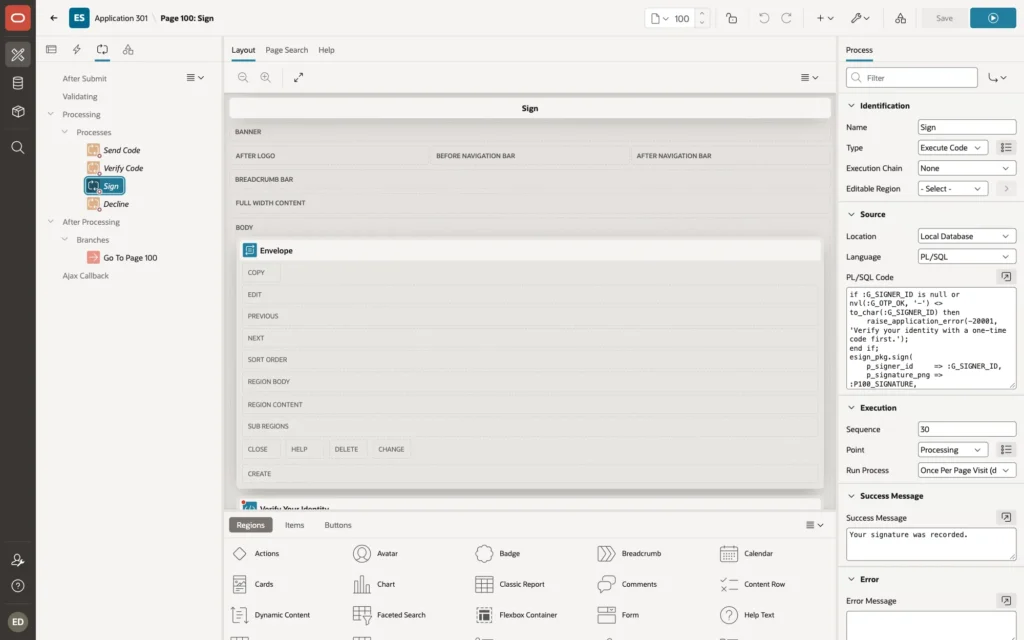
The page processes, one per button, and an After Processing branch back to page 100 with the success message:
Processes Send Code (SEND_CODE), Verify Code (VERIFY), Sign (SIGN), and Decline (DECLINE):
:P100_DEV_CODE := esign_pkg.send_otp(:G_SIGNER_ID);

esign_pkg.verify_otp(:G_SIGNER_ID, :P100_CODE);
:G_OTP_OK      := :G_SIGNER_ID;
:P100_DEV_CODE := null;
:P100_CODE     := null;
esign_pkg.mark_viewed(:G_SIGNER_ID);

if :G_SIGNER_ID is null or nvl(:G_OTP_OK, '-') <> to_char(:G_SIGNER_ID) then
    raise_application_error(-20001, 'Verify your identity with a one-time code first.');
end if;
esign_pkg.sign(
    p_signer_id     => :G_SIGNER_ID,
    p_signature_png => :P100_SIGNATURE,
    p_method        => :P100_METHOD,
    p_consent       => :P100_CONSENT);
:P100_SIGNATURE := null;

if :G_SIGNER_ID is null or nvl(:G_OTP_OK, '-') <> to_char(:G_SIGNER_ID) then
    raise_application_error(-20001, 'Verify your identity with a one-time code first.');
end if;
esign_pkg.decline(:G_SIGNER_ID, :P100_DECLINE_REASON);
The check of G_OTP_OK in Sign and Decline is what makes a leaked link useless: only the browser session in which the code was entered can sign.
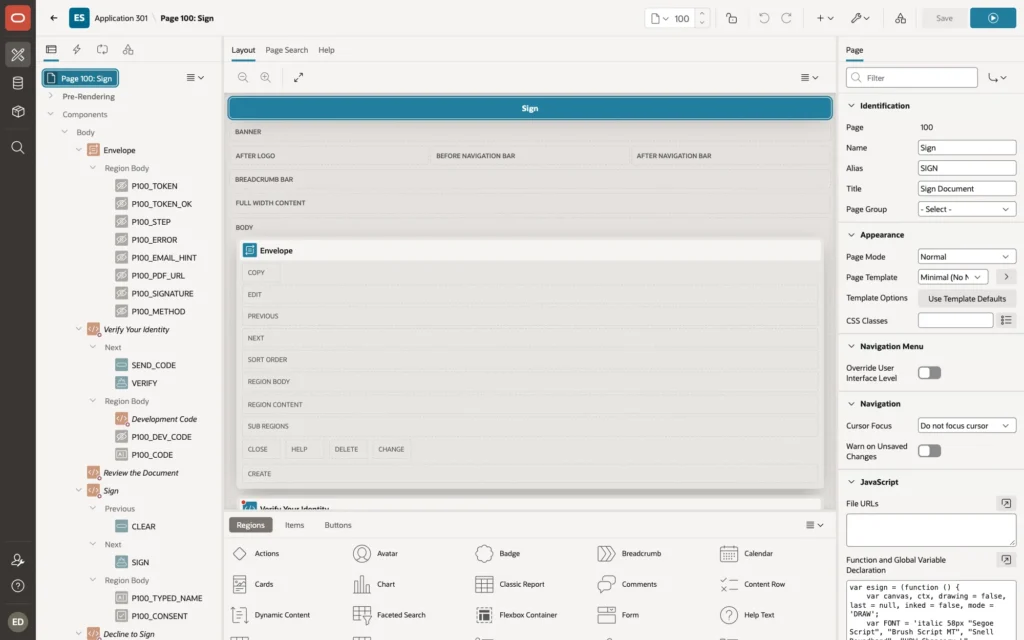
The signature pad is an HTML canvas with a few lines of JavaScript, with no plug-in or library. Put this code in the page's Function and Global Variable Declaration, and esign.init(); in Execute when Page Loads. Draw mode follows the pointer (mouse, finger, or pen). Type mode draws the typed name in a handwriting font. Before submitting, the code checks the consent and the signature, crops the canvas to the ink, and sets P100_SIGNATURE to a PNG data URL:
The complete Function and Global Variable Declaration of page 100 (96 lines):
var esign = (function () {
    var canvas, ctx, drawing = false, last = null, inked = false, mode = 'DRAW';
    var FONT = 'italic 58px "Segoe Script", "Brush Script MT", "Snell Roundhand", "URW Chancery L", cursive';

    function pos(e) {
        var r = canvas.getBoundingClientRect();
        return { x: (e.clientX - r.left) * canvas.width / r.width, y: (e.clientY - r.top) * canvas.height / r.height };
    }
    function clear() {
        ctx.clearRect(0, 0, canvas.width, canvas.height);
        inked = false;
        $('#esign-pad').removeClass('is-inked');
    }
    function drawTyped() {
        clear();
        var name = ($v('P100_TYPED_NAME') || '').trim();
        if (!name) { return; }
        var size = 58;
        ctx.fillStyle = '#14306e';
        do { ctx.font = FONT.replace('58px', size + 'px'); size -= 2; }
        while (ctx.measureText(name).width > canvas.width - 40 && size > 18);
        ctx.textBaseline = 'middle';
        ctx.fillText(name, 20, canvas.height / 2);
        inked = true;
        $('#esign-pad').addClass('is-inked');
    }
    function setMode(m) {
        mode = m;
        $('.esign-tab').removeClass('is-active').filter('[data-mode="' + m + '"]').addClass('is-active');
        $('#P100_TYPED_NAME_CONTAINER').toggle(m === 'TYPE');
        $('#esign-pad').toggleClass('is-typed', m === 'TYPE');
        if (m === 'TYPE') { drawTyped(); apex.item('P100_TYPED_NAME').setFocus(); } else { clear(); }
    }
    // PNG of the inked area only, so the stamp is not mostly empty space
    function cropped() {
        var w = canvas.width, h = canvas.height, data = ctx.getImageData(0, 0, w, h).data;
        var x0 = w, y0 = h, x1 = 0, y1 = 0;
        for (var y = 0; y < h; y++) {
            for (var x = 0; x < w; x++) {
                if (data[(y * w + x) * 4 + 3] > 10) {
                    if (x < x0) { x0 = x; } if (x > x1) { x1 = x; } if (y < y0) { y0 = y; } if (y > y1) { y1 = y; }
                }
            }
        }
        var pad = 8; x0 = Math.max(0, x0 - pad); y0 = Math.max(0, y0 - pad);
        x1 = Math.min(w - 1, x1 + pad); y1 = Math.min(h - 1, y1 + pad);
        var out = document.createElement('canvas');
        out.width = x1 - x0 + 1; out.height = y1 - y0 + 1;
        out.getContext('2d').drawImage(canvas, x0, y0, out.width, out.height, 0, 0, out.width, out.height);
        return out.toDataURL('image/png');
    }
    function submit() {
        var errors = [];
        if ($v('P100_CONSENT') !== 'Y') {
            errors.push({ type: 'error', location: ['inline', 'page'], pageItem: 'P100_CONSENT',
                          message: 'Accept the electronic signature disclosure.', unsafe: false });
        }
        if (!inked) {
            errors.push({ type: 'error', location: 'page', message: mode === 'TYPE' ? 'Type your name.' : 'Draw your signature in the box.', unsafe: false });
        }
        apex.message.clearErrors();
        if (errors.length) { apex.message.showErrors(errors); return; }
        $s('P100_SIGNATURE', cropped());
        $s('P100_METHOD', mode === 'TYPE' ? 'TYPED' : 'DRAWN');
        apex.page.submit({ request: 'SIGN', showWait: true });
    }
    function init() {
        canvas = document.getElementById('esign-canvas');
        if (!canvas) { return; }
        ctx = canvas.getContext('2d');
        canvas.addEventListener('pointerdown', function (e) {
            if (mode !== 'DRAW') { return; }
            drawing = true; last = pos(e);
            canvas.setPointerCapture(e.pointerId);
            e.preventDefault();
        });
        canvas.addEventListener('pointermove', function (e) {
            if (!drawing) { return; }
            var p = pos(e);
            ctx.strokeStyle = '#14306e'; ctx.lineWidth = 3.4; ctx.lineCap = 'round'; ctx.lineJoin = 'round';
            ctx.beginPath(); ctx.moveTo(last.x, last.y); ctx.lineTo(p.x, p.y); ctx.stroke();
            last = p; inked = true;
            $('#esign-pad').addClass('is-inked');
            e.preventDefault();
        });
        ['pointerup', 'pointercancel', 'pointerleave'].forEach(function (t) {
            canvas.addEventListener(t, function () { drawing = false; });
        });
        $('.esign-tab').on('click', function () { setMode(this.dataset.mode); });
        $('#esign-clear').on('click', function () { if (mode === 'TYPE') { $s('P100_TYPED_NAME', ''); } clear(); });
        $('#P100_TYPED_NAME').on('input', drawTyped);
        $('#esign-sign').on('click', submit);
        $('#P100_TYPED_NAME_CONTAINER').hide();
    }
    return { init: init };
})();
And the page's CSS, Inline, for the document card, the PDF viewer, and the signature pad:
CSS, Inline (page 100):
.esign-doc { max-width: 980px; margin: 0 auto; }
.esign-card h2 { margin: 0 0 4px; font-size: 22px; }
.esign-card p { margin: 4px 0; }
.esign-card .esign-note { border-left: 3px solid #cbd5e1; padding: 4px 10px; margin: 10px 0; color: #374151; white-space: pre-wrap; }
.esign-viewer { width: 100%; height: 72vh; min-height: 420px; border: 1px solid rgba(0,0,0,.12); border-radius: 6px; background: #f3f4f6; }
.esign-tabs { display: flex; gap: 6px; margin-bottom: 8px; }
.esign-tab { border: 1px solid rgba(0,0,0,.15); background: transparent; border-radius: 999px; padding: 4px 14px; cursor: pointer; font: inherit; }
.esign-tab.is-active { background: #1c59b8; border-color: #1c59b8; color: #fff; }
#esign-pad { position: relative; max-width: 620px; border: 1px dashed #94a3b8; border-radius: 8px; background: #fff; }
#esign-canvas { display: block; width: 100%; aspect-ratio: 620 / 190; touch-action: none; cursor: crosshair; }
#esign-pad.is-typed #esign-canvas { cursor: default; }
#esign-pad::after { content: 'Sign here'; position: absolute; left: 18px; bottom: 30px; color: #94a3b8; font-size: 13px; pointer-events: none; }
#esign-pad.is-inked::after, #esign-pad.is-typed::after { content: ''; }
#esign-pad .esign-line { position: absolute; left: 16px; right: 16px; bottom: 26px; border-bottom: 1px solid #cbd5e1; pointer-events: none; }
.esign-pad-actions { display: flex; gap: 8px; margin-top: 12px; align-items: center; flex-wrap: wrap; }
.esign-done { text-align: center; padding: 24px 8px; }
.esign-done .fa { font-size: 48px; }
.esign-code { font-size: 22px; letter-spacing: 4px; font-weight: 700; }
Page 101: Document PDF
Page 101 (alias PDF) sends the PDF to the iframe of page 100. It is public, uses the template Minimal (No Navigation), and its Page Access Protection is No Arguments Supported. A Before Header process sends the file only to the signer who entered the code in this session. After completion, VIEW_PDF sends the signed PDF instead of the original:
Process Show PDF (Before Header):
if :G_SIGNER_ID is not null and :G_OTP_OK = to_char(:G_SIGNER_ID) then
    esign_pkg.view_pdf(:G_SIGNER_ID);
    apex_application.stop_apex_engine;
end if;
Page 110: Verify a PDF
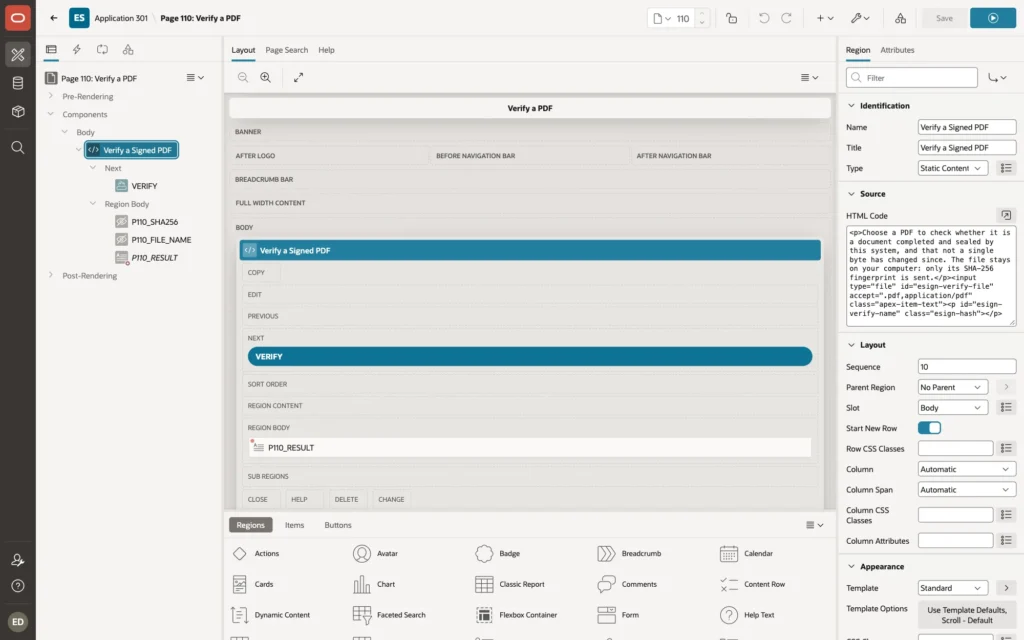
Page 110 (alias VERIFY) lets anyone check a signed PDF. By default, APEX does not let users who are not signed in upload files (the instance setting Allow Public File Upload), and the file does not need to leave the user's computer anyway: the browser computes the SHA-256 fingerprint with the Web Crypto API and sends only that.
The page is public. It has one Static Content region, Verify a Signed PDF, whose source contains a plain file input with the ID esign-verify-file. The region holds the hidden items P110_SHA256 and P110_FILE_NAME (Value Protected off), the display-only item P110_RESULT (Format HTML, shown when not null), and the button VERIFY (action Defined by Dynamic Action, Static ID esign-verify).
Execute when Page Loads (page 110):
$('#esign-verify').on('click', async function () {
    var file = document.getElementById('esign-verify-file').files[0];
    apex.message.clearErrors();
    if (!file) {
        apex.message.showErrors([{ type: 'error', location: 'page', message: 'Choose the PDF to verify.', unsafe: false }]);
        return;
    }
    var digest = await crypto.subtle.digest('SHA-256', await file.arrayBuffer());
    var hex = Array.from(new Uint8Array(digest)).map(function (b) { return b.toString(16).padStart(2, '0'); }).join('');
    $s('P110_SHA256', hex);
    $s('P110_FILE_NAME', file.name);
    apex.page.submit({ request: 'VERIFY', showWait: true });
});
Process Verify File (request VERIFY), and a branch back to page 110:
:P110_RESULT := esign_pkg.verify_hash(:P110_SHA256, :P110_FILE_NAME);
Step 5: Send a Document for Signature
The applications are ready. Run ESign Lab and sign in with a user of your workspace. The screenshots use a user named Anita Sharma. The application shows that name to signers.
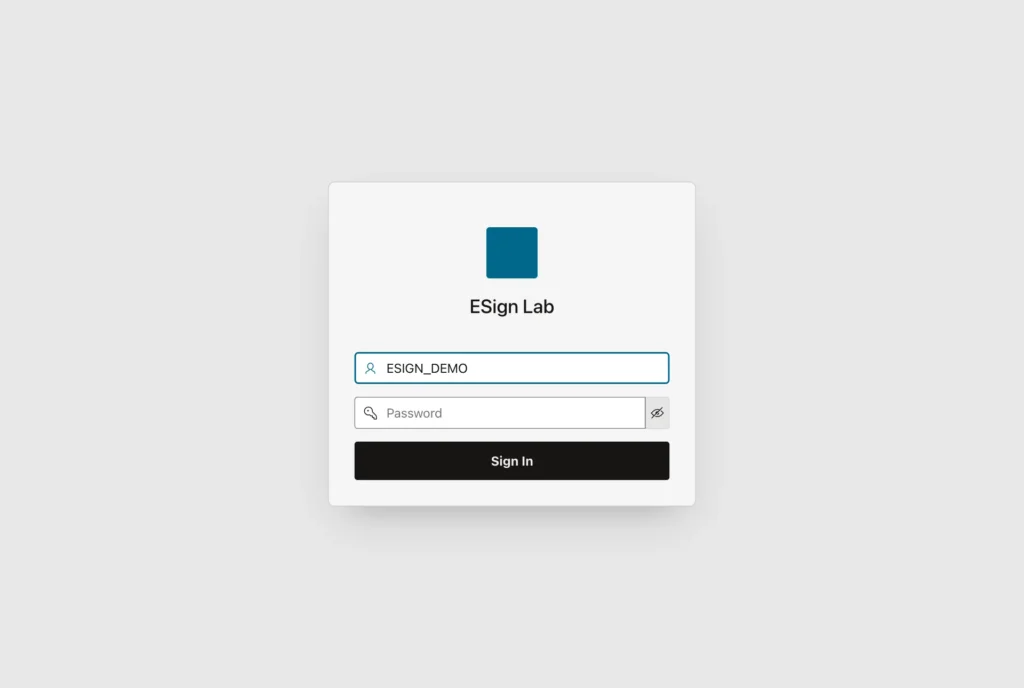
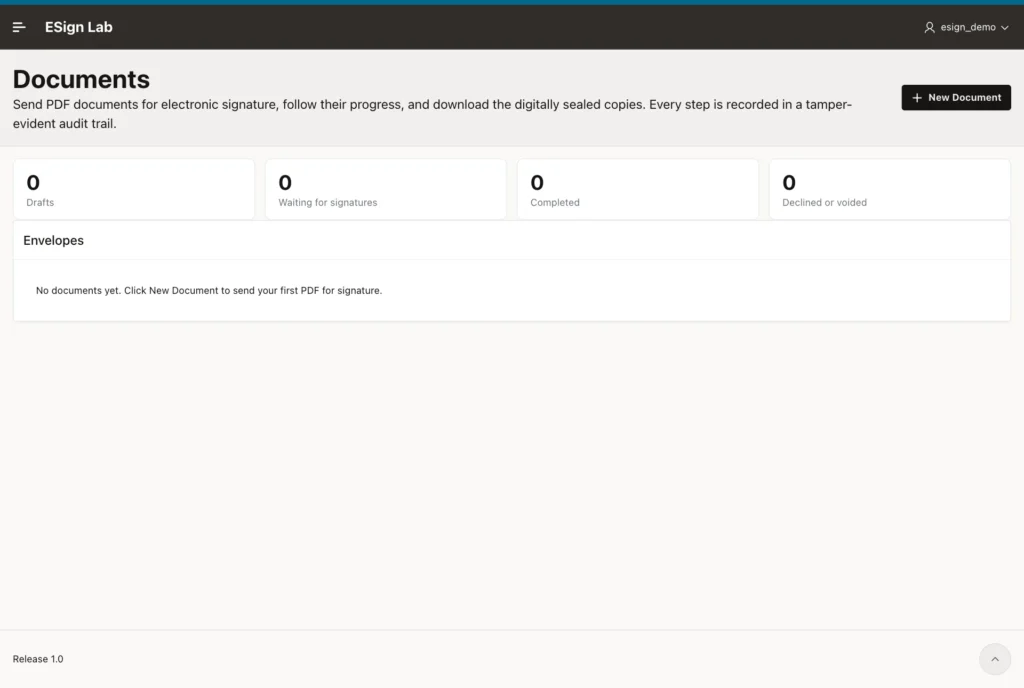
Click New Document. Enter a title and a message, choose the signing order, and drop the PDF on the upload area. The example is a two-page agreement between a web design firm and its client:
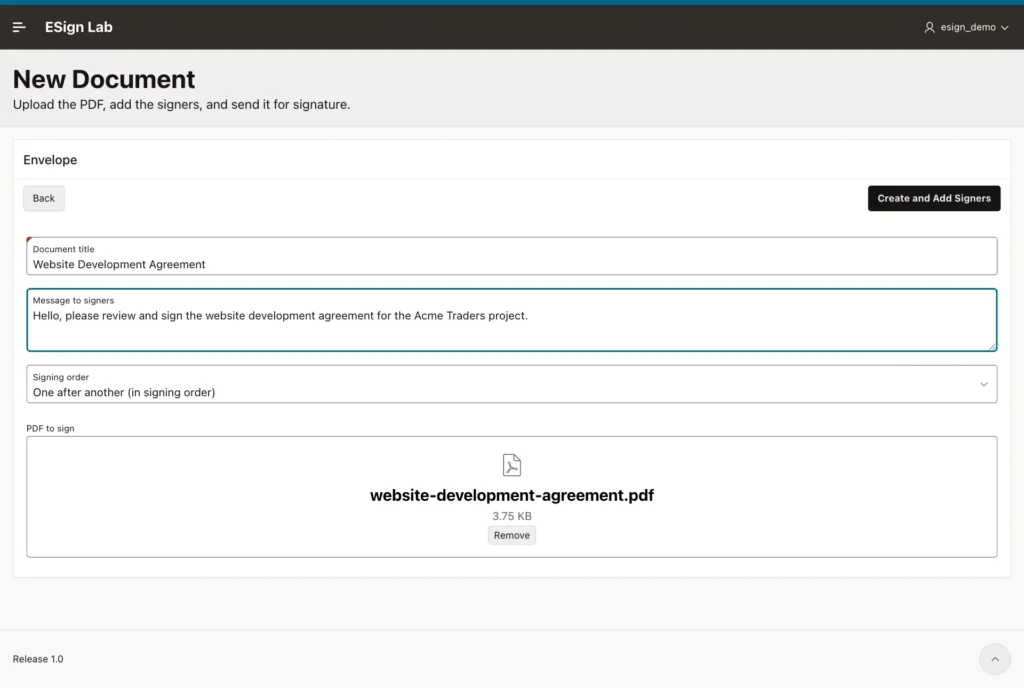
Click Create and Add Signers. The package checks the file with INSPECT (a password-protected or damaged PDF is rejected), stores it with its fingerprint, and logs CREATED and FILE_UPLOADED. Now add the signers. This example has two: Rahul Mehta of the web design firm, first, with his stamp at the bottom left of the last page, and Priya Nair of the client, second, at the bottom right. That matches the two signature blocks of the agreement.
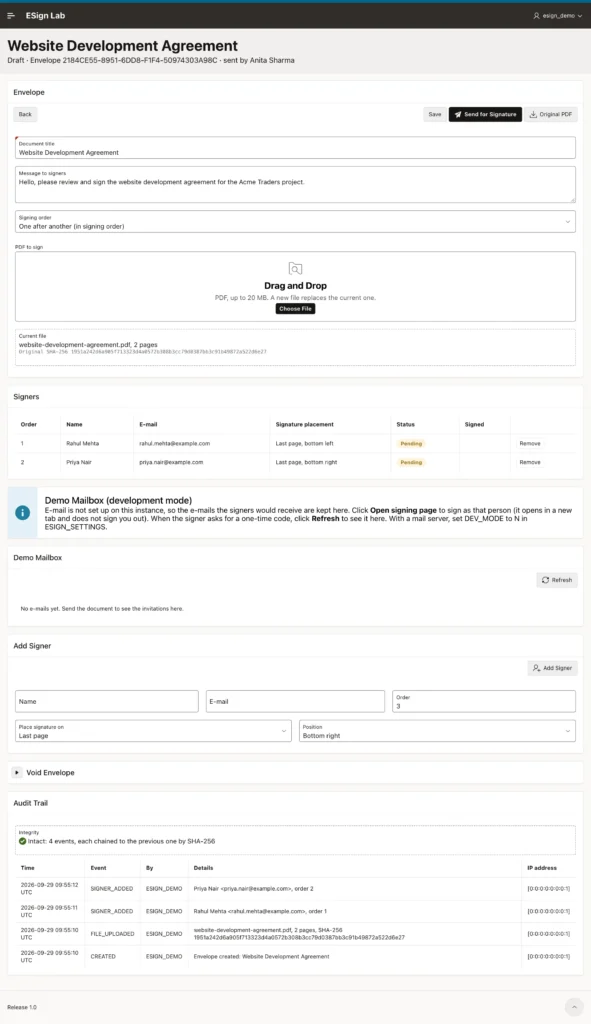
Click Send for Signature and confirm:
Because the signing order is one after another, only Rahul is invited. Priya stays Pending until he signs. The invitation appears in the demo mailbox, with its Open signing page link:

Step 6: Sign as the Signers
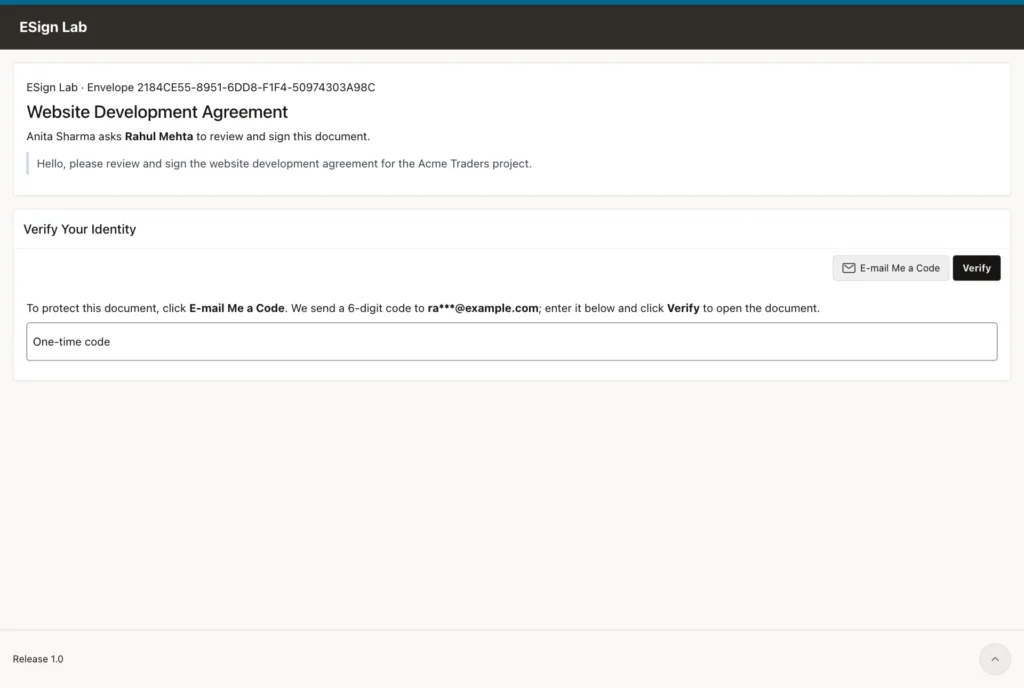
Click Open signing page. The signing application opens in a new tab, and because it has its own cookie, you stay signed in to ESign Lab. The page asks the signer to verify their identity first:
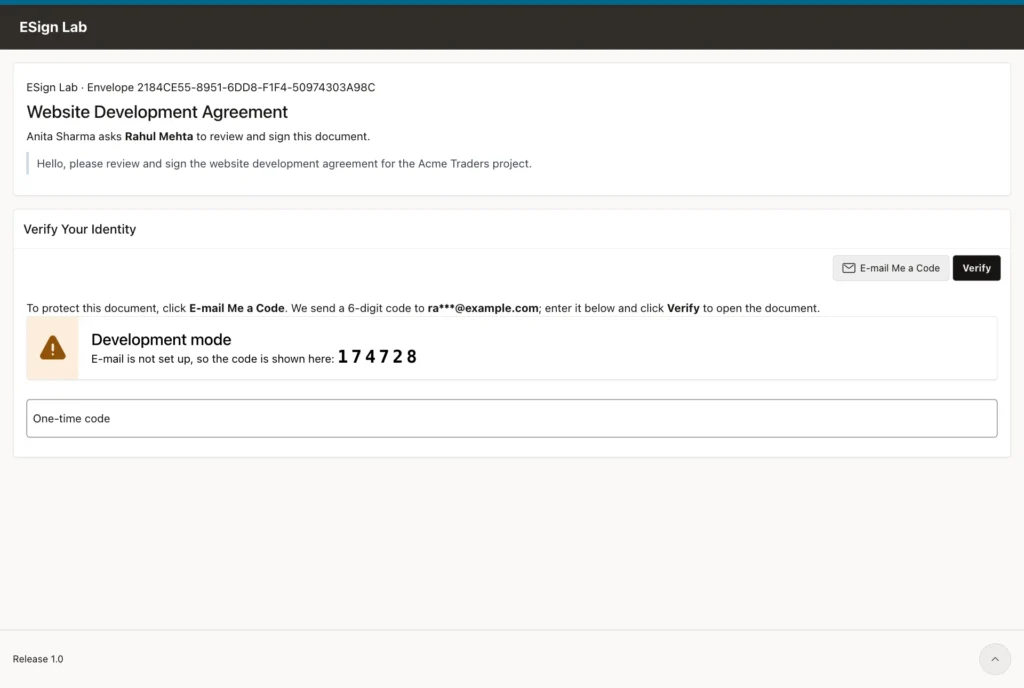
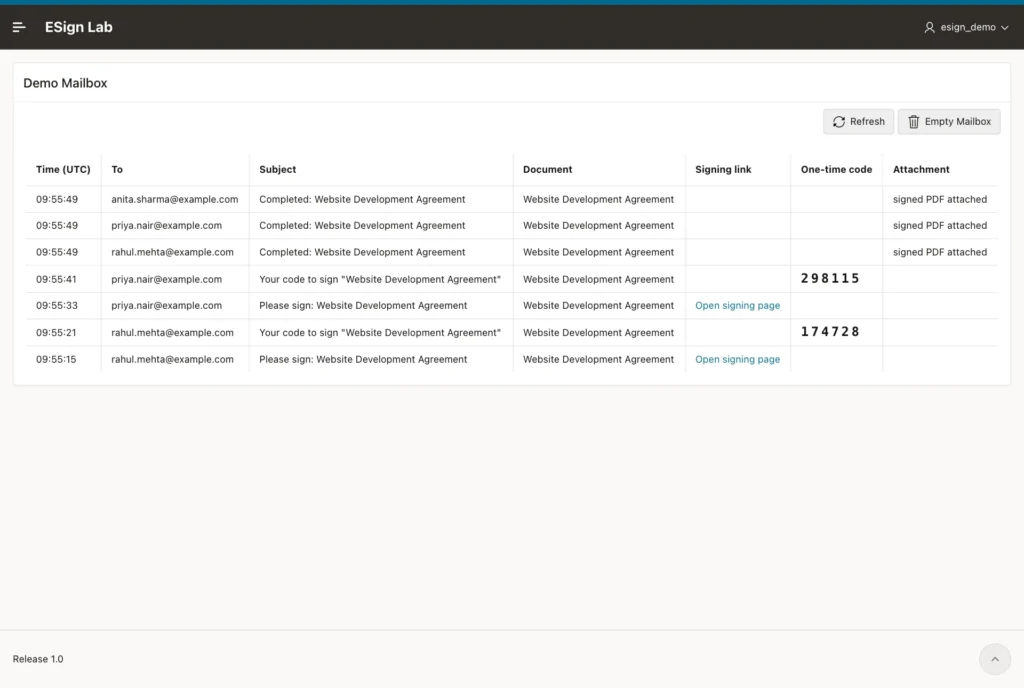
Click E-mail Me a Code. In development mode, the page also shows the code, and so does the sender's demo mailbox after a Refresh:

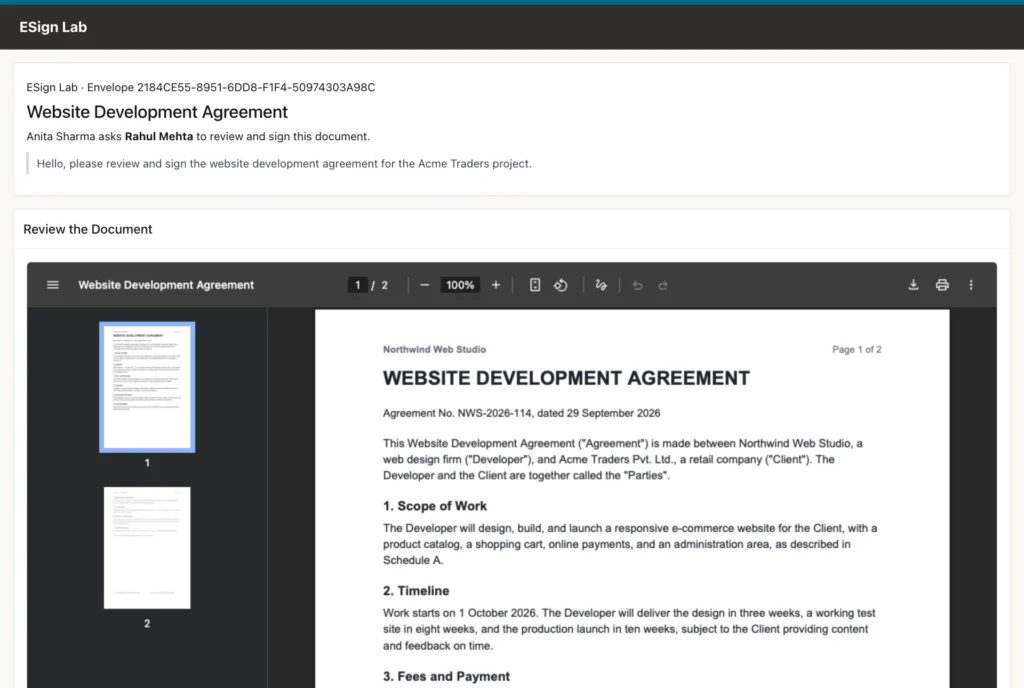
Enter the code and click Verify. The signer now sees the whole document:
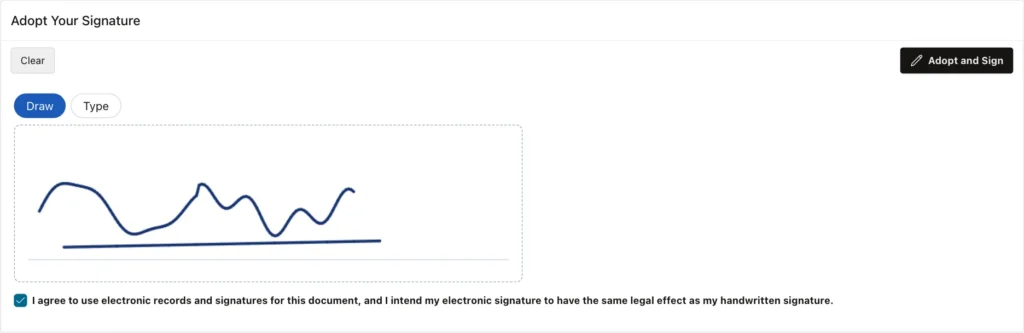
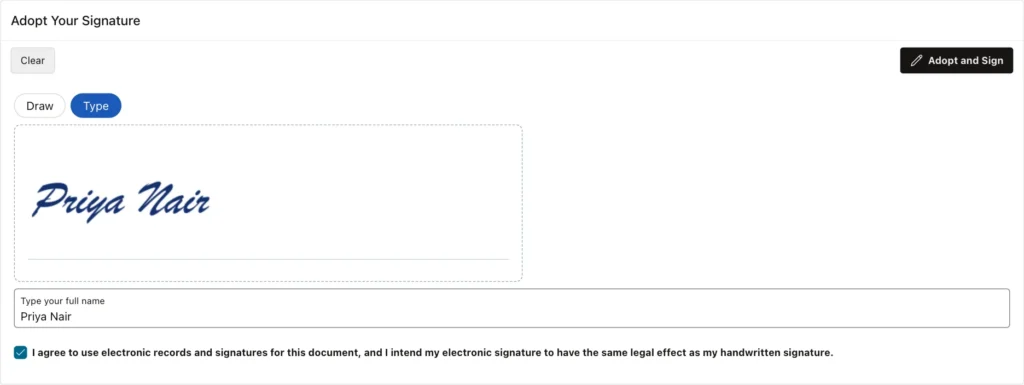
Below it, the signer draws a signature, ticks the disclosure, and clicks Adopt and Sign. A signer who does not agree can open Decline to Sign instead:

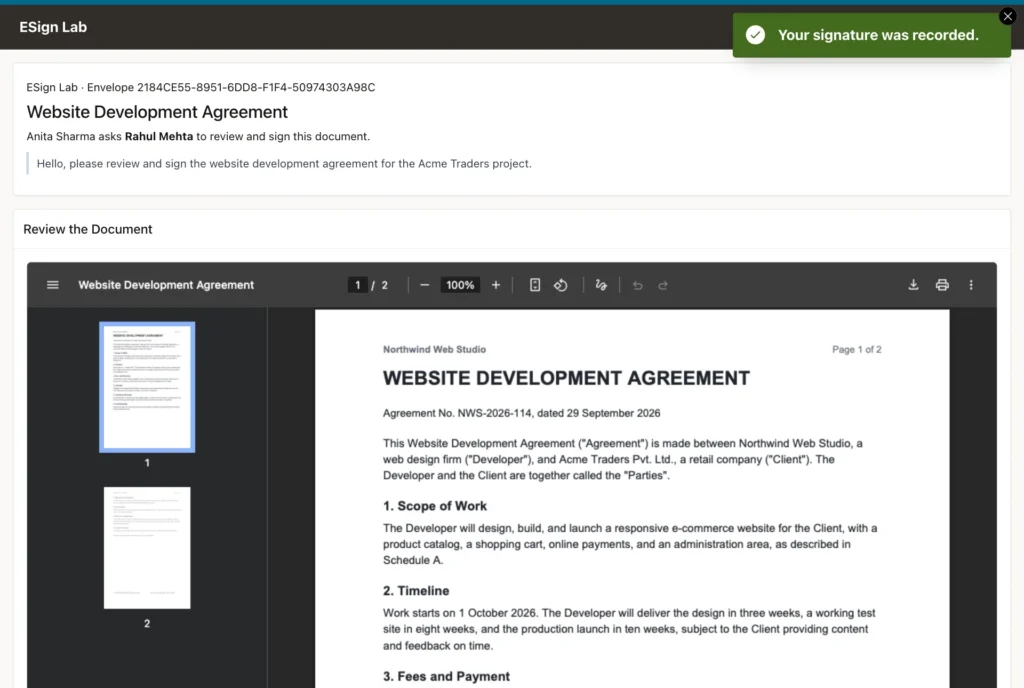
Rahul's signature makes it Priya's turn: the package sends her invitation. Open it from the demo mailbox, verify her code, and this time switch to Type:
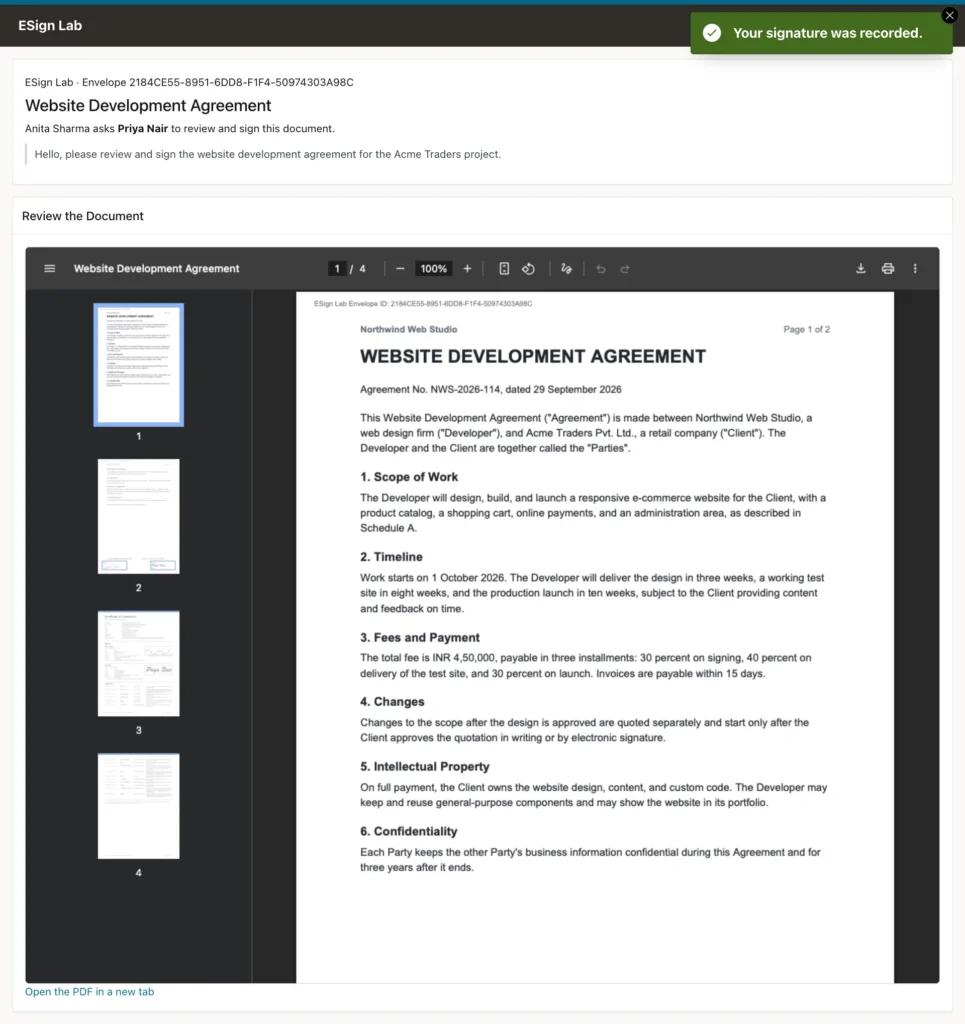
Priya is the last signer, so her signature completes the envelope. FINALIZE stamps the PDF, appends the certificate, seals it, and e-mails it to everyone. Her page now shows the sealed PDF:
Step 7: Download the Signed PDF
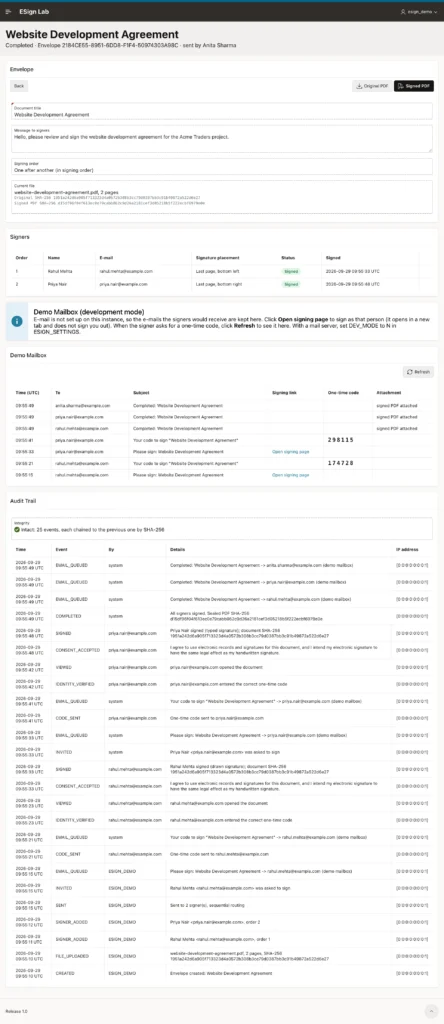
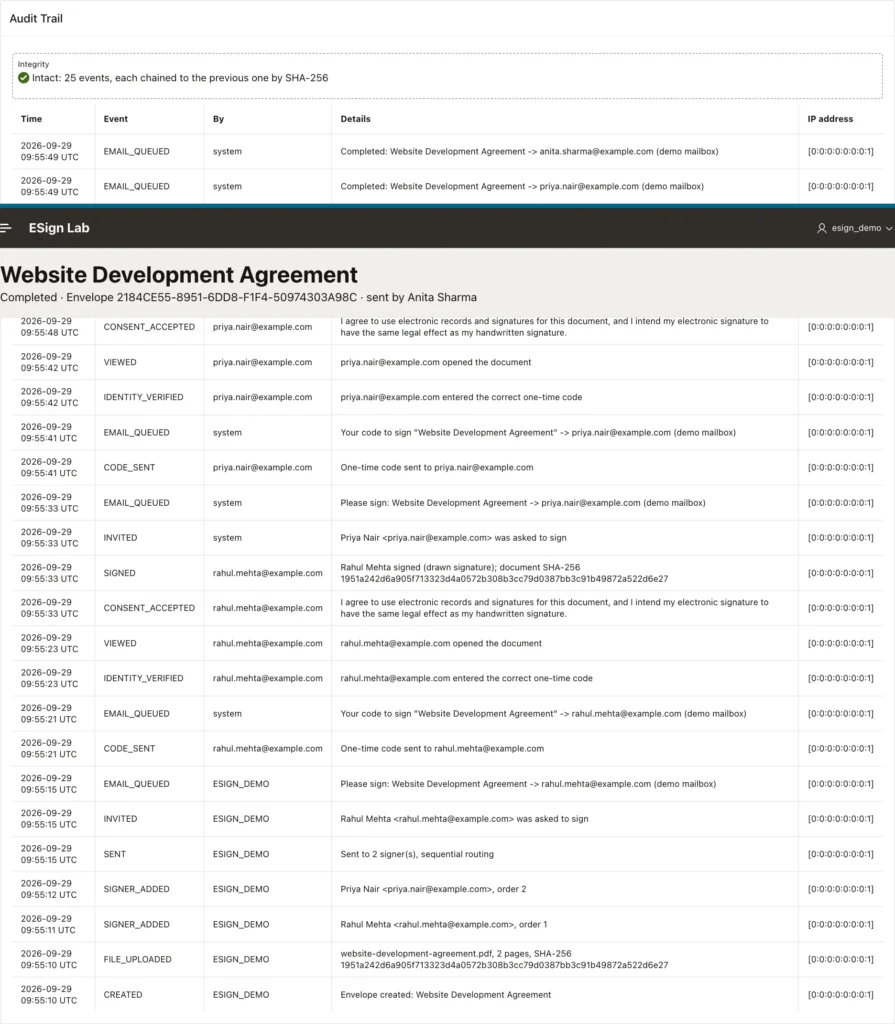
Back in ESign Lab, the envelope is completed. The page shows both signers as signed, the fingerprints of the original and the signed PDF, the completion e-mails, and an intact audit trail of 25 events:
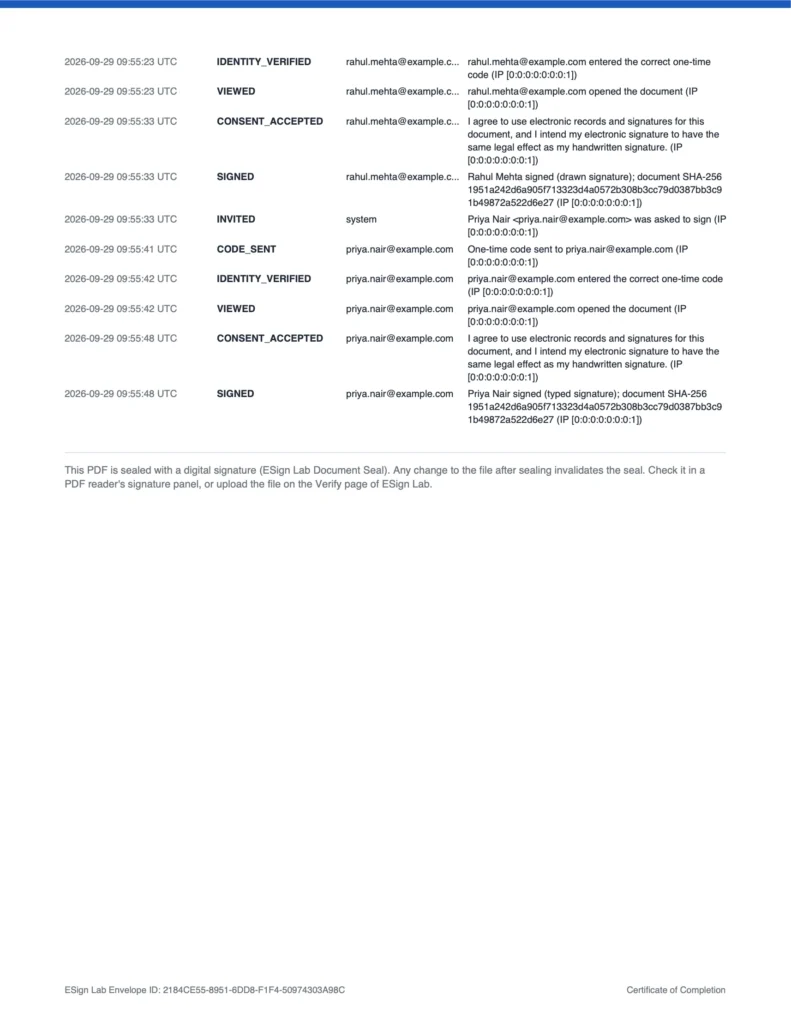
Click Signed PDF to download it. Its last page carries the two stamps, and the certificate follows. When the audit trail is long, the certificate continues on another page:
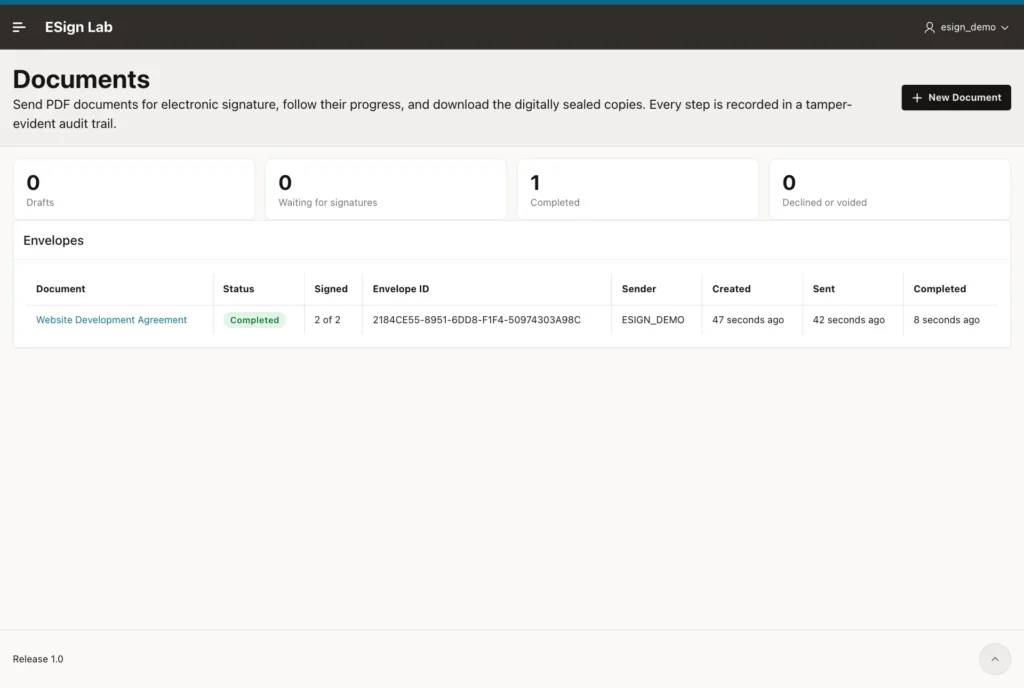
The Documents page and the Demo Mailbox page now look like this:
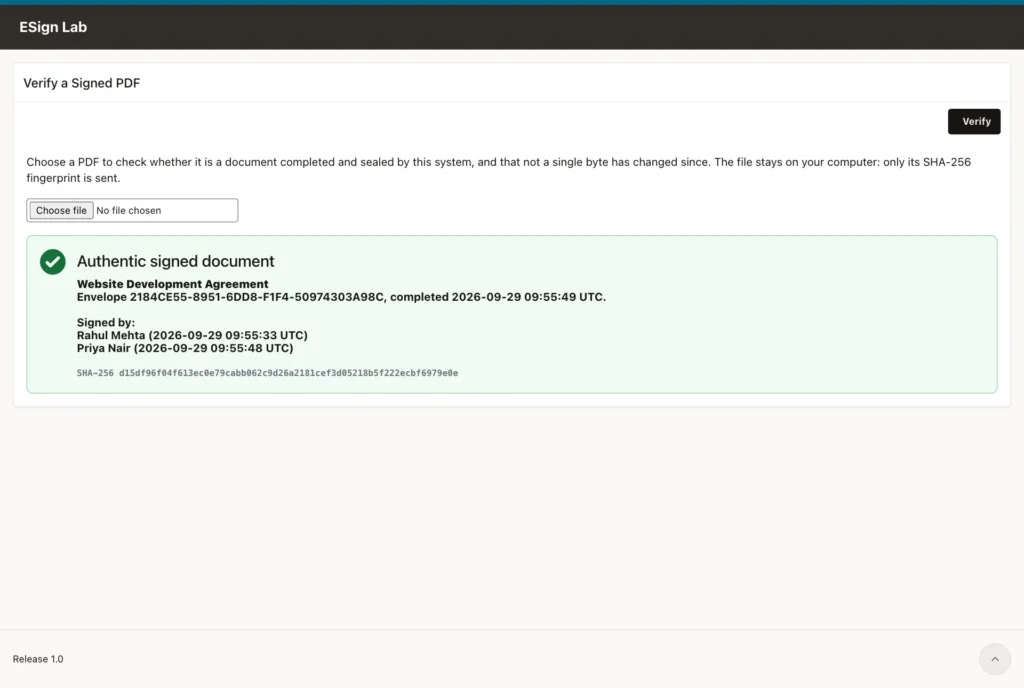
Step 8: Verify a Signed PDF
Anyone who receives the signed PDF can check it on the Verify page of the signing application:
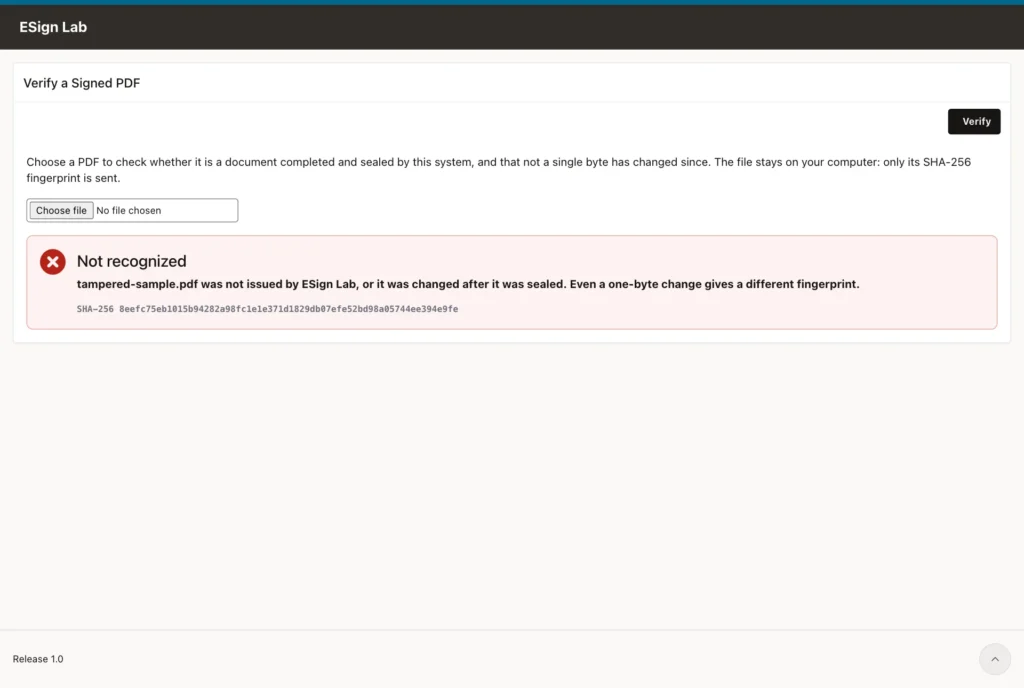
A copy with a single changed byte is not recognized:
The seal can also be checked without the application: a PDF reader's signature panel shows it, and openssl verifies it. This snippet cuts the signed bytes and the PKCS#7 structure out of the PDF and passes them to openssl:
python3 - <<'EOF'
import re
d = open('signed.pdf', 'rb').read()
a, b, c, e = map(int, re.search(rb'/ByteRange\s*\[\s*(\d+)\s+(\d+)\s+(\d+)\s+(\d+)', d).groups())
open('data.bin', 'wb').write(d[a:a + b] + d[c:c + e])
h = d[a + b + 1:c - 1].rstrip(b'0')
open('sig.der', 'wb').write(bytes.fromhex((h + b'0' if len(h) % 2 else h).decode()))
EOF
openssl cms -verify -binary -inform DER -in sig.der -content data.bin -noverify -out /dev/null
For the PDF of this guide, openssl prints:
CMS Verification successful
The option -noverify skips the check of the certificate chain, because the certificate is self-signed. The signature and the hash of the content are checked.
The Final PDF: Use Any PDF Tool
Everything the application does up to this point is plain PL/SQL: links, codes, consent, the audit trail, and the fingerprints. The only place where a PDF is written is the final PDF of a completed envelope, and the application does not care which tool writes it. When the last person signs, you have:
| What | Type | Where |
|---|---|---|
| The original, uploaded PDF | BLOB | ESIGN_DOCUMENTS.ORIGINAL_PDF |
| Each signer's signature image | BLOB (PNG) | ESIGN_SIGNERS.SIGNATURE_PNG |
| All the evidence: envelope, signers, consent, times, IP addresses, fingerprints, and the audit trail | CLOB (JSON) | esign_pkg.evidence_json(p_doc_id), and the tables ESIGN_SIGNERS and ESIGN_AUDIT |
Turning them into the final PDF is the job of one function in your schema, ESIGN_RENDER_PDF. It receives the envelope's ID and returns the PDF as a BLOB. install.sql creates it with the built-in engine, which is what this guide's demo uses. To use PL/PDF, AOP, Jasper Reports, BI Publisher, VinAura, or any other tool, replace its return statement with a call to your tool:
The function ESIGN_RENDER_PDF (sql/06_render_pdf.sql):
create or replace function esign_render_pdf(p_doc_id in number) return blob
    authid definer
is
    l_original blob;
begin
    select original_pdf into l_original from esign_documents where doc_id = p_doc_id;

    -- The built-in PDF engine: stamps the signatures on the original and appends the certificate of completion
    return esign_pdf.stamp(l_original, esign_pkg.evidence_json(p_doc_id));

    -- Or your own tool, for example:
    --   return my_pdf_tool.render(p_doc_id);
    -- Or no PDF tool at all: the original, unchanged, is sealed as it is:
    --   return l_original;
end esign_render_pdf;
/
FINALIZE seals whatever PDF your function returns, as long as a PDF engine (MLE or Java) is installed: if the PDF has no signature field yet, the engine adds one to its last page, and FINALIZE seals the file. Your tool only needs to return a normal, unencrypted PDF.
Most report tools take their data from a SQL query or from JSON. The JSON of an envelope looks like this. It is the demo envelope of this guide, shortened: the signature images are base64 PNG, and the audit trail has 18 entries:
Output of select esign_pkg.evidence_json(:doc_id) from dual (shortened):
{
  "org" : "ESign Lab",
  "envelopeId" : "2184CE55-8951-6DD8-F1F4-50974303A98C",
  "title" : "Website Development Agreement",
  "fileName" : "website-development-agreement.pdf",
  "pages" : 2,
  "sender" : "Anita Sharma (ESIGN_DEMO)",
  "sentOn" : "2026-09-29 09:55:15 UTC",
  "completedOn" : "2026-09-29 09:55:49 UTC",
  "routing" : "SEQUENTIAL",
  "originalSha256" : "1951a242d6a905f713323d4a0572b308b3cc79d0387bb3c91b49872a522d6e27",
  "sealName" : "ESign Lab Document Seal",
  "signers" :
  [
    {
      "signerId" : 43,
      "name" : "Rahul Mehta",
      "email" : "rahul.mehta@example.com",
      "status" : "Signed",
      "signedOn" : "2026-09-29 09:55:33 UTC",
      "signatureId" : "0A518AD57E7703AC",
      "method" : "DRAWN",
      "otpVerifiedOn" : "2026-09-29 09:55:23 UTC",
      "consentOn" : "2026-09-29 09:55:33 UTC",
      "ip" : "[0:0:0:0:0:0:0:1]",
      "docSha256" : "1951a242d6a905f713323d4a0572b308b3cc79d0387bb3c91b49872a522d6e27",
      "stampPage" : "LAST",
      "stampPosition" : "BOTTOM_LEFT",
      "png" : "iVBORw0KGgoAAAANSUhEUgAAAbUAAAB..."
    },
    ...
  ],
  "audit" :
  [
    {
      "time" : "2026-09-29 09:55:10 UTC",
      "event" : "CREATED",
      "actor" : "ESIGN_DEMO",
      "details" : "Envelope created: Website Development Agreement (IP [0:0:0:0:0:0:0:1])"
    },
    ...
  ]
}
For a tool that works with SQL queries, these two give the signers, with the signature image as a BLOB column, and the audit trail:
select signer_name, signer_email, signed_on, signature_method, signed_ip, signature_png
  from esign_signers
 where doc_id = :doc_id
 order by sign_order, signer_id;

select event_time, event_type, actor, details
  from esign_audit
 where doc_id = :doc_id
 order by audit_id;
A typical renderer with a report tool creates a certificate of completion from this data and appends it to the original. Whether the tool can also place the signature images on the original's pages depends on whether it can change an existing PDF; many report tools only create new ones, and then the stamps are simply on the certificate.
Both ways of rendering were tested with both PDF engines, completing the sample agreement with two signers in a fresh schema, and each signed PDF was checked with openssl:
| PDF engine | ESIGN_RENDER_PDF returns | Result |
|---|---|---|
| JavaScript (MLE) | the built-in engine's PDF | Stamped, certificate appended, sealed: CMS Verification successful |
| JavaScript (MLE) | the original, unchanged | Sealed: CMS Verification successful |
| Java (19c) | the built-in engine's PDF | Stamped, certificate appended, sealed: CMS Verification successful |
| Java (19c) | the original, unchanged | Sealed: CMS Verification successful |
| None (sql/03_pdf_none.sql) | the original, unchanged | Stored as returned, not sealed, verified by its fingerprint |
Running on Oracle Database 19c
Oracle Database 19c has no JavaScript in the database, so pdf-lib cannot run there, and its DBMS_CRYPTO has no SIGN function for the seal. Everything else works on 19c as it is: the tables, the package, and the pages. The application exports of the demo need APEX 26.1; with an older APEX release, build the pages as shown in steps 3 and 4. What replaces pdf-lib is Java in the database. 19c includes a Java virtual machine (the component JServer JAVA Virtual Machine), and ESign Lab has a second PDF engine that runs there: the same package ESIGN_PDF, with the same three functions, written in Java. ESIGN_PKG does not change.
Check that the database has Java, and its version:
select comp_name, version, status from dba_registry where comp_id = 'JAVAVM';
select dbms_java.get_jdk_version from dual;
Why the Java Engine Uses No PDF Library
The first idea for Java is a PDF library such as Apache PDFBox, loaded into the schema with loadjava. It does not work in the database. This is what happened when PDFBox 3.0.8 and its dependencies were loaded:
loadjava -user MYAPP19@localhost:1521/FREEPDB1 -resolve -verbose \
  pdfbox-io-3.0.8.jar fontbox-3.0.8.jar commons-logging-1.4.0.jar pdfbox-3.0.8.jar
Output (last lines):
    class org/apache/pdfbox/util/Matrix: resolution
    class org/apache/pdfbox/util/Version: resolution
exiting  : Failures occurred during processing
743 of the 1,007 classes stayed invalid, including core ones such as org/apache/pdfbox/cos/COSDictionary and org/apache/pdfbox/Loader, and any class that uses them fails with ORA-29541: class could not be resolved. The reason is that PDF libraries use AWT (java.awt.geom, java.awt.image, javax.imageio) for fonts and images, and the database's Java does not include AWT at all.
So the Java engine uses only core Java, and it needs no JAR files and no loadjava. It is one Java source in one SQL script. Instead of rewriting the PDF, it adds an incremental update, the way a PDF reader saves a signature: the original PDF's bytes stay unchanged at the start of the signed file, and the new objects follow them. It reads the PDF's cross-reference data (classic tables and the compressed cross-reference streams of newer PDFs), the page tree, and the objects it needs, and writes:
- a content stream per page with the envelope ID and the stamps, added after the page's own content, which is wrapped in q and Q so its graphics state cannot affect the stamps
- the signature images, decoded from the PNG files of the signature pad, with their transparency as a soft mask
- the certificate pages, added to the page tree
- the signature field with the same /ByteRange and /Contents placeholders as the pdf-lib engine
Text uses the standard Helvetica fonts with the Windows Latin encoding, measured with the fonts' published character widths, exactly like the JavaScript engine.
Install on 19c
The DBA runs only the DBMS_CRYPTO grant from the prerequisites, because a workspace schema's CREATE PROCEDURE privilege also covers Java sources. Then, connected as your schema, run install_19c.sql instead of install.sql, as in step 1. It installs the Java engine in place of pdf-lib.
Steps 2 to 8 are the same on 19c.
The Java Engine
The engine is one Java source, ESignPdf, created with CREATE AND COMPILE JAVA SOURCE, and the package ESIGN_PDF with the same functions as the JavaScript engine, as call specifications for its methods. It signs with Java's own security classes, because DBMS_CRYPTO has no SIGN function before 21c. It is in the GitHub repository as sql/03_pdf_java.sql, and install_19c.sql runs it. If you change it, keep it compatible with Java 8, the version of 19c's database Java, and never start a line of it with @: SQL*Plus runs such a line as a script and removes it from the source.
Test Result
The Java engine was tested in a schema that had no MLE privileges at all, in the database Java of Oracle AI Database 26ai, and it is compiled for Java 8 like 19c's. After install_19c.sql and the seal key, the sample agreement was completed with two signers. The output of FINALIZE and the checks:
inspect: {"ok":true,"pages":2}
finalize: COMPLETED, 29057 bytes, SHA-256 e41b548a37db00f3180c0eed19428b58c68eaf0b0f8857a9b0b10a81fb584234
audit chain: Intact: 6 events, each chained to the previous one by SHA-256
The signed PDF started with the unchanged bytes of the original, and openssl verified the seal with the command from step 8:
CMS Verification successful
A copy with one changed byte failed the check, as it should. The PDF looks the same as the one from the pdf-lib engine:
If the Database Has No Java
Some databases have neither MLE nor Java. The rest of the application still works there. Install sql/03_pdf_none.sql instead of the PDF engine (in install_19c.sql, in place of sql/03_pdf_java.sql): it provides ESIGN_PDF without an engine. Then make the final PDF in ESIGN_RENDER_PDF with the PDF tool you have, for example with a PL/SQL PDF generator such as VinAura, the free PDF report designer for Oracle APEX, which runs entirely in the database. FINALIZE stores the PDF as your function returns it and records NOT_SEALED in the audit trail, and the Verify page still checks documents by their SHA-256 fingerprints. The evidence is weaker than with an engine, because there is no digital seal inside the PDF.
How the Application Protects Each Step
| Risk | Protection |
|---|---|
| A signing link is forwarded or leaked | The link alone is not enough: signing needs the one-time code sent to the signer's e-mail, entered in the same browser session. |
| Someone guesses a code | A code has a million possible values, expires after 10 minutes, and allows five attempts. Every wrong attempt is logged. |
| Someone reads the tables | Tokens and codes are stored only as SHA-256 hashes, so a copy of the tables does not reveal a working link or code. |
| The document is changed after sending | Its fingerprint is checked when it is sent, when each person signs, and before sealing, and the certificate prints it. |
| The signed PDF is changed | The digital seal breaks, and the Verify page no longer recognizes the file. |
| The audit trail is changed | The immutable table prevents updates and early deletes, and the hash chain shows any gap or change. |
| A sender opens someone else's envelope | Pages and processes check that the signed-in user sent the envelope (CHECK_OWNER). |
| A signer signs out of turn | With ordered signing, a link is sent only when it is the signer's turn, and signing checks the order again. |
| Script injection through names or messages | All user text is escaped with APEX_ESCAPE before it goes into HTML. |
Settings
| Name | Default | Meaning |
|---|---|---|
| DEV_MODE | Y | Y keeps e-mails in the demo mailbox and shows one-time codes on the page. Set N when APEX can send mail. |
| ORG_NAME | ESign Lab | Your organization's name, used in e-mails, on the envelope ID line, and on the certificate |
| FROM_EMAIL | no-reply@example.com | The sender address of all e-mails |
| LINK_TTL_DAYS | 14 | Days a signing link stays valid |
| OTP_TTL_MINUTES | 10 | Minutes a one-time code stays valid |
| OTP_MAX_ATTEMPTS | 5 | Wrong codes allowed before a new code is needed |
| MAX_PDF_MB | 20 | The largest PDF accepted |
| SIGN_APP | ESIGN-SIGN | The alias of the signing application, used to build signing links |
Before You Use It in Production
- E-mail: configure the SMTP settings of your APEX instance, set up SPF and DKIM for the sender domain so the e-mails are not marked as spam, set FROM_EMAIL, and set DEV_MODE to N.
- Certificate: replace the self-signed certificate with a document-signing certificate from a certificate authority on the Adobe Approved Trust List, so PDF readers show the seal as trusted.
- Private key: anyone who can read ESIGN_SEAL_KEYS can copy the key. Restrict access to the table, or keep the key in an Oracle wallet or a hardware security module.
- Timestamp: add an RFC 3161 timestamp to the seal, so it can still be verified after the certificate expires.
- HTTPS: serve both applications over HTTPS with a trusted certificate, and set their session cookies to Secure.
- Retention: decide how long to keep envelopes and audit rows, and include the tables in your backups.
Troubleshooting
| Problem | Cause and fix |
|---|---|
| Opening a signing link signs the sender out | The signing pages share the sender application's session cookie. Put them in their own application with its own cookie name. |
| Session state protection violation on the signing link | Page 100's Page Access Protection must be Unrestricted, and P100_TOKEN's Session State Protection Unrestricted. |
| No code arrives by e-mail | The instance has no mail server. Keep DEV_MODE at Y and use the demo mailbox, or configure SMTP. |
| ORA-01031 while creating the MLE module | The schema lacks CREATE MLE or EXECUTE ON JAVASCRIPT. Run the grants from the prerequisites. On 19c, use install_19c.sql instead. |
| ORA-29541: class could not be resolved | A Java class depends on classes the database does not have, such as AWT for a PDF library. The Java engine uses only core Java. If you changed it, check user_errors for the compile errors. |
| Methods or annotations disappear from a Java source | SQL*Plus runs lines that start with @ as scripts. Do not start a line of Java source with @. |
| ReferenceError: setTimeout is not defined | MLE has no timer functions, and pdf-lib uses one to pause between objects. Pass objectsPerTick: Infinity when loading and saving the PDF. |
| ORA-05730 while creating the audit table | Immutable and blockchain tables do not support TIMESTAMP WITH TIME ZONE. Store the time as TIMESTAMP in UTC. |
| This instance does not allow unauthenticated users to upload files | Allow Public File Upload is off, which is the default. Hash the file in the browser, as the Verify page does, instead of uploading it. |
| ORA-00060 deadlock when verifying a code | A row lock was taken in the declaration section of an autonomous routine, which runs in the caller's transaction. Take the lock in the body. |
| The seal key is rejected | Use a key that starts with BEGIN PRIVATE KEY. Convert BEGIN RSA PRIVATE KEY or BEGIN ENCRYPTED PRIVATE KEY keys with openssl pkcs8 -topk8 -nocrypt. |
| The browser shows a privacy warning for https://localhost | A local instance with a self-signed certificate. In Chrome click Advanced and then Proceed to localhost, or use a trusted certificate. |
Get the Complete Demo Source
The finished demo from this guide, ESign Lab, is on GitHub at github.com/devvinish/apex-esign. It contains:
| File | Contents |
|---|---|
| sql/00_grants.sql | The grants of step 1 |
| sql/01_tables.sql | The tables |
| sql/02_pdf_lib.sql | pdf-lib 1.17.1 as an MLE module (23ai and 26ai) |
| sql/03_pdf_mle.sql | The PDF engine for 23ai and 26ai |
| sql/03_pdf_java.sql | The Java engine for Oracle Database 19c |
| sql/04_esign_pkg.sql | The package ESIGN_PKG |
| sql/03_pdf_none.sql | ESIGN_PDF without a PDF engine, for databases with neither MLE nor Java |
| sql/05_seal_key.sql | The block of step 2 that stores the seal certificate |
| sql/06_render_pdf.sql | The function ESIGN_RENDER_PDF that makes the final PDF, to change for your own PDF tool |
| install.sql, install_19c.sql | Run the scripts of your database version in your schema, including 06_render_pdf.sql |
| apex/f300.sql, apex/f301.sql | The two finished applications of steps 3 and 4, to import into your workspace with your schema as the parsing schema. Keep the alias ESIGN-SIGN for the signing application. |
| samples/website-development-agreement.pdf | The sample agreement used in this guide |
An e-signature service is mostly about evidence, and Oracle APEX with Oracle AI Database 26ai has everything needed to produce it: secure random tokens and hashes in DBMS_CRYPTO, immutable tables for the audit trail, JavaScript in the database for the PDF work, and RSA signatures for a real digital seal. Build it in your own schema with the steps above, or start from the demo and adapt it to your documents and workflows.
