
An application that works on the developer's machine is half finished. The other half is finding out why something failed for one user last Tuesday, working on the same application as three colleagues without overwriting each other, and moving the result to production without surprises.
This guide covers all three: debug mode and the logs, the tools that find problems before users do, working copies and exports in source control, and the checklist before going live.
Every query, trigger, and snippet in this article runs against the Orbit Outfitters sample schema: customers, products, orders, stores, and about 2,300 orders of sample data. Install it once and you can follow along in your own workspace.
git clone https://github.com/devvinish/orb_tables.git
-- then, as your schema:
@orbit/install.sql
Debugging
Debug Mode
Debug in the Developer Toolbar reruns the page with debug logging, and View Debug lists the logged page views: every process, validation, and region, the SQL that ran, how long each step took, and any errors. A URL parameter switches it on too, which is how you debug something a user hit rather than something you can reproduce.
| Level | Logs |
|---|---|
| 1 and 2 | Errors, then warnings |
| 4 | Information. The toolbar's default |
| 5 | Your application's own trace messages |
| 6 to 9 | Increasingly detailed traces of the APEX engine itself |
Debug mode also serves APEX's JavaScript unminified, so browser stack traces become readable. Note that none of this works unless the application's Debugging property is on, which is exactly why you switch that off in production.
Your Own Debug Messages
The APEX_DEBUG package writes to the same log at each level, with placeholders for values, so your process can record what it was doing and with which key.
The important property of these calls is that they cost nothing when debugging is off. That means they can stay in the code permanently, and the day something goes wrong in production you switch debug on for one session and immediately see what your own code thought was happening. Outside the browser, debug logging can be enabled for a background job or a script, and a dictionary view holds the messages of every page view.
The Activity Log
With Logging on, APEX records every page view with its user, page, elapsed time, and errors. The Activity Dashboard, Top Users, Page Views, Page Performance, and Application Error Log pages that the wizard generates under Administration all read from it.
Page Performance is the one to check regularly, because it points straight at the pages worth tuning. Take their queries to SQL Commands and explain them, and consider a server cache for pages that are slow and rarely change.
An Error Handling Function
Without one, database errors reach users exactly as the database phrased them, constraint names and all. An error handling function receives every error before it is displayed and returns a result that can change the message, where it appears, and which item it belongs to.
A good one does three things at once: it logs the technical detail with a reference number, shows the user a plain sentence quoting that reference, and maps known constraint names to friendly wording using the helper that extracts a constraint name from an error. One function covers the whole application, which is why this is worth doing once rather than handling errors page by page.
Finding Problems Early
The application's Utilities menu collects tools that review what you built.
- Advisor checks the application for errors, security, performance, accessibility, and best practice: invalid SQL, pages without authorization, items open to URL tampering.
- Embedded Code shows every piece of SQL, PL/SQL, and JavaScript in one place for review.
- Database Object Dependencies lists the tables, views, and packages the application relies on.
- Recently Updated Pages, Change History, and the Application Dashboard show what changed and how the application is put together, while the checksums tell you whether two deployments are identical.
Run the Advisor before every release. Its security checks look for the same mistakes an attacker looks for, and it takes a minute.
Working in Teams
- Page locks stop somebody else saving over the page you are editing.
- A working copy is a separate copy of the application for one feature or fix, developed in isolation and merged back when it is ready.
- Lock Application, new in APEX 26.1, locks the whole application so it can only be changed through APEXlang files, which teams edit and review in source control.
That last option is a genuine shift. It turns the application definition into text that goes through pull requests like any other code, rather than a shared builder where the last person to click Save wins.
Exports and Source Control
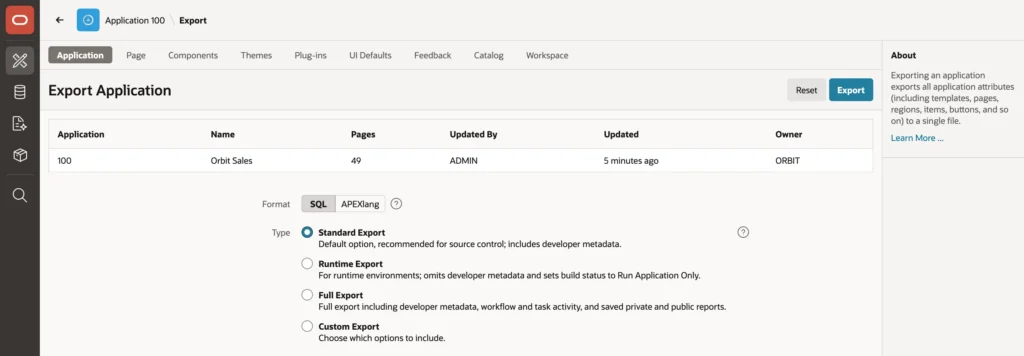
An export can be written as SQL, a script that installs the application, or as APEXlang, a set of readable text files.
| Type | Use for |
|---|---|
| Standard Export | The default, and what belongs in source control, with developer metadata |
| Runtime Export | Production. No developer metadata, and a build status that prevents editing |
| Full Export | Also workflow and task activity, plus saved private and public reports |
| Custom Export | Whatever combination you need |
For source control, export from the command line with SQLcl using the split option, which writes one file per component. That single flag is the difference between a diff you can review and a diff showing one enormous file changed.
Keep the schema scripts in the same repository as the application export, so the application and the database objects it needs move together and cannot drift apart between environments. Supporting Objects can bundle installation scripts with the application itself for software other people install. And APEX's automatic backups of changed applications are a safety net, not a substitute for any of this.
One upgrade note worth knowing before you need it: APEX 26.1 imports only full applications from earlier releases, not their page or component exports.
Going to Production
- Install a runtime export into a runtime-only instance or workspace, or at minimum set the build status so the application cannot be edited there.
- Check authentication and authorization: the real scheme is current, every page carries the right authorization, and the Advisor reports no security issues. A demo scheme that accepts any user name must never be the current scheme in production.
- Debugging off, logging on, and an error handling function in place.
- HTTPS everywhere, with the security attributes and content security policy configured.
- Instance settings for email, network access, and security done by the administrator.
- Database backups, and a restore you have actually tested.
- Monitoring: the activity log, the error log, and connection pools sized for the real load.
Item two is the one that bites. Development authentication schemes exist precisely because they are convenient, and convenience is what gets them left switched on.
For maintenance windows, the application's availability status can be set to unavailable with a message, or restricted to named users while a new version goes in, which beats users meeting a half-installed application.
Upgrading APEX
A new release upgrades the engine, not your application definitions, so applications keep working and gain the improvements. Afterwards, refresh the Universal Theme, run Upgrade Application to adopt new features in existing components, run the Advisor, and read the release's list of changed behavior.
For 26.1 that list includes three items worth checking in advance: JavaScript reading a region's static ID must move to the DOM ID property, session timeout columns in the sessions view are now in UTC, and the page and component import restriction mentioned above. Upgrade a test environment with a copy of production data first, always.
Conclusion
The difference between an application that works and one you can operate is mostly instrumentation and process. Debug mode traces every step of a request at the level you choose, and APEX_DEBUG calls left permanently in your code cost nothing until the day you need them. The activity log tells you which pages are slow and which are failing, and a single error handling function turns database errors into sentences with a reference number rather than constraint names. Run the Advisor before each release, because it looks for what attackers look for. For teams, page locks and working copies keep people out of each other's way, while application locks with APEXlang put the definition itself into source control, where a split SQLcl export gives you diffs worth reviewing alongside the schema scripts. Then go live deliberately: a runtime export, the real authentication scheme current, debugging off and logging on, HTTPS and a content security policy, tested backups, and monitoring you actually watch.
