
You can build an entire Oracle APEX application without specifying a single color, font, or margin, and it will still look consistent from page to page. That consistency comes from a theme: a set of templates that turn regions, items, buttons, and pages into HTML, plus the CSS that styles them.
Changing how an application looks is therefore mostly a matter of choosing rather than coding, and knowing which layer to change. This guide covers theme styles including Iris, the new default in APEX 26.1, Theme Roller, template options, icons, when to leave templates alone, and the settings that make an application installable.
The Universal Theme and Its Styles
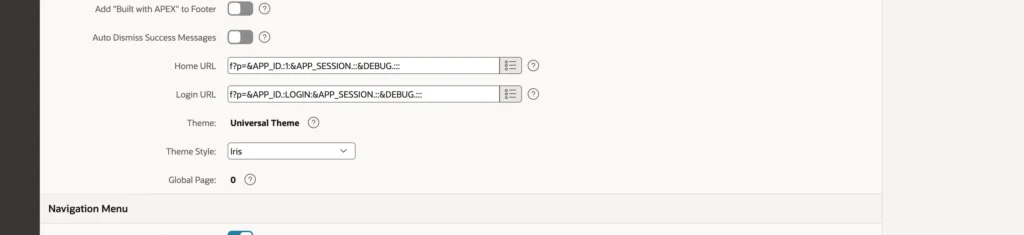
Every application created in APEX 26.1 uses the Universal Theme, which is responsive, accessible, and maintained by Oracle. Each release refreshes it, and applications using it pick up the improvements without any work.
A theme has several theme styles: different CSS over the same templates.
| Style | Looks like |
|---|---|
| Iris | The default in 26.1, with a colored accent pillar and quiet surfaces |
| Vita, Vita Dark, Vita Red, Vita Slate | The long-standing default of earlier releases, and its variants |
| Redwood Light | Oracle's Redwood design system, as used in Oracle's own cloud applications |
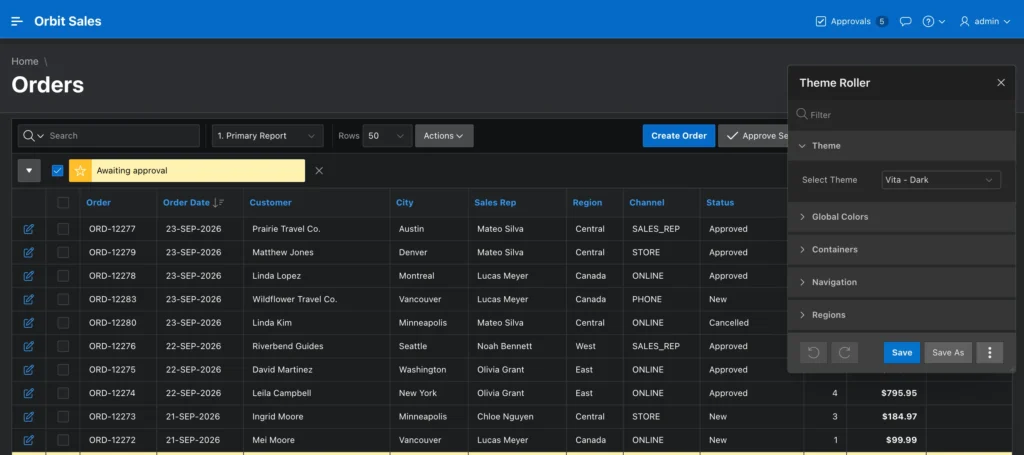
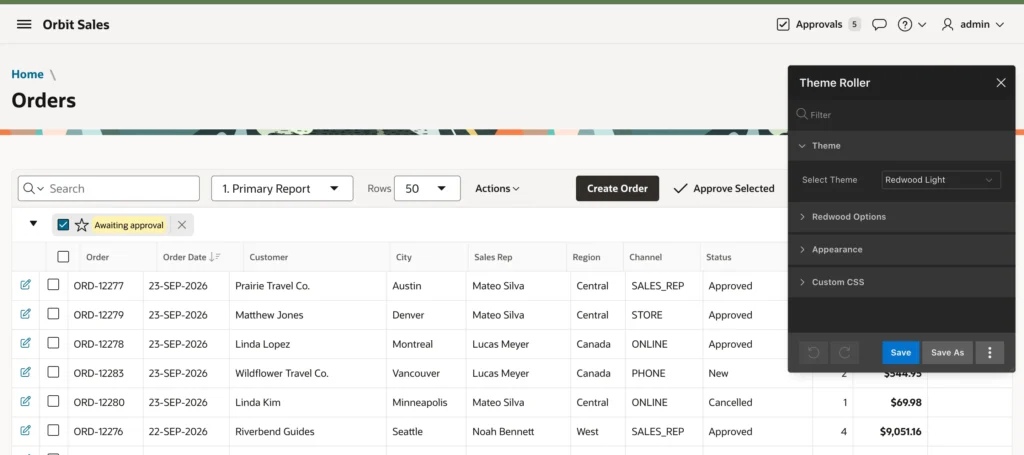
Applications upgraded from an earlier release keep their existing style until you change it, so Iris does not arrive uninvited.
There is also a switch worth knowing in the same user interface attributes: enable end users to choose a theme style, and people can pick their own from the generated selection page, with the choice stored as a user preference. Someone who wants a dark interface can have one without you deciding for everybody.
Theme Roller
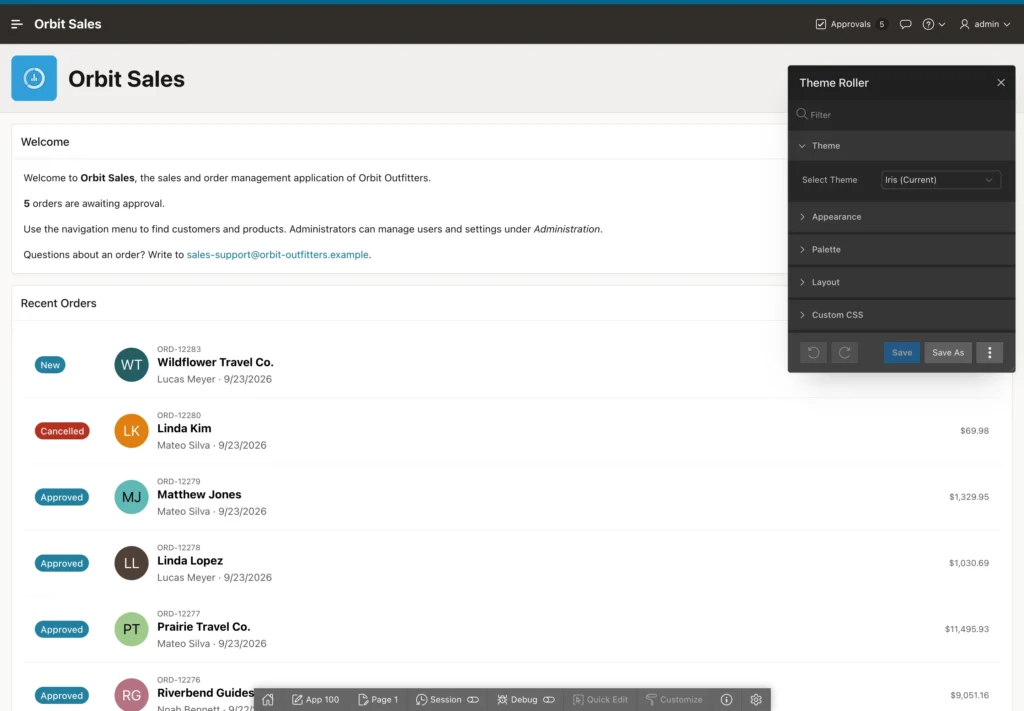
Theme Roller adjusts a style interactively on the running application. Open any page, click Customize in the Developer Toolbar, and choose Theme Roller. Everything you change previews for you alone, in this session, until you save, so you can experiment on a production application without anybody noticing.
What it offers depends on the style. For Iris you get four sections.
- Appearance: the pillar accent from a list of named colors, the header and navigation colors set to dark, light, or the pillar, and the font family.
- Palette: the link color and fifteen accent colors used by template options and charts, each shown with its contrast ratio so you can keep text readable.
- Layout: header height, navigation and side column widths, and the maximum width of the page body.
- Custom CSS: your own rules, saved with the style.
That contrast ratio beside each palette color is the detail most people skim past. It is the difference between choosing a brand color that looks right and choosing one people can actually read.
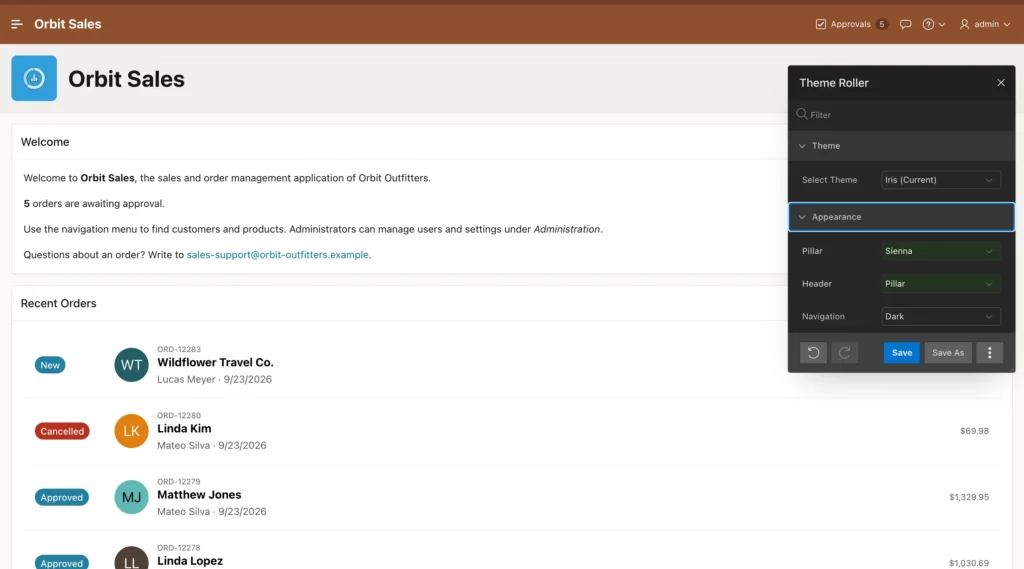
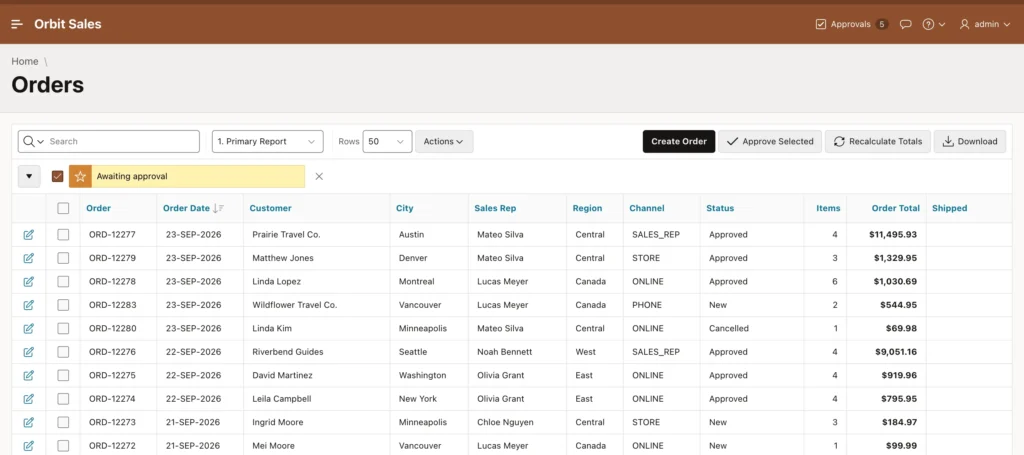
Save As creates a new style and makes it current, so everybody sees it from their next page load. Save overwrites the style you are editing, which only works for styles you created, because the built-in ones are read-only.
Prefer a Theme Roller style over a CSS override file. A saved style is built from the theme's own definitions plus your choices, while an override file targets the theme's internal class names and can break the next time a release changes the markup.
Template Options
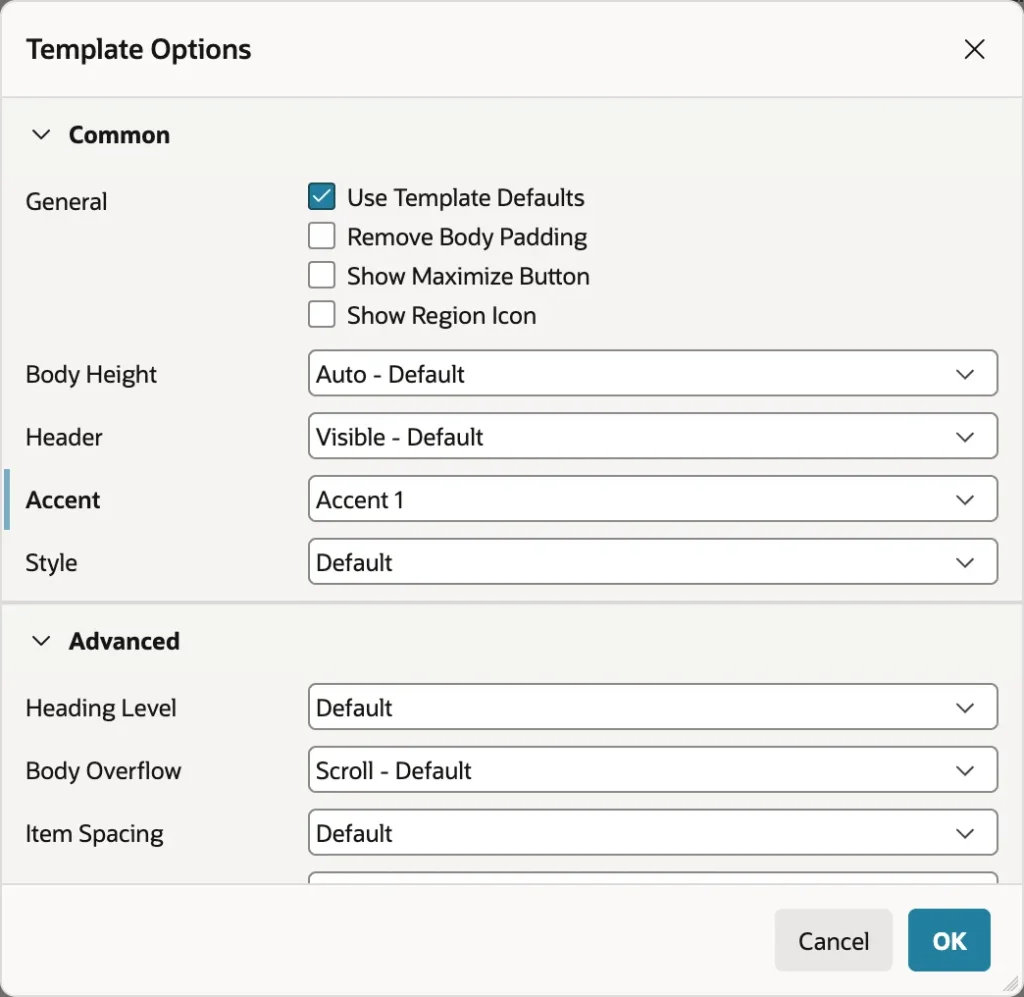
Every region, item, button, report, and list has template options: switches defined by its template that add CSS classes to the component. They are the first thing to try when something should look different, and they cover more than people expect.
The standard region template alone offers header visibility including a hidden-but-accessible option that keeps the title for screen readers, an accent from the palette, style choices such as removing borders or UI decoration, body height and overflow, all four margins, and for regions holding items the spacing, size, width, label alignment, and label position.

Two things make template options the right layer to work in. They are stored as class names, so they work in every theme style and survive theme upgrades. And Use Template Defaults, at the top of the dialog, applies whatever the template author chose, so you can switch it off to control everything or leave it on and change only what matters.
Icons
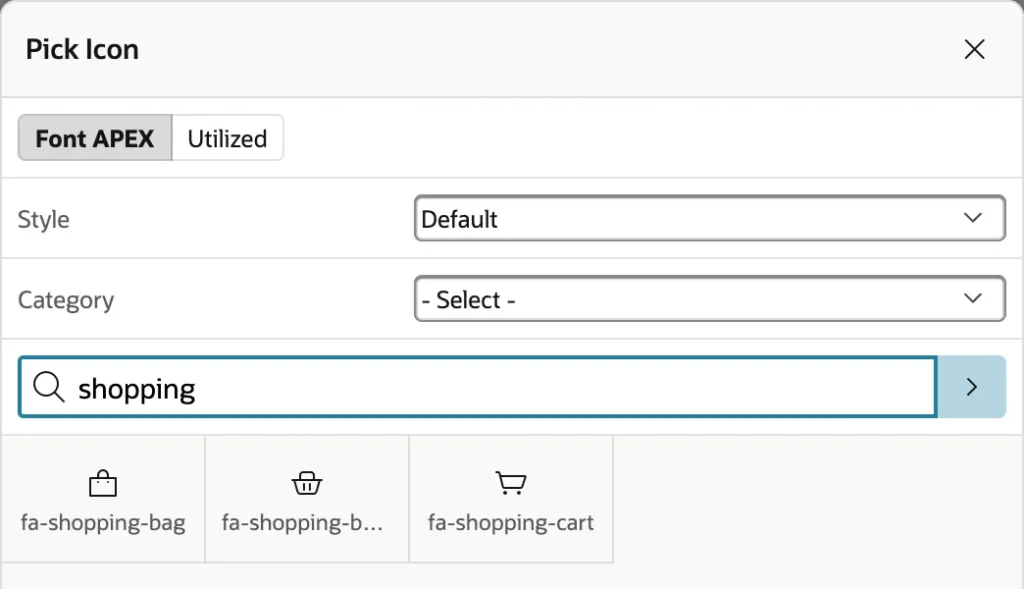
APEX ships Font APEX, over a thousand icons designed for the Universal Theme, using the Font Awesome names most web developers already know. Anywhere a property takes an icon, the picker opens.
The tab worth knowing is Utilized, which lists the icons the application already uses. Picking from there instead of searching afresh is how an application ends up with one consistent icon vocabulary rather than three different icons for the same idea. Icons also accept modifier classes for size and a spinning variant, which is how a refresh icon animates while something loads.
Templates: Leave Them Alone
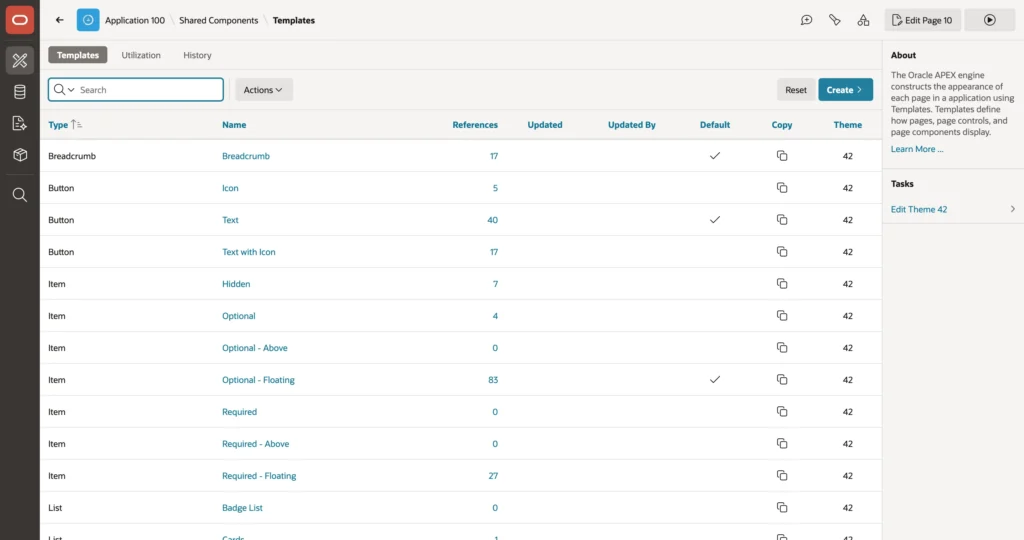
Templates are HTML with substitution strings that APEX fills in, and Shared Components lists all of them: page templates such as Standard and Modal Dialog, region templates such as Cards Container and Collapsible, and templates for reports, lists, breadcrumbs, buttons, and labels.
Here is the part that costs people dearly later. Universal Theme templates are subscribed to the theme, which is how an upgrade refreshes them. Editing one breaks that subscription and freezes it at its current version, so it stops receiving fixes and improvements forever, usually without anyone remembering why that one region looks wrong three releases later.
So work down this list in order.
- Template options and Theme Roller: no code, upgrade-safe.
- CSS classes on components plus your own CSS file, using your own class names.
- Template components for a new kind of repeated content.
- A copy of a template, when nothing else will do, and never an edit of the original.
After an APEX upgrade, Shared Components offers Refresh Theme, which brings subscribed templates up to the new release. A fully custom theme is possible and means maintaining every template yourself, which is a commitment very few applications actually need.
Progressive Web Apps
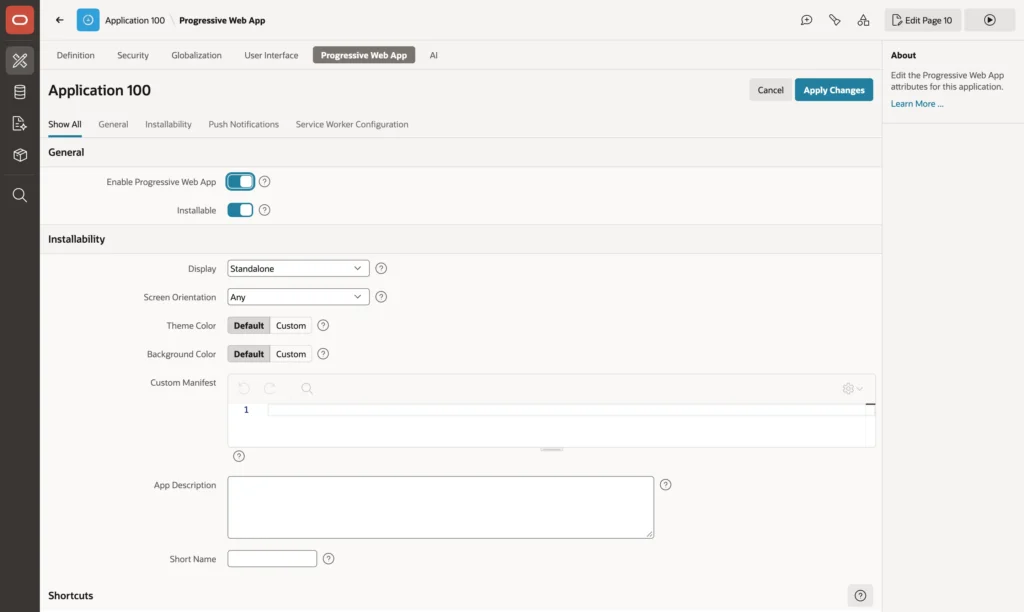
A Progressive Web App can be installed on a computer or phone with its own icon and window, like a native app. If the application was created with the Install Progressive Web App feature it is already enabled, with an Install App entry in the navigation bar.
- Enable Progressive Web App and Installable decide whether installation is offered at all.
- Display chooses standalone, fullscreen, minimal UI, or browser. Standalone is what makes it feel like an app rather than a bookmark.
- Screen Orientation, Theme Color, and Background Color control how it starts on a phone.
- App Description and Short Name set what appears under the icon.
- Shortcuts add entries that appear when someone long-presses the icon, such as starting a new order.
- Push Notifications lets users subscribe to notifications the application sends.
One requirement is non-negotiable: the browser only offers installation over HTTPS. A PWA that will not install on a test server is usually not misconfigured, just not encrypted.
Conclusion
An APEX application's appearance comes from the Universal Theme plus the current theme style, and nearly every change you want is available without writing CSS. Start in Theme Roller, which previews styles for your session only and can save your accent, palette, and layout choices as a new style for everyone, with contrast ratios shown so the result stays readable. Use template options for individual components, since they are stored as class names and therefore survive both style changes and theme upgrades. Take icons from Font APEX, preferring the ones the application already uses. And treat templates as off-limits: they are subscribed to the theme so upgrades refresh them, and editing one silently opts that template out of every future fix. When nothing else will do, copy rather than edit. Finish with the Progressive Web App settings if people should be able to install the application, remembering that the browser will only offer it over HTTPS.
