
Items are where your application meets the person using it. Every text field, dropdown, switch, date picker, and file upload is an item, and so is every hidden value a page quietly carries from one screen to the next.
Oracle APEX 26.1 ships thirty item types, which sounds like a lot until you realize most of them exist to solve one specific annoyance: a list too long to scroll, a value users need to type when it is not in the list, an image that must be cropped before it is stored. This guide covers the types, the properties every item shares, lists of values including cascading ones, and the image upload that trips people up.
The Item Types
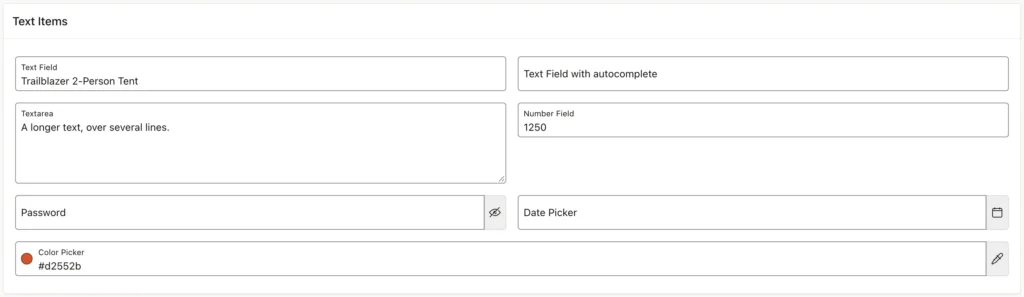
| Type | Use it for |
|---|---|
| Text Field | Short text, with subtypes for email, phone, URL, and search that give phones the right keyboard |
| Text Field with autocomplete | Text with suggestions appearing as the user types |
| Textarea | Longer text, optionally auto-growing, with a character counter |
| Number Field | Numbers, with a minimum, maximum, and alignment |
| Password | Secrets, masked, with a reveal button |
| Date Picker | Dates and times, with a calendar and date limits |
| Color Picker | Colors as hex, RGB, or named values, with a palette |
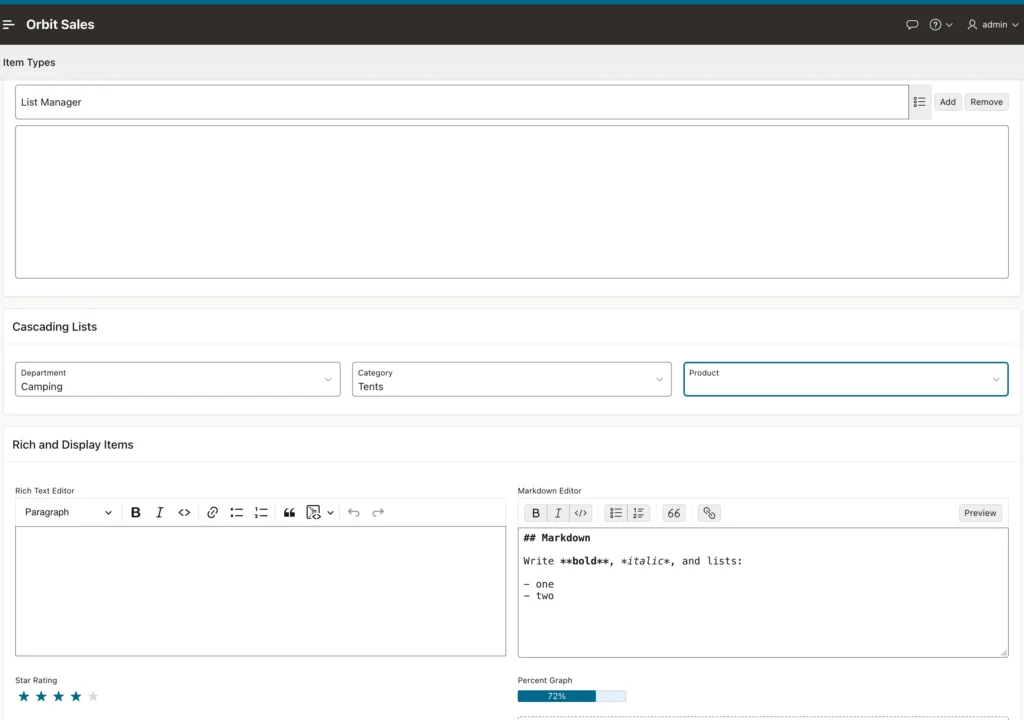
| Type | Use it for |
|---|---|
| Select List | One value from a short list |
| Select One | One value from a searchable list that can be long, loading more as the user scrolls |
| Select Many | Several values from a searchable list, shown as chips |
| Popup LOV | One or more values from a searchable, multi-column list, inline or in a dialog |
| Combobox | Values from a list or typed by the user, shown as chips |
| Radio Group and Checkbox Group | One or several values from a few options, all visible at once |
| Checkbox and Switch | A single yes or no value, as a box or a toggle |
| Shuttle | Several values moved between two lists, with an order |
| List Manager | A list the user builds one entry at a time |
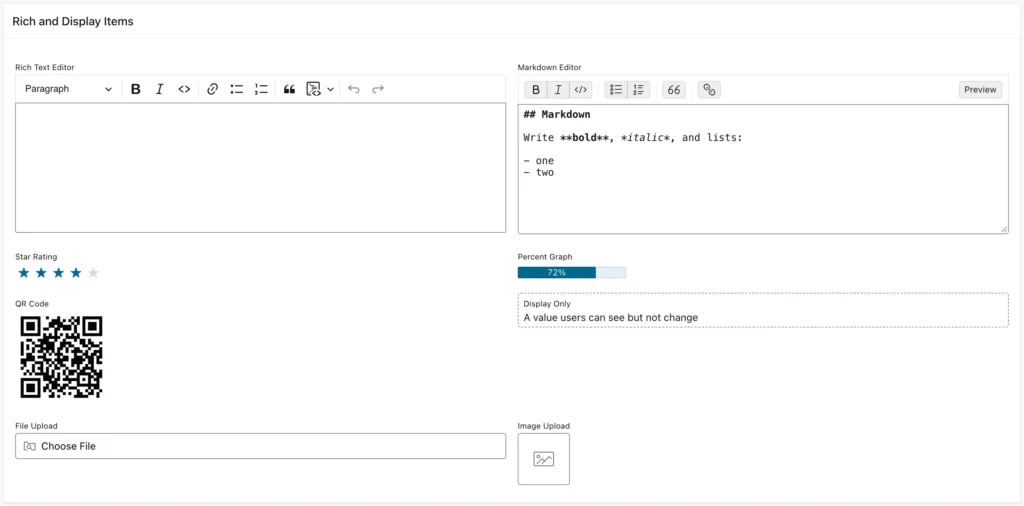
| Type | Use it for |
|---|---|
| Rich Text Editor and Markdown Editor | Formatted text, stored as HTML or Markdown |
| Star Rating and Percent Graph | A rating as stars, or a number from 0 to 100 as a bar |
| QR Code | A URL, phone number, or text rendered as a QR code |
| Display Only, Display Image, Display Map | Values, images, and locations users can see but not change |
| Geocoded Address | An address turned into coordinates by Oracle's geocoding service |
| File Upload and Image Upload | Files and pictures, the latter with preview and cropping |
| Hidden | A value users never see, such as a primary key |
Three improvements in 26.1 are worth knowing because they remove old workarounds. Select One, Select Many, Combobox, and autocomplete now load values with infinite scroll, so a list of thousands is no longer a problem. File and image uploads accept pasted files. And every item type can show quick picks, covered below. If you have ever built a toggle switch by hand or fought with a long select list, most of that work is now a property setting.
Choosing Between the Choice Items
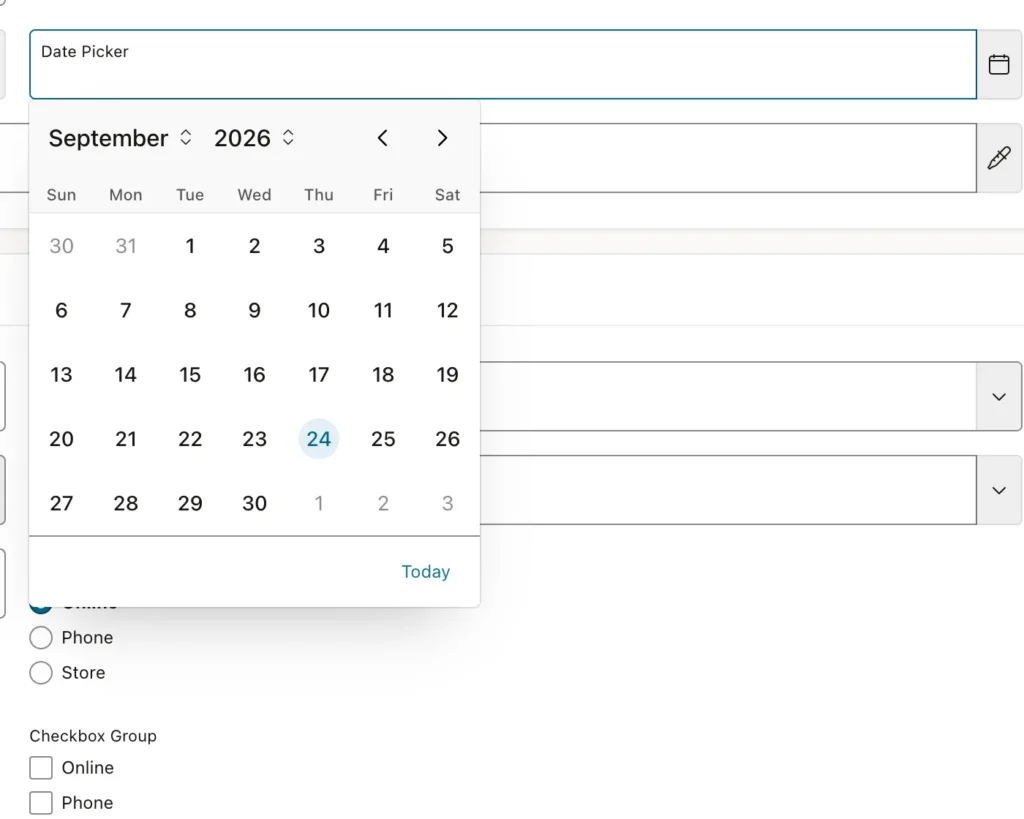
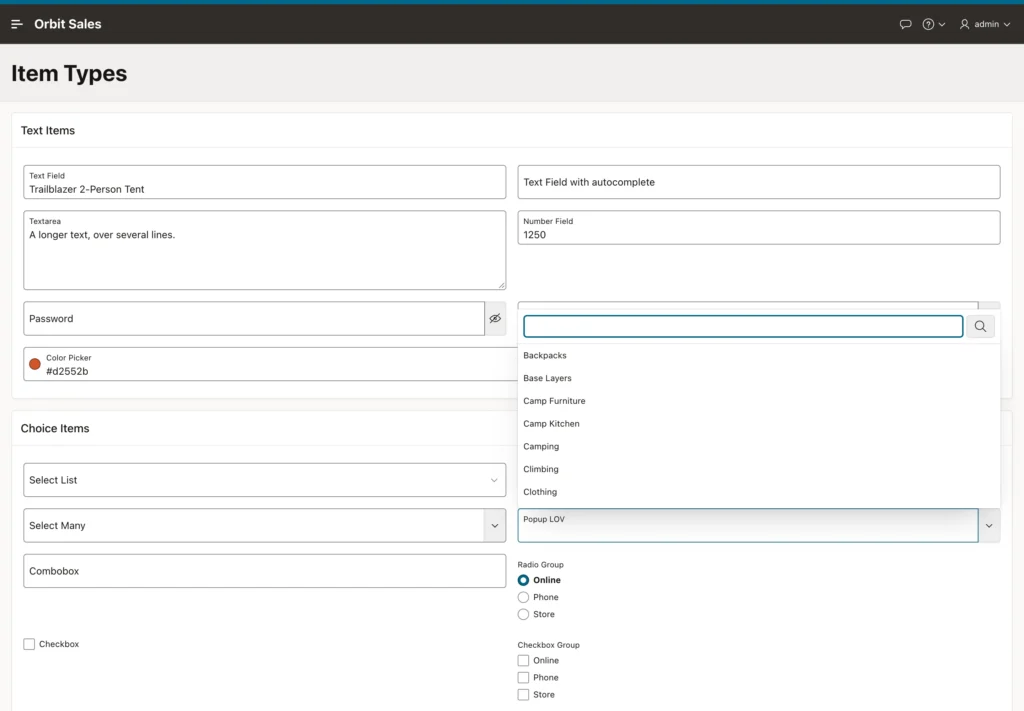
The rule of thumb is list length. A select list is right up to a few dozen values, because it renders them all. Past that, Select One or a popup LOV gives users a search box, and for two thousand customers that is the difference between a usable form and an abandoned one.
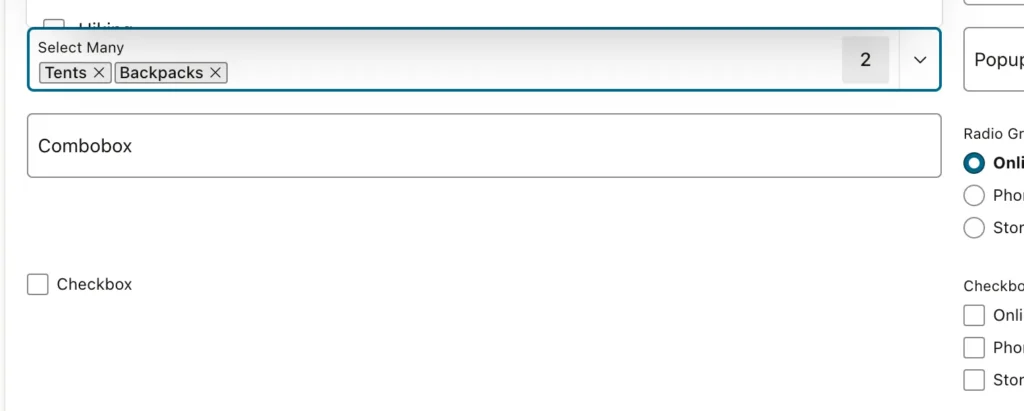

Items that hold several values store them all in one string. Multiple Values Type decides whether that is a delimited list, with a colon by default, or a JSON array. In SQL, split a delimited value rather than trying to match it.
select *
  from orb_products
 where category_id in (select column_value
                         from apex_string.split(:P20_SHUTTLE, ':'))
The Combobox Trap
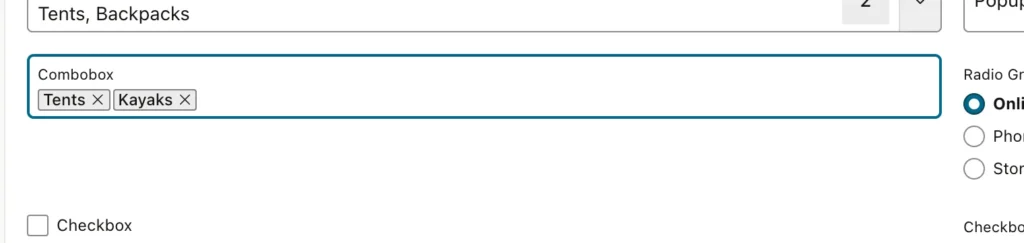
A combobox lets users pick from the list or type something new, which is exactly what you want for tags or categories that grow over time. It also has a failure mode that catches everyone once.
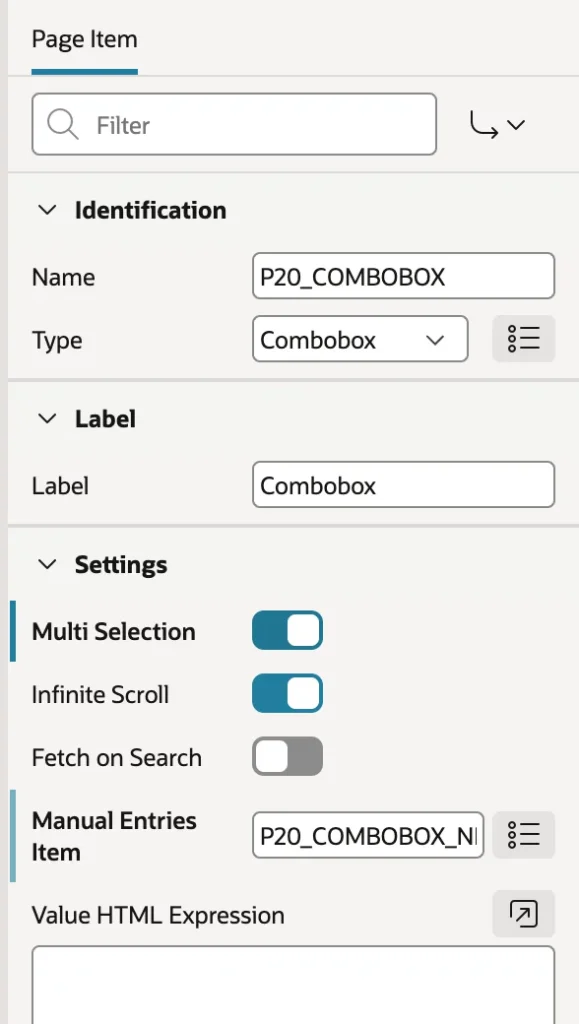
If the list has separate display and return values, meaning names shown but IDs stored, the page fails at runtime demanding a Manual Entries Item. The reason is logical once you see it: the combobox stores IDs for the chosen values, and a newly typed word has no ID, so it needs a second item to live in. Create a hidden item, name it in Settings, and a process can insert those new values into the lookup table afterwards.
The Properties Every Item Shares
Whatever the type, the property groups are the same, which is what makes learning thirty types manageable.
- Identification holds the name and type. Name items with P, the page number, an underscore, and a meaningful name, because every item's value lives in session state under that name and the prefix keeps them unique.
- Label is the text shown with the item.
- Settings holds whatever is specific to the type, such as a text field's subtype or a date picker's minimum date.
- Layout places the item: its region, slot, sequence, and its position in the region's twelve-column grid through Start New Row, Column, and Column Span.
- Appearance chooses the template. Floating labels sit inside the field and rise when it has a value, Above puts the label on its own line, and the Required variants add a marker.
- Validation covers Value Required and Maximum Length.
- Source says where the value comes from when the page renders: a database column, a static value, another item, a query, an expression, a function body, or a user preference.
- Default supplies a value when the source provides none.
- Session State sets the data type and whether the value is kept per request or persists across page views.
- Security covers session state protection, encryption, and restricted characters.
- Read Only and Server-side Condition decide when the item is locked and when it appears at all.
- Help holds inline help below the item and the help shown when the label is clicked.
Source and Default are the pair people confuse. Source is where the value comes from, and it wins. Default only applies when the source produced nothing. On a form item bound to a column, the source is that column and the default fills in new rows.
Lists of Values
Every choice item needs options, and each option has a display value the user sees and a return value the item stores. Lists come in four kinds: static values entered in a dialog, a SQL query returning display first and return second, a shared component defined once and reused everywhere, and a function body returning a SQL query for lists whose shape changes at runtime.
Two settings matter more than they look. Display Extra Values shows a stored value that is no longer in the list instead of silently blanking it, which is what you want when a category has been retired but old records still point at it. Display Null Value adds the empty choice, with its own display and return values. Getting the display value back in code is a separate trick worth knowing.
Cascading Lists of Values
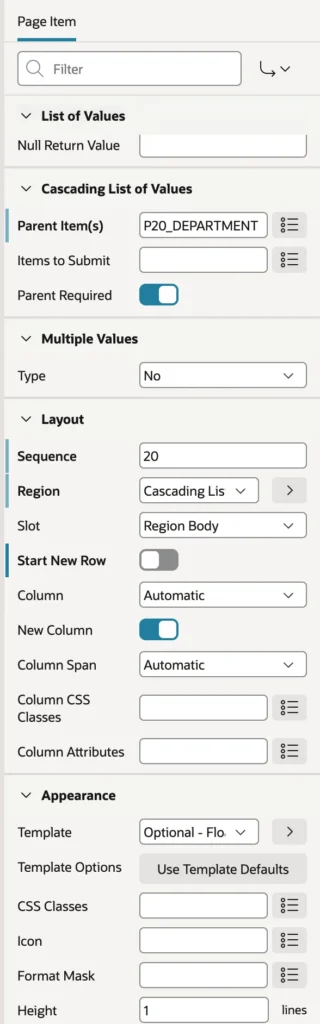
When one list depends on another, a category within a department or a city within a country, the child is a cascading list. Write its query with the parent item as a bind variable, then set Parent Items to that item.
select category_name as d,
       category_id   as r
  from orb_categories
 where parent_category_id = :P20_DEPARTMENT
 order by category_name
When the parent changes, APEX clears the child, sends the parent value to the server, and refreshes the child's list, all without submitting the page. Switch on Parent Required to keep the child empty until the parent has a value, and use Items to Submit for any other item the query needs. Chain three of these and a user narrows from department to category to product without a single page reload.
Quick Picks
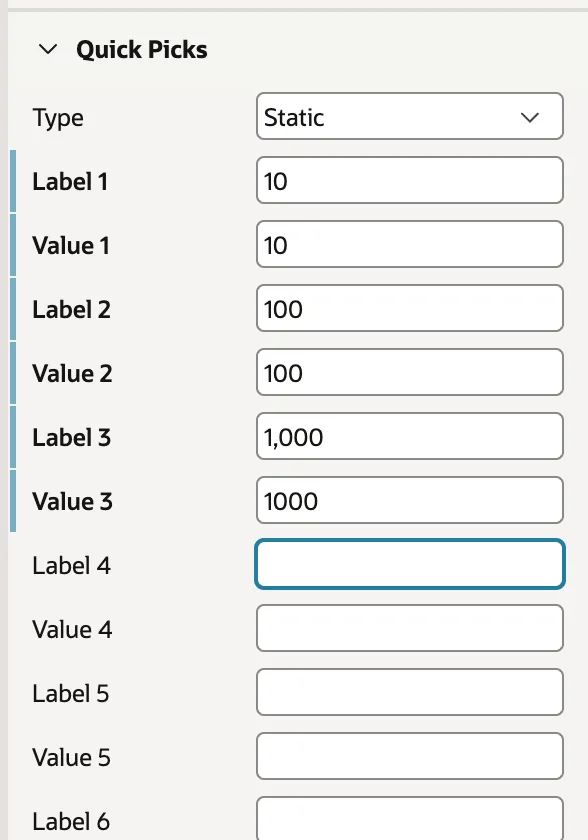

Quick picks are small links below an item that fill it in: common amounts, frequent dates, the user's usual choice. They cost about a minute to add and they are the sort of detail that makes a form feel considered. A SQL query version can be genuinely smart, such as offering a sales representative the three customers they order for most often.
BOOLEAN Session State
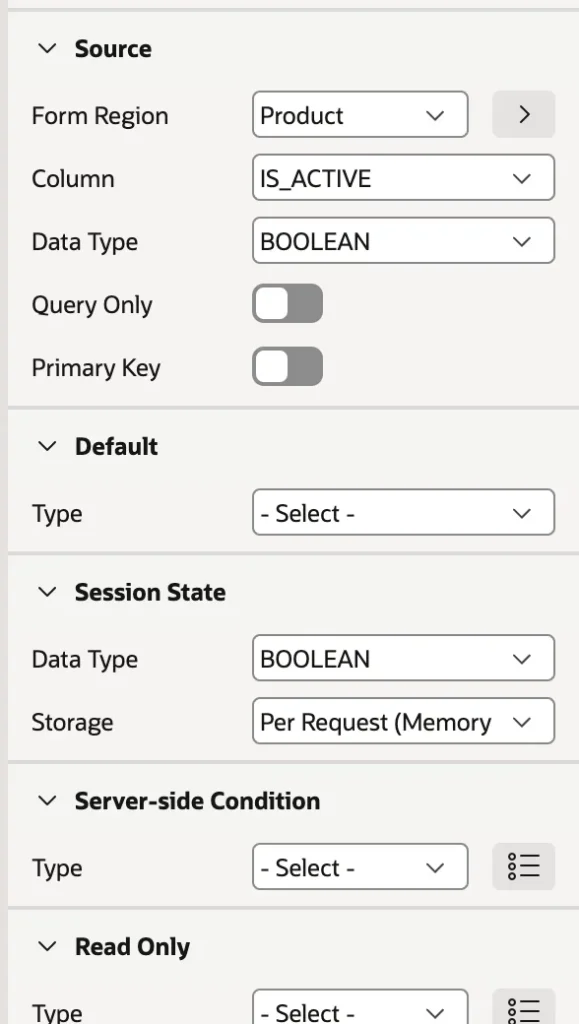
On Oracle AI Database 26ai, checkboxes, switches, and hidden items can hold a real BOOLEAN in session state instead of the traditional Y and N text. Items bound to a BOOLEAN column pick this up automatically, with both the source and session state data types set to BOOLEAN, so the value saves as TRUE or FALSE with no conversion and PL/SQL on the page treats it as a Boolean. It is a small change that removes a whole category of string comparisons. Compare it with how a switch item had to be wired up before.
Uploading and Cropping Images
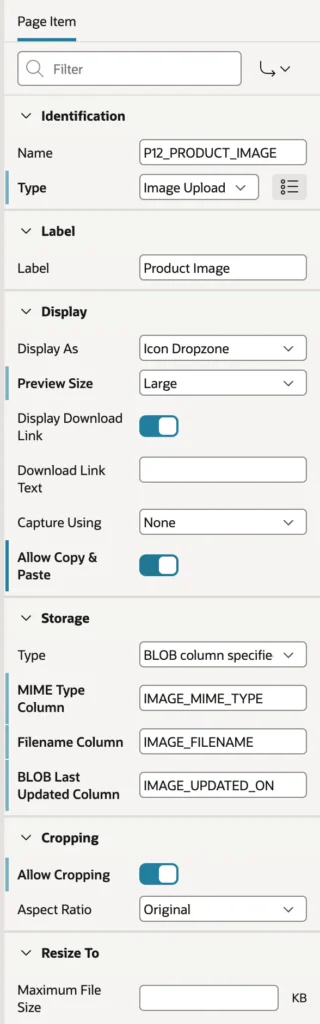
An Image Upload item does far more than accept a file. Set its type, choose a preview size, and allow copy and paste, then under Storage point it at the BLOB column and name three companion columns: the MIME type, the filename, and the last updated date. Switch on Allow Cropping, and optionally Resize To, which shrinks oversized images before they are stored.
Now the part that costs people an afternoon. Delete the items the wizard generated for those three metadata columns.
If items bound to the MIME type, filename, and last updated columns are still on the page, the form's save process writes their old values back over the new ones. The image changes but its metadata does not, which produces the baffling symptom of a correct new picture with the previous file's name and date. Let the Image Upload item own those columns exclusively.
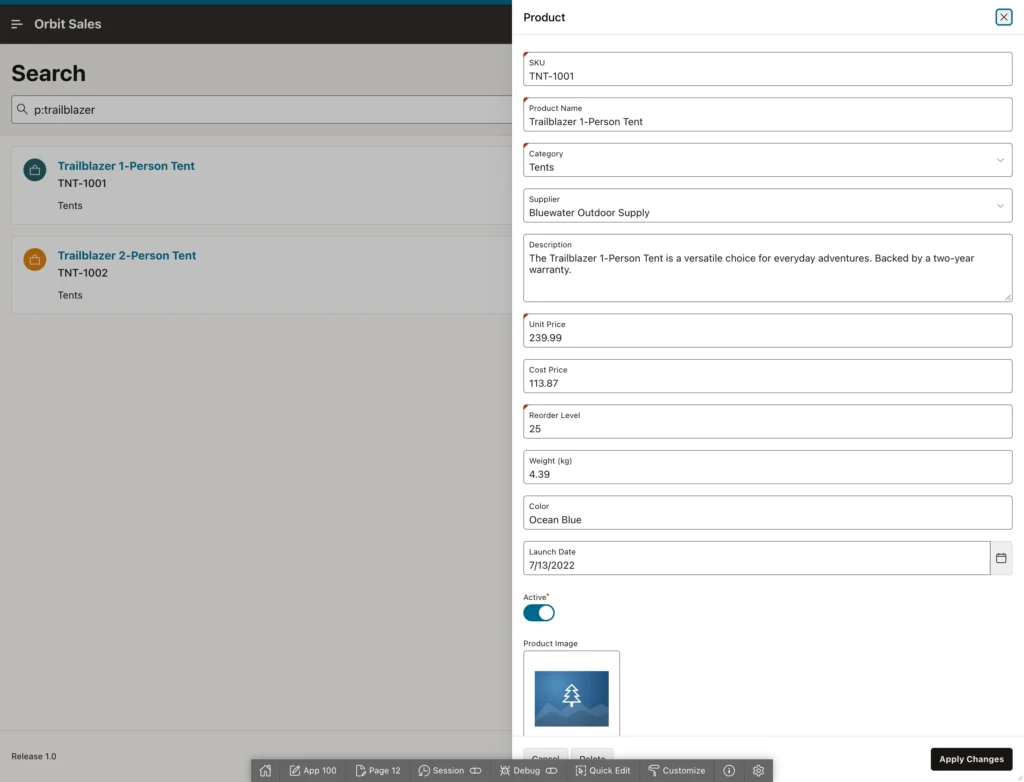
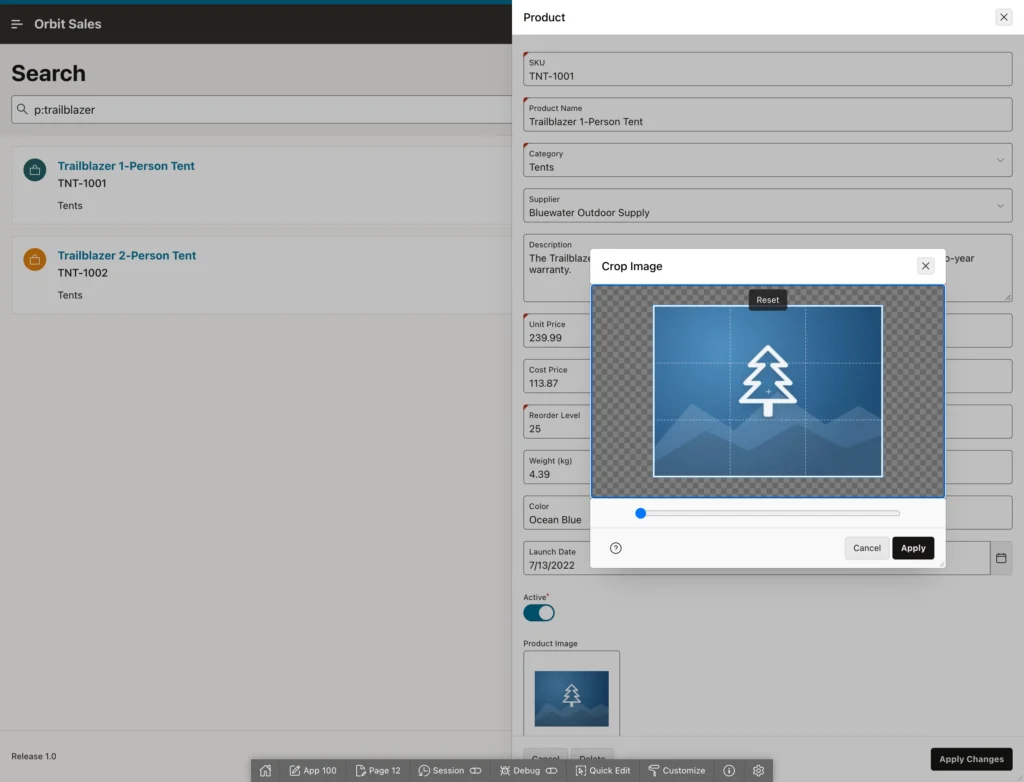
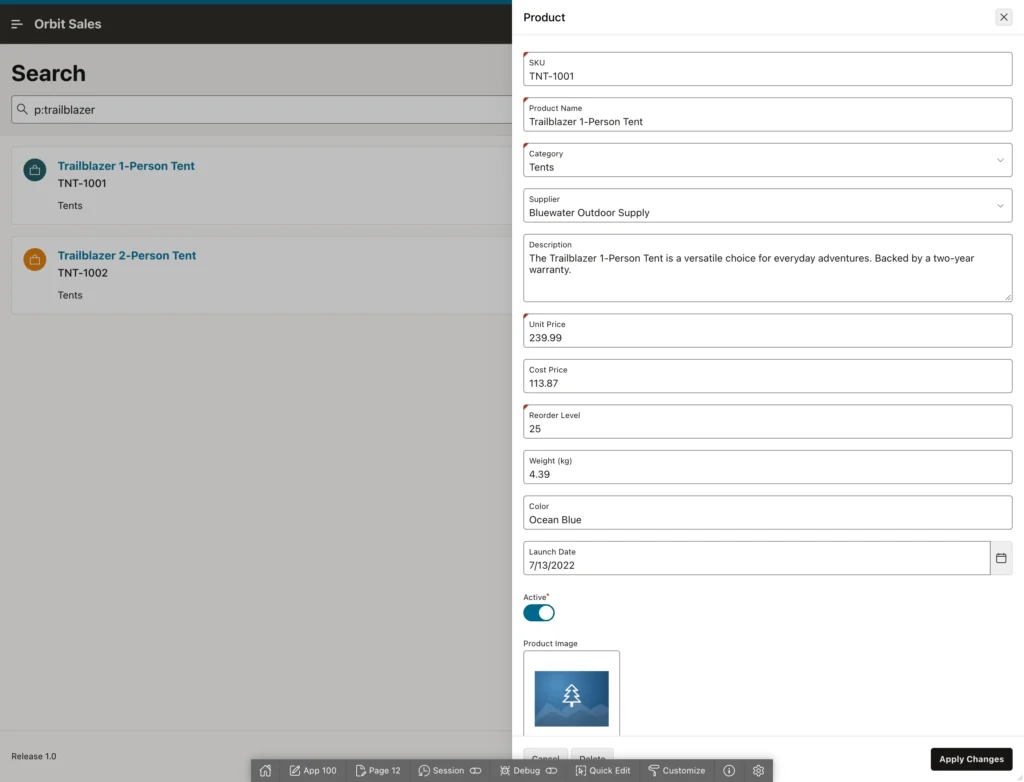
One quirk to expect: cropping re-encodes the image in the browser, so a cropped JPEG may be stored as PNG data while the MIME type column still records the uploaded file's type. Browsers display it without complaint, but it is worth knowing before you go looking for a bug. File Upload behaves the same way for other files, storing them either in a BLOB column or in a temporary table that a process later empties into its proper home.
Conclusion
Items look like a long menu of types until you notice they all share one set of property groups, and that most of the types exist to solve a specific usability problem rather than to give you more to learn. Pick by list length and input style: a select list for a handful of options, Select One or a popup LOV once a list needs searching, a combobox when users must be able to add values that do not exist yet, and a shuttle when order matters as much as selection. Lists of values feed all of them, cascading lists refresh a child whenever its parent changes without ever submitting the page, and quick picks put the most common answers one click away. APEX 26.1 adds infinite scroll for long lists, quick picks on every type, pasted file uploads, and real BOOLEAN session state on 26ai. And when you reach the image upload, remember the rule that saves the afternoon: one item owns the BLOB and its MIME type, filename, and date columns, and nothing else may be bound to them.
