
A page is the unit of everything in Oracle APEX. Users move from page to page, each page is rendered, submitted, and processed as a whole, and each one carries its own number, alias, template, security settings, and code.
This guide looks at the page itself rather than what goes on it: how you create one, the kinds of pages you can build, and the properties every page shares. You will also meet two special pages, the global page and the login page, and the tools that keep a growing application tidy.
Creating a Page in Oracle APEX
Click Create Page on the application home page, or choose Create then Page in Page Designer. The Create a Page wizard opens with a gallery of page types.
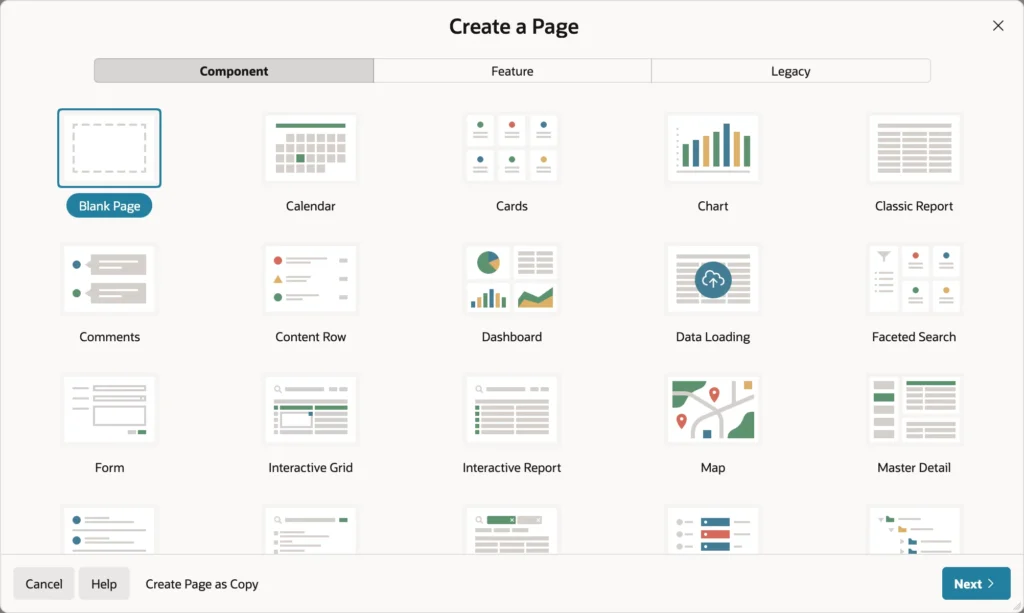
| Tab | Offers |
|---|---|
| Component | Pages built around one main component: blank, calendar, cards, chart, classic report, dashboard, faceted search, form, interactive grid, interactive report, map, master detail, search, timeline, tree, wizard, and more |
| Feature | The features from the Create Application wizard, for adding to an existing app: access control, activity reporting, about page, feedback, login page, theme style selection |
| Legacy | Form on a local procedure, summary page, and legacy data loading, kept for old applications |
Create Page as Copy, at the bottom of the wizard, copies an existing page from this application or another one instead of building a new page.
Creating a Blank Page
A blank page is the right start when you plan to add regions yourself, such as a dashboard you will fill with charts later.
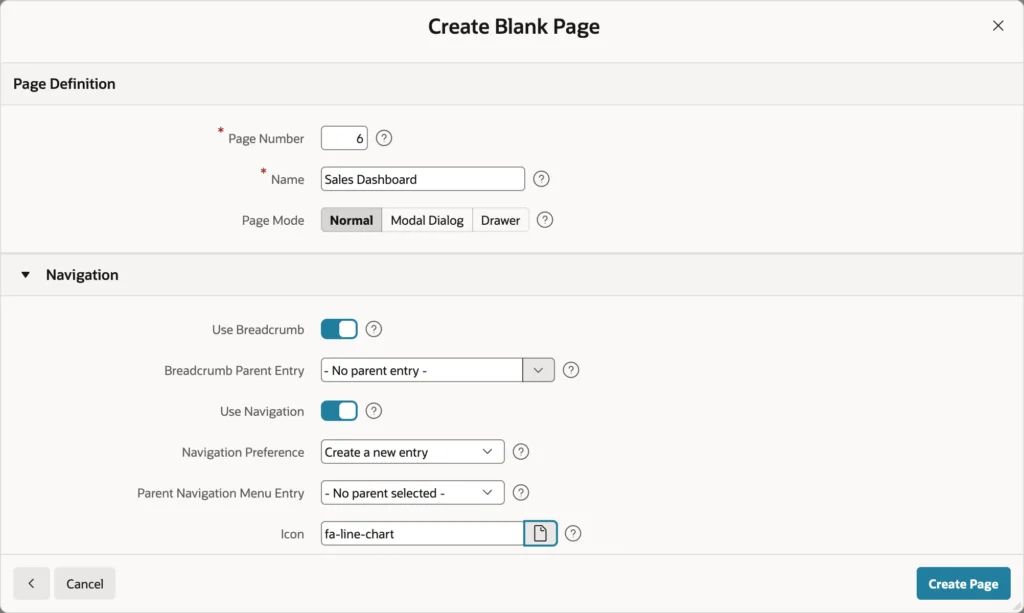
- Click Create Page, then Blank Page.
- Keep the suggested page number and type a name.
- Keep Page Mode set to Normal.
- Under Navigation, keep Use Breadcrumb and Use Navigation on. With Navigation Preference set to create a new entry, APEX adds the page to the menu for you.
- Type an icon name such as fa-line-chart, or pick one from Font APEX. It appears beside the page in the menu.
- Click Create Page.
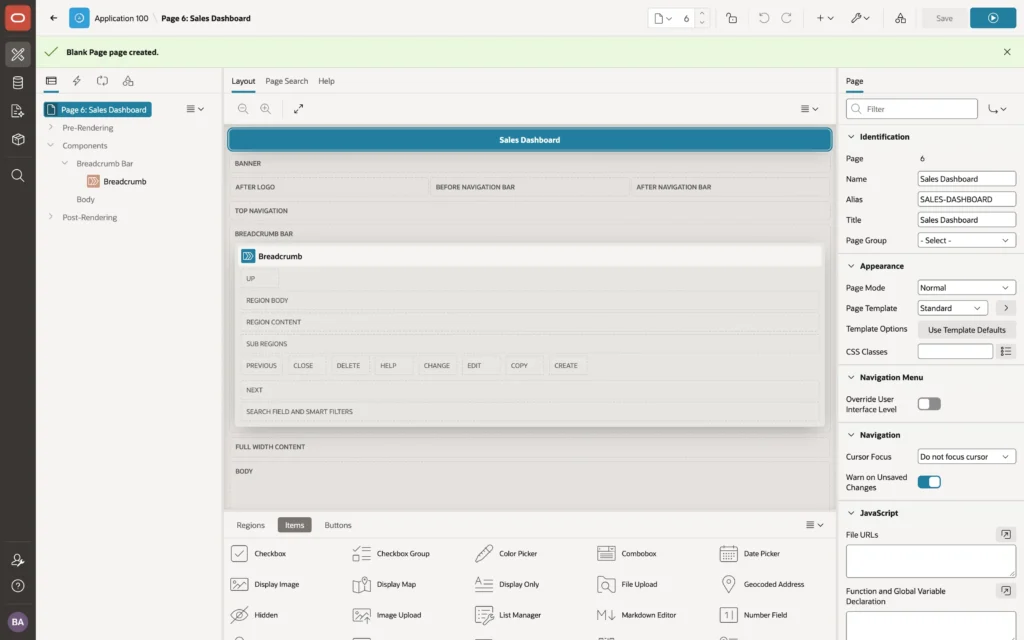
A blank page comes with a breadcrumb region that shows the page title and an empty body waiting for content. Run it and the new entry is already in the navigation menu.
Page numbers are only identifiers, and gaps do no harm. Many developers number by area, using the 100s for customers and the 200s for orders, so related pages stay together in the list. Choose your scheme early, because renumbering later breaks links, bookmarks, and any code that refers to page items.
Page Modes: Normal, Dialog, and Drawer
Every page has a Page Mode in its Appearance properties.
- Normal: the page fills the browser window. Users reach it through the menu, links, and buttons, and the back button behaves as they expect.
- Modal Dialog: the page opens on top of the calling page, which is dimmed until the dialog closes. Users must save or cancel before they continue.
- Non-Modal Dialog: the page opens in a dialog, but users can still work with the page behind it. It is rarely used.
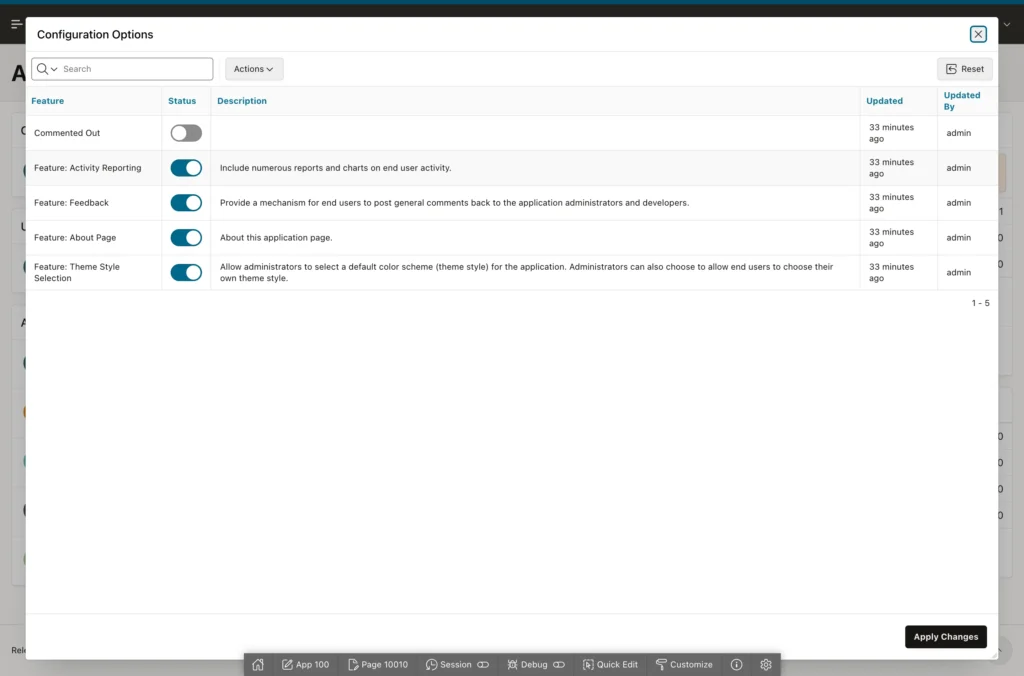
The wizard also offers Drawer as a page mode. A drawer is a modal dialog with a different template: instead of floating in the middle, it slides in from the side. In its properties you see Page Mode set to Modal Dialog and Dialog Template set to Drawer.
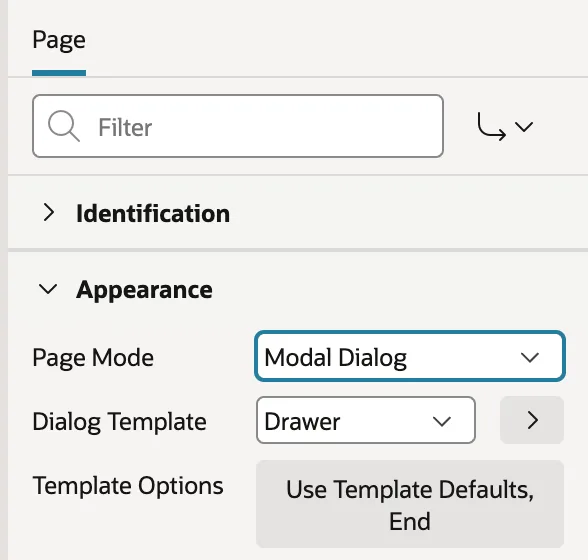
Use dialogs and drawers for short, focused tasks that return the user to where they started: editing a row, confirming an action, entering a few values. Use normal pages for everything users navigate to, and for anything large. A dialog with twenty fields and three tabs is a page trying to escape. Drawers suit forms used beside a report, because the report stays visible.
Dialog Properties
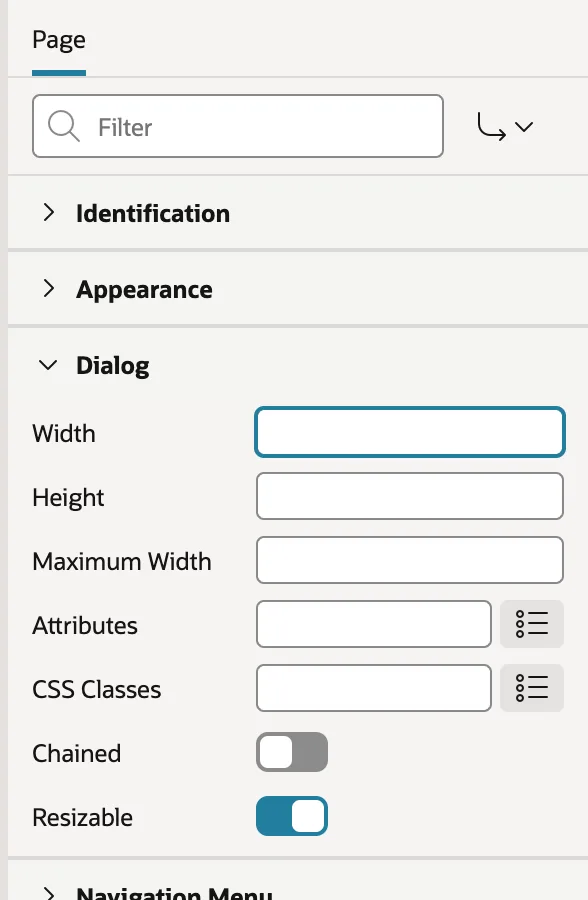
- Width, Height, and Maximum Width set the size in pixels or as a percentage of the window. Leave them empty for the template defaults.
- Attributes passes name and value pairs to the underlying dialog widget, such as draggable:false, which is also how you control the escape key.
- CSS Classes adds classes for styling, useful with sticky button containers.
- Chained decides whether a dialog opened from another dialog reuses the same window, as in a multi-step wizard, or opens a new one on top.
- Resizable lets users drag the corner.
A dialog closes itself with the Close Dialog process or the Close Dialog dynamic action. When it closes, the calling page receives a Dialog Closed event, which is what a report page listens for to refresh itself. You can also change a dialog title at runtime.
Page Templates
The page template decides the overall structure of a normal page: which slots it has, where navigation goes, and whether it has side columns.
| Template | Use It For |
|---|---|
| Standard | Most pages: header, navigation, breadcrumb bar, and a body |
| Left Side Column | Pages with a left panel, such as the facets of a faceted search |
| Right Side Column | Pages with a right panel for filters, help, or related information |
| Left and Right Side Columns | Pages with panels on both sides |
| Marquee | Detail pages for one record, with a large header and a side column |
| Minimal (No Navigation) | Landing pages, or pages embedded elsewhere |
| Blank | Nothing but the body, for complete control |
| Login | Sign-in pages |
Dialog pages choose from dialog templates instead: Modal Dialog, Wizard Modal Dialog, and Drawer. Template Options adjust a template without changing it, such as letting a page use the full width of large screens.
One change to know about in APEX 26.1: every page must name its template. Earlier releases let a page leave it empty and fall back to the theme default, which made it hard to tell what a page actually used.
Navigation Properties
Two properties in the Navigation group change how a page feels.
Cursor Focus puts the cursor in the first field on load, so users can type at once, or leaves it alone. Use the first for data entry and the second for reports, where a focused search field would pop up the keyboard on a phone.
Warn on Unsaved Changes warns users who try to leave after changing a field. It is on by default. Turn it off for pages where a changed field does not mean unsaved work, such as a search page or a set of tab pages.
JavaScript and CSS on a Single Page
Every page can carry its own code, in the JavaScript and CSS property groups.
- JavaScript File URLs loads files on this page only, one URL per line.
- Function and Global Variable Declaration holds functions and variables available to everything on the page, including dynamic actions.
- Execute when Page Loads runs once the page has loaded.
- CSS File URLs loads style sheets for this page only.
- CSS Inline holds rules for this page.
console.log("Dashboard loaded for " + apex.env.APP_USER);Page-level code is convenient but hard to reuse and easy to forget. Put anything more than one page needs into a static file referenced from the application or theme, and keep page-level code for what truly belongs to one page. The same rule applies to HTML and CSS snippets. HTML Header and the Header and Footer group add raw HTML above and below the body, which you rarely need.
Page Security
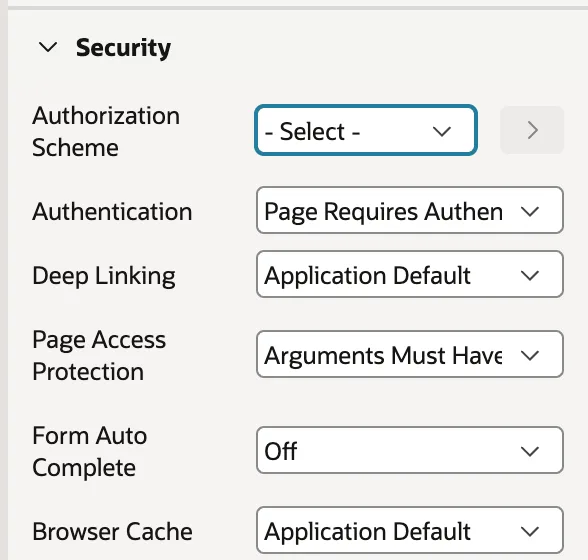
- Authorization Scheme names the scheme users must pass to see the page. The Access Control feature creates Administration, Contribution, and Reader rights, which you can extend with your own access control.
- Authentication is either Page Requires Authentication, the default, or Page Is Public. The login page is the obvious public one, and custom authentication changes how the rest sign in.
- Deep Linking decides whether users can bookmark the page and return to it directly.
- Page Access Protection controls values passed in the URL.
- Form Auto Complete decides whether the browser may fill in fields from earlier values.
- Browser Cache should stay at Application Default, so a signed-out user cannot press Back and see the page again.
Page Access Protection deserves its own look, because it is a real security control rather than a nicety.
| Setting | Means |
|---|---|
| Unrestricted | Any value can be passed in the URL |
| Arguments Must Have Checksum | Only URLs APEX generated are accepted, because they carry a checksum |
| No Arguments Supported | The page can be reached by URL, but without values |
| No URL Access | The page can only be reached by branching from another page |
"A URL ending in customer_id=42 invites a curious user to try 43. With Arguments Must Have Checksum, APEX rejects any URL it did not generate."
Use it on every page that receives a primary key in its URL. It complements authorization on the data itself rather than replacing it, and it is the setting behind the session state protection violation error you may have met.
Advanced Properties and Error Handling
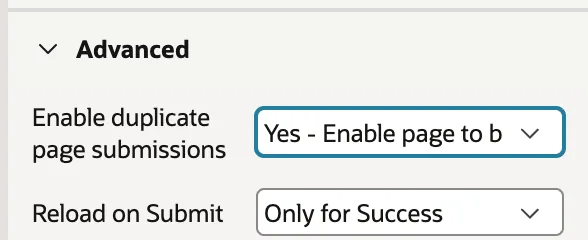
Enable duplicate page submissions decides whether the same page can be submitted twice, by a double click or by going back and resubmitting. Choose No where a duplicate would do harm, such as placing an order.
Reload on Submit set to Only for Success keeps the page in the browser when validation fails, showing errors without a reload. Always reloads every time.
Beyond those, Server Cache caches the rendered page for all users, per user, or per session, which can transform a slow page that rarely changes. The Error Handling group sets the inline error text and names an error handling function. Read Only makes every item read-only when a condition is true, which is ideal for users who may look but not change. Configuration assigns a build option that includes or excludes the whole page. Finally, clearing a page's cache is a related habit worth learning early.
The Global Page
Page 0, the global page, is special: whatever you put on it appears on every page of the application.
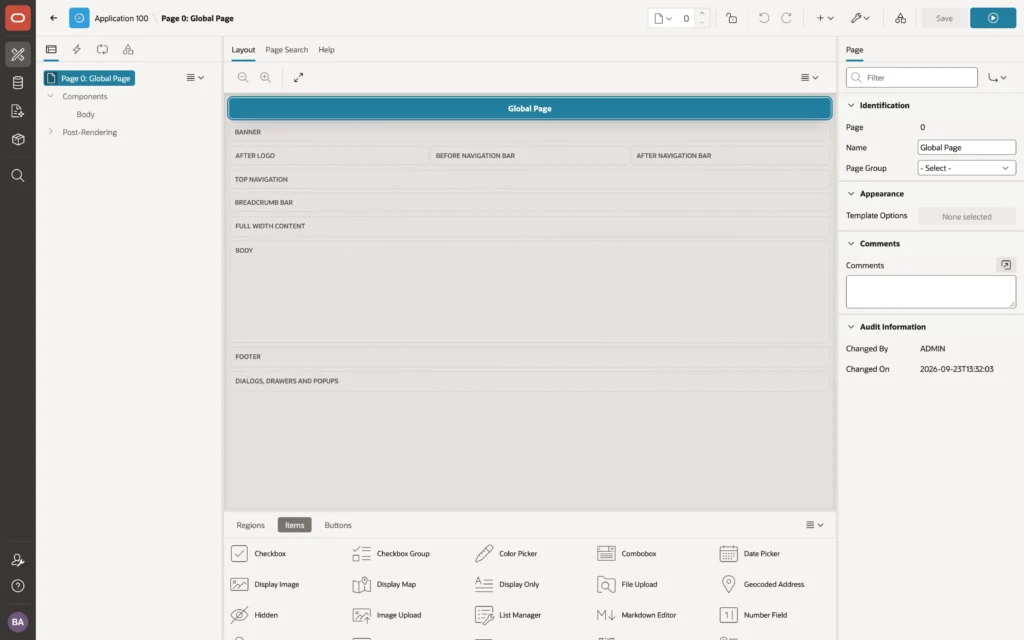
Put a region on page 0 and it appears on every page in the same slot. Put a dynamic action there and it runs everywhere. Typical uses are a banner warning users they are on a test system, a help or feedback region that belongs on every page, and a dynamic action that reacts to a keyboard shortcut.
Use a server-side condition to limit a global component to some pages. Current Page is NOT in comma delimited list, with the login page number, is the usual way to keep a banner off the sign-in screen.
Page Designer can show page 0's components in the tree and Layout of every page, so you can see what the global page contributes. Utilities, then Show, then Global Page Components turns that on and off.
The Login Page
Every application with authentication has a login page. It is an ordinary page with the Login template, marked Page Is Public so users can reach it before signing in.
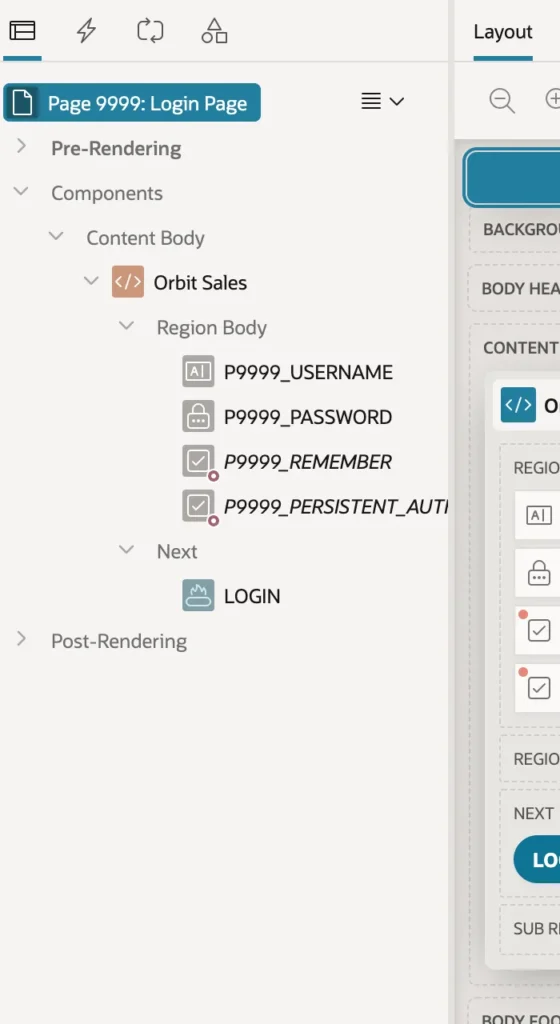
The checkboxes for remembering the username and staying signed in appear in italics because they are displayed only when the instance allows them.
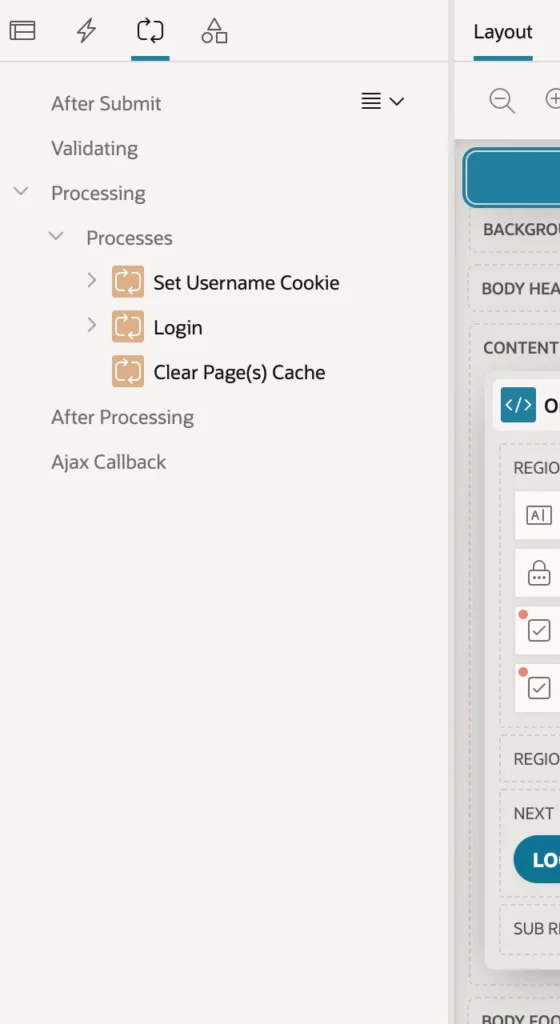
- Set Username Cookie stores the user name when Remember username is checked.
- Login calls the authentication scheme to check the credentials and start the session.
- Clear Page Cache clears the login page's items, so the password does not linger in session state.
A Get Username Cookie process in pre-rendering fills in the remembered name on load. You can restyle the login page freely, adding a logo, a message, or help links, as long as you keep these processes.
Page Groups
Page groups organize an application's pages for developers. They have no effect on the running application, but they let you filter and sort the page list.
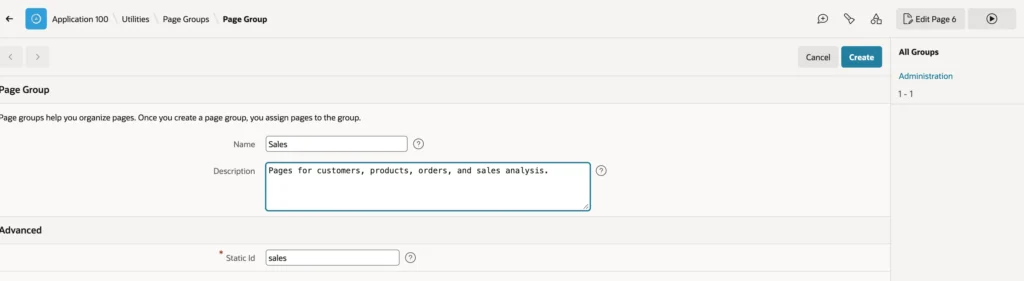
- In Page Designer, choose Create then Page Group.
- Type a name and a description. APEX fills in the static ID from the name.
- Click Create.
- Open each page in turn, set Identification then Page Group, and save.
The Group column of the page list then shows each page's group, and the Actions menu can group the list by it. In APEX 26.1 every component has a static ID, a stable name independent of its internal numeric ID. These are what APEXlang files use to refer to components. What earlier releases called the Static ID of a region or button, meaning the ID of the HTML element, is now called the HTML DOM ID.
Page Locks
When several developers share an application, two of them can edit the same page and the second to save wipes out the first. Page locks prevent that.
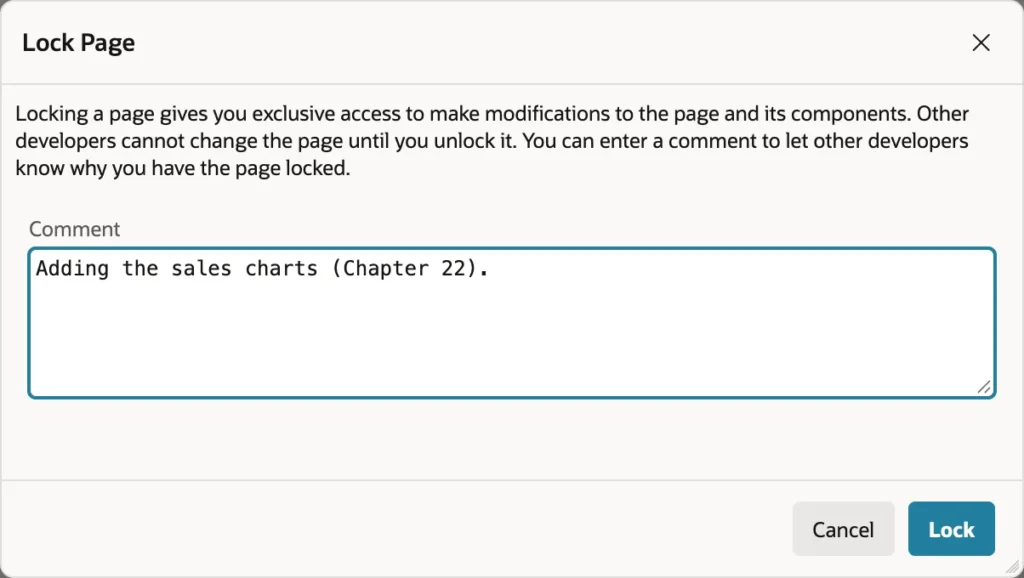
Click the padlock in the Page Designer toolbar and add a comment. Other developers can still open and view the page, but they cannot save changes, and they see who locked it and why.
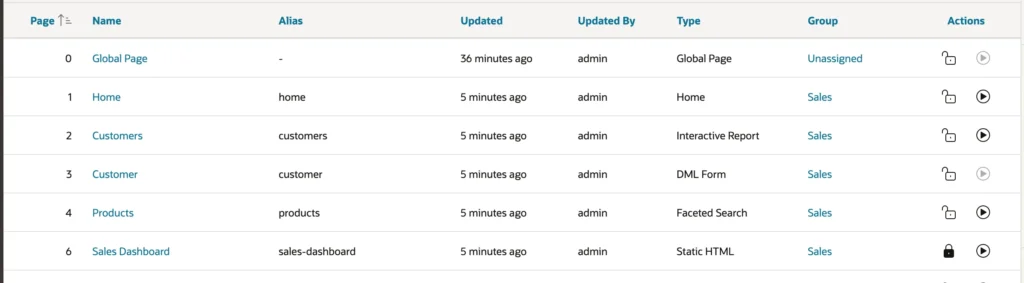
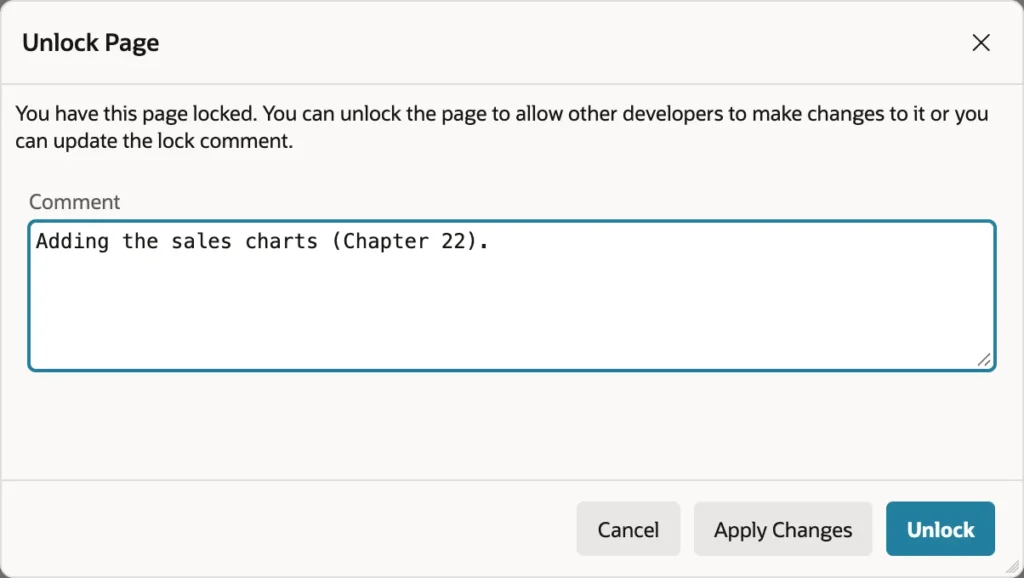
Page locks suit small teams sharing one development environment. For larger teams, or changes that take days, APEX offers working copies, where each developer works on a separate copy and merges it back, and in 26.1 locks on the whole application.
Conclusion
Pages are the containers everything else in APEX sits in, and their properties decide far more than layout. You create them with the Create a Page wizard, choosing a component page, a feature page, or a blank page you fill yourself. Page mode decides whether a page fills the window, floats as a modal dialog, or slides in as a drawer, while the page template gives it structure, and APEX 26.1 now requires every page to name one. The rest of the properties handle the details that make an application feel finished: cursor focus and unsaved-change warnings, page-level JavaScript and CSS, authorization and authentication, page access protection that rejects URLs APEX did not generate, duplicate submission control, caching, and error handling. Two pages are special, the global page that appears everywhere and the login page with its three sign-in processes, and two tools keep a growing application manageable: page groups that organize the page list, and page locks that stop developers overwriting each other.
