
You have a workspace, a schema, and a few tables. What you want next is a working application: a home page, a report you can filter, a form that saves data, and a sign-in page that keeps strangers out. Writing all that by hand would take days.
The Create Application wizard does it in about two minutes. It generates a responsive, secure application with navigation, role-based access, activity reports, and an administration area, without a single line of code. This guide walks through every part of the wizard so you know what each choice gives you.
Four Ways to Create an Application in Oracle APEX
Open App Builder and click Create. The Create an Application page offers four starting points.
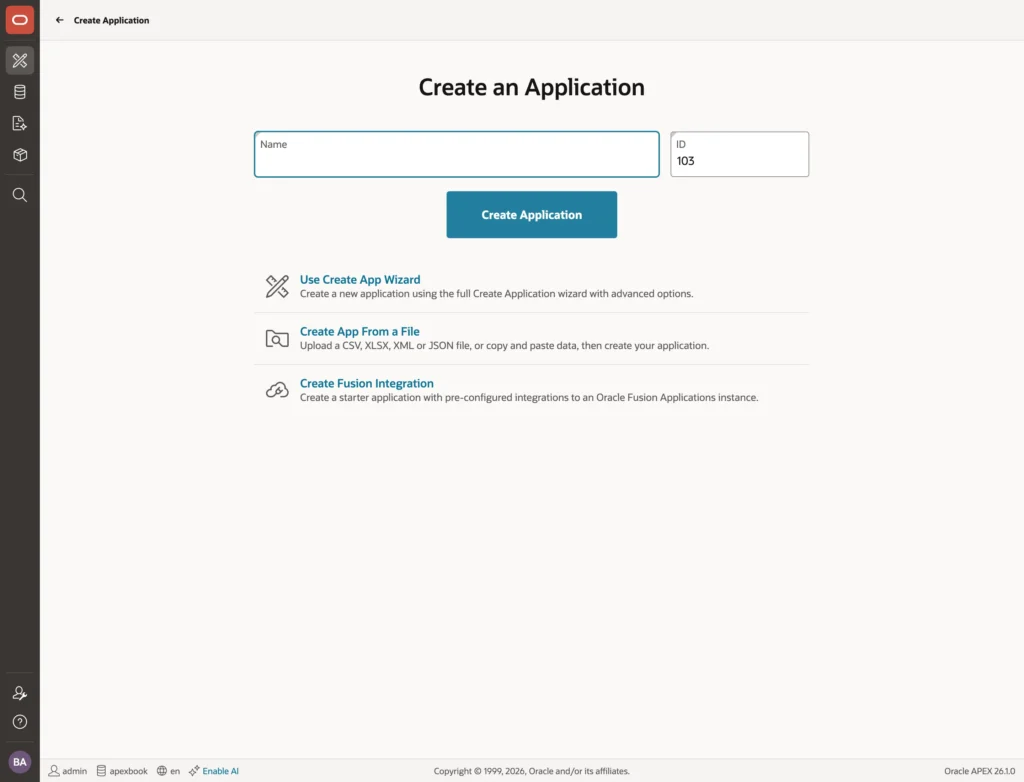
- Name and Create Application: the fast path. Type a name, keep the suggested ID, and you get an empty application with a home page and sign-in, ready for pages.
- Use Create App Wizard: the full wizard, where you pick the appearance, pages, features, and settings up front.
- Create App From a File: upload a CSV, Excel, XML, or JSON file, or paste data. APEX loads it into a new table and builds a report, a form, and a dashboard on it. It is the quickest way to turn a spreadsheet into an application, much like the data loading feature.
- Create Fusion Integration: a starter application configured to work with Oracle Fusion Cloud Applications.
When an administrator has configured a generative AI service, you can also describe the application in plain language or import a Markdown blueprint. Both end in the same wizard.
Using the Create Application Wizard
Click Use Create App Wizard. The wizard is a single page with five sections: name and icon, appearance, pages, features, and settings.
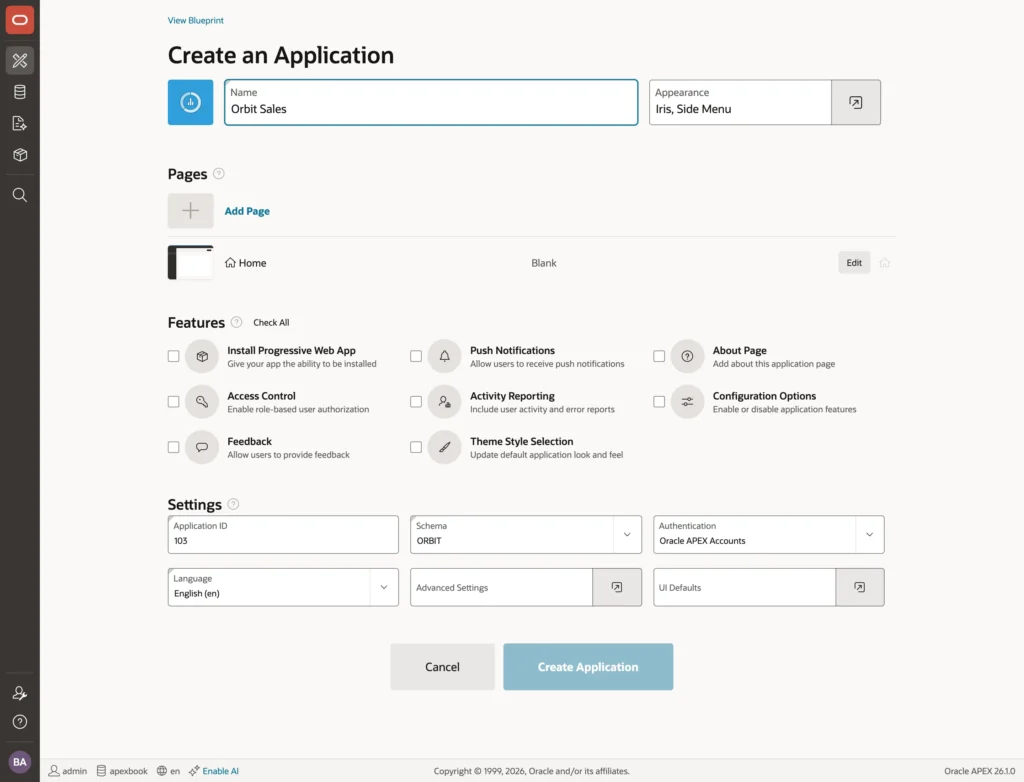
Name and Icon
Type the application name. It appears in the header, in App Builder, and on the browser tab. The colored square to its left is the icon, used on the sign-in page and when someone installs the app on a phone or desktop.
Appearance: Theme Style and Navigation
Click the button at the right of Appearance to choose how the application looks.
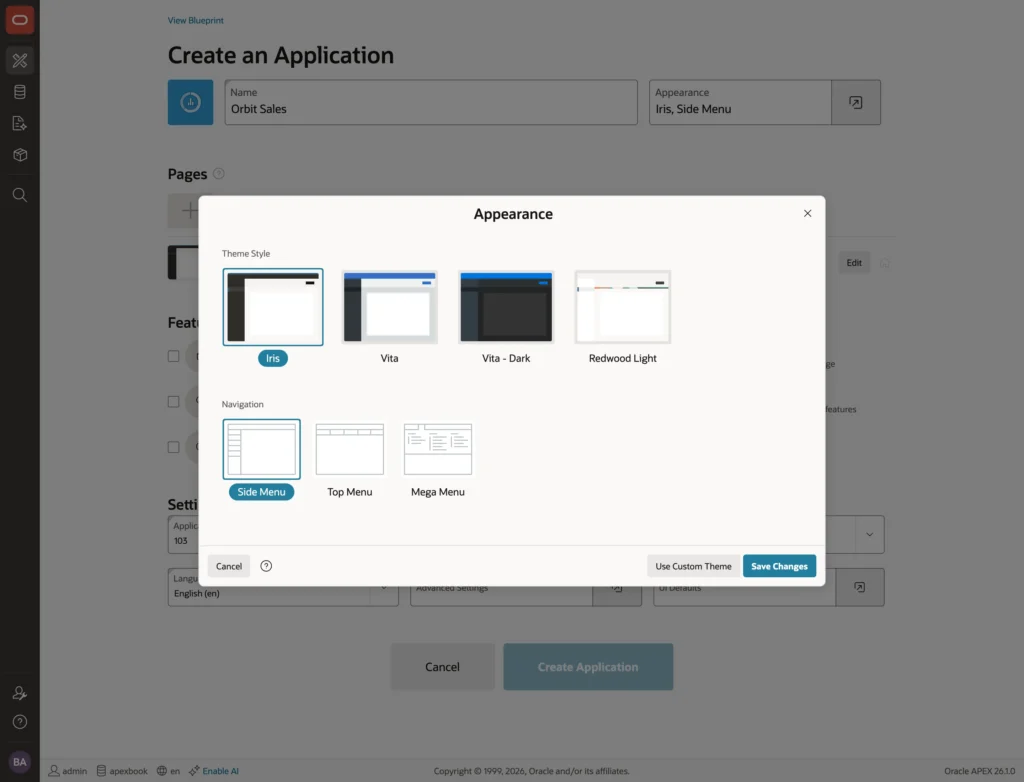
Theme Style sets the colors of Universal Theme. Iris, new in 26.1 and the default, has a dark header and navigation. Vita is the classic light blue style, Vita Dark is its dark variant, and Redwood Light follows Oracle's Redwood design language.
Navigation decides where the main menu goes.
| Navigation | Best For |
|---|---|
| Side Menu | A collapsible panel on the left, for applications with many pages |
| Top Menu | A bar under the header, for a handful of pages |
| Mega Menu | A large panel with all pages grouped by category |
Neither choice is permanent. You can change the style later, and you can even let users pick their own.
Adding Pages
Every application starts with a Home page. Add Page opens the page gallery, where you add as many pages as you want.
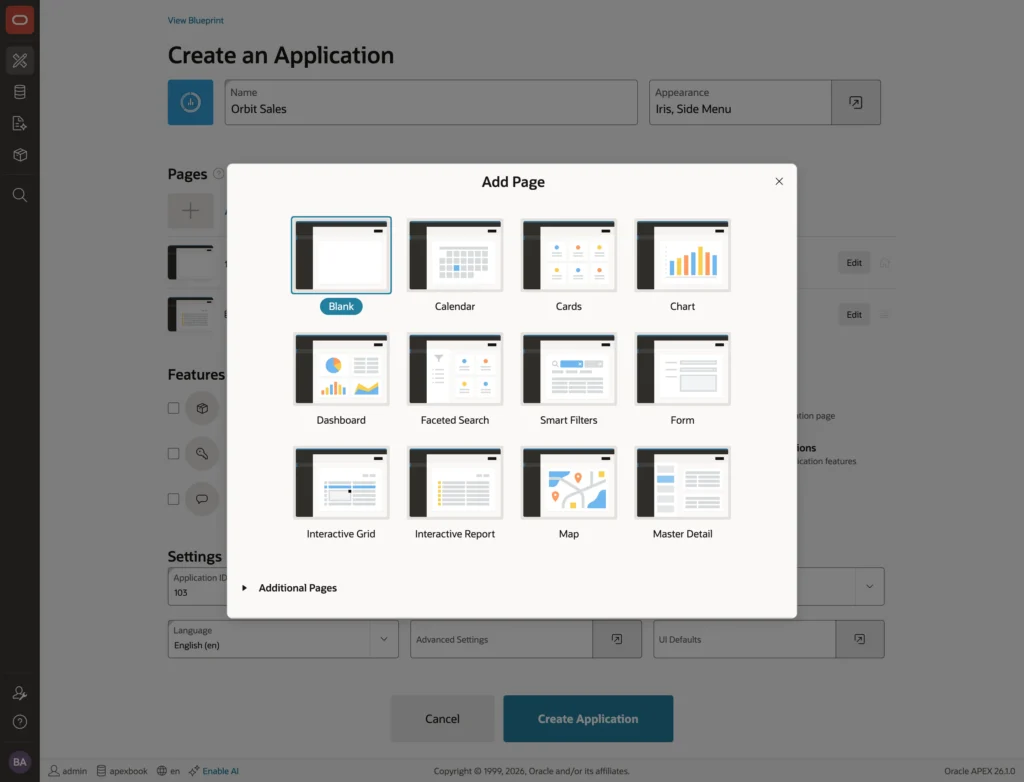
| Page Type | Creates |
|---|---|
| Blank | An empty page |
| Calendar | A calendar of rows with a date column |
| Cards | Rows shown as cards, with optional images and badges |
| Chart | A chart of your choice on a table or query |
| Dashboard | A page with several charts that you configure |
| Faceted Search | A report with a panel of filters on the left |
| Smart Filters | A report with a compact search and filter bar above it |
| Form | A form to insert and update rows of a table |
| Interactive Grid | An editable, spreadsheet-like grid |
| Interactive Report | A report users can filter, sort, group, chart, and download |
| Map | Rows with coordinates or geometry shown on a map |
| Master Detail | Parent rows and their child rows together |
Adding a report page takes four clicks. Here is how to add an interactive report on a customers table.
- Click Add Page, then Interactive Report.
- Type Customers as the Page Name, and leave Table or View selected.
- Click the list button at the right of Table or View and pick your table. Type a few letters to narrow the list.
- Select Include Form so APEX also creates a form to add and edit a row, linked from the report.
- Click Add Page.
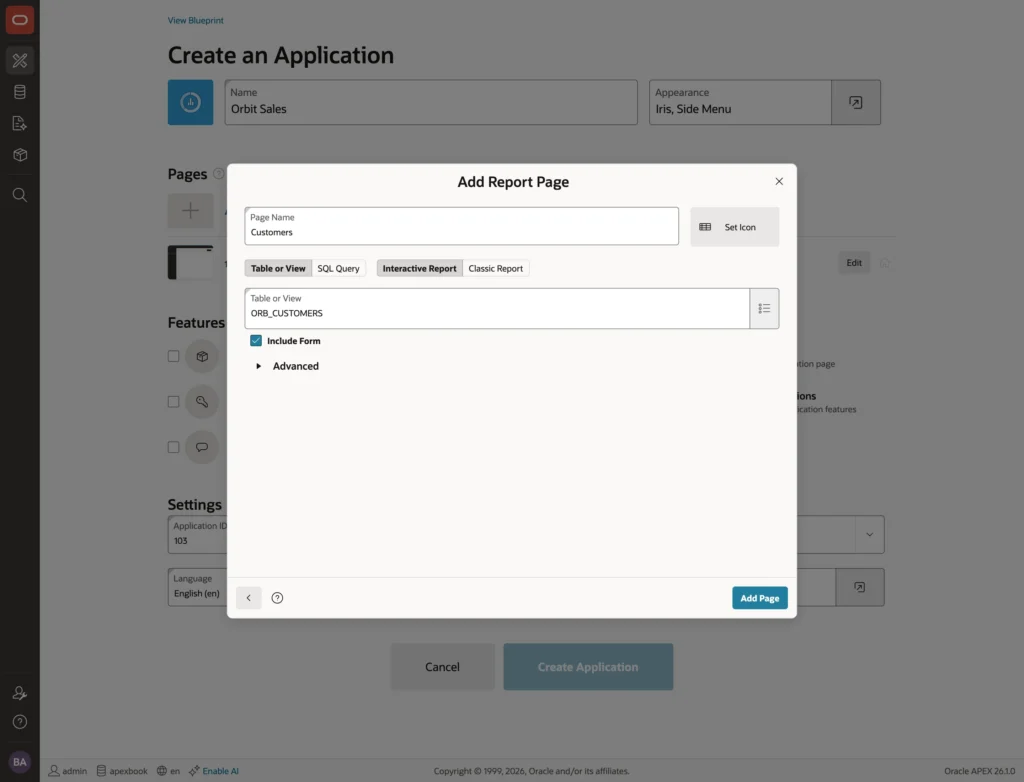
Repeat for a faceted search page on a products table. Each page you add appears in the Pages list, where Edit reopens its settings and the handles change the menu order.
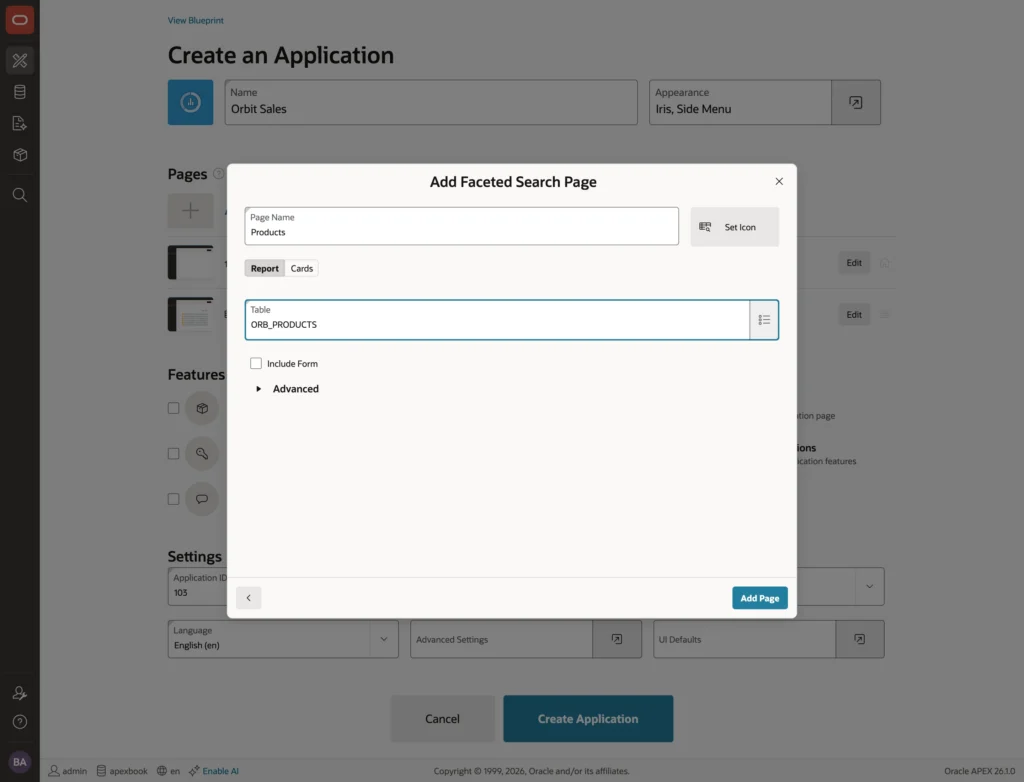
Resist the urge to add every page you can think of. Add the two or three most important ones, create the application, and build the rest in Page Designer as you need them. A master detail form or an extra chart is easy to add later.
Features You Get for Free
Features add complete pieces of functionality, each made of several pages and shared components.
| Feature | Adds |
|---|---|
| Install Progressive Web App | The ability to install the application like a native app |
| Push Notifications | Notifications to users' devices, even when the app is closed |
| About Page | A page that describes the application |
| Access Control | Administrator, Contributor, and Reader roles, and pages to assign them |
| Activity Reporting | Reports of page views, top users, errors, and performance |
| Configuration Options | A page to switch parts of the application on and off |
| Feedback | A feedback button on every page, and a page to review it |
| Theme Style Selection | A page to set the default style, and a per-user choice |
These are the fastest way to get the plumbing every business application needs and nobody enjoys building. If you have ever written custom user access control by hand, the Access Control feature alone saves a day.
"The generated pages are ordinary APEX pages. You can change any of them exactly like the ones you build yourself."
Settings
The Settings section holds the technical choices.
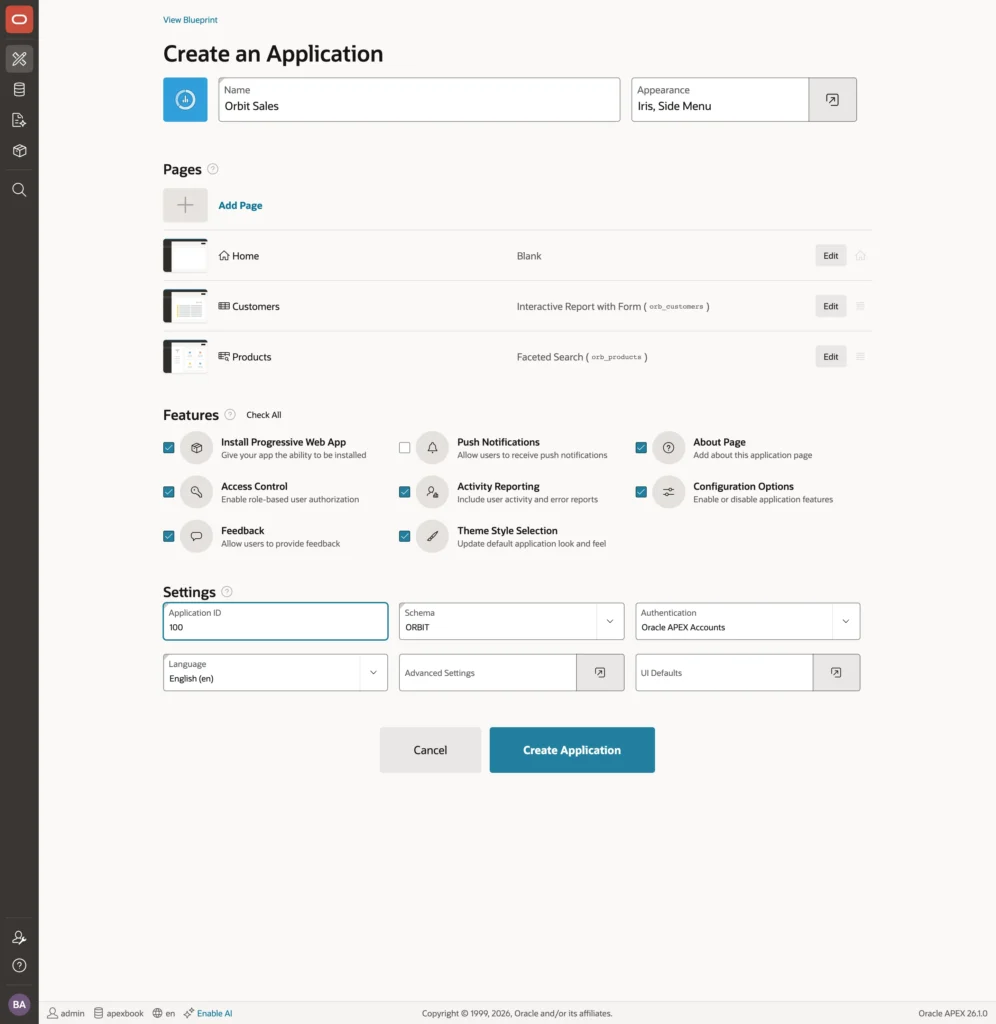
- Application ID: the number that identifies the application. It must be unique across the whole instance, not just your workspace.
- Schema: the parsing schema, meaning the schema your application's SQL runs as.
- Authentication: how users sign in. Oracle APEX Accounts uses the workspace users, and you can move to custom authentication later.
- Language: the primary language, which also sets default date and number formats.
Two buttons open more options. UI Defaults reuses the labels and formats defined in SQL Workshop. Advanced Settings sets a description, the version in the footer, logging and debugging, session timeouts, deep linking, and date formats.
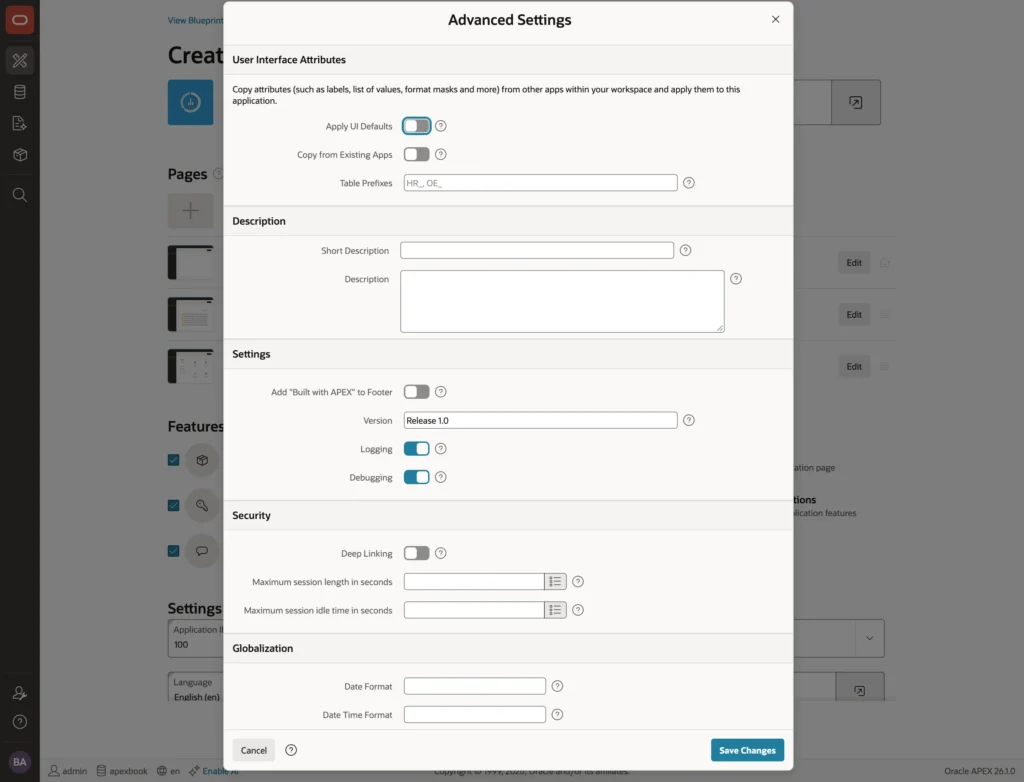
The defaults are sensible, and you can change every one of them afterwards under Edit Application Definition.
Creating the Application
Click Create Application. After a few seconds, APEX opens the new application's home page in App Builder, and Run Application launches it in a new tab.
The View Blueprint link at the top of the wizard is worth a look before you click. It shows your choices as a Markdown blueprint, the same format AI assistants use to generate APEX applications in APEX 26.1.
What you get is more than the pages you asked for. Along with your report, form, and search page, the wizard generates a global page, a home page with a card per page, a login page, and a set of administration pages numbered 10000 and up, which sit in their own page group so they stay out of your way.
The Application Home Page
The application home page in App Builder is the control center of your application.
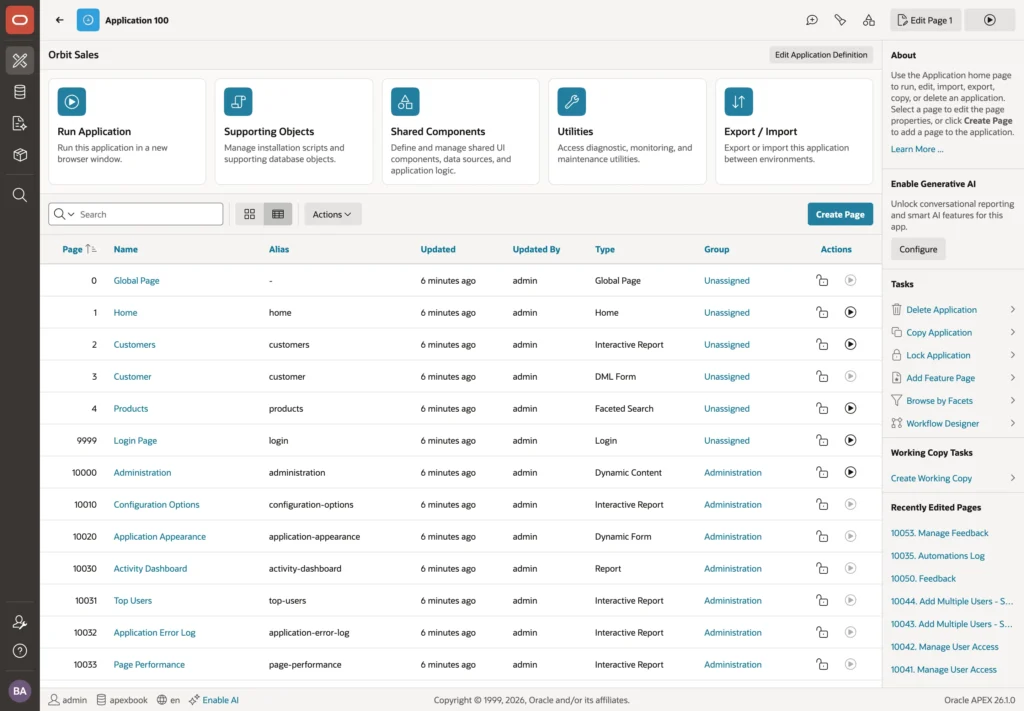
Five buttons run across the top. Run Application opens the app in a new tab, Supporting Objects manages the install scripts, Shared Components holds what pages share, Utilities collects maintenance tools, and Export / Import moves the application between environments.
Below them is the page list. Click a page name to open it in Page Designer, or the play icon to run it. The Tasks list on the right holds Delete, Copy, and Lock Application, plus Create Working Copy for changes you want to keep separate until they are ready.
Running the Application
Click Run Application. A new tab opens at the sign-in page, where you sign in with your workspace user name and password. That works because Oracle APEX Accounts authentication accepts workspace users, and Access Control made the app's creator an Administrator.
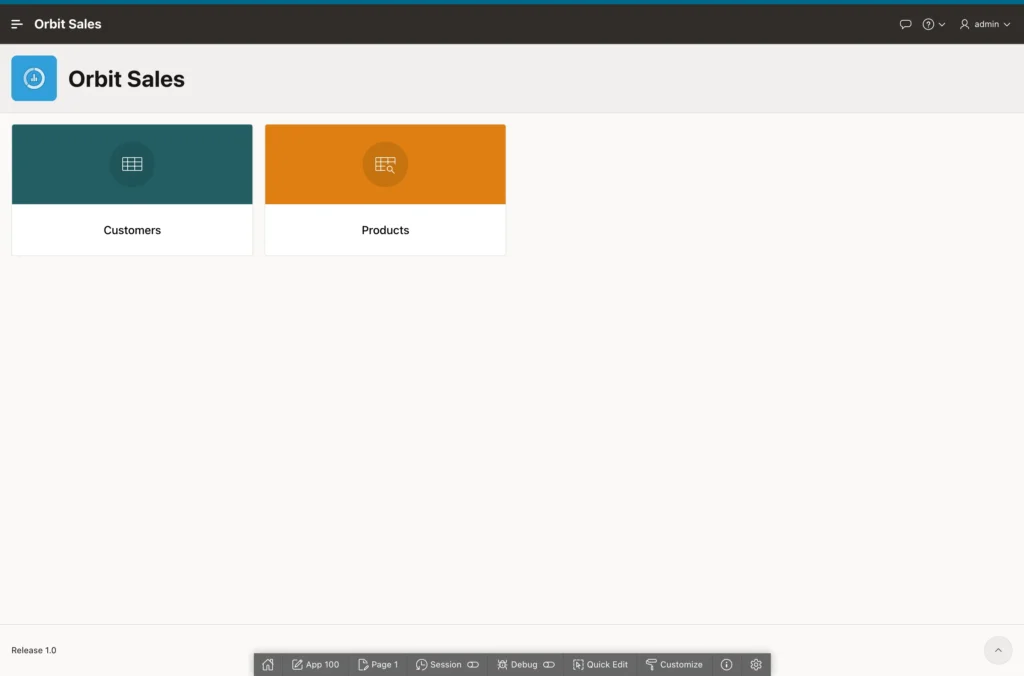
The home page shows a card per page, and the navigation menu lists them too. At the top right sit the feedback button, a help menu with the About page, and the user menu where people sign out and pick their theme style.
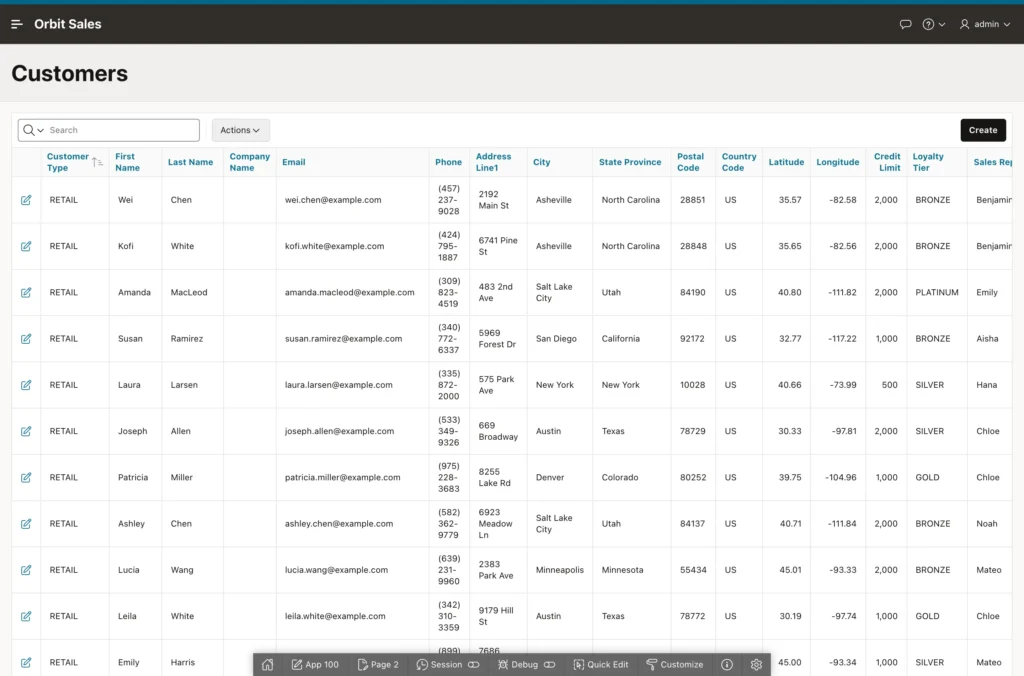
Open your report page and you get a full interactive report: search, sort, filter, hide columns, build charts and groups, and download. Notice the columns that show names rather than numbers. The wizard followed your foreign keys, created lists of values, and used them automatically.
The pencil icon at the start of a row opens the form in a drawer from the right, with Apply Changes and Delete. The faceted search page behaves the same way: pick a facet value on the left, and the report and every other facet count update at once.
The Developer Toolbar
A dark bar sits along the bottom of every page you run. This is the Developer Toolbar, and only developers see it, because it appears when your browser is also signed in to App Builder. Your users never get it.

| Button | Does |
|---|---|
| App | Opens the application home page in App Builder |
| Page | Opens the current page in Page Designer |
| Session | Shows the value of every item, and lets you clear it |
| Debug | Runs the page with debug logging and shows the log |
| Quick Edit | Click any region, item, or button to open it in Page Designer |
| Customize | Opens Theme Roller to change colors and styles live |
Page and Quick Edit are the two you will wear out: run a page, spot something wrong, jump straight to it.
The Application URL and Application Types
Look at the address bar while the application runs. A friendly URL such as /ords/r/apexbook/orbit-sales/customers names three things: the workspace, the application alias, and the page alias. The wizard derives the aliases from the names you typed, and you can change them in Edit Application Definition and in each page's properties.
APEX 26.1 also introduces application types. Everything the wizard builds is a Standard application, and three new types exist to share work across applications.
- A Theme application holds styles, templates, and template components that other applications subscribe to, so an organization's apps all look alike.
- A Library application holds shared components such as authentication schemes, lists of values, and plug-ins, so standard applications subscribe instead of copying.
- A Boilerplate application is a starting point of pre-built pages and subscriptions that new applications begin from.
One more place to know: Edit Application Definition, at the top right of the application home page. It holds the name, alias, version, availability status, parsing schema, and the global security, globalization, and user interface settings.
Conclusion
The Create Application wizard is where nearly every APEX application starts, including those built by developers with years of experience. You name the application, pick a theme style and a navigation menu, add two or three key pages such as an interactive report with a form and a faceted search, select the features that add access control, activity reporting, feedback, and an about page, then set the application ID, schema, and authentication. A few seconds later you have a working, secure, responsive application: run it from the application home page in App Builder, sign in with your workspace user, and use the Developer Toolbar to jump from any running page straight back into Page Designer. Keep the wizard light, because everything it generates is an ordinary page you can edit, and everything it skips is easy to add later once you know what your users actually need.
