
Every Oracle APEX development team knows the pain. A business user needs a quick report, so they send a request. A developer picks it up, builds the report page, pushes it through testing, and deploys it. By then, the business insight that was needed urgently is already stale. Oracle APEX Data Reporter is designed to break that cycle entirely.
Data Reporter is a self-service reporting module built directly into Oracle APEX. It gives business users the power to create their own reports without needing to write a single line of SQL—though custom queries are still an option for those who want them. Your job as a developer or administrator is simply to set up the environment correctly.
What Is Oracle APEX Data Reporter?
Think of Data Reporter as a safe, governed sandbox for your non-technical users. Instead of handing them access to the full database schema, you curate a set of approved tables and views called datasets. Users then build reports from only those datasets.
The tool supports three distinct user roles to keep everything organized and secure, and these roles are strictly scoped to specific reporting applications:
- Administrator: Manages the environment, creates datasets, and monitors activity.
- Editor: Builds and modifies reports inside a designated reporting application.
- Viewer: Browses and interacts with published reports but cannot change them.
Step 1: Configure Authentication
Authentication is a strict prerequisite; Data Reporter cannot be accessed until this step is complete. Oracle APEX Instance Administrators must configure this at the instance level.
Navigate to APEX Administration Services, then go to Manage Instance, then Security, and finally Authentication Control. Before you can select a scheme for Data Reporter, the scheme itself must be defined under Development Environment Authentication Schemes in the same section.
Data Reporter currently supports only three authentication schemes:
| Authentication Type | Best For |
|---|---|
| SAML | Enterprise identity providers like Okta or Azure AD |
| Social Sign-In | Google or other OAuth 2.0 providers |
| HTTP Header Variable | Custom SSO setups passing user info via headers |
Plan your authentication strategy carefully, as this must be in place before moving forward.
Step 2: Create Your Datasets
A dataset is a curated, workspace-scoped collection of tables and views that defines what data is available for report building. Because datasets are workspace-scoped, you can define them once and reuse them across multiple reporting applications.
These are managed by users with the Administrator role. When you create a dataset, it establishes a data governance boundary: only users assigned the Editor role for that specific dataset via a Reporting Application can access the underlying tables or views. If you have Generative AI enabled in your workspace, Data Reporter will auto-generate meaningful descriptions for your datasets based on the selected tables.
Step 3: Create a Reporting Application
A reporting application is the container where your Editor-role users will go to build their reports. It is a scoped reporting environment, not a full APEX application.
You can attach multiple datasets to a single reporting application. It is important to note that access is application-scoped. An Editor in Application A has absolutely no visibility into Application B unless an administrator explicitly grants it to them.
 Oracle APEX." class="wp-image-22323"/>
Step 4: Manage Users and Roles
Once the reporting application is created, administrators can add users and assign them roles. Because roles are reporting application-specific, administrators have fine-grained control over the environment.
For example, you can configure a user to be an active Editor in your Sales Analytics reporting application, while restricting them to a read-only Viewer in the HR Metrics application simultaneously.
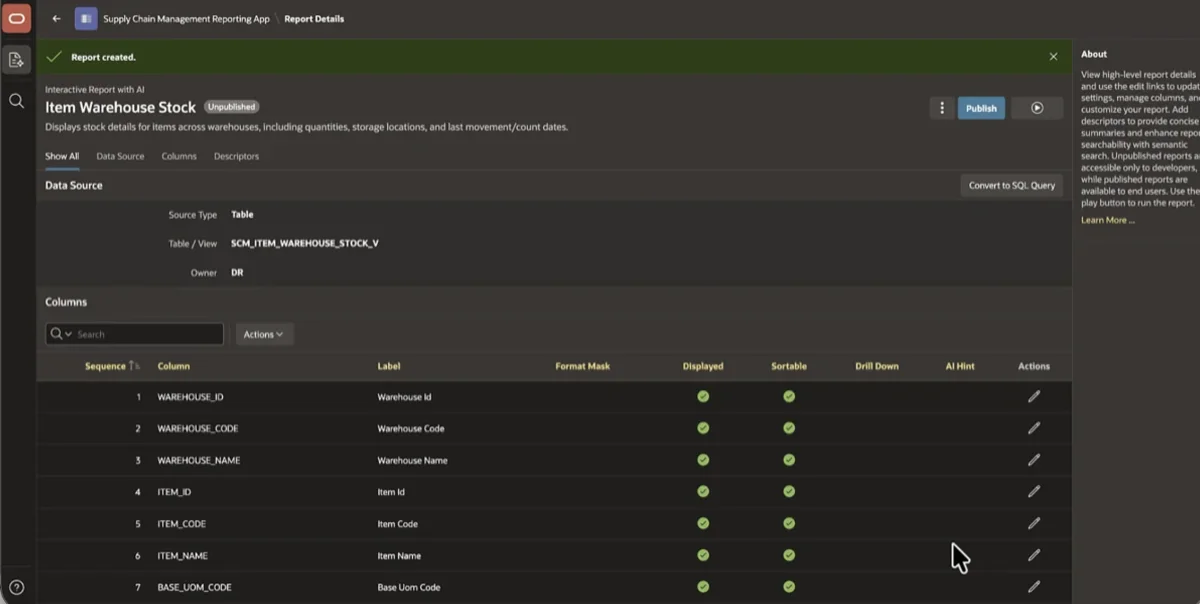
Step 5: The Report Lifecycle (Create, Publish, and View)
With the environment set up, Editors can start building reports. They can select a data source using two approaches:
- Table/View Selection: Pick the table or view directly. No SQL required.
- SQL Query: Write a custom query manually, or use APEX Assistant to describe the needed data in plain English and let AI generate the query.
Until a report is published, it remains private to its creator. Only Editors and Workspace Administrators can publish reports to make them live for Viewers. Viewers never see the unpublished authoring state.
When a published report needs an update, Data Reporter uses a draft-based flow. Editors create a draft copy, make changes, and preview them, all while the live report remains accessible to Viewers. The live report is only replaced when the draft is explicitly re-published.
Conclusion
Enabling Oracle APEX Data Reporter follows a clear, logical sequence: configure instance-level authentication, define your datasets, create your reporting application, and assign application-scoped user roles. Getting this order right—especially defining your SSO or SAML setup first—saves you from access issues later.
Once the foundation is set, you hand business users a powerful self-service reporting tool and free your developers to focus on work that actually requires their expertise.
