
One small detail that can make a big difference in user experience is the wording on confirmation dialogs. In Oracle APEX, the default buttons on alert and confirm dialogs say OK and Cancel. But for many business scenarios, Yes and No just feel more natural. I want to show you exactly how I handle this.
Why the Default Labels Can Feel Off
When a user is about to delete a record, a prompt that says "Are you sure?" with an OK button is a little awkward. OK to what exactly? Yes/No phrasing matches the question being asked and makes the dialog feel more conversational and clear.
The Built-In Way to Override Labels in APEX
Oracle APEX includes a localization API called apex.lang. One of its features is addMessages, which lets me override the default text for any system message key. The dialog button labels have their own dedicated keys that I can target directly.
The Code to Change OK/Cancel to Yes/No
Here is the snippet I use to swap the labels. I place this in the Execute when Page Loads field in Page Designer:
apex.lang.addMessages({
    "APEX.DIALOG.OK": "Yes",
    "APEX.DIALOG.CANCEL": "No"
});
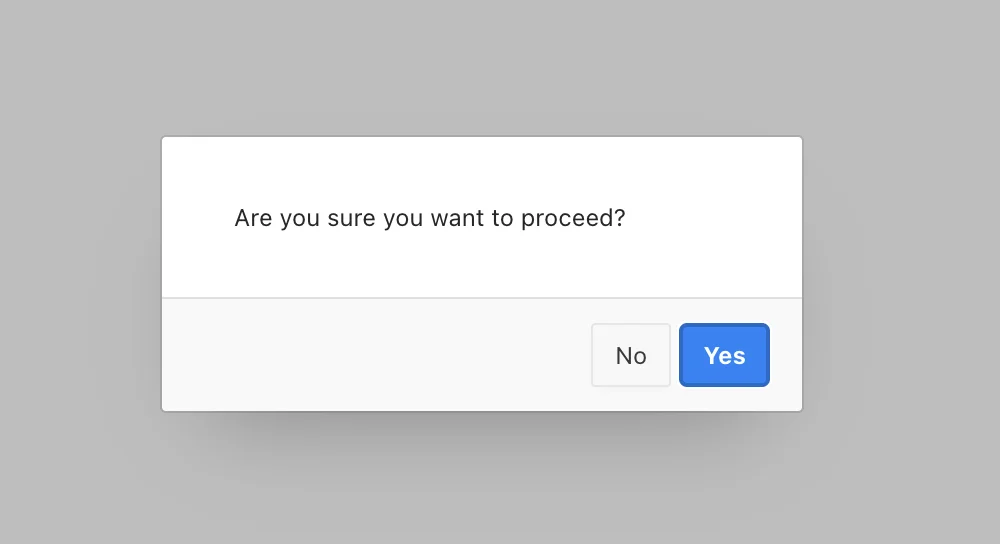
That is all it takes. Every apex.message.confirm dialog on that page will now show Yes and No instead of OK and Cancel.
Where to Put This Code in Page Designer
Getting the placement right matters. Here is how I add it:
- Open Page Designer for the page you want to update.
- Click the page root node (the page number) in the left panel.
- In the Property Editor on the right, scroll to the JavaScript section.
- Paste the code into the Execute when Page Loads field.
This ensures the labels are set before any dialog can be triggered by the user.
How the Message Key System Works
APEX uses message keys internally to look up text for its built-in UI components. The key APEX.DIALOG.OK controls the primary action button label, and APEX.DIALOG.CANCEL controls the secondary button label. By calling addMessages with my own values, I simply replace what APEX reads at runtime.
Think of it like a dictionary lookup. APEX asks for the word under a key, and I have already swapped the definition.
How to Restore the Original OK/Cancel Labels
Sometimes I only want the custom labels for one specific dialog, not every dialog on the page. In that case, I restore the defaults right after my custom confirm call completes. Here is how I handle that pattern:
// Set custom labels
apex.lang.addMessages({
    "APEX.DIALOG.OK": "Yes",
    "APEX.DIALOG.CANCEL": "No"
});

apex.message.confirm("Are you sure you want to proceed?", function(okPressed) {
    if (okPressed) {
        // User clicked Yes - handle the action
    }

    // Restore original labels after the dialog closes
    apex.lang.addMessages({
        "APEX.DIALOG.OK": "OK",
        "APEX.DIALOG.CANCEL": "Cancel"
    });
});
I set the custom messages right before showing the dialog, then immediately restore them inside the callback. The callback fires whether the user clicks Yes or No, so both paths are covered.
 in Oracle APEX" class="wp-image-21577"/>
Things to Keep in Mind
Here are a few things I always consider when using this approach:
- The addMessages override is page-scoped, not app-scoped. It only affects the current page session.
- If you have multiple confirm dialogs on one page with different intended labels, use the restore pattern each time.
- This works with apex.message.confirm but does not affect native browser alert() or confirm() dialogs.
- APEX's built-in interactive grid delete prompts also use these same message keys, so the override will affect those too.
A Quick Comparison of Both Approaches
| Approach | When to Use | Scope |
|---|---|---|
| Set in Execute when Page Loads | All dialogs on the page should say Yes/No | Entire page |
| Set inline before confirm call | Only one specific dialog needs custom labels | Single dialog instance |
Conclusion
Changing OK and Cancel to Yes and No in Oracle APEX is a quick win that makes confirmation dialogs feel much more natural for users. The apex.lang.addMessages method gives me full control over button labels with just a few lines of code. And when I need to limit the change to a single dialog, restoring the default labels inside the callback keeps everything clean and predictable. It is a small touch, but it adds a polished feel to any APEX application.
