
Your phone suddenly feels sluggish. Your battery drains by lunchtime. A friend asks why you sent them a strange link at 3 a.m. — except you didn't.
These moments make everyone ask the same question: Has my device been hacked?
The good news is that most compromised devices show clear warning signs — if you know what to look for. In this guide, you'll learn the 10 most common signs your phone or computer has been hacked, how to confirm your suspicions, and exactly what to do to lock attackers out and recover your accounts.
How Devices Get Hacked in the First Place
Before diving into the warning signs, it helps to understand how attackers typically get in. Most compromises don't involve Hollywood-style hacking — they exploit everyday habits:
- Phishing links in emails, texts (smishing), or social media messages
- Malicious apps downloaded outside official app stores — or occasionally slipping past store reviews
- Reused passwords exposed in a data breach of another service
- Outdated software with known, unpatched vulnerabilities
- Public Wi-Fi attacks that intercept unencrypted traffic
- Physical access — someone installing software while your device is unlocked and unattended
Knowing the entry points matters because the fix often depends on how the attacker got in. Now, let's look at the signs.
10 Warning Signs Your Phone or Computer Has Been Hacked
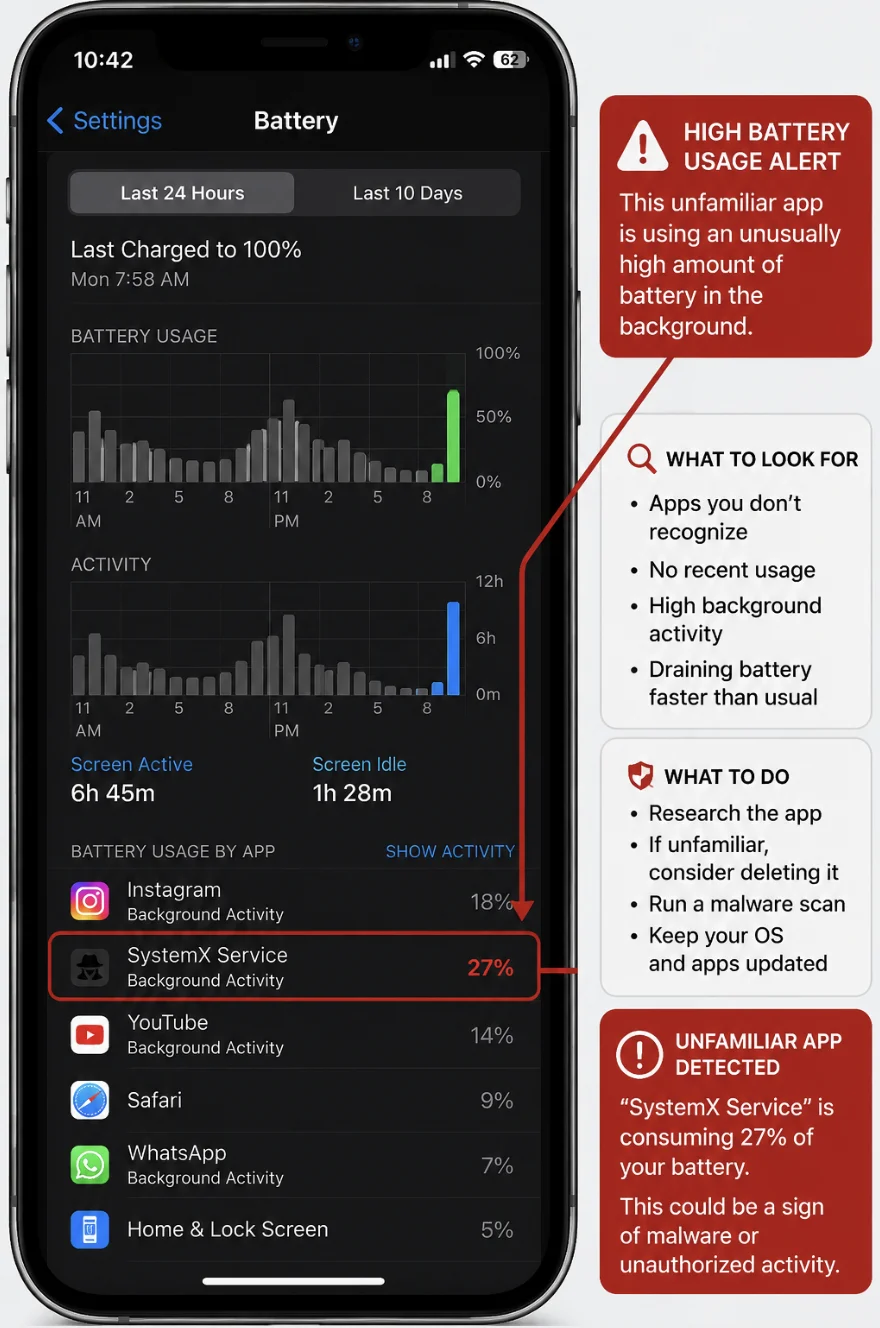
1. Your Battery Drains Unusually Fast
Malware runs constantly in the background — logging keystrokes, tracking your location, or transmitting data to a remote server. All that activity consumes power.
What to check: Open your battery settings (Settings → Battery on both iPhone and Android) and look for unfamiliar apps consuming significant power. On a laptop, check Activity Monitor (Mac) or Task Manager (Windows) for processes using high CPU when the machine should be idle.
A battery that degrades gradually over years is normal. A battery that suddenly drains twice as fast in a week is a red flag.
2. Your Device Is Hot, Slow, or Crashing for No Reason
Crypto-mining malware, spyware, and botnet software hijack your device's processor. The result: a device that feels hot even when idle, apps that take forever to open, and frequent freezes or crashes.
One slowdown after an OS update is normal. Persistent overheating and sluggishness with no obvious cause is not.
3. Your Data Usage Has Spiked
Spyware has to send your stolen data somewhere. That upload traffic shows up in your data usage.
What to check:
- Phone: Settings → Cellular/Mobile Data — review per-app data consumption
- Windows: Settings → Network & Internet → Data Usage
- Mac: Activity Monitor → Network tab
If an app you rarely use has consumed gigabytes of data, investigate it immediately.
4. You See Apps or Programs You Didn't Install
Unfamiliar icons on your home screen, browser toolbars you never added, or programs in your installed-apps list that you don't recognize are classic indicators of compromise.
Some malware disguises itself with generic names like "System Service" or "Device Health." If you can't identify what an app does or remember installing it, research it before assuming it's harmless — but don't ignore it.
5. Pop-Ups and Strange Browser Behavior
If your browser's homepage changed on its own, searches redirect to unfamiliar engines, or you're flooded with pop-ups (especially fake virus warnings urging you to "call support" or "click to clean"), you likely have adware or a browser hijacker.
Important: Never call the phone number or click the button in a pop-up virus warning. Legitimate security software doesn't work that way — these are scams designed to escalate the attack.
6. Friends Receive Messages You Didn't Send
When contacts report odd emails, texts, or social media DMs from you — usually containing links — an attacker is using your accounts or device to spread malware or phishing scams to people who trust you.
Check your sent folders across email, SMS, and social apps. Outgoing messages you didn't write are near-certain proof of compromise.
7. You're Locked Out of Your Accounts (or See Logins You Don't Recognize)
Attackers often change passwords immediately after gaining access to lock you out. Other warning signs include:
- Password reset emails you didn't request
- Two-factor authentication (2FA) codes arriving when you're not logging in
- "New login from unknown device" security alerts
- Unfamiliar sessions in your account's security settings (Google, Apple, Microsoft, and most social platforms list active sessions)
A 2FA code you didn't request deserves special attention: it means someone has your correct password and is one step from getting in.
8. Unfamiliar Charges or Financial Activity
Review bank statements, credit card activity, and app store purchase history for:
- Small "test" charges (attackers verify cards with $1–5 transactions before larger fraud)
- Premium SMS charges on your phone bill
- App store or in-app purchases you didn't make
- New payment methods or shipping addresses added to your accounts
9. Your Camera or Microphone Activates on Its Own
Modern operating systems display indicator lights or on-screen dots when the camera or mic is active — a green/orange dot on iPhone and Android, a camera light on most laptops.
If these indicators appear when no app should be using them, spyware may be watching or listening. Both iOS and Android let you review which apps recently accessed the camera and microphone in privacy settings — check that log.
10. Settings Changed That You Didn't Touch
Attackers modify settings to maintain access and avoid detection. Watch for:
- Antivirus or security software that's been disabled
- New browser extensions you didn't add
- Unknown devices on your "trusted devices" list
- Email forwarding rules you didn't create (a favorite trick — attackers silently forward copies of your email to themselves)
- New user accounts on your computer
- On Android: "Install from unknown sources" enabled, or unfamiliar device administrator apps
Email forwarding rules are worth checking even if nothing else seems wrong — they're easy to miss and devastating, since email controls password resets for everything else.
What to Do If Your Device Has Been Hacked
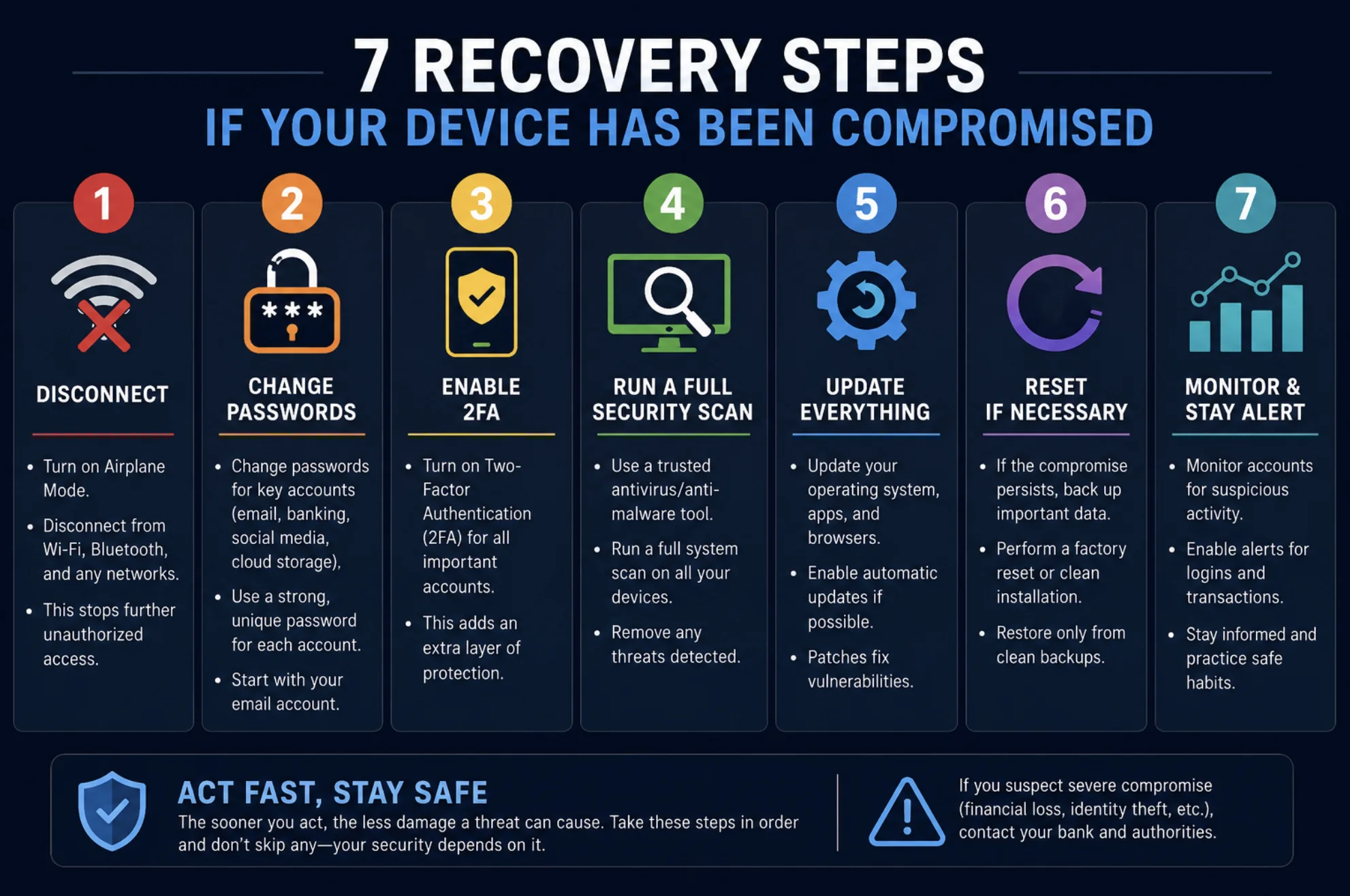
Found one or more signs above? Don't panic — act methodically. Follow these steps in order.
Step 1: Disconnect From the Internet
Turn on airplane mode or disconnect Wi-Fi and Ethernet. This cuts off the attacker's access and stops data from being transmitted while you work.
Step 2: Change Your Passwords — From a Different, Clean Device
If your device has a keylogger, changing passwords on it just hands the attacker your new credentials. Use another device you trust.
Prioritize in this order:
- Email (it controls password resets for everything else)
- Banking and financial accounts
- Apple ID / Google account
- Social media and shopping accounts
Use strong, unique passwords for each account — a password manager makes this practical.
Step 3: Enable Two-Factor Authentication Everywhere
Turn on 2FA for every account that supports it. An authenticator app (or a hardware security key) is more secure than SMS codes, since attackers can hijack phone numbers through SIM-swapping.
Step 4: Scan and Remove Malware
- Windows: Run a full scan with Microsoft Defender (built in) or a reputable antivirus
- Mac: Run a scanner such as Malwarebytes; check Login Items and Profiles in System Settings for anything unfamiliar
- Android: Run Google Play Protect, then manually uninstall suspicious apps; check Settings → Apps → Device admin apps
- iPhone: Delete unfamiliar apps and configuration profiles (Settings → General → VPN & Device Management)
Delete any apps you don't recognize, and remove browser extensions you didn't install.
Step 5: Update Everything
Install pending operating system, browser, and app updates. Updates patch the vulnerabilities and malware exploits — skipping them leaves the door open for reinfection.
Step 6: If Problems Persist, Factory Reset
A factory reset wipes nearly all malware. Back up your essential files first (documents and photos — not apps, which could reintroduce the infection), then:
- iPhone: Settings → General → Transfer or Reset iPhone → Erase All Content and Settings
- Android: Settings → System → Reset options → Erase all data
- Windows: Settings → System → Recovery → Reset this PC (choose "Remove everything")
- Mac: System Settings → General → Transfer or Reset → Erase All Content and Settings
After resetting, set the device up fresh and reinstall apps only from official stores.
Step 7: Monitor and Report
- Review bank and card statements for several weeks
- Place a fraud alert or credit freeze with credit bureaus if financial data was exposed
- Report identity theft to the relevant authority in your country (in the US, [EXTERNAL LINK: FTC's IdentityTheft.gov]; report cybercrime to [EXTERNAL LINK: FBI's IC3 at ic3.gov])
- Warn contacts if your accounts were used to send malicious messages
How to Prevent Getting Hacked Again
Recovery is painful — prevention is cheap. Build these habits:
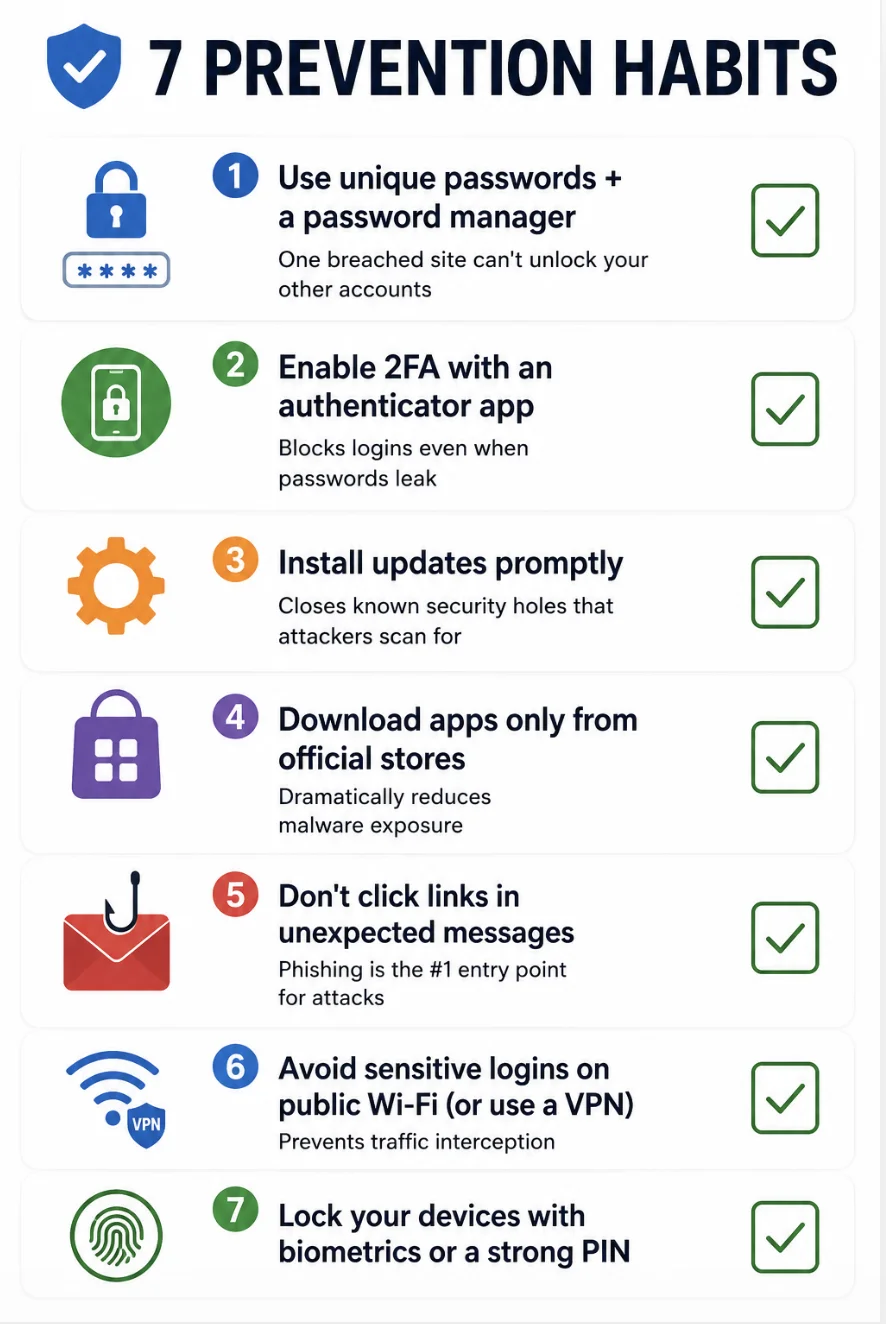
| Habit | Why It Matters |
|---|---|
| Use unique passwords + a password manager | One breached site can't unlock your other accounts |
| Enable 2FA with an authenticator app | Blocks logins even when passwords leak |
| Install updates promptly | Closes known security holes attackers scan for |
| Download apps only from official stores | Dramatically reduces malware exposure |
| Don't click links in unexpected messages | Phishing is the #1 entry point for attacks |
| Avoid sensitive logins on public Wi-Fi (or use a VPN) | Prevents traffic interception |
| Lock your devices with biometrics or a strong PIN | Stops opportunistic physical access |
FAQ
Can someone hack my phone just by calling or texting me?
A call alone cannot hack your phone. A text can only compromise you if you click a malicious link or, in rare cases, through sophisticated zero-click exploits that almost exclusively target high-profile individuals. For most people, the risk is in the links — not the messages themselves.
Does a factory reset remove all hackers and viruses?
A factory reset removes virtually all malware on phones and computers. Rare exceptions exist (firmware-level malware), but they're extremely uncommon for everyday users. The bigger risk is restoring an infected backup or app afterward — set up fresh and reinstall only from official app stores.
Can iPhones get hacked, or is it just Android?
Both can be compromised. iPhones are harder to infect with traditional malware due to Apple's app sandboxing, but they're still vulnerable to phishing, malicious configuration profiles, stolen Apple ID credentials, and account-level attacks. No device is immune.
How can I tell if someone is remotely accessing my computer?
Look for the cursor moving on its own, programs opening unprompted, remote-access tools (TeamViewer, AnyDesk, Chrome Remote Desktop) you didn't install, new user accounts, and security alerts about logins from unfamiliar locations. Check active sessions in your OS account settings and disconnect anything you don't recognize.
Should I pay if I get a ransomware demand?
Security agencies advise against paying. Payment doesn't guarantee your files will be restored, and it funds further attacks. Disconnect the device, report the incident to law enforcement, and consult a professional — free decryption tools exist for many ransomware strains.
Conclusion: Trust the Signs, Act Fast
Hacked devices rarely stay hidden. Battery drain, data spikes, mystery apps, strange messages, and unrequested 2FA codes are your device telling you something is wrong. The faster you respond — disconnect, change passwords from a clean device, scan, update, and reset if needed — the less damage an attacker can do.
Take five minutes today: check your account security pages for unfamiliar logins, review your installed apps, and turn on two-factor authentication for your email. It's the single highest-impact step you can take to keep hackers out — before you ever see sign #1.
