
Installing Oracle Database on macOS has always been a challenge, and the situation became more complex after Apple transitioned to Apple Silicon (ARM64) processors such as M-series chips. Oracle does not provide a native Oracle Database installer for macOS on Apple Silicon, and running traditional x86 binaries directly is not supported.
This often leads developers to search for complicated workarounds, emulation-based solutions, or outdated guides that no longer work reliably.
The reality is simple and important to understand upfront:
Docker is the correct, supported, and industry-accepted way to run Oracle Database on Apple Silicon Macs.
In this tutorial, you will learn:
- Why Docker is required on Apple Silicon
- How a single Docker command can install Oracle Database
- What Docker does automatically behind the scenes
- How to start, stop, and connect to Oracle safely
This guide is written to be practical, honest, and easy, without unnecessary steps.
Why Docker Is Required on Apple Silicon Macs
Apple Silicon Macs use the ARM64 architecture, while Oracle Database binaries are built for Linux x86_64 and Linux ARM, not for macOS directly.
Key points to understand:
- Oracle Database is not supported natively on macOS Apple Silicon
- Oracle Database is supported on Linux ARM
- Docker allows Linux ARM containers to run seamlessly on macOS
Docker Desktop acts as a lightweight Linux environment that matches Oracle’s supported platforms. This is not a hack or workaround; it is how many professional development teams run Oracle locally on macOS today.
What You Need Before You Start
The installation is simple, but two basic requirements must already be met.
Mandatory Requirements
- Docker Desktop for macOS (Apple Silicon build)
- Docker Desktop must be running
If Docker is installed and running, you are already 90% done.
You do not need:
- VirtualBox
- Parallels
- Manual Oracle installers
- Emulation or Rosetta tricks
The One-Command Oracle Installation (Recommended)
If Docker is running, you can install Oracle Database Free with a single command.
docker run -d \
  --name oracle-free \
  -p 1521:1521 \
  -e ORACLE_PWD=YourPassword \
  container-registry.oracle.com/database/free:latest-lite
For many users, this command alone is enough.
If it runs without errors, Oracle Database is already being installed.
This is intentional and expected behavior.
What Docker Automatically Does for You
Many tutorials list multiple steps, but Docker handles most of them automatically.
When you run docker run, Docker internally performs the following actions:
- Checks that the Docker daemon is running
- Pulls the Oracle Database image if it is not already present
- Uses cached Oracle Container Registry credentials if available
- Creates the container
- Starts the Oracle Database instance
That is why experienced users often install Oracle with just one command.
When the One-Command Method May Not Work
The command may fail only in specific situations.
Docker Is Not Running
Error example:
Cannot connect to the Docker daemon
Solution:
open -a Docker
Oracle Registry Authentication Is Missing
Error example:
unauthorized: authentication required
Solution (run once):
docker login container-registry.oracle.com
Docker will remember this login for future runs.
Verifying Oracle Database Startup
Oracle Database takes time to initialize, especially on the first run.
Check container status:
docker ps
View startup logs:
docker logs -f oracle-free
Wait until you see:
DATABASE IS READY TO USE!
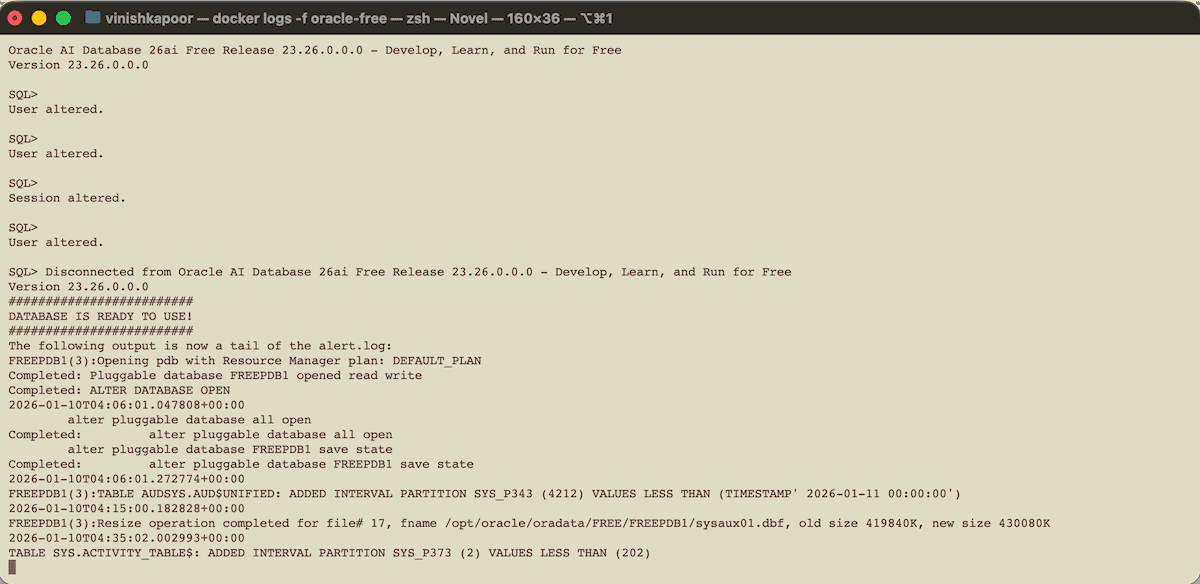
Press Ctrl + C to exit logs.
This does not stop the database.
Connecting to Oracle Database
You can connect using SQL Developer or any free SQL client such as DBeaver or VS Code.
Connection Details
| Setting | Value |
|---|---|
| Hostname | localhost |
| Port | 1521 |
| Service Name | FREEPDB1 |
| Username | sys |
| Password | YourPassword |
| Role | SYSDBA |
Important notes:
- Always use Service Name, not SID
- Do not use
XE - SYS requires SYSDBA role
For application development, you should later create your own schema instead of using SYS or SYSTEM.
Starting and Stopping Oracle (Daily Workflow)
Start Docker
open -a Docker
Start Oracle Database
docker start oracle-free
Stop Oracle Database Safely
docker stop oracle-free
This performs a clean shutdown and avoids recovery on next startup.
Stop Docker Completely
osascript -e 'quit app "Docker"'
Common Questions and Clarifications
Is Oracle stuck if logs keep printing messages?
No. Oracle performs internal maintenance and partition management. This is normal behavior.
Is it safe to press Ctrl + C?
- Safe in
docker logs - Unsafe during a foreground
docker run
Is data lost when the container is stopped?
No. Data persists unless the container is deleted.
Best Practices for Developers
- Always connect to
FREEPDB1 - Create a dedicated schema for development
- Avoid using SYSTEM or SYS for application work
- Stop containers gracefully
- Use free tools like DBeaver Community for daily work
Conclusion
Installing Oracle Database on macOS Apple Silicon does not require complex steps or unsupported tricks. Docker provides a clean, supported, and professional solution that aligns with how Oracle is deployed in real environments.
For most users, a single Docker command is enough.
Additional steps are only needed when prerequisites are missing.
This setup is stable, repeatable, and suitable for learning, development, and testing.
